
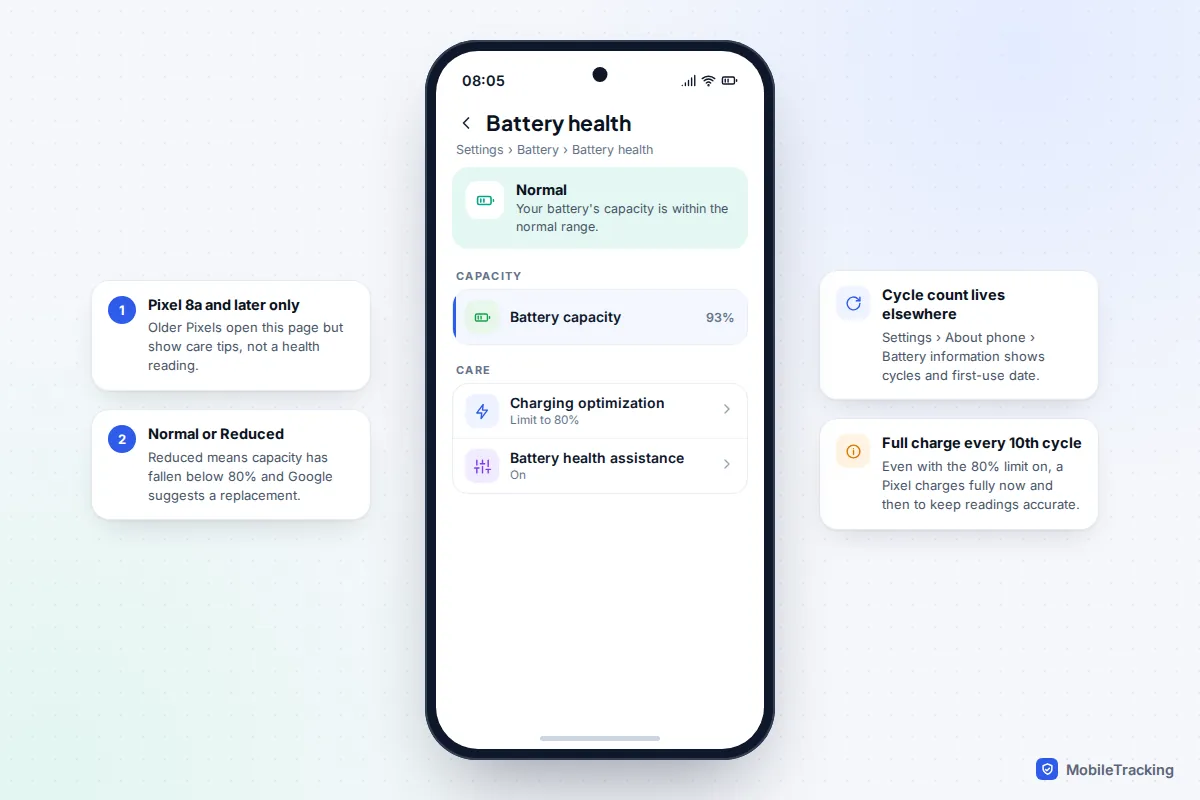
On an iPhone, go to Settings › Battery › Battery Health. The key figure is Maximum Capacity: how much charge the battery can hold compared with when it was new. On iPhone 15 and later the same screen also shows the cycle count. On a Google Pixel 8a or newer, go to Settings › Battery › Battery health, and find the cycle count under Settings › About phone › Battery information. On a Samsung Galaxy, open the Samsung Members app, tap Support, then run Phone diagnostics and check Battery status.
As a rule of thumb, 80% capacity or more is healthy. Below 80%, or a “Service”, “Reduced” or “Bad” message, means the battery is worn out and a replacement will make a real difference. The rest of this guide explains what each number means, which readings to trust and what a new battery costs.
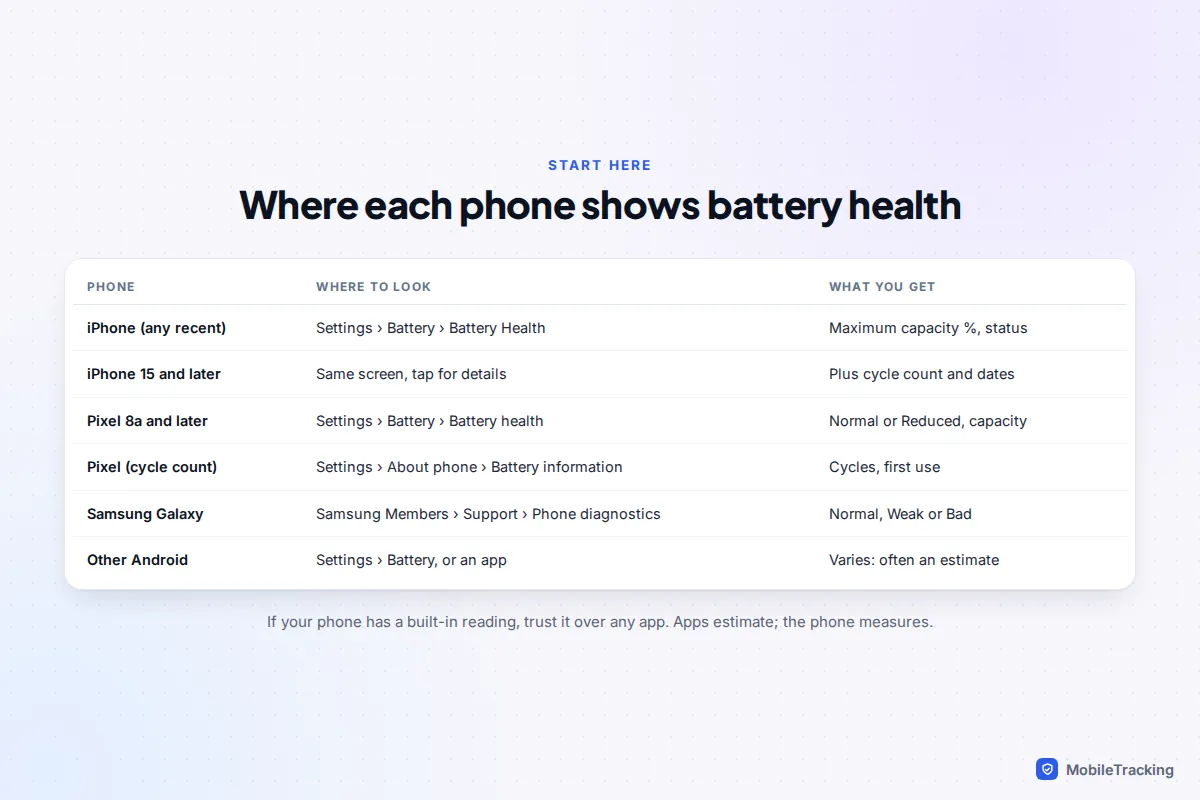
What “battery health” actually measures
Every lithium-ion battery slowly loses capacity as it is charged and discharged. A phone that lasted a full day when new might hold only 80% as much energy after two or three years, so it runs out by late afternoon. Battery health is that remaining capacity, shown as a percentage of the original design capacity.
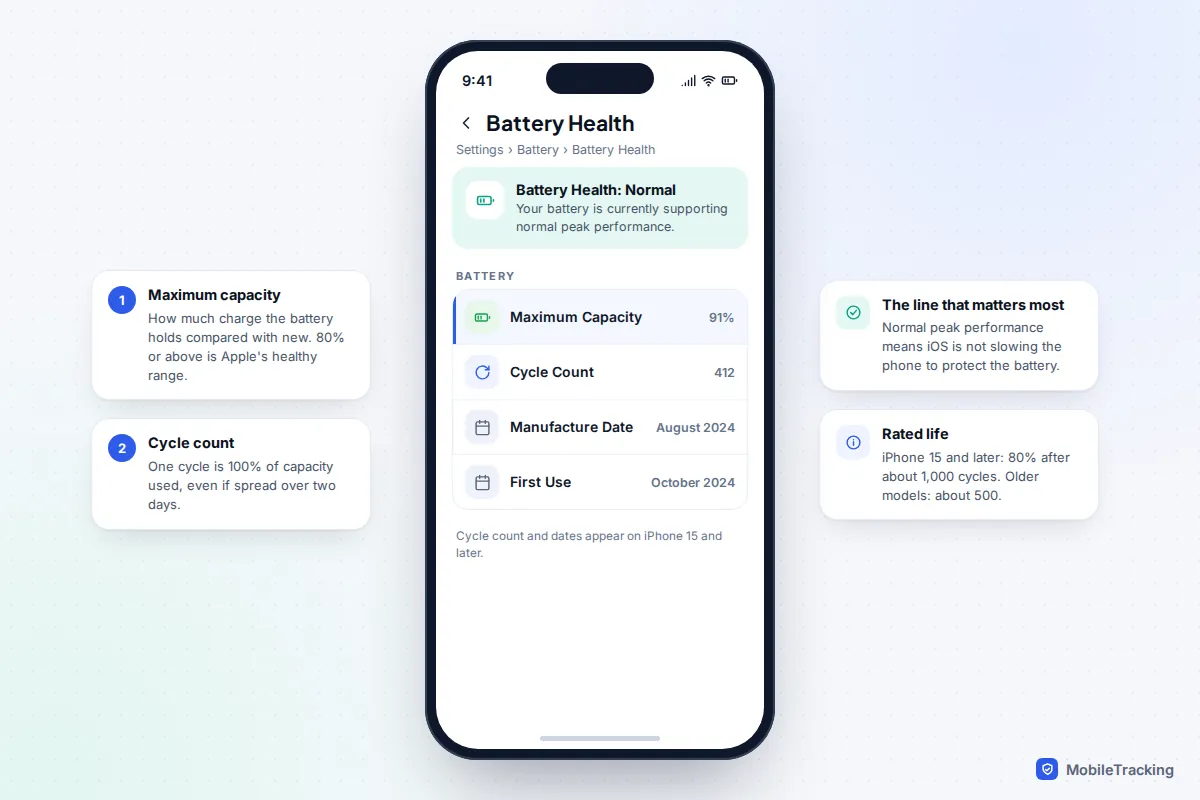
The second number is the cycle count. One cycle means you have used 100% of the battery’s capacity, but not necessarily in one go. Using 60% today and 40% tomorrow adds up to one cycle. Someone who charges once a day usually gets through 300 to 400 cycles a year.
Manufacturers rate batteries by how many cycles it takes to fall to 80%. Apple says iPhone 15 and later models are designed to keep 80% of their original capacity after about 1,000 cycles, and older iPhones after about 500. Google rates the Pixel 8a and later at about 1,000 cycles, and earlier Pixels at about 800. Heat, age and how you charge all move the real figure up or down.
How to check battery health on an iPhone
Every iPhone that runs iOS 26 or iOS 27 has a Battery Health screen. What you see on it depends on the model.
- Open Settings and tap Battery.
- Tap Battery Health. On some older models and versions the item is called Battery Health & Charging.
- Read Maximum Capacity, shown as a percentage.
- Read the line under Peak Performance Capability. “Your battery is currently supporting normal peak performance” is the result you want.
- On iPhone 15 and later, the same screen also shows Cycle Count, Manufacture Date and First Use. If the first-use date is recent but the cycle count is high, that is worth knowing on a second-hand phone.
iPhone 15 and newer models also show an at-a-glance status on the Battery screen, usually “Normal”. If you have an iPhone 14 or older, iOS doesn’t show the cycle count anywhere in Settings. The only ways to see it are a Mac utility that reads the battery over a cable, or an Apple Store test.
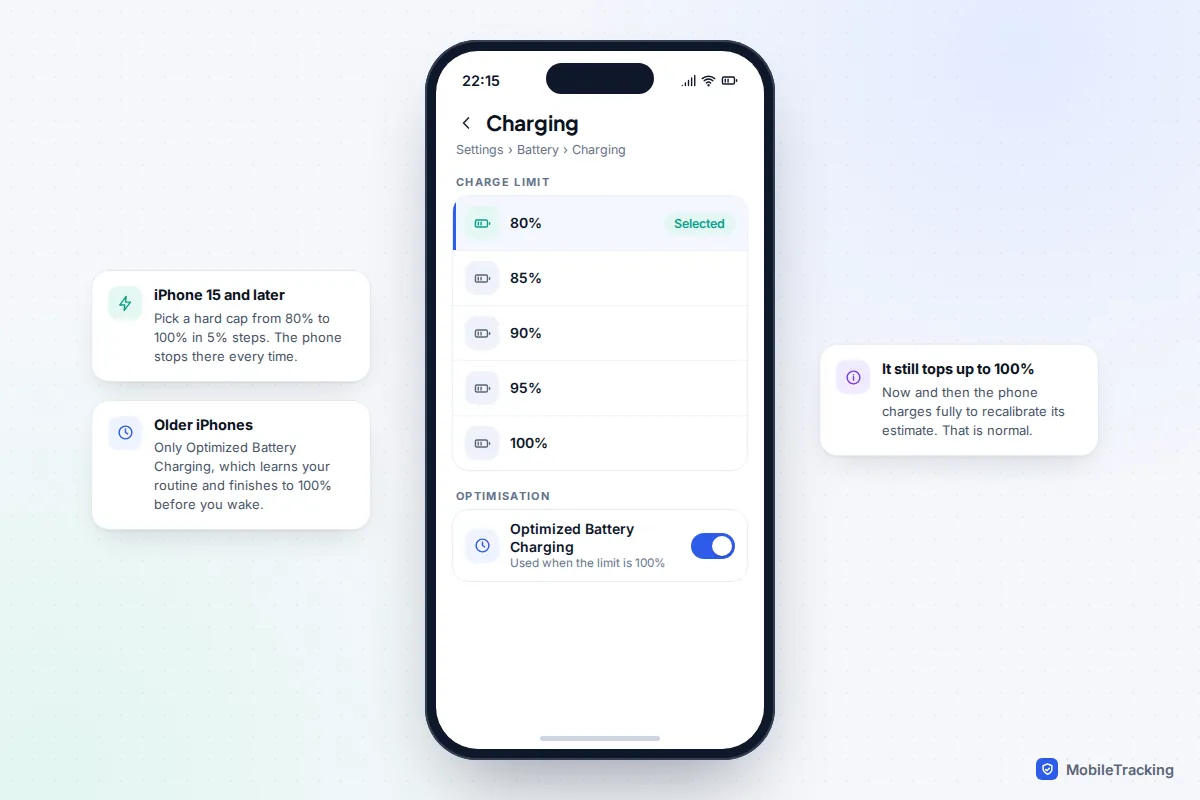
The charging settings on the same screen
On iPhone 15 and later, Settings › Battery › Charging lets you set a Charge Limit of 80%, 85%, 90%, 95% or 100%. With 80% set, the phone stops at 80% every time, apart from an occasional full charge to recalibrate its estimate. If you choose 100%, Optimized Battery Charging takes over instead: it learns when you usually unplug and holds the charge at 80% overnight, then finishes charging shortly before you wake.
iPhone 14 and older models only have Optimized Battery Charging, under Battery Health & Charging. Leave it on: it costs you nothing and reduces the time the battery spends full and warm.
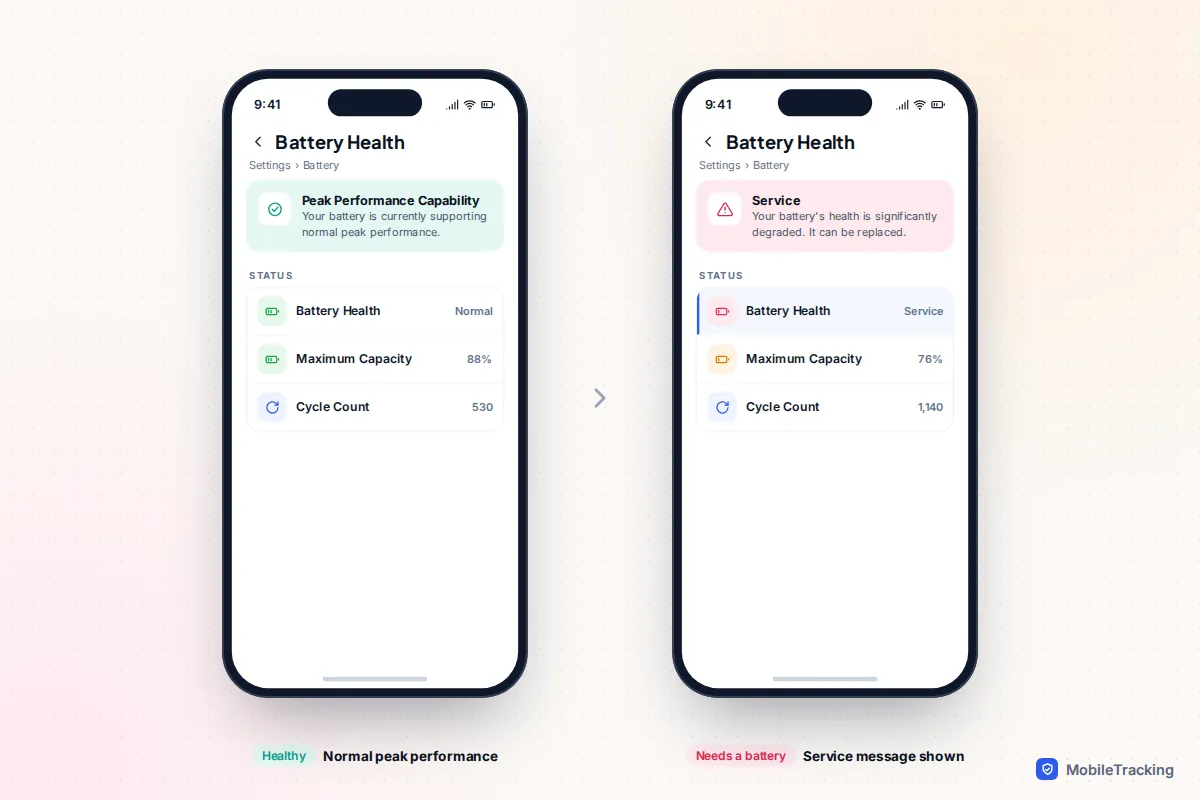
What the iPhone messages mean
The percentage gets the attention, but the text messages are more useful because they tell you what iOS is actually doing about the battery.
- Normal peak performance. The battery can deliver the power bursts the processor needs. Nothing is being slowed down.
- Performance management applied. The iPhone has shut down unexpectedly because the battery could not supply enough peak power, so iOS now limits performance to stop it happening again. You can switch this off on the same screen, but the shutdowns may come back. A new battery removes the limit.
- Service. iOS has decided the battery is significantly degraded. Apple and its authorised providers will replace it, and this message is the clearest sign that it is time.
- Important Battery Message / Unknown Part. The battery was not fitted by Apple or cannot be verified as genuine. Battery health readings may be missing or unreliable. You can see the repair record under Settings › General › About › Parts and Service History.
Apple explains these messages in its guide to iPhone battery and performance. After a major update such as iOS 27, battery life often dips for a day or two while the phone re-indexes photos and files. That is not a battery health problem, and the capacity figure won’t change because of it.
How to check battery health on Android
Android has no single battery health screen that every brand uses. Here is what works on the most common phones.
Google Pixel
- Open Settings › Battery › Battery health.
- On a Pixel 8a or newer, you will see a status: Normal, or Reduced if capacity has dropped below 80%. On recent Android versions an estimated capacity percentage appears too.
- For the cycle count, go to Settings › About phone › Battery information. It also shows the manufacture date and date of first use.
The Pixel 6a, 7, 7 Pro, 7a, 8 and 8 Pro can open the Battery health page, but they don’t report a health status. Google’s own Pixel battery help page lists which models get what.
The same page has Charging optimization, with a choice of Adaptive Charging or Limit to 80%, and Battery health assistance. Battery health assistance gradually lowers the battery’s maximum voltage from around 200 cycles onwards, trading a little runtime for steadier ageing. It is on by default from the Pixel 9a and optional on older supported Pixels.
Samsung Galaxy
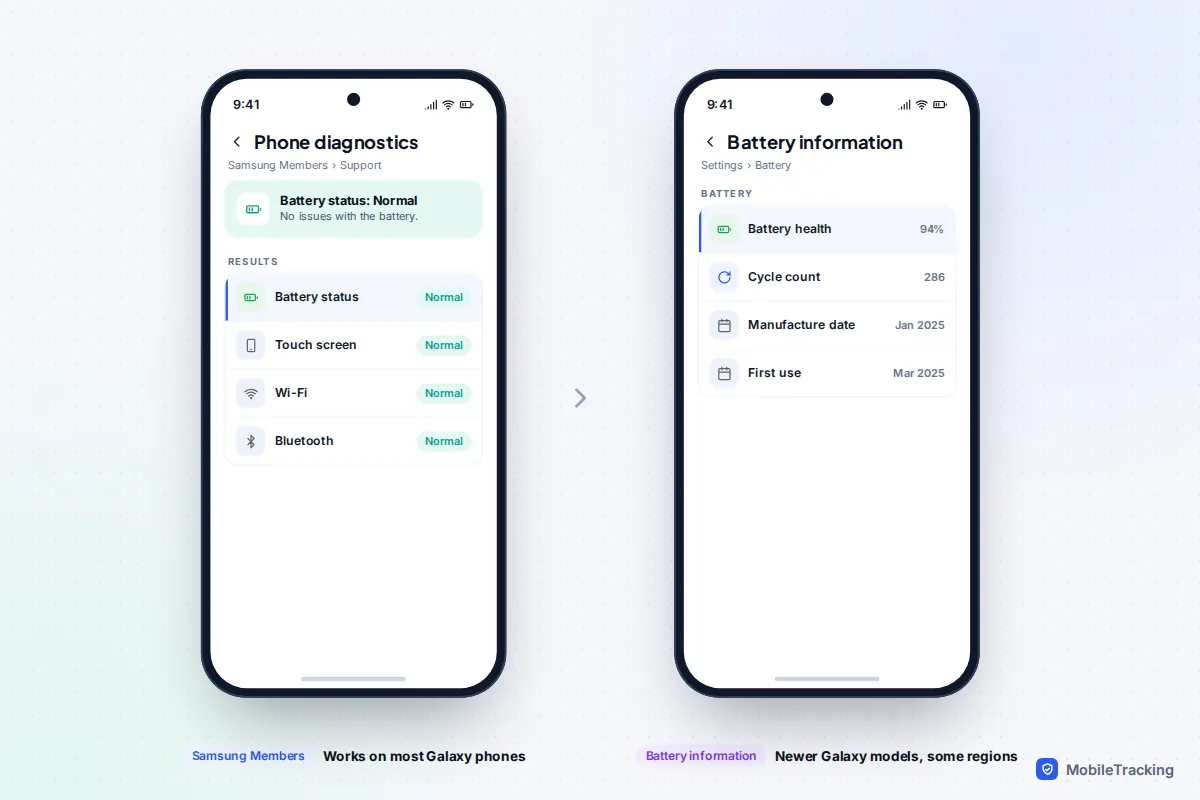
Samsung’s reliable method works on almost every Galaxy phone:
- Open the Samsung Members app (it comes preinstalled; download it from the Galaxy Store if you removed it).
- Tap the Support tab, then Phone diagnostics (you may need to tap Get started first).
- Tap Battery status. The result is Normal, Weak or Bad.
Newer models such as the Galaxy S24 and S25 series running One UI 7 or later may also show Settings › Battery › Battery information, with a health percentage, cycle count and dates. Samsung has switched this page on by model and region, so don’t worry if yours doesn’t have it. While you are in Battery settings, Battery protection lets you choose Basic, Adaptive or Maximum, and Maximum can stop charging at 80%, 85%, 90% or 95% on One UI 7 and later.
Other Android phones, dialler codes and apps
Motorola, OnePlus, Xiaomi and others vary. Look in Settings › Battery first, then Settings › About phone, for anything called battery information or battery health. Some newer models have it; many don’t.
You will see dialler codes recommended online. Treat them with caution. *#*#4636#*#* opens a testing menu on some phones, but on current models the battery section is usually missing or only shows charge level and temperature. Samsung’s *#0228# shows voltage and temperature, not capacity, and is blocked on some carrier models. None of these codes will harm the phone, but none gives a trustworthy health figure on most devices.
Apps such as AccuBattery measure how much charge goes in while you charge and compare it with the battery’s design capacity. That can work, but the result is only an estimate. The app needs several long charging sessions (it ignores short top-ups) before the figure settles, and a wrong design capacity for your model throws everything off. Give it a couple of weeks of normal use before you trust it, and never treat an app’s number as more accurate than one the phone reports itself.
What the numbers mean, and when to replace
A capacity figure on its own doesn’t tell you whether to act. Look at it alongside how the phone behaves.
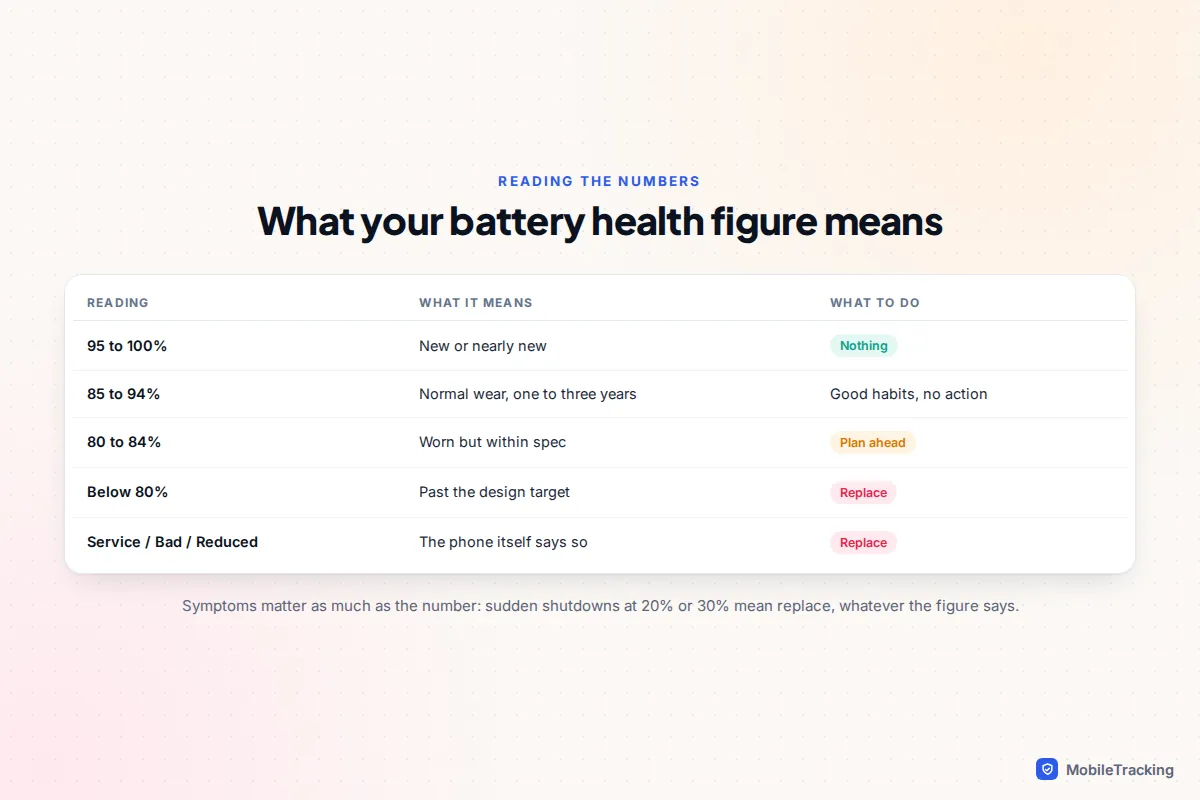
Replace the battery if any of these apply:
- Capacity is below 80%, or the phone shows Service, Reduced or Bad.
- The phone switches off suddenly at 15% to 30%, especially in the cold.
- The screen is lifting, the back is bulging or the case no longer sits flat. A swollen battery is a safety issue: stop charging it and get it looked at promptly.
- You can no longer get through a normal day, even with a charge limit off and Low Power Mode on.
If the capacity is still in the high 80s but the phone dies fast, the battery probably isn’t the problem. Check which apps are using power first; our guide to why a phone battery drains so fast works through the usual culprits.
What a replacement costs and where to get one
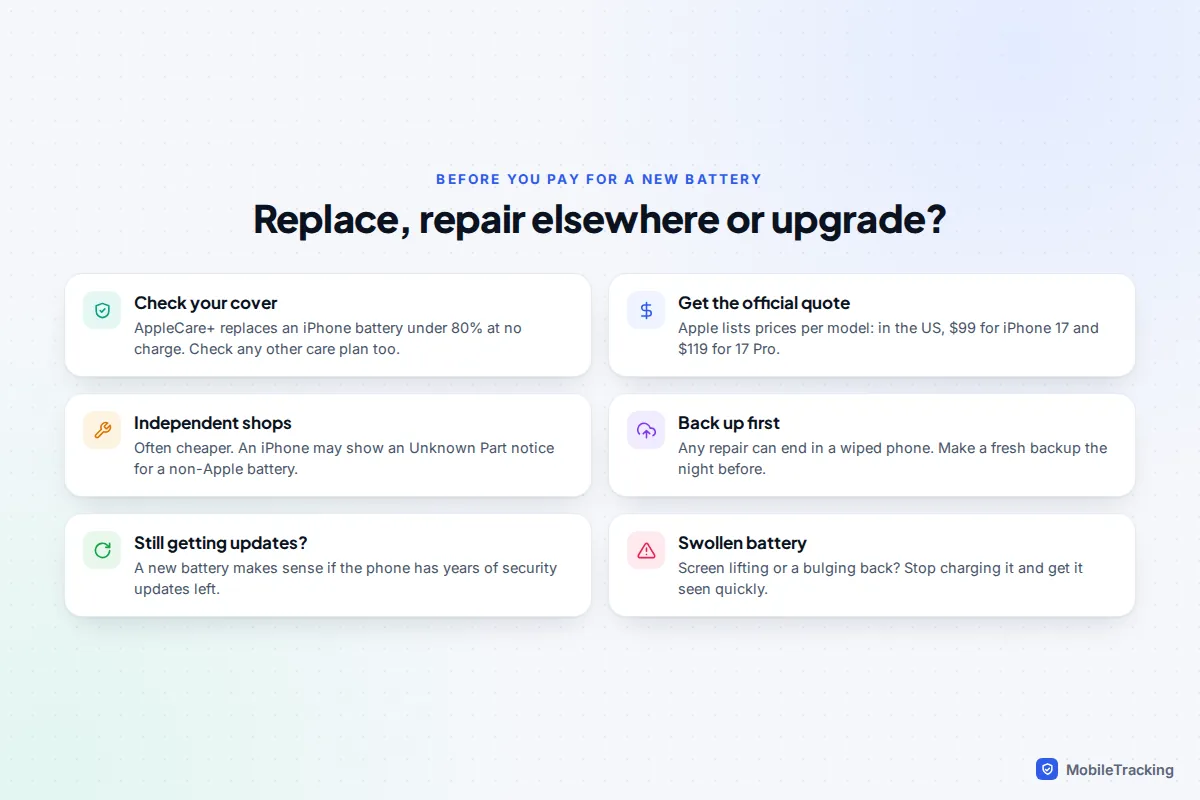
Prices change, so always check the official estimate for your exact model before you book. As a guide, Apple’s US prices for out-of-warranty battery service are $99 for the iPhone 17 and $119 for the iPhone 17 Pro, 17 Pro Max and iPhone Air. Older models are usually cheaper. If you have AppleCare+ and the battery holds less than 80% of its original capacity, Apple replaces it at no charge.
For Pixel and Galaxy phones, the manufacturer’s repair page gives a quote by model, and Google and Samsung also work with authorised repair networks. Independent shops are often cheaper and quicker. On an iPhone, a non-Apple battery may trigger an “Unknown Part” notice and stop showing health readings; the phone will still work, but it can affect resale value.
Habits that genuinely slow battery wear
Heat does more damage than anything else. Apple advises keeping iPhones out of temperatures above 35°C, and a phone charging on a car dashboard or under a pillow can easily get hotter than that. Beyond heat, time spent sitting at 100% ages a battery, which is why charge limits help.
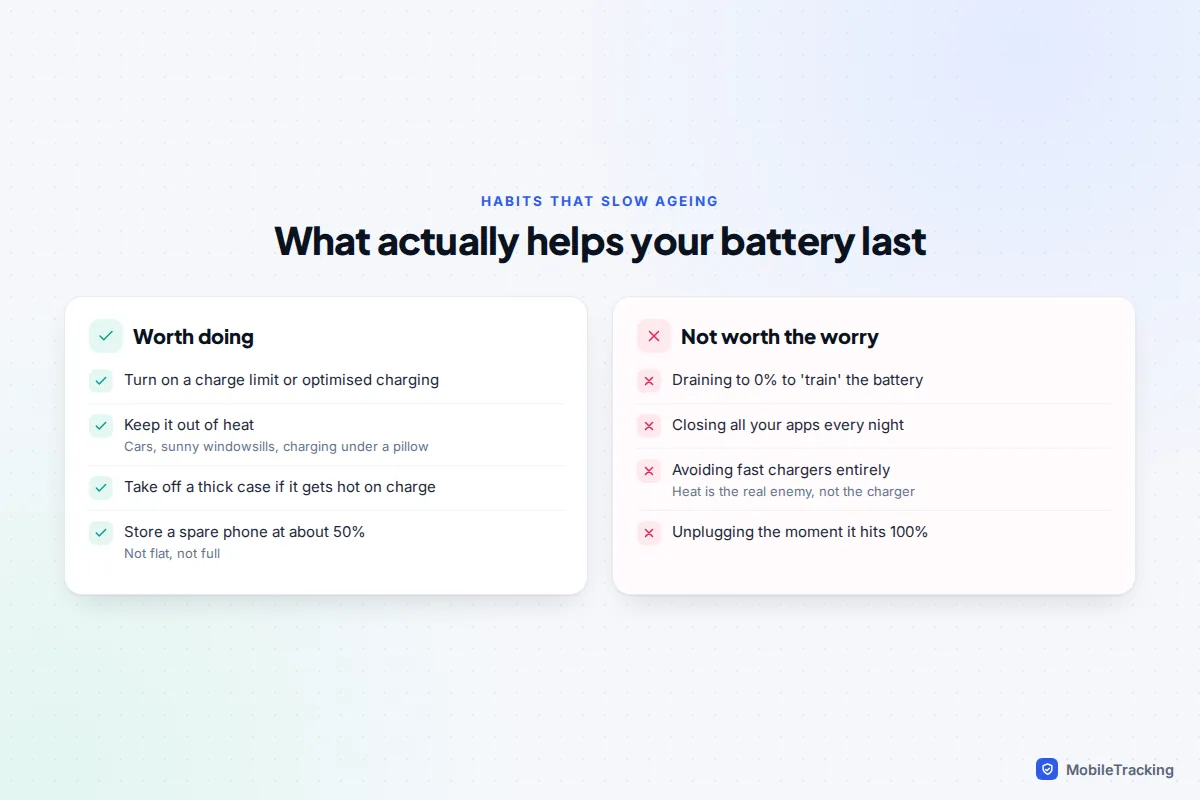
A few more points that often cause confusion:
- Draining to 0% does not “calibrate” or strengthen a modern battery. Deep discharges wear it slightly faster.
- Closing apps from the app switcher doesn’t save battery and can use more, because they have to reload from scratch.
- If you are putting a phone away for a few months, leave it at around 50%, not flat or full.
For everyday tips on getting through the day, see how to make your phone battery last all day.
A quick scenario: checking a second-hand phone
Priya is buying a used iPhone 15 for her son. The listing says “battery 89%”. At the handover she opens Settings › Battery › Battery Health herself: Maximum Capacity is 86%, the cycle count is 720 and first use was only 18 months ago. That is a lot of cycles for the age, so the phone has been charged heavily and will probably reach 80% within a year. She checks Parts and Service History too, which shows no replaced parts, and negotiates £40 off to cover a future battery.
On an Android phone the same idea applies: run Samsung Members diagnostics or open the Pixel Battery health page in front of the seller, rather than trusting a screenshot. Battery checks sit alongside the other essentials in our guide to checking whether a used phone is stolen before you buy.
Frequently asked questions
Why did my battery health drop several percent overnight?
The figure is recalculated from time to time, and a software update can also change how it is estimated. A sudden drop of 2% or 3% is usually a correction rather than real damage. Watch the trend over a few months, not a single day.
Can battery health go back up?
Occasionally, by a percent or so, when the phone recalibrates its estimate. The underlying battery doesn’t recover lost capacity, so only a replacement will return it to 100%.
Is 85% battery health bad?
No. For a phone that is two or three years old, 85% is normal wear. It only becomes a problem if the phone no longer lasts your day or shuts down unexpectedly.
Why can’t I see the cycle count on my iPhone?
iOS only shows the cycle count on iPhone 15 and later. On older models an Apple Store or Apple Authorised Service Provider can run a diagnostic, or you can read it on a Mac with a battery utility and a cable.
Are battery health apps on the Play Store accurate?
They can be reasonable after a couple of weeks of long charges, but they estimate rather than measure, and some show figures with no real measurement behind them. If your phone has its own Battery health or Battery information page, use that instead.
Does wireless charging damage the battery?
Not in itself, but it produces more heat than a cable, and heat speeds up wear. If the phone gets noticeably warm on a wireless pad, take the case off or switch to a cable overnight.
This guide is general information, not legal or financial advice. Read our editorial policy.