
You restore a phone from a backup during setup, not afterwards. On an iPhone, that means starting from the Hello screen (erasing the phone first if it is already set up), then choosing From iCloud Backup or From Mac or PC on the Transfer Your Apps & Data screen. On Android, you sign in to the Google account that made the backup while setting the phone up and pick the backup when it is offered. If the phone is already past setup, a full restore generally means a factory reset and starting again.
The taps take a few minutes. What catches people out is everything around them: the wrong backup, WhatsApp and Signal restoring separately, or a banking app that wants you to register all over again. Here is how to get each part right on both platforms.
Which restore route fits your situation
The right route depends on whether you still have the old phone, which platform you are on and how fresh the backup is.
| Your situation | Best route | Why |
|---|---|---|
| New iPhone, old iPhone working and nearby | Quick Start, then Transfer from iPhone or Download from iCloud | Can copy everything up to this minute, not just the last backup |
| Same iPhone after a reset or repair | From iCloud Backup | Simplest; apps download in the background |
| You keep encrypted backups on a Mac or PC | From Mac or PC | Brings back saved passwords, Health data and call history without iCloud |
| iPhone lost, stolen or broken | From iCloud Backup on the replacement | The only copy is in iCloud or on your computer |
| Android, old phone working | Copy apps & data by cable or Wi-Fi during setup | Faster and more complete than the cloud copy |
| Android, old phone gone or reset | Google backup during setup | Sign in to the same Google account and pick the backup |
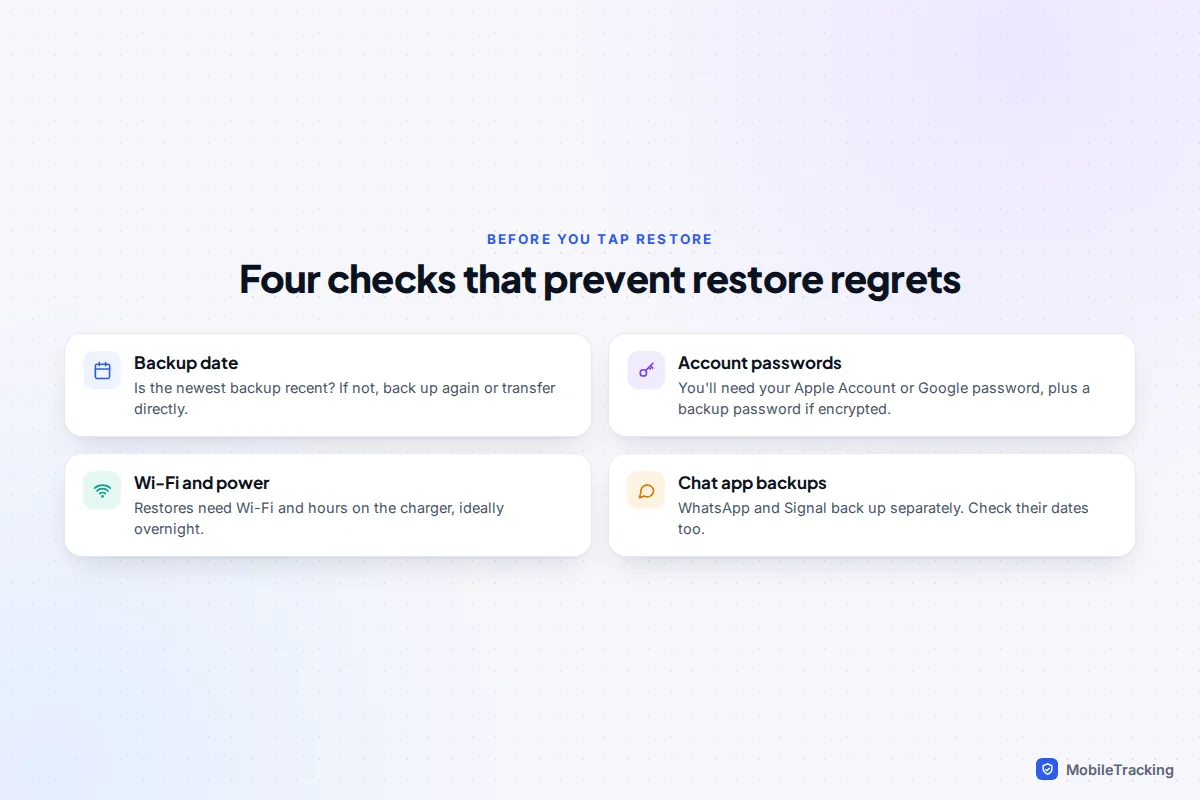
Whichever applies, check the backup’s date before you commit. A backup from three weeks ago restores three-week-old messages, and anything newer that was not synced elsewhere is gone once you move on.
Restore an iPhone from an iCloud backup
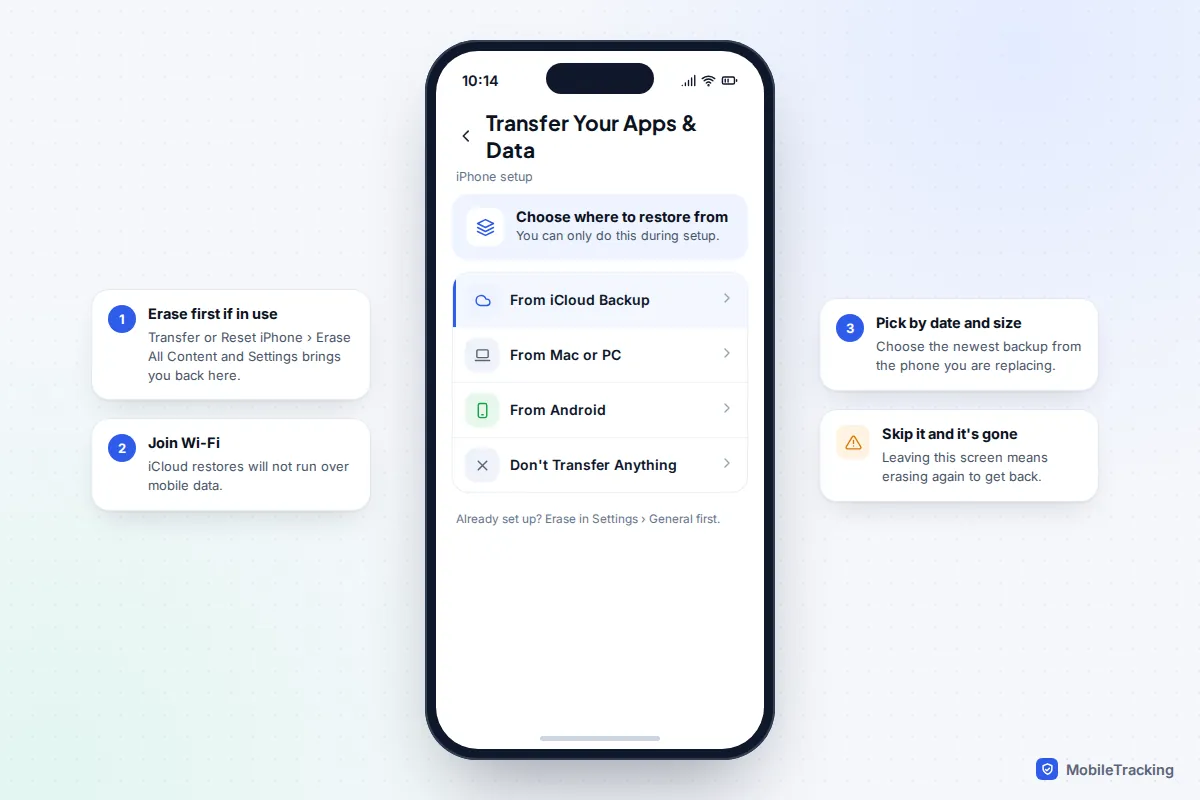
An iCloud restore only starts from the setup screens. If the iPhone is in use, you erase it first, so be sure nothing on it is newer than the backup.
- If the phone is set up, go to Settings › General › Transfer or Reset iPhone › Erase All Content and Settings and enter your passcode and Apple Account password.
- At the Hello screen, follow the setup steps and join Wi-Fi. iCloud restores do not run over mobile data.
- On the Transfer Your Apps & Data screen, tap From iCloud Backup and sign in with your Apple Account.
- Choose a backup. Each shows a date and size; pick the newest one from the right device.
- If prompted, sign in to any other Apple Accounts used to buy apps. You can skip ones you have forgotten, but those apps won’t come back automatically.
- Stay on Wi-Fi until the progress bar finishes. The phone restarts and you can use it while apps and photos keep downloading.
These are the same steps given in Apple’s current restore instructions, which also cover iPads.
Transfer from iPhone or Download from iCloud?
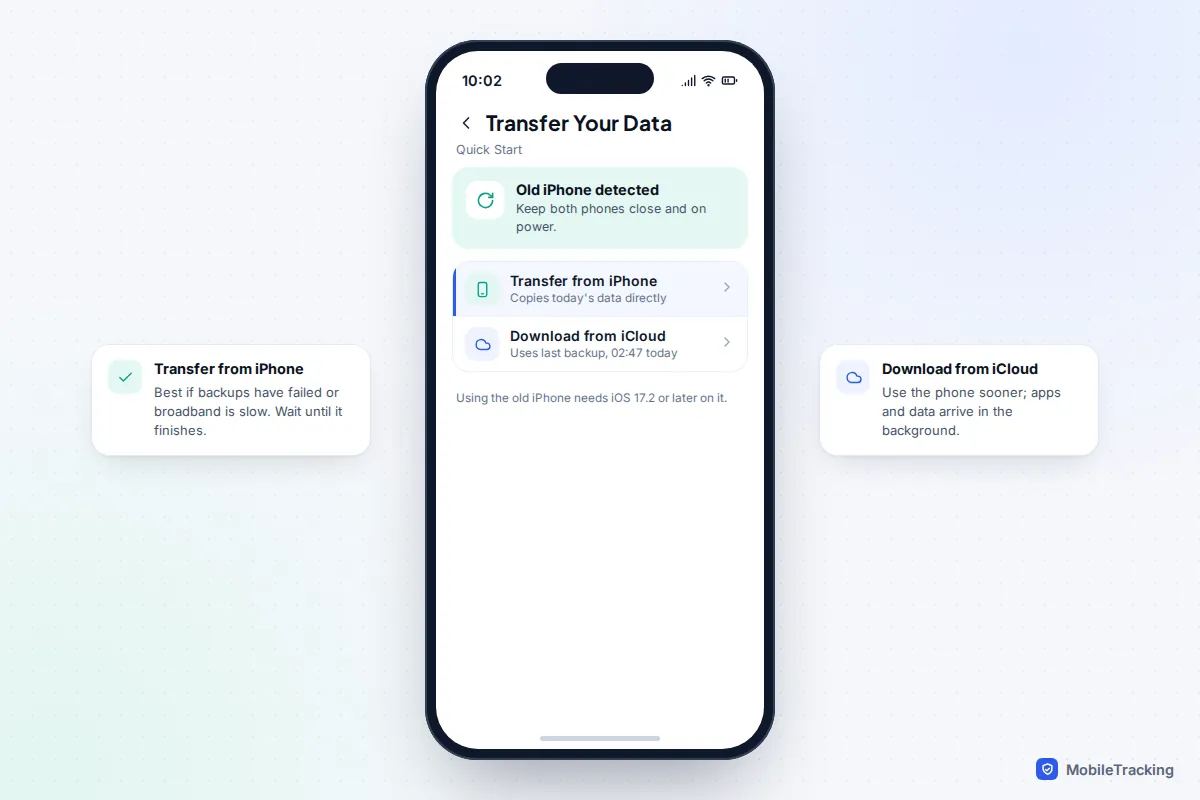
If your old iPhone is next to the new one, setup starts with Quick Start: you scan an animation on the new phone with the old one and enter the old passcode. Apple says using the old phone this way needs iOS 17.2 or later on it. You then reach a Transfer Your Data screen with two choices.
Download from iCloud restores your latest iCloud backup and lets you use the phone sooner, because apps and data arrive in the background. Transfer from iPhone copies directly between the phones, and you wait until it finishes. Direct transfer is the better choice when your iCloud backup is old, when a full iCloud has made backups fail, or when your broadband is slow. Keep both phones plugged in and close together.
Restore an iPhone from a Mac or PC backup
Computer backups are made in the Finder on a Mac, or the Apple Devices app (or iTunes) on Windows. They suit anyone without enough iCloud storage, and they restore faster because only the apps download from the internet.
- Connect the iPhone with a USB cable and select it in the Finder sidebar or the Apple Devices app. (During setup, choose From Mac or PC first.)
- If the phone is already set up, you will be asked to turn off Find My: Settings › [your name] › Find My › Find My iPhone.
- Click Restore Backup, choose the most recent backup by date and click Restore. Enter the password if the backup is encrypted.
- Keep the phone connected after it restarts until it finishes syncing.
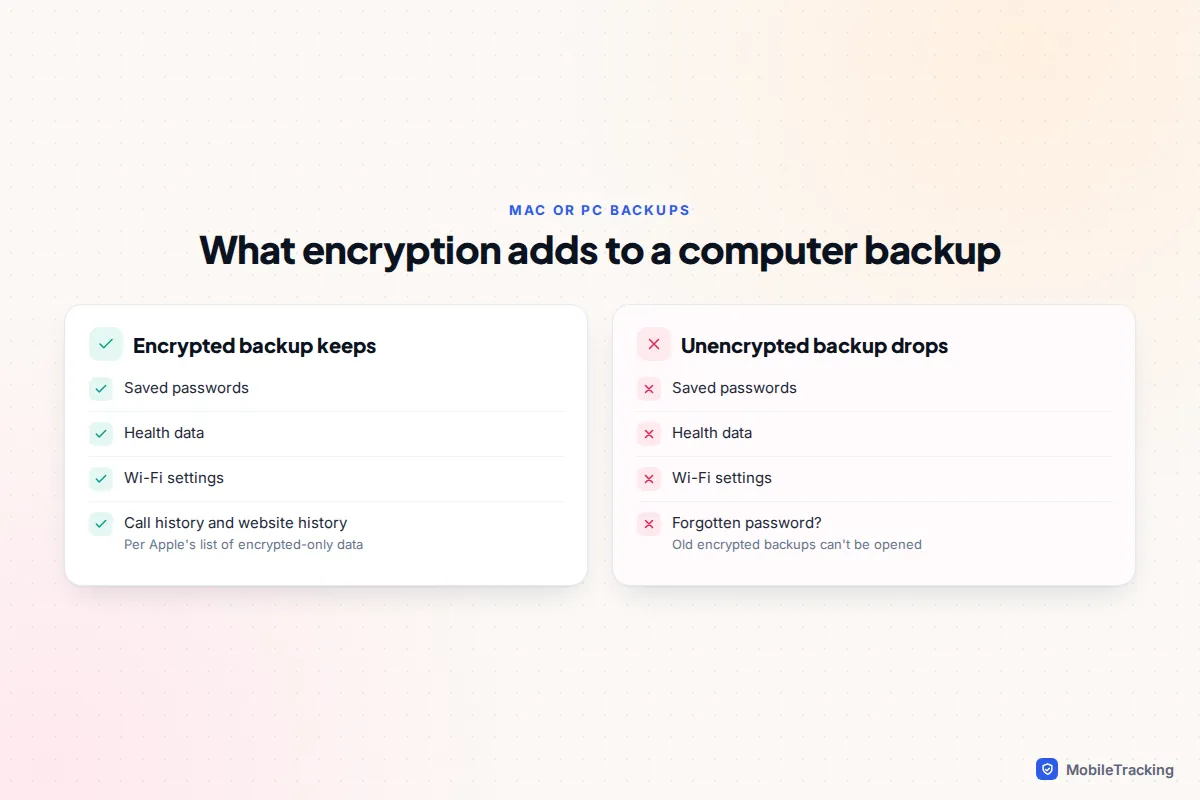
Encryption is the choice that matters. According to Apple, an encrypted backup includes your saved passwords, Wi-Fi settings, website history, Health data and call history, none of which go into an unencrypted one. A forgotten encryption password cannot be recovered: you would have to reset it and make a fresh backup, losing access to the old ones. Save it in your password manager the day you set it.
Restore an Android phone from Google’s backup
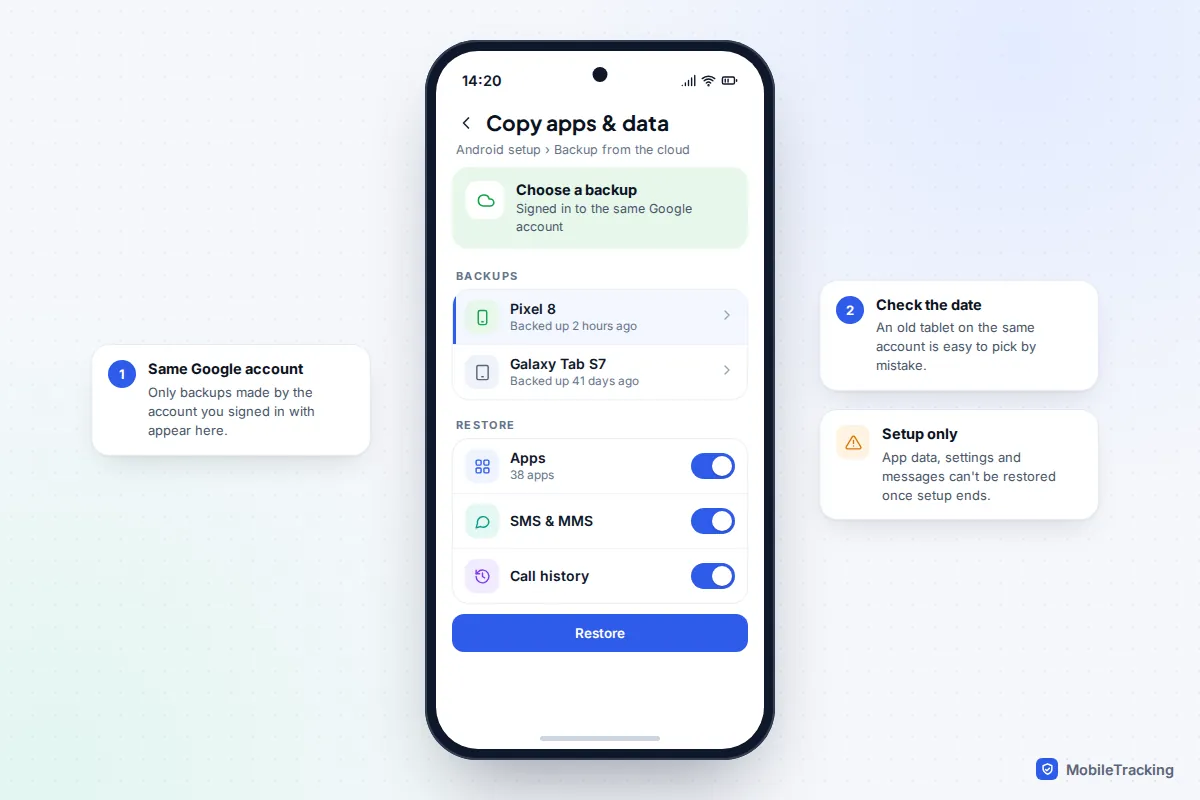
Android is stricter about timing. Google’s backup and restore help says app data, settings and messages can only be restored when you set up the device, so if setup is finished you need to factory reset (Settings › System › Reset options › Erase all data on a Pixel, Settings › General management › Reset on a Samsung) and start again. The phone must be on the same Android version as the backup, or a later one.
- Turn the phone on, choose your language and join Wi-Fi.
- When offered the chance to copy apps and data, tap Next. With the old phone to hand, connect it by cable or copy wirelessly; without it, choose the option for when you can’t use the old device (wording varies by manufacturer).
- Sign in to the Google account that made the backup.
- Pick the backup. Each entry shows the device name and date.
- Choose what to restore (apps, call history, contacts, device settings, SMS and MMS) and tap Restore.
Samsung Galaxy phones also have Samsung Cloud, separate from Google’s backup. Samsung says it can be restored from Settings › [your name] › Samsung Cloud › Restore data at any time, not only during setup. Photos return through Google Photos or Samsung’s gallery sync, not the phone backup. For the full Android walkthrough, including Smart Switch and eSIM transfer, see setting up a new Android from a backup.
The same phone after a reset, or a new phone?
Restoring the same handset after a reset is the easy case: everything in the backup fits and every app is supported. A new phone adds wrinkles. An iPhone backup restores onto any iPhone running the same iOS version or newer, so a backup from a phone on iOS 27 won’t restore onto a new phone still on iOS 26 until you update it. On Android, restoring between manufacturers brings back your apps and Google data but not maker-specific extras such as Samsung’s own apps. An iPhone backup restored onto an iPad, or the other way round, leaves out some data, including Messages.
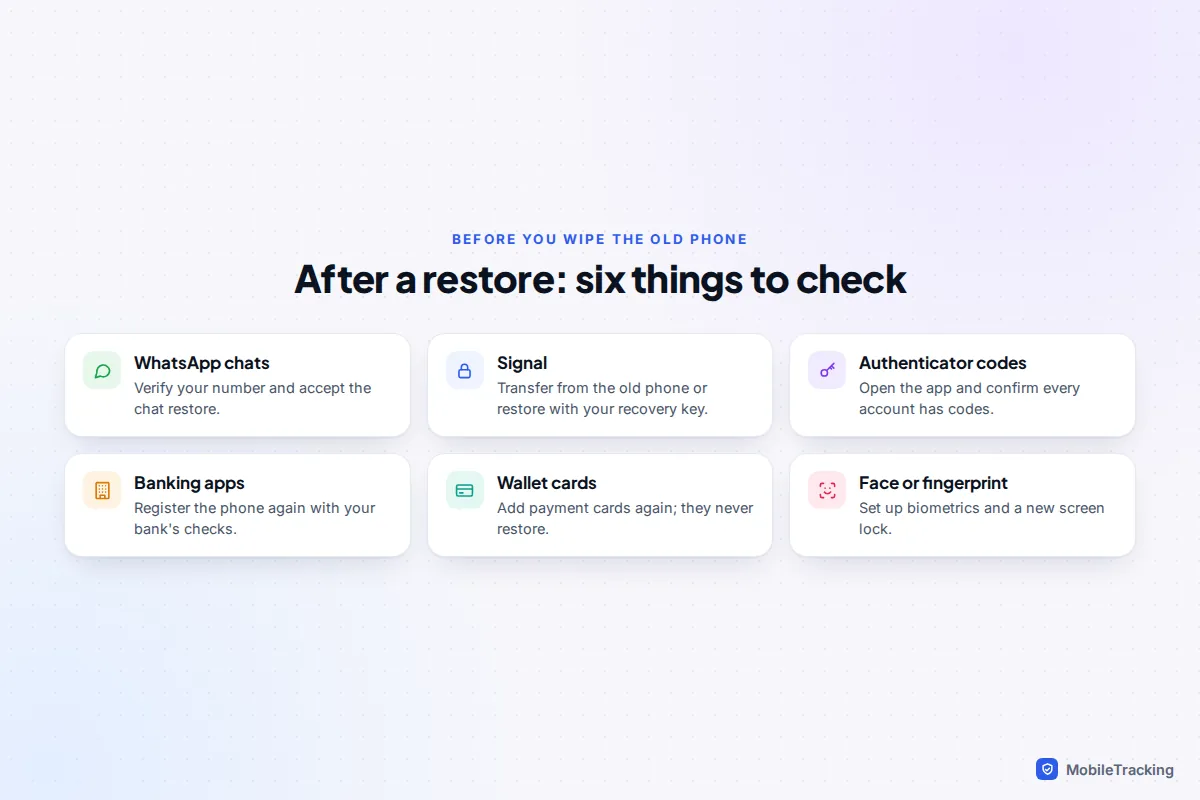
Either way, your screen lock, Face ID or fingerprints, and cards in Apple Wallet or Google Wallet need adding again. That is by design, not a failed restore.
What comes back, and what doesn’t
The phone backup covers less than most people assume. Apps are re-downloaded from the App Store or Google Play; the backup only holds their data, and some apps opt out of it entirely.
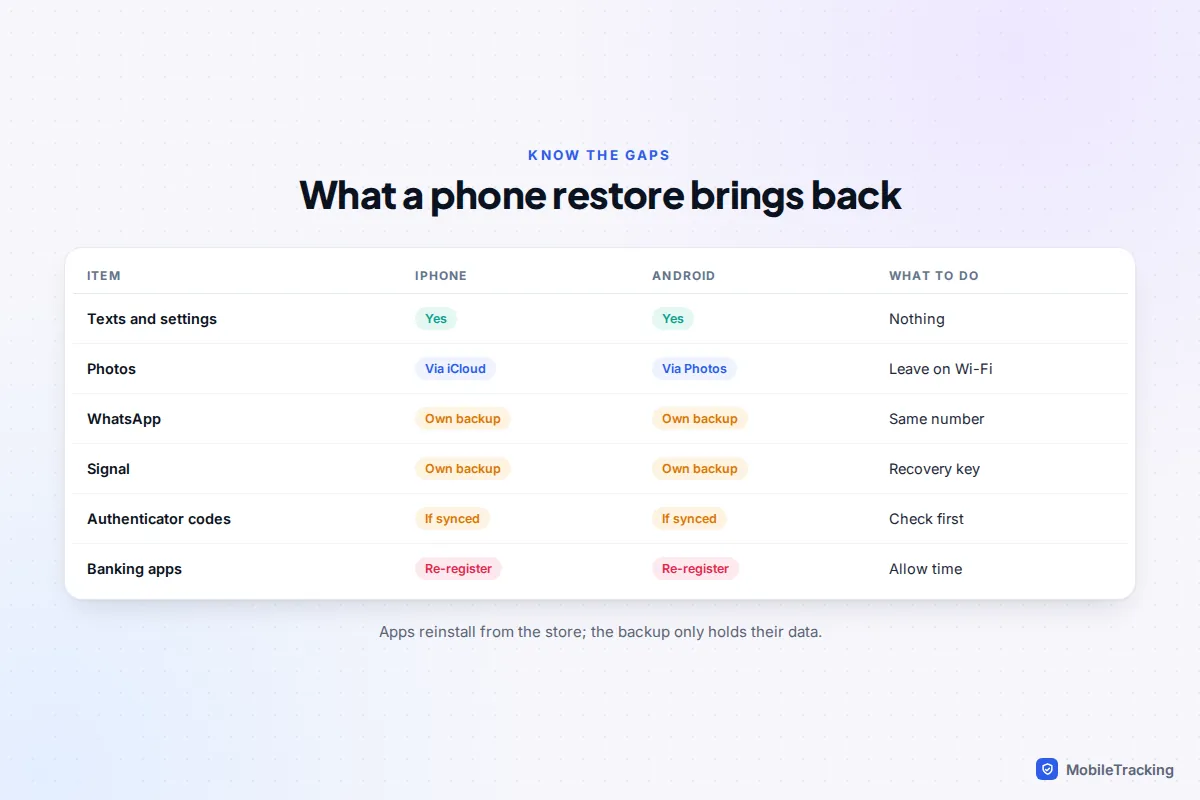
WhatsApp keeps its own backup, in iCloud Drive on iPhone and in your Google account on Android; neither phone backup includes your chats. When you verify the same number on the restored phone, WhatsApp offers to restore the chat backup, provided you are signed in to the same Apple Account or Google account that made it. Check the date under Settings › Chats › Chat backup before you erase anything, and see our guide to backing up WhatsApp chats.
Signal
Signal never goes into a phone backup. You either transfer directly from the old phone during Signal’s setup, or use Signal Secure Backups, which Signal says stores all text messages and the last 45 days of media free (100 GB of media costs $1.99 a month), protected by a 64-character recovery key. Without that key, Signal cannot restore it for you. See how to back up your Signal chats before you reset.
Authenticator apps, banking apps and passwords
Authenticator codes only survive if the app syncs them. Google Authenticator can sync codes to your Google account and Microsoft Authenticator has a cloud backup option; others need codes exported or every account set up again. Do not wipe the old phone until the new one can sign you in.
Banking apps almost always make you register the phone again, with a card reader, an SMS code, a selfie check or a call. Do it before you need to pay someone, as some banks post a code. Saved passwords come back if you use the Passwords app (iCloud Keychain) or Google Password Manager, because they sync to your account rather than living in the backup.
How long a restore takes
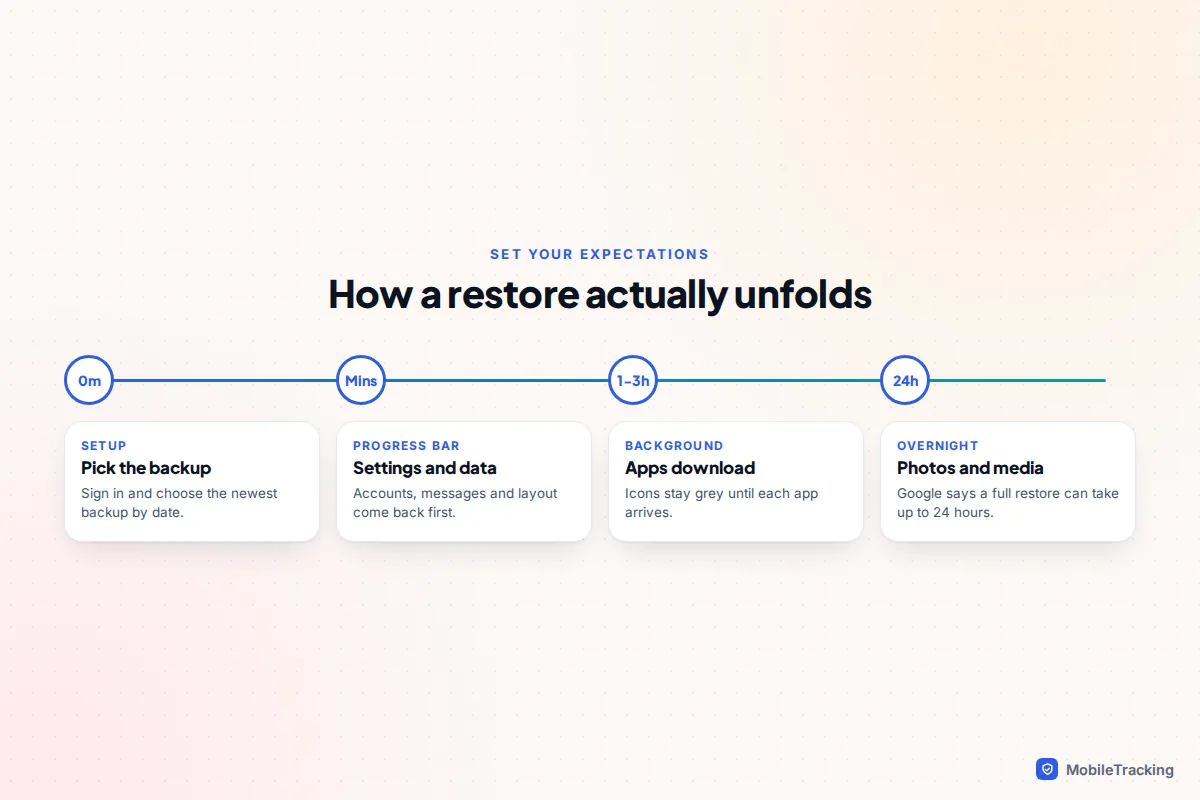
There are two clocks. The first is the restore during setup, the progress bar on an iPhone or the restoring stage on Android, which usually takes minutes rather than hours. The second is the background download of apps, photos and messages afterwards, and that is where the time goes.
Google says a restore can take up to 24 hours to complete fully. Broadband speed is the main factor: 60 GB of apps and photos on a 50 Mbps connection is roughly three hours of downloading on its own. Leave the phone plugged in and on Wi-Fi overnight rather than judging it after ten minutes.
Troubleshooting a restore, by symptom
The backup needs a newer iOS version
Apple says an iCloud backup might need a newer iOS than the phone has, in which case you update before restoring; a computer backup shows an error saying it can’t be restored. The fix: finish setup without restoring, go to Settings › General › Software Update, update, then erase the phone and restore again.
The backup you want isn’t listed
Check you signed in to the right account; family members often back up to their own. On another Apple device, look under Settings › [your name] › iCloud › iCloud Backup, which lists every device backup. Apple deletes an iCloud backup 180 days after a device stops backing up, and Google deletes a phone backup (except photos and videos) if the device goes unused for 57 days.
The restore is stuck
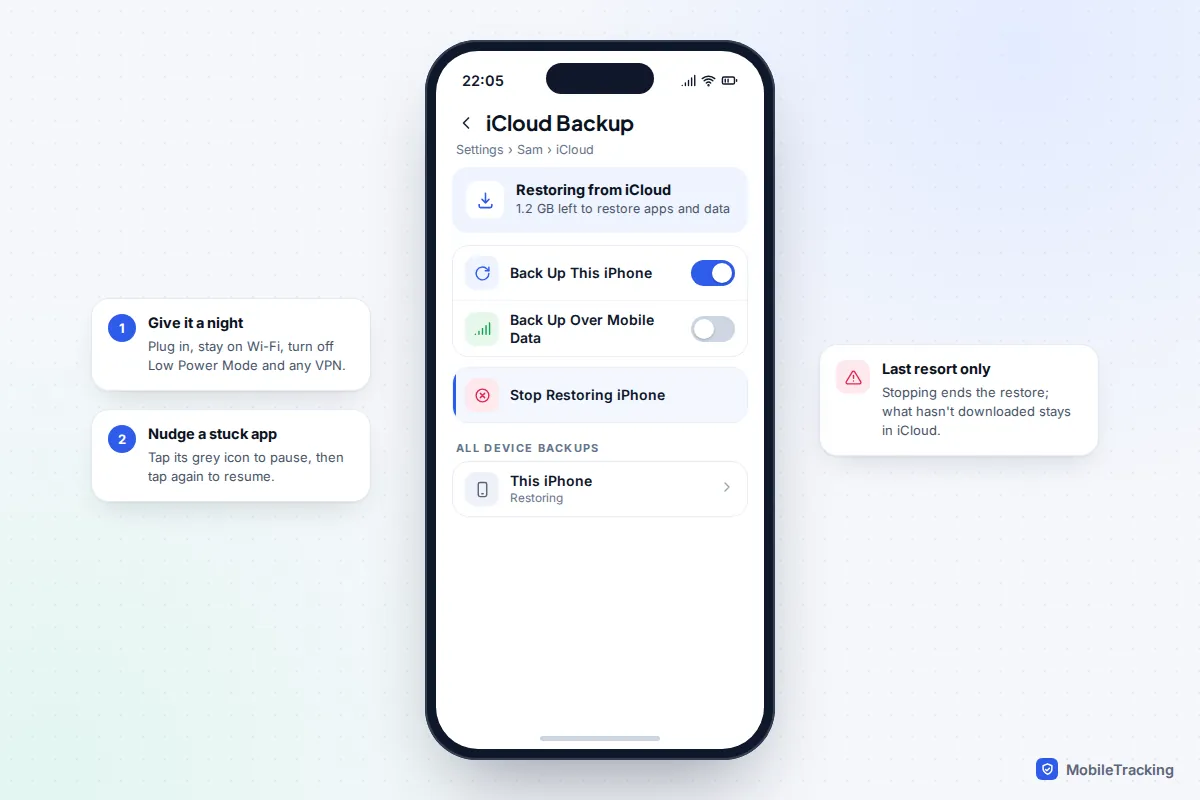
Plug the phone in, confirm Wi-Fi, switch off Low Power Mode and any VPN, and restart it. Tap a stuck app’s icon to pause it, then tap again to resume. If an iPhone restore still hasn’t finished after a night on power, Stop Restoring iPhone in Settings › [your name] › iCloud › iCloud Backup ends it, but anything not yet downloaded won’t come back unless you erase and restore again. If errors repeat, try another network.
Photos or messages are missing
With iCloud Photos or Messages in iCloud turned on, those were never in the backup; they sync down once the phone is on Wi-Fi, which can take hours. On Android, check Google Photos is signed in to the same account. Apple also warns against setting a phone up as new and restoring later, because it can overwrite your older backup the next time it backs up.
When everything is back, work through the checklist below, and next time do a practice run with our guide to testing that your backup works.
Frequently asked questions
Can I restore a backup without erasing my phone?
Not a full phone backup. On iPhone, iCloud and computer restores replace everything on the device, and on Android, Google restores app data, settings and messages only during setup. You can bring back individual things without erasing: photos from iCloud or Google Photos, contacts from your account, and on Samsung phones a Samsung Cloud backup.
Can I restore an iPhone backup to an Android phone, or the other way round?
No, the formats are different. Switching platform uses a transfer tool during setup instead, such as Move to iOS on the way to iPhone, or the copy option on a new Android that can pull from an iPhone. WhatsApp has its own transfer between the two.
Will restoring bring back messages I deleted?
Only if they were deleted after the backup was made and were stored in it. With Messages in iCloud on, deletions sync across devices, so an older backup won’t help. Restoring also replaces anything newer, so weigh up what you would lose.
Does restoring bring back my eSIM?
No. An eSIM is tied to the handset and your carrier. On a new phone, move it during setup with the built-in eSIM transfer where your carrier supports it, or ask the carrier for a new one. When erasing an iPhone with an eSIM, you are asked whether to keep or remove it; keep it if you are restoring the same phone.
This guide is general information, not legal or financial advice. Read our editorial policy.