
The fastest way to free up storage is to work from the biggest, safest wins down: offload or archive apps you haven’t opened in months, delete large videos from WhatsApp and Messages, clear long videos and duplicates from your photo library, remove old downloads and offline media, then empty the Recently Deleted and Trash folders so the space is actually released. Done in that order, it takes about 30 minutes and you never have to touch anything you’d miss.
This is the action plan. If you want to understand every line on your storage screen first, our guide to finding out what’s using your storage explains it in detail. Here we go straight to what to tap, in what order, on iPhone and Android, and what to leave well alone.
Two minutes before you start
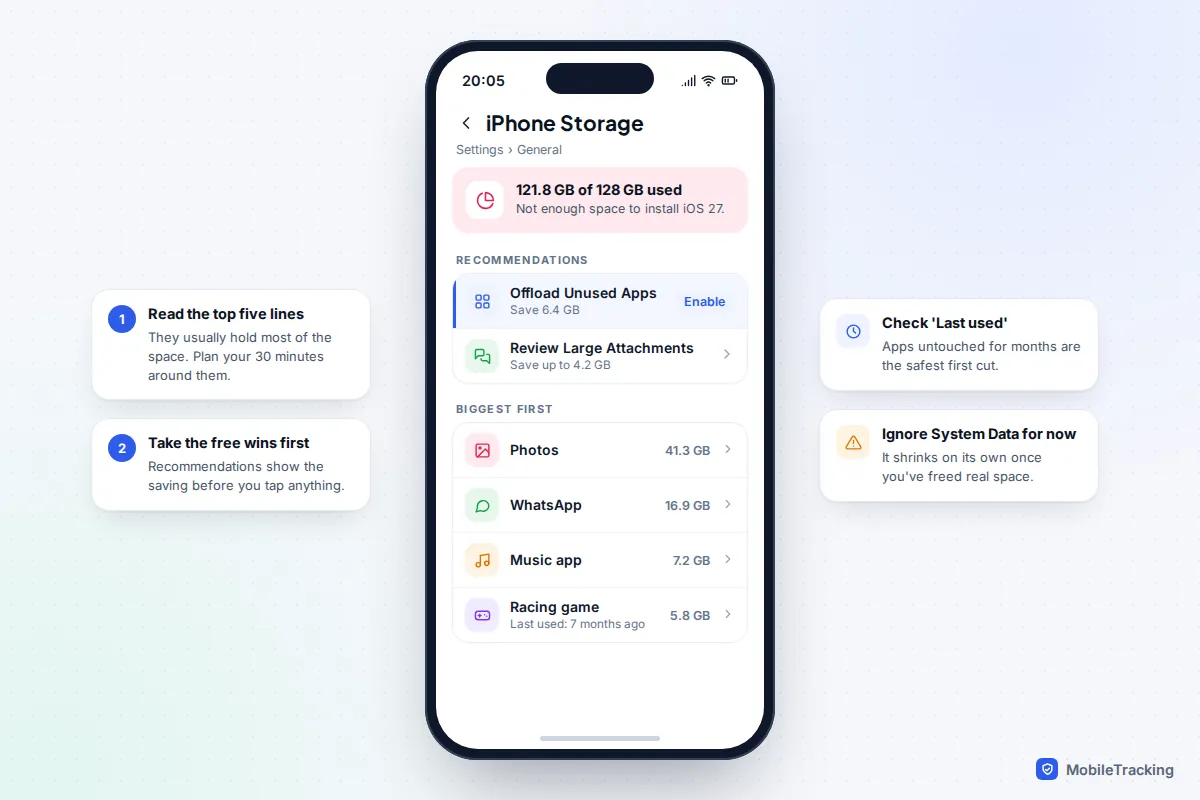
Open your storage screen and read the top five lines. On an iPhone that’s Settings › General › iPhone Storage. On a Pixel it’s Settings › Storage, and on a Samsung Galaxy Settings › Device care › Storage (called Battery and device care on older versions). Wait until the list stops recalculating. Those top lines tell you which steps below will pay off for you and which you can skip.
Then check one thing: is your stuff backed up? On iPhone, look at Settings › [your name] › iCloud › iCloud Backup for the time of the last backup. On Android, look under Settings › Google › Backup, or search Settings for “backup” as the location varies (Samsung also offers its own backup in Settings › Accounts and backup). If photos or chats only exist on this phone, back them up before you delete anything. Everything below assumes you’ve done this.
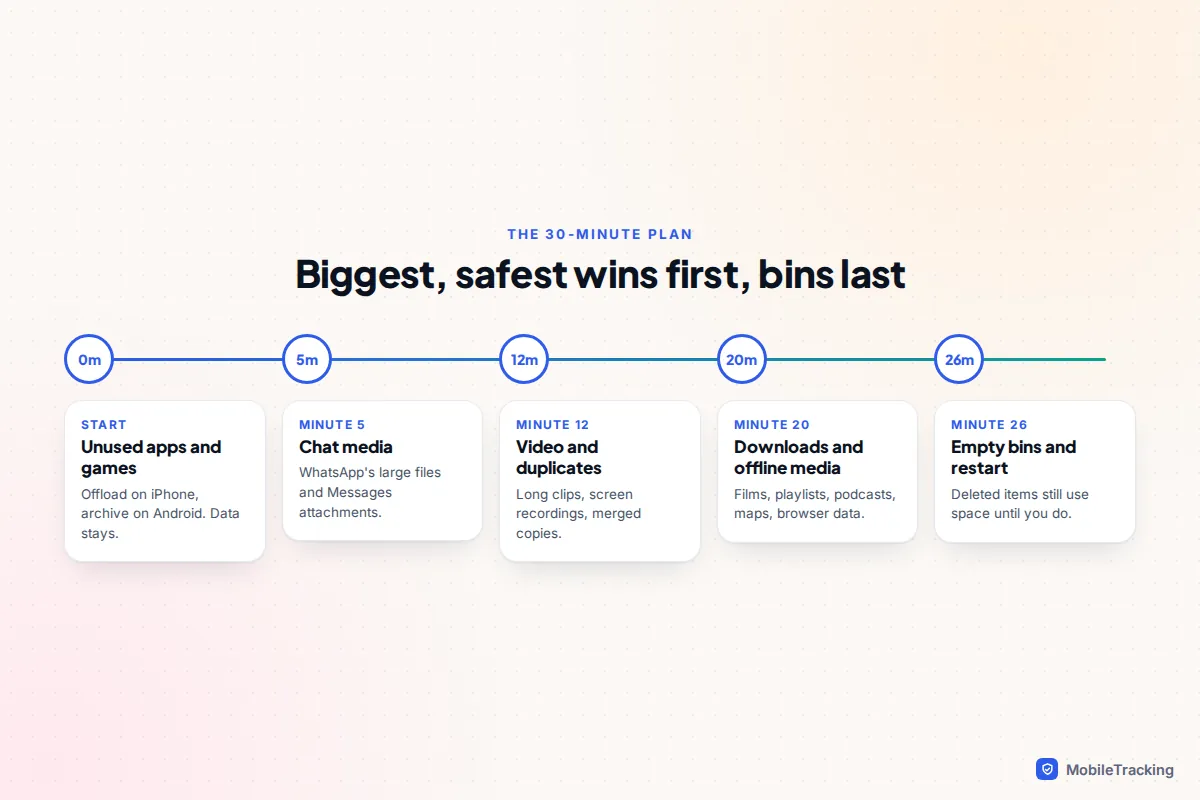
Minutes 0 to 5: apps and games you don’t use
Games are often the largest apps on a phone, and the ones your children played for a fortnight last summer are still there. The trick is to remove the app without losing its data, so nothing is lost if someone wants it back.
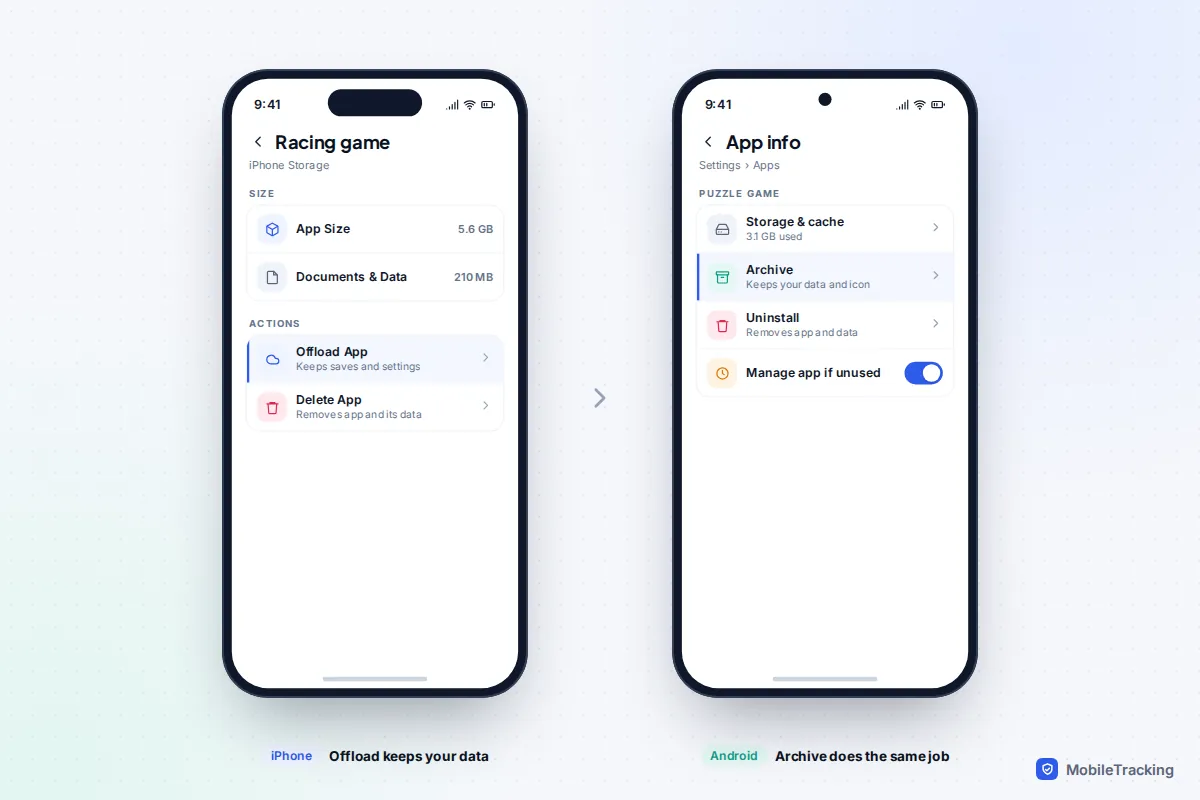
iPhone: offload
- In iPhone Storage, tap an app you rarely use. The screen shows its App Size and Documents & Data.
- If App Size is the big number, tap Offload App. The app goes, but its saves, settings and documents stay. The icon remains with a small cloud, and one tap reinstalls it.
- If Documents & Data is the big number, offloading won’t help much. Clean up inside the app instead, or delete it if you really don’t need what it holds.
To let iOS do this automatically when space runs low, turn on Settings › Apps › App Store › Offload Unused Apps, or tap Enable next to the same recommendation in iPhone Storage.
Android: archive
On Android 15 and later, open Settings › Apps, tap the app, then Archive. Google says archiving removes the app’s software, permissions and temporary files but keeps its icon and your data. The Play Store can also do it for you: tap your profile picture, then Settings › General and turn on Automatically archive apps. If there’s an app you never want archived, open its App info and turn off Manage app if unused. Google’s page on archiving unused apps lists the details. On older Android versions you’ll need to uninstall instead, so check the app doesn’t hold anything you can’t get back.
Minutes 5 to 12: WhatsApp and Messages media
Chat apps grow quietly. Every video forwarded into a school or sports group downloads to your phone and stays there, whether you watched it or not.
WhatsApp (iPhone and Android)
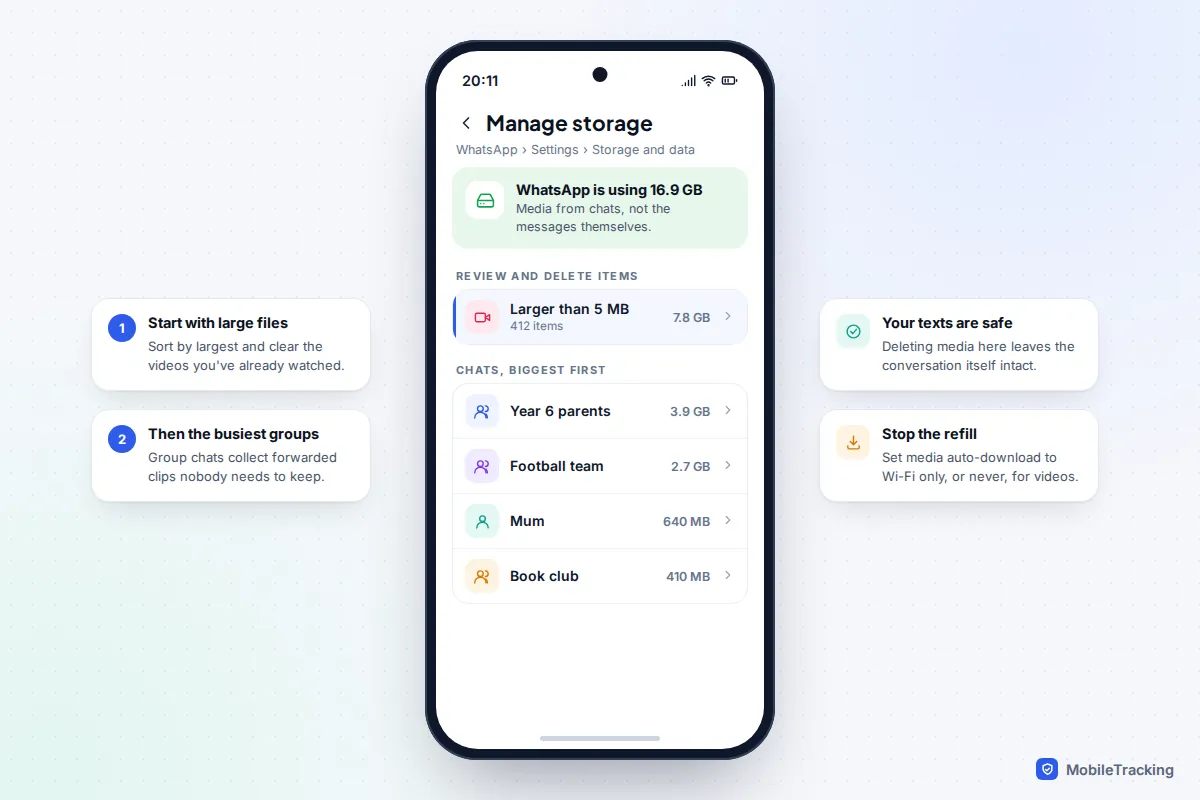
- Open WhatsApp, go to Settings › Storage and data › Manage storage.
- Tap Larger than 5 MB, select the videos you don’t need and tap the bin. These are usually the biggest single saving in the app.
- Go back and open the chats at the top of the list, usually busy groups. Select media in bulk and delete.
- In Storage and data, set Media auto-download so videos download only on Wi-Fi, or never, to stop the refill.
This removes media, not your messages. If you care about a chat’s history, check that you back up your WhatsApp chats before a big clear-out, because deleted media isn’t in the next backup.
Messages on iPhone
Go to Settings › General › iPhone Storage › Messages and tap Review Large Attachments. Swipe left to delete a file, or tap Edit to select several. For a longer-term fix, Settings › Apps › Messages › Keep Messages can be set to 1 Year or 30 Days. Be careful: that deletes whole conversations older than the limit, not only the attachments, and with Messages in iCloud it applies to your other Apple devices too.
On Android, Google Messages and Samsung Messages don’t have an equivalent large-files list. Files by Google’s Clean tab is the easiest way to spot big media files there.
Minutes 12 to 20: video, screenshots and duplicates
Video is the heaviest thing in most photo libraries. Apple’s own camera settings estimate a minute of 4K video at 60 frames per second at around 400 MB, so a handful of long clips can outweigh thousands of photos. You don’t need to go through everything: go straight for the long clips.
iPhone
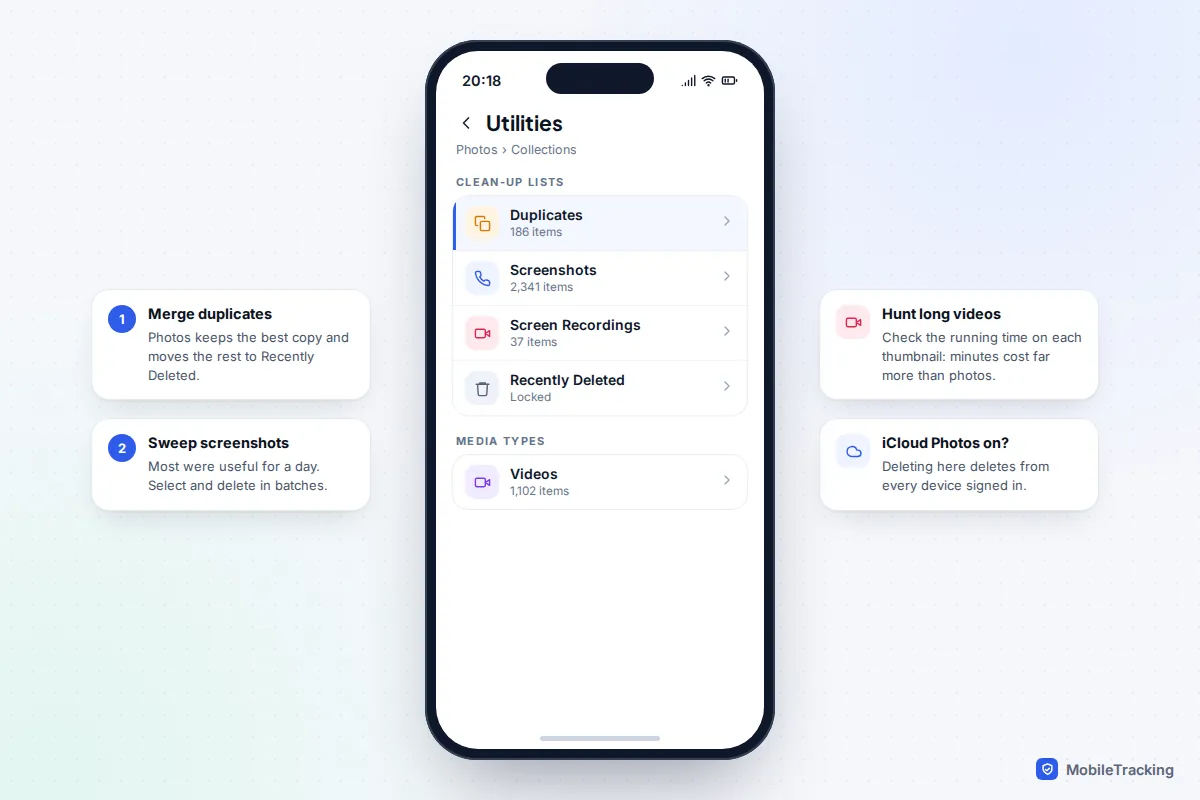
- Open Photos, scroll to Collections, then Media Types › Videos. The running time is shown on each thumbnail, so look for anything over a minute or two.
- In Utilities, open Duplicates and tap Merge. Photos keeps the highest-quality version, combines the details and moves the extras to Recently Deleted.
- Also in Utilities, open Screenshots and Screen Recordings. Screen recordings in particular can be long and large.
Android
Open Files by Google and tap Clean. Cards for Large files, duplicate files and old screenshots appear when it finds them. On a Samsung, Device care › Storage offers Large files and Duplicate files lists. If everything is safely in Google Photos, its Free up space on this device option removes local copies of backed-up items; Google notes it may keep photos and videos less than 30 days old on the phone.
If you use iCloud Photos, there’s a longer-term fix: see our guide to turning on optimised photo storage. To stop the camera roll refilling, our guide to stopping photos filling your storage covers video resolution and chat apps saving to your library.
Minutes 20 to 26: downloads, offline media and browser data
Everything in this step can be downloaded again, which makes it the lowest-risk part of the plan.
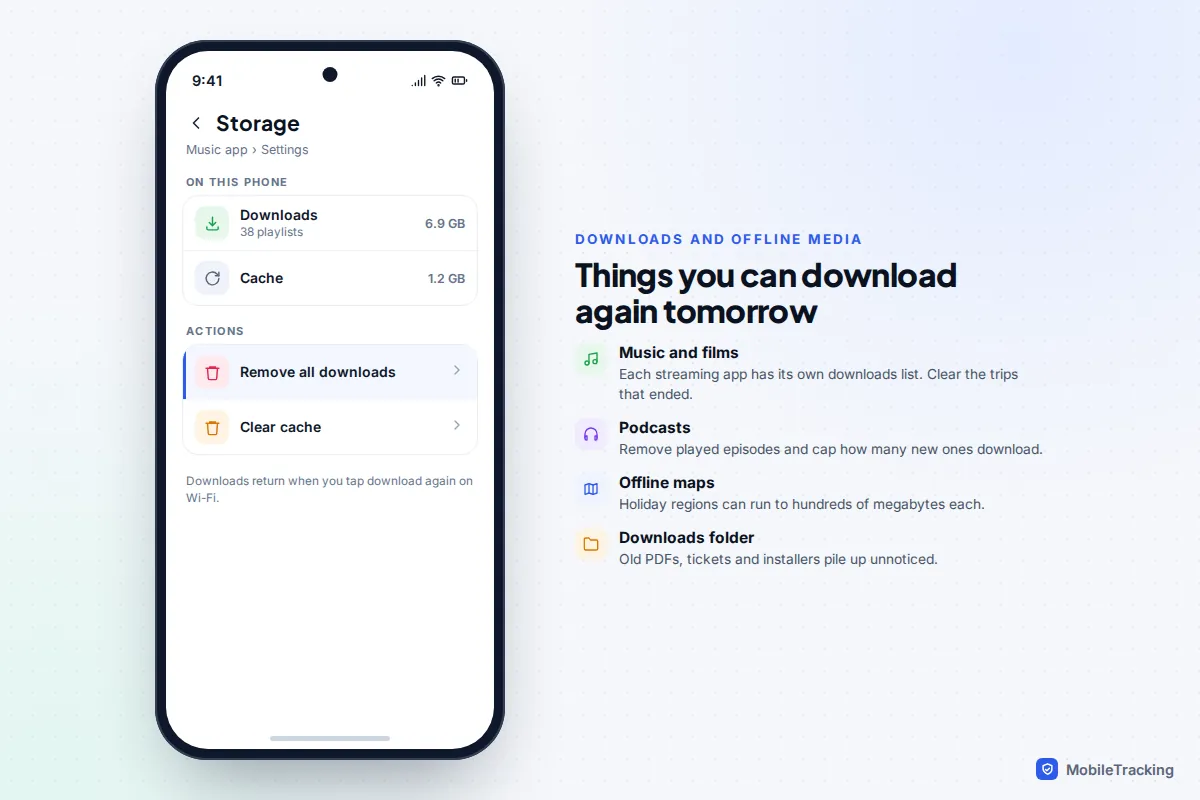
- Music and films. Streaming apps keep downloads inside the app, so they appear as the app’s Documents & Data. In Spotify’s settings, the Storage section lets you remove all downloads or clear the cache. For Apple Music, Settings › Apps › Music › Optimise Storage removes songs you haven’t played recently when space runs low. Netflix, Disney+ and similar apps each have a Downloads page.
- Podcasts. In the Podcasts app, open Library › Downloaded and remove what you’ve heard. Settings › Apps › Podcasts lets you remove played episodes automatically and limit how many new episodes download; the exact labels have changed between iOS versions.
- Offline maps. In Google Maps, tap your profile picture, then Offline maps. In Apple Maps, tap your picture or initials, then Offline Maps. Delete regions from trips that are over.
- Downloads folder. On iPhone, open Files › Browse › On My iPhone › Downloads. On Android, open Files by Google or Samsung’s My Files and tap Downloads. Old PDFs, boarding passes and installers pile up here.
- Browser data. On iPhone, Settings › Apps › Safari › Clear History and Website Data. In Chrome, tap the three dots, then Delete browsing data. This usually frees less than the steps above and signs you out of websites, so do it last.
Minutes 26 to 30: empty the bins, then restart
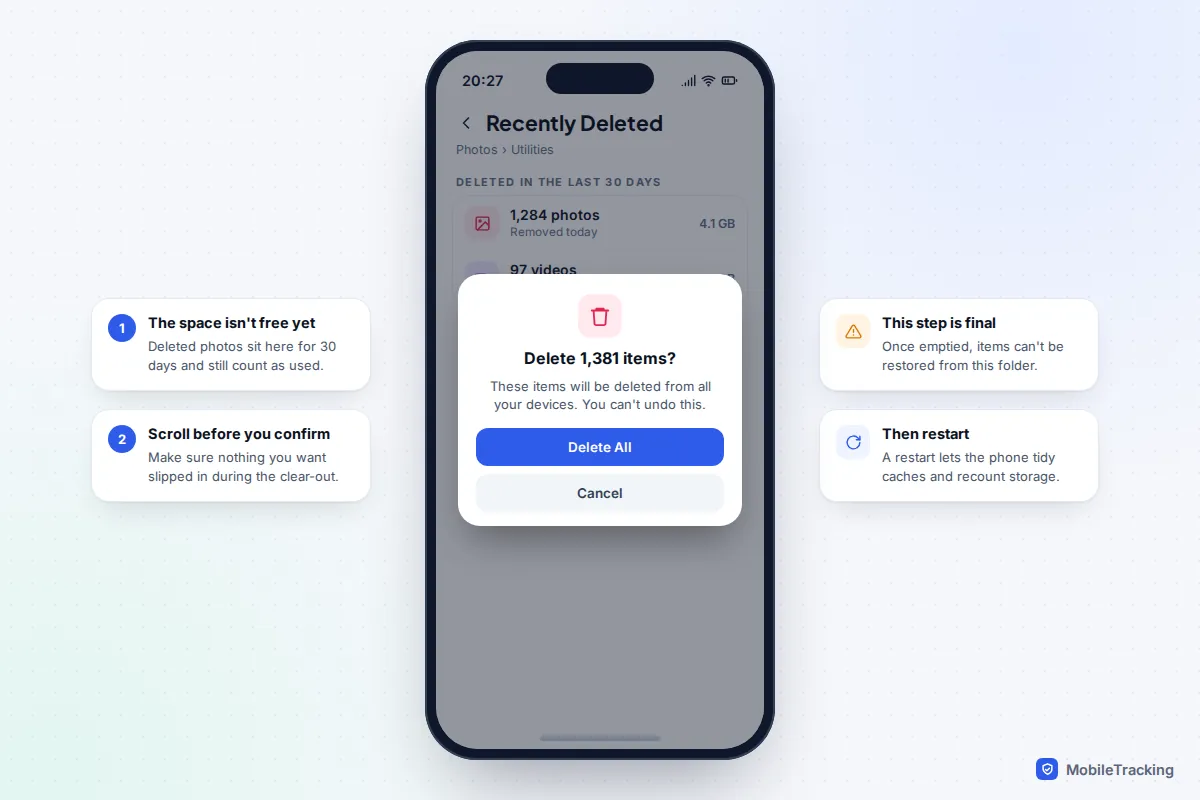
This is the step people miss, and it’s why they delete 10 GB and see no change. Deleted items wait in a bin, still using space:
- iPhone Photos: Collections › Utilities › Recently Deleted (unlock with Face ID), then Select and Delete All. Items stay for 30 days otherwise.
- Files on iPhone: Files › Browse › Recently Deleted.
- Google Photos: Collections › Trash (or Bin), then Empty.
- Samsung: the Recycle bin in Gallery and in My Files, each holding items for 30 days.
Scroll through before you confirm, because emptying is final. Our guide to emptying Recently Deleted safely covers every bin and how to delete selectively. Finally, restart the phone. It gives the system a chance to clear temporary files and recount storage, so the figure you see afterwards is accurate.
What never to delete
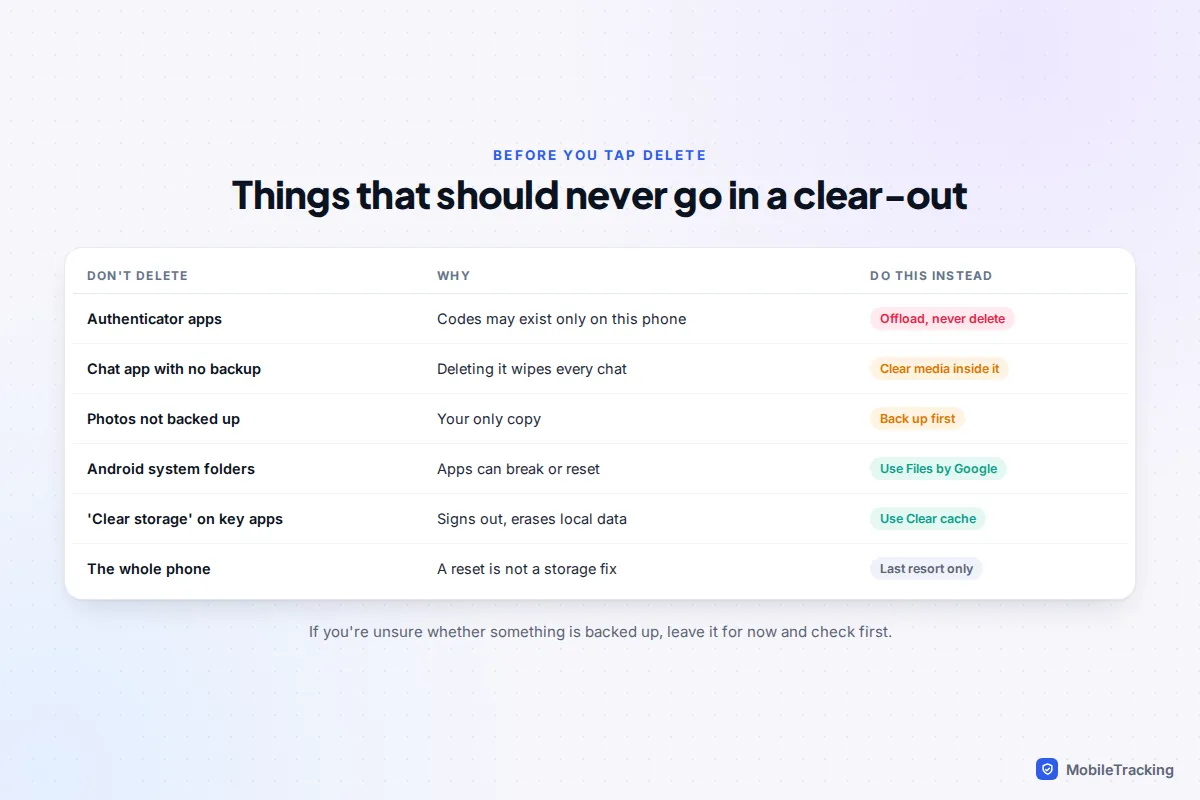
A clear-out goes wrong in the same few ways. Keep this list in mind as you work.
| Leave alone | Why | Safer alternative |
|---|---|---|
| Authenticator apps | Two-factor codes may exist only on this phone. Deleting the app can lock you out of accounts. | Offload rather than delete, or turn on the app’s cloud sync or export first. |
| A chat app with no backup | Deleting or reinstalling it wipes chats stored only on the phone. | Delete media inside the app. |
| Photos only on this phone | There’s no second copy to fall back on. | Back up, check the upload finished, then delete. |
| Clear storage or Clear data on Android | It resets the app, signing you out and erasing local data. | Use Clear cache, which is safe. |
| System folders in a file manager | Folders such as Android or DCIM belong to apps and the camera. | Use Files by Google or Device care, which know what’s safe. |
And skip “cleaner” and “booster” apps. On iPhone, apps can’t reach other apps’ files, so they can only do what iPhone Storage already does. On Android, the built-in tools cover the same ground without adverts or extra permissions.
The System Data reality
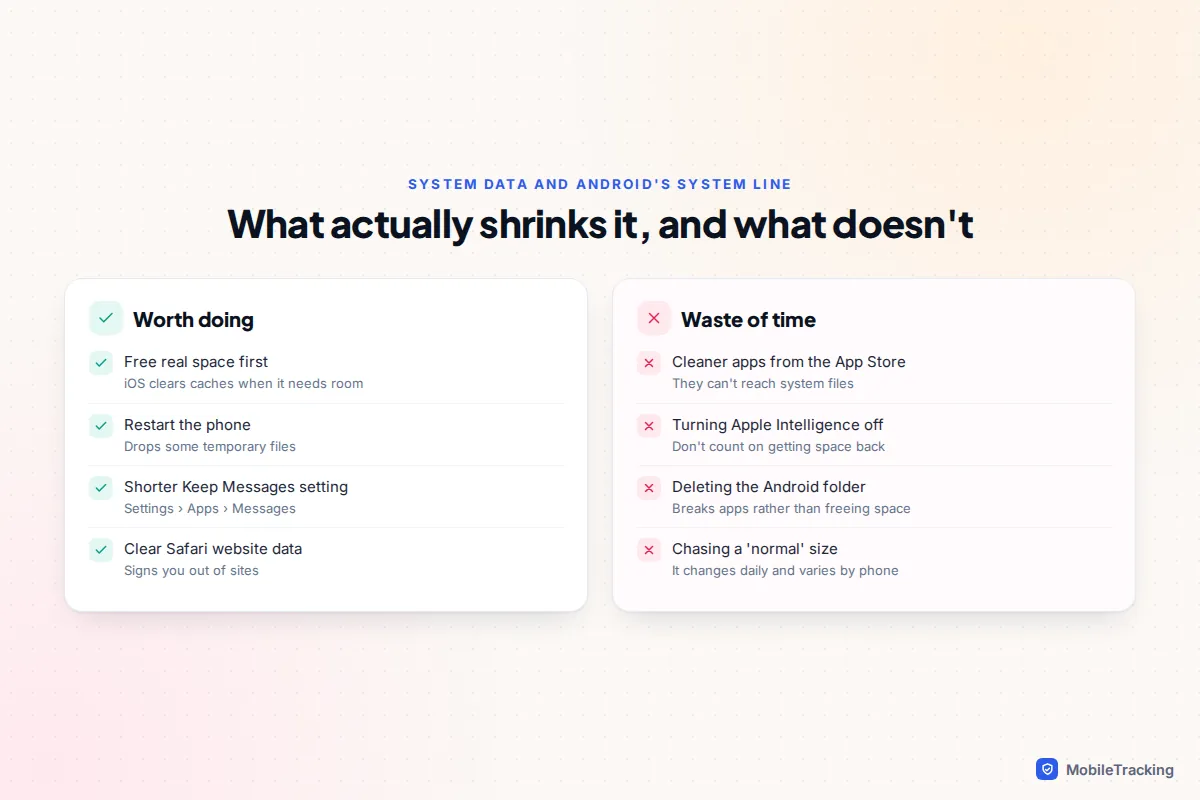
After all that, you may still see System Data on iPhone, or System on Android, taking many gigabytes. It’s tempting to chase it, but it’s rarely the best use of your time. System Data holds caches, logs, temporary files and downloaded resources. You can’t open it or delete it directly, and it grows and shrinks from day to day.
A few points worth knowing in September 2026:
- It shrinks when you need room. iOS clears caches it no longer needs as space runs low, so the steps above often reduce it without you touching it.
- A downloaded update counts. If an iOS update is waiting, it appears in iPhone Storage and you can delete it there, then download it again once you’ve made space.
- Apple Intelligence takes a fixed slice. With iOS 27, Apple lists about 8 GB for Apple Intelligence on most compatible iPhones and about 14 GB on the iPhone 17 Pro, 17 Pro Max, iPhone Air and newer Pro models. Tech press reviews of Apple’s documentation found no promise that switching it off returns that space, so don’t count on it.
- Android’s System line includes the operating system itself and can’t be reduced.
If System Data on an iPhone stays huge for weeks, the one reliable fix is to back up, erase the phone and restore. That’s a big job, so only do it when the space problem is serious and your backup is recent.
A real-world example
Priya’s 128 GB iPhone refused to install iOS 27. She offloaded two games (6 GB), cleared WhatsApp’s large files and one football group (8 GB), merged duplicates and deleted three long screen recordings (4 GB), removed an old holiday playlist (2 GB) and emptied Recently Deleted. After a restart she had 24 GB free. The update installed that evening, and System Data dropped by itself over the next day.
Frequently asked questions
How much free space should I keep?
There’s no official number, but aim to keep a few gigabytes free at all times, more before a major update. Phones use free space for temporary files, updates and the camera, and a completely full phone becomes slow and unreliable.
Will offloading or archiving an app lose my data?
No. Both remove the app itself but keep its documents and settings, and reinstalling restores everything, provided the app is still available in the store. Deleting or uninstalling is different: that removes the data too.
I deleted lots of photos but my storage didn’t change. Why?
They’re in Recently Deleted or Trash, where they still use space for 30 days on iPhone and Samsung, and up to 60 days for backed-up items in Google Photos. Empty the bin, restart the phone, then check the storage screen again after it has recalculated.
Is it safe to clear an app’s cache on Android?
Yes. Settings › Apps, choose the app, then Storage & cache › Clear cache. The app rebuilds what it needs. Avoid Clear storage unless you mean to reset the app completely.
Should I buy more iCloud or Google storage instead?
Extra cloud storage doesn’t add space to your phone by itself. It helps only when combined with optimised photo storage or Google Photos’ free-up option, which move full-size copies off the phone.
How often should I do this?
Once the settings that stop the refill are in place, a ten-minute pass every month or two is usually enough: chat media, screenshots and the bins.
This guide is general information, not legal or financial advice. Read our editorial policy.