
Photos rarely fill a phone on their own. Video does. A minute of 4K video at 60 frames per second takes around 400 MB on an iPhone, about the same as a couple of hundred ordinary photos. To stop your library growing faster than you can manage it, change three things: record everyday video at 1080p instead of 4K, keep the camera on its High Efficiency format, and stop chat apps saving every photo and video you receive into your camera roll.
Those settings take five minutes and slow the growth for good. After that, a ten-minute clear-out once a month keeps things under control. This guide covers the camera and app settings that cause the build-up. If your phone is already full, first read how to find out what’s using your storage to see where the space has gone.
Why video, not photos, is the real culprit
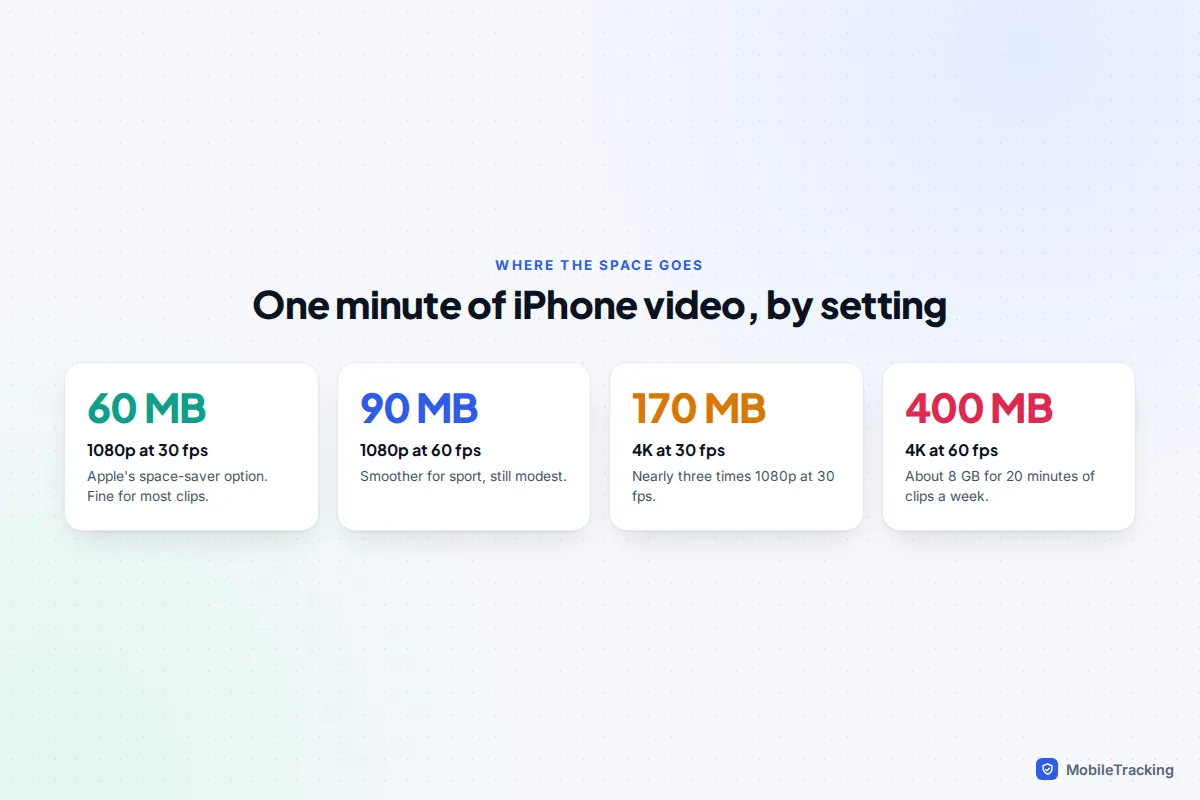
An everyday iPhone photo in HEIF format is usually a few megabytes. Video is a different scale. On the Record Video screen, Apple estimates a minute of video at roughly 60 MB at 1080p and 30 fps, 90 MB at 1080p and 60 fps, 170 MB at 4K and 30 fps, and 400 MB at 4K and 60 fps.
Now do the maths for a normal week. Twenty minutes of clips from football matches, school plays and the dog doing something silly comes to about 8 GB at 4K 60 fps. The same twenty minutes at 1080p 30 fps is about 1.2 GB. Over a year, that is the difference between filling a 128 GB phone and barely noticing.
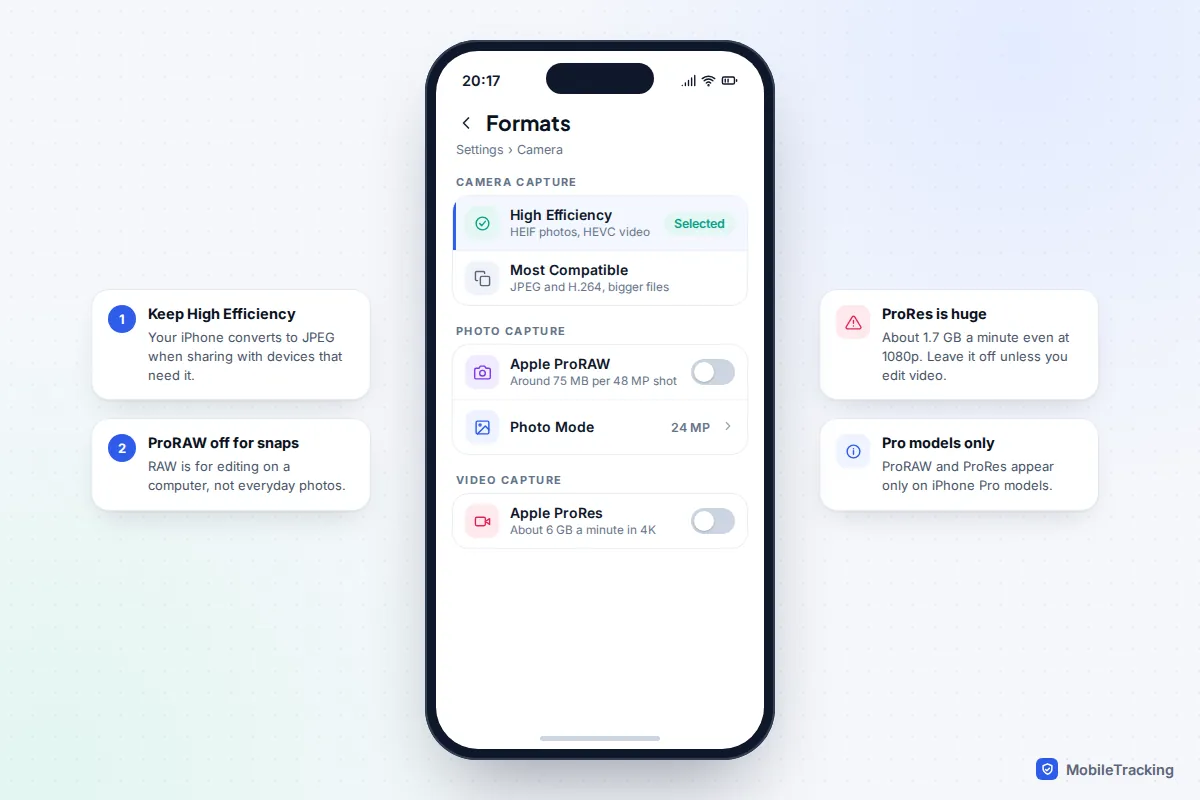
Pro formats are bigger again. Apple says a minute of 10-bit ProRes video is about 1.7 GB at 1080p and about 6 GB in 4K. A single 48-megapixel ProRAW photo is around 75 MB, roughly three times a 12-megapixel ProRAW shot. These formats are designed for editing on a computer, not for everyday snaps.
Android phones are in the same range at the same resolution and frame rate, though figures vary by maker. The quickest way to know for sure on any phone is to record exactly one minute, open the video’s details, and look at the file size.
Choose a sensible video resolution
4K is worth it for things you’ll watch on a big TV or edit later. For most clips you’ll share in a chat or watch on your phone, 1080p looks almost identical on a phone screen and takes a third to a sixth of the space.
iPhone
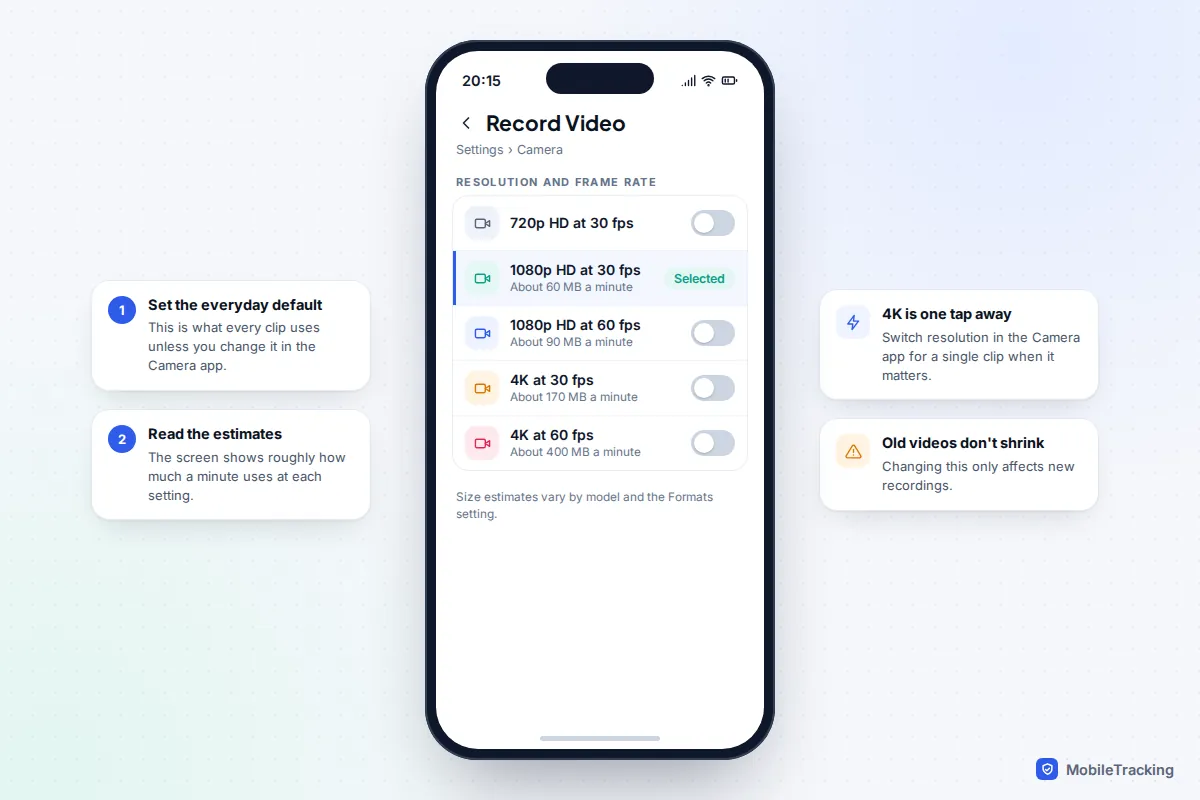
- Open Settings › Camera › Record Video.
- Choose 1080p HD at 30 fps for the smallest everyday files, or 1080p HD at 60 fps if you film a lot of sport and want smoother motion.
- Read the size estimates on the same screen. They update to match your iPhone and format setting.
You don’t lose 4K: you can switch resolution and frame rate for a single clip from the controls in the Camera app itself, then it goes back to your default. In iOS 27, those in-app controls sit behind the new controls button next to the shutter, and you can customise which appear. The default you choose in Settings is what matters for storage, because it’s what you use without thinking.
Android
On a Pixel, open the Camera app, switch to Video, and tap the settings icon to pick resolution (1080p or 4K) and frame rate. On a Samsung Galaxy, tap the resolution label at the top of the video viewfinder (such as UHD or FHD) and choose FHD for 1080p. Many recent Galaxy S models also offer 8K, which is far larger again. Labels vary by model and software version.
Keep photos and videos in efficient formats
Both iPhone and Android can save photos as HEIF and videos as HEVC (H.265), which take much less space than the older JPEG and H.264 formats. Apple’s size estimates put 1080p at 30 fps at roughly 130 MB a minute in H.264 against about 60 MB in HEVC.
iPhone
Open Settings › Camera › Formats and make sure High Efficiency is selected rather than Most Compatible. Your iPhone automatically converts to JPEG and H.264 when you share with devices that need it, so compatibility is rarely a problem. 4K at 60 fps also requires High Efficiency.
On Pro models, check the same screen for Apple ProRAW and Apple ProRes. Unless you edit photos in Lightroom or grade video on a computer, leave both off. On iPhone 15 and later, Photo Mode offers 24 MP or 12 MP for everyday shots; 24 MP is the default and a sensible balance, while 12 MP saves a little more space.
Android
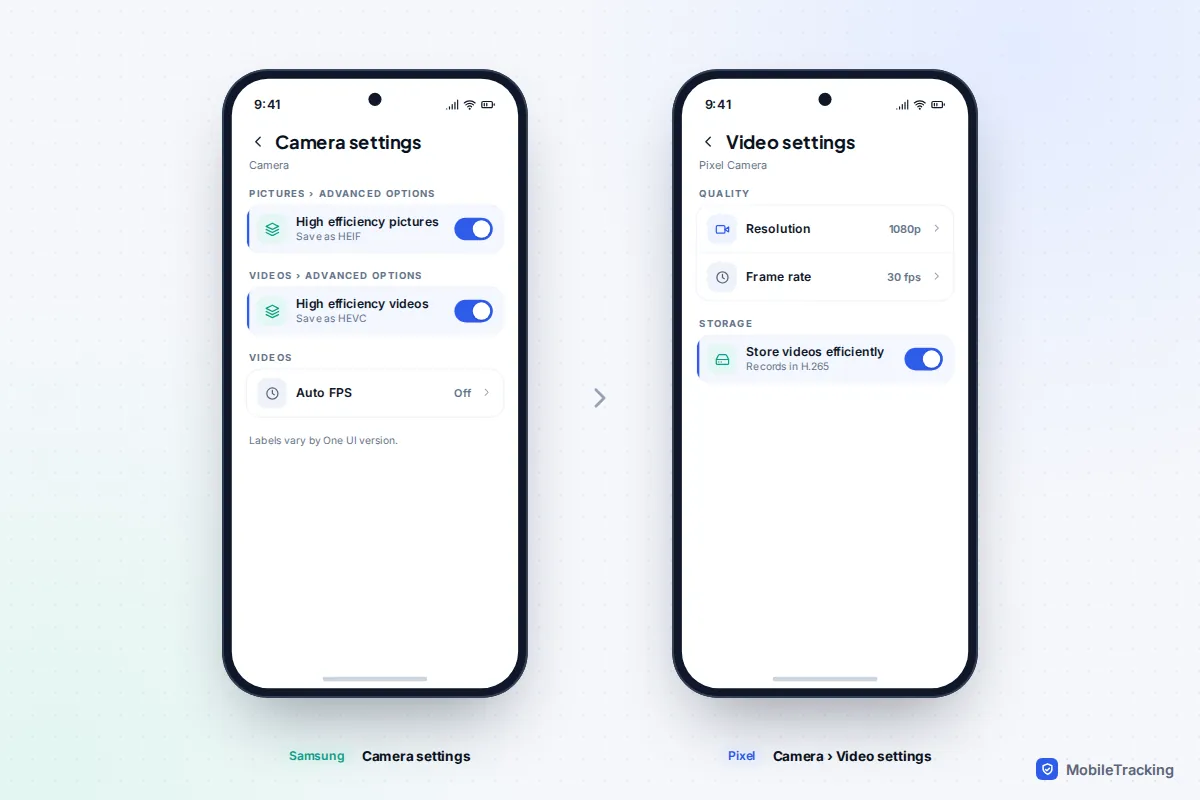
On a Samsung Galaxy, open the Camera app’s settings. Under Advanced picture options, turn on High efficiency pictures; under Advanced video options, turn on High efficiency videos. On a Pixel, the Camera app’s settings include Store videos efficiently, which switches recording from H.264 to H.265. Newer Pixels offer further codec choices, but older TVs and some editing apps can’t play the newest ones, so H.265 is the safe choice.
Live Photos, motion photos and bursts
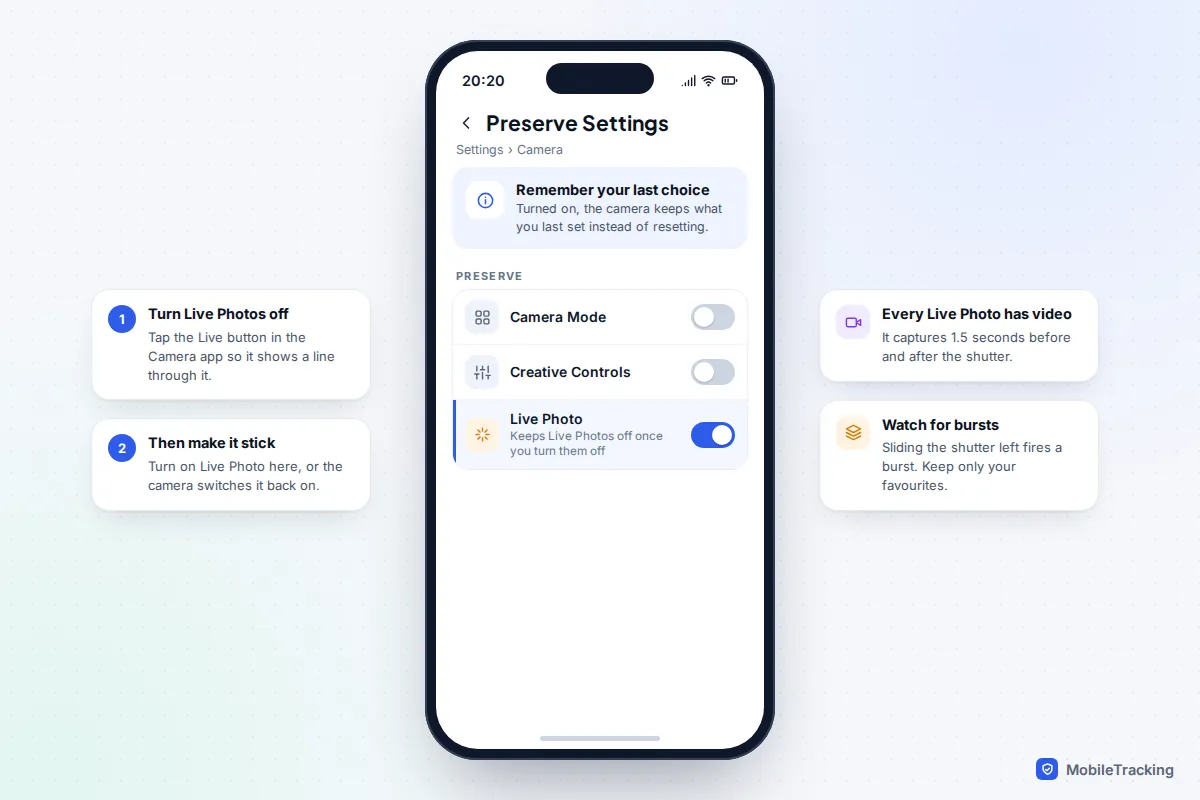
A Live Photo records what happens 1.5 seconds before and after you press the shutter, so every one carries a short video alongside the still. Samsung’s Motion photos and Google’s Top Shot work in a similar way. They’re lovely for children and pets, but if you never watch them, you’re storing video for nothing.
To turn Live Photos off on an iPhone and keep it off, tap the Live Photos button in the Camera app so it has a line through it, then go to Settings › Camera › Preserve Settings and turn on Live Photo. Without that second step, the camera turns Live Photos back on next time you open it. On a Samsung, tap the motion photo icon at the top of the viewfinder to turn it off.
Bursts are the other quiet space-filler. On recent iPhones, sliding the shutter button to the left takes a rapid burst of photos, which is easy to do by accident. Open a burst in Photos, tap Select, tick the one or two you like, tap Done, and choose to keep only your favourites. If you often trigger bursts by mistake, turn on Settings › Camera › Use Volume Up for Burst and use the button instead.
Stop messaging apps saving everything to your camera roll
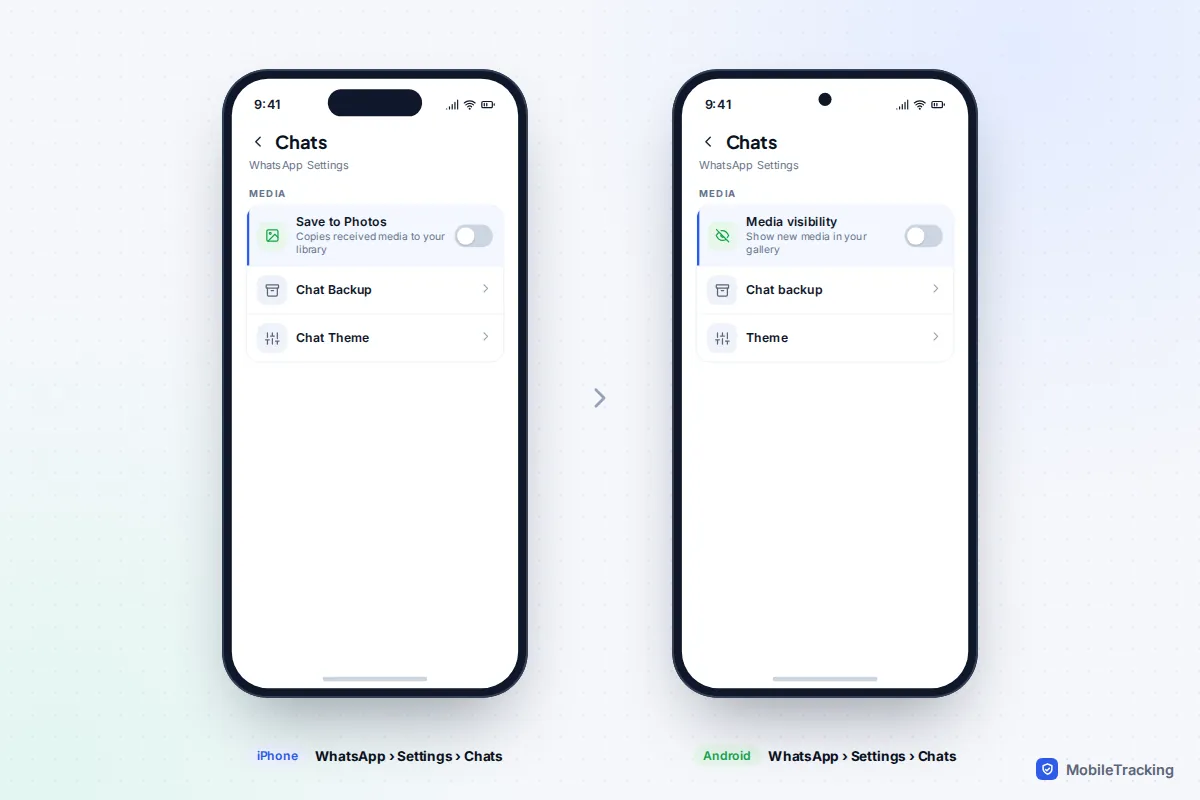
A busy family group or school parents’ chat can send dozens of photos, memes and videos a day. If your chat app saves each one into your photo library, it doubles up storage and fills your camera roll with pictures you never took.
- iPhone: open WhatsApp, tap Settings › Chats and turn off Save to Photos. You can still save any single photo by opening it and tapping the share icon.
- Android: tap the three dots, then Settings › Chats, and turn off Media visibility. To change it for one chat only, open the chat, tap its name, then Media visibility. WhatsApp’s help page on stopping WhatsApp saving media to your phone has the details.
Turning these off stops copies going into your gallery, but the media still downloads into WhatsApp itself. To cut that too, go to Settings › Storage and data › Media auto-download and set videos to download on Wi-Fi only, or never.
Telegram
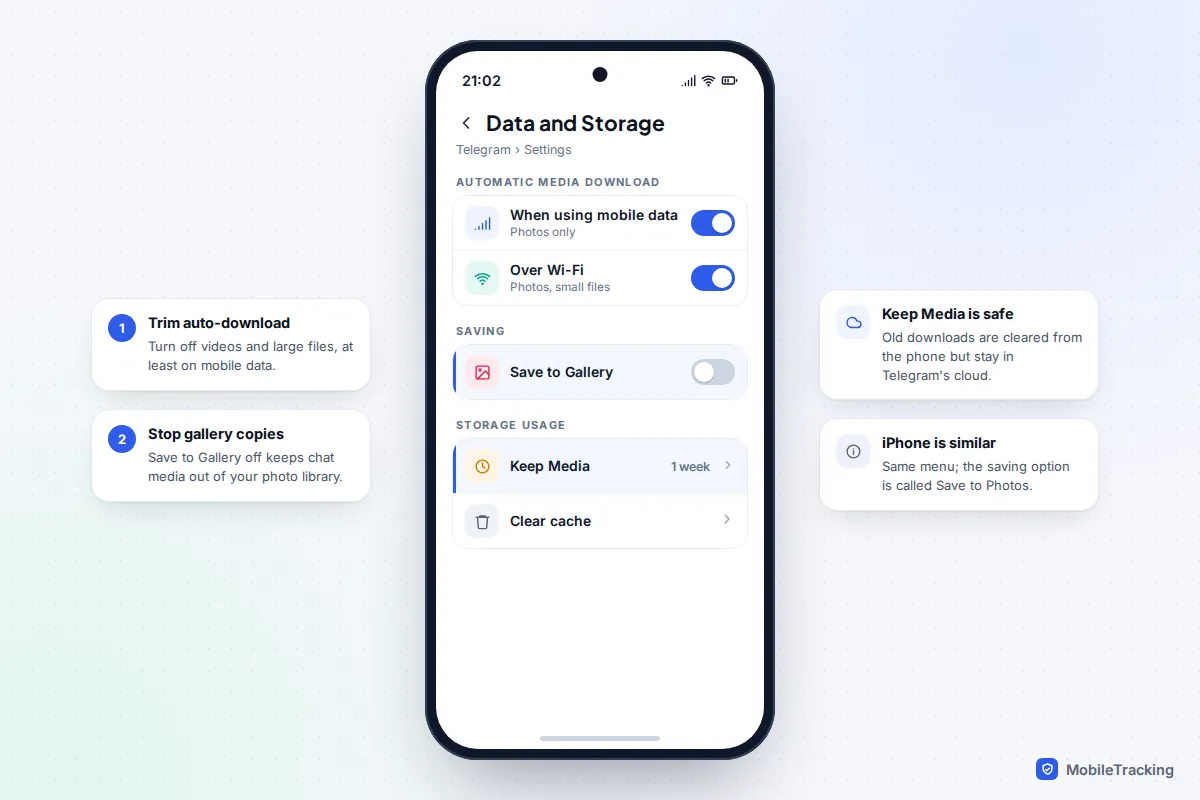
Open Settings › Data and Storage. Under Automatic media download, turn off videos and large files for mobile data, and consider Wi-Fi as well. On Android, turn off Save to Gallery on the same screen; on iPhone, check Save to Photos. Then open Storage Usage and set Keep Media to a week or a month, so downloaded media is cleared from the phone automatically. It stays in Telegram’s cloud and downloads again if you open it.
Screenshots and screen recordings
Screenshots are small, but they pile up in their thousands: boarding passes, recipes, a code you needed once. Screen recordings are far bigger, because they are video.
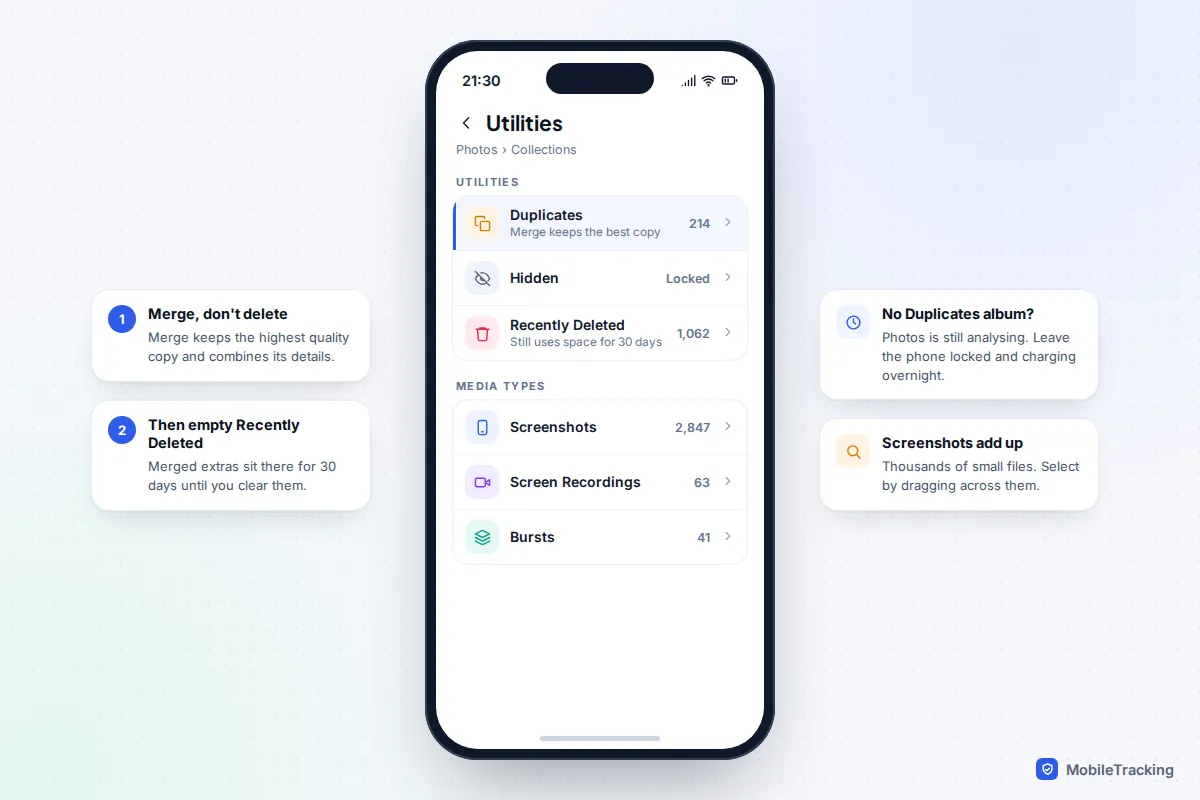
On an iPhone with iOS 26 or later, a screenshot opens a full-screen preview. Tap Done and choose Delete Screenshot (or Copy and Delete to paste it somewhere) instead of saving it. That is the best habit for one-off screenshots. If you prefer the small thumbnail from older versions, turn off Settings › General › Screen Capture › Full-Screen Previews. To clear old ones in bulk, open Photos, find Screenshots and Screen Recordings under Media Types in Collections, and select several at a time by dragging your finger across them.
On Android, check the Screenshots album in Google Photos or Samsung Gallery. The Files by Google app also suggests deleting old screenshots when it finds enough to be worth clearing.
Clear out duplicates properly
Duplicates build up when you save the same photo from several chats, import from a camera twice, or keep edited and original copies.
On iPhone, open Photos, go to Collections and scroll to Utilities › Duplicates. Tap Merge on a set and Photos keeps the highest-quality version, combines captions, keywords and album membership, and moves the extra copies to Recently Deleted for 30 days. The album only appears once Photos has finished analysing your library, which happens while the phone is locked and charging.
On Android there is no single built-in tool. Samsung users can use Settings › Device care › Storage › Duplicate files, and the Files by Google app offers a duplicate files suggestion under Clean. Google Photos won’t upload an identical file twice, but it doesn’t find near-duplicates already in your library. For more options, see our guide on how to delete duplicate photos.
A ten-minute monthly routine
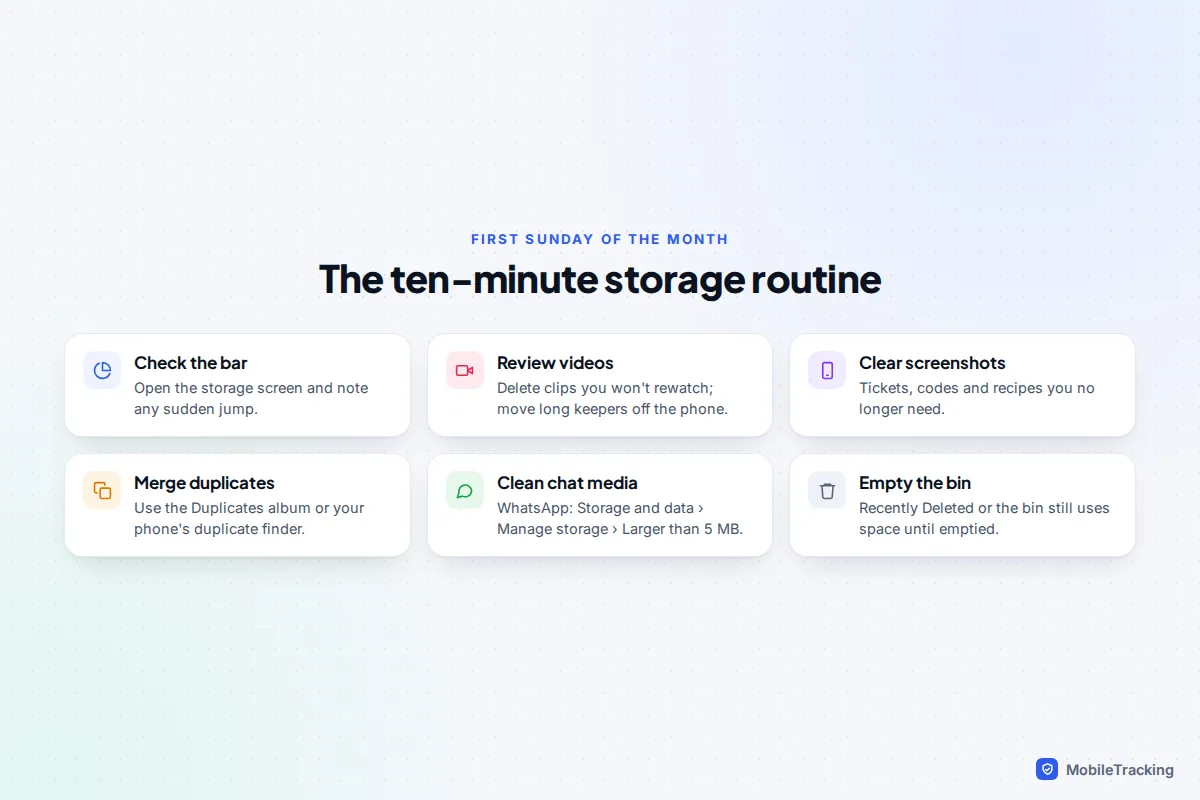
Settings slow the growth; a short routine stops the backlog building. Pick a date, such as the first Sunday of the month, and work through this list:
- Look at the storage bar in iPhone Storage or Android’s Storage screen, so you notice a jump early.
- Review the Videos album, newest first. Delete clips you won’t rewatch and move long keepers to a computer or cloud storage. Our guide to transferring photos from phone to computer covers the options.
- Clear screenshots and screen recordings you no longer need.
- Merge duplicates and trim any bursts.
- Open WhatsApp’s Manage storage (Settings › Storage and data) and delete files over 5 MB you don’t need.
- Empty Recently Deleted in Photos, or the bin in Google Photos or Samsung Gallery. Until you do, deleted items still use space.
Here’s how it plays out. Priya’s 128 GB iPhone kept hitting “Storage almost full” every few weeks. Her camera was set to 4K at 60 fps, her WhatsApp was saving every photo from three busy groups, and Live Photos were on. She switched to 1080p at 30 fps, turned off Save to Photos and Live Photos, and ran through the list above once. Her library still grows, but slowly enough that the monthly clear-out keeps up.
If you’d rather keep everything, the alternative is to let the cloud hold the full-size originals. Our guide to turning on optimised photo storage explains how that works on iPhone and Android, and what it costs.
Frequently asked questions
Does switching from 4K to 1080p shrink videos I’ve already recorded?
No. The setting only affects new recordings. Existing 4K videos stay the same size until you delete them, move them off the phone, or rely on optimised cloud storage to keep smaller copies on the device.
Will High Efficiency photos open on Windows or older devices?
When you share or email a photo, your iPhone usually converts it to JPEG automatically. For photos copied to a Windows PC, newer versions of Windows can open HEIF files, sometimes after installing a free extension from the Microsoft Store.
Is 1080p good enough for family videos?
For clips you’ll mostly watch on a phone or share in chats, yes. Choose 4K for one-off events you’ll want to watch on a big TV or edit, such as a wedding or a first school play, and switch back afterwards.
Does turning off WhatsApp’s Save to Photos delete anything?
No. It only stops future media being copied into your photo library. Everything already saved stays there, and media inside WhatsApp chats is untouched.
Why hasn’t my storage gone down after deleting photos?
Deleted photos go to Recently Deleted on iPhone, or the bin in Google Photos and Samsung Gallery, and still use space. Empty it to free the space straight away.
This guide is general information, not legal or financial advice. Read our editorial policy.