
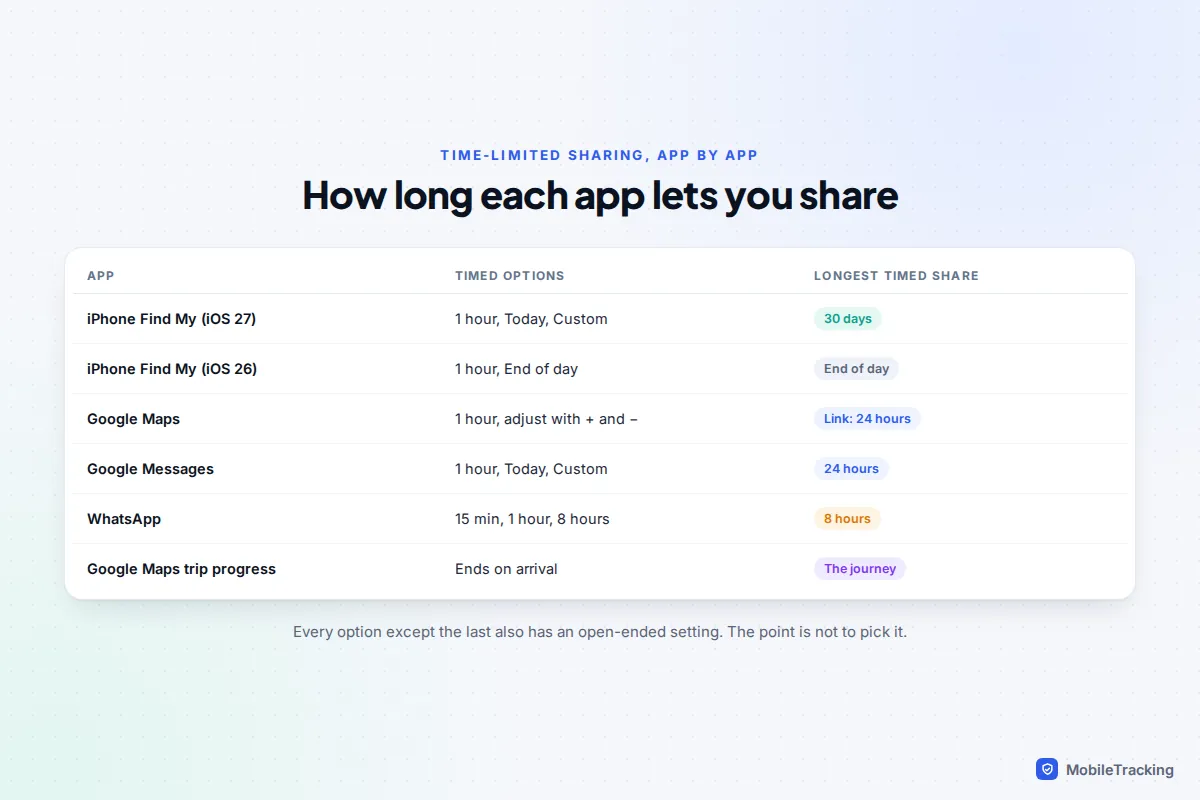
To share your location for a set time only, pick a duration instead of “always” when you start the share. On an iPhone with iOS 27, open Find My, tap People, then + and Share My Location, and choose For One Hour, For Today or Custom, which runs from 15 minutes to 30 days or until a date and time you set. In Google Maps, tap your profile picture, then Location sharing and New share, and adjust For 1 hour with the + and − buttons. In WhatsApp, live location lasts 15 minutes, 1 hour or 8 hours.
When the time is up, the share simply ends. You don’t have to remember to stop it, and in most apps nobody is sent an alert. This guide is about choosing that end point well: which length suits a night out, a first date or a week away, and what the other person sees afterwards.
Why choose a time limit on purpose
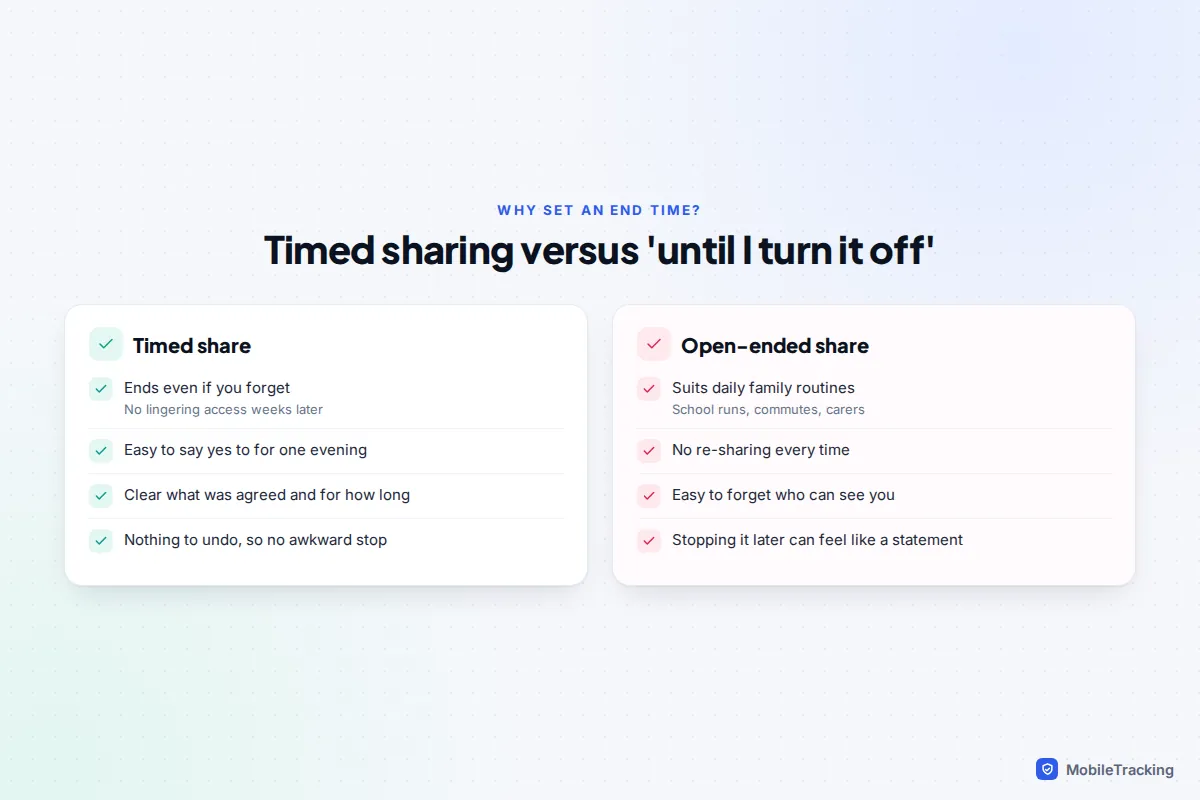
Most sharing apps nudge you towards “indefinitely” or “until you turn this off”. That suits a family who check each other’s commutes every day. For everything else, a timed share is usually the better default, for three reasons.
First, it can’t be forgotten. Open-ended shares linger: an ex, a flatmate from two years ago or a friend from one festival can still be on your list long after anyone meant them to be. Second, it is easier to agree to. “Can I see where you are until you get home?” is a smaller ask than “can I see where you are?”, especially for a teenager or a new partner. Third, it ends quietly. Stopping a share can feel like a statement; a share that was always going to end at 2am doesn’t.
If you often find yourself wanting to pause an open-ended share, that is a sign it should have been timed. Our guide to turning off location sharing temporarily covers pausing, including iOS 27’s Hide Location, which hides you from one person for a while and then resumes by itself.
Which duration fits the situation
The best end point is tied to an event, not a round number. “Until I’m home” is better than “two hours”, because journeys overrun. Add a margin of about an hour to anything that depends on trains, taxis or other people.
| Situation | Suggested length | Best tool |
|---|---|---|
| Meeting a friend in a busy place | 15 minutes to 1 hour | WhatsApp or Find My, For One Hour |
| One journey, such as driving to collect someone | Until you arrive | Google Maps trip progress, or Check In |
| Night out | Until an hour after you expect to be home | Find My Custom end time, or Google Maps |
| First date with someone new | The date plus the trip home | Share with a friend, not the date; or Check In |
| Festival or concert weekend | Until you are home on the last day | Find My Custom, in days |
| School trip or exchange | The length of the trip | Find My Custom or Google Maps, if the school allows phones |
| Holiday or work trip abroad | Until your return flight lands | Find My Custom, up to 30 days |
A first date is the case people most often get wrong. The person who should see your location is a friend you trust, not your date. Share with the friend for the evening, tell them where you are going, and agree that you will text when you are home. Many people prefer a Check In here, because it shares nothing unless something goes wrong.
Take a typical night out. Maya is 16 and going to a party across town that finishes at midnight. Rather than turning on permanent sharing, she and her dad agree on a share that ends at 1am, and she texts when she is in the taxi. If she is running late, she extends it. Her dad knows exactly what he will see and when it stops, so nobody reads anything into the map going quiet at 1.05.
iPhone: timed sharing in Find My
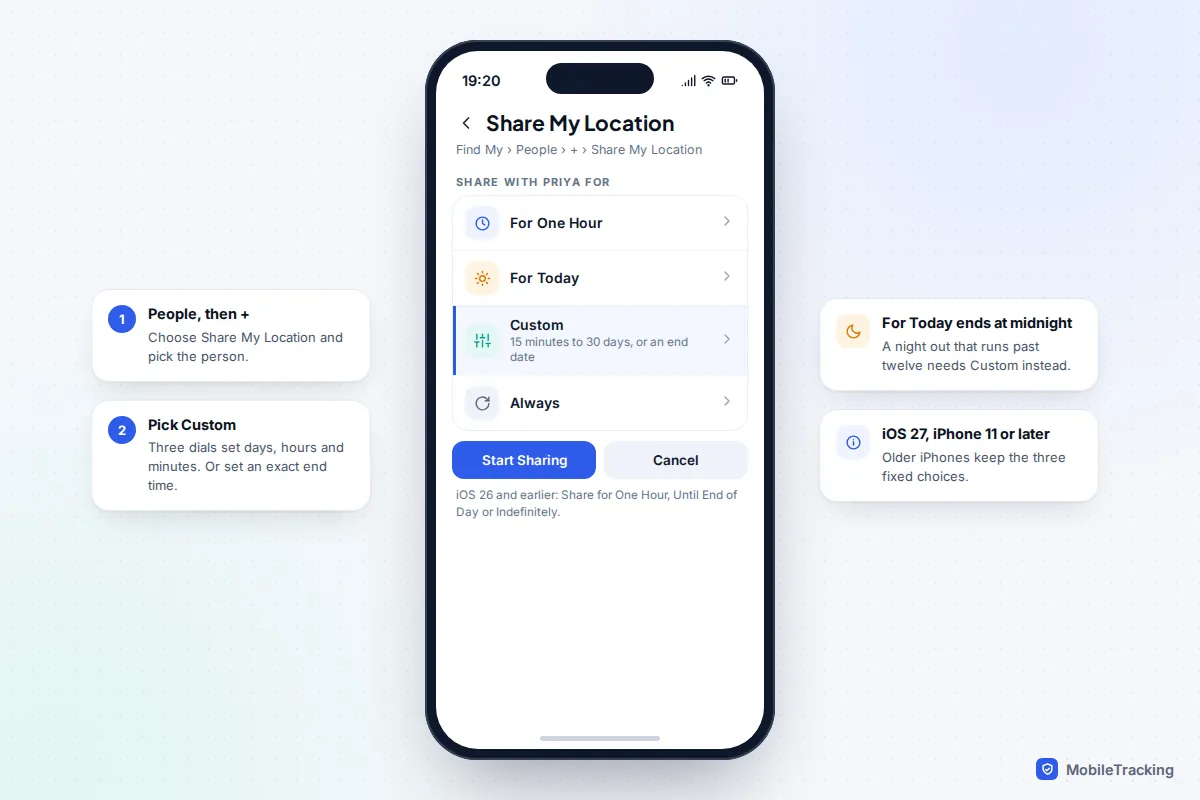
iOS 27, released on 14 September 2026 for iPhone 11 and later, replaced the old three choices with four: For One Hour, For Today, Custom and Always.
- Open Find My and tap People.
- Tap +, then Share My Location, and choose the person.
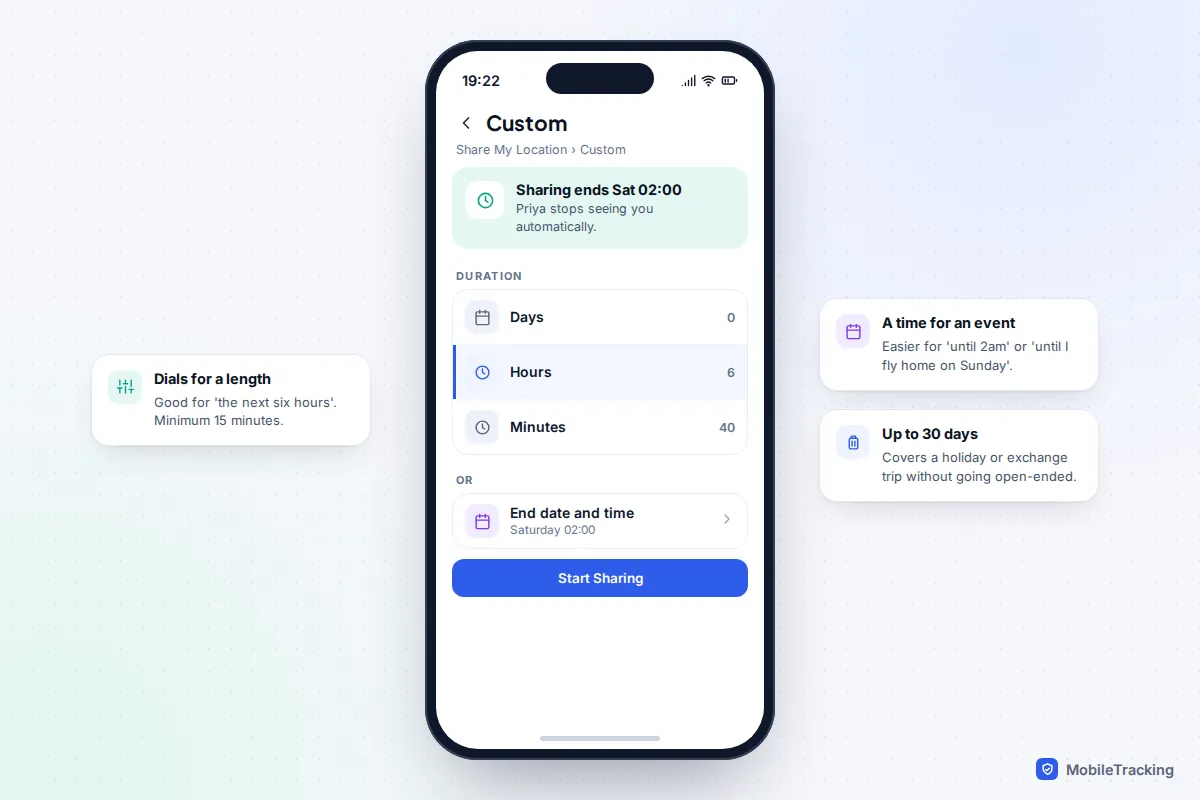
- Tap Custom. Use the three dials to set days, hours and minutes, or set a specific end date and time.
- Tap Start Sharing. The confirmation tells you when sharing will end.
The dials suit “the next six hours”. The end date and time suits anything tied to an event, such as “until 2am” or “until I land on Sunday”, because you don’t have to work out the hours. The shortest custom share is 15 minutes and the longest is 30 days.
For Today ends at the end of the day, which catches people out: a night out that runs past midnight loses its share just as the journey home begins. Use Custom with an end time instead.
On iOS 26 or earlier
You get Share for One Hour, Share Until End of Day and Share Indefinitely. For anything longer than a day, the honest workaround is to share indefinitely, set a reminder in Calendar for when it should end, and stop it yourself. Tell the other person when that will be.
Sharing from a Messages conversation uses the same system, and the share appears in Find My too. The step-by-step for starting one in a chat is in our guide to sharing live location in a message. If you want an unusual length and don’t see Custom in the chat, start the share from Find My instead. Remember that Apple’s sharing only reaches other Apple devices.
Android and Google Maps: set how long
Google Maps works on both Android and iPhone, which makes it the default for mixed families.
- Open Google Maps and tap your profile picture.
- Tap Location sharing, then New share.
- Leave For 1 hour selected and use + or − to change it, or choose Until you turn this off.
- Pick the person (they need a Google Account) and tap Share. Or tap Copy to clipboard for a link, which works for up to 24 hours for anyone who has it.
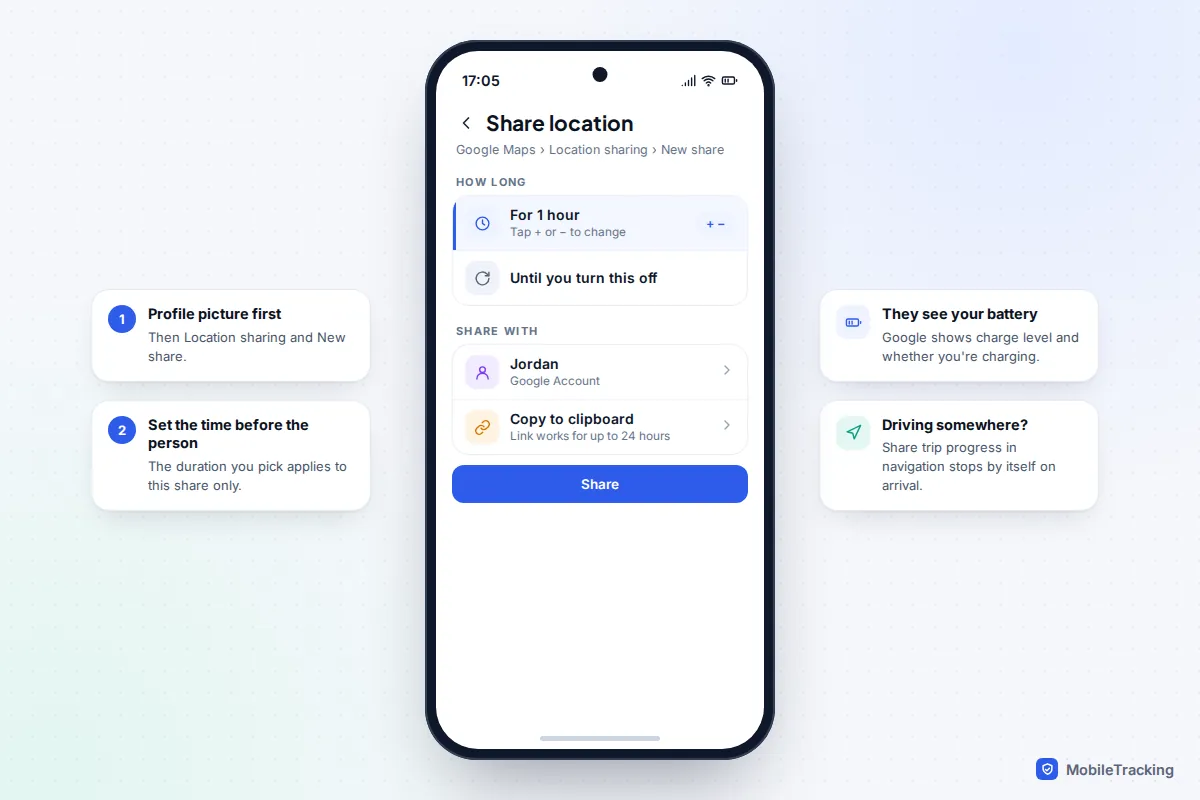
For a single journey, there is a neater option. When you navigate by car, on foot or by bike, Google Maps can share your trip progress: your destination, estimated arrival time and live location. Google’s help page says sharing stops when you reach your destination or end navigation, so you never set a timer at all. Swipe up on the navigation card and tap Share trip progress to start it.
Google Messages now offers real-time location too, with For 1 hour, Today only, Until you turn this off or a Custom duration of up to 24 hours. Google’s page on real-time location in Google Messages explains the setup. These shares run on Google’s location sharing system, so they also appear in Google Maps under Location sharing.
WhatsApp: 15 minutes, 1 hour or 8 hours
WhatsApp is the only major option with no open-ended setting, and that is a strength. Eight hours is the ceiling, so a share can never quietly run for weeks. It also works between iPhone and Android, and WhatsApp says live location is end-to-end encrypted.
- 15 minutes: finding each other at a station or festival gate.
- 1 hour: walking or driving to meet someone.
- 8 hours: a day out or an evening, with room for delays.
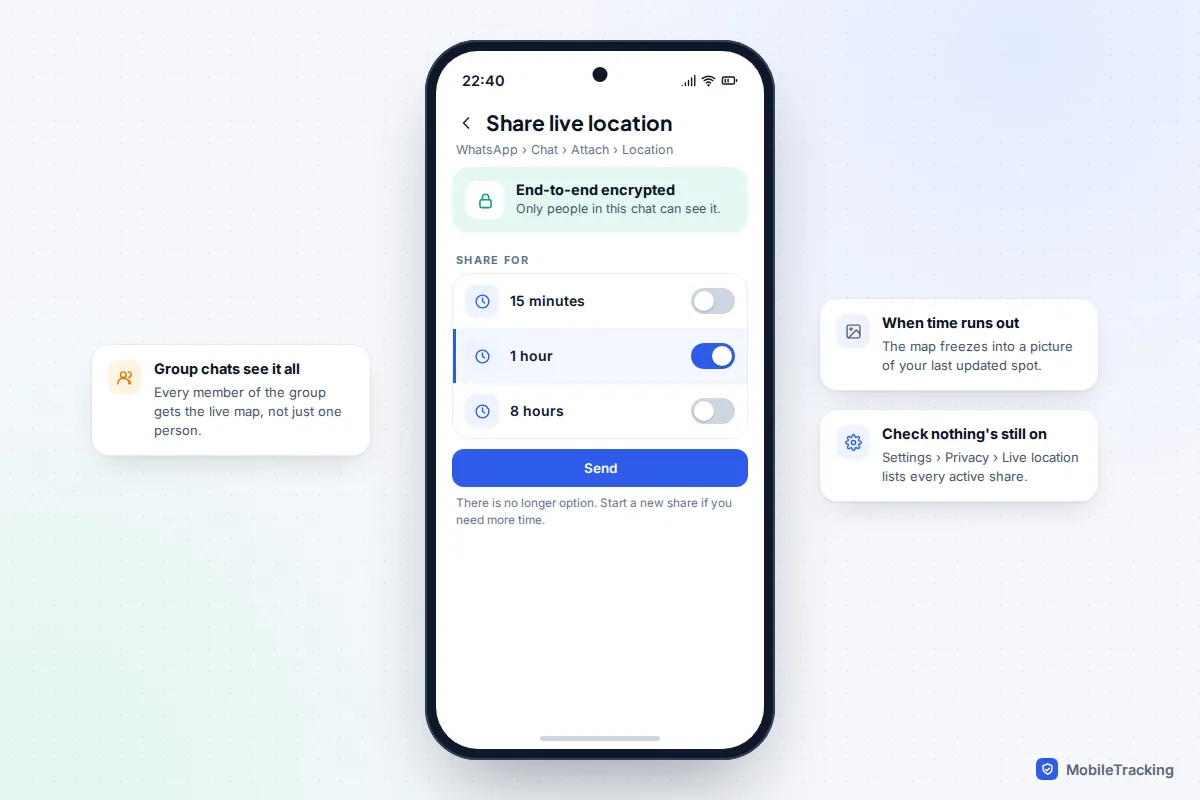
There is no way to lengthen a share already running; start a new one before the old one ends. To check nothing is still live after a long day, go to Settings › Privacy › Live location (labels differ slightly on iPhone), which lists every active share. WhatsApp’s live location help page has the exact steps for each phone.
What happens when the time runs out
This is the part most guides skip, and it is where misunderstandings start.
- iPhone: sharing ends and you are no longer shown to that person live. There is no “sharing ended” alert to them.
- Google Maps and Google Messages: the share ends and your live location stops. Google doesn’t say that anyone is notified at expiry.
- WhatsApp: the moving map is replaced by a static thumbnail of your last updated location, which stays in the chat.
- Trip progress: sharing stops when you arrive or end navigation.
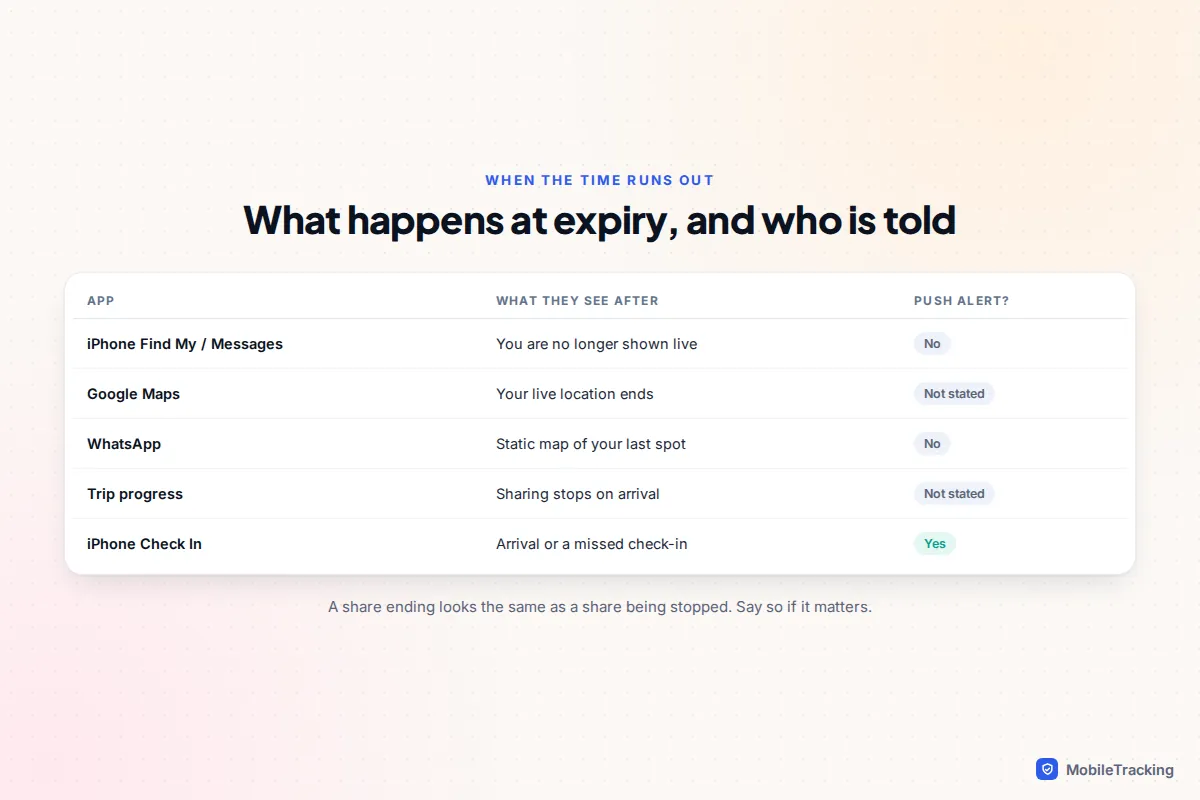
That silence is the reason to say the end time out loud. A parent who didn’t know the share was set for one hour may see “No location found” and worry. A partner may wonder whether you stopped it deliberately. “Sharing until 1am” in the chat prevents both.
If the map goes quiet before the timer should have ended, the share hasn’t expired: the phone is more likely flat, offline or restricted by battery saving. Our guide to fixing location sharing that isn’t working goes through each cause.
Check In: when you don’t need a map at all
Sometimes the real question isn’t “where are you?” but “did you get home?”. iPhone’s Check In, in Messages under +, answers that without sharing a live location. You choose When I arrive at a destination or After a timer, and the other person is told automatically when you arrive or end it.
If you stop making progress, or the timer runs out, your iPhone asks whether you want more time. If you don’t respond within 15 minutes, it sends the details you chose: Limited (location, battery and signal) or Full (which adds your route and where the phone was last unlocked). Both phones need iOS 17 or later. Apple explains the options in its guide to using Check In on iPhone.
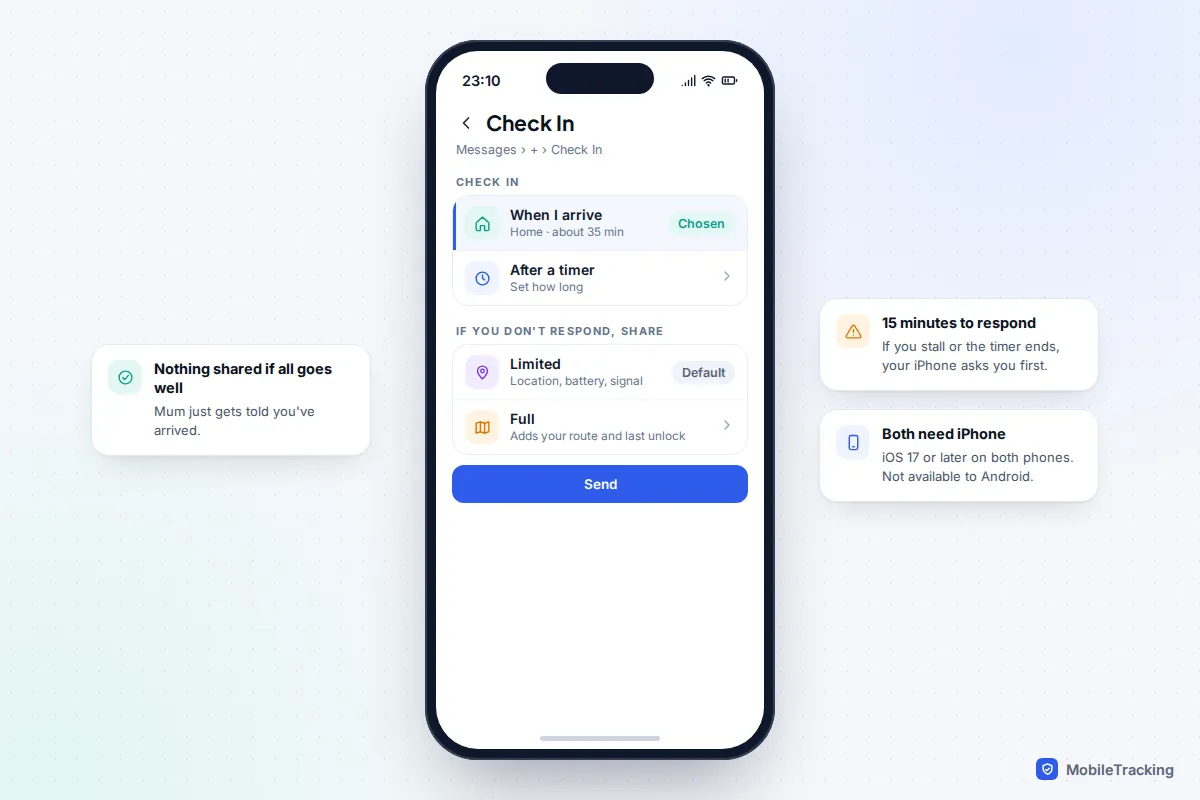
For walking home, first dates and late journeys, Check In is often better than any timed share. More ideas, including options for Android, are in our guide to setting up check-ins instead of constant tracking.
Making timed sharing a habit
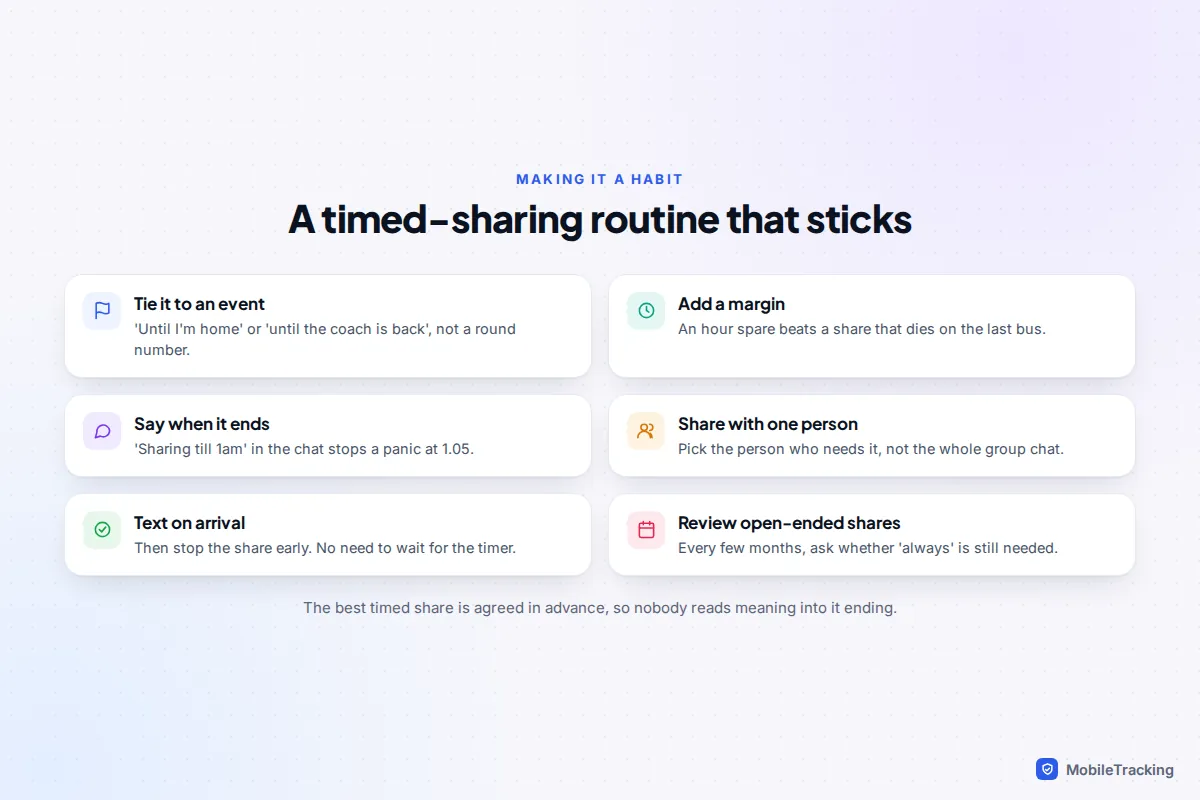
A few family rules make timed sharing automatic rather than a negotiation each time:
- Default to timed. “Always” is reserved for the few people who need it daily, and everyone knows who they are.
- Name the end. Say it in the chat when you start: “sharing till I’m home, about 11”.
- Stop early when you arrive. A text saying you are home, then end the share, rather than letting it run on.
- Check the school’s rules for trips. Some schools collect phones or set their own contact routines, so agree the plan with the trip leader first.
- Review the open-ended list every few months, in Find My’s People tab or Google Maps’ Location sharing screen.
Couples and adult friends benefit from the same rules. Timed sharing lets either person offer it freely without it hardening into an expectation. For more on agreeing this kindly, see our guide to location sharing etiquette for families and couples.
Frequently asked questions
Can I share my location for exactly three hours on iPhone?
On iOS 27, yes: choose Custom and set the hours dial to three, or set an end time. On iOS 26 and earlier the only choices are one hour, until the end of the day, or indefinitely, so you would need to share indefinitely and stop it yourself.
Does the other person get told when my share ends?
Not as a separate alert in Find My, Google Maps or WhatsApp. They simply stop seeing your live location; in WhatsApp the map turns into a still image of your last position. Tell them the end time when you start, so an empty map doesn’t worry anyone.
Can I extend a timed share before it runs out?
The simplest way in every app is to start a new share with a longer time before the current one ends. In WhatsApp that is the only way. On iPhone and in Google Maps you can also stop the current share and immediately start one with the new length.
What’s the difference between a timed share and Hide Location?
A timed share has an end built in from the start. Hide Location, added in iOS 27, is a pause on a share that is already running with one person; it lifts automatically after a while and your normal sharing carries on. Use timed sharing when you only need to be seen for a while, and Hide Location when you usually share but want a break.
How do I share for a set time between iPhone and Android?
Use Google Maps or WhatsApp, which both work across the two. Apple’s Find My and Messages only share with Apple devices, so an Android user won’t see a timed share sent from there.
This guide is general information, not legal or financial advice. Read our editorial policy.