
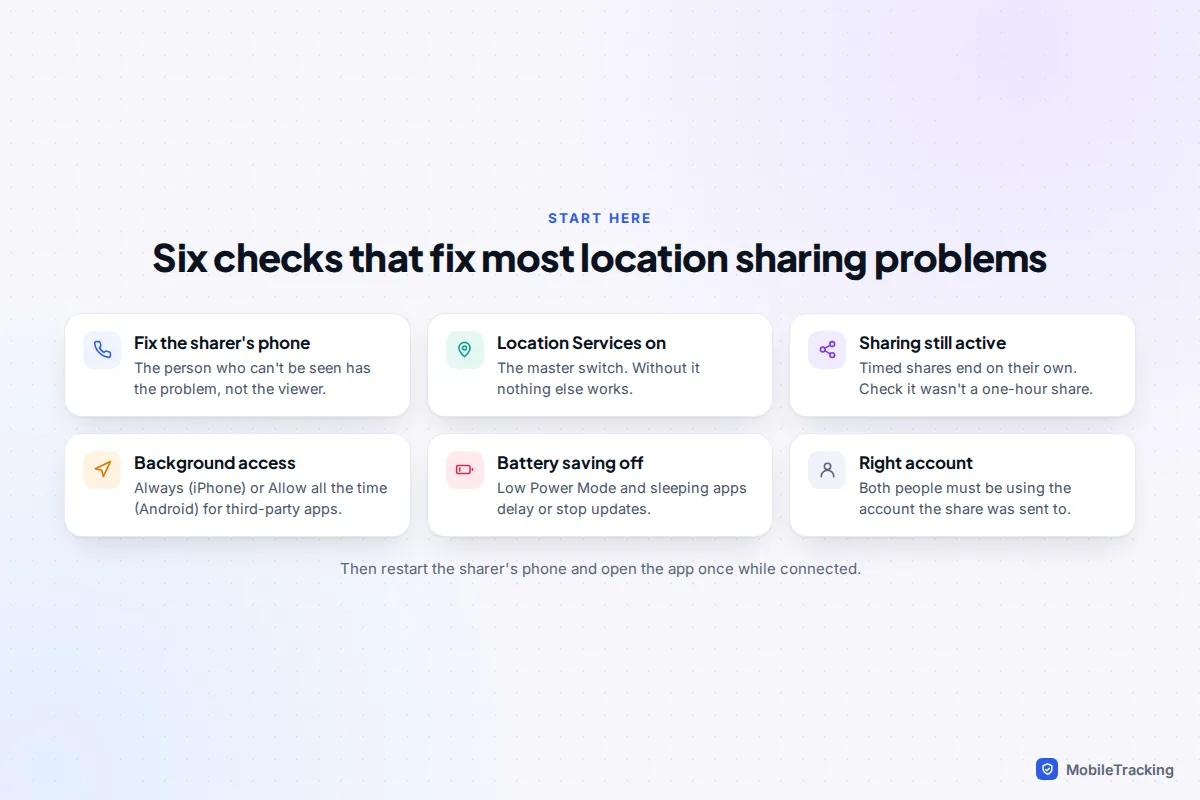
When location sharing stops working, the fix is almost always on the phone of the person who can’t be seen, not the phone doing the looking. On that phone, check four things: Location Services is on, the share itself is still active (timed shares end on their own), the app has background location access (Always on iPhone, Allow all the time on Android), and battery saving isn’t putting the app to sleep. Then restart the phone and open the sharing app once while it has signal.
That clears most cases in five minutes. If it doesn’t, the symptom you see points to the cause, and the sections below take each one in turn for iPhone, Android and family apps.
First, work out which phone has the problem
A location sharing map is just a display. The phone that is sharing does all the work: it reads its position, then sends it to Apple’s or Google’s servers, which pass it on. If your partner’s dot is missing, reinstalling Find My on your own phone won’t help, because nothing is arriving to show.
To confirm, see whether other people on your map are updating. If Mum’s dot moves and Leo’s doesn’t, the fault is on Leo’s side. If nobody is updating, check your own connection first.
Troubleshooting by symptom
“No location found” or “Location not available”
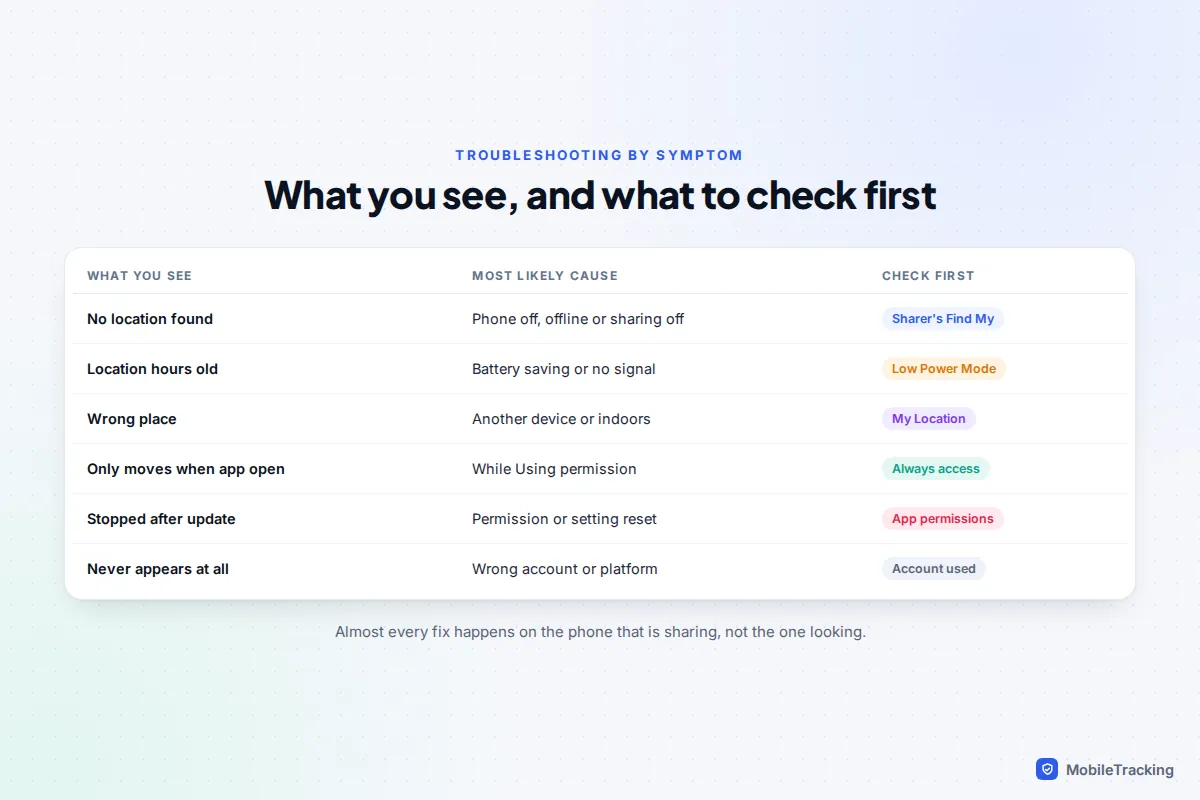
This means the server has nothing current for that person. The common reasons, roughly from most to least likely:
- The phone is off, flat or has no signal. Their last known position may still show with a time stamp, or it may be replaced by “No location found”.
- Sharing was switched off or has expired. A share set to one hour or until the end of the day simply ends. Nobody is sent an alert when that happens.
- They are hiding their location. iOS 27 added Hide Location in Find My, which shows “No location found” to the person it is hidden from until it lifts on its own.
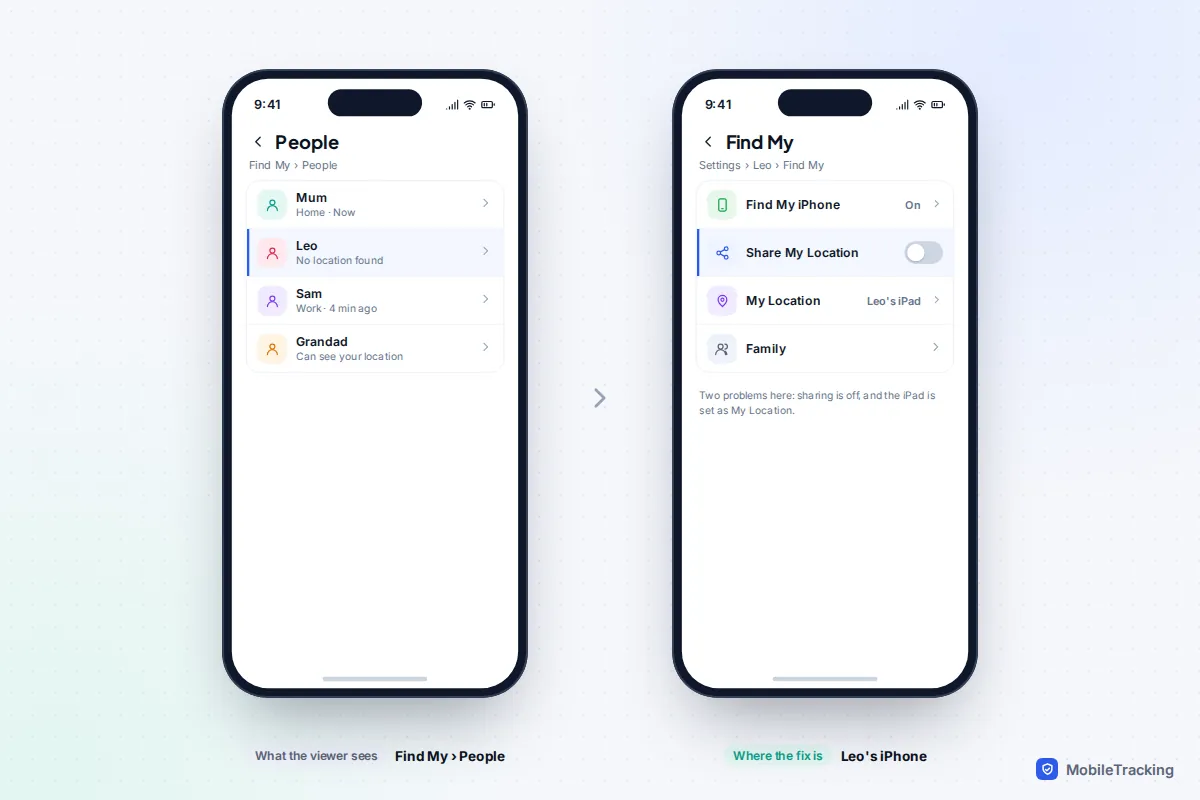
- Share My Location or Location Services is off on their iPhone, or they have signed out of their Apple Account.
- My Location is set to a different device, such as an iPad that is switched off in a drawer.
Ask them before changing anything: “your location isn’t showing, is that on purpose?” respects that they may have paused it deliberately.
The location is stale or updates slowly
Find My and Google Maps don’t track continuously. They update more often when the phone moves, so a position a few minutes old for someone at their desk is normal. A time stamp that says hours usually means one of these: Low Power Mode or Android battery saver is on, the app has been put to sleep by the phone, the phone has poor signal (underground, rural areas, some offices), or the battery died.
The dot is in the wrong place
If someone appears at home while they are clearly at work, check which device is broadcasting. On an iPhone, Settings › [your name] › Find My › My Location should say This Device. Families who share an iPad often find it has quietly become “My Location” for one person. A dot that is a street or two out, or jumps around inside a building, is a different problem: that is normal indoor accuracy, covered further down.
It only updates when the app is open
This is a permission issue affecting third-party apps such as Google Maps on iPhone, WhatsApp or a family locator. The app only has location access While Using, so it stops reporting when the screen locks. The iPhone and Android fixes below show where to change it.
It stopped working after an update or a new phone
iPhone periodically asks whether an app should keep Always access, and it is easy to tap the wrong option. Android can remove permissions from apps unopened for a few months. After moving to a new phone, the old one may still be set as your location device, or you may not have re-accepted Google’s location sharing prompt. If sharing stopped right after installing iOS 27, also check whether Hide Location has been switched on for someone.
iPhone fixes, in order
Work through these on the iPhone that isn’t showing, most common culprits first.
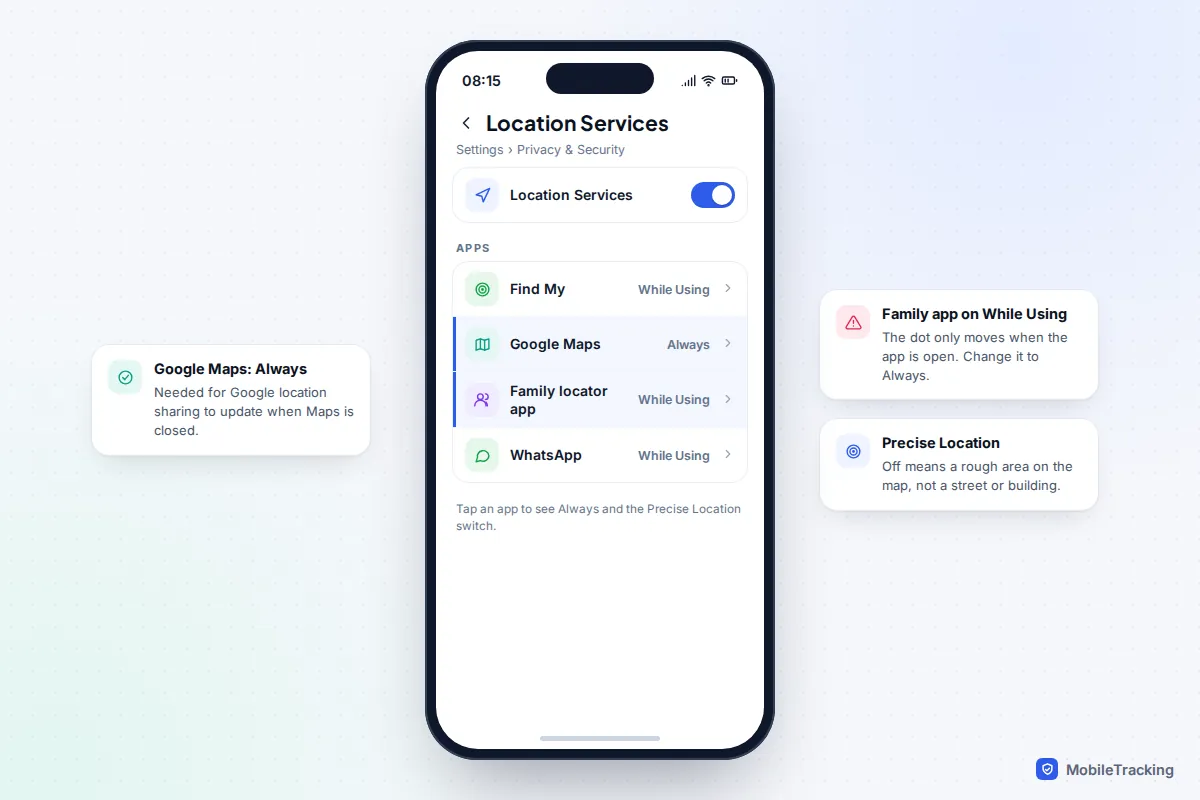
- Location Services: Settings › Privacy & Security › Location Services must be on.
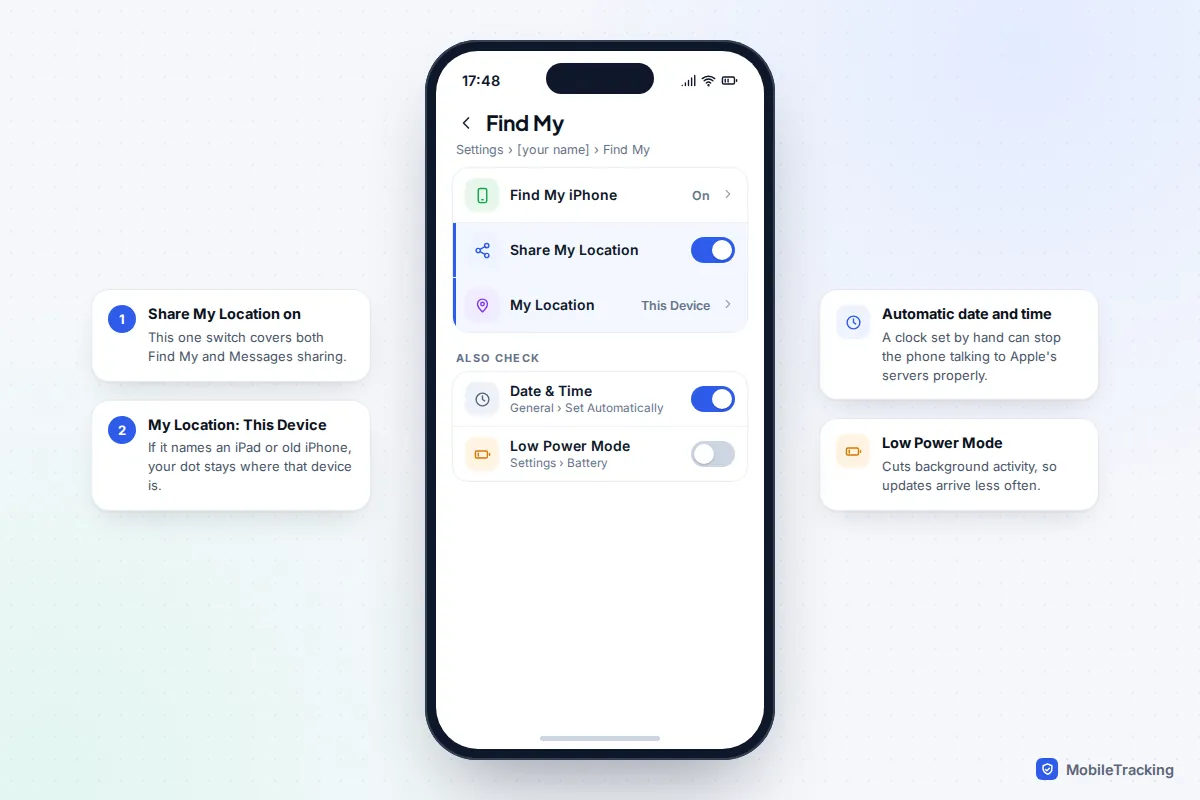
- Share My Location: Settings › [your name] › Find My. Turn on Share My Location and make sure Find My iPhone is on.
- My Location: on the same screen it should say This Device. If not, open the Find My app, tap Me, and choose Use This iPhone as My Location.
- Precise location: in Location Services, tap Find My and check that Precise Location is on. Without it, people see an approximate area.
- Date and time: Settings › General › Date & Time should be set to Set Automatically. A clock set by hand can upset the phone’s connection to Apple’s servers.
- Low Power Mode: Settings › Battery. It reduces background activity, so updates arrive less often. Fine for a short while, not all day.
- The right Apple Account: check the name at the top of Settings. Sharing is tied to the Apple Account signed in to iCloud. If a child’s iPhone is signed in to a parent’s account, the parent’s location settings are the ones in play.
If you share through Google Maps, WhatsApp or a family app on an iPhone, two more settings matter. In Settings › Privacy & Security › Location Services, tap the app, choose Always and turn on Precise Location. Then check Settings › General › Background App Refresh is on for that app, because without it the app can’t wake up to send your position. Our guide to managing Background App Refresh without losing battery explains how to keep it on for the apps that need it and off for the rest.
One thing no setting fixes: Find My and Messages only share with Apple devices, so an Android user will never see an Apple share. Use Google Maps or WhatsApp between the two. Our walkthrough on setting up location sharing on iPhone covers both routes from scratch.
Android and Google Maps fixes
Google Maps, Google Messages and Find Hub all use Google’s location sharing system, so the fixes are shared too. On the Android phone that isn’t showing:
- Location on: swipe down and check the Location tile, or go to Settings › Location.
- Google Location Sharing: Settings › Location › Location services › Google Location Sharing. Make sure Use Location Sharing is on and the person is listed. On Samsung the Location screen looks different, but the Location services list is still there.
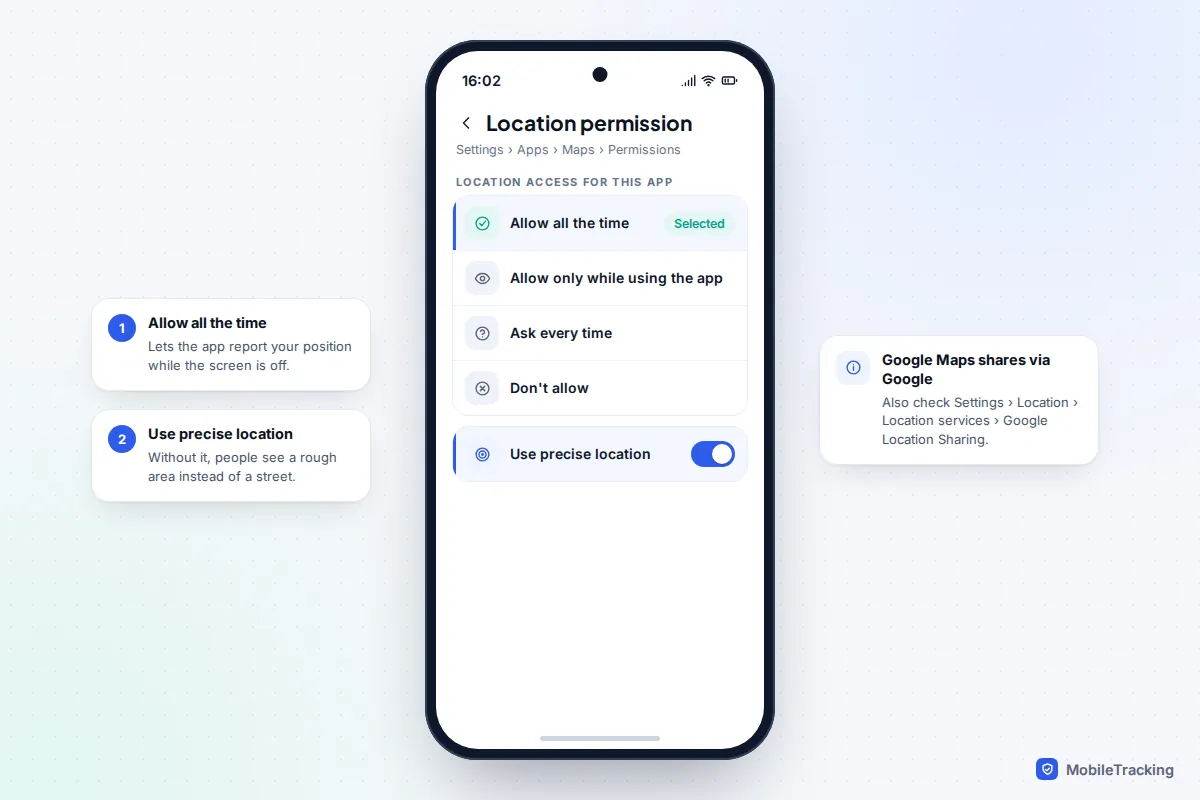
- App permission: Settings › Apps › Maps › Permissions › Location. Choose Allow all the time and turn on Use precise location.
- Location accuracy: Settings › Location › Location services › Location Accuracy, then turn on Improve Location Accuracy. Google’s page on Android location settings shows the older path for Android 11 and earlier.
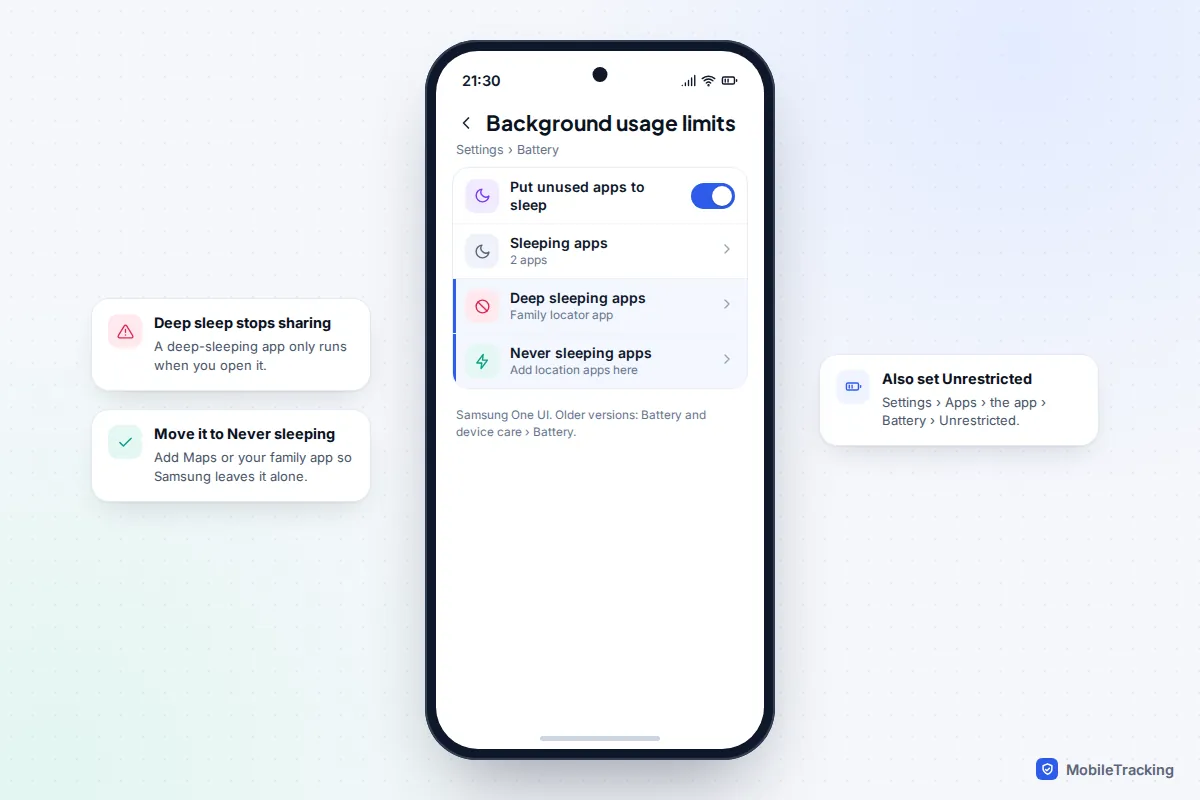
- Battery: set the app to Unrestricted. On a Pixel it is under the app’s App battery usage; on Samsung, Settings › Apps › [app] › Battery.
Samsung sleeping apps
Samsung phones are aggressive about battery saving, and a location app that ends up in Deep sleeping apps only runs when you open it. Go to Settings › Battery › Background usage limits (on older One UI versions, Settings › Battery and device care › Battery). Remove the app from Sleeping or Deep sleeping apps and add it to Never sleeping apps. If Put unused apps to sleep is on, an app you rarely open, like a family locator, is exactly the kind it catches.
Account mismatch
Google shares from the account currently selected in Google Maps. If a phone has a personal and a work account, sharing may be coming from the wrong one, and work (Google Workspace) accounts often can’t share location at all unless an administrator allows it. Tap your profile picture in Maps to see which account is active. Google’s help page on sharing your real-time location lists the other restrictions, including age limits for younger users.
For a full setup from the start, see how to set up location sharing on Android.
Family locator and parental apps
Dedicated family apps need more permissions than Find My or Google, because they aren’t built into the operating system. When one stops updating, check the same things in this order: location access set to Always or Allow all the time, precise location on, battery set to unrestricted (and, on Samsung, not sleeping), and the app not force-stopped. On Android, Force stop in the app’s settings halts it until someone opens it again.
Many also ask for Motion & Fitness or Physical activity access to tell when the phone is moving; if that was declined, updates can become sparse. Most family apps have a permissions screen that flags anything missing, so open that first.
If a teenager’s location keeps “breaking”, have a calm conversation about whether the setup still feels fair before locking settings down further.
Accuracy limits: when it works but looks wrong
Some “faults” are the technology working as designed. Outdoors, phone GPS is good to within a few metres. Indoors or between tall buildings, satellite signals are weak, so phones lean on Wi-Fi networks and mobile masts. That can put someone in the building next door, or make their dot jump while they sit still.
Three things help: keep Wi-Fi on (even without joining a network, the phone uses it to locate itself), keep precise location and Google’s location accuracy on, and give it a minute once someone is outside. Right area, wrong building is normal. Our guide to why location sharing is inaccurate indoors explains each source and how far off it can be.
When the other person’s phone is off or out of signal
No setting can show a live location from a phone that is off, flat or unconnected. You see the last position received, with its age, or “No location found”. On the Tube, on a plane or at a festival with overloaded networks, this is normal and sorts itself out once the phone reconnects.
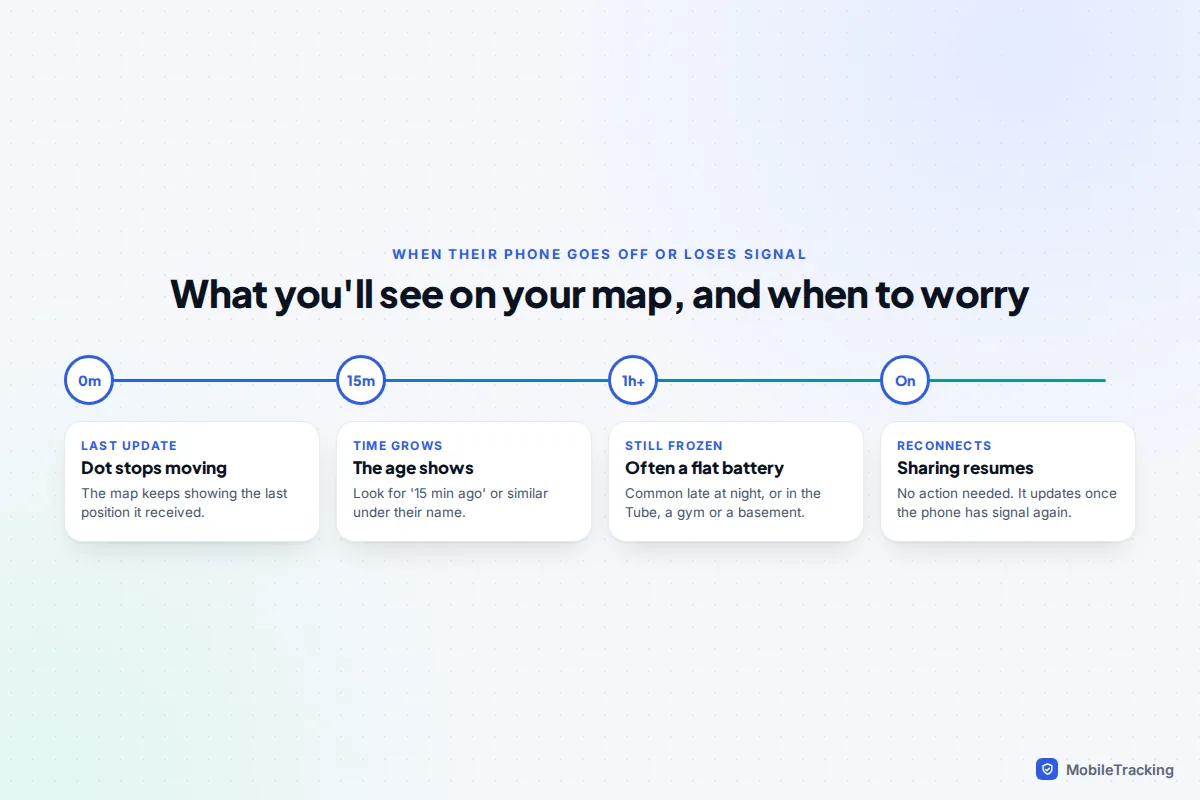
If you are genuinely concerned, call or text first; an SMS may get through when data doesn’t. The last position and its time stamp tell you where they were when the phone went quiet. For owners trying to find their own switched-off phone, which is a different job from people sharing, see how to locate a phone that died.
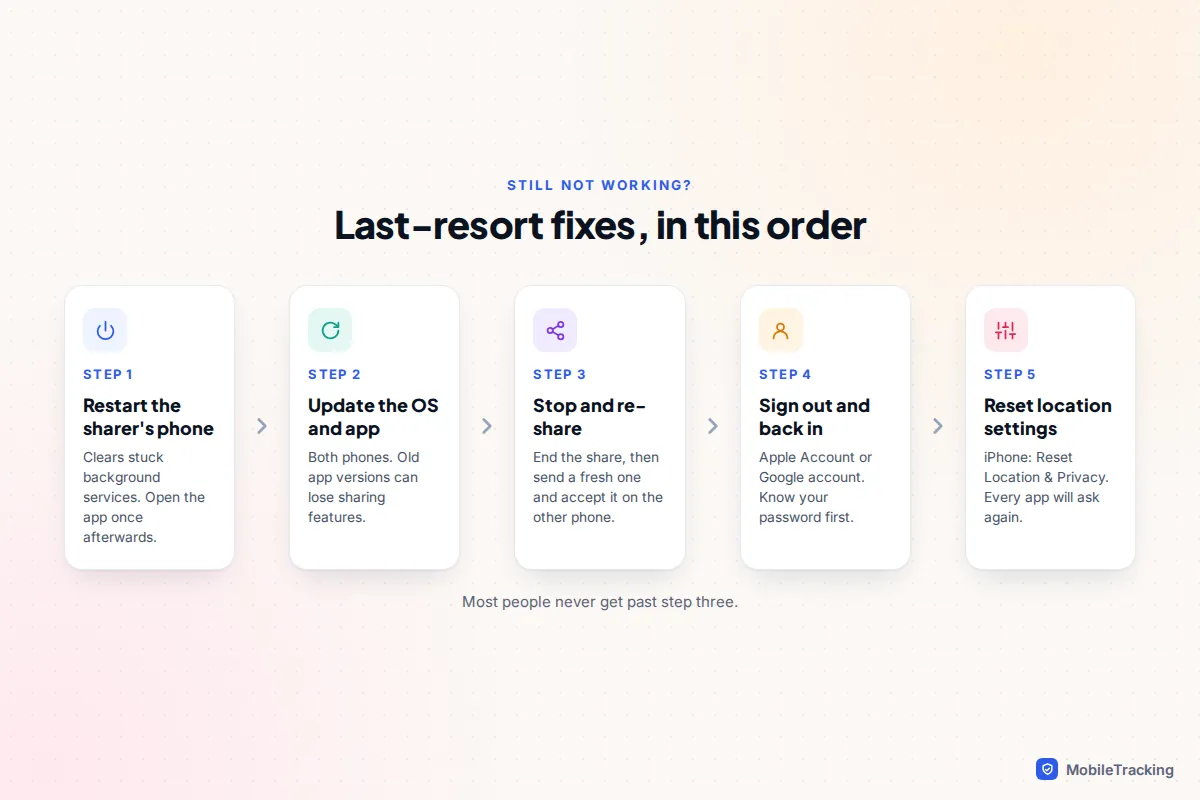
Still not working? Last-resort fixes
If every setting is right and the dot still won’t move, try these on the sharer’s phone, testing after each:
- Restart the phone. Then open Find My, Google Maps or the family app once while connected to the internet.
- Update everything. Install the latest iOS or Android update and update the sharing app from the App Store or Play Store, on both phones.
- Stop and re-share. End the share, send a new one, and make sure the other person accepts it. This fixes a surprising number of “stuck” shares, especially after a phone upgrade.
- Sign out and back in to the Apple Account or Google account. Make sure you know the password first, and on iPhone expect Find My to ask for it when you turn it off.
- Reset location settings. On iPhone, Settings › General › Transfer or Reset iPhone › Reset › Reset Location & Privacy. Every app will ask for location permission again, so be ready to choose Always for the ones that need it.
Frequently asked questions
Why does Find My say “No location found” when their phone is on?
The phone may have no data connection, may have Share My Location or Location Services off, or may be using a different device (such as an iPad) as its location. On iOS 27 they may also have used Hide Location, which shows exactly this message to the person it is hidden from. A timed share that has expired can look similar, because nobody is told when it ends.
Why can’t my Android friend see the location I shared from my iPhone?
Find My and Messages location sharing only work between Apple devices. Your settings are fine; the other phone simply can’t receive it. Share through Google Maps or WhatsApp instead, which both work across iPhone and Android.
Does Low Power Mode stop location sharing?
It doesn’t switch it off, but it reduces background activity, so updates can arrive less often. On Android, battery saver and per-app battery limits have a similar effect, and Samsung’s deep sleeping apps can stop a location app completely until it is opened.
Why is someone’s location a few streets away from where they are?
Usually because they are indoors or among tall buildings, where the phone relies on Wi-Fi and mobile masts instead of GPS. It corrects once they are outside. If it is always roughly placed, check that Precise Location (iPhone) or Use precise location (Android) is on.
Location sharing stopped after I got a new phone. What do I do?
On iPhone, open Find My, tap Me, and choose Use This iPhone as My Location. On Android, open Google Maps on the new phone, check you are signed in to the same Google account, and accept the location sharing prompt. Then set the app permissions to Always or Allow all the time again, because they don’t always carry over.
This guide is general information, not legal or financial advice. Read our editorial policy.