
The cleanest way to pause location sharing depends on your phone. On an iPhone running iOS 27, open Find My, tap People, choose the person, then tap Hide Location: it hides you from that one person and switches back on by itself later (the next day, according to Apple’s personal safety guide; some early reports describe a 12-hour window). On iOS 26 or earlier there is no pause button, so you either tap Stop Sharing My Location for one person or turn off Share My Location in the Me tab, and switch it back on later. On Android, Google’s pause switch is Use Location Sharing in your phone’s location settings.
Whichever you use, the other person is not sent an alert, but anyone who opens their map will see that your location has gone. So how you pause matters as much as which switch you use.
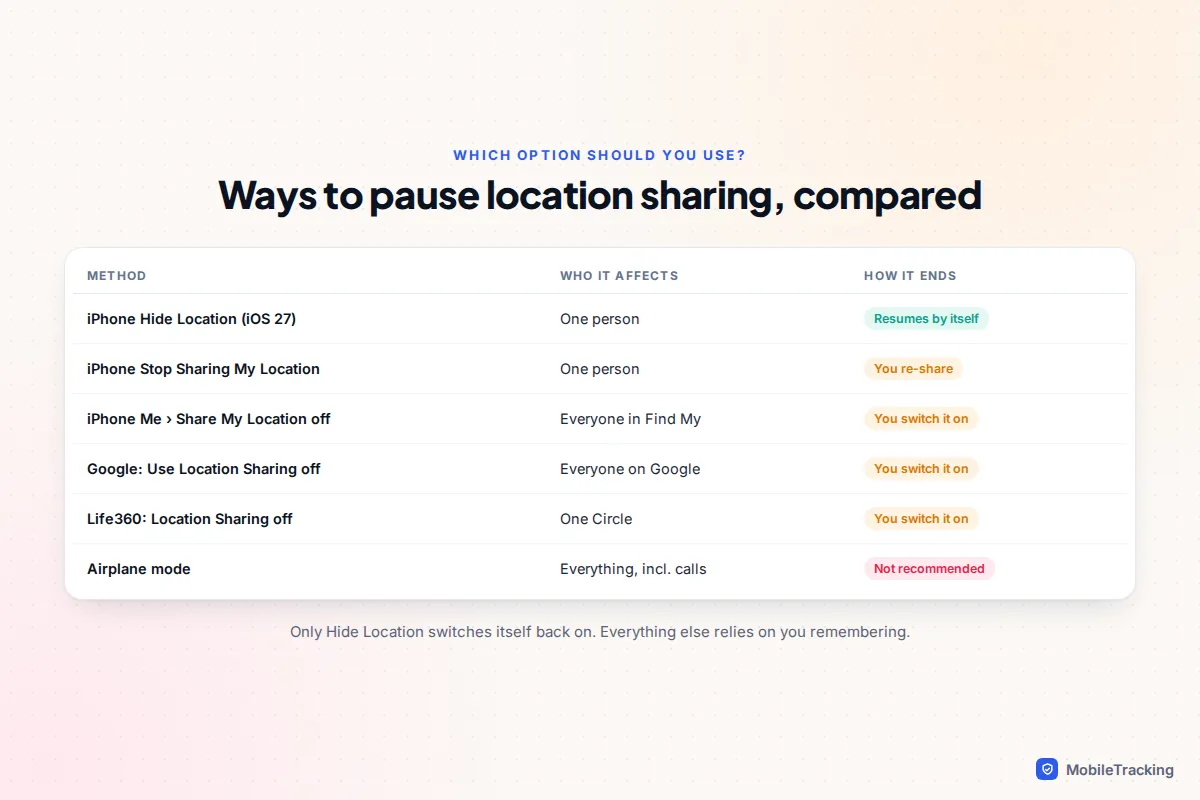
Which option should you use?
Start with two questions: who do you want to pause for, and how will it end? A pause for one person, such as a friend organising a surprise, needs a different tool from a quiet evening off the grid for everyone. And a pause that relies on you remembering to switch it back on has a habit of becoming permanent, which can cause more worry than the pause itself.
| Your situation | Best option | Why |
|---|---|---|
| Hide from one person for today (iPhone, iOS 27) | Find My: Hide Location | Per person, and resumes on its own later |
| Hide from one person (iOS 26 or earlier) | Stop Sharing My Location | Per person, but you must re-share afterwards |
| Go offline for everyone for a while | Me tab: Share My Location off | One switch covers every Find My contact |
| You share through Google Maps | Use Location Sharing off | Pauses every Google share without deleting them |
| Family app such as Life360 | The app’s Location Sharing switch | Works per Circle, and safety features stay on |
| You only need privacy for an hour | Share for a set time next time | Nothing to pause if sharing was never open-ended |
That last row is worth taking seriously. If you regularly find yourself wanting to pause, the underlying problem may be that sharing is set to “indefinitely” when a timed share or an arrival alert would do. Our guide to sharing your location for a set time only covers that approach.
iPhone: pause for one person with Hide Location (iOS 27)
iOS 27, released in September 2026, added a proper pause to Find My. It works per person, so a partner can still see you while the friend planning your birthday cannot. Apple’s own guidance says that when you hide your location, sharing automatically resumes the next day, although some early iOS 27 reports describe a 12-hour window, so check the prompt on your phone.
- Open Find My and tap People.
- Tap the person you want to pause for. If you do not see the option straight away, tap the More (three dots) button on their card.
- Under My Location, tap Hide Location, then confirm.
- To end it early, return to the same card and tap Unhide Location.
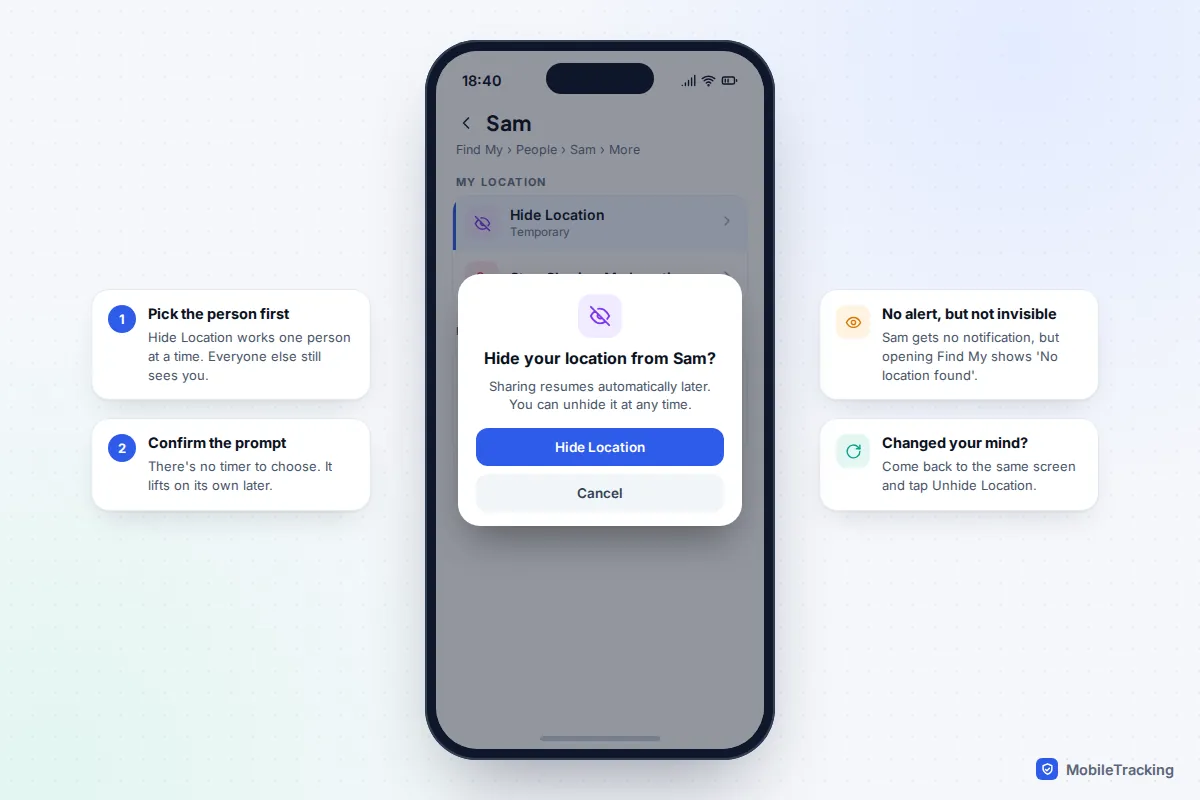
The other person does not get a notification, but their Find My app shows “No location found” where your location used to be. If they look while the pause is on, they will know something has changed, even if they cannot tell whether your phone is off, out of signal or hidden.
Two limits to know. First, Hide Location affects the People list only. If you are in a Family Sharing group and your family can see your devices in the Devices tab, hiding your person location does not necessarily hide your iPhone there. Second, you need iOS 27, which runs on iPhone 11 and later. On older software the option simply is not there.
iPhone on iOS 26 or earlier: stop, then restart
Without Hide Location, a temporary pause on iOS 26 and iOS 18 means turning sharing off and remembering to turn it on again. You have two choices.
Pause for everyone
- Open Find My and tap Me.
- Turn off Share My Location.
- When you are ready, turn it back on. Everyone you were sharing with before can see you again.
The same switch lives in Settings › [your name] › Find My › Share My Location. Turning it off affects Find My and Messages sharing, and it leaves the rest of your phone working normally: Maps, weather and ride apps still know where you are.
Pause for one person
- In Find My, tap People, then the person’s name.
- Tap Stop Sharing My Location, then confirm with Stop Sharing Location.
- To restart, tap their name again and choose Share My Location, then pick a duration.
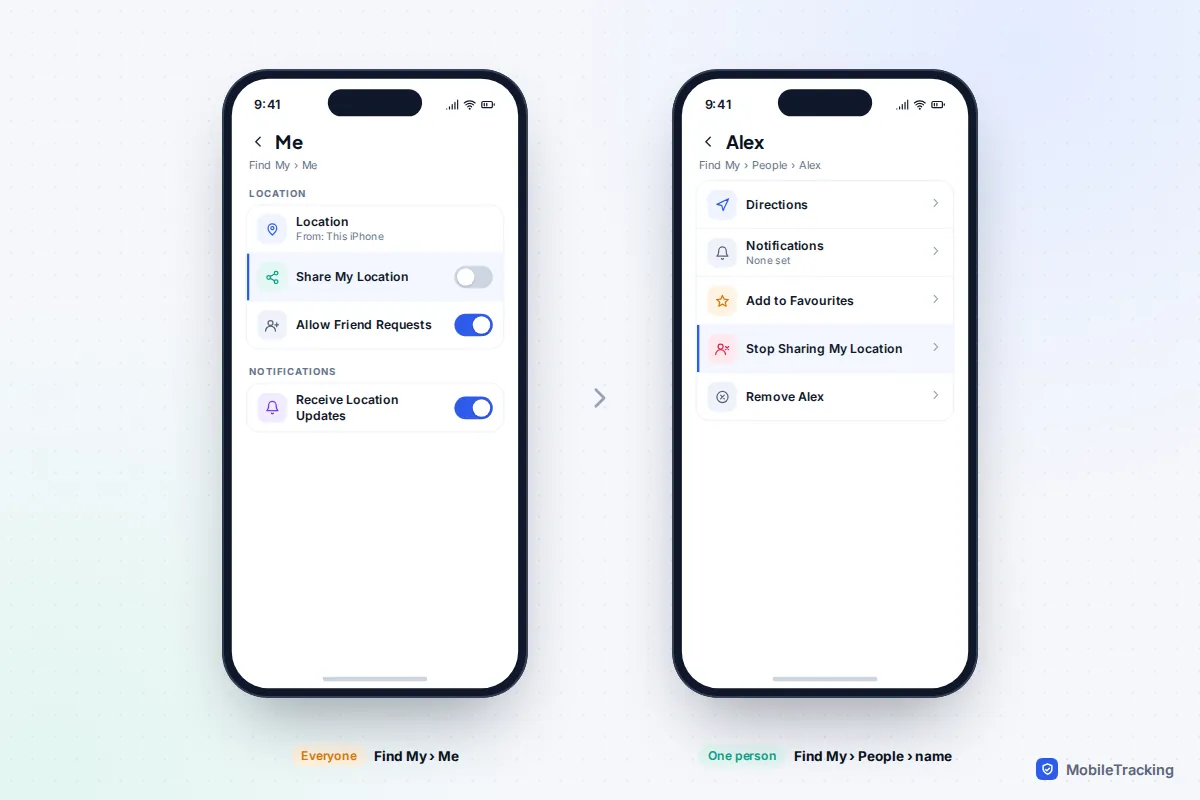
Restarting is not invisible. When you share again, the other person is typically told that you have started sharing with them. You can also stop sharing from Messages: open the conversation, tap their name at the top, and tap Stop Sharing My Location. Apple’s personal safety guide to Find My lists every place this setting appears. If you want a fuller walkthrough of the per-person option on both platforms, see how to stop location sharing with one person.
Why Airplane mode is a poor pause
Plenty of advice suggests Airplane mode. It does stop your phone reporting its location, but it also stops calls and texts, so you are unreachable in exactly the situations where someone might need you. It is also less reliable than it looks.
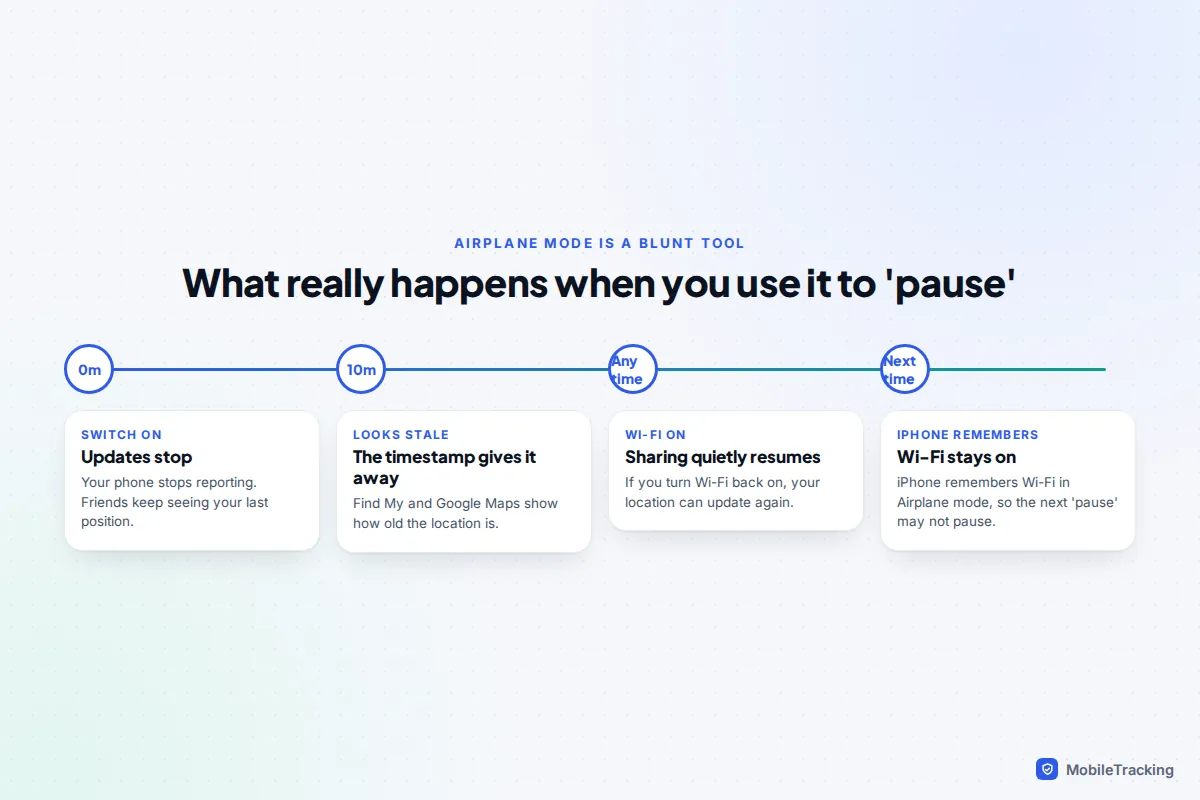
If you turn Wi-Fi back on while in Airplane mode, your iPhone can update its location again over Wi-Fi. iPhone also remembers that choice, so next time you switch Airplane mode on, Wi-Fi stays on too and your “pause” quietly is not one. Turning off Location Services entirely is similarly heavy-handed: it breaks maps and other apps for no extra benefit.
Android and Google Maps: pause or stop
Google’s location sharing, which Google Maps, Google Messages and Find Hub all use, has a genuine pause switch. It keeps your shares in place but stops sending updates until you turn it back on.
- Open Settings on your phone.
- Tap Location, then Location services, then Google Location Sharing. On Samsung One UI the Location screen looks different from a Pixel, but the Location services list is still there.
- Turn off Use Location Sharing. Turn it on again to resume.
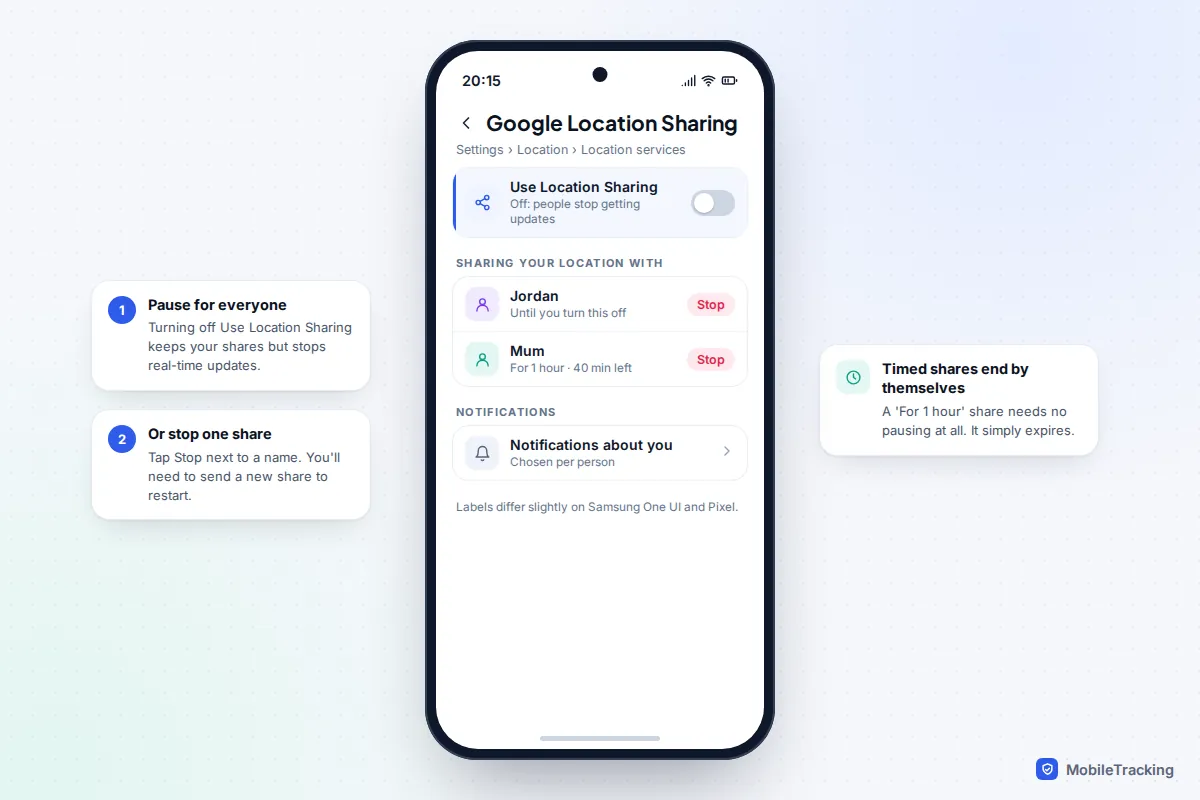
To stop sharing with one person instead, tap Stop next to their name on that same screen, or in Google Maps tap your profile picture, then Location sharing, choose the person and tap Stop. On an iPhone that shares through Google Maps, the Maps route is the one to use.
Google also lets the people you share with set arrival and departure notifications about you. If you want a quieter pause without ending the share, you can switch those off at myaccount.google.com/locationsharing by turning off Allow Location Sharing notifications. Google emails you when someone adds one, so you will usually know they exist.
Life360 and other family apps
Family locator apps are built to make a pause visible. In Life360, open the Circle, tap Settings, then Location Sharing, and turn the switch off. Everyone in that Circle then sees “Location Sharing Paused” under your name. The setting is per Circle, so if you belong to several you have to repeat it in each one.
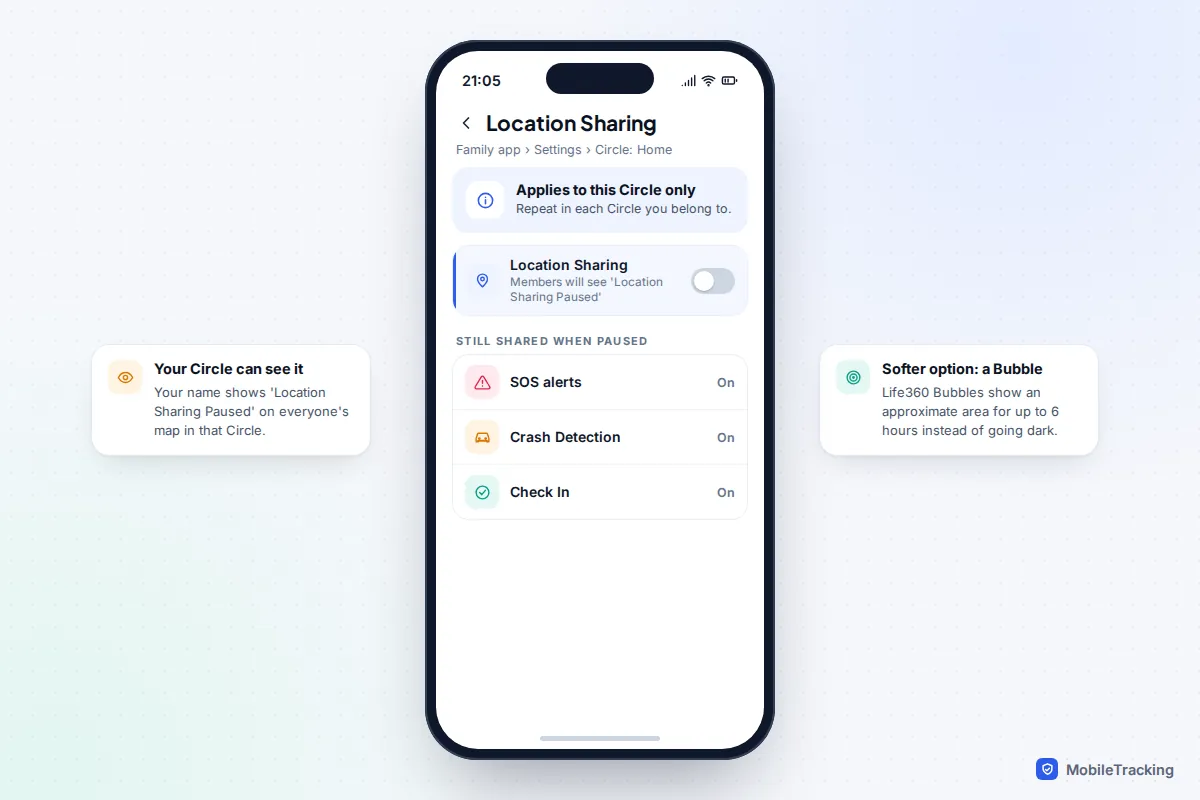
According to Life360’s help pages, your location is still shared if you send an SOS, if Crash Detection is triggered, or if you use Check In, even while sharing is paused. Life360 also offers Bubbles, which show an approximate area (a radius of up to 25 miles) for up to six hours instead of an exact dot. Circle admins can turn Bubbles off for members, and a Bubble bursts automatically if a crash or emergency is detected.
Parental-control apps behave differently again. Many notify the parent when location access is turned off on a child’s phone, because that is part of what they are for. If you are a teenager whose family uses one, the honest route below will serve you better than trying to find a workaround.
What the other person sees, and whether they are told
This is the question most people really have. The short version: none of the mainstream options sends a push alert saying “they paused”, but every one of them leaves a visible trace.
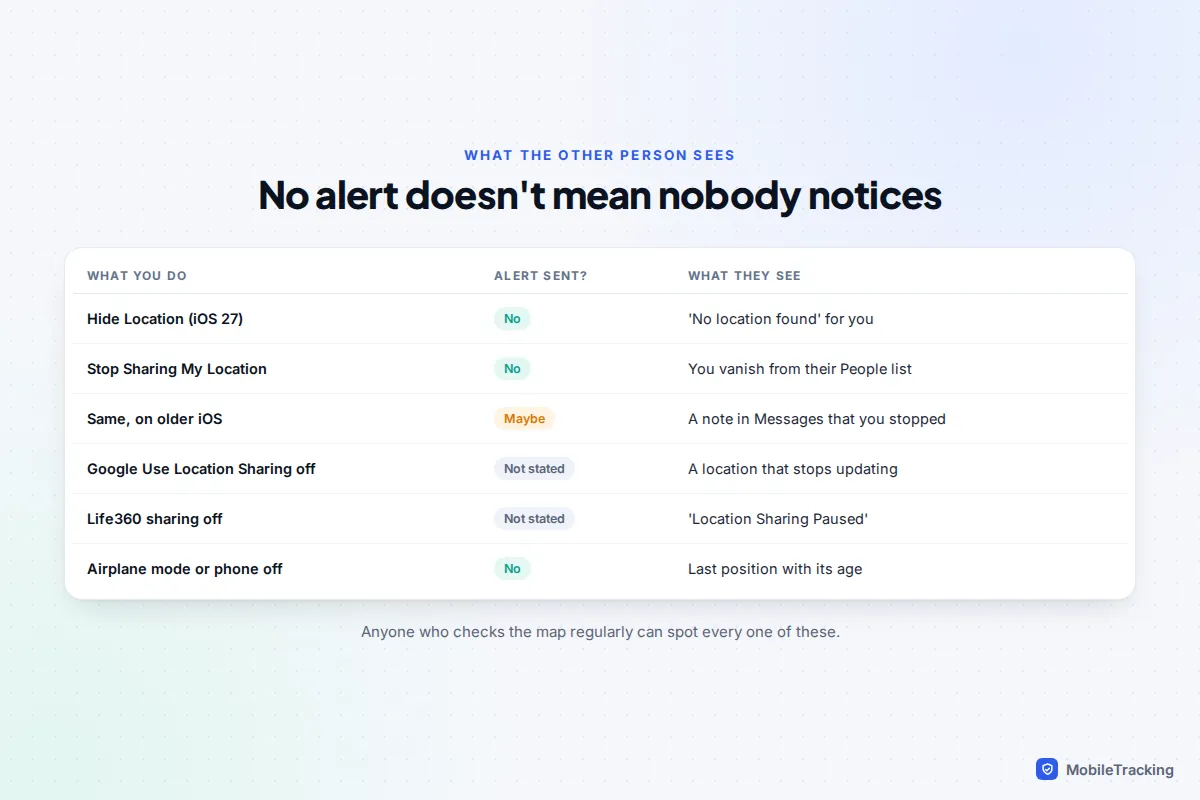
- Hide Location (iOS 27): no notification; they see “No location found” for you until it lifts.
- Stop Sharing My Location: no notification on current iOS, but you disappear from their People list. Apple notes that on earlier software they may get a message in Messages saying you stopped.
- Google pause: your location stops updating for everyone you share with.
- Life360: “Location Sharing Paused” appears under your name.
- Airplane mode, flat battery or phone off: your last known position stays, with a timestamp that grows older.
Anything sold as an “invisible” pause, such as location-spoofing apps, works by giving someone false information. Spoofing tools also often break app terms and can put untrustworthy software on your phone.
The honest, considerate way to pause
A blank map, with no explanation, is where most location-sharing arguments start. A parent sees “No location found” at 11pm and assumes the worst; a partner wonders what changed. A one-line message before you pause heads that off almost every time.
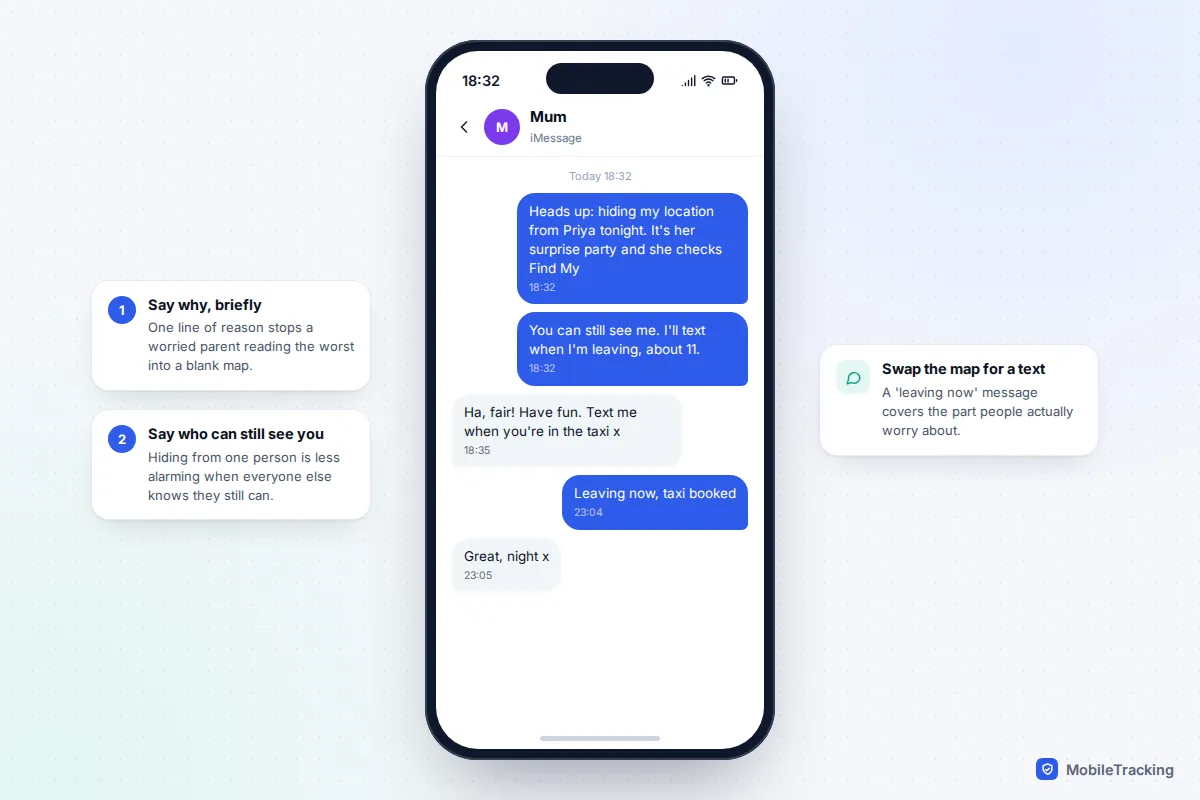
Take a typical case. Priya’s friend is planning her surprise party, and Priya checks Find My constantly. On iOS 27, the friend hides her location from Priya alone for the day. She also texts her mum, who she shares with permanently, to say what she has done and that she will text when she leaves. Nobody is misled, and nothing needs undoing the next morning.
A few habits make pausing feel normal rather than suspicious:
- Agree the rule in advance. “Anyone can pause for an evening, as long as they say so” removes the drama. Our guide to location-sharing etiquette for families and couples suggests other ground rules worth talking through.
- Give an end point. “Back on tomorrow” or “until I’m home” turns a pause into a plan.
- Offer a check-in instead. A text when you leave and arrive covers the part people actually worry about.
- Parents, respond calmly. If a teenager pauses without telling you, ask what they needed. Punishing a pause usually teaches them to find ways round sharing, not to talk to you.
If you are in a controlling or abusive relationship
If someone is using location sharing to monitor or control you, the timing of any change matters more than the steps. Before you switch anything off, consider talking to a specialist who can help you plan: in the UK, the National Domestic Abuse Helpline run by Refuge on 0808 2000 247, and in the US, The Hotline on 1-800-799-7233. Where you can, research and make calls from a device the other person cannot access.
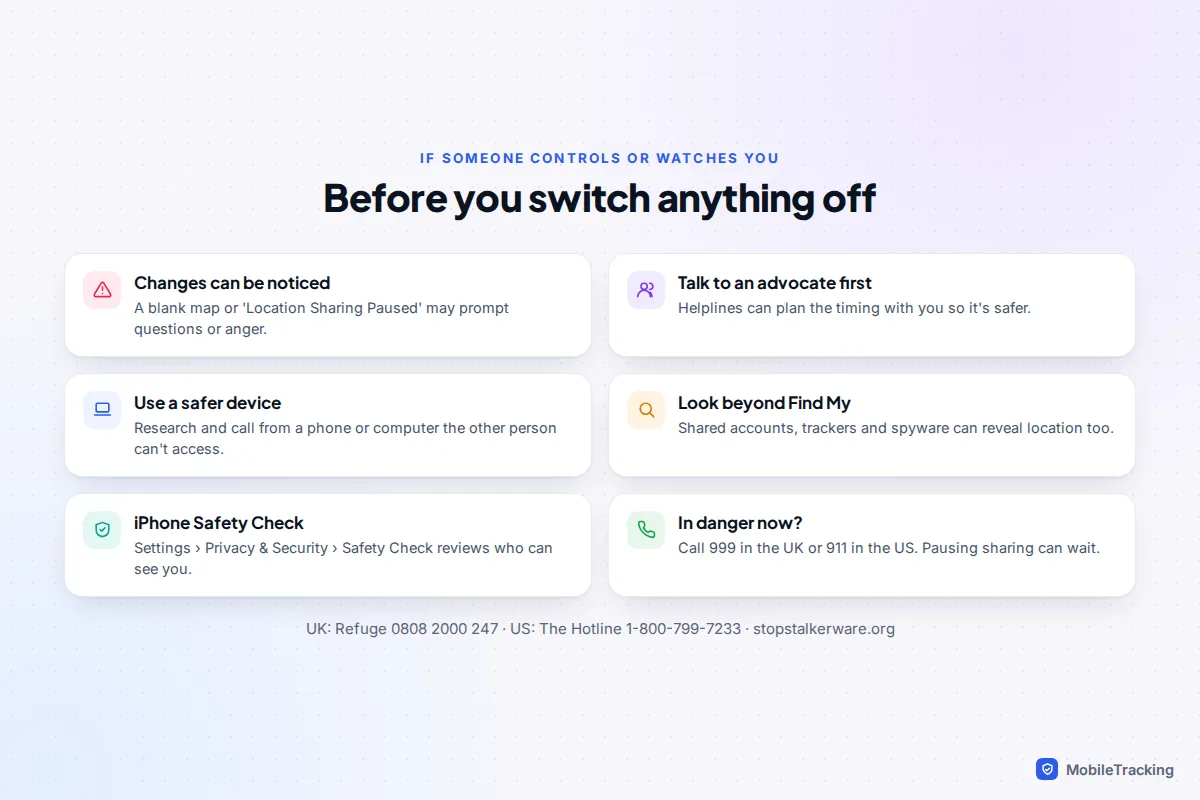
On iPhone, Settings › Privacy & Security › Safety Check shows who you share location and other information with, and lets you review or stop it. It has a Quick Exit button if you need to close it fast. Remember that shared Apple or Google accounts, a Family Sharing group, a tracker hidden in a bag or car, or stalkerware on the phone can all reveal where you are even after sharing is off. Removing spyware can also alert the person who installed it. The Coalition Against Stalkerware explains the signs, and our guide to protecting your phone in an abusive situation walks through a safer order of steps.
Frequently asked questions
Does the other person get a notification when I pause my location?
Not on current versions of iPhone, Google or Life360. However, Apple warns that people may notice you’ve stopped, and on older iOS versions they may see a message in Messages. They will see “No location found”, a location that stops updating, or “Location Sharing Paused”, depending on the app.
How long does Hide Location last on iPhone?
Apple says sharing resumes automatically (its safety guide says the next day). There is no custom timer for the pause itself, but you can tap Unhide Location at any time to end it early. For a set window of sharing rather than a pause, iOS 27 also lets you share for a custom length, from 15 minutes up to 30 days.
Can I pause for one person and stay visible to everyone else?
Yes. On iOS 27, Hide Location works one person at a time. On older iOS, use Stop Sharing My Location for that person and re-share later. On Google, tap Stop next to their name. Bear in mind that family members who can see your devices in the Devices tab may still be able to locate your iPhone there.
Will turning off my phone stop location sharing?
It stops live updates, but your last known location stays visible, with the time it was recorded. When you switch back on, sharing resumes on its own. A powered-off iPhone can still be found through the Find My network by its owner, which is a lost-phone feature, not people sharing.
How do I start sharing again after a pause?
Undo whichever switch you used: Unhide Location, turn Share My Location or Use Location Sharing back on, or re-enable the Circle’s switch in your family app. If you stopped sharing with one person, you need to share with them again from scratch. Our guide to setting up location sharing on iPhone covers the durations and alerts to choose.
This guide is general information, not legal or financial advice. Read our editorial policy.