
The quickest way to swap constant tracking for check-ins is to share location only for a journey or a set time, and to get one alert when someone arrives. On iPhone, that means Check In in Messages and arrival alerts in Find My. On Android, or in a family with both, it means time-limited sharing in Google Messages or Google Maps, arrival notifications in Google Maps and, on Pixel phones, Safety Check. Each takes under two minutes to set up, and the other person can always see when it is on.
This guide walks through each option, helps you pick the right one for your family or relationship, and covers the conversation that makes check-ins work. Everything here is designed to be used openly, with the other person’s agreement.
Why check-ins often work better than a live map
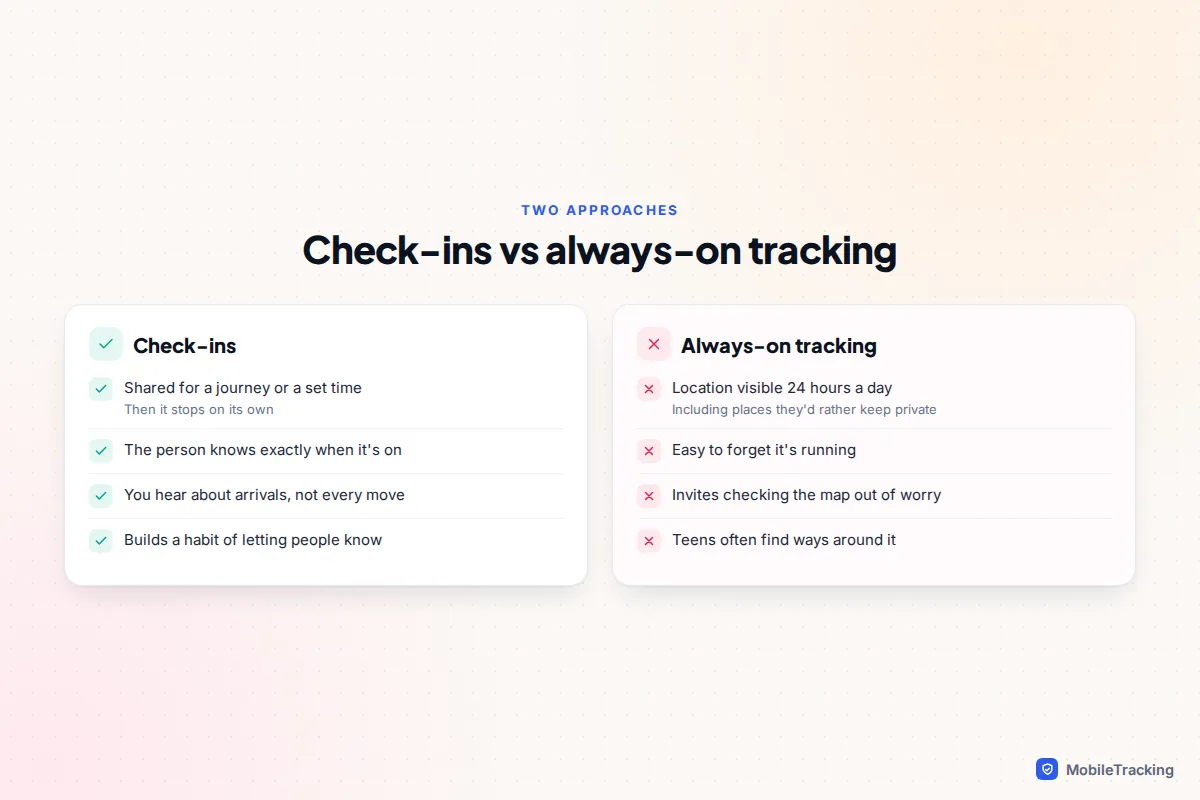
Always-on location sharing sounds reassuring, but it tends to create a new habit: opening the map whenever you feel a flicker of worry. A dot that has not moved for twenty minutes can cause more anxiety than no information at all, and for teenagers, being visible every hour of every day can feel like a lack of trust.
Check-ins flip that around. The person travelling decides when to share, for how long, and with whom. You get the information that matters, an arrival or a missed arrival, without the rest. Many families find that teenagers are far more willing to keep a check-in habit than to leave permanent sharing switched on, which makes it more reliable in practice.
That does not make permanent sharing wrong. For a young child with a first phone, or an older relative who has agreed to it, a live map can be sensible. The point is to choose deliberately, and our guide to location sharing etiquette for families and couples covers how to have that discussion.
Which option should you use?
Start from the real question you want answered. If it is “did they get home?”, an arrival check-in is enough. If it is “are they OK during an evening with no fixed end?”, a timer suits better. If it is the same place every weekday, a recurring arrival alert saves everyone from sending a text.
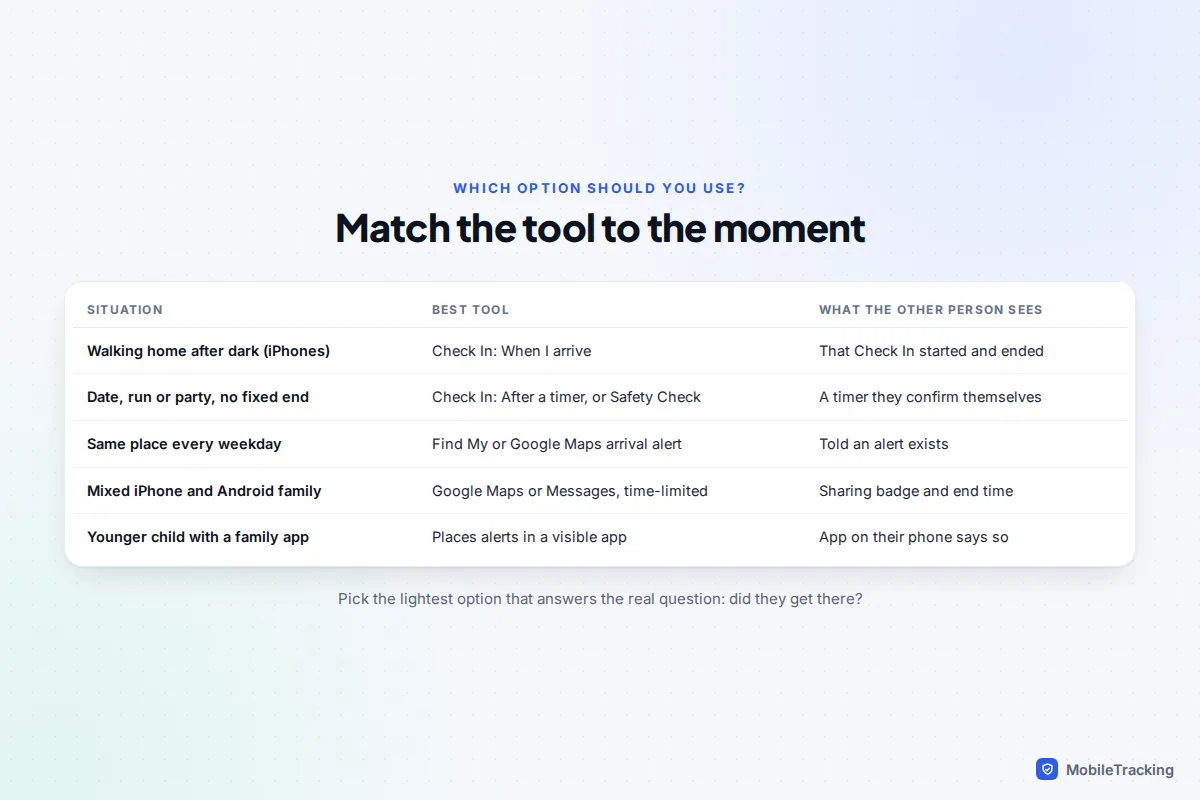
The phones involved matter too. Apple’s Check In only works between iPhones. Google’s options work on both Android and iPhone, provided everyone has a Google Account. Third-party family apps work across both, but check what their free plan includes before you rely on a feature.
iPhone: set up Check In in Messages
Check In arrived with iOS 17 and is still in Messages on iOS 18 and iOS 26. Both you and the person you send it to need iOS 17 or later. It either ends automatically when you arrive, or asks you to confirm you are fine when a timer runs out. If neither happens, your chosen contact is sent the information they need to find you.
- Open Messages and go to the conversation with the person you want to check in with, such as a parent or partner.
- Tap the + button next to the text field, then tap Check In. You may need to tap More to find it.
- Tap Edit and choose When I arrive or After a timer.
- For an arrival, choose the destination, an arrival radius (Small, Medium or Large) and whether you are driving, on public transport or walking. For a timer, choose how long.
- Tap Done, then send the message like any other.
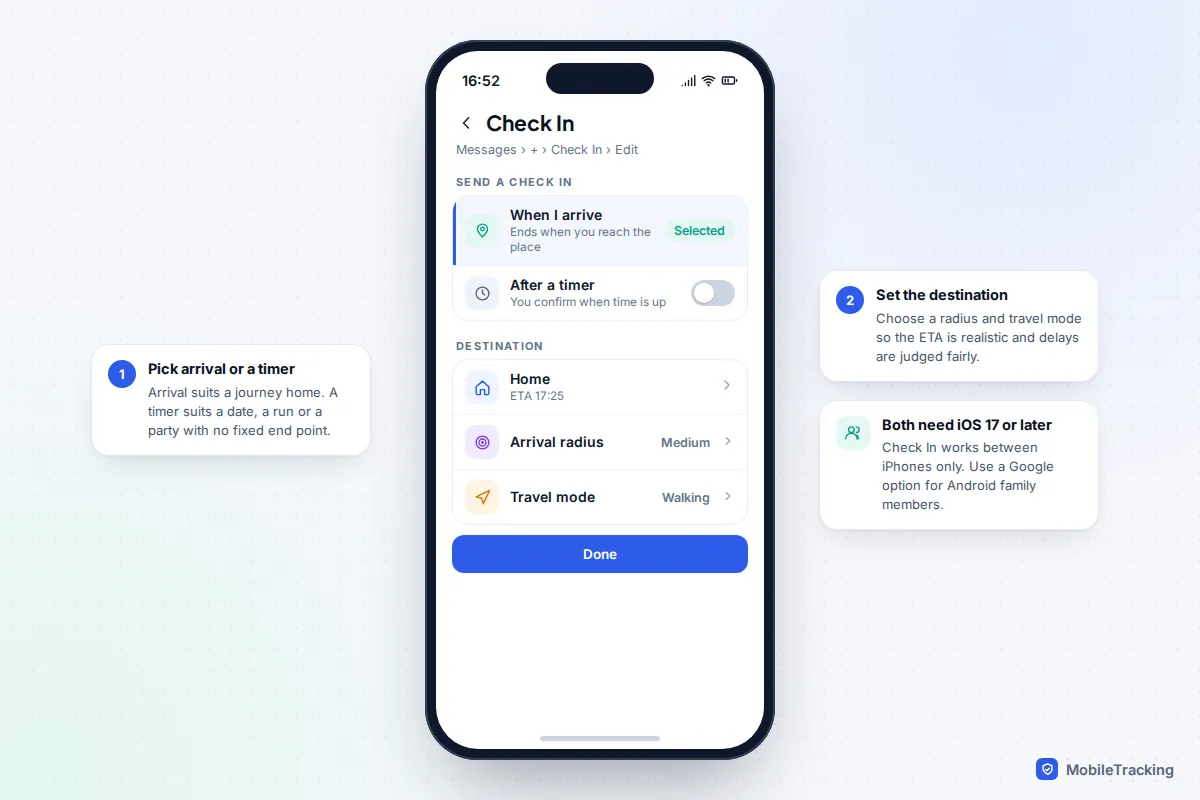
If you stop making progress, or the timer ends, your iPhone asks whether you want to add more time or end the Check In. You can extend it as often as you need. Only if you do not respond, or your phone stops reaching the destination, does your contact receive a link to your details. Apple’s Check In guide lists every case that triggers it.
Choose how much is shared if something goes wrong
Before your first Check In, decide what your contact should see if it fails. Go to Settings, then Apps, then Messages, then Check In Data (on iOS 17, Settings, then Messages).
- Limited shares your current location plus the battery level and network signal of your iPhone and Apple Watch.
- Full adds the route you travelled and the places your iPhone was last unlocked and your Apple Watch was last taken off.
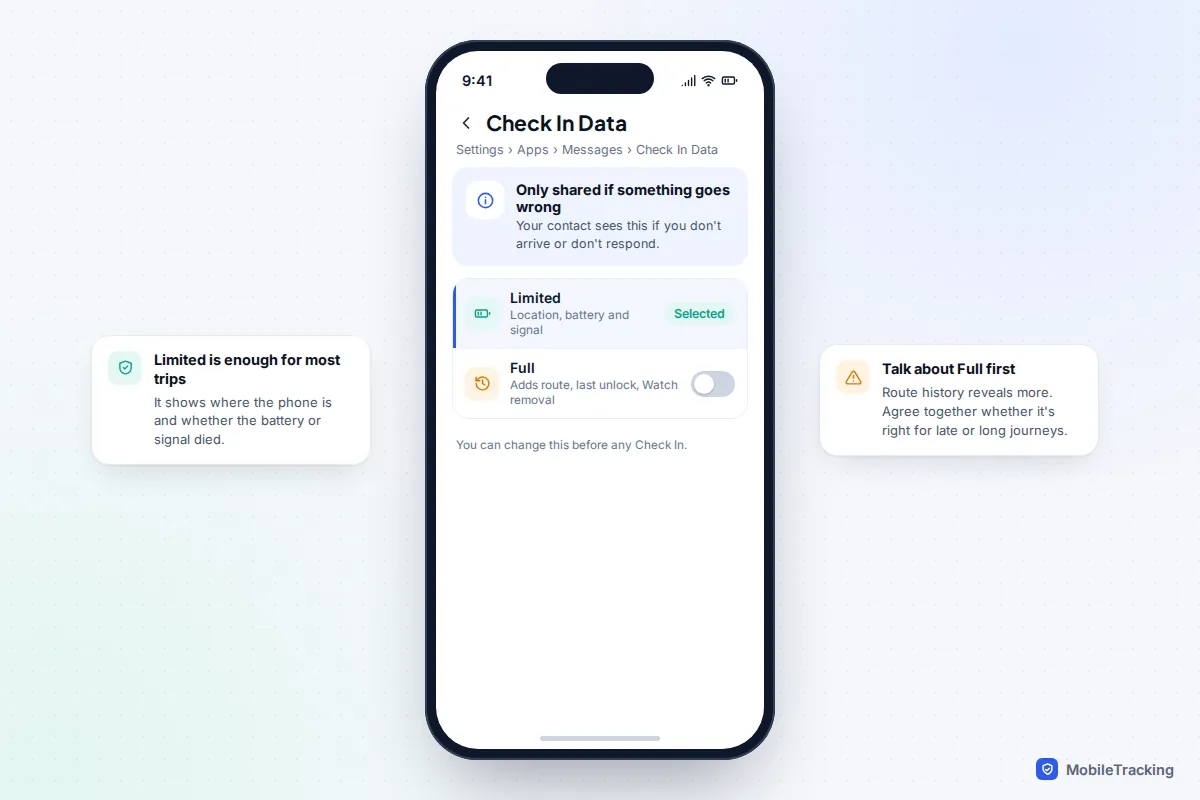
Limited is plenty for most everyday journeys. Full can be useful for a long solo drive or a late journey through an unfamiliar area, but it reveals more, so agree on it together rather than choosing it for someone.
iPhone: arrival alerts in Find My
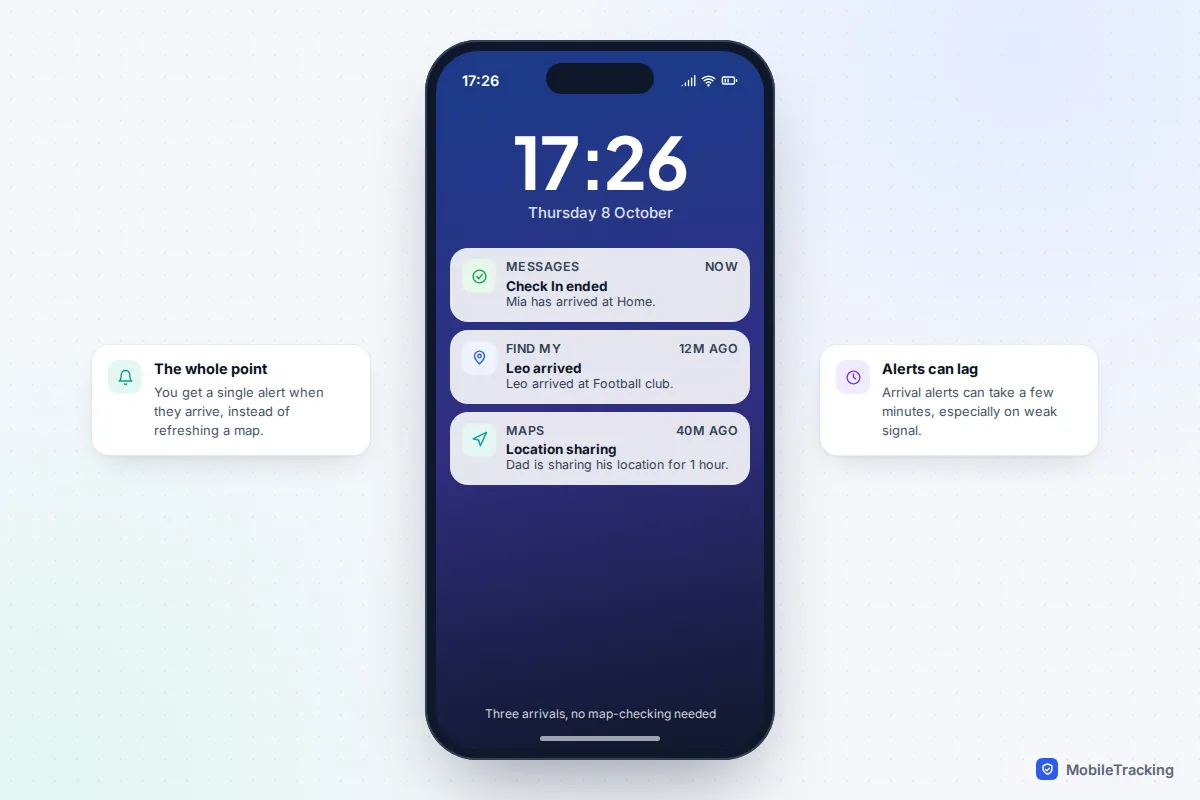
For a regular journey, such as a teenager getting to school or a partner arriving at work after a night shift, Find My can send you a single alert on arrival. It relies on the person already sharing their location with you, so this is best for families who share anyway but want to stop checking the map.
- Open Find My and tap People.
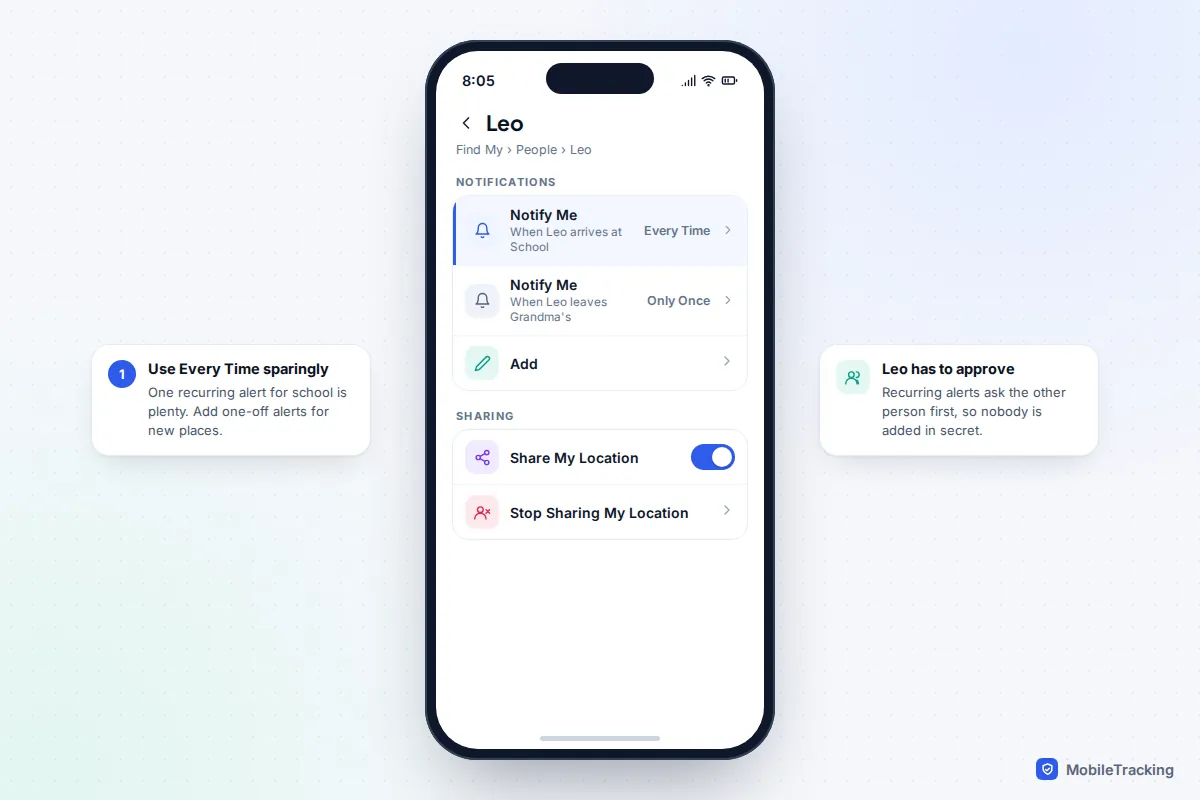
- Tap the person’s name, then under Notifications tap Add and choose Notify Me.
- Choose whether you want to know when they arrive or leave, and pick a place, either their current location or a new one.
- Choose Only Once for a one-off journey or Every Time for a regular one, then tap Add.
Recurring alerts are not set up silently: the other person gets a request on their iPhone and has to approve it. You can pause or delete an alert from the same screen whenever it is no longer needed.
If location sharing between you is not set up yet, our guide to sharing location for a set time only shows how to share for one hour or until the end of the day instead of indefinitely.
Android and mixed families: Google’s options
Google does not have a single feature called Check In, but its tools add up to the same thing and work on both Android and iPhone. The same location sharing appears in Google Maps and in the People section of Google’s Find Hub app, the new name for Find My Device since 2025.
Share for a journey in Google Messages
- Open Google Messages and the conversation with the person or family group.
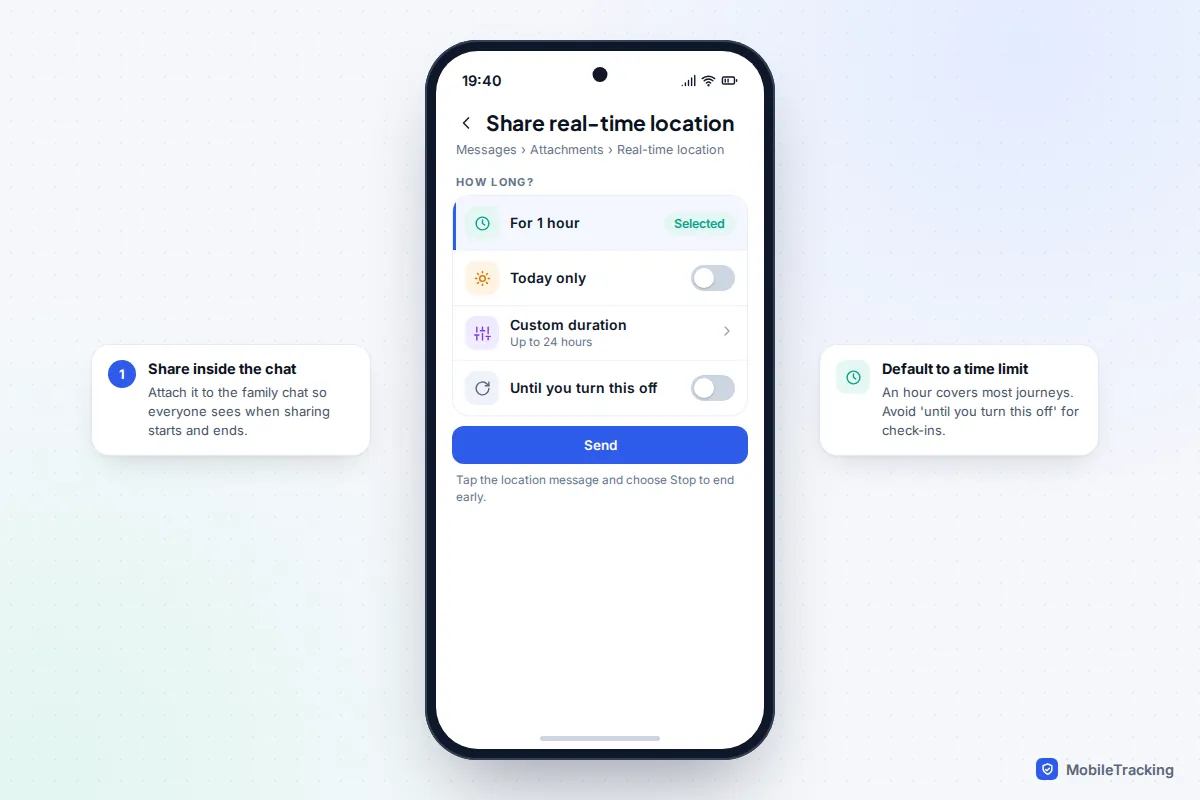
- Tap the attachment button, then Real-time location.
- Choose For 1 hour, Today only, a Custom duration of up to 24 hours, or Until you turn this off.
- Tap Send. To stop early, tap the location message, then Stop.
For check-ins, stick with a time limit. Google’s Messages help page notes that the location itself is handled by Google Maps, not by the end-to-end encrypted chat.
Arrival and leaving alerts in Google Maps
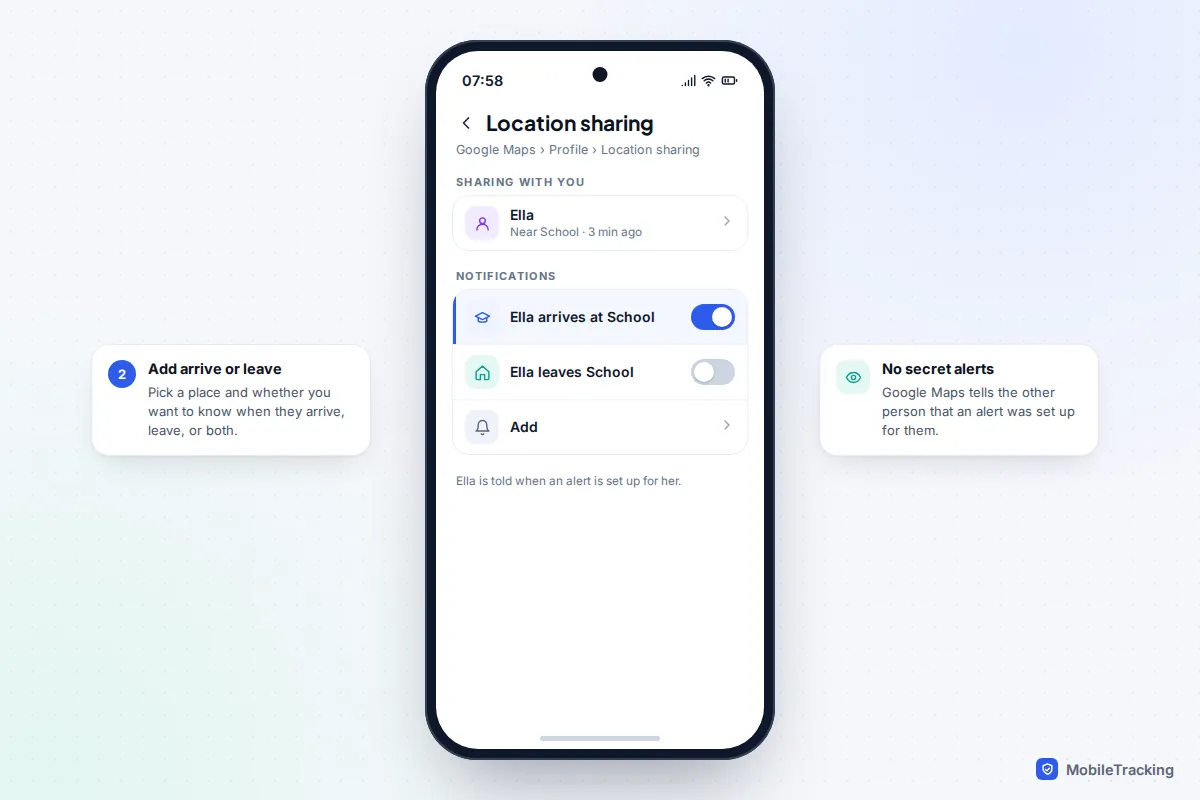
If someone already shares their location with you in Google Maps, you can ask for an alert instead of watching them. Tap your profile picture, then Location sharing, tap the person, and under Notifications tap Add. Choose a place and whether you want to hear when they arrive, leave or both, then save. Google Maps tells the other person that an alert has been set up for them, and alerts can take a few minutes to arrive on a weak connection.
Safety Check on Pixel phones
Pixel owners have a timer-based option in the Personal Safety app. Open it, tap Safety Check, choose a reason and a duration, pick emergency contacts and tap Start. When time is up, the phone asks if you are OK. If you do not respond within 60 seconds, emergency sharing starts and your contacts receive your real-time location. It needs at least one emergency contact set up, and Google’s Pixel safety help explains the full requirements.
Family apps: check-in buttons and arrival alerts
Dedicated family locator apps have their own versions. Life360, for example, has a Check in button on its map screen that sends your current location to everyone in your Circle, and in 2025 it added No Show alerts, which warn you only if someone has not arrived somewhere by a set time. Features differ by country and subscription, so check what your plan includes.
For younger children on Android, a transparent family app such as MobileTracking can send an alert when your child arrives at or leaves a saved place like school or a friend’s house. The child app is visible on their phone and never reads messages, so the arrangement stays open.
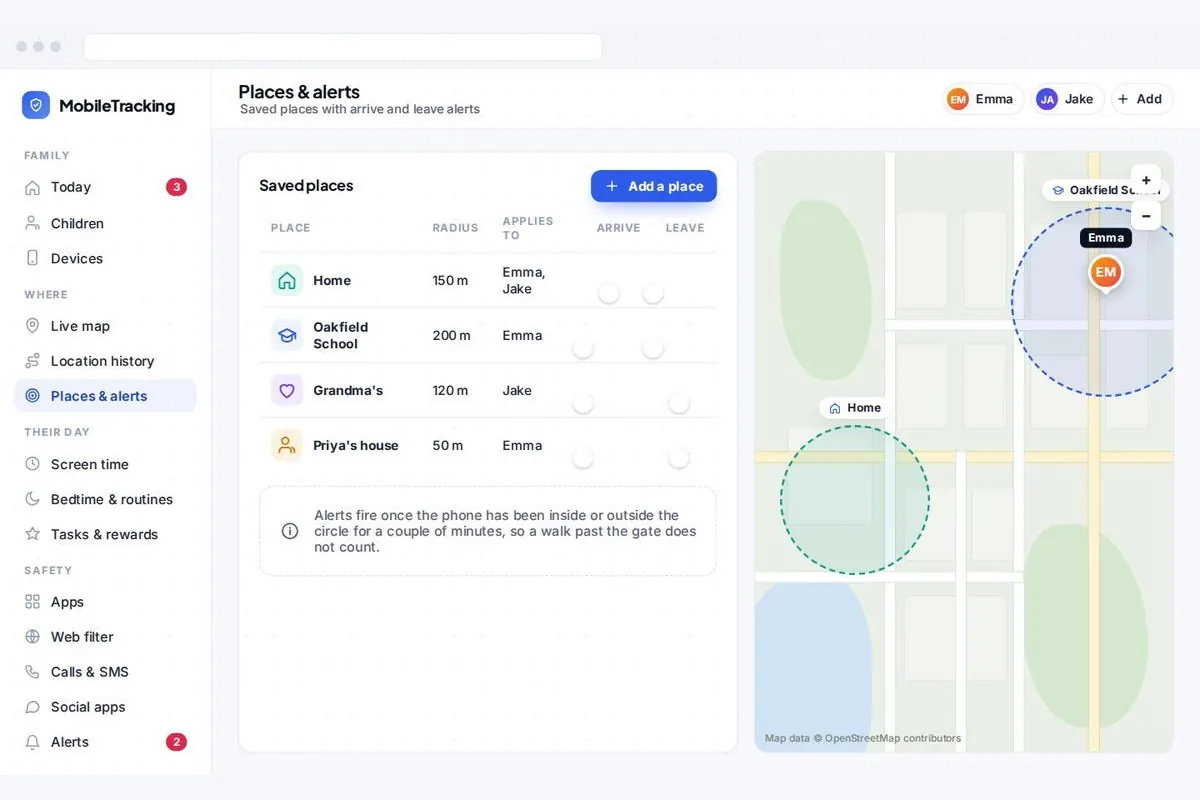
Our guide to setting up geofence alerts for your kids covers how to size places so alerts fire reliably.
Agree the rules together first
The tools are the easy part. What makes check-ins stick is a short, honest conversation before anyone presses a button, especially with teenagers. Here is how it went for one family.
Sam, 15, had started getting the late bus home from drama club, and his parents’ first instinct was to switch on permanent sharing. Instead they agreed that Sam would send a Check In for the drama club journey and for any evening out, while normal school days would have no sharing at all. If a Check In was missed, his mum would ring once, then text a friend who was at the club, before doing anything else. After a term of it working, they dropped the drama club one entirely.
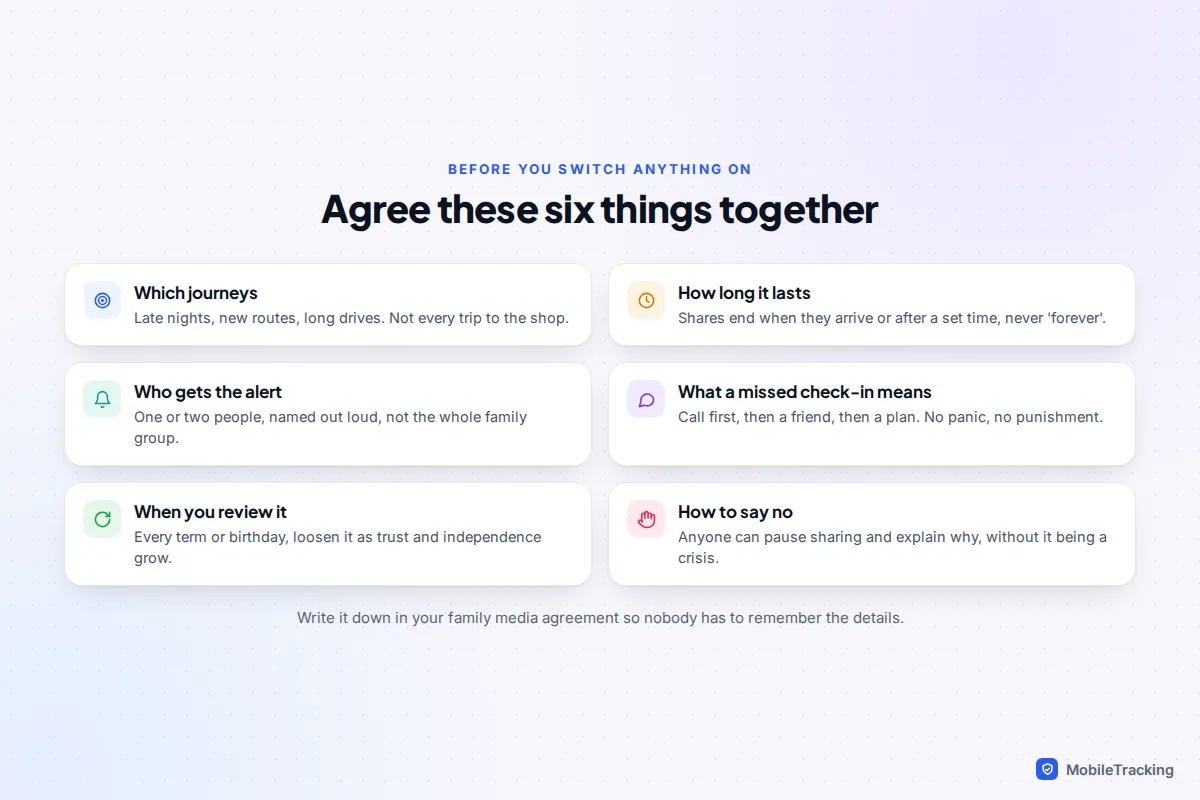
If you are also thinking about broader monitoring, read how to tell your child you’re monitoring their phone first, so the check-in conversation fits into a wider plan.
When a check-in fails: troubleshooting by symptom
Most failed check-ins are technical, not emergencies. It helps to know the usual causes.
- The Check In option is missing on iPhone. One of you is on an iOS version older than 17, or the other person uses Android. Update both iPhones, or use Google Maps or Google Messages instead.
- The alert said they had not arrived, but they had. The arrival radius was too small, or they walked in by a different entrance. Choose Medium or Large for big buildings such as schools and stations.
- Arrival alerts come late or not at all. Low Power Mode, battery saver or poor signal can delay updates. Also check that location permission for Find My, Google Maps or the family app is set to Always and that background activity is allowed.
- Nothing happened when the timer ran out. On iPhone, the person may have extended the timer. That is expected, and a quick “all OK?” text is the right next step.
- The phone went dead. If a Check In then fails, your contact still gets the last location and battery level the iPhone shared before it switched off, which is one reason Limited data is worth keeping on. Agree that a power bank goes along on late journeys.
One common mistake is to leave a “just this once” permanent share running for months. Every so often, check what you are still sharing and with whom, and stop anything nobody needs.
Frequently asked questions
Does the other person know when I set up a check-in or arrival alert?
Yes, with every option in this guide. A Check In appears as a message in your conversation, recurring Find My alerts must be approved by the other person, and Google Maps tells people when an alert is set up for them. That openness is the point.
Can I use iPhone Check In with someone who has an Android phone?
No. Check In needs iOS 17 or later on both iPhones. For a mixed family, use time-limited real-time location in Google Messages or Google Maps, which work on both.
Does Check In drain the battery?
It uses location during the journey, much like navigation, but it ends when you arrive or the timer closes, so the overall drain is far lower than permanent background sharing.
What age should we switch from tracking to check-ins?
There is no fixed age. Many families use a live map for a first phone at around 11 and move to check-ins in the early teens as journeys become more independent. Review it every term or birthday.
Can I set up check-ins for my partner without telling them?
No, and you should not try. Every tool here is visible to the person sharing, and tracking another adult without their agreement can be illegal as well as damaging to trust. Check-ins only work when both people have chosen them.
This guide is general information, not legal or financial advice. Read our editorial policy.