
On a Samsung Galaxy, the main parental controls are Google’s Family Link, built into the phone’s settings. On your child’s phone or tablet, open Settings › Digital Wellbeing and parental controls › Parental controls, tap Let’s do this, sign in with your child’s Google account, then approve with your own. You manage everything afterwards from the Family Link app on your phone, which can be an iPhone or an Android.
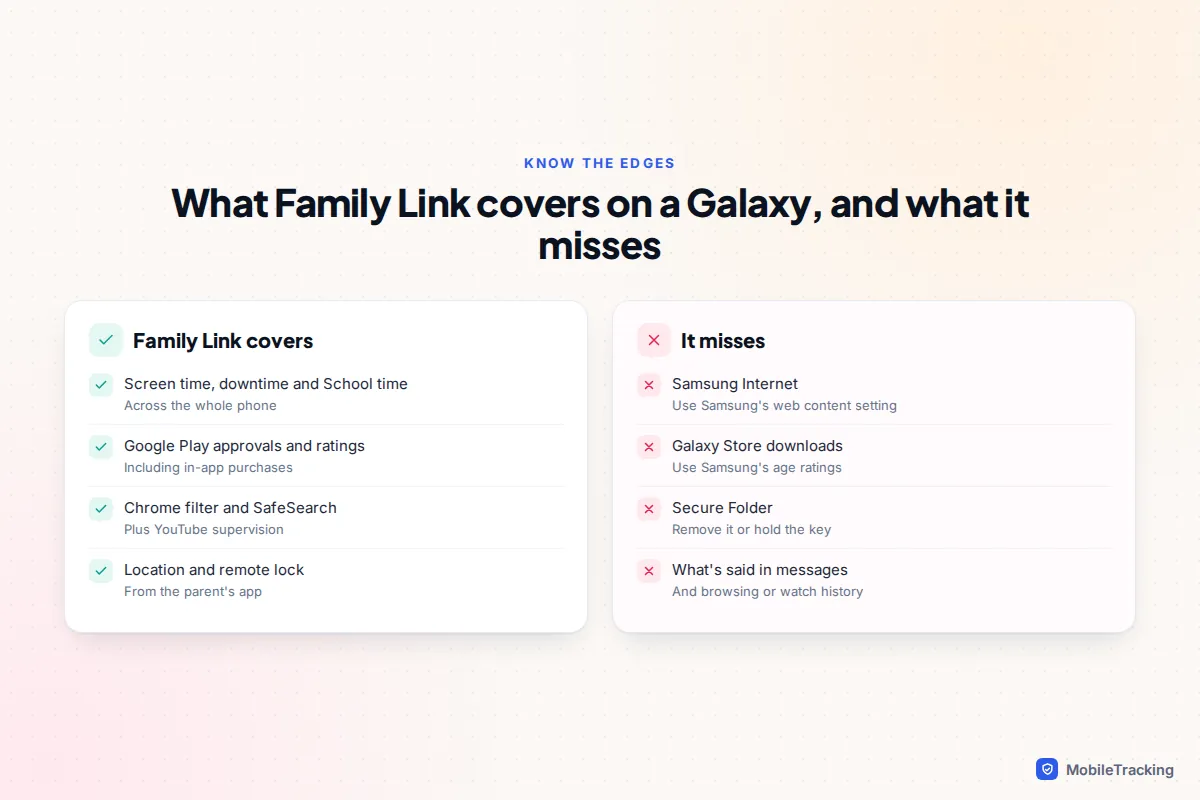
That covers most of the job. The rest is Samsung-specific: Family Link’s web filter works in Chrome but not in Samsung Internet, it doesn’t control the Galaxy Store, and it can’t block Secure Folder. This guide sets up Family Link first, then closes those three gaps, and covers Samsung Kids for younger children on a shared tablet.
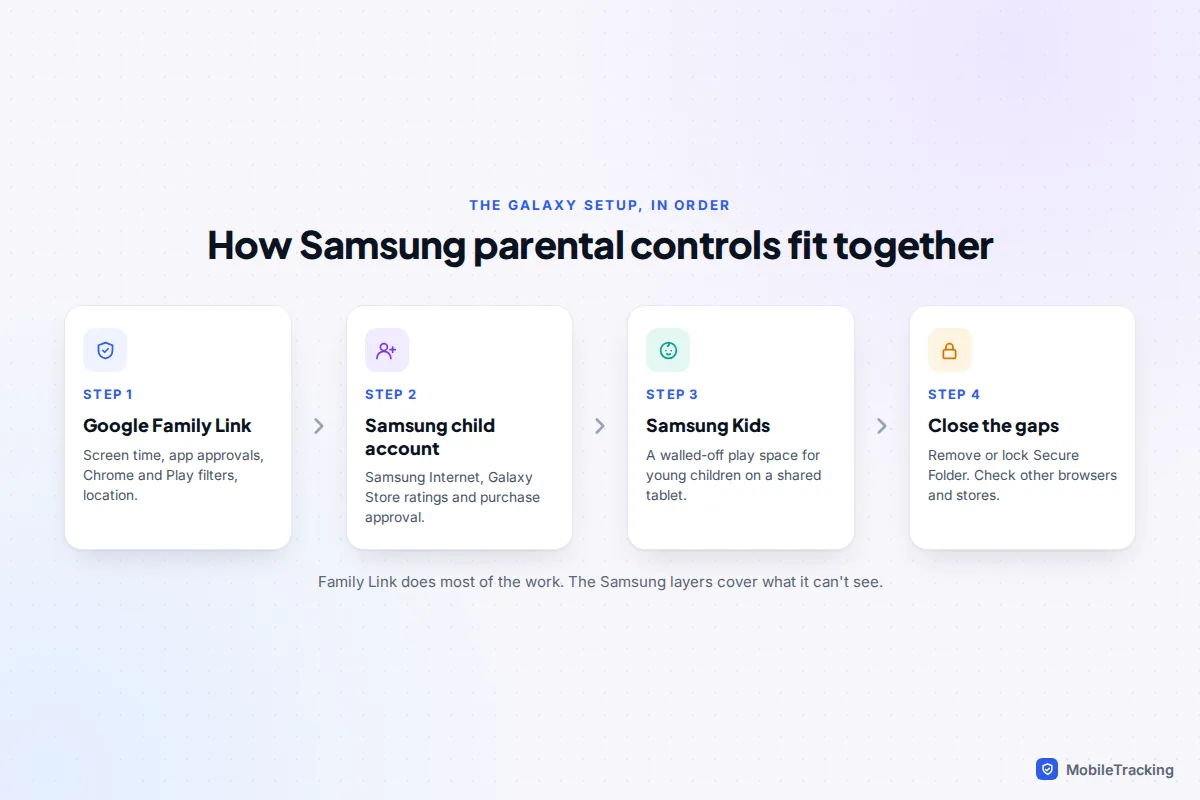
Which Samsung parental control does what
Samsung phones carry two sets of tools, one from Google and one from Samsung, and they don’t talk to each other. It helps to know which one controls what before you start tapping.
| Tool | What it controls | Best for |
|---|---|---|
| Google Family Link | Screen time, downtime, School time, Google Play approvals, Chrome filter, SafeSearch, location, remote lock | Every child with their own Galaxy phone or tablet |
| Samsung child account | Samsung Internet filter, Galaxy Store age ratings, download and purchase approval | Closing the Samsung gaps, One UI 5.1 or later |
| Content restrictions in Digital Wellbeing | Samsung Internet explicit-site blocking, Galaxy Store maximum rating | A quicker alternative on One UI 7 or later |
| Samsung Kids | A separate play space with approved apps, contacts and a daily playtime | Under-8s on a shared or family tablet |
| Samsung Find | Family location sharing and finding a lost device | Families already using Samsung accounts |
If you have more than one Android brand in the house, our complete Android parental controls guide covers Family Link in more depth. The rest of this page sticks to what is different on a Galaxy.
Step by step: Family Link on a child’s Galaxy phone
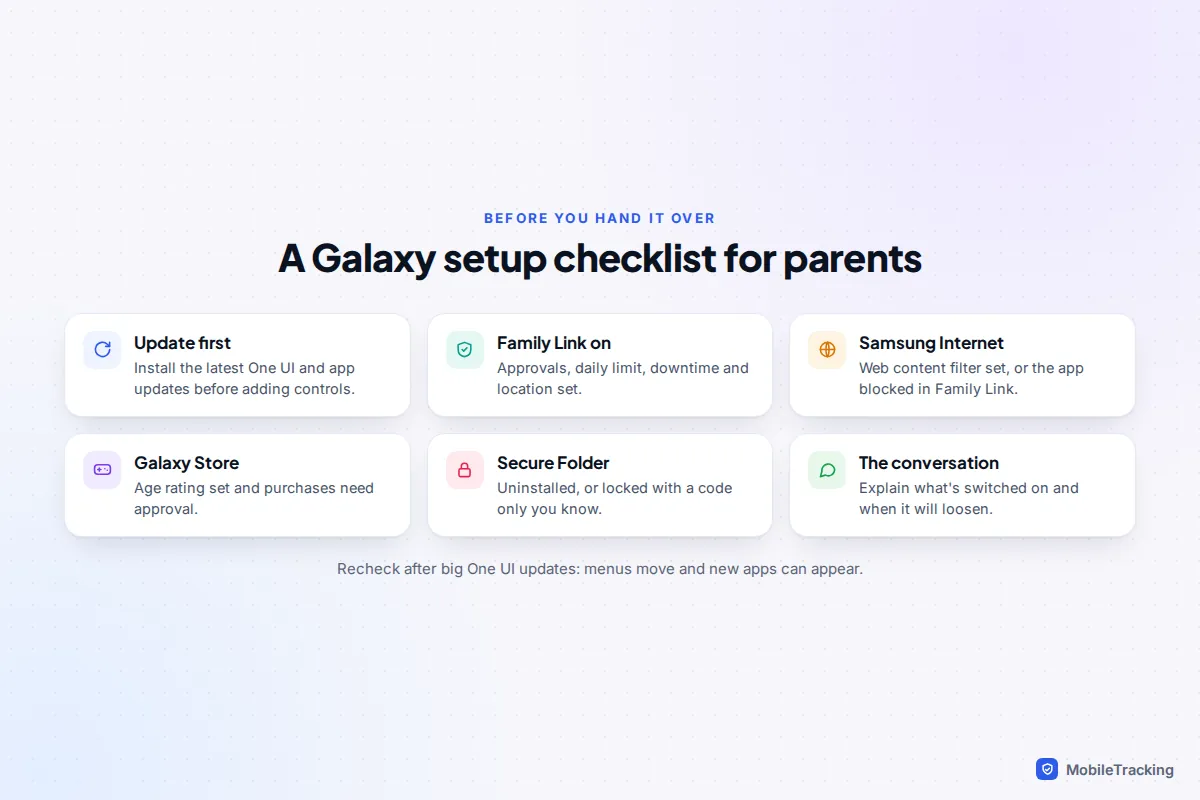
Allow about 20 minutes with the child’s phone and yours side by side. Samsung’s own Family Link help page shows the same steps with screenshots. Update the Galaxy first under Settings › Software update, because parental control menus have changed between One UI 6, 7 and 8. Your child needs their own Google account. For a child under 13 (the age varies by country), create it in the Family Link app on your phone or during the Galaxy’s setup, not by typing a false birthday.
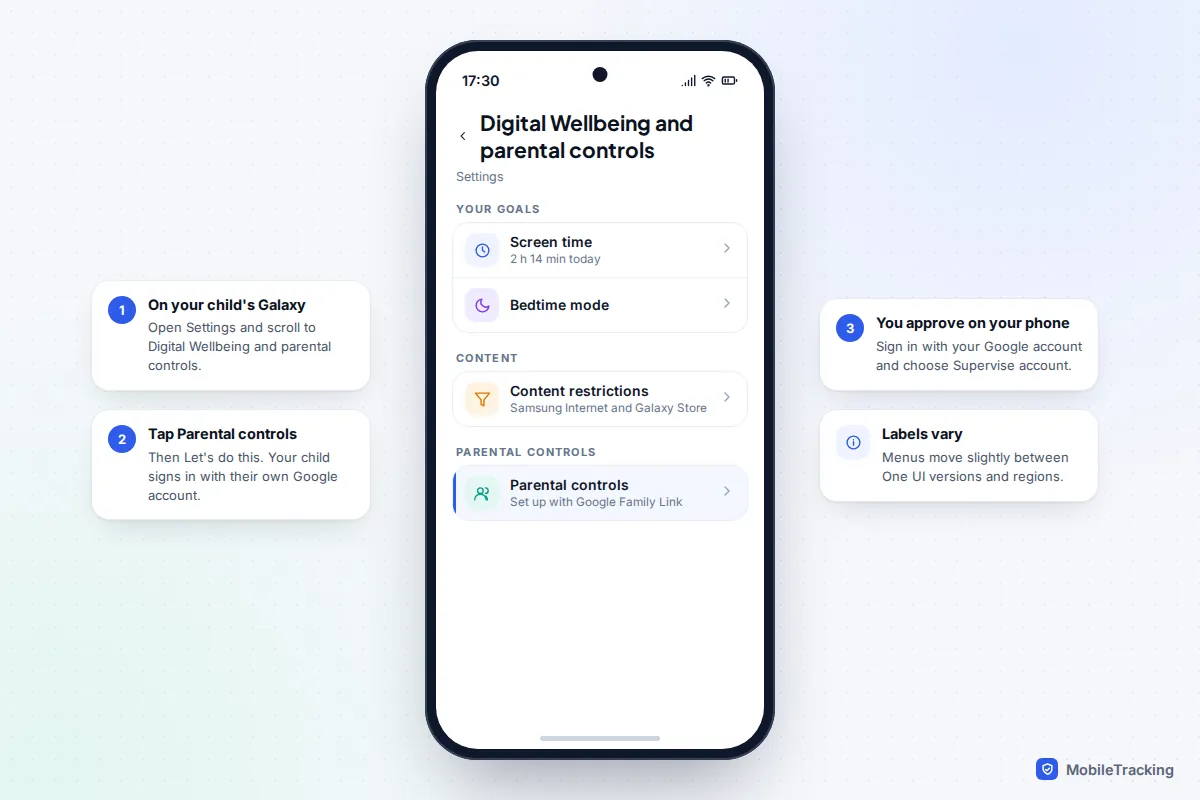
- On your child’s Galaxy, open Settings and tap Digital Wellbeing and parental controls.
- Tap Parental controls, then Let’s do this.
- Have your child sign in to their own Google account if they aren’t already.
- Tap Supervise account, then Next, and sign in with your own Google account when asked.
- Your child re-enters their password, then you tap Allow to link the accounts.
- Review the suggested settings for apps, filters and location, then tap Done.
- Install Google Family Link on your own phone and sign in. Your child’s Galaxy appears within a minute or two.
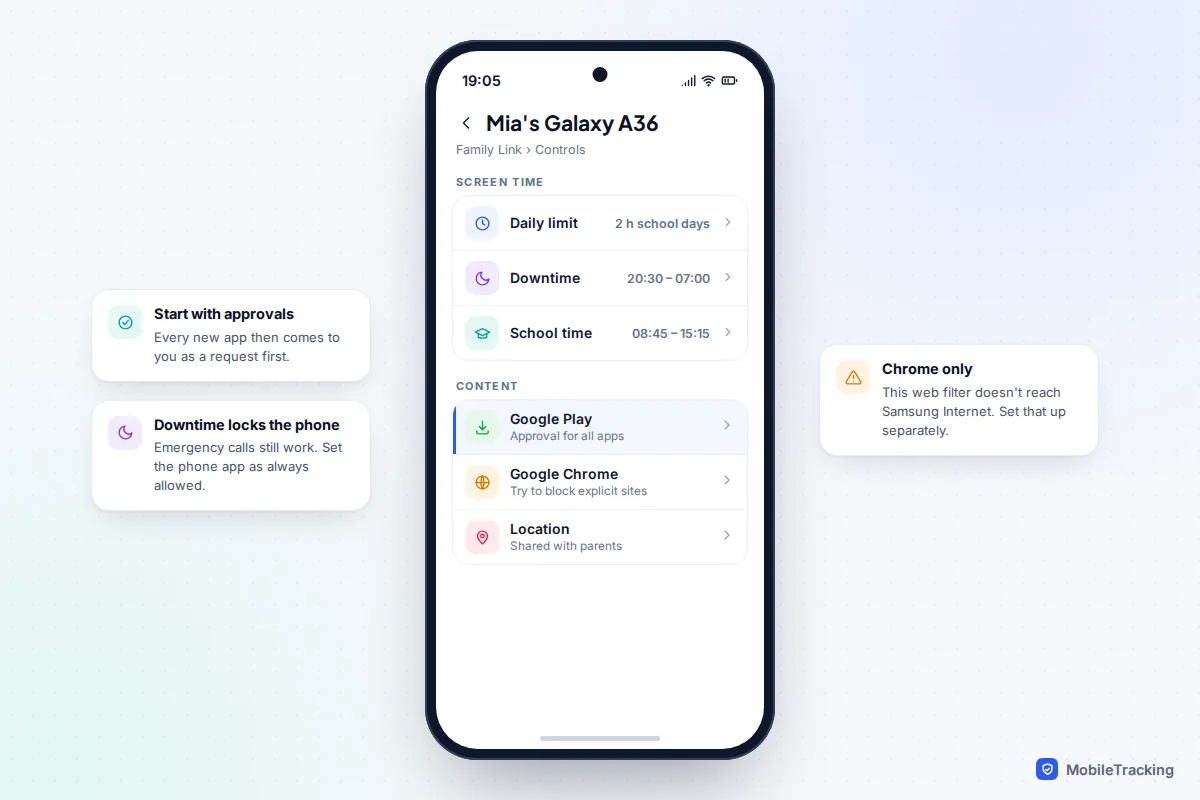
The five Family Link settings to set first
Open Family Link on your phone, pick your child and go to Controls. Resist the urge to switch everything on. These five do most of the work, and our Family Link setup guide covers the rest of the menu:
- Google Play approvals. Set approval for all content at first, so every new app arrives as a request you can discuss.
- Daily limit. A total per day, which you can set differently for school days and weekends.
- Downtime. Locks the phone overnight. Mark the Phone app as always allowed so your child can still call you.
- School time. A reduced home screen with notifications silenced during lessons, added for Android phones in 2025.
- Google Chrome. Choose Try to block explicit sites. SafeSearch is switched on by default for supervised accounts.
Close the Samsung gaps: Samsung Internet and the Galaxy Store
Every Galaxy comes with Samsung Internet and the Galaxy Store, and Family Link doesn’t filter either of them. You have three ways to deal with that. Pick one.
Option 1: Samsung’s content restrictions (One UI 7 and later)
On your child’s phone, go to Settings › Digital Wellbeing and parental controls › Content restrictions. Set Samsung Internet to Block explicit sites and set the Galaxy Store maximum rating to All ages, 12+, 16+ or 18+. If your Galaxy offers a PIN for Digital Wellbeing and parental controls, set one so your child can’t simply switch it back. Samsung admits the web filter won’t catch every explicit site, which is true of every filter.
Option 2: A Samsung child account
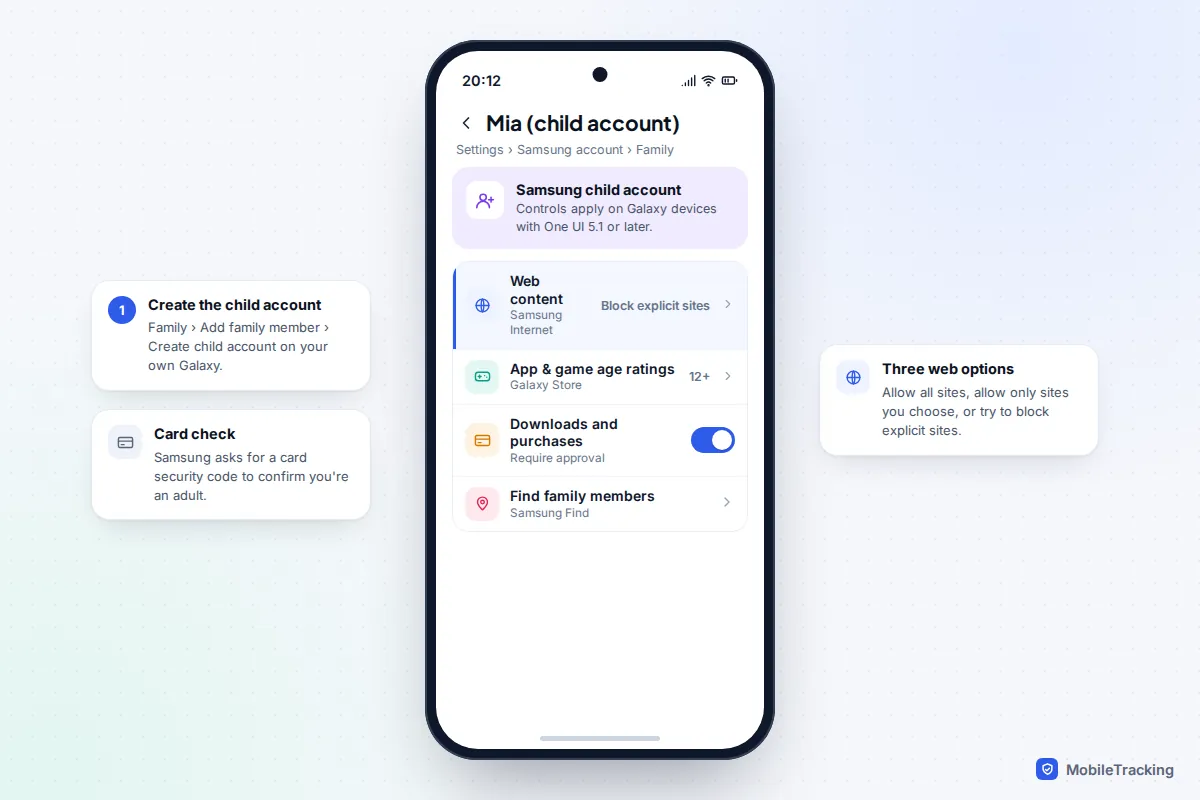
This gives you more control and lets you manage it from your own Galaxy. On your phone, go to Settings, tap your Samsung account name, then Family › Add family member › Create child account. Samsung asks for a payment card’s security code to confirm you are an adult. Sign the child’s Galaxy in with that account, then open the child’s profile from your Family screen and set:
- Web content: allow all sites, allow only sites you choose, or try to block explicit sites.
- App and game age ratings: All ages, 12+, 16+ or 18+ for the Galaxy Store.
- Downloads and purchases: require your approval for everything, paid content only or in-app purchases only.
Samsung says these controls apply only on Galaxy devices running One UI 5.1 or later.
Option 3: Block the apps in Family Link
The blunt option. In Family Link, open your child’s app list and block Samsung Internet, so Chrome with its filter becomes the only browser. Blocking the Galaxy Store is less reliable: some parents report that the Store stays reachable until they also block a related Samsung system app. If you go this way, test it on the child’s phone afterwards.
Setting up a Galaxy tablet
If the tablet belongs to one older child, set it up exactly like a phone with Family Link. Two things differ. Tablets don’t get Android’s theft protection features, such as Remote Lock by phone number, so check the tablet appears in Find Hub and in your Family Link app. Tablets also tend to live in bedrooms, so downtime matters more than on a phone.
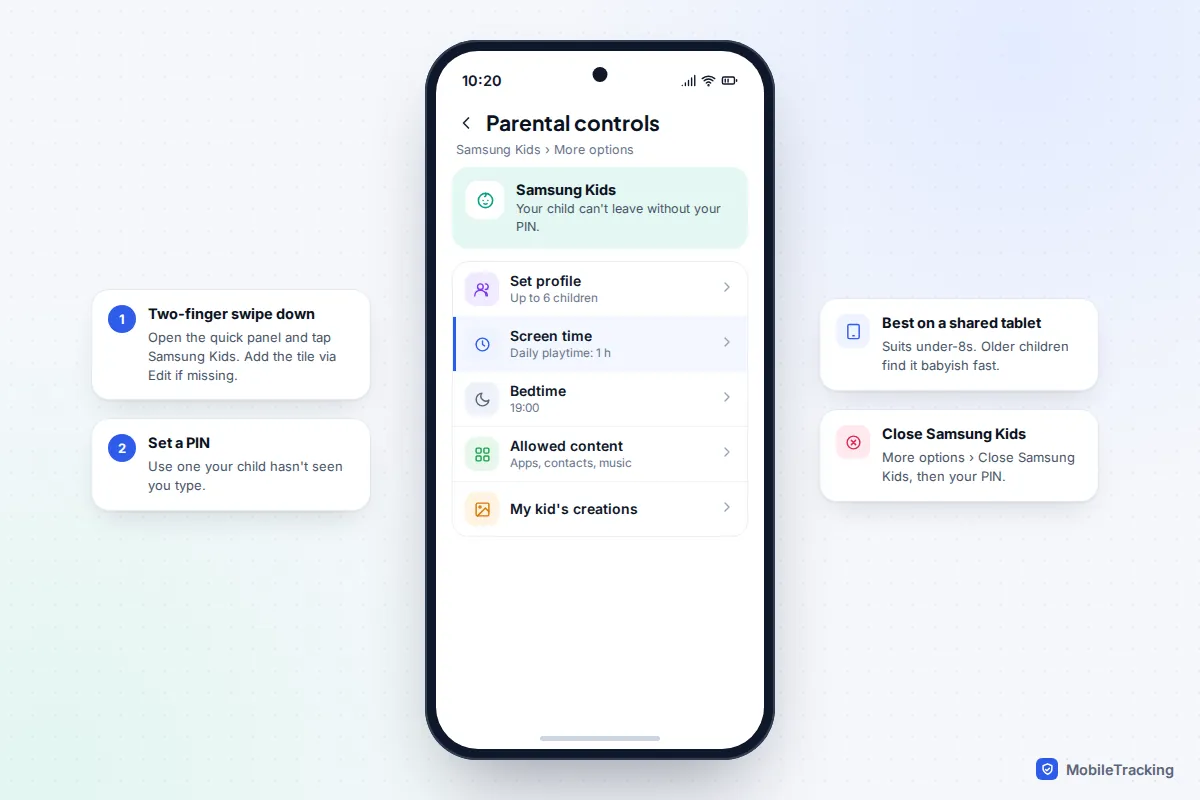
For a shared family tablet used by young children, Samsung Kids is simpler. It is still included on Galaxy phones and tablets in 2026 and runs as a separate, walled-off home screen that a child can’t leave without your PIN.
- Swipe down from the top of the screen with two fingers to open the quick settings panel.
- Tap Samsung Kids, then Continue. If the tile isn’t there, tap the edit (pencil) button and add it.
- Create a PIN when prompted, and a profile for your child. You can add up to six.
- Open More options › Parental controls to set a daily playtime, a bedtime and the apps and contacts your child can use.
- To leave, tap More options › Close Samsung Kids and enter your PIN.
Secure Folder and the other easy workarounds
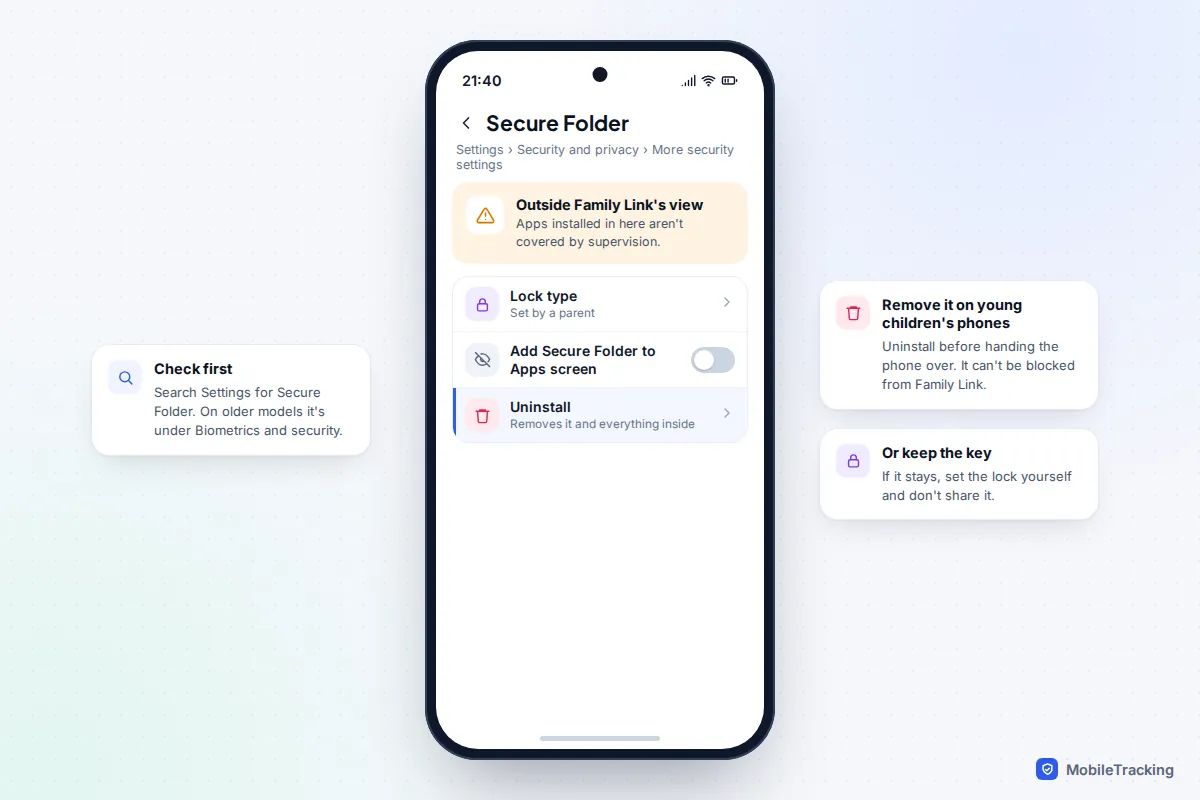
Secure Folder is Samsung’s private, separately locked space for apps and files. It is useful for adults, but on a child’s phone it is a blind spot: a Samsung community moderator has confirmed that Family Link can’t block it, and apps installed inside it sit outside supervision.
Check whether it is set up by searching Settings for “Secure Folder”. On recent models it is under Settings › Security and privacy › More security settings; on older ones, Biometrics and security. For a younger child, open Secure Folder’s own settings and choose Uninstall before you hand the phone over. For a teenager, you might agree that it stays, with the lock set by you.
A few other gaps come up often:
- Other browsers. Any browser installed from Google Play needs your approval, so keep approvals on and say no to extra browsers.
- Extra user profiles. Family Link has an Add/Remove user setting for your child’s device. Leave it off so a new, unsupervised profile can’t be created.
- Factory reset. A supervised phone blocks a reset from Settings, but a reset from recovery mode is still possible. Treat an attempt as a conversation, not a technical failure.
What Family Link covers on a Galaxy, and what it doesn’t
Family Link manages time, apps and Google’s own services well. It doesn’t show you messages, and it won’t show browsing or YouTube watch history. Google is explicit that parents can’t read a child’s emails or messages or see their screen remotely. That is by design, and it is a reasonable line for most families.
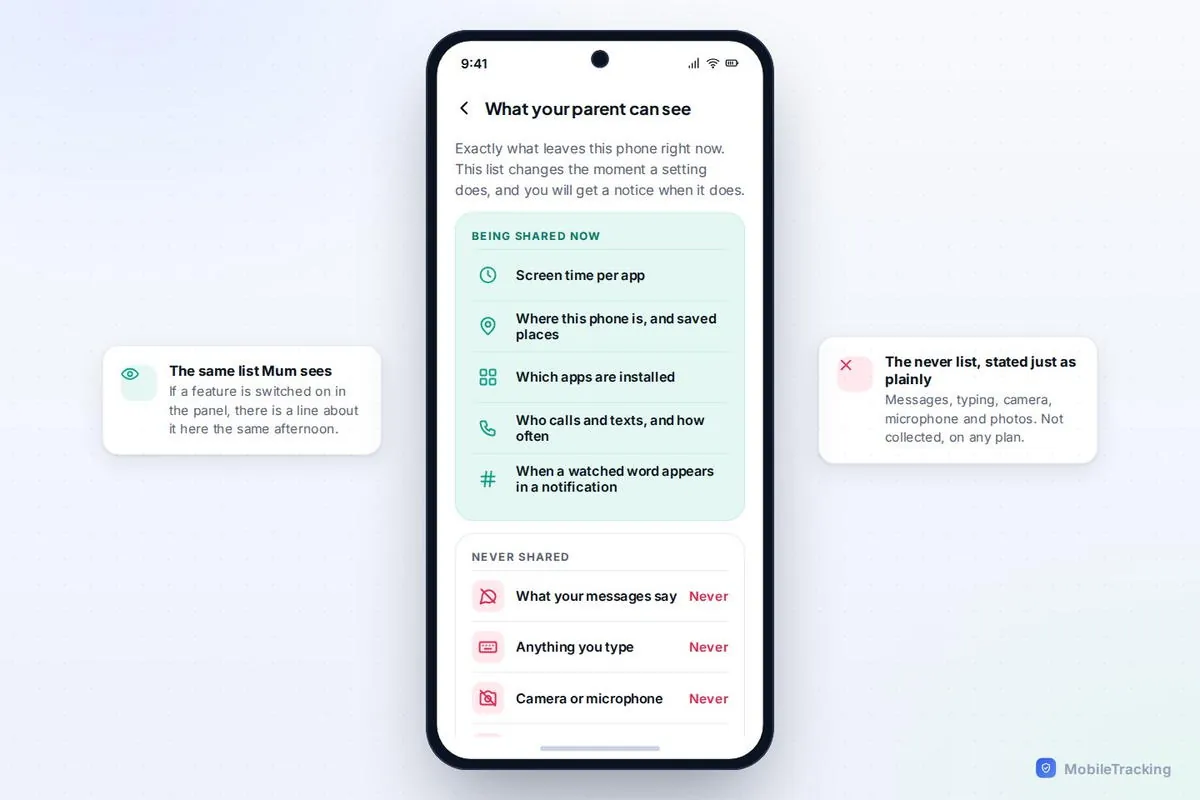
Some parents want more, such as per-app screen time on a web dashboard or alerts when a child arrives at school. A transparent family app such as MobileTracking can add that on Android, but the child app stays visible on the phone, shows your child exactly what is shared, and never reads messages. Whatever you add, tell your child first. Our guide on telling your child you’re monitoring their phone has wording that works.
Teens 13 and over
For years, a supervised child could switch off Family Link on turning 13. Google reversed that in early 2026: its help page on accounts at 13 now says children need a parent’s approval to stop supervision until they turn 18, and both of you are notified if it stops. A teenager who already has their own Google account can be added to supervision, but they have to agree to it.
That makes the teenage years a negotiation rather than a cliff edge. A pattern that works for many families: keep app approvals and downtime at 13, drop the daily limit at 14 or 15 in exchange for good habits, and switch approvals to paid content only at 16. Samsung Internet and Galaxy Store ratings can move up in step, from 12+ to 16+.
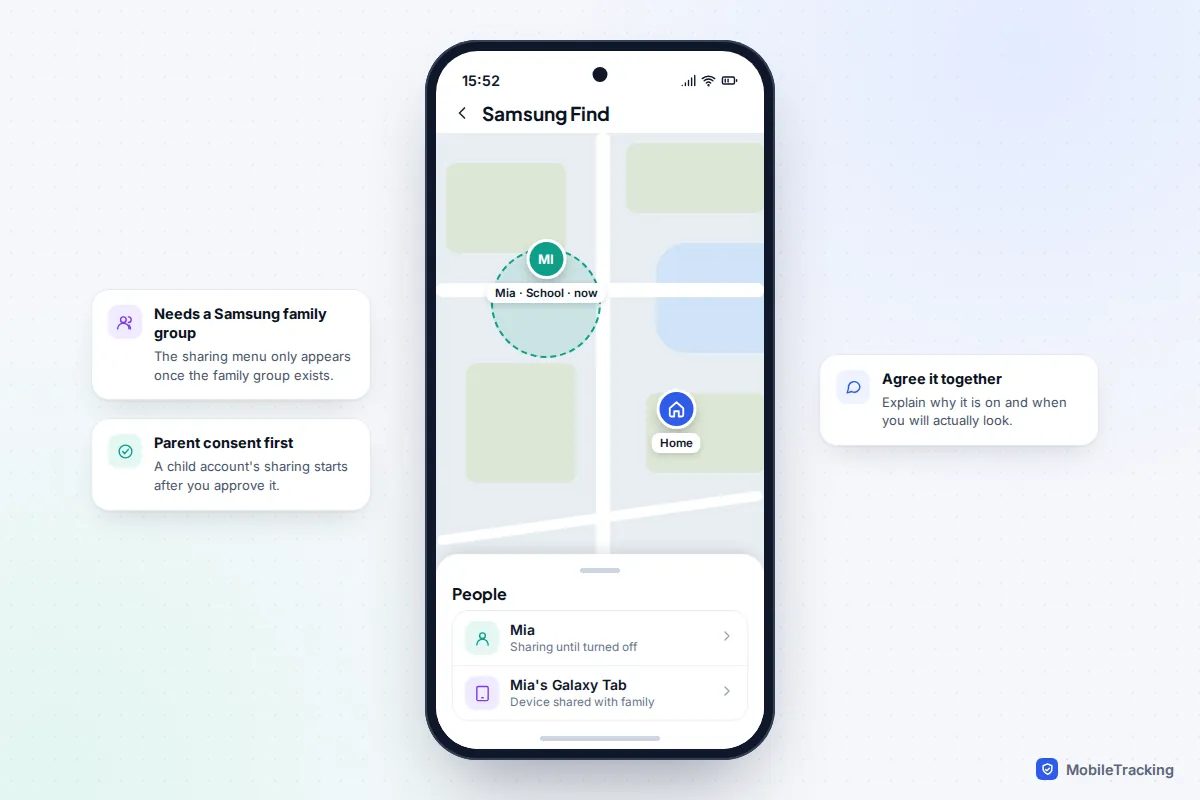
Location is often the last thing to go. On a Galaxy you can share it through Family Link or through Samsung Find, if your family uses a Samsung family group. In Samsung Find, a child account can share its location with family members from the People tab once a parent has given consent, and a device such as the child’s tablet can be shared with the family from the Devices tab.
Troubleshooting and common mistakes
Parental controls isn’t in Settings. Search Settings for “Family Link” or “Parental controls”. If nothing appears, update Google Play services and the Galaxy’s software, then restart.
Your child still reaches adult sites. Check which browser they use. If it is Samsung Internet, set Samsung’s content restrictions or block the app in Family Link.
Screen time figures don’t match. Family Link and Samsung’s Digital Wellbeing may not show exactly the same totals. Go by Family Link, because that is what enforces the limits.
Apps appear that you never approved. They probably came from the Galaxy Store. Set the Samsung age rating and purchase approval, or block the Store.
The mistake almost everyone makes is setting it all up the night before a birthday and never looking again. Here is how it tends to go well instead. Ali sets up his daughter’s new Galaxy A36 on a Saturday morning with her beside him, explains each setting, and agrees to review the daily limit after half-term. When she spots that Samsung Internet isn’t filtered, she tells him, because she already knows the rules are about safety, not suspicion.
Frequently asked questions
Does Samsung have its own parental control app?
Not a full one. Samsung builds Google Family Link into Galaxy settings as the main tool, and adds its own child account controls, Digital Wellbeing content restrictions and Samsung Kids for young children. Most families use Family Link plus one or two Samsung settings.
Can I manage my child’s Galaxy from an iPhone?
Yes. Family Link has an iPhone app for parents. The Samsung child account settings are easiest from a Galaxy, so an iPhone parent may prefer Samsung’s content restrictions on the child’s phone, protected with a PIN.
Is Samsung Kids being discontinued?
No. Samsung’s support pages still describe Samsung Kids for Galaxy phones and tablets in 2026. The app Samsung has announced it is retiring is Samsung Messages, in favour of Google Messages, which doesn’t affect Samsung Kids.
Can I see my child’s texts on a Samsung phone?
No, and neither Family Link nor Samsung’s tools are designed to. You can control which apps they use and when, and see how long they spend in each. For worries about who your child is talking to, a calm conversation will tell you more than any setting.
What happens if my child factory resets their Galaxy?
A supervised Galaxy blocks factory reset from Settings, though a reset from recovery mode can still get through. Afterwards, signing your child’s account back in asks you to verify that you are the parent, so supervision comes back with it. If it happens, treat it as a sign to talk rather than simply locking things tighter.
This guide is general information, not legal or financial advice. Read our editorial policy.