
To share a live location that moves with you, open the chat and use the attachment button. On an iPhone in Messages, tap +, then Location, then Share, and pick how long. In Google Messages on Android, tap +, then Location, then Real-time location. In WhatsApp, tap the attach button, then Location, then Share live location, and choose 15 minutes, 1 hour or 8 hours.
If the other person only needs to know where to meet you, send a one-off pin instead. It uses no battery after you send it and it never reveals where you go next. The rest of this guide covers each app’s exact steps, how long each option lasts, how to stop sharing properly, and what to think about before you share in a group chat.
Live location or a pin: which should you send?
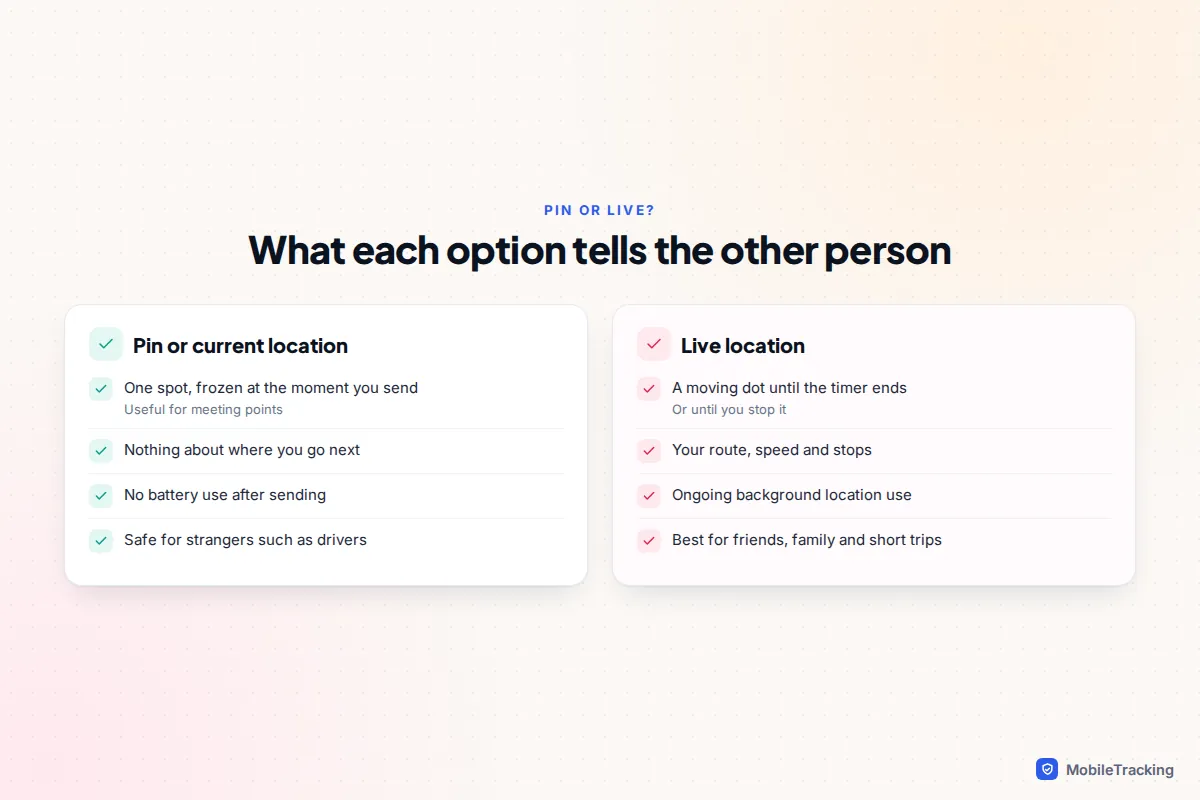
A pin is a snapshot. It shows one spot on a map, taken at the moment you send it, and it stays there. A live location is a feed: the other person’s map keeps updating as you move until the timer runs out or you stop it. Most people reach for live location out of habit when a pin would do the job with less exposure.
| Your situation | Send this | Why |
|---|---|---|
| “I’m at the café by the station” | Pin or current location | You are not moving, so a feed adds nothing |
| Meeting a friend in a busy park or festival | Live, 15 minutes to 1 hour | They can walk towards a moving dot |
| Driving to collect someone | Live, 1 hour | They can see roughly when you will arrive |
| Walking home late | Live until you arrive, or a Check In | Someone notices if you stop moving |
| Telling a delivery driver or tradesperson where to go | Pin | A stranger never needs to follow you |
| A partner or parent who wants to see you every day | Find My or Google Maps, not a chat | Ongoing sharing is easier to manage there |
That last row matters. Live location in a message is designed for short, one-off situations. If you find yourself sharing “until I turn this off” in a chat, it is usually tidier to set it up in Find My or Google Maps, where you can see and stop every share from one list. Our guide to sharing your location for a set time only goes further into choosing durations.
iPhone Messages: Share My Location and Send My Current Location
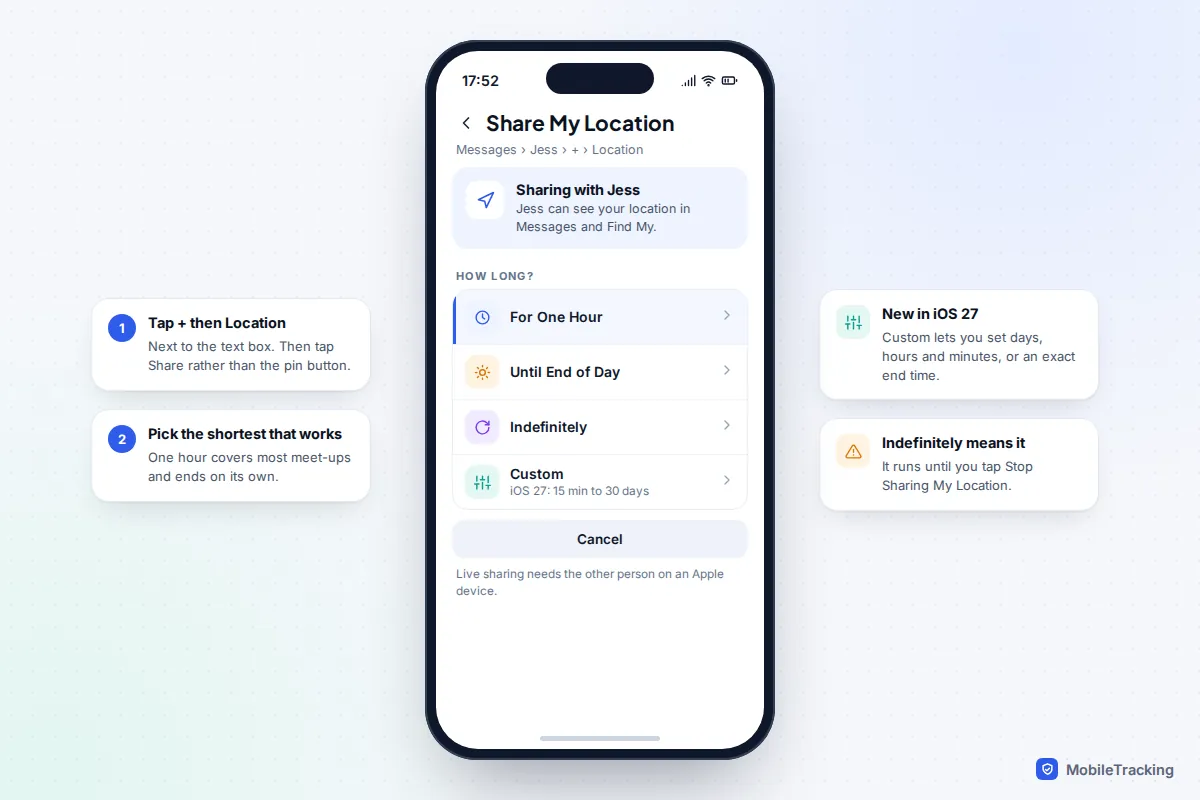
Apple’s Messages app offers both options in the same place. Live sharing through Messages uses Find My behind the scenes, so it only works when the other person is also on an iPhone, iPad or Mac. If you are texting an Android user, use WhatsApp or a Google Maps link instead.
Share a live location
- Open the conversation in Messages.
- Tap + next to the text box, then tap Location. Allow location access if asked.
- Tap Share.
- Choose how long: For One Hour, Until End of Day or Indefinitely. On iOS 27 you may also see a Custom option.
- Tap the send arrow. Your location appears in the thread as a small map that updates.
On most recent versions you can also tap the person’s name at the top of the conversation and choose Share My Location from their details screen. The result is identical.
Send a one-off location or pin
In the same + › Location view, tap the pin button, drag the pin to the right spot (your own position or the entrance you want them to find), and tap Send Pin. From the person’s details screen, Send My Current Location does the same for exactly where you are standing. Neither keeps updating.
What changed in iOS 27
iOS 27, released on 14 September 2026, gave Find My a Custom duration. Instead of the old three choices, you can set days, hours and minutes, anywhere from 15 minutes to 30 days, or pick a date and time for sharing to end. If you want an unusual length, such as “until 11pm Saturday”, start the share from Find My › People rather than from a chat. iOS 27 also added Hide Location, a per-person pause that switches itself back on later.
Stop sharing
Tap the person’s name at the top of the conversation and choose Stop Sharing My Location. You can also open Find My, tap People, pick the person and tap Stop Sharing My Location. Apple’s guide to sharing your location with iPhone lists the other places this setting appears.
Google Messages on Android: real-time location
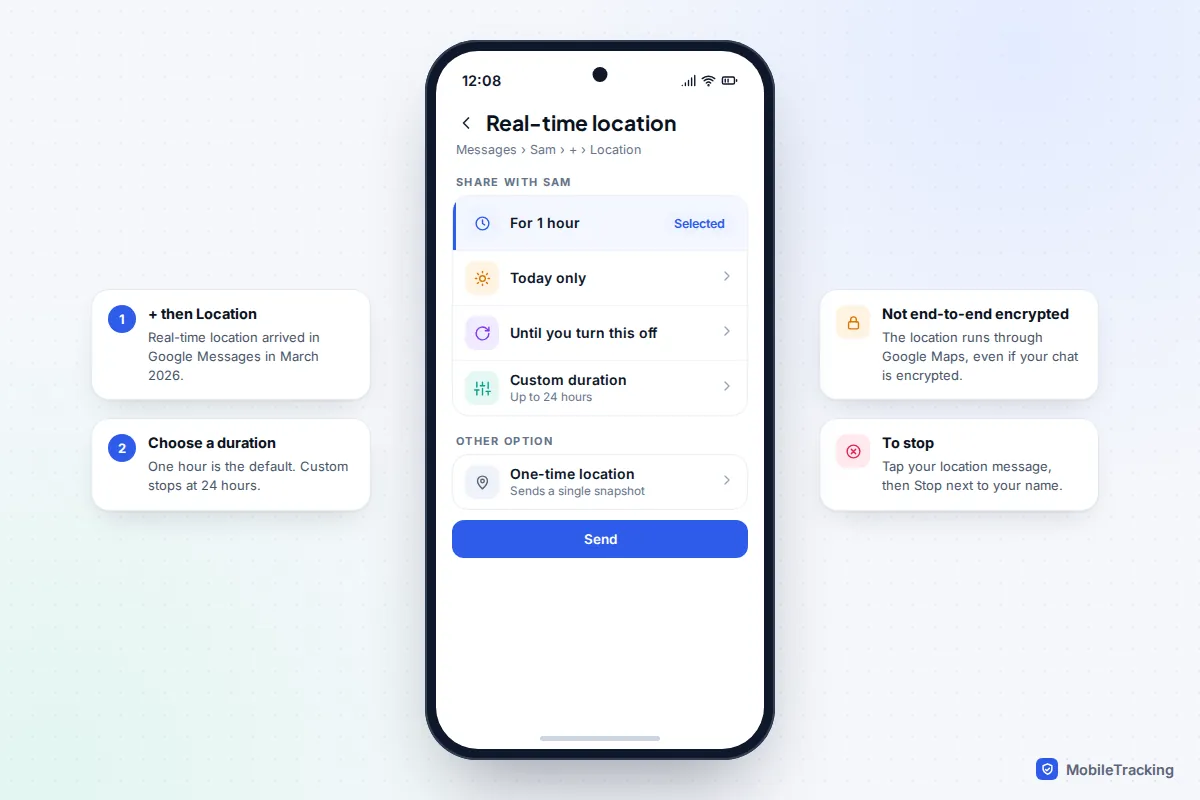
For years Google Messages could only send a static location. In March 2026 Google began rolling out real-time sharing, powered by the same location sharing system as Google Maps and Find Hub. If you do not see it yet, update Google Messages from the Play Store; the rollout has been gradual.
- Open the conversation in Google Messages.
- Tap + (Attachments), then Location.
- Choose Real-time location. For a snapshot, choose One-time location instead.
- The first time, accept the Google Location Sharing prompt.
- Pick a duration: For 1 hour, Today only, Until you turn this off or Custom duration (up to 24 hours).
- Tap Send.
To stop, open the same conversation, tap the message with your location, then tap Stop next to your name and confirm Stop sharing. Because this runs on Google Location Sharing, the share also appears in Google Maps under Location sharing, where you can stop it too. One thing to know: your messages may be end-to-end encrypted, but Google’s help page for real-time location in Messages notes the location itself is handled by Google Maps and is not end-to-end encrypted. You also need to be signed in to a Google Account.
WhatsApp live location
WhatsApp works the same way on iPhone and Android, which makes it the easiest choice when you and the other person use different phones. WhatsApp says live location is end-to-end encrypted, so only the people in that chat can see it.
- Open the individual or group chat.
- Tap the attach button (the paperclip on Android, + on iPhone), then Location.
- Tap Share live location. Allow location access if prompted.
- Choose 15 minutes, 1 hour or 8 hours, add a comment if you like, and send.
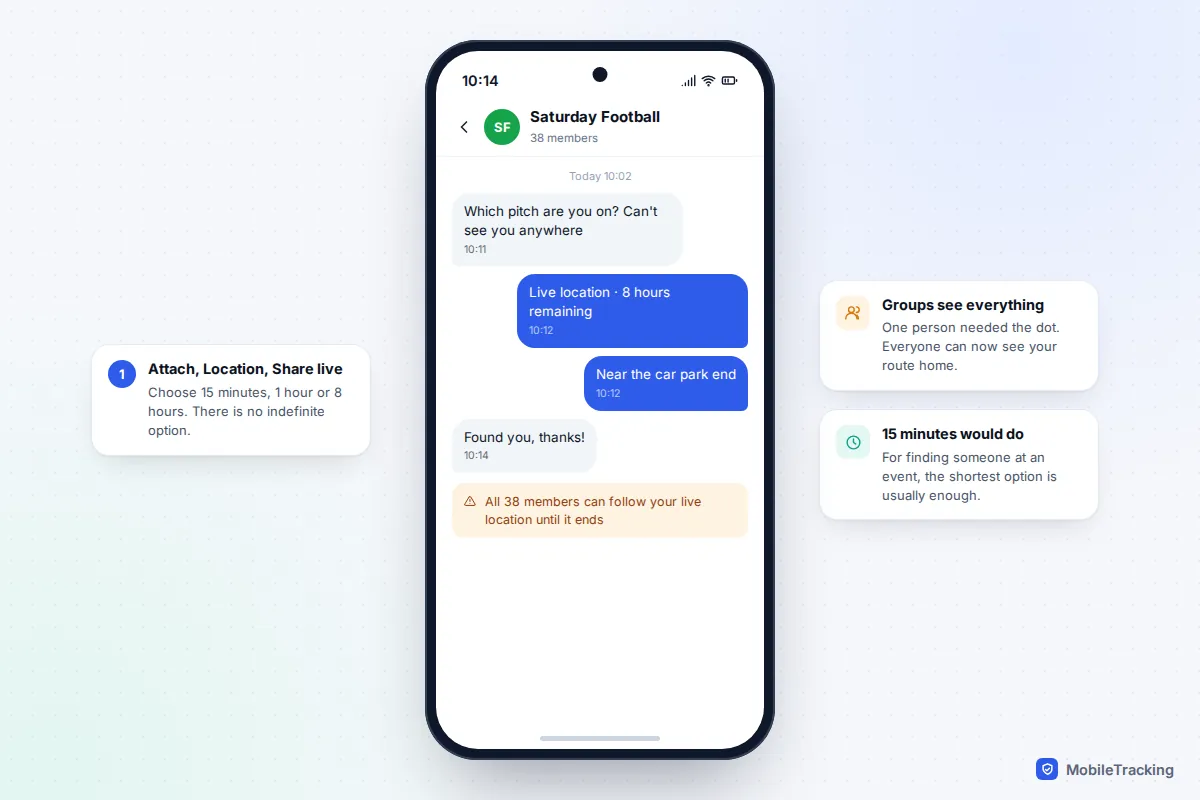
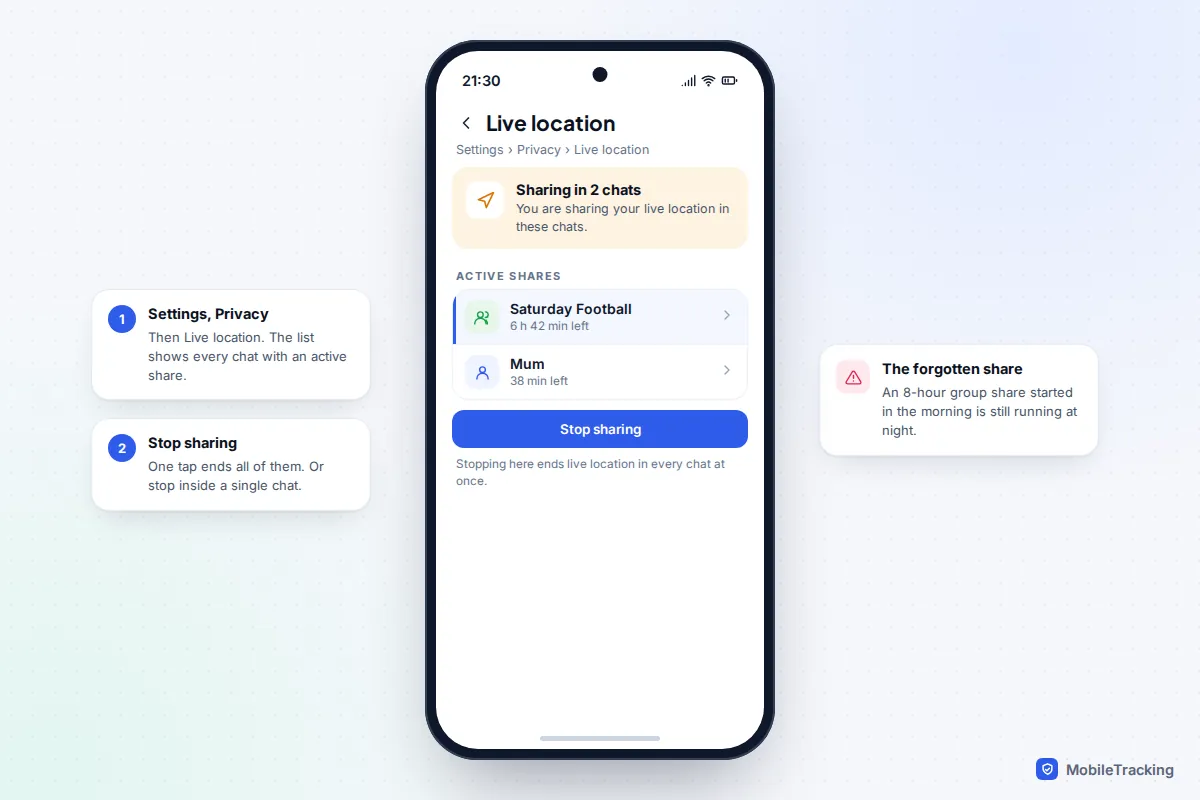
Eight hours is the ceiling, and there is no “indefinitely” option. That is deliberate, and it makes WhatsApp a good fit for a day out but a poor one for ongoing family sharing. When sharing ends, the others see a static thumbnail of your last updated position rather than a moving dot.
To stop in one chat, open it and tap Stop sharing, then Stop. To check that you are not still sharing anywhere else, go to Settings › Privacy › Live location. That screen lists every chat with an active share and has a single Stop sharing button (labels differ slightly on iPhone). WhatsApp’s live location help page covers the permissions you need on each phone.
Google Maps: a link that works in any chat
If the other person is on a different platform, or you do not know what app they use, a Google Maps link is the most universal option. It works in iMessage, SMS, email or any chat, on iPhone and Android.
- Open Google Maps and tap your profile picture.
- Tap Location sharing, then New share.
- Choose how long to share. One hour is the default; you can adjust it or pick Until you turn this off.
- Either choose a contact (they need a Google Account) or tap Copy to clipboard and paste the link into any message.
A link works for anyone who has it, account or not, and Google limits link sharing to 24 hours. Treat it like a key: if you paste it into a group, every member can open it, and they can forward it on. People you share with through Google also see your battery level and whether your phone is charging.
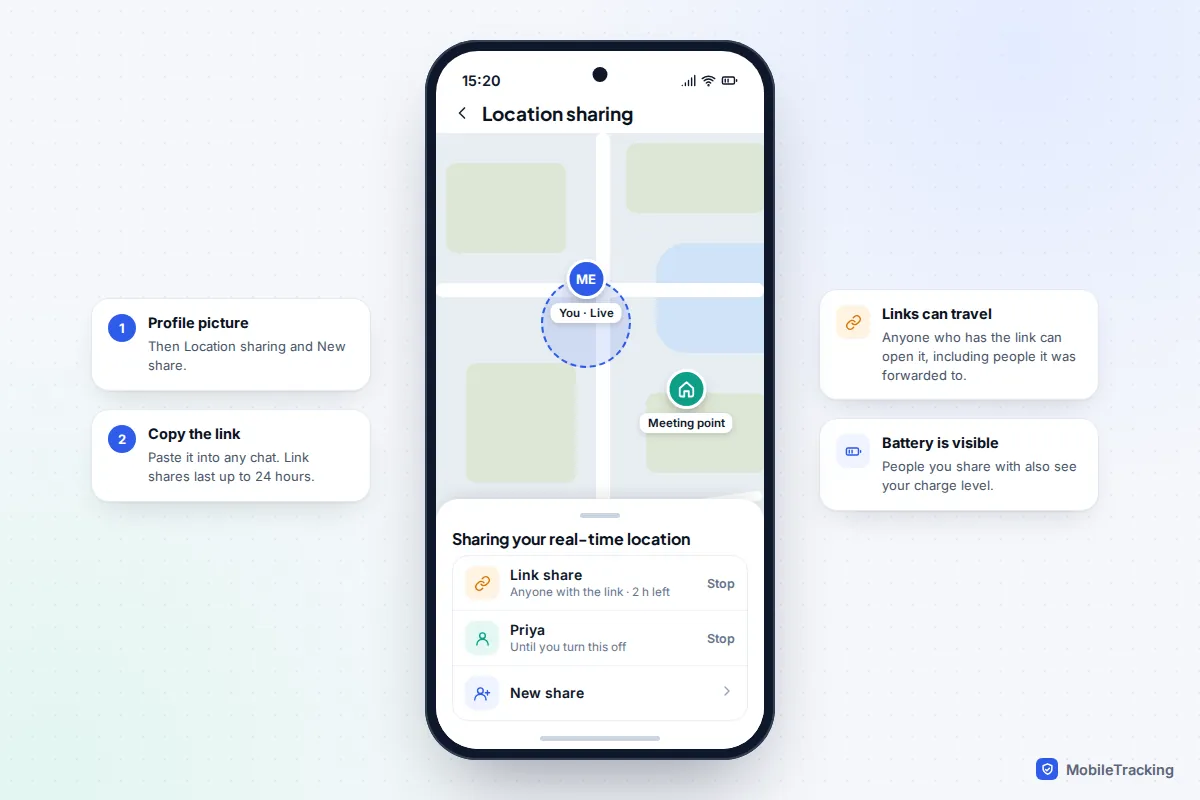
To stop, tap your profile picture, then Location sharing, select the person or the link share, and tap Stop. For a static pin in Google Maps, press and hold anywhere on the map to drop a pin, then tap Share.
Telegram and Facebook Messenger
Telegram
Tap the paperclip in a chat, choose Location, then Share My Live Location for. The choices are 15 minutes, 1 hour, 8 hours and, since 2024, Until I turn it off. You can also add more time to a share that is already running. While you are sharing, a bar appears at the top of the chat; use it to stop. Keep in mind that ordinary Telegram chats are stored on Telegram’s servers rather than being end-to-end encrypted, and that a live location sent to a large group or channel reaches everyone in it.
Facebook Messenger
Meta has retired the standalone Messenger desktop apps and folded Messenger on the web back into Facebook, but live location still lives in the Messenger mobile app. In a chat, tap +, then Location, then Start sharing live location. It lasts 60 minutes, and there is no longer option. Tap Stop sharing location to end it early. For anything beyond an hour, one of the options above is a better fit.
Sharing in group chats: who actually sees you
Group chats are where live location causes most regret. The share goes to the whole group as it is at that moment, and the group often includes people you do not know well: a friend of a friend, a parent from a school chat, a work contact. Sending your live location to a 40-person football parents’ group so one person can find you at the pitch shows your route home to 39 others.
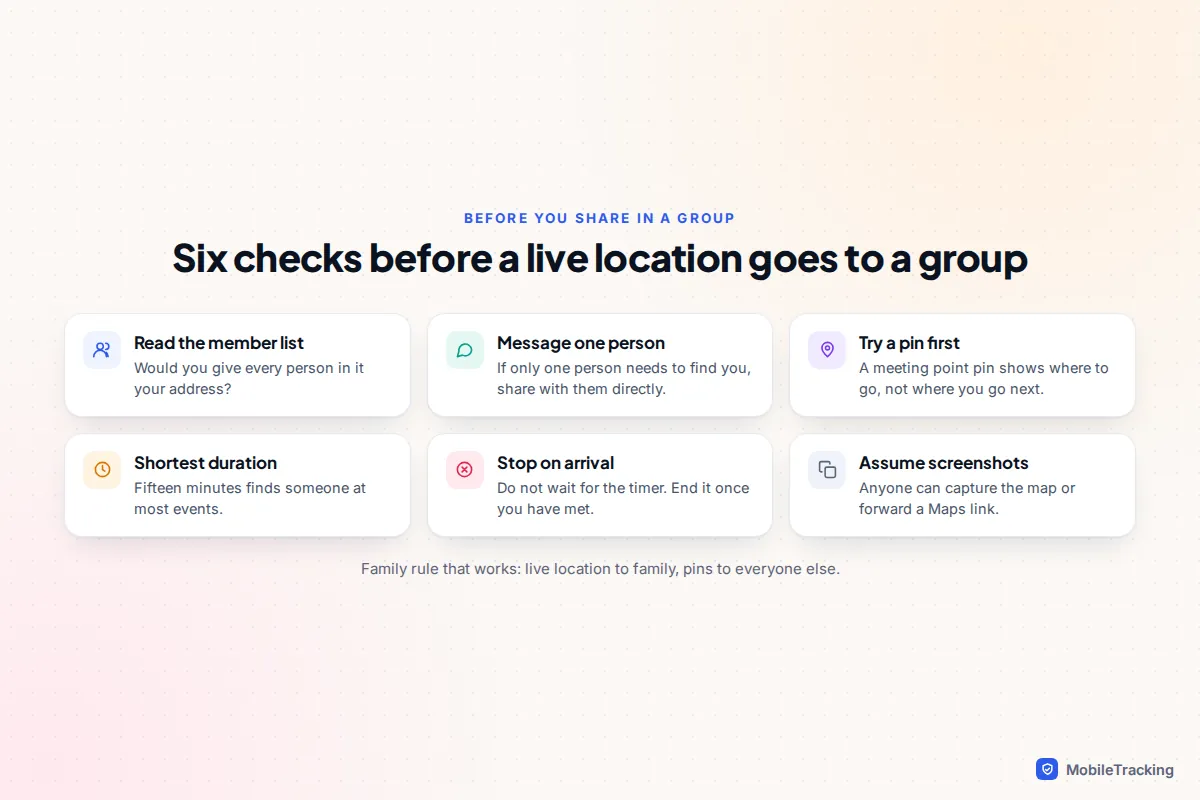
If you would not give everyone in the member list your address, message the one person directly. Choose the shortest duration, stop the share when you arrive rather than waiting for the timer, and remember that anyone in the chat can screenshot your map. For children and teenagers, a good family rule is “live location to family, pins to everyone else”.
Battery, accuracy and when live location stops updating
Live sharing keeps the app checking your position in the background, which uses more battery than a single pin, especially outdoors on mobile data. For a short share the difference is modest. For all-day sharing, keep your phone charged and avoid running several live shares in different apps at the same time. Our guide on saving battery while sharing location has more ways to cut the drain.
When the other person says your dot is stuck, it is almost always one of the causes below.
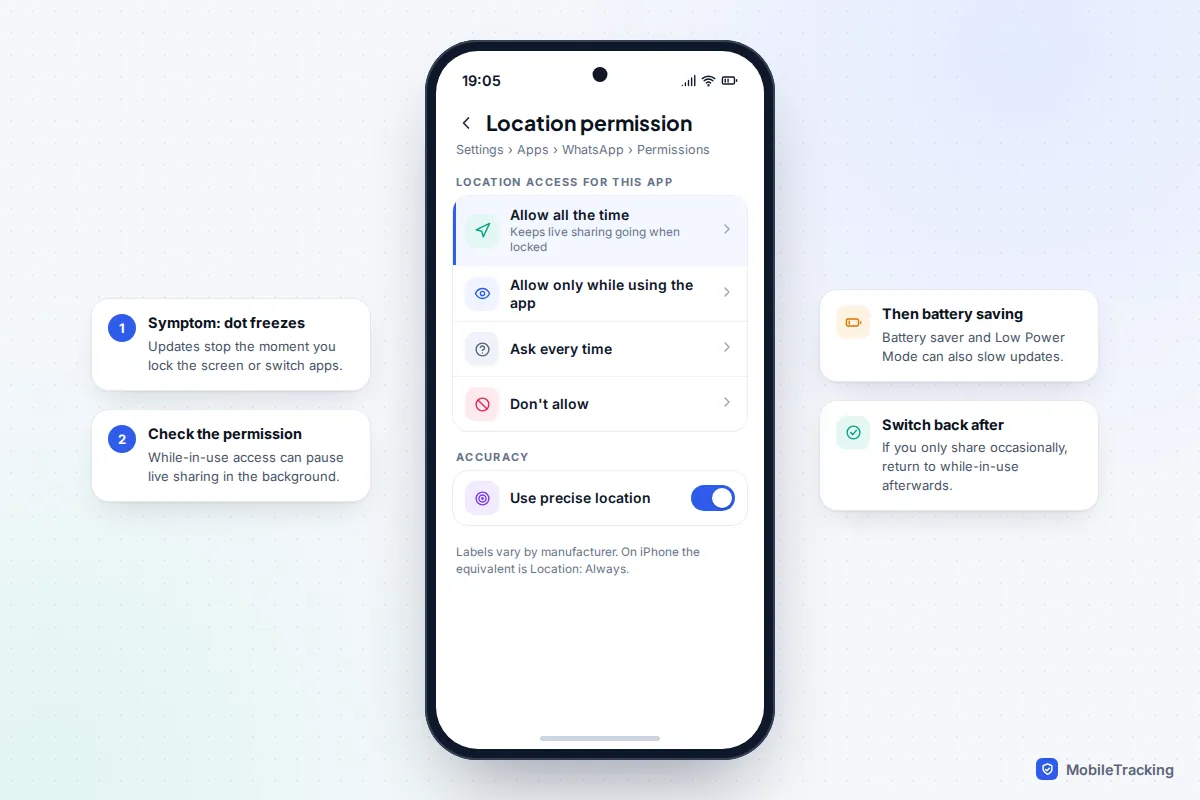
| Symptom | Likely cause | Fix |
|---|---|---|
| Location freezes when you lock the phone | App only has location access while in use | Allow background access (Always on iPhone, Allow all the time on Android) for the app |
| Updates are slow or patchy | Low Power Mode or battery optimisation | Turn it off for the trip, or exempt the app |
| Dot is in the wrong building | Weak GPS indoors | Expected; it corrects outdoors |
| iMessage share never arrives on their phone | They use Android | Send WhatsApp live location or a Google Maps link |
| They see an old location with a time stamp | Your phone lost signal or switched off | It resumes when you reconnect |
If you want someone to know you arrived safely, rather than to watch you travel, consider a check-in instead. iPhone’s Check In in Messages tells the other person when you get there, and only shares more detail if you do not. Our guide to setting up check-ins instead of constant tracking explains the options on both platforms.
Frequently asked questions
Can I share my live location from an iPhone to an Android phone?
Not through Apple’s Messages, because live sharing there depends on Find My, which Android phones cannot open. Use WhatsApp live location, which works across both, or share a Google Maps link, which opens on any phone. If you shared in Messages and it never appeared on their end, this is almost certainly why.
What is the longest I can share live location in a chat?
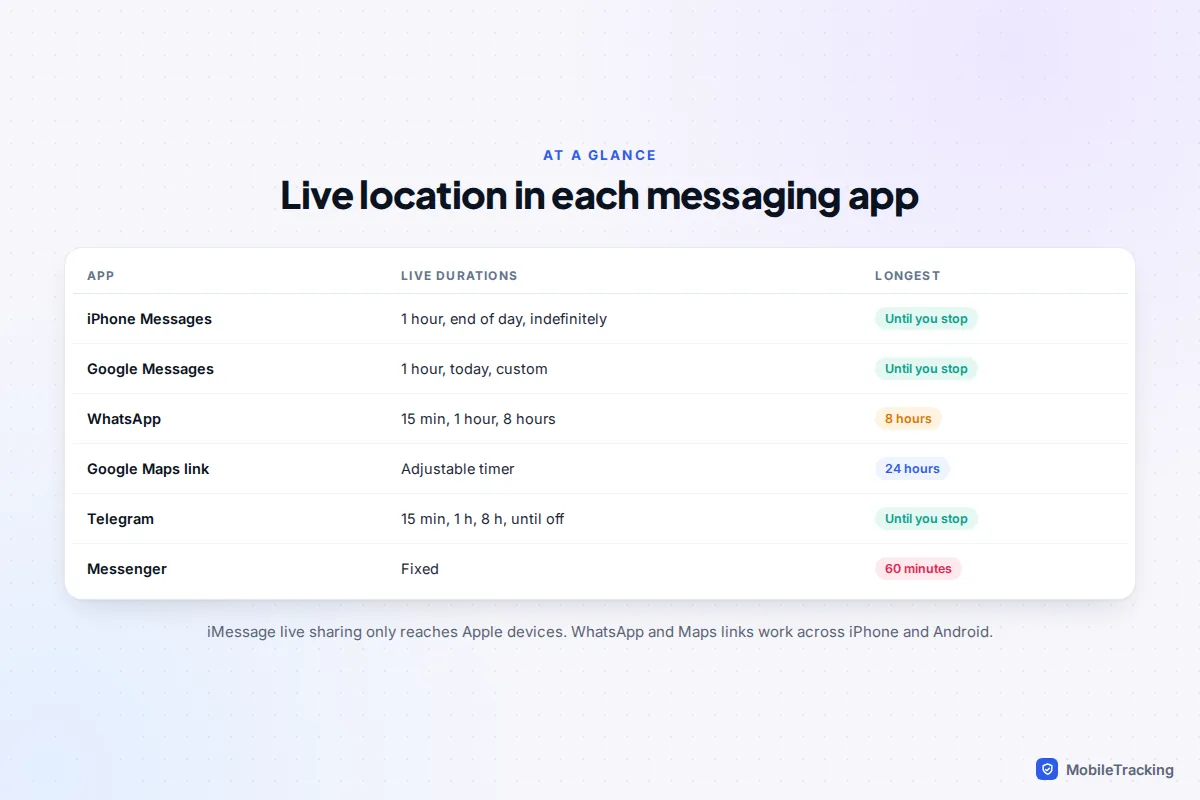
It depends on the app. WhatsApp stops at 8 hours and Messenger at 60 minutes. Google Messages offers custom durations up to 24 hours plus “Until you turn this off”. Telegram, iMessage and Google Maps contact shares can all run until you stop them, and Google Maps links last up to 24 hours.
Does the other person get told when I stop sharing?
Generally there is no separate alert, but the change is visible. In WhatsApp the live map stops updating and becomes a static thumbnail. In Find My and Google Maps you disappear from their list of people sharing with them. If you want to step back quietly and safely, our guide to stopping location sharing discreetly explains what each app shows.
Is sharing live location in WhatsApp safe?
WhatsApp encrypts live location end to end, so WhatsApp itself cannot read it. The bigger risk is who is in the chat. Check the member list, choose the shortest duration that works, and stop sharing as soon as you have met up.
Why does my live location show the wrong place?
Indoors, in underground stations and among tall buildings, phones fall back on Wi-Fi and mobile masts, which can be tens or even hundreds of metres out. The position usually corrects once you are outside with a clear view of the sky. Turning on Wi-Fi, even without connecting to a network, often improves accuracy indoors.
This guide is general information, not legal or financial advice. Read our editorial policy.