

 MobileTracking Editor
For years, Facebook quietly accumulated something most of its users never thought about: a detailed, timestamped record of where they had been. Every time you opened the app, Facebook — with your location services enabled — logged your position, building up a personal location history that the company used to serve you relevant ads, suggest nearby friends, and deliver location-based alerts. It was one of those features that existed in the background, rarely discussed, quietly running until the day you looked at it and realized exactly how much it had recorded.
In 2022, that changed. Facebook announced it would stop recording location history data effective May 31, 2022, and subsequently deleted the stored location histories of its users. The decision came amid growing user concern about Facebook’s data practices and broader public scrutiny of how large tech companies handle sensitive location data. Today, if you open a current version of the Facebook app, you will not find a location history section — because the feature no longer exists in the form it once did.
But location and Facebook are not entirely separated. The platform still uses location data in several ways — for ad targeting, for location tagging in posts, and through the permissions you have granted to the app on your device. Understanding what Facebook’s current location practices actually are, what happened to your old location data, how to manage your current location permissions, and what more effective alternatives exist for tracking family member safety are all practical questions worth answering in detail.
This guide covers all of it. We start with what Facebook’s location history feature was and how it worked. We then explain what changed in 2022 and what location capabilities remain active today. For those using older versions of the Facebook app, we include the original steps for viewing and deleting location history. And we close with a look at dedicated family location tracking tools — including parental monitoring apps — that provide the kind of real-time GPS tracking that Facebook was never really designed to offer.

Part 1: What Facebook Location History Was — and Why It Mattered
To understand the current situation, it helps to know what Facebook’s location history feature actually did when it was active.
How the Feature Worked
When location services were enabled for the Facebook app on your device — and Facebook enabled this by default — the app periodically recorded your geographic coordinates and stored them in a personal location history associated with your account. This history was accessible only to you through your account settings; it was not visible to other Facebook users unless you explicitly shared posts with location tags.
Facebook used this location data for several purposes. The most commercially significant was ad targeting: knowing where you had been allowed Facebook’s advertising platform to serve you ads from local businesses, restaurants, or retailers in areas you frequented. The Nearby Friends feature — which showed you which of your Facebook friends were physically near you at any given moment — also depended on this continuous location logging. Weather alerts and other location-sensitive notifications were powered by the same underlying data.
The history itself was comprehensive. It recorded your location at regular intervals whenever you had the Facebook app installed and location services permitted. Over weeks and months, the accumulated record was detailed enough to reveal your home address, workplace, regular commute, weekend habits, and any travel you undertook — all without you ever actively sharing anything.
Why Facebook Deleted It
Facebook announced the shutdown of the location history feature in May 2022, with the full deletion of stored data following shortly afterward. The company stated publicly that the feature was underused and that removing it would simplify the user experience.
The broader context, however, was significant. The preceding years had seen sustained regulatory and public pressure on Facebook (rebranded as Meta in 2021) regarding its data collection practices. High-profile data controversies, multiple congressional hearings, and significant regulatory activity in the European Union under GDPR had made Facebook’s data practices a politically and legally sensitive topic. Location data — which is among the most sensitive categories of personal information, capable of revealing religious affiliation, medical history, political activity, and intimate relationships — was a particular area of concern.
Whether the decision was primarily driven by genuine privacy reform or by regulatory and reputational risk management, the practical effect for users was the same: the detailed personal location history that Facebook had accumulated was no longer accessible or stored.
Part 2: What Facebook’s Current Location Features Look Like
Removing location history did not mean Facebook became location-agnostic. The platform still interacts with location data in several ways, and understanding these helps you make informed decisions about your current privacy settings.
Location Tagging in Posts
You can still tag your location when creating a Facebook post, check in at a business or venue, or include a location in a story. This is a voluntary, per-post action — you actively choose to add a location tag before publishing. These tags are visible to whoever can see the post, based on your audience settings.
Ad Targeting Using Location
Facebook’s advertising system continues to use location signals to serve you geographically relevant ads. This does not require the old location history feature — it is derived from your device’s IP address, the location information in your profile, and the location permissions you have granted to the Facebook app for current-session use.
If you notice ads from local businesses you have never explicitly searched for, this location-based ad targeting is typically the explanation.
Location Permissions Still Matter
Even without location history, the location permissions you have granted to the Facebook app on your phone still affect how the app functions. Facebook may still request your current location in specific contexts — when you are searching for nearby businesses, using the Marketplace feature, or setting a location tag for a post. The permissions you have set determine how and when this access occurs.
There is a meaningful difference between granting location access “Only While Using the App” (which gives Facebook access to your location when the app is open) versus “Always” (which can allow background access). Since location history no longer exists as a stored feature, “Always” access is less functionally necessary than it once was, and “While Using” or “Never” may be more appropriate for most users today.
Part 3: How to Check Facebook Location History on Older App Versions
If you are using an older version of the Facebook app — one that predates the May 2022 changes — or if you are accessing an older account that may still have historical data, the following steps describe how to access and view that location history.
Important note: Current versions of the Facebook app do not include a location history section. If these steps do not find the feature on your version, it has already been removed in your app’s update.
On Facebook Website (Browser)
Step 1: Open your browser and navigate to facebook.com. Log into your account.
Step 2: Click the downward arrow in the top-right corner of the Facebook interface to open your account menu.
Step 3: Select Settings & Privacy, then click Settings.
Step 4: In the left sidebar, look for Location or Location History. If present, click on it.
Step 5: Click View Your Location History. You will be prompted to enter your Facebook password to confirm your identity before the history is displayed.
Step 6: Your location history will be displayed as a map with timestamps indicating where and when Facebook recorded your position.
On Android
Step 1: Open the Facebook app on your Android phone. Tap the three horizontal lines (hamburger menu) in the upper-right corner.
Step 2: Scroll down and tap Settings & Privacy, then select Settings.
Step 3: Scroll down to the Permissions section and tap Location.
Step 4: If your version of the app includes location history, tap Location History to view it.
Step 5: Tap View Your Location History and enter your password when prompted.
On iPhone
Step 1: Open the Facebook app on your iPhone. Tap the three horizontal lines menu icon.
Step 2: Scroll down and tap Settings & Privacy > Settings.
Step 3: Under Permissions, tap Location.
Step 4: If available in your app version, tap Location History and then View Your Location History.
Step 5: Enter your password to access the history.
Part 4: How to Delete Facebook Location History
For users who still have access to location history data in older app versions, deleting it follows on from viewing it.
Deleting History on the Website
After following the steps above to view your location history, look for a three-dot menu or More icon in the upper-right corner of the location history page.
Tapping this icon reveals two deletion options:
Delete this day: Removes location data for a specific date. Useful if you want to remove records from a particular day without clearing the entire history.
Delete all location history: Permanently removes all location data Facebook has stored for your account. This cannot be undone — once deleted, the historical records are gone.
Tap your preferred option and confirm the deletion when prompted.
Why Deleting History Matters Even Now
Even though Facebook has officially stopped recording new location data since mid-2022, if you have an older account with a long history of active location history use, there may be older records that predate the deletion. Manually deleting these records gives you certainty about what is no longer stored, rather than relying entirely on Facebook’s server-side deletion process.
Additionally, understanding the deletion process is useful context for navigating the broader question of what data Facebook holds about you. For a comprehensive view of all data Facebook has stored, you can request a full data export at Settings > Your Facebook Information > Download Your Information. This export includes posts, messages, search history, ad interactions, and any remaining data across all categories.
Part 5: How to Manage Your Current Facebook Location Permissions
Since the location history feature is gone from current Facebook versions, the most relevant location privacy actions today relate to the location access permissions you have granted the Facebook app on your device.
Checking and Adjusting Location Permissions on Android
Step 1: Open the Settings app on your Android phone — not the Facebook app, but the phone’s system settings.
Step 2: Tap Apps (or Application Manager on some devices).
Step 3: Find and tap Facebook in the app list.
Step 4: Tap Permissions, then tap Location.
Step 5: You will see options for location access:
- Allow only while using the app — Facebook can access your location only when the app is open in the foreground
- Ask every time — Facebook prompts for permission each time it wants to access location
- Don’t allow — Facebook has no location access at all
For most users today, Allow only while using the app is a reasonable balance — it allows location-dependent features (Marketplace, location tagging, local search) to function when you choose to use them, without permitting background location access.
Step 6: Tap your chosen option. The change applies immediately.
Checking and Adjusting Location Permissions on iPhone
Step 1: Open the iPhone Settings app.
Step 2: Scroll down and tap Facebook in the app list (or go to Settings > Privacy & Security > Location Services and find Facebook there).
Step 3: Tap Location. The options are:
- Never — No location access
- Ask Next Time or When I Share — Prompts for permission when the app requests location
- While Using the App — Access when the app is in the foreground
- Always — Background location access (no longer necessary since location history was removed)
Step 4: Select your preferred option. While Using the App is appropriate for most users who want to retain features like location tagging.
Step 5: On the same screen, you can also control Precise Location. When toggled on, the app receives your exact GPS coordinates. When toggled off, it receives only an approximate area. For Facebook’s current uses, approximate location is sufficient and provides more privacy than precise location.
Reviewing Facebook’s In-App Location Settings
Beyond the device-level permissions, Facebook also has its own in-app location controls. These vary by app version but can generally be accessed through:
Settings & Privacy > Settings > Location
Within this section, you can control whether Facebook uses your location for features like Nearby Friends (if still available in your region and version), location-based suggestions, and location access for specific features within the app.
Part 6: Understanding Facebook’s Broader Data Practices
Facebook’s location history was one part of a much larger data ecosystem. Understanding the full picture helps you make more informed decisions about your Facebook use and privacy settings.
What Facebook Still Collects
Even without location history, Facebook continues to collect substantial data about its users:
Usage patterns. Every post you like, every video you watch, every link you click is logged and used to build a behavioral profile for ad targeting. The depth and granularity of this behavioral tracking goes far beyond what most users realize — Facebook’s system can infer political views, religious beliefs, health concerns, financial status, and relationship dynamics from engagement patterns alone, without any of those things being explicitly stated in a profile.
Demographic and profile data. Your age, education, relationship status, job history, and other profile information — whatever you have shared — is part of your data profile. Even information you thought you deleted may have been retained depending on when you deleted it and what Facebook’s data retention policies were at the time.
Off-Facebook activity. Through the Facebook Pixel, a tracking tool embedded in millions of websites and apps, Facebook can track your activity across the internet even when you are not on Facebook. Many online purchases, article reads, and site visits are reported back to Facebook through this mechanism. When you see an ad on Facebook for a product you were browsing on a completely different website, off-Facebook tracking is almost certainly the reason.
Device and network information. Your device type, operating system, browser, IP address, and network information are all logged when you use Facebook. Changes in device or IP can sometimes trigger security reviews, but they also contribute to the behavioral fingerprinting that makes Facebook’s ad targeting system function.
Facial recognition data (historical). Facebook historically used facial recognition on photos uploaded to the platform. The company phased out this capability following regulatory pressure, but this serves as a reminder that Facebook’s data collection has extended to biometric information — not just behavioral and location data.
Your Data Control Options
Facebook provides several tools for managing your data, though using them effectively requires knowing they exist:
Off-Facebook Activity tool: Available at facebook.com/off_facebook_activity, this tool shows you which businesses and websites have sent your activity data to Facebook via the Pixel and allows you to disconnect this data from your account. Using the Disconnect future activity option prevents the ongoing association of your off-Facebook browsing with your Facebook profile — though it does not prevent websites from continuing to send data to Facebook’s servers.
Ad Preferences: At Settings > Ads > Ad Preferences, you can view and modify the interests Facebook has associated with your profile for ad targeting. Removing interest categories does not stop Facebook from showing you ads — it just changes which ads you see.
Download Your Information: At Settings > Your Facebook Information > Download Your Information, you can request a full export of all data Facebook holds on your account. This export includes posts, messages, search history, ad interactions, and any remaining data across all categories. Reviewing this export is often eye-opening for users who have not previously considered the breadth of what Facebook has logged.
Account Deletion: If you decide you want to remove your data entirely, Facebook allows full account deletion at Settings > Your Facebook Information > Deactivation and Deletion. Account deletion is permanent and removes your data from Facebook’s servers, though some information may be retained for legal compliance for a period after deletion.
Part 7: Real-Time Family Location Tracking — Better Alternatives to Facebook
Facebook was never designed as a family location tracking tool, and its location features — even when location history was active — were not built around the kind of continuous, real-time GPS monitoring that parents or families coordinating across multiple locations typically need.
For those purposes, dedicated location sharing and parental monitoring apps are significantly more capable, more reliable, and more purpose-built. Here is an overview of the landscape.

What Makes a Good Family Location Tracker
The key features that distinguish a purpose-built family location app from a social media platform’s location tools are:
Continuous, real-time GPS updates. Rather than periodic location logs, a good family tracker shows you the current position of a family member’s device, updating in near real-time as they move.
Location history with route detail. Not just where someone is right now, but where they have been throughout the day — the route they took, the time they spent at each location, when they arrived and left.
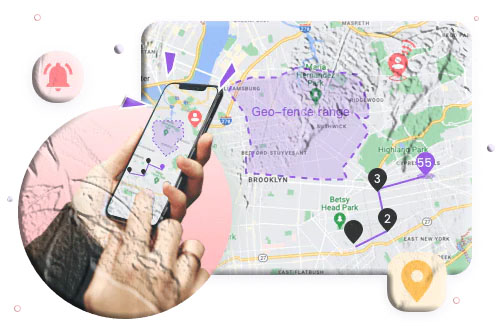
Geofencing with automatic alerts. The ability to draw boundaries around key locations — home, school, a relative’s house — and receive immediate notifications when a device enters or exits those zones, without having to actively monitor the map.
Low-battery alerts. Notification when a tracked device’s battery is running low, ideally with the device’s current location attached to the alert — so you know where the phone is even if it is about to go offline.
Cross-platform support. Works whether the family is using Android, iPhone, or a mix of both.
MobileTracking Parental Control
For parents monitoring children’s devices specifically — particularly on Android — MobileTracking Parental Control offers a comprehensive monitoring solution that extends well beyond location tracking.
Real-time GPS location. Parents can see their child’s current position on a live map at any time. Location updates continuously while the phone is on and has a data connection.
30-day location history. Unlike Facebook’s now-deleted location history or the limited history windows in basic location apps, MobileTracking stores up to 30 days of route history — giving parents a scrollable timeline of everywhere the child’s device has been, not just current position.
Geofencing with instant alerts. Set virtual boundaries around home, school, sports facilities, or any relevant location. Receive an immediate notification the moment the child’s phone enters or leaves those zones — no need to actively check the map.
Low-battery location alert. When the child’s phone battery drops below a threshold the parent has configured, an alert fires to the parent’s device with the child’s current GPS coordinates attached. This provides a final location snapshot before the phone potentially shuts down — solving one of the most common frustrations in family location monitoring.
Screen mirroring. Parents can view the child’s phone screen in real time from their own device, providing visibility into what apps are open and what content is being accessed.
Ambient audio monitoring. The app allows a parent to remotely activate the microphone on the child’s device and hear the surrounding environment in real time — useful for safety checks when a child is in an unfamiliar or potentially concerning location.
App usage monitoring. See exactly which apps the child is using and for how long — broken down by app and by time of day. Usage patterns that might indicate a problem (social media spikes late at night, messaging activity during school hours) are easy to identify.
SMS and notification monitoring with keyword alerts. Configure specific words that trigger an alert if they appear in incoming messages. Useful for detecting bullying, inappropriate contact, or other concerning communications proactively.
How to set up MobileTracking:
Step 1: Download and install MobileTracking Parental Control from the Google Play Store on your own phone. Create an account and log in.
Step 2: On your child’s Android device, install the MobileTracking Kids companion app.
Step 3: Open MobileTracking Kids on the child’s phone, enter the pairing code displayed in your parent dashboard, and complete the permissions setup — granting access to location, screen, notifications, and other features you want active.
Step 4: From your parent dashboard, navigate to Location to see the real-time map view. Use the History tab to review past routes. Set up geofence zones under Geofencing and configure your alert preferences.
Step 5: Explore additional features — Screen Mirroring, App Usage, SMS Monitoring — from the same central dashboard.
Other Family Location Sharing Apps
Beyond parental monitoring specifically, several family location sharing apps provide mutual, transparent location visibility for all family members — including for families with older teenagers or adults who want to coordinate rather than monitor.
Google Family Link (Android | iOS) is Google’s free parental supervision tool. It includes real-time location sharing, app management, screen time controls, and content filtering. The location feature shows a child’s current position on a map. It is free and works across Android and iOS (with the parent app on either platform), though it tracks Android child devices only.
Life360 (Android | iOS) is a mutual family location sharing platform where all members can see each other’s real-time positions. It includes location history, geofencing, driving behavior reports, and an SOS button. It supports both Android and iOS across the same family group. Paid plans add additional features; a free tier is available.
Find My (Apple) is Apple’s native location sharing system, integrated into iPhone, iPad, Mac, and Apple Watch. Family members on the same Family Sharing group can share their locations with each other voluntarily, with each person in full control of whether they share and with whom. It is free for all Apple device users.
Part 8: Protecting Your Privacy on Facebook — A Practical Checklist
Given Facebook’s data collection practices beyond location, it is worth taking a broader view of your privacy settings. Here is a practical checklist for reducing your exposure.
Review your privacy settings. Go to Settings & Privacy > Privacy Checkup in the Facebook app. Facebook will walk you through a guided review of who can see your posts, who can find you by phone number or email, and how your data is being used. This takes about five minutes and is worth doing annually.
Set your default post audience. Go to Settings > Privacy > Your Activity. Set “Who can see your future posts?” to Friends or Friends except acquaintances rather than Public — unless you specifically want posts visible to everyone.
Disable Off-Facebook Activity tracking. Visit facebook.com/off_facebook_activity and clear the history. More importantly, use the Disconnect future activity option to prevent third-party websites and apps from associating your browsing activity with your Facebook profile going forward.
Review apps connected to your Facebook account. At Settings > Apps and Websites, you will find every third-party app and website that has “Login with Facebook” access to your account. Remove any you no longer use. Each connected app may have its own data access based on the permissions you granted when you signed in.
Manage your ad preferences. At Settings > Ads > Ad Preferences, you can remove interest categories Facebook has associated with your profile and limit certain types of ad targeting. You cannot opt out of Facebook advertising entirely, but you can reduce the accuracy of the targeting.
Use the Facebook app only while needed. The Facebook app — particularly on Android — has a reputation for running in the background and consuming resources beyond what you might expect. Restricting its background data access and location permissions to “While Using the App” limits its ability to collect information when you are not actively using it.
Consider using Facebook through a browser instead. Web browsers are subject to stricter privacy controls than native apps on most operating systems. Using Facebook.com through a privacy-oriented browser, or with browser extensions like uBlock Origin installed, gives you more control over what Facebook can access compared to the native app.
Frequently Asked Questions
Does Facebook still track your location?
Facebook stopped storing a dedicated location history for users in 2022. However, the Facebook app may still access your current location for specific in-session features — like location tagging in posts, Marketplace searches, and local ads — based on the device permissions you have granted. Facebook also continues to use IP address-based location signals for ad targeting. Managing your location permissions in your phone’s settings controls the degree of access.
How do I turn off location on Facebook?
On Android, go to your phone’s Settings > Apps > Facebook > Permissions > Location and set it to Don’t Allow or Only While Using the App. On iPhone, go to Settings > Facebook > Location and select Never or While Using the App. You can also adjust location-related settings within the Facebook app under Settings & Privacy > Settings > Location.
Can I see someone else’s Facebook location history?
No. Facebook’s location history (when it existed) was private and visible only to the account holder. No Facebook user can view another person’s location history. The only way to access another person’s location history through Facebook would be to have their account login credentials, which raises obvious legal and ethical concerns.
Why did Facebook delete location history?
Facebook stated that the feature was underused and that removing it would simplify the user experience. The broader context included significant regulatory and public pressure around Facebook’s data collection practices, particularly regarding sensitive categories like precise location data. The company made the decision effective May 31, 2022, with subsequent deletion of stored records.
Is Facebook location history accurate?
When it was active, Facebook’s location history used GPS, Wi-Fi, and cellular network data to determine location. GPS-based coordinates are typically accurate to within a few meters outdoors. Wi-Fi and cellular-based estimates are less precise, typically accurate to within a few hundred meters. The accuracy of stored records depended on how the location was determined at the time of logging.
What happened to my old Facebook location history?
Facebook deleted stored user location histories following the discontinuation of the feature in mid-2022. If your data has been deleted by Facebook’s servers, it is no longer accessible through any method. If you requested a data download (through Settings > Your Facebook Information > Download Your Information) before the deletion took effect, you may have a local copy of your historical location data.
Can I use Facebook to track my child’s location?
Facebook is not designed as a family location tracking tool and its location features are not suitable for this purpose. Dedicated family tracking and parental monitoring apps provide significantly more reliable and feature-rich location tracking. Google Family Link (free), Life360, and MobileTracking Parental Control (for Android) are all specifically built for family location monitoring and offer real-time GPS, location history, and geofencing alerts that Facebook never provided.
How do I download all of my Facebook data including any remaining location information?
Go to Settings > Your Facebook Information > Download Your Information in the Facebook app or website. Select the data categories you want to include — you can select “All” or specific categories. Choose your preferred format (HTML for readability or JSON for data processing) and date range. Click Request a Download. Facebook will prepare the file and notify you when it is ready, which can take anywhere from a few minutes to several hours depending on how much data you have accumulated.
Does Facebook use my location for advertising even without location history?
Yes. Facebook’s advertising system uses several signals to deliver geographically relevant ads even without location history: your IP address (which indicates your approximate city or region), the city listed in your profile, location tags you have added to posts, and any current location data you have permitted the app to access during active use. These signals are sufficient for location-based ad targeting without requiring the detailed historical record that location history provided.
What is the best alternative to Facebook for tracking family member locations?
For families specifically, the most purpose-built options are Google Family Link (free, good for younger children), Life360 (mutual sharing for all ages, including driving safety features), and for parents who need deeper monitoring of an Android device, MobileTracking Parental Control (which combines location tracking with broader digital oversight tools including screen mirroring, app monitoring, and ambient audio). Apple’s Find My is the best option for families where all members use Apple devices.
Final Thoughts
Facebook’s location history feature is gone, and that is — for most users — a straightforwardly positive development. The granular, continuous recording of a user’s physical movements was among the most privacy-invasive features any mainstream consumer app had deployed, and its removal reduced one significant dimension of Facebook’s data collection footprint.
But location privacy on Facebook is not a fully resolved issue. The platform still uses location signals for advertising. The permissions you have granted to the Facebook app on your device still control how and when the app can access your current location. And the broader question of what data Facebook holds about you extends well beyond location to every aspect of your activity on and off the platform.
The practical response is to take fifteen minutes to audit your Facebook privacy settings — location permissions, off-Facebook activity, connected apps, and post audience — and then shift your mental model of Facebook from a service that has your interests at heart to a platform whose business model depends on knowing as much about you as possible. Neither hostile nor naive — just clear-eyed.
For family location tracking specifically, Facebook was never the right tool, and its removal of location history is a reminder to use purpose-built tools for safety monitoring. Google Family Link, Life360, and for Android-focused families, MobileTracking Parental Control, each offer real-time GPS tracking, location history, and geofencing that Facebook’s features never approached in capability or reliability.
Disclaimer: Facebook’s features, settings menus, and data practices are subject to change. All information in this guide reflects Facebook’s features as of the most recent platform update at time of writing. Check Facebook’s current settings for the most up-to-date options.





Add comment