
 MobileTracking Editor
One of the recurring themes in modern parenting is the tension between giving children space to grow and maintaining the awareness that keeping them safe requires. That tension becomes acutely practical the moment a child starts carrying a smartphone — a device that goes everywhere with them, including places parents aren’t and can’t always be.
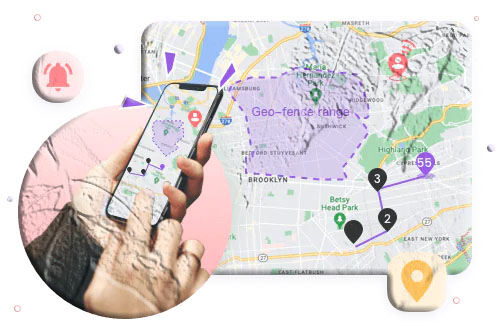
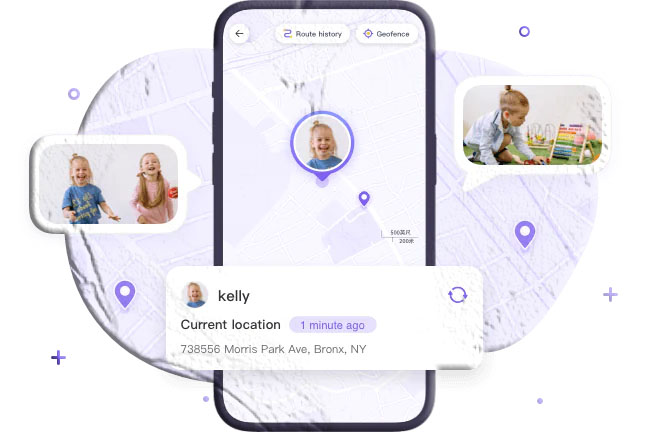
The question of how to know where a child is, without that awareness requiring constant phone calls or a parent physically shadowing them, is one that families navigate constantly. Location tracking technology has made that question answerable in ways that would have seemed remarkable a generation ago: you can know, in real time, that your child arrived at school, that they left their friend’s house at the time they said they would, or that their phone is in an area you weren’t expecting.
But the array of tools available for child location tracking is wider than many parents realize, and the differences between them matter. The right approach for a family depends on factors like the child’s age, the device they use, the specific safety concerns at play, and how transparent the family wants to be about monitoring.
This guide covers every significant method for tracking a child’s phone — from the free built-in features available on Android and iOS, to dedicated parental control apps like MobileTracking — with an honest comparison of what each offers, where each falls short, and which situations each is best suited to. By the end, you’ll have a clear picture of which approach fits your family’s specific needs.
Why Location Tracking Has Become Part of Modern Parenting
Before comparing the specific methods, it’s worth grounding the conversation in why location tracking has become such a widespread parenting practice — because the numbers are significant.
Research from Pew Research Center has found that a substantial majority of parents with children under 12 use some form of digital location tracking. Among parents of teenagers, location sharing — either through mutual family sharing arrangements or through monitoring apps — is similarly common. What was once considered an unusual degree of oversight has become, for many families, a normal part of managing the practicalities of children who travel independently.
The reasons aren’t hard to understand. Children are granted independence earlier and travel further than they might have in previous generations. School commutes, after-school activities, visits to friends, and teenage social life all involve movement through the world without a parent present. The anxiety that accompanies that independence — particularly in the period when a child is navigating it for the first time — is real and reasonable.
Location tracking doesn’t eliminate that anxiety. But it gives it somewhere to go — a factual check on whether the child is where they said they’d be, an automated alert when they arrive or leave specific places, a GPS history that can answer questions without requiring an interrogation. That kind of structured information often actually reduces parental anxiety rather than feeding it, because it replaces indefinite worry with specific, checkable facts.
The Important Distinction: Awareness vs. Surveillance
Throughout this guide, a distinction worth keeping in mind is the difference between location awareness and location surveillance. Location awareness means a parent knows generally where their child is and receives alerts when something unexpected happens — a child who doesn’t arrive at school on time, who leaves a location before they said they would, or who appears to be somewhere other than where they said they’d be. Location surveillance means constant, intensive monitoring of a child’s every movement as an end in itself.
Most child development researchers — including those at the American Psychological Association — recognize location awareness in the first sense as a reasonable part of parental responsibility, particularly for younger children. Location surveillance in the second sense, particularly as children grow older, can damage trust and interfere with the development of the autonomy children need to develop.
The tools this guide covers can enable either approach. Which one a family ends up with depends on how they use the tools, not the tools themselves.
Method 1: Google Find My Device (Android)
Google’s Find My Device is a built-in capability on Android phones that allows the registered Google account holder to locate a device remotely. It’s available automatically on Android devices that have a Google account signed in — no separate installation required.
What It Does
Find My Device shows the current location of a registered Android device on a Google Map, accessible through the Find My Device website or the Find My Device app. The location reflects the device’s most recently reported GPS position.
Beyond location, Find My Device includes some device management capabilities — the ability to lock the device or erase its data remotely if the phone is lost or stolen. For child monitoring purposes, the location function is the primary relevant feature.
How to Set It Up
Setting up Find My Device for a child’s phone is straightforward:
- Ensure your child’s Android phone is signed into a Google account
- Navigate to google.com/android/find in any browser and log in to that Google account
- The device’s location is displayed on the map
No installation is required on the parent’s device — the tracking is accessible through any web browser using the associated Google account credentials.
Honest Assessment: Where Find My Device Works
Find My Device is genuinely useful for a specific, limited purpose: knowing where a phone is when you have the associated Google account credentials. It’s the right tool for locating a lost or misplaced device, or for a quick location check when the parent has account access.
For ongoing child safety monitoring, it has significant practical limitations:
It requires account sharing. To check the device’s location, you need to log in with the Google account associated with the child’s phone. This either means using the child’s own Google account (which creates account security issues) or setting up the phone with a family-managed Google account.
It’s a point-in-time check, not continuous monitoring. Find My Device shows where the phone is when you check — it doesn’t provide location history, geofence alerts, or automated notifications when the child enters or leaves specific areas.
Accuracy is variable. In areas without strong GPS signal — indoors, underground, in dense urban environments — the location shown may be imprecise or stale.
No other monitoring features. Find My Device is location-only. It has no screen time management, message monitoring, app controls, or any of the other features that dedicated parental control apps offer.
Best suited for: Locating a lost device, or as a very basic location check for a parent who already has the child’s Google account credentials.
Method 2: Apple Find My (iPhone)
Apple’s Find My is a built-in iOS feature that provides location tracking, device finding, and family sharing capabilities. It comes installed on all iPhones running iOS 13 and above and is organized around Apple ID accounts and family groups.
What It Does
Find My’s family sharing capability allows one Apple ID holder to share their location with family members and view those family members’ locations in return. For child monitoring, a parent can see their child’s iPhone location on a map in real time, receive notifications when the child arrives at or leaves designated places, and access location history.
One of Find My’s standout technical capabilities is location tracking via the Find My network — Apple’s massive network of Apple devices that can provide location data even when the tracked device isn’t connected to mobile data or Wi-Fi. This can be valuable in situations where the child’s phone battery is low or connectivity is poor.
How to Set It Up
The setup process for Find My involves the child’s participation — the child needs to share their location through the Find My app, which then makes it visible to the specified family members:
- On the child’s iPhone, open the Find My app
- Navigate to the People tab and tap “Share My Location”
- Enter the parent’s Apple ID contact information
- Select “Share Indefinitely”
- On the parent’s iPhone, the child’s location becomes visible in the Find My app’s People tab with notification options available
Alternatively, parents and children sharing the same Apple ID can view each other’s devices directly through the Devices tab.
Honest Assessment: Where Find My Excels and Falls Short
Find My’s strengths are real. The Apple device network-based location capability is genuinely impressive — the ability to get a location reading even when the phone isn’t actively connected is technically superior to GPS-only approaches. For families using Apple devices throughout, Find My integrates seamlessly.
The practical limitations for child monitoring:
Requires the child’s cooperation to set up. Unlike monitoring apps that are installed without the child’s involvement in the location-sharing setup, Find My’s family location sharing requires the child to actively initiate sharing through the app. A child who doesn’t want their location shared can simply not set it up — or, once it’s set up, can stop sharing at any time from their device.
iOS only for child devices. Find My’s family location sharing works when the child has an Apple device. If the child uses an Android phone, Find My doesn’t apply.
Limited to location and device finding. Like Google’s built-in tools, Find My is focused on location and doesn’t offer the broader parental control features — screen time management, content filtering, communication monitoring — that dedicated apps provide.
Best suited for: Families with iPhones throughout, where mutual, transparent location sharing is the goal and the child’s cooperation is expected.
Method 3: Google Family Link
Google Family Link is Google’s dedicated parental control app for Android and, with some limitations, iOS devices. It’s free, requires a Google account, and offers more comprehensive family management features than either Find My Device or Apple Find My.
What It Does
Family Link combines location tracking with a range of device management capabilities:
- Real-time location tracking with GPS, accessible from the Family Link parent app
- Geofencing with arrival and departure alerts for defined locations
- App management — approving or blocking specific apps, seeing what’s installed
- Screen time limits — setting daily usage limits and scheduled device locks
- Content filtering — managing what content is accessible through Google services
- Activity reporting — weekly reports on the child’s app usage
How to Set It Up
- Download Google Family Link from the Play Store or App Store on the parent’s device
- Create or link a child Google account
- On the child’s Android device, connect it to the child Google account and accept the Family Link supervision
- Follow the app’s setup prompts to establish the parent-child supervision link
The setup process is somewhat more involved than the basic built-in tools, with several steps that need to be completed on both the parent and child devices.
Honest Assessment: Family Link’s Strengths and Gaps
Google Family Link represents a meaningful step up from basic location tracking. Its combination of location, app management, screen time, and activity reporting covers a wider range of what parents typically want to manage.
Where it falls short:
Setup complexity. Family Link’s setup process requires more steps than simpler alternatives and can encounter issues — particularly around Google account configuration for younger children. Parents who aren’t technically confident may find the setup frustrating.
Android focus. While Family Link works as a parent app on iOS, it primarily manages Android child devices. Its capabilities on iOS child devices are more limited.
Slow location updates. Location tracking in Family Link is sometimes criticized for slow refresh rates — the location shown may lag behind the child’s actual current position, which reduces its usefulness for real-time monitoring.
No communication monitoring. Family Link doesn’t provide visibility into calls, messages, social media content, or browsing history beyond basic activity reports. For parents concerned about who their child is communicating with, Family Link leaves significant gaps.
Best suited for: Families wanting free location tracking combined with app management and screen time controls, primarily for Android devices, and where communication monitoring isn’t a priority.
Method 4: MobileTracking — A Dedicated Parental Control Platform
MobileTracking is a dedicated parental control and monitoring platform for Android and iOS that goes significantly beyond the location-focused built-in tools described above. While it includes comprehensive location features, it covers the full spectrum of what parents typically want to know about their child’s digital activity.
What It Does
Location features:
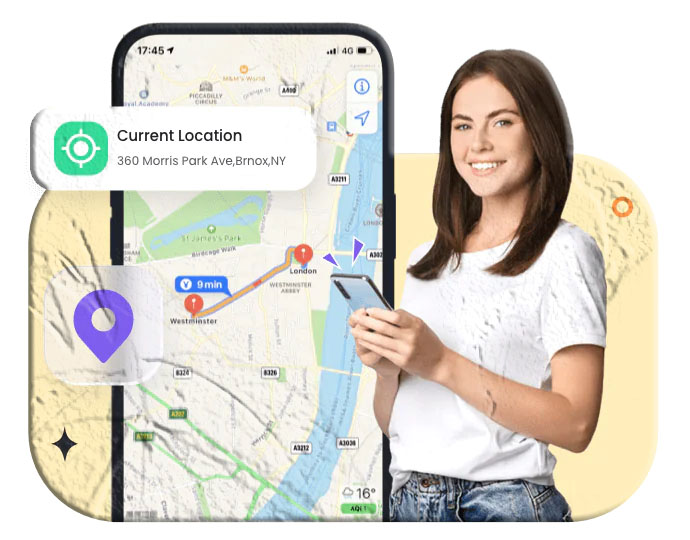
- Real-time GPS tracking with continuous updates
- Location history for up to 15 days of movement records
- Geofencing with customizable zones and arrival/departure alerts
- Remote surroundings awareness through optional remote camera access (see legal note below)
Communication monitoring:
- Call logs — incoming, outgoing, missed calls with timestamps and duration
- SMS message monitoring with full content access
- Social media monitoring across WhatsApp, Snapchat, Instagram, Facebook Messenger, and other platforms
- Browsing history tracking with real-time alerts for keyword searches
Device management:
- App usage monitoring — time spent in each app, installation timestamps
- Screen time limits — daily caps for specific apps or the device overall
- App blocking — preventing specific apps from opening
- Custom schedules — automated restriction rules by time of day and day of week
- Content filtering — blocking website categories and specific URLs
Reporting:
- Daily and weekly activity summaries
- Real-time alerts for defined events — geofence crossings, keyword detection, blocked app attempts
- Screen mirroring for real-time view of the child’s screen (optional, with legal considerations)
How to Set It Up
MobileTracking’s setup follows a consistent three-step process:
- Install: Download MobileTracking on both the parent device and the child’s device from the Google Play Store, App Store, or directly from mobiletracking.app
- Register: Create a free account on the parent device using an email address and log in
- Bind: Complete the device binding using a QR code scan or pairing code to link the child’s device to the parent account
After binding, grant the permissions requested during setup on the child’s device — particularly the accessibility services permission on Android, which is required for the full feature set to function. Follow all setup prompts, including keep-alive configuration, for reliable continuous monitoring.
What Sets MobileTracking Apart
The fundamental difference between MobileTracking and the built-in tools is scope. Google’s and Apple’s built-in features are, at their core, location tools with some device management built in. MobileTracking is a comprehensive monitoring platform where location tracking is one feature among many.
For parents who need only location tracking, one of the free built-in tools may be entirely sufficient. For parents who want to understand not just where their child is but who they’re talking to, what they’re doing online, how their screen time is distributed, and what’s happening in the social platforms where their child’s digital social life plays out — MobileTracking provides a level of visibility that no built-in tool offers.
Direct Comparison: Which Tool Covers What
Understanding how these tools compare across key features helps parents make an informed choice for their specific situation.
| Feature | Find My Device | Apple Find My | Google Family Link | MobileTracking |
|---|---|---|---|---|
| Real-time GPS location | ✅ | ✅ | ✅ (slow) | ✅ |
| Location history | ❌ | Limited | Limited | ✅ 15 days |
| Geofence alerts | ❌ | ✅ | ✅ | ✅ |
| Android child devices | ✅ | ❌ | ✅ | ✅ |
| iOS child devices | ❌ | ✅ | Limited | ✅ |
| Call monitoring | ❌ | ❌ | ❌ | ✅ |
| Message monitoring | ❌ | ❌ | ❌ | ✅ |
| Social media monitoring | ❌ | ❌ | ❌ | ✅ |
| Screen time limits | ❌ | Via Screen Time | ✅ | ✅ |
| App blocking | ❌ | Via Screen Time | ✅ | ✅ |
| Browsing history | ❌ | ❌ | Basic | ✅ |
| Requires child’s cooperation | Partially | Yes | Partially | No |
| Cost | Free | Free | Free | Free |
Choosing the Right Approach for Your Family
The right tool isn’t the most feature-rich one — it’s the one that matches what you actually need, your child’s age and device, and how you want to approach oversight in your family.
For Very Young Children (Under 10) on Android
Google Family Link is a reasonable free starting point. Its app approval system and screen time controls are well-suited to younger children’s simpler device use. For parents who want more comprehensive monitoring — particularly as they become aware of what apps the child is using and who they might be communicating with — MobileTracking provides the additional depth Family Link lacks.
For Tweens (Ages 10–13) on Android
This age group’s increasing social app use and expanding online activity is where the gaps in built-in tools become most significant. Social media monitoring, browsing history, and communication visibility — none of which Family Link provides — become more relevant as children this age start using messaging apps and social platforms meaningfully. MobileTracking covers these areas comprehensively.
For Teenagers (Ages 14+) on Android
Teenager monitoring calls for a more calibrated approach — more transparency, gradually increasing autonomy, and monitoring focused on safety rather than comprehensive oversight. MobileTracking’s alert-based monitoring (geofence notifications, keyword alerts, activity summaries) supports this approach without requiring intensive daily active monitoring. The monitoring framework is in place; the active scrutiny is proportionate to the situation.
For iPhone Families
For iOS child devices, Apple’s own Screen Time and Find My tools cover basic location sharing and screen time management. For communication monitoring and broader visibility — the areas where Apple’s native tools don’t go — MobileTracking’s iOS support extends coverage meaningfully, though iOS’s closed architecture means Android remains the platform with the deepest monitoring capability.
For Families Prioritizing Transparency
Both Google Family Link and Apple Find My involve some degree of child awareness — Family Link’s supervision is visible to the child, and Find My’s location sharing is initiated by the child. MobileTracking offers both transparent and less visible setup options. For families who want monitoring to be an acknowledged part of the family’s approach to safety — with the child knowing it’s in place and understanding why — all of these tools can work. The conversation about why monitoring is in place is more important than which technical approach delivers it.
The Transparency Question: Should Your Child Know They’re Being Tracked?
This question comes up in almost every conversation about child location tracking, and the answer isn’t simple — it depends on the child’s age, the family’s relationship, and the purpose of the monitoring.
The Case for Transparency
Research from the American Psychological Association and related bodies consistently supports the position that children who are aware of parental monitoring — who know it’s happening and understand the reasons for it — tend to develop better outcomes than children who discover monitoring they weren’t aware of. Discovery of unknown monitoring frequently causes significant trust damage in the parent-child relationship that takes time and effort to repair.
For many families, the practical case for transparency is equally compelling: a child who knows they can be located doesn’t need to be tracked covertly. The known presence of location monitoring often achieves the safety benefit on its own — a child who knows their parents can see their location is more likely to be where they say they’ll be.
When a More Discreet Approach Might Apply
There are situations where a parent has a specific, serious safety concern that they believe warrants monitoring the child isn’t aware of — a child who they have reason to believe is involved in something that genuine disclosure would prevent them from investigating, or a situation where they’re concerned enough to want information before initiating a conversation.
Most parents who find themselves in this position recommend using it as a temporary measure in response to a specific concern, with the clear intention of eventually having the conversation — rather than as a permanent approach to ongoing monitoring.
What We Recommend
Even for parents using monitoring apps that don’t require the child’s cooperation in the setup process, being honest about the general fact of monitoring tends to serve families better than covert surveillance. “I can see where your phone is and I check occasionally to make sure you’re safe” is a sustainable, honest baseline that most children — even teenagers — accept more readily than parents often expect, particularly when it’s framed around care rather than control.
The Family Online Safety Institute consistently notes that family agreements about digital monitoring — even informal ones — produce better outcomes than unilateral monitoring.
Age-by-Age Guidance: Calibrating Location Monitoring
Location monitoring isn’t a one-size-fits-all, set-it-and-forget-it practice. The right approach changes as children develop.
Ages 5–9
Children this age are typically moving in small, predictable geographic areas — school, home, perhaps a few regular activity locations. Location tracking at this stage is often more about parental peace of mind than active safety response. Simple tools — Family Link for Android, Find My for Apple — often cover what’s needed. The primary value is confirming the child arrived at expected destinations.
Ages 10–13
The tween years bring expanding geographic range, more independent movement, and the beginning of social lives that extend beyond family-supervised contexts. Geofencing becomes particularly valuable at this stage — automated alerts when the child arrives at school, leaves after-school activities, or appears at an unfamiliar location are more useful than periodic active location checks.
Ages 14–16
Teenagers this age have substantial independence by expectation and by developmental need. Location monitoring at this stage works best as a background safety net — geofence alerts for unusual situations, location available to check when there’s a specific reason, rather than continuous active scrutiny. The goal is informed parenting, not constant tracking.
The Child Mind Institute notes that teenagers who feel trusted to manage their own movements — within a framework where parents have access to their location when it’s genuinely relevant — develop better judgment and maintain closer family relationships than teenagers who feel constantly surveilled.
Ages 17–18
As children approach legal adulthood, the legal framework around monitoring shifts significantly. In most jurisdictions, an 18-year-old is a legal adult regardless of living situation or financial dependence. Parental monitoring rights that apply clearly to a 13-year-old don’t automatically extend to an 18-year-old. By this age, location sharing that continues typically does so by mutual agreement rather than parental authority.
Practical Setup Tips That Apply Across All Methods
Regardless of which tracking method you choose, a few practical principles apply:
Set it up before you need it. A device recovery situation, an emergency, or a specific safety concern is not the right moment to start researching and installing tracking tools. Whatever approach you decide on, set it up while everything is normal and test it before a situation arises where you need it.
Test the geofences. After setting up location zones around key locations, verify that the alerts actually fire as expected. A geofence that generates an alert when it should miss one, or that fires false alarms, erodes the usefulness of the monitoring quickly.
Secure the monitoring account. Your monitoring account — whether Google Family Link, your Apple ID, or MobileTracking — contains sensitive information about your family. Use a strong, unique password and enable two-factor authentication where available.
Review and update regularly. As your child’s movement patterns change — new school, new activities, changed schedule — update the geofences and monitoring parameters to reflect the current situation.
Have the conversation. Whatever level of monitoring you put in place, the conversation about it is worth having. “I have this set up because I care about you being safe, and I want you to know it’s there” is a conversation that takes five minutes and pays dividends over months.
Frequently Asked Questions
Q: Can I track my child’s phone without them knowing? Technically, several options — including MobileTracking and Google Family Link — can monitor a child’s location without requiring the child to actively participate in the monitoring setup. However, child development research consistently suggests that transparent monitoring tends to produce better family outcomes than monitoring discovered unexpectedly. Many parents find that telling their child monitoring is in place achieves most of the safety benefit anyway, since children who know they can be located are more likely to be where they say they’ll be.
Q: Is it legal to track my child’s location? In most jurisdictions, parents have the legal right to monitor their minor children’s location, particularly on devices the parent owns. Laws vary by country and shift as children approach legal adulthood — an 18-year-old is a legal adult in most places and tracking them without consent enters different territory. Always verify the specific rules in your location.
Q: Which method is most accurate for real-time location? GPS-based tracking — which both MobileTracking and Google’s tools use — provides the most accurate real-time location in outdoor conditions, typically within a few meters. Apple’s Find My adds the crowd-sourced Apple device network for location when GPS or cellular isn’t available. Indoor accuracy is lower for all methods.
Q: What’s the difference between Google Family Link and MobileTracking? Google Family Link focuses on location, app management, and screen time — it doesn’t monitor calls, messages, social media, or browsing in detail. MobileTracking covers all of these areas in addition to location tracking, providing a more comprehensive picture of a child’s digital activity.
Q: Does location tracking work when the child’s phone is off? GPS tracking requires the device to be powered on and connected. When a device is off, tracking pauses. Apple’s Find My can sometimes locate a powered-off Apple device through the Find My network, but this capability is limited. MobileTracking and other apps similarly require an active device to provide location data.
Q: Can my child disable location tracking on their phone? Built-in tools like Find My can be disabled by the child if they have device access and aren’t restricted by Screen Time or equivalent controls. MobileTracking, when properly configured with device administrator settings on Android, is more resistant to user removal. However, a determined teenager with technical knowledge can find workarounds to most monitoring systems — which is one reason transparent monitoring (where the child knows about it) often works better in practice than covert approaches that rely on technical measures alone.
Q: How do I track a child who doesn’t have a smartphone? GPS tracking devices — keychain trackers, GPS watches, smartwatch-based trackers — offer location monitoring for children who don’t carry a smartphone. These devices focus specifically on location without the broader phone management features of parental control apps.
Q: At what age should I stop tracking my child’s location? There’s no universal answer — it depends on the child’s maturity, the family’s approach, and the legal framework as the child approaches adulthood. Most families find that location monitoring naturally reduces as children demonstrate good judgment and as parents become more comfortable with the child’s independent movement. By the time a child reaches 17 or 18, most families have moved to optional, mutually agreed location sharing rather than parental oversight.
Q: Is MobileTracking really free? Yes. MobileTracking is free to download and use for its core features including GPS tracking, location history, geofencing, and the monitoring capabilities described throughout this guide. Visit mobiletracking.app for details.
Q: How do I choose between these options? The key questions: What device does your child use (Android or iPhone)? Do you need only location, or broader monitoring of communication and screen activity? How important is transparency with your child? For location-only, free monitoring of Android devices, Family Link is a reasonable starting point. For iOS families with mutual location sharing, Apple’s tools work well. For comprehensive monitoring across platforms that goes beyond location, MobileTracking covers the full range.
Finding the Approach That Fits Your Family
There’s no perfect answer to how to track a child’s phone that applies to every family. The right approach is the one that gives you the awareness you actually need, matches the child’s age and the specific concerns you have, fits within the legal framework you’re operating in, and is sustainable within your family relationship.
For many families, that means starting with a simpler free tool and adding more comprehensive monitoring as the child’s digital life becomes more complex and as new situations arise that basic location tracking doesn’t cover. For others, starting with a comprehensive platform like MobileTracking from the beginning provides a stable foundation that can be configured more or less intensively as the child’s age warrants.
What the research consistently shows is that the technical approach matters less than the relationship context it operates within. Parents who stay engaged with their child’s digital life — who have conversations about what apps they use, what happens online, and how to navigate challenges — raise children who are better equipped to manage their digital experience safely, regardless of which specific monitoring tools are in place.
Location tracking is one practical tool in that broader approach. Used thoughtfully, with transparency proportionate to the child’s age and the family’s relationship, it gives parents meaningful awareness without substituting for the trust and communication that are the actual foundation of keeping children safe.
Explore MobileTracking’s comprehensive family safety features at mobiletracking.app.
MobileTracking is available free for Android devices running Android 8.0 and above and iOS devices running iOS 15 and above. Google Find My Device, Apple Find My, and Google Family Link are third-party products described for informational comparison purposes. Feature availability for all tools may change over time. Users are responsible for ensuring their monitoring practices comply with applicable local laws and regulations.





Add comment