
To share your location from an iPhone, open Find My, tap People, tap the + button, choose Share My Location, enter the person’s name or number, tap Send, and pick how long: one hour, until the end of the day, or indefinitely. On iOS 27 you can also choose a custom length from 15 minutes to 30 days. The other person needs an Apple device to see you in Find My; if they use Android, share through Google Maps instead.
That takes about a minute. The steps below also cover sharing from a Messages chat, turning it on for a whole family, arrival alerts, the settings that make your dot accurate, and the conversation worth having before you press Send.
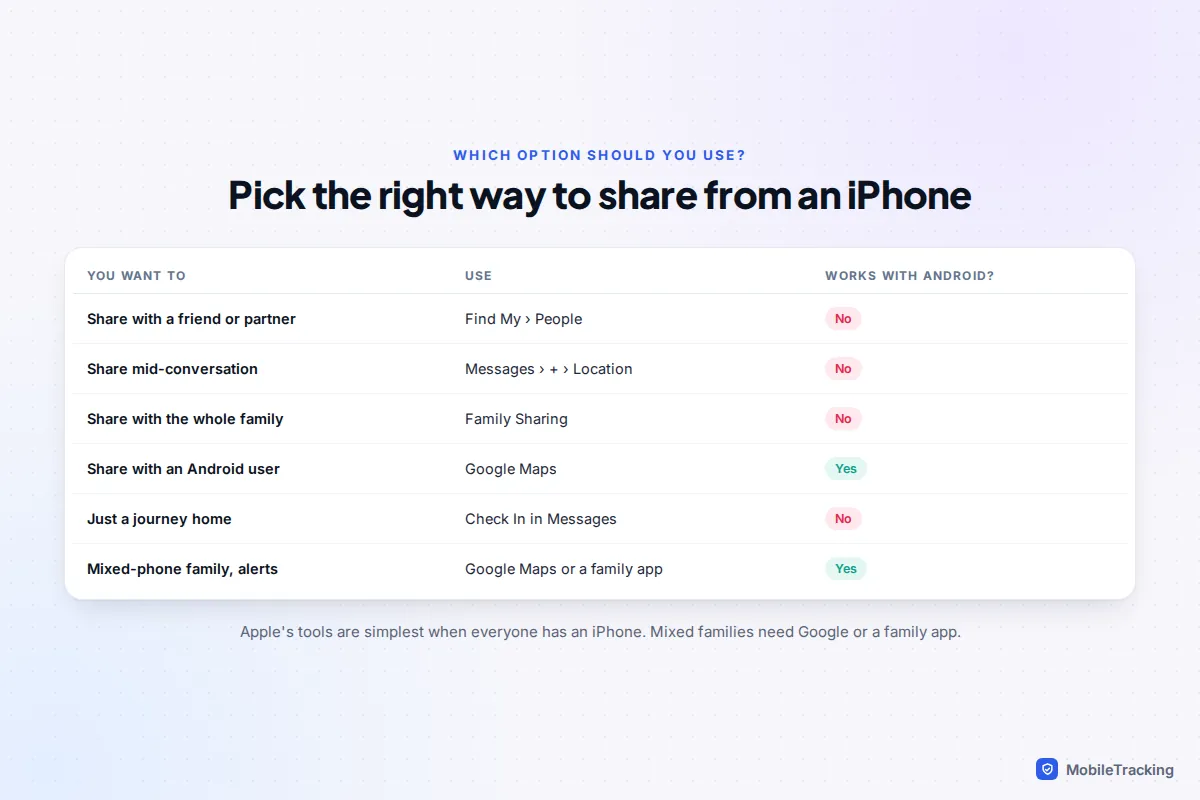
Before you start: three settings to check
Most “it isn’t working” moments come down to one switch being off before you even share. Check these once and you will rarely need to troubleshoot later.
- Go to Settings › Privacy & Security › Location Services and make sure it is on.
- Go to Settings › [your name] › Find My and turn on Share My Location. This is the master switch for both Find My and Messages.
- On the same screen, check that My Location says This Device. If you have an iPad or a second iPhone, your location is broadcast from whichever device is chosen here, so make it the phone you actually carry.
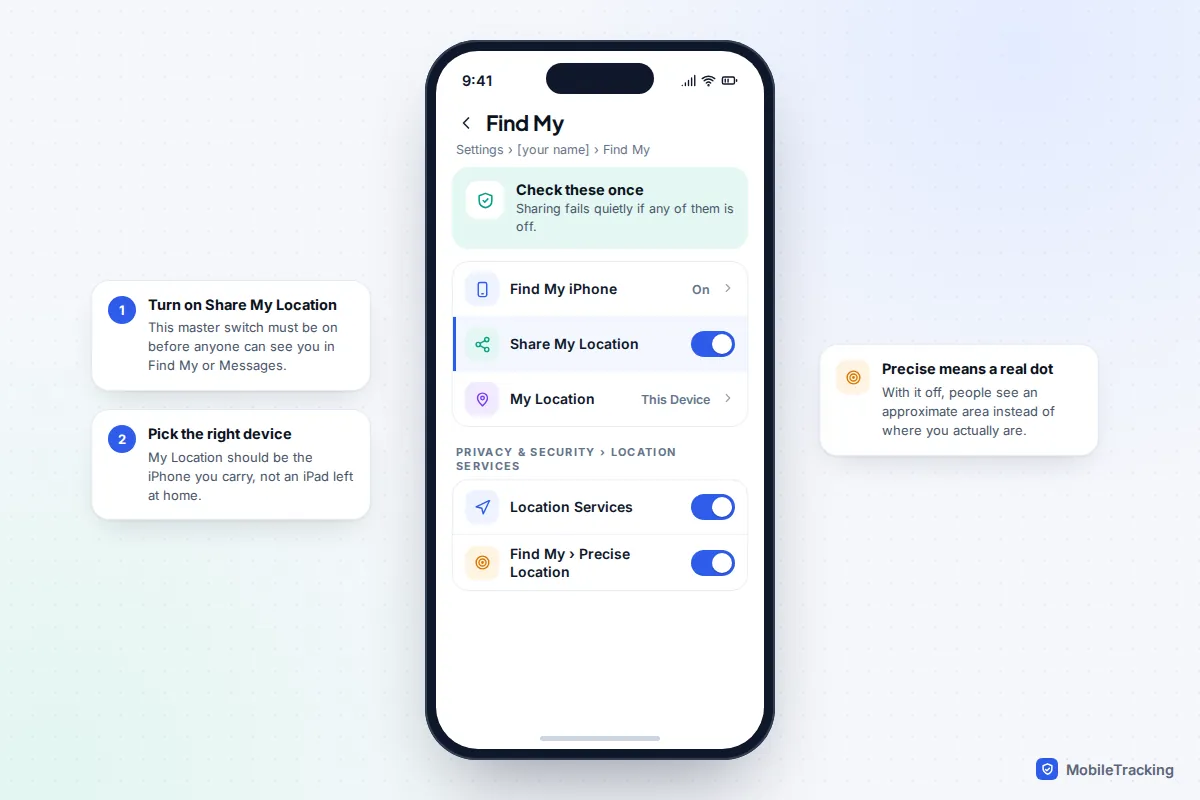
For an accurate dot rather than a vague circle, go back to Location Services, tap Find My, and make sure Precise Location is on. With it off, people see only an approximate area. That can be a sensible choice for a casual friend, but it makes arrival alerts and “where are you exactly?” moments far less useful.
Share with a friend or partner in Find My
Find My is the best place to set up ongoing sharing, because it gives you a list of everyone who can see you and everyone sharing with you.
- Open Find My and tap People.
- Tap +, then Share My Location.
- Type the person’s name, phone number or email address and tap Send.
- Choose Share for One Hour, Share Until End of Day or Share Indefinitely. On iOS 27, you can instead set a custom duration or an exact end date and time.
- Tap OK. The person gets a notification and can choose to share their location back.
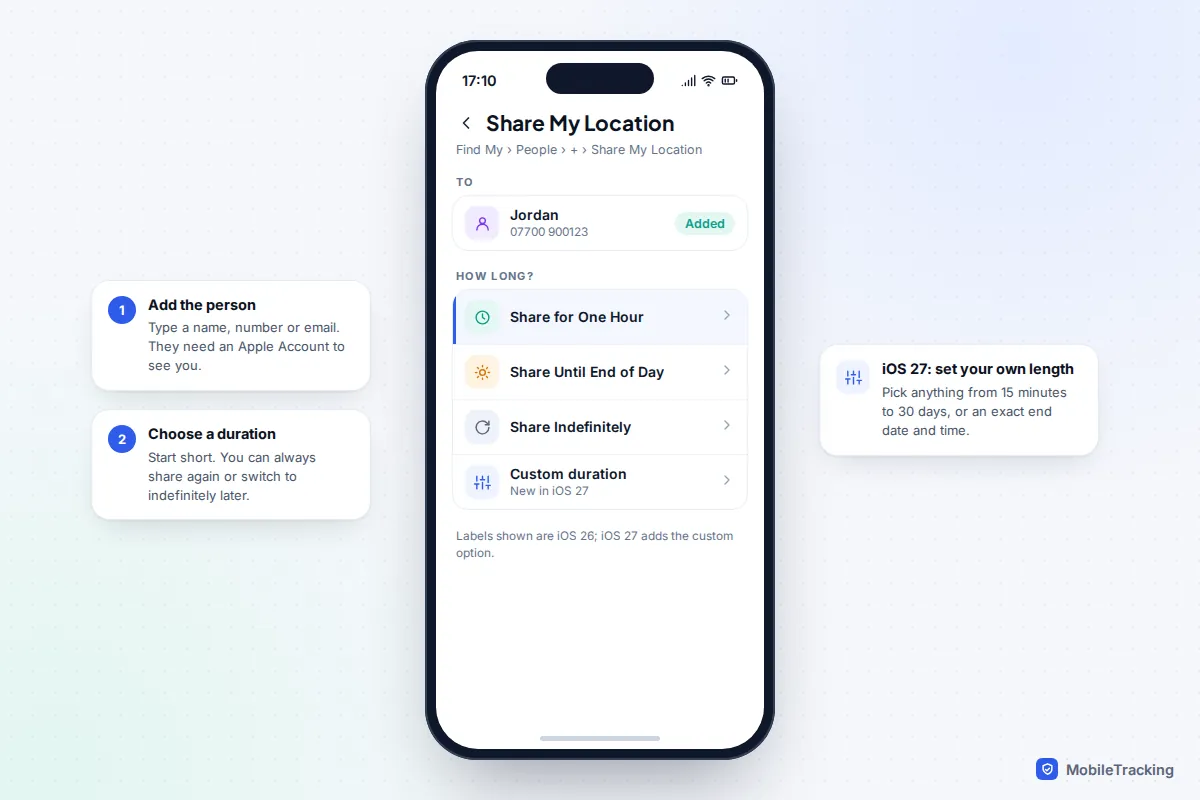
Sharing is one way. You seeing them and them seeing you are separate choices, which is why a new contact often appears in your list with no location until they tap Share My Location on their side. To ask them directly, tap their name and choose Ask To Follow Location if it is offered.
New in iOS 27: custom lengths
iOS 27, released in September 2026 for iPhone 11 and later, added custom durations. Instead of the three fixed options, you can set anything from 15 minutes to 30 days using dials, or choose a date and time when sharing should stop. It is ideal for a week-long holiday, a festival weekend or a work trip, where “indefinitely” is more than you want and “today” is not enough. On iOS 26 and iOS 18, the three fixed options are all you get.
Share from a Messages conversation
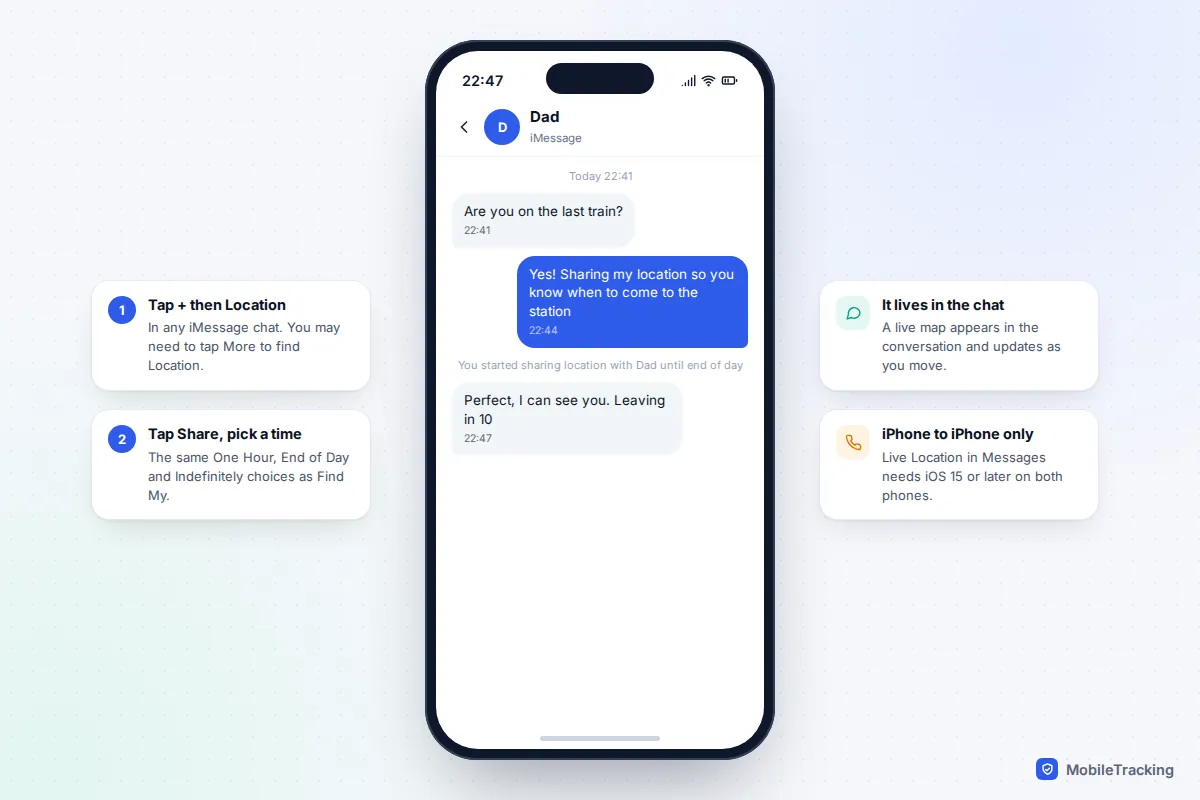
If you are already chatting, sharing from Messages is quicker and keeps the map in the conversation, where the other person will see it straight away.
- Open the conversation in Messages.
- Tap + next to the text field, then Location. You may need to tap More to find it.
- Tap Share, choose how long, and send.
Alternatively, tap the person’s name at the top of the chat and choose Share My Location. Either way, it is the same sharing as Find My, so they appear in your People list too. Apple notes that live location in Messages needs iOS 15 or later on both iPhones, and the + menu route needs iOS 17 or later.
For a one-off journey, consider Check In from the same + menu instead. It only shares details if you do not arrive when expected, which many teenagers and partners prefer. Our guide to setting up check-ins instead of constant tracking explains how it works.
Share with your whole family through Family Sharing
If you already use Family Sharing for purchases, iCloud storage or a child’s Apple Account, location sharing is built in. A family group holds up to six people, including the organiser.
- Go to Settings › Family (on older versions, Settings › [your name] › Family Sharing).
- Tap Location Sharing.
- Choose which family members to share your location with.
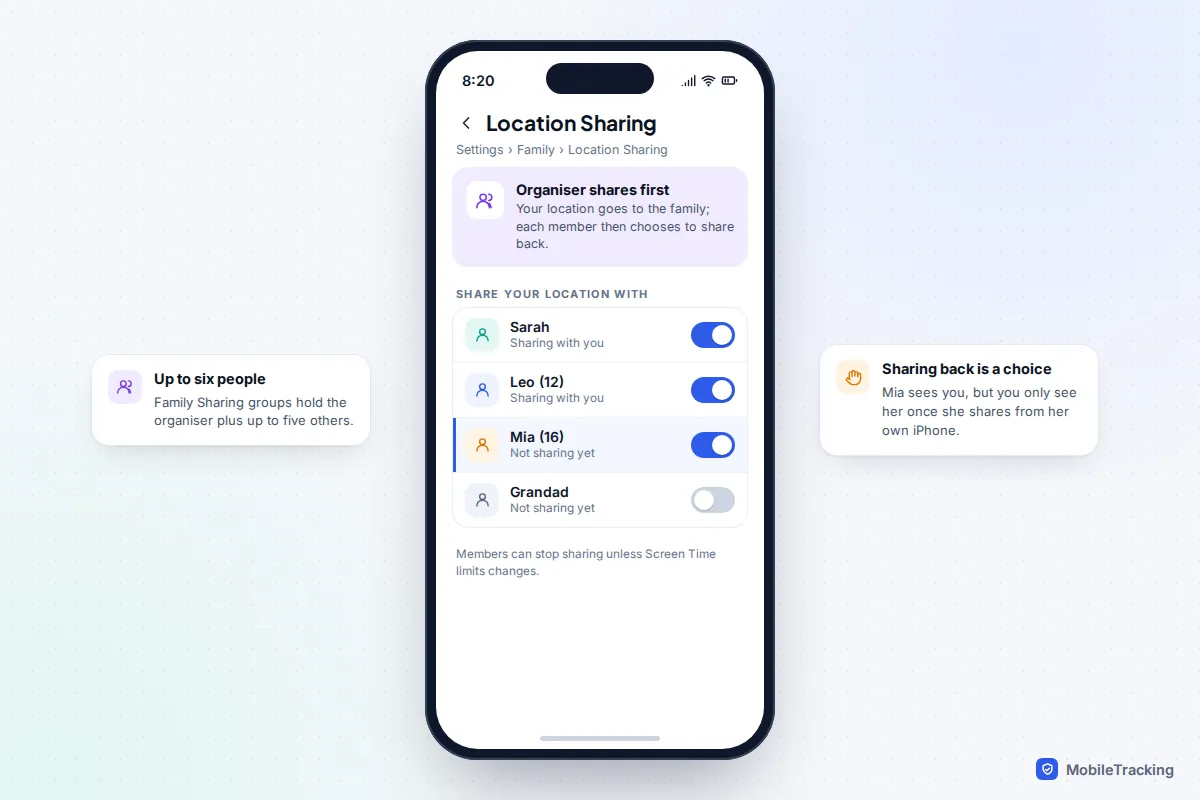
When the organiser turns on location sharing, the organiser’s location is shared with the family. Everyone else then appears in your People list, but, as Apple puts it, sharing does not start until you share with each other. So a teenager joining the group does not automatically become visible; they choose it on their own iPhone.
For a younger child, parents can stop the setting being switched off. Open the child’s Screen Time settings (on their iPhone, or on yours through Settings › Family › [child’s name]), go to Content & Privacy Restrictions, and set Share My Location so changes are not allowed. Tell your child you have done it and why. For the full family setup, see our guide to setting up Find My for the whole family.
Share with someone who uses Android
Find My does not exist on Android, so an Android user cannot see a location you share from Find My or Messages. The practical answer is Google Maps, which works on both.
- Install Google Maps on your iPhone and sign in with a Google Account.
- Tap your profile picture or initial, then Location sharing, then New share.
- Choose For 1 hour (use + and – to change the time) or Until you turn this off.
- Pick the person and tap Share. They need a Google Account; if they do not have one, copy a link instead, which works for up to 24 hours.
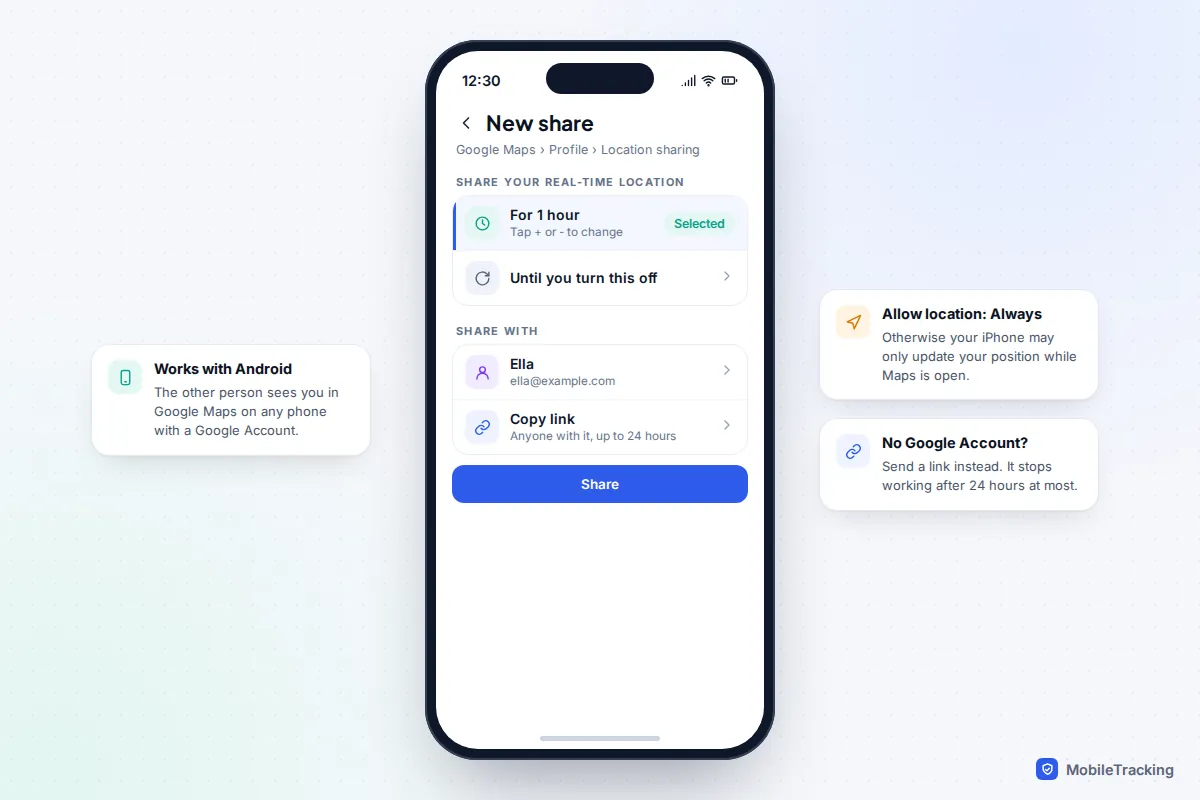
Two iPhone settings make or break this. In Settings › Apps › Google Maps › Location (on iOS 17 and earlier, Settings › Google Maps › Location), choose Always and turn on Precise Location. Without Always, your position may only update while Maps is open. Google’s help page on sharing your real-time location on iPhone lists what the other person can see, including your battery level.
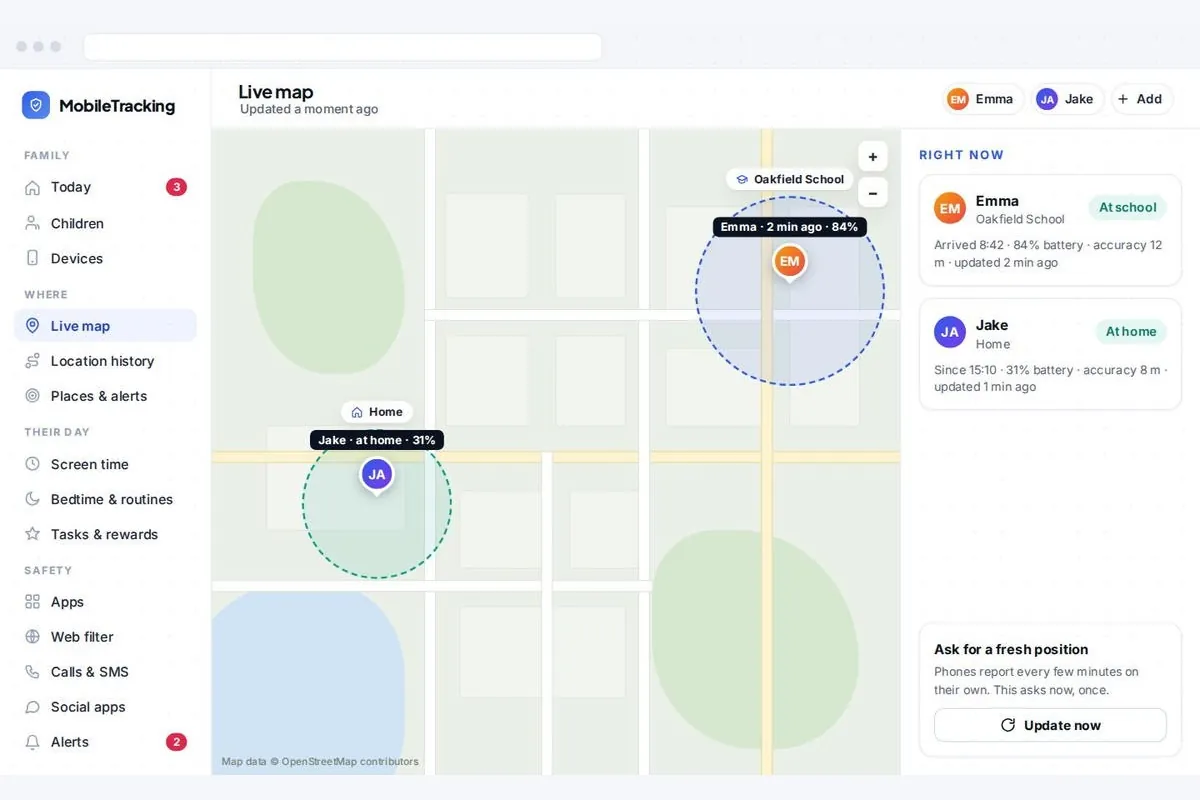
In a family where a child has an Android phone and the parents have iPhones, a family app can also bridge the gap. A transparent app such as MobileTracking runs visibly on the child’s Android phone, never reads messages, and shows the family map in any browser, including Safari on a parent’s iPhone. Our guide to setting up location sharing on Android covers the Android side.
Get notified when someone arrives or leaves
Arrival alerts mean you do not have to keep checking the map. In Find My, tap People, choose the person, and under Notifications tap Add. Then pick:
- Notify Me to be told when they arrive at, leave, or are not at a place (for example, “not at school by 9am on weekdays”).
- Notify [name] to tell them automatically when you arrive or leave somewhere, such as home after a late shift.
Choose a location, then Only Once or Every Time, and tap Add.
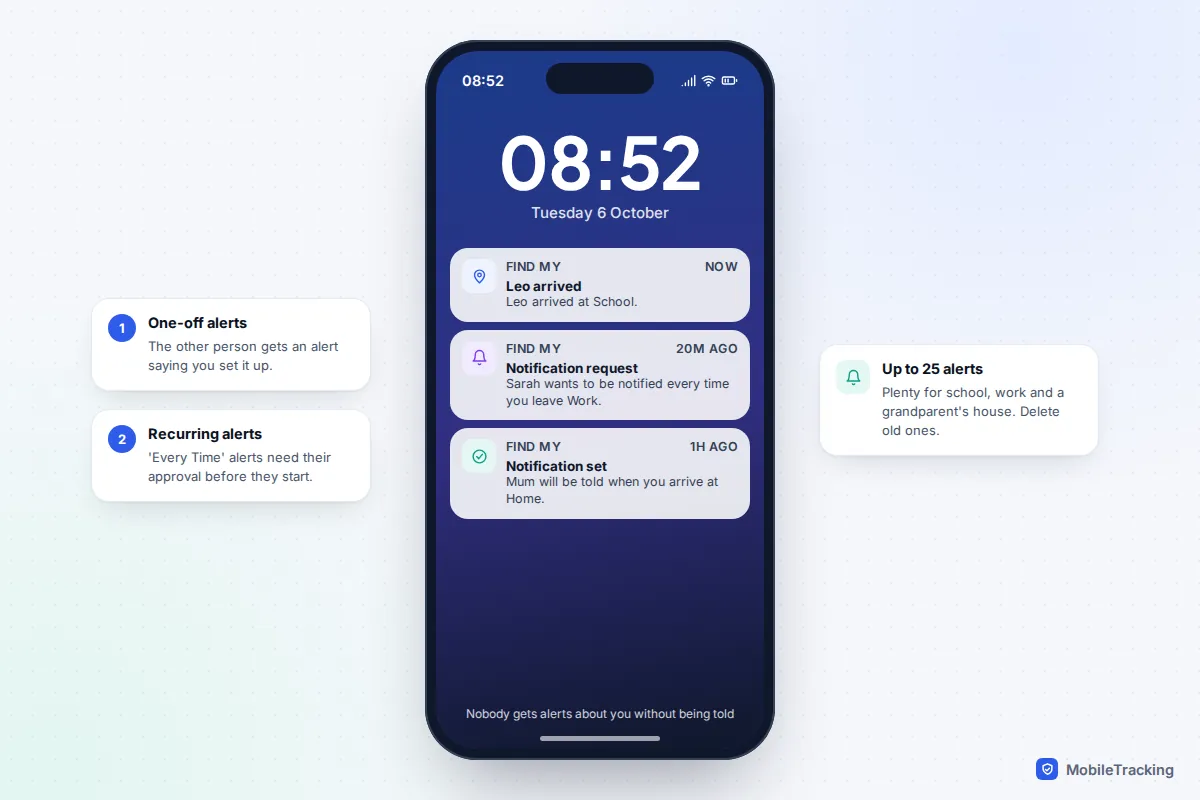
These alerts are deliberately open. Apple says the other person gets an alert when you set a one-time notification, and must approve a recurring one before it starts. You can have up to 25 Notify Me alerts. If alerts arrive late, the other person’s iPhone may be in Low Power Mode or have weak signal; our guide to fixing location sharing that isn’t working goes through each cause.
Privacy and consent: agree it before you share
Location sharing works best when both people chose it. The technology will not stop anyone setting it up carelessly, so it is worth spending two minutes on the questions below, whether you are sharing with a partner, a teenager or an ageing parent.
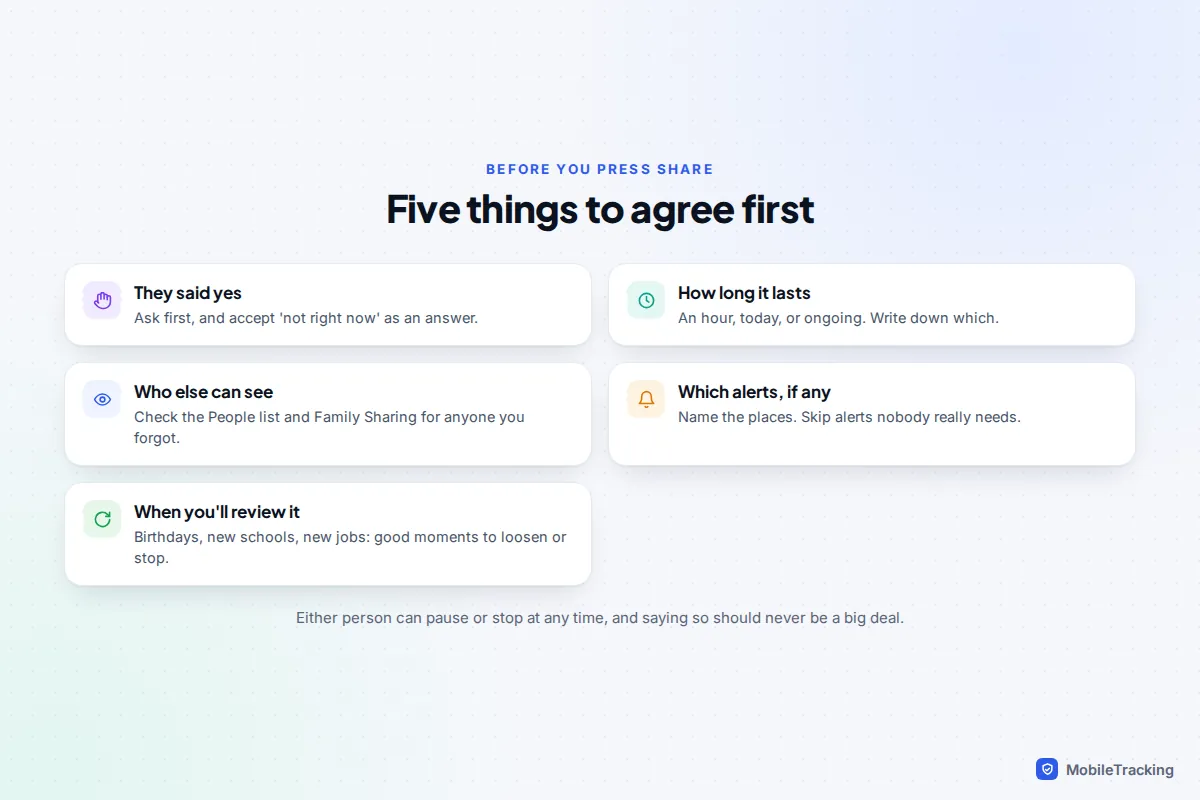
Picture a couple, Sam and Alex, setting this up after moving in together. They choose indefinite sharing with each other, add one alert each for “arrives home”, and agree that either of them can pause it for an evening as long as they mention it. That last rule matters more than any setting. When someone does want a break, our guide to turning off location sharing temporarily explains each option and what the other person sees.
It is also worth auditing who can see you every few months. The People tab lists everyone, and Settings › Privacy & Security › Safety Check shows all of your location sharing in one place. Sharing someone else’s location without their agreement, for example by setting it up on their phone, is never acceptable between adults.
Troubleshooting by symptom
| What you see | Likely cause | Fix |
|---|---|---|
| Share My Location is greyed out | Screen Time restrictions, or you are not signed in to iCloud | Check Content & Privacy Restrictions, then your Apple Account |
| “No location found” for a friend | Their phone is off, offline, or their sharing is off | Ask them to check the three settings above |
| Your dot is at home when you are out | My Location is set to another device | In Find My, tap Me and use this iPhone as My Location |
| Android friend cannot see you | Find My is Apple-only | Share through Google Maps instead |
| Location is a wide circle | Precise Location is off | Location Services › Find My › Precise Location on |
Apple’s guide to sharing your location covers the same basics if you want the official wording.
Frequently asked questions
Does the other person know when I share my location?
Yes. They get a notification that you have started sharing, and you appear in their People list in Find My. Sharing from Messages also shows the map in your conversation.
Can I see someone’s location without them sharing it?
No. Find My only shows people who have chosen to share with you. You can send a request, but they decide. Setting it up on another adult’s phone without their knowledge is a serious breach of trust and, in many places, against the law.
Does location sharing drain the battery?
A little. Sharing means your iPhone reports its position in the background, so it does cost some battery, and the cost rises when several apps are allowed Always access. For most people Find My sharing on its own makes a small difference; if you notice a big drop, check which apps use location in Settings › Battery.
Can I share with an iPad or Apple Watch user?
Yes. Anyone signed in to an Apple Account can see your shared location in Find My on an iPhone, iPad or Mac, or in the Find People app on Apple Watch.
How do I stop sharing once it is set up?
In Find My, tap People, choose the person, then tap Stop Sharing My Location. To stop with everyone, tap Me and turn off Share My Location. On iOS 27 you can also hide your location from one person until the next day.
This guide is general information, not legal or financial advice. Read our editorial policy.