
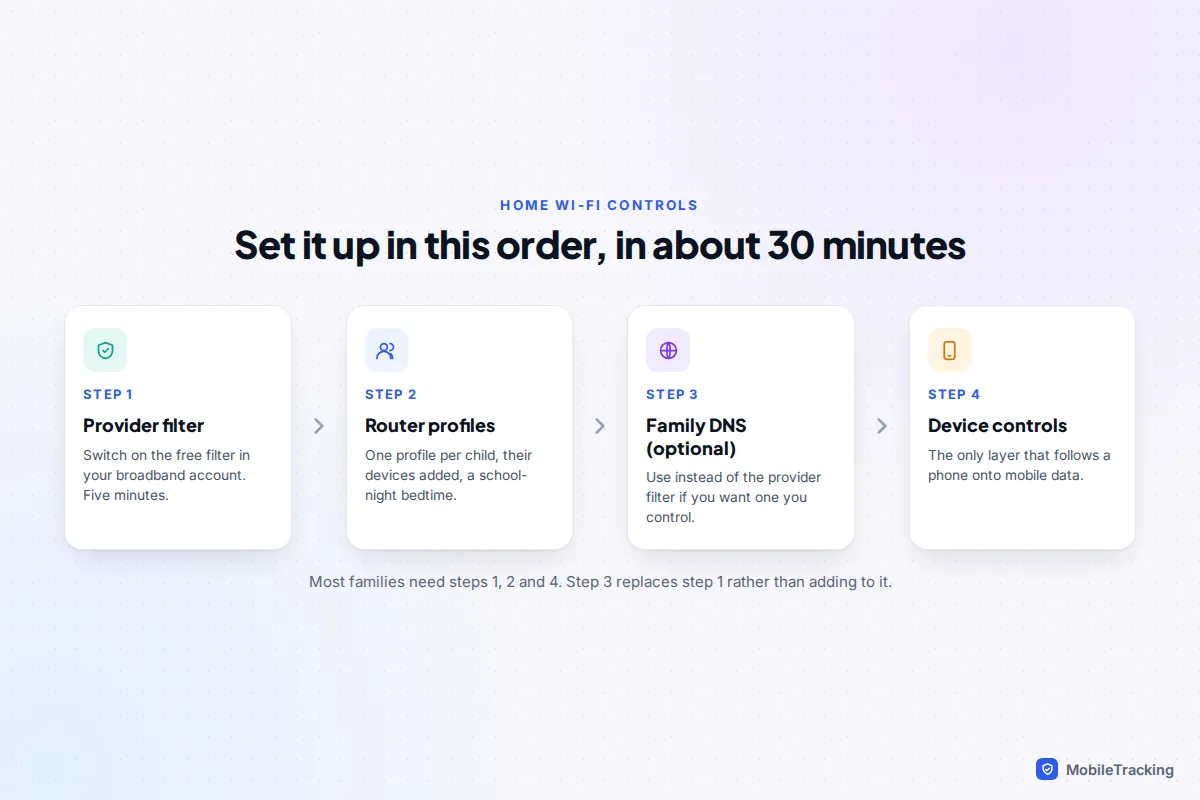
The quickest way to put parental controls on your home Wi-Fi is to switch on the free filter your broadband provider already gives you, then use your router or mesh app to create a profile for each child with a bedtime schedule and a pause button. If your provider has no filter, or you want one you control yourself, point your router at a family DNS service such as Cloudflare’s 1.1.1.3. Any of these takes 15 to 30 minutes and covers every phone, tablet, console and smart TV on your Wi-Fi.
This is the hands-on version. If you want the background first, on why the network is a useful safety net and where it fits alongside everything else, read our overview of home network safety and router filtering. Here we go straight to the settings, the exact numbers to type in, and the reasons controls stop working.
Which option should you use?
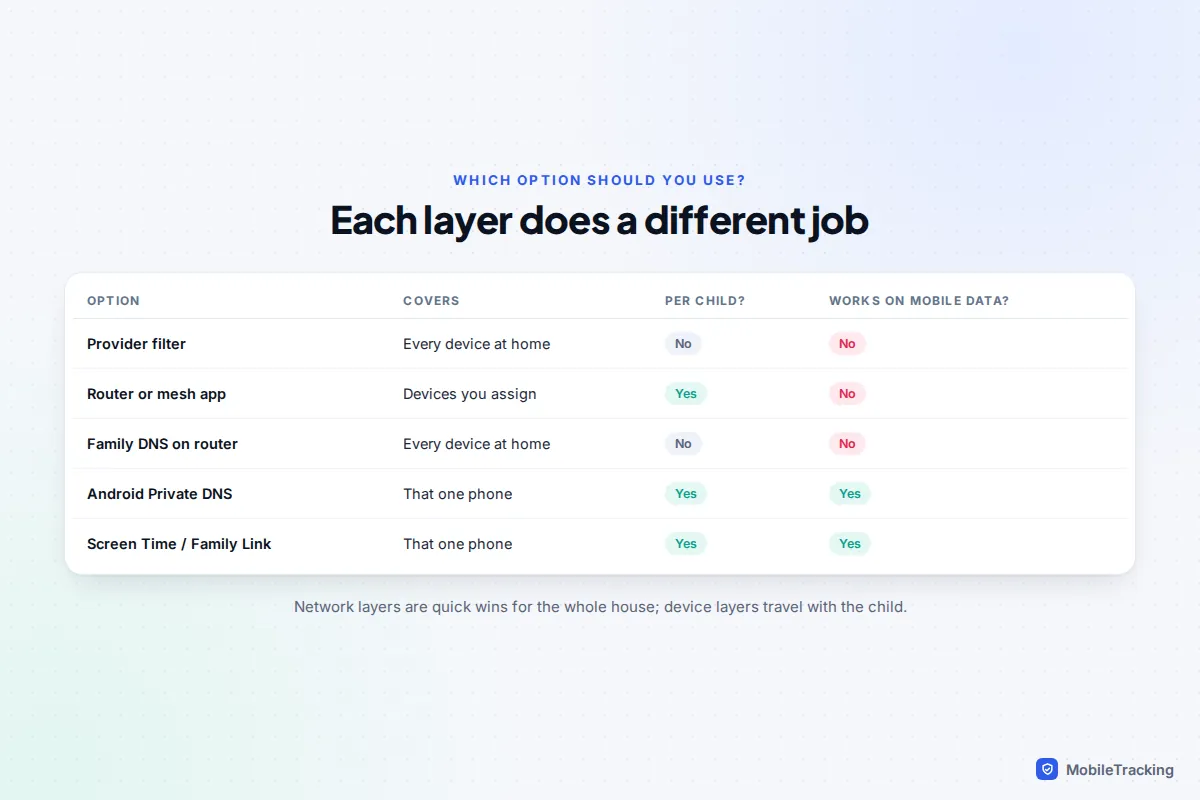
There are three places to apply controls on a home network, and each does a different job: a provider filter blocks categories of website for the whole house, a router or mesh app gives you per-child schedules and pausing, and a family DNS service is a free filter you control yourself.
| Option | Best for | Per-child rules? | Cost |
|---|---|---|---|
| Broadband provider filter | Blocking adult and harmful sites across the house, set up in minutes | Mostly no, whole household | Free with UK providers |
| Router or mesh app | Bedtimes, homework pauses, different rules per child | Yes, via profiles | Basics free, filters sometimes paid |
| Family DNS service | A filter you control, independent of your provider | No, whole network | Free |
| Device controls | App limits, age ratings, protection on mobile data | Yes | Free, built into the phone |
A sensible default: provider filter on, router profiles for anything with a screen in a child’s bedroom, and device controls on each child’s phone. Use family DNS instead of the provider filter, not as well as it, because the two can clash.
Switch on your broadband provider’s filter (UK)
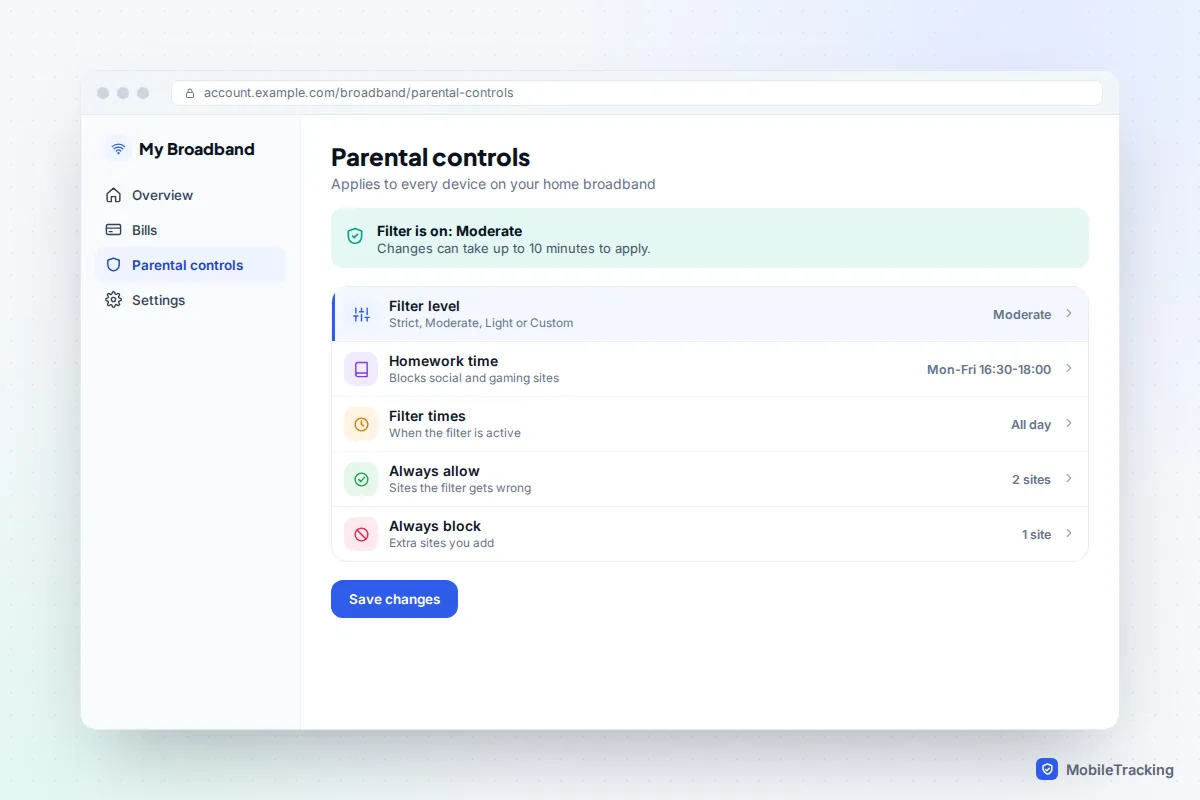
All four big UK home broadband providers include a network filter at no extra cost. You manage it from your online account, not the router, and it applies to every device on your connection, adults’ laptops included, so choose a level you can live with.
- BT: BT Parental Controls. Sign in to My BT, choose Manage your extras, then Manage BT Parental Controls and Manage Settings. On the Change filter levels tab pick Strict, Moderate or Light, or slide to Custom to choose categories. Homework Time blocks distractions at set times, and BT says changes take effect within about 10 minutes.
- Sky: Sky Broadband Shield. Manage it from your Sky account. It uses film-style ratings (PG, 13 and 18), and Sky committed in 2016 to switching it on by default for new customers, so check whether yours is already running. The watershed feature lets you apply a stricter rating in the day and a looser one late at night.
- Virgin Media: Essential Security. In My Virgin Media, go to Account settings, then Online Security, and switch on Parental Controls. You can add categories, block individual sites and set a timer. Only the main account holder can turn it on or off, and the Virgin Media Connect app pauses Wi-Fi for individual devices.
- TalkTalk: HomeSafe. Activate it in My Account. Kids Safe blocks the categories you tick, Homework Time blocks social media and gaming sites during set hours, and Scam Protection filters known scam sites.
Smaller providers often have their own version; search their help pages for “parental controls”. One catch applies to all of them: these filters generally work through the address lookups (DNS) your devices make. TalkTalk states plainly that a device using a third-party DNS server bypasses HomeSafe. So if you later set up family DNS on the router, your provider’s filter may stop doing anything.
Set up profiles, pause and schedules in your router app
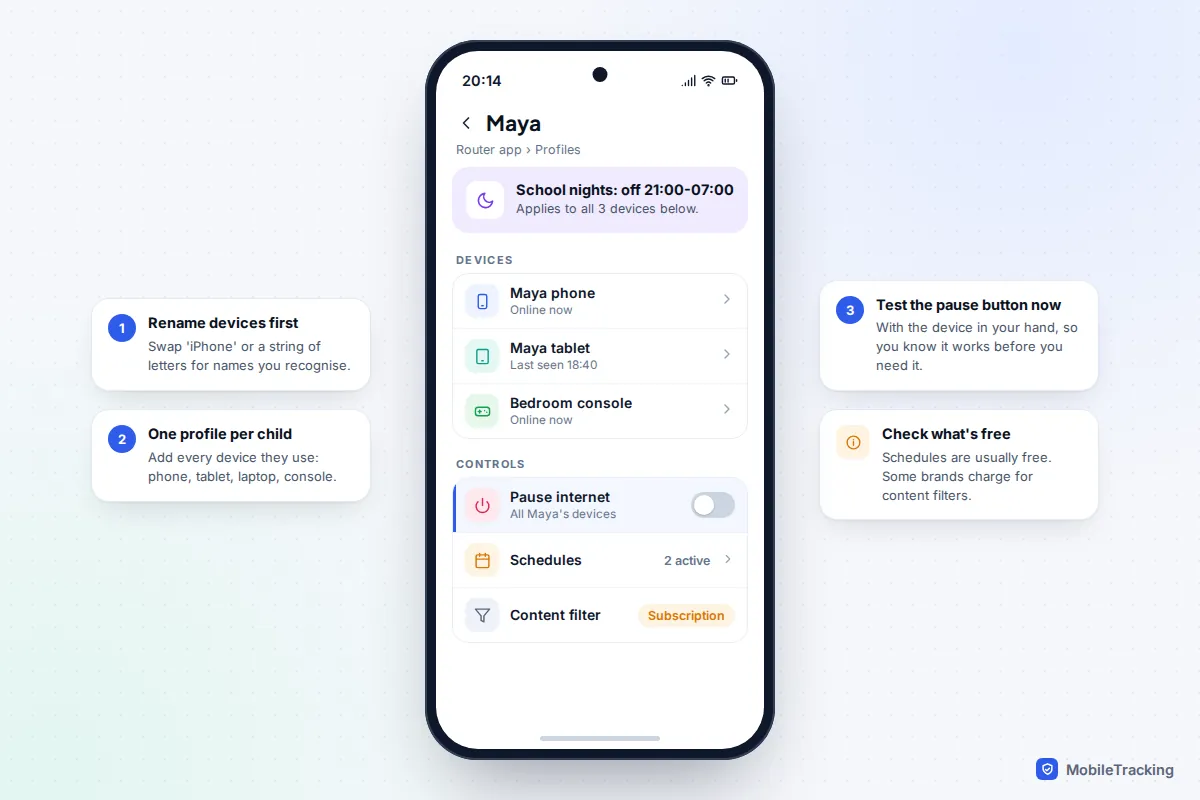
Most mesh systems and many newer routers come with a phone app, where the day-to-day controls sit. The names vary (Profiles in eero, Family Wi-Fi groups in the Google Home app for Nest Wifi, Parental Controls in TP-Link’s Deco app), but the setup is the same.
- Open the app and find the list of connected devices. Rename anything called “iPhone” or a string of letters to something like “Maya phone”. Unsure which is which? Switch a device’s Wi-Fi off and see what disappears.
- Create a profile for each child and add their devices to it: phone, tablet, laptop, console.
- Add a schedule. A school-night bedtime such as 21:00 to 07:00 is the most useful rule you will set. Some apps let you set weekends separately.
- Try the pause button now, with the child’s device in your hand, so you know it works before you need it.
- Turn on content filtering for the profile if your app offers it.
Check what is free before you rely on a feature. eero’s profiles and schedules are free, but its content filters need an eero Plus subscription. TP-Link’s HomeShield includes basic filtering, while time limits and SafeSearch enforcement need its paid Advanced Parental Controls. Google’s Family Wi-Fi includes a filter based on SafeSearch at no charge.
Be open about it. Tell your children the Wi-Fi goes off at bedtime and why. A rule they know about starts fewer arguments than one that seems to break the internet at random; our guide to telling your child you’re monitoring their phone has ways to start that conversation.
Make per-device rules stick: private Wi-Fi addresses
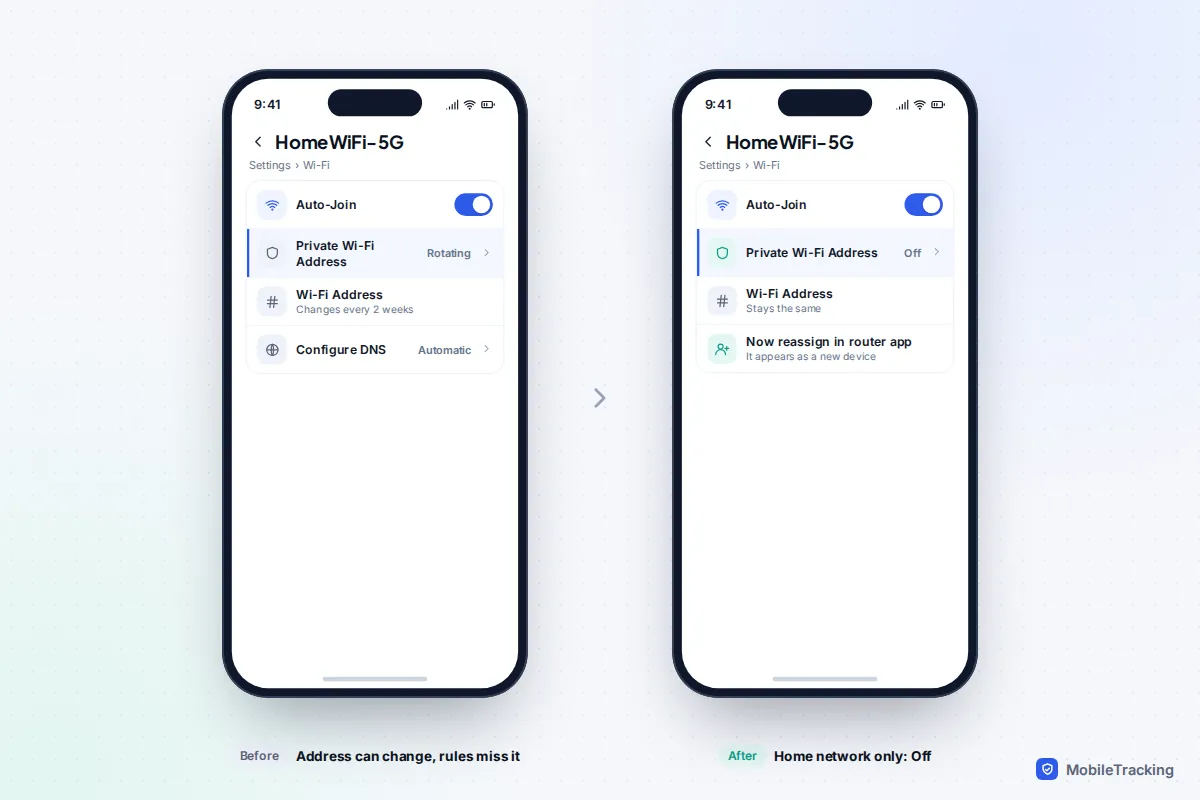
Router apps recognise devices by their MAC address, a hardware identifier. Modern phones hide the real one behind a private, randomised address to stop Wi-Fi networks tracking them, and that is the most common reason a bedtime rule “stops working” on one device. When the address changes, the phone looks like a brand-new device with no profile, and it gets full access.
On iPhone, from iOS 18, the setting has three options: Off, Fixed and Rotating. Apple says a phone uses Fixed on networks with WPA2 security or better, and Rotating, which changes every two weeks, on weaker ones. Fixed is usually stable at home, but some router apps, including Google’s Family Wi-Fi, say their features do not work with private addresses at all. On Android 10 and later, randomised addresses are the default for each network.
For your own home network only, on your child’s device:
- iPhone and iPad: Settings, Wi-Fi, tap the info button next to your network, Private Wi-Fi Address, then Off.
- Pixel: Settings, Network & internet, Internet, tap the gear next to your network, then Privacy and choose Use device MAC. Some versions tuck Privacy under Advanced.
- Samsung Galaxy: Settings, Connections, Wi-Fi, tap the gear next to your network, then MAC address type and choose Phone MAC.
Leave the private address switched on for every other network, where it protects your child’s privacy. Then reassign the device to its profile in the router app, because it will now appear as a new entry. If your router can hold new devices until you approve them, switch that on too, so a reset phone does not slip past the rules unnoticed.
Point your router at a family DNS service
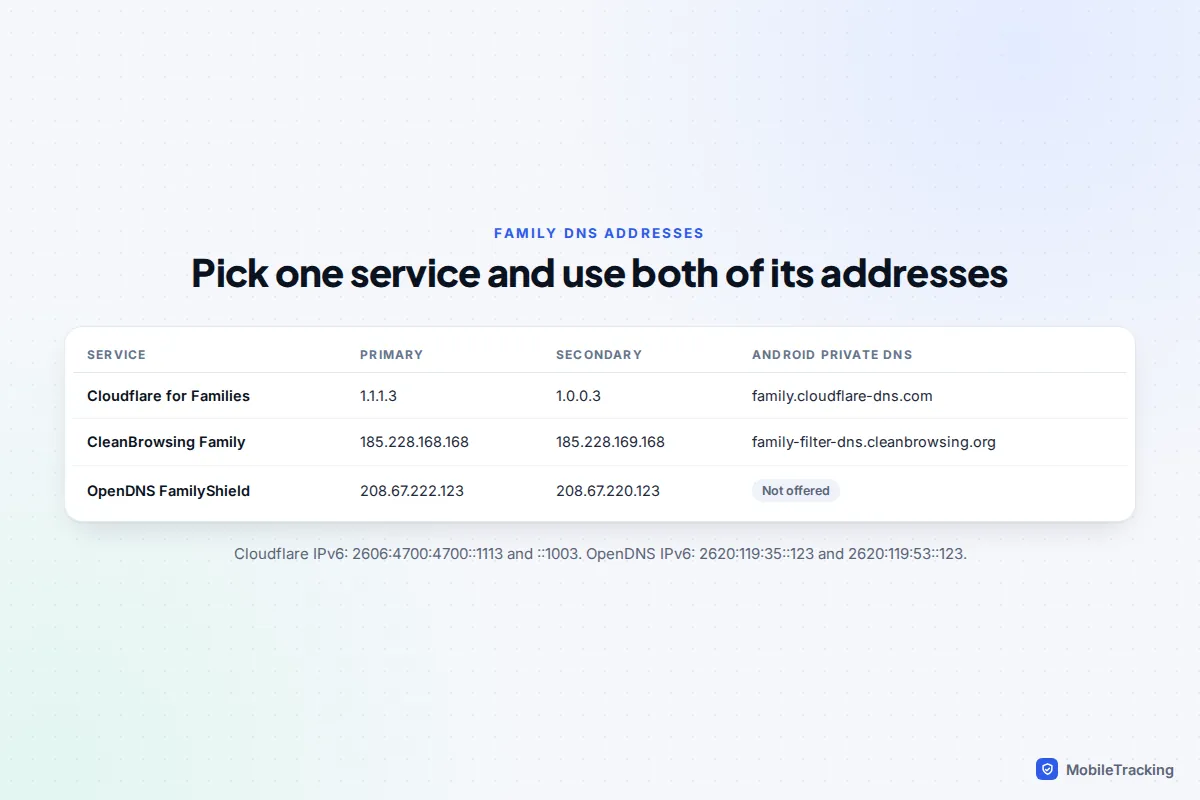
Before opening a website, a device asks a DNS server to turn the name into an address. A family DNS service refuses to answer for adult and malicious sites, so the page never loads. It is free, needs no account, and covers smart TVs and consoles you cannot install anything on.
| Service | IPv4 addresses | IPv6 addresses | What it blocks |
|---|---|---|---|
| Cloudflare 1.1.1.1 for Families | 1.1.1.3 and 1.0.0.3 | 2606:4700:4700::1113 and 2606:4700:4700::1003 | Malware and adult content. Does not restrict YouTube. |
| CleanBrowsing Family Filter | 185.228.168.168 and 185.228.169.168 | See CleanBrowsing’s setup page | Adult content, mixed-content sites and threats; forces SafeSearch on Google, Bing and YouTube |
| OpenDNS FamilyShield | 208.67.222.123 and 208.67.220.123 | 2620:119:35::123 and 2620:119:53::123 | Pornography, proxies and anonymisers, phishing |
Pick one service and use both of its addresses. Never pair one provider’s primary address with another’s secondary, because devices use either, and your filtering becomes hit and miss. OpenDNS has withdrawn its service from France, Portugal and Belgium after court orders, so it is not an option there.
How to change the DNS on your router
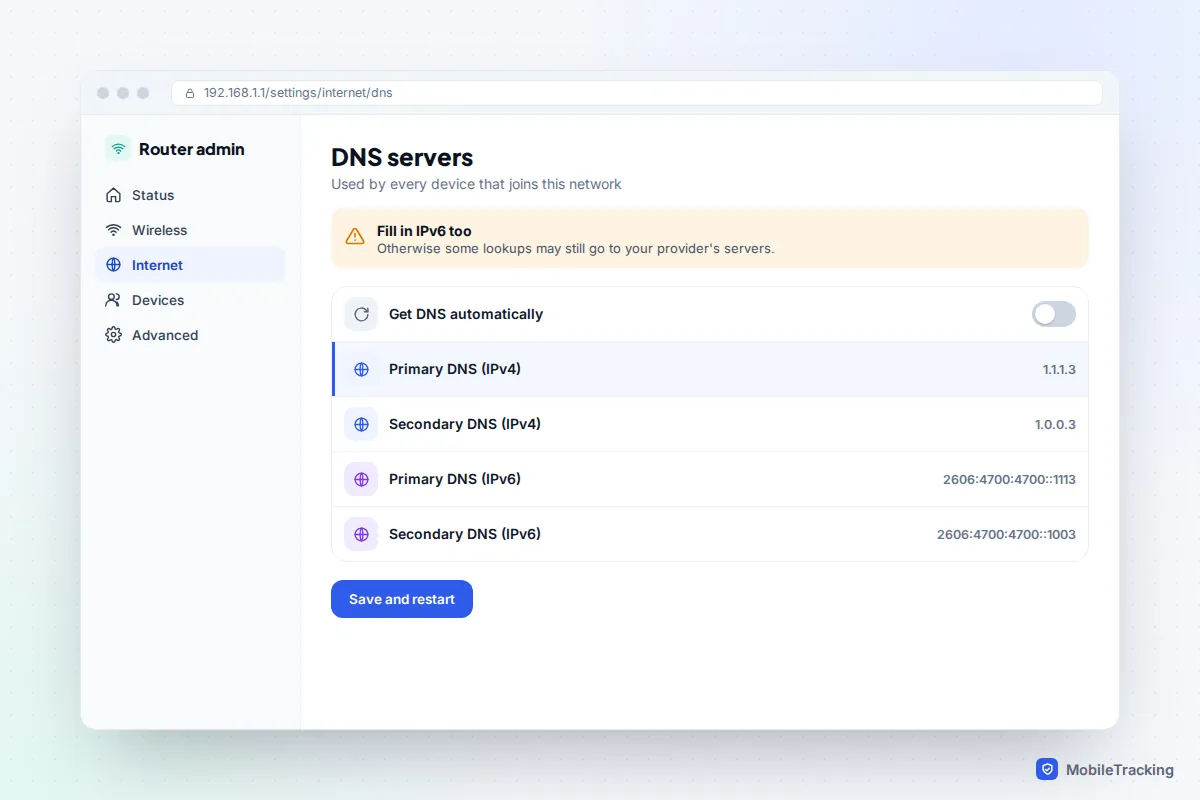
- Find your router’s address and admin password, usually on a sticker on the router. Common addresses are 192.168.1.1 and 192.168.0.1; BT hubs use 192.168.1.254. Mesh systems do this in their app instead.
- Log in and look for DNS under Internet, WAN, LAN or DHCP settings. Switch off automatic DNS.
- Enter the primary and secondary addresses for your chosen service. If there are IPv6 DNS boxes, fill those in too, or devices may keep asking your provider’s servers over IPv6.
- Save and restart the router, then turn Wi-Fi off and on on each device so it picks up the change.
- Test from a child’s device by visiting a site in a blocked category. You should get a block page or a “site can’t be reached” error.
Several provider-supplied routers do not let you change DNS at all, including BT’s Smart Hub 2, Sky’s hubs and Virgin Media’s Hub 5. You then have three choices: use the provider’s own filter, which is the easiest; add your own mesh or router behind it (Virgin Media suggests putting the Hub 5 in modem mode); or set the DNS on each child’s device, which is covered next.
Setting family DNS on a single device
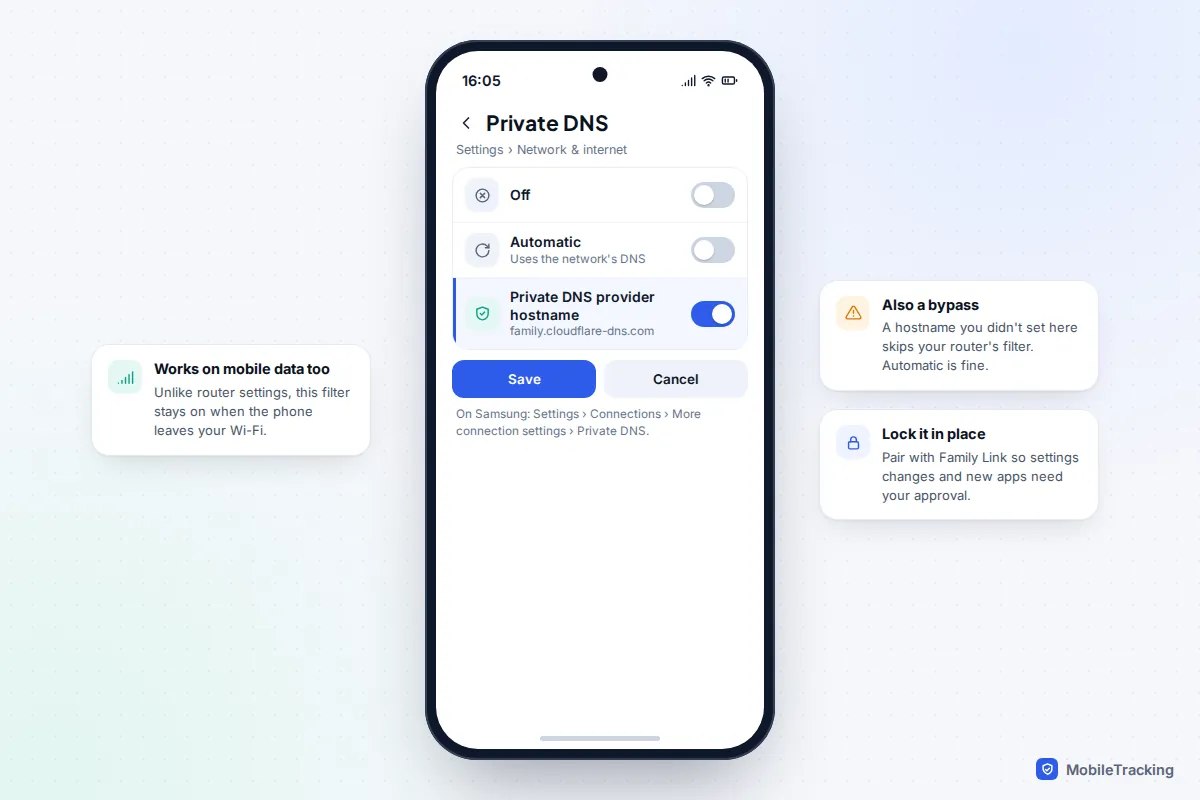
On Android 9 and later, Private DNS applies a filter on Wi-Fi and mobile data alike. On a Pixel go to Settings, Network & internet, Private DNS; on a Samsung, Settings, Connections, More connection settings, Private DNS. Choose Private DNS provider hostname and enter family.cloudflare-dns.com or family-filter-dns.cleanbrowsing.org. On iPhone you can set DNS per network under Settings, Wi-Fi, the info button, Configure DNS, Manual, but it only applies to that network and a child can change it back, so Screen Time’s content restrictions are the better tool there.
The gaps: mobile data, private DNS and VPNs
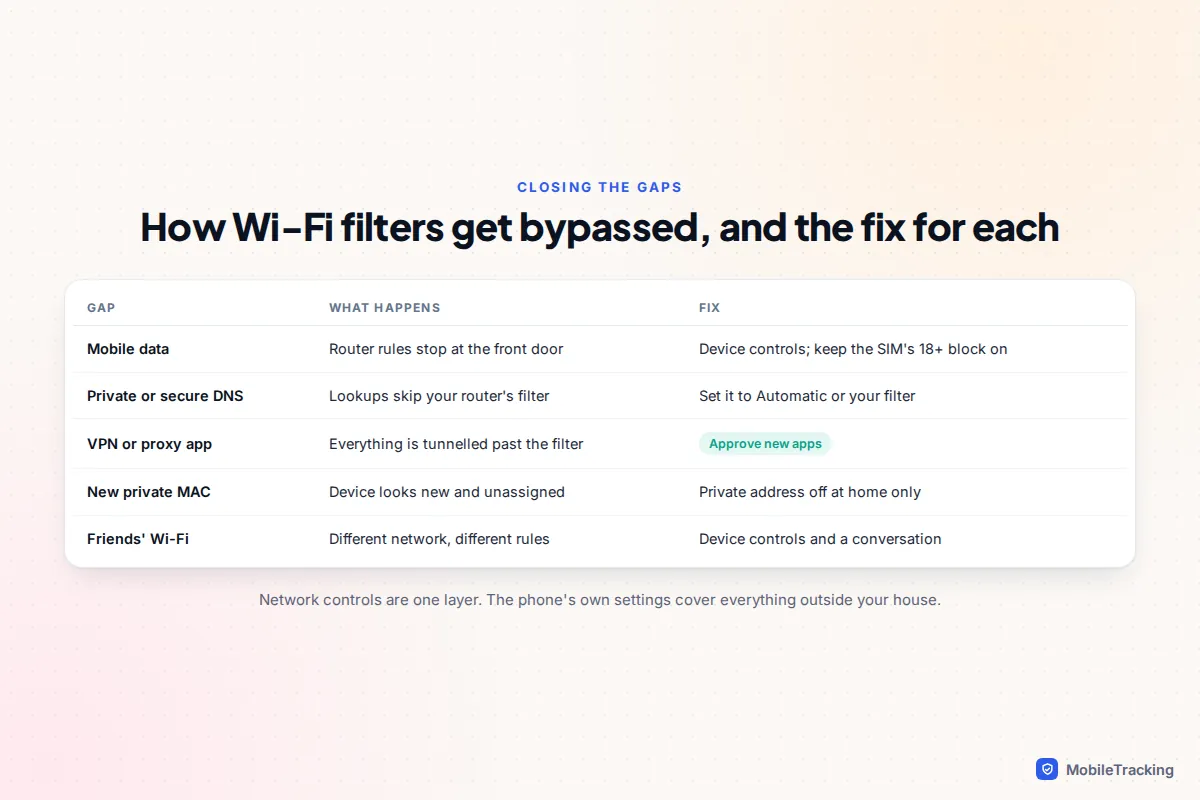
Network controls only see traffic that passes through your router, and only the lookups it is asked to make. These are the ways round them.
- Mobile data. The moment a phone leaves Wi-Fi, your router rules no longer apply. In the UK, mobile networks block 18+ content by default until the account holder proves their age, so check that a child’s SIM has not been age-verified. Device controls cover the rest.
- Private DNS and secure DNS in browsers. An Android phone with Private DNS set to another provider, or a browser whose secure DNS setting names a specific provider, skips your router’s DNS. The “Automatic” settings are fine; a named provider you did not choose is the warning sign.
- iCloud Private Relay. This paid iCloud+ feature sends Safari traffic through Apple’s relays. Networks can block it, in which case the iPhone tells the user to turn it off for that network, but a DNS filter that does not do this will not see Safari lookups.
- VPN and proxy apps. A VPN tunnels everything past your filter. OpenDNS FamilyShield blocks some proxy and anonymiser sites, but the reliable fix is on the device: require your approval for new apps with Family Link or Ask to Buy.
- Other networks. Friends’ houses, neighbours’ Wi-Fi and a mate’s hotspot are all outside your control.
That is why network controls are a layer, not the whole plan. The phone itself is where you set app time limits, age ratings and approval for new downloads; see our guides to parental controls on iPhone and parental controls on Android.
Troubleshooting by symptom
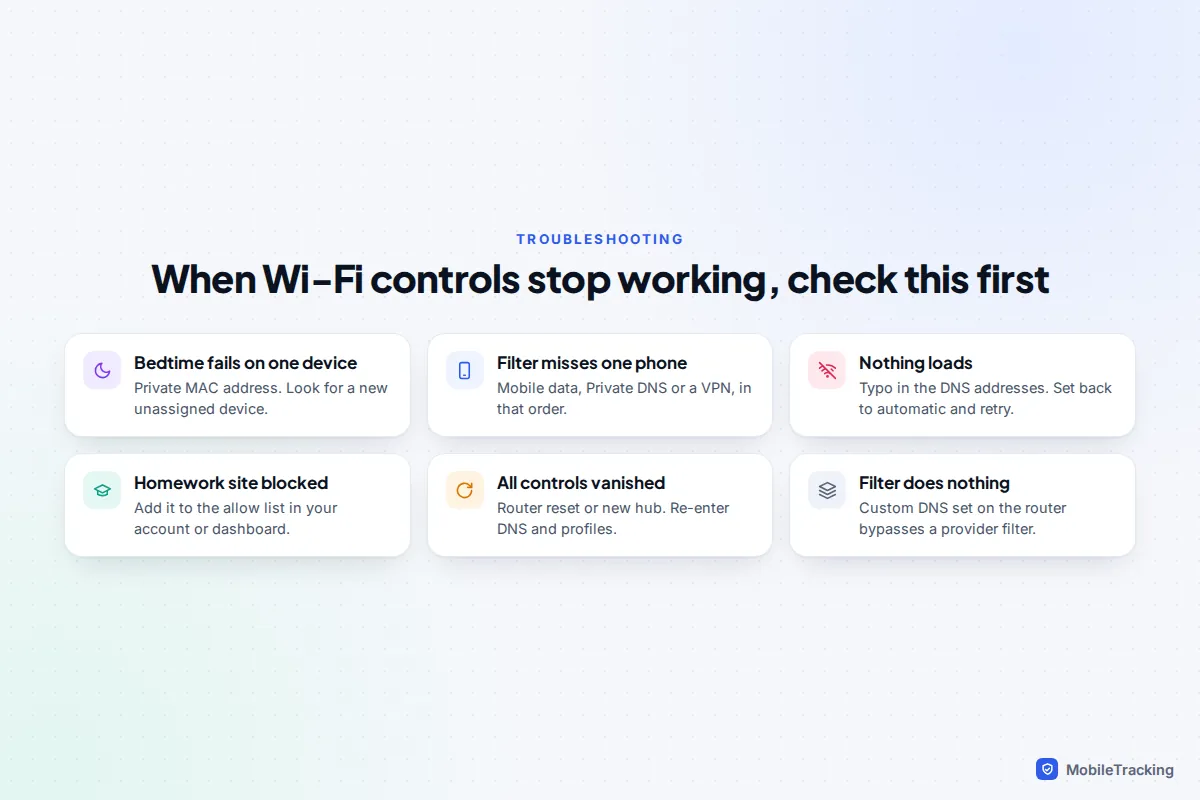
The bedtime schedule works on the tablet but not the phone. Almost always a private MAC address. Check the router app for a new, unassigned device with a similar name, switch off the private address for your home network and reassign it.
The filter works on the laptop but not on one phone. The phone is probably on mobile data, has Private DNS set to another provider, or is running a VPN. Check each in that order.
Nothing loads after changing DNS. Look for a typo in the addresses. If they are right, set DNS back to automatic, restart the router, and try again one step at a time.
A school or homework site is blocked. Add it to the allow list in your provider account or router app. Free DNS services without an account cannot allow individual sites.
Everything was fine, then all the controls vanished. A router reset or replacement hub wipes custom settings. Recheck the DNS and profiles after any broadband engineer visit or hub swap.
Frequently asked questions
Will a DNS filter slow down my internet?
Not noticeably. It only affects the moment a device looks up a site name, which takes milliseconds, and has no effect on download speed or streaming.
Does private or incognito browsing get round Wi-Fi filters?
No. Private browsing stops the history being saved on the device, but the lookups still go through your router and filter. VPNs, Private Relay and a changed DNS setting are the real bypasses.
Will the filter affect the adults in the house?
Provider filters and router-level DNS apply to every device, so yes. If that is a problem, keep the whole-house filter at a level everyone accepts and use router profiles or device settings for stricter per-child rules.
Can I see which sites my child visited?
Provider filters and free DNS services generally do not show browsing history, though some router apps show which devices were online and for how long. If you want more, talk to your child first about what you will look at and why.
Do these controls work on games consoles and smart TVs?
Yes, and that is one of the best reasons to use them: anything on your Wi-Fi goes through the filter and schedules. Set the console’s own controls as well for game ratings and spending.
This guide is general information, not legal or financial advice. Read our editorial policy.