
To share your location from an Android phone, open Google Maps, tap your profile picture, then Location sharing › New share. Choose how long (an hour that you can adjust, or Until you turn this off), pick the person and tap Share. It works for iPhone users too, as long as they have a Google Account and the Google Maps app. For someone without a Google Account, send a link instead, which works for up to 24 hours.
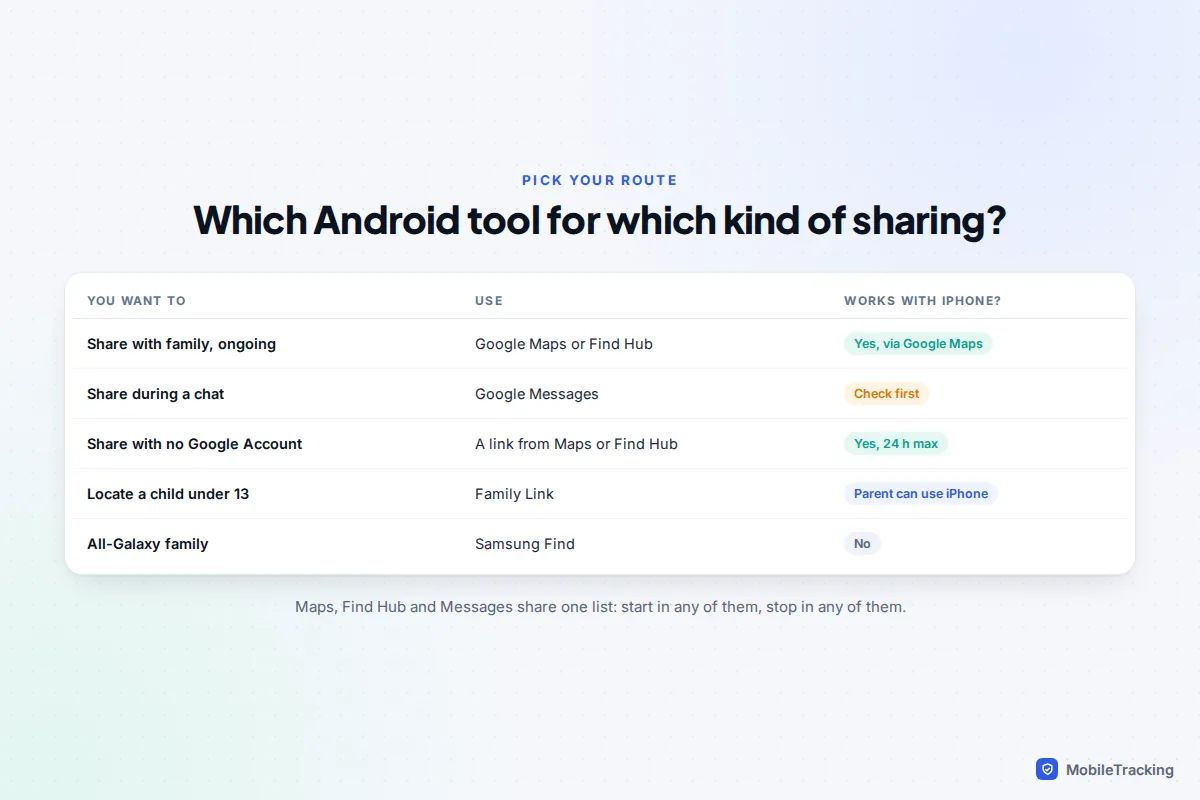
In 2026 there are two more ways to do the same thing: the People tab in the Find Hub app, and Real-time location inside a Google Messages chat. All three use the same Google sharing list, so it does not matter which you start from. Below you will find each route step by step, plus arrival alerts, children’s phones, Samsung’s own option, battery settings and how to stop.
Before you start: four settings to check
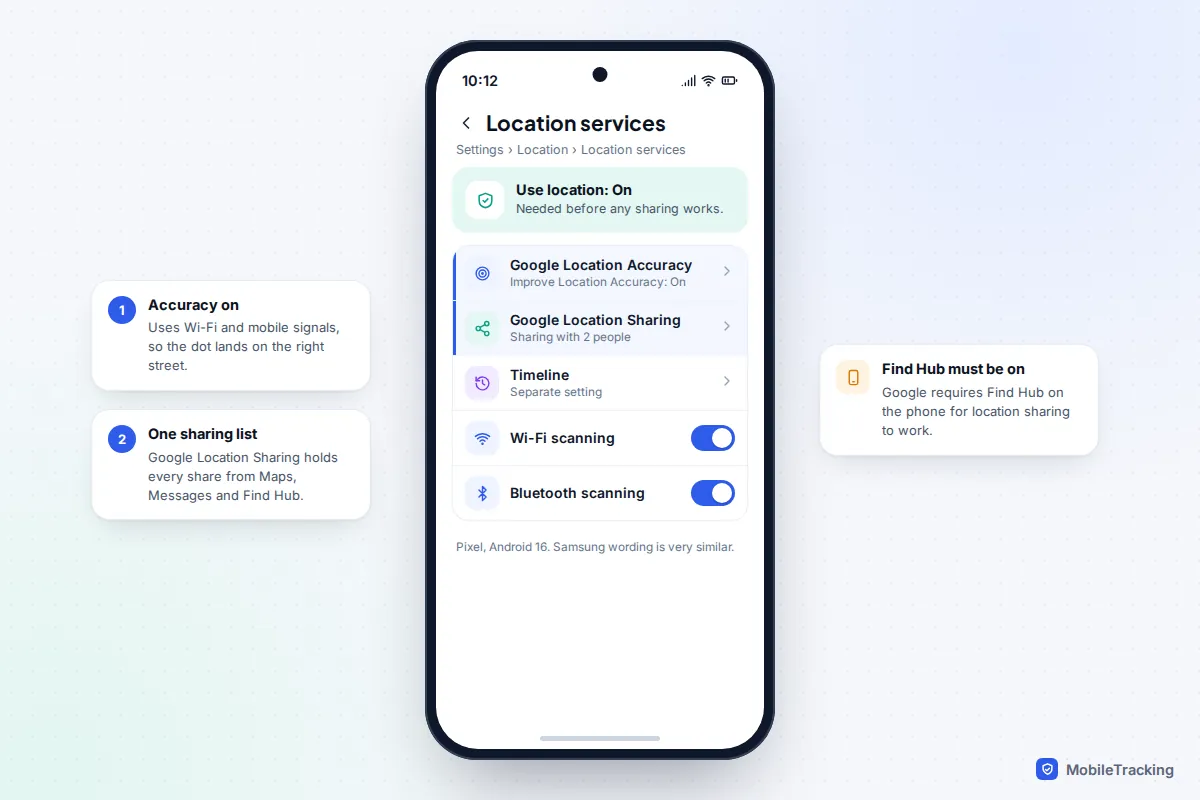
Location sharing on Android is a system setting called Google Location Sharing, used by Maps, Messages, Find Hub and Family Link alike. It fails quietly if the basics are off, so spend a minute on these first. The paths below are from a Pixel on Android 16; Samsung Galaxy phones on One UI use very similar wording.
- Location is on: Settings › Location › Use location.
- Accuracy is on: Settings › Location › Location services › Google Location Accuracy › Improve Location Accuracy.
- Find Hub is on for this phone: Google requires it for location sharing. Search Settings for Find Hub (on older software it may still be called Find My Device) and make sure it is switched on.
- You are signed in to the Google Account you want people to see. Sharing is tied to both the phone and the account, so a second phone signed in to the same account needs its own settings.
Share your location in Google Maps, step by step
Google Maps remains the most complete place to set up sharing, because it also handles arrival alerts and works identically on iPhone.
- Open Google Maps and tap your profile picture or initial in the top-right corner.
- Tap Location sharing, then New share. If this is your first time, Maps will ask you to confirm the Location Sharing settings.
- Choose a duration. The default is For 1 hour; tap + or – to change it. For ongoing family sharing, choose Until you turn this off.
- Tap the people you want from the suggestions, or search your contacts. You can pick more than one.
- Tap Share. Each person gets a notification and an email.
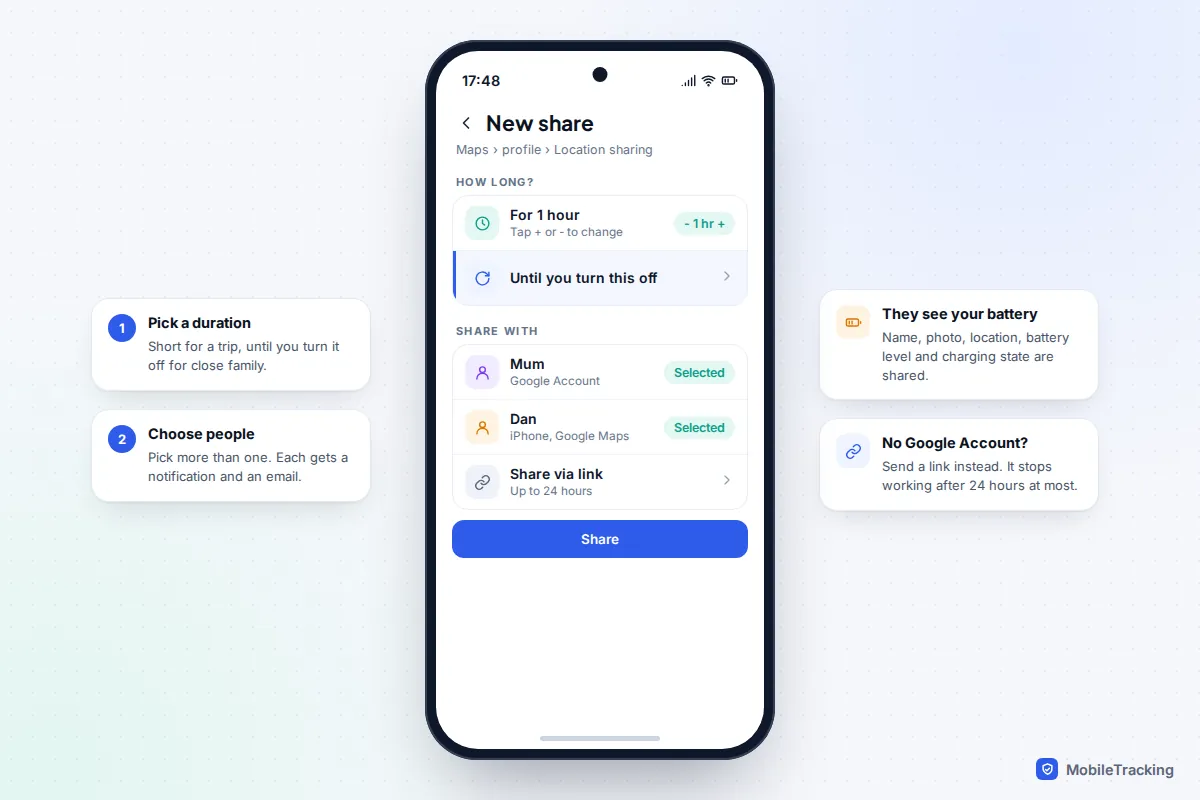
People you share with always see your name and photo, your recent location, and your battery level and whether you are charging. If they add an alert, they also see when you arrive at or leave that place. Google’s help page on sharing your real-time location in Google Maps lists the same details.
Sharing with someone who has an iPhone
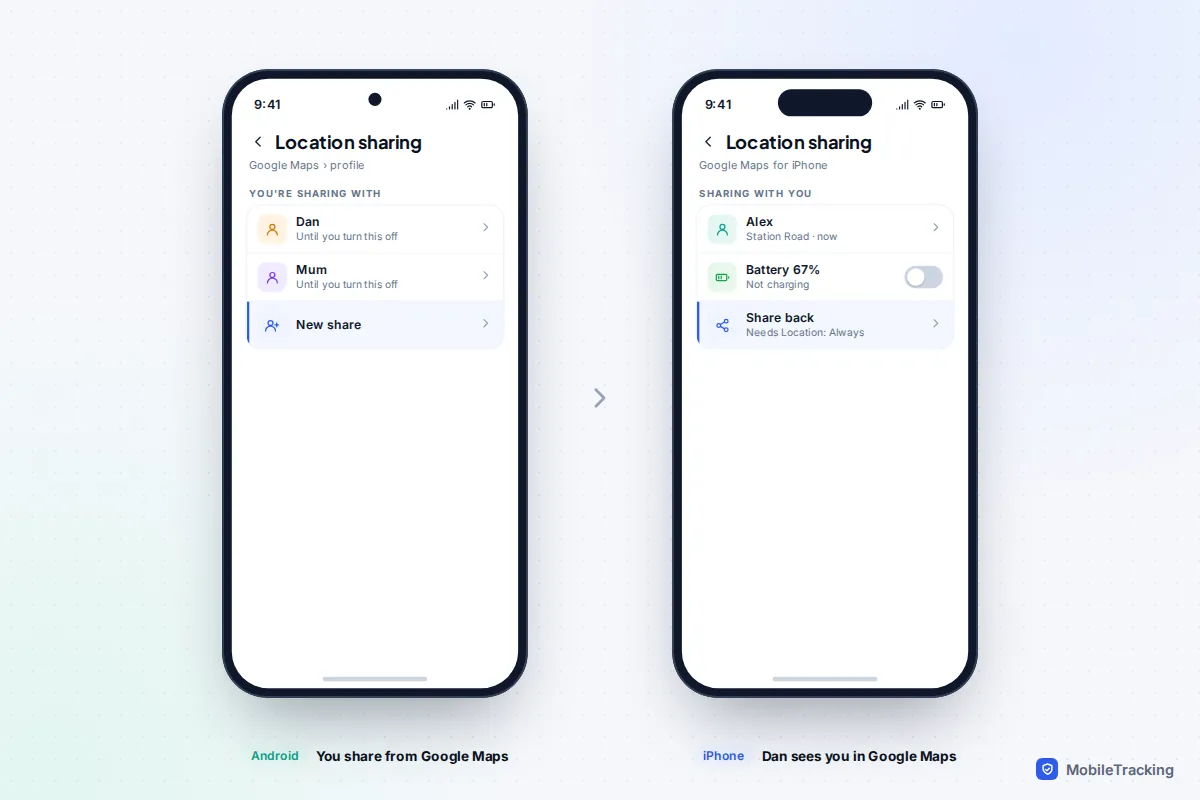
An iPhone user cannot see your location in Apple’s Find My, but they can see it in Google Maps for iPhone. They need to install Google Maps and sign in with a Google Account; then you appear under their Location sharing list. If they do not want a Google Account, use a link: in the share screen, choose the link option, copy it and send it by text or WhatsApp. Links only work for up to 24 hours, so they suit a journey rather than permanent sharing.
To see them, they share back from Google Maps on their iPhone, and must set Settings › Apps › Google Maps › Location to Always with Precise Location on. Our guide to setting up location sharing on iPhone covers the iPhone side, including Apple’s own options.
Use the People tab in Find Hub
Find Hub, the app Google renamed from Find My Device in 2025, now handles people as well as devices. It is preinstalled on most Android phones. If you share your location regularly with a small group, it gives the clearest view.
- Open Find Hub and tap the People tab.
- Tap Start share (or + if you already share with someone).
- Choose One hour, Until the end of the day (it stops at 11:59 pm), Until you stop the share, or a custom length.
- Pick people from the suggestions, or tap Get link to share. Links cannot use the “until you stop” option.
- Tap Create share.
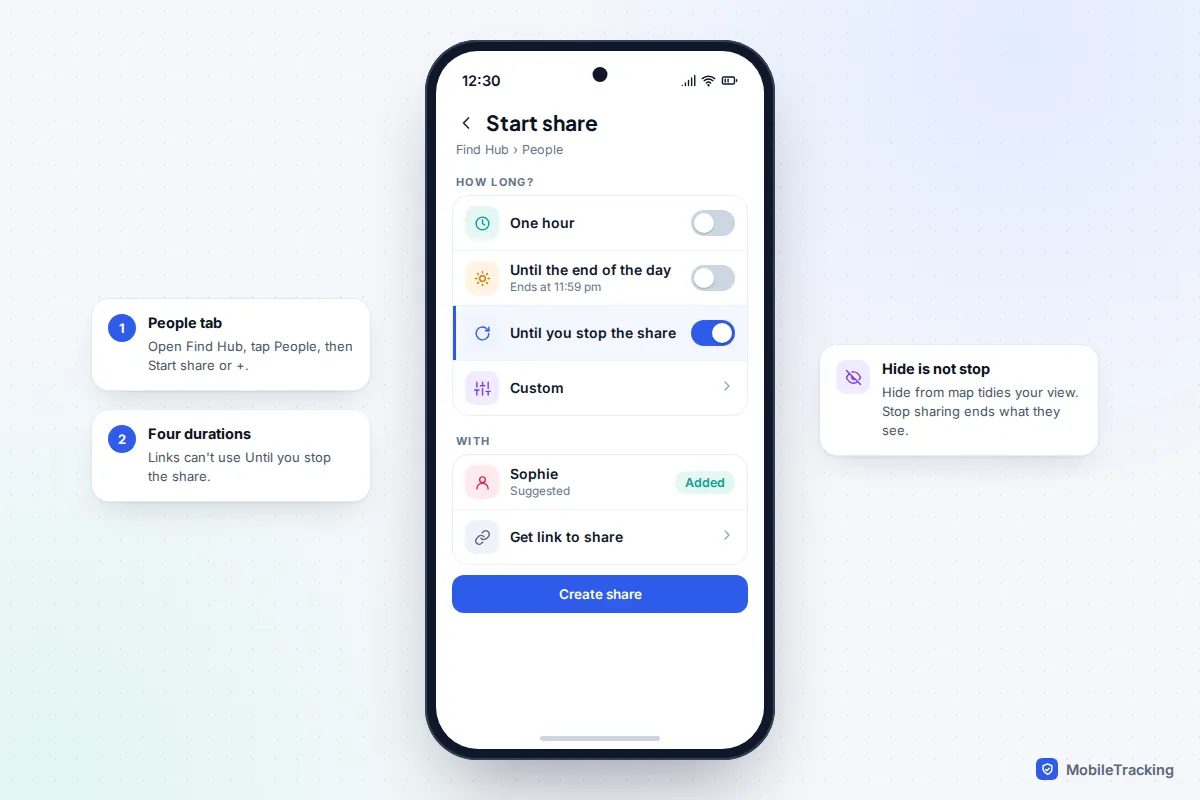
Tap any person to see more options. Request location asks someone to share back (they get a notification and an email). Under More you will find Refresh, Hide from map and Block. Hiding someone only removes them from your map; to stop them seeing you, use Stop sharing. From a laptop, you can see the same people by signing in to the Find Hub website.
Share live location from a Google Messages chat
Since early 2026, Google Messages can send a live location card rather than a static map pin. It is the quickest option when you are already in a conversation, for example to tell a friend you are ten minutes away.
- Open the conversation in Google Messages.
- Tap the attachment + icon next to the text box, then Real-time location (it may sit under Location).
- Accept the Google Location Sharing settings if asked (first time only).
- Choose For 1 hour, Today only, Until you turn this off, or a custom duration of up to 24 hours.
- Tap Send.
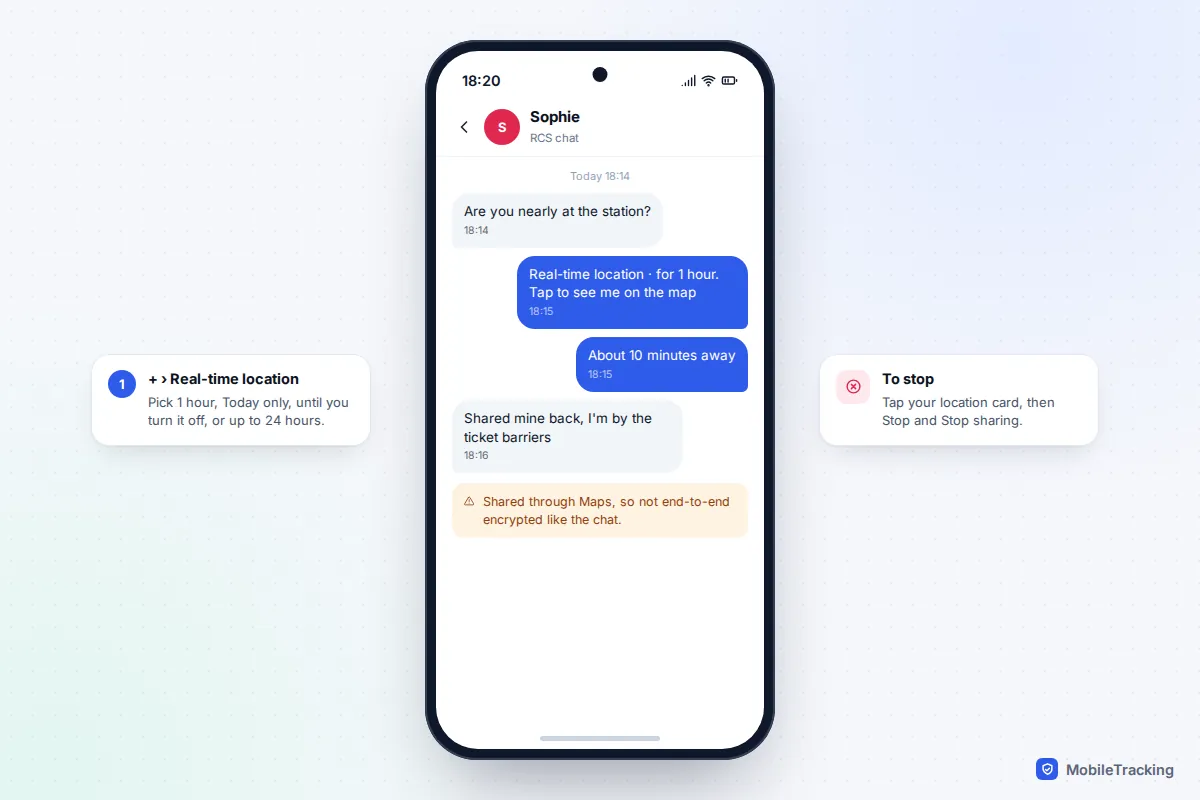
To stop, tap your location card, then Stop and Stop sharing. Google notes that this sharing runs through Maps and is not end-to-end encrypted, unlike your RCS chat messages. If you do not see Real-time location yet, update Google Messages from the Play Store; the feature rolled out gradually. On Galaxy phones in the US, Samsung retired its own Messages app in July 2026 for phones on Android 12 or later, so Google Messages is now the default there too. Google’s help page explains sharing real-time location in Messages.
Get alerts when someone arrives or leaves
Arrival alerts save everyone from checking the map. You can only add them for people who already share their location with you, and they are always open: the person is told when you set one up.
- In Google Maps, tap your profile picture, then Location sharing.
- Tap the person, then Add under Notifications.
- Pick a saved address or tap Add location, search for it or use Choose on map, then tap Done.
- Choose Every time they arrive, Every time they depart, or both, and tap Save.
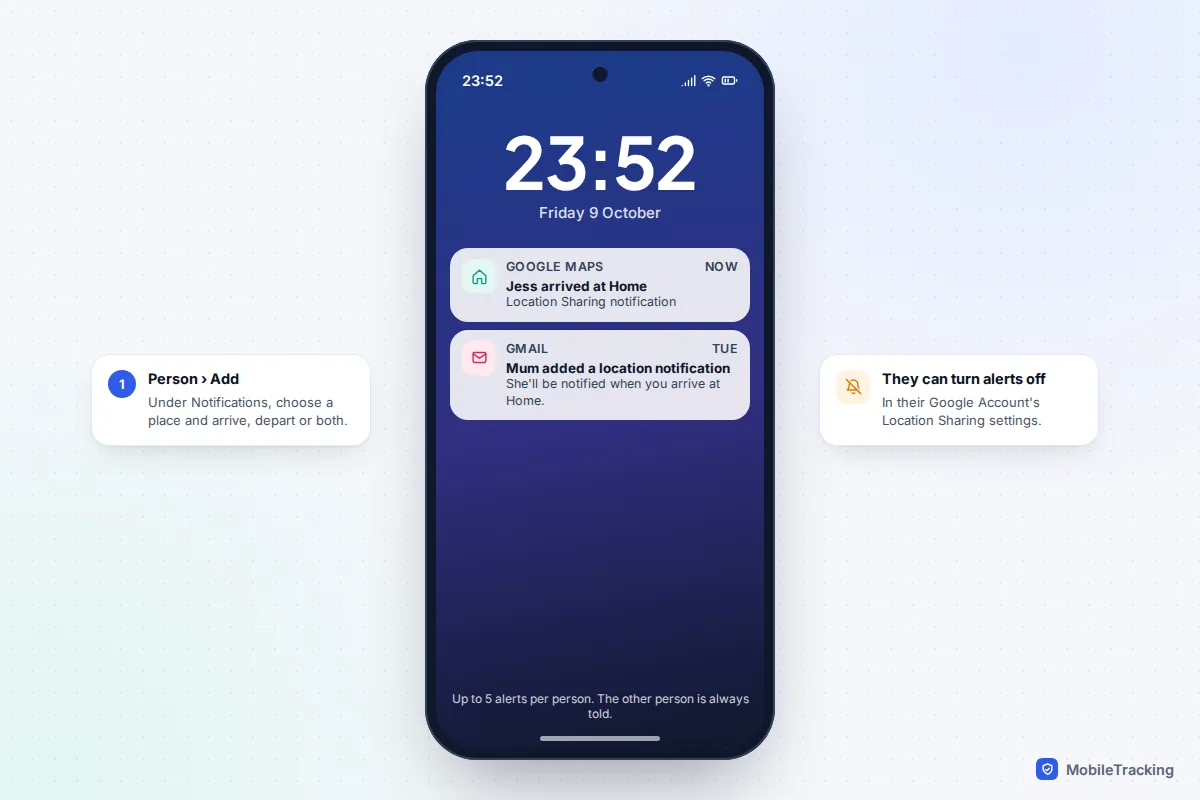
You can add up to five alerts for each person. They do not work with link shares or for accounts under 13. The person being watched can switch off everyone’s alerts about them at myaccount.google.com/locationsharing by turning off Allow Location Sharing notifications, while still sharing their location. Since May 2026 Find Hub has been rolling out the same feature: tap a person in People, then Get location notifications. Google’s guide to Location Sharing notifications has the detail.
Here is how that plays out. Jess, 17, drives home from a late café shift twice a week. She shares with her mum indefinitely, her mum sets one alert for “arrives home”, and Jess can see that the alert exists. Nobody texts “are you back yet?” at midnight any more, and Jess knows exactly what her mum can see.
Children’s phones and Samsung’s own option
Family Link for under-13s
A child under 13 with a supervised Google Account can only share their real-time location with their parents, and cannot use the normal Maps sharing with friends. Parents set it up from their own phone, Android or iPhone:
- Open Family Link and tap Location.
- Tap Set up location, choose your child and tap Turn on.
- Add family places with Add home or Add school, then switch on Arrives and Leaves alerts for each.
Two limits catch parents out. Family Link shows only the device the child used most recently, and alerts switch off if Location Accuracy is turned off on the child’s phone. Our guide to setting up Google Family Link covers supervision in full.
Samsung Find for Galaxy families
If everyone in your house has a Galaxy phone, Samsung Find is another option. Create a family group first in Settings › Samsung account › Family › Create family group (up to five other people), then open Samsung Find, go to the People tab and tap + to choose who sees you and for how long. Everyone needs a Samsung account and the app, so it does not help with iPhone users; Google’s sharing is the better choice for mixed families.
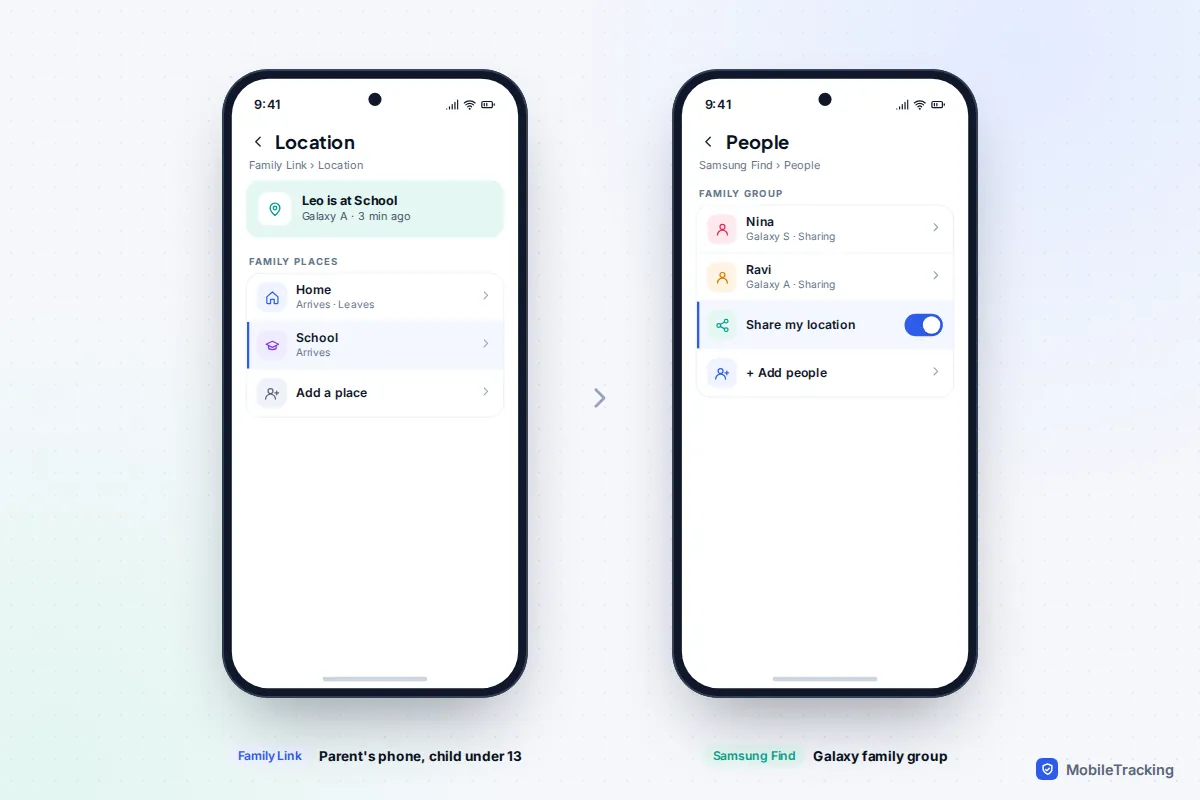
For a family with several children and adults on different phones, our guide to tracking your whole family in one app compares these options with Life360 and transparent family apps.
Battery and accuracy settings
Sharing uses the phone’s location in the background, but because it is built into Android’s location services it is usually a small drain. Accuracy problems are more common than battery problems, and both come from the same few settings.
- Wi-Fi and Bluetooth scanning: in Settings › Location › Location services, leave both on. They let the phone place itself indoors without holding GPS for long.
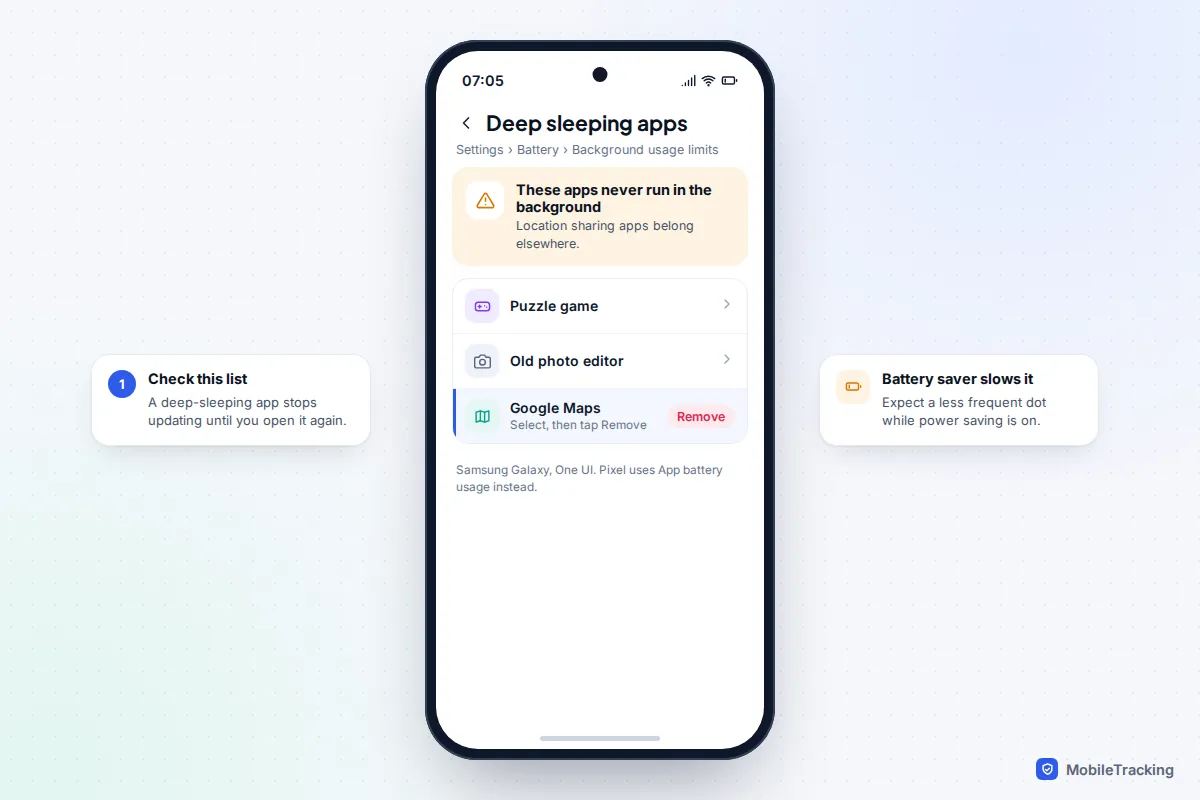
- App battery usage: for Google Maps and Find Hub, avoid Restricted. On Samsung, also check Settings › Battery › Background usage limits and remove them from Deep sleeping apps.
- Battery saver: Android’s power saving modes can delay updates. Expect a less frequent dot while it is on.
How to pause or turn it off
You can stop sharing with one person, pause everyone at once, or end it altogether. Each option behaves differently, so pick the one that matches what you want. For a break of an evening or a weekend, our guide to turning off location sharing temporarily compares the options on both Android and iPhone.
| You want to | Do this | What they see |
|---|---|---|
| Stop sharing with one person | Maps › profile › Location sharing › tap them › Stop | You disappear from their list |
| Pause everyone for a while | Settings › Location › Location services › Google Location Sharing › turn off Use Location Sharing | Your last location, no longer updating |
| End a chat share | Tap your card in Messages › Stop › Stop sharing | The card stops updating |
| Stop a child’s Family Link location | Family Link › Location › that child’s location settings | Their location stops showing for you |
Stopping in one Google app stops it everywhere, because Maps, Messages and Find Hub share the same list. If someone’s dot has stopped moving and you are not sure why, our guide to fixing location sharing that isn’t working goes through each cause. Before pausing, think about telling the person: a frozen dot with no explanation tends to worry people more than a quick message saying you are switching it off for the evening.
Frequently asked questions
Does the other person need an Android phone?
No. Google’s location sharing works on iPhone through the Google Maps app, and on a computer through Google Maps or the Find Hub website. The person needs a Google Account, unless you send them a link.
Can I share my location for exactly two days?
Try Find Hub’s custom option, which lets you set your own length, or raise the hour with + in Google Maps. Messages caps custom sharing at 24 hours. If the length you want is not offered, choose until you turn it off and set a phone reminder to stop it.
Will they know if I stop sharing?
You will disappear from their list or your location will stop updating, so they can usually tell. Either way, it is kinder to tell them first.
Why does my shared location show the wrong place?
Usually Google Location Accuracy is off, the phone is indoors with Wi-Fi scanning off, or the app is being restricted in the background. Check the settings above, then open Google Maps once to force an update.
Can I see someone’s location without them sharing it?
No. Every option here needs the other person to share with you, and they are told when you add alerts. Setting it up on another adult’s phone without their agreement is never acceptable.
This guide is general information, not legal or financial advice. Read our editorial policy.