
To set a real time limit on Instagram for your child, turn on parental supervision from your own Instagram account, then go to your teen’s Time management settings and choose a daily limit that blocks the app once it is used up. You can also set sleep hours when Instagram is blocked. Every account for 13 to 17-year-olds is already a Teen Account, which sends a reminder to leave after 60 minutes a day and turns on Sleep mode from 10pm to 7am, but those are nudges your teen can ignore. For a limit that also covers second accounts, add one on the phone itself with Screen Time on iPhone or Google Family Link on Android.
This guide walks through both layers step by step, what your teen sees, the gaps no setting closes, and how to agree a limit your teen will actually live with. Instagram’s minimum age is 13, so everything here assumes a teenager; there is no legitimate Instagram account for a younger child to limit.
What Instagram Teen Accounts already do
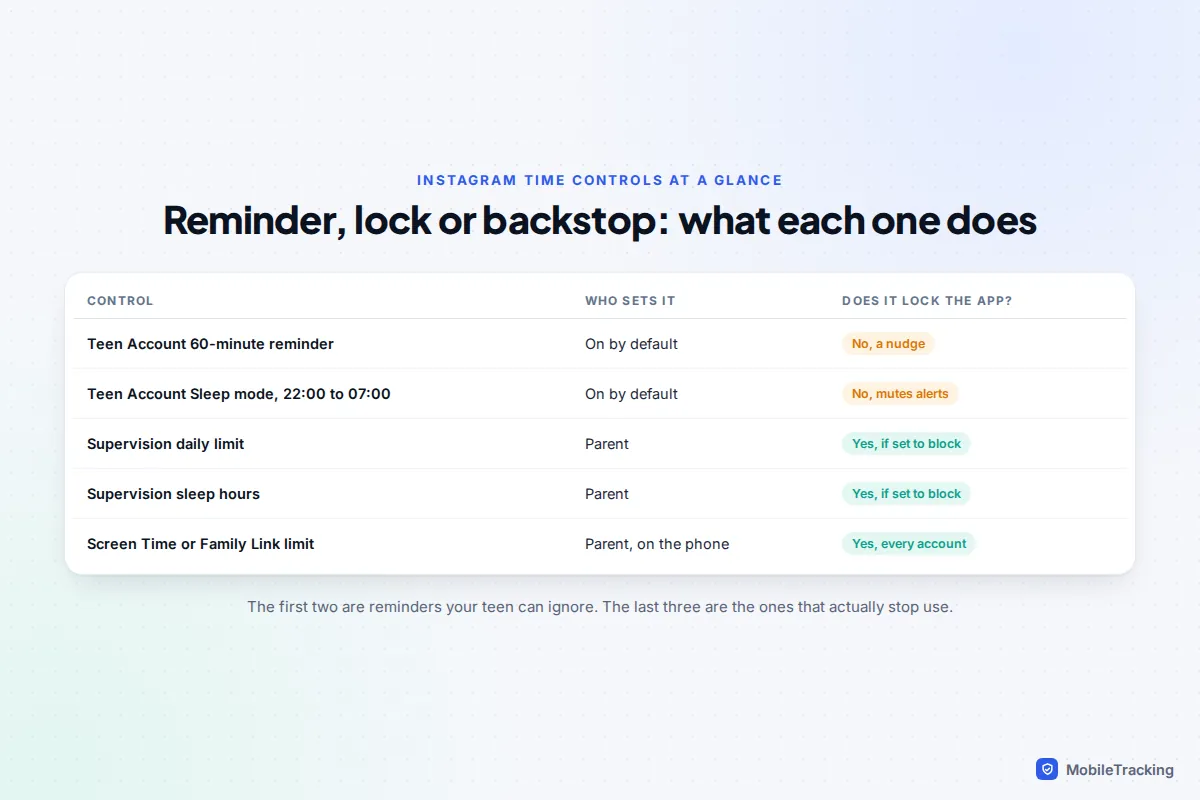
Instagram introduced Teen Accounts in September 2024 and has since applied them to under-18s worldwide. Two of the default protections are about time. Meta says teens get notifications telling them to leave the app after 60 minutes each day, and that Sleep mode is on between 10pm and 7am, muting notifications overnight and sending auto-replies to messages.
Both are useful, but neither locks the app. The 60-minute message is a reminder: your teen can close it and carry on scrolling. Sleep mode silences alerts rather than blocking use, so a teenager who opens Instagram at midnight can still use it normally.
The age rules matter here. Meta says teens under 16 need a parent’s permission to change Teen Account settings to be less strict, while 16 and 17-year-olds can change them on their own unless you have set up supervision. Instagram also uses age-detection technology to find teens who signed up with an adult birthday and move them into Teen Accounts, though no system like this catches everyone.
A change announced for the US
On 26 August 2026, Meta agreed a settlement with US states over child safety. As reported by NPR and ABC News, it includes a default two-hour daily limit across Instagram and Facebook for under-18s and a block on the feed, Stories, Explore and Reels from midnight to 6am, both of which a parent would need to approve changing. It still needs court approval and applies in the participating US states, so check your teen’s settings rather than assuming it is live. Everywhere else, the 60-minute reminder and 10pm to 7am Sleep mode remain the defaults.
Set a daily limit with parental supervision
Supervision is Instagram’s parental control. It lets you set the time rules yourself and choose whether Instagram just notifies your teen or blocks access. You need your own Instagram account, and your teen has to accept the invitation, so this is something you do with them, not behind their back. Our step-by-step guide to setting up Instagram supervision covers the invite and every other setting in detail.
- On your phone, open Instagram and go to your profile.
- Tap the menu (three lines, top right) and look for Family Center or Supervision. On some versions it sits under a heading called For families.
- Tap Get started and choose your teen from the accounts that follow you, or send them an invite link.
- Your teen accepts on their phone. Some parent guides report the invite lasts 48 hours, so do it when you are together.
- Back in Supervision, tap your teen’s account, then Time management.
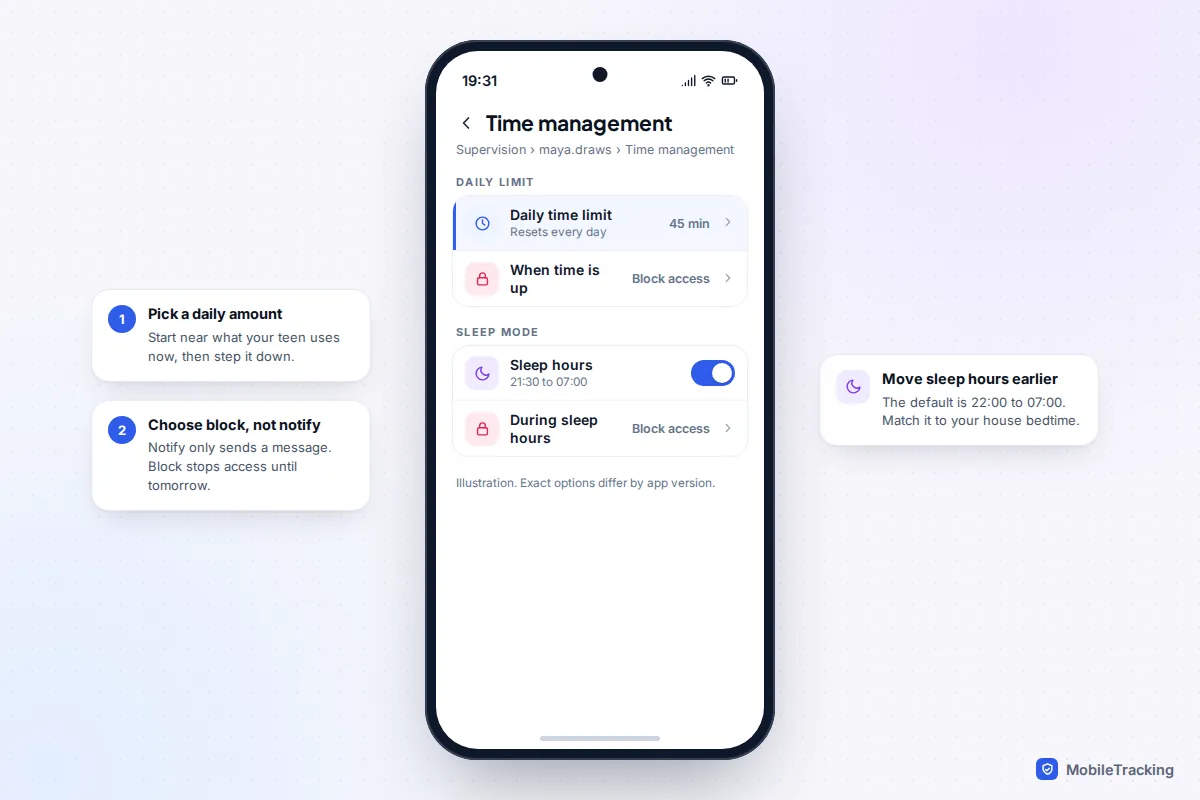
- Set a daily time limit and choose what happens when it runs out. Pick the option that blocks access if you want a real limit rather than another reminder.
- Tap Save.
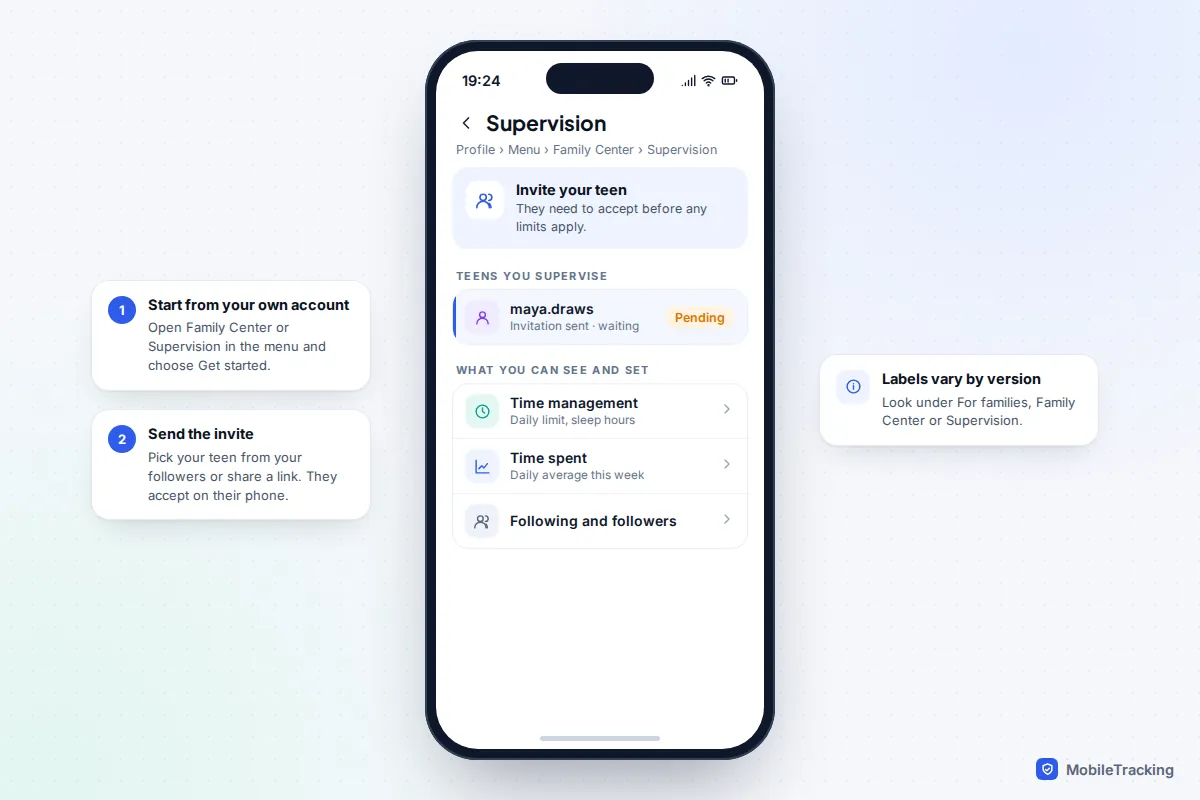
Your teen can see that supervision is on and what the limits are. That transparency is a feature. It is the difference between a rule you agreed and one they discover, and it keeps the conversation honest if the limit feels too tight.
Block Instagram at night or at set times
In the same Time management screen you can turn on Sleep mode for your teen and change the hours. Meta says parents can block their teen from using Instagram at night or during specific time periods. The default is 10pm to 7am, which is later than many families’ bedtimes for younger teens, so match it to the time phones go on the charger in your house. As with the daily limit, choose to block access rather than just send a notification.
Check how much time your teen actually spends
Before picking a number, look at the real figure. Guessing tends to produce limits that are either pointless or so tight they start a fight.
- From supervision: your teen’s supervision page shows how much time they have spent on Instagram, including a daily average for the week. It also shows which accounts they have messaged in the last seven days, but never the messages themselves.
- On your teen’s phone: in Instagram, go to profile › menu › Time management, or Your activity › Time spent on older versions. Labels have moved several times, so search settings for “time” if you can’t see them.
- From the phone: Screen Time on iPhone and Digital Wellbeing or Family Link on Android show time in the Instagram app, which counts every account signed in there.
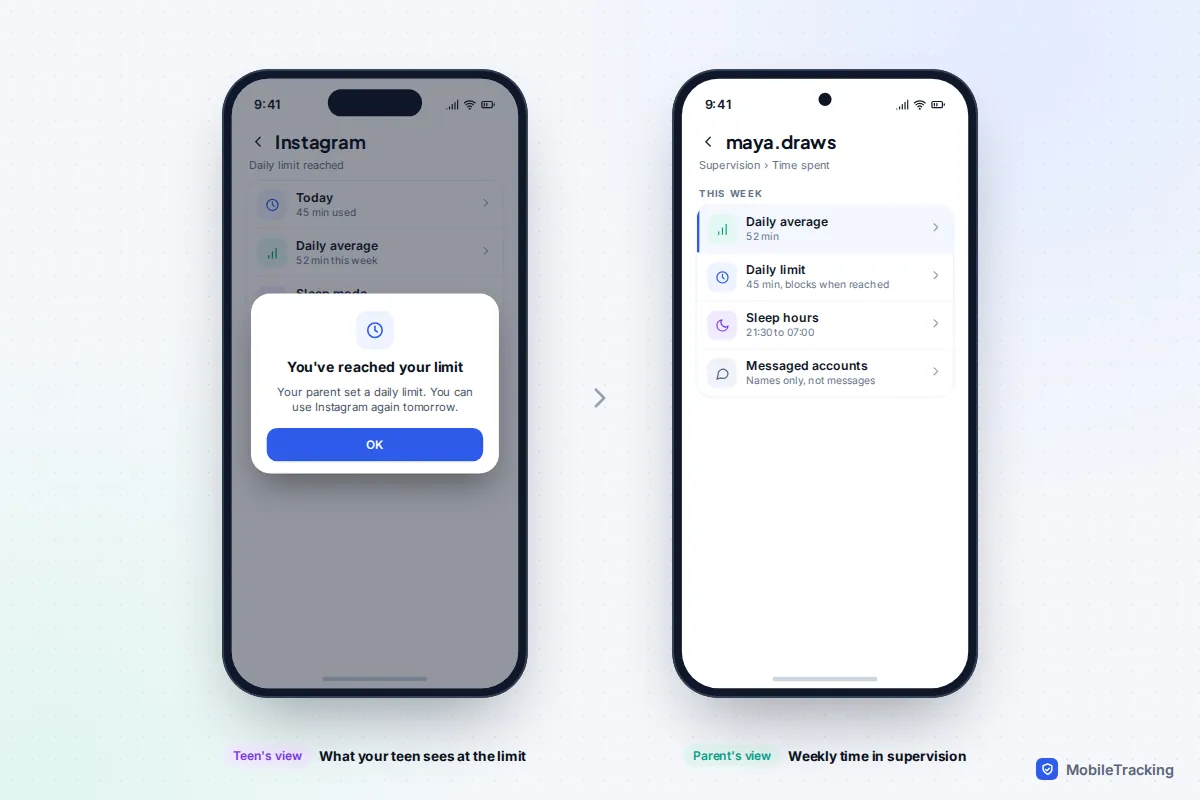
A sensible starting point is close to their current daily average, then step it down by 10 or 15 minutes every week or two. Cutting a two-hour habit to 30 minutes overnight usually just sends them to a workaround.
Add a backstop on the phone
Instagram’s own limits belong to the account you supervise. A device limit belongs to the app on the phone, so it counts every account your teen signs into and cannot be switched off from inside Instagram. For most 13 to 15-year-olds, using both is the most reliable set-up.
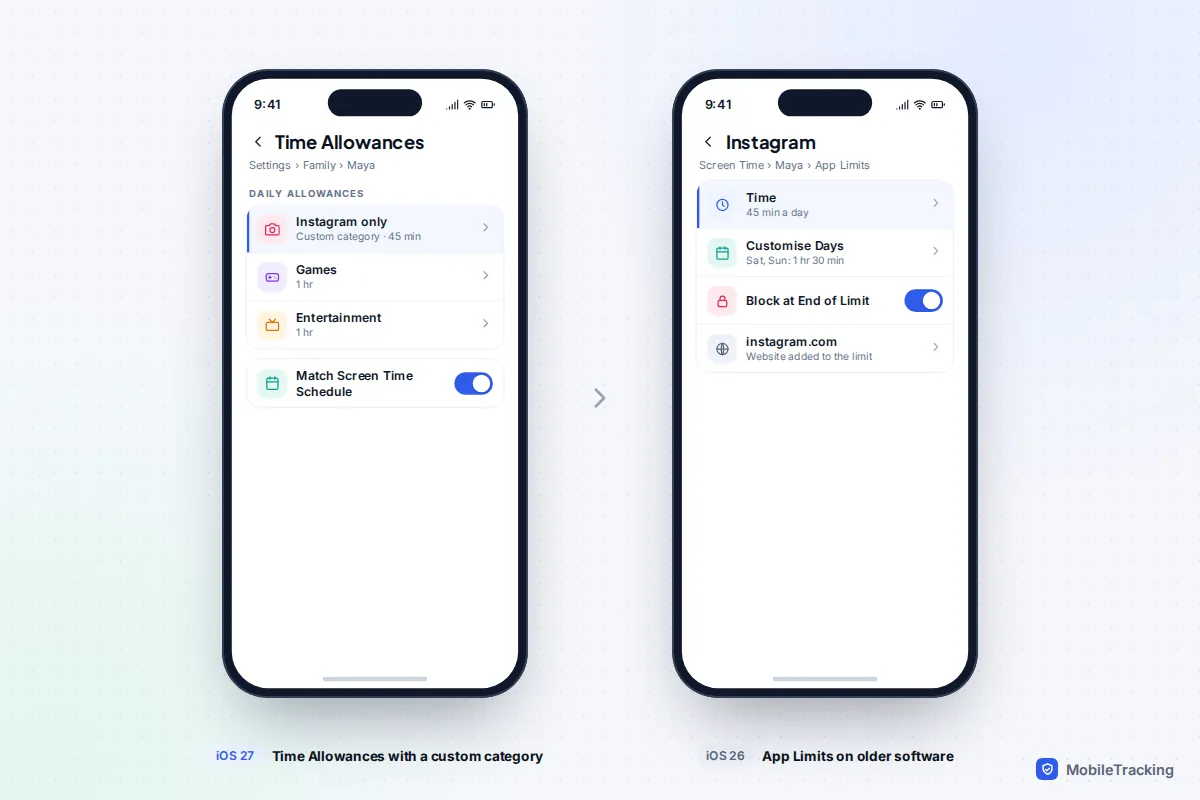
iPhone on iOS 27: Time Allowances
iOS 27, released on 14 September 2026, replaced App Limits for children with Time Allowances, which set a daily budget by category, such as Social Media. Apple also lets you create your own categories and move apps between them, so you can give Instagram a budget of its own. Go to Settings › Family › your child › Time Allowances, tap the add button, create a category containing only Instagram and set the daily amount. Turn on Match Screen Time Schedule if the allowance should respect the night window in your schedule. The new controls need every device in your Family Sharing group on version 27; Apple’s guide to using Screen Time to manage your child’s iPhone has the official steps.
iPhone on iOS 26 or earlier: App Limits
- Go to Settings › Screen Time and tap your child’s name.
- Tap App Limits › Add Limit, open Social and tick Instagram.
- Under Websites, add instagram.com so the browser version shares the same limit.
- Tap Next, set the time, and use Customise Days for a different weekend amount.
- Turn on Block at End of Limit, then tap Add.
When the limit runs out, your teen can tap Ask For More Time and you approve or decline from your phone, which handles the genuine “I need it for a group project” moments without changing the rule.
Android: Google Family Link
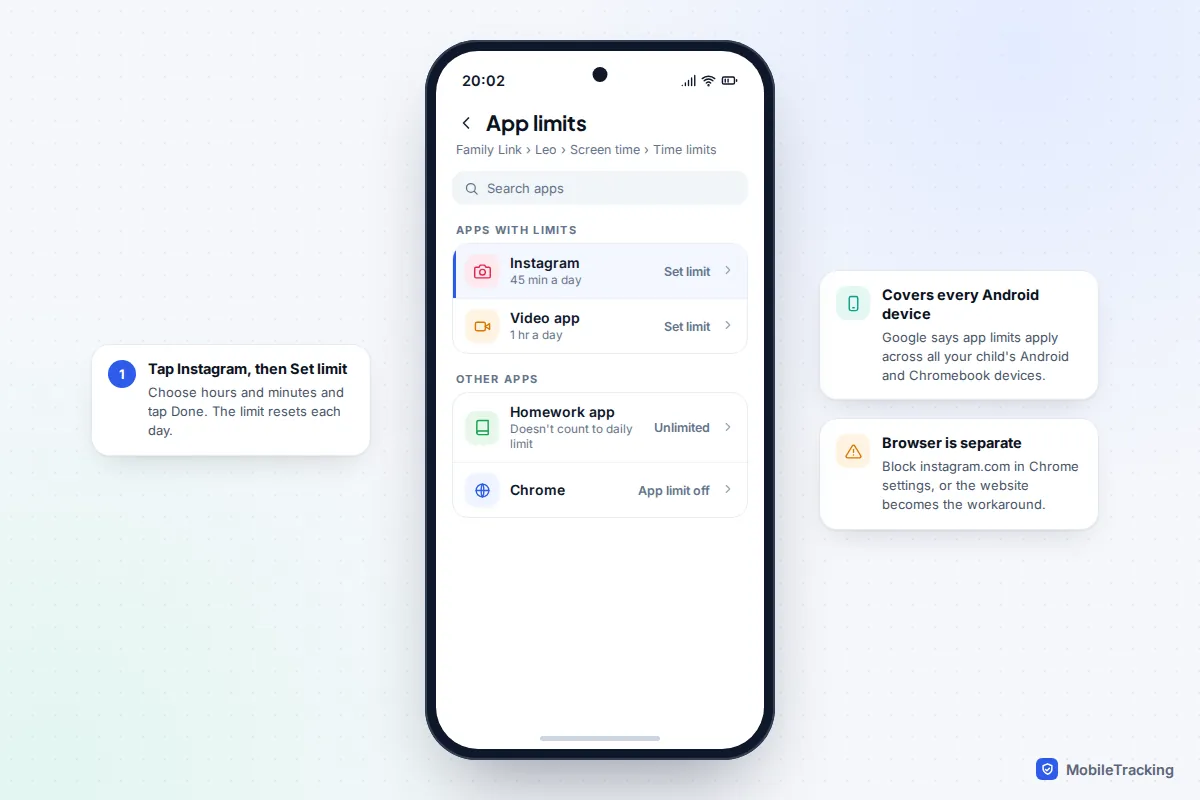
On Android phones, including Samsung Galaxy and Pixel, open Family Link, choose your child, then go to Screen time › Time limits › App limits. Tap Instagram, choose Set limit, pick the hours and minutes and tap Done. Google says app limits apply across all your child’s Android and Chromebook devices. They don’t cover the website, so block instagram.com in Family Link’s Chrome settings too.
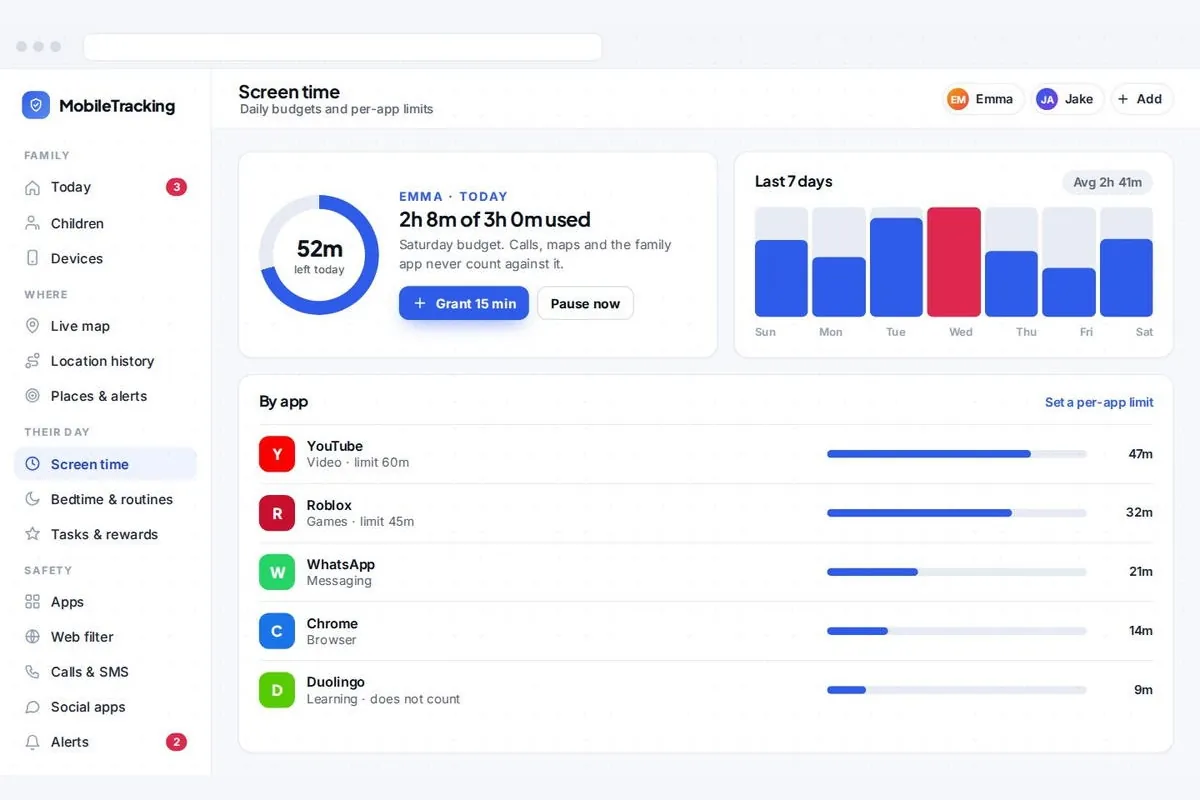
If you want per-app limits and a weekly view in one place for an Android phone, a transparent family app such as MobileTracking can set a daily budget and individual app limits. Its child app is visible on the phone and it doesn’t read messages.
Which option should you use?
The right mix depends on your teen’s age and what you are trying to fix. Late-night scrolling calls for something different from a general “too much Instagram” worry.
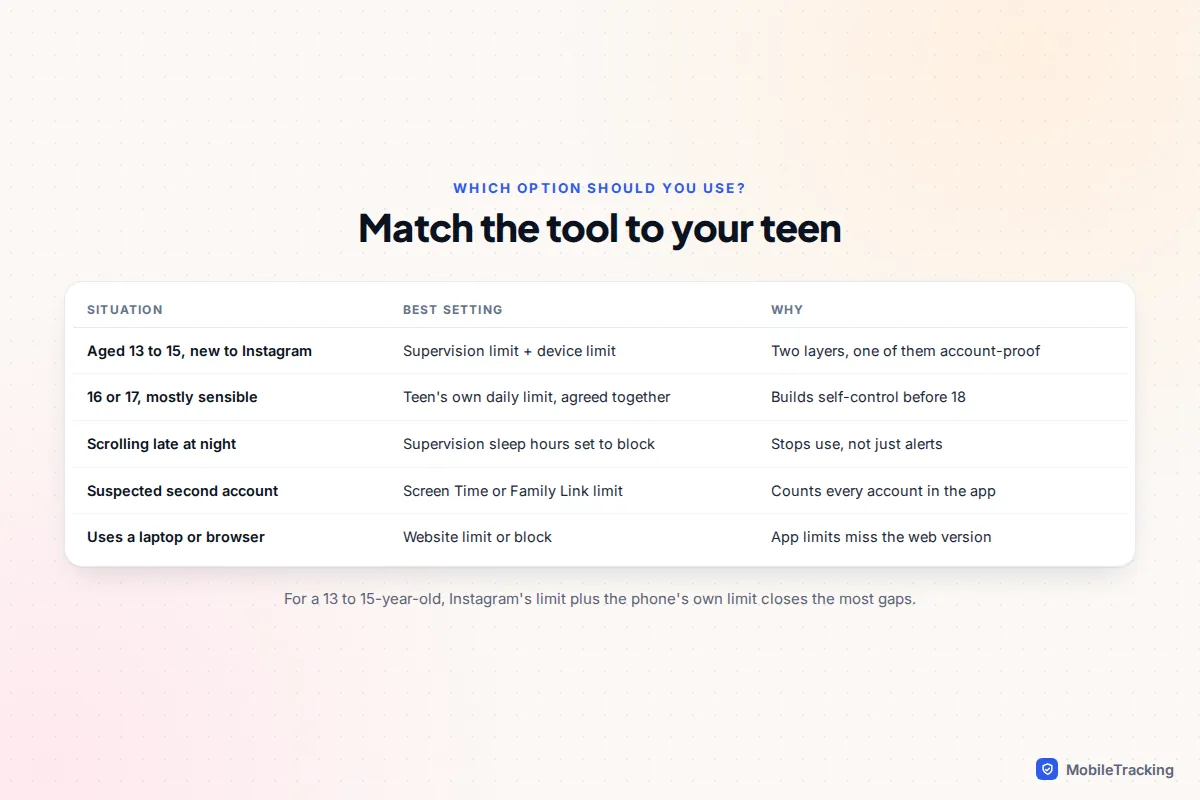
- 13 to 15 and new to Instagram: supervision with a daily limit and sleep hours set to block, plus a device limit as backup.
- 16 or 17: consider stepping back. Agree a number and let them set their own daily limit in Time management, with supervision for visibility rather than control. They will be managing this alone at 18.
- The problem is night-time: start with sleep hours, and charge phones outside the bedroom. That one habit often does more than any daily limit.
The honest limits of any Instagram time limit
No setting is watertight, and it helps to know the gaps before your teen finds them.
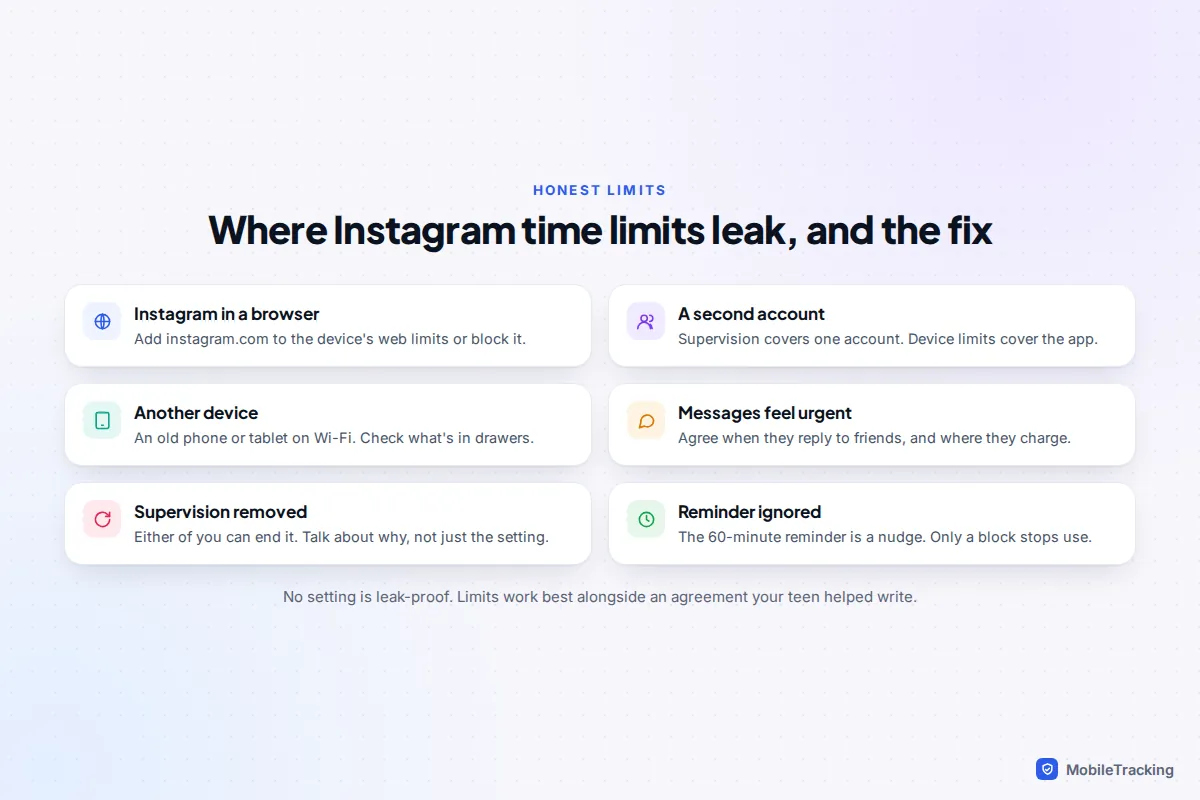
- The web version. Instagram works in any browser. Meta doesn’t clearly document whether supervision limits apply there, so cover instagram.com with the device’s web settings.
- Second accounts. Many teens have more than one account, often a private “finsta” for close friends. Supervision covers the account you supervise; a device limit covers the app whichever account is open.
- Other devices. An old phone, a tablet or a school laptop on your Wi-Fi sidesteps limits on the main phone. Your router’s schedules can help here.
- Ending supervision. Either of you can remove supervision. Treat that as a signal to talk, not just a setting to switch back on.
Talking with your teen about the limit
Limits last when teens understand them and had a say. Take Maya, 14, who averages 90 minutes a day and spends most of it late at night. Her parents showed her the weekly average, explained they were worried about sleep, and asked what felt fair. They agreed on 60 minutes a day, Instagram blocked from 9:30pm, and a review after two weeks. At the review, Maya asked for an extra 30 minutes at weekends, and got it, because the school-night rule had held.
A few things help:
- Lead with the reason (sleep, homework, mood) rather than the rule.
- Ask what they like about Instagram. Messaging friends is different from an hour of Reels, and the limit can reflect that.
- Agree what happens for school projects or special events, so exceptions don’t become arguments.
- Write the result into a short family media agreement and set a review date.
Our Instagram safety guide for parents covers the other Teen Account settings worth reviewing together, including messages, sensitive content and who can tag your teen.
Frequently asked questions
Can my teen turn off Instagram’s 60-minute reminder?
Teens under 16 need a parent’s permission to make Teen Account settings less strict, and 16 and 17-year-olds can change them unless you supervise. Either way, the reminder is only a notification. If you want Instagram to stop working after a set time, set a daily limit through supervision and choose to block access.
Does Sleep mode stop my teen using Instagram at night?
Not by default. Sleep mode mutes notifications and auto-replies to messages from 10pm to 7am. To block the app overnight, turn on sleep hours in supervision with block selected, or use Screen Time or Family Link downtime.
Will my teen know I set a time limit?
Yes. Supervision needs your teen’s agreement, they can see it is active, and they are told when a limit is reached. Device limits on iPhone and Android also show a message when time runs out.
Do Instagram limits work if my teen has two accounts?
Supervision limits apply to the supervised account only. A second account needs its own supervision, or a device-level limit on the Instagram app, which counts time whichever account is signed in.
What is a reasonable daily limit on Instagram for a teenager?
There is no official figure. Start close to what your teen uses now, step it down gradually, and protect sleep first. If you want a number to start from, try 45 to 60 minutes on school days with a little more at weekends, and review it every term.
This guide is general information, not legal or financial advice. Read our editorial policy.