
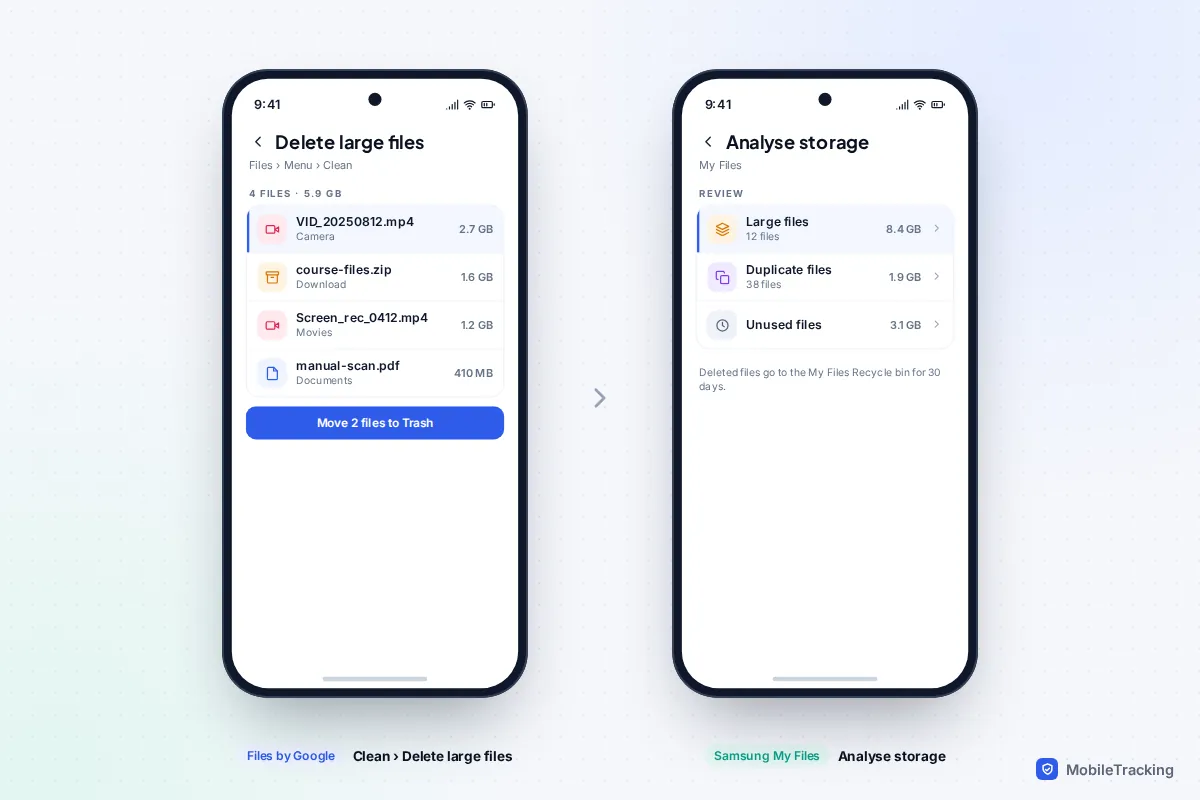
To find the biggest individual files on an iPhone, open the Files app, go to Browse › On My iPhone, tap the ••• button and sort by Size, then check the review lists in Settings › General › iPhone Storage, such as Review Large Attachments under Messages. On Android, open Files by Google and use the Delete large files card in Clean; on a Samsung Galaxy, open My Files and tap Analyse storage (Analyze storage in US English), then Large files. Those tools list single files biggest first, so you can see exactly what you would lose before you delete it.
One thing surprises most people: neither the iPhone Photos app nor Google Photos can sort your library by file size, even on iOS 27. This guide covers the workarounds, the large files hidden inside apps, and a checklist for deleting safely. If you first want to know which category is eating your space, read how to find out what’s using your storage; for a full clear-out routine, see how to free up storage on your phone. This page is the targeted hunt.
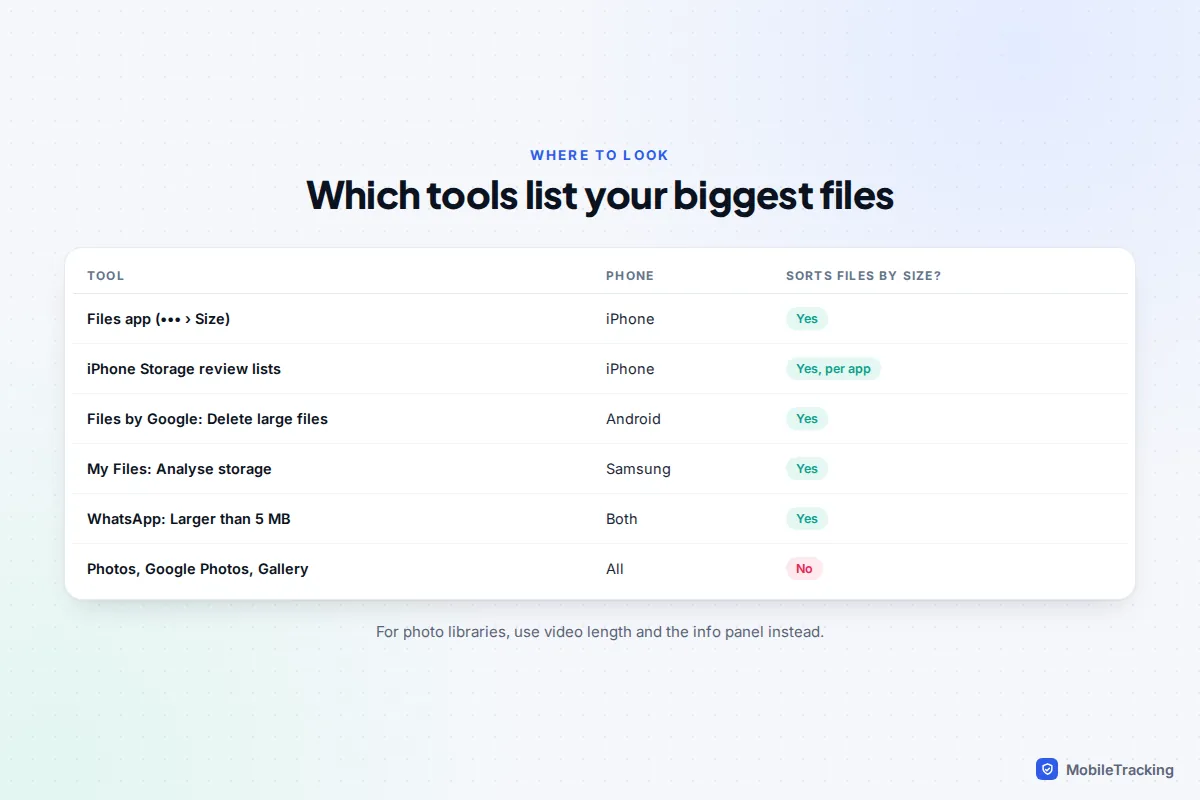
iPhone: sort the Files app by size
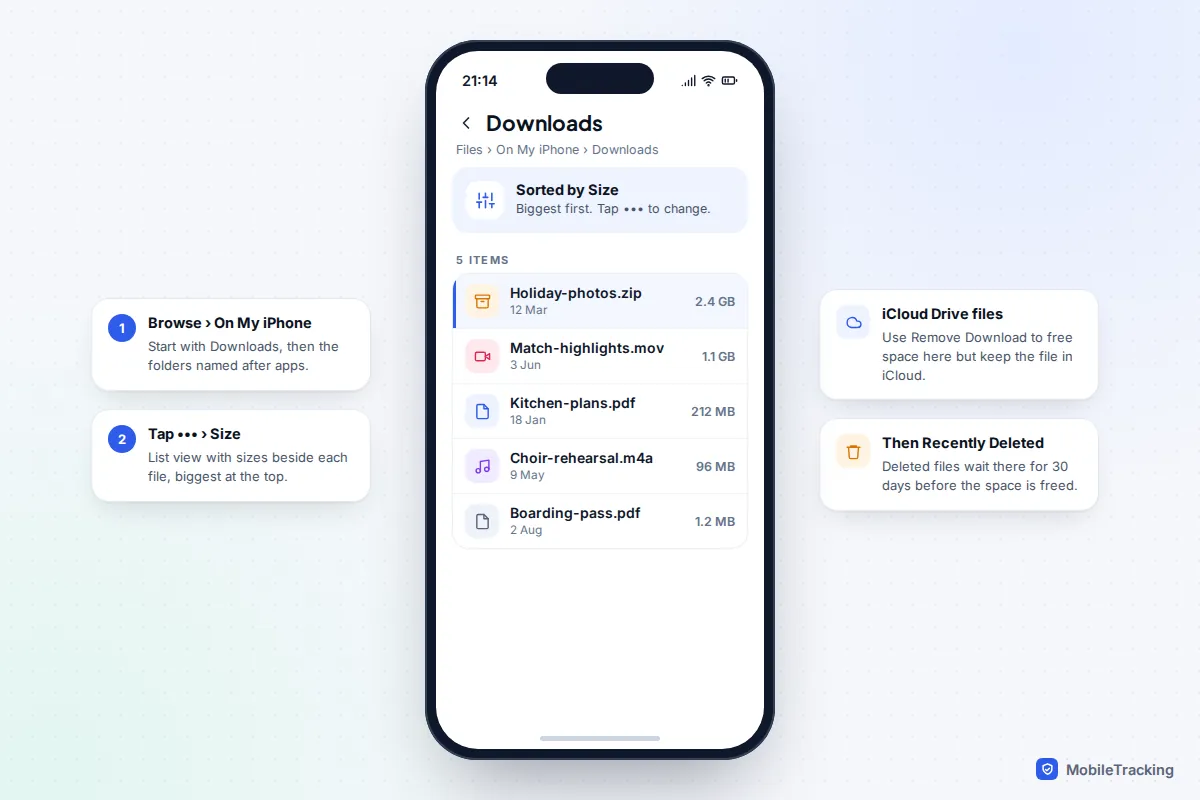
The Files app is the only place on an iPhone where you can see ordinary files lined up by size. It covers downloads, documents, zip files, audio exports and videos saved from other apps, but not your photo library.
- Open Files and tap Browse at the bottom.
- Tap On My iPhone and open the Downloads folder, then the folders named after apps. Safari may save downloads to a Downloads folder in iCloud Drive instead, depending on Settings › Apps › Safari › Downloads, so check that one too.
- Tap the ••• button at the top right, choose list view, and sort by Size. The biggest files move to the top, with their sizes shown beside them.
- To check any single item, touch and hold it and tap Get Info.
- Delete what you don’t need by touching and holding it and tapping Delete.
Two details trip people up. First, deleted files go to Browse › Recently Deleted and still take up space until that folder is emptied or 30 days pass. Second, files in iCloud Drive are different: deleting one removes it from iCloud and every device signed in to your Apple Account. If you only want the space back on this iPhone, touch and hold the file and choose Remove Download instead. It stays safely in iCloud and downloads again when you open it.
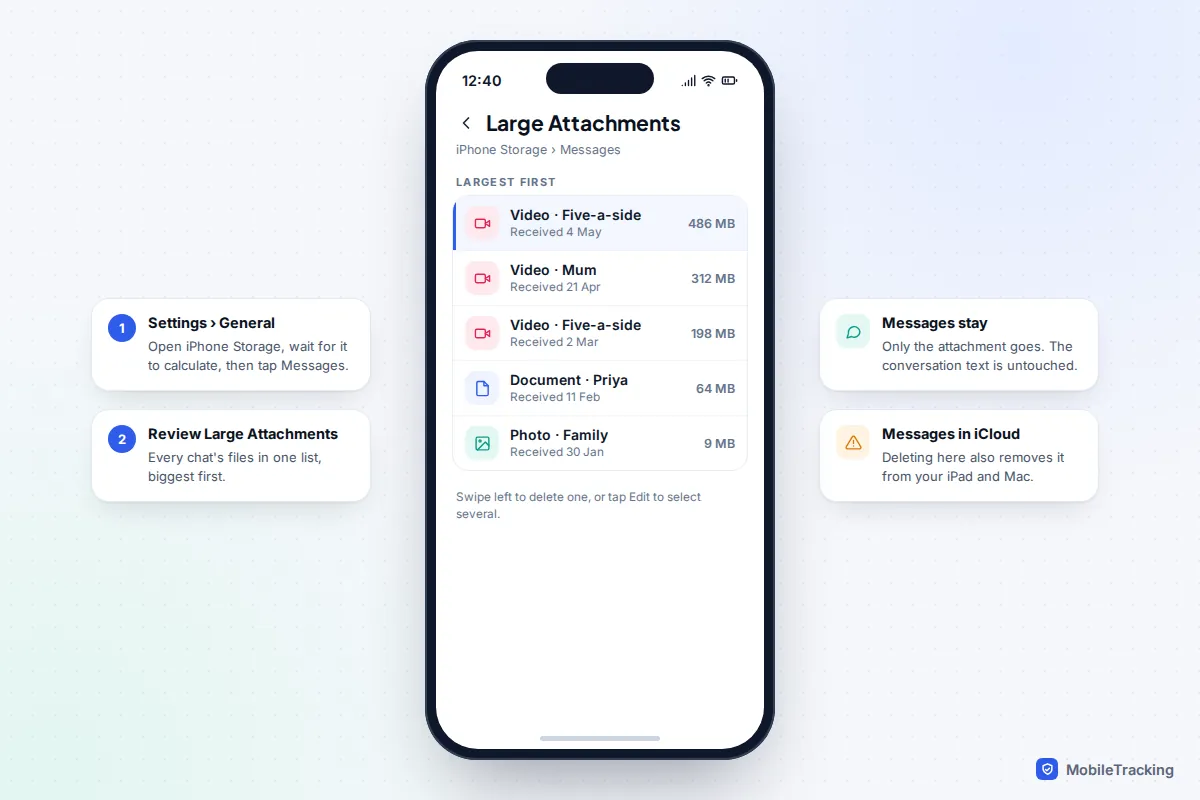
iPhone: the review lists hidden in iPhone Storage
Apps that store big media don’t show it in Files, but several of them have a size-sorted list inside Settings › General › iPhone Storage. Wait for the screen to finish calculating, then look for these:
- Messages › Review Large Attachments. Every photo, video and file from all your conversations in one list, largest first. Swipe left on one to delete it, or tap Edit to select several. The message text stays; only the attachment goes.
- Review Downloaded Videos (or Review Downloaded Media). This recommendation appears only when apps such as Apple TV, Fitness or some streaming apps have saved films or episodes. Swipe to delete, or use Edit for a batch.
- Music. Go to Settings › Apps › Music › Downloaded Music to see how much each downloaded artist or album uses, and swipe left to remove one. With an Apple Music subscription, it stays in your library to stream later.
- Podcasts. Tap Podcasts in iPhone Storage to see downloaded episodes by show. Old downloads of long shows add up quickly.
With Messages in iCloud turned on, deleting an attachment also removes it from your iPad and Mac, so save anything precious to Photos first.
Photos and videos: why you can’t sort by size, and what works instead
Apple Photos has no size sort. iOS 26 and iOS 27 both reworked parts of the Photos app, but you still can’t list photos or videos by how much space they use. Google Photos and Samsung Gallery can’t either. As videos are almost always the biggest items, the workarounds focus on them.
On iPhone
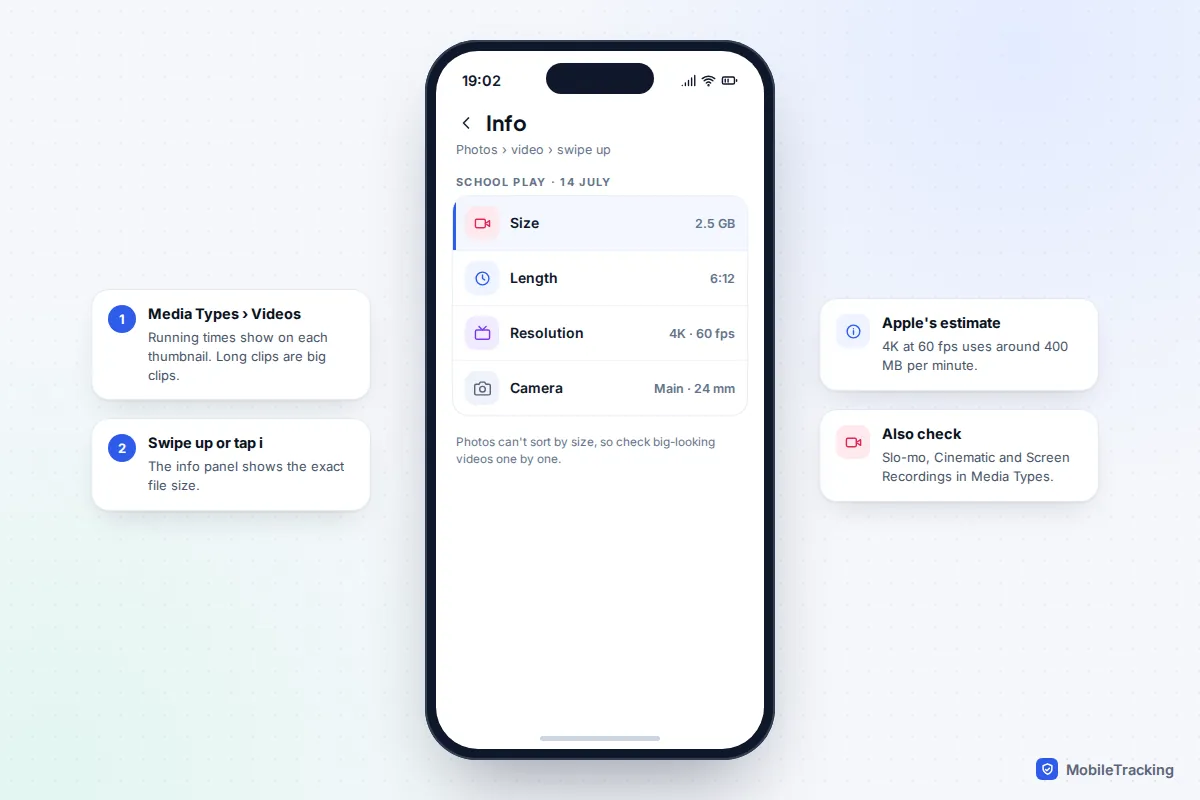
- Open Collections › Media Types › Videos. Every thumbnail shows its running time, and length is a good guide to size. Anything over a few minutes is worth a look.
- Check the special formats. Media Types also lists Slo-mo, Cinematic and Screen Recordings. Slow-motion and 4K clips are heavy for their length, and a forgotten 20-minute screen recording can outweigh a month of photos.
- Check the exact size. Open a video and swipe up, or tap the i button. The information panel shows its resolution and file size.
For scale, Apple’s own estimate in Settings › Camera › Record Video puts one minute of 4K at 60 frames per second at around 400 MB. So a six-minute clip of a school concert filmed at that setting is well over 2 GB.
App Store apps that do sort your library by size exist, but they need full access to all your photos. If you try one, choose a well-reviewed app with a clear privacy policy, and remove its access afterwards in Settings › Privacy & Security › Photos.
On Android
Go around the photo app. In Files by Google, tap Browse, open Videos and use the sort option to show the largest first. On a Samsung, open My Files › Videos and sort by Size. Deleting from a file manager removes the phone’s copy; if the video is also backed up to Google Photos, the cloud copy may remain until you delete that too.
Android: Files by Google and Samsung My Files
Android is better at this than iPhone because its file managers can see almost everything stored on the phone.
Files by Google (Pixel and most Android phones)
- Open Files by Google, tap Menu (or the Clean tab on some versions), then Clean.
- On the Delete large files card, tap Select files. The list shows each file’s size.
- Tick what you don’t need and tap Move to Trash, then confirm.
Files moved to the app’s Trash can be restored for a while, then are deleted automatically. The card only appears when the app finds files it considers large, so if you don’t see it, use Browse and sort each category, such as Downloads, Videos and Documents, by size.
Samsung Galaxy
- Open My Files (it’s often in a Samsung folder on the home screen).
- Scroll down and tap Analyse storage. Samsung shows duplicate files, large files and unused files.
- Tap Large files, select what you don’t need and tap Delete.
Deleted items go to the My Files Recycle bin, where they stay for 30 days unless you empty it. The same large-files list is also reachable from Settings › Device care › Storage.
Big files hiding inside apps
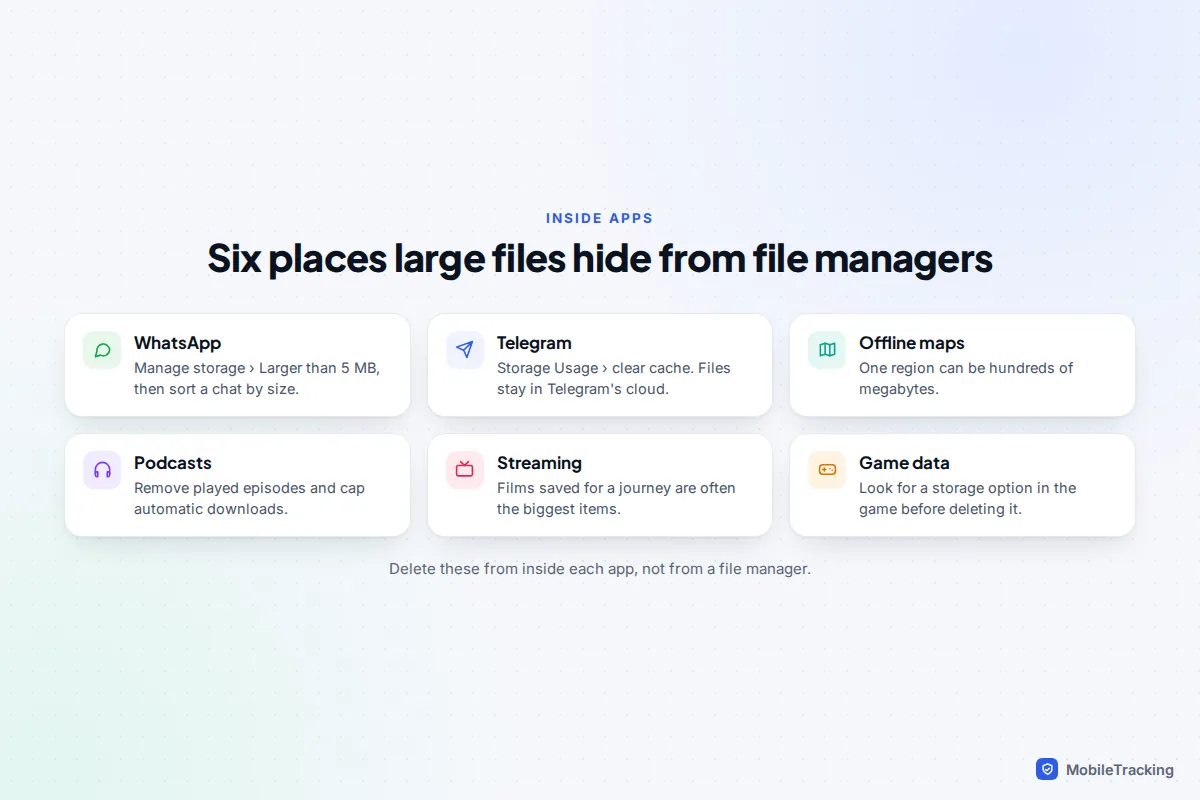
Many of the largest files on a phone never appear in a file manager at all, because apps keep them in their own private storage. You have to delete them from inside each app.
- WhatsApp. Go to Settings › Storage and data › Manage storage and tap Larger than 5 MB for the biggest files across every chat. Opening a chat from the list below lets you sort its media so the largest come first. Make sure you back up your WhatsApp chats before a big clear-out.
- Telegram. Open Settings › Data and Storage › Storage Usage. Because Telegram keeps your chats in its cloud, clearing the cache removes the phone’s copies but keeps the files available to download again. The Keep Media setting there stops the cache growing back.
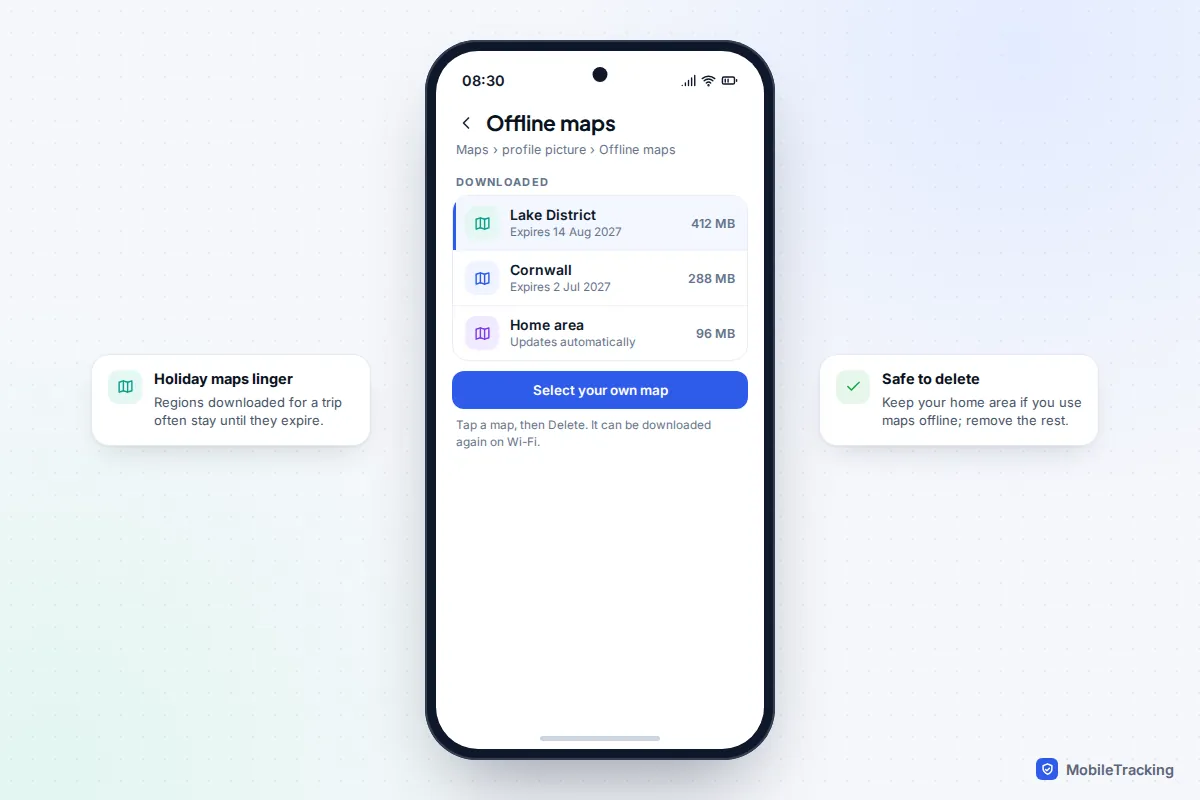
- Offline maps. In Google Maps, tap your profile picture, then Offline maps. In Apple Maps, tap your picture or initials, then Offline Maps. A single region can run to hundreds of megabytes, and maps from last summer’s holiday are often still there.
- Podcasts and audiobooks. Delete played episodes from the app’s downloads list and turn on automatic removal of played episodes where the app offers it.
- Streaming downloads. Netflix, Disney+, Spotify and YouTube keep downloads in their own Downloads pages. Films downloaded for a journey are among the biggest single items on a phone.
- Game data. Big games often download extra content after installing, such as voice packs or high-resolution graphics. Look in the game’s own settings for a storage or resources option before deleting the whole game, which can also delete progress that isn’t linked to an account.
The safe-delete checklist
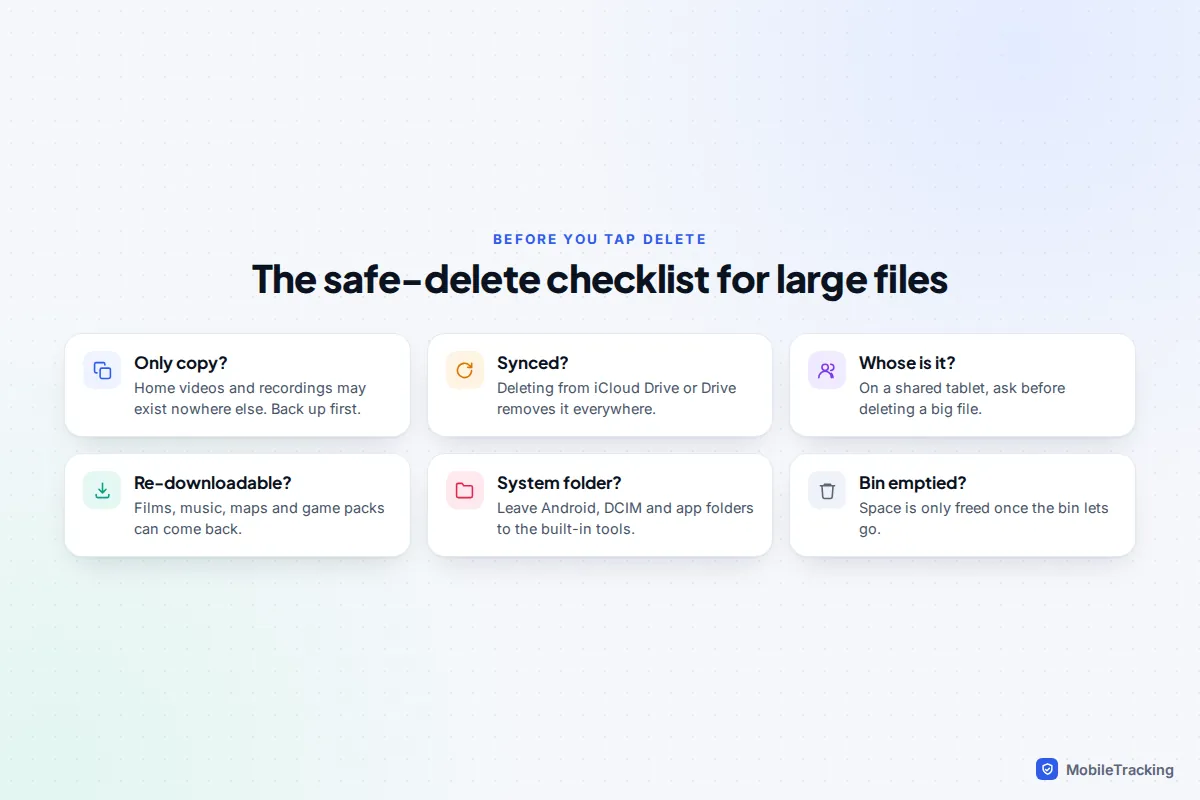
A large file is not the same as an unwanted file. Before you delete anything you can’t download again, run through these questions:
- Is this the only copy? Home videos, voice recordings and documents often exist nowhere else. Check your backup before deleting.
- Is it synced? Deleting from iCloud Drive, Google Drive or a synced folder deletes it everywhere. Use Remove Download on iPhone, or delete only the phone’s copy.
- Whose is it? On a shared family tablet, the 3 GB video might be someone else’s project. Ask first.
- Can it come back? Films, music, maps, podcasts and game packs can be downloaded again, so delete them freely.
- Is the file manager guessing? Don’t delete folders called Android, DCIM or anything named after an app from inside a file manager. Use the app or the Clean and Analyse storage tools, which know what’s safe.
- Have you emptied the bin? Files, Files by Google and Samsung My Files all keep deleted items for a while. Empty the bin only once you’re sure; our guide to emptying Recently Deleted safely covers each one.
A real-world hunt, and the mistakes to avoid
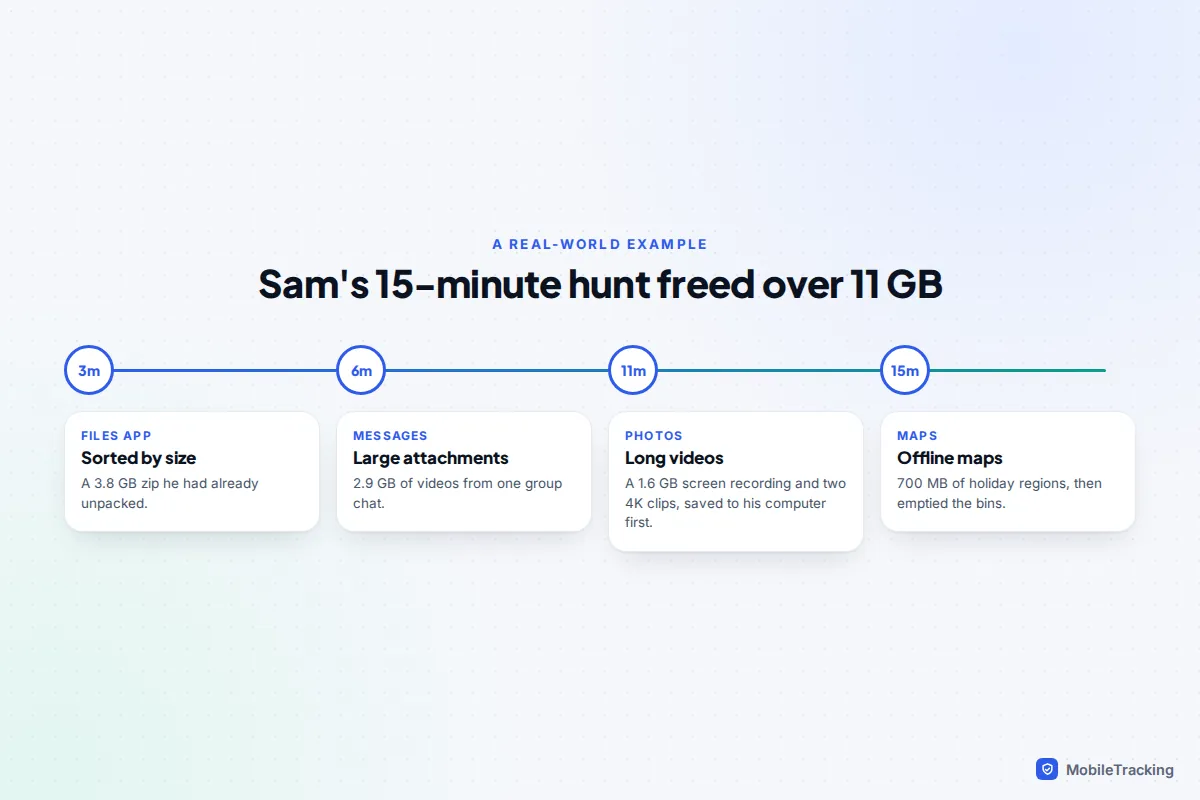
Sam’s 128 GB iPhone kept warning that storage was almost full, yet his camera roll was only a few thousand photos. Sorting the Files app by size turned up a 3.8 GB zip of wedding photos he’d already unpacked, so that went first. Review Large Attachments showed 2.9 GB of videos from a five-a-side group in Messages. In Photos, Media Types › Screen Recordings held a 26-minute gameplay recording at 1.6 GB, and two 4K clips from a school play turned out to be 2.4 GB between them; those he moved to his computer before deleting. Offline maps of a holiday region were another 700 MB. About 15 minutes later he had over 11 GB back, and nothing he wanted was gone.
The mistakes that cost people files, or waste their time:
- Deleting from iCloud Drive to save phone space. It removes the file from every device. Remove Download is what you wanted.
- Trusting a “cleaner” app’s one-tap button. On iPhone these apps can’t see other apps’ files, and on Android they repeat the built-in tools with added adverts.
- Forgetting the bins. Nothing is freed until Recently Deleted, Trash or the Recycle bin lets go of the files.
- Deleting a game to clear its downloads. Check for an in-game storage option and make sure progress is linked to an account first.
If you need to keep big videos but not on the phone, see our guide to transferring photos from phone to computer.
Frequently asked questions
Can I sort photos by size on iPhone?
No. Apple Photos has no size sort in iOS 26 or iOS 27. Use Media Types › Videos and look at the running times, check individual sizes in the information panel, or use a trusted third-party app that sorts by size.
What counts as a large file?
There’s no fixed rule, and each tool picks its own threshold: WhatsApp’s list starts at 5 MB, for example. In practice, the files worth your time are anything over about 100 MB, because a few of those free more space than hundreds of small ones.
Why don’t I see the Delete large files card in Files by Google?
The card only appears when the app finds files it considers large. Open Browse instead, choose a category such as Videos or Downloads, and sort by size.
Will deleting a large file from WhatsApp delete it for everyone?
No. Deleting media from Manage storage removes it only from your phone. The people in the chat keep their copies, and the message text stays in your chat.
I deleted big files but my free space didn’t change. Why?
They’re probably in a bin: Recently Deleted in Files or Photos, Trash in Files by Google or the Samsung Recycle bin. Empty it once you’re sure, then give the storage screen a minute to recalculate.
This guide is general information, not legal or financial advice. Read our editorial policy.