
On an iPhone, open Settings › General › iPhone Storage. On a Pixel or most other Android phones, open Settings › Storage. On a Samsung Galaxy, open Settings › Device care › Storage (called Battery and device care on phones older than One UI 7). Give the screen a minute to finish calculating, then look at the top three items. In most phones they explain the bulk of the space: usually photos and videos, a messaging app full of media, and one app holding offline downloads.
The trick is reading the numbers correctly. An app that looks huge is often small itself but holding gigabytes of your chats or downloads, and the mysterious System Data line is rarely the thing to chase first. This guide shows where to look on each phone, what each figure really means, and a table of what you can delete safely.
Where to look on iPhone and Android
iPhone
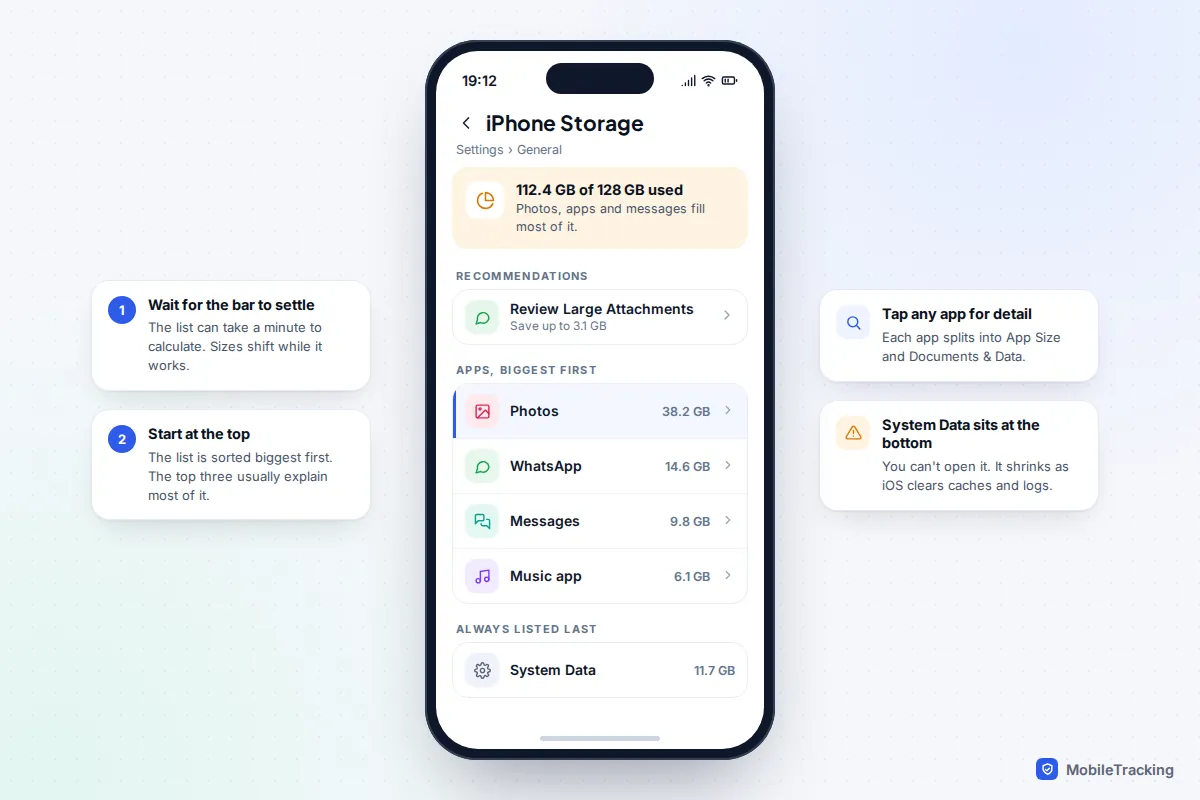
Go to Settings › General › iPhone Storage (iPad Storage on an iPad). A coloured bar at the top shows how much is used by apps, photos, media, iOS and System Data. Below it, Apple may show Recommendations, such as reviewing large Messages attachments or offloading apps you haven’t used in a while, each with an estimate of the space it would save. Under that is every app, sorted biggest first, with iOS and System Data listed last. The layout is the same on iOS 26 and iOS 27.
The recommendations change as the phone fills up, so check again after each clear-out. Apple’s guide to checking the storage on your iPhone covers the same screen.
Pixel and most Android phones
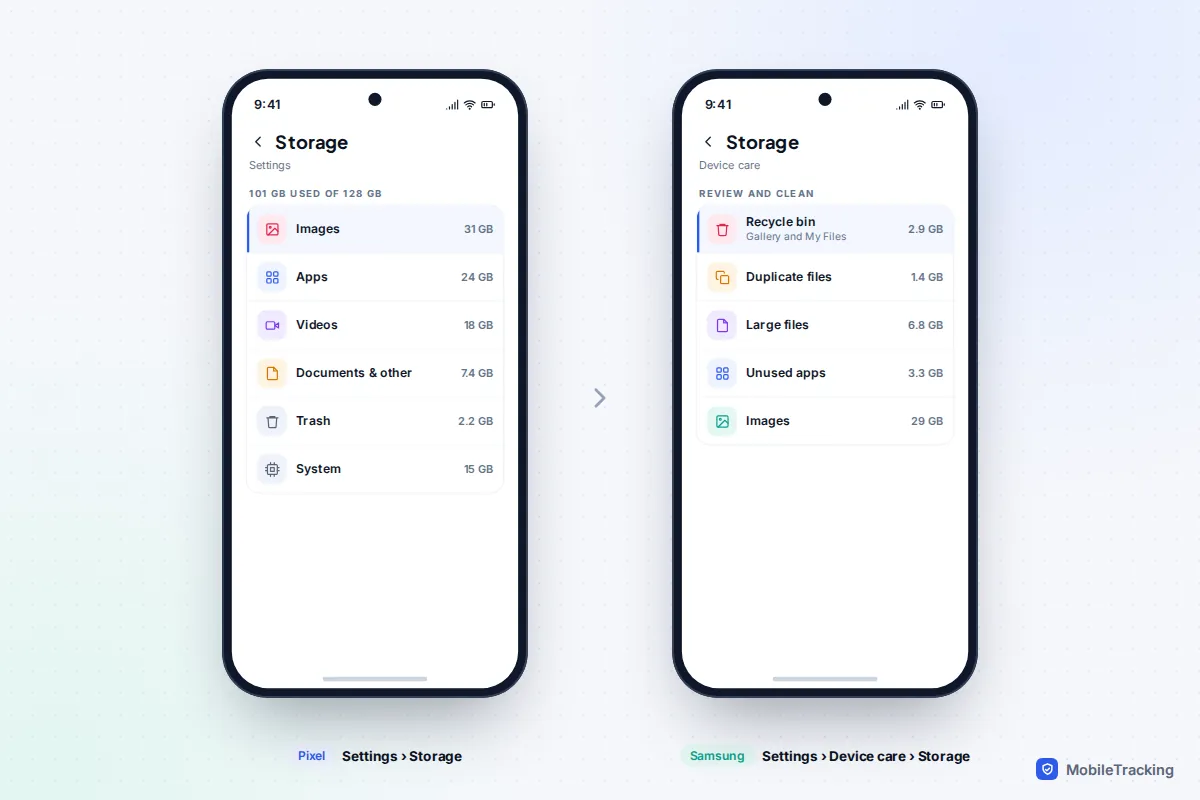
Open Settings › Storage. Instead of listing apps first, Android groups space into categories such as Images, Videos, Audio, Apps, Documents & other, Trash and System. Tap a category to see inside it; under Apps you can sort by size. Names vary slightly by version and maker.
Samsung Galaxy
Samsung’s storage screen lives in Settings › Device care › Storage. Besides the categories, it adds shortcuts to review Recycle bin, Duplicate files, Large files and Unused apps. The Recycle bin line is worth checking first: Gallery and My Files each keep deleted items for 30 days, and those files still count against your storage.
How to read the numbers correctly
Storage screens are accurate but easy to misread.
- Your phone never has its full advertised capacity free. A 128 GB phone reserves part of that for the operating system before you install anything, so the usable total is always lower.
- The numbers keep moving for a minute. Both iPhone and Android scan the storage when you open the screen. If you read the bar straight away, sizes can jump around. Wait until the list stops changing.
- Deleting doesn’t free space immediately. Photos go to Recently Deleted on iPhone for 30 days, Google Photos keeps backed-up items in Trash for 60 days (30 days if they weren’t backed up), and Android’s system Trash holds deleted files for 30 days. Until those are emptied, the space stays used.
- Cloud storage is separate. “iCloud storage full” is about your online account, not the phone.
App Size versus Documents & Data
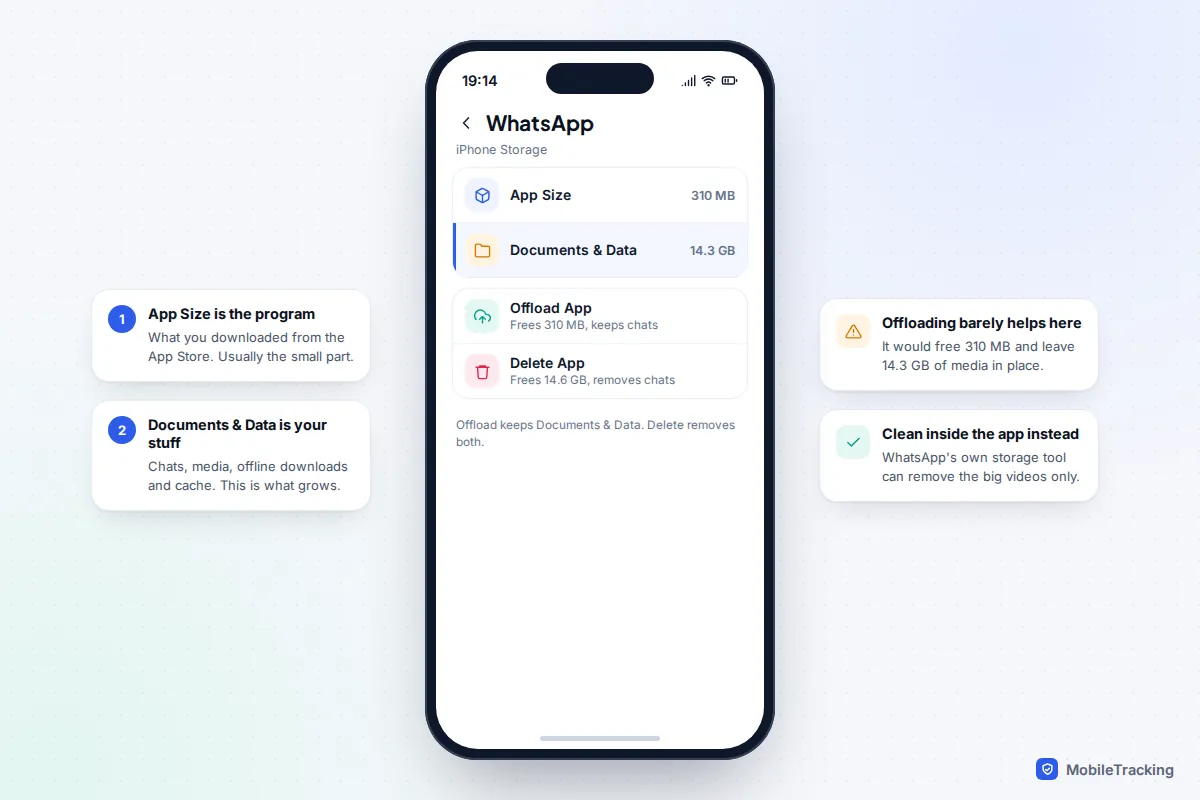
Tap any app in iPhone Storage and you’ll see two lines. App Size is the app itself, the program you downloaded from the App Store. Documents & Data is everything the app has stored since: chats, photos and videos people sent you, offline music or films, saved files and cache. On Android, the same split appears when you open Settings › Apps, tap the app, then Storage & cache (just Storage on Samsung), where you’ll see App size, User data and Cache.
This split tells you what to do. If App Size is the big number, offloading or deleting the app helps. If Documents & Data is the big number, which it usually is for WhatsApp, Spotify, Netflix or Podcasts, you’ll free far more by cleaning up inside the app.
What Offload App actually does
Offload App removes the app but keeps its Documents & Data, and leaves the icon on your Home Screen with a small cloud symbol. Tap the icon and the app downloads again with everything as you left it, as long as it’s still available in the App Store. You can offload one app from its page in iPhone Storage, or let iOS do it automatically with Settings › Apps › App Store › Offload Unused Apps. Android 15 and later has the same idea, called Archive: open Settings › Apps, tap the app, then Archive.
System Data, “Other” and Android’s System line
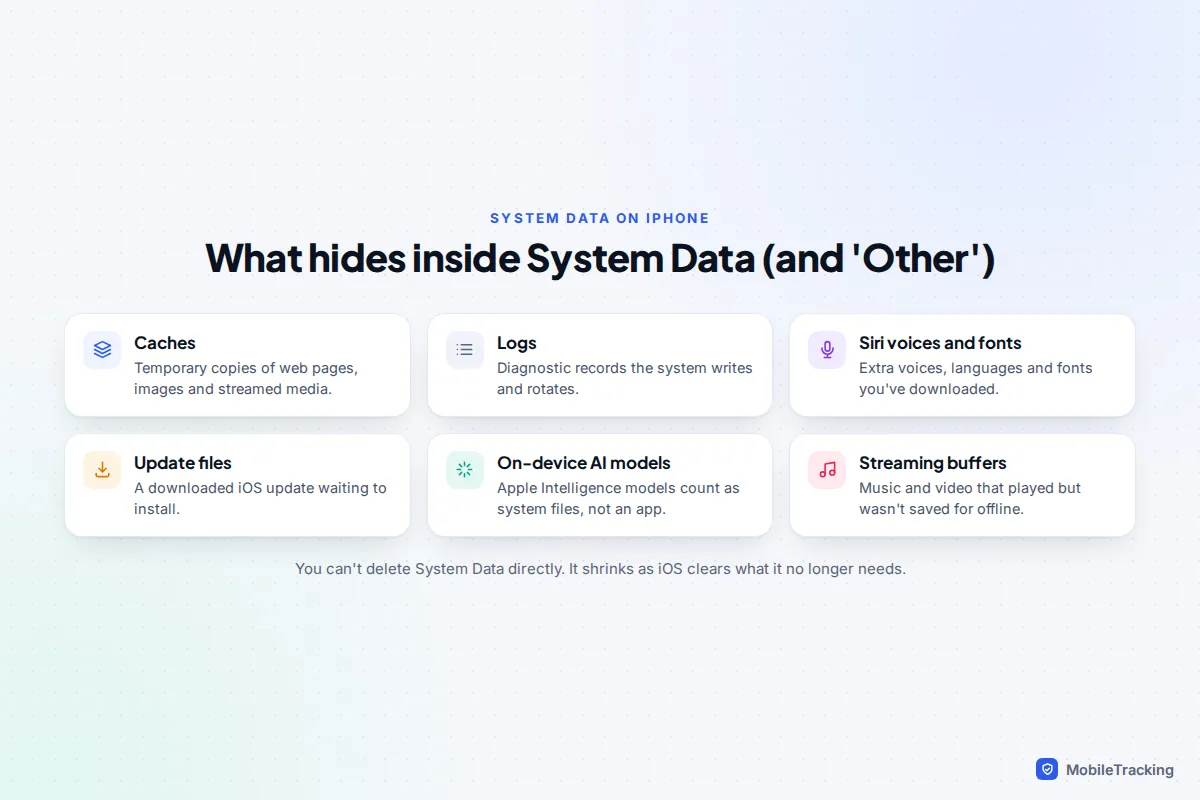
System Data is what older versions of iOS called Other. Apple describes it as caches, logs and other resources in use by the system. In practice it includes temporary copies of web pages and streamed media, diagnostic logs, extra Siri voices and fonts, a downloaded iOS update waiting to install, and on phones that support it, Apple Intelligence’s on-device models. Those models need several gigabytes of free space, and Apple raised the requirement on some of the newest models with iOS 27. You can’t tap System Data to see inside it, and you can’t delete it directly.
It’s normal for System Data to run to several gigabytes and to change size from day to day. It usually shrinks on its own when the phone runs short of space, because iOS clears caches it no longer needs. If it stays very large, these steps help, roughly in order of effort:
- Restart the iPhone. Some temporary files are cleared at start-up.
- Clear Safari’s cache with Settings › Apps › Safari › Clear History and Website Data. This signs you out of websites.
- Set Settings › Apps › Messages › Keep Messages to 1 Year or 30 Days if you don’t need everything forever.
- Install any pending iOS update, so the downloaded update file is removed.
- If you don’t use Apple Intelligence, turn it off in Settings › Apple Intelligence & Siri; iOS can then remove the models when space is needed.
As a last resort, backing up, erasing and restoring the phone rebuilds System Data from scratch. Do everything else first.
Android’s System figure is simpler: it’s mainly the operating system itself, plus some temporary system files. There’s little you can do about it beyond keeping the phone updated.
Messaging apps: the usual hidden culprit
Every photo, video and voice note anyone sends you is stored on your phone, so a busy family group can reach several gigabytes on its own. WhatsApp and iMessage both have storage tools that beat deleting whole conversations.
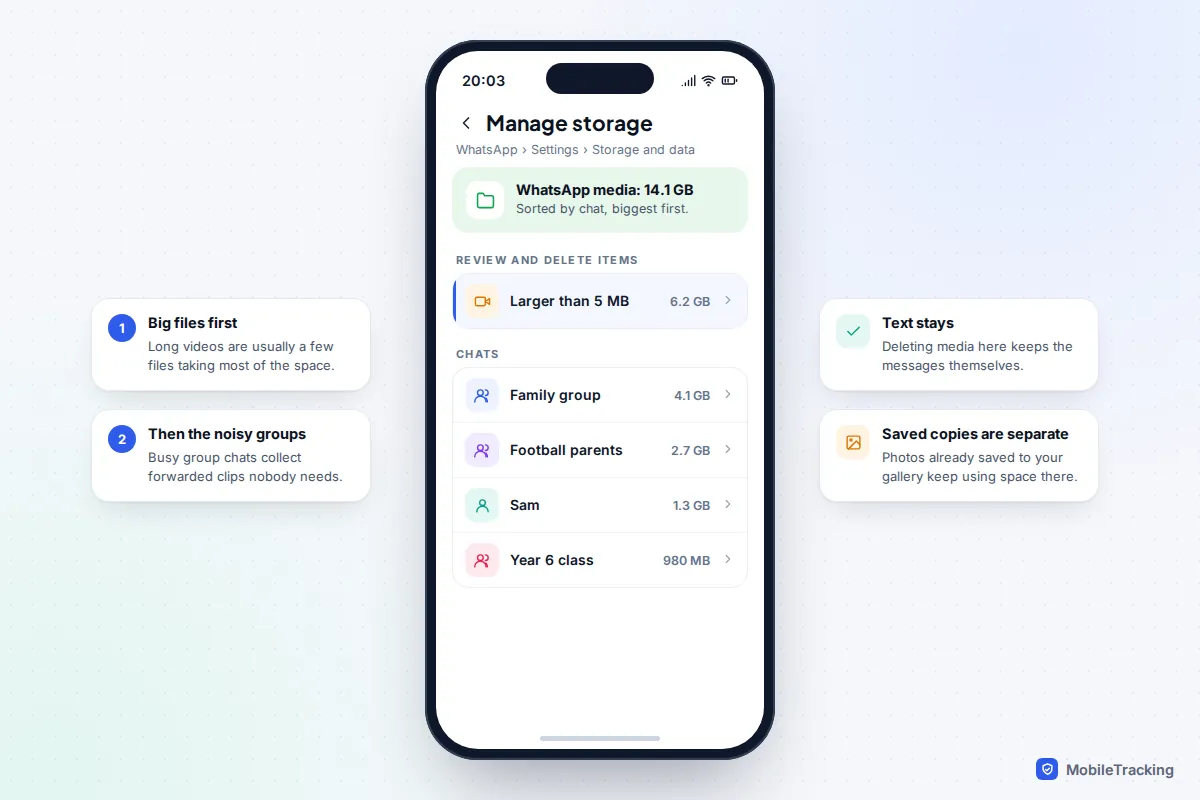
- Open WhatsApp, go to Settings › Storage and data › Manage storage.
- Tap Larger than 5 MB to see the biggest files, usually long videos. Select the ones you don’t need and tap the bin icon.
- Below that, chats are listed by how much media they hold. Open the biggest and delete the media you don’t want, sorted by newest, oldest or largest.
This removes the media but keeps the text of your conversations. On iPhone, photos you’ve already saved to your camera roll are separate copies and stay in Photos. To stop the problem coming back, open Storage and data and change Media auto-download so videos only download on Wi-Fi, or never. Before any big clear-out, it’s worth making sure you back up your WhatsApp chats.
Messages on iPhone
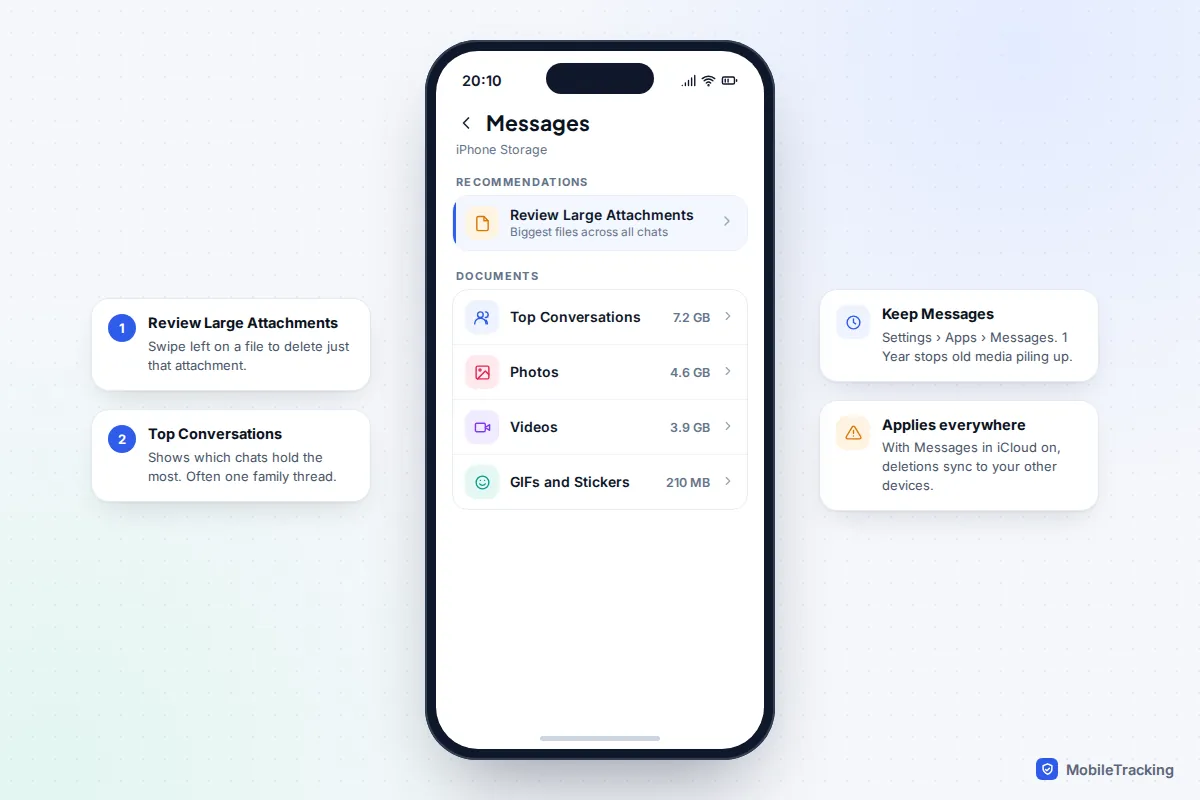
Go to Settings › General › iPhone Storage › Messages. Tap Review Large Attachments to see the biggest files across every conversation; swipe left on one to delete it, or tap Edit to select several. Below, Top Conversations shows which chats hold the most, and separate lines for Photos, Videos and GIFs and Stickers let you clear one type at a time.
If Messages in iCloud is turned on, deleting an attachment removes it from your other Apple devices too. That’s usually what you want, but save anything precious to Photos first.
Photos, videos, downloads and cache
Photos and videos
For most people this is the single biggest category. Video is the heaviest part: a few minutes of 4K at 60 frames per second can take more space than hundreds of photos. On iPhone, Settings › Camera › Record Video shows roughly how much a minute of video uses at each setting, which makes the difference easy to see.
If you use iCloud Photos, Settings › Apps › Photos › Optimise iPhone Storage keeps smaller versions on the phone and full-size originals in iCloud. We explain the trade-offs in our guide to turning on optimised photo storage. On Android, tap your profile picture in Google Photos and choose Free up space on this device, which removes local copies of items already backed up. Check that backup is actually complete first, and note that it keeps anything taken in the last 30 days on the phone.
Downloads
Files you download from a browser or email pile up unnoticed. On iPhone, open the Files app and go to Browse › On My iPhone › Downloads. On Android, open Files by Google or Samsung’s My Files and tap Downloads. If you can’t find something, our guide to finding a downloaded file on your phone covers every common location.
Offline media counts too: downloads in Netflix, Spotify, YouTube and Podcasts sit inside each app’s Documents & Data, and each app has its own downloads screen.
Cache
On Android, you can clear one app’s cache with Settings › Apps, the app, Storage & cache › Clear cache. This is safe: the app rebuilds it as needed. Clear storage (or Clear data on Samsung) is different: it resets the app completely, signing you out and deleting anything stored only on the phone. For the whole picture, see our step-by-step guide to clearing cache on Android. iPhone has no clear-cache button for individual apps; some apps, such as Spotify, offer one in their own settings.
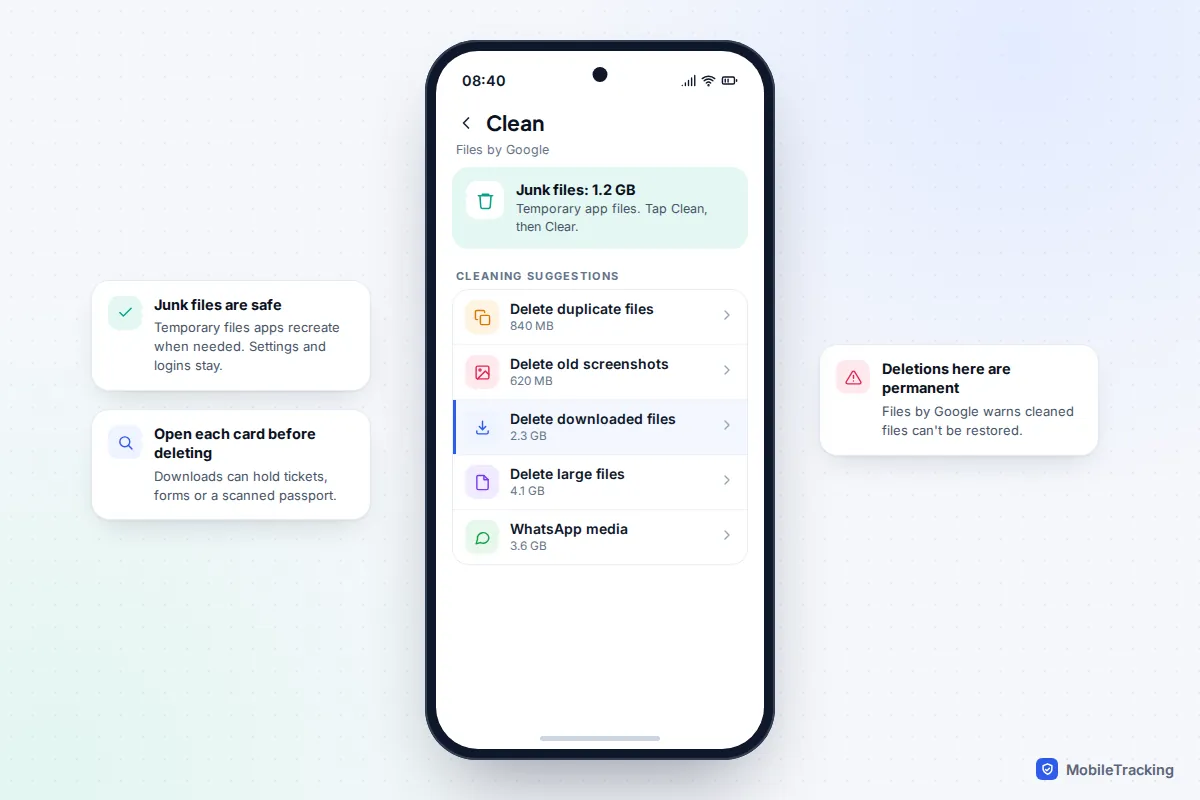
Files by Google also has a Clean tab. Its Junk files card removes temporary app files, and further cards suggest duplicates, old screenshots, downloads, large files and WhatsApp media. Google warns that anything deleted this way can’t be restored, so open each card and look before you tap delete.
What’s safe to delete: a decision table
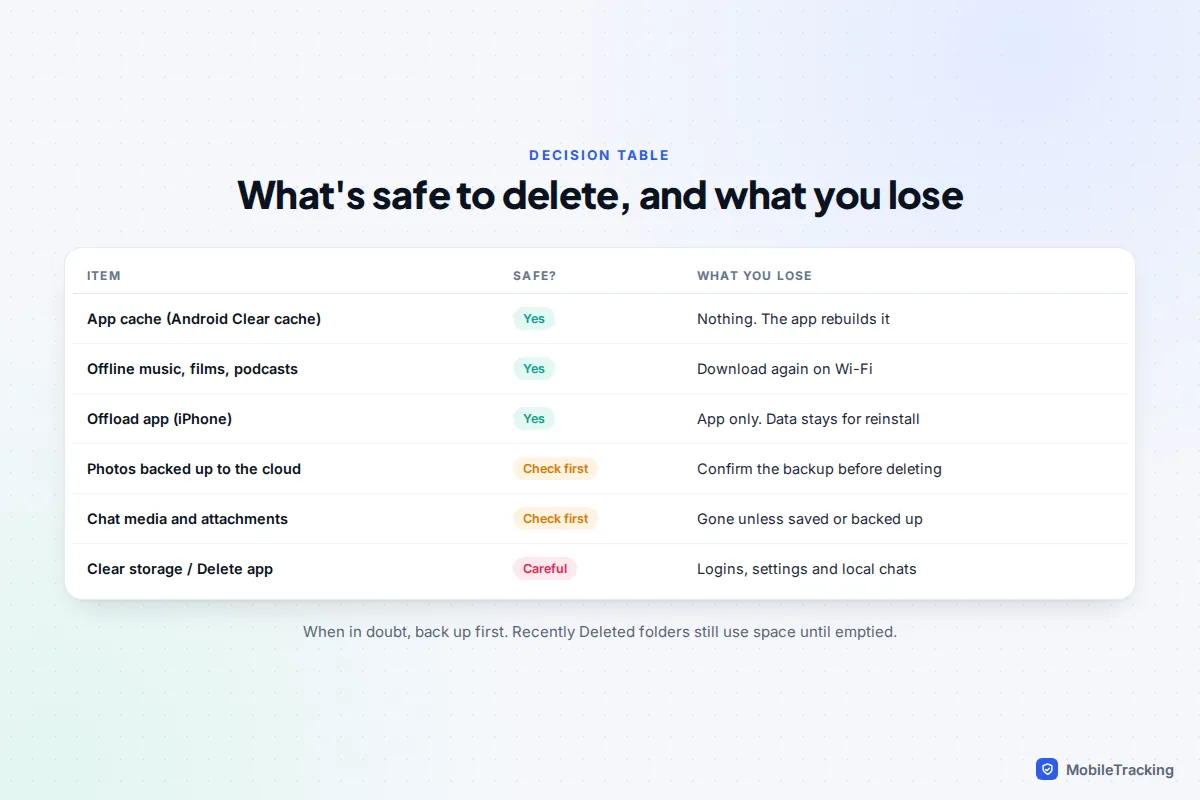
Before deleting, check what you lose.
| What you’re removing | Safe? | What happens |
|---|---|---|
| Android app cache (Clear cache) | Yes | Nothing you’ll notice. The app may load a little slower the first time. |
| Offline music, films and podcasts | Yes | You can download them again on Wi-Fi. |
| Offloading or archiving an app | Yes | The app goes; your data stays until you reinstall. |
| Safari or Chrome website data | Mostly | You’ll be signed out of websites. |
| Photos and videos | Check first | Only safe if they’re backed up or you really don’t want them. |
| Chat media and attachments | Check first | Gone for good unless saved elsewhere or in a chat backup. |
| Clear storage / Clear data, or deleting an app | Careful | Resets the app. Chats, game progress and logins stored only on the phone are lost. |
| Recently Deleted, Trash or Recycle bin | Last step | Frees the space, but you lose the chance to undo a mistake. |
A real-world example and common mistakes
Leah’s 128 GB iPhone wouldn’t install an update. iPhone Storage showed Photos at 38 GB, WhatsApp at 14.6 GB and System Data at nearly 12 GB. Rather than chase System Data, she opened WhatsApp’s Manage storage, deleted 6 GB of forwarded videos from two group chats, reviewed large attachments in Messages, and removed a series she’d downloaded for a flight months earlier. Twenty minutes later she had 15 GB free, the update installed, and System Data shrank by itself afterwards.
The mistakes people make are nearly always the same:
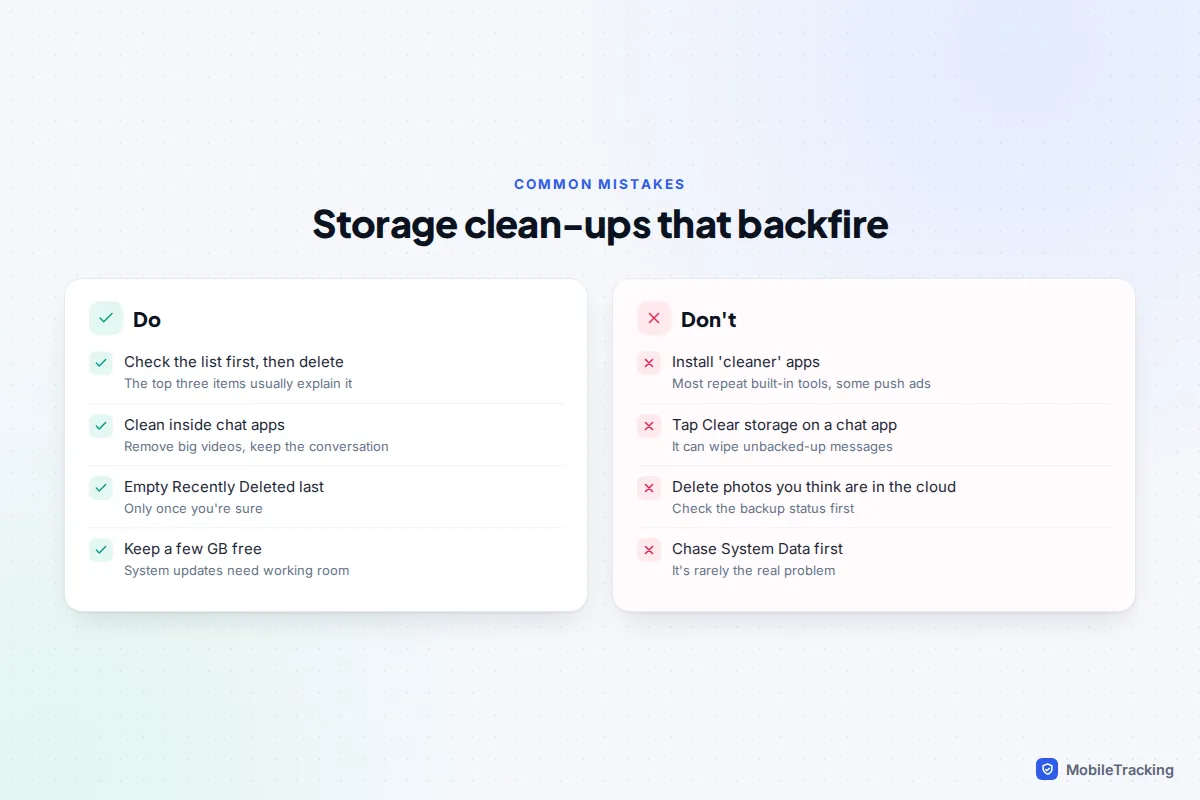
- Installing a cleaner app. Most repeat what’s built into your phone, some are packed with adverts, and none can reach iPhone system files.
- Tapping Clear storage on a chat app. On Android this can wipe messages that were never backed up.
- Deleting photos that “must be in the cloud”. Check the backup status in Photos or Google Photos first.
- Running the phone completely full. Updates, photos and apps all need working room, and a full phone gets sluggish. For more on that, see our guide to fixing “Storage Almost Full” on iPhone.
Frequently asked questions
Why does my storage say full when I’ve deleted lots of photos?
Deleted photos move to Recently Deleted on iPhone, or Trash in Google Photos and the Samsung Gallery Recycle bin, and still take up space. Empty those folders once you’re sure, then give the storage screen a minute to recalculate.
Is it safe to delete System Data?
You can’t delete it directly, and you don’t need to. It’s mostly caches and logs that iOS clears when space runs low. Restarting, clearing Safari data, shortening how long Messages are kept and installing pending updates all help it shrink.
Should I offload apps or delete them?
Offload (or Archive on Android) if you’ll want the app again, because your data stays on the phone and comes back when you reinstall. Delete it if you’re done with it, and remember that deleting removes its data too.
Why does my iPhone Storage total not match what Photos says?
The Photos line in iPhone Storage includes items still in Recently Deleted, while the Photos app counts only the pictures and videos you can see. With Optimise iPhone Storage on, many full-size originals live in iCloud rather than on the phone, so the local figure can be far smaller than your library.
This guide is general information, not legal or financial advice. Read our editorial policy.