
None of the big location apps sends an alert when you stop sharing, but none of them makes you invisible either. On an iPhone running iOS 27, Hide Location in Find My is the quietest option: no notification is sent, and sharing switches itself back on later. Even then, the other person sees “No location found” if they look. Stopping a share in Find My or Google Maps removes you from their list without a message, WhatsApp marks a live location as ended, and Life360 labels you “Location Sharing Paused”.
So the realistic goal is not to vanish without trace. It is a change that is quiet, that you understand fully, and that does not put you at risk. If you are stepping back because someone frightens or controls you, read the safety section below before you touch any setting, because a sudden change can be noticed straight away. If you simply want the button-by-button steps for a short break, our guide to turning off location sharing temporarily covers them.
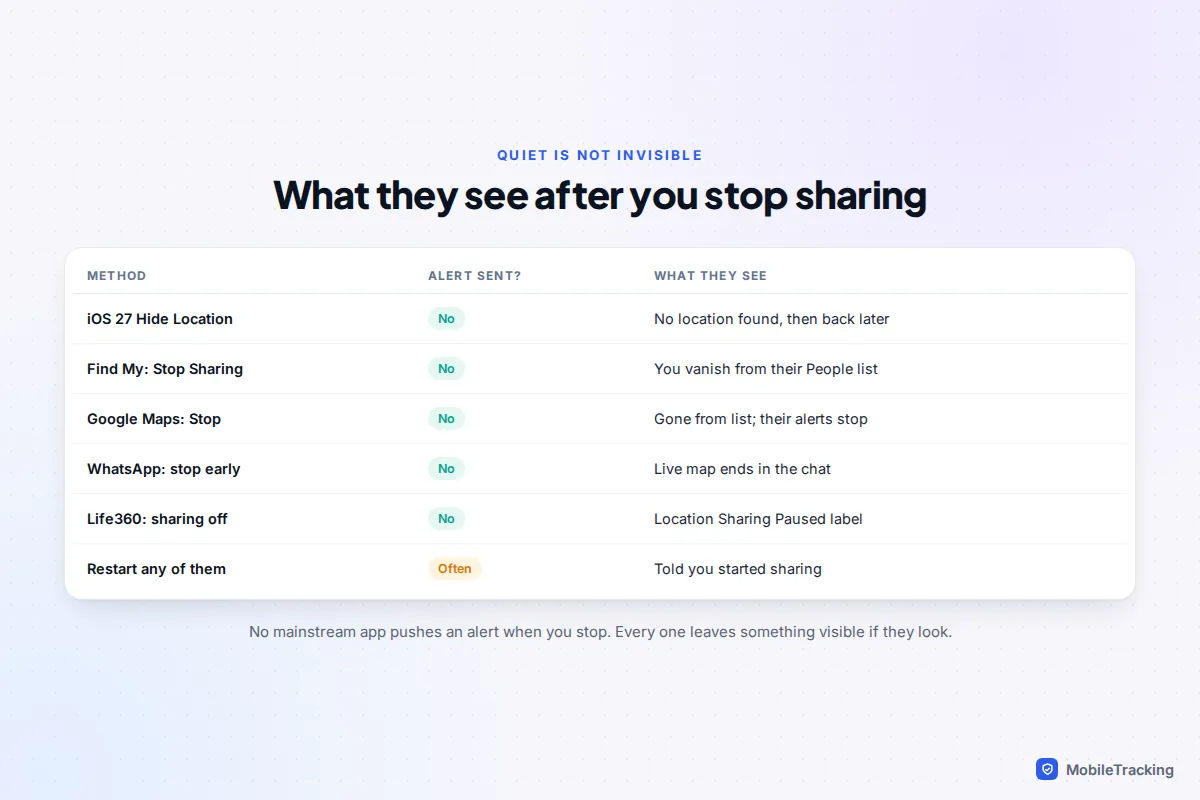
Notification versus inference: what “without anyone knowing” really means
There are two ways someone finds out you have stopped sharing. The first is a notification: a push alert or message telling them. The mainstream apps have largely dropped these. Apple’s personal safety guide says that if you stop sharing your location in Find My, the person is not notified and can no longer see you in their list.
The second is inference: they open the app and notice something has changed. This is the one people underestimate. A missing name, a “No location found” label or a dot that has not moved since lunchtime all tell a story, and the more often someone checks, the faster they read it. Every method below avoids the first problem. None fully avoids the second.
Method by method: what the other person is told and what they see
iPhone: Hide Location (iOS 27)
iOS 27, released on 14 September 2026 for iPhone 11 and later, added Hide Location to each person’s card in Find My › People. It hides you from that one person while everyone else still sees you, and it resumes on its own. Apple’s personal safety guide says sharing resumes automatically the next day; some early reviews described it differently, so check the prompt on your own phone. You can tap Unhide Location at any time.
No alert is sent. Their Find My app shows “No location found” where you used to be. That is also what they would see if your phone were off or out of signal, so a single short hide is easy to explain, but a hide that happens every Friday night forms a pattern. And if you are in a Family Sharing group whose members can see your devices, Hide Location does not change what the Devices tab shows.
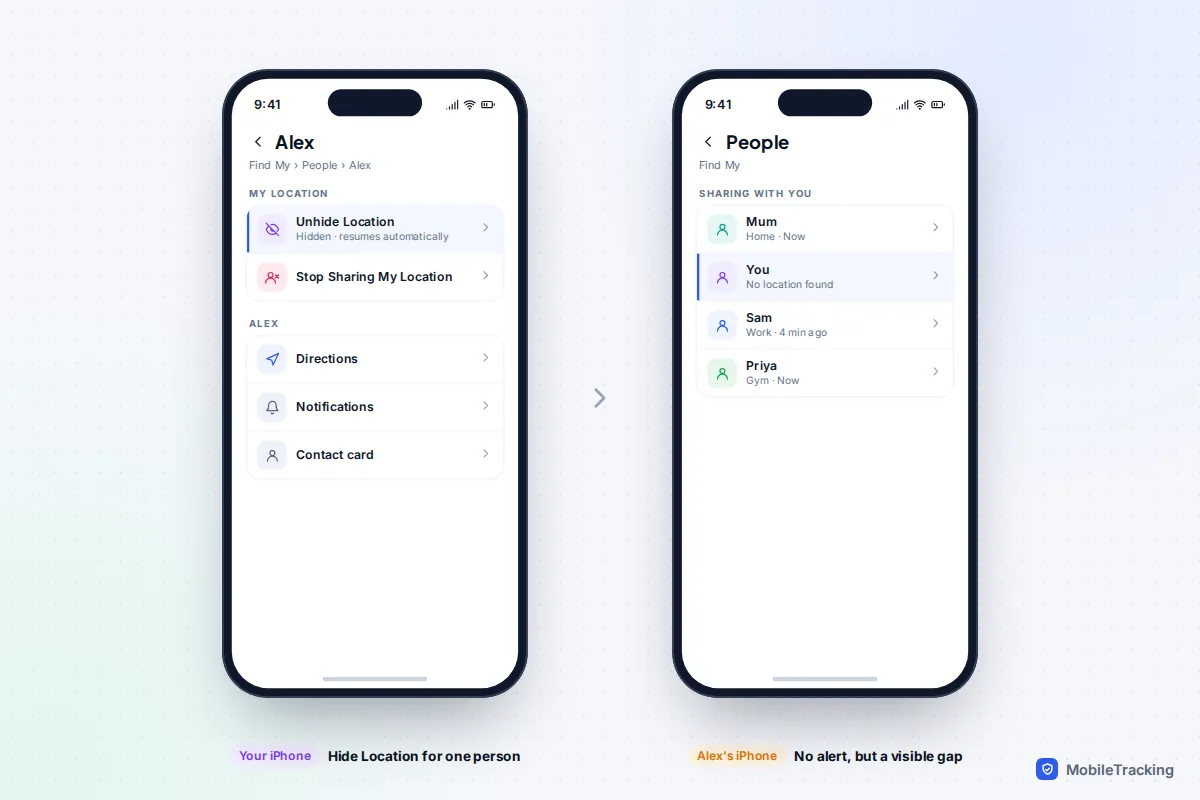
iPhone: Stop Sharing My Location
Stopping a share with one person removes you from their People list entirely. There is no alert on current versions, but if they were used to seeing you there, your absence is obvious. Restarting later is the part that announces itself: when you share again, they are typically told you have started sharing with them.
iPhone: Share My Location off for everyone
Turning off Share My Location in the Me tab stops every Find My share at once. Nobody is notified, but everyone who looks sees no location for you at the same moment, which is easier to spot than a single hide.
Google Maps and Android
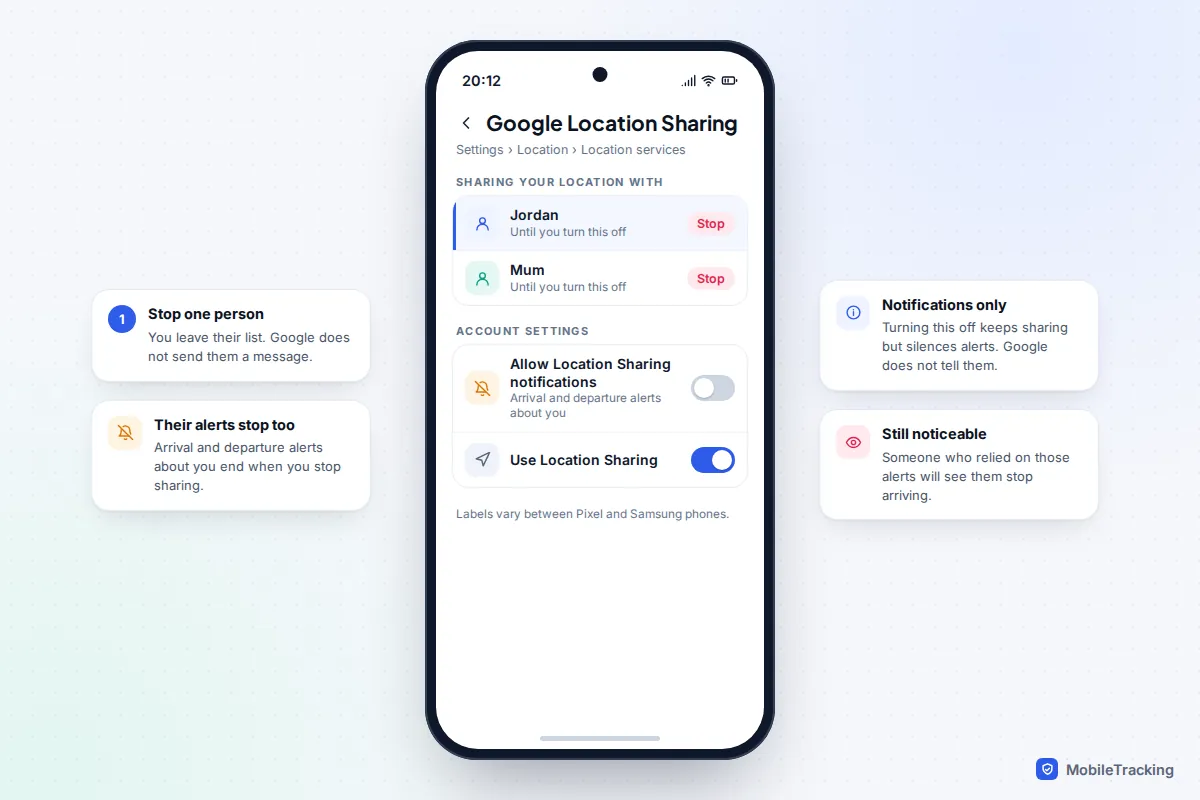
Stopping a Google share (profile picture › Location sharing › the person › Stop) removes you from their Location sharing list. Google’s help pages confirm that any arrival or departure alerts they had set up about you stop automatically when you stop sharing, so a parent or partner who relies on “arrived at work” alerts will notice them going quiet.
A subtler option if what bothers you is the alerts rather than the sharing: at myaccount.google.com/locationsharing you can turn off Allow Location Sharing notifications. Google says the other person is not told, and you keep sharing. The alerts they relied on simply stop arriving, which is again something they may notice.
WhatsApp live location
A WhatsApp live location lasts 15 minutes, 1 hour or 8 hours. Stopping it early is instant, but it happens inside the chat itself: the moving map becomes a static thumbnail of your last position. Anyone who scrolls back can see it ended before the timer did. Letting a short share run out on its own is the least conspicuous way to finish.
Life360 and family locator apps
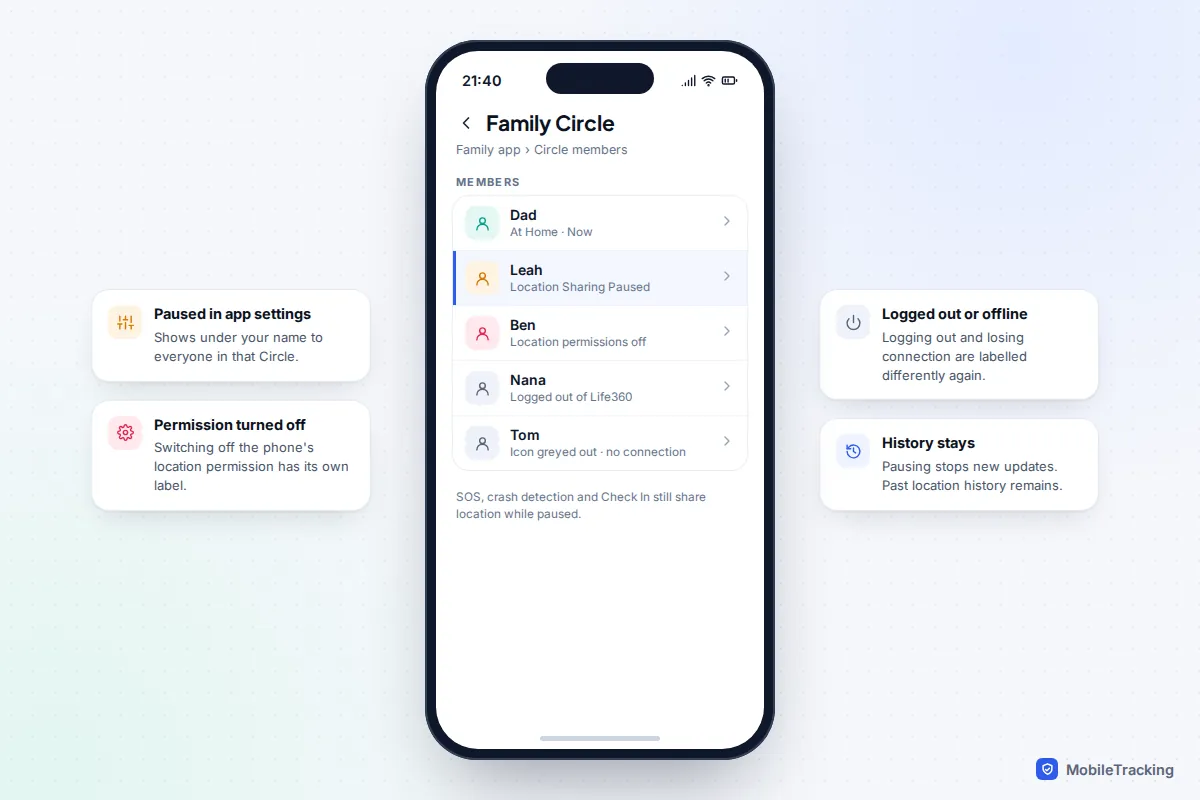
Family apps are built to make changes visible. Turning off location sharing in a Life360 Circle shows “Location Sharing Paused” under your name. Turning off location permission shows “Location permissions off”, logging out shows “Logged out of Life360”, and a lost connection greys out your icon. Life360’s own help pages say it is not possible to stop someone turning off sharing, but every route shows a label. SOS, Crash Detection and Check In still share your location even while sharing is paused, and history already collected stays in the app.
Why the silence itself gets noticed
Most people who find out you stopped sharing were not told. They noticed. It helps to think through what the other person actually sees over the next few hours, not only at the moment you flip the switch.
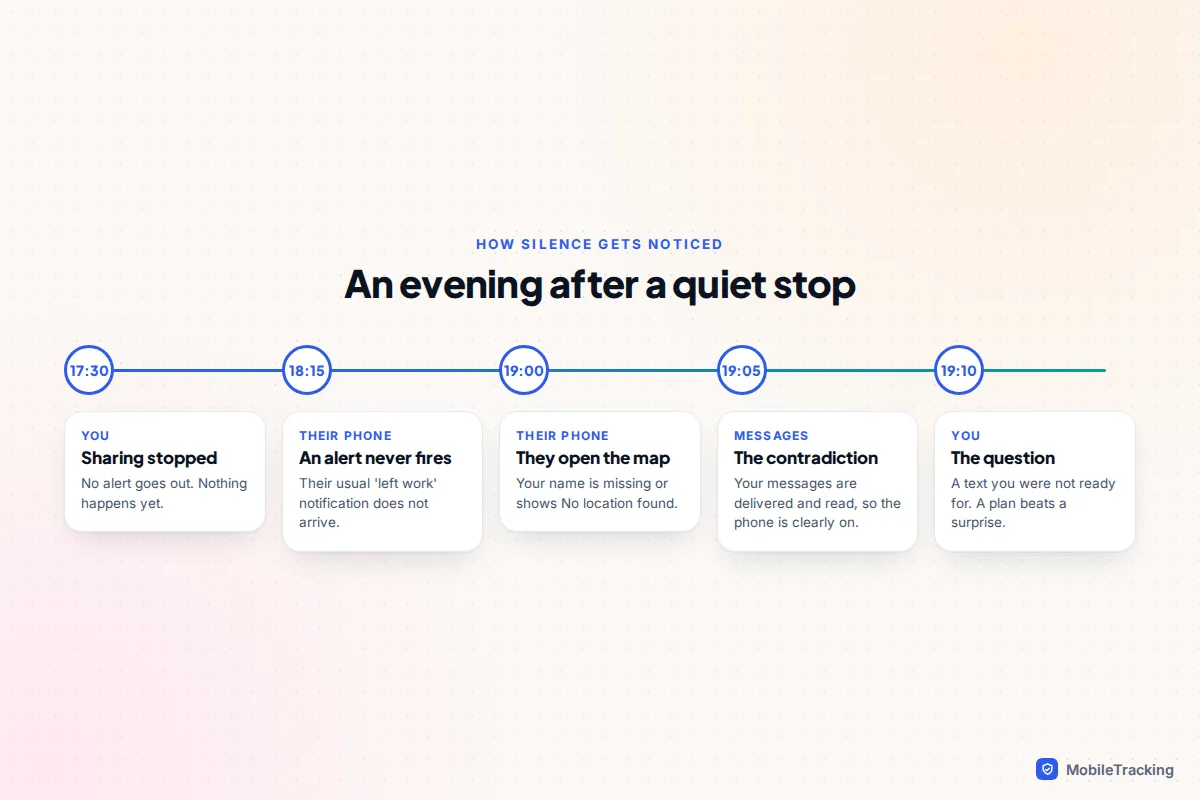
- Habitual checking. Someone who glances at Find My several times a day will notice within hours.
- Missing alerts. “Notify me when they leave work” simply never fires.
- Contradictions. Your map shows nothing, yet your messages are delivered, you are active on social media, and you are tagged in a friend’s photo.
- Everyone versus one person. If your whole friend group can still see you and one person cannot, a quick comparison gives it away.
- The restart. Turning sharing back on usually sends a notification, which can highlight the gap after the fact.
Consider a common case. Maya shares with a group of six university friends and wants to drift out of it without a fuss. Stopping all six shares at once would be obvious the next time anyone opens Find My. Telling the group she is cutting back on location sharing and will text if she needs anyone, then stopping, causes far less comment than a silent disappearance that someone discovers on their own. In ordinary friendships and families, a short honest line is nearly always the most discreet option available.
Places your location can still leak after you stop
Turning off one share rarely closes every route. Before you rely on it, check the other ways your whereabouts can reach someone.
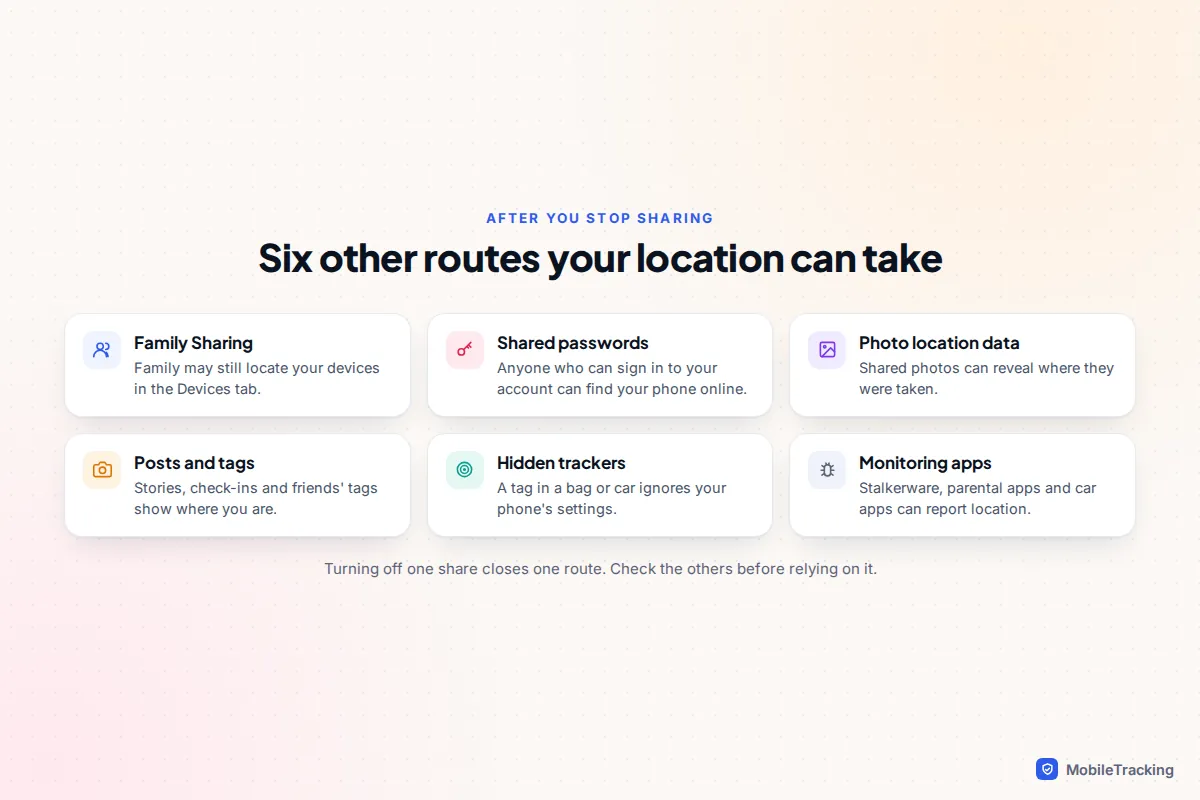
- Family Sharing and device lists. Family members may be able to locate your devices in Find My’s Devices tab, separately from People sharing.
- Shared or known passwords. Anyone who can sign in to your Apple Account or Google Account can locate your devices on the web. Our guide on checking who has access to your iCloud shows where to look.
- Photos. Photos usually carry location data. Apple’s safety guide warns that people you share photos with may be able to see where they were taken. On iPhone, tap Options in the share sheet and turn off Location before sending, and review shared albums.
- Social posts and tags. Check-ins, stories and friends tagging you reveal where you are in real time. Snapchat’s Snap Map has its own setting, Ghost Mode.
- Trackers. A small tag slipped into a bag, coat or car works regardless of your phone’s settings.
- Monitoring apps and car apps. Parental-control apps, stalkerware and connected-car apps can all report location. A phone contract’s family locator service may too.
If someone is controlling or abusing you: plan before you change anything
If location sharing is being used to watch or control you, the order in which you do things matters more than which button you press. Specialist advocates help people plan this every day. In the US, call The Hotline on 1-800-799-7233. In the UK, the free, 24-hour National Domestic Abuse Helpline run by Refuge is on 0808 2000 247. Where you can, contact them from a device the other person cannot access, such as a trusted friend’s phone or a library computer.
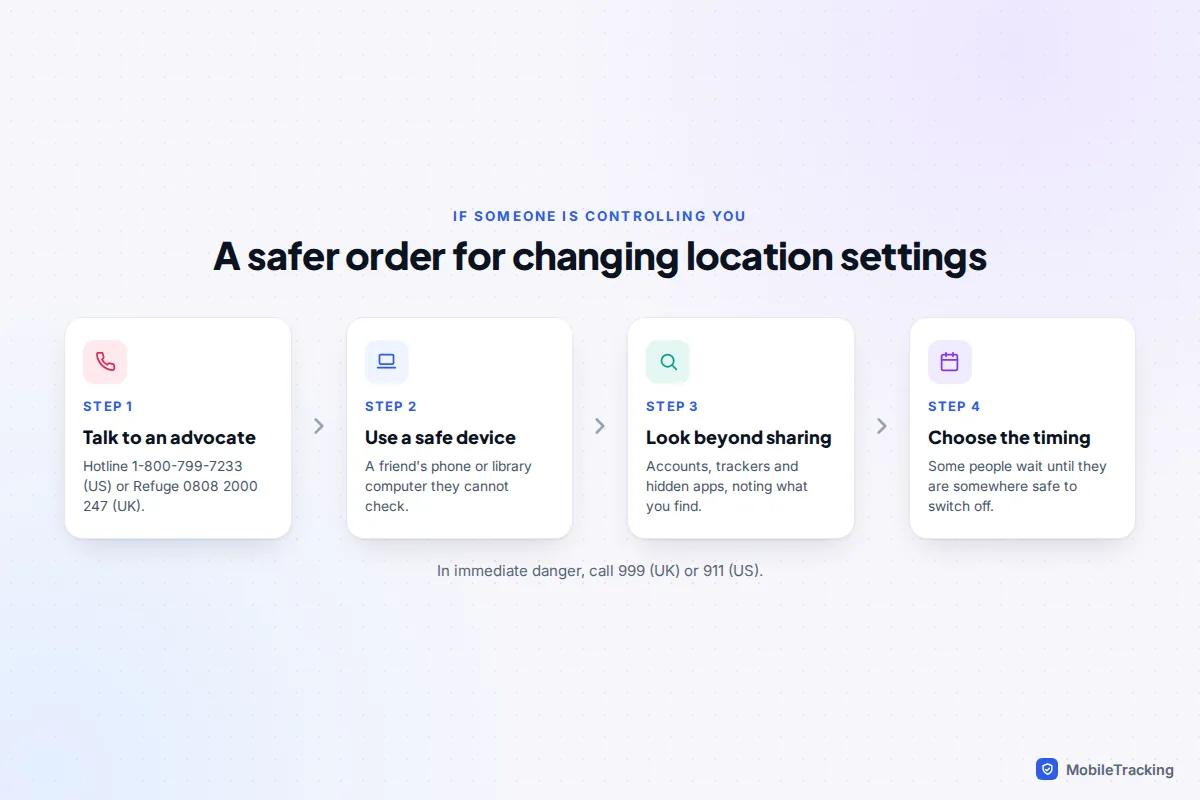
A few principles that advocates commonly stress:
- Get support before making changes. An advocate can help you think through how the other person is likely to react.
- Consider timing. Some people leave sharing untouched until they are somewhere safe, then switch everything off at once.
- Look beyond Find My. Shared accounts, trackers and hidden apps can reveal your location after sharing is off. Removing stalkerware can also alert the person who installed it, and it deletes evidence you may want later.
- Keep a record. Screenshots of who could see your location, and when, can help with a report or court order.
The Coalition Against Stalkerware explains the warning signs of monitoring apps. Our guides to protecting your phone in an abusive situation and detecting stalkerware on Android walk through safer steps in order.
Tools that show who can see you
Apple Safety Check
On iPhone with iOS 16 or later, go to Settings › Privacy & Security › Safety Check. Manage Sharing & Access lets you review people and apps one at a time and choose what to stop. Emergency Reset stops sharing with all people and apps immediately, and walks you through reviewing your emergency contacts, the devices signed in to your Apple Account and your password. A Quick Exit button closes Settings instantly, and changes you have made are kept.
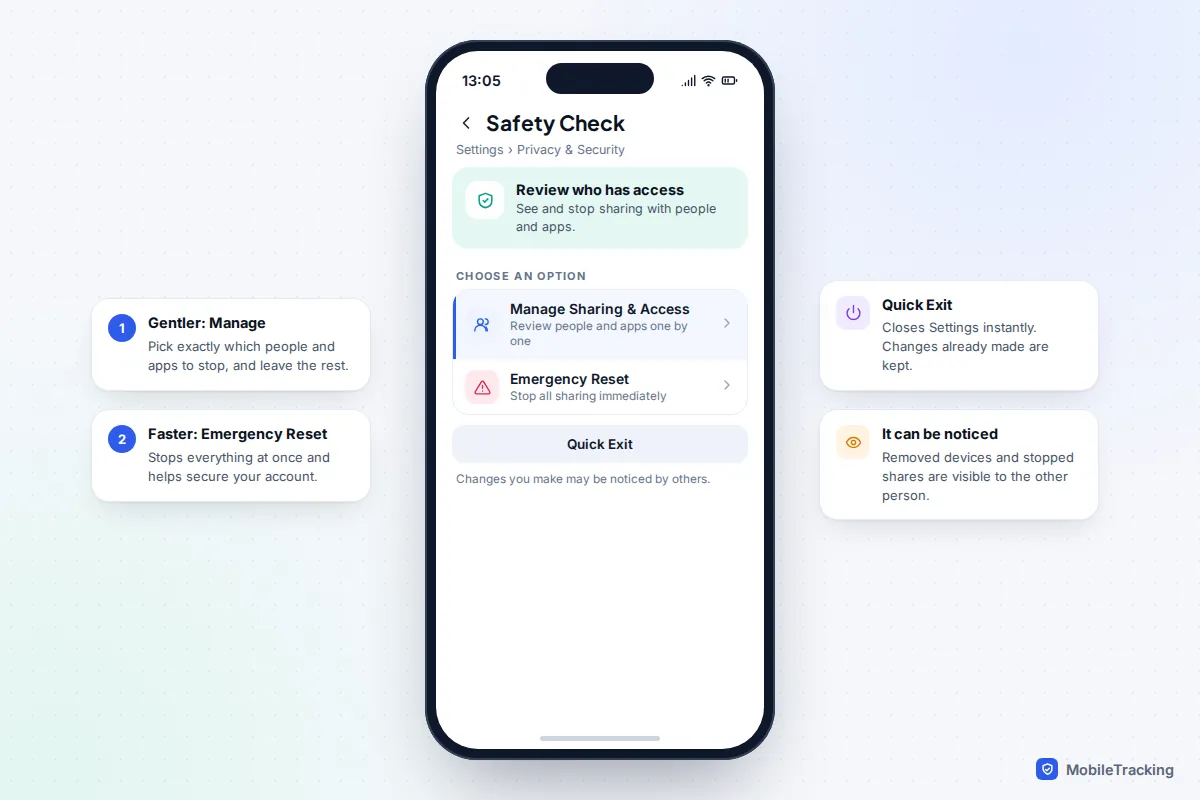
Apple is clear that changes made in Safety Check may be noticed by others. Emergency Reset can also remove other devices from your account and change your password, which anyone using those devices will notice. Apple’s Safety Check guide explains each option.
Google and Android
Android has no direct equivalent of Apple’s review tool. Instead, check myaccount.google.com/locationsharing to see everyone you share with, and the Your devices section of your Google Account security settings to spot a phone or computer you do not recognise. Google’s Safety Check, in the Personal Safety app, does something different: it is a timer of up to 24 hours that shares your real-time location and battery level with emergency contacts if you do not respond. It can be useful if you need to go somewhere you feel unsafe, such as collecting belongings.
Scan for trackers
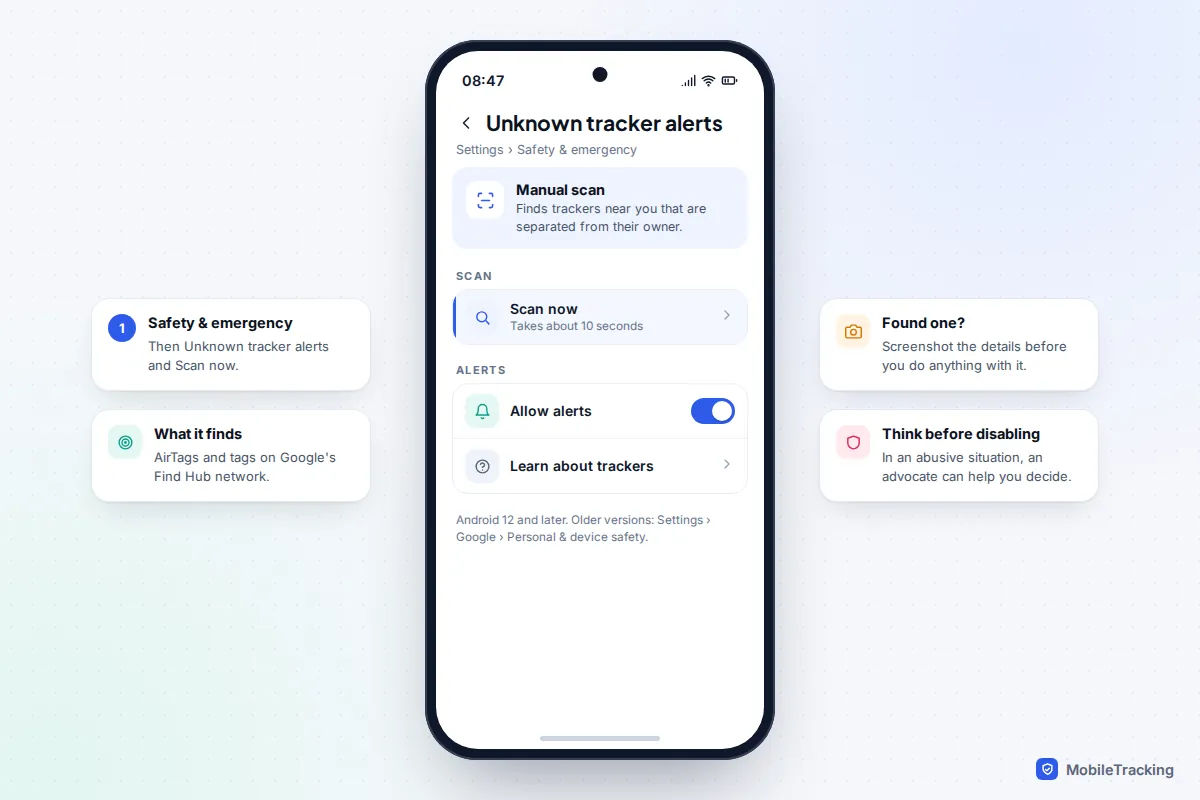
On Android 12 and later, go to Settings › Safety & emergency › Unknown tracker alerts › Scan now. Google says the scan takes about 10 seconds and detects AirTags and Find Hub-compatible tags. On iPhone, make sure Settings › Notifications › Tracking Notifications is allowed and Location Services is on, so you are warned about an unknown AirTag travelling with you.
Once you have made changes, our guide to checking whether you are still sharing your location helps confirm nothing is left running.
Frequently asked questions
Does an iPhone notify someone when I stop sharing my location?
No. Apple says the person is not notified when you stop sharing in Find My, and Hide Location in iOS 27 sends no alert either. They will, however, see that you are missing from their list or that your location shows “No location found” if they open the app.
Can someone tell I used Hide Location rather than switching my phone off?
Not directly: both leave them without a current location for you. But the context can give it away. If your messages are being delivered and read while your location is unavailable, a phone that is off is not a convincing explanation.
Is turning on Airplane mode or turning off Location Services more discreet?
Not really. Airplane mode leaves your last location visible with a time stamp that keeps getting older, and it blocks calls. Turning off Location Services breaks maps and other apps, and family apps like Life360 label it “Location permissions off”. Both are more noticeable than a targeted stop or hide.
Once I stop, can they still see where I have been?
Find My and Google location sharing show where you are now, not a history, so stopping ends what they can see. Family apps are different: Life360 keeps the location history it has already collected even after you pause. Anyone with access to your own accounts could still see your account’s location records.
Should I use an app that fakes my location?
We do not recommend it. Spoofing apps give someone false information, often break app terms, and can put untrustworthy software on your phone. In a controlling relationship, being caught out can escalate things. An advocate can help you find a safer way to create distance.
This guide is general information, not legal or financial advice. Read our editorial policy.