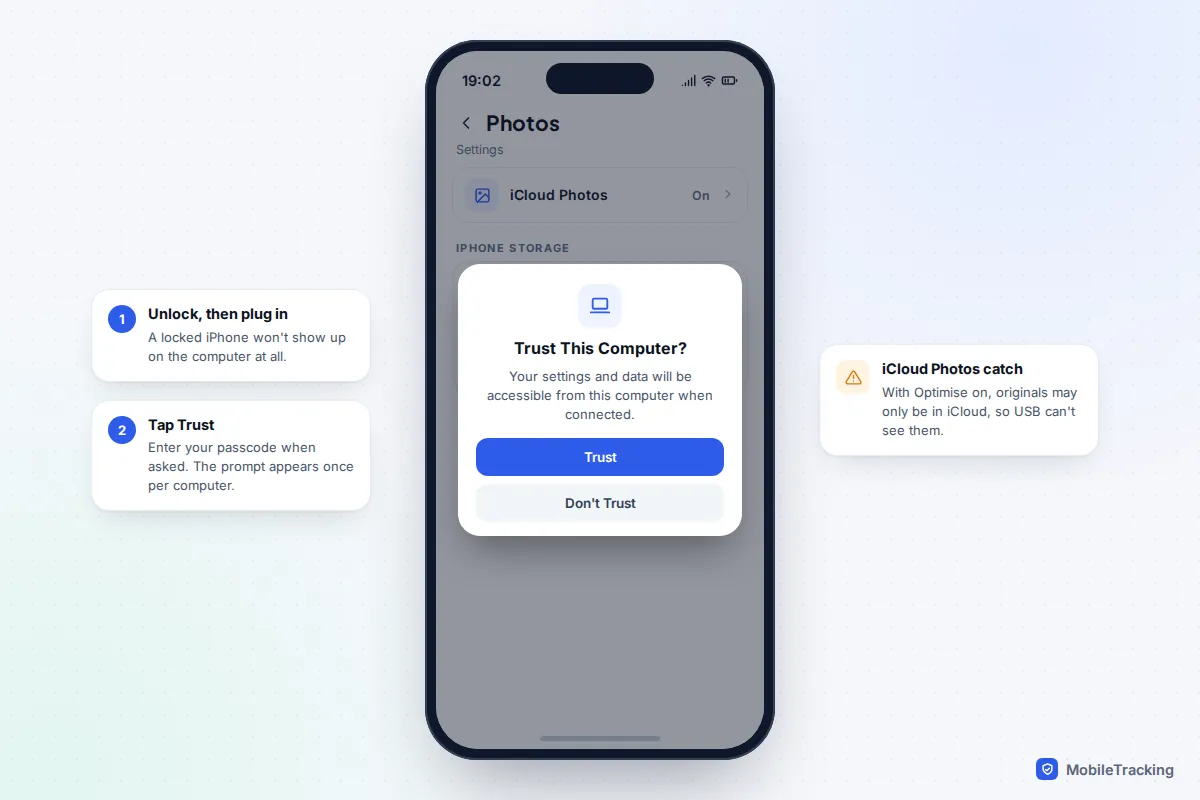
The quickest reliable way is a USB cable. For an iPhone and a Windows PC, install Apple’s free Apple Devices app from the Microsoft Store, unlock the iPhone, plug it in, tap Trust, then open the Photos app on the PC and choose Import. On a Mac, plug the iPhone in and the Photos app offers to import. For an Android phone and a Windows PC, plug in, tap the Charging this device via USB notification, choose File transfer, then copy the DCIM > Camera folder or use Import in Photos.
Two things catch most people out. If your iPhone uses iCloud Photos with Optimise iPhone Storage, many full-size originals are not on the phone at all, so a cable cannot see them; download them from iCloud instead. And Android phones no longer have an official Mac app: Google’s Android File Transfer has been dropped, so Mac owners need one of the alternatives below.
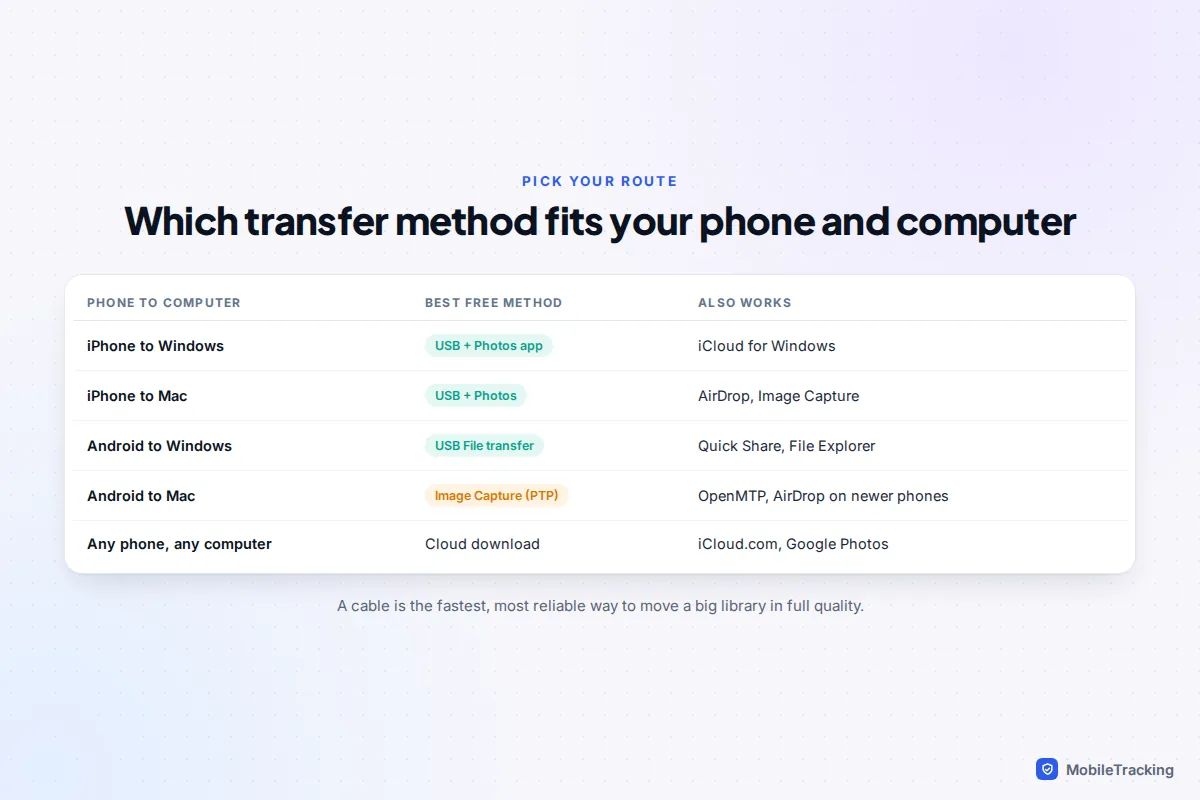
Which method should you use?
A cable wins for big jobs: it copies the original files, it does not use your data allowance, and it does not depend on cloud storage you may not have. Wireless options are better for a quick handful of photos. Cloud downloads make sense when your photos already live in iCloud or Google Photos, or when the phone is broken or lost.
Speed depends mostly on the port. Standard iPhone models, including the iPhone 17 and iPhone Air, transfer at USB 2 speed (480 Mbps). The iPhone 15 Pro and later Pro models support USB 3 at up to 10 Gbps, but only with a separately bought USB 3 cable, because the one in the box is USB 2. Many Android flagships also support faster USB, again only with a suitable cable.
A real example: Maya wanted three years of holiday photos off her iPhone and onto the family PC before upgrading. The Photos app import found only 800 of her 11,000 pictures. The rest were stored in iCloud, not on the phone. Installing iCloud for Windows and keeping the library downloaded solved it overnight, with no cable needed.
iPhone to a Windows PC
With a cable and the Photos app
- Install Apple Devices from the Microsoft Store. It provides the driver Windows needs to talk to the iPhone. (Older PCs with iTunes installed already have it.)
- Unlock the iPhone and connect it with a cable that carries data.
- When the iPhone asks Trust This Computer?, tap Trust and enter your passcode.
- Open Photos on the PC, select Import, choose your iPhone, and pick the photos to copy.
- Keep the phone unlocked and connected until the import finishes.
If you prefer folders, open File Explorer, click Apple iPhone, then Internal Storage > DCIM, and copy the folders you want. Live Photos come across as a still image plus a short .MOV file with the same number.
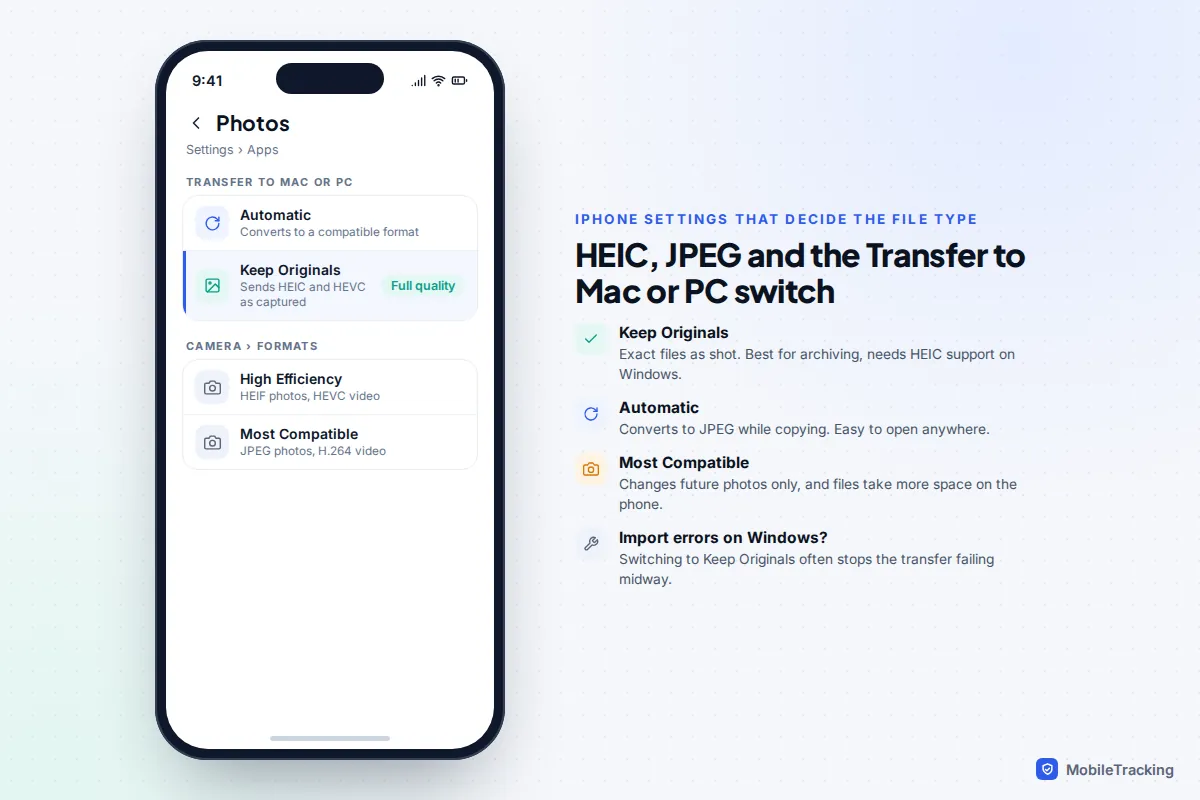
HEIC, JPEG and the “Keep Originals” setting
iPhones save photos as HEIF (.HEIC files) and videos as HEVC by default, set in Settings > Camera > Formats under High Efficiency. Windows needs the free HEIF Image Extensions and the HEVC Video Extensions (99 cents in the US Store) from the Microsoft Store to open them.
A second setting controls what the PC receives. In Settings > Apps > Photos, scroll to Transfer to Mac or PC:
- Automatic converts photos and videos to a compatible format such as JPEG while they copy.
- Keep Originals sends the files exactly as shot, which is what you want for archiving.
Switching the camera to Most Compatible (JPEG and H.264) only changes future photos, and they take more space on the phone. Most people are better off keeping High Efficiency and installing the extensions on the PC.
Without a cable: iCloud for Windows
If you use iCloud Photos, install iCloud for Windows from the Microsoft Store, sign in with your Apple Account and turn on Photos. Your library appears in File Explorer under iCloud Photos and inside the Windows Photos app. Files can start as online-only copies; to keep full-resolution copies on the PC, right-click a folder or selection and choose Always keep on this device. Apple’s guide to transferring photos to a Mac or PC covers both routes.
iPhone to a Mac
A Mac reads HEIC natively, so format worries disappear. You have three good choices.
- Photos app: connect and unlock the iPhone, open Photos, pick your iPhone in the sidebar, then click Import All New Items or select some and click Import Selected. The import screen includes a tick box to delete items from the phone afterwards; leave it off until you have checked the copies.
- Image Capture: built into every Mac, it copies files straight into any folder you choose from the Import To menu, without adding them to a Photos library. It is the better choice if you organise photos in folders or use another editor.
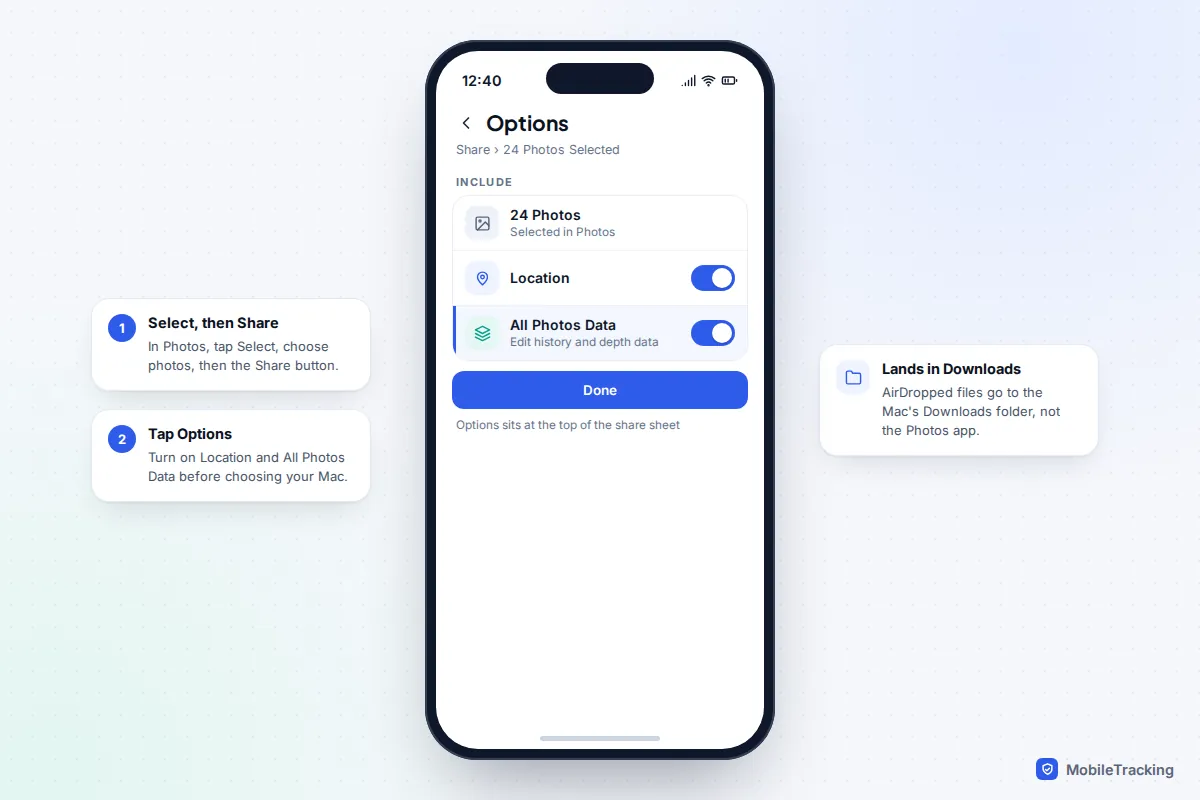
- AirDrop: ideal for a few dozen photos. Select them in Photos, tap Share, tap Options at the top of the share sheet and turn on All Photos Data and Location, then choose your Mac. Files land in the Mac’s Downloads folder.
If both devices use iCloud Photos with the same Apple Account, you may not need to transfer anything: the library already syncs to the Mac’s Photos app. What it does not do is create a separate copy, so deleting a photo on the phone deletes it on the Mac too.
Android to a Windows PC
With a cable
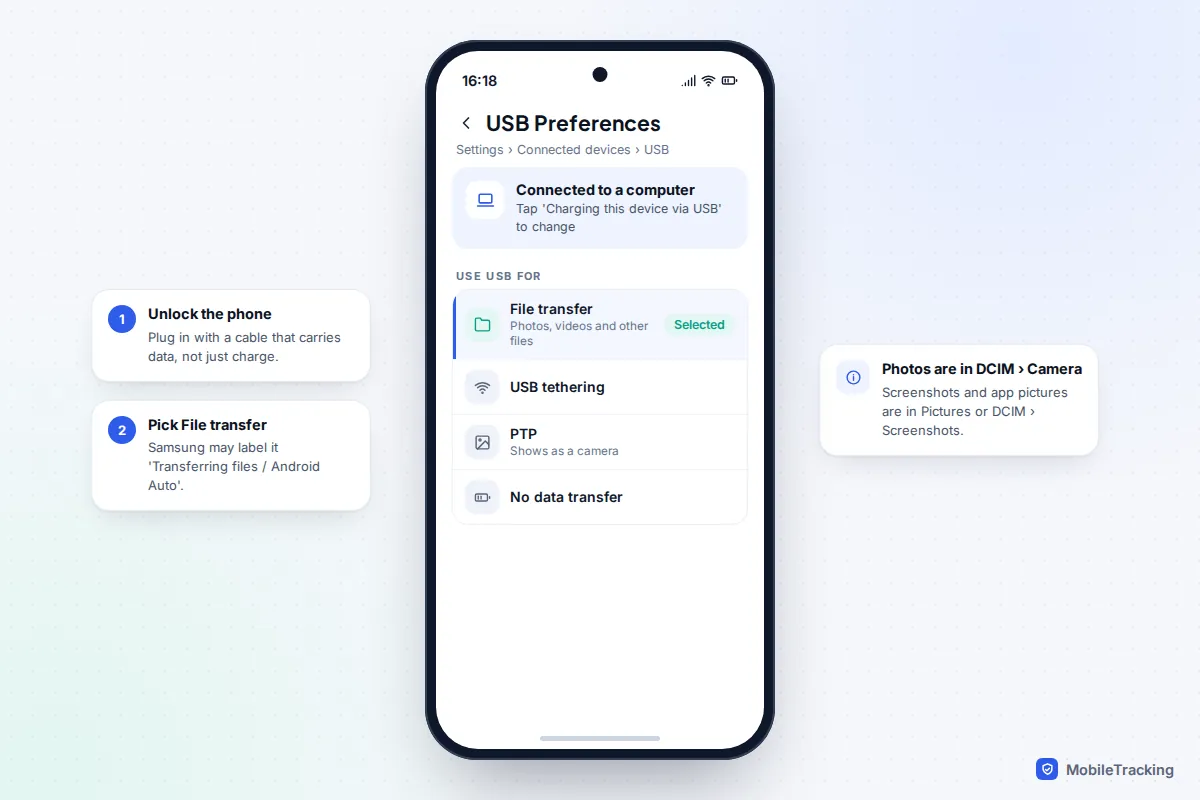
- Unlock the phone and connect it with a data-capable USB cable.
- Tap the Charging this device via USB notification.
- Under Use USB for, choose File transfer. Samsung may call it Transferring files / Android Auto.
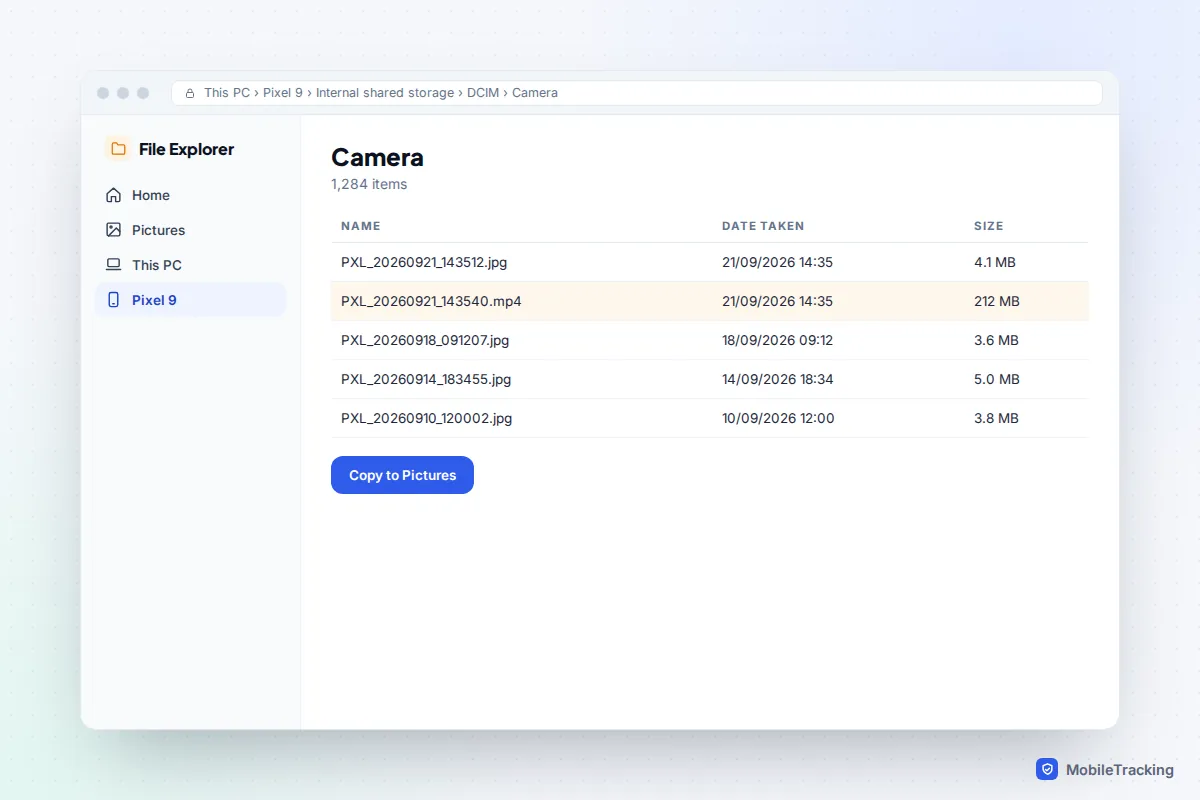
- On the PC, open File Explorer, click your phone, then Internal shared storage > DCIM > Camera. Copy the files to a folder on the PC, or use Import in the Photos app.
Screenshots and pictures saved from apps are usually in Pictures or DCIM > Screenshots, and WhatsApp images sit in Android > media > com.whatsapp. Google’s help page on transferring files between a computer and Android lists the same steps.
Without a cable
On Windows 11 (version 24H2 or later), an Android phone running Android 11 or newer can appear in File Explorer wirelessly. Pair it using Phone Link and the Link to Windows app, then turn on Show mobile device in File Explorer under Settings > Bluetooth & devices > Mobile devices. Microsoft has moved Phone Link’s photo view there. Be careful: these are live files, so deleting one in File Explorer deletes it from the phone. Copy, do not move.
For sending a batch, Google’s free Quick Share for Windows app works on 64-bit Windows 10 and 11 PCs with Wi-Fi and Bluetooth. Quick Share is already built into Android phones. Select photos in your gallery, tap Share > Quick Share and pick the PC. Files are sent as originals.
Android to a Mac
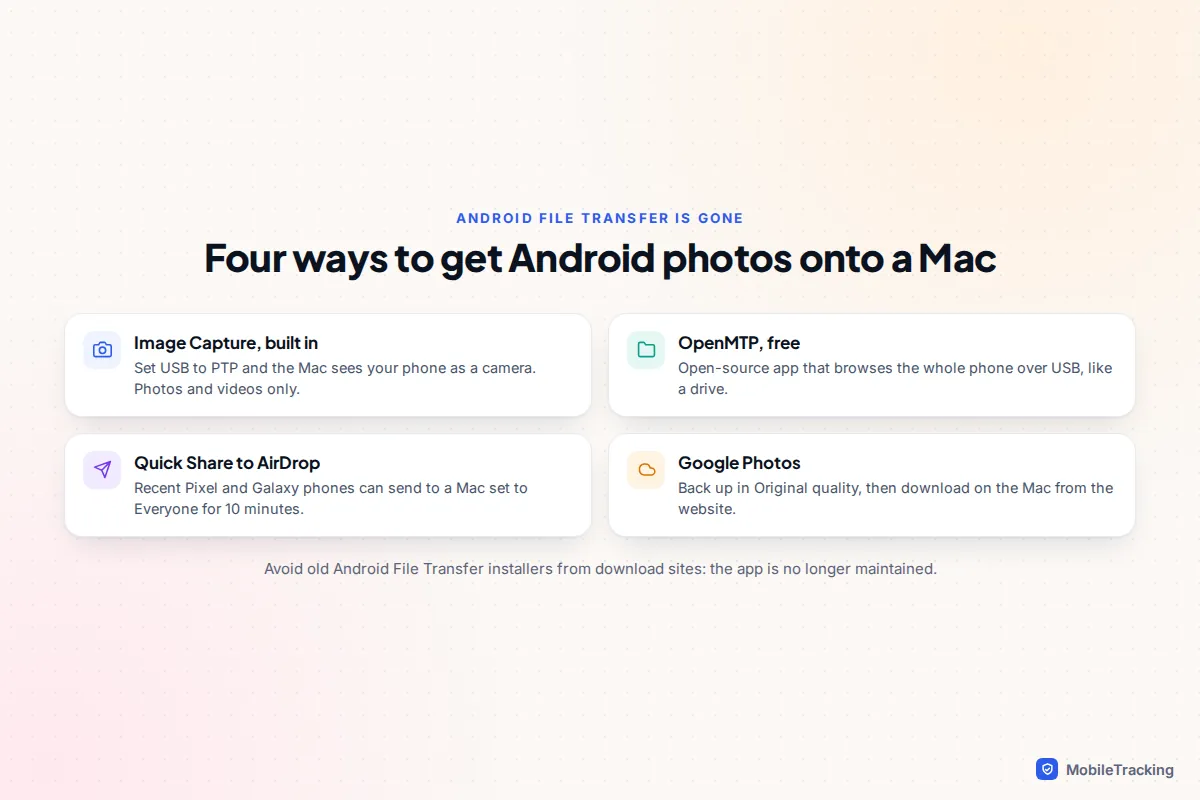
Google’s Android File Transfer app for Mac is effectively retired. Its link vanished from android.com in 2024, the old address now promotes Quick Share for Windows, and the app has not been updated in years. Skip old installers from download sites. macOS cannot read Android’s usual USB mode (MTP) by itself, so use one of these instead:
- Image Capture over PTP (built in, free): connect the phone, choose PTP in the USB options (sometimes labelled Transferring images), then open Image Capture or Photos on the Mac. The phone shows up as a camera with its photos and videos ready to import.
- OpenMTP (free, open source): lets you browse the whole phone over USB, including folders PTP does not expose. It runs on Apple silicon and Intel Macs.
- Quick Share to AirDrop: since late 2025, Google has made Quick Share work with AirDrop on a growing list of phones, including the Pixel 9 and 10 series and Galaxy S24 to S26. Set AirDrop on the Mac to Everyone for 10 minutes, then share from the phone.
- Google Photos: back up in Original quality and download on the Mac from photos.google.com.
Cloud options: download from iCloud or Google Photos
Cloud downloads are the only route when a phone is broken, lost or too full to hold its own library. They are also slow for big collections, because everything comes down over your broadband.
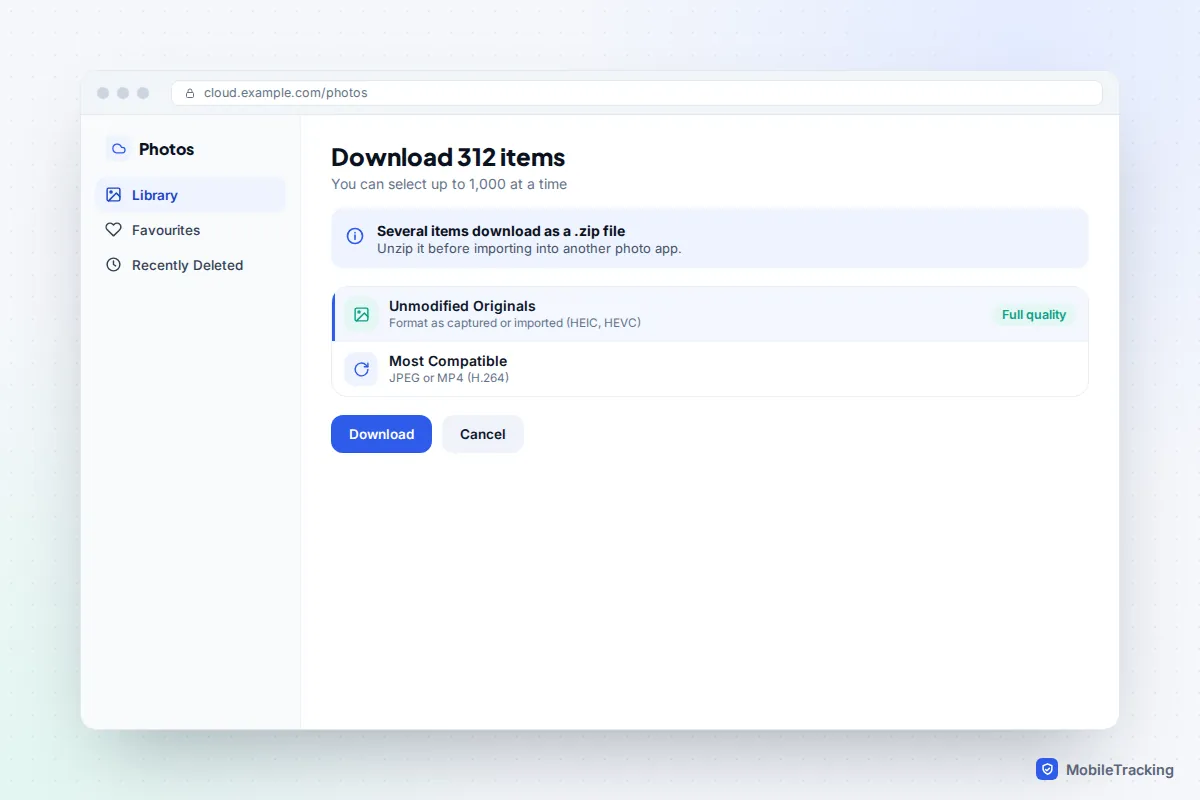
- iCloud.com: sign in, open Photos, select up to 1,000 items at a time, click Download and choose Unmodified Originals (the format as captured) rather than Most Compatible (JPEG or H.264), which converts them. Several items download as a zip file.
- Google Photos: at photos.google.com, select photos and choose Download. For a whole library, Google Takeout exports everything as zip files; it can put some details, such as descriptions, in separate .json files next to the photos.
- OneDrive or Dropbox: their phone apps can upload your camera roll, which then syncs to the PC. Note that Samsung Gallery’s built-in OneDrive sync ends on 30 September 2026, so Galaxy owners should use the OneDrive app itself.
Check what quality you backed up in. Google Photos’ Storage saver resizes photos above 16 MP to 16 MP and videos above 1080p to 1080p, so the cloud copy of a 4K video is not the original. If full quality matters and the phone still has the files, copy them by cable instead. For more on getting your library into the cloud properly, see our guide to backing up photos to the cloud.
How to keep full quality and the original dates
A transfer is only useful if the photos arrive with their resolution, date taken and location intact. Those details live inside each file (the EXIF data), and some routes strip them.
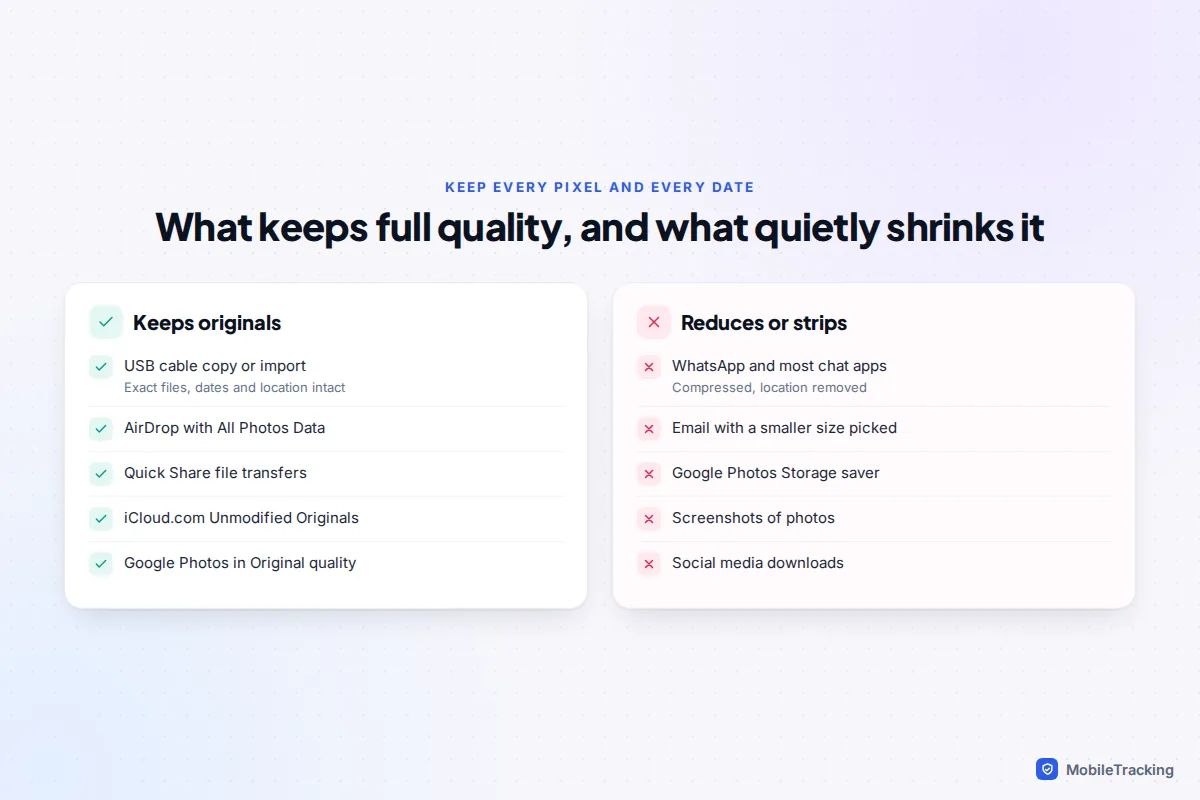
- Avoid chat apps. WhatsApp, Messenger and similar apps compress photos and remove location data. Sending them to yourself is quick but leaves you with lower-quality copies.
- Copy, do not move. Check the copies open on the computer before deleting anything from the phone.
- Sort by date taken, not date modified. Copying resets a file’s “modified” date in Windows, but the date taken inside the file stays the same.
- Keep a second copy. One computer is still a single point of failure. An external drive or cloud backup is your second copy; our guide on making a backup you can actually restore explains how to test it.
Troubleshooting: phone not showing on the computer
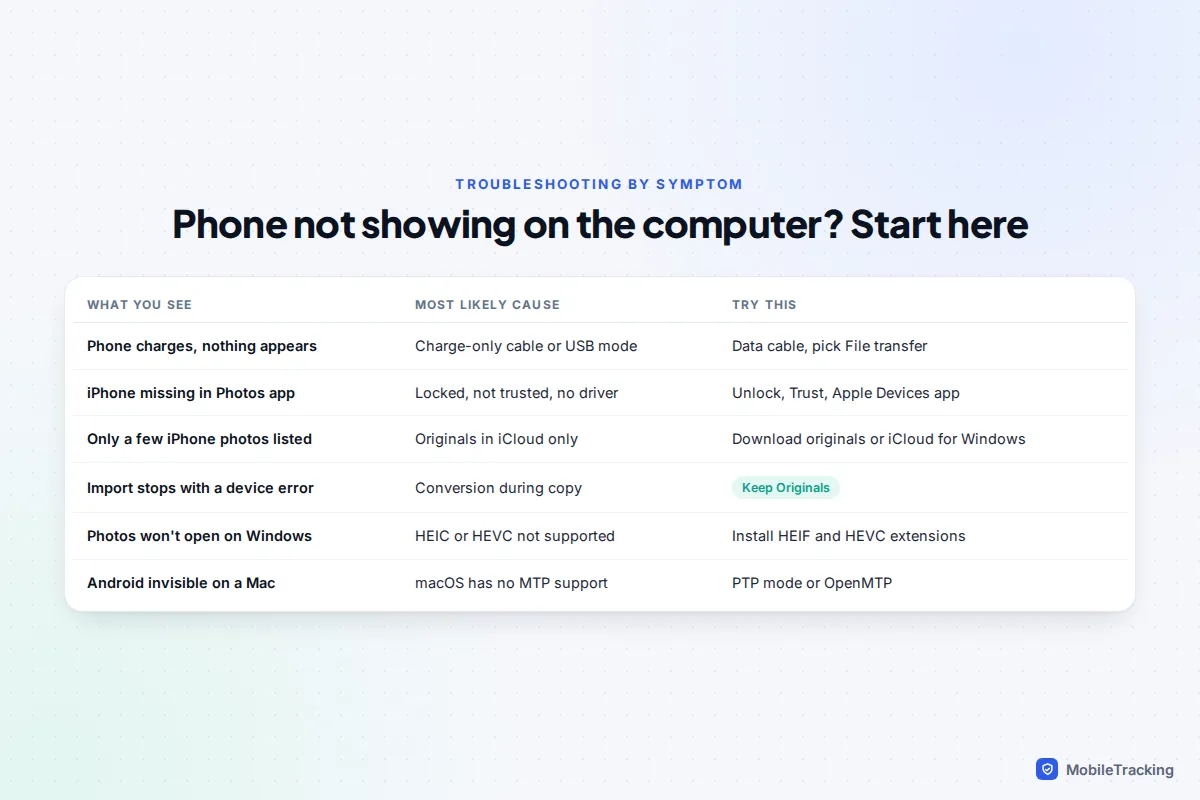
- Nothing appears at all: the cable may be charge-only. Try the cable that came with the phone, a different USB port (not a hub), and restart both devices.
- iPhone connected but not in Photos: unlock it and look for the Trust prompt. If you never saw one, go to Settings > General > Transfer or Reset iPhone > Reset > Reset Location & Privacy, reconnect and trust again. Check Apple Devices is installed.
- Only some iPhone photos listed: the rest are in iCloud only. Switch to Download and Keep Originals in Settings > Apps > Photos (if the phone has room) or use iCloud for Windows.
- “A device attached to the system is not functioning”: set Transfer to Mac or PC to Keep Originals and import in smaller batches.
- Android shows as a phone but folders are empty: it is still in charging mode. Unlock it and choose File transfer again.
- Windows N editions: they lack the media components phones need. Install the Media Feature Pack from Windows’ Optional features.
Frequently asked questions
Can I transfer photos from an iPhone to a PC without iTunes?
Yes. iTunes is not needed. Install Apple Devices from the Microsoft Store for the driver, then use the Windows Photos app or File Explorer. Alternatively, use iCloud for Windows and skip the cable.
Why are my iPhone photos HEIC files, and how do I open them?
HEIC is the iPhone’s default High Efficiency format, which takes about half the space of JPEG. Install HEIF Image Extensions and HEVC Video Extensions from the Microsoft Store, or set Transfer to Mac or PC to Automatic so photos convert to JPEG as they copy.
Does Phone Link work with iPhone photos?
No. Phone Link with an iPhone handles calls, messages and notifications, not your photo library. Use a cable or iCloud for Windows instead.
Can I still download Android File Transfer for my Mac?
Not from Google’s site. The app is no longer maintained and copies on third-party sites are best avoided. Use Image Capture with the phone in PTP mode, OpenMTP, or Quick Share to AirDrop if your phone supports it.
Will transferring photos delete them from my phone?
Only if you choose that. Copying or importing leaves the originals in place unless you tick a delete-after-import option or move files in File Explorer. Check the copies first, then free up space; our guide to freeing up storage on your phone covers the rest.
This guide is general information, not legal or financial advice. Read our editorial policy.