
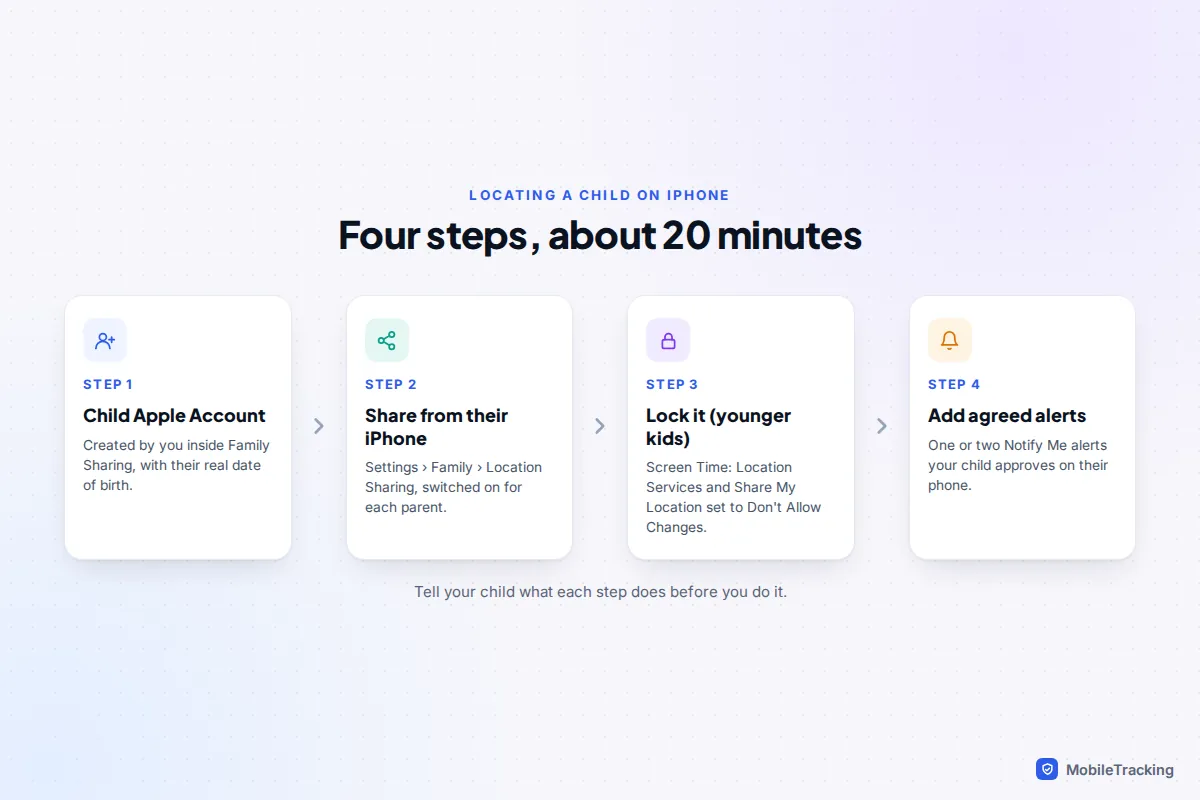
To see where your child is on iPhone, give them a child Apple Account inside your Family Sharing group, then on their iPhone go to Settings › Family › Location Sharing and switch on sharing with you. Their location then appears in your Find My app under People. For a younger child, lock the setting with Screen Time so it stays on, and add one or two arrival alerts rather than checking the map. It takes about 20 minutes, most of it on the child’s phone.
That is the mechanics. The harder part is deciding how much you need to know at each age, telling your child plainly what you can see, and planning when to step back. This guide covers those decisions and the child-specific settings. If you want the full walkthrough of Family Sharing roles and switches for every family member, see our guide to using Find My to share family locations.
Decide what you need before you switch anything on
Most parents want an answer to one of three questions: did they get there, are they where they said, or where are they right now because something is wrong. Arrival alerts answer the first. The map answers the second and third, and it is the one that causes friction if it is checked too often.
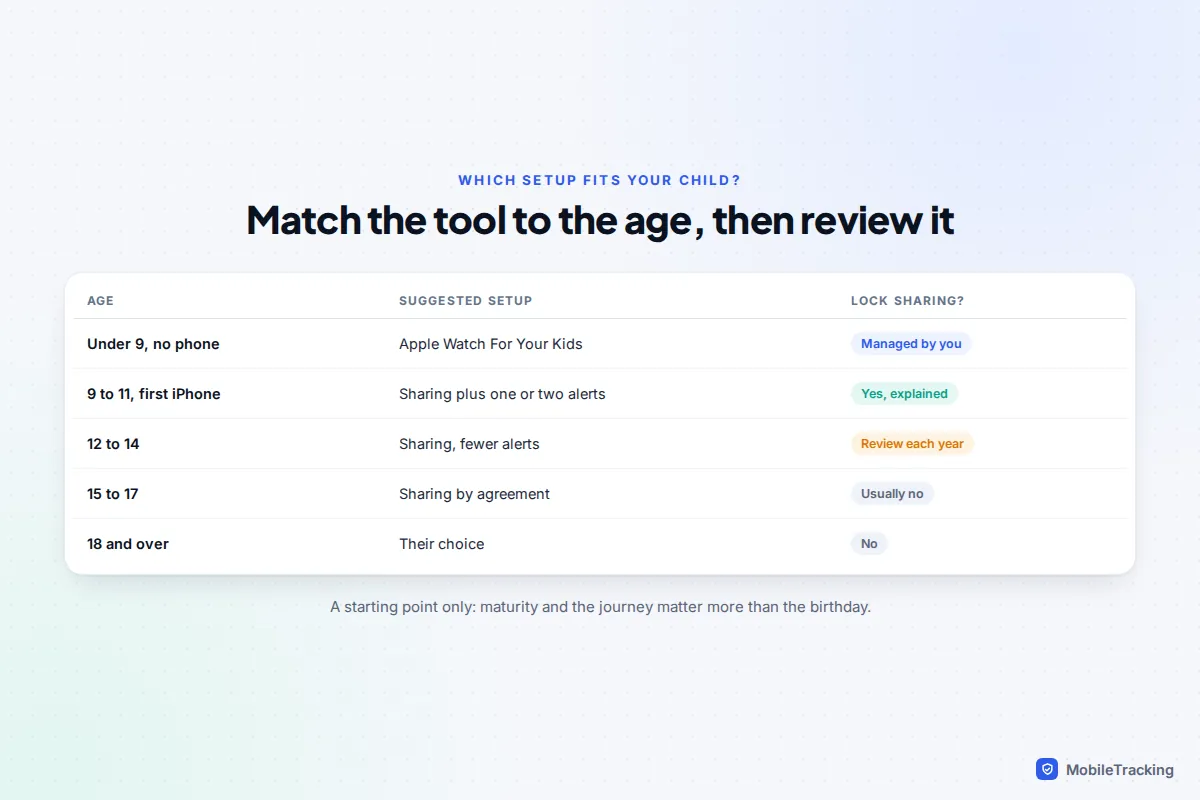
Your child’s age changes which tool fits. The table below is a starting point, not a rule. A confident 11-year-old who walks to school may need less than an anxious 14-year-old on a new bus route.
Write down the one or two situations you actually worry about, such as the walk home from the bus stop or late nights at a friend’s. That list decides which alerts you set later, and it gives you something concrete to discuss with your child instead of “I want to see where you are”.
Set up your child’s Apple Account and sharing
A child under 13 cannot make their own Apple Account; the parent who organises Family Sharing creates it for them, and in some countries that applies to older children too. You will need the child’s real date of birth, because age sets the defaults for web filtering, Ask to Buy and which controls you can use. If your child already has an account you made years ago with a made-up adult birthday, fix that first, as it limits what Screen Time can lock.
Is location sharing on automatically for a child? Not reliably. Apple’s Family Sharing privacy notice says a parent may turn on Automatically Share Location on a child’s behalf, including when creating the account. Whether you did depends on which screens you tapped through, so check rather than assume. On your child’s iPhone:
- Go to Settings › Family › Location Sharing and switch on each parent or guardian who should see them.
- Open Find My › Me and make sure Share My Location is on.
- Still under Me, check that My Location is this iPhone. If an old iPad is selected, you will see the iPad sitting at home all day.
- Go to Settings › Privacy & Security › Location Services and make sure it is on, with Find My set to While Using the App or similar.
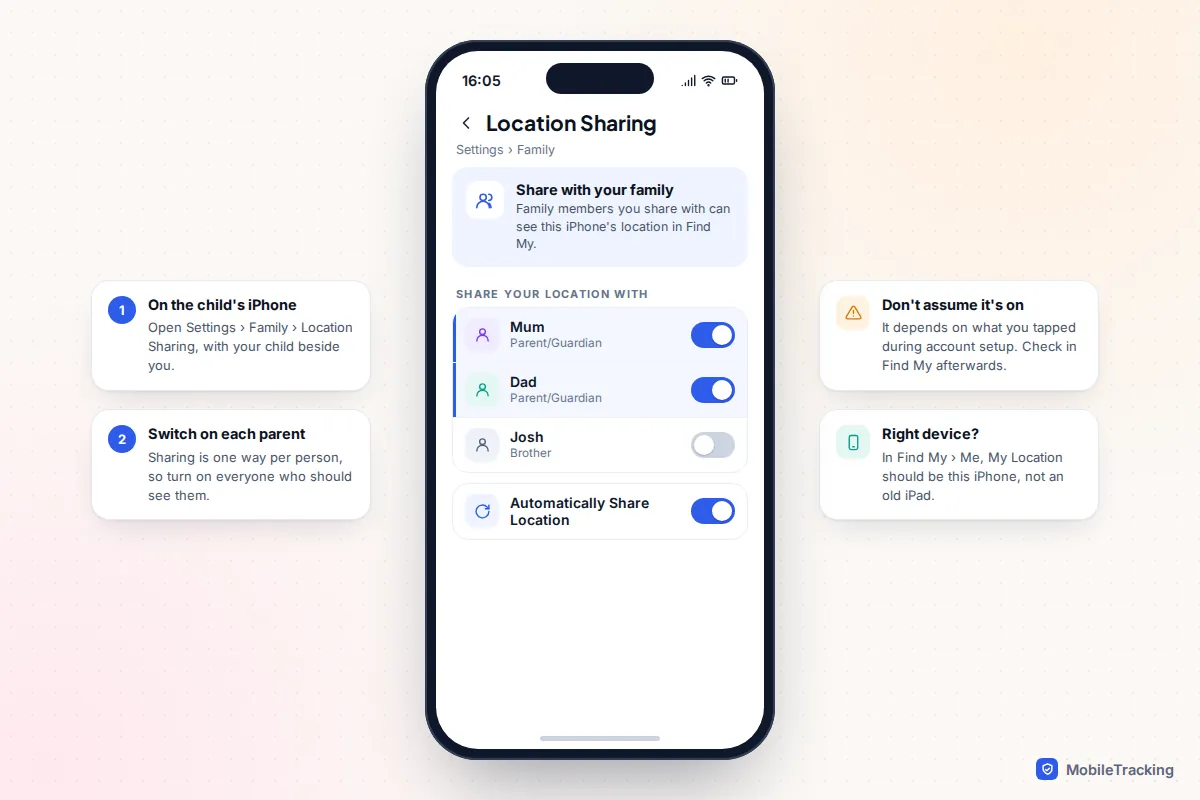
Share your own location back with your child too. It costs nothing, it means they can find you at a crowded event, and it makes the arrangement feel mutual rather than one-directional.
Check it works in Find My
On your iPhone, open Find My and tap People. Your child should appear with an address or place name and a time, such as “Now” or “5 min ago”. Tap their name for directions, to set alerts, or to see their contact card.
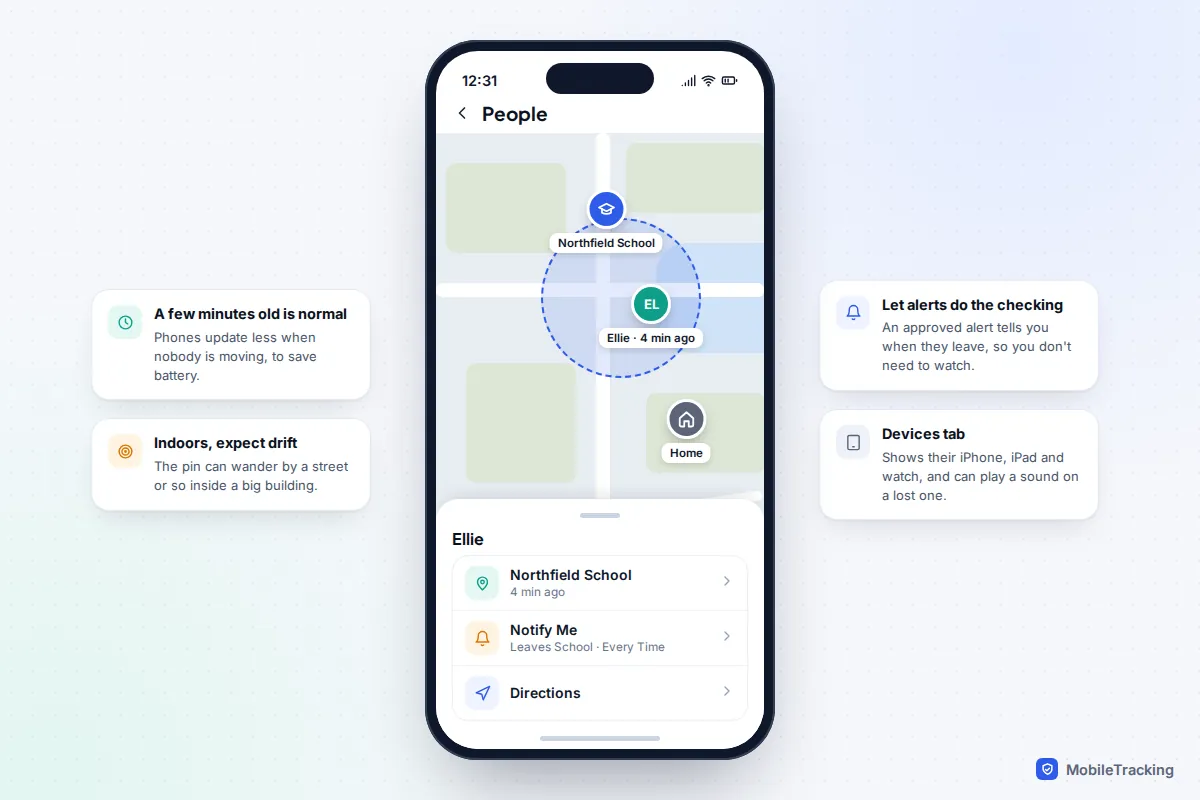
Two things surprise parents. First, the Devices tab also lists your child’s iPhone, iPad and any Apple Watch, so you can play a sound on a lost iPad or see where a device was last. Second, a location a few minutes old is not a fault. Phones save battery by updating less when nobody is moving, and indoors the pin can drift by a street or so. If you often see “No location found”, check the battery and signal first, then ask before assuming anything.
Stop sharing being switched off, and know the limits
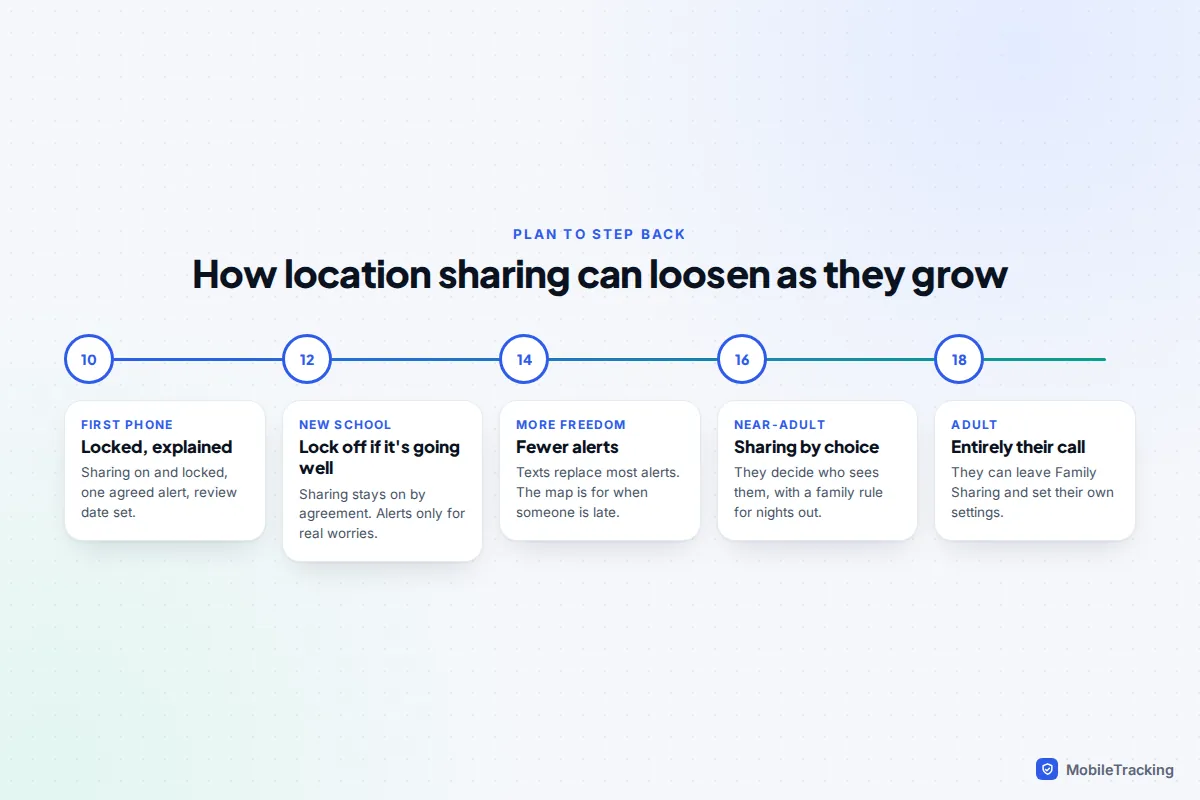
A child can turn off location sharing as easily as an adult, unless you lock it. For a primary-age child with a first phone, locking is reasonable. For most teenagers, an agreement usually works better than a lock, and it survives the day they find a workaround.
To lock it, use Screen Time from your own iPhone:
- Go to Settings › Family › your child’s name › Screen Time. On older versions of iOS the route is Settings › Screen Time › your child’s name. In iOS 27, Apple has moved more parental controls into the Family section, so labels may differ slightly.
- Open Content & Privacy Restrictions and make sure it is switched on.
- Set Location Services to Don’t Allow Changes.
- Set Share My Location to Don’t Allow Changes. Some versions just say Don’t Allow.
Lock both. Parents in Apple’s support forums report that locking only the family sharing switch still let a child turn off Share My Location in Settings. Some versions also show a Block Changes switch on the child’s page under Settings › Family › Location Sharing; if you see it, turn it on as well. And lock only after sharing is working, or you will lock it in the off position.
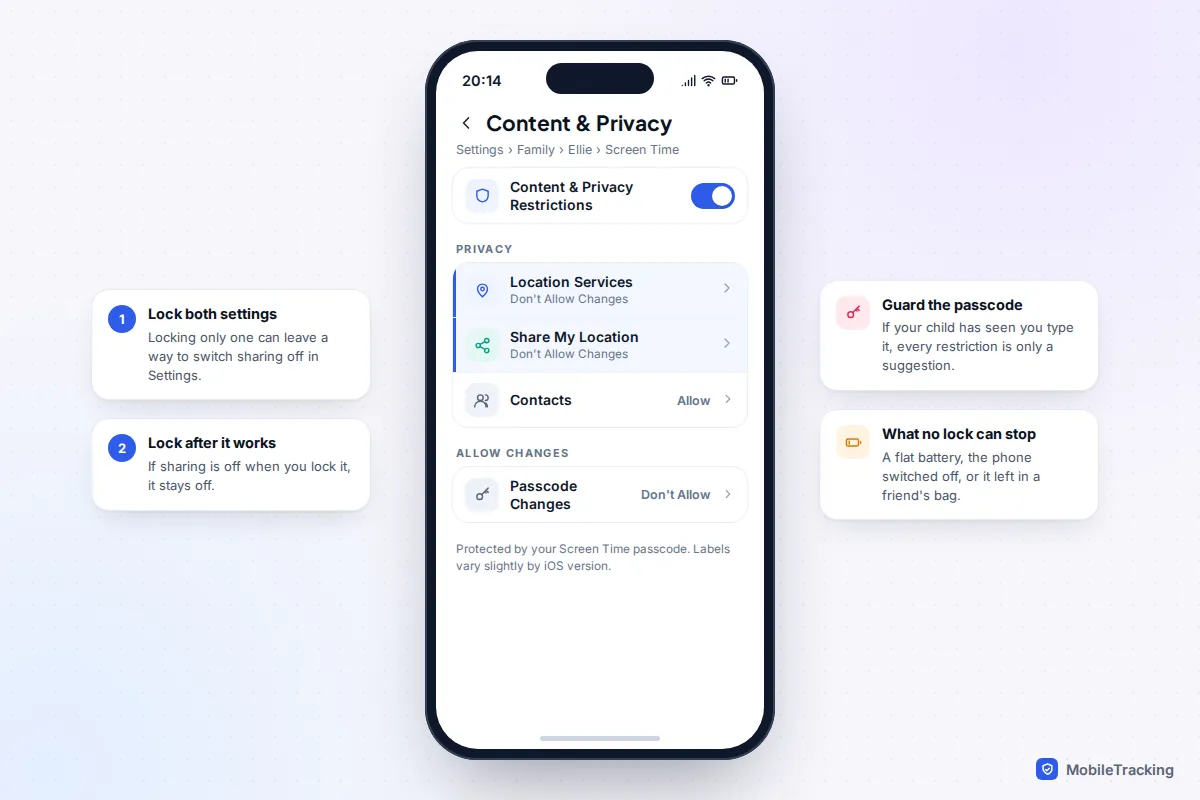
No setting can stop a phone going flat, being switched off, entering Airplane Mode or being left in a friend’s bag. That is also why a missing location is far more often a dead battery than a deliberate act. On iOS 27, Find My added Hide Location, which pauses sharing with one person until the next day without an alert. Check on your child’s phone whether it is available with your restrictions in place, and talk about it either way. Apple’s family device location in the Devices tab is not affected by Hide Location.
Arrival alerts your child agrees to
Alerts are the most useful part of family location sharing, because they replace watching the map. In Find My, tap People, then your child, then Add under Notifications and choose Notify Me. Pick Arrives, Leaves or Is Not At, choose a place, and choose Only Once or Every Time.
Apple designed these to be open. Your child is told when you set a one-time alert, and a recurring alert does not start until they approve it on their phone. They can see and remove alerts about them under Me › Notifications About You. That is a good thing: it keeps the arrangement honest, and it means an alert your child has approved is one they have agreed to.
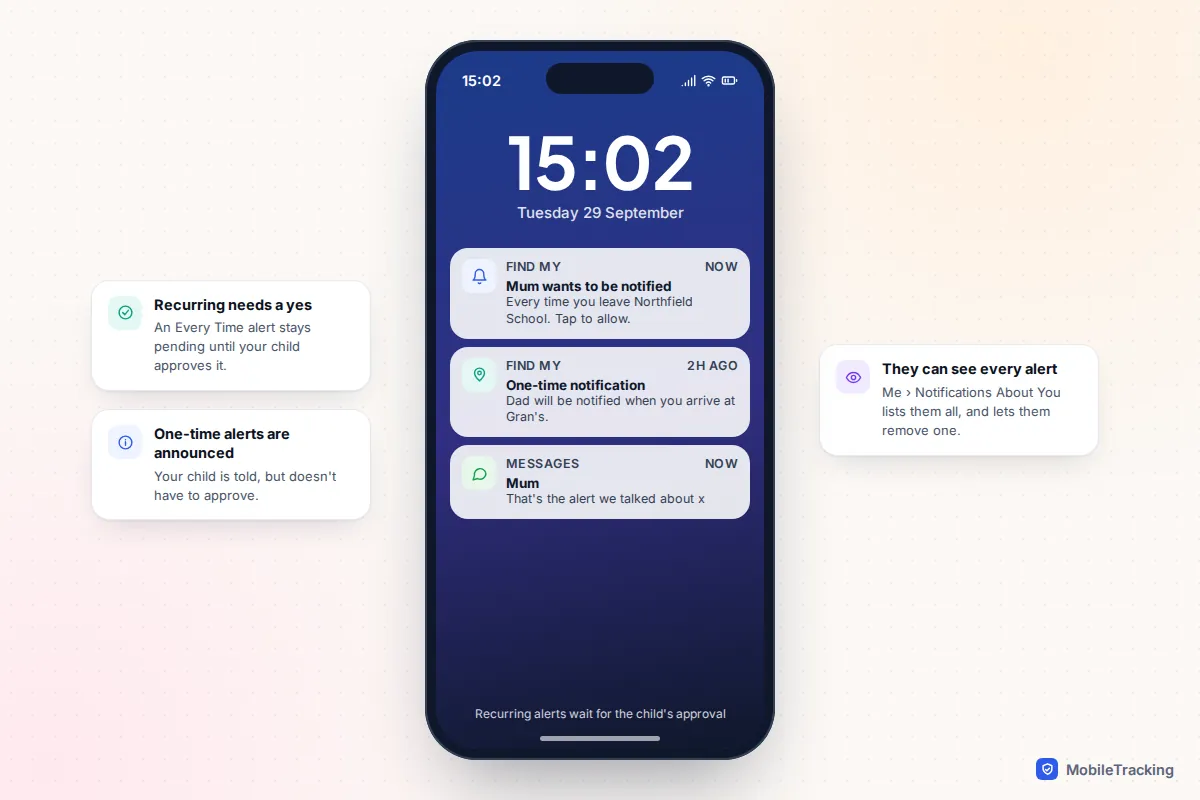
Keep it to two or three alerts that match the worries you wrote down, such as “leaves school” on weekdays and “arrives home” after a late club. Explain each one before you set it, so the approval request is expected. For school runs, our guide to getting alerts when your child arrives at school covers sizing the place and fixing late alerts.
Younger children: Apple Watch or AirTag instead of a phone
Many families want to know where a seven- or eight-year-old is long before they want that child to have a smartphone. Apple offers two routes, and they are not equal.
Apple Watch For Your Kids
A cellular Apple Watch can be set up for a child from a parent’s iPhone, without the child having an iPhone. The child gets their own Apple Account in your family group, the watch shares its location in Find My, and you can set the same arrival alerts. Schooltime mode limits the watch during lessons. You need a GPS + Cellular watch and a mobile network that supports this set-up: in the UK, Apple lists EE and BetterRoaming. Apple quotes up to 18 hours of battery life for the Apple Watch SE 3, so it is a nightly charge. Check Apple’s Apple Watch For Your Kids page for the current models and networks before you buy.
AirTag
An AirTag in a school bag is cheap and popular, but Apple says it is designed for belongings, not people. It has no GPS: it reports only when an Apple device passes nearby, so updates can be minutes or hours apart on a quiet route. It will also behave like an unknown tracker when it is away from you. Other people’s phones travelling with your child, such as a teacher’s on a school trip, may get alerts about it, and the tag itself plays a sound after being separated from you for a while. Treat it as a way to find a lost bag, with a location on your child as a bonus.
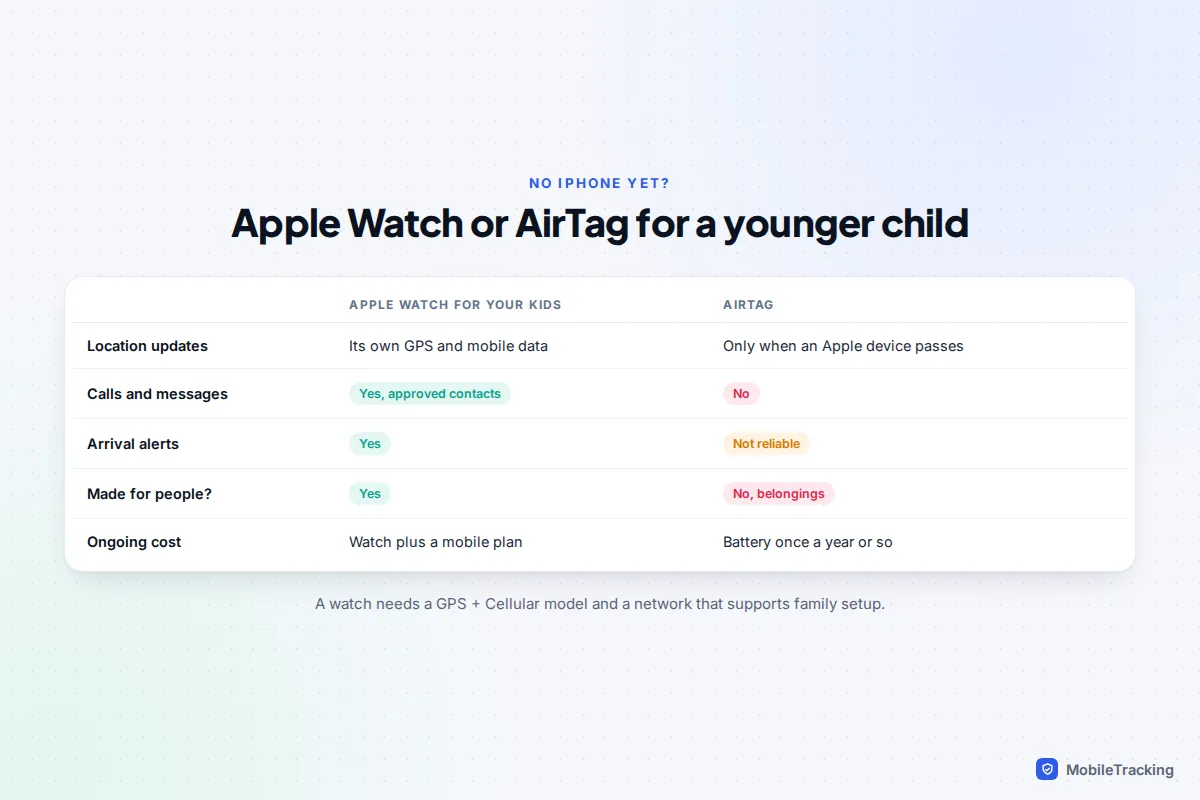
For a wider comparison that includes non-Apple watches, see how to choose a kids’ GPS watch.
Be open about it, and plan when to relax
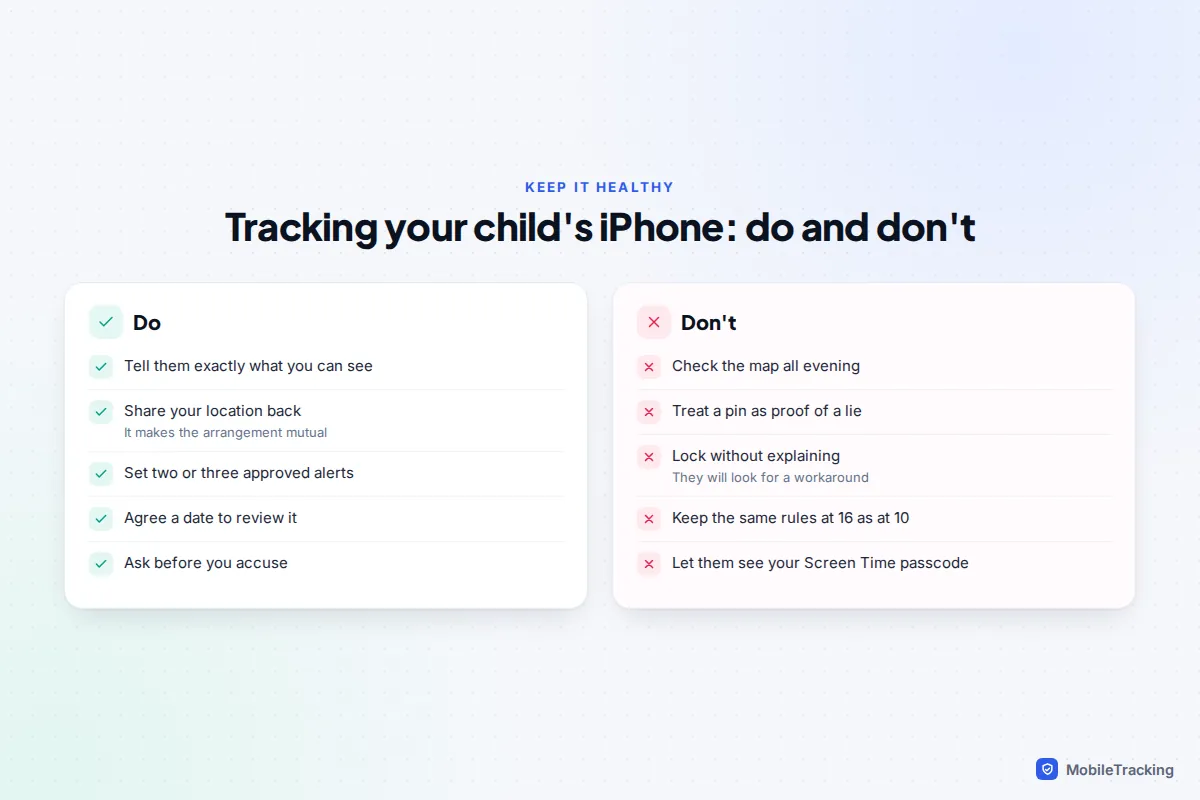
Children cope well with location sharing they understand and badly with sharing they discover. Before you switch anything on, tell your child what you will see (where their phone is, not their messages), when you will look (when they are late, or when an alert tells you something), and when you will review it. A written line in a family media agreement helps. Our guide on how to tell your child you are monitoring their phone has scripts by age.
Take a common case. Ellie is 11 and starting secondary school by bus. Her parents lock sharing, set one approved “leaves school” alert, and agree to review it at Easter. At the review, she has been reliable, so the lock comes off and the alert stays. At 14, she asks to drop the alert, and they agree she will text if plans change. Nothing about the phone changed much, but at each stage Ellie knew where she stood.
Common mistakes
- Using the map as a lie detector. Drift, delays and flat batteries make a pin a poor basis for an accusation. Ask first.
- Checking constantly. If you open Find My ten times an evening, an alert will serve you better.
- Locking without explaining. A child who finds a greyed-out switch starts looking for a workaround.
- Never loosening. At 18 your child can leave the family group entirely. Easing off earlier builds the habit of sharing by choice.
If you use an Android phone
Find My has no Android app, so an Android parent cannot see a child in it. The usual answer is Google Maps location sharing, set up on your child’s iPhone and shared with your Google Account. Google’s rules for children’s Google Accounts vary by age and country, so check that step first. Our guide to family location sharing between Android and iPhone compares the options.
Frequently asked questions
Does my child get a notification when I look at their location?
No. Opening Find My and viewing their location sends nothing. Setting an alert about them does: they are told about one-time alerts and must approve recurring ones.
Can I see my child’s location history on iPhone?
No. Find My shows where your child is now and where a device was last seen, not a trail of where they went. Apps that record history work differently and need a separate, open conversation about how much you want to keep.
My child’s location says “No location found”. What should I do?
Call or message them first. The usual causes are a flat battery, no signal, Airplane Mode or the phone being off. Check the Devices tab for when it was last seen, and look again once they are somewhere with signal.
At what age should I stop tracking my child’s location?
There is no fixed age, but plan the steps. Many families move from a locked setting to an agreement in the early teens and to voluntary sharing by 16. At 18, your child can leave Family Sharing and decide for themselves.
Should I track my child’s iPhone without telling them?
We do not recommend it, and Apple’s tools are not built for it: alerts are visible, and your child can see their own sharing settings. Hidden tracking tends to damage trust when it is discovered, which it usually is. Open sharing with a clear reason works better at every age.
This guide is general information, not legal or financial advice. Read our editorial policy.