
The fastest way to know your child has reached school is an arrival alert, sometimes called a geofence: you draw a circle round the school once, and your phone tells you each morning when their phone or watch enters it. If your child has an iPhone, use Notify Me in Find My and choose Every Time. If they have an Android phone and are under 13, add school as a family place in Google Family Link. For a teenager on any phone, use arrival notifications in Google Maps or, since May 2026, Find Hub. Life360, kids’ GPS watches and transparent family apps all do the same job with their own “places”.
Each takes five minutes. Getting alerts you can rely on takes a little more thought: how big to draw the circle, what happens when phones are switched off at the school gate, and what you and your child agree an alert means. This guide covers all of it.
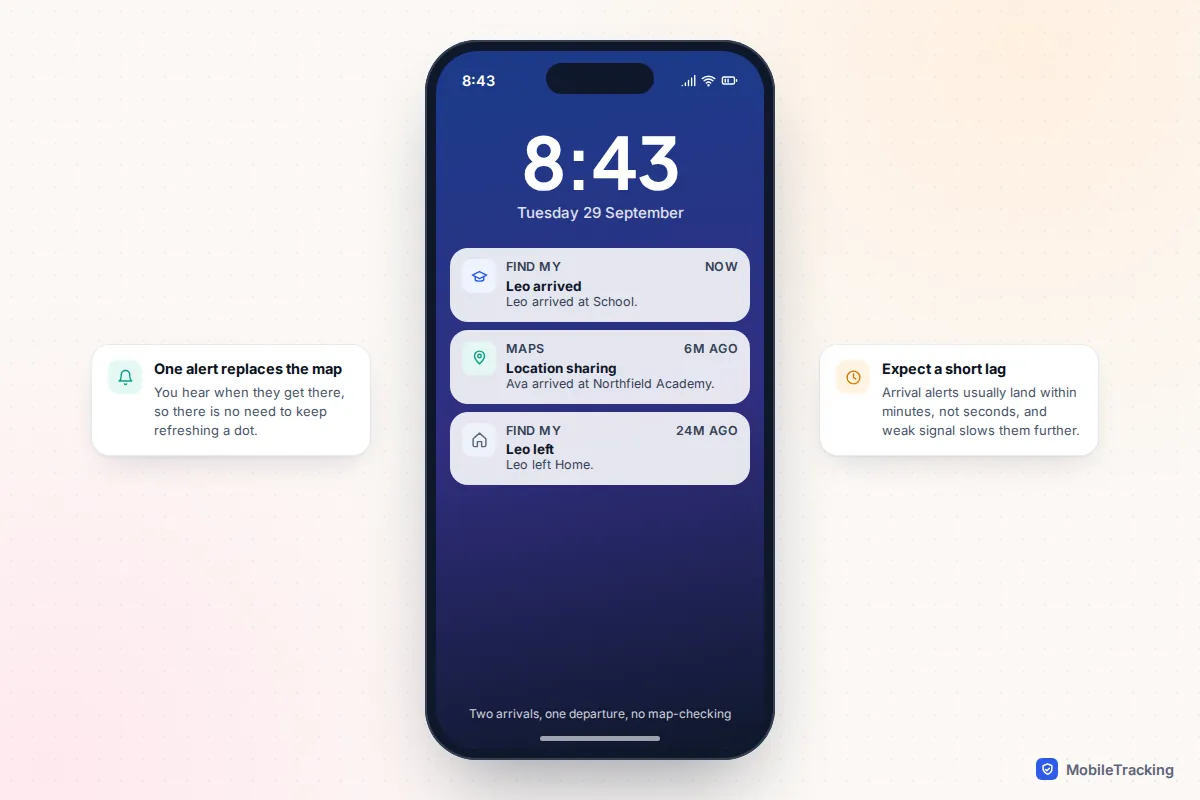
Which option should you use?
Let your child’s device decide, not the features list. The tools built into the phone are free, already installed and cause the fewest battery and permission problems. A separate app only earns its place if it does something the built-in tools cannot, such as covering a mixed iPhone and Android family in one place or combining place alerts with screen time.
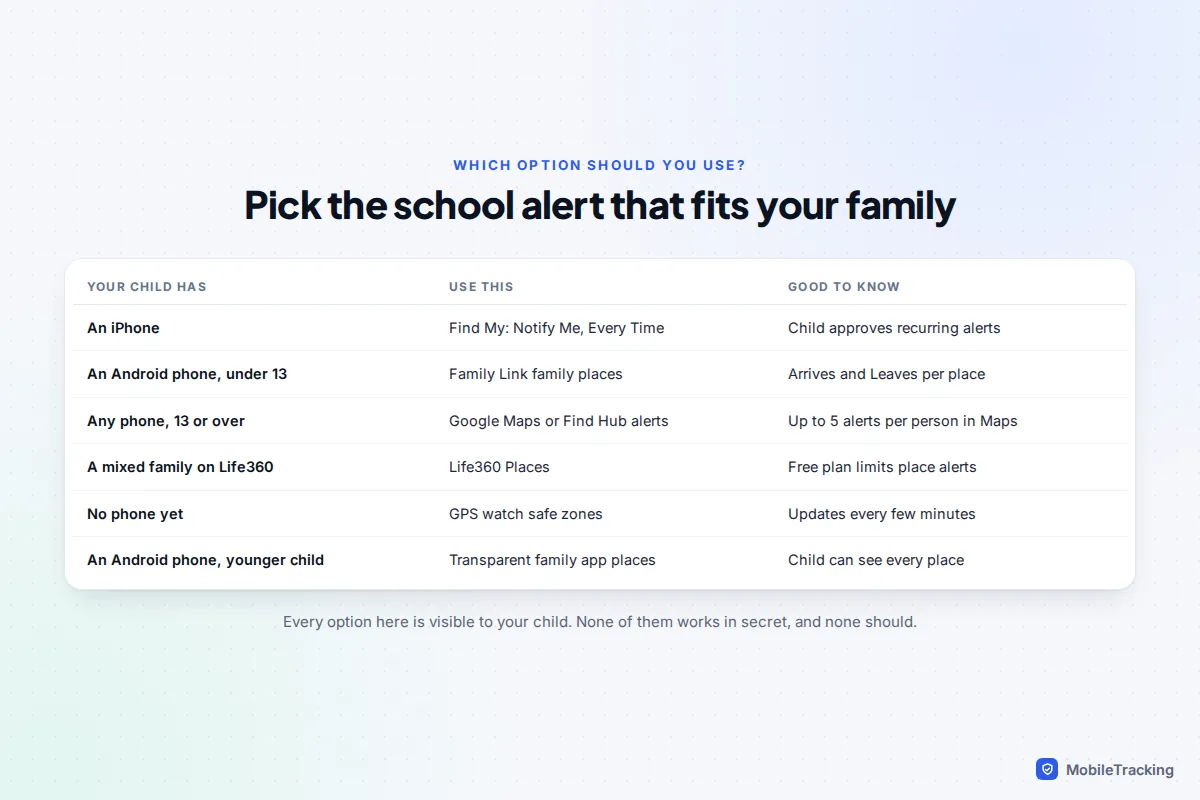
One rule applies to all of them: your child’s device has to be sharing its location with you first. An arrival alert is a layer on top of location sharing, not a way around it. If you have not set that up yet, do it together, and read how to tell your child you’re monitoring their phone before you start.
iPhone: Notify Me in Find My
If your child has an iPhone and shares their location with you through Family Sharing or Find My, you can set a school alert from your own iPhone, iPad or Mac. The steps are the same on iOS 26 and iOS 27.
- Open Find My and tap People, then your child’s name.
- Under Notifications, tap Add, then Notify Me.
- Choose Arrives. (The other choices are Leaves and Is Not At.)
- Tap New Location, move the map so the pin sits on the school’s main building, and set the radius. For most schools, go for one of the larger sizes.
- Under Frequency, choose Every Time, then tap Add.
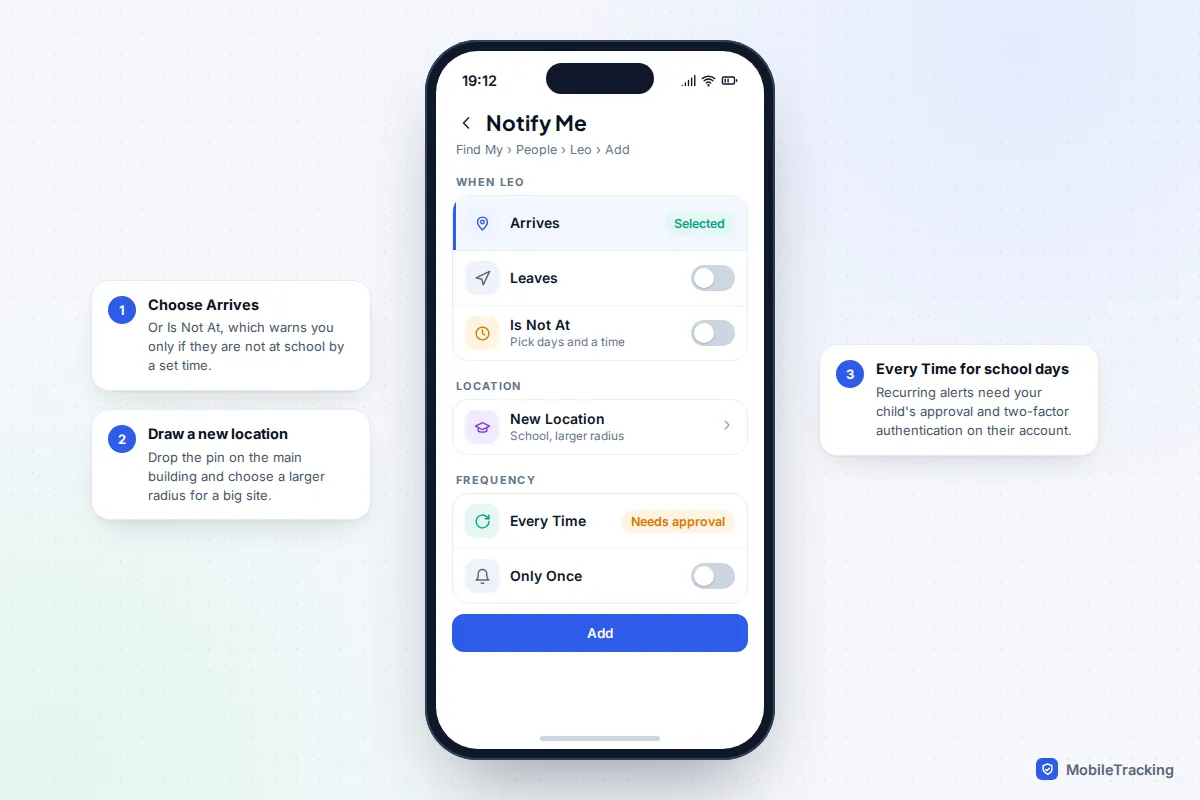
The approval step that catches parents out
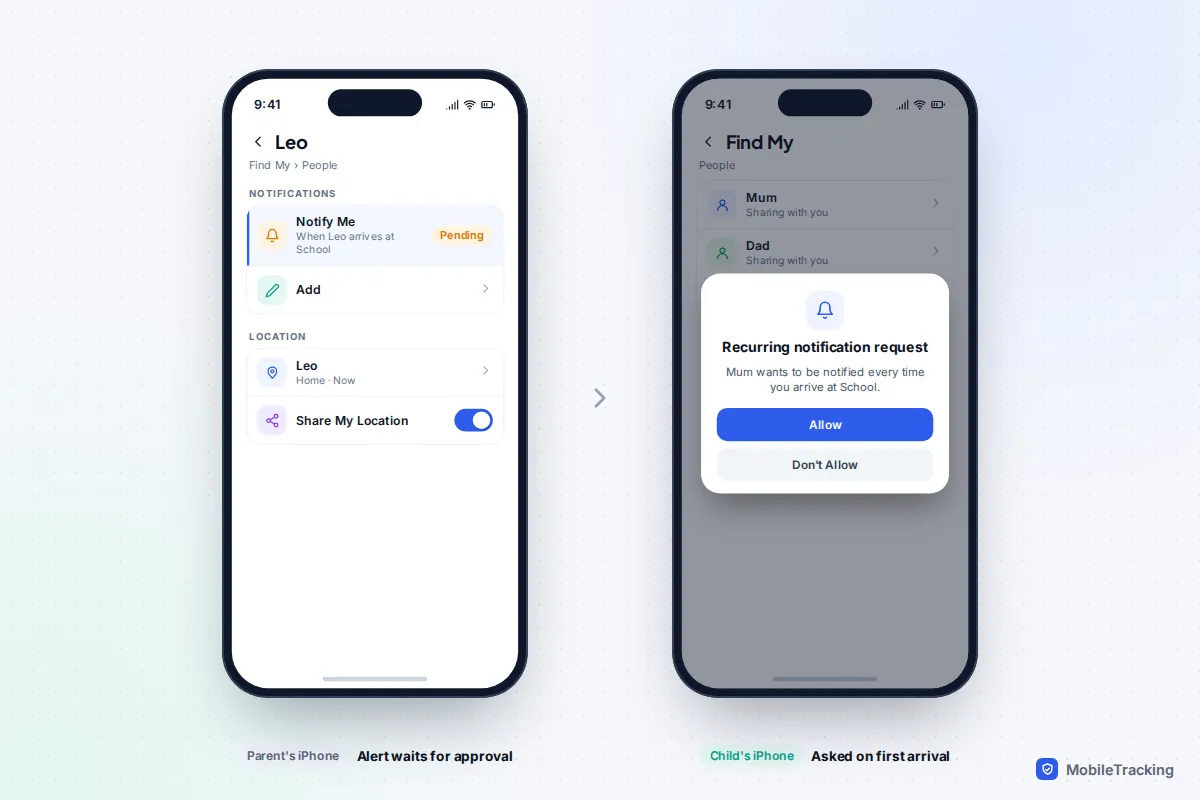
A recurring alert is not switched on the moment you tap Add. Apple says your child must approve it first, and they are asked when they next arrive at or leave the place you chose. In practice that means no alert on the first morning, just a prompt on your child’s phone at the school gate. If they tap Don’t Allow, or swipe the prompt away, you will not hear anything. Apple also only allows recurring alerts for people whose Apple Account has two-factor authentication turned on, so if Every Time is missing, check that first.
The Is Not At option is worth knowing about. Instead of an alert every day, you choose the days and a time, such as school days at 9:10, and you only hear if your child is not at school then. For a child with a settled routine, that is quieter and closer to what you really want to know. Apple’s Find My notifications guide covers each choice.
Android and mixed families: Google Maps, Find Hub and Family Link
Teenagers: Google Maps or Find Hub
If your child is 13 or over (the age varies by country) and shares their location with you through Google, you can add an alert from Google Maps on Android or iPhone. Tap your profile picture, then Location sharing, choose your child, and under Notifications tap Add. Pick the school, choose Every time they arrive, and tap Save. Google allows up to five of these for each person, and your child is sent an email about it, plus a push notification if their Maps notifications are on.
In May 2026 Google began adding the same feature to Find Hub, the Android app that replaced Find My Device. Open Find Hub, go to People, tap your child, then Get location notifications and Add a location notification. Choose Arrives, pick or draw the place, and save. Both apps use the same Google sharing list, so set the alert in one app, not both, or you will get two notifications each morning.
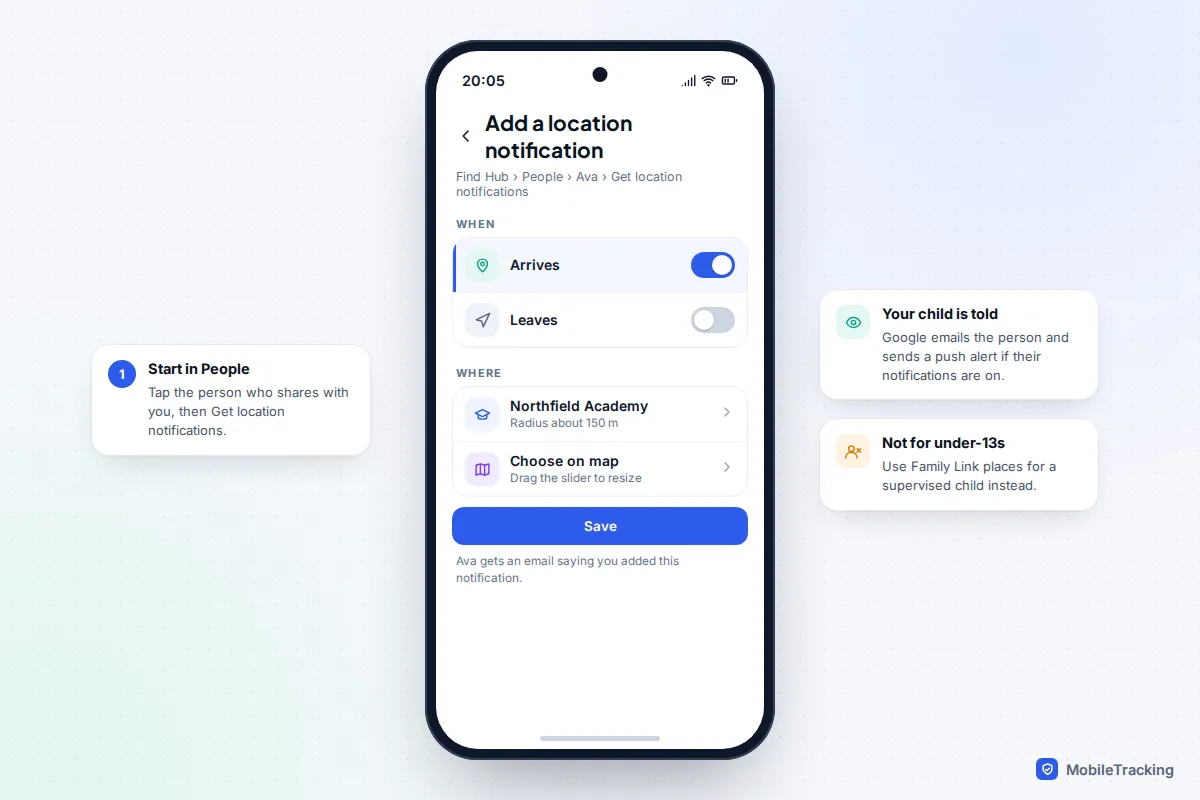
Two limits matter. These alerts do not work for a child under 13 or for someone who shares through a link rather than their account. And your child can turn off everyone’s alerts about them in their Google Account location sharing settings while still sharing their location, which Google’s Location Sharing notifications help describes.
Under 13 on Android: Family Link
For a supervised child, open Family Link, tap Location, and turn on location for your child if it is not already on. Then go to Family places, tap Add school, search for the address and save. Tap the new place and switch on Arrives, and Leaves if you want to know when they set off home.
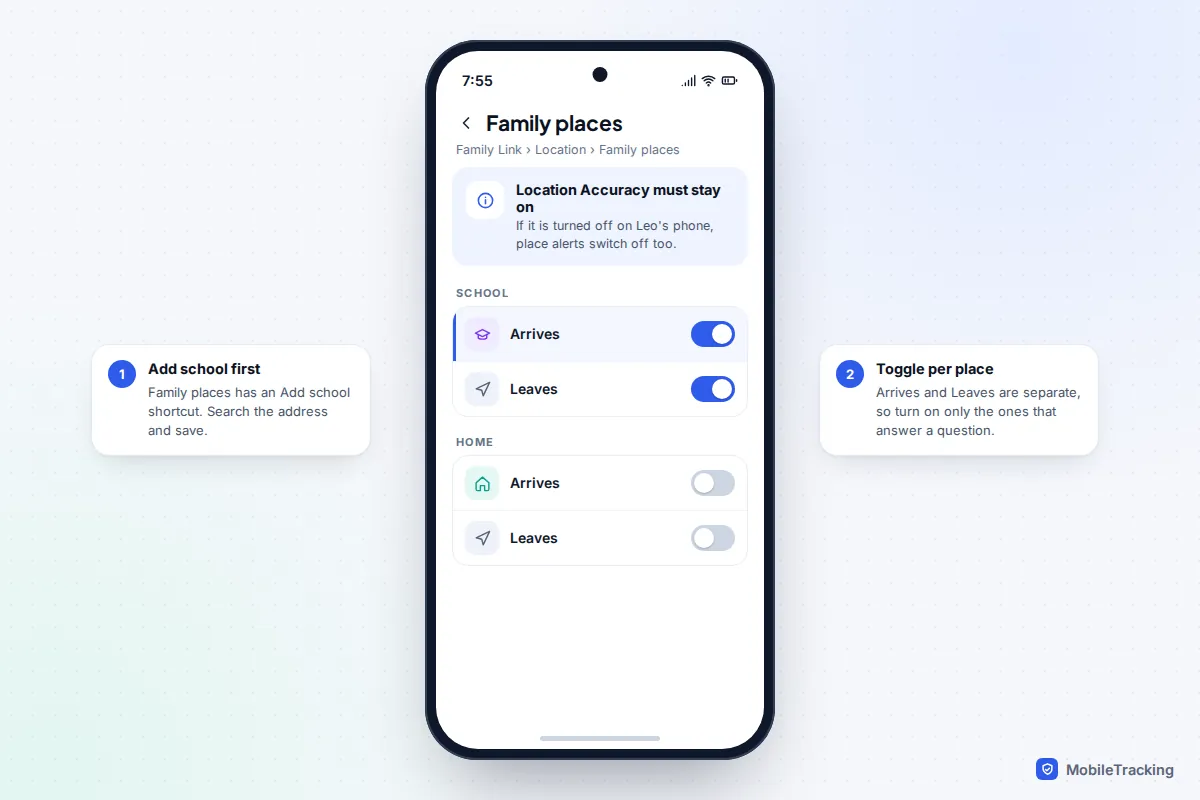
Google warns that place alerts switch off automatically if Location Accuracy is turned off on the child’s phone, and that the phone needs to be on and connected. Family Link locates Android phones and some watches, not iPhones. Details are in Google’s Family Link location help.
Life360, GPS watches and family apps
Life360 calls its geofences Places. Tap the Places icon below the map, add a new Place, locate it on the map and use the bell icon to turn on Arrives or Leaves for each member. A Place can be set from 250 feet (about 76 metres) up to 2 miles, and Life360 warns that Places which touch or overlap give unreliable alerts, which matters if you live close to the school. The free plan limits how many places send alerts; Silver covers five places and Gold is unlimited. Paid plans also include No Show alerts, which only notify you if someone has not arrived by a set time.
Kids’ GPS watches have the same feature under different names: Xplora calls them Safety Zones, and Garmin’s Jr. app calls them boundaries, including a temporary boundary that deletes itself after it alerts you once. Watches usually report their position every few minutes to save battery, so expect a slower alert than a phone gives. Our guide to setting safe zones on a kids’ GPS watch goes through the main brands.
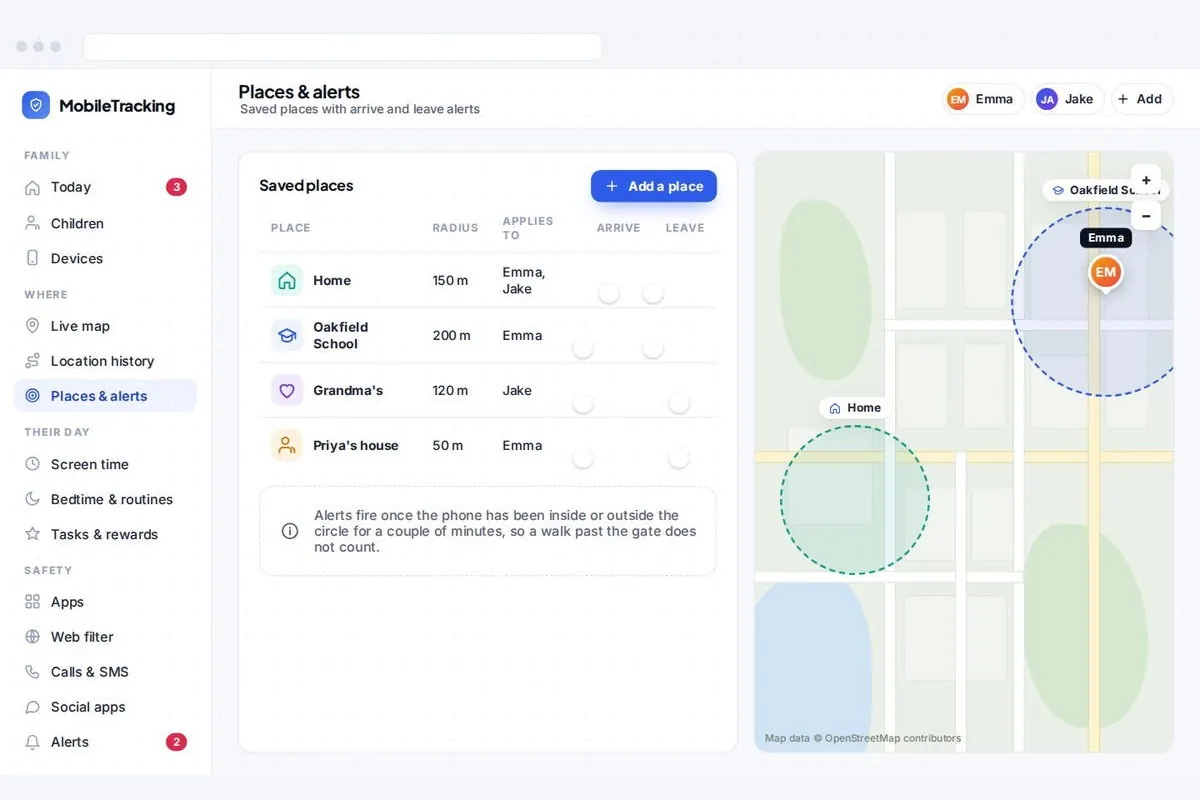
For a younger child with an Android phone, a transparent family app such as MobileTracking lets you save school as a place with arrival and departure alerts. The child app is visible on their phone, lists every saved place by name, and never reads messages.
How big should the school geofence be?
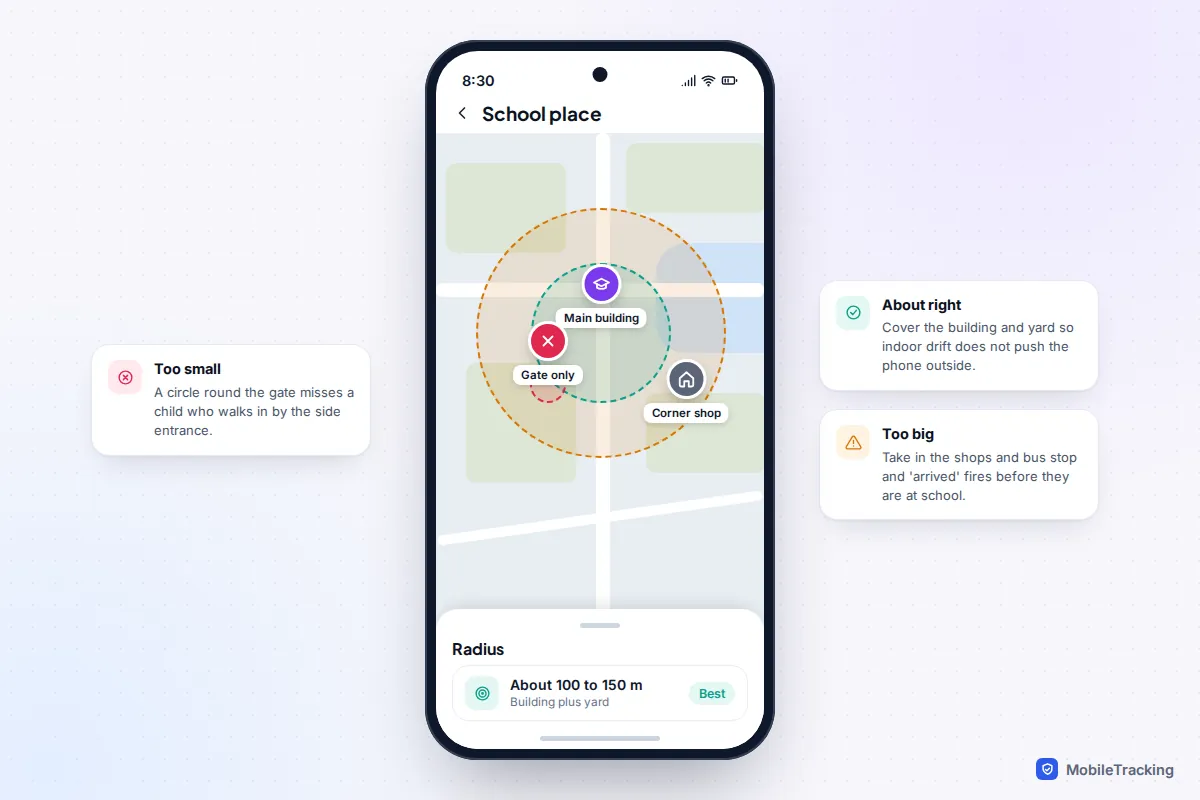
Most complaints about arrival alerts come from a circle drawn in the wrong place or at the wrong size. Phone GPS is accurate to a few metres outdoors, but inside a building the phone relies on Wi-Fi and mobile masts and can drift tens of metres while your child sits still. A tight circle then produces “arrived, left, arrived” all morning.
- Centre it on the main building, not the gate. Children use side entrances, and the building is where the phone spends the day.
- Cover the building and the yard. For a typical primary school that is roughly 75 to 100 metres. A large secondary campus may need 150 metres or more.
- Stop short of the shops and the bus stop. Too large a circle fires “arrived” while your child is still buying crisps down the road.
- Keep it clear of home. If you live very close, overlapping circles confuse every app. Use a smaller home place, or skip it.
- Go bigger in rural areas. Where the phone leans on distant masts, positions are rougher, so allow more room.
For more on how phones judge whether they are inside a circle, see our guide to setting up geofence alerts for your kids.
School phone rules, late alerts and what to do when nothing arrives
Many schools now require phones to be switched off or locked away for the whole day. In England, government guidance expects schools to be phone-free by default, including at break and lunch, and in April 2026 ministers announced plans to make that guidance statutory. In the US, 26 states had bell-to-bell restrictions by January 2026. A phone that is switched off reports nothing, so this affects your alerts directly.
If phones go off at the gate, the arrival alert has to fire before that moment, which is another reason to include the yard and entrance in your circle. The leaving alert will only arrive once the phone is switched back on, which may be halfway home. If phones are simply locked away in pouches or lockers while still on, location usually keeps working. Ask the school which system it uses, and whether a medical need allows an exception.
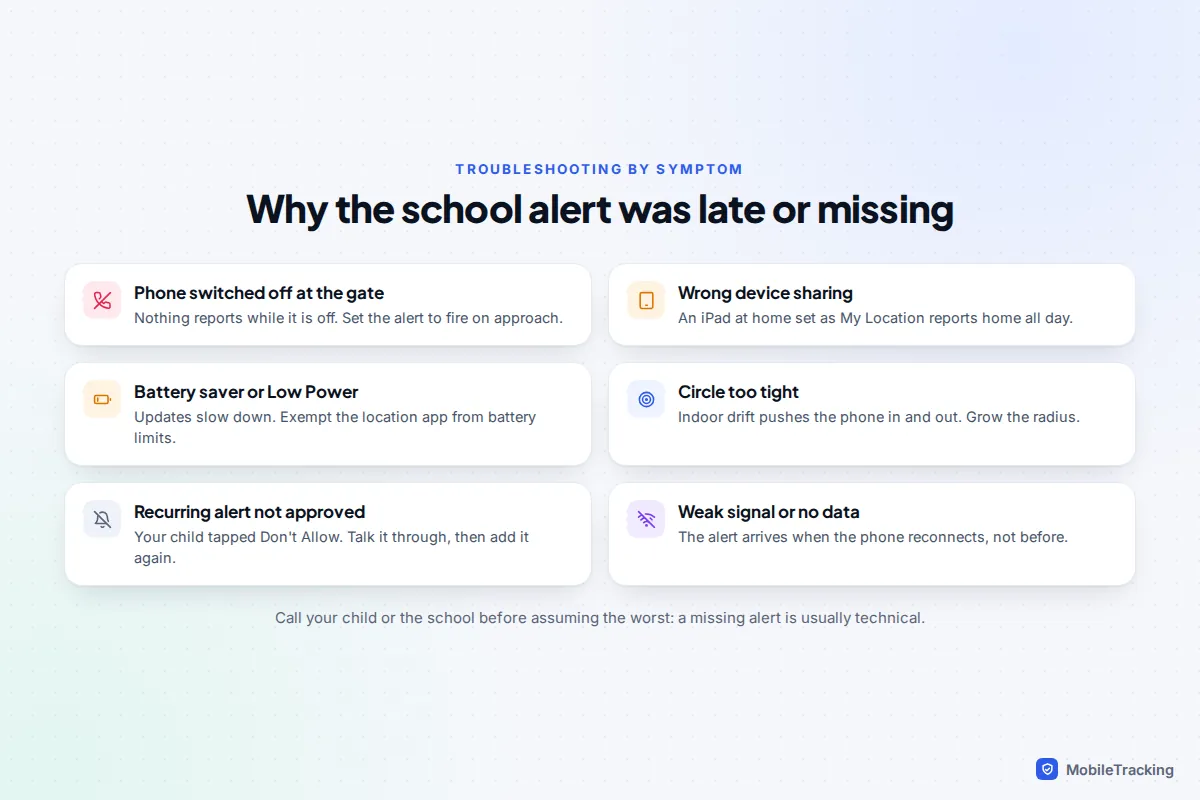
When an alert is late or missing, work through the likely causes before you worry:
- The alert came 10 minutes after they arrived. Normal on weak signal or with Low Power Mode or battery saver on. On Android, set Google Maps, Find Hub or your family app’s battery use to Unrestricted, and on Samsung remove it from Deep sleeping apps.
- An iPhone child always shows at home. Their iPad may be set as the device that shares their location. On their iPhone, open Find My, tap Me and choose Use This iPhone as My Location.
- Alerts stopped after a few days. Location permission may have been changed, Location Accuracy turned off, or sharing paused. Check together rather than assuming it was deliberate.
- No alert, and your child is not answering. Their phone may simply be off, as the rules require. Call the school office. Schools in England are expected to contact parents on the first day of an unexplained absence, so the register remains the best check you have. Some US districts also offer bus apps, such as Here Comes the Bus, that show when a child scans on and off the bus.
Our guide to why a family member’s location is not updating covers each setting in more depth.
Talk it through with your child, and know when to stop
An arrival alert works best when your child knows it exists, knows exactly what it tells you, and knows what it does not. Explain that you get one message when they reach school and nothing else. Agree what happens if it does not arrive: you will text first, then call the school, and nobody will be in trouble for a flat battery.
Consider how it went for one family. Ava, 11, started walking to secondary school with a friend in September. Her parents set an arrival alert and a leaving alert, and walked the route with her on the Sunday before term. By half-term the leaving alert was just noise, so they turned it off. After Christmas they swapped the daily arrival alert for an Is Not At alert at 9:10, which has fired once, on a day Ava’s phone died. They now plan to drop it entirely when she turns 13.
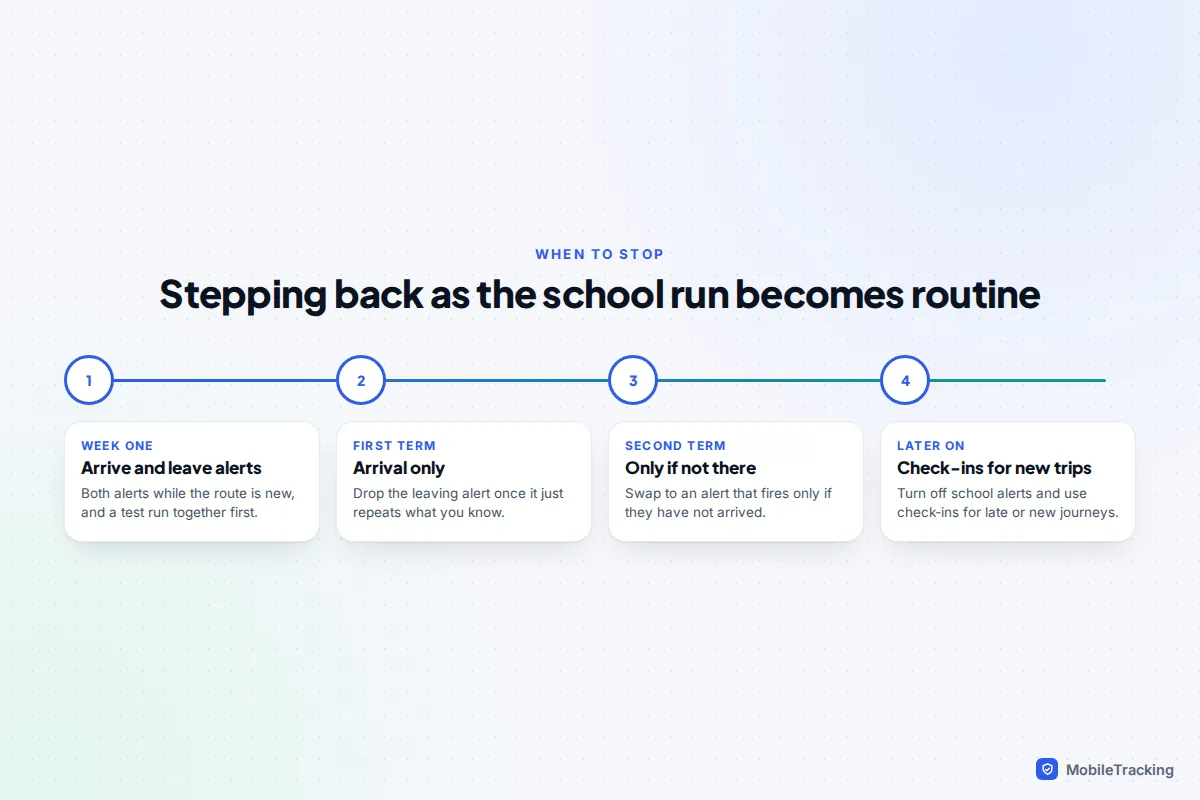
There is no fixed age to stop. Good signs are a route your child has walked for a full term without problems, a habit of texting if plans change, and your own realisation that you no longer look at the alerts. At that point, switch school alerts off and use check-ins for new or late journeys instead, as described in our guide to setting up check-ins instead of constant tracking.
Frequently asked questions
Will my child know I have set up a school arrival alert?
Yes. Find My asks your child to approve a recurring alert, and Google emails them when you add one in Maps or Find Hub. Family Link, Life360 and transparent family apps show location sharing on the child’s device. None of these tools works in secret.
Can I get an alert only if my child does not arrive?
On iPhone, use Is Not At in Find My and choose the days and time. Life360’s paid plans offer No Show alerts. With Google’s tools you can only be alerted on arrival or departure, so an arrival alert that does not come is the signal.
Why did I get the arrival alert when my child was still down the road?
The circle is too big, or the phone’s position was rough. Shrink the radius so it no longer covers nearby shops or the bus stop, and centre it on the main building.
Does a school arrival alert drain my child’s battery?
Very little. Phones watch geofences with the same low-power location tools they already run, so a single alert adds almost nothing beyond the location sharing that is already on.
Can I set an alert for a child with an iPhone from my Android phone?
Not in Find My, which needs an Apple device. If your child is 13 or over, they can share their location with you through Google Maps on their iPhone, and you can add the alert in Google Maps or Find Hub.
This guide is general information, not legal or financial advice. Read our editorial policy.