
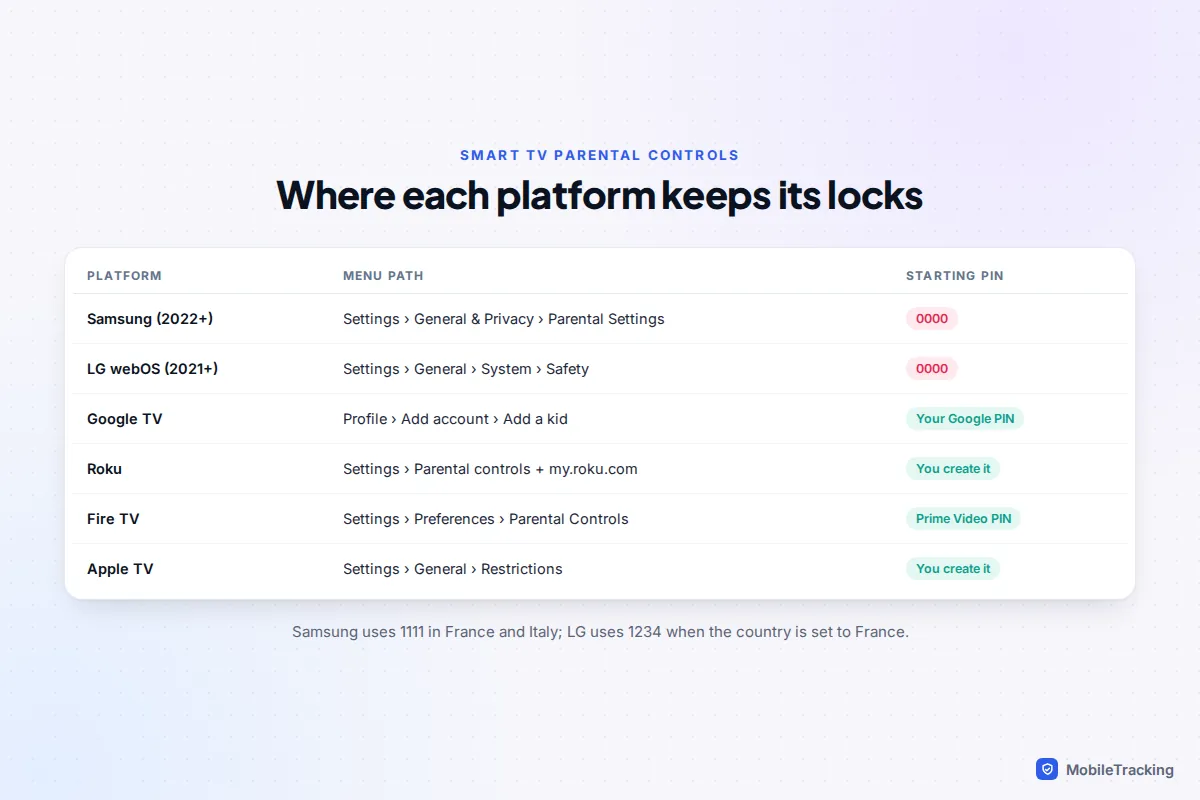
To set up parental controls on a smart TV, open the TV’s settings, find the parental or safety menu, change the default PIN, then set a maximum age rating and lock the apps you don’t want your child opening. On a recent Samsung that menu is Settings › All Settings › General & Privacy › Parental Settings; on an LG it is Settings › All Settings › General › System › Safety. Google TV, Roku, Fire TV and Apple TV each do it differently, and the table below shows where to look.
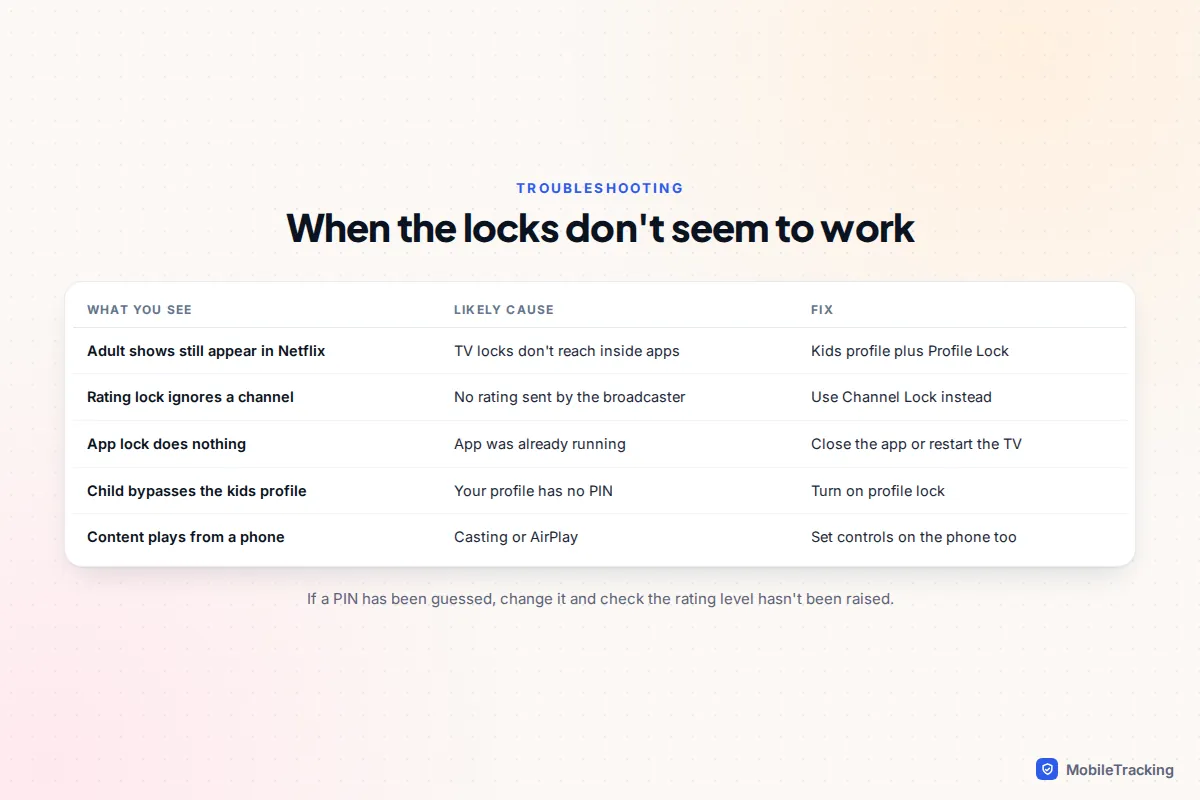
The catch is that the TV’s own lock mostly covers broadcast channels and which apps can open. It does not reach inside Netflix, YouTube or Disney+. For those you need a kids profile in each app, and a PIN on your own adult profile so your child can’t just switch to it. Set up both layers, or a curious eight-year-old will usually find the gap within a week.
Before you start: change the PIN and know the three layers
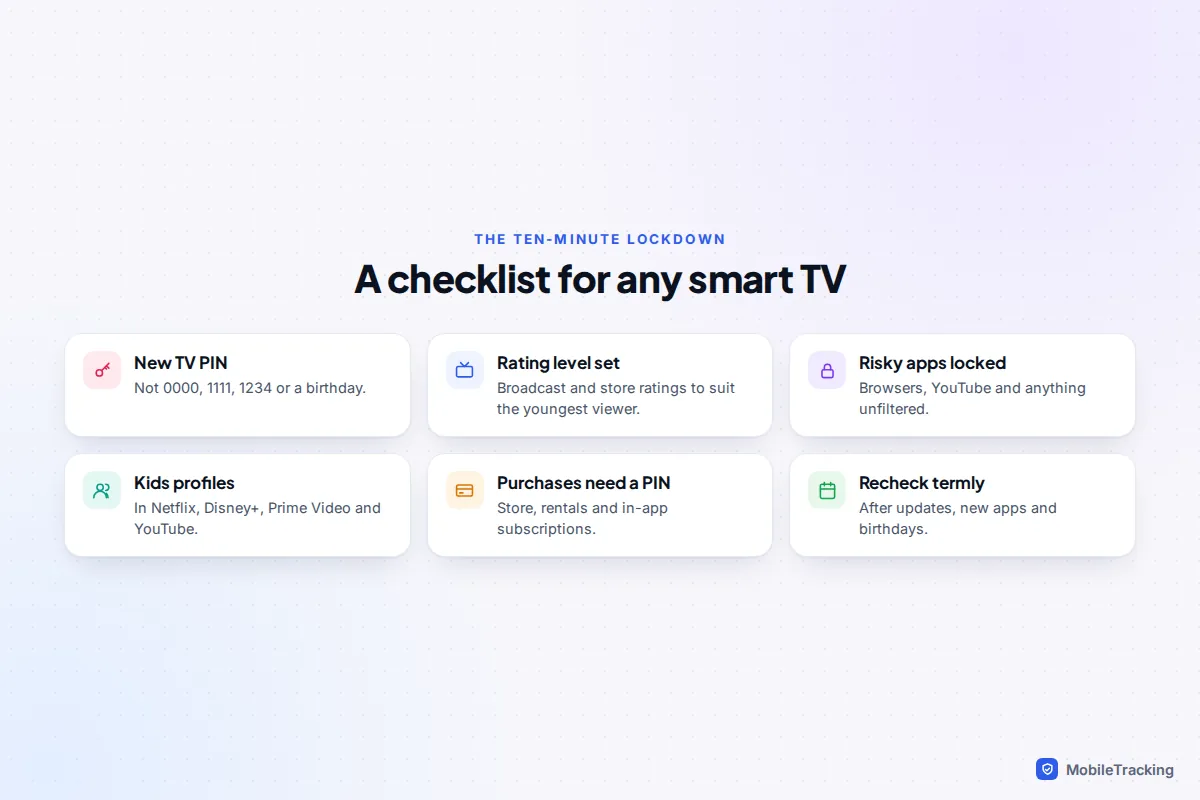
Most Samsung and LG TVs leave the factory with the parental PIN set to 0000. Samsung uses 1111 for TVs set up in France and Italy, and LG uses 1234 when the country is set to France. These defaults are printed in manuals and all over the internet, so any child who can search can find them. Changing the PIN is the single most important step, and it takes about 30 seconds.
Choose four digits that aren’t a birthday or your bank card PIN, and don’t type it in with an audience. Reset procedures for forgotten TV PINs are also published online, so treat the TV PIN as a speed bump and put the stronger locks on the accounts behind the apps.
A smart TV has three layers of control, and each one catches different things:
- The TV itself: rating locks for broadcast channels, channel locks, app locks and, on some sets, locks on HDMI inputs.
- The apps: kids profiles, maturity ratings and profile PINs inside Netflix, Disney+, Prime Video, YouTube and the catch-up players.
- The network: filtering on your router or a family DNS service, which can block sites in the TV’s web browser. Our guide to parental controls on your home Wi-Fi covers that layer.
Where to find parental controls on each platform
If you’re not sure what your TV runs, the brand usually tells you. Samsung TVs run Tizen and LG TVs run webOS. Sony, TCL, Hisense and Philips sets often run Google TV, while some TVs from other brands have Roku or Fire TV built in, and say so on the home screen. If the programmes come through a stick or box plugged into the TV, set controls on that device as well as, or instead of, the TV.
| Platform | Where the controls live | PIN | Can it lock apps? |
|---|---|---|---|
| Samsung (2022 onwards) | Settings › All Settings › General & Privacy › Parental Settings | 0000 by default | Yes, App Lock Settings |
| Samsung (2016 to 2021) | Settings › Broadcast › Programme Rating Lock; apps via Apps › App Settings | 0000 by default | Yes, per app |
| LG webOS (2021 onwards) | Settings › All Settings › General › System › Safety | 0000 by default | Yes, Application Locks |
| Google TV | Your profile picture › Add account › Add a kid | Your Google account PIN or password | Yes, you choose each kid’s apps |
| Roku | Settings › Parental controls, plus PIN preference at my.roku.com | You create it | No, it blocks adding apps and purchases |
| Amazon Fire TV | Settings › Preferences › Parental Controls | Your 5-digit Prime Video PIN | Yes, PIN on app launches |
| Apple TV | Settings › General › Restrictions | You create a 4-digit passcode | Hides apps above an age rating |
Menu names shift a little between updates and regions (US Samsung sets say “Program Rating Lock”), so look for the nearest equivalent if a label doesn’t match.
Samsung and LG smart TVs
Samsung (Tizen)
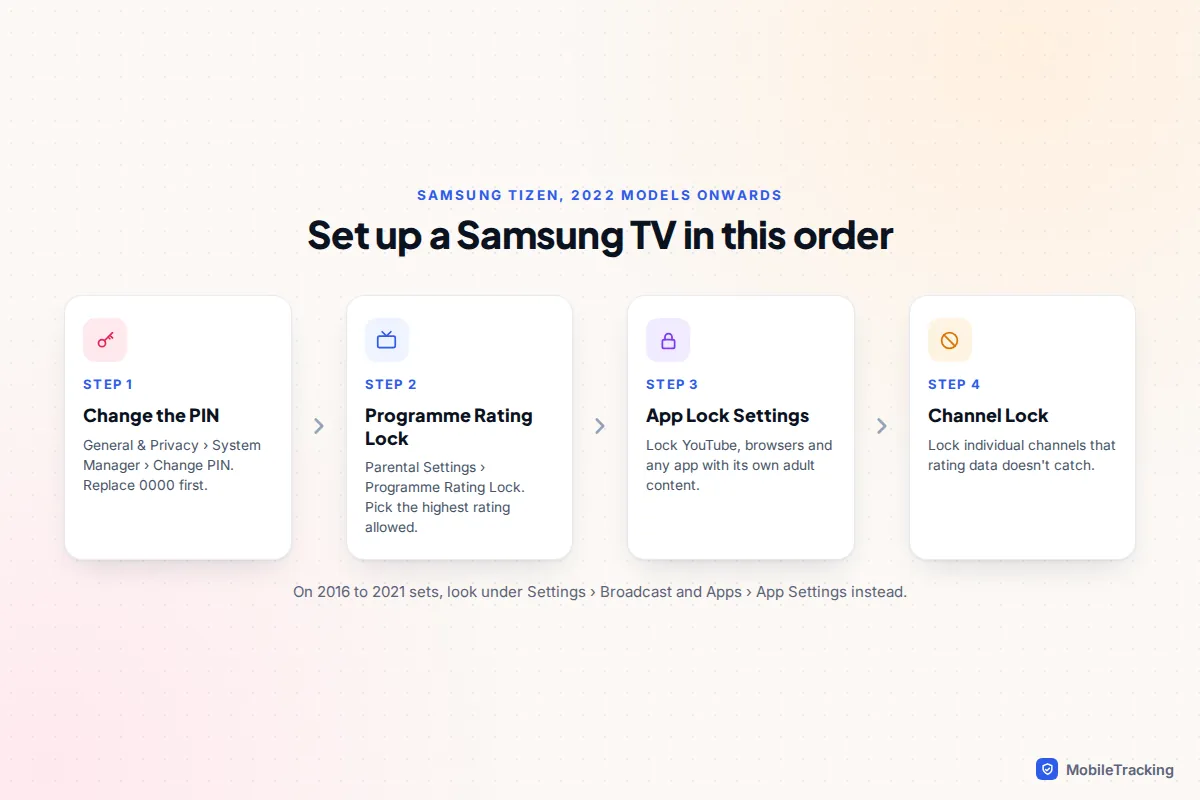
On 2022 and later Samsung TVs, everything sits in one place. Start by changing the PIN, because every other setting asks for it.
- Go to Settings › All Settings › General & Privacy › System Manager › Change PIN. Enter 0000 (or your current PIN), then your new PIN twice.
- Go to General & Privacy › Parental Settings › Programme Rating Lock, enter the PIN and choose the highest rating you’re happy with. Anything above it will need the PIN to watch.
- Open App Lock Settings in the same menu. Select each app you want to protect, such as YouTube, the web browser or free streaming apps, and choose Lock.
- On 2023 and later models, use Channel Lock Settings to lock individual channels. On 2022 models, channel locks are in the Live TV guide under Edit Channels.
Samsung says its locks don’t cover external sources such as Blu-ray players or USB files, so a console or stick plugged into the TV needs its own controls.
LG (webOS)
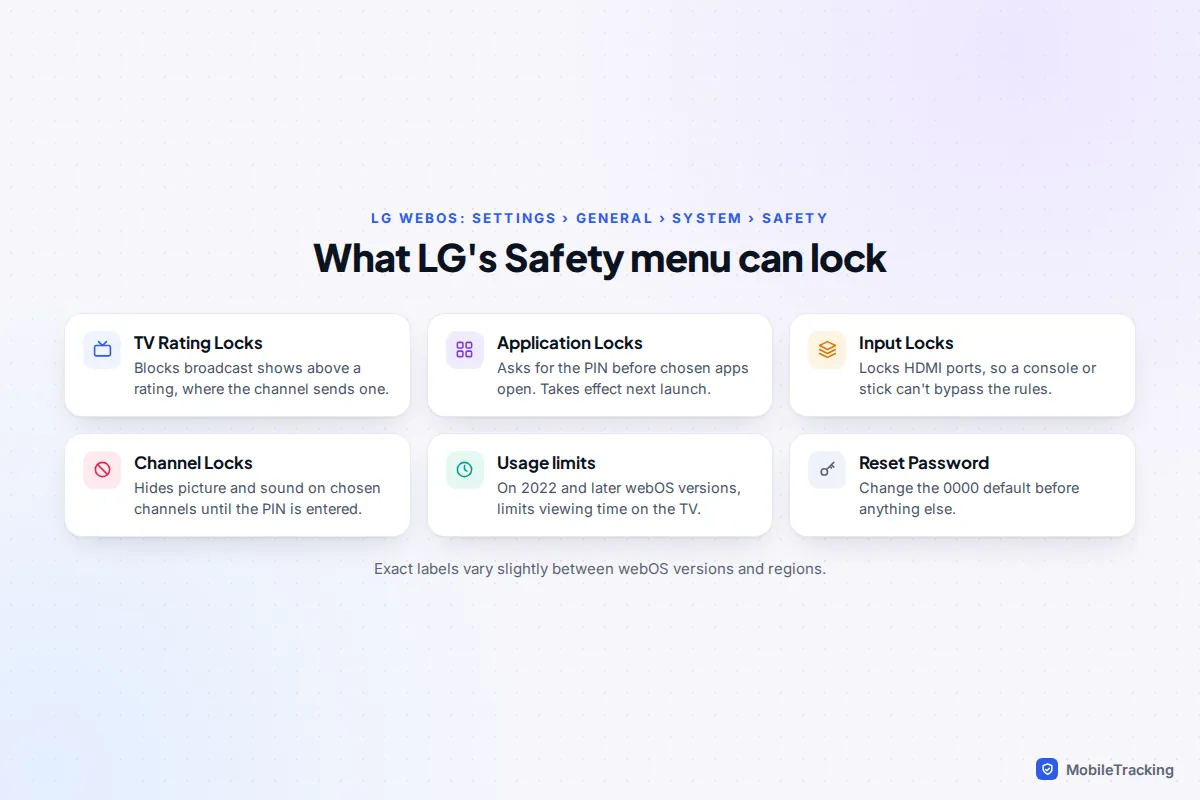
On LG TVs from 2021 onwards, go to Settings › All Settings › General › System › Safety and switch it on (the 2020 webOS 5 path skips the System step). Enter 0000, then choose Reset Password straight away to set your own.
Inside Safety you’ll find TV Rating Locks for broadcast programmes, Application Locks for individual apps, Channel Locks, and on many models Input Locks, which put the PIN on HDMI and other inputs. LG notes that an app lock doesn’t apply to an app that is already running, so close the app or restart the TV to test it. From 2022, LG’s webOS versions also include usage limits for overall viewing time.
Google TV: use a kids profile with Family Link
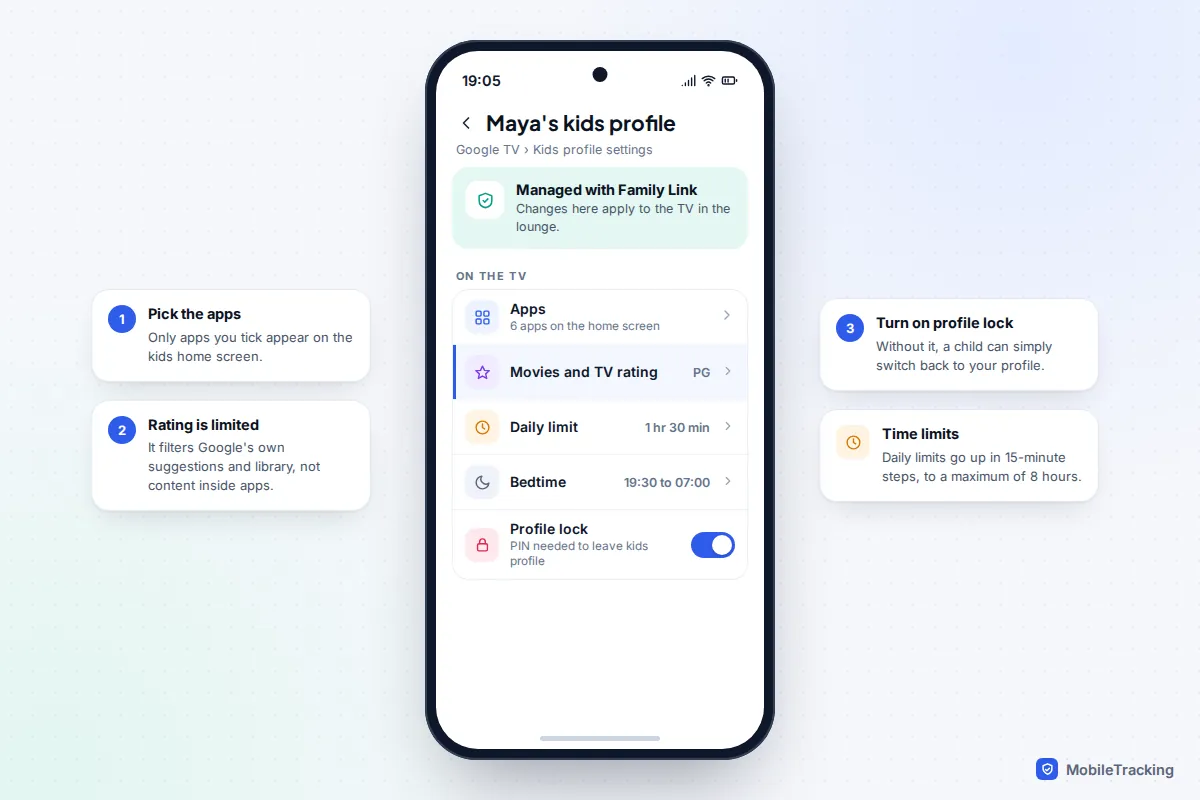
Google TV, found on many Sony, TCL, Hisense and Philips TVs as well as Google’s own streamer, handles children differently. Each child gets a kids profile, managed through Google’s Family Link.
- On the Google TV home screen, select your profile picture or initial at the top right.
- Choose Add account, then Add a kid.
- Pick an existing child in your Google family group, or create a new one. The kids profile doesn’t need its own email address.
- Choose which apps appear on your child’s home screen. Anything you leave unticked won’t be there.
- Follow the prompts to set a rating for films and TV, a daily screen time limit, bedtime and the profile lock.
Google’s help page on parental controls on Google TV explains the limits: daily time can be set in 15-minute steps up to 8 hours, bedtime in 30-minute steps, and extra time can be added with your PIN. The rating filter applies to Google’s own recommendations and your Family Library, not to what’s inside Netflix or YouTube, so those apps still need their own kids profiles. Turn on the profile lock, or your child can simply switch back to your profile. If you haven’t used Family Link before, our Family Link setup guide walks through creating the family group first.
Roku, Fire TV and Apple TV
Roku
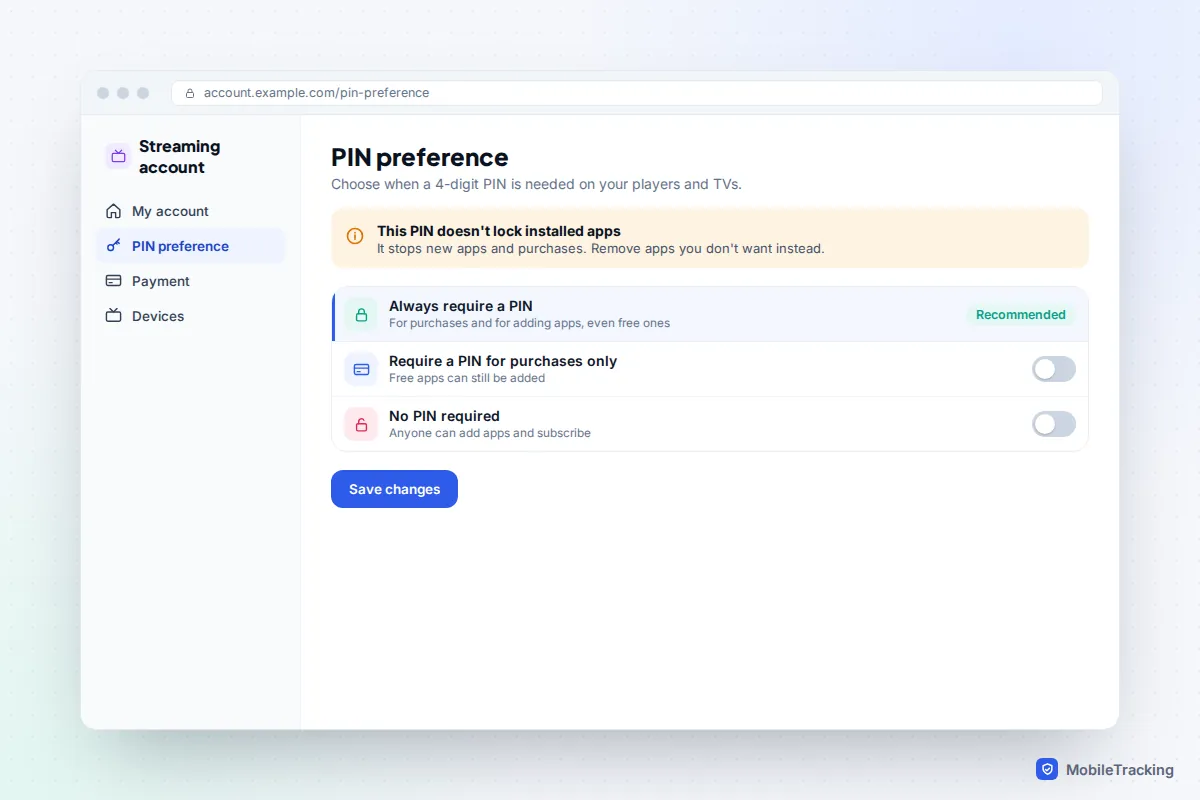
Roku splits its controls in two. The Roku PIN lives on your account: sign in at my.roku.com, find PIN preference and choose to require a PIN for purchases and for adding apps. Then, on the TV or player, go to Settings › Parental controls and create a separate 4-digit PIN for rating restrictions.
Know what Roku’s ratings actually cover. Roku says its parental controls apply to The Roku Channel and Howdy on your device, and to Live TV on Roku-branded TVs with an aerial, not to other streaming services. On a Roku TV you can block US ratings such as TV-14 and TV-MA and film ratings such as R, and choose to block unrated programmes. When a blocked programme comes on, the picture is hidden and the sound is muted until someone enters the PIN. What Roku can’t do is lock an app that’s already installed, so the fix is to remove apps you don’t want and let the PIN stop them coming back.
Amazon Fire TV
Go to Settings › Preferences › Parental Controls and switch them on. Fire TV uses your 5-digit Prime Video PIN; if you’ve forgotten it, you can reset it on Amazon’s website under your Prime Video settings. You can then set Viewing Restrictions for Prime Video by age category, and require the PIN for purchases, for opening apps and for Amazon Photos. The app-launch PIN matters most, because Amazon’s ratings don’t reach inside Netflix or YouTube. On supported models you can also create an Amazon Kids profile with its own content and time limits, managed from Amazon’s Parent Dashboard.
Apple TV
On an Apple TV box, open Settings › General › Restrictions, turn them on and create a 4-digit passcode. You can then set the maximum rating for films, TV shows and apps, restrict purchases and in-app purchases, block explicit music and podcasts, and restrict changes to AirPlay settings. Apps rated above your limit disappear from the home screen, so check what’s left afterwards. tvOS 26.2 also added child profiles in the Apple TV app that hide content above a chosen rating, but they only affect the Apple TV app itself.
Lock the apps, not just the TV
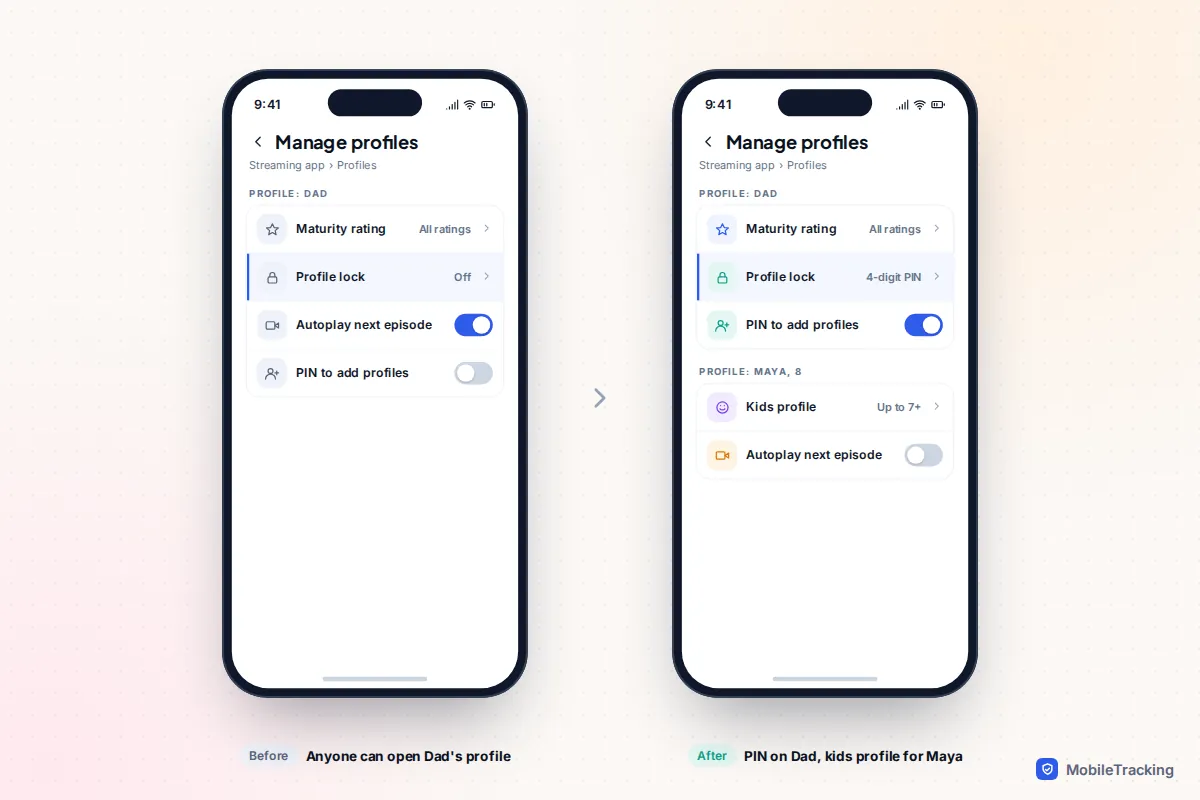
This is where most children get past the controls: a PG rating lock on the TV does nothing if Netflix opens on Dad’s unlocked profile. For each streaming app, do three things: create a kids profile for each child, put a PIN on every adult profile, and turn off autoplay for younger children.
- Netflix: in the mobile app go to My Netflix, tap your profile name, then Manage Profiles › choose a profile › Profile Lock, and set 4 digits. You can also require a PIN to add new profiles. Netflix’s own help page on adding a profile PIN covers the browser route, and our guide to Netflix kids profiles and PINs goes further.
- Disney+: set a content rating for each profile, use Junior Mode for young children (it includes a Kid-Proof Exit), add a 4-digit Profile PIN to adult profiles, and turn on the account setting that requires a password to create new profiles.
- YouTube: on the TV, sign in with your account and pick your child’s YouTube Kids or supervised profile from “Who’s watching?”. Add a parent code so they can’t leave for the full YouTube. See our guide to YouTube Kids and supervised accounts for which suits which age.
- Prime Video and catch-up players: Prime Video uses the same PIN as Fire TV. In the UK, BBC iPlayer, ITVX and Channel 4 each have their own parental controls inside the app.
Broadcast channels: how rating locks really work
A TV’s rating lock reads age information that broadcasters send alongside the programme. In the US, the FCC has required a V-chip in new TVs 13 inches or larger since 2000, reading the TV Parental Guidelines ratings from TV-Y to TV-MA. The FCC’s V-chip guide notes that news, sports and unedited films on premium cable carry no rating, so a rating lock won’t stop them.
In the UK the picture is patchier. Freeview says you can block adult content and hide adult channels through your box or TV’s parental lock, but there is no Freeview-wide PIN, and on-demand content is controlled inside each channel’s player. Broadcast rating data isn’t consistent from channel to channel, which is why a rating lock sometimes lets a programme through. If a channel keeps slipping past, lock the whole channel instead. And if you watch through a pay-TV box, its own parental PIN applies, not the TV’s.
Common mistakes and troubleshooting
Take one family: Priya set a PG rating lock on the Samsung in the lounge. A fortnight later her nine-year-old was watching a 15-rated series on Netflix, on Priya’s own unlocked profile. The TV lock was working; it just wasn’t the right lock for that app.
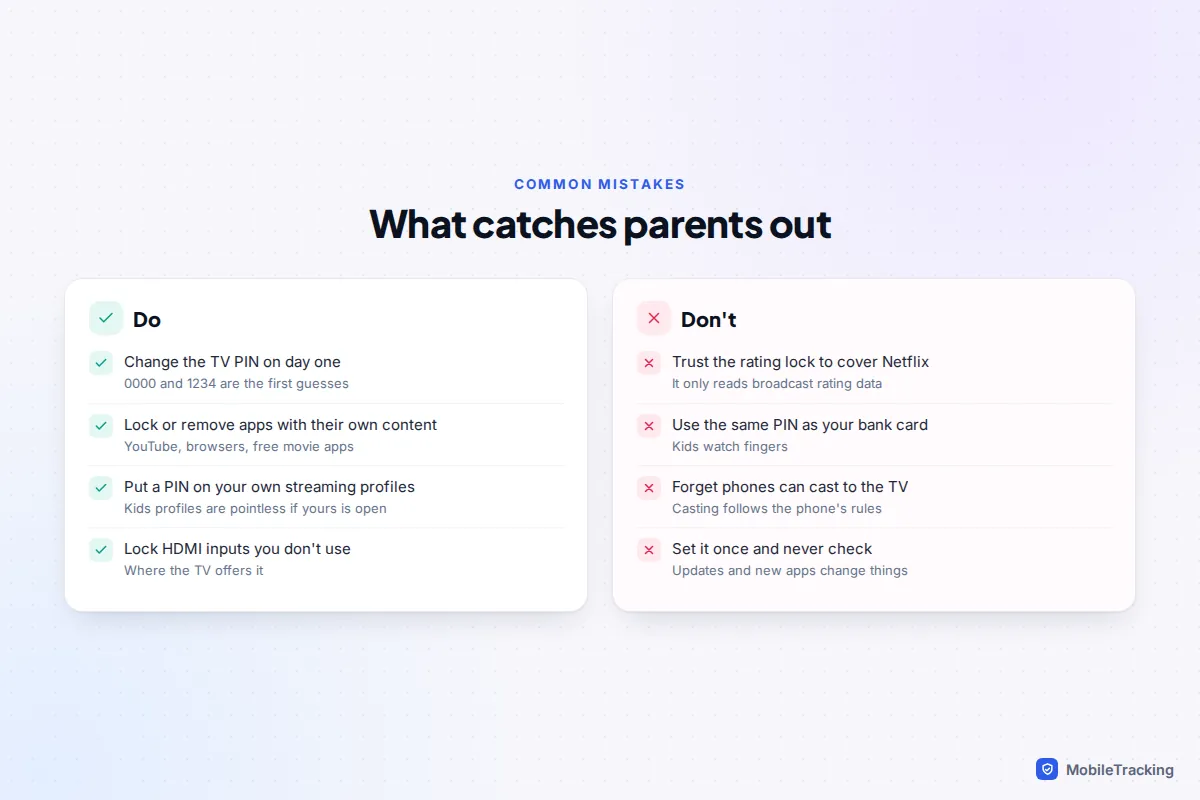
Other ways children get round TV controls, and the fixes:
- Casting from a phone or tablet. Anything cast to the TV follows the controls on the phone, not the TV. Make sure your child’s device has its own parental controls.
- Plugging something into HDMI. Consoles and sticks have their own controls; see our guide to PlayStation, Xbox and Switch parental controls, or use LG’s input locks.
- The TV’s web browser. It usually has no filtering of its own. Lock it, or filter at the router.
- A factory reset. On many TVs this needs the PIN, but not all. If settings suddenly look like new, that’s worth a conversation.
Frequently asked questions
What is the default parental control PIN on a smart TV?
On Samsung and LG TVs it is usually 0000. Samsung uses 1111 in France and Italy, and LG uses 1234 when the country is set to France. Roku and Apple TV make you create your own, Fire TV uses your Prime Video PIN, and Google TV uses your Google account PIN or password.
Do smart TV parental controls block Netflix and YouTube content?
No. The TV can lock the app so it won’t open without a PIN, but it can’t filter what’s inside. For that, set up kids profiles within Netflix, YouTube, Disney+ and Prime Video, and put a PIN on your own profile in each.
I’ve forgotten my TV’s parental PIN. What now?
Check your TV’s manual or the manufacturer’s support site, which explain the reset for your model. Some resets restore the default PIN, so change it again straight away. For Fire TV, reset your Prime Video PIN on Amazon’s website; for Roku, manage the account PIN at my.roku.com.
Can I set a screen time limit on the TV itself?
On Google TV, yes: kids profiles support daily limits and bedtime. Fire TV offers time limits through Amazon Kids profiles, and LG added usage limits to its 2022 and 2023 webOS versions. On other platforms there’s often no daily limit in the TV’s parental settings, so check your model, and otherwise rely on app profiles, a schedule on your router or a simple house rule.
This guide is general information, not legal or financial advice. Read our editorial policy.