
The phones in your house decide the app. If everyone has an iPhone, use Find My: it is free, already installed and works with Family Sharing. If you have a mix of iPhone and Android, use Google Maps location sharing, which is free and works on both, with Find Hub on the Android phones and Family Link for any child under 13 with an Android phone. Pay for Life360 only if you want its extras, such as longer history or driving reports. For a younger child’s Android phone, a transparent family app adds places, alerts and screen time.
Whichever you pick, it only works well if everyone knows it is on and has agreed to it. This guide compares the options honestly, gives the setup for each, and covers teenagers, grandparents, battery life and what each company keeps about your family’s movements.
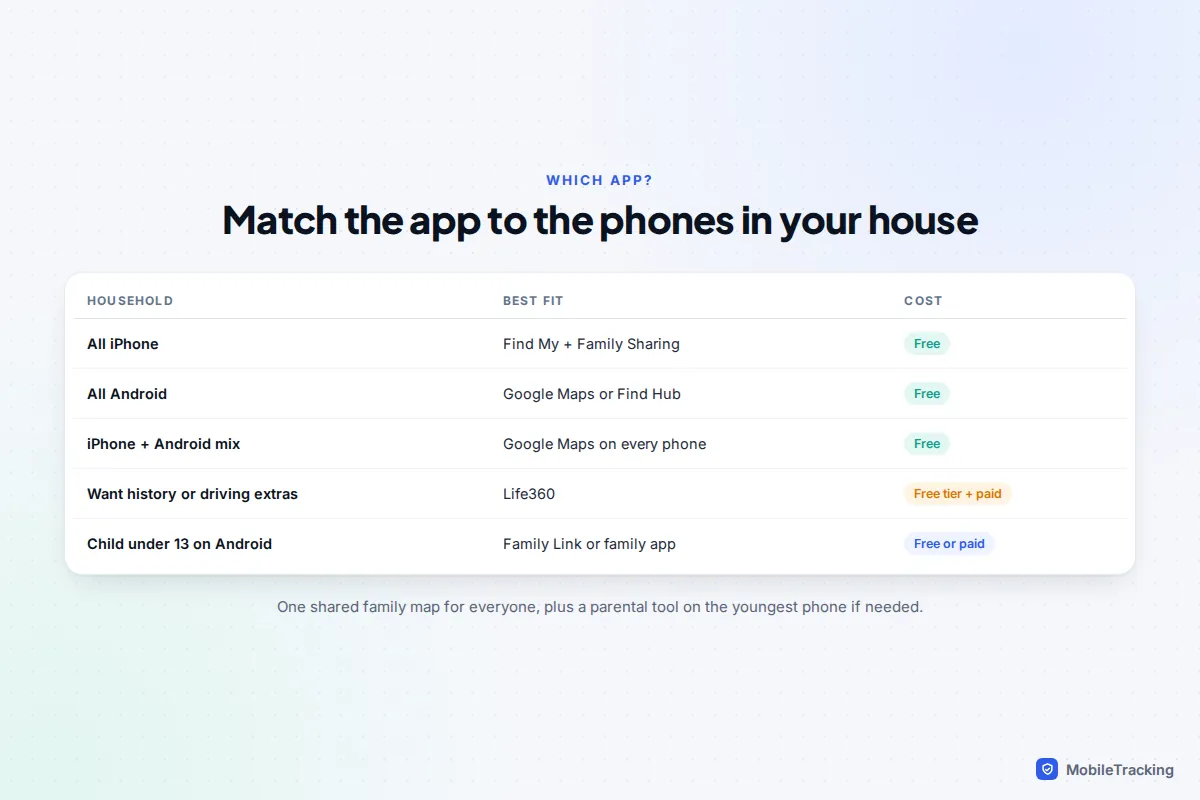
Which option fits your family?
No single app is best for every household. The table below sums up where each one shines and where it lets you down. “Free” means free to use for location sharing; all of them need a data connection on every phone.
| Your household | Best fit | Cost | Main catch |
|---|---|---|---|
| Everyone on iPhone | Find My with Family Sharing | Free | Android users cannot see or be seen |
| Everyone on Android | Google Maps or Find Hub | Free | No history for others, alerts limited to 5 per person |
| Mixed iPhone and Android | Google Maps on every phone | Free | iPhones must allow Google Maps “Always” location |
| Want history, driving or SOS extras | Life360 | Free tier, paid plans for most extras | Heavier on battery and data sharing |
| Young child with an Android phone | Family Link or a transparent family app | Free or subscription | Only covers the child, not the adults |
Many families end up with two layers: one free app that all the adults and teenagers use to see each other, plus a parental tool on the youngest child’s phone.
All-iPhone families: Find My and Family Sharing
If every phone in the house is an iPhone, you do not need anything else. Find My shows each person’s live location, sends arrival and departure alerts, and Apple says it cannot access shared locations when both people use iOS 17 or later.
- The organiser sets up a family group in Settings › Family (on older versions, Settings › [your name] › Family Sharing). A group holds up to six people.
- In the family settings, tap Location Sharing and choose who to share with.
- Each person turns on Share My Location on their own iPhone. Family members appear in the People tab of Find My, but nobody becomes visible until they share.
- For a child, open their Screen Time settings, go to Content & Privacy Restrictions and set Share My Location to Don’t Allow Changes, so the setting cannot be switched off by accident.
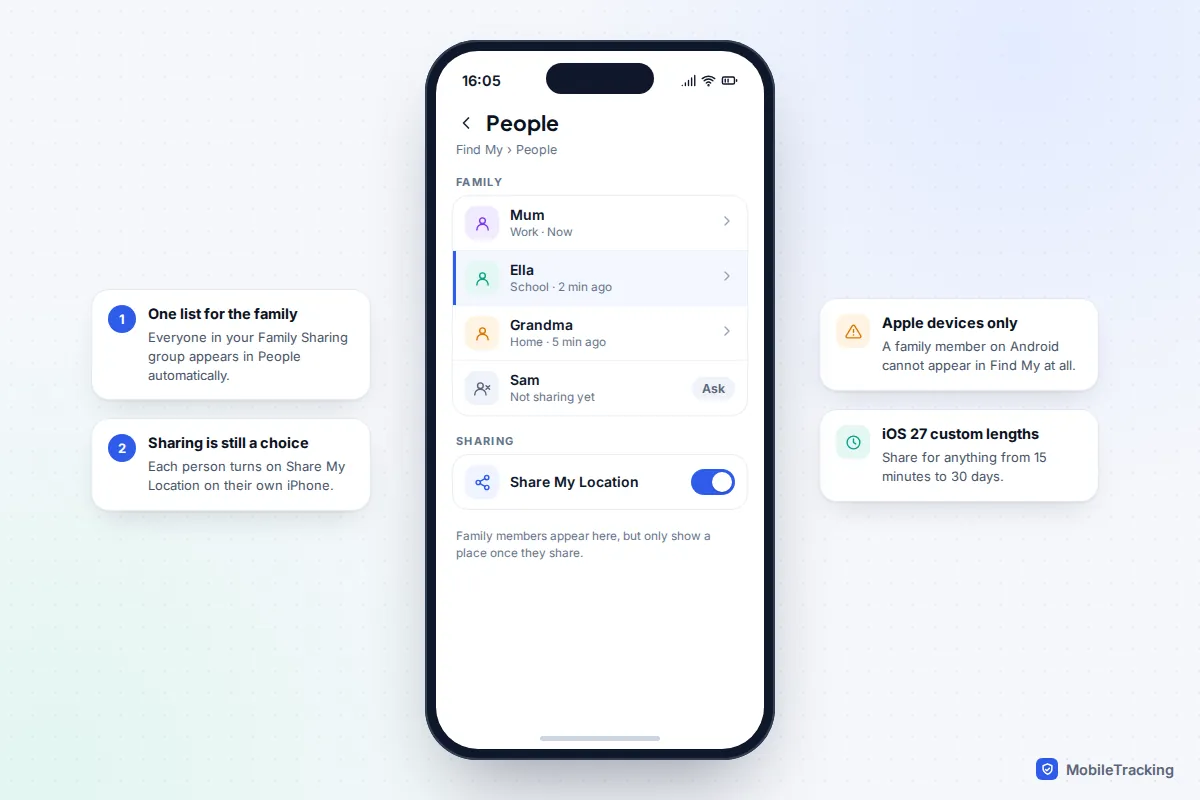
You do not need Family Sharing to share in Find My: adults can simply share with each other from the People tab, which helps if your group is already full or a grandparent is not part of your purchases. On iOS 27, released in September 2026, you can also set a custom sharing length from 15 minutes to 30 days, and hide your location from one person until the end of the day. That last feature does not notify the other person, which is worth discussing as a family (see the rules section below). Our guide to setting up Find My for the whole family walks through every screen.
The catch: Find My does not exist on Android, so anyone who switches to a Galaxy or Pixel drops off the map.
Mixed iPhone and Android families: Google Maps and Find Hub
Google’s location sharing is the only free option that works properly in both directions. It runs through one account-level service, so a share started in Google Maps also shows in Find Hub, Google Messages and Family Link on Android, and in Google Maps on an iPhone.
- Everyone installs Google Maps (already on most Android phones) and signs in with their own Google Account.
- Each person taps their profile picture, then Location sharing, then New share.
- They choose Until you turn this off, select the other family members, and tap Share.
- On every iPhone, go to Settings › Apps › Google Maps › Location, choose Always and turn on Precise Location. Without this, an iPhone may only update while Maps is open.
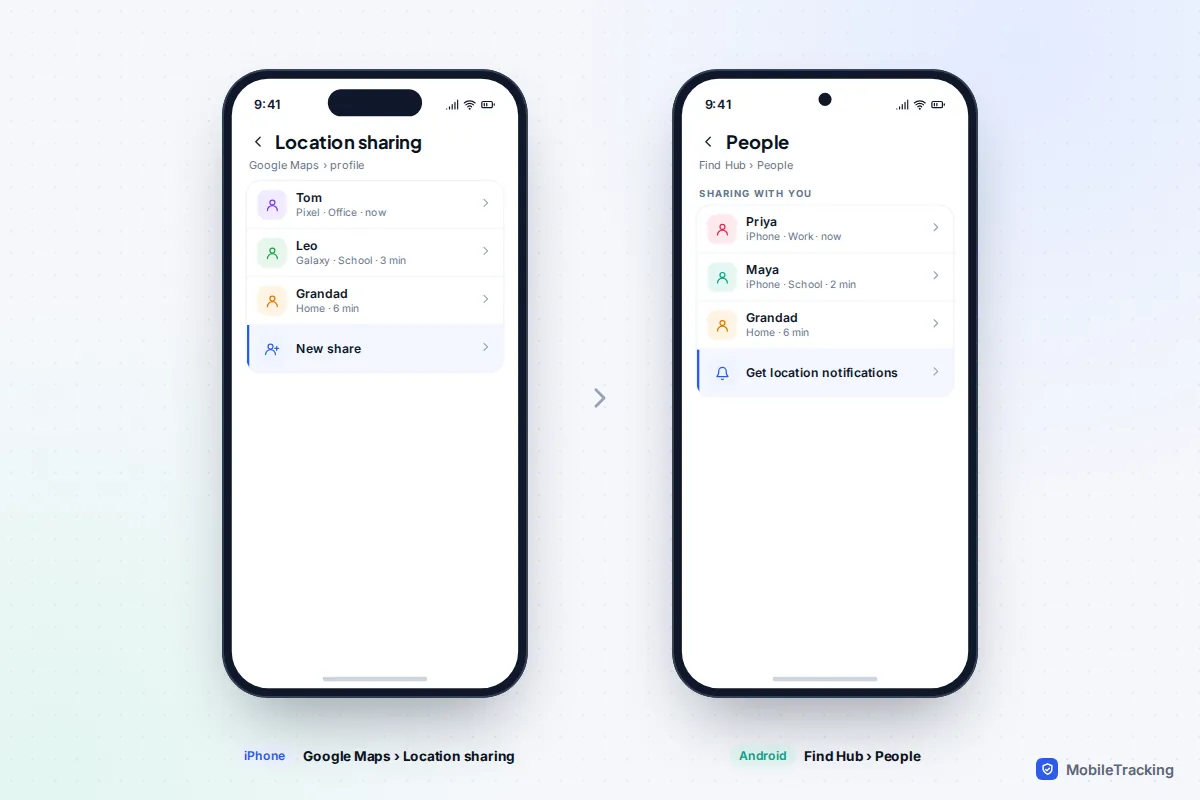
On Android, the People tab in Find Hub is now the tidiest view. Since May 2026 it has also been gaining arrival and departure alerts, which used to need Google Maps. Parents at a laptop can see everyone on the Find Hub website after signing in. In Google Maps, each person can set up to five arrival or departure notifications for each family member, and the person being watched is told by email when one is added. The step-by-step version is in our guide to setting up location sharing on Android.
Children under 13 with an Android phone
A child under 13 cannot use normal Google Maps sharing: Google only lets a supervised child share their real-time location with their parents. Instead, a parent opens Family Link (available on iPhone as well as Android), taps Location, then Set up location, and turns it on for that child. You can add family places such as home and school and switch on Arrives and Leaves alerts for each.
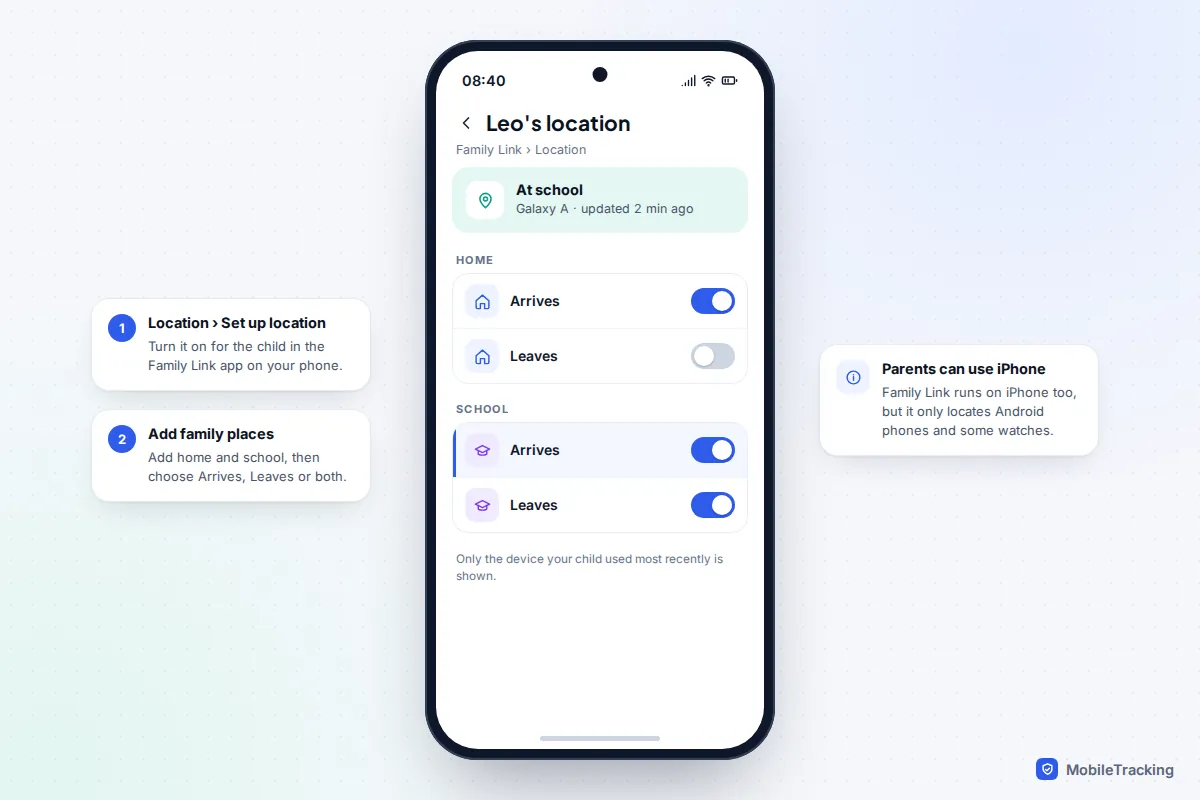
Family Link locates Android phones and some watches, not iPhones. A child with an iPhone needs Apple’s Family Sharing instead, and can then share with Android parents only through Google Maps once they are old enough to have a normal Google Account.
Life360 and other dedicated family apps
Life360: what the free tier really includes
Life360 works on iPhone and Android and puts everyone in a “Circle”. It is popular because it is simple and adds things the free tools do not, such as driving reports and crash detection. The free tier is deliberately thin, though. When we checked Life360’s US plans page in September 2026, the free tier gave 2 days of location history and 2 place alerts. Silver raised that to 7 days and 5 places, and Gold to 30 days and unlimited place alerts. Crash Detection and SOS with emergency dispatch were paid features in the US.
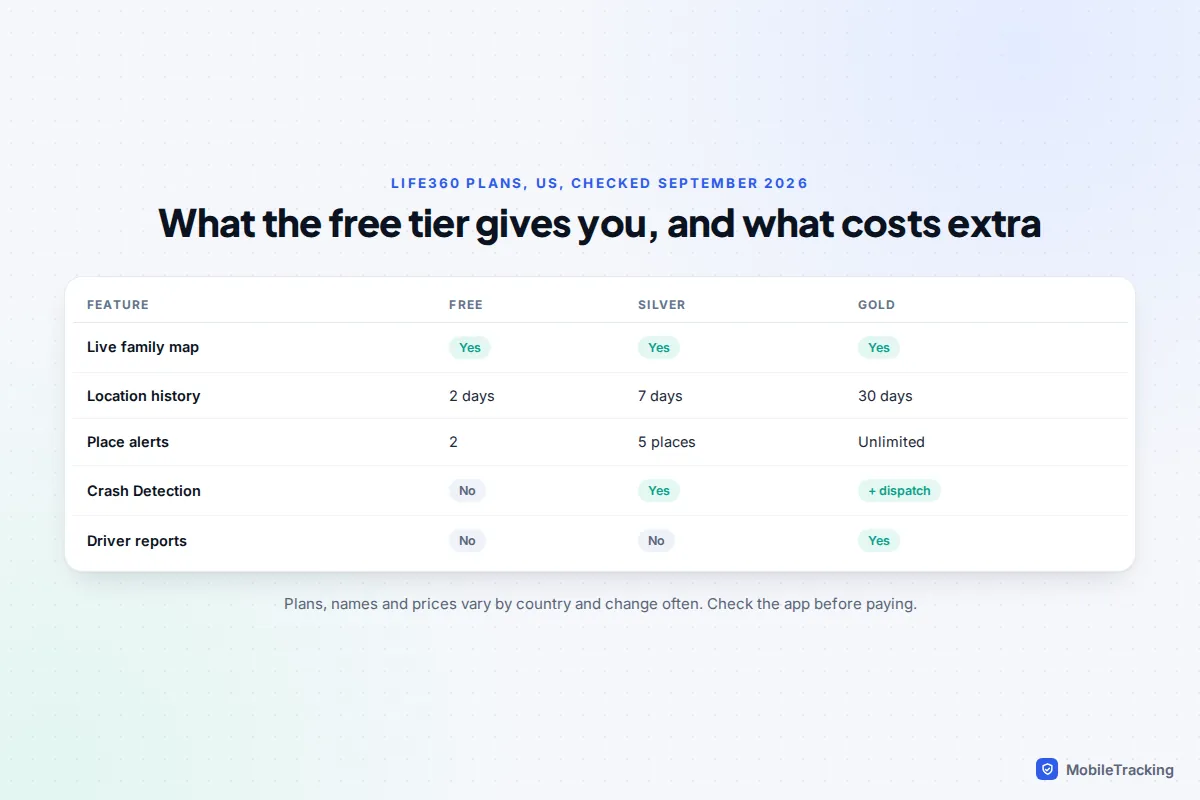
US prices at that point started at $9.99 a month for Silver, with Gold and Platinum costing more. Plans and features vary by country and change often, so treat these as a guide rather than a quote.
Transparent family apps for a child’s Android phone
Parental apps sit on the child’s phone rather than everyone’s. They make sense when you want more than a dot on a map: named places with alerts, location history for the day, and screen time on the same dashboard. The good ones are open about it. A transparent family app such as MobileTracking installs a visible child app on an Android phone, lets you set places with arrival and departure alerts, never reads messages, and shows the family map in any browser, including Safari on a parent’s iPhone.
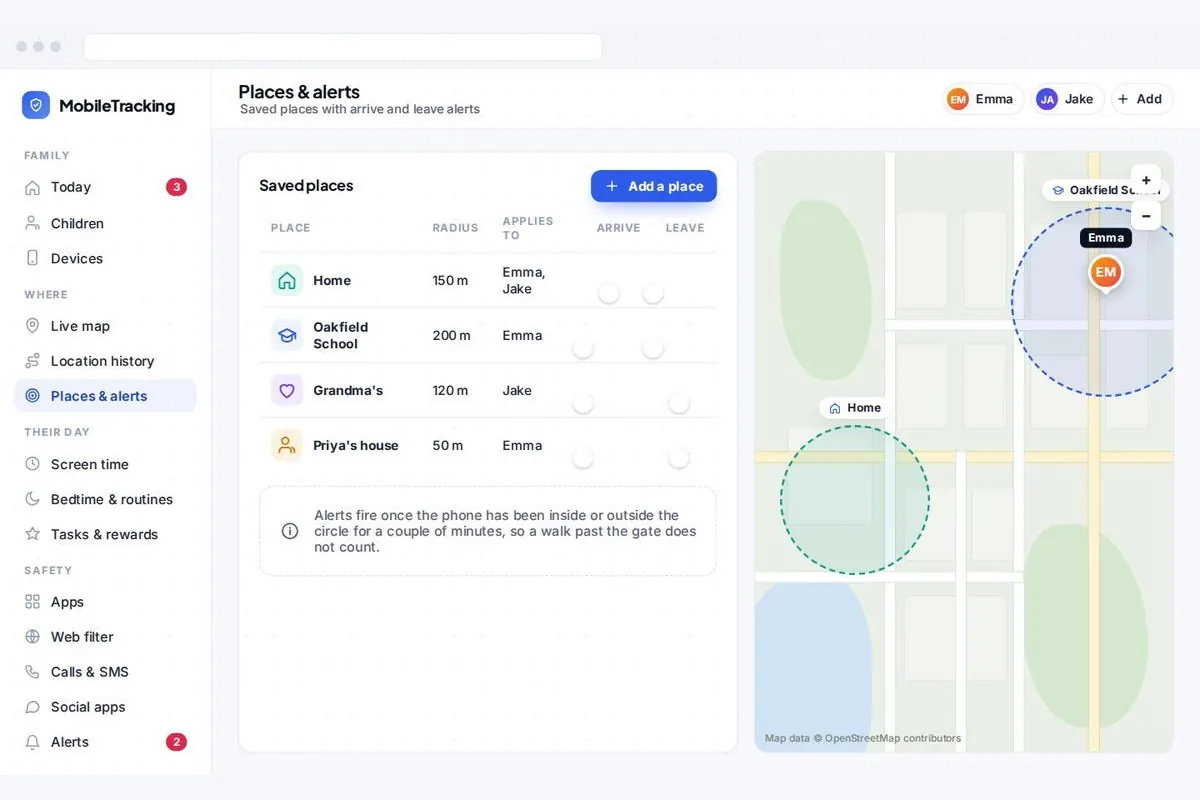
Be clear about what this layer is for. It covers the child’s Android phone only. The adults still need one of the sharing options above to see each other, and a teenager’s own phone deserves a conversation before anything is installed.
Teenagers, grandparents and everyone in between
Teenagers
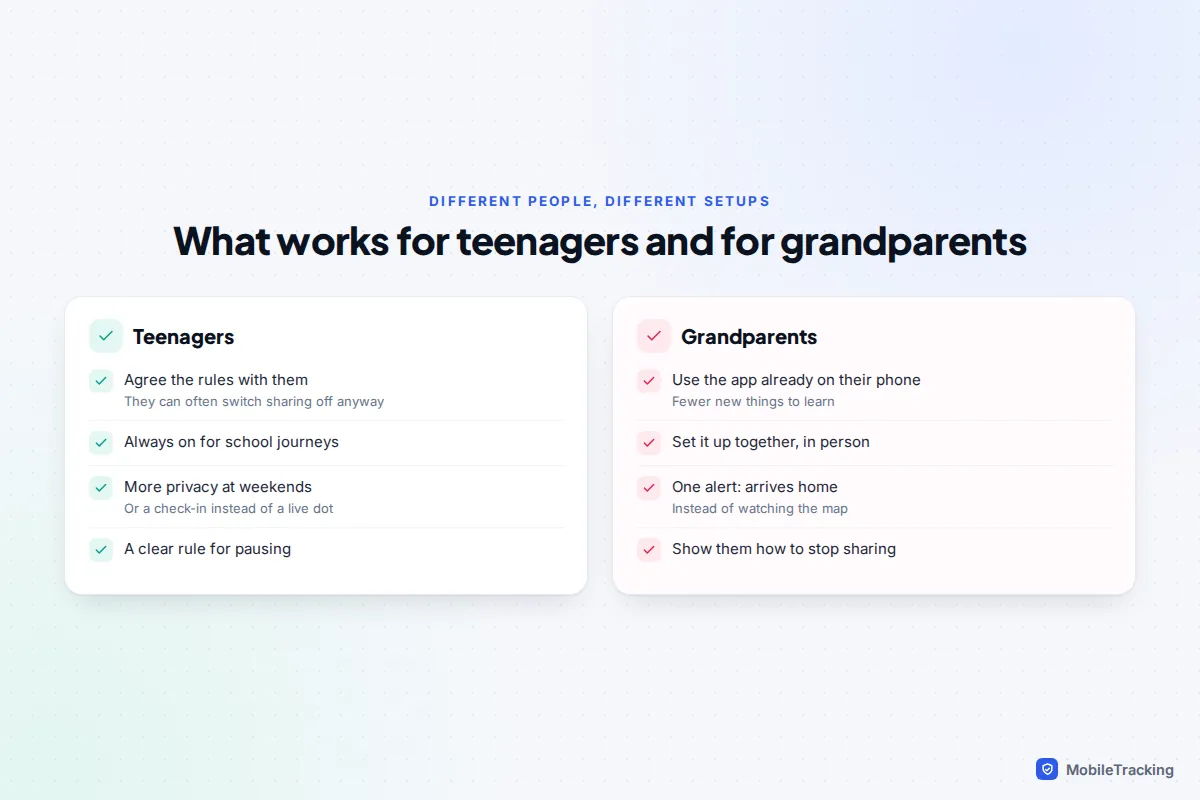
Teenagers are the family members most likely to switch sharing off, and the ones for whom constant visibility feels most intrusive. Supervision in Family Link can usually be ended by the teen once they reach 13 (the age varies by country), and an iPhone teen can turn off Share My Location unless Screen Time blocks it. So the setting is only as strong as the agreement behind it. Many families settle on always-on sharing for travel to and from school, with more privacy at weekends, or use a check-in that only alerts you if they do not arrive.
Grandparents
For an older relative, the best app is usually the one already on their phone. Set it up with them in person, pick a duration of “until you turn this off”, and add a single arrival alert for their home so you know they got back from the shops. Explain what you can and cannot see, and make sure they know how to stop sharing. Our guide to sharing location with elderly parents with their consent covers dementia, driving and power of attorney questions.
Agree the rules together
A family map works when everyone treats it as a safety net rather than a surveillance feed. Take ten minutes before you switch it on to agree the basics.
Picture a real mix. Priya has an iPhone, Tom a Pixel, Maya (15) an iPhone, Leo (10) a Galaxy, and Grandad an older Android phone. They choose Google Maps for everyone old enough, because it is the only free option that covers all five phones. Leo is added through Family Link with home and school alerts. Maya agrees to share during the school week and to say if she pauses it at a sleepover. They put a review date in the calendar for the start of the next term.
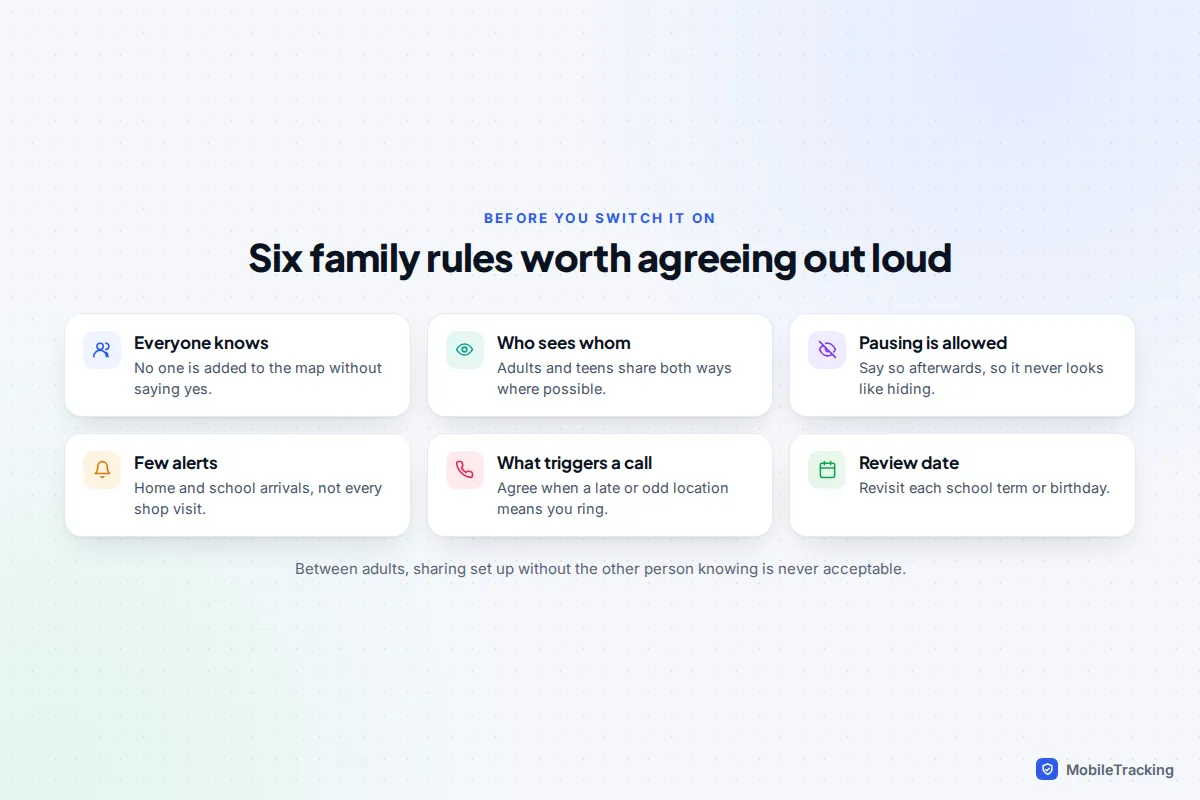
Two rules are worth spelling out. First, nobody sets up sharing on another adult’s phone behind their back: between adults, that is never acceptable and can be illegal. Second, agree what “hiding” means. iOS 27’s Hide Location and Find Hub’s Hide from map exist for good reasons, such as a surprise party, and a family rule that says “tell us afterwards” avoids suspicion. Our guide to location sharing etiquette for families has more ideas.
Battery and accuracy
Every option here uses the phone’s location in the background, so each one costs some battery. Find My and Google’s sharing are built into the phone’s own location services and are usually light. Apps that also detect driving, like Life360, check sensors more often and tend to use more.
Poor accuracy and “stuck” locations usually have the same few causes: the phone is in a battery saver mode, the app has been restricted from running in the background, or precise location is off. On an Android phone, check Settings › Location › Location services › Google Location Accuracy is on, and that the app is not set to Restricted under its battery settings. On an iPhone, Low Power Mode can delay updates.
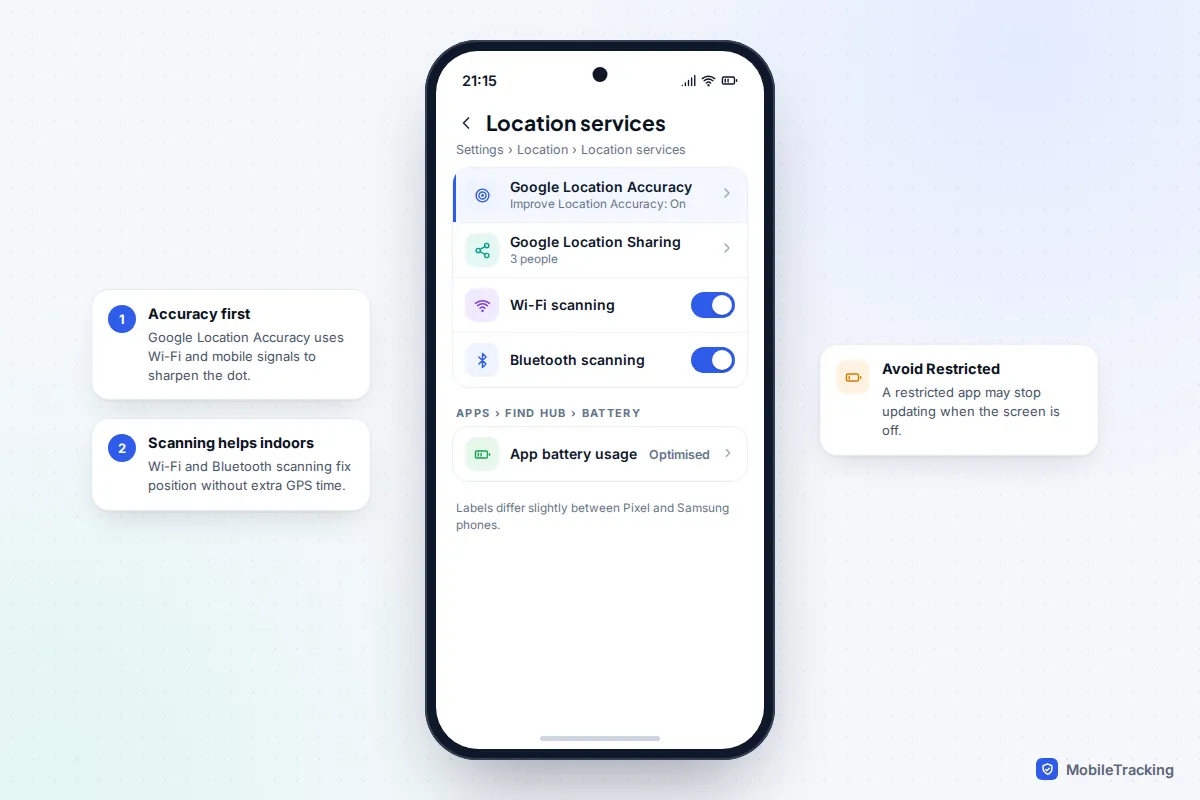
If one phone drains noticeably faster than the rest, look at which apps use location in the battery screen before blaming the family app. One sharing app per person is enough; running three at once only multiplies the battery cost.
What each company stores about your family
You are handing a company a record of where your children sleep and study, so ask what happens to it. The answers differ more than you might expect.
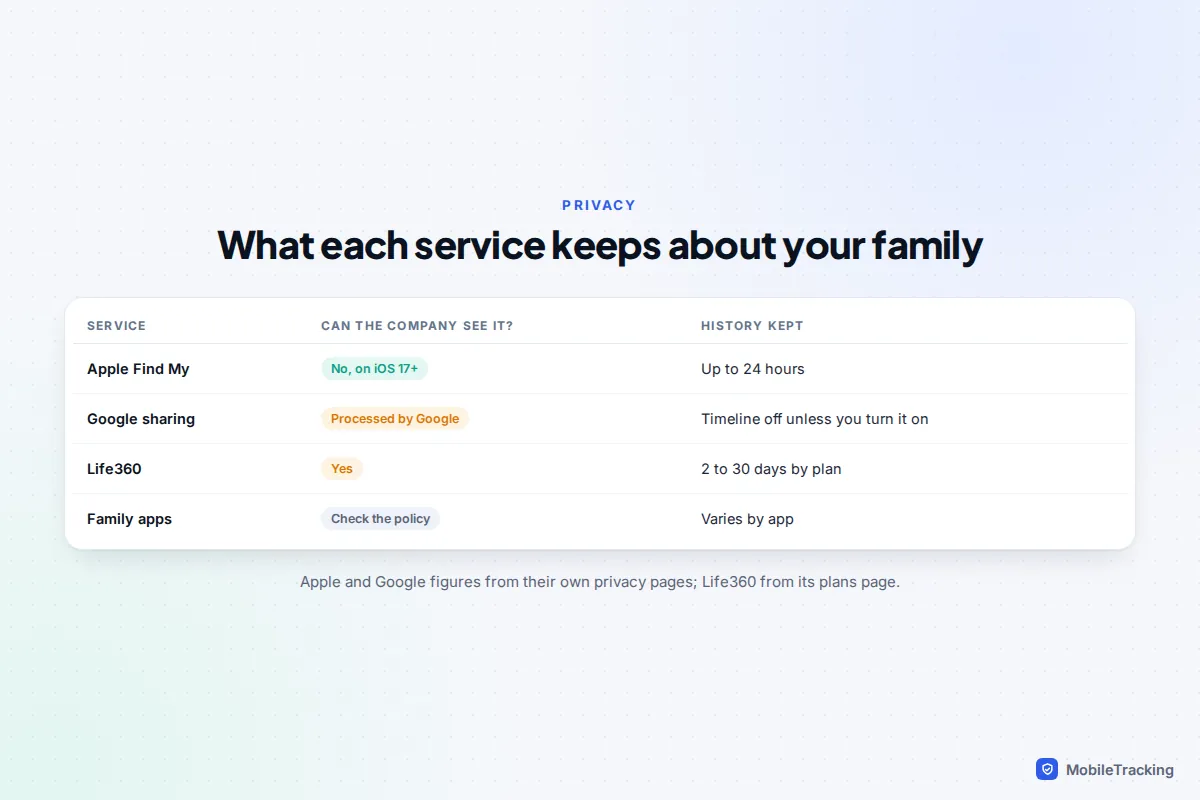
- Apple: Apple’s privacy notice for Find My says that if both people use iOS 17 or later, your shared location is not accessible to Apple, and that locations are kept for up to 24 hours to run the service, then deleted. You can read Apple’s Find My privacy statement for the detail.
- Google: Google says its location sharing is powered by Maps and is not end-to-end encrypted, so Google processes your live location to deliver it. Timeline, the history of where you have been, is a separate setting that you have to switch on, and Google now stores it on your device rather than in your account.
- Life360: it keeps history according to your plan. After a 2021 investigation by The Markup, the company said in 2022 it would stop selling precise location data to most data brokers, while still working with a driving-data partner for features such as crash detection. In the app, Settings › Privacy lets each member limit sharing with third-party partners.
- Family apps: read the privacy policy for where data is stored, how long history is kept, and whether you can delete the account and its data yourself.
A sensible habit is to review sharing twice a year. On an iPhone, Settings › Privacy & Security › Safety Check shows everyone who can see you. On Android, Settings › Location › Location services › Google Location Sharing lists every current share. If battery is the recurring complaint, our guide to saving battery while sharing location goes further.
Frequently asked questions
Can an iPhone and an Android phone share locations for free?
Yes. Google Maps location sharing works between iPhone and Android in both directions at no cost. Each person needs a Google Account and the Google Maps app, and the iPhone needs Google Maps set to Always location access.
Is Life360 worth paying for?
Only if you will use the extras. Live locations are free elsewhere. Paying makes sense if you want weeks of history, more place alerts, driving reports or, in the US, crash detection with emergency dispatch.
Can I see my family’s location history?
Not in Find My or Google’s sharing, which show where people are now. Life360 keeps history for 2 days on the free tier and longer on paid plans, and many parental apps show a child’s day.
How many people can I add?
Apple’s Family Sharing group holds up to six people, although adults can also share with each other in Find My outside the group. Google’s location sharing lets you pick several people in one share, and Google Maps allows up to five alerts for each person.
Will my child know they are being located?
They should, and with these tools they will. Find My, Google Maps, Family Link and transparent family apps all show that sharing is on. Apps that hide themselves are stalkerware and have no place in a family plan.
This guide is general information, not legal or financial advice. Read our editorial policy.