
To archive an old chat, press and hold it (Android) or swipe left on it (iPhone) and tap Archive. That works in WhatsApp, Telegram, Signal, Messenger and Google Messages. The chat disappears from your main list, but every message, photo and group membership stays exactly where it was, and nobody is told. You can open it again from the app’s archive at any time.
The catch is that archived chats don’t always stay archived. In some apps a single new message drags the chat straight back to the top, and on iPhone’s own Messages app there is no archive at all. This guide covers how each app behaves, the one setting per app that makes an archive stick, and when you should mute, delete or export instead.
What archiving actually does (and doesn’t do)
Think of archiving as moving a folder from your desk into a drawer. The conversation is hidden from your main list, but it is still on your phone, still searchable and still part of your normal chat backup. You stay in any group you archive, and the other person or group sees nothing different.
What archiving does not do is protect anything. It is not a backup, it is not a lock and it is not private: anyone who picks up your unlocked phone can open the archive in two taps. If you want a copy that survives a lost phone, export the chat or check your backups (covered below). If you want a chat hidden from other people, use a chat lock instead; our guide to locking individual chats explains the options in each app.
WhatsApp: archive, then make it stick
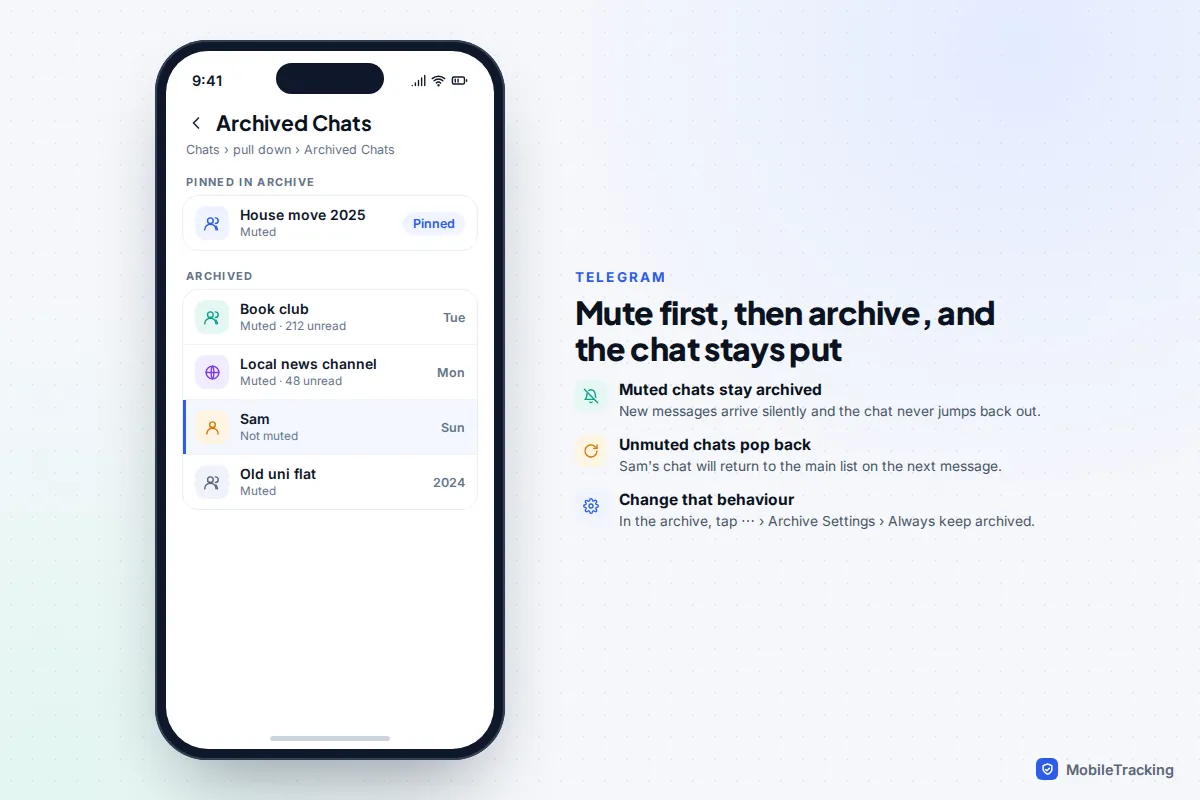
WhatsApp has the most complete archive of any messaging app, and since 2021 archived chats stay archived when new messages arrive, as long as one setting is on.
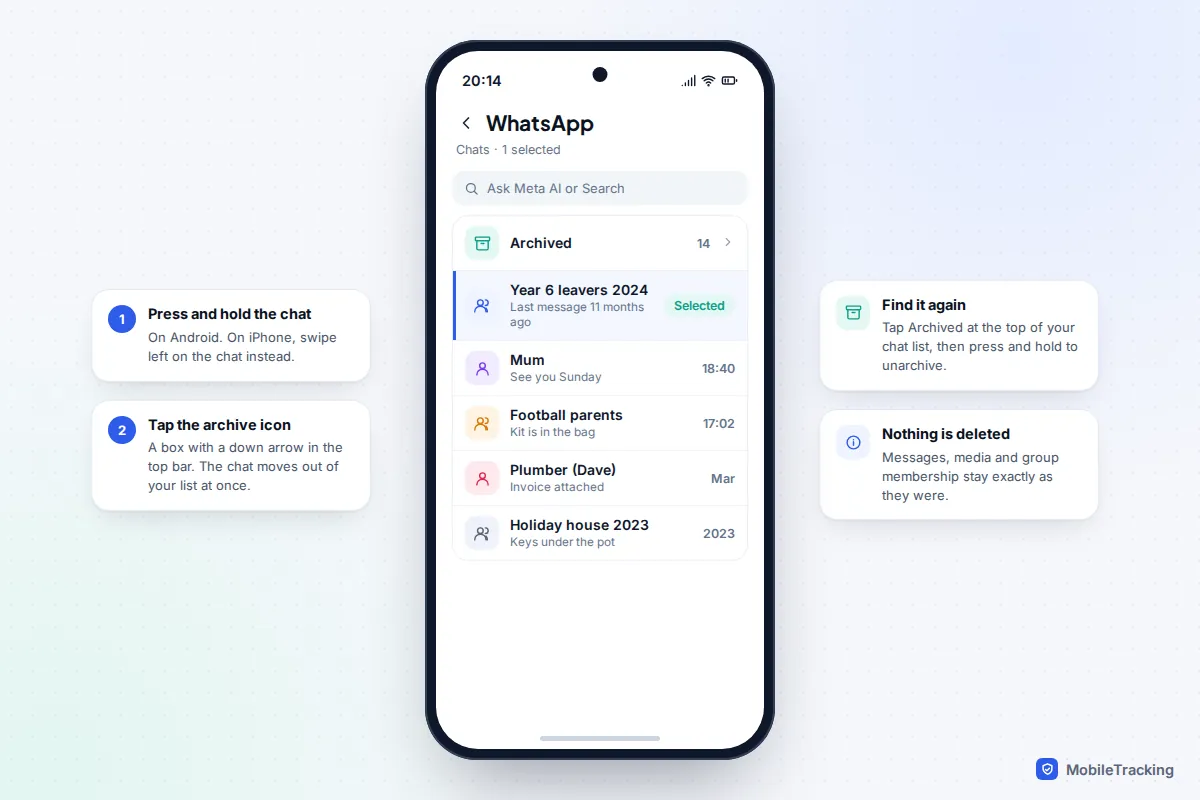
- Android: press and hold the chat, then tap the archive icon (a box with a down arrow) in the top bar. iPhone: swipe left on the chat and tap Archive.
- To see your archived chats, tap Archived at the top of the Chats list. On iPhone you may need to pull the list down slightly to reveal it.
- To bring a chat back, open Archived, then press and hold the chat and tap Unarchive (Android), or swipe left on it and tap Unarchive (iPhone).
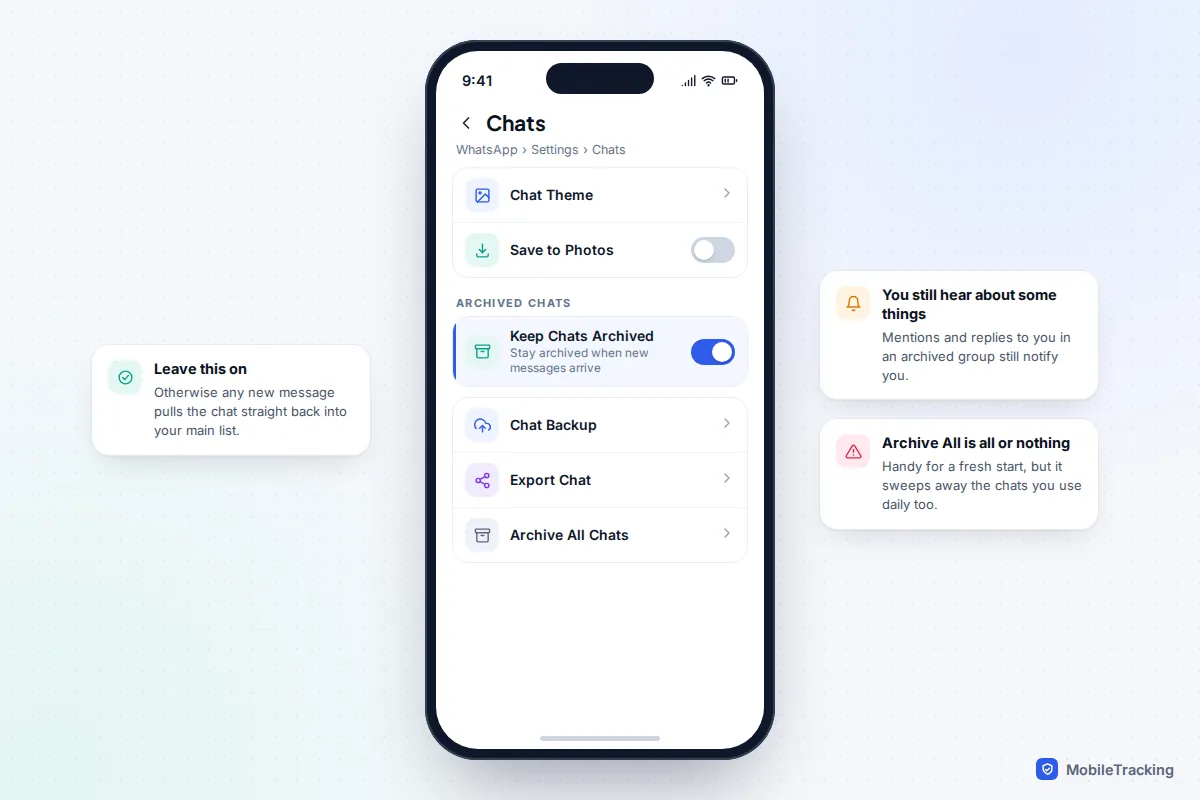
Now check the setting that decides whether the archive holds. Go to Settings › Chats and make sure Keep chats archived is on. With it on, new messages arrive quietly inside the archive and you won’t get a notification for them. The exceptions are messages that mention you or reply to one of your messages, which still notify you. With it off, WhatsApp behaves the old way: any new message unarchives the chat and puts it back in your main list.
Archiving everything at once
If you want a completely clean list, WhatsApp can archive every chat in one go: Settings › Chats › Archive All Chats on iPhone, or Settings › Chats › Chat history › Archive all chats on Android. Use it with care: it sweeps away the chats you open every day too, so archiving five or ten finished chats by hand is usually quicker.
Telegram, Signal and the “mute first” rule
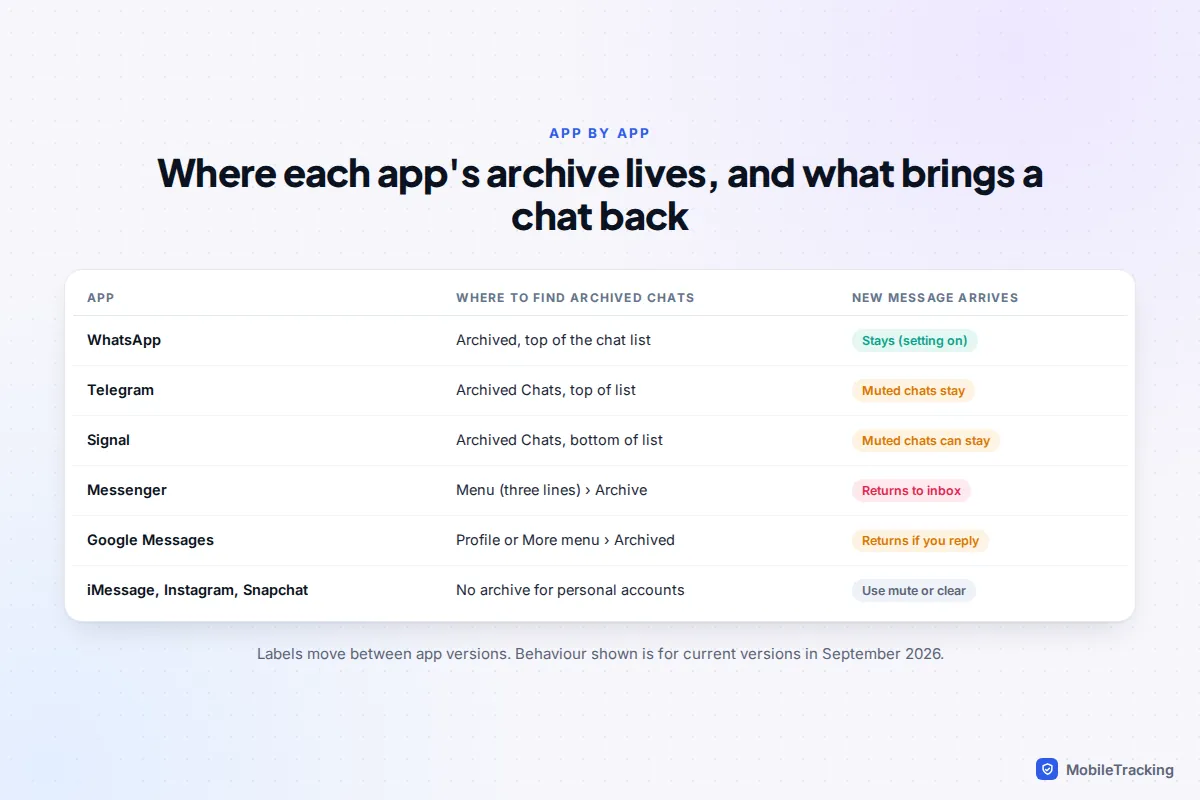
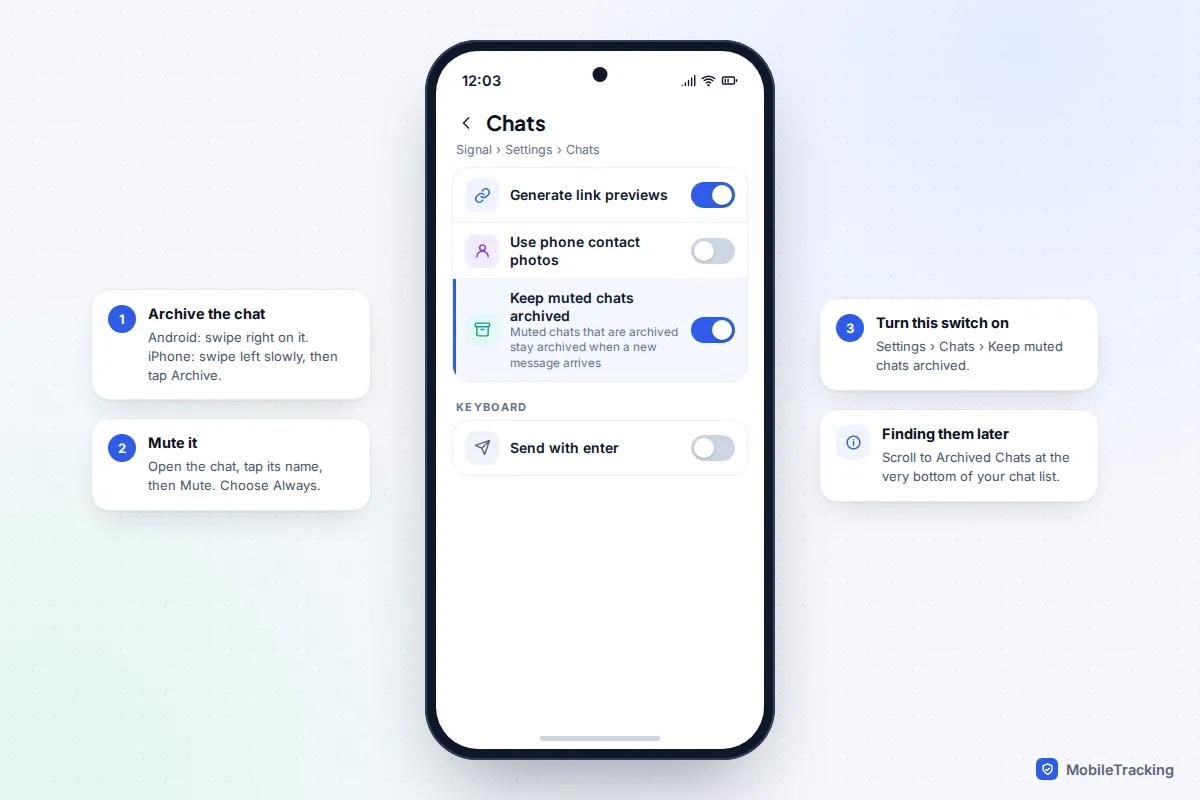
Telegram and Signal share a quirk that confuses a lot of people: an archived chat that isn’t muted pops back into your main list as soon as someone posts in it. A muted archived chat stays put. So the reliable method in both apps is to mute first, then archive.
Telegram
- Swipe left on the chat and tap Archive. This works on iPhone and Android.
- An Archived Chats row appears at the top of your list. Swipe left on that row to collapse or hide it, and pull down on the chat list when you want it back.
- To keep an unmuted chat in the archive, open Archived Chats, tap the ⋯ menu, choose Archive Settings and turn on Always keep archived. Otherwise, mute the chat before archiving it.
Telegram also lets you pin chats inside the archive. Some accounts also see an option under Settings › Privacy and Security to archive and mute new chats from people who aren’t in your contacts, which keeps unsolicited messages out of your main list; not every account has it.
Signal
On Android, swipe right on a chat or press and hold it and choose Archive. On iPhone, swipe left slowly and tap Archive. Archived chats live in Archived Chats at the very bottom of your chat list, which is easy to miss. On Signal Desktop, Ctrl+Shift+A (Windows) or ⌘+Shift+A (Mac) archives the open chat.
To stop archived chats returning, mute the chat (tap its name, then Mute), and turn on Settings › Chats › Keep muted chats archived. Signal’s own help page on keeping muted chats archived describes the same combination.
Messenger, Google Messages, Instagram and Snapchat
Messenger
Press and hold a chat and tap Archive. To find it later, tap the menu (three lines) at the top left and choose Archive. Messenger’s archive is the leakiest of the lot: sending or receiving a message moves the conversation straight back to your inbox. If a chat keeps coming back and you don’t want to hear from that person, mute it or use Messenger’s restrict or block options instead.
Google Messages
Press and hold one or more conversations and tap the archive icon at the top. Archived conversations are under Archived, reached from your profile picture or the More menu depending on your version. Google’s help page on archiving conversations notes that if you send a message in an archived conversation, it returns to your main list automatically. Samsung owners in the US now use Google Messages too, as Samsung retired its own Messages app there in July 2026.
Personal Instagram accounts have no archive for direct messages. You can mute a chat (open it, tap the name, then turn on mute for messages) or delete it, which only removes your copy. Professional and creator accounts get a Primary and General inbox, and moving old threads to General works as a rough archive.
Snapchat
Snapchat has no archive either, because chats are designed to disappear. To tidy the Chat feed, use Clear Conversations, found in Settings under your privacy and data options (Snapchat has moved it between versions). Clearing a conversation removes it from your feed but, as Snapchat’s help centre notes, doesn’t delete anything you or your friend saved in the chat. If there is a message you want to keep, press and hold it and save it in chat before you clear anything.
iPhone Messages has no archive: what to do instead
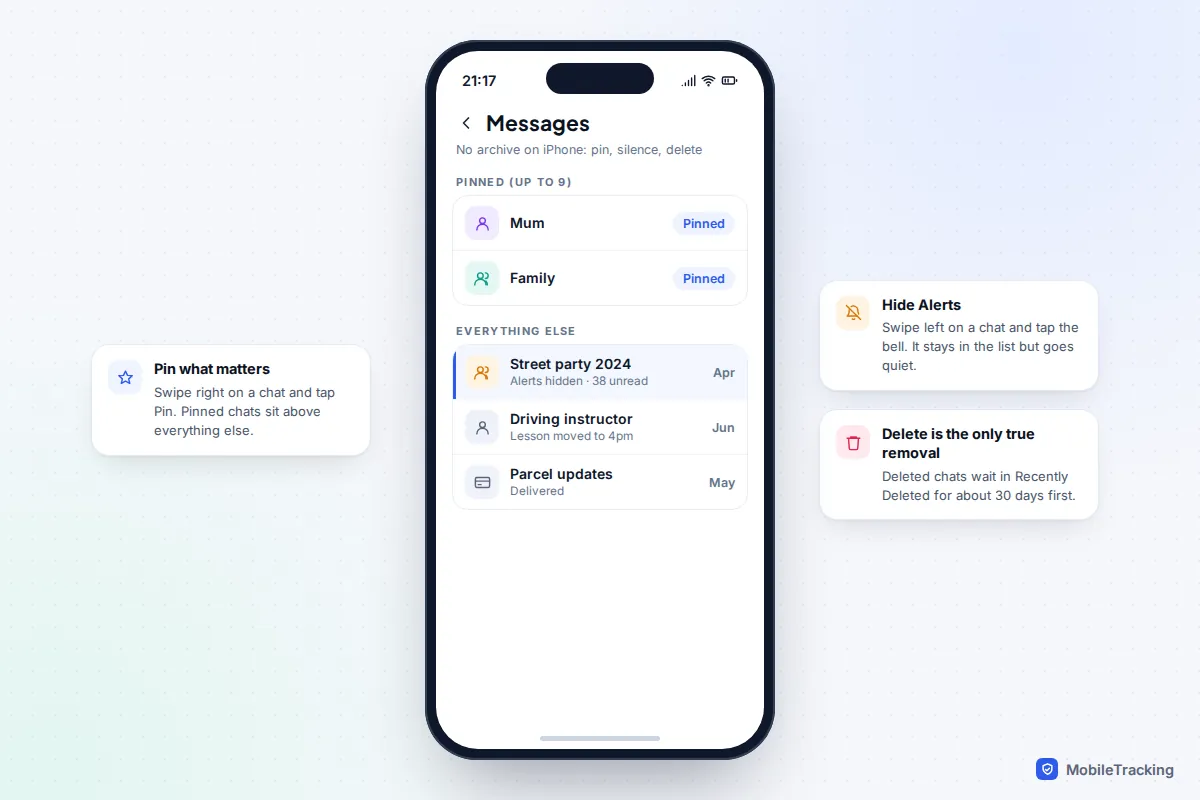
Apple’s Messages app, including iMessage, RCS and SMS threads, has never had an archive, and neither iOS 26 nor iOS 27 added one. Every conversation you haven’t deleted stays in one list, newest first. Three substitutes, used together, get you most of the way.
- Pin the chats you use most. Swipe right on a conversation and tap Pin. Up to nine pinned conversations sit at the top as large icons, so old threads underneath stop getting in the way.
- Hide Alerts on chats you want to ignore. Swipe left on a conversation and tap the bell. The chat stays in the list but goes quiet, which is the closest thing to “archive and mute”.
- Delete what you truly don’t need. Swipe left and tap Delete. Deleted conversations wait in Recently Deleted for about 30 days, so a mistake can be undone.
On iOS 26 and later, message filtering also helps. With Screen Unknown Senders turned on in Messages settings, texts from numbers not in your contacts go to a separate Unknown Senders list, and spam goes to its own filter, so the main list only shows people you know.
Archive, mute, delete or export: which should you use?
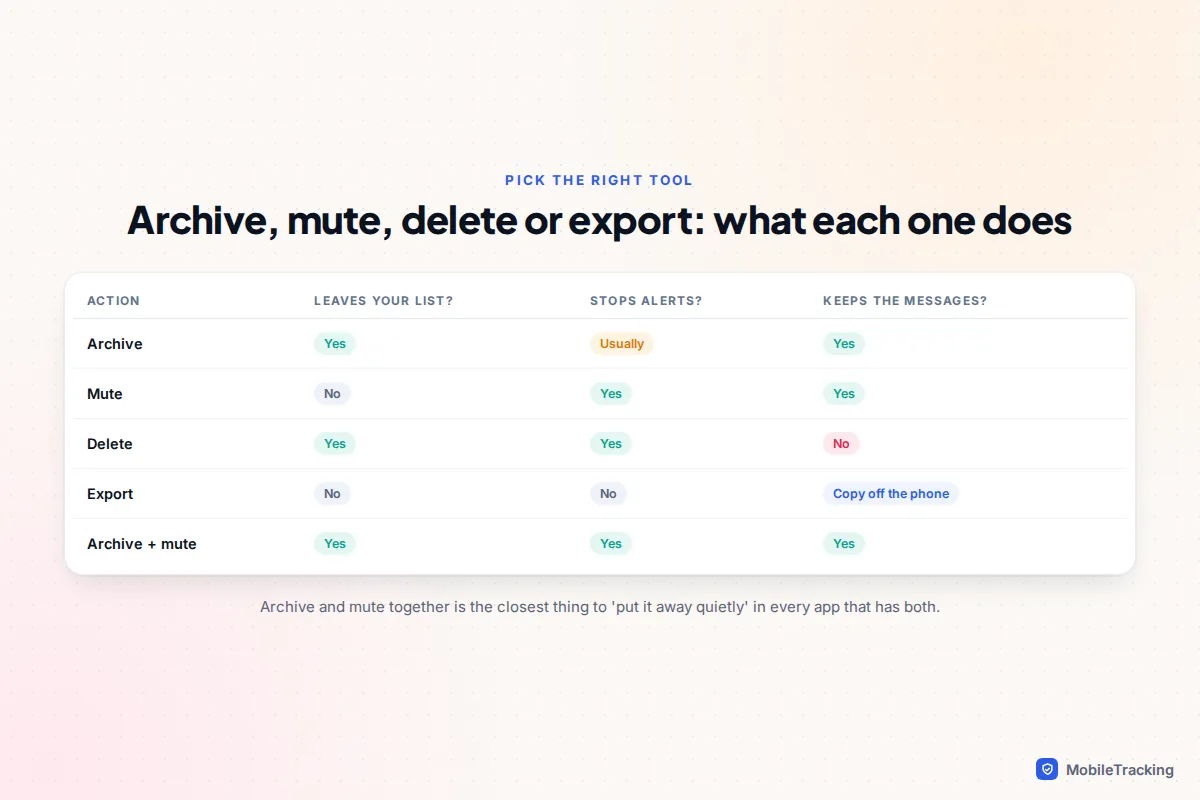
These four options are often confused, and choosing the wrong one is how people lose messages or end up with a list that never gets tidier.
| You want to… | Use | Why |
|---|---|---|
| Tidy your list but keep everything | Archive | Hides the chat, keeps every message, reversible in seconds |
| Stop a busy group pinging you | Mute | Silences alerts but keeps the chat visible so you can dip in |
| Put a chat away and never hear from it | Mute, then archive | The only combination that sticks in Telegram and Signal |
| Free up space or remove junk | Delete | The only option that removes the messages and their media |
| Keep a copy you can’t lose | Export | Saves the chat as a file off the phone |
| Stop someone contacting you | Block | Archiving doesn’t stop messages or calls |
A common mistake is archiving a group to escape it. You are still a member, the group can still see you in the participant list and, in most apps, the group reappears the moment someone posts. If you want out, leave the group properly. If you only want peace and quiet, muting the group is often enough, and nobody is told.
Export a chat to keep a real copy
If an old conversation matters, perhaps messages from a relative who has died, a record of a dispute with a landlord or a school trip group full of photos, archiving is not enough. A lost, broken or reset phone takes the archive with it unless your backup was working. Exporting gives you a file you control.
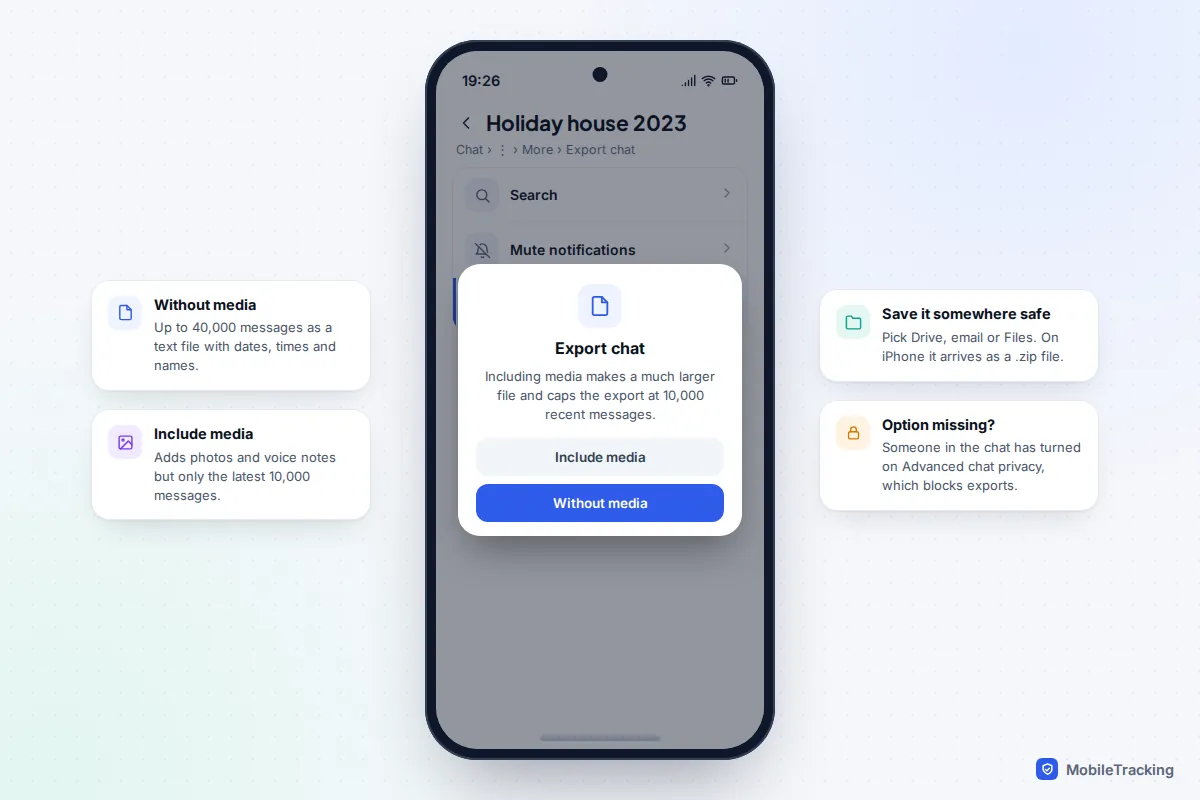
- Android: open the chat, tap ⋮ › More › Export chat. iPhone: open the chat, tap the contact or group name at the top, scroll down and tap Export Chat.
- Choose Without media or Include media. Without media exports up to 40,000 messages; with media, only the most recent 10,000.
- Save the file to Google Drive, Files, email or a computer. Android produces a .txt file; iPhone produces a .zip containing the text file (and media, if you chose it).
If Export chat is missing, someone in the chat has probably turned on Advanced chat privacy, a WhatsApp feature added in 2025 that blocks everyone in that chat from exporting it. Exporting doesn’t notify anyone and doesn’t change the chat on your phone.
Other apps
- Telegram: use Telegram Desktop on a computer. Open the chat, click the ⋮ menu and choose Export chat history, then pick HTML (easy to read) or JSON (machine-readable) and which media to include.
- Signal: there is no per-chat export, by design. Protect your history with Signal’s backups instead; see how to back up your Signal chats.
- iPhone Messages and Google Messages: neither has a built-in export button. On a Mac with Messages in iCloud, you can open a conversation and use File › Print to save it as a PDF. On Android, a reputable backup app can save texts to a file. Our guide to exporting text messages to a computer walks through both.
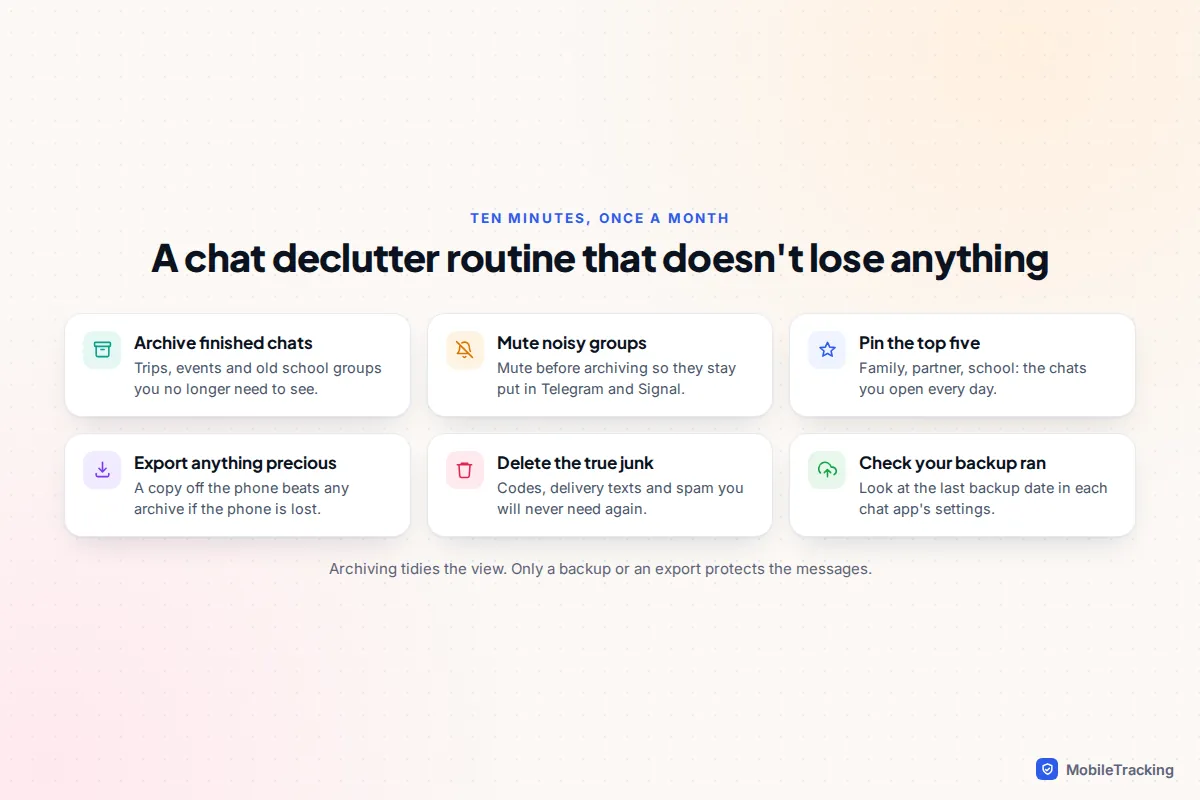
A ten-minute declutter routine
Once a month is plenty for most people.
- Archive finished chats. Holiday planning, a one-off event, last year’s class group. If you haven’t opened it in three months, it can go in the archive.
- Mute before you archive in Telegram and Signal, so the chat doesn’t bounce back tomorrow. In WhatsApp, just confirm Keep chats archived is still on.
- Pin your top chats. Family, partner, school, work. Five or fewer is ideal.
- Export anything precious before it has a chance to be lost.
- Delete genuine junk: verification codes, delivery updates and spam. This is the only step that frees up storage.
- Check your chat backup date in each app’s settings. If it says weeks ago, fix that before anything else.
Real-world example: Priya’s WhatsApp list had 180 chats, most of them finished. She turned on Keep chats archived, archived everything older than three months in about ten minutes, exported the group from her father’s 70th birthday, and pinned five chats. Her main list now fits on one screen, and every old chat is still searchable.
Frequently asked questions
Does the other person know if I archive our chat?
No. Archiving is only a change to your own chat list. The other person gets no notification, and their copy of the chat looks exactly the same. They can still message and call you, and in most apps their next message will reach you as normal.
Do archived chats still get backed up?
Archiving doesn’t delete anything, so it doesn’t change what is stored on your phone. But archiving is not a backup in itself: if your phone is lost and your app’s chat backup wasn’t running, the archive goes with it. Check the backup date in each app, and export anything you can’t afford to lose.
Why does my archived chat keep coming back?
In WhatsApp, Keep chats archived is switched off. In Telegram and Signal, the chat isn’t muted (or, in Telegram, Always keep archived is off). In Messenger, any new message returns the chat to your inbox, and there is no setting to change that.
Can I search archived chats?
Yes. In WhatsApp, Telegram and Signal, the main search bar includes archived chats, and WhatsApp marks them with an Archived label in the results. For tips on digging out a specific old message, see how to find old text messages fast.
Is there any way to archive texts on iPhone?
Not in the Messages app. The workable alternatives are pinning the conversations you use most, turning on Hide Alerts for ones you want to ignore, and deleting the rest. If you want to keep an old conversation but remove it from your phone, save it as a PDF from a Mac first, then delete it.
This guide is general information, not legal or financial advice. Read our editorial policy.