
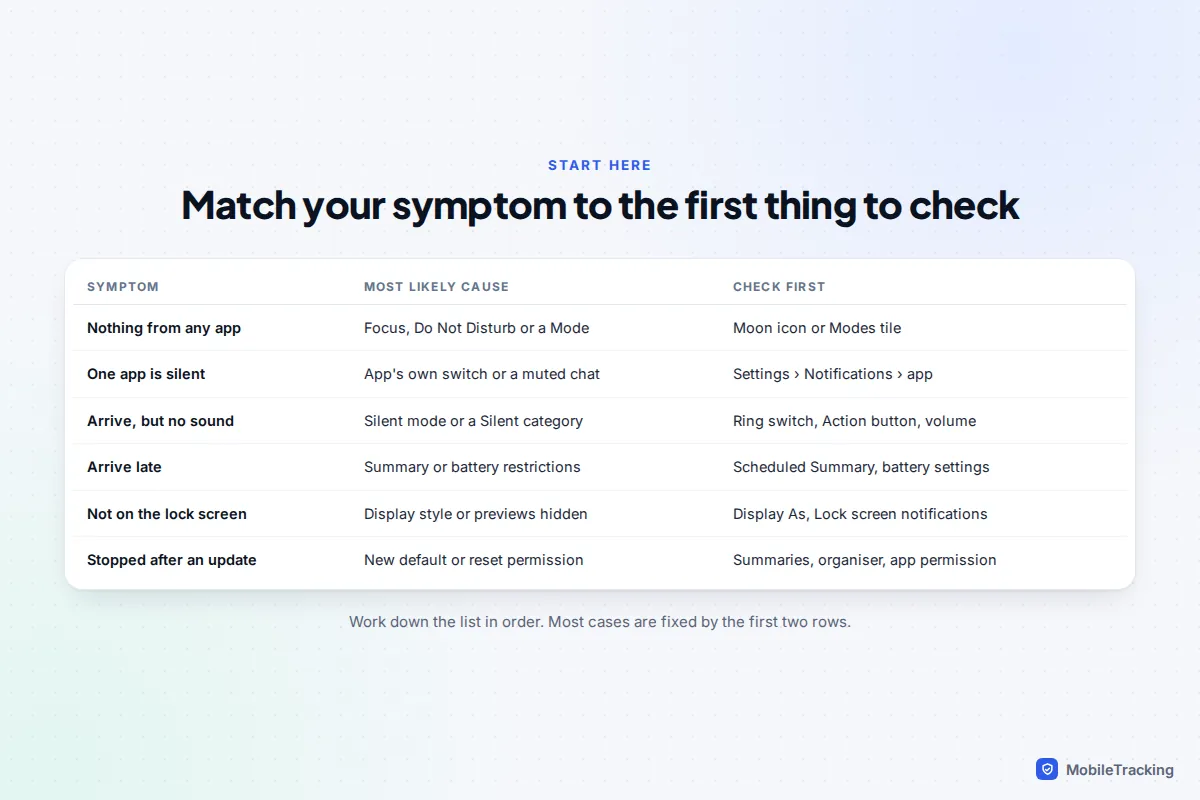
If every app has gone quiet, the cause is almost always a Focus or Do Not Disturb that’s switched on. Look for a moon or Focus icon at the top of an iPhone, or swipe down on Android and check the Modes or Do Not Disturb tile. If only one app is silent, open Settings › Notifications, tap that app and make sure notifications are allowed, then check the app’s own settings for a muted chat. On Android, also check the app isn’t restricted by battery settings, because that delays or blocks its alerts.
Those three checks fix most cases. If yours isn’t one of them, find your symptom below. Each section lists the settings that cause that exact problem, in the order worth checking, with the paths for iOS 26 and later, Pixel phones on Android 16 and 17, and Samsung Galaxy phones on One UI 7 and later.
No notifications at all
When nothing arrives from any app, the phone is almost certainly being told to stay quiet, rather than being broken.
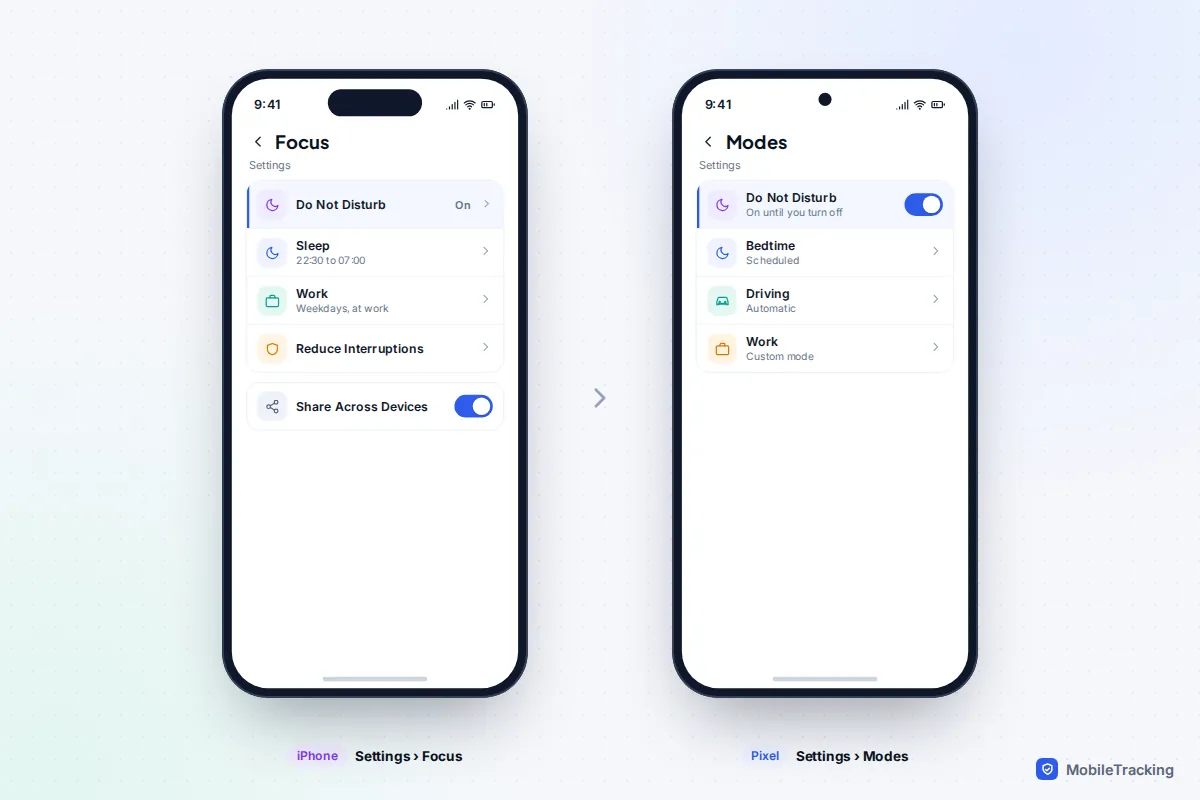
iPhone: Focus and Scheduled Summary
- Open Control Centre and look at the Focus button. If Do Not Disturb, Sleep, Work or another Focus is highlighted, tap it to turn it off.
- Go to Settings › Focus and check each Focus for a schedule. Sleep turns on automatically with your sleep schedule, and a Focus can also start at a place or when you open a particular app.
- Check Share Across Devices at the bottom of the same screen. When it’s on, turning on a Focus on your Mac or iPad silences your iPhone too.
- Open Settings › Notifications › Scheduled Summary. Apps added to the summary deliver their notifications only at the times you’ve chosen, which can look like nothing is arriving.
If you want quiet time without missing important people, set up a Focus that allows specific contacts and apps instead of switching everything off. Our guide to setting up Focus modes on iPhone walks through it.
Android: Modes and Do Not Disturb
On Pixel phones, Do Not Disturb now sits inside Modes, alongside Bedtime, Driving and any modes you create. Swipe down and tap Modes, or open Settings › Modes, and turn off anything that’s active. Bedtime mode can switch on by schedule or while charging, and Driving mode can start automatically. Google’s help page on Modes and Do Not Disturb explains each option.
On a Samsung Galaxy, check Settings › Notifications › Do not disturb, then Settings › Modes and Routines, where Sleep and other modes can turn on Do Not Disturb by themselves.
If no Focus or Mode is on
Restart the phone, then test on a different connection. Notifications come from Apple’s and Google’s push services, and some work, school, hotel and public Wi-Fi networks block the ports they use. Apple’s page on devices not getting Apple push notifications lists what a network must allow. VPNs and ad-blocking DNS apps can cause the same problem. If alerts arrive on mobile data but not on one Wi-Fi network, the network is the cause.
Only one app is silent
iPhone
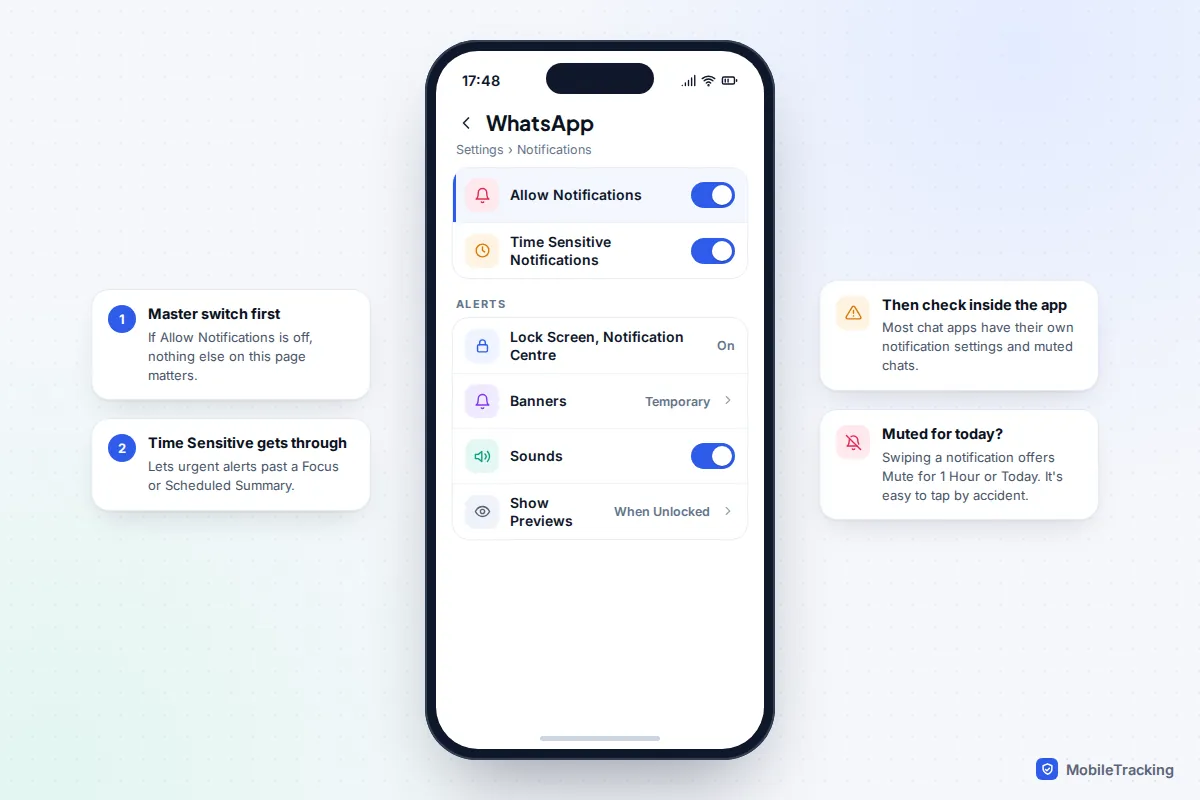
Go to Settings › Notifications and tap the app. Make sure Allow Notifications is on and that at least one of Lock Screen, Notification Centre and Banners is ticked. Turn on Sounds if you want to hear it. If the app offers Time Sensitive Notifications, turning that on lets urgent alerts through a Focus or Scheduled Summary.
Then look for mutes you may have set by accident. Swiping left on a notification offers Mute for 1 Hour and Mute for Today. In Messages, a conversation with a crossed-out bell has Hide Alerts on; swipe left on it and tap the bell to undo it. In iOS 26 and later, Screen Unknown Senders in Messages settings sends texts from numbers not in your contacts to a separate Unknown Senders list without alerting you, so a new contact’s first message can arrive silently.
Apple Intelligence and Screen Time
On iPhones that support Apple Intelligence, the Reduce Interruptions Focus lets through only the notifications it judges important, so ordinary messages from one app may not break through. Settings › Notifications › Summarise Notifications groups alerts into summaries rather than blocking them, but it can make a single app’s messages easy to overlook. Prioritise Notifications only reorders alerts; it doesn’t hide any.
Screen Time can also play a part. If an app is blocked during Downtime or after its limit runs out with Block at End of Limit on, its alerts can be held back until it’s allowed again. On a child’s phone, Communication Limits can stop messages and calls from people outside the allowed list.
Android
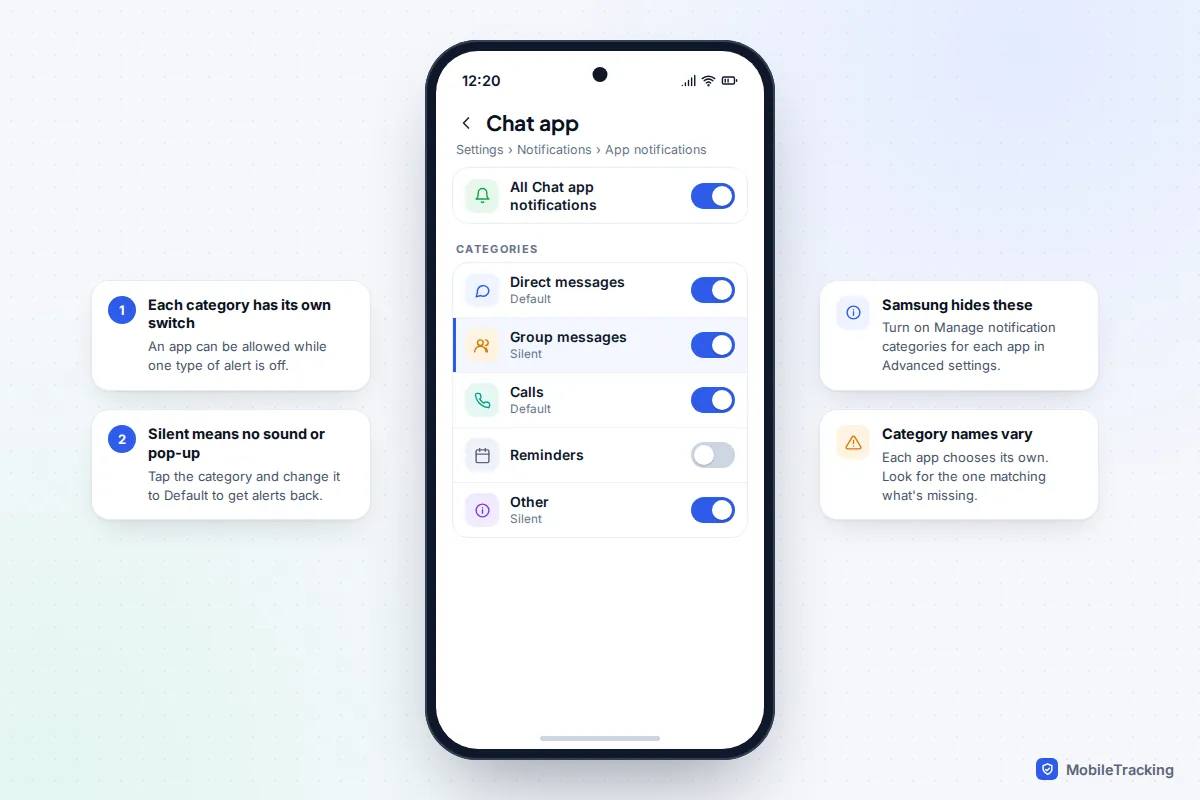
Open Settings › Notifications › App notifications and tap the app. The top switch turns everything on or off. Below it, most apps split their alerts into categories, such as direct messages, group messages and calls, and each has its own switch and its own sound setting. A category set to Silent still delivers notifications but without sound, vibration or a pop-up. Tap it and choose Default to get alerts back.
Samsung hides these categories by default since One UI 6.1. Go to Settings › Notifications › Advanced settings and turn on Manage notification categories for each app, or search Settings for “notification categories”.
Two newer Pixel features can also quieten apps. On Pixel 9 and later, Settings › Notifications › Notification organizer groups and silences lower-priority alerts, with Promotions and News categories on by default in supported regions; add an app to Don’t include these apps if it’s being caught. On Android 13 and later, apps must ask for notification permission, so if you tapped Don’t allow when you first opened an app, its notifications stay off until you switch them on.
Notifications arrive but make no sound
If a notification appears when you unlock the phone but you never heard it, the alert is working and something is muting it.
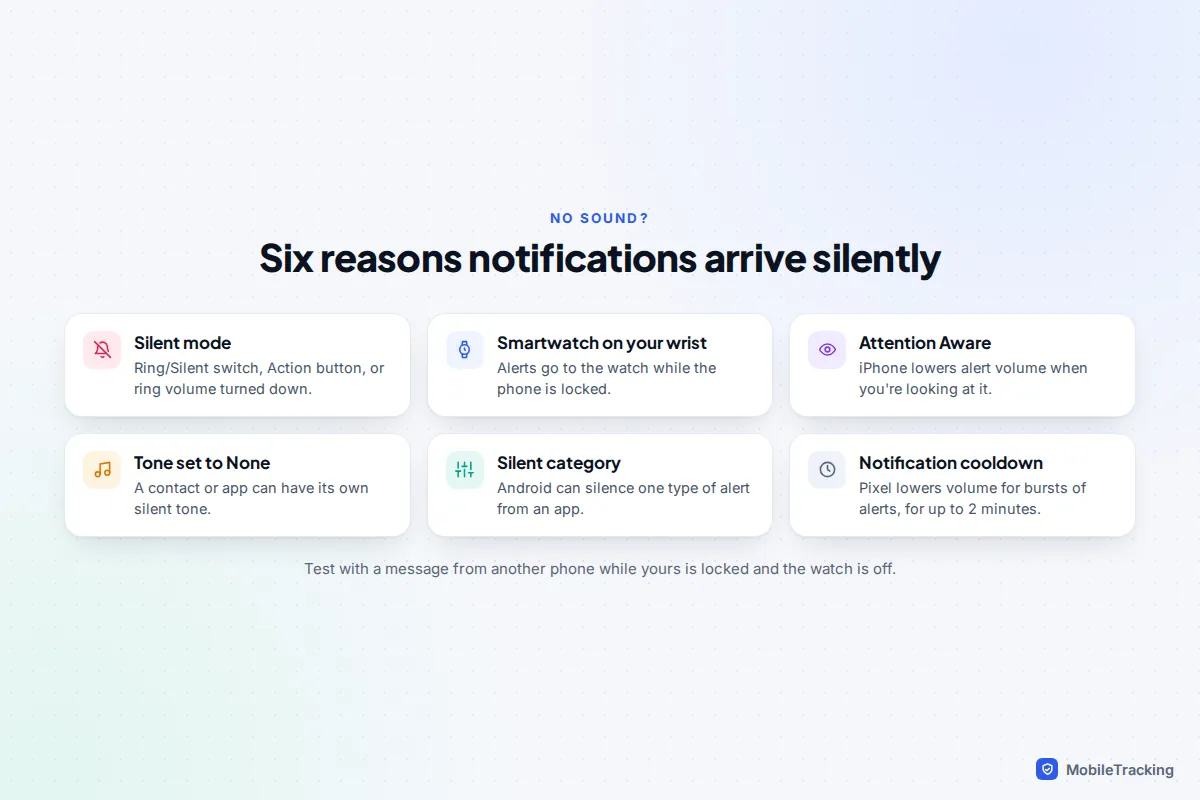
- Silent mode. Check the Ring/Silent switch on older iPhones, or the Action button and Control Centre on newer ones. On Android, check the ring and notification volume, not just media volume.
- A smartwatch. While an Apple Watch is on your wrist and unlocked, iPhone notifications go to the watch instead of the phone. Many Android watches work the same way.
- Attention Aware Features. On iPhones with Face ID, Settings › Face ID & Passcode › Attention Aware Features lowers alert volume when you’re looking at the screen.
- A tone set to None. Check Settings › Sounds & Haptics on iPhone, and the individual contact’s Text Tone. On Android, check the app category’s sound.
- Notification cooldown. On Pixels, Settings › Notifications › Notification cooldown lowers the volume for up to two minutes when many notifications arrive quickly. Calls, alarms and priority conversations aren’t affected.
If you’re looking for Adaptive notifications on Android, that setting was renamed Enhanced notifications in Android 12 and now suggests actions and replies. It doesn’t mute anything.
Notifications arrive late
iPhone
Check Scheduled Summary first, because it delays by design. Then consider Low Power Mode: it pauses Background App Refresh and mail fetching. Apps that use Apple’s push service still alert you, but apps that check for new content in the background, and email accounts set to fetch rather than push, won’t update until you open them. Background App Refresh itself is in Settings › General › Background App Refresh; keep it on for chat and family safety apps. Our guide to limiting background app refresh without breaking important apps explains which apps need it.
Android
Battery restrictions are the most common cause of late Android notifications. On a Pixel, open Settings › Apps, tap the app, then App battery usage. If Allow background usage is off, the app is Restricted and Google warns its notifications may be delayed. Turn it on and choose Optimised, or Unrestricted for an app that must never be late.
On Samsung, go to Settings › Battery › Background usage limits (on phones before One UI 7, Battery and device care › Battery). Apps in Deep sleeping apps only work when you open them, so they send nothing in between. Move messaging, alarm and family safety apps into Never sleeping apps. If Put unused apps to sleep is on, apps you rarely open can slip into the sleeping lists without you noticing.
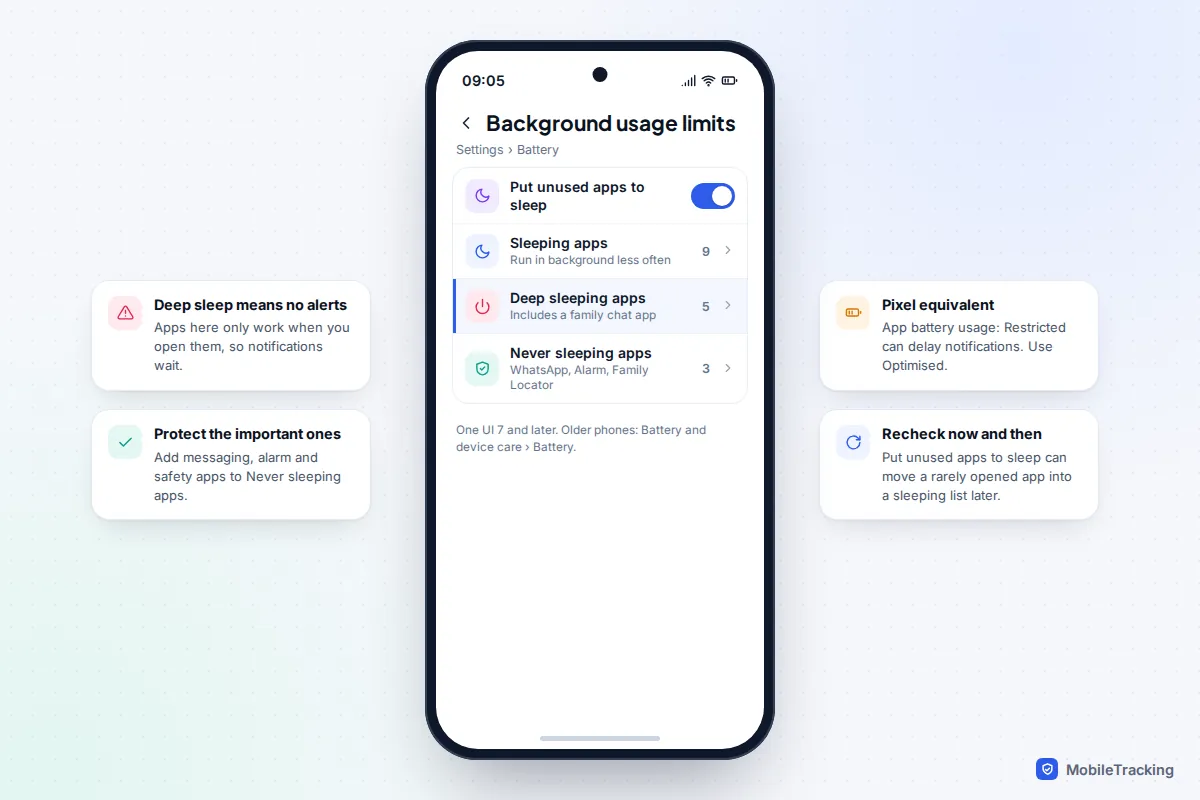
Here’s a typical case. Grace only opened her children’s school app when a message arrived, so her Galaxy decided the app was unused and put it into deep sleep. Messages about a closed classroom arrived hours late. Moving the app to Never sleeping apps fixed it the same day.
Notifications missing from the lock screen
Sometimes notifications arrive but don’t show where you expect them.
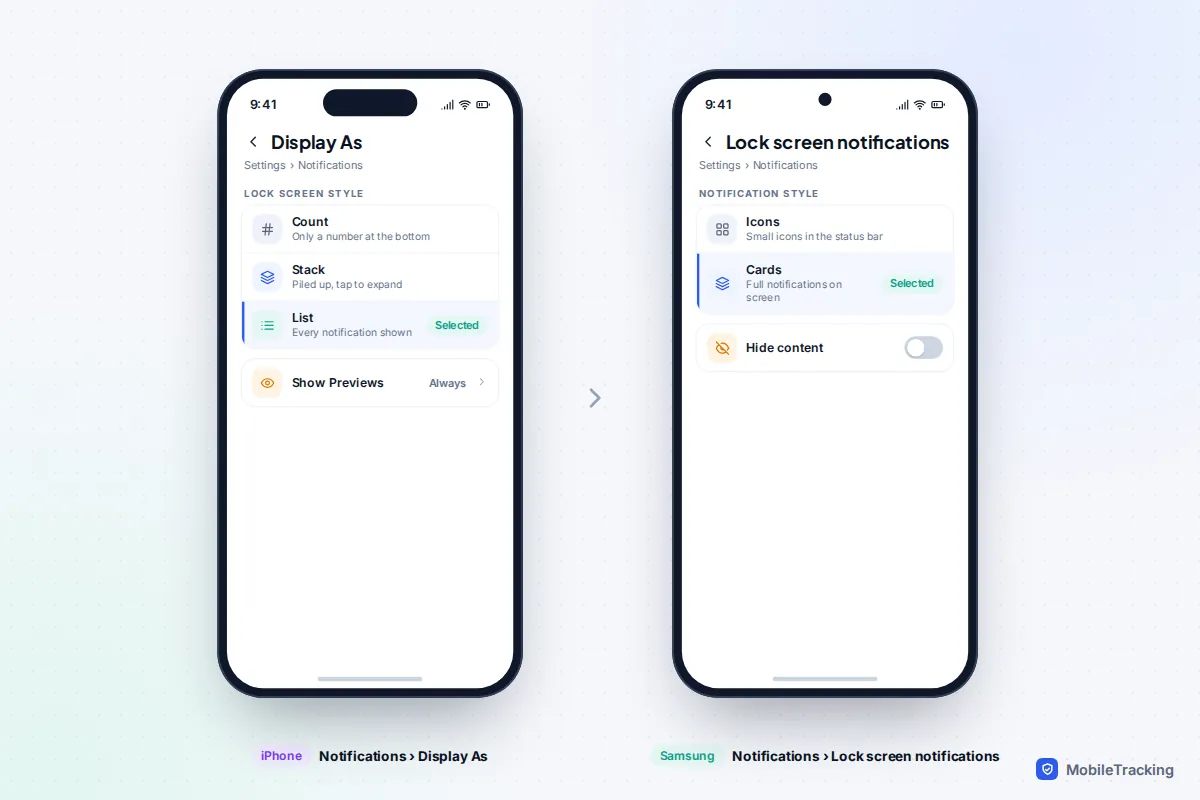
- iPhone display style. Settings › Notifications › Display As offers Count, Stack and List. With Count, the lock screen shows only a number at the bottom. Choose List to see every notification.
- iPhone previews. Show Previews set to When Unlocked hides message content until Face ID recognises you; Never hides it altogether.
- Per-app alerts. An app’s Lock Screen tick can be off while Banners are on.
- Focus options. In Settings › Focus, a Focus’s options include Show on Lock Screen for silenced notifications and Dim Lock Screen.
- Samsung. One UI 7 changed the default to small icons in the status bar. Go to Settings › Notifications › Lock screen notifications and choose Cards.
- Pixel. Settings › Notifications › Notifications on lock screen can hide silent notifications or show none at all.
To check whether a notification really arrived, look at the history. Android keeps one at Settings › Notifications › Notification history (Advanced settings on Samsung); see our guide to setting up notification history on Android. iPhone has no full history, but Notification Centre keeps what you haven’t cleared.
Notifications stopped after an update or a new phone
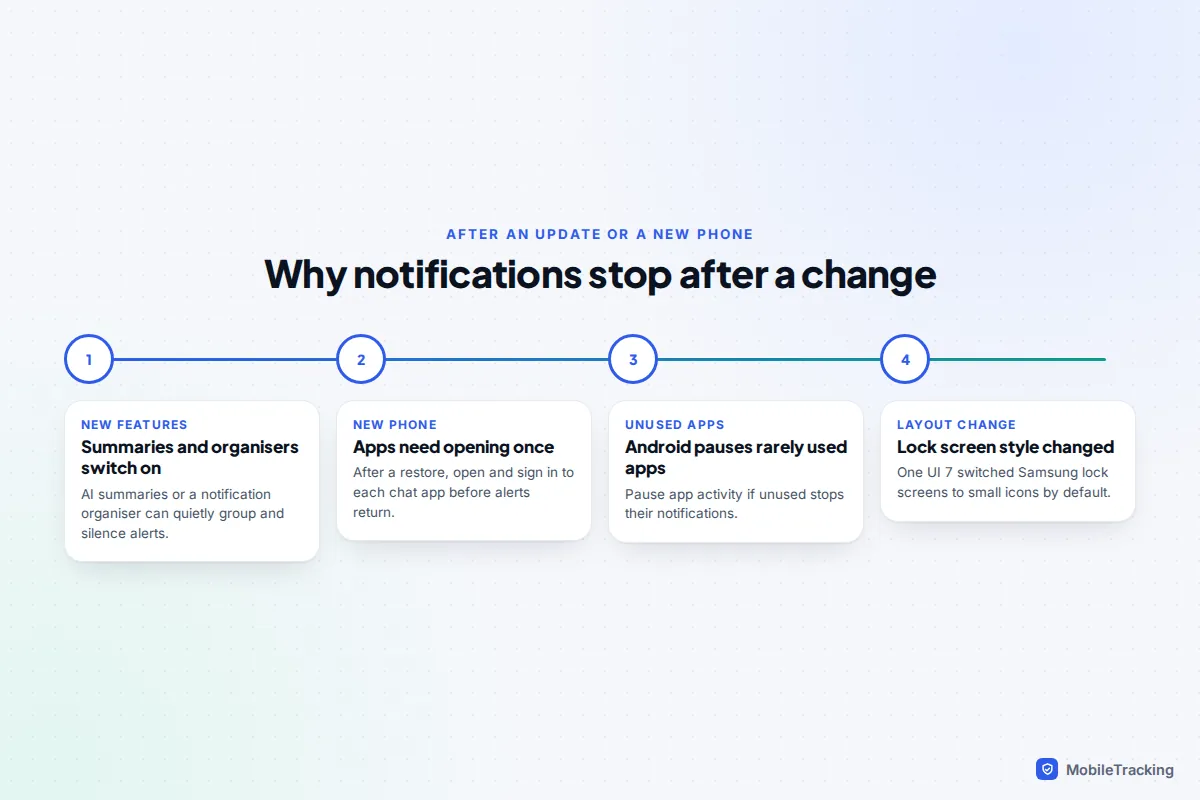
A major update can switch on new features with their own defaults. After updating an iPhone, check Summarise Notifications and any new Focus. After a Pixel update, check Notification organizer and Notification summaries. On Samsung, recheck lock screen style and the sleeping apps lists.
After moving to a new phone or restoring from a backup, many apps don’t send notifications until you open them and sign in, because each app has to register the new phone with its push service. Open every messaging, banking and safety app once and allow notifications when asked.
On Android, apps you haven’t opened for a few months can be paused automatically: the system removes their permissions, deletes temporary files and stops their notifications. To stop it for an app, open its app info page and turn off Pause app activity if unused.
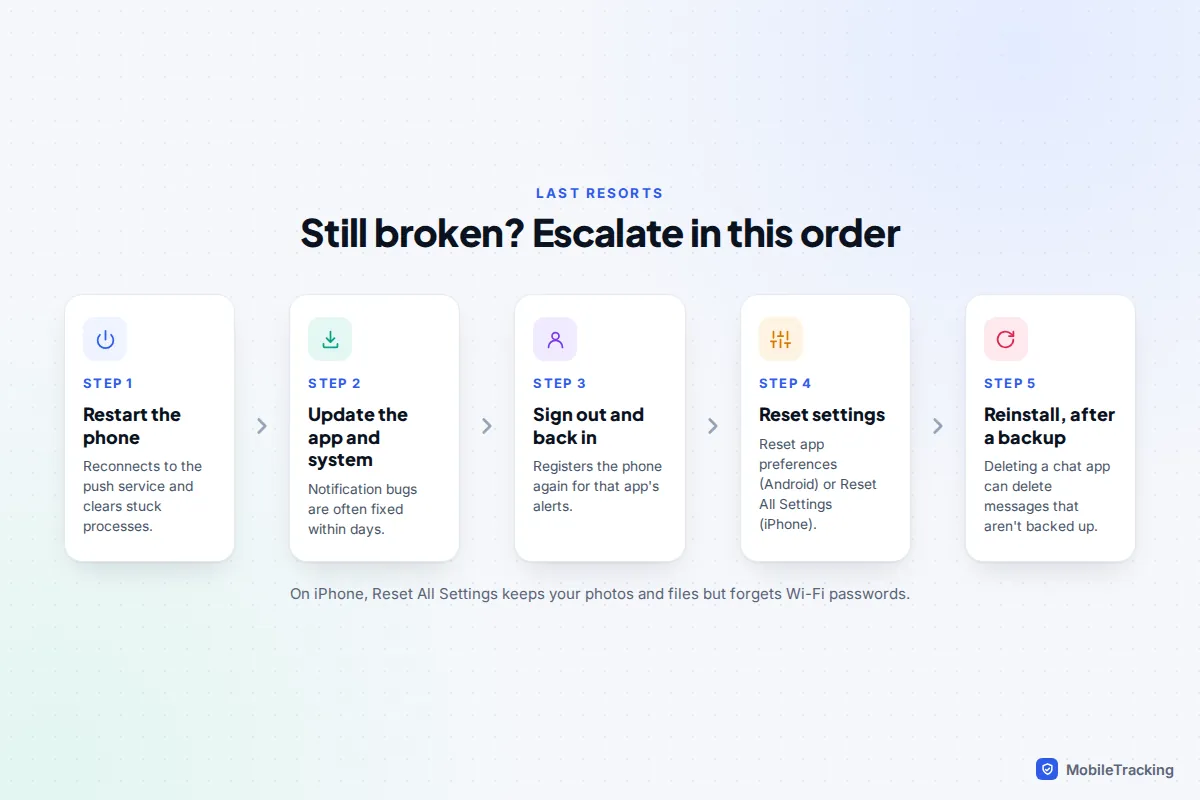
Last resorts, in the right order
- Restart the phone and send yourself a test message from another phone.
- Update the app and the system. Notification bugs after an update are often fixed within days.
- Sign out of the app and back in, which registers your phone for push again.
- Reset settings. On a Pixel, Settings › System › Reset options › Reset app preferences restores notification, background data and battery restrictions to their defaults without deleting data; Samsung puts it in the menu at the top of Settings › Apps. On iPhone, Settings › General › Transfer or Reset iPhone › Reset › Reset All Settings keeps your data but resets every setting, including Wi-Fi passwords.
- Reinstall the app, but only after a backup. Deleting a chat app can delete messages that exist only on the phone, so back up your WhatsApp chats or the equivalent first.
Frequently asked questions
Why do my messages say “notifications silenced” to other people?
On iPhone, when a Focus is on and you’ve allowed it to share your Focus status, people messaging you in Messages see that your notifications are silenced. They can choose Notify Anyway for something urgent. Turn the Focus off, or turn off Focus status, to stop it.
Does Low Power Mode or Battery Saver stop notifications?
Not completely. Push notifications still arrive, but background refreshing and email fetching pause, so some apps update only when you open them. On Android, it’s app-level battery restrictions that cause the biggest delays.
Why do I get notifications on my watch but not my phone?
That’s by design. When a paired watch is on your wrist and unlocked, and the phone is locked, alerts go to the watch. Unlock the phone, or take the watch off, and they appear on the phone again.
Can I see notifications I dismissed by mistake?
On Android, yes, if Notification history is switched on. On iPhone, cleared notifications are gone, though the message or alert is still in its app. Our guide to seeing cleared notifications on iPhone covers the workarounds.
Do I have to reinstall an app to fix its notifications?
Rarely. Check the app’s notification settings, the phone’s battery settings and any Focus or Mode first. Reinstalling helps only when the app’s registration is broken, and it should always come after a backup.
This guide is general information, not legal or financial advice. Read our editorial policy.