
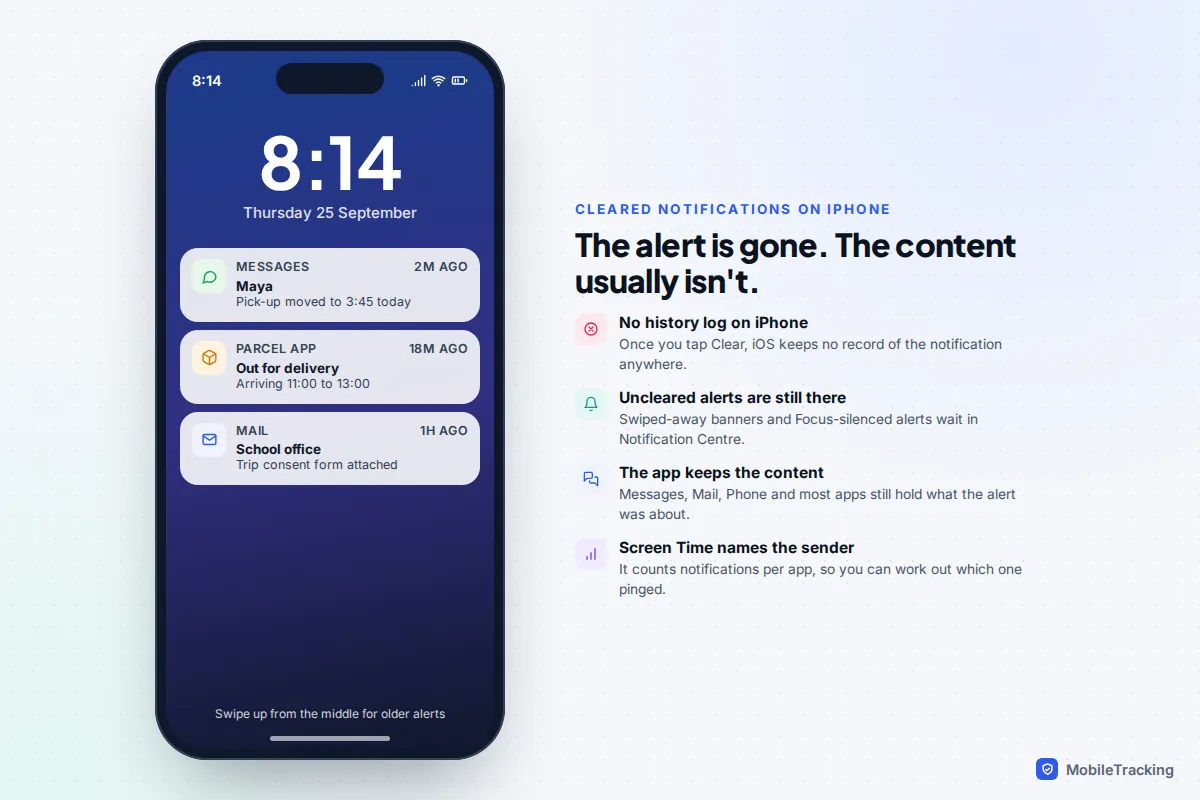
You can’t. Once you clear a notification on an iPhone, it’s gone: iOS has no notification history log, and no setting, hidden menu or App Store app can bring it back. What you can do is find the thing the notification was about. The message, email, missed call or order update still lives in the app that sent it, and a notification you only flicked away (rather than cleared) is still waiting in Notification Centre.
So start with two quick checks. Swipe up from the middle of your Lock Screen, or swipe down from the top of the screen when unlocked, to see every notification you haven’t cleared. If it isn’t there, work out which app sent it and open that app. The rest of this guide shows where to look app by app, which other devices might still have a copy, and the settings that stop it happening again.
First, check it wasn’t only hidden
Plenty of “lost” notifications were never cleared. When a banner slides in and you swipe it away, or the phone was locked when it arrived, the notification moves into Notification Centre and stays there until you clear it or open it.
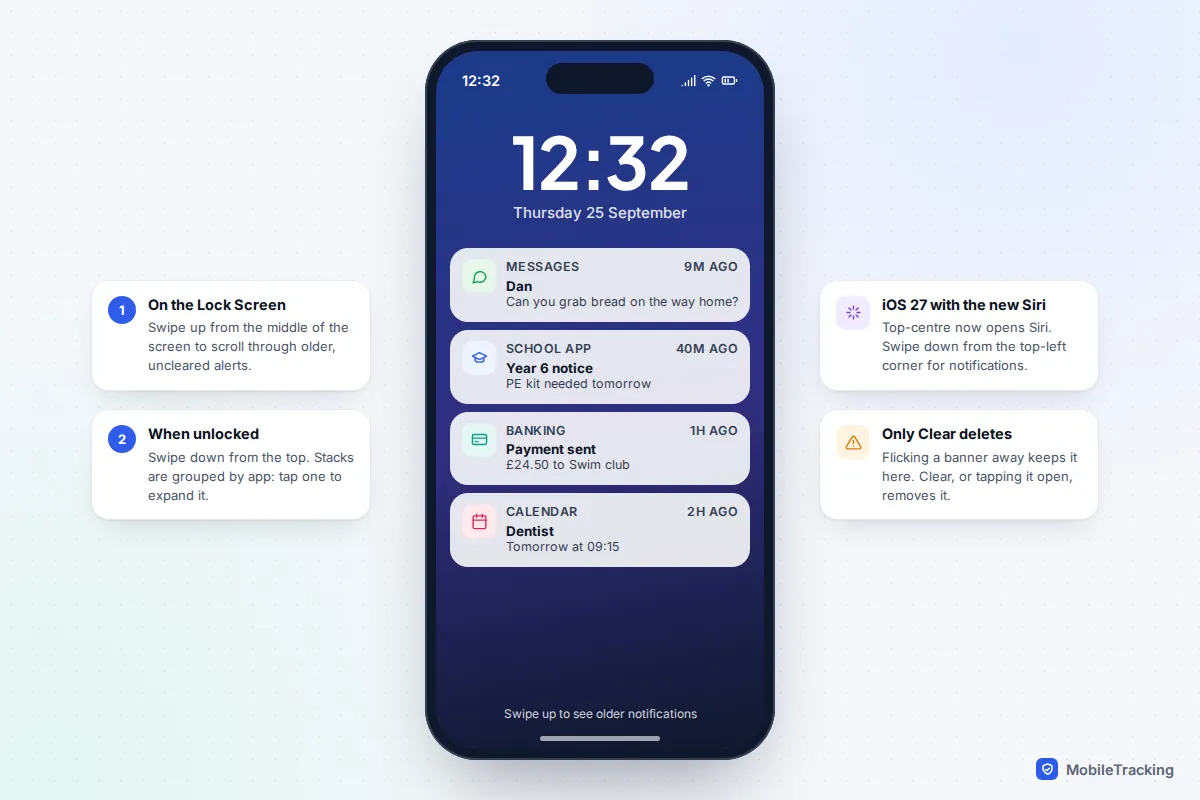
- From the Lock Screen: wake the phone and swipe up from the middle of the screen. Older notifications scroll into view below the clock.
- From anywhere else: swipe down from the top of the screen. On iOS 27, if you’ve switched on the new Siri on an iPhone that supports Apple Intelligence, a swipe down from the top centre opens Siri’s “Search or Ask” panel instead. Swipe down from the top-left corner to reach Notification Centre. With the new Siri off, the old gesture still works.
- Scroll right to the bottom. Notifications are grouped by app, so tap a stack to expand it.
Three settings that make notifications look missing
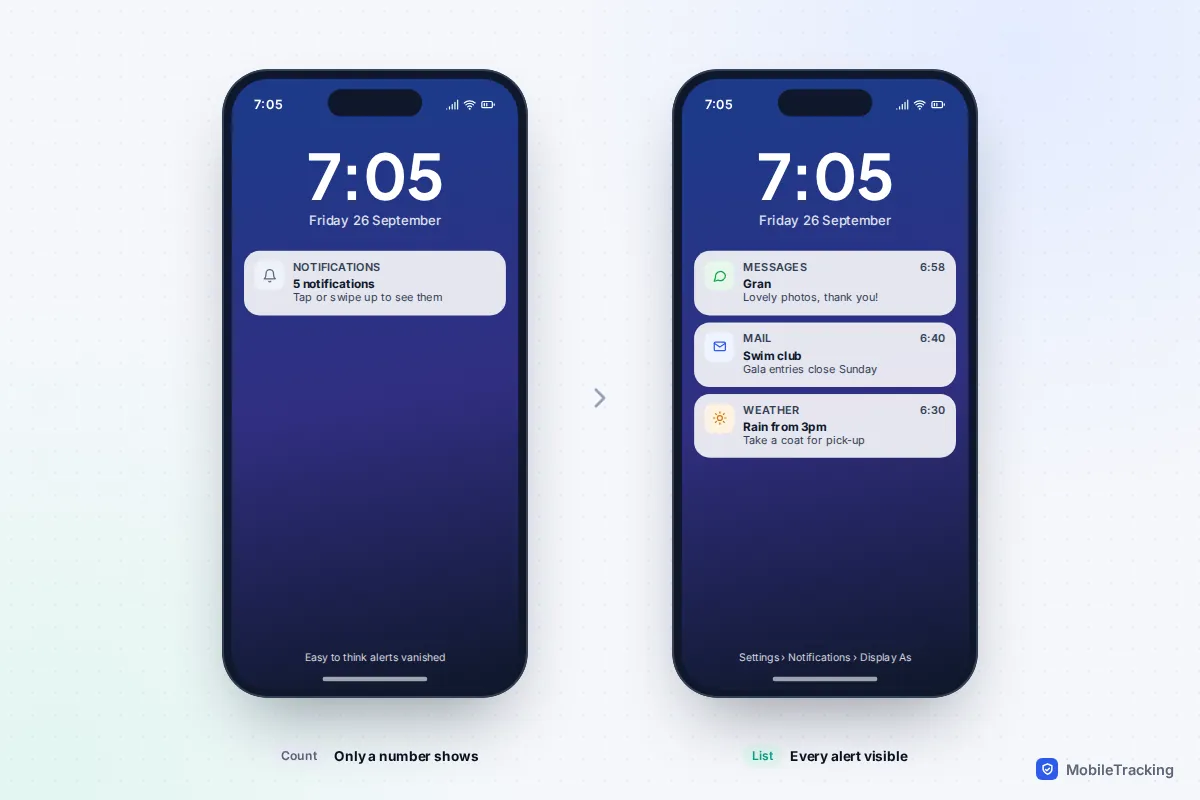
- Display As: Count. The Lock Screen shows only a number, such as “4 notifications”, at the bottom. Tap the number or swipe up to see them. You can switch to Stack or List in Settings › Notifications › Display As.
- A Focus was on. Notifications silenced by Do Not Disturb, Sleep or any other Focus aren’t lost. They go quietly into Notification Centre rather than lighting up the screen.
- Scheduled Summary. If an app is in your summary, its notifications are held back until the summary time. Look for Next Summary at the top of Notification Centre (it appears if Show Next Summary is on) to read them early.
Why iPhone can’t show cleared notifications (and Android can)
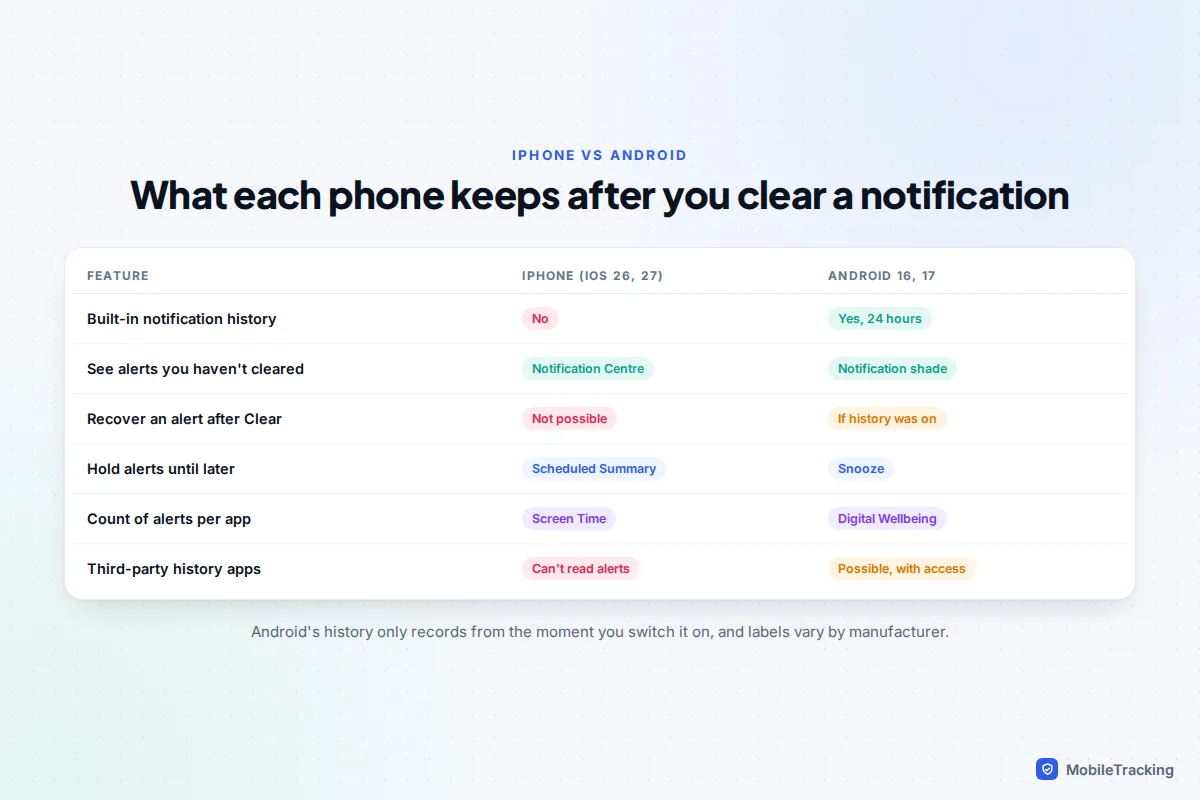
On an iPhone, a notification is a temporary pointer to something inside an app. When you tap Clear, tap the notification to open it, or read the conversation it belongs to, iOS throws the pointer away. Apple doesn’t keep a record of past alerts on the phone, in iCloud or in a backup you can browse.
Apps can also remove their own notifications. Messages is the one people notice most: read a conversation on your Mac or iPad and the matching notifications usually disappear from your iPhone too. That’s by design, not a glitch.
Android works differently. Since Android 11 it has offered a built-in notification history that keeps 24 hours of dismissed alerts, as long as you switched it on beforehand. If you’re comparing phones, our guide to setting up notification history on Android shows what that looks like.
Find the content in the app that sent it
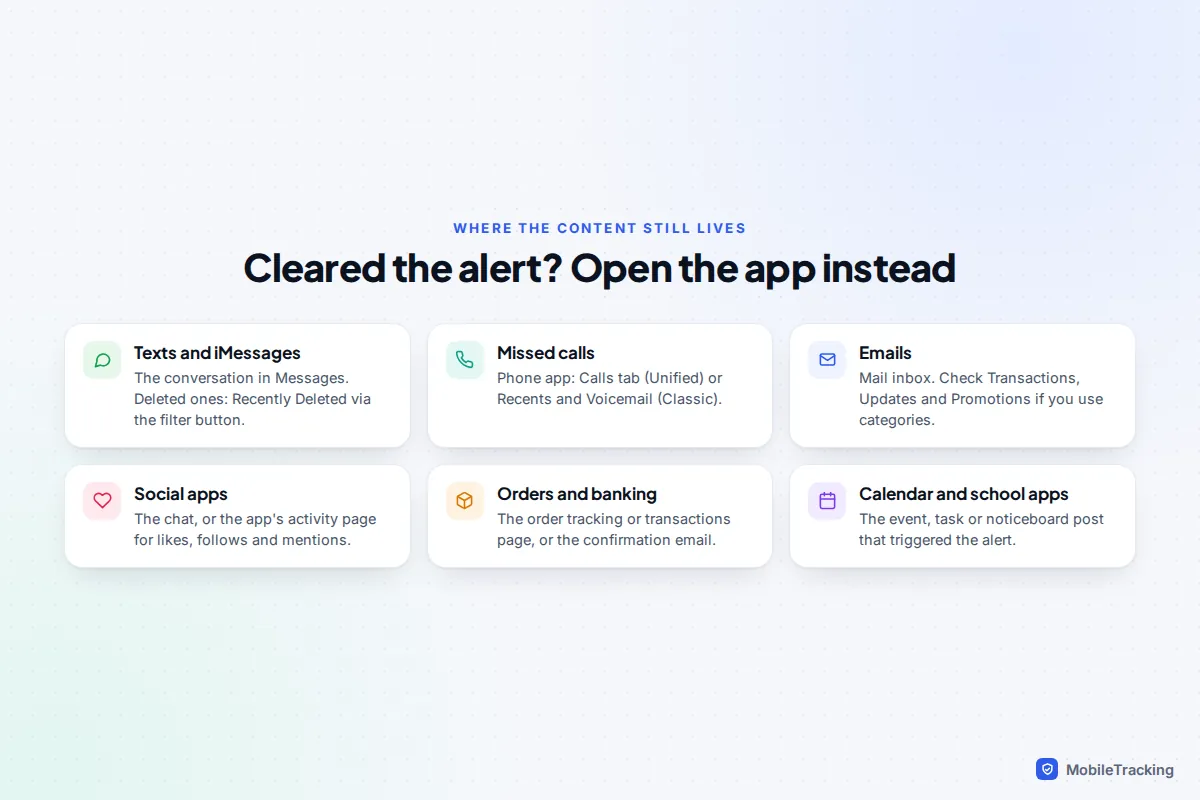
This is where most notifications can be recovered, in substance if not in form. If you remember roughly what it said or which app it came from, go straight there. The table lists the usual suspects.
| Notification was about | Where to look instead |
|---|---|
| A text or iMessage | The conversation in Messages. If the message was deleted, look in Recently Deleted, reached from the filter button at the top right of the conversation list on iOS 26 and 27. |
| A missed call or voicemail | Phone app: the Calls tab in the iOS 26 Unified layout, or Recents and Voicemail in Classic. |
| An email | Mail’s inbox. If you use categories, check Transactions, Updates and Promotions as well as Primary. |
| WhatsApp, Instagram, Snapchat, TikTok | The chat itself, or the app’s activity page (the heart or bell icon) for likes, follows and mentions. |
| A delivery, bank or shopping alert | The order or transactions page in that app, or the confirmation email. |
| Calendar, Reminders, school or club apps | The event, task or noticeboard inside the app. Alerts are generated from entries that are still there. |
If you can’t remember which app it was, the next two sections help narrow it down. For texts and calls specifically, see our guides to recovering deleted text messages on iPhone and checking your iPhone call history.
Check your other Apple devices and watch
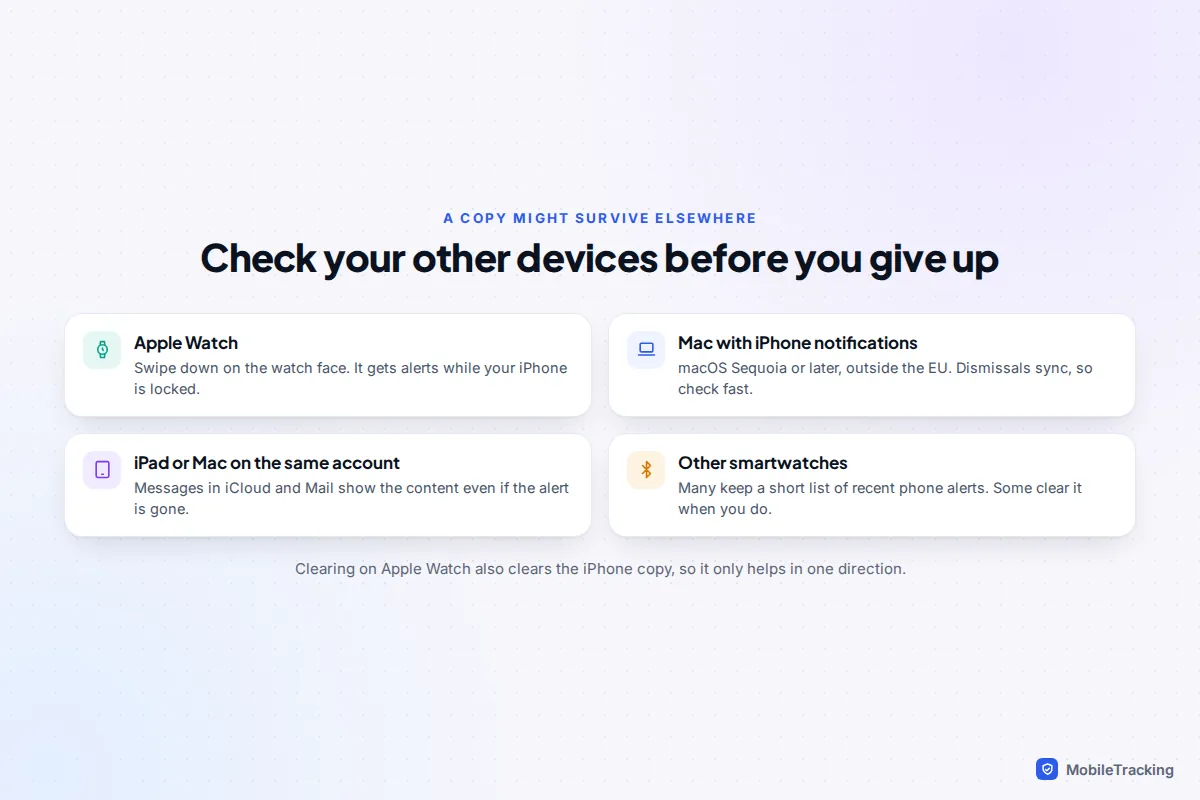
Notifications are shared between your devices, and sometimes a copy survives on one of them. It’s a long shot, but it takes a minute.
- Apple Watch: press the Digital Crown to go to the watch face, then swipe down from the top to open the watch’s Notification Centre. Your watch receives alerts when your iPhone is locked, so anything that arrived while the phone was in your pocket may be there. Apple says clearing a notification on the watch clears it on the iPhone, so the reverse trip (a copy left on the watch) is the only one worth checking.
- Mac with iPhone notifications: on a Mac running macOS Sequoia or later, iPhone notifications can appear in the Mac’s Notification Centre (this isn’t available in the EU). Dismissing on one device dismisses on the other, so treat it as a second chance to notice alerts, not a backup.
- iPad or Mac signed in to the same Apple Account: with Messages in iCloud and the same Mail accounts, the conversations and emails themselves are there even if the alert isn’t.
- Other smartwatches and fitness bands: many keep their own short list of recent phone notifications in the watch’s notification view. Many also remove an alert when you clear it on the phone, so results vary.
Use Screen Time to work out which app it was
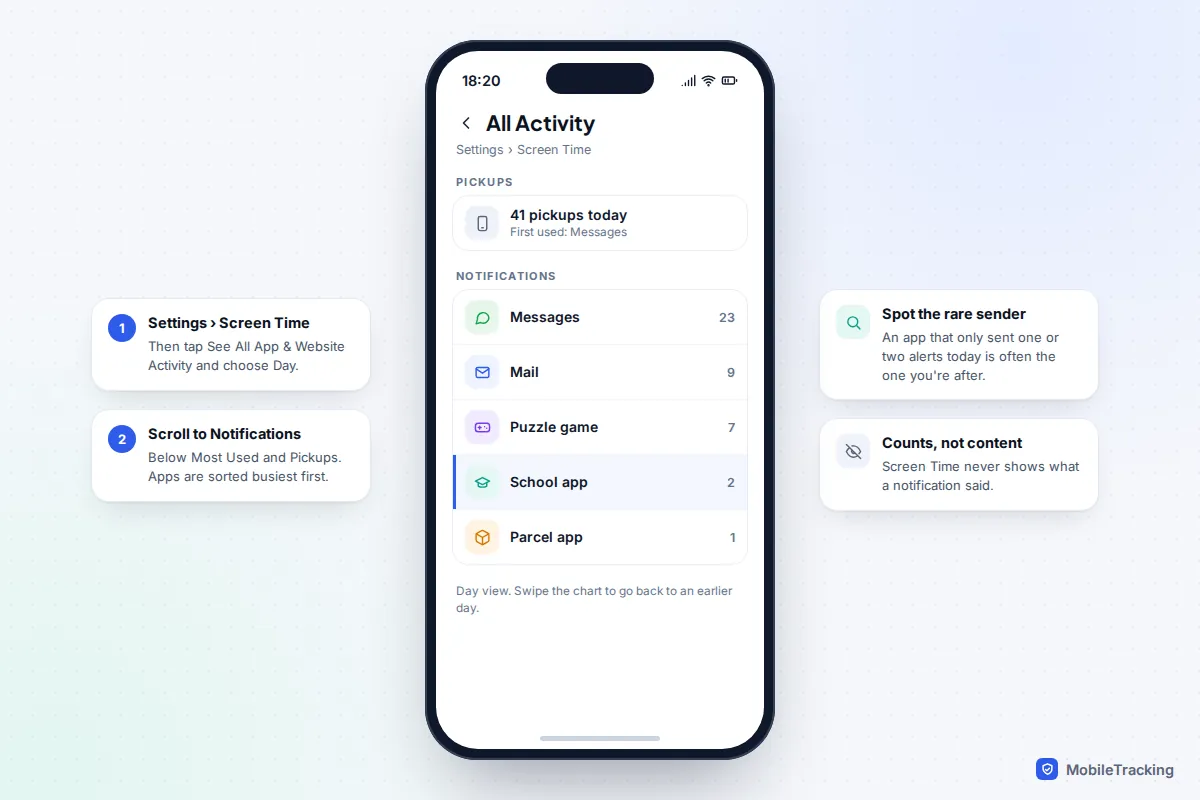
Screen Time can’t show you what a notification said, but it does count notifications per app. That’s surprisingly handy when you only remember that “something pinged at lunchtime”.
- Open Settings › Screen Time. Screen Time needs to have been switched on already.
- Tap See All App & Website Activity.
- Choose Day at the top, and swipe back to an earlier day if needed.
- Scroll past Most Used and Pickups to Notifications. You’ll see how many each app sent that day, busiest first.
If a rarely heard-from app shows one or two notifications today, that’s probably your culprit. Open it and look for an inbox, activity feed or recent orders page.
Settings that stop you losing the next one
Because nothing on an iPhone can undo a clear, prevention matters more than recovery. These changes take five minutes and cover almost every “I swiped it away by accident” story.
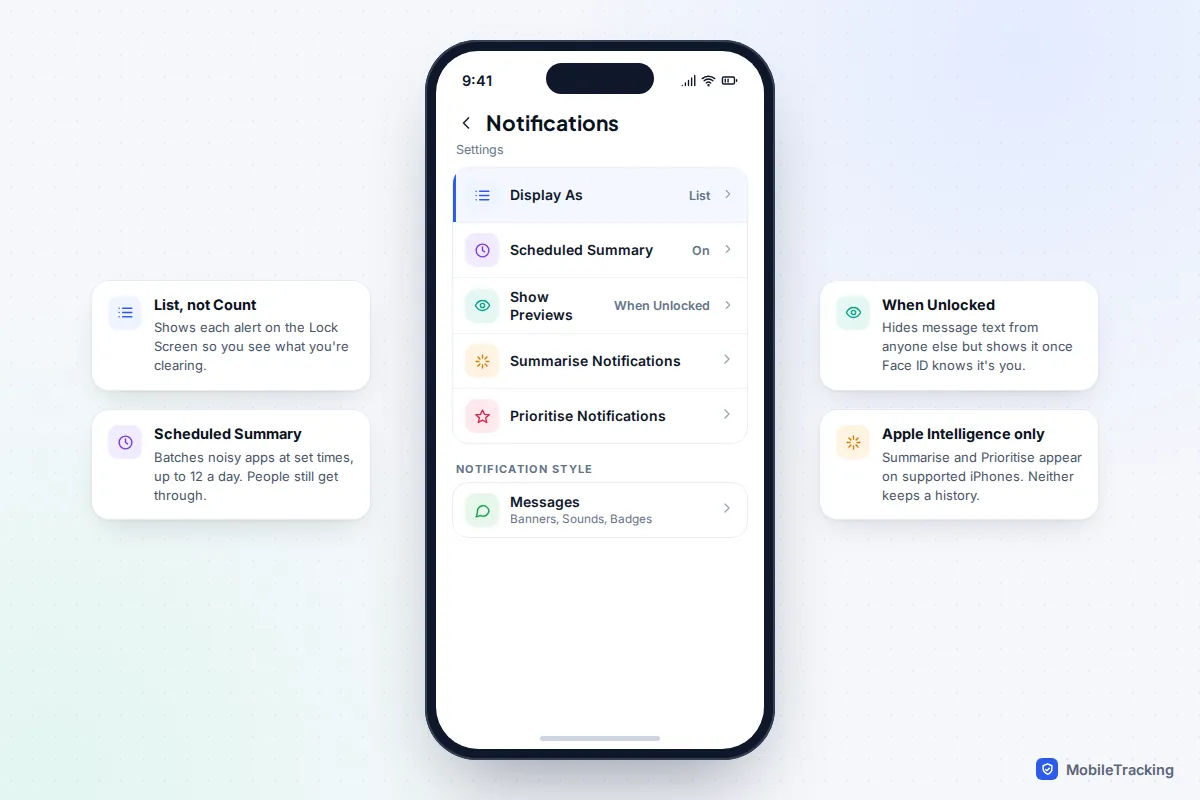
- Switch to List view. In Settings › Notifications › Display As, choose List so every alert is visible on the Lock Screen and you can see what you’re about to clear.
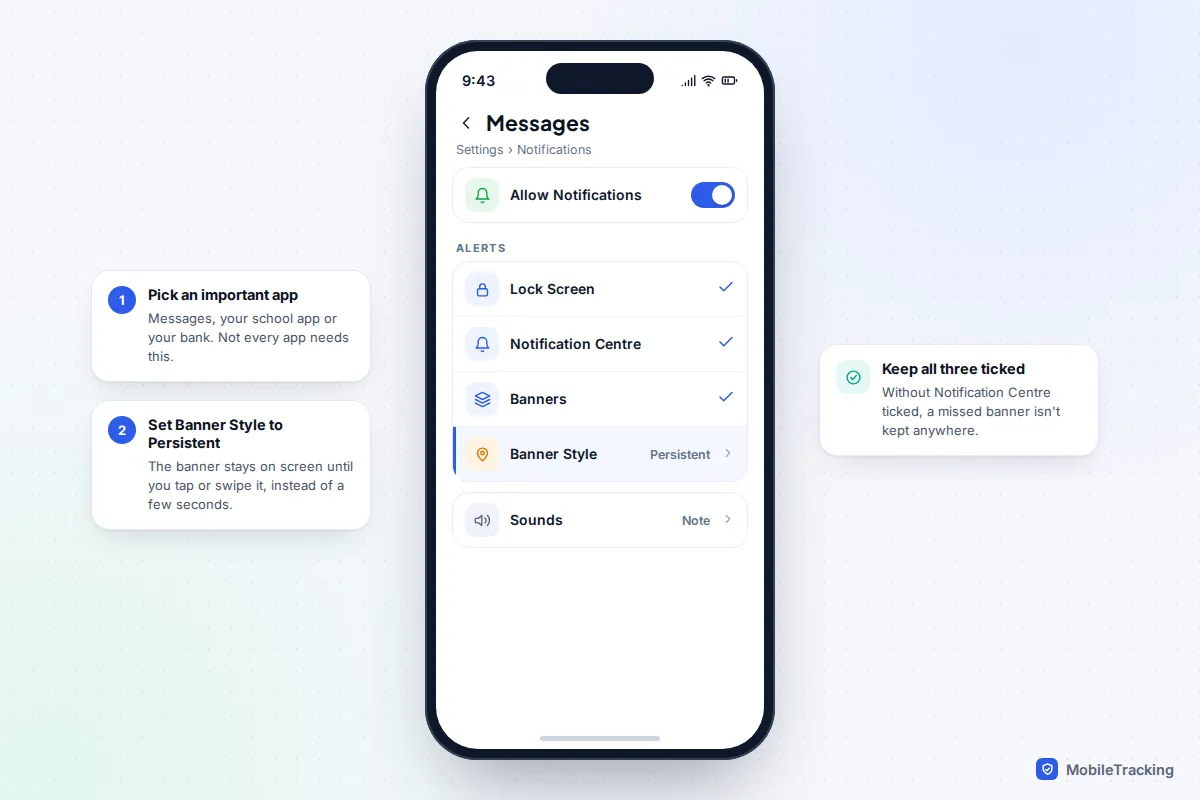
- Make important apps’ banners stay put. Open Settings › Notifications, choose an app such as Messages, your school app or your bank, and set Banner Style to Persistent. The banner then waits for you to act instead of vanishing after a few seconds.
- Send noisy apps to Scheduled Summary. In Settings › Notifications › Scheduled Summary, add shopping, news and game apps and pick one or more delivery times (up to 12 a day). With fewer alerts arriving, you’re less tempted to clear everything at once. Time Sensitive alerts and messages from people still arrive immediately.
- Clear one at a time. Pressing and holding the X in Notification Centre offers Clear All Notifications. It’s the most common way people lose something they hadn’t read. Swiping left on a single notification and tapping Clear is slower but safer.
- Keep previews on. In Settings › Notifications › Show Previews, When Unlocked is a good balance: it hides content on the Lock Screen from anyone who picks up your phone, but shows it once Face ID recognises you.
- Try Apple Intelligence features if you have them. On iPhones that support Apple Intelligence, Summarise Notifications and Prioritise Notifications in Settings › Notifications condense stacks and push likely-important alerts to the top. They help you spot what matters before you clear, but they don’t keep a history either, and summaries can miss details.
Troubleshooting by symptom
Notification Centre won’t open at all on iOS 27
AppleInsider reported a bug that survived into the public release of iOS 27: flicking quickly back and forth between Control Centre and Notification Centre can stop Notification Centre opening. Force restart the phone: press and release volume up, press and release volume down, then hold the side button until the Apple logo appears. Your uncleared notifications are normally still there afterwards.
Swiping down opens Siri instead
That’s the iOS 27 gesture change described above. Start your swipe from the top-left corner instead. The top-right corner still opens Control Centre.
Notifications keep disappearing before you read them
Check whether you’re reading the same conversations on another device, since Messages, Mail and many chat apps withdraw alerts once they’re read anywhere. If alerts never show up in the first place, that’s a different problem: see our guide to fixing notifications that aren’t working.
You only see some apps’ alerts on the Lock Screen
Open Settings › Notifications, choose the app and make sure Lock Screen and Notification Centre are both ticked under Alerts. If only Banners is ticked, the alert appears briefly and then isn’t kept anywhere.
Frequently asked questions
Is there a hidden notification log somewhere in iPhone settings?
No. People sometimes point to Analytics Data under Settings › Privacy & Security, but that holds diagnostic reports for Apple and developers, not the text of your notifications. Screen Time’s notification counts are the closest thing iOS offers, and they show numbers only.
How long do uncleared notifications stay in Notification Centre?
Apple doesn’t publish a limit, and in practice older ones can eventually drop off or be withdrawn by the app. Treat Notification Centre as an inbox for recent alerts, not an archive. If something matters, open it or screenshot it.
Can I see cleared notifications on my child’s iPhone?
No, for the same reason: the iPhone keeps no record to look at. Screen Time, set up through Family Sharing, shows which apps your child uses and for how long. If you’re worried about messages they’re receiving, a calm conversation will tell you more than any setting.
Will restoring a backup bring cleared notifications back?
Don’t count on it. Backups exist to restore your apps and their data, so the messages or emails behind the notifications come back, but a list of old alerts isn’t something you can browse. Erasing your phone to test the theory risks losing more than you gain.
Does tapping a notification delete it?
Yes. Tapping opens the app and removes that notification from Notification Centre. The content is still in the app, so if you tapped by mistake, you’ll find it where the app keeps it.
This guide is general information, not legal or financial advice. Read our editorial policy.