
Don’t switch Background App Refresh off for everything. First open Settings › Battery and find the one or two apps using power while you weren’t looking at them. Then limit only those. On iPhone that means Settings › General › Background App Refresh, where you can turn individual apps off and set the top switch to Wi-Fi only. On Android, open the app’s App battery usage page and choose Restricted, or on a Samsung put it in Deep sleeping apps.
Leave background access on for the apps that genuinely need it: family location and safety apps, the messaging apps you rely on, and navigation while you’re travelling. Turning everything off saves a little battery but leaves you with stale maps, late messages and safety alerts that never arrive. The sections below show how to read the battery screen, what each setting really does, and which popular tricks are a waste of time.
Start with the battery screen, not the switches
Background refresh is rarely the whole story. Your screen, weak mobile signal and games usually use far more power than a few apps checking for new content. So before changing anything, spend two minutes finding out which app is actually misbehaving. You’re looking for an app that used a lot of battery compared with how long it was on your screen.
On iPhone (iOS 26 and later)
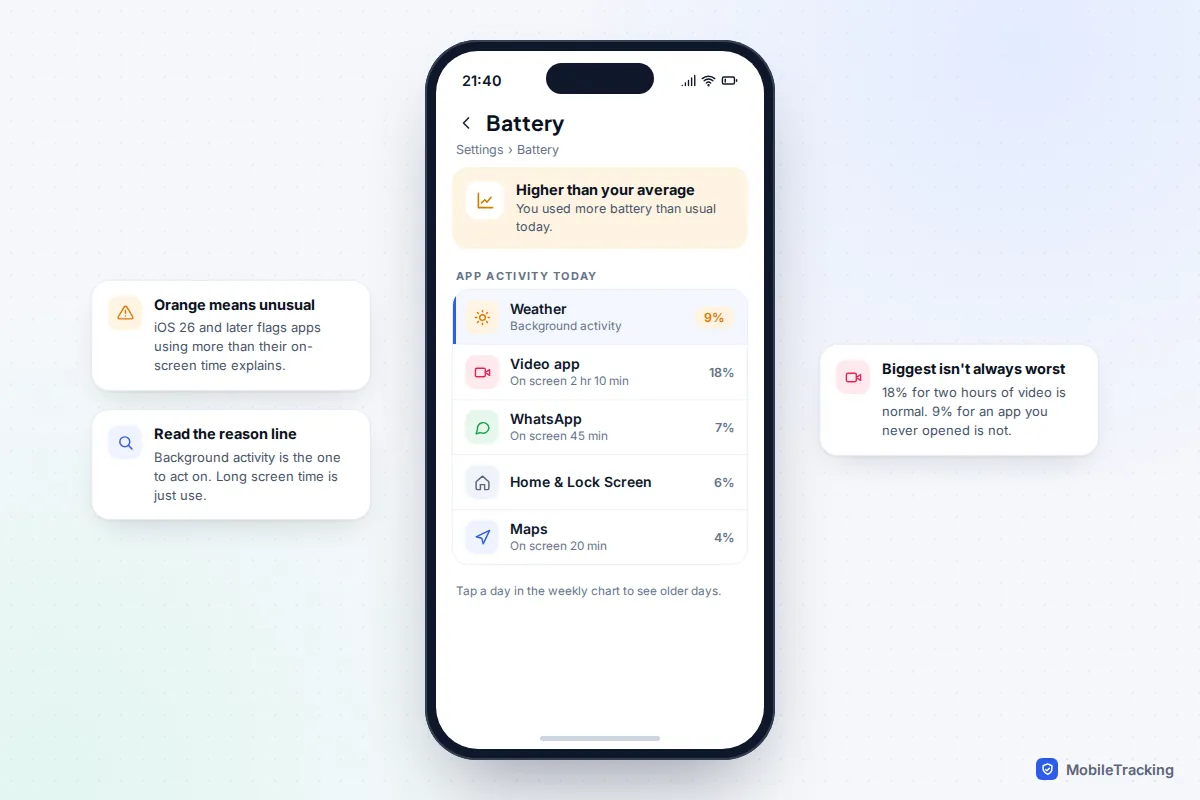
Go to Settings › Battery. Apple redesigned this screen in iOS 26, and iOS 27 keeps the same layout. Near the top, a weekly chart compares today’s use with your average. Below it, the app list shows which apps used more battery than normal and why, for example because an app ran in the background longer or sent more notifications than usual. Apps using noticeably more power than they should are highlighted in orange. Tap back through the previous seven days to see whether it’s a one-off or a pattern.
The key is to read the reason, not just the percentage. A video app at 18% after two hours of watching is doing what you asked. A weather or shopping app at 9% that you barely opened is the one to fix.
On Android
On a Pixel, open Settings › Battery › Battery usage and tap View by apps. Tap any app to see its share of the battery since the last full charge, split into screen time and background time. Six hours of background activity with four minutes on screen is a clear culprit. On a Samsung Galaxy, go to Settings › Battery (on phones older than One UI 7, Settings › Battery and device care › Battery), then tap the usage graph to see the app list.
Check the list at the end of a normal day, not right after a long charge or a system update. Both phones spend a day or two indexing photos and re-syncing after an update, so a spike the morning after is expected and usually settles on its own. If the whole phone drains fast and no app stands out, the cause is more likely the battery itself, so check your battery health before changing settings.
How to limit Background App Refresh on iPhone
Background App Refresh lets suspended apps wake briefly to fetch new content, so a news app has today’s stories ready or a chat app has already downloaded new photos. iOS decides when to run these refreshes based on how often you use each app, which is why an app you open every morning refreshes more than one you open monthly.
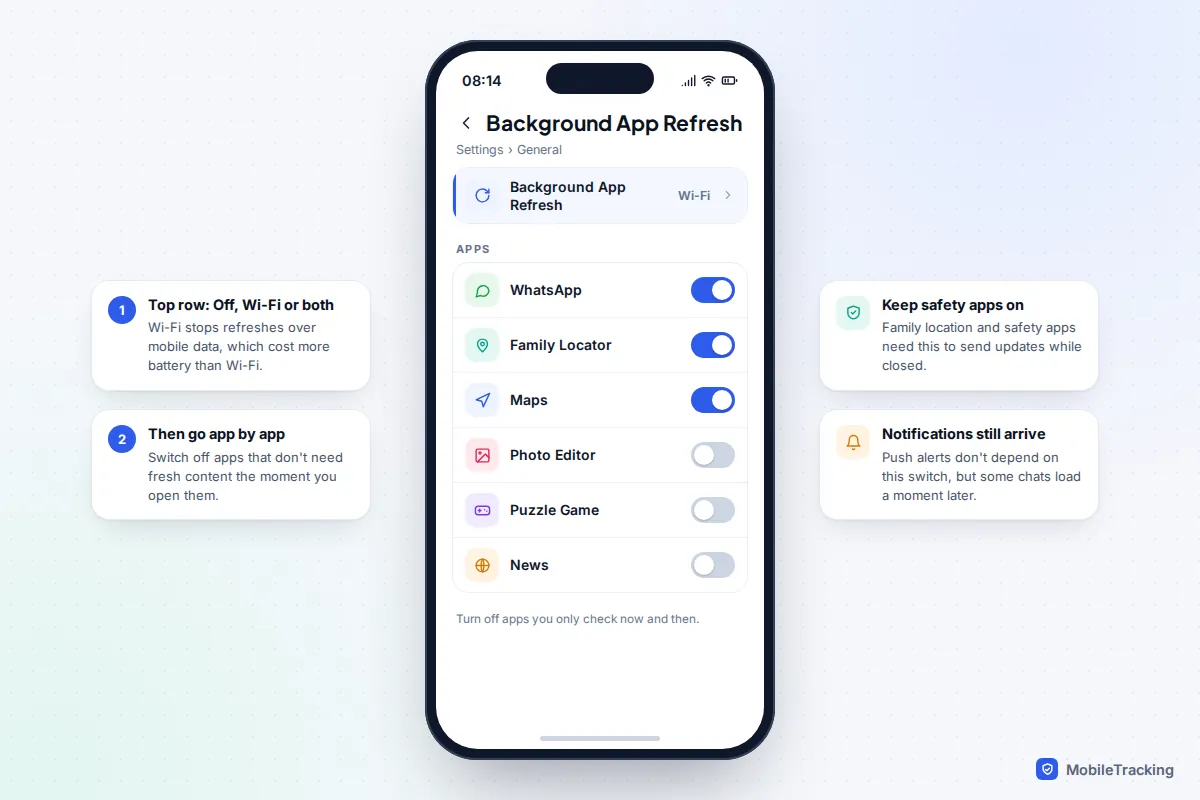
- Open Settings › General › Background App Refresh.
- Tap Background App Refresh at the top and choose Off, Wi-Fi, or Wi-Fi & Mobile Data (Wi-Fi & Cellular Data on US phones).
- Back on the main list, switch off each app that doesn’t need fresh content the instant you open it.
Wi-Fi is the best middle ground for most people. Refreshing over mobile data costs more power, particularly when the signal is weak, and it also uses your data allowance. The catch is that it’s a single choice for all apps: you can’t make one app Wi-Fi only and another unrestricted. If a navigation or family safety app needs to update while you’re out, choose Wi-Fi & Mobile Data and turn off individual apps instead.
You can also reach each app’s switch from Settings › Apps, then the app’s name.
Which apps to keep on, and what you give up
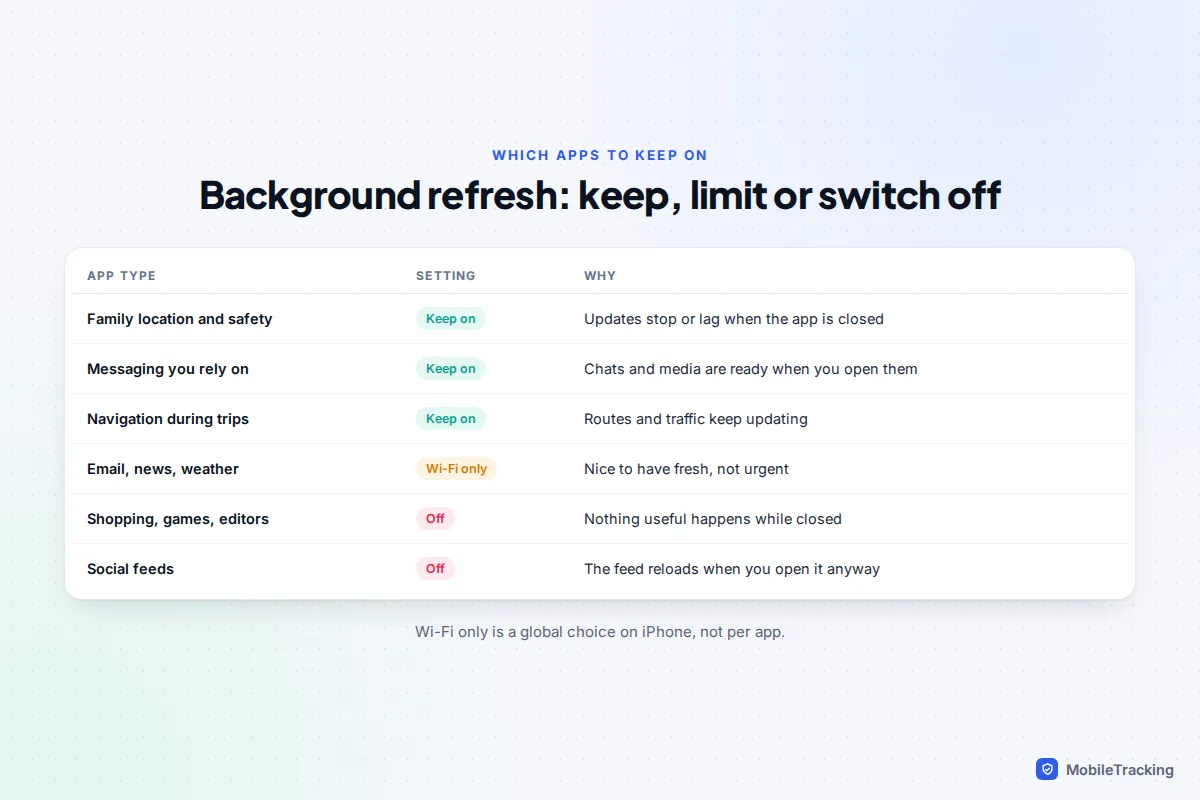
Every app you switch off trades battery for freshness. For most apps that’s a good trade: a shopping app, a photo editor or a game gains nothing from waking up while you’re asleep. For a few, it’s a bad one.
- Family location and safety apps. These need to run when they’re closed, which is the whole point. With background refresh off, the map shows the last place the phone checked in, sometimes hours old, and arrival or leaving alerts may never fire.
- Messaging apps you rely on, such as WhatsApp or Signal, especially if family members message you about pick-ups or emergencies.
- Navigation during trips, so routes and traffic keep updating while you switch to music or a call.
Email, news and weather sit in the middle. Leave them on Wi-Fi if you like having fresh content, or switch them off and accept a short wait when you open them.
Why safety and location apps need background access
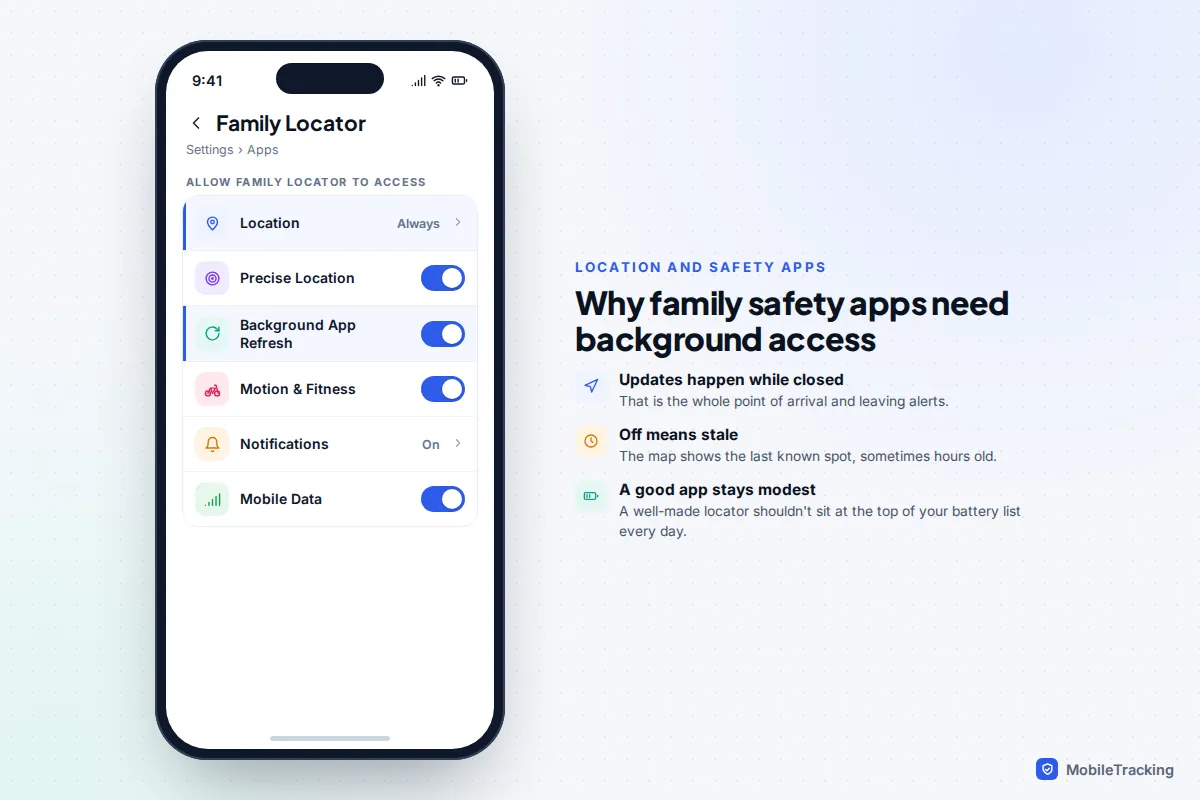
Location-sharing apps work by reporting your position while you’re doing something else, which means they need permission to run in the background on both iPhone and Android. On iPhone that usually means Location: Always, Precise Location on, and Background App Refresh on for that app. Apple’s own Find My is part of iOS and isn’t controlled by this switch, but third-party family apps are. If a relative’s location keeps going stale, a switched-off background setting is one of the first things to check.
A well-built locator shouldn’t top your battery list every day. If it does, look at its own settings for update frequency before cutting its background access, and see our guide to using a family locator without draining the battery.
Use Low Power Mode for a quick, temporary cut
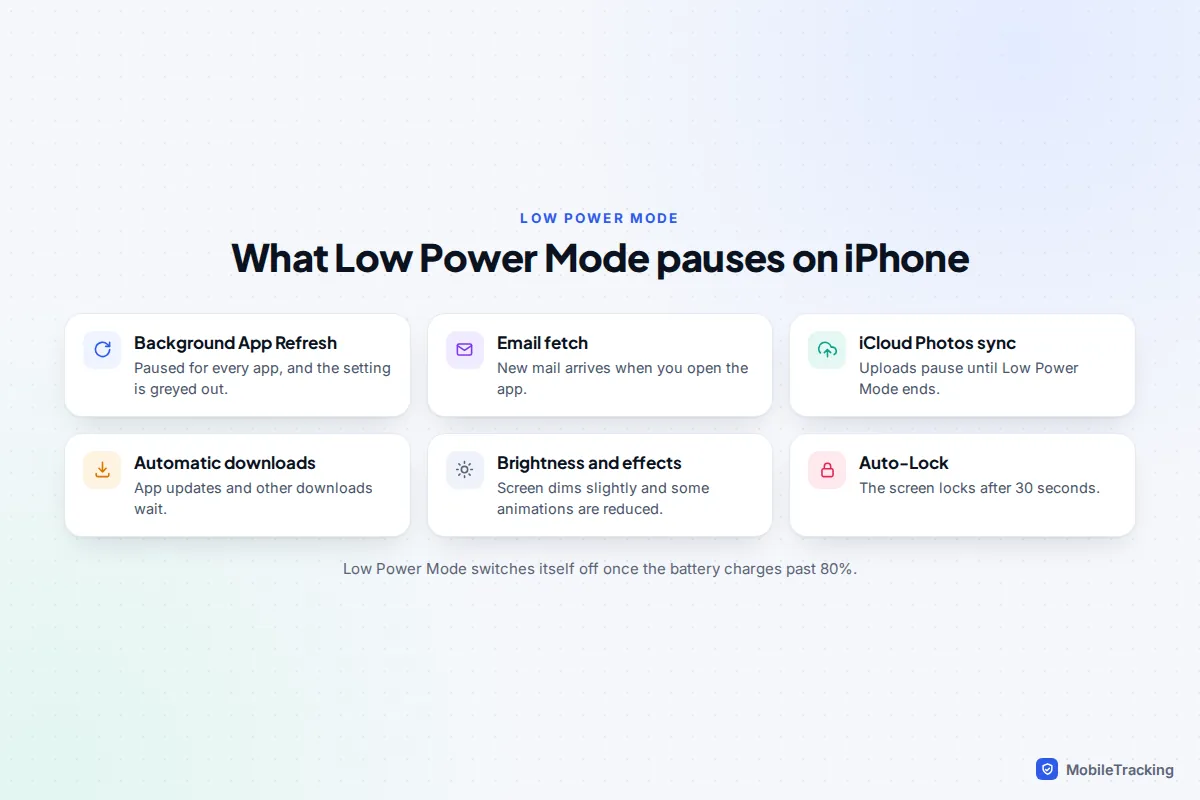
If you need to get through an evening, Low Power Mode does most of the work for you. Turn it on in Settings › Battery (under Power Mode on iOS 26 and later) or from Control Centre. While it’s on, Background App Refresh is paused for every app and the setting is greyed out. Mail stops fetching in the background, iCloud Photos pauses uploads, automatic downloads wait, the screen dims slightly, some visual effects are reduced and Auto-Lock drops to 30 seconds.
It switches itself off once the battery charges past 80%, so it’s a short-term tool rather than a permanent setting. The trade-off is the same as turning refresh off: family location apps may update less often. If someone depends on seeing where you are, tell them when your phone is low rather than assuming the map is current.
iOS 26 also added Adaptive Power on iPhone 15 Pro and later models, which makes small performance adjustments when your use is heavier than normal. It sits in the same Power Mode section and is worth leaving on.
Android: Unrestricted, Optimised and Restricted
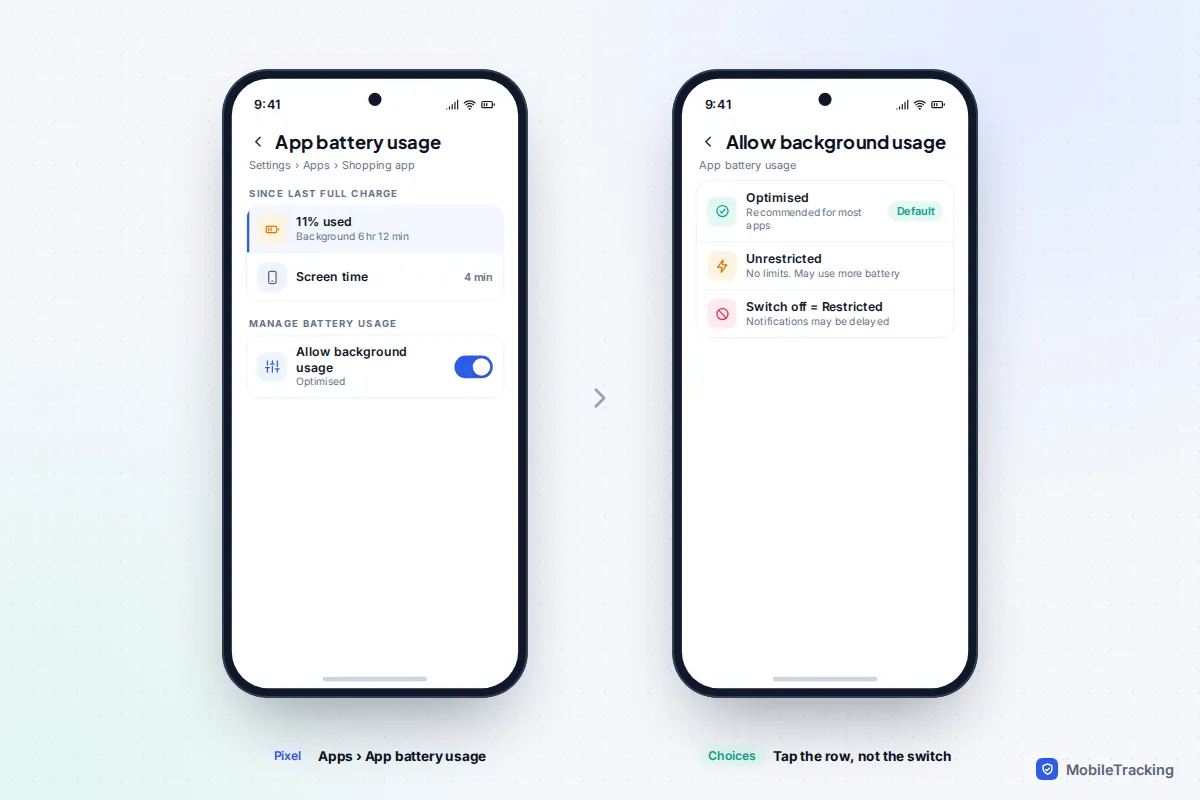
Android has no single Background App Refresh switch. Instead, each app has a battery setting with three levels. On a Pixel running Android 14 or later, go to Settings › Apps › See all apps, tap the app, then App battery usage.
- Optimised (Optimized on US-English phones) is the default. Android lets the app run in the background but limits it based on how you use it. Google recommends this for most apps.
- Unrestricted removes the limits. Use it only for apps that must never miss a beat, such as a family safety app that keeps reporting late.
- Restricted stops most background activity. The app may not work as expected and its notifications may be delayed. On current Pixels you get this by switching Allow background usage off; tap the words beside the switch to choose between Optimised and Unrestricted instead.
Samsung puts the same three choices under Settings › Apps, then the app, then Battery.
Adaptive Battery
Adaptive Battery learns which apps you use and holds back the ones you rarely open. Keep it on. On a Pixel, find it under Settings › Battery › Battery Saver › Adaptive Battery and make sure Use Adaptive Battery is on; Google’s Pixel battery optimisation guide recommends leaving it and Optimised on for all apps. Samsung has a similar Adaptive battery option in its battery settings, though its location has moved between One UI versions.
Samsung: sleeping and deep sleeping apps
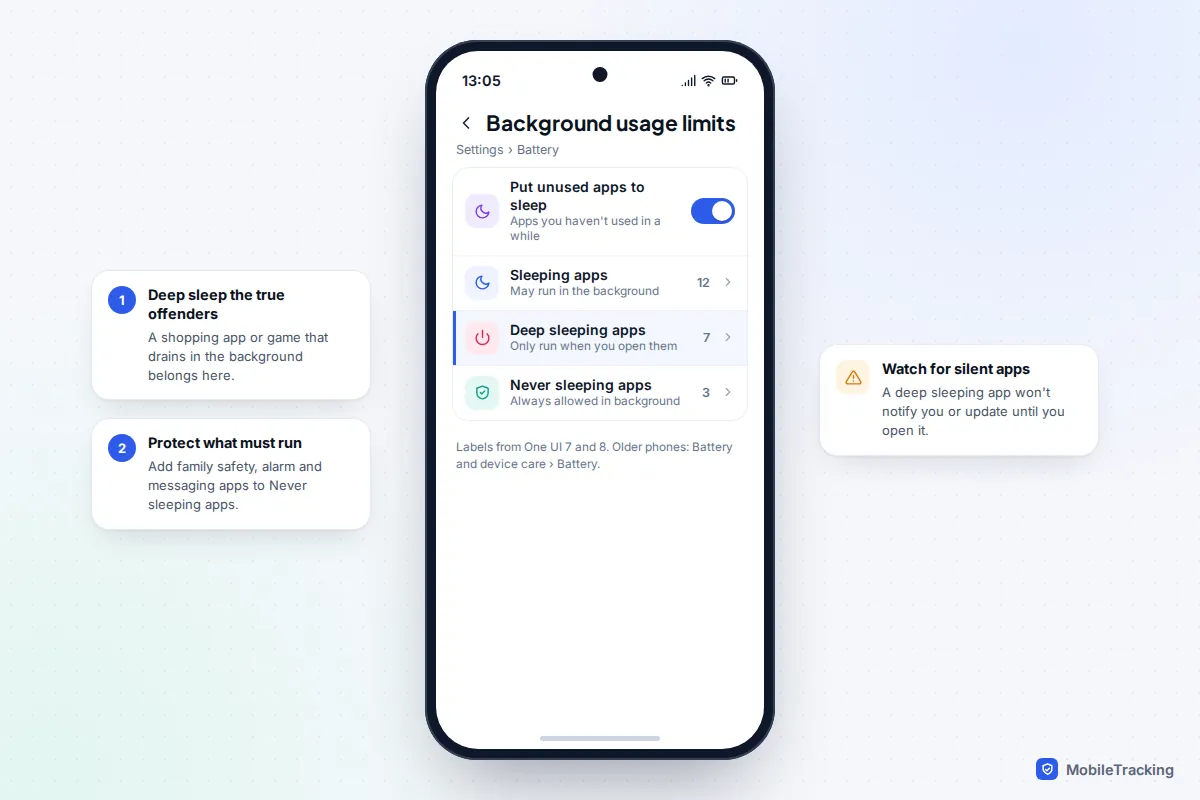
Galaxy phones add their own control on top of Android’s. Go to Settings › Battery › Background usage limits (on older phones, Settings › Battery and device care › Battery › Background usage limits). You’ll see four options:
- Put unused apps to sleep automatically sleeps apps you haven’t used in a while.
- Sleeping apps may still run in the background, but less often.
- Deep sleeping apps never run in the background. They only work when you open them, so they send no notifications in between.
- Never sleeping apps are always allowed to run.
Put a genuine offender, such as a shopping app you open twice a year, into Deep sleeping apps. Then add your family safety app, your alarm clock and your main messaging app to Never sleeping apps. This matters more since One UI 8, which puts apps to sleep more aggressively, and it’s the usual reason a family member’s location stops updating on a Galaxy phone.
For a wider look at Android settings beyond background apps, see our guide to improving battery life on Android.
Myths that waste your time
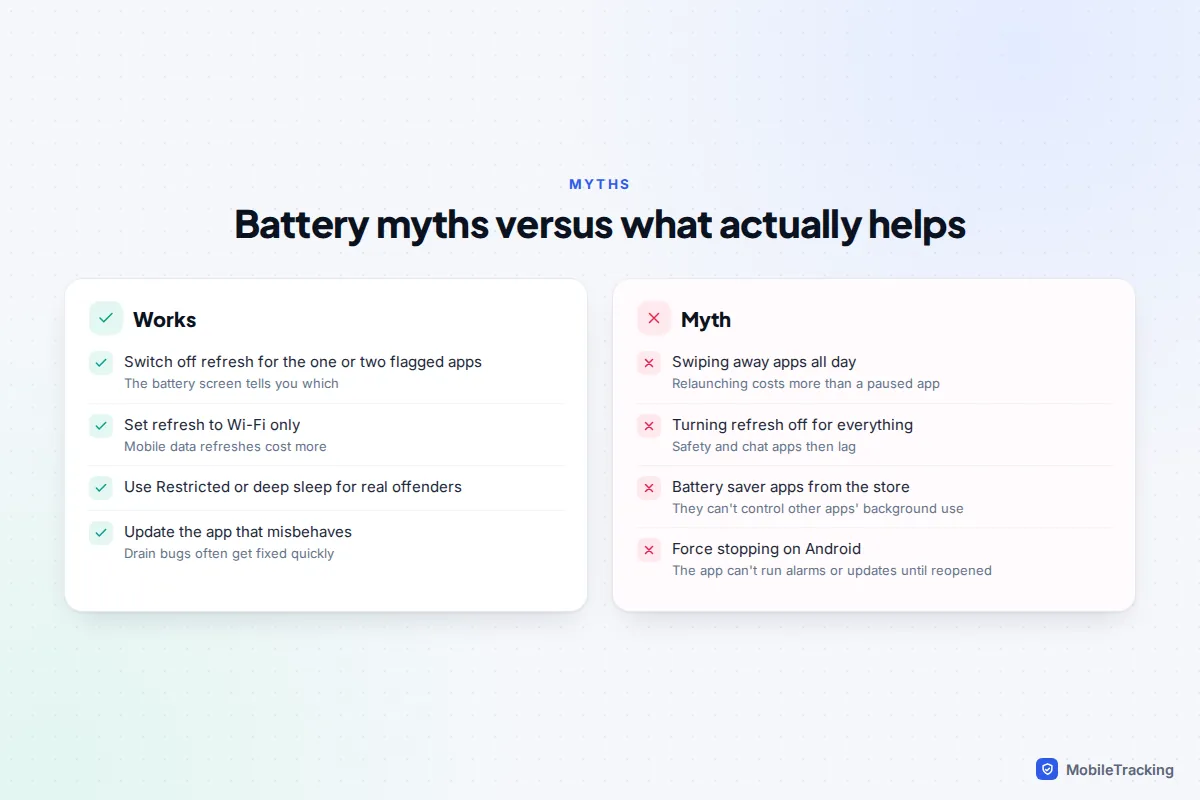
Swiping apps away saves battery. On iPhone, apps you’re not using are suspended and use almost nothing. Apple’s advice is to close an app only if it’s unresponsive, because relaunching it from scratch uses more power than bringing a suspended app back. Android handles memory in a similar way.
Force stopping stops the drain for good. Force stop on Android is a troubleshooting tool, not a battery setting. A force-stopped app can’t run alarms, receive updates or report its location until you open it again, which is exactly what you don’t want for a safety app. Google also warns that force stopping essential apps can stop your phone working properly. Use Restricted or deep sleep instead.
Turning off refresh for every app fixes everything. It rarely makes the dramatic difference people expect, because background refresh is usually a small slice of total use. You lose fresh content across the board for a gain you may not notice.
A battery saver app will manage it for you. Store apps can’t control other apps’ background behaviour on iPhone, and on Android they mostly repeat settings you already have.
Still draining? Troubleshoot by symptom
Here’s a real-world example. Priya’s phone dropped from 60% to 35% overnight. The battery screen showed a food delivery app with nearly five hours of background activity and no screen time. She updated the app, set it to Restricted, and the next night the phone lost 4%. One app, one setting, and nothing else needed changing.
If your pattern is less clear, match it to one of these:
- Big overnight drop on standby: an app is syncing or stuck. Check background time and restrict it.
- Worse right after a system update: indexing and re-syncing. Leave the phone on charge overnight for a couple of nights before changing anything.
- The same app flagged every day: update it, then restrict it. If it still misbehaves, delete and reinstall it.
- Phone warm with no heavy use: restart it, then check the battery list again.
- Fast drain only when you’re out: weak signal makes the phone work harder. Wi-Fi calling and Low Power Mode help more than refresh settings.
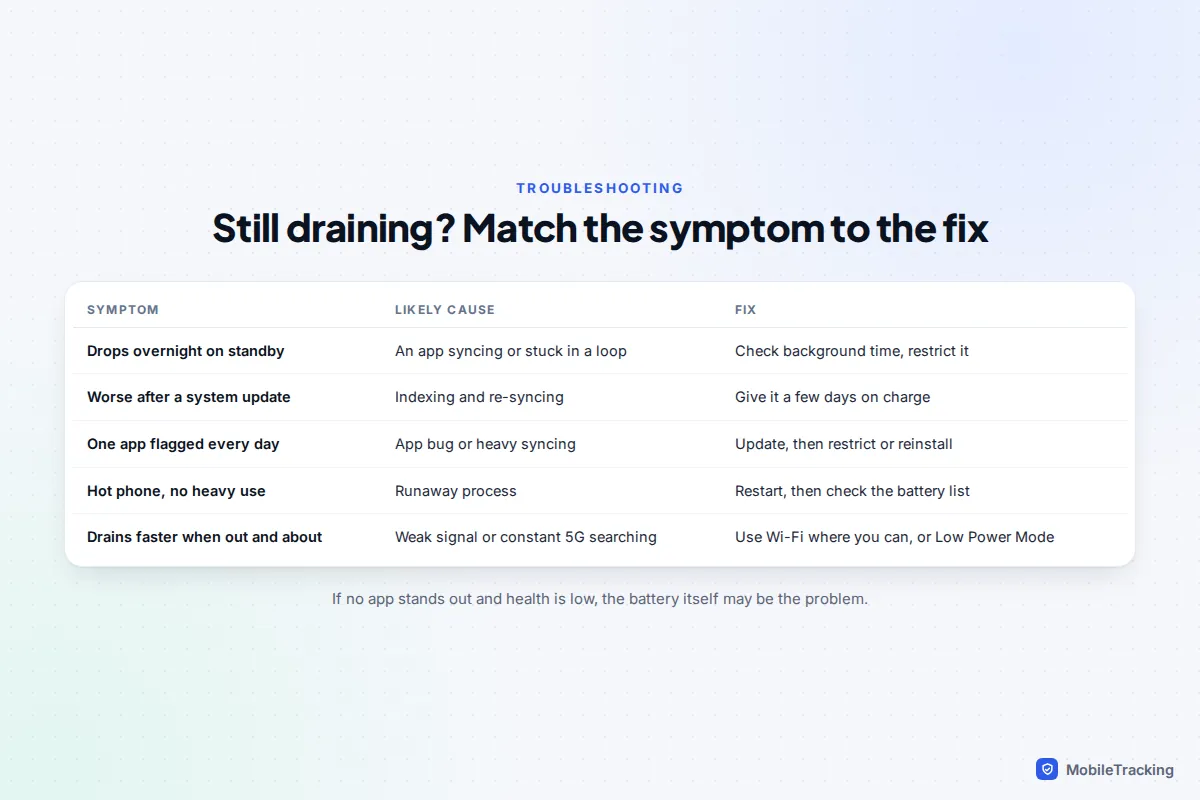
If none of these fit, our guide to why a phone battery drains so fast covers screen, signal and hardware causes in more depth.
Frequently asked questions
Does turning off Background App Refresh stop notifications?
No. Notifications are delivered by the system’s push service whether background refresh is on or off. What you may notice is that the content behind the notification, such as a photo in a chat, takes a moment to load when you open the app.
Should I set Background App Refresh to Wi-Fi or turn it off completely?
Wi-Fi suits most people, because it removes the costlier refreshes over mobile data while keeping apps fresh at home and work. Turn it off completely only if you don’t rely on any app updating while you’re out, since the setting applies to every app at once.
Why does my child’s location stop updating when their phone is low?
Low Power Mode on iPhone pauses background refresh, and Samsung phones can put apps to sleep automatically. Check that the family app has background refresh on (iPhone) or is in Never sleeping apps (Samsung), and agree that your child will let you know when their battery is low.
Is Restricted on Android the same as turning off Background App Refresh on iPhone?
They’re close. Both stop an app doing most work while it’s closed. Restricted can also delay that app’s notifications, so avoid it for messaging and safety apps.
Do I need to change these settings again after an update?
Usually not; your per-app choices carry over. Samsung’s One UI updates have occasionally changed how aggressively apps are put to sleep, so after a major update, check that your important apps are still in Never sleeping apps.
This guide is general information, not legal or financial advice. Read our editorial policy.