
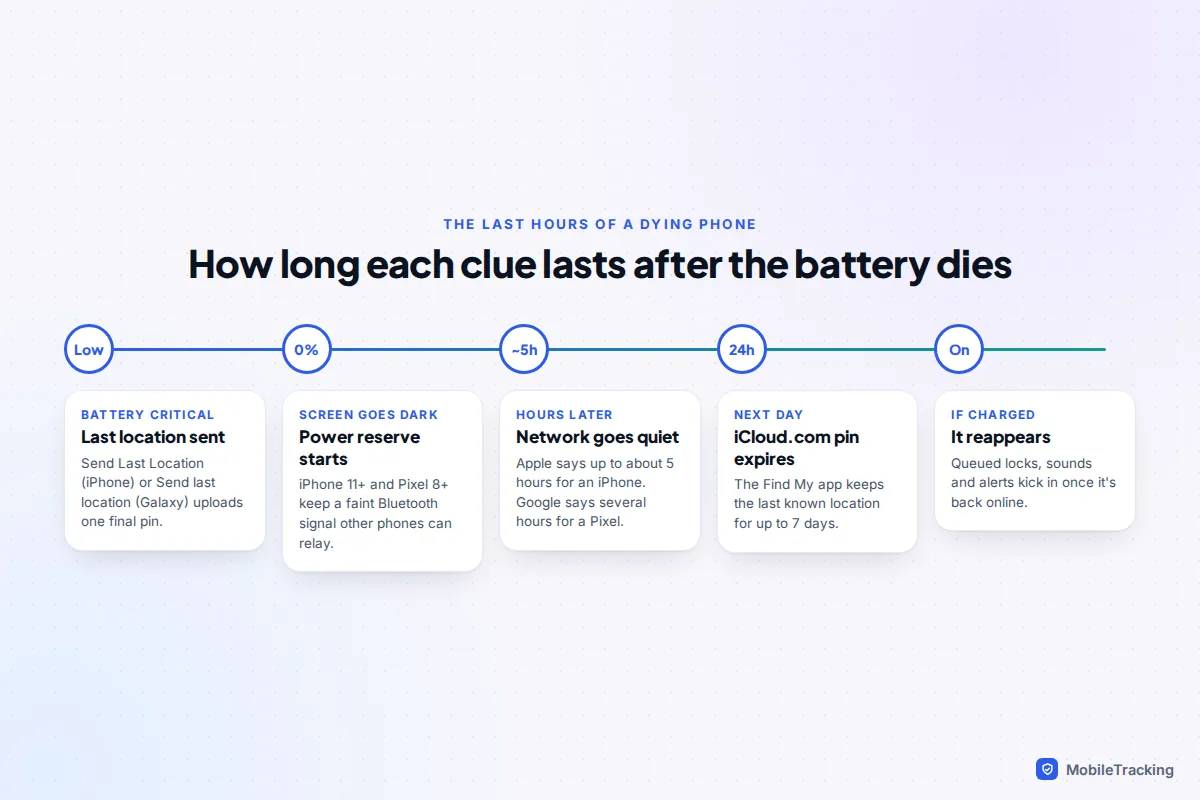
Open Find My for an iPhone or Find Hub (android.com/find) for an Android phone and look at the phone’s last known location and the time next to it. That pin is usually where the phone was when the battery gave out. Many recent phones do better than that: an iPhone 11 or later can keep showing up through Apple’s Find My network for up to about five hours after the battery runs flat, and a Pixel 8, 9 or 10 can be found for several hours through Google’s Find Hub network.
The catch is time. Each clue fades, some after hours and some after a day, so check now and write down what you see. If the phone is a Samsung Galaxy that is not quite dead yet, skip to the Samsung section: you may be able to stretch its battery remotely.
What you can realistically see once the battery is flat
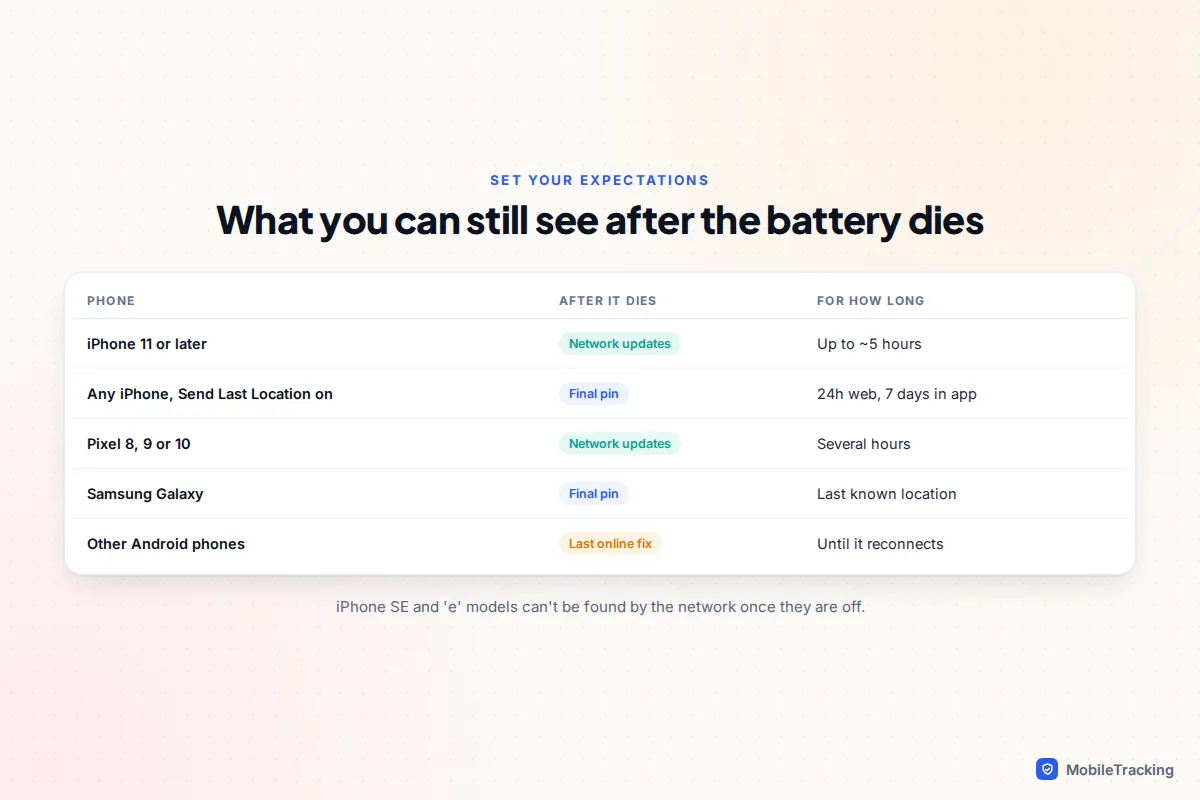
A phone with no power can’t use mobile data or Wi-Fi, so nothing shows where it is right now in the ordinary way. Instead you get one of three things: a location the phone sent just before it died, a location that passing phones picked up from a low-power Bluetooth signal afterwards, or nothing newer than the last time it was online. Which one depends on the phone and on settings that had to be on beforehand.
| Phone | What you can see after it dies | Roughly how long |
|---|---|---|
| iPhone 11 or later (not SE or “e” models) | Updates via the Find My network while in power reserve | Up to about 5 hours after the battery runs out |
| Any iPhone with Send Last Location on | The location it uploaded just before shutting down | Up to 24 hours on iCloud.com, up to 7 days in the Find My app |
| Pixel 8, 9 or 10 | Updates via the Find Hub network after power-off | “Several hours”, in Google’s words |
| Other Android phones | The last location stored while online | Until the phone comes back online |
| Samsung Galaxy with Send last location on | The location sent when the battery hit a critical level | Shown in Samsung Find as the last known location |
The pin is a starting point for a search, not a live view. If you think the phone was switched off deliberately rather than running flat, our guide to finding a phone that has been turned off covers that situation.
How to find a dead iPhone
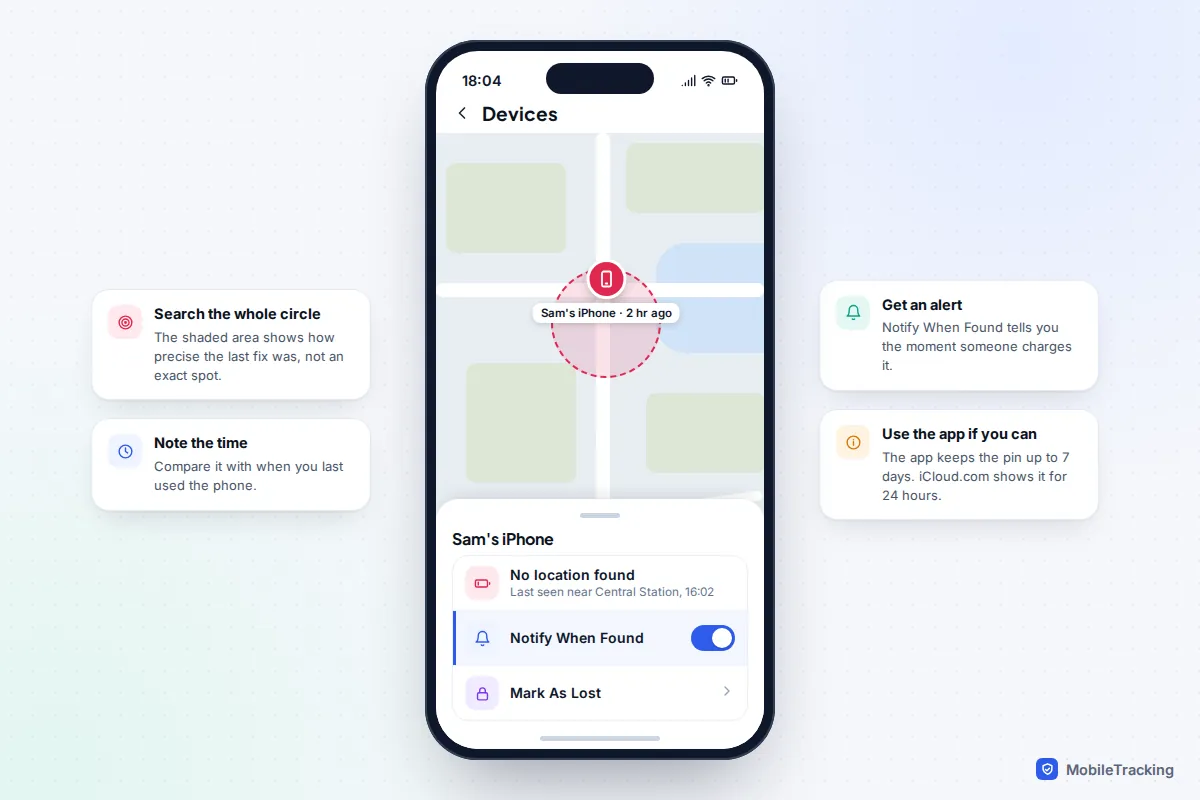
Where you look makes a real difference with an iPhone. Apple’s Find My help page says the Find My app shows a device’s last known location for up to seven days when it has run out of battery, while the Send Last Location pin is shown on iCloud.com for up to 24 hours. So if you can, use the app rather than a web browser.
- Open the Find My app on any iPhone, iPad or Mac signed in to your Apple Account, or ask a member of your Family Sharing group to check their Find My app.
- Tap Devices and choose the missing iPhone. Note the address, the time and the size of the shaded circle.
- With only a computer, go to icloud.com/find. If it asks for a code that would go to the dead phone, use the Find Devices button instead.
- Turn on Notify When Found so you get an alert the moment the iPhone reports in again, for example when someone puts it on charge.
Power reserve: why a newer iPhone keeps showing up
When the battery on an iPhone 11 or later runs out, the phone does not quite switch off. It drops into a power reserve state and, much like an AirTag, sends out a short-range Bluetooth signal that passing Apple devices can pick up and relay to you anonymously. Apple has said this works for up to five hours after the battery is depleted. If the phone was switched off by hand with charge left in it, the same trick can last up to 24 hours.
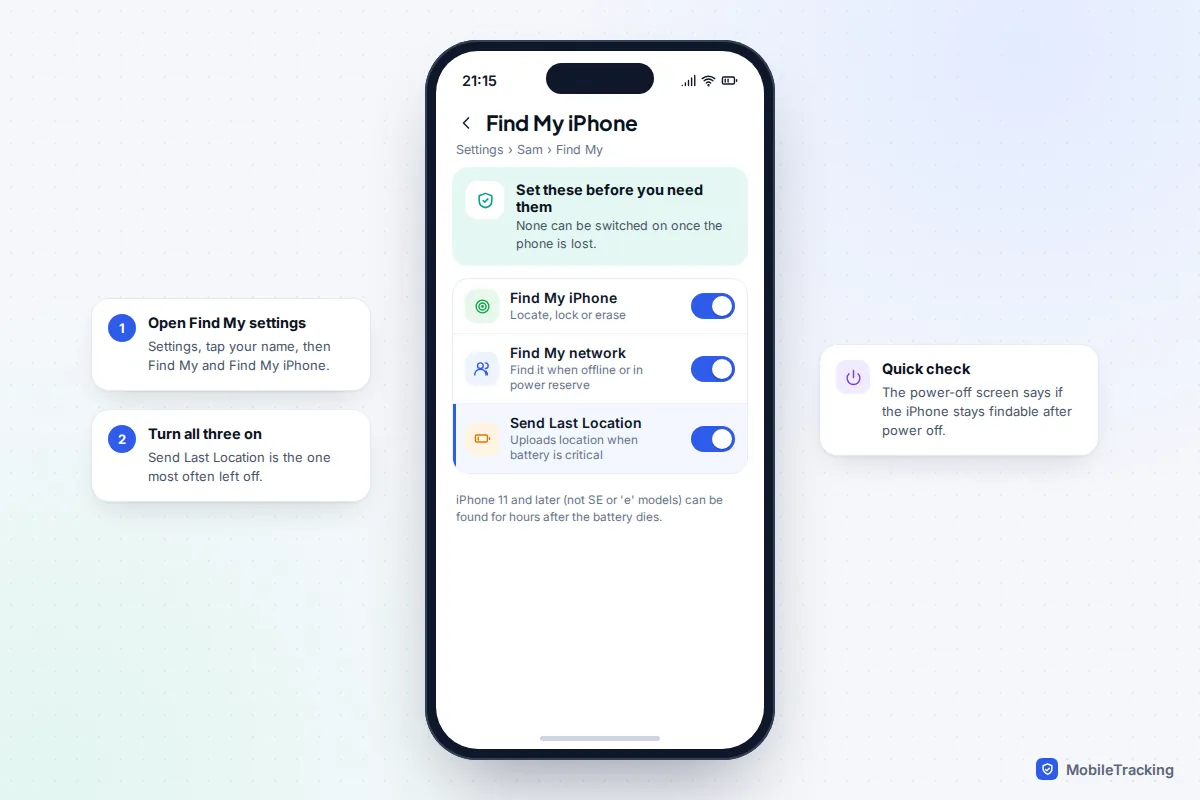
It relies on Apple devices passing within Bluetooth range, so a phone that dies on a busy high street updates more often than one that dies in a field. It does not work on the iPhone SE or “e” models such as the iPhone 16e, and needs Find My network on. To check yours, hold the side and volume buttons: a note under the power-off slider says whether the iPhone stays findable after power off.
The settings that had to be on already
All three live in Settings › [your name] › Find My › Find My iPhone: Find My iPhone, Find My network and Send Last Location. Send Last Location is the one people most often leave off: when the battery gets critically low, it uploads the iPhone’s location one final time. None of this changed in iOS 26 or iOS 27.
How to find a dead Android phone with Find Hub
Find Hub, the new name for Google’s Find My Device since 2025, works for most Android phones signed in to a Google account.
- On a computer or any phone, go to android.com/find, or open the Find Hub app on another Android device.
- Sign in with the Google account that was on the dead phone and select it from the list.
- Read the last seen time and battery level. A low battery next to an old time strongly suggests it simply ran flat. Note the address and accuracy circle.
By default, Android phones store encrypted recent locations with Google, which is what lets Find Hub show where the phone was when last online. On Android 8 or earlier this was a separate switch, Store recent location.
Pixel 8, 9 and 10: finding after the battery runs out
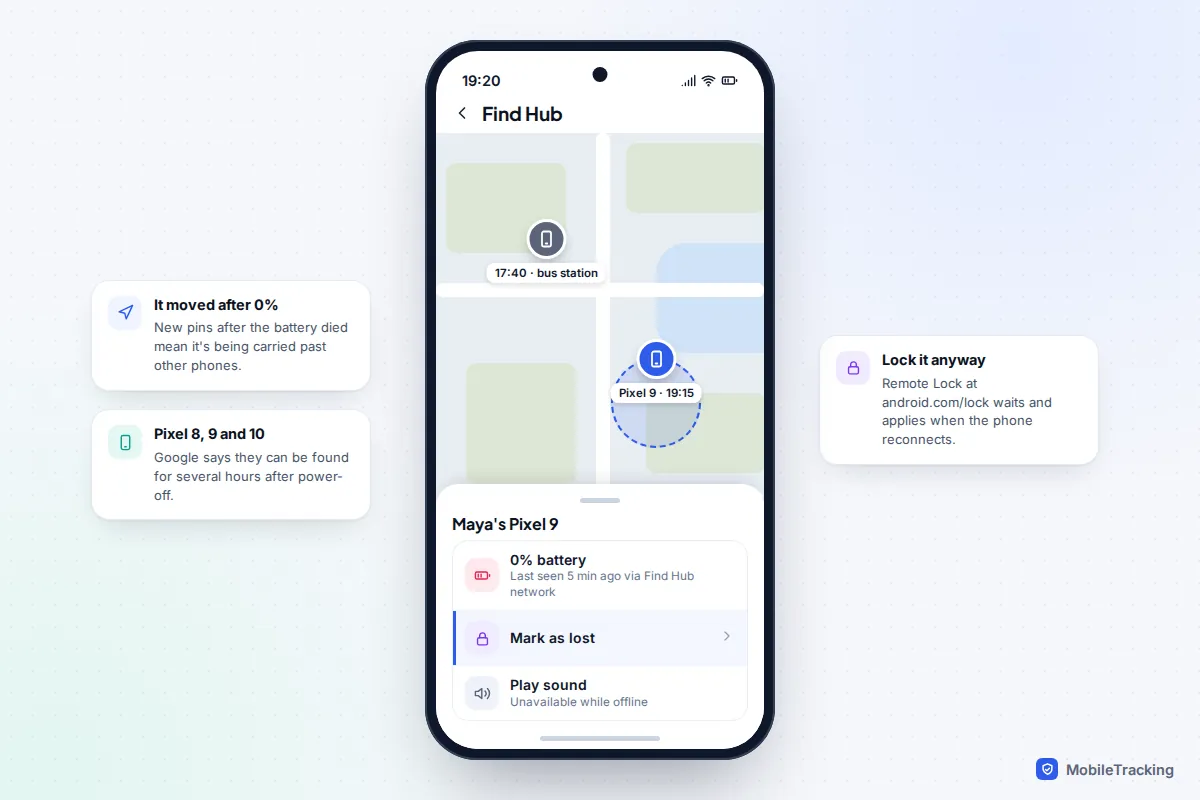
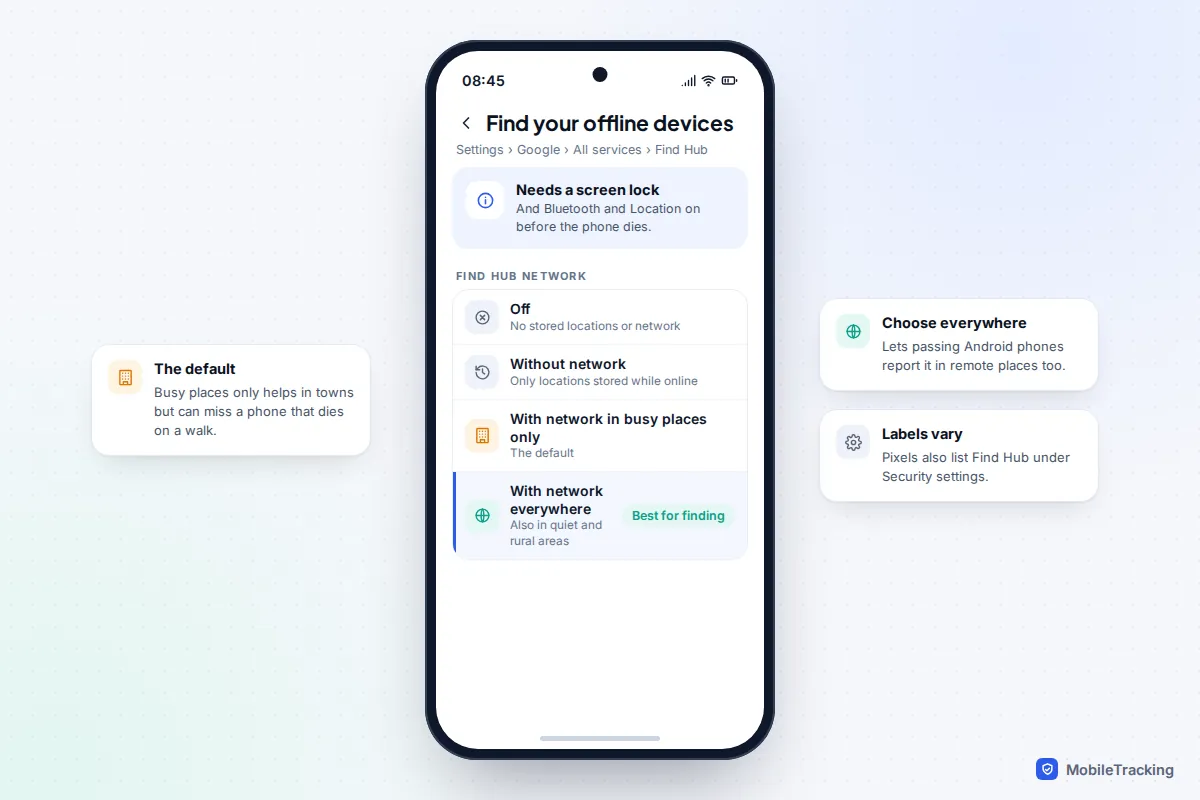
Google’s Pixel help page says Pixel 8, Pixel 9 and Pixel 10 series phones can be located through the Find Hub network for several hours after they are turned off or the battery dies. Three things had to be true beforehand: Bluetooth and Location were on, the phone had a PIN, pattern or password, and the offline finding setting was not left at its lowest level.
That setting is at Settings › Google › All services › Find Hub › Find your offline devices on most phones, and a Pixel also lists Find Hub under its Security settings. The choices are Without network, With network in busy places only and With network everywhere. The default is busy places only, which helps in towns and stations but can leave a phone that died on a country walk invisible. If you often go somewhere quiet, choose everywhere.
Other Android phones, including most Samsung, Motorola and OnePlus models, can’t be found once completely off. The Find Hub pin is simply the last position reported while they had power.
Samsung Galaxy: Send last location, and a trick if it’s still alive
A Galaxy shows up in Google’s Find Hub and in Samsung Find (samsungfind.samsung.com, using your Samsung account), so check both: one may have a newer fix. Samsung says a powered-off phone shows only its last known location. That location is far more useful if Send last location was on at Settings › Security and privacy › Lost device protection, because it sends the position when the battery becomes critically low, showing where the phone died rather than where it last checked in.
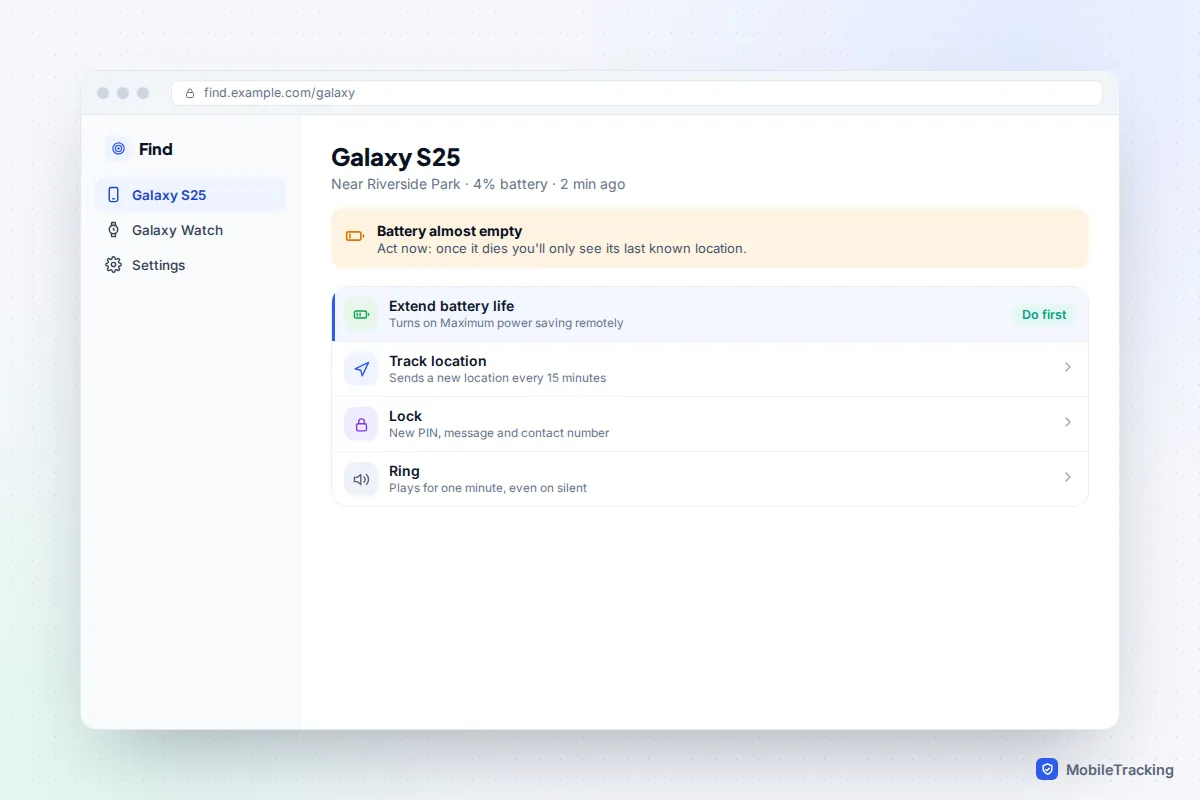
If Samsung Find shows the Galaxy is still on but nearly flat, choose Extend battery life. This remotely switches on Maximum power saving mode, which Samsung says can make a small charge last for days. Then choose Track location, which sends a fresh position every 15 minutes. iPhones and Find Hub have no remote battery saver, so on those phones, write down every update you see in the last minutes.
Other clues when the finder app comes up empty
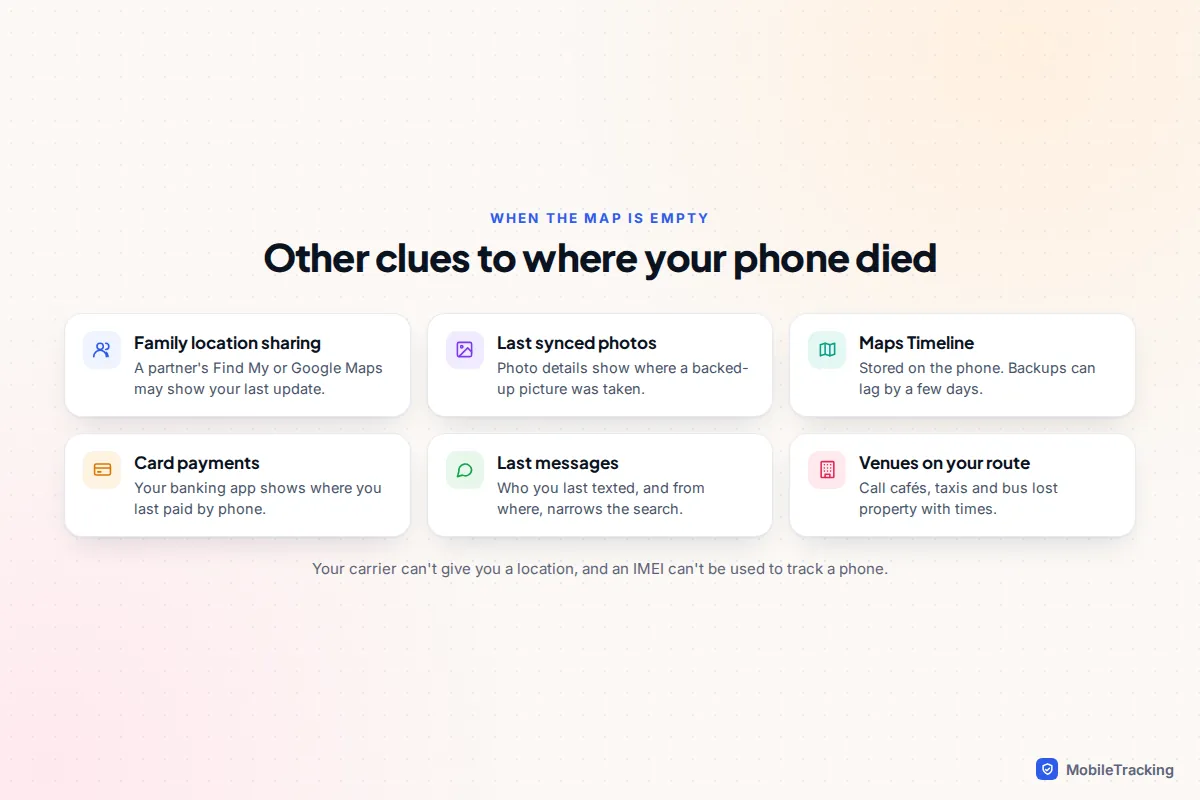
If Find My or Find Hub shows nothing, or a pin that is days old, finding was probably off or the phone had no connection before it died. A few other places, all in your own accounts, can still help.
- Location sharing with family. If you share your location through Find My, Google Maps or a family app, their app may show where your phone last reported.
- Your last synced photos. Open Google Photos or iCloud Photos on another device. If the phone backed up a photo before it died and location tagging was on, the photo’s details show where it was taken.
- Google Maps Timeline, with limits. Timeline now lives on the phone and isn’t available on a computer. Its backup can take a few days to catch up, Google says, so it rarely shows today’s route.
- Recent payments and messages. Where you last paid by phone or messaged from can narrow down the last hour.
What your carrier can’t do
Mobile networks won’t give you a phone’s location, even on your own account; network location data generally goes only to police or emergency services through formal channels. A dead phone isn’t connected to a mast anyway, and its IMEI can’t be used to locate it, as we explain in finding a phone with just its IMEI. Treat any website that promises to track a dead phone by number or IMEI as a scam.
Reading the last location without being misled
The pin is only as good as the fix behind it. Before you set off, check three things:
- The accuracy circle. A small circle means GPS; a wide one usually means the phone was indoors or relying on Wi-Fi and masts. Search the whole circle.
- The time stamp. A time that matches when you last used the phone suggests it died where you left it. A later time in a different place means it moved after you lost it.
- Whether it moved after 0%. On an iPhone 11 or later or a Pixel 8 or later, new pins after the battery hit zero mean someone is carrying it past other phones.
Here is how that plays out. Maya’s Pixel 9 died on her way home. Find Hub showed it at the bus station at 17:40, then at the depot at 19:15, well after the battery was flat, which meant it was still on the bus. She rang the operator’s lost property line with the route and time, and the phone was waiting for her the next morning.
Troubleshooting by symptom
“No location found” or “Offline” with no pin. Finding was off, or the phone was offline longer than the location is kept. Set up Notify When Found or keep checking Find Hub; the phone reappears if anyone charges it.
The pin is days old. The phone was probably out of signal before it died, perhaps in airplane mode. Think about where you were at that time.
The phone isn’t in your list at all. You are signed in to a different Apple, Google or Samsung account from the one on the phone. Try every account the family uses.
What to do next, in order
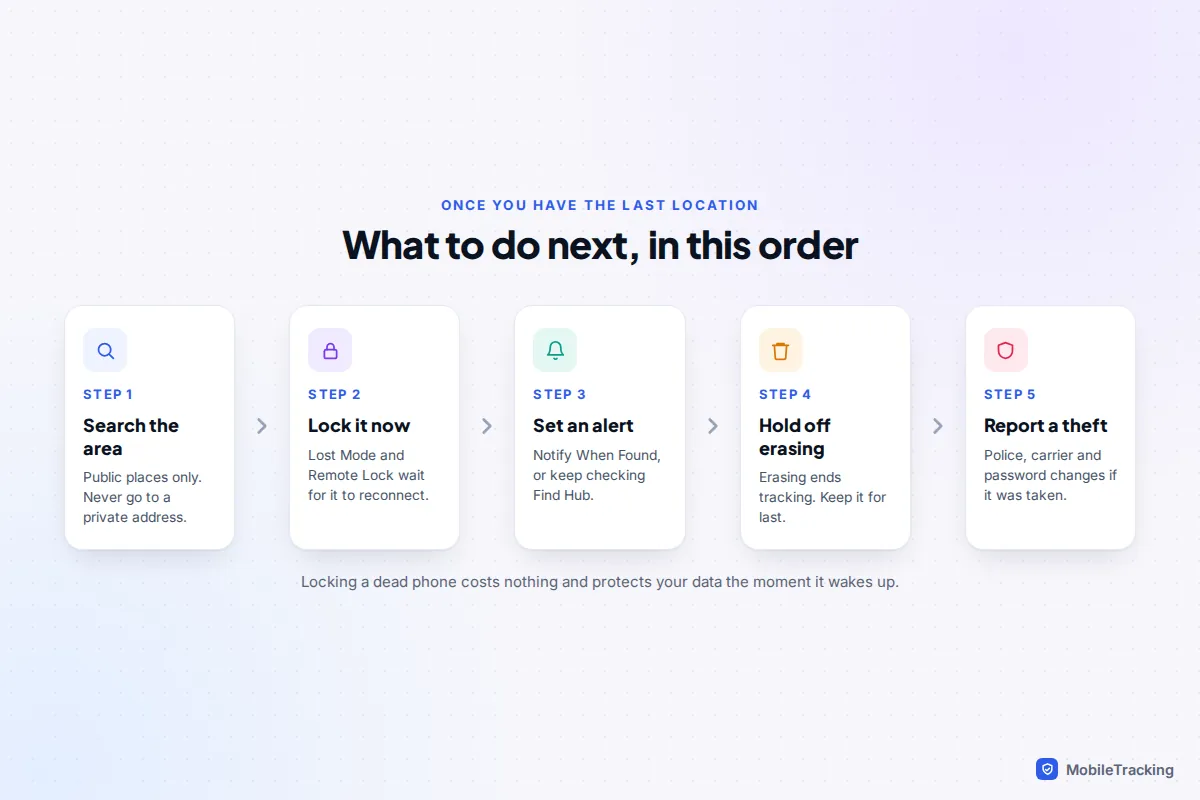
With the last location written down, work through these steps in order.
- Go and look, if it is safe and public. Check the accuracy circle, ask staff, and call nearby venues’ lost property. Never go to a private address; call the police instead.
- Lock it now, even though it’s dead. An iPhone’s Mark As Lost and Android’s Remote Lock at android.com/lock both wait and take effect when the phone reconnects. Otherwise, lock it in Find Hub or Samsung Find the moment it reappears. Our guide to locking a lost phone remotely walks through each one.
- Set up an alert. Turn on Notify When Found in Find My, and keep checking Find Hub or Samsung Find, so you know the moment someone charges it.
- Hold off on erasing. An erase also waits for the phone to come online, and once it runs you can no longer track the phone. Keep that for when you are sure it is gone.
- If it may be stolen, report it to the police, call your carrier to suspend the SIM, and change the passwords of accounts that send codes by text.
For next time, our guide to setting up your phone so you can find it later lists every setting worth checking.
Frequently asked questions
Can you find a phone that died days ago?
Usually only its last known location. The Find My app keeps an iPhone’s last location for up to seven days, and Find Hub shows the last location it holds for an Android phone, although Google doesn’t publish how long that is kept. Any live updates from power reserve or the Find Hub network stop within hours.
Will my phone ring if it has died?
Not while it is dead, and calls will go straight to voicemail. On an iPhone the request is not wasted, though: Apple says that if the device is offline, the sound plays the next time it connects to Wi-Fi or mobile data, which can help whoever is holding it realise it is lost.
Does Send Last Location work if someone turns the phone off?
No. It only triggers when the battery becomes critically low. A phone switched off by hand relies on the Find My network instead, which on an iPhone 11 or later can last up to 24 hours, or on the location from the last time it was online.
Can I find my child’s phone that has died?
Yes, if it is in your family group. A child’s iPhone in Family Sharing appears in your own Find My app, and a child’s Android supervised through Family Link shows its last known location in the Family Link app. Check it before the pin expires.
This guide is general information, not legal or financial advice. Read our editorial policy.