
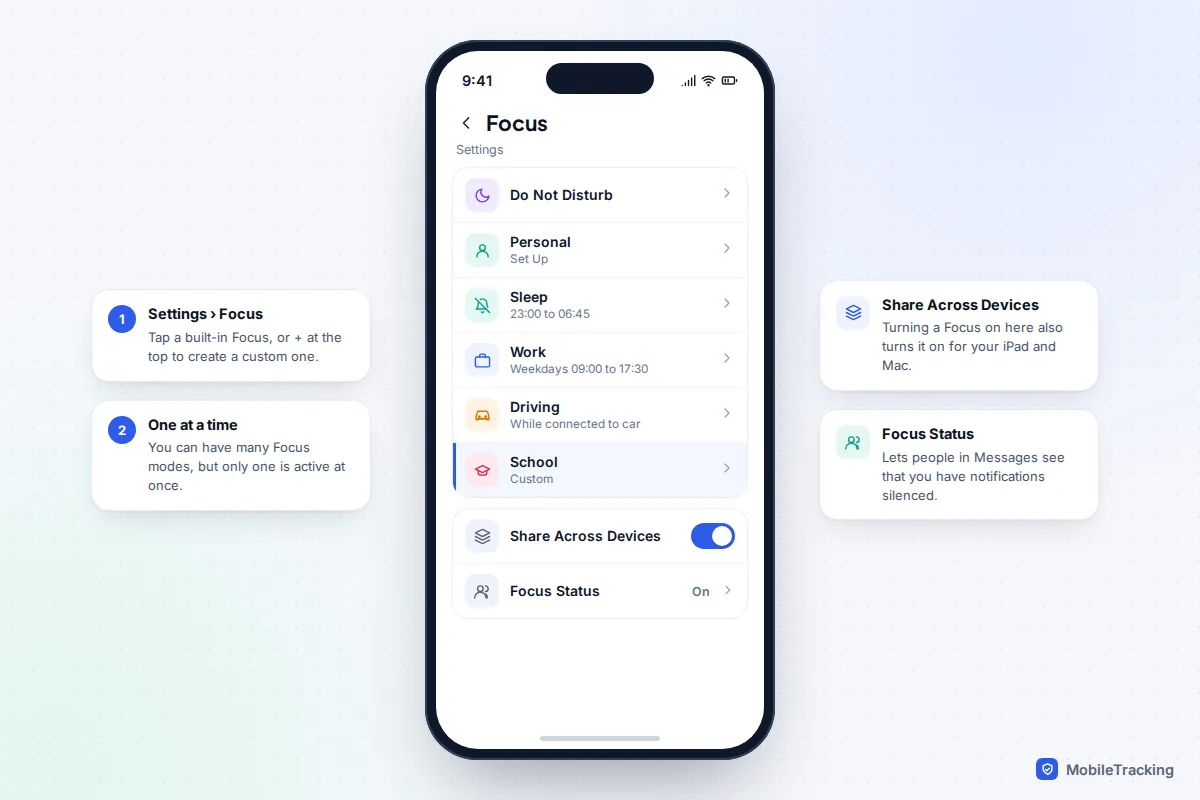
To set up a Focus on an iPhone, open Settings › Focus, tap one of the built-in options (Do Not Disturb, Personal, Sleep or Work) or tap + to make your own, then choose which People and Apps are allowed to reach you. Turn it on from Control Centre by tapping Focus, or add a schedule so it switches on by itself. Each Focus takes about five minutes to set up properly, and the steps are the same on iOS 26 and iOS 27.
The part most people skip is the part that matters: deciding who can still get through, and checking the three or four settings that let calls ring even when a Focus is on. This guide covers both, plus ready-made recipes for school, work, driving and bedtime.
Which Focus should you use?
All Focus modes work the same way underneath: a list of allowed people and apps, plus optional schedules and screen changes. The built-in ones just come with sensible starting points. You can have several, but only one can be on at a time.
| Focus | Best for | What’s special about it |
|---|---|---|
| Do Not Disturb | Quick “leave me alone” moments | Silences almost everything. By default, calls from Favourites can still ring. |
| Sleep | Bedtime | Tied to your sleep schedule; dims the Lock Screen and can start at Wind Down. |
| Work and Personal | Separating work from family time | Blank templates that suggest people and apps based on how you use them. |
| Driving | Time behind the wheel | Starts when you connect to CarPlay or car Bluetooth, and can auto-reply to texts. You can allow people but not apps. |
| Reduce Interruptions | Busy days when you don’t want to pick apps one by one | Apple Intelligence decides what looks urgent. Needs a supported iPhone (iPhone 15 Pro or later). |
| Custom (School, Gaming, Reading and more) | Anything with a regular pattern | Your own name, colour and icon. Gaming, Fitness, Reading and Mindfulness appear as suggestions when you tap +. |
If you only set up one, make it Sleep. If you set up two, add a Work or School Focus with a schedule. Do Not Disturb is best kept as your manual “right now” switch.
Set up a Focus step by step
- Open Settings › Focus and tap the Focus you want, or tap + in the top corner, then Custom, to name a new one.
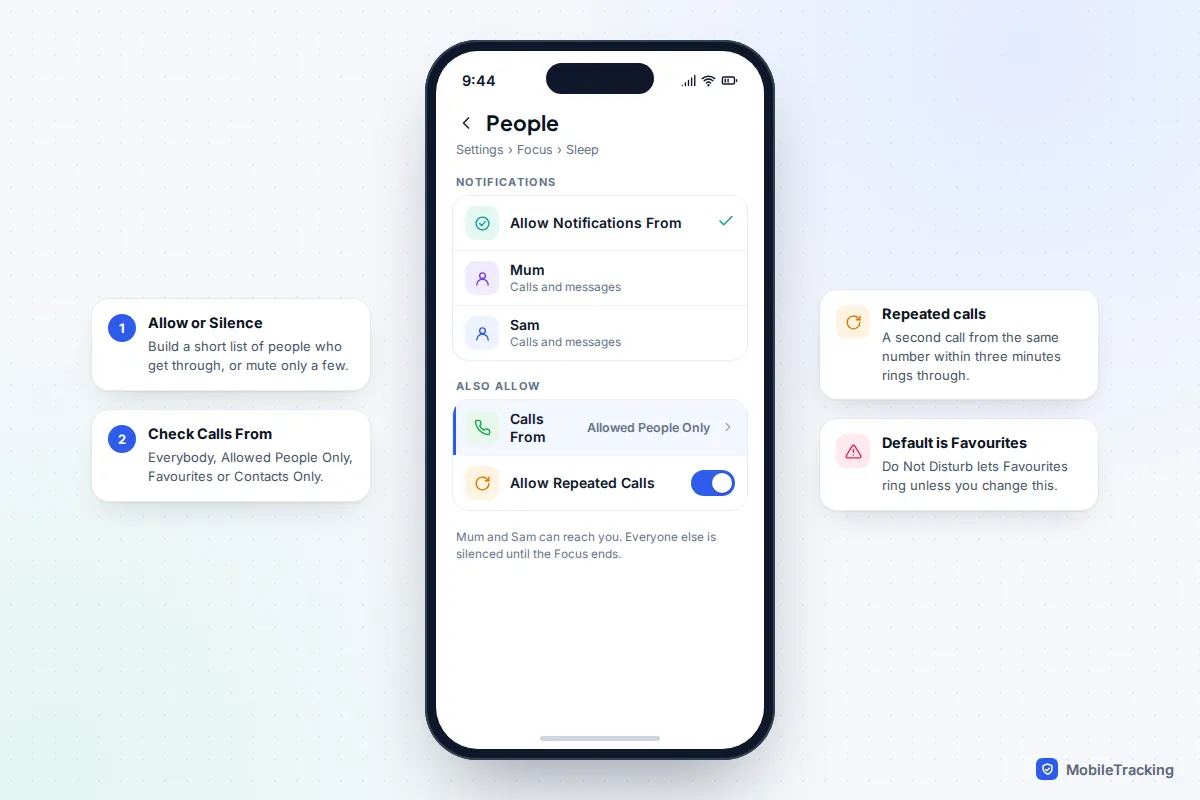
- Under Allowed Notifications, tap People. Choose Allow Notifications From to build a short list of people who can get through, or Silence Notifications From if you’d rather mute just a few people.
- Still on the People screen, tap Calls From (it may read Allow Calls From) and choose Everybody, Allowed People Only, Favourites or Contacts Only. Decide whether to leave Allow Repeated Calls on: it lets a second call from the same person within three minutes ring through.
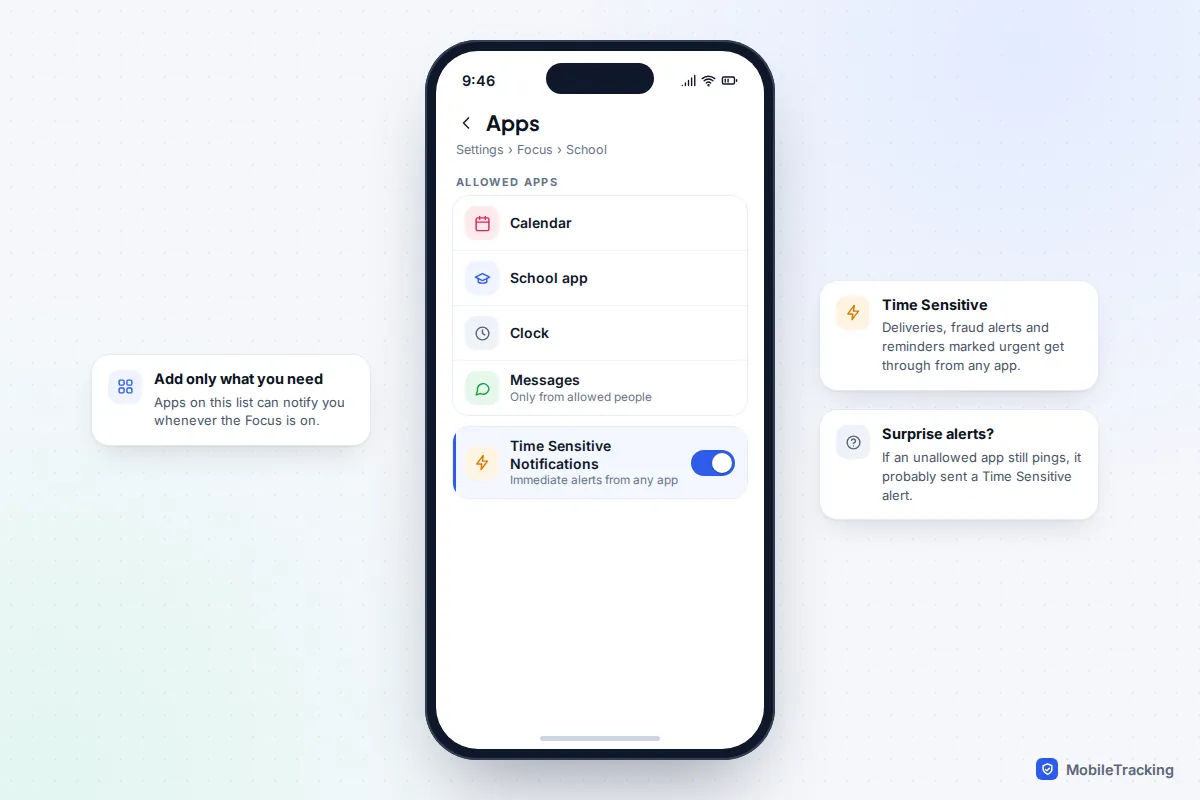
- Go back and tap Apps. Add the apps that may notify you, such as a school app, your calendar or a work chat.
- Decide on Time Sensitive Notifications on the same Apps screen. When it’s on, alerts that apps mark as time sensitive (a delivery at the door, a bank fraud alert, a calendar reminder) break through even from apps you haven’t allowed.
- Tap Options to choose whether silenced notifications still appear on the Lock Screen (Show on Lock Screen), whether to Dim Lock Screen, and whether to Hide Notification Badges on app icons.
Silenced notifications aren’t deleted. They wait quietly in Notification Centre, so you can catch up when the Focus ends. If you clear them without reading, though, they’re gone for good, as our guide to seeing cleared notifications on iPhone explains.
What about Reduce Interruptions?
On iPhones with Apple Intelligence switched on, you’ll also see a Reduce Interruptions Focus and an Intelligent Breakthrough & Silencing switch inside other Focus modes. Instead of relying only on your lists, the iPhone reads incoming notifications and lets through the ones that look urgent, such as a message about an early pick-up. Your allowed and silenced lists still override it. It’s clever, not infallible, so keep people who must always reach you on the allowed list.
Make it turn on by itself
A Focus you have to remember to switch on is a Focus you’ll forget. There are four ways to start one:
- Control Centre: swipe down from the top-right corner and tap Focus. Tap the three dots beside a Focus for timed options such as For 1 hour or Until I leave this location. On iOS 27 you can resize the Focus control, from a small circle up to a 2×2 tile, by pressing and holding an empty part of Control Centre and dragging its corner.
- Siri: say “Turn on Work Focus”.
- Action button: on iPhones that have one (iPhone 15 Pro and later), set it to Focus in Settings › Action Button.
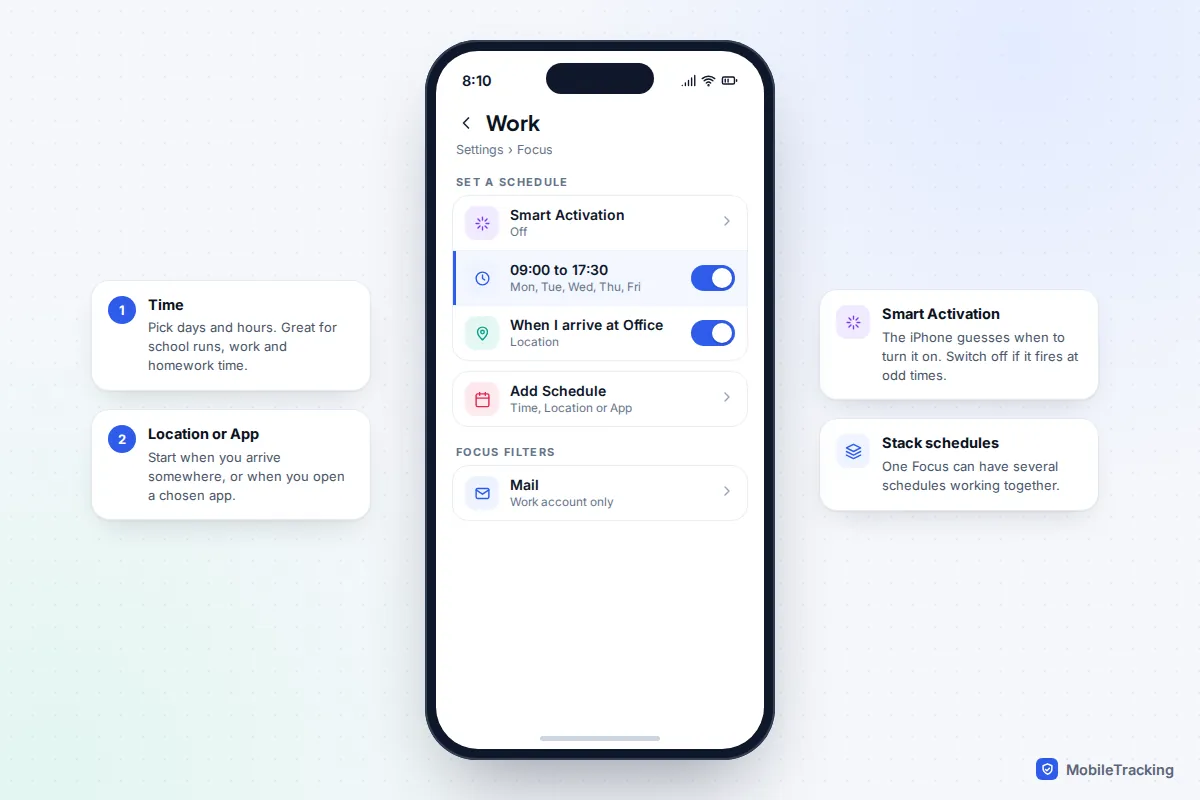
- A schedule: open the Focus, scroll to Set a Schedule and tap Add Schedule. Choose Time (days and hours), Location (arriving at or leaving a place) or App (opening a particular app).
The same list offers Smart Activation, which lets the iPhone switch the Focus on when it thinks it’s relevant, based on your location and app use. It works well for Work if your pattern is regular and badly if it isn’t. If a Focus keeps appearing at odd times, Smart Activation is the first thing to turn off.
Change your screens and apps to match
Silencing notifications is only half of it. A Focus can also change what you see when you pick up the phone.
Link a Lock Screen and Home Screen pages
- Press and hold the Lock Screen until the wallpapers appear, swipe to the one you want and tap Focus at the bottom. Pick the Focus to link. From then on, choosing that wallpaper turns the Focus on, and turning the Focus on switches to that wallpaper.
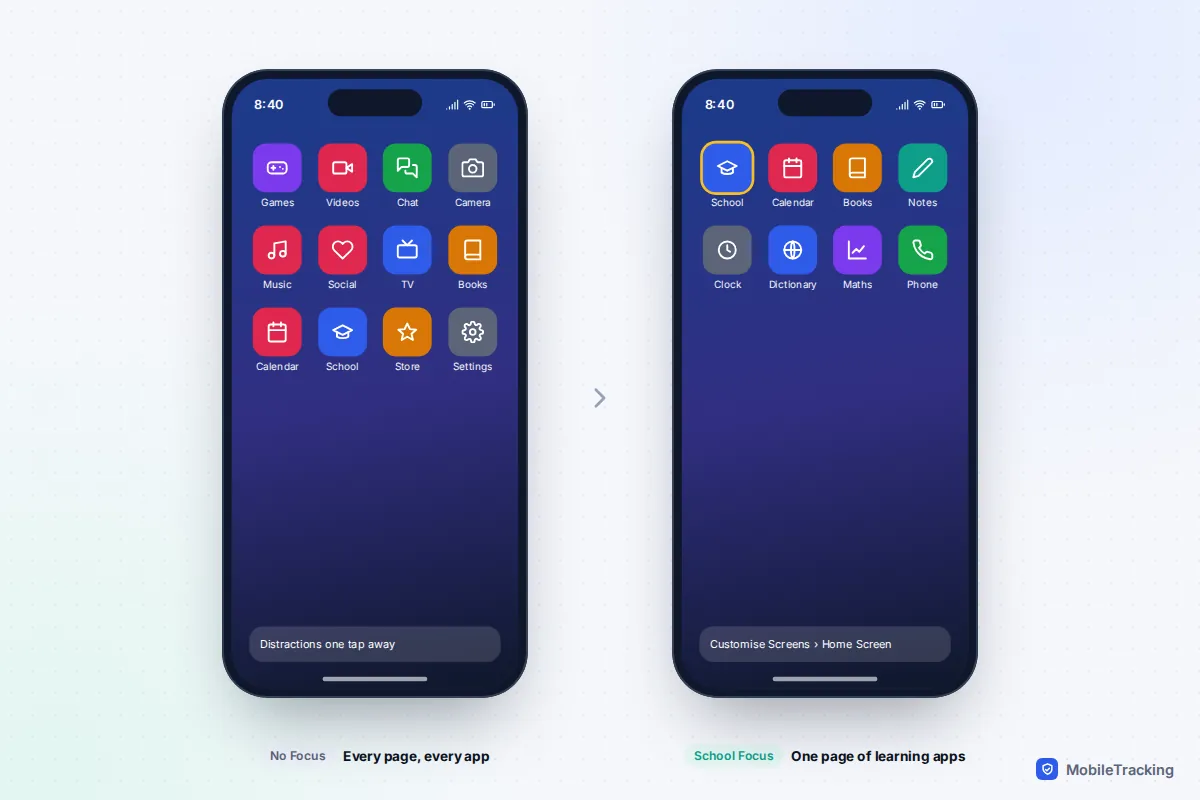
- For the Home Screen, go to Settings › Focus, choose the Focus and, under Customise Screens, tap the Home Screen preview. Tick only the pages you want visible. A School Focus that shows only a page of learning apps is far more effective than one that just silences games.
- If you wear an Apple Watch, the same section lets you link a watch face.
Add Focus filters
Scroll to Focus Filters and tap Add Filter. App filters narrow what appears inside Apple apps: only your work calendar in Calendar, only one account in Mail, only conversations with allowed people in Messages, or a particular Tab Group in Safari. System filters switch Appearance (Dark or Light), Low Power Mode, Silent Mode and, on iPhones that have it, Always On Display. Some third-party apps add their own filters too.
Share it, show it and let emergencies through
Share Across Devices
At the bottom of Settings › Focus, Share Across Devices makes a Focus you start on your iPhone also start on your iPad and Mac signed in to the same Apple Account, and the other way round. It’s convenient, but it’s also why a Focus can appear on your phone “by itself” when someone else in the house uses a shared iPad signed in as you.
Focus Status
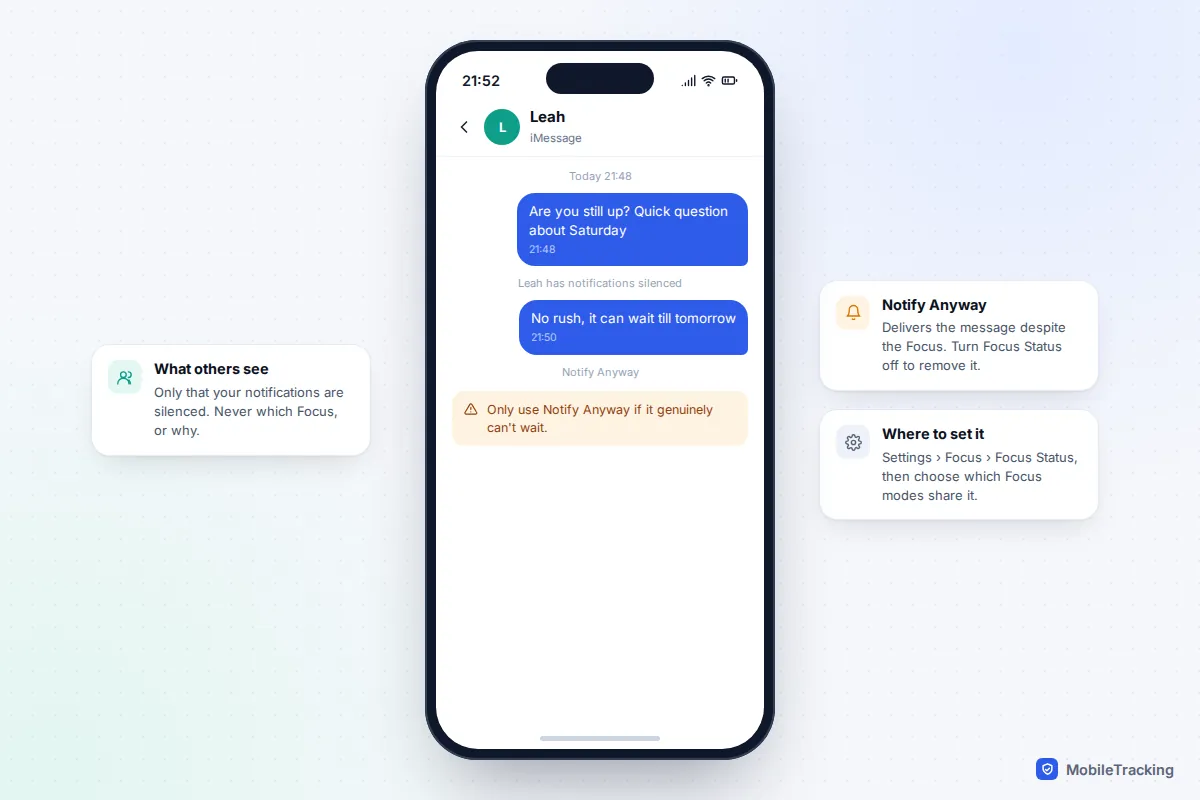
In Settings › Focus › Focus Status, switch on Share Focus Status and pick which Focus modes share it. When someone messages you in Messages, they see that you have notifications silenced, but not which Focus or why. If they think it’s important they can tap Notify Anyway, which delivers the message regardless. Other apps have to ask your permission before they can see your status.
Emergency Bypass for one person
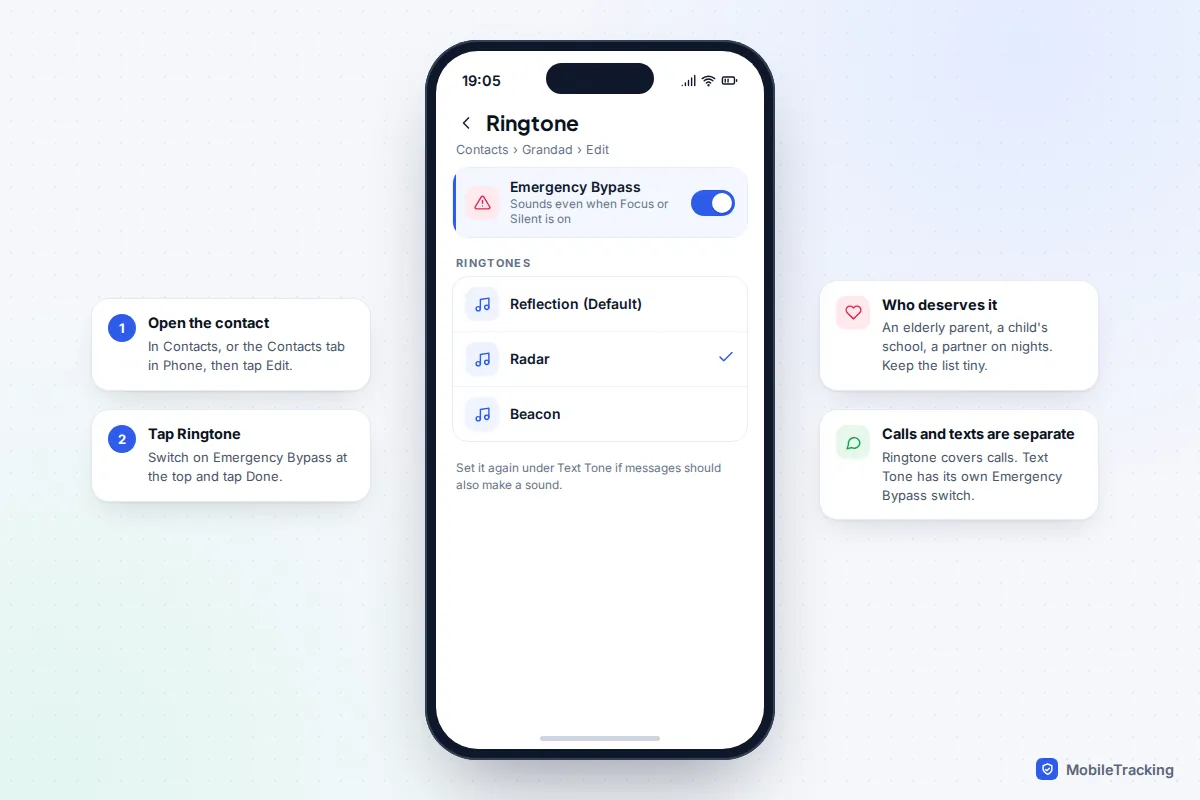
For the handful of people who must always reach you, such as a child’s school, an elderly parent or a partner on a night shift, use Emergency Bypass. It overrides every Focus and the Silent switch.
- Open Contacts (or the Contacts tab in Phone) and choose the person.
- Tap Edit, then Ringtone, and switch on Emergency Bypass. Tap Done.
- Repeat under Text Tone if their messages should also make a sound.
Four ready-made recipes
School (for you or a teenager)
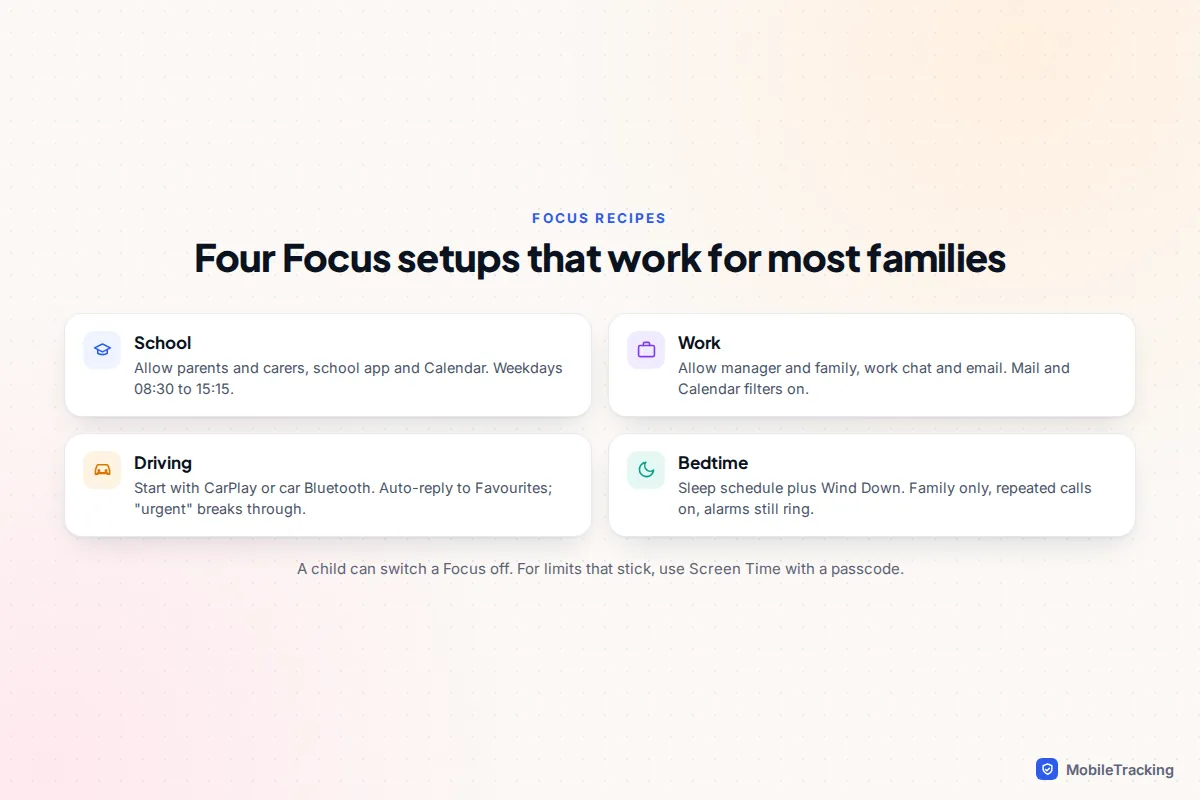
Create a custom Focus called School. Allow parents and one or two carers, set Calls From to Allowed People Only, and allow the school app, Calendar and Clock. Add a time schedule for school days, roughly 08:30 to 15:15, and show only a Home Screen page with learning apps. Be aware that a child can switch a Focus off whenever they like. If you need rules that stick, use Screen Time Downtime or App Limits instead, as covered in our guide to blocking apps during school hours.
Work
Allow your manager, close colleagues and family, plus your work chat, email and calendar. Add a Calendar filter showing only your work calendar and a Mail filter for your work account. Schedule it for working hours or arriving at the office. Turn Time Sensitive on, because meeting reminders use it.
Driving
Open Driving and set it to start When Connected to Car Bluetooth or with CarPlay; Automatically uses motion and sometimes triggers on trains and buses. Set Auto-Reply To to Favourites. Anyone who gets the auto-reply can send the word “urgent” to break through. For new drivers in the family, our guide on tracking a teen driver safely covers the conversations to have first.
Bedtime
Set a sleep schedule in the Health app’s Sleep section (or from the Sleep | Wake alarm in Clock) and let Sleep Focus start with it, adding Wind Down if you want quiet time before bed. Allow only immediate family, keep Allow Repeated Calls on, and give Emergency Bypass to anyone who might genuinely need you at 3am. Alarms still go off during Sleep and every other Focus.
Troubleshooting: calls still come through
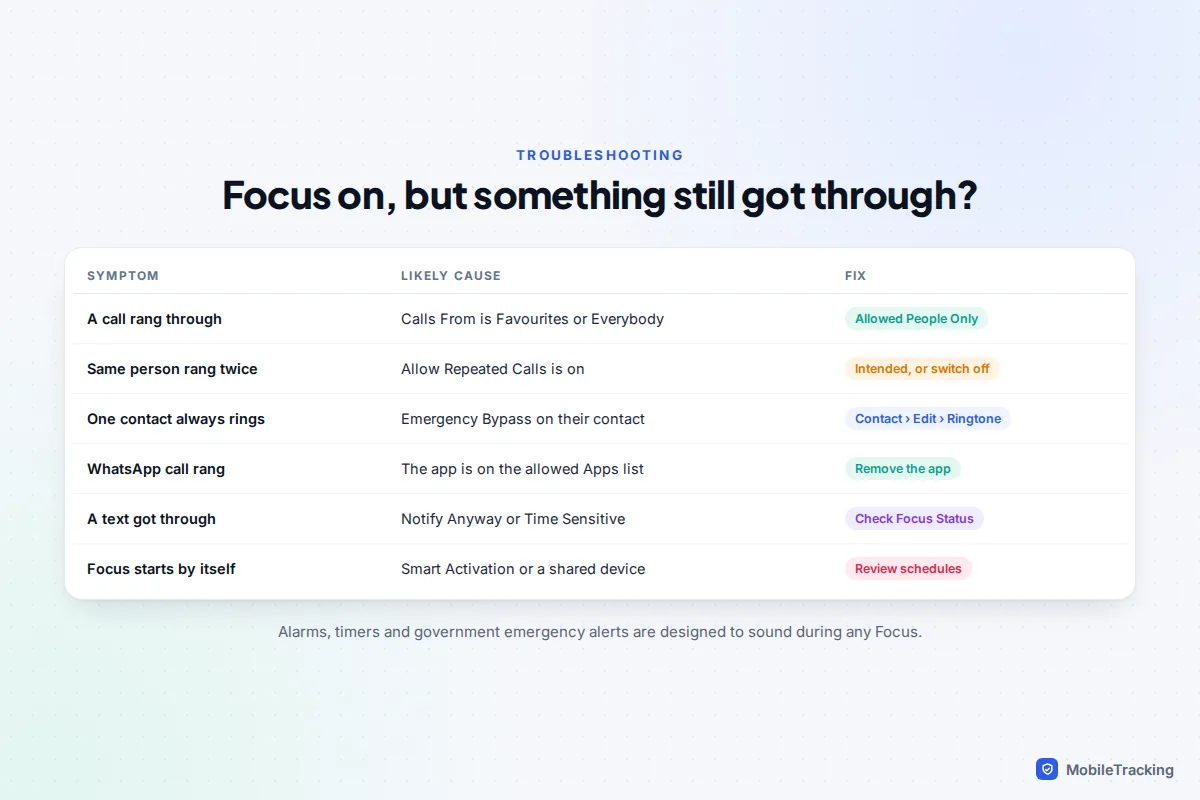
When a call rings during a Focus, one of these is almost always the reason. Work down the list in order.
- The caller is allowed. Check the Focus’s People screen. If Calls From is set to Favourites or Everybody, change it to Allowed People Only. Do Not Disturb allows Favourites by default.
- They rang twice. With Allow Repeated Calls on, a second call within three minutes rings through. That’s deliberate: it’s how iPhone guesses an emergency.
- They have Emergency Bypass. Open their contact, tap Edit and check Ringtone.
- It’s an app call. WhatsApp, FaceTime and other calling apps can ring if the app is on the allowed Apps list. Remove it, or silence it specifically.
- The Focus isn’t on. A schedule may have ended, or you started the Focus on your iPad with Share Across Devices off. Look for the Focus icon in the status bar.
- Another device is ringing. A Mac or iPad can ring for iPhone calls. Check Settings › Apps › Phone › Calls on Other Devices, and make sure the Focus is shared or set on that device too.
Texts getting through usually comes down to Notify Anyway from Focus Status, Time Sensitive being on, or the sender being on your allowed list. Government emergency alerts can also sound during a Focus; that’s intentional. If notifications stay silent after a Focus has ended, see our guide to fixing notifications that stop working.
Frequently asked questions
What’s the difference between Silent mode and a Focus?
Silent mode (the Action button or ring switch) mutes sounds, but notifications still light up the screen and appear as banners. A Focus stops notifications appearing at all, except from the people and apps you allow. You can use both together.
Do alarms go off during Do Not Disturb or Sleep?
Yes. Alarms set in the Clock app ring during every Focus, including Sleep. Timers do too.
Can other people see which Focus I’m using?
No. If you share Focus Status, people messaging you see only that your notifications are silenced. They never see the Focus name, your schedule or your location.
Did iOS 27 change Focus?
Only a little. The Focus control in Control Centre can now be resized, and Shortcuts automations got more flexible Focus triggers, including better support for Sleep. The Settings screens and options are the same as in iOS 26.
Can I stop my child turning off a Focus?
No. Focus is designed as a tool the phone’s owner controls. For limits a child can’t switch off, use Screen Time with a passcode, set up through Family Sharing.
This guide is general information, not legal or financial advice. Read our editorial policy.