
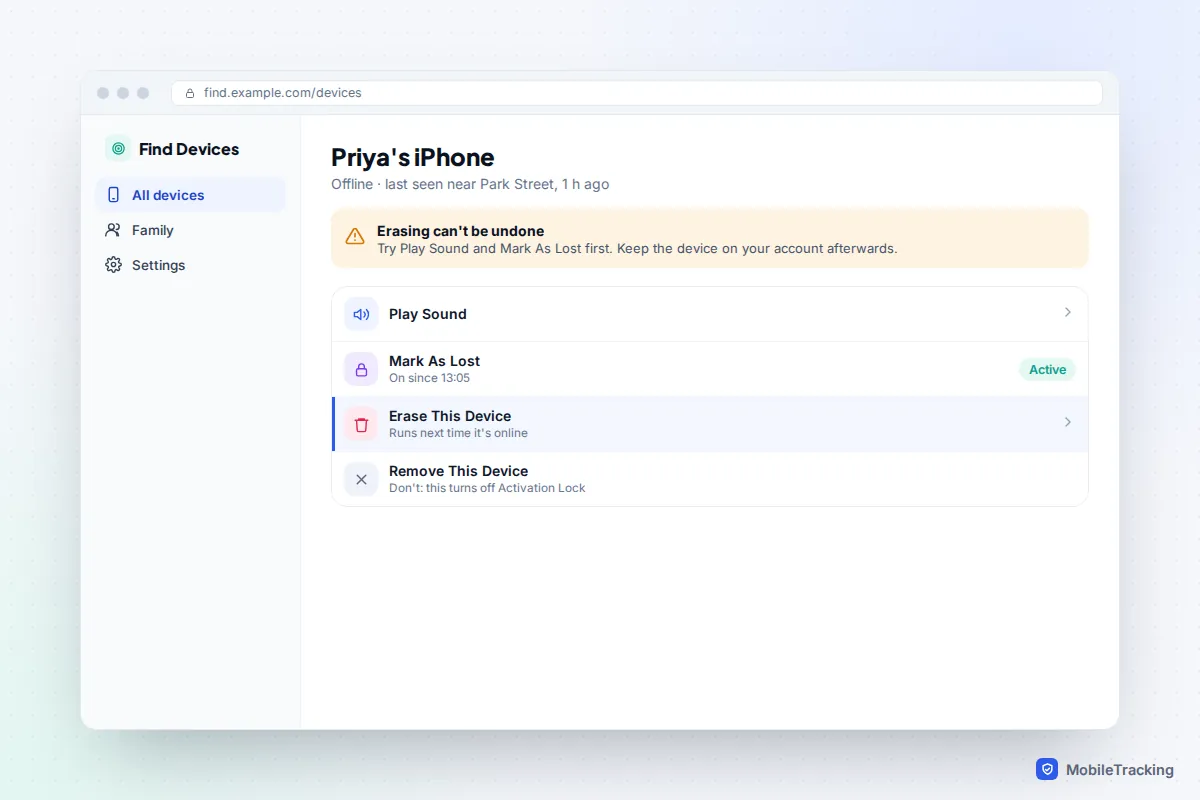
You can wipe a missing phone from any web browser. For an iPhone, go to icloud.com/find (or open the Find My app on another Apple device), choose the phone and select Erase This Device. For an Android phone, go to android.com/find (Google’s Find Hub), choose the phone and select Factory reset device. Samsung Galaxy owners have a second option in Samsung Find. Either way you will need your Apple or Google account password, not the phone’s passcode.
Before you press it, know two things. First, erasing is the last step, not the first: on most phones you can no longer see the device on the map once it has been wiped, so lock it and try to locate it first. Second, once it is erased, leave the phone on your account. That keeps Activation Lock or Google’s reset protection switched on, which is what makes the phone worthless to a thief.
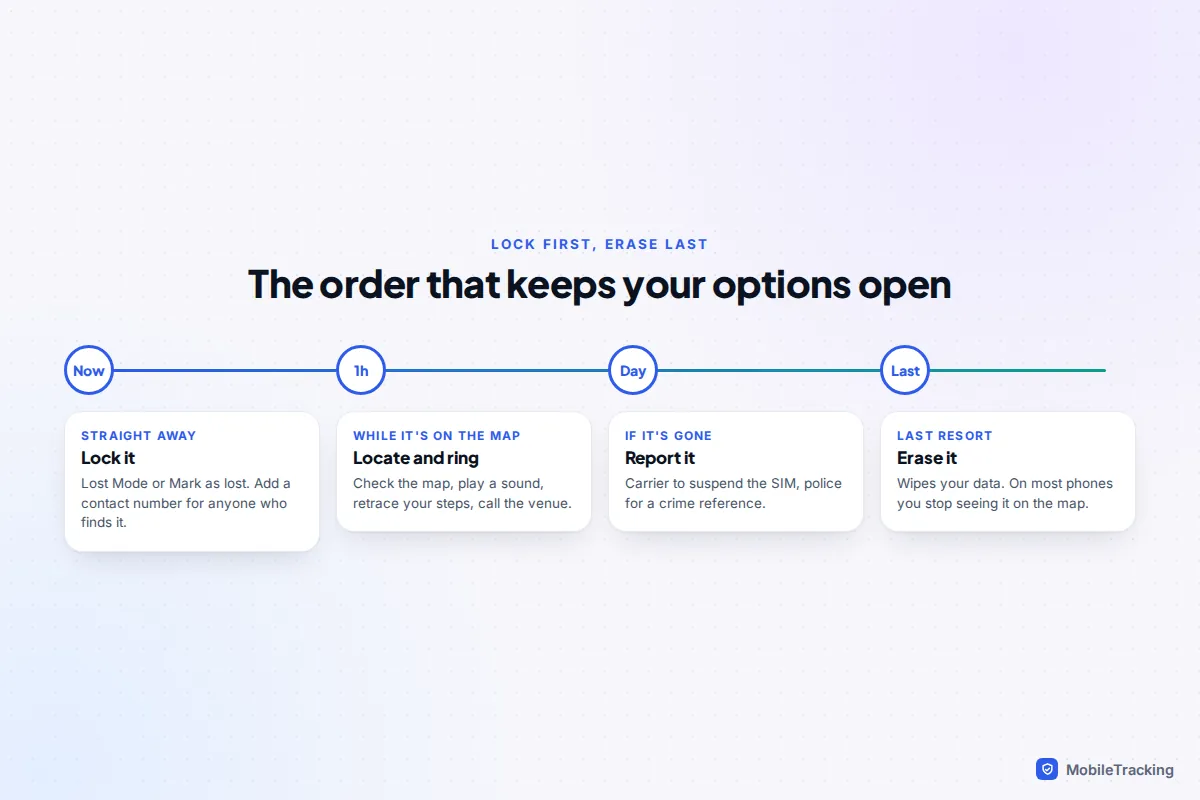
Should you erase it yet? A quick decision table
A remote erase is permanent, so it helps to match the action to what has actually happened. A locked phone with a message on the screen is already very hard for anyone to get into, as long as you had a passcode set. Use this as a rough guide.
| Your situation | Do this now | Erase? |
|---|---|---|
| Left it somewhere, map shows a café or friend’s house | Play a sound, call the venue, mark as lost | No |
| Lost in town, still showing on the map | Mark as lost with your number, go and look | Not yet |
| Snatched or taken from a bag | Mark as lost, report to police and carrier | Once police have the details, or if the phone holds sensitive data |
| Offline for days, no sign of it | Report it, claim on insurance if you have it | Yes, it will run if the phone ever reconnects (iPhone) |
| Work phone or one managed by school | Tell the IT team straight away | Let them decide; they may wipe it for you |
If you haven’t locked it yet, our guide to locking a lost phone remotely covers Lost Mode, Mark as lost and Android’s Remote Lock, which needs only your phone number and a quick security check.
How to erase an iPhone or iPad remotely
Apple’s Find My works from a browser or from any Apple device signed in to your account or your Family Sharing group. It takes about a minute to send the request.
From a computer or borrowed phone
- Go to icloud.com/find and sign in with your Apple Account. If it asks for a verification code and your only trusted device is the lost phone, select the Find Devices button at the bottom of the window to continue without the code.
- Select the missing iPhone in the list of devices.
- Choose Erase This Device and follow the prompts.
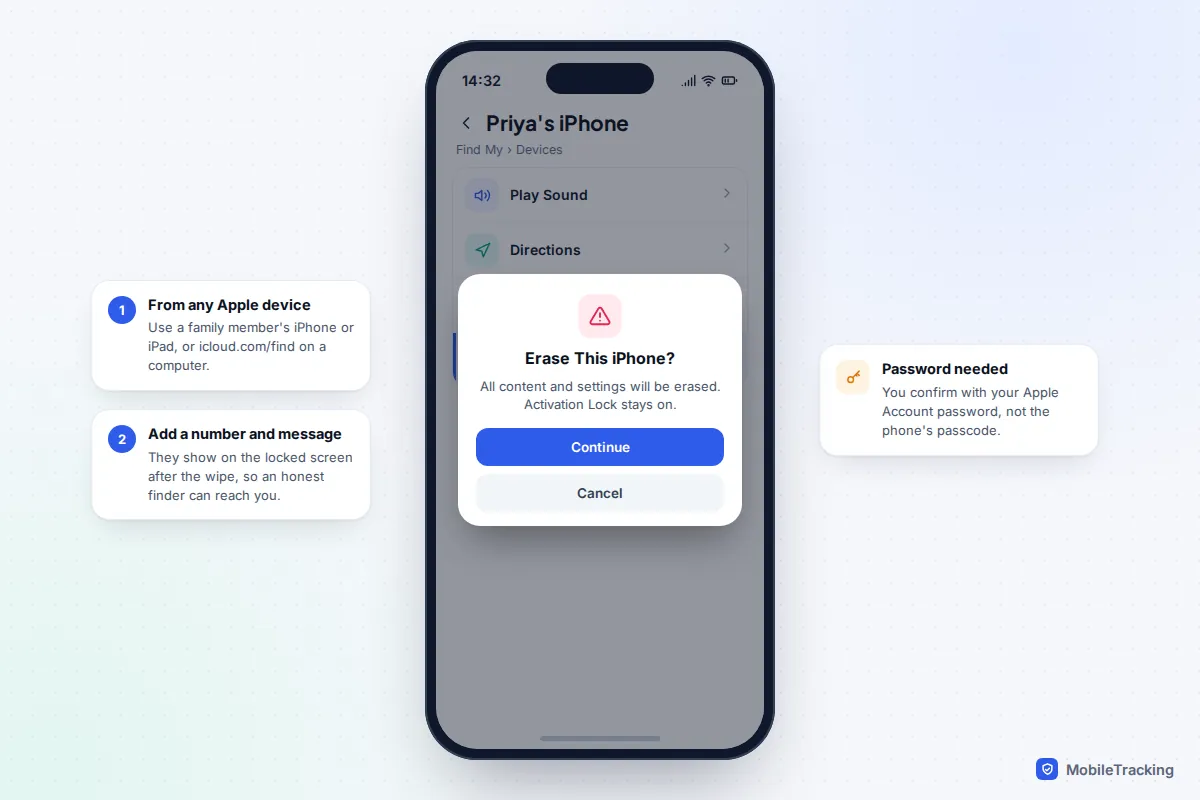
- When asked, add a phone number and a short message. They appear on the locked screen after the wipe, so an honest finder can still contact you. Use a number that isn’t on the lost phone, such as a partner’s.
- Confirm with your Apple Account password. Apple sends a confirmation email.
From another Apple device
Open the Find My app on an iPhone, iPad or Mac, tap Devices, choose the lost phone, scroll down and tap Erase This Device, then Continue. A family member’s device works if you are in the same Family Sharing group, which is often the quickest option when you are out with someone else’s phone.
If the iPhone is offline
You can still send the request. Apple queues it, and the erase begins the next time the phone connects to the internet. If you find the phone before then, go back to icloud.com/find, select it and choose Stop Erase Request. Until then, the map shows the last location it reported, if one is available.
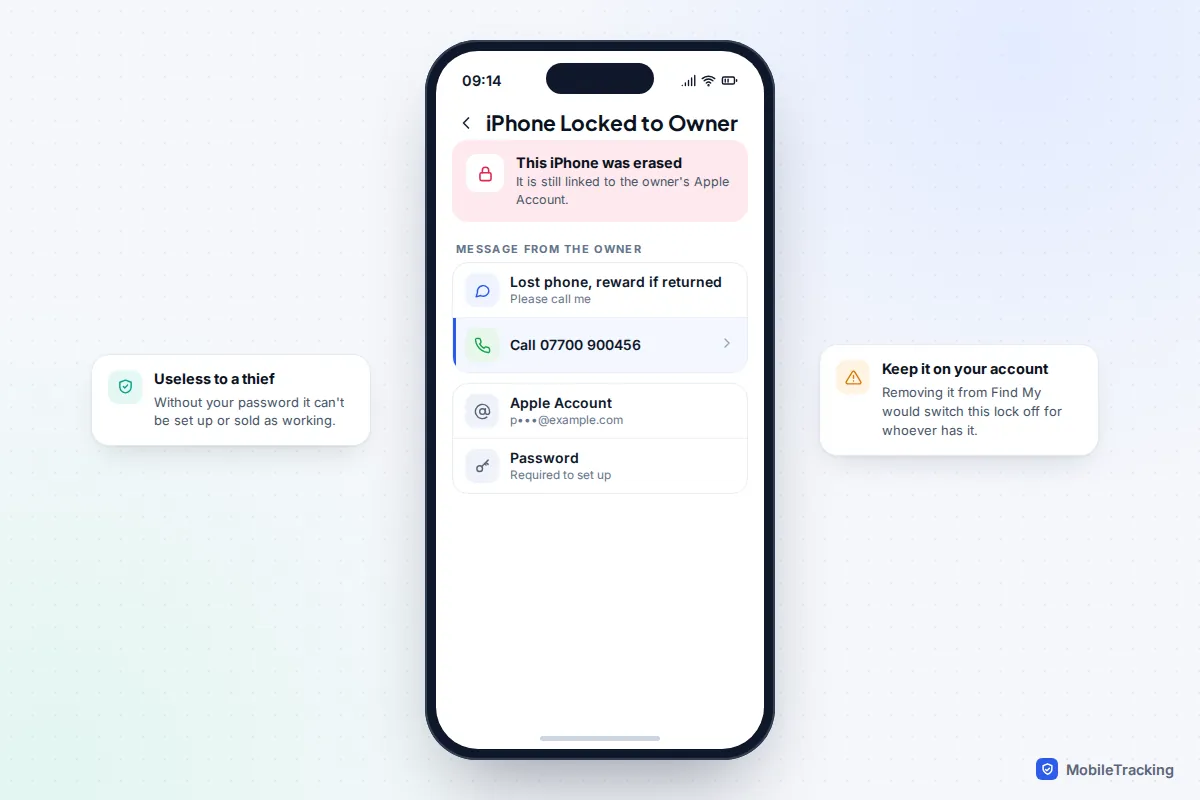
After the erase, the phone restarts to a screen saying it is locked to its owner, with your message and number underneath. Apple’s own help says you won’t be able to locate most devices once they are erased, so treat this as the moment you stop tracking and start protecting. Apple is also firm on one point in its advice for stolen iPhones: don’t remove the device from Find My, even after erasing it, because that removes Activation Lock.
How to erase an Android phone with Find Hub
Google renamed Find My Device to Find Hub in 2025. The app and the website do the same job, and the old address still takes you to the right place. It works for Pixel, Samsung, Motorola, OnePlus and most other Android phones signed in to a Google account.
- On a computer, go to android.com/find, or open the Find Hub app on another Android phone or tablet.
- Sign in to the Google account used on the lost phone. You may be asked to confirm your password again.
- Select the lost phone at the top of the list.
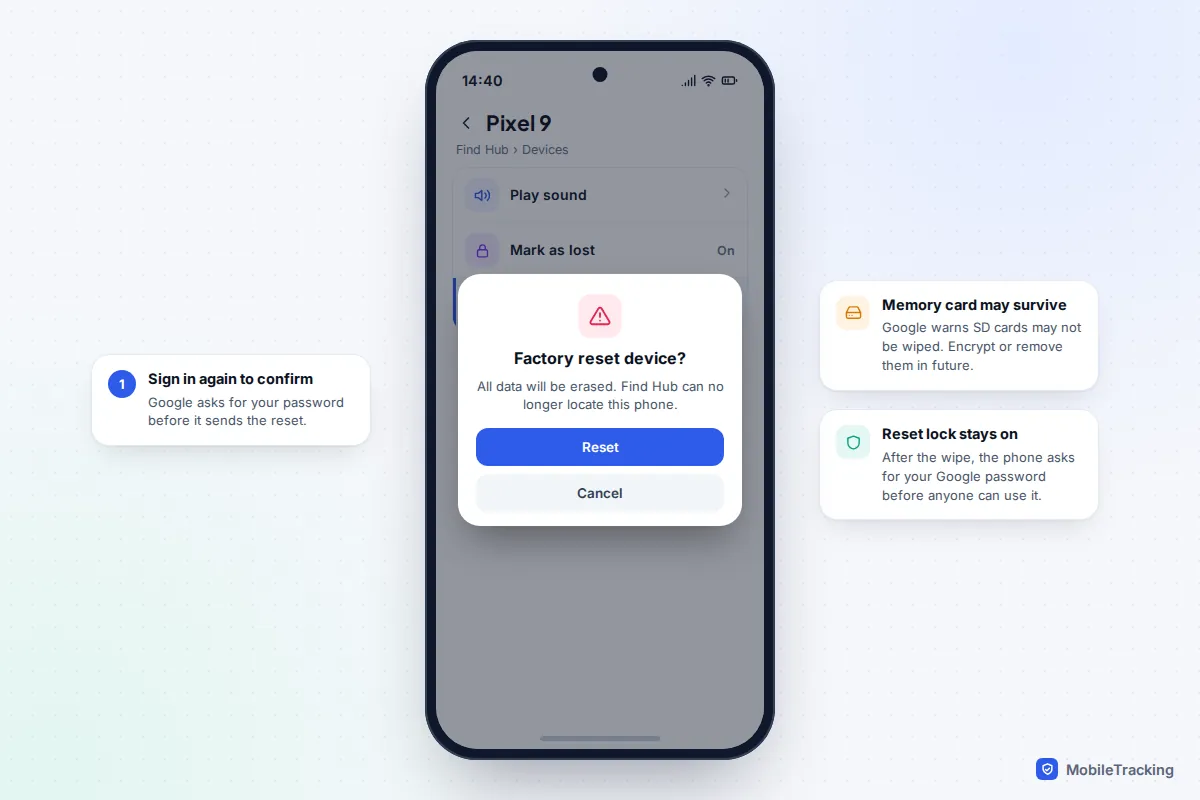
- Choose Factory reset device (in the app, it can sit under the phone’s settings), then confirm with Reset.
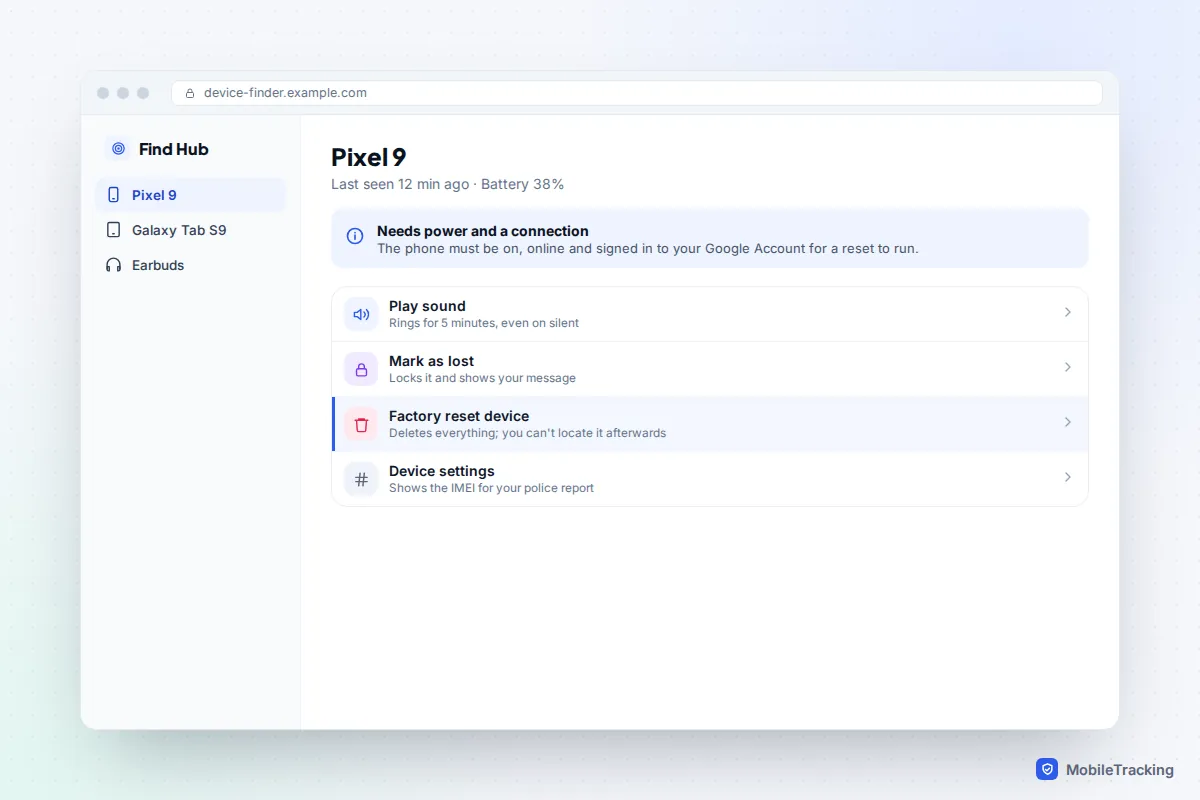
Google’s help page for lost Android devices lists what the phone needs for any remote action: it has to be switched on, connected to mobile data or Wi-Fi, signed in to your Google account, with Find Hub turned on and the phone visible in Google Play. It also warns that a reset may not wipe an SD card.
Offline phones are the weak spot. Unlike Apple, Google doesn’t promise to hold the command until the phone reconnects, so if the phone is offline, mark it as lost straight away and check back in Find Hub later rather than assuming the wipe has happened.
Samsung Galaxy: a second way in with Samsung Find
Galaxy phones can also be erased through Samsung Find, which replaced SmartThings Find, using your Samsung account rather than your Google one. It is useful if you can’t get into your Google account, or if Find Hub can’t see the phone.
- Go to samsungfind.samsung.com and sign in with your Samsung account.
- Select the phone from your registered devices.
- Choose Erase data, verify your account if asked, read the warning and select Erase.
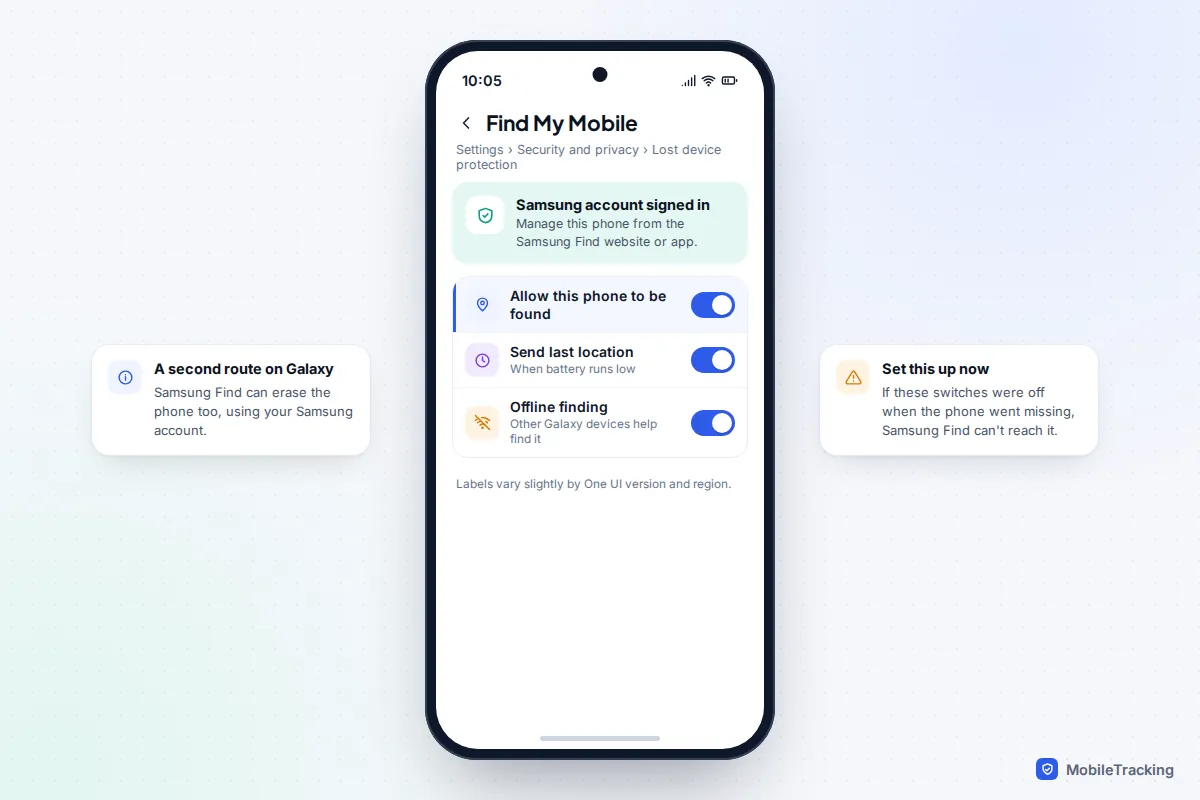
This only works if the phone was set up for it. On the Galaxy itself, the switches live under Settings › Security and privacy › Lost device protection › Find My Mobile: Allow this phone to be found, Send last location and Offline finding. The labels move slightly between One UI versions. If the phone also had a Google account, Samsung notes that Google’s protection kicks in after the wipe, so the phone needs a Google sign-in before it can be used again.
What erasing does, and what it doesn’t
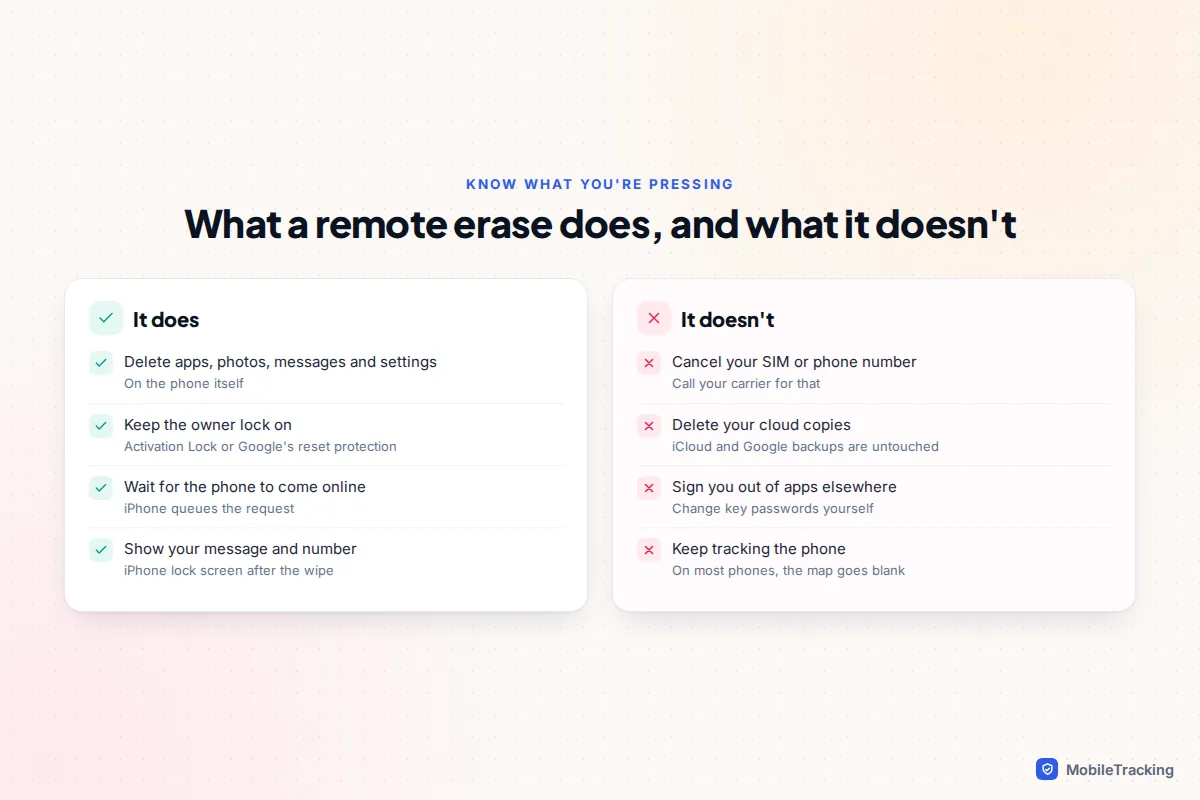
A remote wipe deletes what is stored on the phone: apps, photos, messages, saved passwords in the phone’s keychain, and settings. On an iPhone, Lost Mode has usually already suspended Apple Pay by then. What it doesn’t touch is everything outside the handset, and that is where people get caught out.
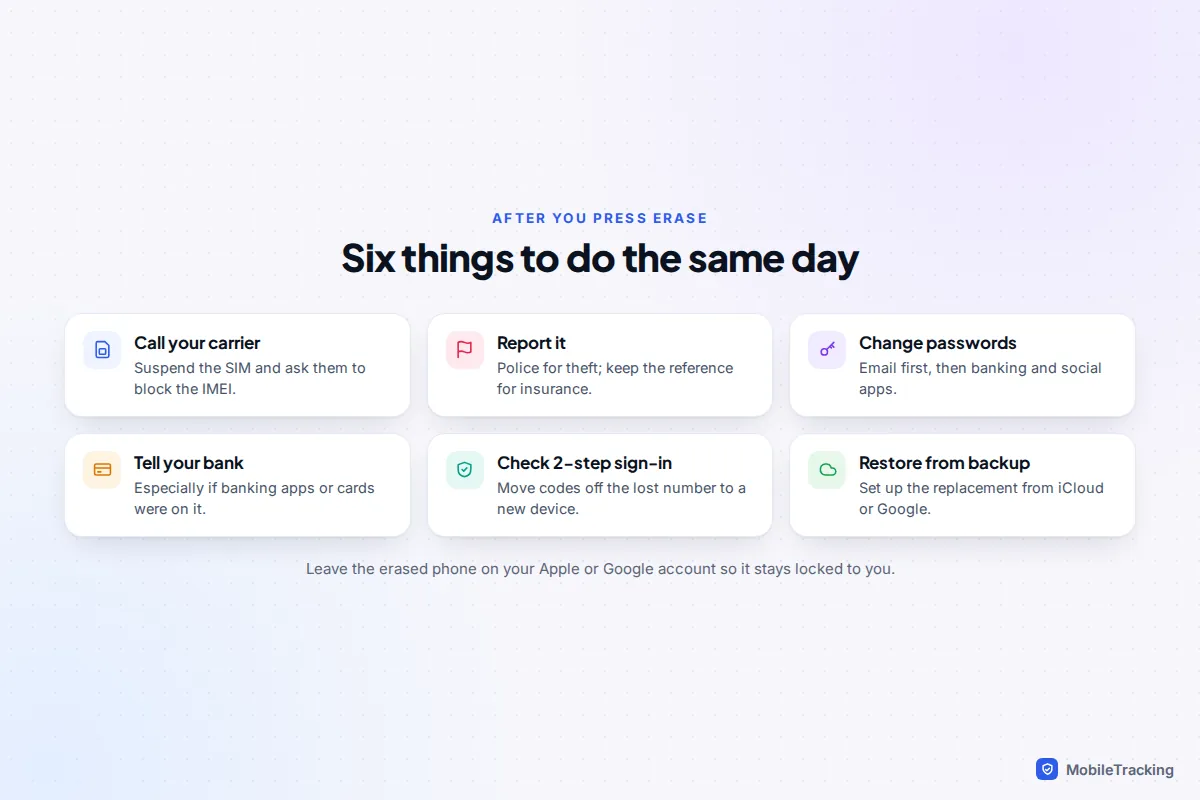
- Your SIM and number still work. A thief can pop the SIM into another phone and receive your texts, including sign-in codes. Call your carrier to suspend the line and ask them to block the IMEI.
- Your cloud accounts stay signed in elsewhere. Erasing the phone doesn’t change your email, banking or social media passwords. Change the important ones, starting with your email.
- Your backups are untouched. That is good news: iCloud and Google backups are what you restore your new phone from.
- Tracking usually stops. Plan to have given the police the last location before you wipe.
If the phone had two-step sign-in codes arriving by text, move them to a new device or an authenticator app as soon as you can. Our guide to finding a stolen phone and protecting your data goes through the account side in more detail.
Troubleshooting: when the erase option doesn’t work
The phone isn’t in the device list
You are probably signed in to a different account from the one on the phone. Families often have more than one Apple Account or Google account, so try the others. If Find My or Find Hub was never switched on, the phone won’t appear at all, and a remote wipe isn’t possible. Your carrier and your cloud passwords are then your main lines of defence.
The request says pending or waiting
The phone is off, out of battery or has no signal. On an iPhone, the erase runs automatically when it reconnects. On Android, keep the phone marked as lost and try the reset again later.
You can’t sign in because the code goes to the lost phone
For Apple, use the Find Devices button on the sign-in screen, which skips the code. For Google, use a backup code, another signed-in device or your recovery phone number or email. Setting these up in advance is the single biggest thing that makes a lost phone less stressful.
You found the phone after erasing it
Sign in with your Apple or Google account during setup to unlock it, then restore from your most recent backup. Our guide on backing up so a lost phone isn’t a disaster explains how to check your backups are actually running.
Here is how it tends to go. Priya’s phone is taken from her coat on a busy train. From her partner’s iPhone she marks it as lost and sees it move across town, then go offline. She reports the theft, gets a reference, calls her carrier to suspend the SIM, and sends the erase request that evening. The phone never reconnects, but her data is protected either way, and her new phone is set up from an iCloud backup the next day.
Frequently asked questions
Can I erase a lost phone if Find My or Find Hub wasn’t turned on?
No. Remote erase only works if the feature was switched on before the phone went missing. There is no carrier or IMEI trick that wipes it for you. Focus on suspending your SIM, changing passwords and signing the phone out of important apps from their websites where they offer it.
Does a remote erase remove my eSIM?
Don’t rely on it. Call your carrier to suspend or cancel the line either way, and they can issue a new eSIM or SIM for your replacement phone with the same number.
Will the thief be able to use the phone after I erase it?
Not as long as it stays on your account. The phone will ask for your Apple or Google password during setup. That is why you should never remove it from your account, even if you have given up on getting it back.
Can I erase my child’s phone remotely?
Yes, if it is in your Family Sharing group on Apple, or signed in to a Google account you can access. Talk to your child first if you can: they may know exactly where it is, and they will want to know their photos are backed up.
Can I undo a remote erase?
Only before it runs. On an iPhone that is still offline, choose Stop Erase Request at icloud.com/find. Once the wipe has happened, the only way back is restoring from a backup.
This guide is general information, not legal or financial advice. Read our editorial policy.