You can lock a missing phone from any web browser in about two minutes. For an iPhone, go to icloud.com/find, select the phone and choose Mark As Lost. For an Android phone, go to android.com/find (Google’s Find Hub), select it and choose Mark as lost. If you can’t get into your Google account, android.com/lock can lock an Android phone with just its phone number, as long as Remote Lock was switched on beforehand. Samsung Galaxy owners have a third route through Samsung Find.
Lock first, and do it early. A locked phone keeps showing on the map, still rings when you play a sound and puts your contact details in front of whoever picks it up. Erasing can come later, if it has to.
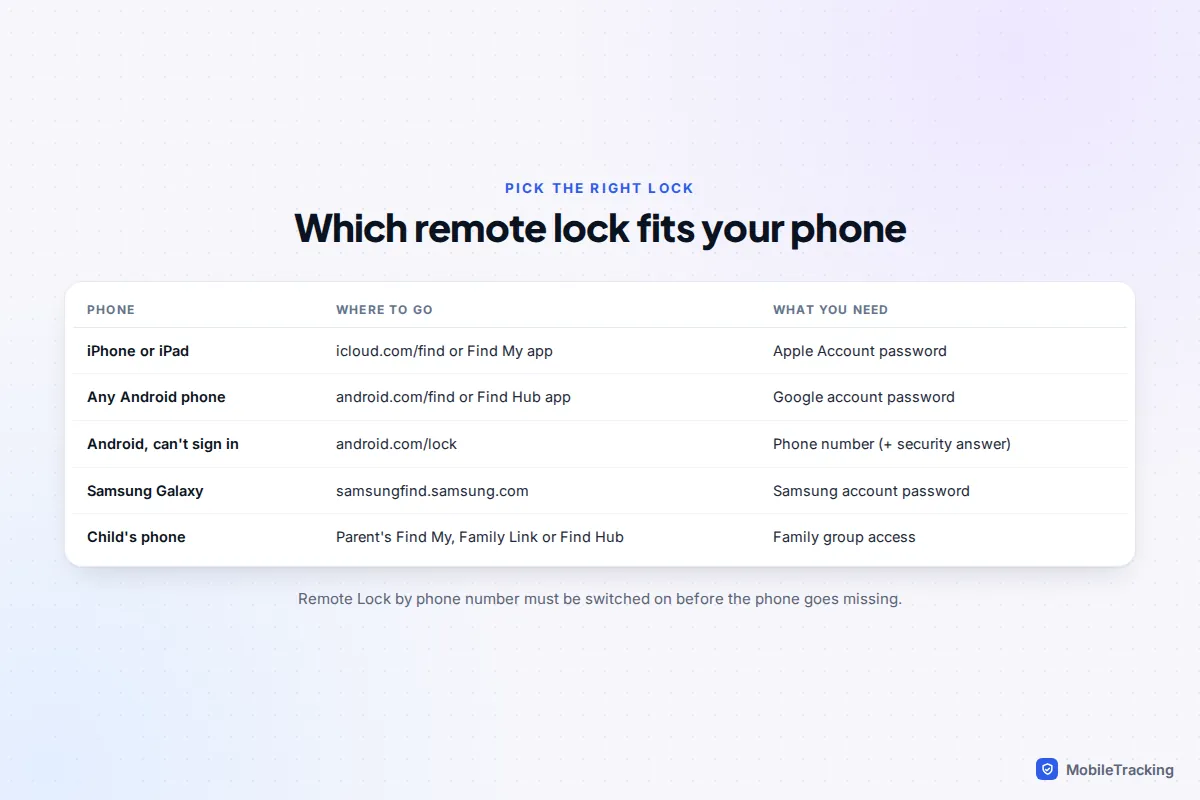
Which lock should you use?
Most people only ever need the first option for their phone. The others are there for the awkward cases: you can’t sign in, the phone belongs to your child, or it is a Galaxy that someone keeps switching off.
| Your situation | Best option | Why |
|---|---|---|
| Lost iPhone, you know your Apple Account password | Mark As Lost at icloud.com/find | Locks it, suspends Apple Pay, shows your number |
| Lost iPhone, you’re with a family member | Their Find My app, if you share a Family Sharing group | No need to sign in on a strange device |
| Lost Android, you can sign in to Google | Mark as lost in Find Hub | Locks it and signs it out of your Google account |
| Lost Android, the sign-in code goes to that phone | Remote Lock at android.com/lock | Needs only the phone number and any security answer |
| Samsung Galaxy that may be in someone’s hands | Lock in Samsung Find | Also stops the phone being switched off |
| Your child’s phone | Your own Find My, Find Hub or Family Link app | Parents in the family group can act for them |
All of these need the phone to have been set up for finding before it went missing. If Find My or Find Hub was off, there is nothing to send the lock to, and your carrier and your account passwords become the main line of defence.
How to lock an iPhone with Mark As Lost
Apple calls this Lost Mode, and the button that switches it on is labelled Mark As Lost. It works the same way on iOS 26 and iOS 27, and on iPads.
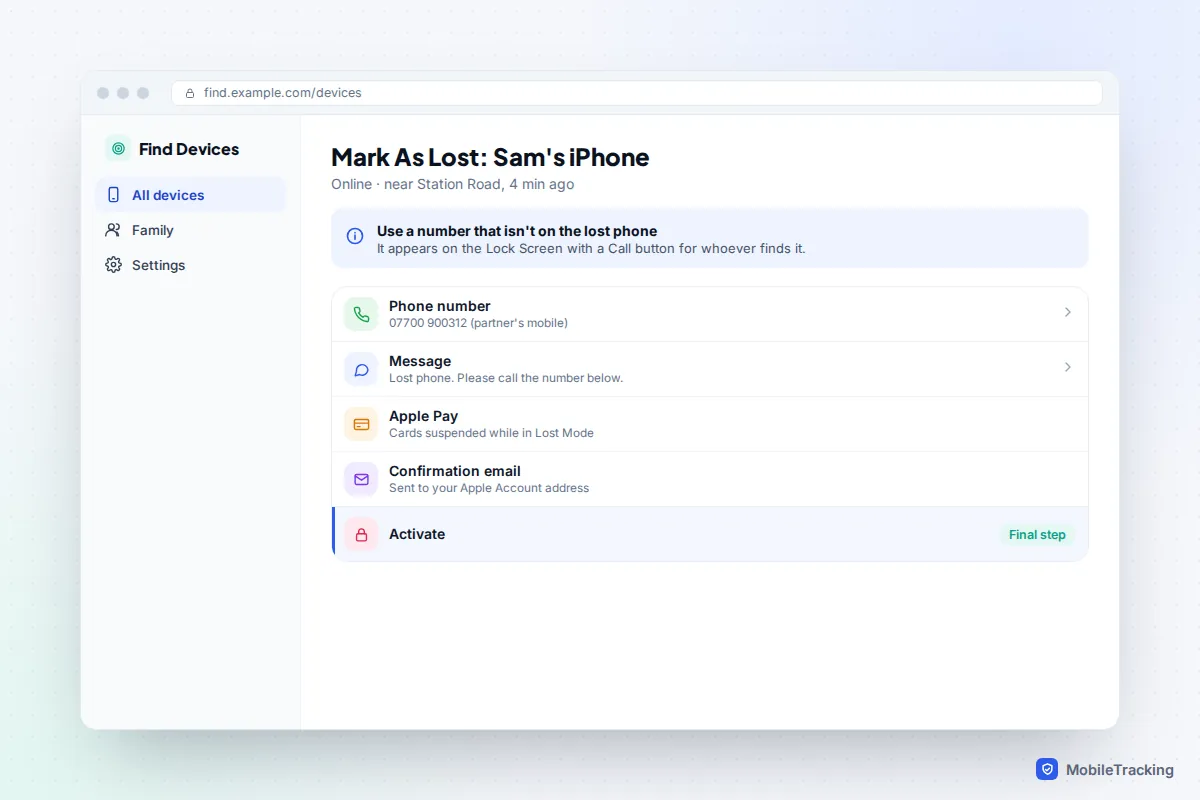
From a computer or someone else’s phone
- Go to icloud.com/find and sign in with your Apple Account. If you are asked for a verification code and the only trusted device is the lost phone, use the Find Devices button at the bottom of the sign-in window instead.
- Select the missing iPhone from your list of devices.
- Choose Mark As Lost and follow the prompts.
- Enter a phone number where you can be reached. Pick one that isn’t on the lost phone, such as a partner’s or a work number.
- Add a short message, such as “Lost phone, please call”, then activate Lost Mode.
From another Apple device
Open the Find My app on an iPhone, iPad or Mac, tap Devices, choose the lost phone, then tap Activate under Mark As Lost and follow the same steps. If you are in a Family Sharing group, a family member can do this from their own Find My app, which is often quickest when you are out together.
What Lost Mode actually does
According to Apple’s Lost Mode guide, the phone locks with your existing passcode, your message appears on the Lock Screen, and notifications and alarms stop alerting, although calls still come through. Apple Pay cards and other payment services are suspended until you turn Lost Mode off and sign back in. If the phone had no passcode, you will be asked to set one when you mark it as lost.
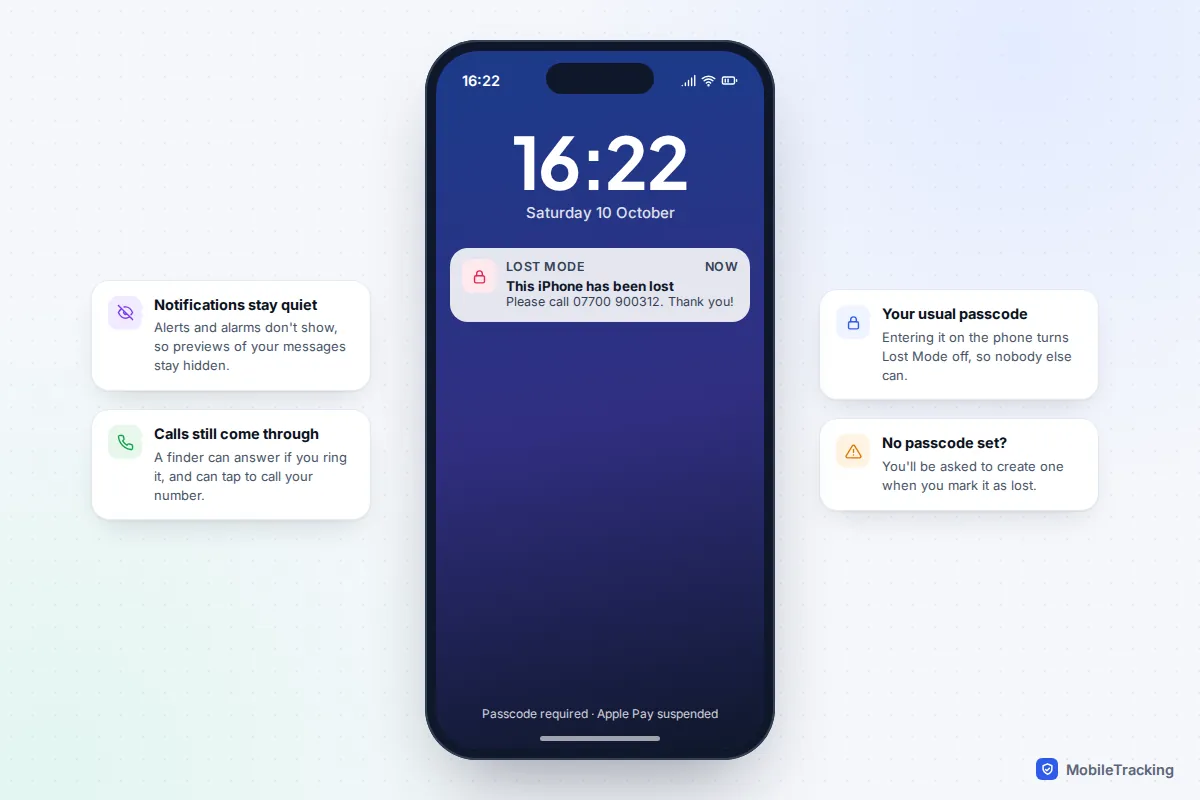
If the iPhone is off or has no signal, the request waits and Lost Mode starts as soon as it reconnects. When you get the phone back, entering the passcode on it ends Lost Mode, or you can choose Stop Lost Mode at icloud.com/find.
How to lock an Android phone in Find Hub
Google renamed Find My Device to Find Hub in 2025, and the old web address still leads there. It works on Pixel, Samsung, Motorola, OnePlus and most other Android phones signed in to a Google account.
- On a computer, go to android.com/find, or open the Find Hub app on another Android phone or tablet.
- Sign in with the Google account that is on the lost phone.
- Pick the phone from the list at the top. Check the “last seen” time and battery level while you are there.
- Choose Mark as lost. Some older screens call this Secure device.
- Add a message and a contact number for the lock screen if you want to, then confirm.
Google’s Android site says this locks the phone with your PIN, pattern or password, signs it out of your Google account, and can remove credit and debit cards from Google Wallet. On phones running Android 17 or later that have fingerprint or face unlock, it goes a step further: unlocking needs both the PIN and the biometric, and notifications, widgets and quick settings are blocked from the lock screen.
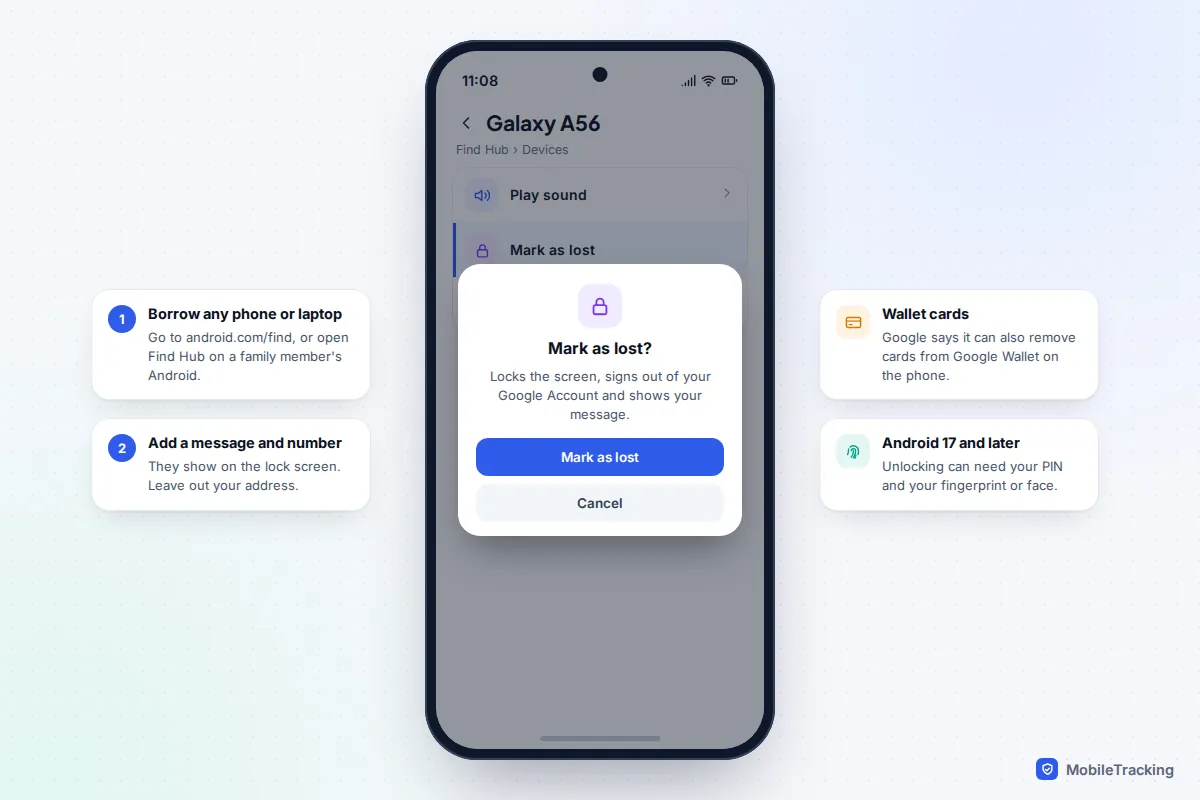
The phone must be switched on, online and signed in to your account with Find Hub turned on for the lock to land. If it is offline, keep checking back: the map shows its last known location, and you can mark it as lost once it reappears.
Remote Lock: lock an Android with just the phone number
The classic trap with a lost phone is that your Google sign-in code is sent to the very phone you have lost. Remote Lock gets around that. Go to android.com/lock in any browser, type in the lost phone’s number, pass the reCAPTCHA check and answer your security question if you set one. The screen locks straight away, or as soon as the phone comes back online.
It has a few conditions, all listed in Google’s theft protection help page:
- Remote Lock must be switched on in advance, on a phone running Android 10 or later.
- The phone needs a screen lock, an active SIM card, a verified phone number, Find Hub turned on and an internet connection.
- The screen can only be locked this way twice in 24 hours.
- It can’t unlock the phone remotely. Only your own PIN, pattern or password does that.
- Theft protection features don’t work on Android tablets or Android Go phones.
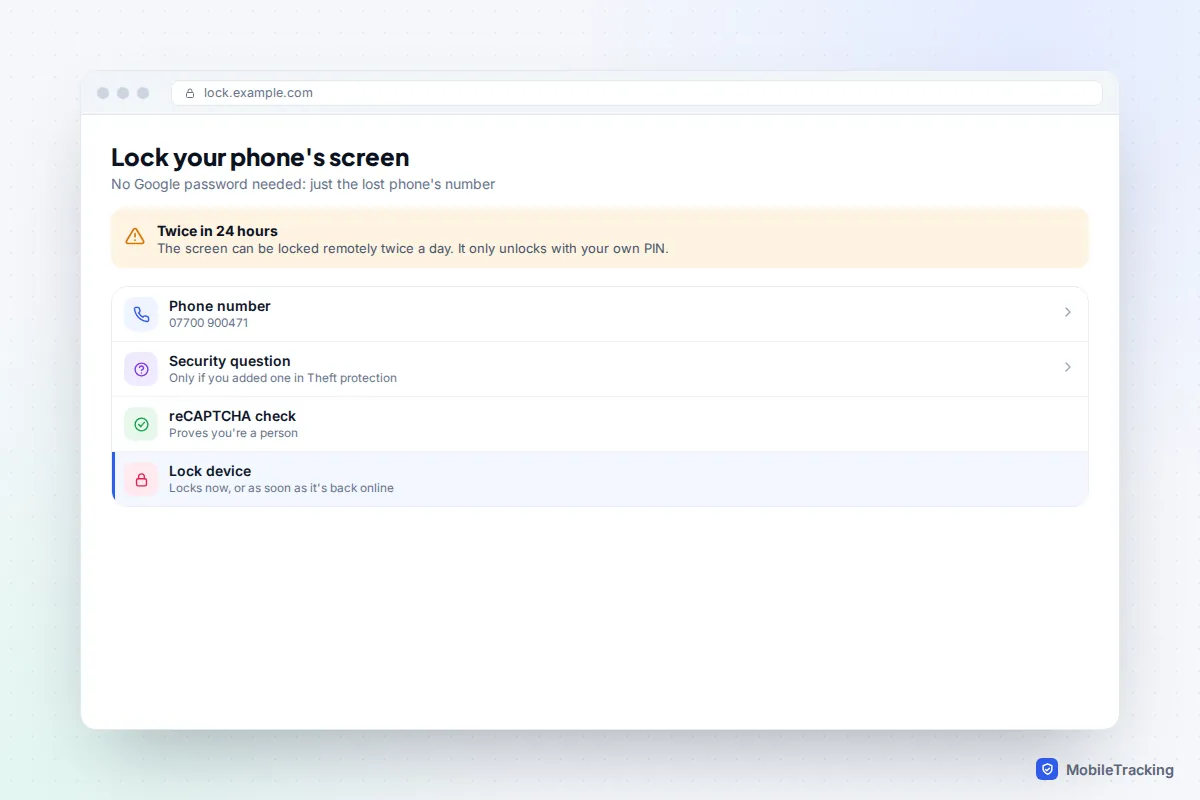
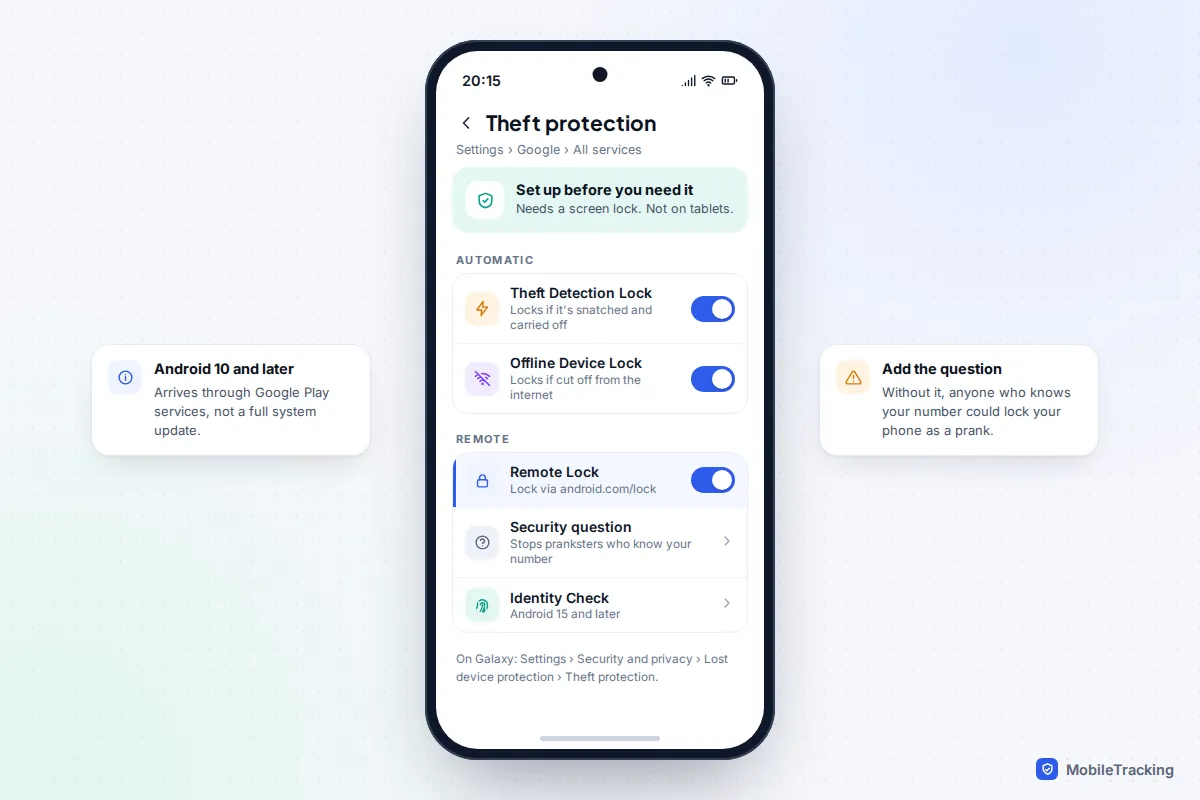
To switch it on, open Settings › Google › All services › Theft protection on a Pixel or most other Android phones. On a Galaxy the same page is at Settings › Security and privacy › Lost device protection › Theft protection. Turn on Remote Lock and add a Security question. Google added the question in 2025 because, before it, anyone who knew your number could lock your phone for a laugh.
The two locks that switch on by themselves
The same Theft protection page holds two automatic locks worth turning on today. Theft Detection Lock uses the phone’s motion sensors to spot a snatch, such as someone grabbing it and running or riding off, and locks the screen instantly. Offline Device Lock locks the screen if an unlocked phone is cut off from the internet for a while, which is exactly what a thief does to stop it appearing in Find Hub. Neither needs you to do anything once the phone is gone.
iPhones don’t have an equivalent remote lock by phone number. The closest protection is Stolen Device Protection at Settings › Face ID & Passcode, which stops a thief who has watched you type your passcode from changing your Apple Account password or switching off Find My while the phone is away from familiar places.
Samsung Galaxy: Lock with Samsung Find
A Galaxy phone can be locked through Google’s Find Hub like any Android, but Samsung Find adds something Google’s lock doesn’t: it stops the phone being switched off, so it stays on the map. It uses your Samsung account rather than your Google one.
- Go to samsungfind.samsung.com, or open the Samsung Find app on another Galaxy, and sign in with your Samsung account.
- Select the lost phone and choose Lock, then Next.
- Create a PIN and enter it twice. You will need this PIN, not your usual one, to unlock the phone later.
- Add an emergency contact and a message if you want them on the lock screen, then select Lock.
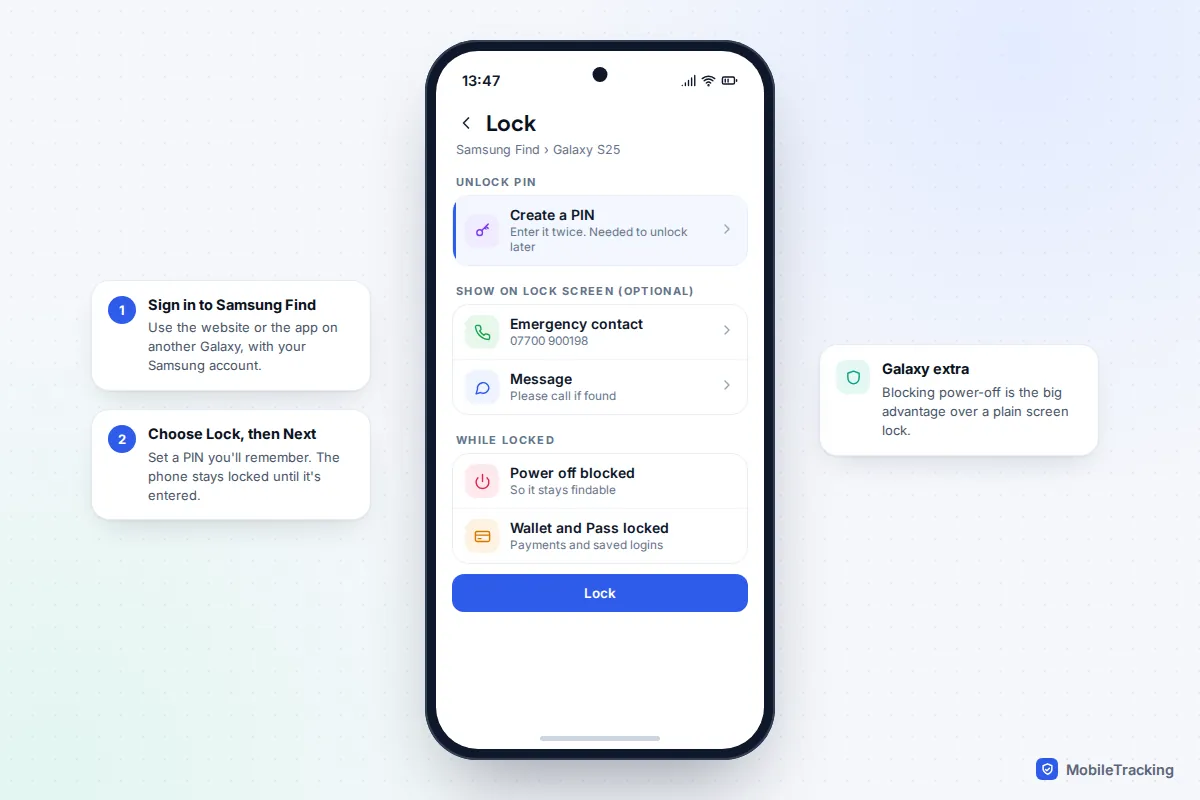
This only works if the phone was set up for it under Settings › Security and privacy › Lost device protection, with Allow this phone to be found switched on. Turn on Send last location and Offline finding too, so Samsung Find can still show a position after the battery runs down or the phone drops offline.
What locking does, and what it doesn’t
A remote lock is a strong first step, but people often expect more from it than it gives. It protects what is on the handset. It does nothing about your SIM, your accounts on other devices or the phone’s resale value.
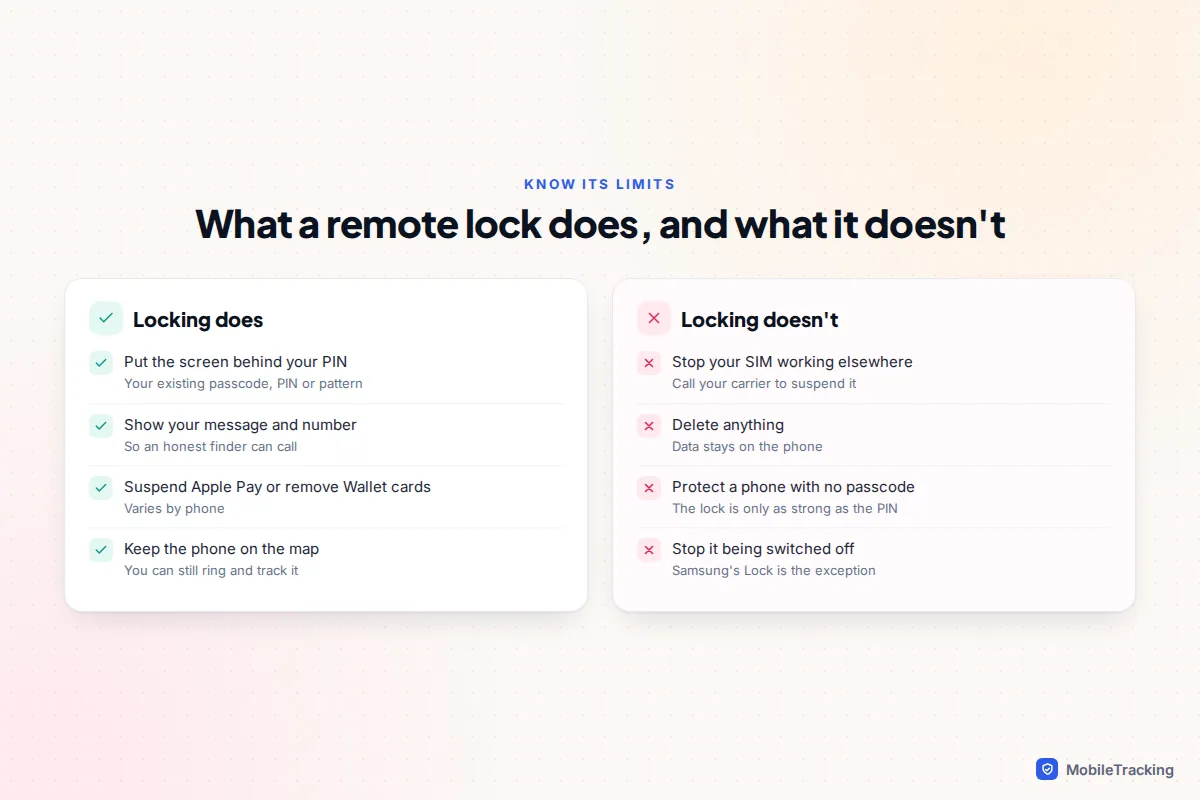
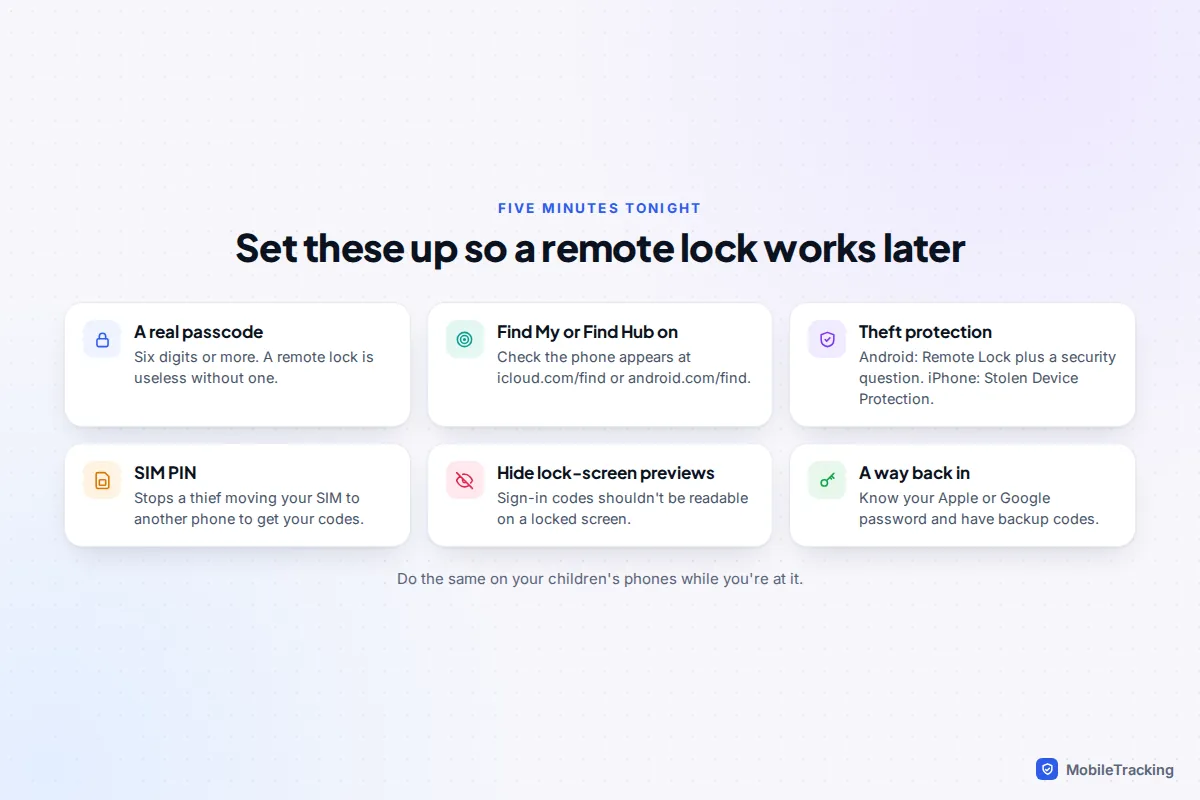
- Your SIM still works. A thief can move the SIM to another phone and receive your texts, including sign-in codes. Call your carrier to suspend the line, or set a SIM PIN now so it can’t be used elsewhere.
- A weak passcode is a weak lock. The lock screen is only as strong as the code behind it. A four-digit code or a pattern that leaves smudges is easier to guess.
- Lock-screen previews can leak codes. On Android versions before 17, check that notification content is hidden on the lock screen so a one-time code can’t be read off it.
- Your accounts are still signed in elsewhere. Change your email password first if you think the phone was unlocked when it was taken.
When to stop locking and start erasing
Lock straight away. Erase when the chance of getting the phone back is low and the risk to your data is high. Signs that it is time: the phone was snatched while unlocked, it had no passcode or a very weak one, it holds work or medical data, it has been offline for days, or it is moving somewhere you won’t be going. Once you have reported it to the police and noted its last location, follow our guide to erasing a lost phone remotely. Erasing usually ends your ability to track it, so it is always the last step.
Here is how the order works in practice. Tom leaves his Pixel on a bus. From his laptop he opens Find Hub, sees it heading towards the depot and marks it as lost with his partner’s number, 07700 900312. An hour later the depot calls; the phone is still locked and nothing has been touched. Had it vanished off the map and stayed offline overnight, the next step would have been a call to his carrier and then the erase.
If the lock doesn’t work
The phone isn’t in your device list. You are probably signed in to a different account from the one on the phone. Try the family’s other Apple or Google accounts. If finding was never switched on, a remote lock isn’t possible.
The request shows as pending. The phone is off, flat or has no signal. On an iPhone, Lost Mode starts when it reconnects. On Android, Remote Lock also waits for a connection; otherwise check Find Hub again later.
android.com/lock says the number isn’t eligible. Remote Lock wasn’t switched on, the number was never verified, or the SIM has already been removed. Use Find Hub instead.
You can’t pass two-step sign-in. On iCloud, use the Find Devices button. For Google, use a backup code or your recovery email. Our guide to setting up your phone so you can find it later covers the prep that avoids this.
Frequently asked questions
Can I lock a lost phone without my password?
On Android, yes, if Remote Lock was turned on: go to android.com/lock and enter the phone number plus any security answer. On an iPhone you need your Apple Account password, but the Find Devices button at icloud.com/find lets you skip the verification code.
Can my carrier lock my phone for me?
Your carrier can suspend your SIM and block the phone’s IMEI number so it can’t connect to their network, but it can’t lock the screen or protect the data on it. Do both: lock it through Find My, Find Hub or Samsung Find, then call the carrier.
Does locking stop someone switching the phone off?
Not on iPhone or with Google’s Find Hub. Samsung Find’s Lock is the exception and blocks power-off on Galaxy phones. Apple and Google devices can often still be located through their finding networks for a while after being switched off, depending on the model.
Can I lock my child’s lost phone?
Yes. An iPhone in your Family Sharing group appears in your own Find My app, and a child’s Android supervised with Family Link can be locked from the Family Link app or found in Find Hub. Tell your child what you have done, so they aren’t alarmed by the message on the screen.
Will the finder be able to see my messages?
Not in Lost Mode or Mark as lost, as long as the phone has a passcode. On iPhone, notifications stop alerting. On Android 17, notifications are blocked from the lock screen; on older versions, hide sensitive notification content in advance.
This guide is general information, not legal or financial advice. Read our editorial policy.