
A strong password you can remember is long rather than complicated: string together three or four genuinely random words, such as a made-up walrus kettle orbit, and use it for one account only. You only need to memorise two or three of these, for your email, your phone and your password manager. Let the password manager create and remember a unique password for everything else, turn on two-step verification for important accounts, and switch to passkeys wherever a site offers them.
That is the whole method. The rest of this guide explains why it works, how to pick words that are truly random, what to do about sites with fussy rules, and which old password advice you can stop following.
Why length beats complexity
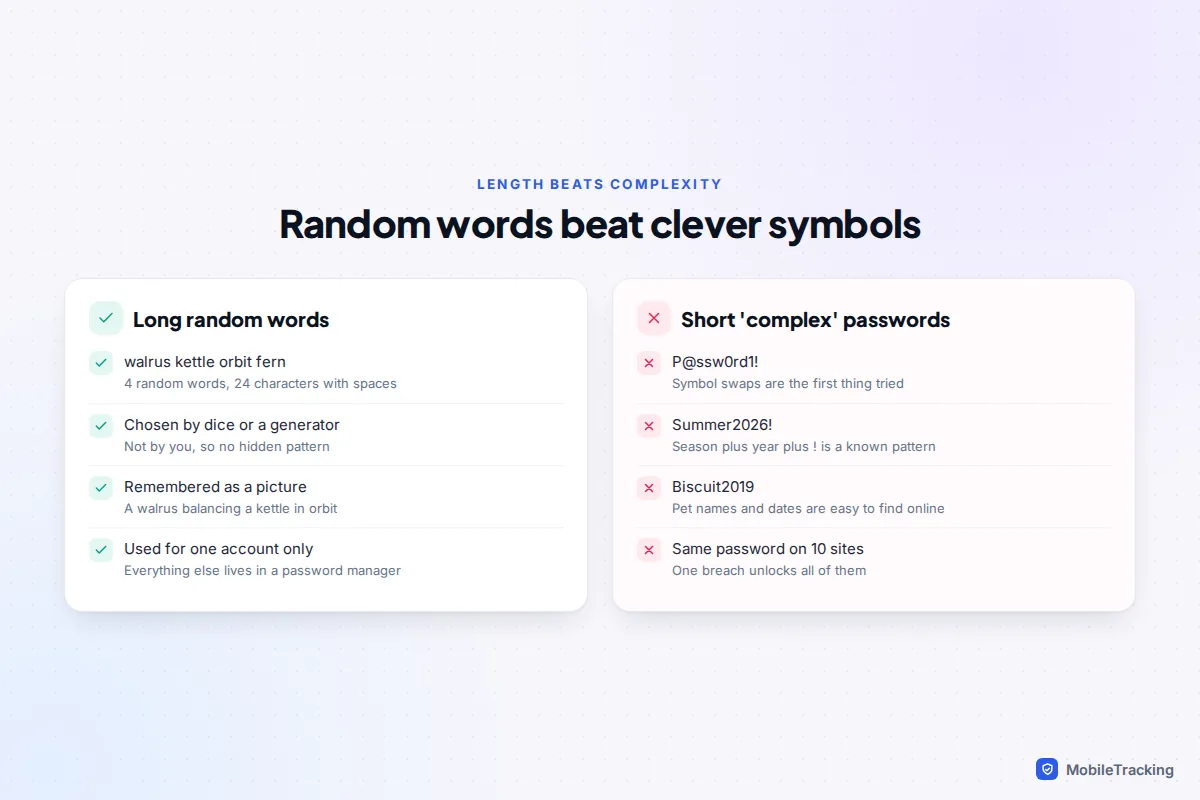
For years, websites demanded a capital letter, a number and a symbol. People responded predictably: Password1!, Summer2026!, a pet’s name with an @ for the a. Password-cracking software tries exactly those patterns first, so the rules produced passwords that were hard to remember and easy to guess.
Official guidance has turned against this. The UK’s National Cyber Security Centre recommends using three random words and warns that swapping letters for numbers, like o for 0, makes a password harder to remember without making it significantly stronger. In the US, NIST’s digital identity guidelines (SP 800-63B-4, finalised in August 2025) tell organisations that:
- passwords used on their own must be at least 15 characters (8 is the minimum only when the password is one part of multi-factor sign-in);
- they must not impose composition rules such as mixing character types;
- they must not force people to change passwords on a schedule, only when there is evidence of compromise;
- they should allow at least 64 characters, spaces and pasting, and check new passwords against lists of common and breached ones.
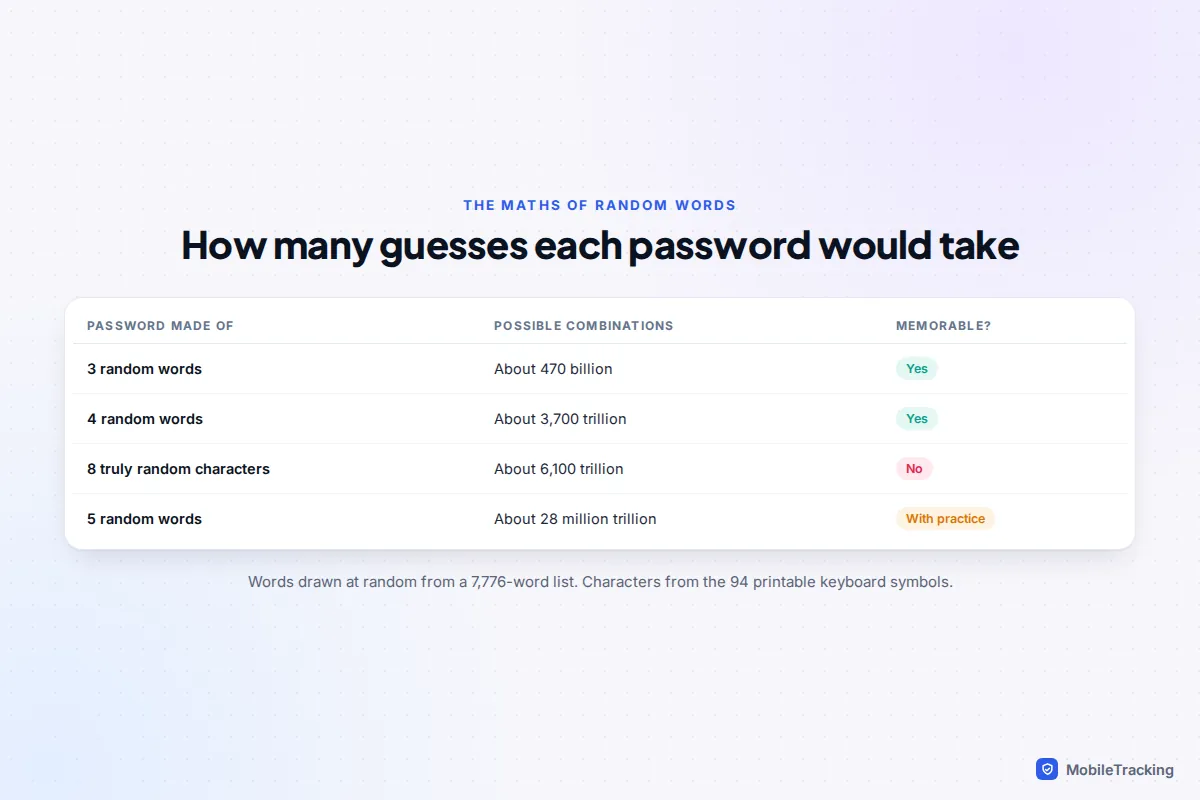
Not every website has caught up, but the direction is clear. The numbers show why. Each word picked at random from a list of 7,776 words (the size of the EFF’s passphrase word list) multiplies the possibilities by 7,776.
| Password made of | Possible combinations | Easy to remember? |
|---|---|---|
| 3 random words | About 470 billion | Yes |
| 4 random words | About 3,700 trillion | Yes, with a mental picture |
| 8 truly random characters | About 6,100 trillion | No |
| 5 random words | About 28 million trillion | With practice |
Four random words land in the same range as eight completely random characters, and you can actually remember them. The key word is random: the maths only holds if the words are chosen by chance, not by you.
How to build a passphrase you will remember
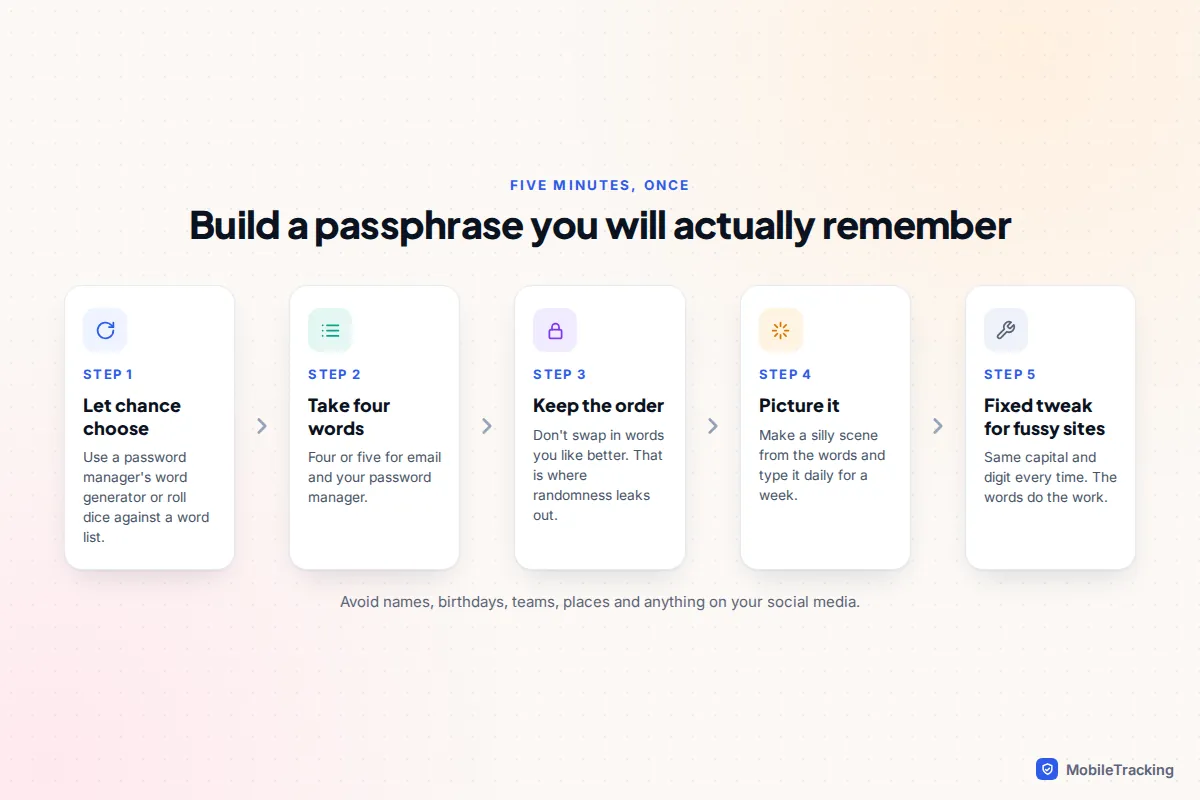
Human brains are bad at randomness. Asked for three random words, most people pick related ones, such as sun sea sand, or words from their own life. Use a method that takes the choice away from you.
- Let chance choose. Use the passphrase generator in your password manager (most have a “words” or “memorable” option), or roll five dice and look up the number in the EFF word list, once per word.
- Take four words for your most important passwords. Three is the NCSC’s minimum for everyday accounts. For the handful you type from memory and that protect everything else, such as your email and password manager, four or five is worth the effort.
- Don’t reorder or swap them for words you like better. That is where randomness leaks out.
- Picture them. Build a silly scene: a walrus balancing a kettle in orbit. Say it a few times, then type it daily for a week. (Don’t use the walrus: any example printed online is now on attackers’ lists.)
- Handle fussy sites last. If a site insists on a capital, a number or a symbol, add the same small fix every time, such as capitalising the first word and adding a digit at the end. It satisfies the rule; the strength comes from the words.
Spaces are fine where a site accepts them and make typing easier. What to leave out: names of family and pets, birthdays, football teams, places you have lived, and anything on your social media. Those are the first things a person trying to get into your account will try.
One password per account, and a manager to remember them
Reuse is the biggest weakness, bigger than weak passwords. When a website is breached, criminals feed the stolen email and password pairs into software that tries them on email, shopping, banking and social sites. This is called credential stuffing, and it works because so many people use the same password everywhere. A brilliant passphrase used on ten sites is only as safe as the weakest of the ten.
Nobody can remember a hundred unique passphrases, which is where a password manager comes in. It creates a long random password for each site, fills it in for you, and syncs across your devices. You remember one strong passphrase, or unlock it with your face or fingerprint.
| Option | Best for | Worth knowing |
|---|---|---|
| Apple Passwords app | Households mostly on iPhone, iPad and Mac | Free, built into iOS 18 and later; works on Windows through iCloud for Windows |
| Google Password Manager | Android users and anyone who lives in Chrome | Free, built into Android and Chrome on any computer |
| Independent managers such as 1Password, Bitwarden, Proton Pass or Dashlane | Mixed iPhone and Android families, or sharing across platforms | Work everywhere; some have free tiers, most charge for family plans |
| Offline managers such as KeePassXC | People who want no cloud sync at all | Free and local, but you handle backups and syncing yourself |
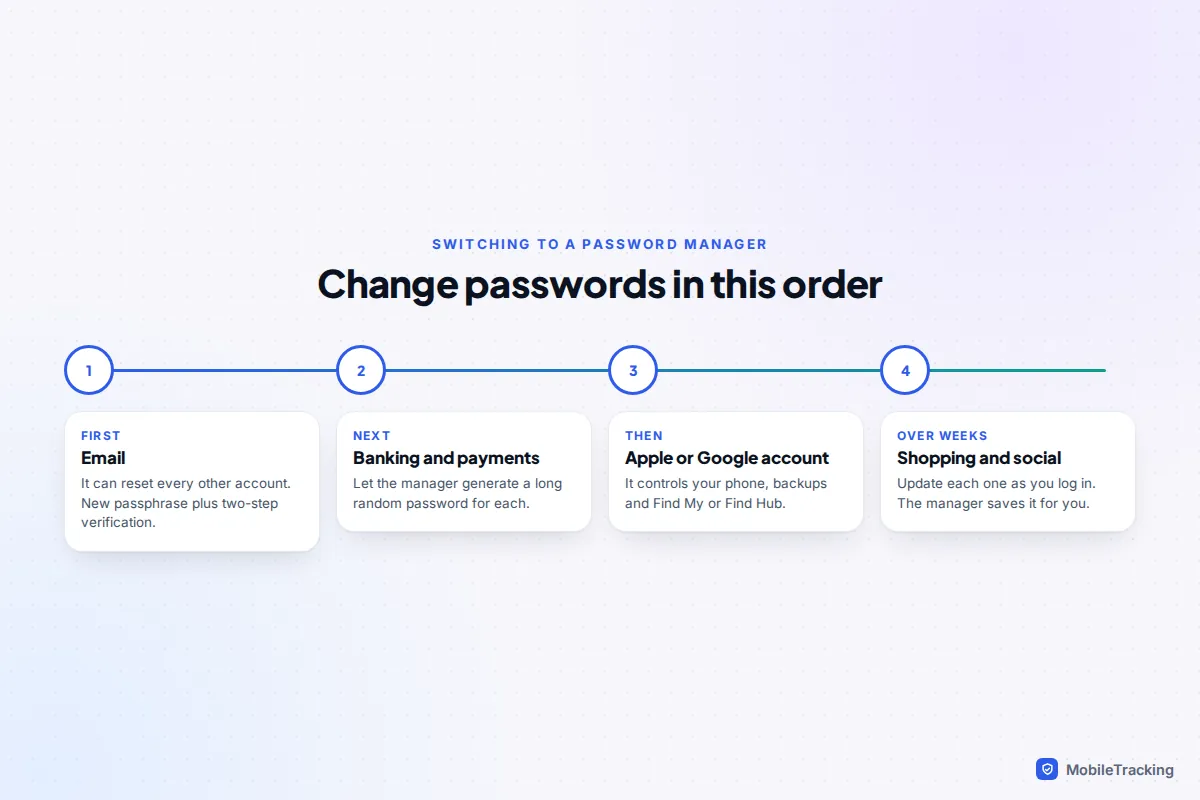
Any reputable manager is far safer than reuse. Pick the one you will actually use on every device you own. When you set it up, protect the account itself with a strong passphrase and two-step verification, then change passwords in this order: email first (it can reset everything else), then banking, then your phone’s Apple or Google account, then shopping and social media. You don’t need to do all of them in one sitting; the manager will fill in the rest as you log in over the following weeks.
What is safe to write down
Writing a password down is fine if you keep it somewhere safe: the NCSC says so explicitly. The risk of a note in a locked drawer at home is small compared with the risk of reuse. Good candidates for paper are your password manager’s passphrase, your email passphrase and account recovery codes, kept at home and away from the devices they unlock. Bad places are a sticky note on a laptop, a photo in your camera roll, or a note in your phone’s notes app.
Passkeys: the next step after passwords
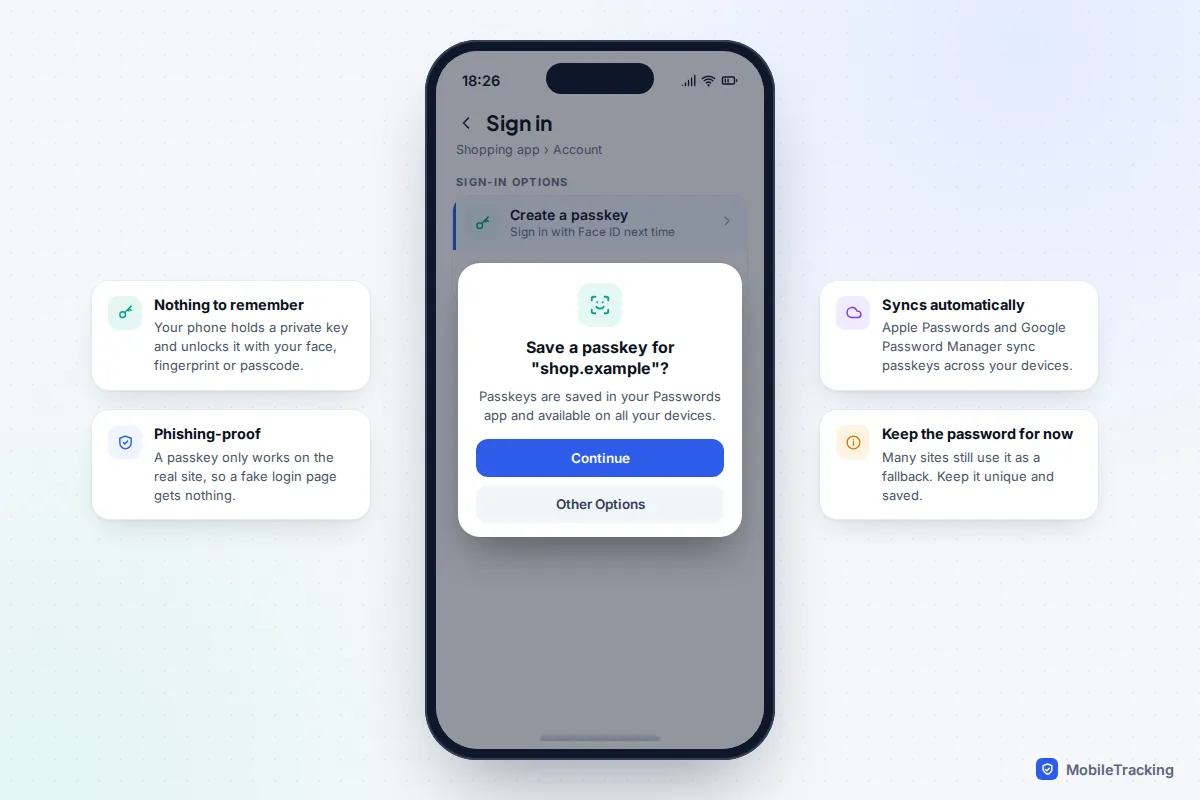
A passkey replaces the password entirely. Your phone creates a pair of cryptographic keys for each site, keeps the private one, and proves who you are with your face, fingerprint or screen lock. There is nothing to remember, nothing to type into a fake website, and nothing useful for criminals to steal from the site’s servers. That is why passkeys stop phishing in a way no password can.
Apple, Google and Microsoft all support them, and your Apple Passwords app or Google Password Manager stores and syncs them automatically. When a site offers “Create a passkey” or “Sign in faster next time”, accept it. Keep your existing password for now as a fallback, since not every device or site supports passkeys yet. Since iOS 26, the Passwords app can move passwords and passkeys to and from other password managers that support the new transfer standard, so choosing passkeys no longer locks you in.
Check whether your passwords have leaked
Your password manager is the easiest place to start, because it already knows your passwords and checks them privately.
- iPhone: open the Passwords app and tap Security. It lists passwords that have appeared in a data leak, are reused or are easy to guess. The leak check is controlled by Detect Compromised Passwords in Settings › Apps › Passwords. Apple has announced a feature that changes compromised passwords for you, but it was held back from iOS 27 at launch and is due in a later update.
- Android and Chrome: in Chrome, tap the three-dot menu, then Settings › Google Password Manager › Checkup. It flags passwords that are exposed, weak or used in multiple accounts.
- Any email address: Have I Been Pwned shows which known breaches included your email address, and you can sign up to be told about future ones. Its password check sends only the first five characters of a scrambled (hashed) version of your password, so the password itself never leaves your device.
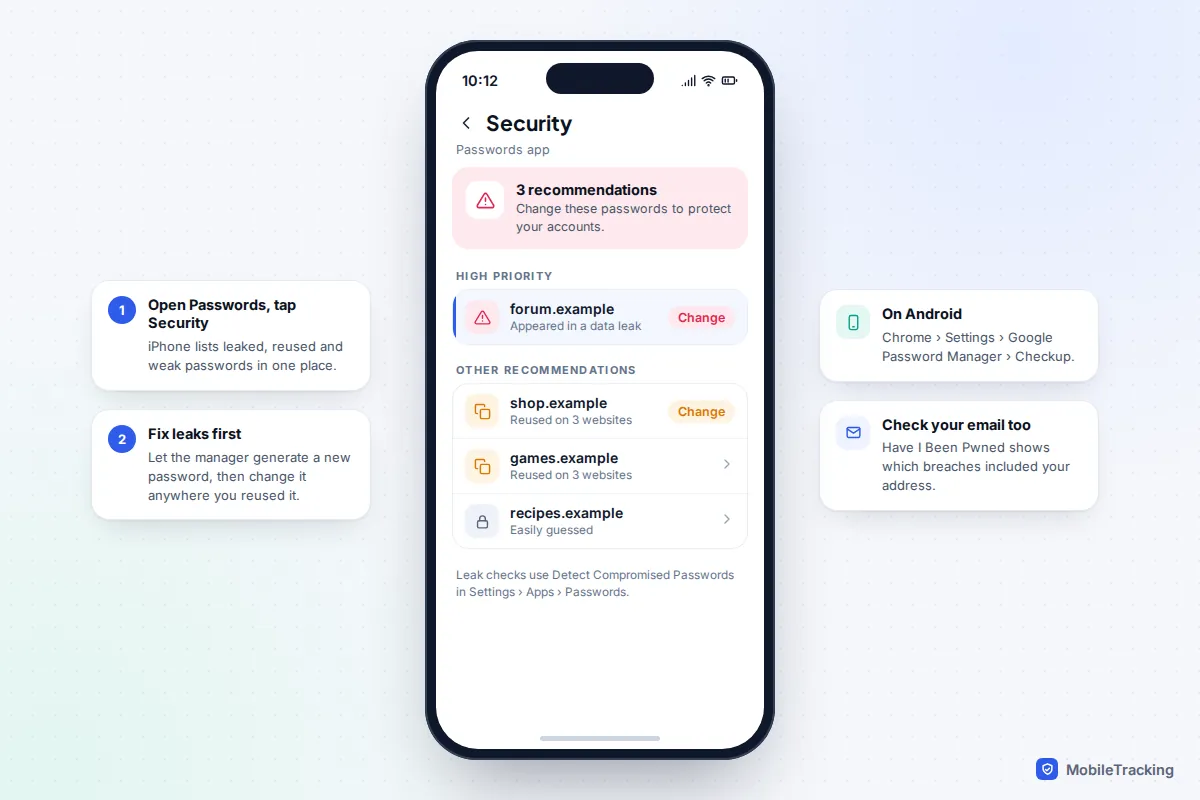
When something turns up, change that password on that site to a new one generated by your manager, then change it anywhere else you used the same one. If the leaked account was your email, check its forwarding rules and which devices are signed in too; our guide on how to tell if your email was hacked covers what to look for.
Add two-step verification to the accounts that matter
A second step, such as a code or an approval on your phone, means a stolen password alone is not enough. Turn it on for email, banking, your Apple or Google account, social media and your password manager. Some methods are stronger than others.
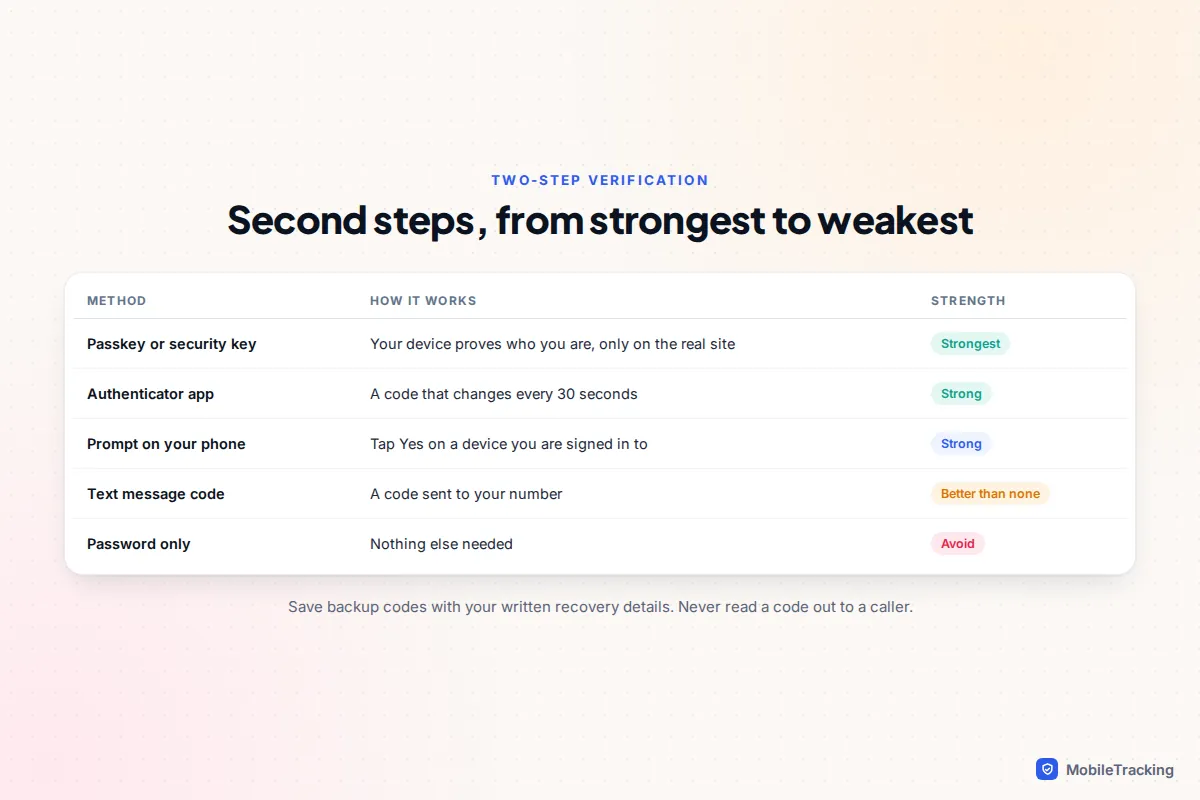
Text message codes can be intercepted or redirected if a criminal persuades your mobile network to move your number to their SIM, so prefer an authenticator app or phone prompt where offered. Whatever you choose, save the backup codes the site gives you with your other written recovery information. And remember that no bank, delivery firm or tech company needs you to read a code out to them: anyone asking for one is trying to get into your account.
Teaching children to make and keep good passwords
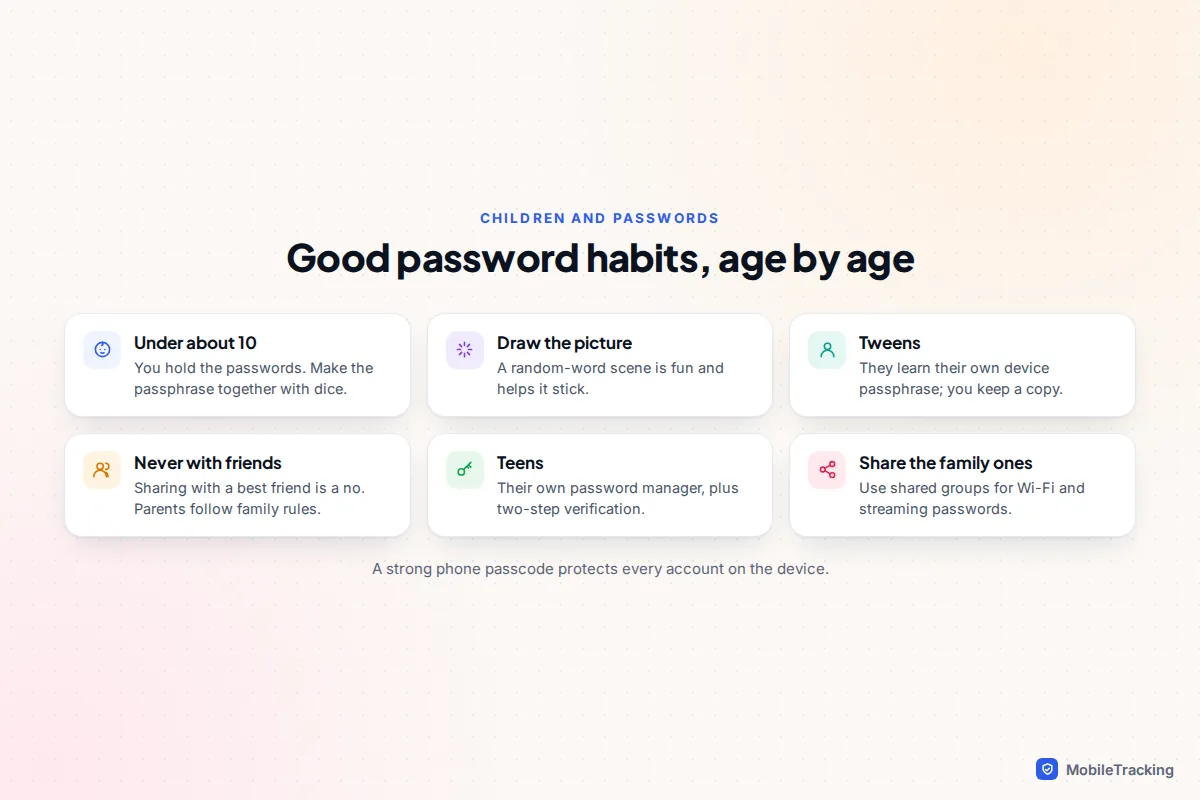
Children’s accounts matter too: a hacked gaming or email account can mean lost purchases, messages sent in their name, or a way into the family’s shared accounts. The passphrase method suits them well, because random-word pictures are fun and memorable.
- Under about 10: you hold the passwords. Make the passphrase together with dice or a generator, and let them draw the picture.
- Tweens: they learn their own passphrase for their device and main account, while you keep a copy. Explain that sharing a password with a friend, even a best friend, is a no; sharing with a parent is part of your family’s rules.
- Teens: set them up with their own password manager and two-step verification, and use family sharing features such as shared password groups in Apple Passwords or sharing in Google Password Manager for the streaming and Wi-Fi passwords you all use.
Pair this with a strong screen lock, since a phone passcode protects every account on it; see setting up a strong phone passcode. For age-by-age conversations about accounts, sharing and scams, our guide to password safety and account security for kids goes further.
Password myths you can stop following
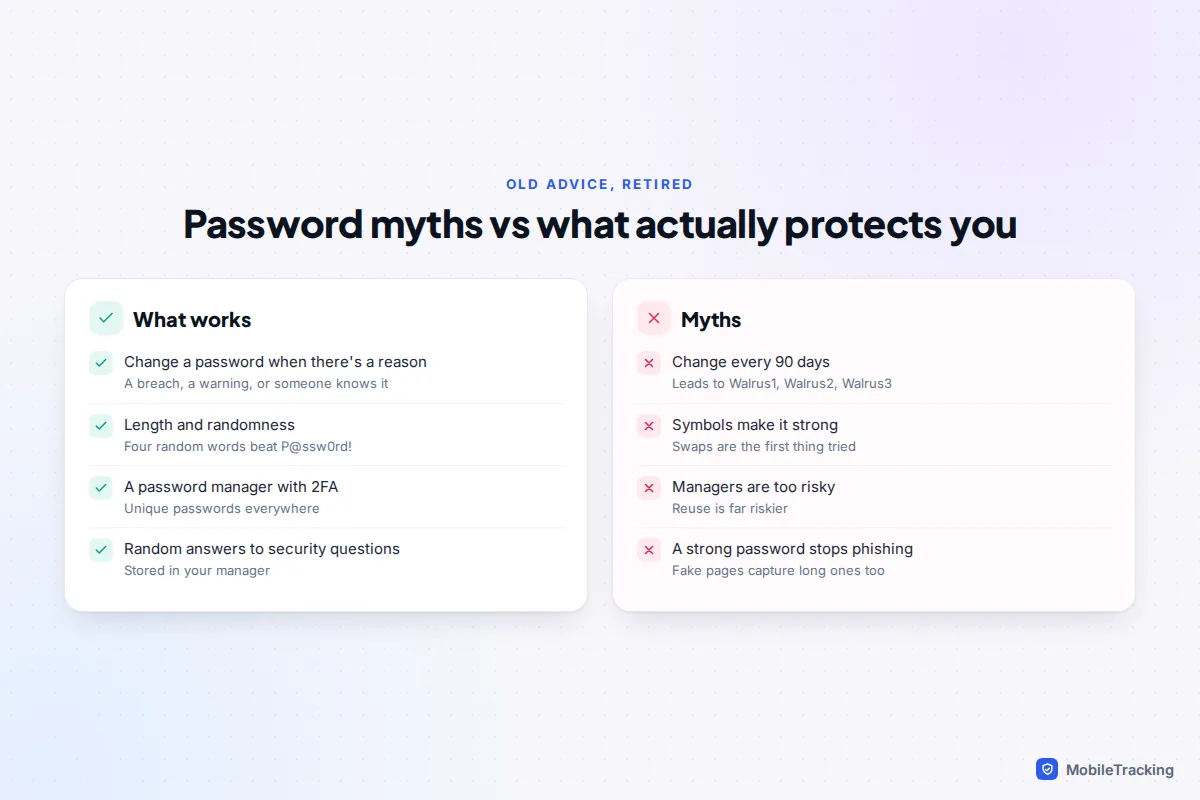
“Change your passwords every 90 days.” Forced changes lead to predictable tweaks such as Walrus1 becoming Walrus2, which attackers anticipate. NIST now says organisations must not require periodic changes. Change a password when there is a reason: a breach, a warning from your manager, or someone else knowing it.
“Symbols make a password strong.” Length and randomness do. A symbol added to a short, predictable password adds little.
“Password managers put all your eggs in one basket.” True, but it is a very well guarded basket, protected by encryption, your passphrase and two-step verification. Reusing passwords spreads the same egg across every basket on the internet.
“Security questions are a safety net.” Your mother’s maiden name and first school can often be found online. Where a site insists on them, give a random answer and store it in your password manager as if it were a password.
“A strong password means I’m safe from phishing.” A fake login page captures a long password as easily as a short one. Passkeys, and password managers that refuse to fill in on the wrong website, are what protect you there.
Frequently asked questions
Are three random words really enough?
For most everyday accounts, yes, as long as the words are chosen randomly and the password is not reused. Websites limit how quickly anyone can guess, so the realistic risks are reuse and predictable choices. For the few passwords that unlock everything else, use four or five words.
Is it safe to let my browser save passwords?
Yes. The managers built into Safari and Chrome, through Apple Passwords and Google Password Manager, are encrypted, synced and much safer than reusing passwords. Protect the account behind them with a strong passphrase and two-step verification.
What if I forget the passphrase to my password manager?
Set up recovery before you need it. Apple Passwords and Google Password Manager follow your Apple or Google account, so add that account’s recovery options, such as a recovery contact on Apple or a recovery phone number on Google. Independent managers usually offer a printable recovery kit or an emergency contact. Either way, write the passphrase down and keep it at home, which the NCSC considers acceptable.
Should I still have passwords if I use passkeys?
For now, usually yes. Many accounts keep a password as a fallback, so it should still be unique and stored in your manager. Some services let you remove the password entirely once a passkey is set up.
How often should I check for breaches?
You shouldn’t need to check manually often. Turn on Have I Been Pwned notifications for your email address and leave your password manager’s leak detection switched on, and you will hear about new problems when they happen.
This guide is general information, not legal or financial advice. Read our editorial policy.