
Your Google location history is now called Timeline, and it lives on your phone, not on the web. To see it, open the Google Maps app on your Android phone or iPhone, tap your profile picture, then tap Your Timeline. The old web version at maps.google.com has been retired: Google’s own help page now says Timeline is not available for Maps on your computer.
If your Timeline is empty or starts only recently, there are four usual reasons: Timeline was never switched on, you are on a new phone and haven’t imported a backup, your history is stored on a different phone, or older data was deleted during Google’s 2024 to 2025 move to on-device storage. This guide covers each one, plus how to back up, delete and export what you have.
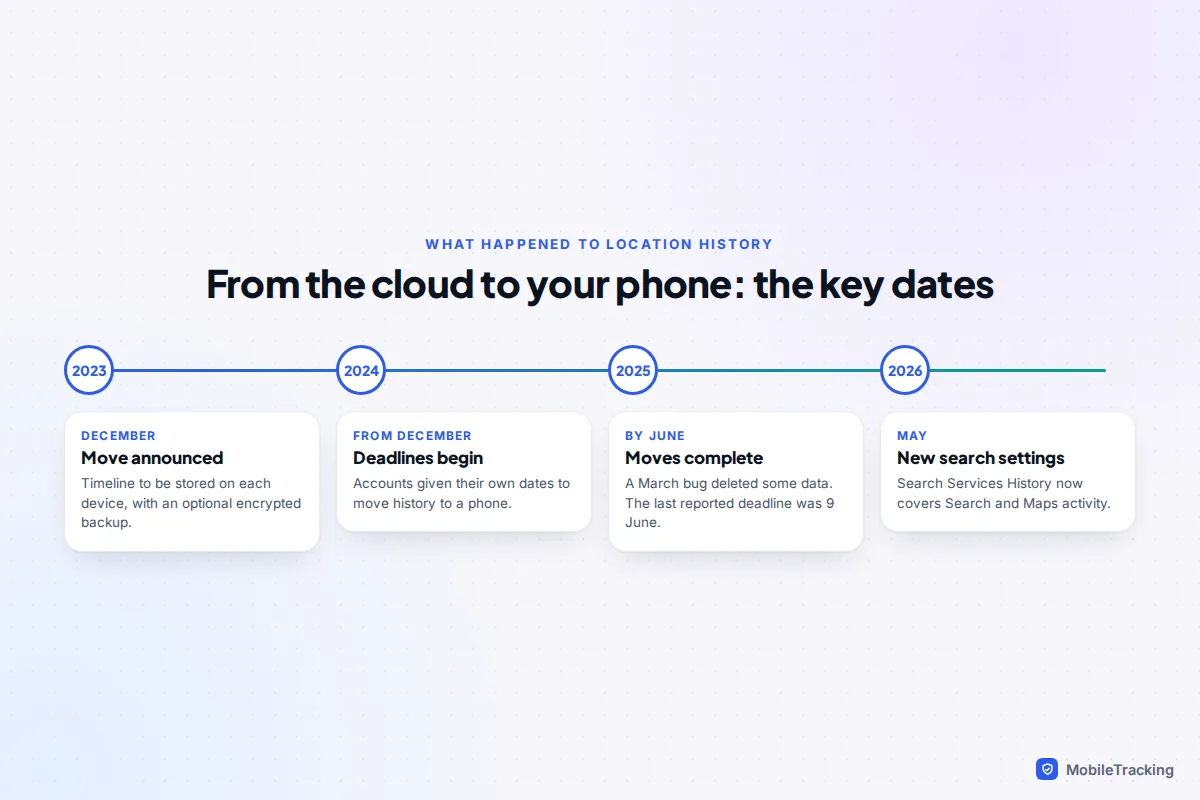
What changed, and where your history is in 2026
Until 2024, Google stored Location History on its servers and you could browse years of it on a computer. In December 2023 Google announced that Timeline would move onto each person’s own device, with an optional encrypted backup. Accounts were given individual deadlines to move their data, starting in December 2024; after extensions, the last widely reported deadline was 9 June 2025.
By September 2026 that move is complete. Three things follow from it, and they explain most of the confusion people have:
- Each phone keeps its own Timeline. Google says edits or deletions on one device are not reflected on the others. Your old Android phone and your new iPhone may hold different histories.
- There is no Timeline on a computer. You can change the Timeline setting in your Google Account, but you can’t view the map of where you’ve been.
- Google can’t read your backup. When Google announced the change, it said backups would be encrypted so that no one, including Google, can read them.
How to open Timeline on Android
- Open the Google Maps app. You need a recent version; Google’s help page lists 11.106 or later.
- Tap your profile picture or initial in the top right.
- Tap Your Timeline.
- If you see a message that Timeline is off, tap More › Location & privacy settings and turn it on. It only records from that moment onwards.
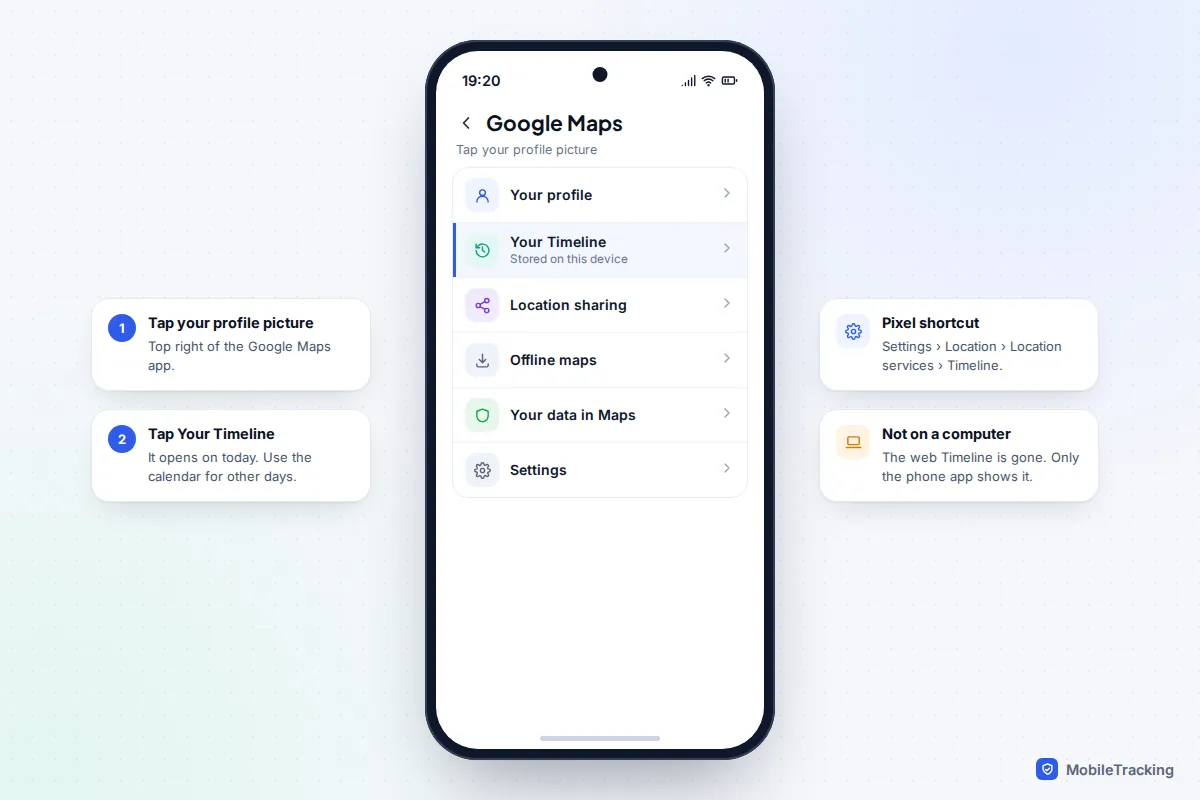
On a Pixel you can also reach it from the phone’s settings: Settings › Location › Location services › Timeline. Samsung and other brands usually have a similar entry under Location, though the wording varies. Google says Timeline isn’t available on Android Go phones.
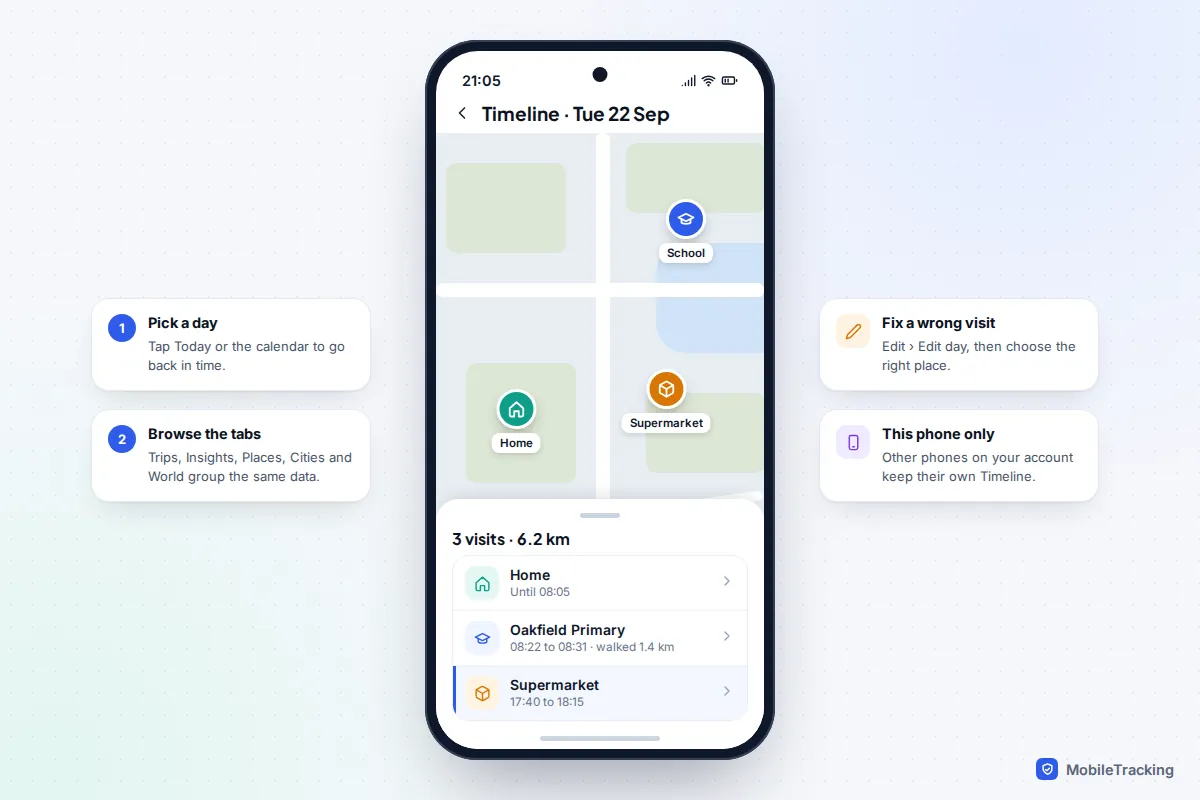
Timeline opens on today. Tap Today or the calendar to jump to another day and see each visit and journey with times. The tabs along the top, such as Trips, Insights, Places, Cities and World, group the same data in other ways: every café you have visited, how many hours you spent driving last month, or every country on one map. Labels can differ slightly between app versions.
Gaps, or visits in the wrong place
Timeline builds your day from GPS, Wi-Fi, mobile networks and the phone’s motion sensors, and it only records while the phone is on and allowed to use location. Gaps usually mean the phone was off, location was switched off, or a battery saver stopped Google Maps working in the background. On Android, check Settings › Apps › Maps › App battery usage (wording varies by brand) and avoid Restricted. A visit shown next door to where you really were is normal indoors; tap it and choose the right place. Our explainer on why location is inaccurate indoors covers the reasons.
How to open Timeline on iPhone
Timeline works in Google Maps on iPhone too, but only records while Google Maps is allowed to use your location in the background.
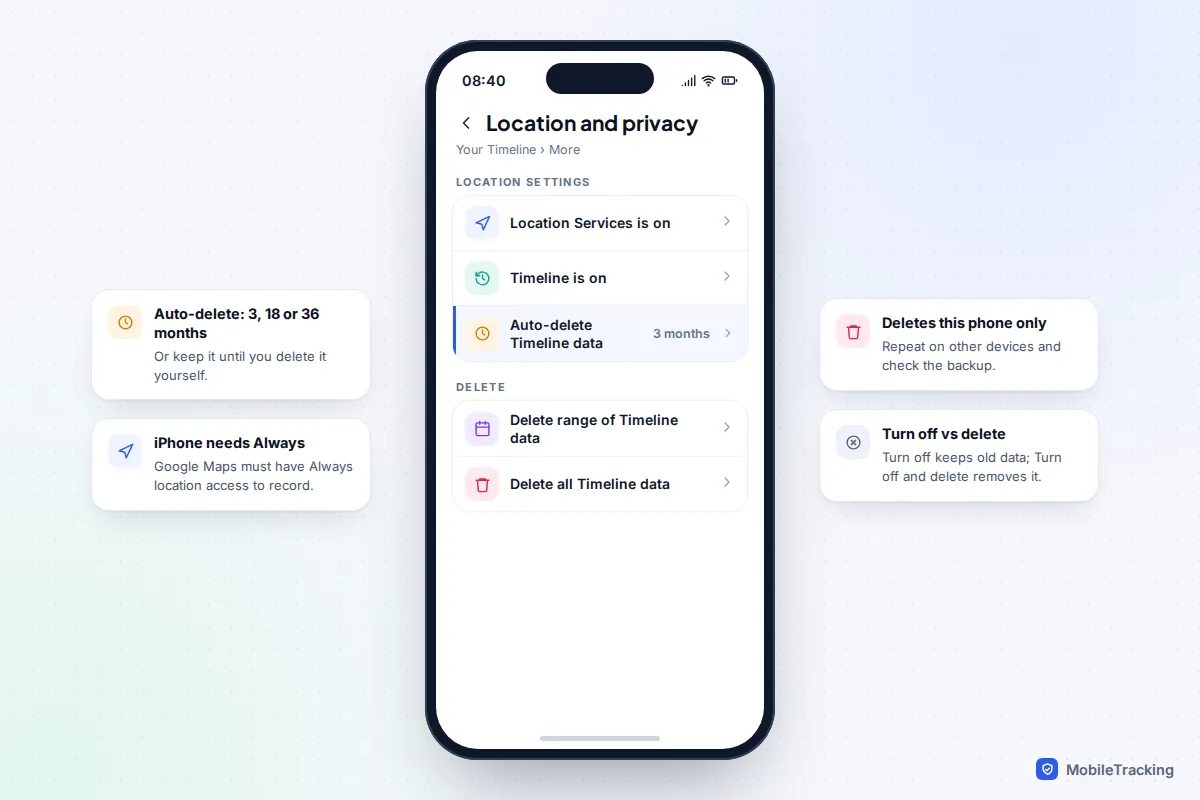
- Open Settings › Privacy & Security › Location Services › Google Maps and choose Always. Leave Precise Location on.
- Open Google Maps, tap your profile picture and tap Your Timeline.
- If it is off, tap More › Location and privacy settings, tap Timeline is off, then Turn on.
An iPhone’s Timeline is completely separate from your Android phone’s, even on the same Google account. If you switched from Android to iPhone, your old history stays on the Android phone unless you import a backup, covered next. The setting for turning on location history is explained step by step in our guide to turning on location history for yourself.
Back up your Timeline and restore it on a new phone
Because Timeline lives on the phone, losing, resetting or replacing the phone can lose your history. The optional backup is the only protection. It is off by default, and it proved its worth in March 2025, when Google confirmed a technical fault had deleted some people’s Timeline data: those with backups could restore it, and many without lost years of history.
- In Google Maps, tap your profile picture, then Your Timeline.
- Tap the cloud icon at the top.
- Turn on Backup and confirm. Google’s instructions also set Auto-delete Timeline to Don’t auto-delete activity as part of this.
- Repeat on every phone whose history you want to keep; each device opts in separately.
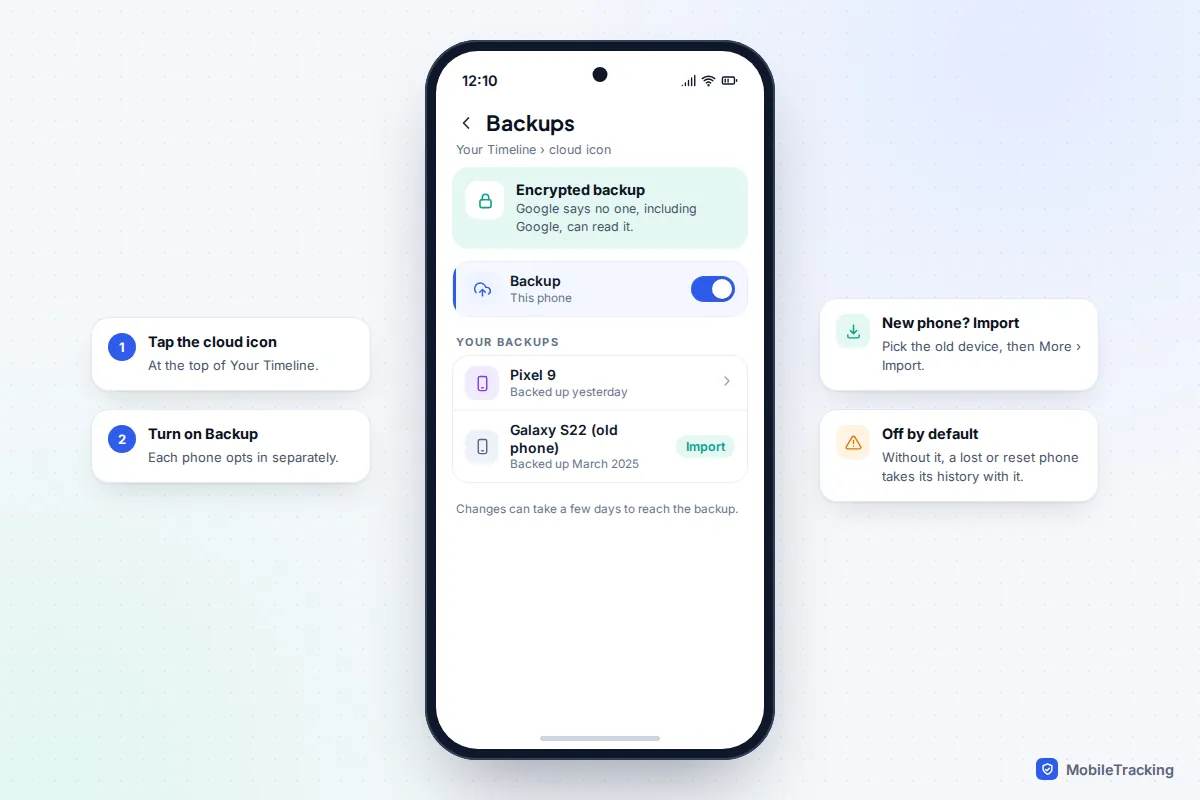
To restore on a new phone, sign in to Google Maps with the same account, tap the cloud icon in Timeline, choose the old device under Your backups, then tap More › Import. Google warns that changes can take a few days to appear in a backup, so if you are about to reset a phone, turn backup on several days beforehand. Deleting a backup removes it from Google’s servers but doesn’t delete the Timeline stored on your phones.
What happened to your old Timeline data
This is the question most people arrive with. What you can still see depends on what you did before your account’s deadline.
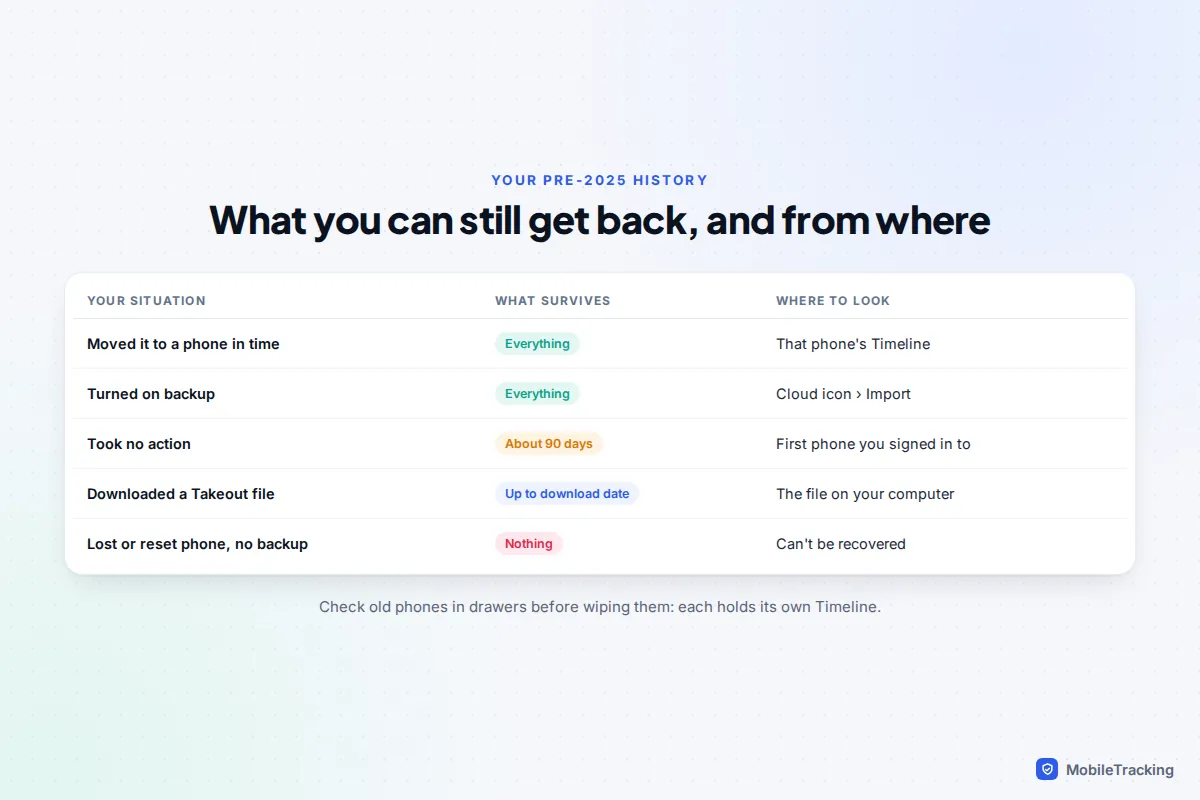
- You moved it to your phone in time. Your full history is on that phone. If it was an older phone, charge it and check its Timeline before wiping or selling it.
- You did nothing. Google said it would try to move the last 90 days to the first device you signed in to after the deadline and delete older data. Anything older than that is gone.
- You downloaded it with Google Takeout before the change. That file is now your archive. Google Maps can’t load it back into Timeline (the Import option only reads Timeline backups), but it remains readable as data.
- You lost or reset the phone without a backup. The history on it cannot be recovered. Nobody, including Google, holds another copy.
Be wary of apps or websites that claim to recover deleted Timeline data. If there is no phone copy and no backup, there is nothing for them to recover.
Timeline is not your only location record
Turning Timeline off doesn’t mean Google holds no location information about you. Google’s account help says that if settings such as Web & App Activity or Search Services History are on, your account may still save location data from other Google services.
Search Services History arrived in May 2026 and now covers what you do in Search, Maps and several other Google services, while Web & App Activity continues for other Google apps. If you had Web & App Activity on, the new setting started switched on too. It records things like the places you searched for and directions you asked for, with the general area you were in. It doesn’t record where you walked all day; Timeline does.
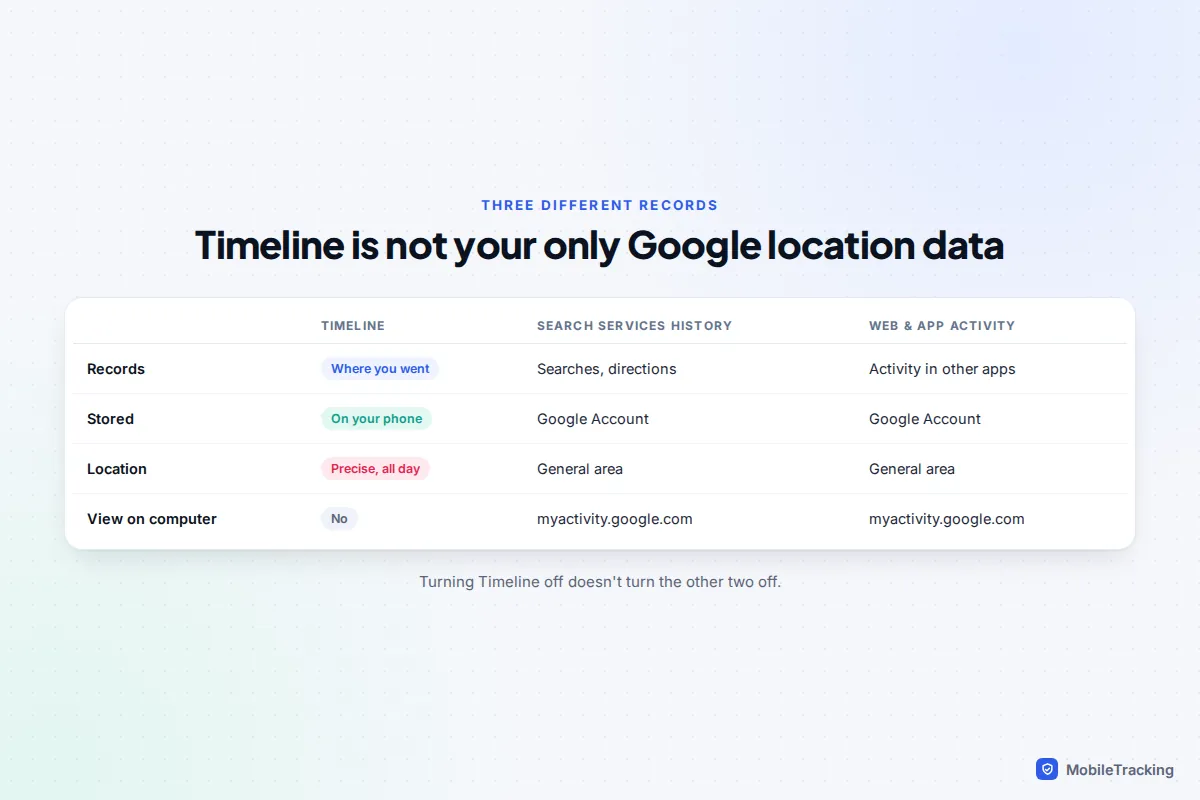
You can review and delete these records at myactivity.google.com, on any browser. If you want to tidy those up too, our guide to clearing your search history walks through it.
Delete, auto-delete or export your Timeline
Delete
All of these start in Google Maps: profile picture › Your Timeline.
- One visit: open the day, tap More next to the visit, then Remove.
- One day: open the day from the calendar, tap More › Delete day.
- A range or everything: tap More › Location & privacy settings, then Delete range of Timeline data or Delete all Timeline data.
Deletions apply to that phone only, so repeat them on other devices and check the backup too.
Auto-delete
In the same settings, Auto-delete Timeline removes anything older than 3, 18 or 36 months. When it announced the move, Google said new users would get 3 months as the default. Three months is plenty for “where did I park last Tuesday”; choose 36 months or off if you want a travel diary.
Export
Exporting saves a copy as a file you own, which is useful for expense claims, a mileage log or keeping history when you leave Google.
- Android (Pixel): Settings › Location › Location services › Timeline › Export Timeline data, confirm with your screen lock and choose where to save it.
- iPhone: in Google Maps, tap your profile picture › Settings › Personal content › Export Timeline data, then Save to Files.
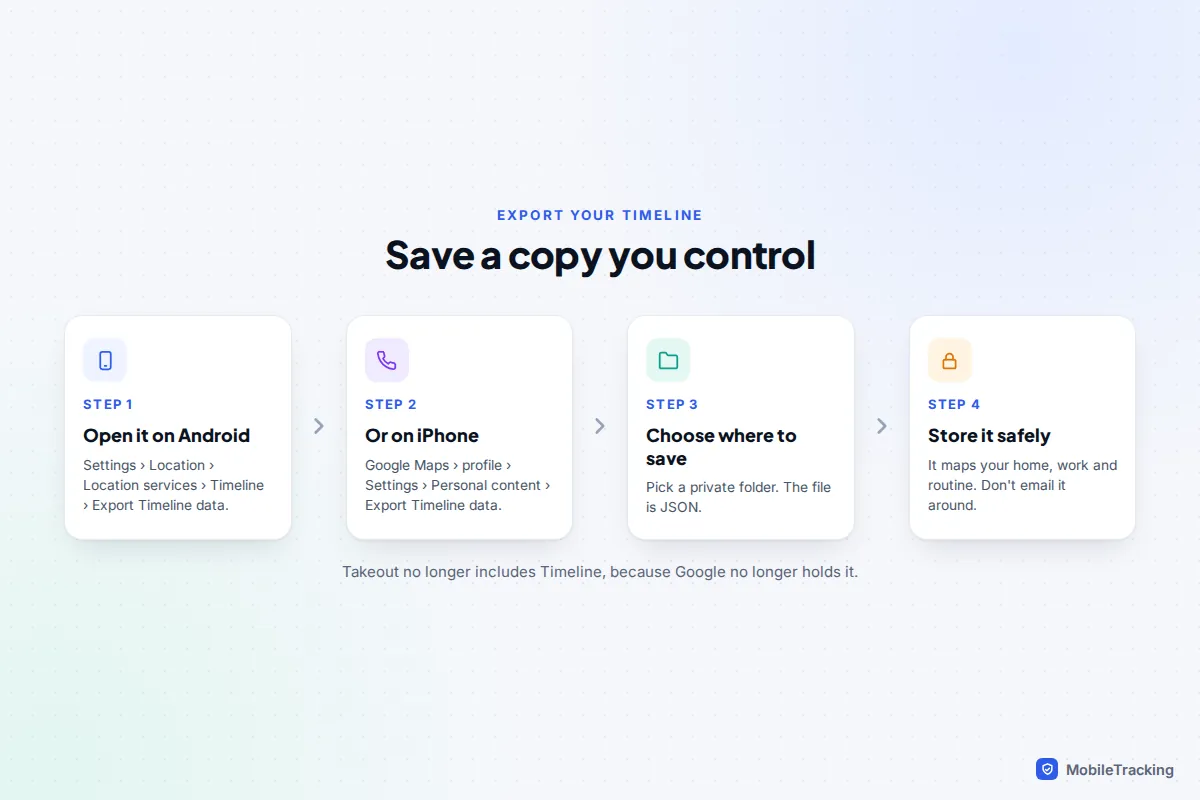
The file is a detailed record of where you live, work and go. Store it somewhere private, not in a shared folder or an email to yourself.
Privacy: who else could see your Timeline
Moving Timeline onto the phone made it harder for anyone to reach remotely, but easier for someone holding your unlocked phone. Anyone who knows your passcode can open Google Maps and scroll back through months of your movements in a few seconds.
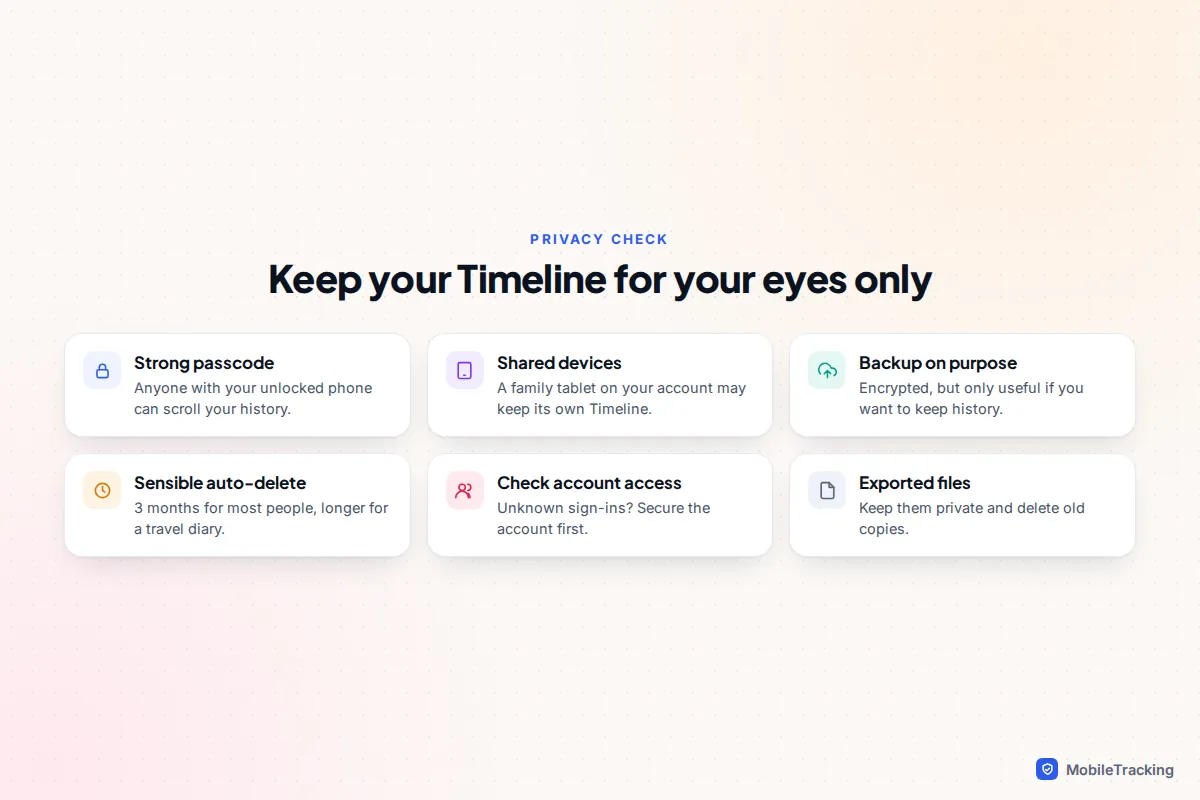
- Guard your passcode and don’t leave the phone unlocked with people you don’t trust.
- Check which devices are signed in. A tablet or old phone still signed in to your Google account can hold its own Timeline. If you find sign-ins you don’t recognise, follow our guide on telling whether someone has access to your Google account.
- Check Timeline is on because you chose it. If you never turned it on and find it switched on, change your passcode and review your account security.
Frequently asked questions
Can I still see Google Timeline on a computer?
No. Timeline data now lives on your phone, so the map of your history is only in the Google Maps app. On a computer you can change the Timeline setting in your Google Account and see Maps searches in My Activity. Google’s page on managing your Google Maps Timeline has the current details.
Why is my Timeline empty on my new phone?
Timeline doesn’t transfer by itself. Open Timeline, tap the cloud icon, choose your old device under Your backups and import it. If backup was never turned on, the history is still on the old phone only.
Can I get back location history from before 2025?
Only if a copy survived: on the phone you moved it to, in a Timeline backup, or in a Takeout file you downloaded. If you took no action before your deadline, Google kept at most about 90 days.
Does turning off Timeline delete my history?
Not unless you choose Turn off and delete activity. Plain Turn off stops new recording and keeps what is already saved.
Can I see a family member’s Timeline?
No. Timeline is private to each person’s own phone and account. For family use, agree on open location sharing instead; our guide on seeing a family member’s location history with consent covers the options.
This guide is general information, not legal or financial advice. Read our editorial policy.