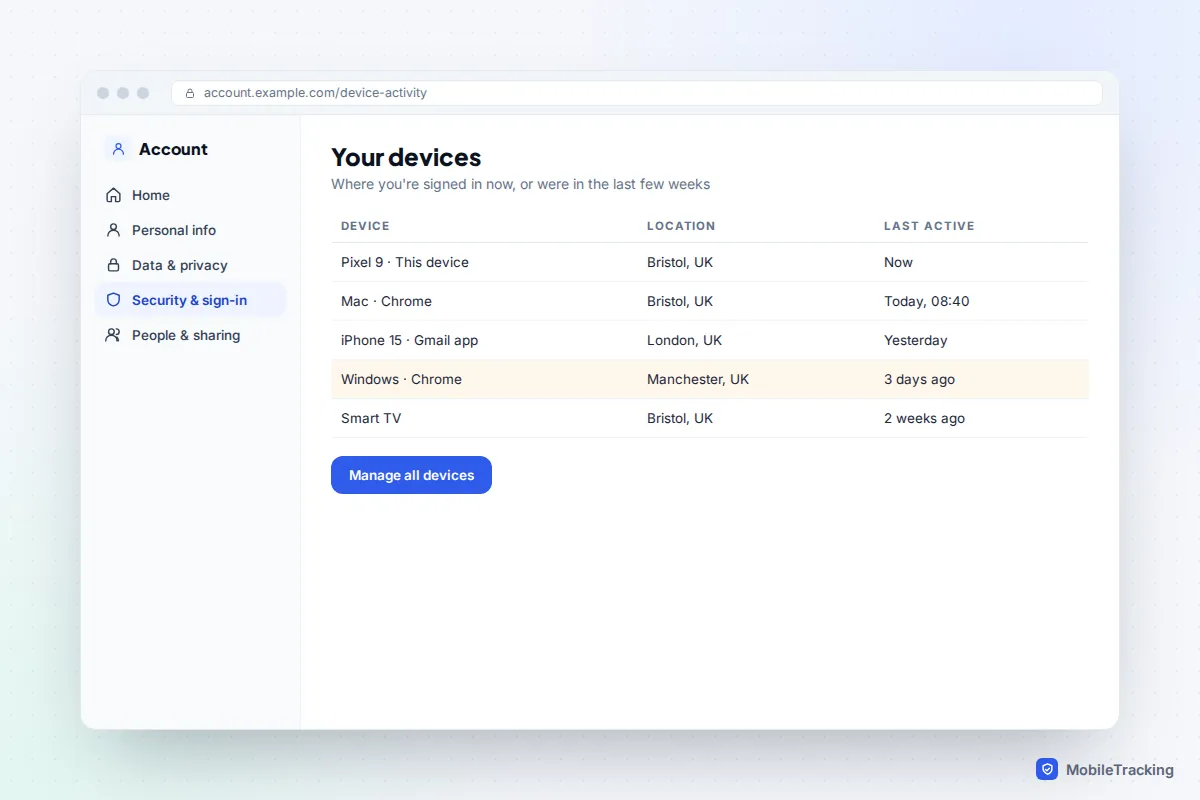
To see every device logged into your Google Account, go to myaccount.google.com, choose Security & sign-in, and under Your devices select Manage all devices. The list shows each phone, computer, tablet and TV that is signed in now or was in the last few weeks, with its approximate location and when it last contacted Google. Select anything you don’t recognise and choose Sign out. On an Android phone you can reach the same page from Settings, Google, Manage your Google Account.
That list is the start, not the whole picture. Third-party apps, passkeys, Gmail’s own activity log and Chrome sync can all give access without looking like a “device”, so this guide covers those too, and what to do if something looks wrong.
How to open your device list on any device
On a computer
- Go to myaccount.google.com and sign in.
- Choose Security & sign-in in the left-hand menu.
- Scroll to Your devices and select Manage all devices.
On an Android phone
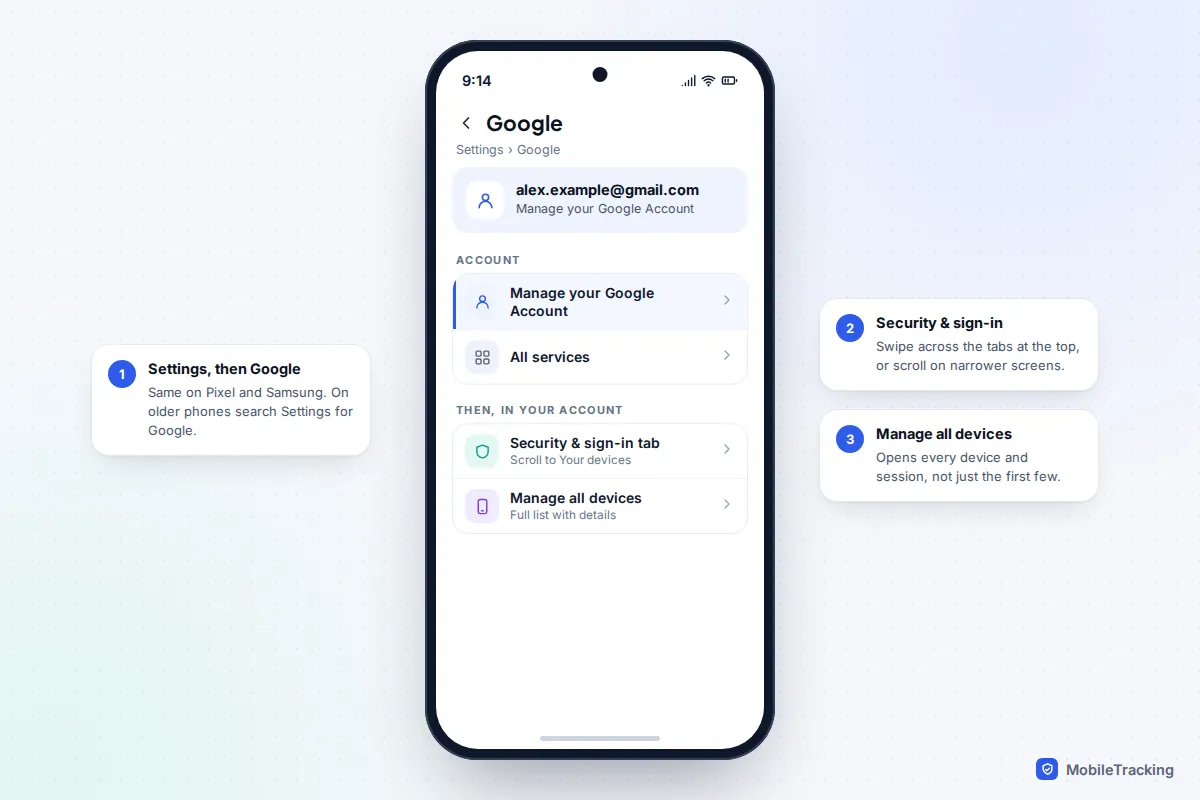
- Open Settings and tap Google. This is the same on Pixel and Samsung; if you can’t see it, type “Google” into the search bar at the top of Settings.
- Tap Manage your Google Account.
- Swipe along the tabs at the top to Security & sign-in, scroll to Your devices and tap Manage all devices.
On an iPhone or iPad
Open the Gmail or Google app, tap your profile picture at the top right, then tap Manage your Google Account (it may just say Google Account). From there the steps match Android. You can also use Safari and go to myaccount.google.com, which is easier to read on a small screen than you might expect.
If you have more than one Google Account, such as a personal and a work or school one, each has its own list. Check the account picture at the top of the page before you start signing things out.
What each entry tells you, and what it doesn’t
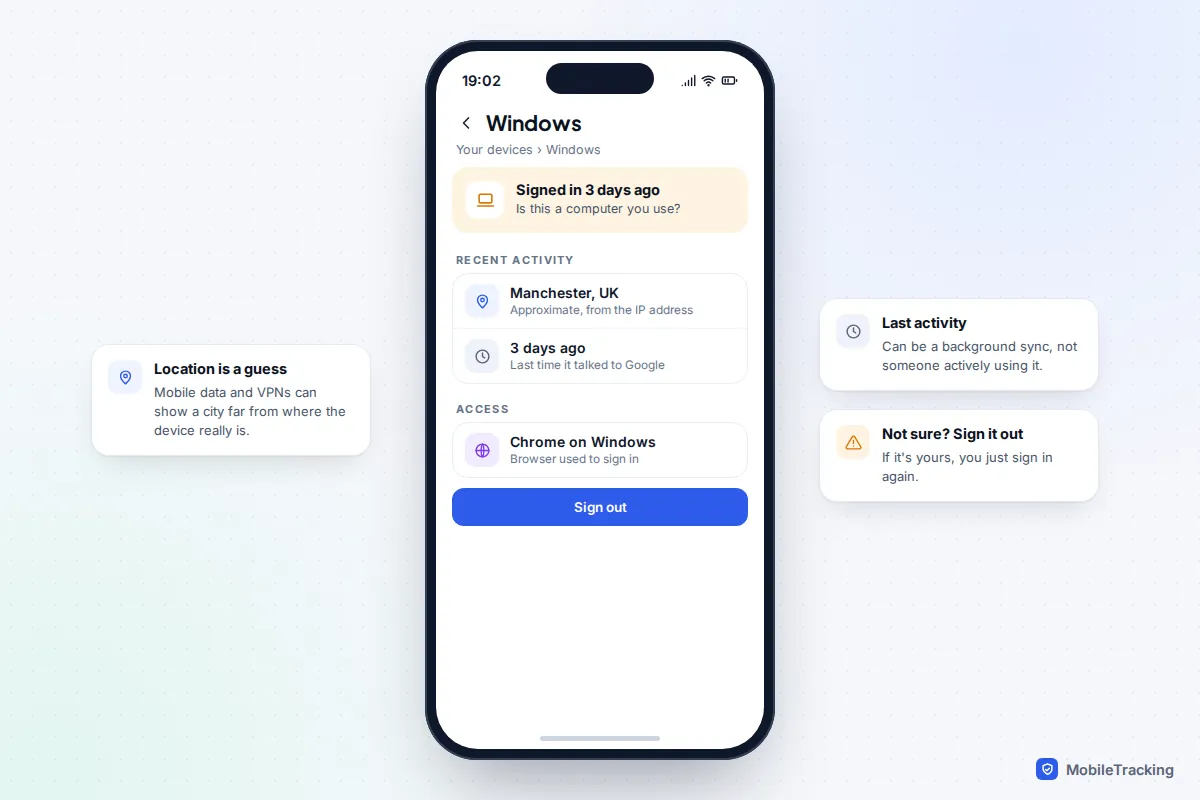
Each entry shows the device type or model, where it was when it last contacted Google, and when that was. Select one to see more, including the browser or app used to sign in. Google defines “last activity” as the last time the device or session communicated with its systems, which can be a background sync rather than a person using it.
Two things confuse almost everyone. First, Google sometimes lists sessions rather than devices, so the same phone can appear twice: once for the browser and once for an app, or once from before a reset. Second, locations come from IP addresses and are approximate. Mobile networks often route traffic through a city far away, and a VPN shows the location of its server, not yours.
| What you see | What it usually means | What to do |
|---|---|---|
| Your own phone listed twice | Two sessions, such as an app and a browser, or an old one from before a reset | Sign out the one with the oldest activity |
| Your device, but in a city you haven’t visited | Mobile data or VPN routing | Check the device type and time; usually nothing |
| A phone you sold or traded in | It was never signed out or wiped | Sign it out and remove its passkey |
| An entry marked Signed out | It no longer has access | Nothing |
| A computer or phone you have never owned | Possible unauthorised access | Follow the steps in the last section |
How to sign a device out, and what that does
- In Manage all devices, select the device or session.
- Choose Sign out and confirm.
- Repeat for any other sessions with the same name.
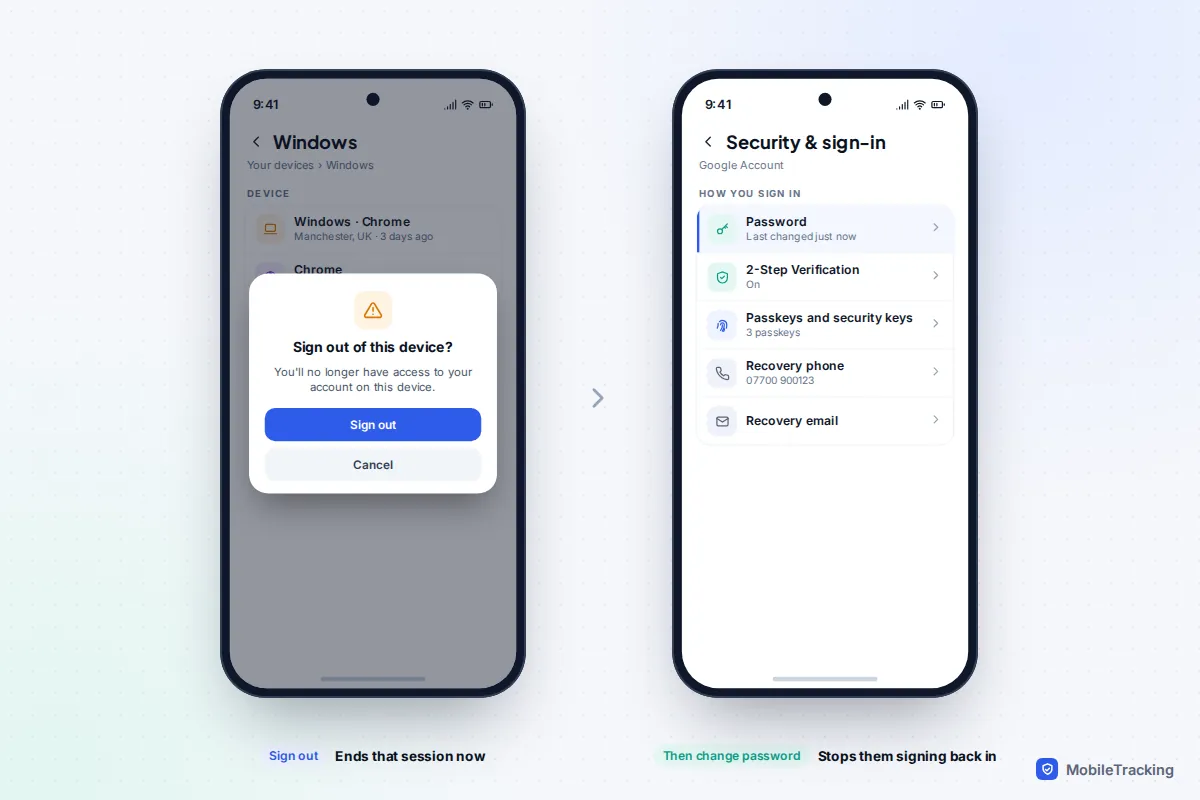
Signing out removes that device’s access to your account: Gmail, Drive, Photos and the rest stop syncing there. It doesn’t delete emails or files already downloaded to that device, and it doesn’t change your password, so anyone who knows the password can simply sign in again. That is why the next step, if you didn’t recognise the device, is a new password.
Changing your password signs you out almost everywhere at once. Google lists three exceptions: devices you use to verify it’s you when signing in, some devices with third-party apps you have given access to, and home devices such as smart speakers and displays. Check the list again after changing it.
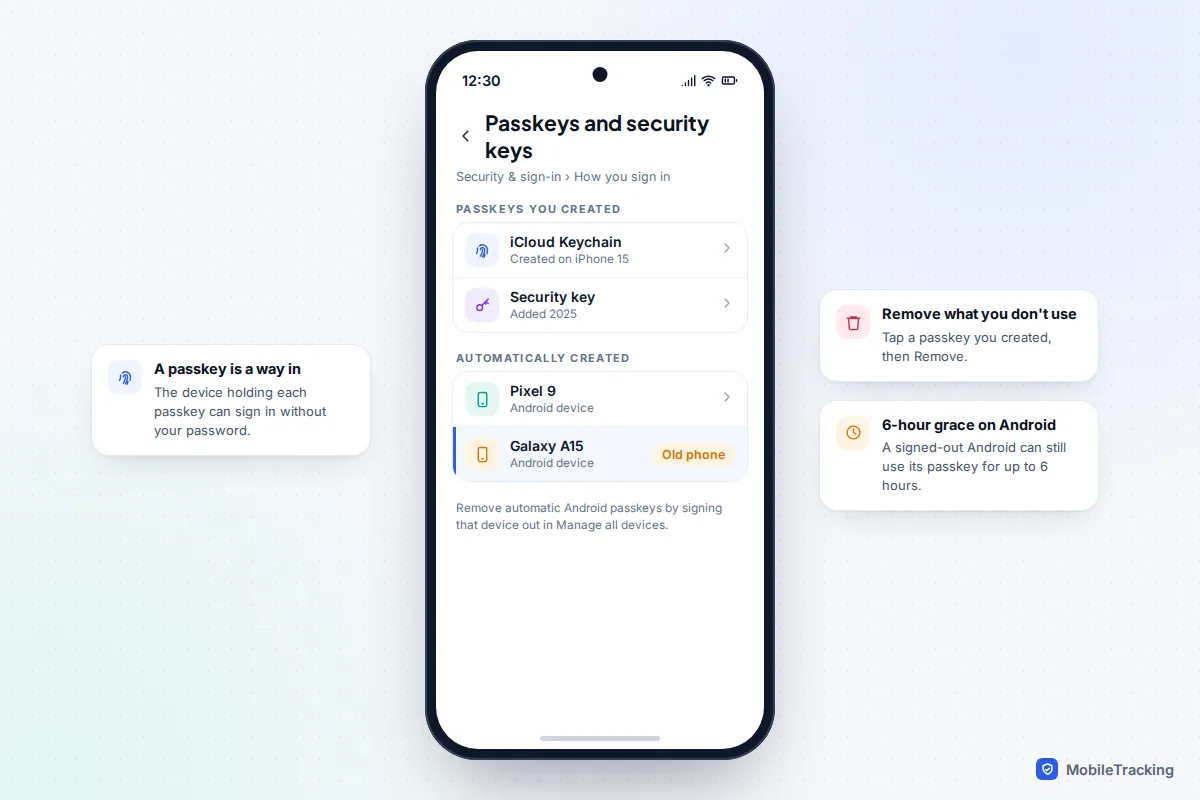
Two further details are worth knowing. On Android, a signed-out phone can still use its passkey to sign back in for up to 6 hours, according to Google. And if you sign out your own lost phone, you may lose the ability to locate it with Find Hub (the new name for Find My Device), so for a lost phone use Find Hub first.
Check Recent security activity
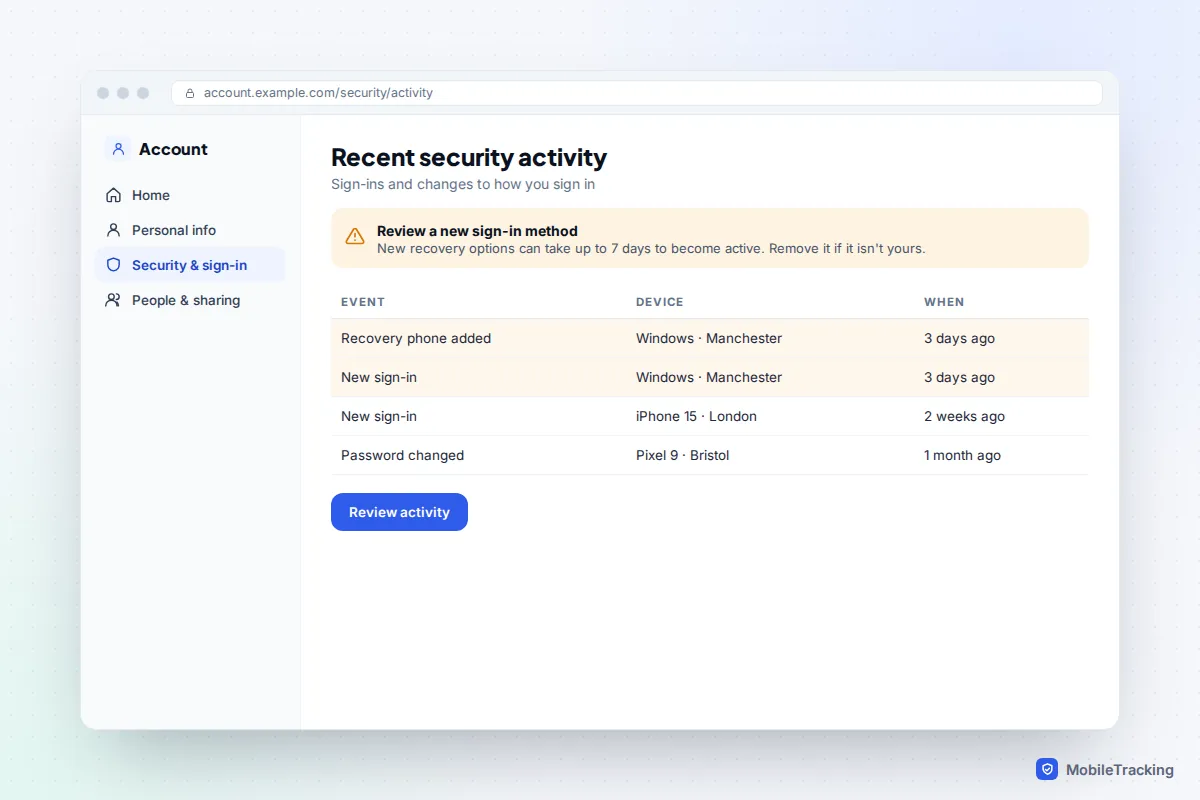
The device list shows what is signed in now. Recent security activity, on the same Security & sign-in page, shows what changed: new sign-ins, password changes, and recovery phone, recovery email or 2-Step Verification changes. An entry here that you didn’t make matters more than any device, because it shows someone changing the locks.
Google now treats new sign-in methods with some suspicion. It says a newly added method can take up to 7 days to become active, and it may mark a method as “at risk” if it thinks someone else added it. If you recognise it, you can re-enable it after an extra check; if not, choose Remove and change your password. Google removes an at-risk method automatically after 30 days if you do nothing.
The other ways in: apps, passkeys and trusted devices
Third-party apps and services
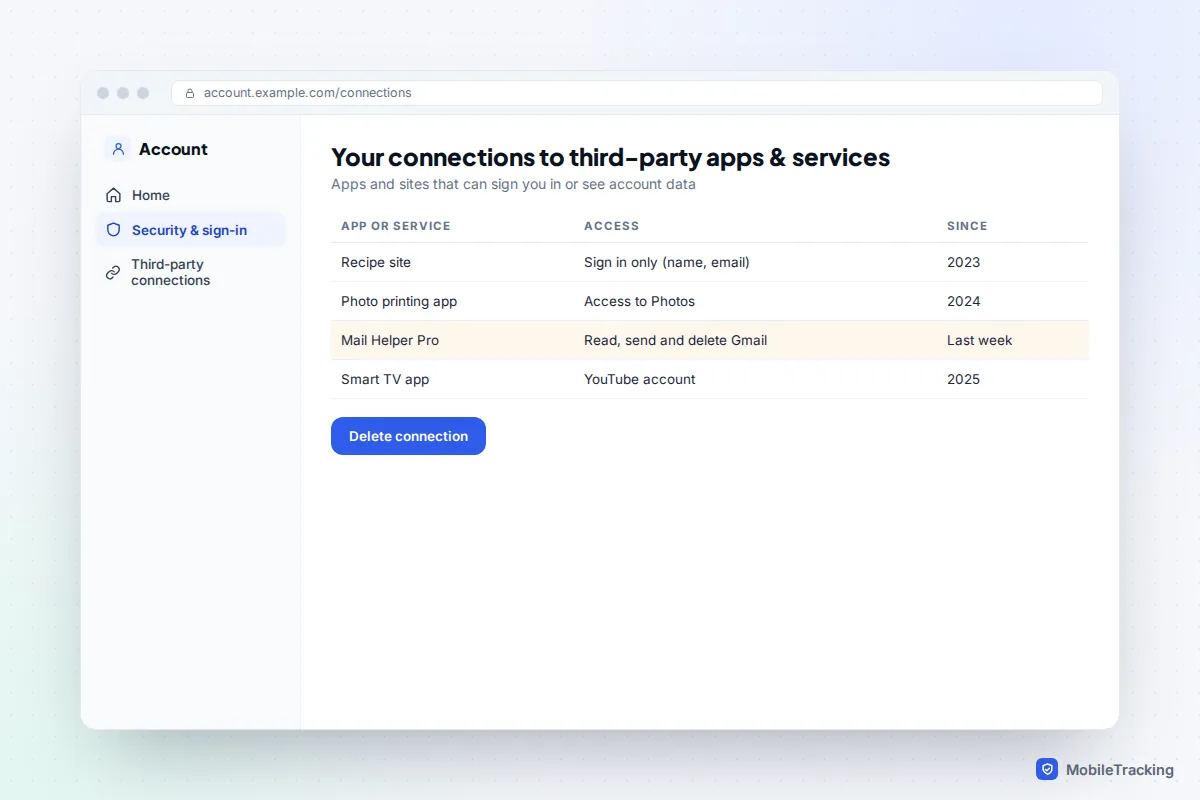
Under Security & sign-in, find Your connections to third-party apps & services and choose See all connections. Most entries are harmless “Sign in with Google” links that share only your name and email address. Look harder at anything that can read, send or delete Gmail, or open Drive or Photos. An unfamiliar mail app with full Gmail access deserves removing straight away, because Google lists apps you have given access to among the things a password change may not cut off. Select it and delete the connection.
Passkeys and security keys
Under How you sign in to Google, open Passkeys and security keys. Each passkey lets the device holding it sign in without your password. Passkeys you created, for example on an iPhone, can be removed here with Remove. Android phones get passkeys automatically; to remove one of those, sign that phone out in Manage all devices.
Devices that skip the second step
When you tick the box not to be asked again on a computer, it becomes trusted for 2-Step Verification. Google’s help says the way to remove that trust is to sign the device out in Manage all devices, after which it has to pass 2-Step Verification again. While you are in How you sign in to Google, also check which phones receive Google prompts, the recovery phone and email, and, if you use them, App passwords, which let older mail apps sign in without a second step.
Gmail’s “Last account activity” details
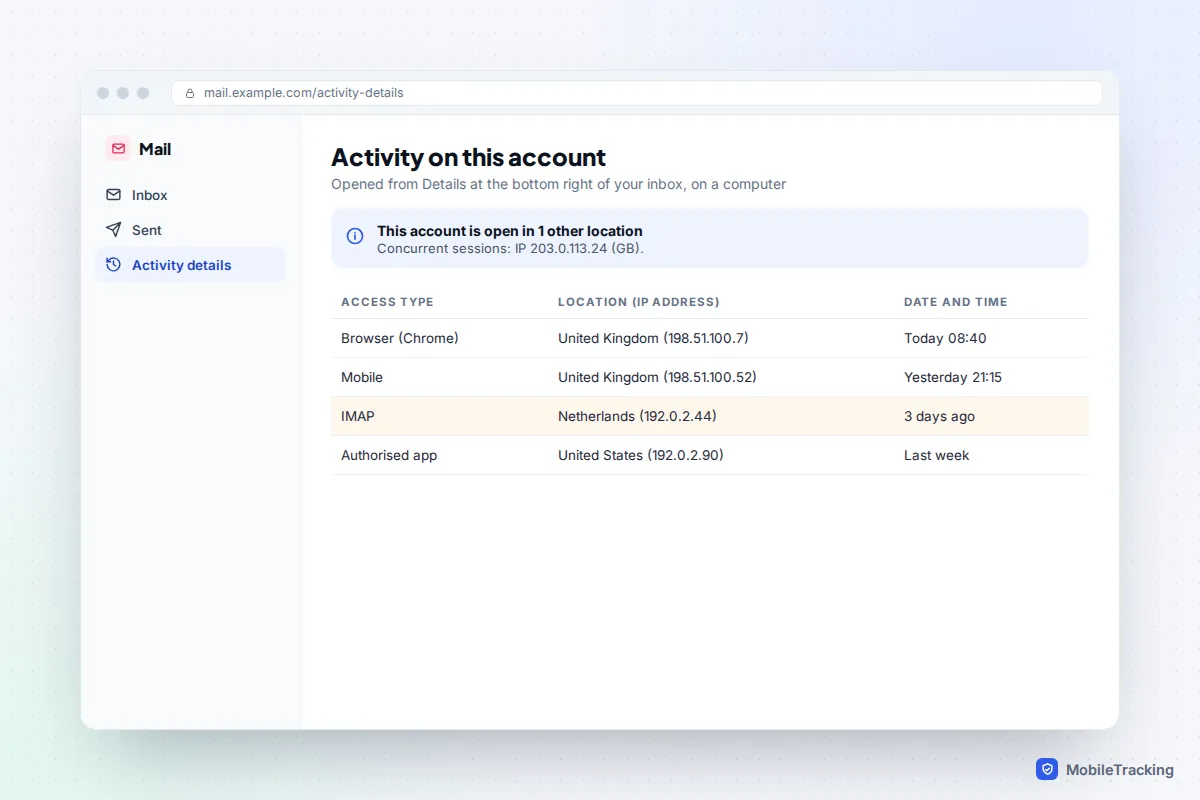
Gmail keeps its own log. On a computer, open Gmail, scroll to the bottom of your inbox and select Details under “Last account activity” at the bottom right. According to Google, it shows the last 10 IP addresses and approximate locations that accessed your mail, the access type (browser, mobile, POP or IMAP, or an authorised app) and whether the account is open elsewhere right now. It only works in Gmail on a computer, not in the mobile app.
This view catches something the device list can miss: a mail program collecting your email over IMAP or POP from somewhere you don’t recognise. Many older guides mention a button here to sign out all other web sessions; Google has since removed it, so use Manage all devices instead. Our guide on how to tell if your email was hacked covers the forwarding rules and filters to check at the same time.
Don’t forget Chrome sync, TVs and smart speakers
Chrome. If someone signed in to Chrome with your account on their computer, it shows up in your device list, but it also received a copy of your bookmarks, history and possibly saved passwords. Signing it out stops future syncing, but doesn’t delete what already arrived. To see which devices sync tabs, open Chrome, go to History and look at Tabs from other devices. If a computer you don’t own was syncing, change the passwords for your most important accounts, not just Google.
TVs. A smart TV or streaming stick where you signed in to YouTube usually appears in Manage all devices, sometimes as the TV maker’s name or simply “Smart TV”. If you can’t find it there, check your third-party connections for a TV app. Linked TVs are different: they are paired to your phone to play videos. You can remove them in the YouTube app under your profile picture, Settings, General, Watch on TV, Delete devices, which removes all of them at once.
Smart speakers and displays. These keep access even after a password change, so remove any you no longer own in the Google Home app.
If you find a device you don’t recognise
Take Jo, who spotted a Windows laptop in Manchester on her list. She signed it out, changed her password, and found a recovery phone number she had never seen in Recent security activity. She removed it, deleted an unfamiliar mail app in third-party connections, and checked again the next day. The laptop didn’t return.
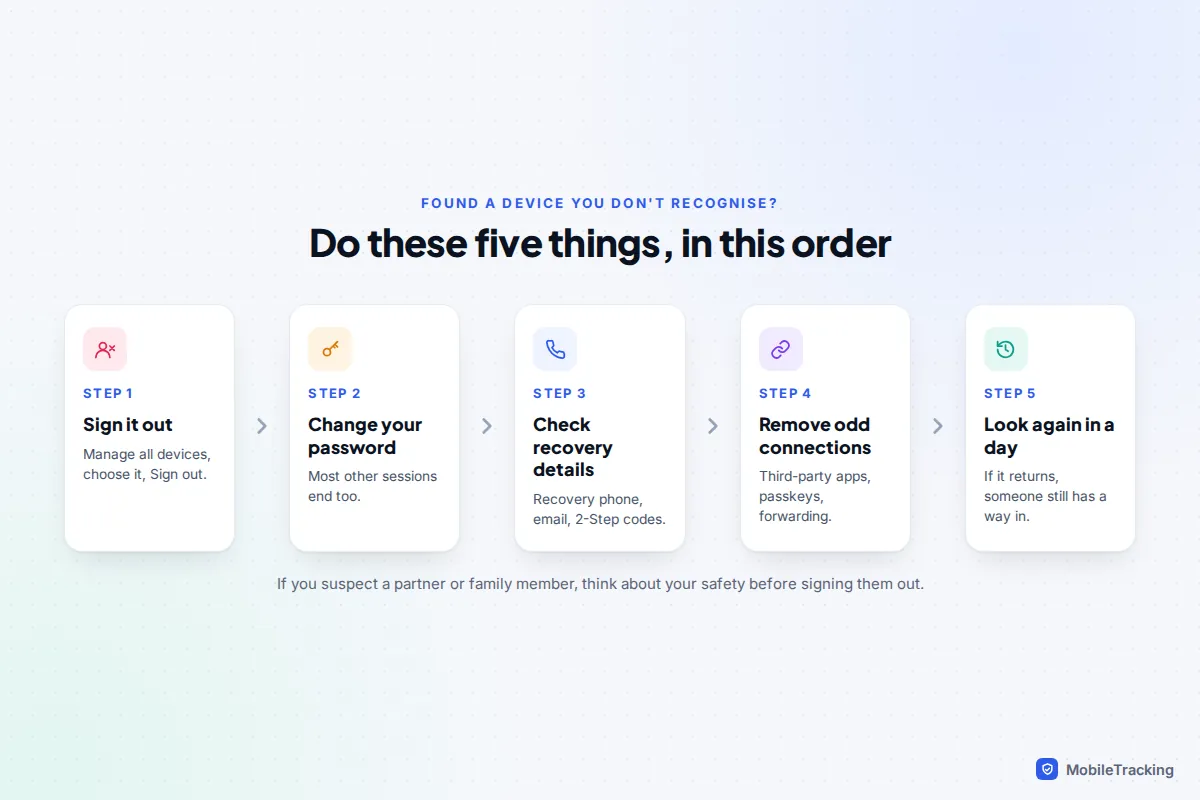
- Sign the device out in Manage all devices.
- Change your password to a new one you haven’t used anywhere else.
- Check recovery details: recovery phone, recovery email and where 2-Step Verification codes and prompts go. If 2-Step Verification is off, turn it on; our guide to turning on two-factor authentication explains the options.
- Remove odd connections: third-party apps, passkeys you didn’t create and any Gmail forwarding address.
- Look again in a day. If the device returns, someone still has a way in, often through a recovery option or app you missed. Google’s Security Checkup at myaccount.google.com walks through everything in one place.
If you think someone has more than device access, such as your password or recovery email, our guide on how to tell if someone has access to your Google account goes further into warning signs.
Frequently asked questions
How far back does the device list go?
Google shows devices that are signed in now or were signed in during the last few weeks. For older history, Recent security activity and Gmail’s Details window give extra clues, but there is no complete lifetime log.
Will the other person get a notification when I sign them out?
Don’t count on it going unnoticed. The next time they open a Google app or site on that device, they will be asked to sign in again, which is usually obvious.
Why does my phone show a city I have never been to?
Locations are estimated from IP addresses. Mobile networks and VPNs often route traffic through another city, so check the device type and time before assuming the worst.
Can I see devices from before I changed my password?
Devices that were signed out by the change may appear marked as Signed out for a while. Recent security activity also records the password change itself and any sign-ins around it.
Does signing out a device delete my data from it?
No. Emails, files and photos already downloaded stay on that device. Signing out only stops new syncing and access. For a lost phone, use Find Hub to erase it before signing it out.
This guide is general information, not legal or financial advice. Read our editorial policy.