
The quickest way to recover a deleted download is often to download it again. Your browser keeps a list of past downloads even after the file itself has gone, and in Chrome or Edge you can press Ctrl+J on Windows (Cmd+Shift+J for Chrome on a Mac), find the entry marked as deleted and click it to fetch a fresh copy. If the link no longer works, the file is usually still sitting in a bin: the Recycle Bin on Windows, the Trash on a Mac, Recently Deleted in the iPhone Files app, or the Trash in your Android file manager, most of which keep files for about 30 days.
If both of those come up empty, don’t reach for recovery software yet. Downloads almost always came from somewhere, such as an email, a chat, a website or a cloud folder, and that source is the most reliable second copy you have. This guide works through all three routes on computers and phones, in the order that saves the most time.
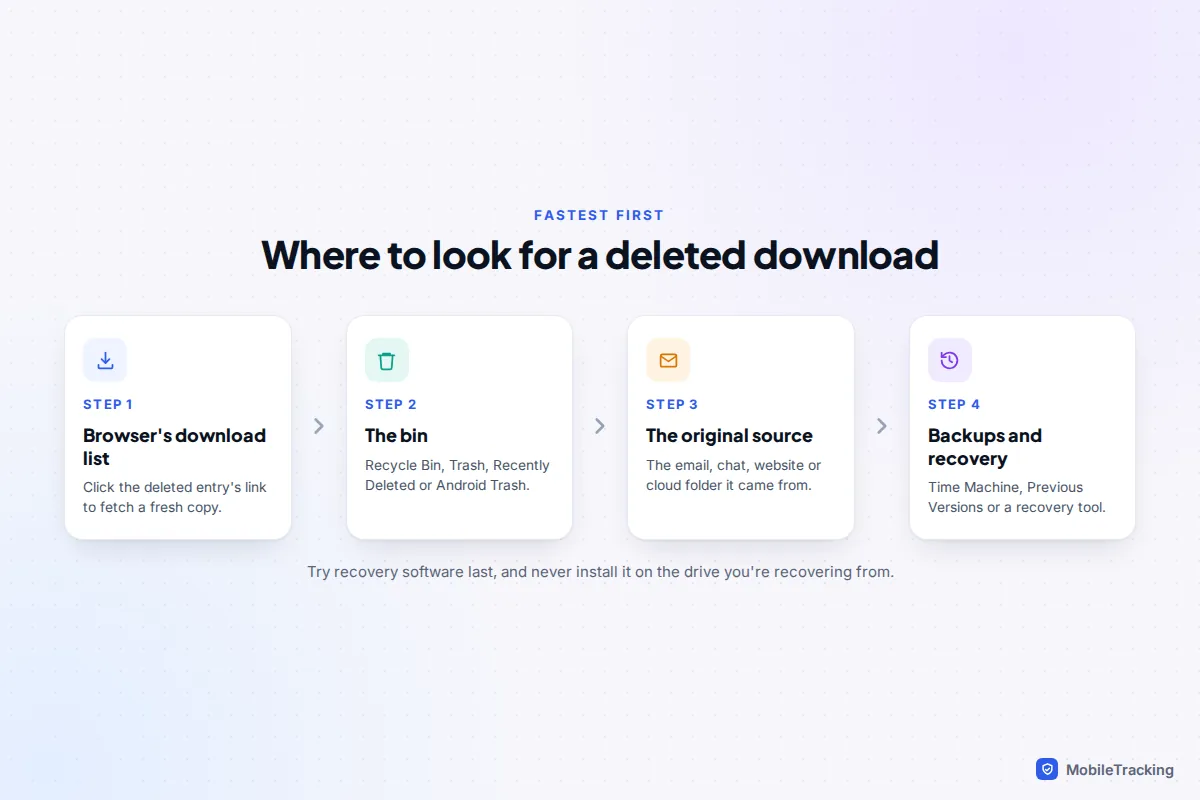
Step one: re-download it from your browser’s list
Deleting a downloaded file removes it from your disk, but the browser’s record of the download is a separate thing. As long as you haven’t cleared your download history, the entry, including the web address it came from, is still there. That address is what lets you get the file back.
| Browser | Open the list | How a deleted file shows | Getting it back |
|---|---|---|---|
| Chrome (computer) | Ctrl+J, or menu › Downloads | Name struck through, marked Deleted | Click the name or the web address beneath it |
| Edge | Ctrl+J, or menu › Downloads | Marked as removed or deleted | Click the entry, or open the full downloads page |
| Firefox | Menu › Downloads › Show all downloads | Shown as deleted or missing | Right-click › Go To Download Page, or copy the link |
| Safari (Mac) | Downloads button in the toolbar | Entry stays until the list is cleared | Double-click to download again |
| Safari (iPhone) | Downloads arrow or page menu in the address bar | Cleared after one day by default | Tap the entry if it’s still listed |
Chrome’s own help page on downloading files confirms that removing an entry from the downloads list doesn’t delete the file from your computer. It works the other way round too: deleting the file doesn’t remove the entry, which is why this trick works so often.
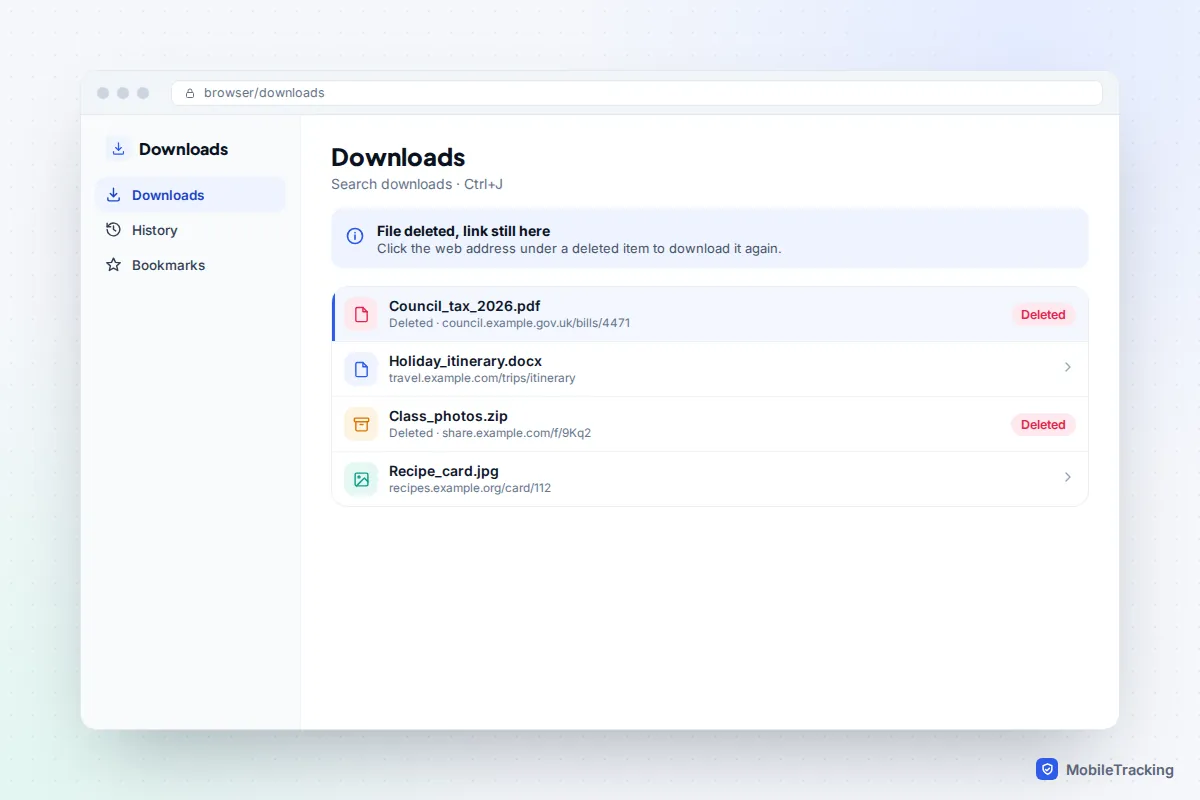
When re-downloading won’t work
Some links are made to expire. Bank statements, invoices, e-tickets, files shared from cloud storage and attachments opened from webmail often use one-off addresses that only work for a short time, or only while you’re signed in. If you get an error such as “Forbidden” or a page asking you to log in, sign in to the website and download it again from your account area rather than from the old link.
If the entry has vanished from the list, your ordinary browsing history can still tell you which page you downloaded from. Search it for the site name or the date. If you’ve cleared that too, our guide to recovering deleted browser history covers what can still be found.
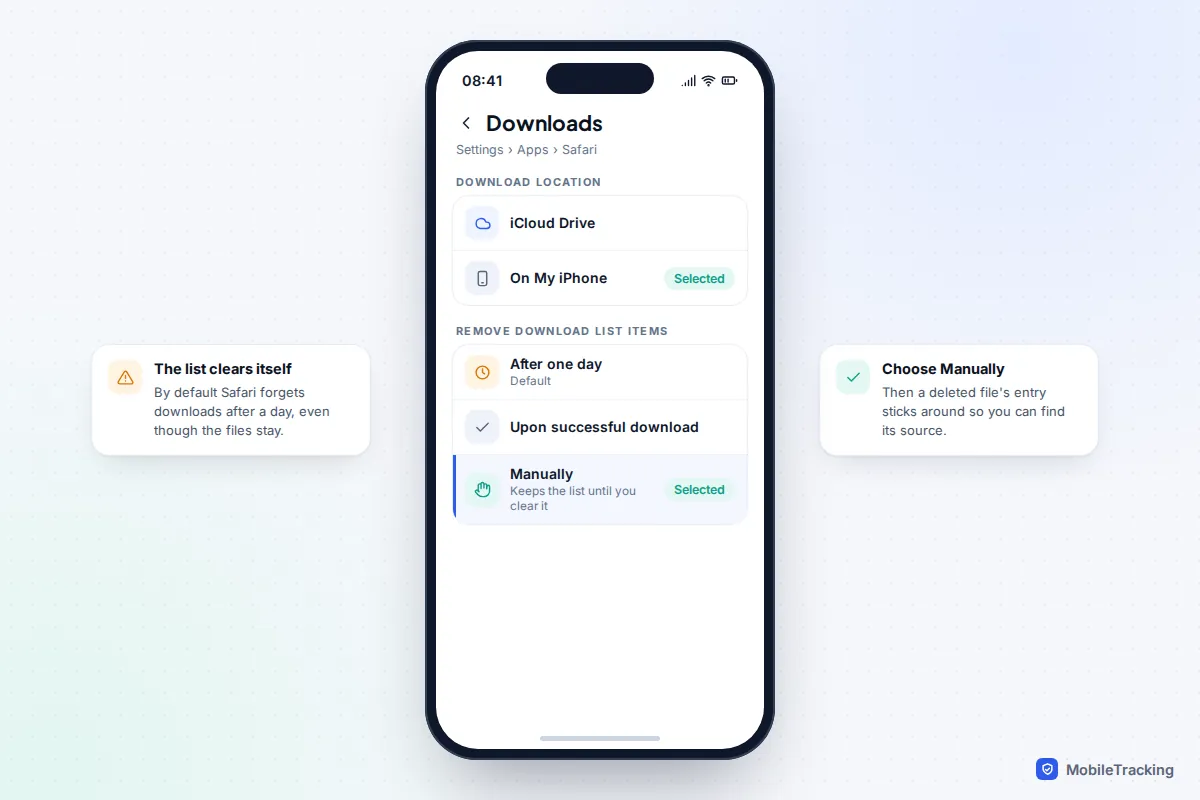
On an iPhone or iPad, the setting lives in Settings › Apps › Safari › Downloads on iOS 18 and later (Settings › Safari › Downloads on iOS 17 and earlier). Set Remove Download List Items to Manually if you want the list to stick around. On a Mac, the matching option is in Safari › Settings › General.
Windows: the Recycle Bin, and why files sometimes skip it
Open the Recycle Bin from the desktop, sort by Date Deleted, right-click the file and choose Restore. It goes straight back to your Downloads folder. That’s the easy case. The harder one is a file that never went to the bin at all, which happens more often with downloads than with other files:
- Deleted from the browser. Microsoft confirms that the delete (bin) icon on Edge’s downloads page removes the file immediately, without using the Recycle Bin.
- Shift+Delete, or a file too large for the bin (Windows warns you and deletes it permanently).
- Deleted from a USB stick or network drive, which doesn’t have a Recycle Bin.
- Removed by Storage Sense. It leaves Downloads alone by default, but if someone set Delete files in my Downloads folder if they haven’t been opened for more than to a number of days, old downloads disappear on schedule. Check in Settings › System › Storage › Storage Sense.
- Quarantined as a threat. Microsoft Defender can remove a download it thinks is malicious.
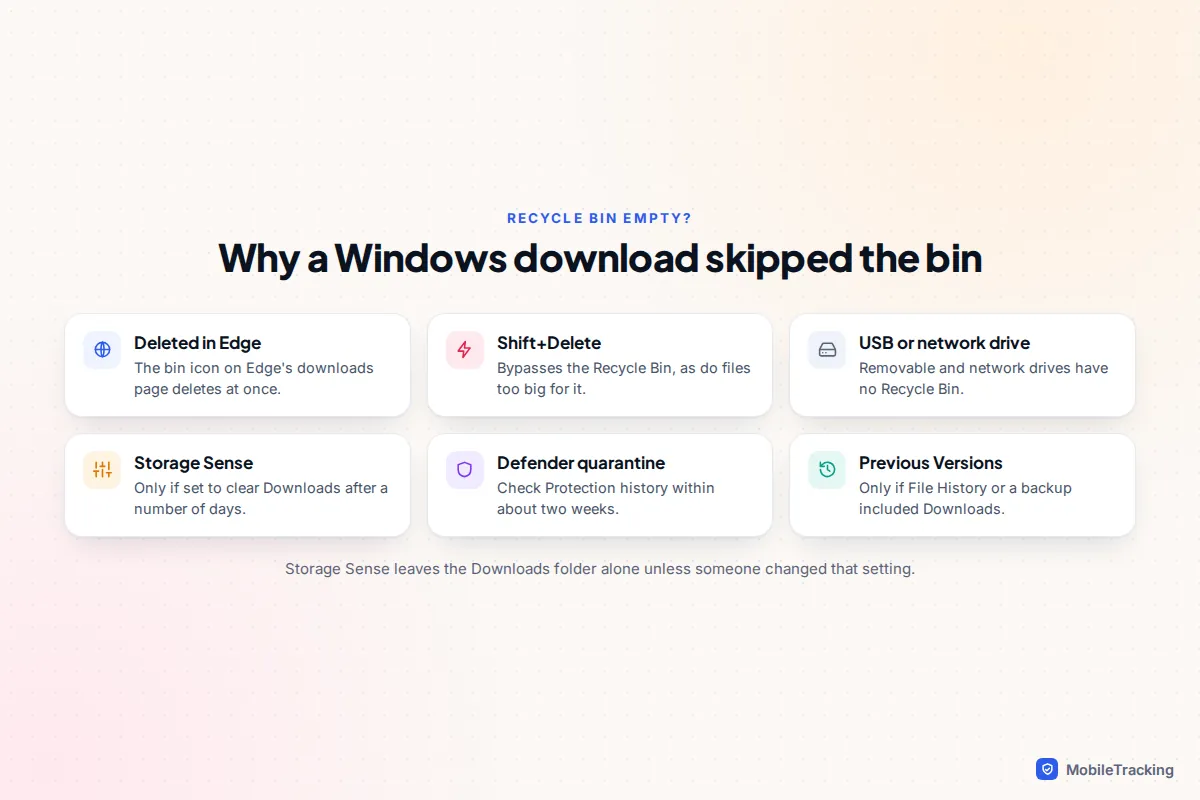
For a quarantined file, open Windows Security › Virus & threat protection › Protection history. Entries stay there for about two weeks, and you can choose Actions › Restore. Only do this if you’re certain the file is safe, such as a tool from your employer that Defender has misjudged. If it came from an unfamiliar site, let it go.
Backups and last-resort recovery
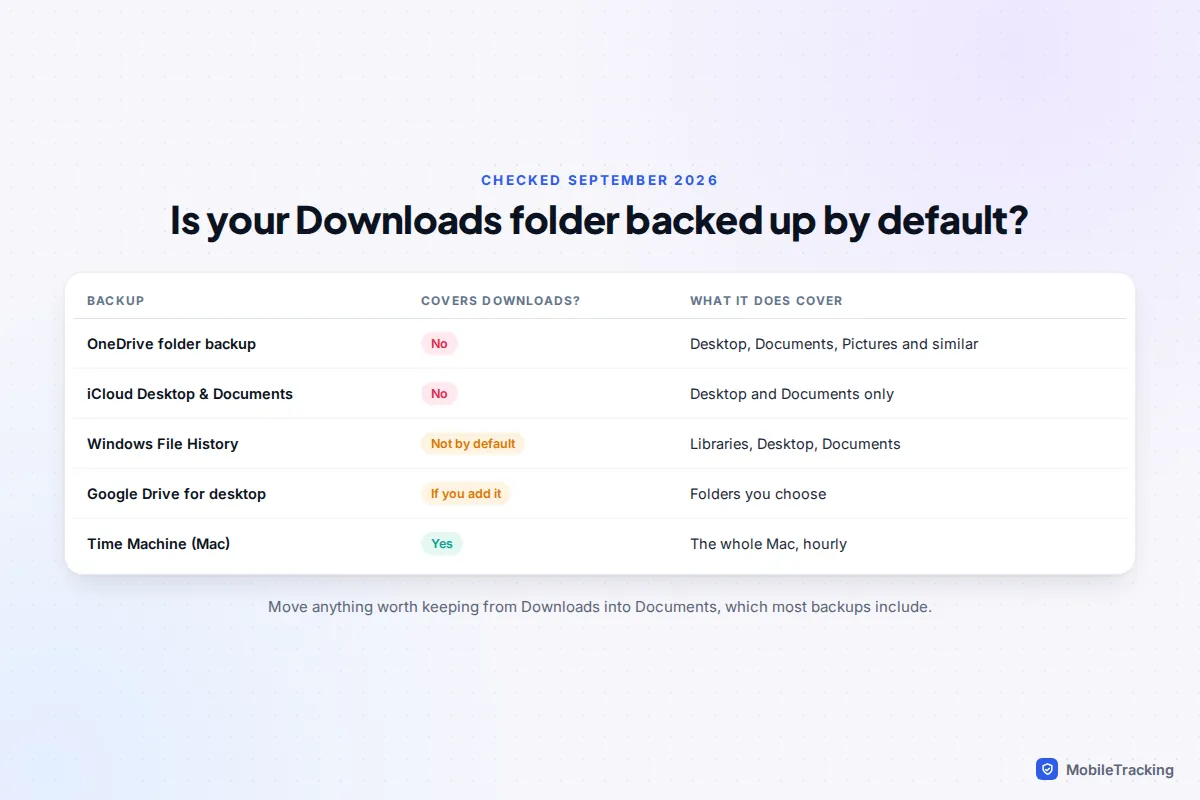
Right-click your Downloads folder, choose Properties › Previous Versions and see if any copies are listed. They only exist if File History or another backup captured the folder, and by default neither File History nor OneDrive folder backup includes Downloads: they cover Desktop, Documents, Pictures and similar folders. It’s worth thirty seconds to check anyway.
If nothing else works and the file matters, Microsoft’s free Windows File Recovery tool can scan for deleted files. Stop using the computer as much as you can, install it from the Microsoft Store, and recover to a different drive such as a USB stick, because anything you save to the same drive can overwrite what you’re trying to rescue. Microsoft notes that on SSDs, which most laptops now use, deleted space is often cleared quickly, so expect mixed results.
Mac: the Trash, Time Machine and what iCloud doesn’t cover
Open the Trash in the Dock, find the file, then right-click and choose Put Back to return it to Downloads. Files stay until the Trash is emptied, unless Remove items from the Trash after 30 days is turned on in Finder › Settings › Advanced. Files deleted with Option+Cmd+Delete skip the Trash entirely.
If you use Time Machine, open your Downloads folder in Finder, click the Time Machine icon in the menu bar and choose Browse Time Machine Backups. Scroll back to a date when the file existed, select it and click Restore. This is the one common backup that covers the Downloads folder by default, because it backs up the whole Mac.
iCloud’s Desktop & Documents Folders option does exactly what its name says: Desktop and Documents only. Your Downloads folder stays on the Mac unless you change where your browser saves files, so don’t expect to find a deleted download in iCloud Drive.
iPhone and iPad: Recently Deleted in Files
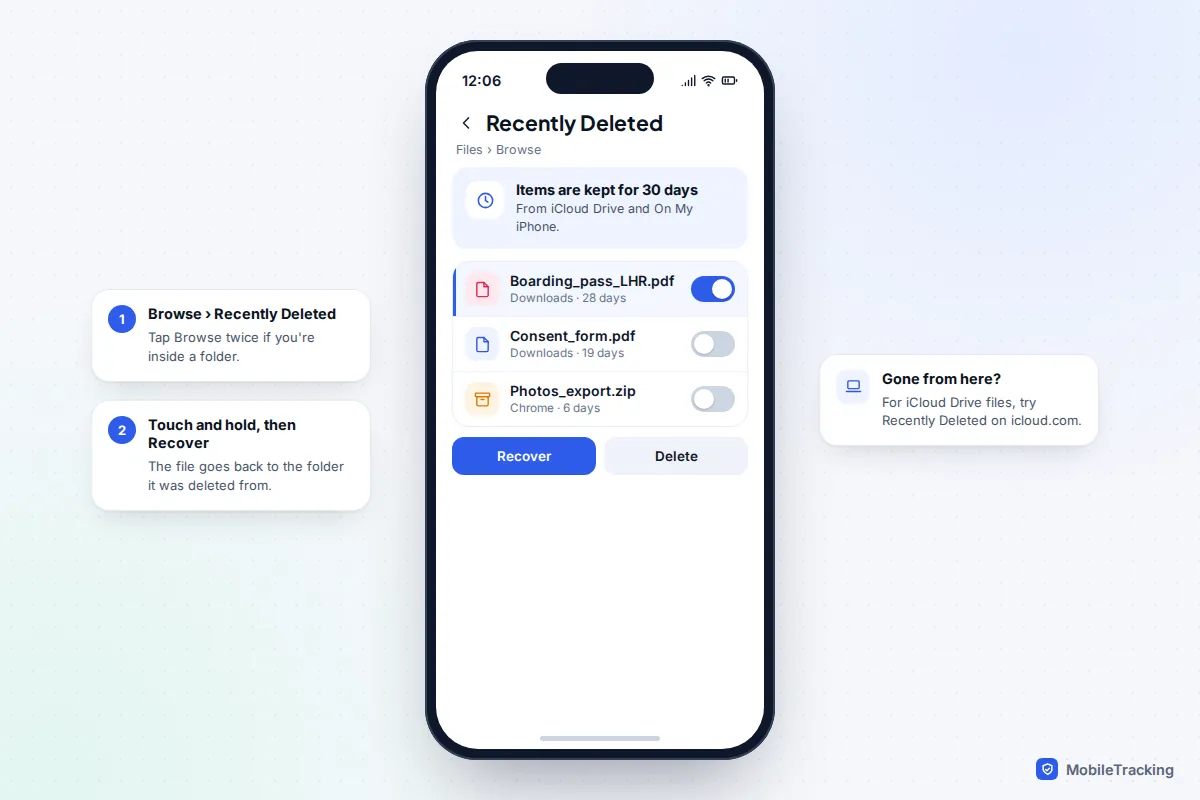
Downloads on an iPhone land in the Files app, usually in a Downloads folder on iCloud Drive or On My iPhone. When you delete one, it moves to Recently Deleted, which keeps files from both locations for 30 days.
- Open Files and tap Browse (tap it twice if you’re already in a folder).
- Under Locations, tap Recently Deleted.
- Touch and hold the file, then tap Recover. On iPad you can also select several and tap Recover.
Apple’s guide to recovering deleted files in the Files app has the details. If the file was in iCloud Drive and has left Recently Deleted, sign in at icloud.com on a computer: iCloud Drive has its own Recently Deleted view, and Data Recovery in iCloud settings can restore files deleted from iCloud Drive in the last 30 days.
Chrome on iPhone saves into its own folder, Files › On My iPhone › Chrome, and files deleted from there also go to Recently Deleted. If you can’t find where a file went in the first place, see our guide on finding a downloaded file on your phone.
Android: Trash in your file manager
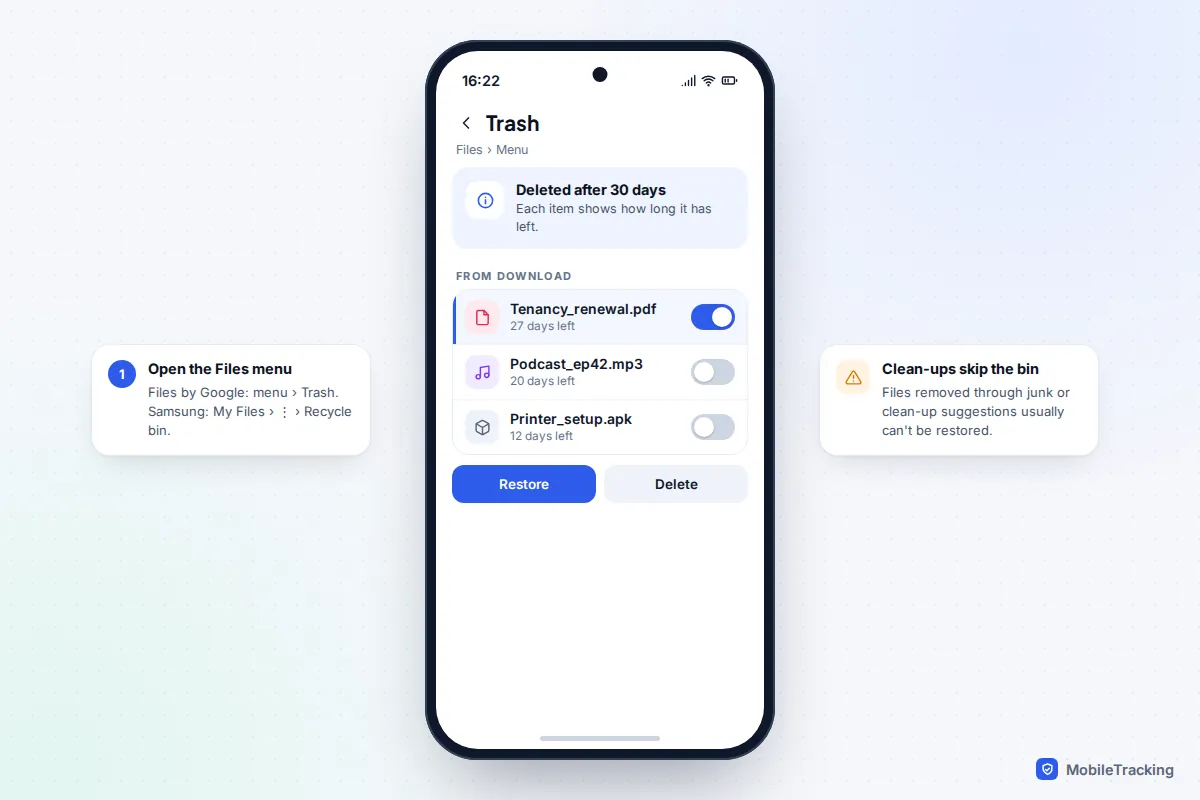
Android doesn’t have one system-wide bin, so check the app that did the deleting. In Files by Google, open the menu and tap Trash. On a Samsung Galaxy, open My Files, tap the three dots and choose Recycle bin. Both keep deleted files for 30 days. Files cleared through a “junk” or clean-up suggestion usually skip the bin.
Chrome for Android is less helpful than the desktop version: its Downloads list (three dots › Downloads) is built around files still on the phone, so a deleted entry may not be there to tap. Your browsing history is the better clue. For SD cards, cloud copies and why most recovery apps can’t reach internal storage, see how to recover deleted files on Android.
Find another copy: email, chats and cloud folders
A download is a copy of something. If the copy on your device has gone, the original is often a search away, and this route works long after bins have emptied.
Email attachments
If the file arrived by email, it’s still attached to the message unless you deleted that too. In Gmail, search has:attachment filename:pdf (swap in docx, jpg or zip), or add the sender’s name. Outlook and Apple Mail both have an “attachments” filter in search. Check the email’s own bin as well: Gmail keeps deleted messages in Bin for 30 days.
Messaging apps
Files sent in WhatsApp, Telegram, Messages or Teams often reappear if you open the original conversation. Telegram keeps files in its cloud, so they can be downloaded again from the chat. WhatsApp only holds media on its servers for a limited time after delivery; if you see a message asking you to have it resent, ask the sender, who very likely still has it.
Cloud folders and their bins
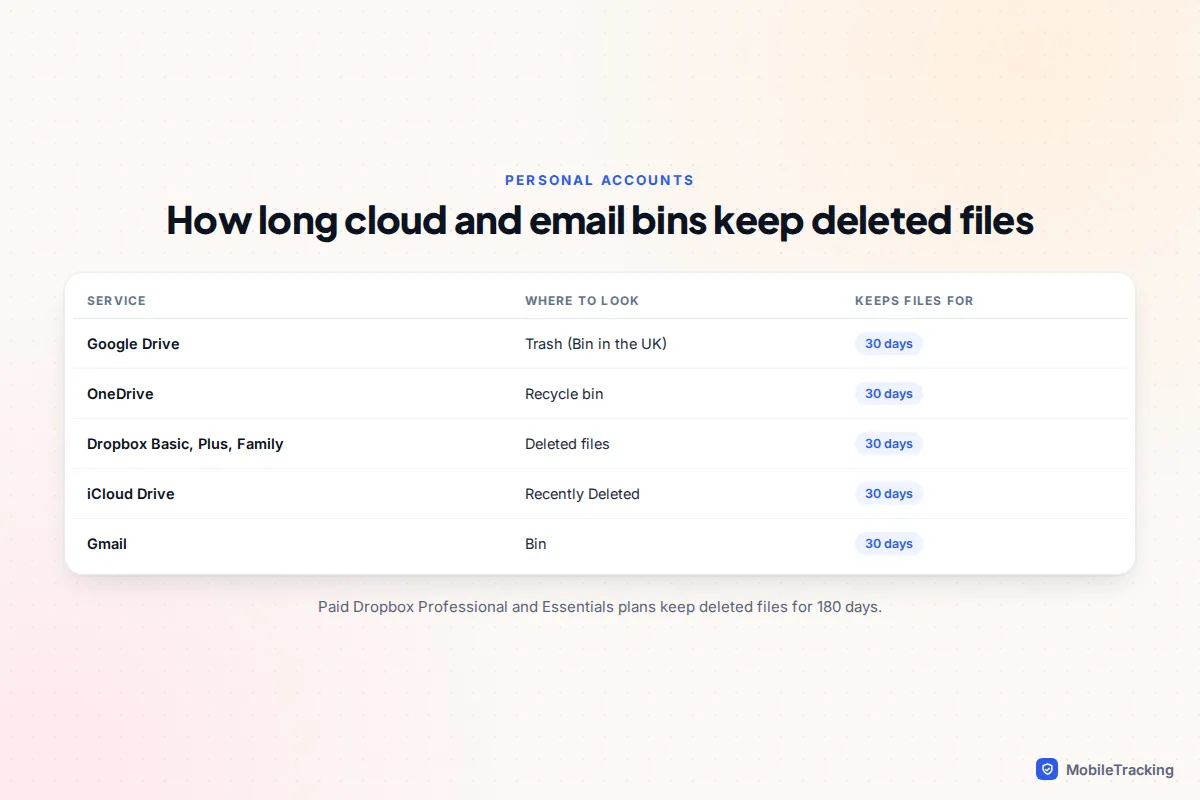
If your browser saves into a synced folder, or you moved the file there, check that service’s bin. These are the periods the providers state for standard personal accounts:
Don’t forget things you bought or streamed. Apps, music, films, audiobooks and offline downloads from services such as Netflix or Spotify can be downloaded again free from the app’s library or purchase history, so there’s nothing to recover. For photos synced to the cloud, see recovering deleted photos from the cloud.
Common mistakes, and what to do if nothing works
A real-world example: Leah deleted a folder of downloads to free up space, then realised her daughter’s school trip consent form was in it. The link in the school’s email had expired. She checked the Recycle Bin first and found nothing, because she’d used Shift+Delete. Rather than buying recovery software, she searched her inbox for the school’s name, found the original email with the PDF attached and had it printed in two minutes.
Mistakes that make recovery harder:
- Installing recovery software on the same drive. It can overwrite the very file you want. Use another drive, or skip it.
- Clearing browser history “to tidy up”. It removes the download list you could have re-downloaded from.
- Paying for phone “undelete” apps. Modern iPhones and Android phones encrypt storage, and without root access these apps can’t scan internal storage for deleted files.
- Restoring a whole phone backup for one file. Restoring overwrites everything newer on the phone. Look for the single file elsewhere first.
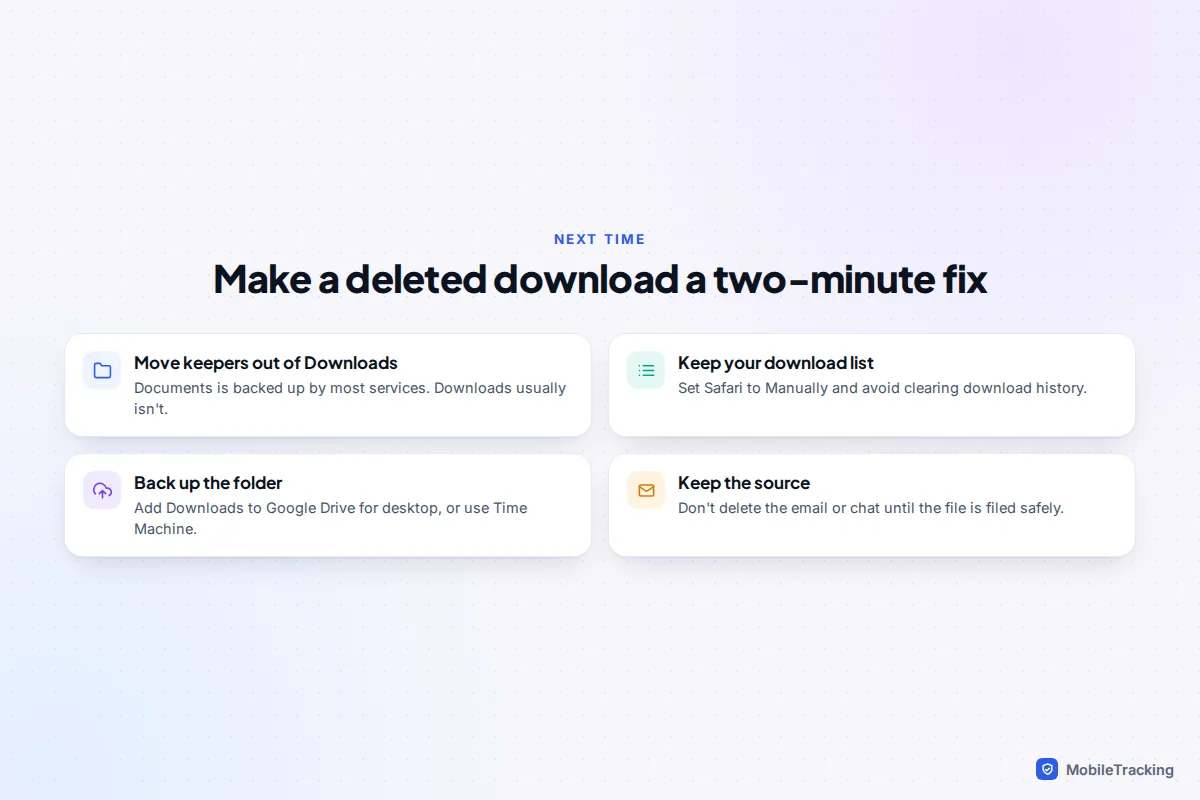
If nothing has turned up, ask for the file again. The school, bank, employer or friend who sent it can almost always resend it faster than any recovery tool can find it. Then put a safety net in place: move anything you want to keep out of Downloads into Documents (which is backed up), set Safari’s download list to Manually, and read our guide on making a backup you can actually restore.
Frequently asked questions
Does clearing my download history delete the files?
No. Clearing the list in Chrome, Edge, Firefox or Safari only removes the record. The files stay in your Downloads folder. The reverse is also true, which is why a deleted file can usually be downloaded again from the list.
Can I recover a download after emptying the Recycle Bin or Trash?
Sometimes, on a computer, with a backup such as Time Machine or a recovery tool like Windows File Recovery, but results on modern SSDs are unreliable. Finding the original source (email, website, chat) is usually quicker and more certain.
Why did my download disappear as soon as it finished?
Usually because the browser or your antivirus blocked it as potentially harmful, or because the download failed and only a partial file was left, which the browser then removed. Check the download list for a warning, and the Protection history on Windows.
How long do phones keep deleted downloads?
About 30 days in the iPhone Files app’s Recently Deleted and in the Trash of Files by Google or Samsung My Files. After that, or once you empty the bin, they’re gone from the phone.
Can I get back a deleted app I downloaded?
Yes. Reinstall it free from the App Store (tap your profile picture, then Apps or Purchased) or the Play Store (profile picture › Manage apps and device › Manage, then filter to apps not installed). Your data inside the app only returns if it was backed up or synced to an account.
This guide is general information, not legal or financial advice. Read our editorial policy.