
The fastest way to find an old text is to search for one distinctive word, narrowed to one person. On iPhone, open Messages, tap the search field (at the bottom of the screen on iOS 26 and later), type the person’s name, tap Messages with: [name], then add a word you remember, such as “passport” or “postcode”. On Android, tap the search icon in Google Messages and type the name and a word, or use the Starred, Images or Links filters. In WhatsApp, open the chat, tap its name, tap Search and use the calendar icon to jump straight to a date.
Scrolling back through years of messages is the slowest method there is, and on iPhone it often stalls while older messages load. The tricks below get you to the right spot in seconds, and the last part of the guide explains what to do when the message you want simply isn’t on the phone any more.
Start with what you remember
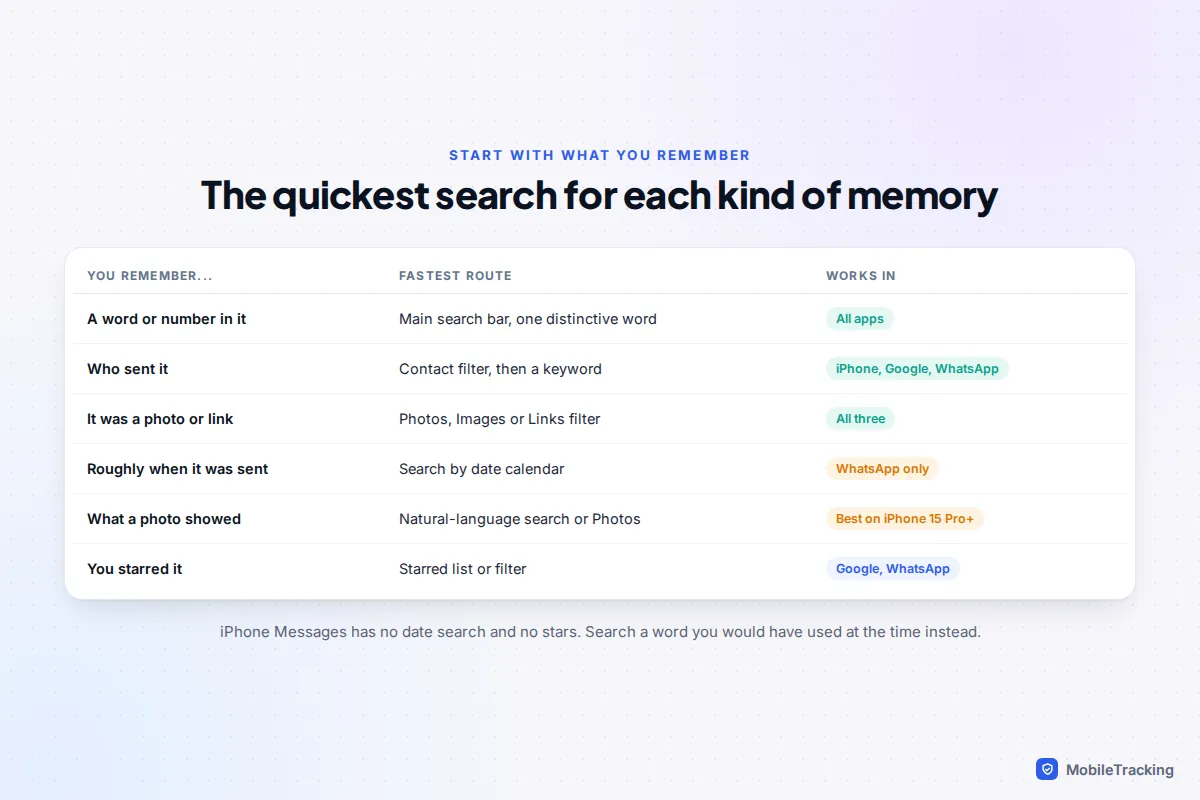
Before you type anything, think about what you actually recall. Most people remember one of four things: a word that was in the message, who sent it, what kind of thing it was (a photo, a link, an address) or roughly when it arrived. Each points to a different search, and picking the right one first saves the most time.
A few habits make every search work better:
- Use one unusual word, not a sentence. “Invoice” or “Airbnb” finds more than “the message about the holiday booking”, because search looks for exact words, not meaning (with one iPhone exception, below).
- Try the words the other person would have used. You may remember “flat viewing”, but they may have written “apartment”.
- Search numbers. Door codes, reference numbers, postcodes and prices are unique and easy to match, even if you only remember part of one.
iPhone: search, filters and Spotlight
Search in Messages covers iMessage, RCS and SMS conversations together. Since iOS 17 you can stack filters, and Apple’s page on searching within your text messages covers the basics. Here is the full method.
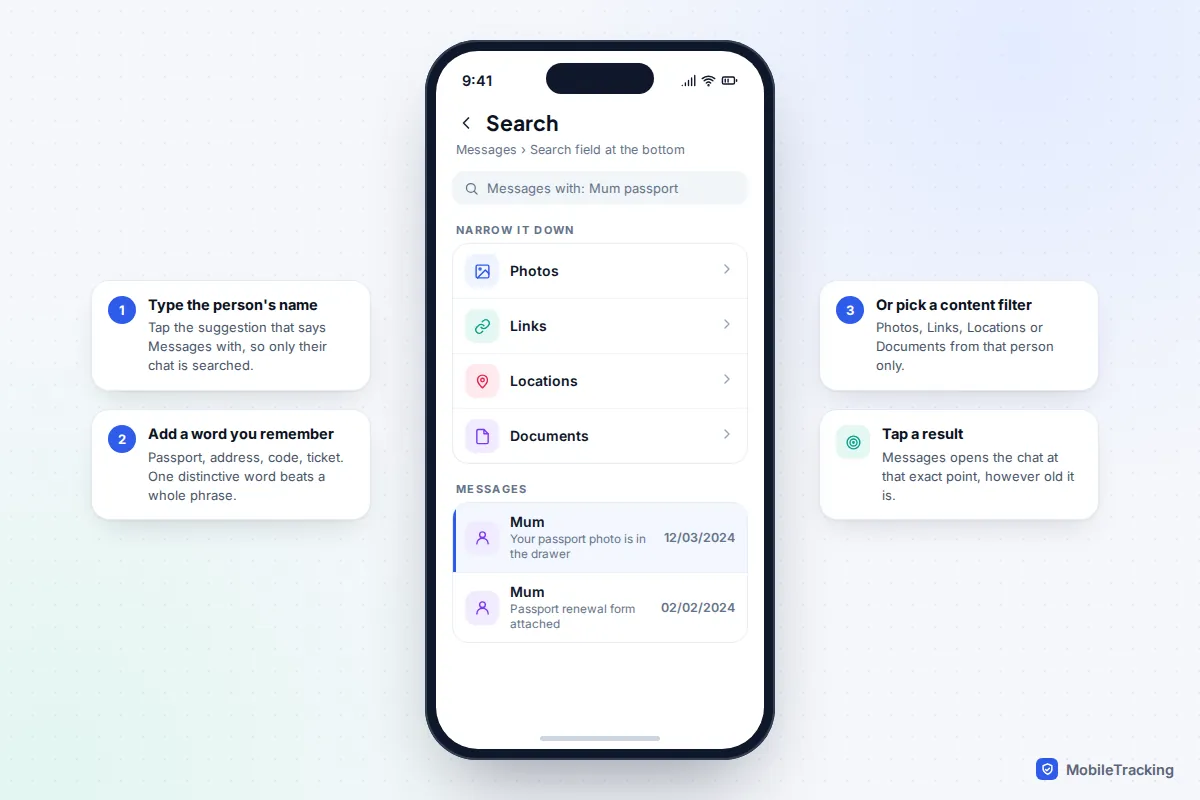
- Open Messages and tap the search field. On iOS 26 and later it sits at the bottom of the conversation list; on older versions, swipe down on the list to reveal it at the top.
- Type a contact’s name and tap the suggestion Messages with: [name]. Only that person’s messages will be searched.
- Type a keyword, or tap one of the content filters: Photos, Links, Locations or Documents. You can combine all three: a person, a content type and a word.
- Tap a result. Messages opens the conversation at exactly that point, with the messages around it, so you can read the context.
Two newer changes help. On iPhones with Apple Intelligence (iPhone 15 Pro and later) running iOS 26, search understands everyday phrasing, so “photos from the beach in June” or “Dad’s new address” can find results that don’t contain those exact words. And iOS 27, released on 14 September 2026, lets you find a conversation by phone number or by a contact’s nickname, and shows thumbnails for photos and videos that were offloaded to iCloud, so they turn up in search instead of appearing as blank placeholders.
Browse a conversation’s photos, links and files
If you know the chat but not the words, open the conversation and tap the person’s name or picture at the top. The details page lists shared photos, links and documents, newest first, with See All for each. To jump to the moment a photo was sent, the Photos filter in search is quicker, because tapping a result opens the chat at that spot.
Spotlight, from anywhere
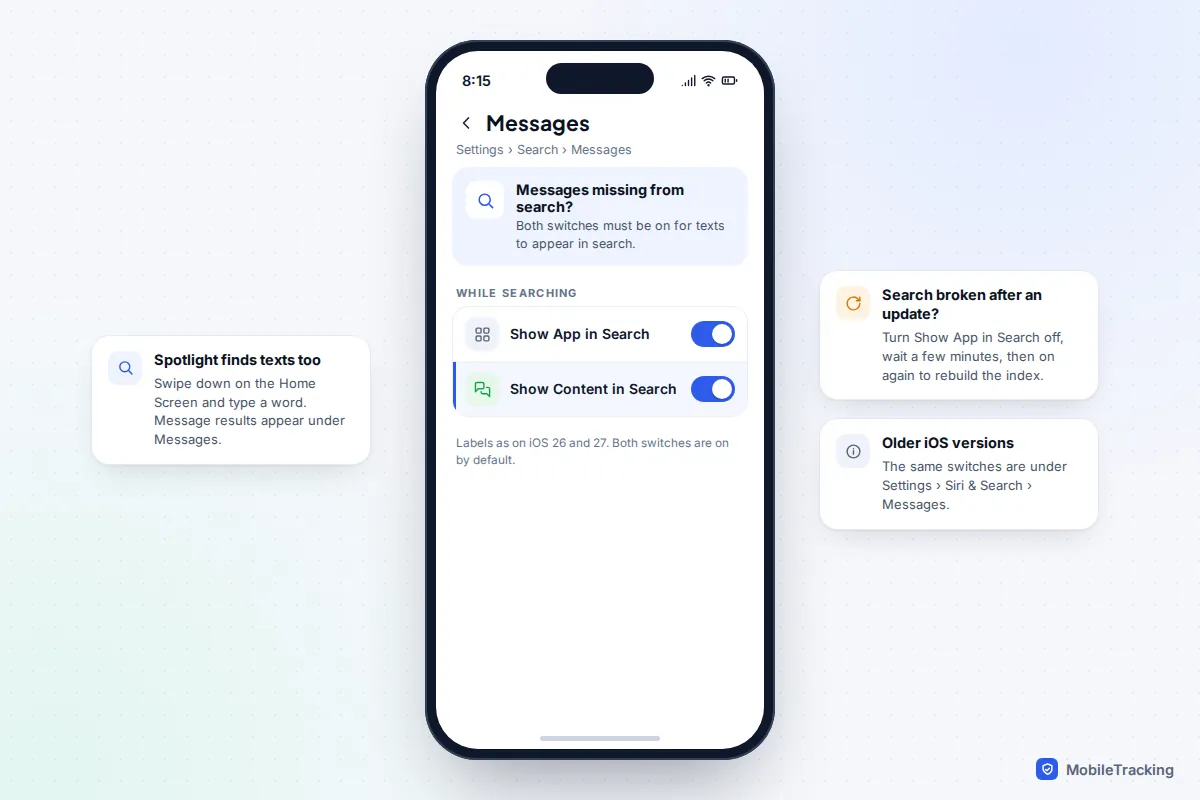
You don’t have to open Messages at all. Swipe down in the middle of the Home Screen, type a word and matching messages appear under a Messages heading. If your texts never show up, go to Settings › Search › Messages (Settings › Siri & Search › Messages on older versions) and check that Show App in Search and Show Content in Search are on.
No “jump to date” on iPhone
iPhone Messages has no calendar or date search, and iOS 27 didn’t add one. The best workarounds are searching for something tied to that time (a birthday, a place, a holiday), or tapping the status bar at the top of an open conversation, which scrolls up in large jumps as older messages load. If you use Messages in iCloud and have a Mac, search there instead: the bigger screen and keyboard make long threads much easier to work through.
Android: Google Messages and Samsung phones
Google Messages is now the default texting app on most Android phones, including Pixels and, since July 2026, Samsung Galaxy phones in the US, where Samsung retired its own Messages app. Your older texts moved across automatically during that switch, so they are searchable in Google Messages.
- Open Google Messages and tap the search icon at the top.
- Type a word, or a contact’s name to see their thread and the messages that match.
- Or tap a filter before typing: Starred, Images, Videos, Places, Links, Unread, or known and unknown senders.
- To search a single conversation, open it, tap ⋮ and choose Search, then step through each match with the arrows.
Starring is Google Messages’ best feature for this. Press and hold any message and tap the star, and it joins the Starred filter, where you can find it in two taps years later. It is ideal for door codes, booking references and anything you know you will need again.
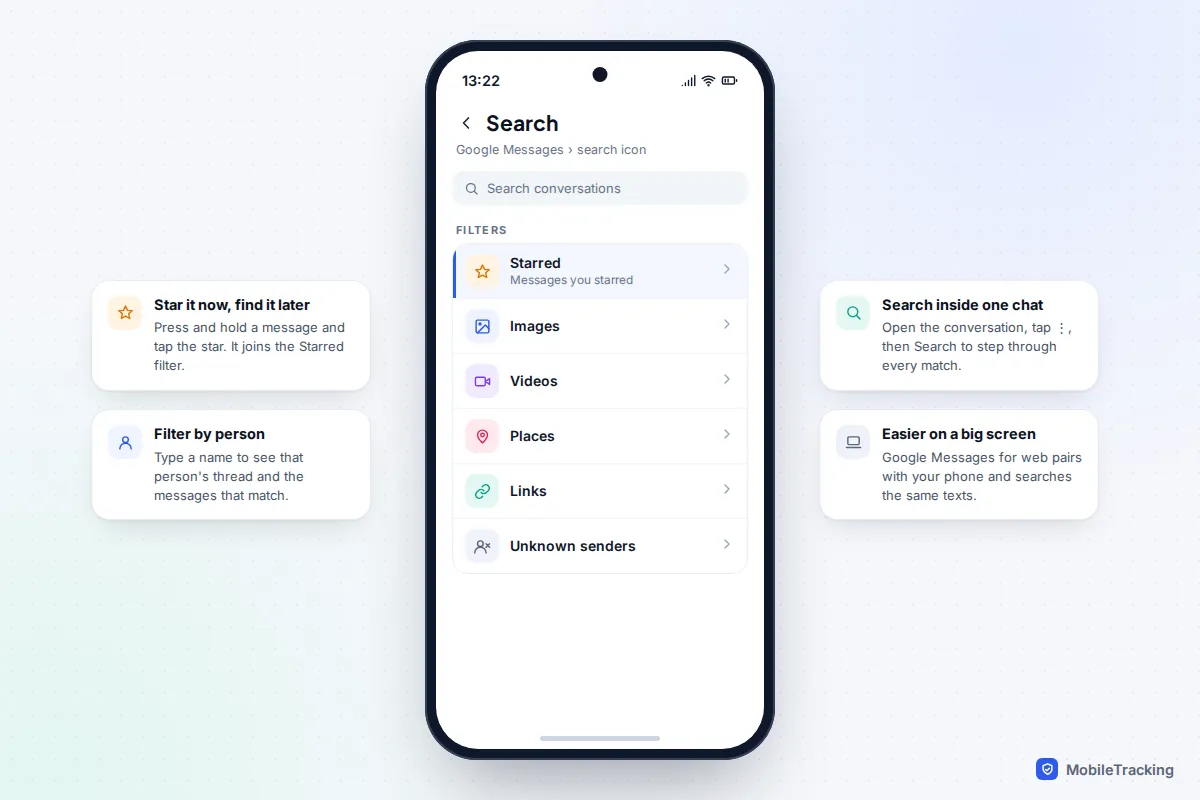
Searching is also easier on a computer. Pair your phone with Google Messages for web and the same search works with a full keyboard; see how to read and send texts from your laptop. Outside the US, some Galaxy owners still use Samsung Messages: tap the search icon at the top of the conversation list, and search covers messages and contacts.
WhatsApp: filters, dates and starred messages
WhatsApp’s search tools are the most complete of any messaging app, and most people only use a fraction of them.
Search every chat at once
Tap the search bar at the top of the Chats tab. Before typing, you can pick a type: Photos, Videos, Links, GIFs, Audio, Documents or Polls. Choosing Documents and typing “lease”, for example, shows only PDFs and files whose names match. Archived chats are included in the results.
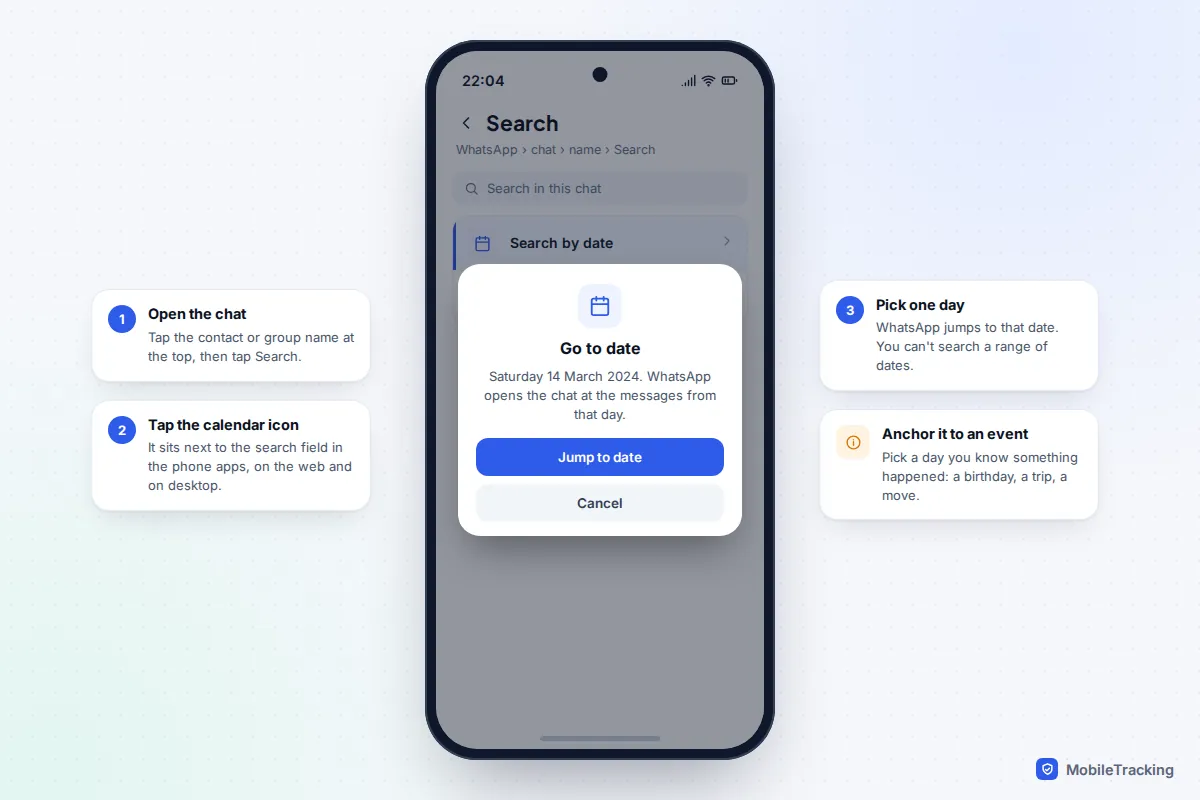
Jump to a date in one chat
- Open the chat and tap the contact or group name at the top.
- Tap Search, then tap the calendar icon beside the search field.
- Pick a day. WhatsApp takes you to the messages from that date.
It works on Android, iPhone, WhatsApp Web and the desktop apps. You can only choose a single day, not a range, so pick one you are confident about, such as the day of a party or a move.
Media, links and docs, and starred messages
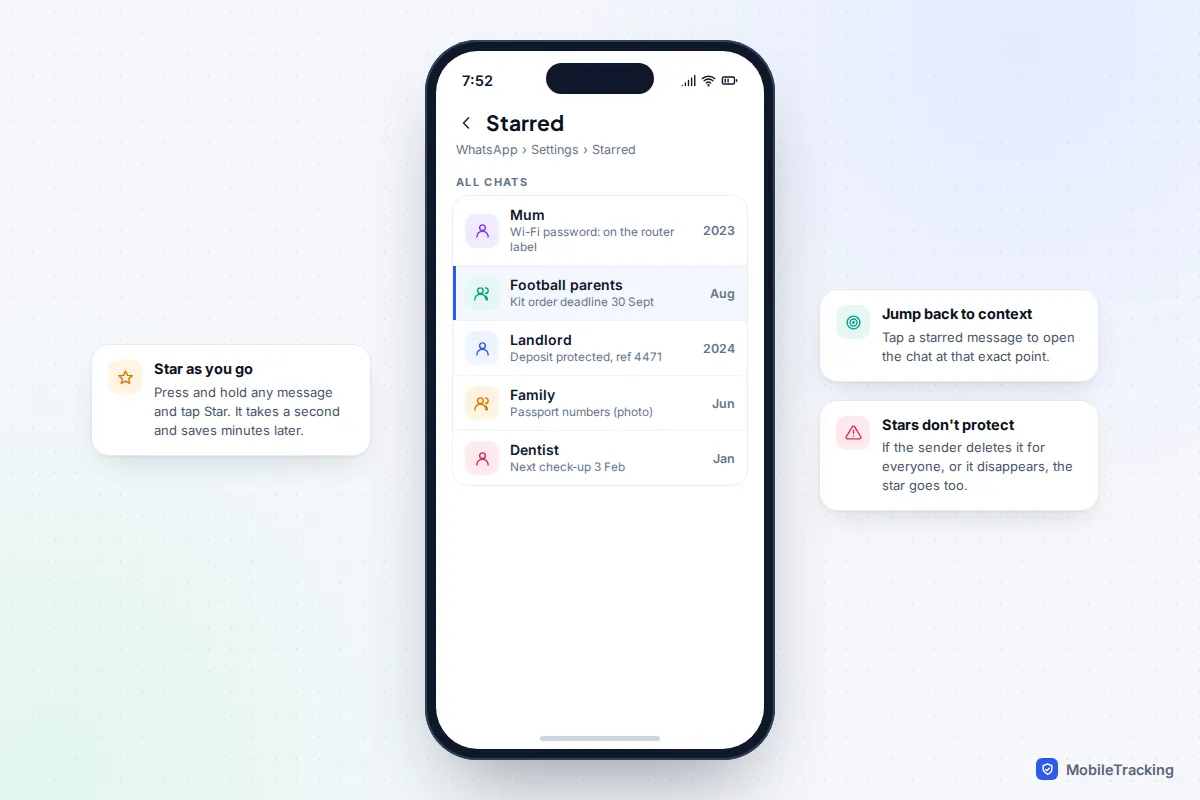
Tapping a chat’s name also shows Media, links and docs, with separate tabs for each. For anything you will need again, press and hold the message and tap Star. Starred messages from every chat are collected under Settings › Starred on iPhone and ⋮ › Starred on Android (older versions say Starred messages). Tapping one takes you back to it in the chat.
Stars aren’t a backup, though. If the sender deletes a message for everyone, or it was a disappearing message, it vanishes from your starred list too.
Can you search by what’s in a photo?
Not inside WhatsApp: its search matches captions and file names, not what a picture shows. If WhatsApp saves incoming media to your gallery (Save to Photos on iPhone, Media visibility on Android), the Photos app or Google Photos can search the picture’s content instead, including text in screenshots and receipts. In iPhone Messages, the natural-language search mentioned above can find photos by what they show on Apple Intelligence iPhones.
When older messages aren’t on the phone
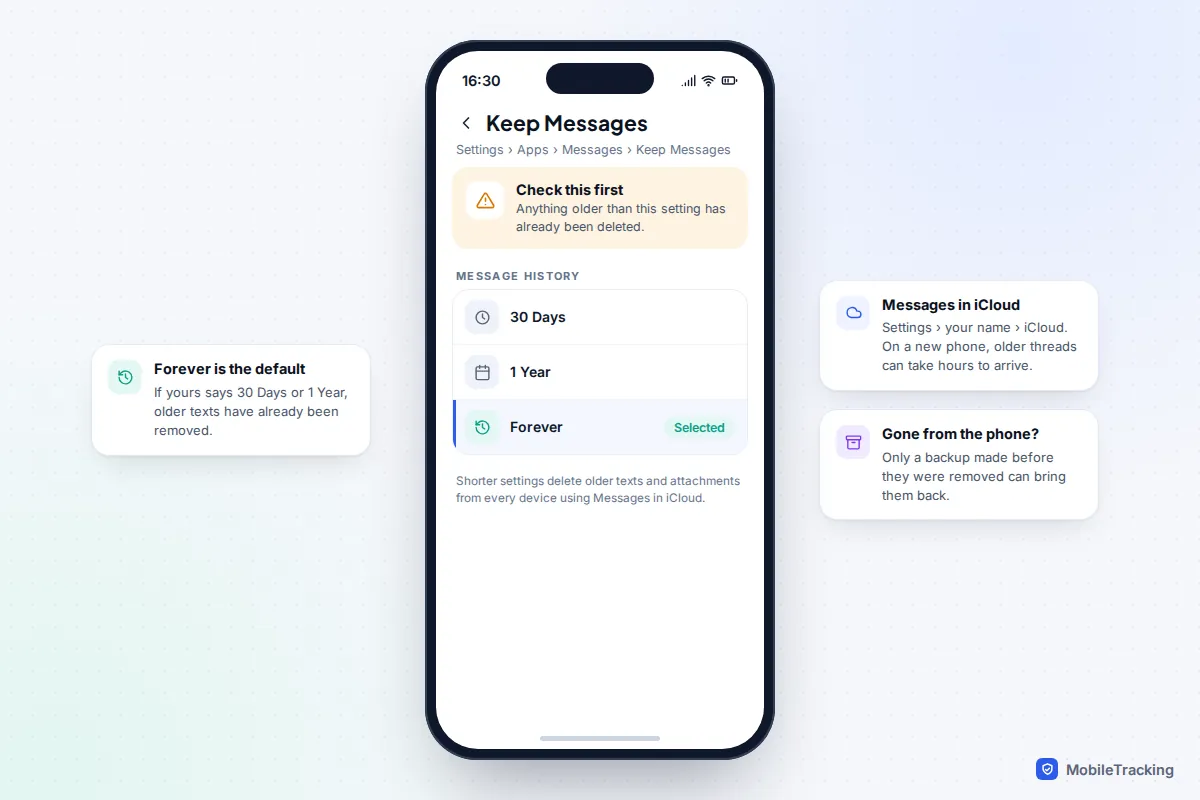
If a thread seems to start too late, or search finds nothing you are sure was there, the problem usually isn’t search. The messages have either been removed or never arrived on this phone. Match what you see to the likely cause.
iPhone: check Keep Messages and Messages in iCloud
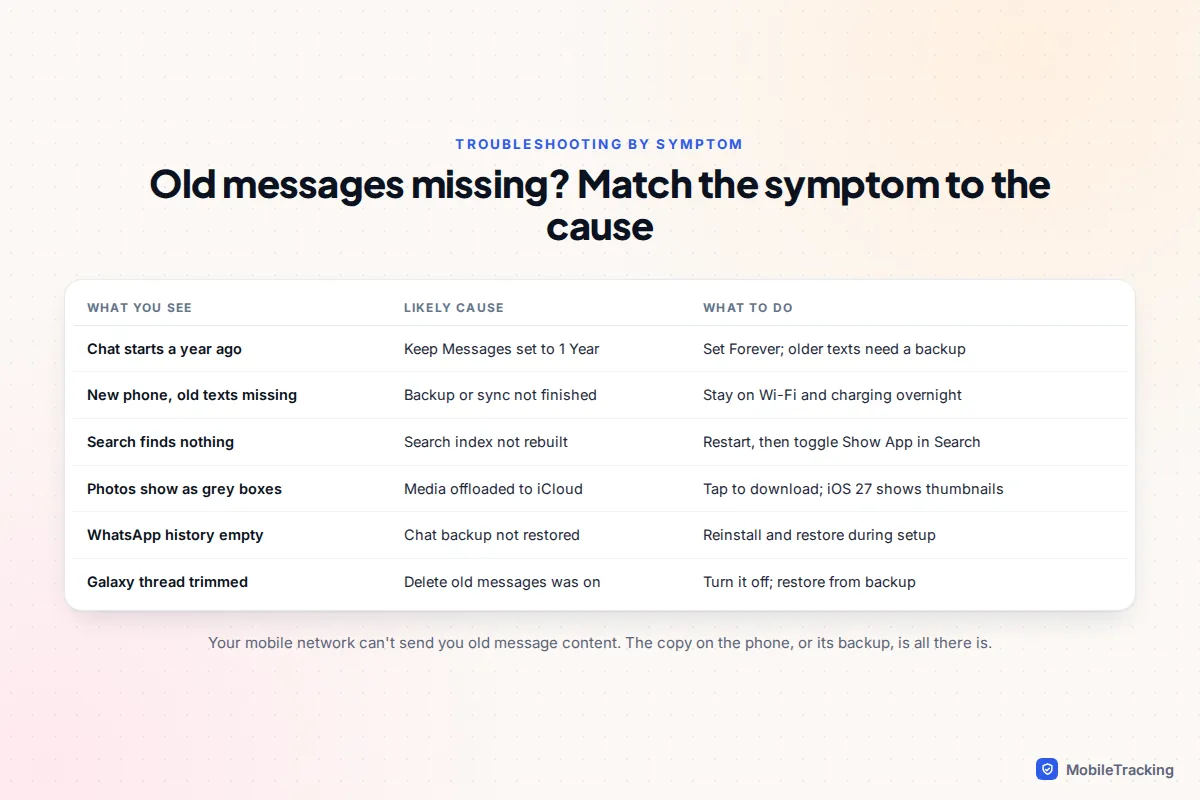
Go to Settings › Apps › Messages › Keep Messages. The default is Forever. If it says 30 Days or 1 Year, your iPhone has been quietly deleting older texts and attachments, and with Messages in iCloud those deletions apply to your other Apple devices too. Change it to Forever now; older texts that are already gone can only come back from a backup made before they were removed.
Next, check Settings › [your name] › iCloud and look for Messages in iCloud. If it is on and you have just set up a new iPhone, older conversations download gradually and can take hours on a big history, so leave the phone on Wi-Fi and charging overnight. If it is off, your messages live only on this phone and in its backups.
Android and WhatsApp
- New Android phone: texts only come across if the old phone’s backup included them. Check Settings › Google › Backup (or Settings › System › Backup) and make sure SMS, MMS and RCS messages are included, then restore during setup.
- Samsung: Samsung Messages had a Delete old messages option under Settings › More settings that trims older texts once a limit is reached. If it was on, those messages are gone from the phone.
- WhatsApp: history comes from WhatsApp’s own chat backup (Google Drive on Android, iCloud on iPhone), not the phone’s general backup. It can only be restored when you set WhatsApp up, so an empty history means the restore step was skipped or no backup existed.
Your mobile network can’t help: it won’t give you the content of old texts, and chat apps like WhatsApp are end-to-end encrypted. If a message has been deleted rather than just buried, our guides to recovering deleted texts on iPhone and retrieving texts from a backup cover what is still possible.
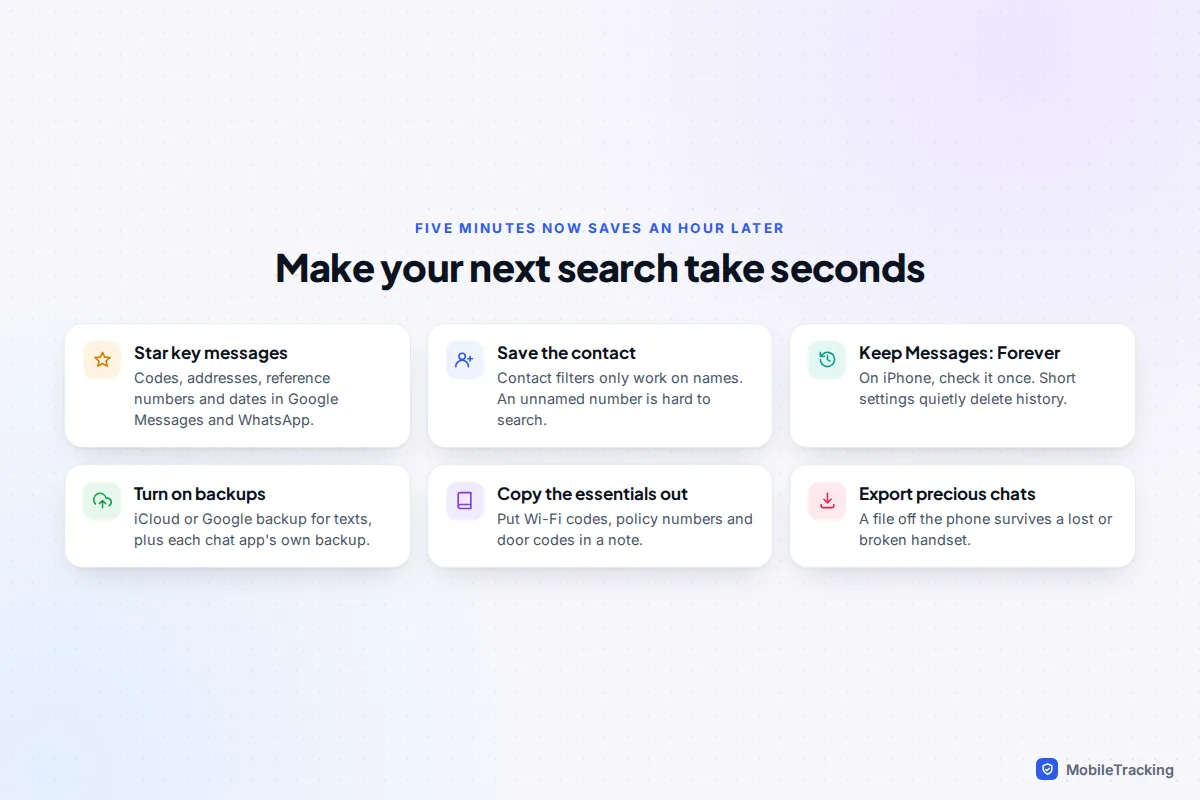
Make your next search take seconds
A little effort now means you won’t be scrolling in a panic when you need a booking reference at an airport desk.
- Star as you go in Google Messages and WhatsApp. Codes, addresses, dates and reference numbers are the obvious candidates.
- Save contacts with full names. The person filter only works on names; a bare number is much harder to search.
- Set Keep Messages to Forever on iPhone, and check it after every new phone.
- Turn on backups for texts and for each chat app, and glance at the last backup date now and then.
- Copy essentials into a note. Wi-Fi passwords, policy numbers and gate codes belong somewhere searchable that doesn’t depend on one chat.
- Tidy, don’t delete. Archiving old chats clears your list without removing anything from search.
Real-world example: Tom needed a parking permit number his council had texted him eight months earlier. Scrolling got him nowhere. Searching “permit” found nothing either, because the text called it a “resident parking reference”. Searching the council’s short number instead brought up the conversation, and the permit was the third message down. When the words fail, search the sender.
Frequently asked questions
How far back can I search my texts?
As far back as the messages exist on the device. There is no search cut-off in iPhone Messages, Google Messages or WhatsApp. The real limit is what has been kept: iPhone’s Keep Messages setting, whether your history came across to a new phone, and whether anything was deleted.
Why does iPhone search miss messages I know are there?
Usually the search index is incomplete, especially after an iOS update or when setting up a new phone. Restart the iPhone, give it a night on Wi-Fi and power, and if it’s still missing results, turn Show App in Search off and on again under Settings › Search › Messages.
Can I search texts on a computer?
Yes. On a Mac, the Messages app searches everything synced through Messages in iCloud. On Windows, Phone Link only shows iPhone texts sent or received while it is connected, while Google Messages for web lets Android users search their conversations in a browser. For a permanent searchable copy, export your messages to a computer.
Is there a way to jump to a date in iPhone Messages?
No. Apple hasn’t added date search to Messages, including in iOS 27. Search for a word connected to that day, tap the status bar repeatedly to scroll up in large jumps, or use Messages on a Mac.
Can my phone company send me my old texts?
No. Networks don’t provide the content of past messages to customers, and iMessage, RCS chats between Google Messages users and WhatsApp messages are end-to-end encrypted so the network never sees them. Your phone, your other devices and your backups are the only places those messages live.
This guide is general information, not legal or financial advice. Read our editorial policy.