
The short version: on an iPhone, open Settings, tap your name, tap Find My, then Find My iPhone, and make sure all three switches are on: Find My iPhone, Find My network and Send Last Location. On Android, open Settings › Google › All services › Find Hub, turn on Allow device to be located, and set Find your offline devices to one of the “with network” options. On a Samsung Galaxy, also turn on Settings › Security and privacy › Lost device protection.
That takes about five minutes, and it has to happen before the phone goes missing. Nobody, including Apple, Google, your carrier or the police, can switch these settings on remotely once the phone is in a taxi or a thief’s pocket. The rest of this guide explains what each switch does, the supporting settings that quietly decide whether finding works, and how to test the whole thing today.
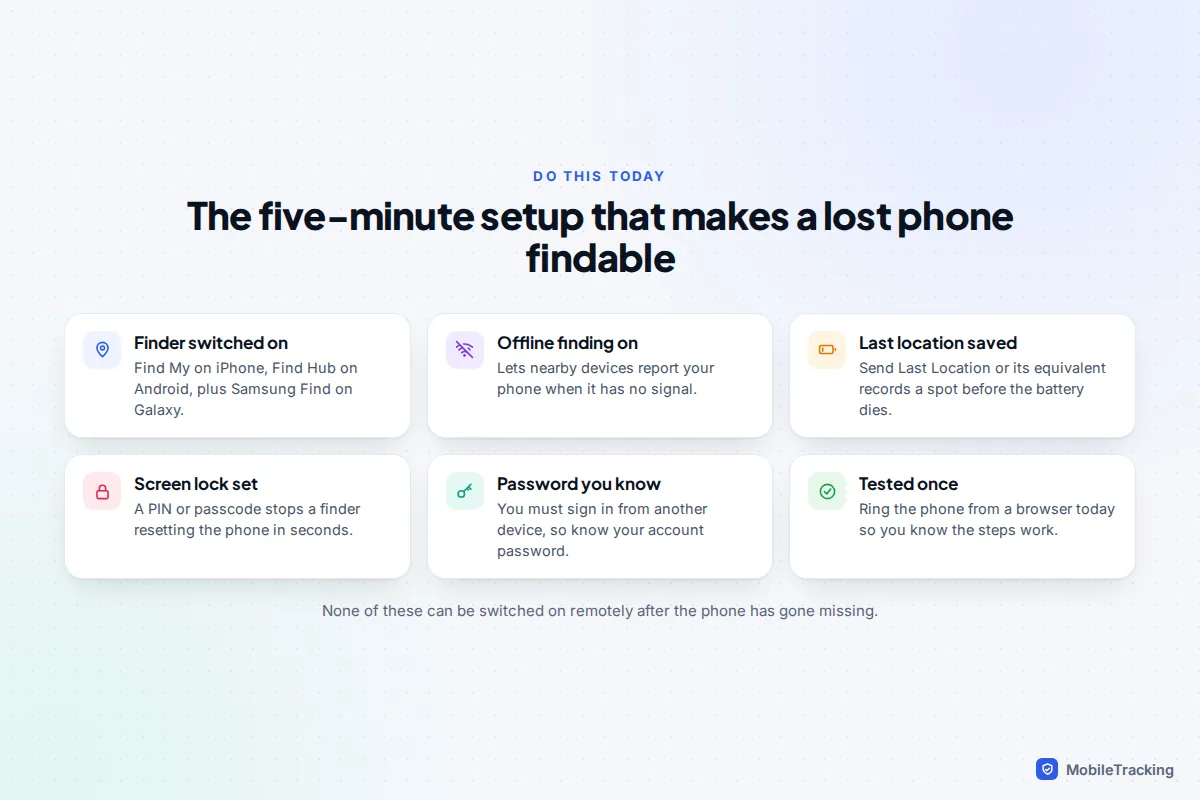
Turn on Find My on an iPhone
Apple switches Find My on during setup if you sign in with an Apple Account, so many iPhones already have it. It is still worth checking, because it can be turned off during a repair, after a restore, or by someone else who set the phone up. These steps are the same on iOS 26 and iOS 18.
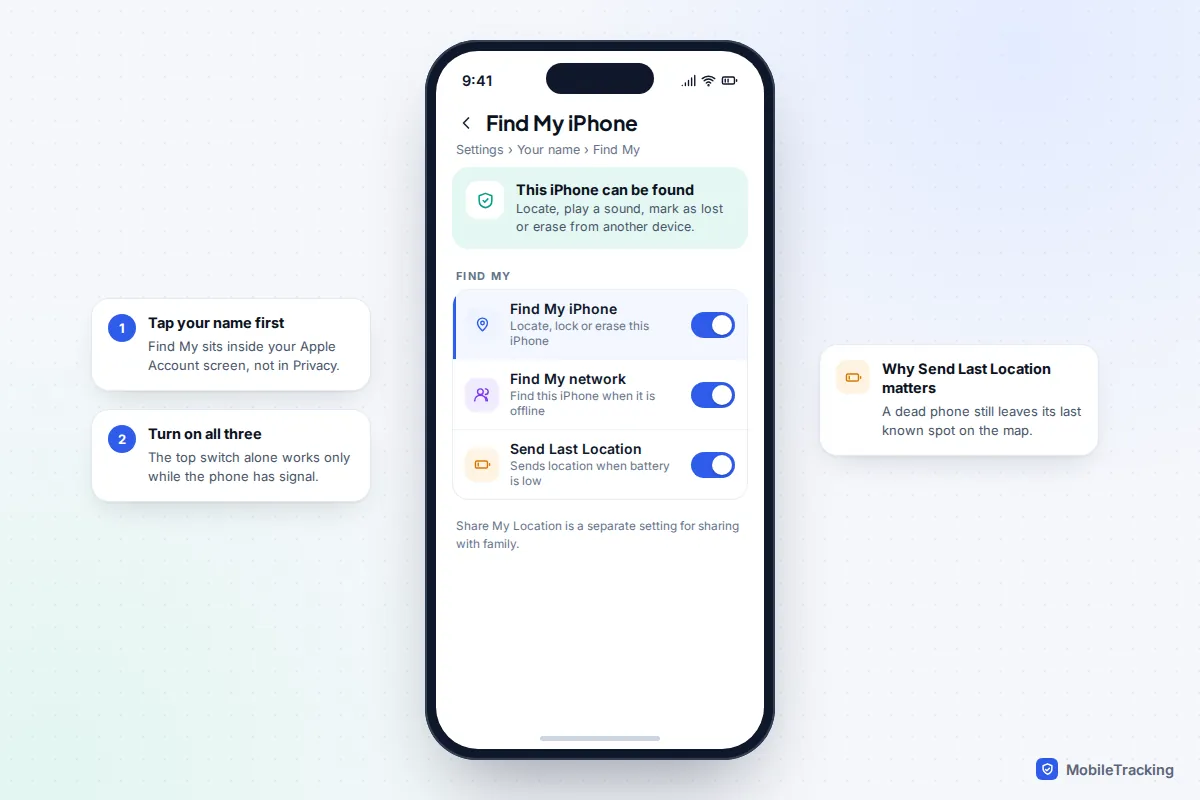
- Open Settings and tap your name at the top of the list.
- Tap Find My, then tap Find My iPhone.
- Turn on Find My iPhone. If asked, enter your Apple Account password.
- Turn on Find My network. This lets other Apple devices nearby pass on your iPhone’s location, anonymously and encrypted, when it has no Wi-Fi or mobile signal.
- Turn on Send Last Location. When the battery gets critically low, the iPhone tries to send its location to Apple before it dies.
While you are on the Find My screen, you will see Share My Location. That is a different feature: it shows your location to family or friends you choose. You do not need it to find your own phone, and you can leave it off if you prefer.
A useful bonus of the Find My network: on iPhone 11 and later models, the phone can often still be located for a while after it has been switched off, as long as the battery is not completely flat. You can see this is working when the power-off slider shows the line “iPhone Findable After Power Off”. Apple does not promise a fixed number of hours, so treat it as a helpful extra rather than a guarantee.
Turning on Find My iPhone also turns on Activation Lock. That means nobody can erase the phone and set it up as their own without your Apple Account password, which is the main reason stolen iPhones have little resale value. Apple’s own walkthrough is on its Find My setup page if you want to compare screens.
Turn on Find Hub on an Android phone
Google renamed Find My Device to Find Hub in 2025, so older guides and some menus still use the old name. It works on almost every Android phone with Google services, including Pixel, Samsung, Motorola, OnePlus and Xiaomi models. The route below works on most phones running Android 15 or 16:
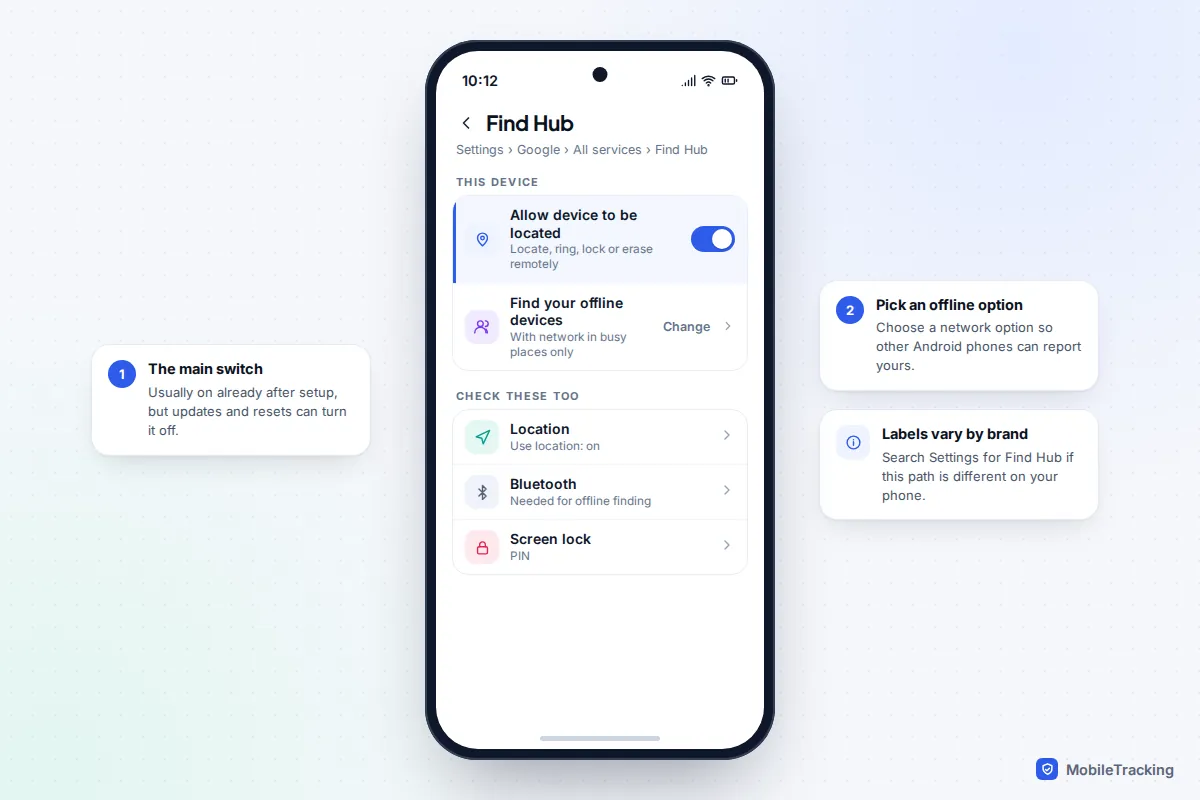
- Open Settings, then tap Google.
- Tap All services, then Find Hub.
- Turn on Allow device to be located.
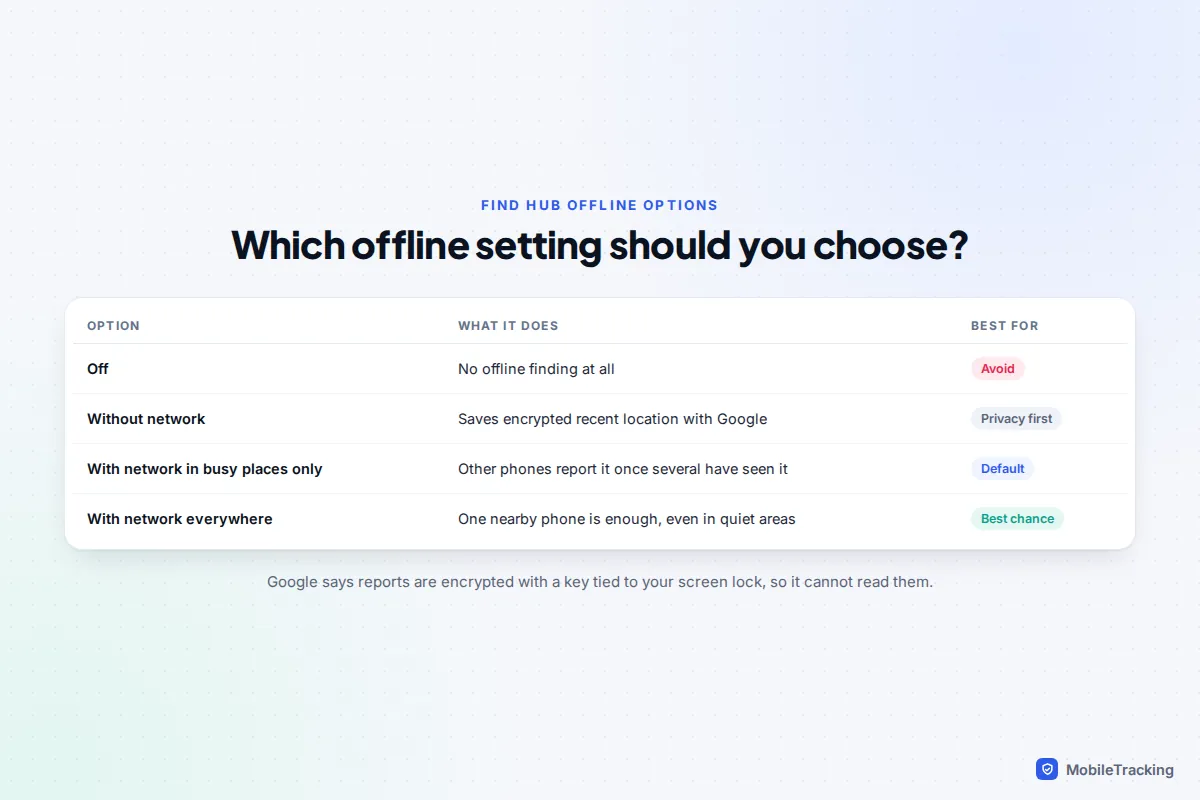
- Tap Find your offline devices and choose an option (see the table below).
- Go back to Settings and check that Location is on (Use location) and that you are signed in to a Google account under Passwords, passkeys and accounts.
On a Pixel you can also reach the same switch through Settings › Security & privacy, where it sits under device finders. Menu names shift between manufacturers and updates, so if you cannot find it, type “Find Hub” into the search bar at the top of Settings.
Choosing an offline finding option
The offline setting is the one most people skip, and it matters most in real losses. A phone left on a bus often has no data connection, or the finder turns off mobile data. With a network option chosen, other Android phones that pass by can report its position to you. Google says those reports are encrypted with a key linked to your screen lock, so Google itself cannot read them.
On Pixel 8 and later, with Bluetooth and Location on before the phone dies and a network option selected, Find Hub can locate the phone for several hours after it has been switched off or run out of battery. Google lists the full requirements on its Android help page for preparing a lost device.
Samsung Galaxy phones: switch on both finders
Galaxy phones are a special case because they have two separate finding systems: Google’s Find Hub and Samsung’s own Samsung Find (the successor to Find My Mobile, which also works alongside SmartThings Find). They work independently, so turning on both gives you two chances instead of one. On One UI 7 and 8:
- Check that your name appears at the top of Settings, which means you are signed in to a Samsung account. If not, tap there and sign in.
- Open Settings › Security and privacy › Lost device protection.
- Turn on Allow this phone to be found.
- Turn on Send last location and Offline finding.
- Then check the Google side as above: Settings › Google › All services › Find Hub.
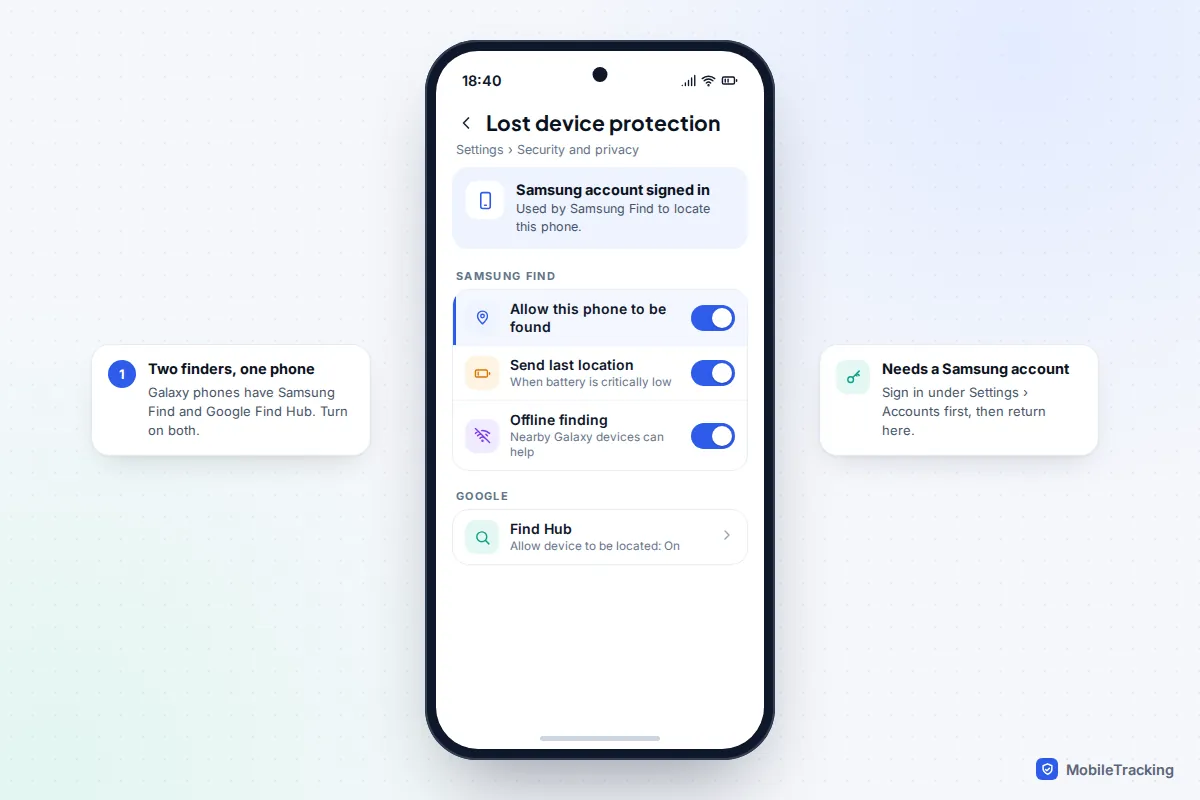
Offline finding on Samsung uses nearby Galaxy devices, in the same way Apple uses nearby iPhones. If you live somewhere with lots of Samsung phones around, it is well worth having on.
The supporting settings that decide whether it works
A finder switch on its own is not enough. Many failed searches come down to one of these, and all of them also have to be set beforehand.
A screen lock
Without a PIN, passcode or pattern, anyone who picks up your phone can open Settings and switch finding off, or factory reset it in a minute. A six-digit PIN is a sensible minimum. On Android, Find Hub’s offline encryption also depends on the lock screen, so no lock can mean weaker offline finding.
Theft protections
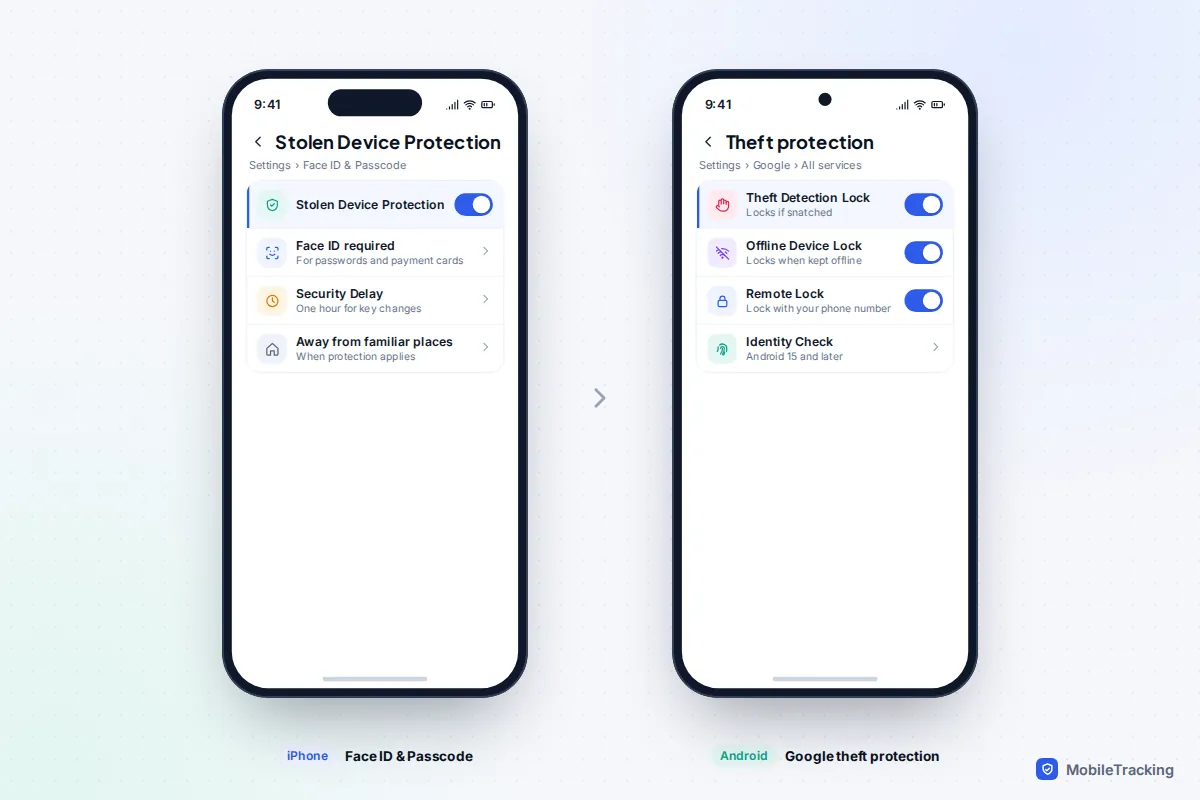
Both platforms now have extra features aimed at phone snatching. On iPhone, Stolen Device Protection lives in Settings › Face ID & Passcode (or Touch ID & Passcode). It asks for Face ID or Touch ID, not just the passcode, for sensitive actions when you are away from familiar places, and adds a one-hour security delay before changes such as your Apple Account password. Apple turned it on by default from iOS 26.4, but check it is on if you updated from an older version or switched it off yourself.
On Android, open Settings › Google › All services › Theft protection. Theft Detection Lock locks the screen if the phone is snatched and carried away quickly, Offline Device Lock locks it if someone keeps it offline, and Remote Lock lets you lock the phone from a browser using only your phone number. These need Android 10 or later; Identity Check needs Android 15 or later, and not every manufacturer supports every feature.
An account you can actually get into
To find a lost phone you sign in from another device, and that is where people get stuck. If your two-step verification codes go to the phone you have lost, you may be locked out at exactly the wrong moment. Apple allows for this: on the iCloud sign-in page, a Find Devices button lets you skip the code. Google does not have the same shortcut, so save a set of Google backup codes and keep them at home, or add a second phone number such as a partner’s.
Test it today from another device
A two-minute test is the only way to know your setup works, and it shows you where the buttons are so you are not learning under stress. Borrow a laptop, tablet or a family member’s phone:
- For an iPhone, go to icloud.com/find and sign in with your Apple Account. For Android, go to google.com/android/find or open the Find Hub app on another phone. For Samsung Find, sign in at samsungfind.samsung.com.
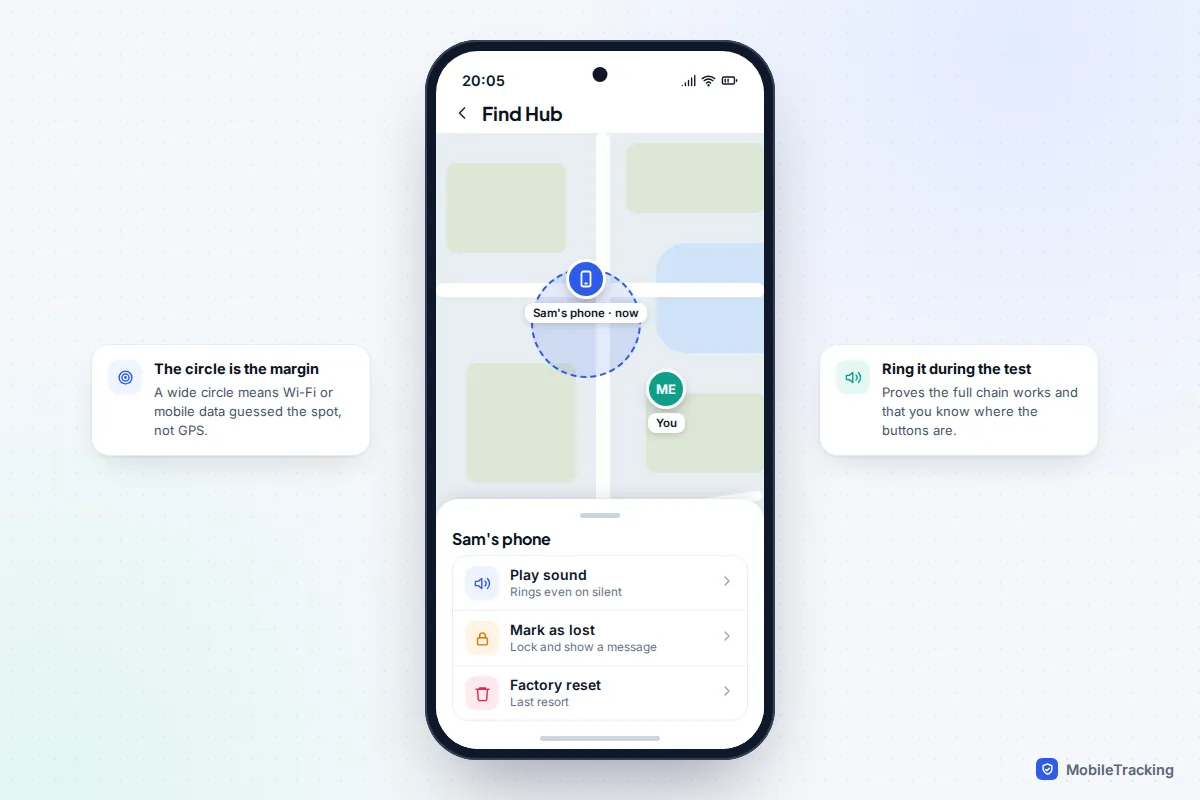
- Check that your phone appears with a location close to where you are, usually within a minute.
- Press Play Sound (iPhone) or Play sound (Android). Your phone should ring at full volume even on silent. Stop it from the phone.
- Look at, but do not press, Mark As Lost and Erase This Device (iPhone), or Mark as lost and Factory reset (Android), so you know where they are.
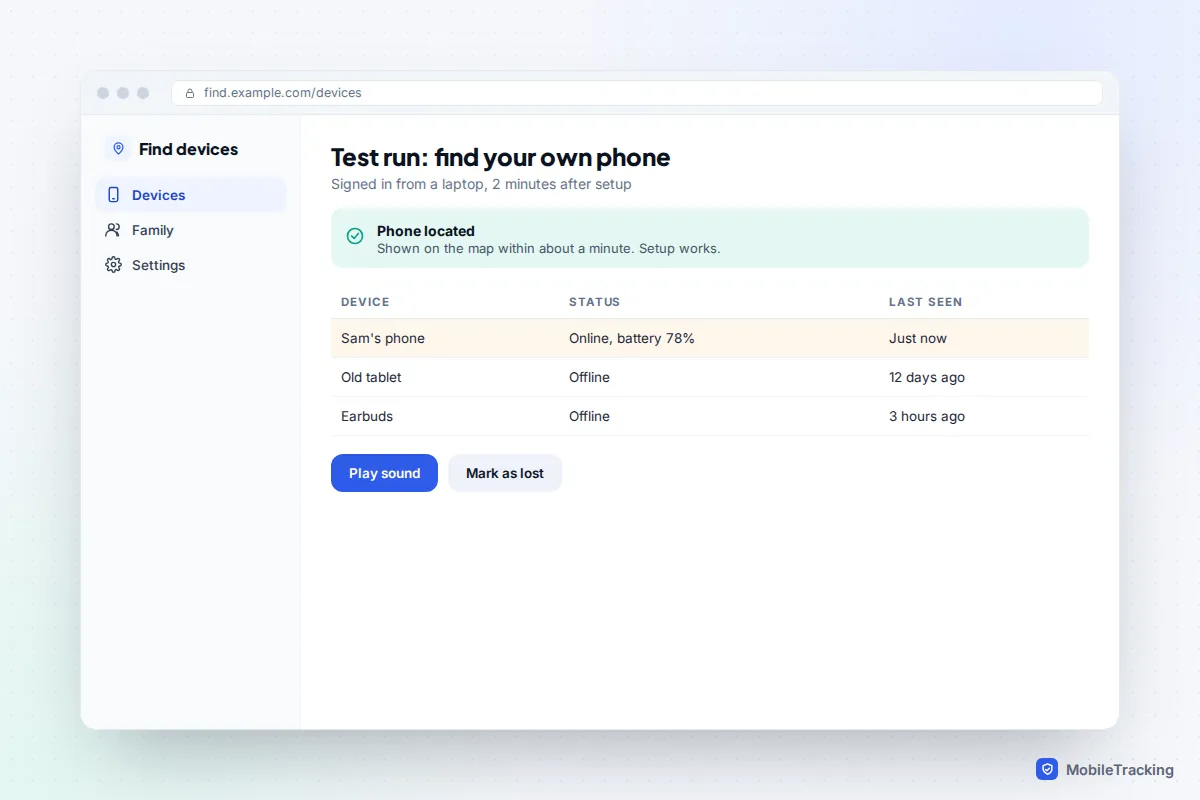
If the location circle is large, that is normal indoors: the phone is using Wi-Fi and mobile masts rather than GPS. It tightens up once the phone gets a clear view of the sky.
While you are signed in, it is also a good time to prepare the message a finder will see on the lock screen. Our guide to writing a lost mode message that gets your phone back covers what to include, such as a partner’s number (for example 07700 900123) rather than the number of the phone that is missing.
Which setup should you use?
If you only do one thing, turn on the main finder with offline finding. Beyond that, the right mix depends on the phone and on who uses it.
| Your situation | What to turn on | Why |
|---|---|---|
| iPhone | Find My iPhone, Find My network, Send Last Location, Stolen Device Protection | Covers dead batteries, no signal and snatch theft |
| Pixel or other Android | Find Hub with a network offline option, Theft protection | Offline finding is off or limited unless you choose it |
| Samsung Galaxy | Lost device protection (all three switches) and Find Hub | Two independent finders, each with its own account |
| Child’s phone | The finder on their phone, signed in to their own account, plus family sharing | You can help find it from your phone, with their knowledge |
| Older parent’s phone | The finder, plus your number as a trusted contact if they agree | Helps if they cannot remember their password |
| Tablet or old phone kept at home | The finder, even with no SIM | Wi-Fi and offline finding still work |
For family phones, set things up together and explain what the finder can and cannot show. On an iPhone, Family Sharing lets family members see each other’s devices in the Find My app; on Android, Family Link can show a supervised child’s phone location to the parent. Our guide to setting up Find My for the whole family walks through it step by step.
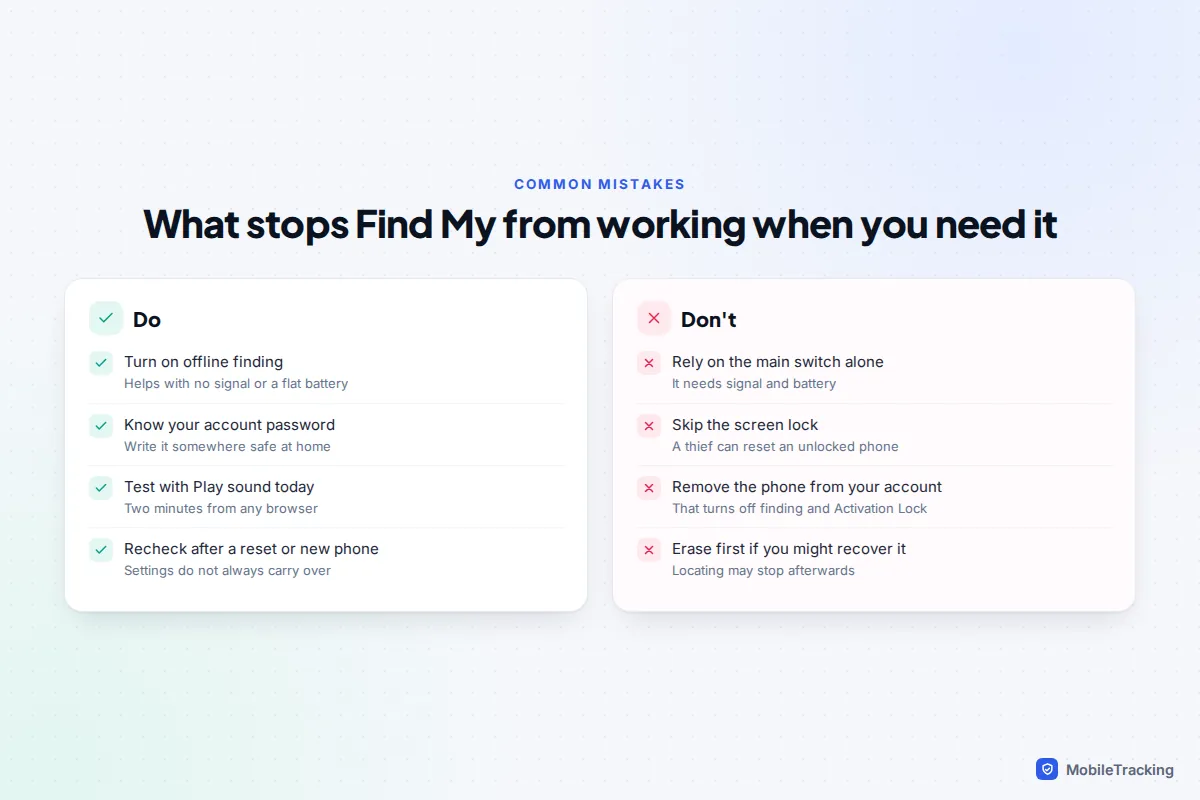
Common mistakes, and fixes by symptom
Most problems come from a setting that changed without anyone noticing. Here is what to check, based on what you see when you test.
- Your phone is missing from the device list. The finder is off, or you are signed in to a different account on the web than on the phone. Check which email address the phone uses under your name (iPhone) or under Google in Settings (Android).
- It shows “No location found” or “Offline”. Location is off, the phone has no connection, or offline finding is off. Turn on Location, then the offline option, and test again.
- The location is hours or days old. This is normal for a switched-off phone. Apple shows a last known location for up to seven days if the phone reported through the Find My network. Beyond that, it cannot show a location.
- The Samsung switch will not turn on. You are not signed in to a Samsung account on the phone. Tap the top of Settings, sign in, then come back.
- Everything worked, then stopped after a new phone or a reset. Settings do not always carry over, especially offline finding options. Run the test again after any reset, repair or phone swap.
If the worst does happen, the next steps are in our guides to using Find My iPhone step by step and finding a lost phone that is turned off.
Frequently asked questions
Can I turn on Find My after my phone is already lost?
No. The setting lives on the phone itself, and only someone holding the unlocked phone can switch it on. If it was off, you can still change your passwords, ask your carrier to block the SIM, and report the loss to the police with the phone’s IMEI number.
Does Find My drain the battery?
Not in any way you will notice. The phone only works out its location when you ask for it, and offline finding relies on low-energy Bluetooth signals rather than a constant GPS fix. Both Apple and Google designed these features to stay on all the time.
Can someone else use Find My to track me?
Only someone who knows your Apple Account or Google password, or someone you have chosen to share your location with. That is another reason to use a strong, unique password with two-step verification, and to check your sharing list now and then.
Will Find My work without a SIM card?
Yes, as long as the phone has Wi-Fi or, with offline finding on, is near other compatible devices. Removing the SIM does not switch the finder off, so a thief’s next move is usually to try to get into Settings. That is why the screen lock and theft protection settings matter so much.
This guide is general information, not legal or financial advice. Read our editorial policy.