
To back up your Signal chats, open Signal, tap your profile picture to reach Settings, then go to Backups and set up Signal Secure Backups. It works on both iPhone and Android, runs automatically every day, and the free version keeps all your text messages plus the last 45 days of photos, videos and files. During setup Signal shows you a 64-character recovery key. Write it down somewhere safe, away from the phone, because without it nobody can open the backup, including Signal.
That step matters because Signal is deliberately left out of your iCloud or Google phone backup. If you have never switched on one of Signal’s own options, your message history exists only on your phone. This guide covers all three options Signal now offers, what each one misses, and how to get your chats onto a new phone without losing them.
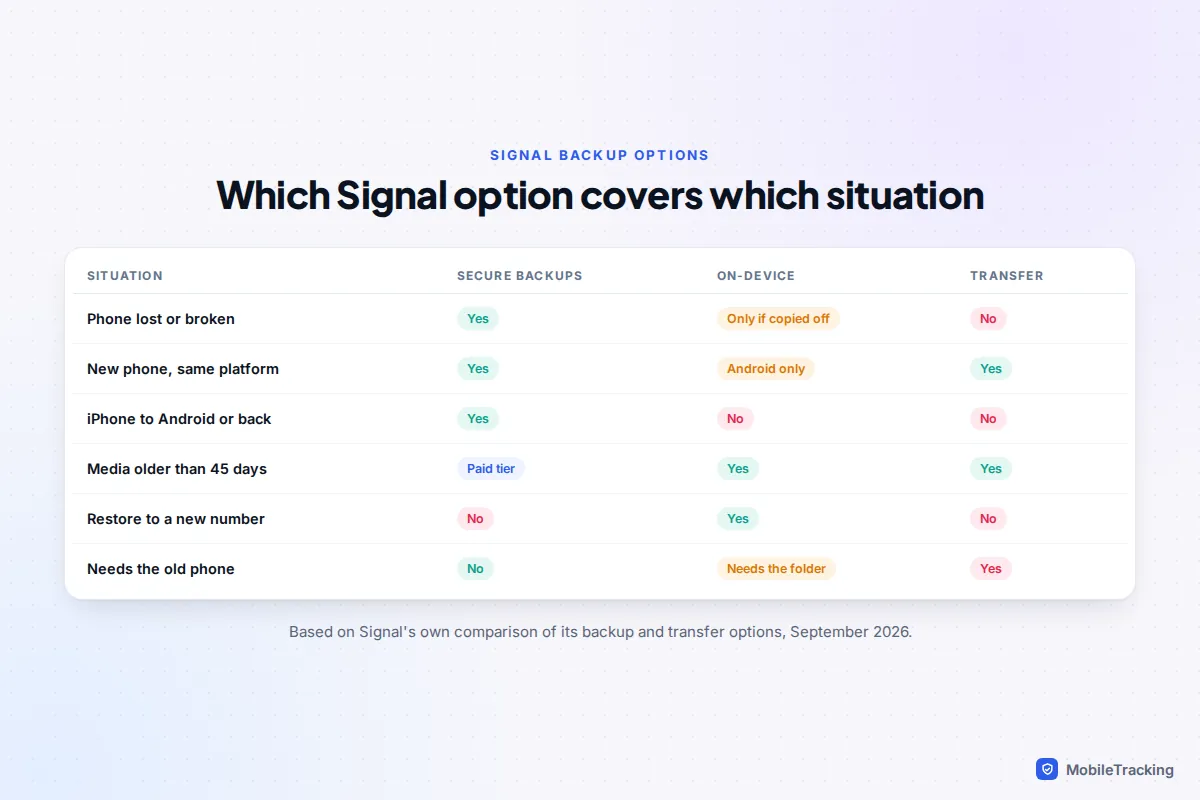
Signal’s three options, and which one you need
Signal gives you three separate tools, and they solve different problems. Mixing them up is the most common reason people lose chats when they change phones.
| Option | Where it lives | Best for | Main limit |
|---|---|---|---|
| Signal Secure Backups | Signal’s servers, end-to-end encrypted | Lost, stolen or broken phones; switching between iPhone and Android | Free tier keeps only 45 days of media |
| On-device backup | A folder you choose on your phone or computer | Android users who want a full local copy, including all media | Useless if the folder is on the phone you lost |
| Device-to-device transfer | Nowhere: it copies straight from old phone to new | Upgrading when both phones are in your hand | Same platform only; not a backup at all |
For most people the answer is simple: turn on Secure Backups today so you are covered if the phone disappears, and use a direct transfer when you upgrade. Add an on-device backup on Android if you want every old photo and video kept without paying.
If you are working through your whole phone rather than just Signal, our guide to backing up so a lost phone isn’t a disaster covers the other gaps, such as authenticator codes and WhatsApp.
How to turn on Signal Secure Backups
Secure Backups arrived on Android in September 2025 and on iPhone in November 2025. The labels are almost identical on both. Update Signal from the App Store or Google Play first, as older versions don’t have the Backups screen.
- Open Signal and tap your profile picture at the top left to open Settings.
- Tap Backups, then Set up and Enable backups.
- Signal generates your recovery key and shows it on screen. Copy it down carefully. Signal then asks you to type it back to prove you have it.
- Choose the free plan or the paid plan (more on the difference below).
- Stay on Wi-Fi while the first backup runs. With years of media it can take a while; after that, Signal replaces the backup with a fresh one each day.
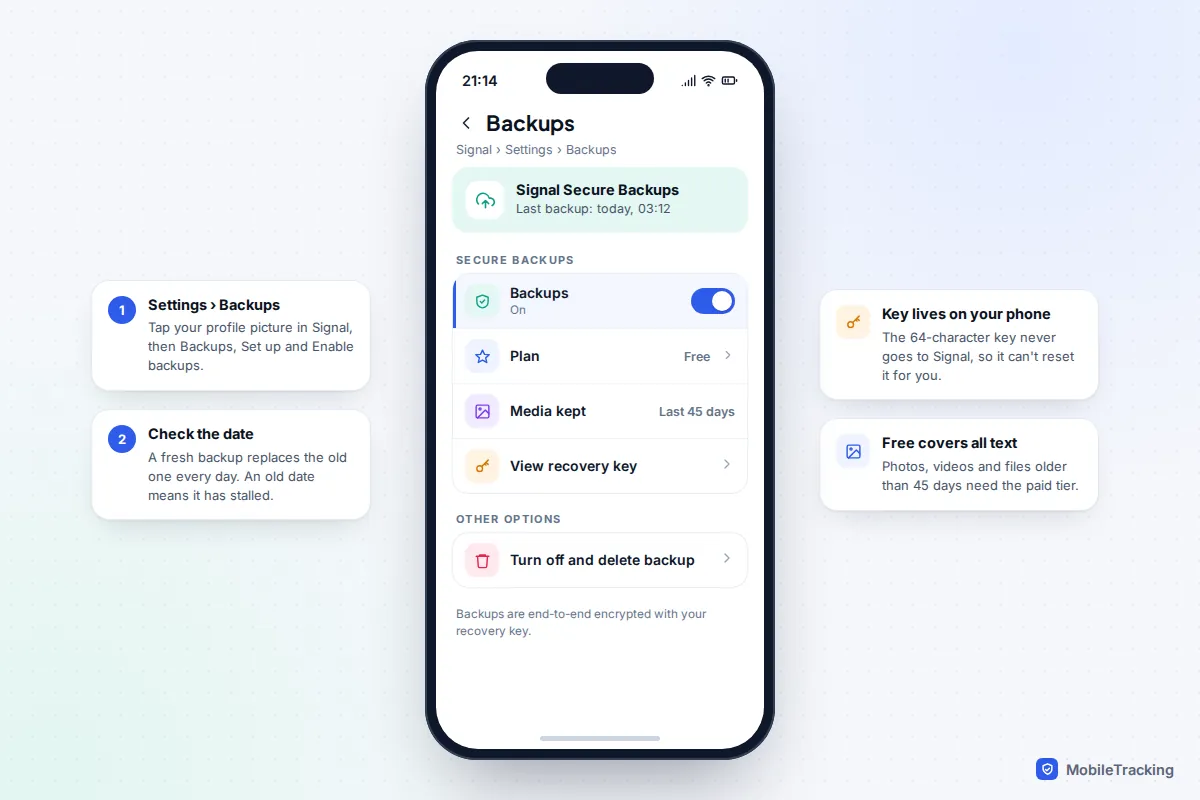
The backup is encrypted on your phone before it leaves, using a key that is generated on the device and never sent to Signal. That is why Signal can store it without being able to read it, and also why Signal can’t help if the key is lost.
Free or paid: what the difference really is
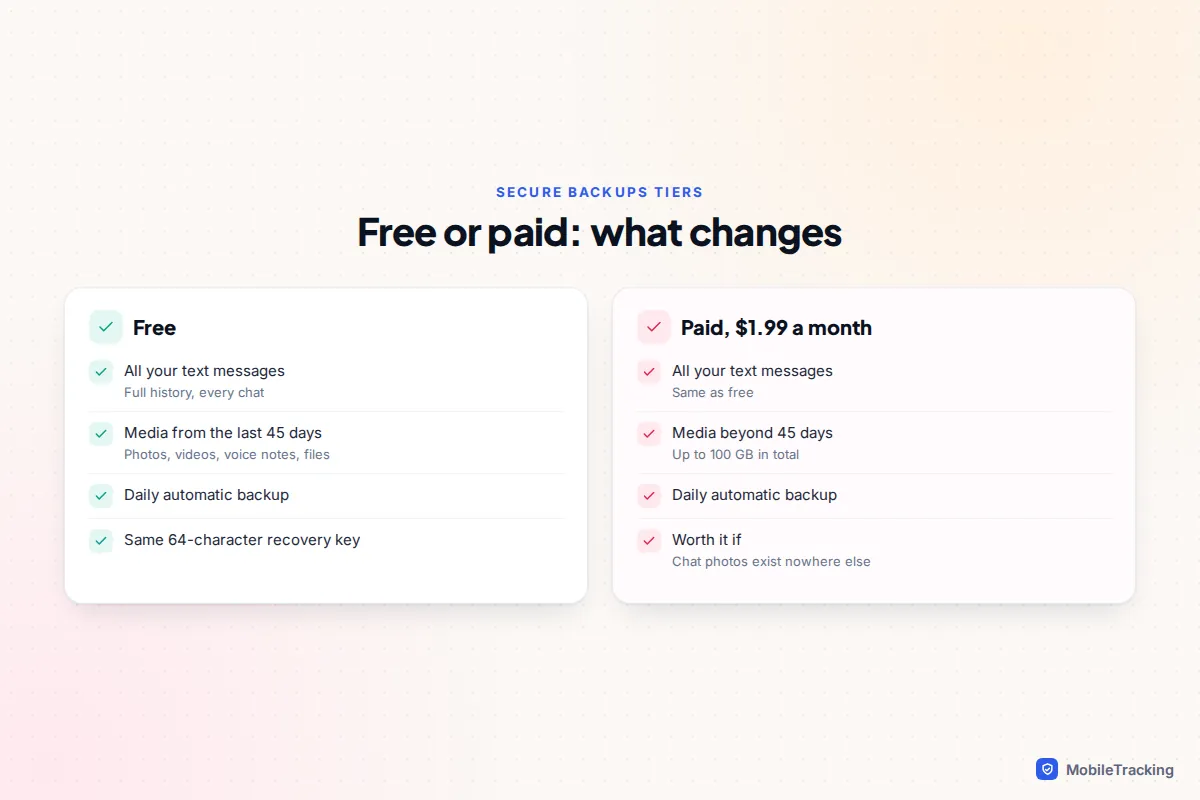
The free tier stores all your text messages and the last 45 days of media, such as photos, videos, voice notes and files. The paid tier costs $1.99 a month (prices in other currencies may differ) and removes the 45-day limit on media, up to 100 GB in total.
Ask yourself one question: do your Signal chats hold photos you have nowhere else? If family pictures only ever arrived through Signal and you never saved them to your photo library, the paid tier or an on-device backup is worth it. If your camera roll already syncs to iCloud Photos or Google Photos, the free tier usually covers what you would miss, which is the conversation itself.
The recovery key: where to keep it, and what happens if you lose it
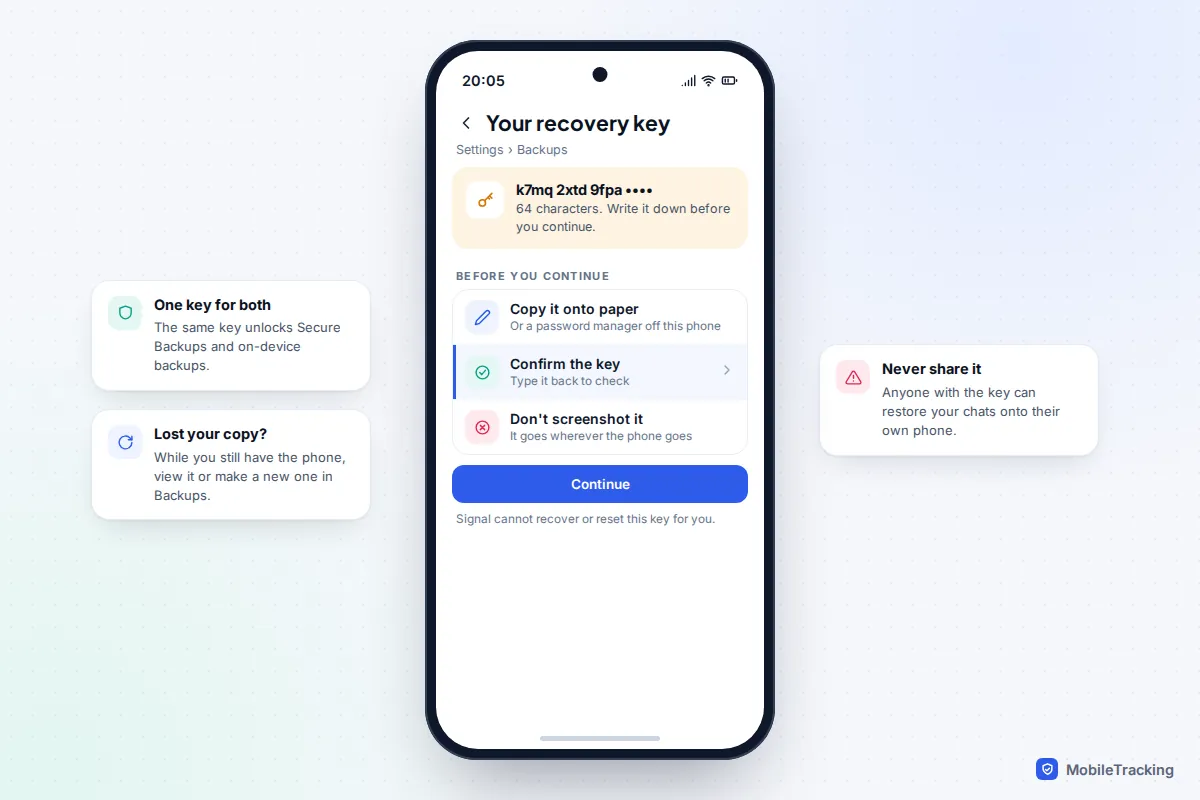
The recovery key is 64 characters long, and it is the only thing that can unlock your backup. Since spring 2026 Signal uses the same key for Secure Backups and on-device backups, so you only need to keep one.
Good places to keep it are a paper copy stored with other important documents, or a password manager you can open without this phone. Bad places are a screenshot in your camera roll, a note on the same phone, or a message to yourself. If the phone is lost, all of those go with it.
If you lose the key
- You still have the phone: go to Settings › Backups, where you can view the key again or create a new one. Do this the moment you realise your written copy is missing.
- The phone and the key are both gone: the backup cannot be decrypted. Signal’s own support pages are blunt that there is no way around this. You can still register your number on a new phone, but you start with empty chats.
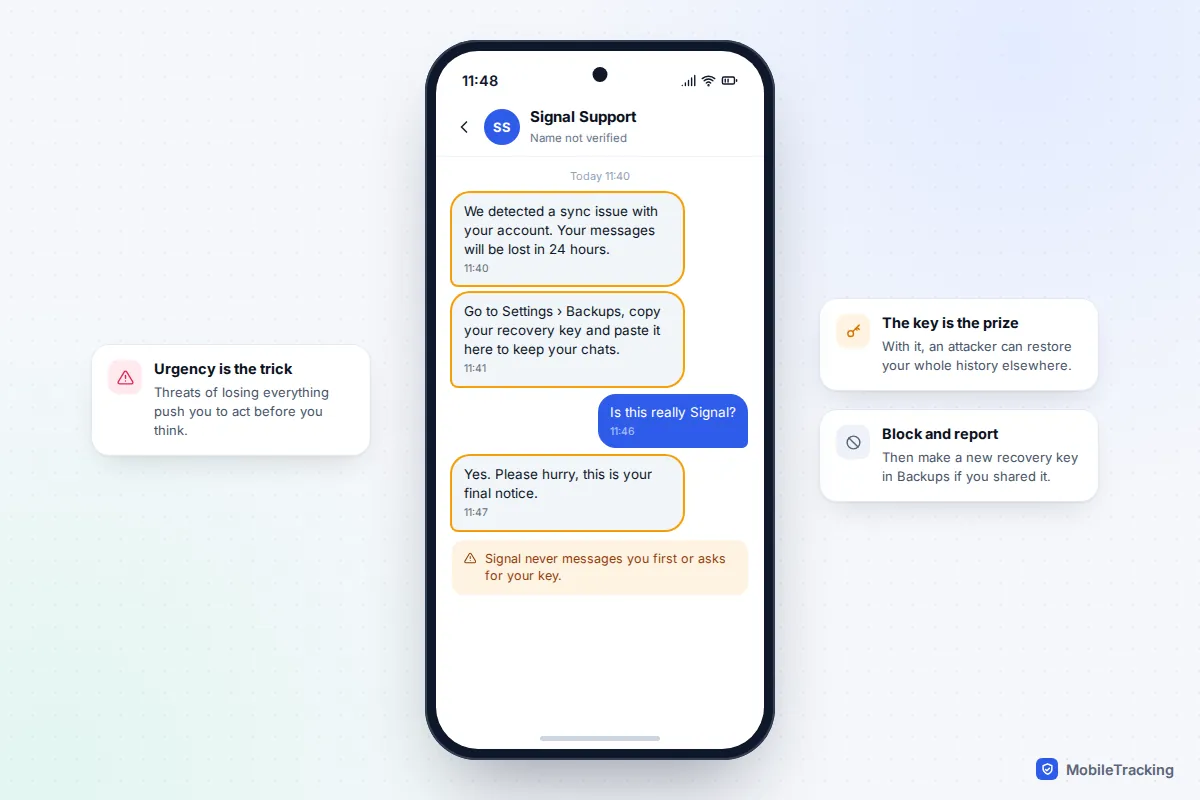
- You think someone else has seen the key: create a new key straight away in Backups. The FBI warned in June 2026 that registering again with the same number does not cancel an old stolen key; only generating a new key does.
Your Signal PIN is a different thing. The PIN restores your profile, settings and contacts when you re-register, but it never restores messages. Keep both, and don’t assume one covers the other.
On-device backups on Android
An on-device backup is an encrypted folder saved to storage you choose. It keeps everything, including media older than 45 days, at no cost. The catch is obvious: if the folder sits only on the phone, it disappears with the phone. Its real value comes when you copy it to a computer or memory card.
- In Signal, go to Settings › Backups › On-device backups and tap Turn on backups.
- Choose a folder and allow Signal access to it when Android asks.
- View and confirm your recovery key. If you already use Secure Backups it is the same key.
- Set the schedule. Each backup is a folder named like signal-backup-2026-09-24-03-00-00, and newer versions save only files that have changed, so later runs are quicker.
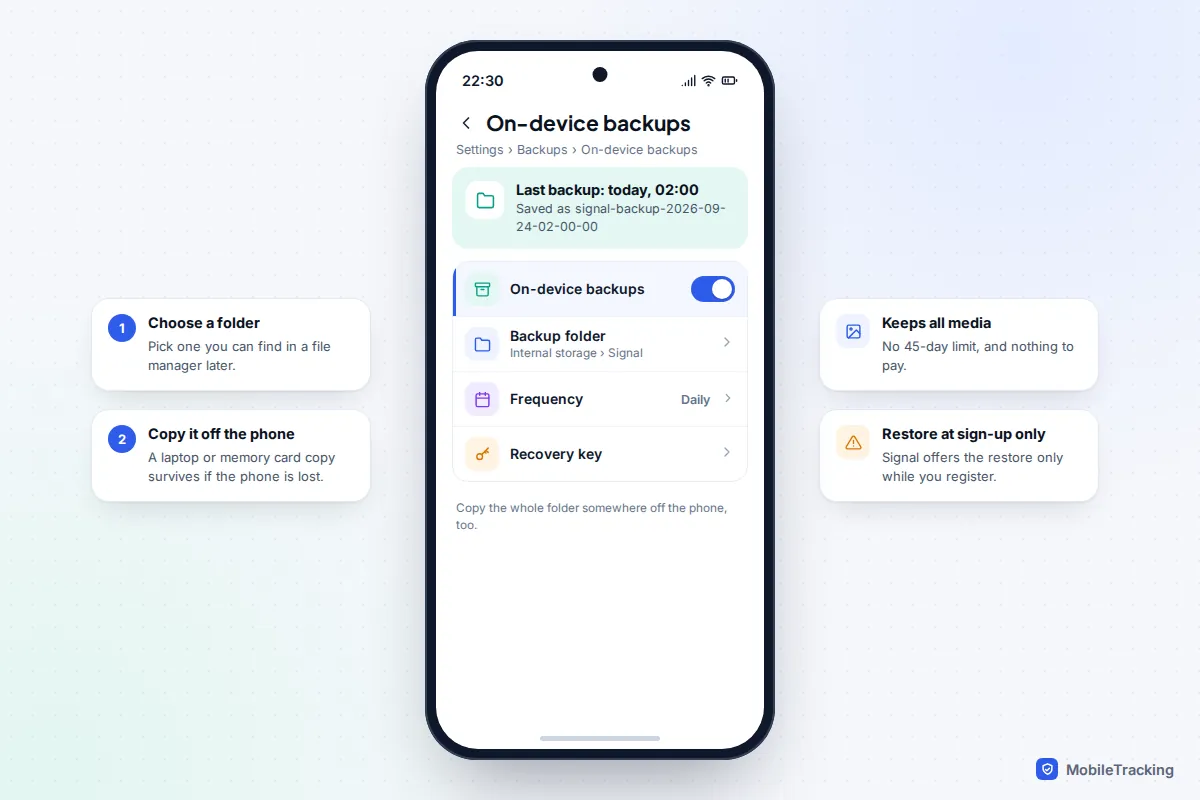
To restore, copy the complete backup folder onto the new Android phone, install Signal, choose I don’t have my old phone, then Restore on-device backup. Enter your number, pick the folder and type the recovery key. Restoring is only possible during registration, so if you skip past it you will need to uninstall and reinstall Signal to get the option back.
Older Signal versions made a single backup file protected by a 30-digit passphrase, set under Settings › Chats › Chat backups. If that is what you have, the passphrase is what restores it, not the new 64-character key.
On iPhone, on-device backups (saved to a folder in the Files app) went into beta testing in September 2026 and use the same format as Android. Until that reaches the regular App Store version, Secure Backups is the only way to keep an iPhone’s Signal history safe from loss.
Moving Signal to a new phone
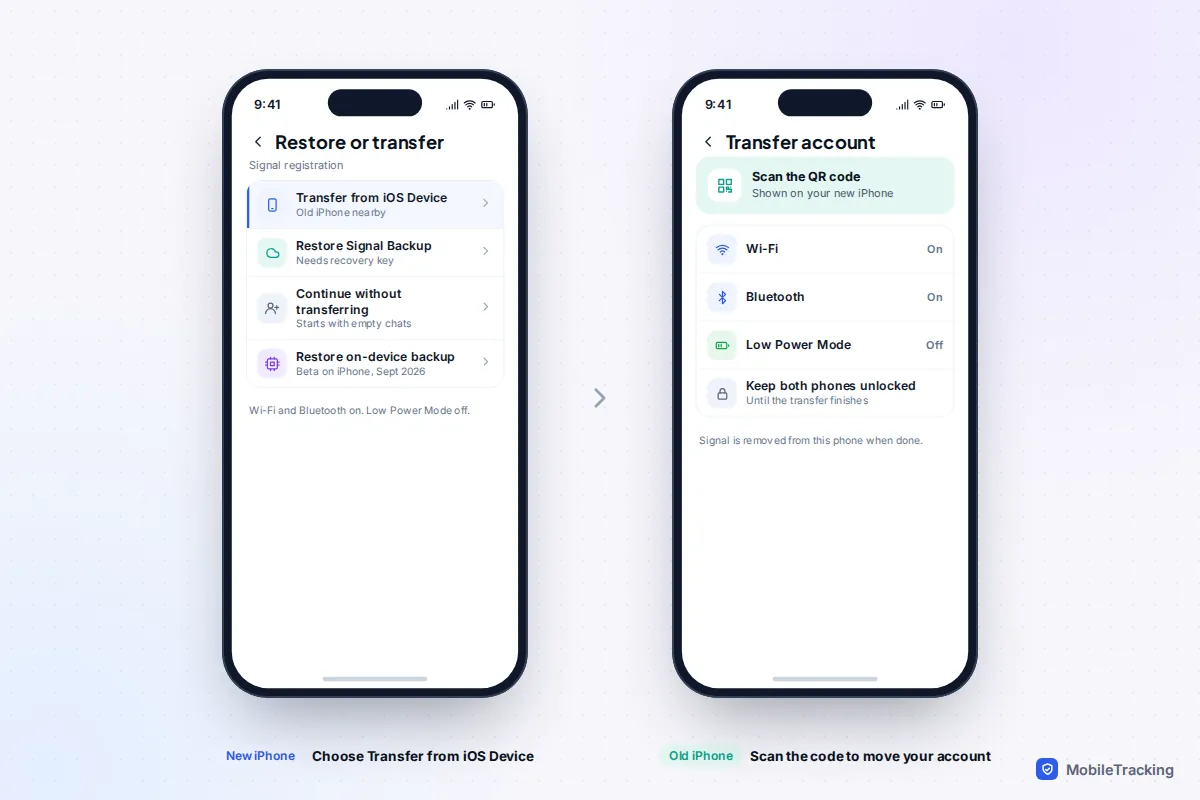
If both phones are in front of you and on the same platform, a direct transfer is the fastest route and brings everything, including all media. Both need the latest Signal, Wi-Fi and Bluetooth switched on, and to be kept close together. The transfer moves your account rather than copying it, so the old phone’s Signal is wiped once it finishes.
iPhone to iPhone
- Turn off Low Power Mode on both iPhones and allow Signal the Local Network permission if asked.
- Install Signal on the new iPhone, enter your number and choose Transfer from iOS Device. A QR code appears.
- On the old iPhone, scan the QR code when Signal prompts you, then wait with both phones unlocked until it completes.
Android to Android
- Install Signal on the new phone and choose Transfer or restore account, then Transfer from Android device.
- On the old phone, go to Settings › Account › Transfer account.
- Check that the code shown matches on both screens, confirm, and finish registration on the new phone.
Switching between iPhone and Android
Direct transfers don’t work across platforms. Set up Secure Backups on the old phone, check it has completed, then on the new phone register with the same number and choose to restore from Signal Backups when offered. Have the recovery key ready before you start. Our general guide to transferring data to a new phone covers the rest of the move.
What isn’t backed up
Even a perfect backup leaves some things behind, mostly by design.
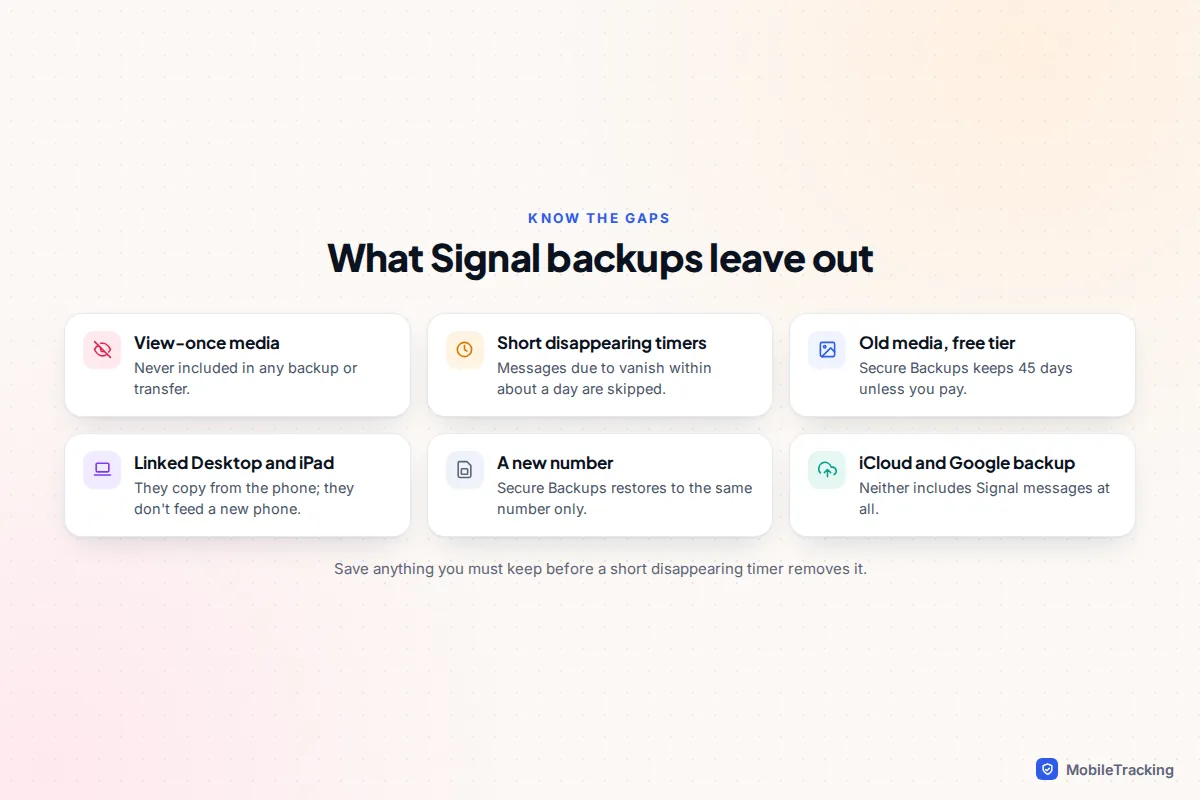
- View-once media is never included.
- Disappearing messages due to vanish within about 24 hours are skipped. If you use short timers, see our guide to disappearing messages for how that trades off against keeping a record.
- Media older than 45 days in a free Secure Backup.
- Anything on a linked Desktop or iPad. Those are copies synced from your phone, not separate backups.
- A different phone number. Secure Backups restores only to the same number; a new number needs an Android on-device backup.
Why Signal Desktop isn’t your backup
Signal Desktop is a linked device. When you set up a new phone, linked devices are disconnected and you have to link them again. At that point your phone can send across your message history and the last 45 days of media, but only from what the phone already has. The computer does not feed old chats back into a new phone.
There is one newer exception. Signal Desktop can now make its own encrypted on-device backup, under Settings › Backups › Other ways to back up, and that can be restored onto an Android phone. It can’t be restored on an iPhone yet, so iPhone users should treat Desktop as a convenience, not a safety net.
Common mistakes, and what to do if a restore fails
Take Priya, who dropped her Android phone in a river. She had an on-device backup running every night, but the folder was on the phone’s internal storage, so it went in the river too. A weekly copy to her laptop, or Secure Backups alongside it, would have saved three years of family chats.
- Restore option never appeared: it only shows during registration. Uninstall and reinstall Signal, then look for the restore or transfer screen before you finish setting up.
- Key rejected: check all 64 characters, especially easily confused ones like 0 and O. Make sure you are using the new key, not an old 30-digit passphrase or your PIN.
- No backup found: register with exactly the same phone number used for the backup, and turn off any VPN while restoring.
- On-device folder not visible: give Signal permission to the storage location, and restart the phone if the folder was copied on recently.
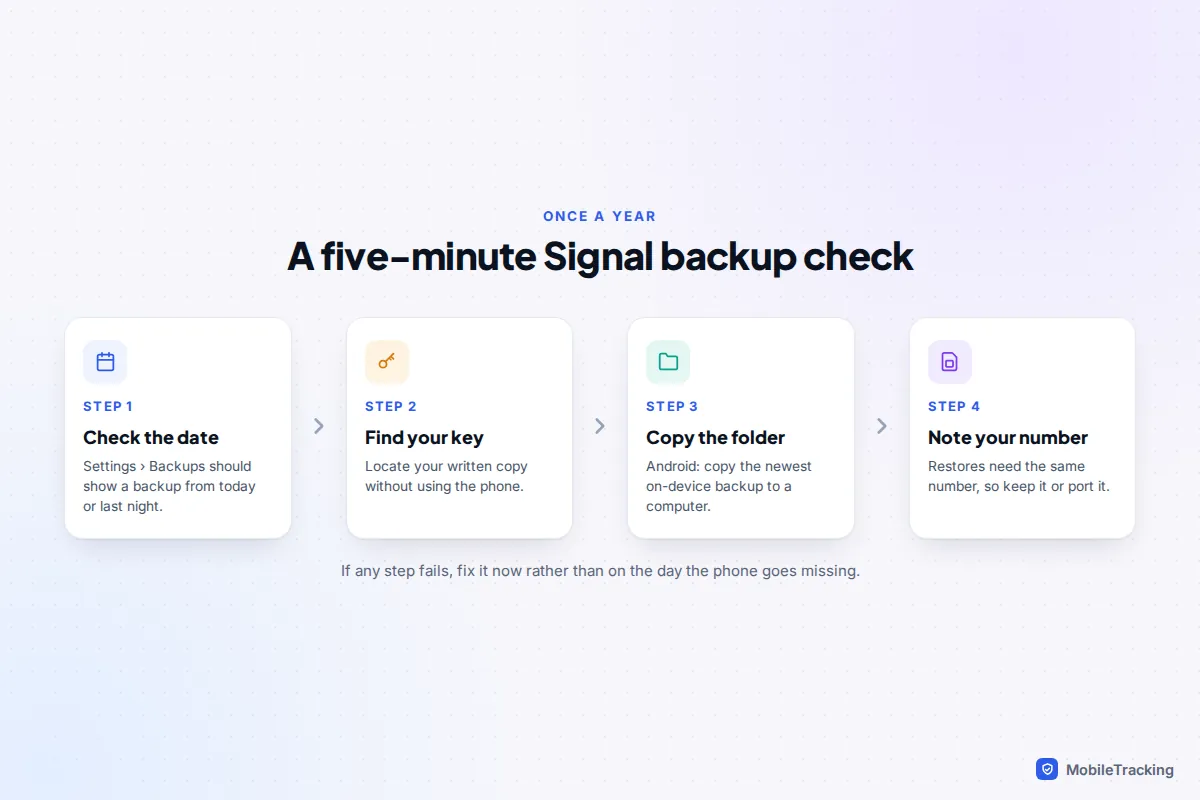
The best protection is a test before you need it. Our guide on testing that your backup works explains how to check a backup without risking your current chats. Signal’s own comparison of backups and device transfers is also worth a look if your situation is unusual.
Frequently asked questions
Does iCloud or Google backup include Signal messages?
No. Signal keeps its messages out of iCloud Backup and Google’s device backup on purpose, so a restored phone will have the Signal app but no chats. You need Secure Backups, an on-device backup or a direct transfer.
Can Signal read my Secure Backup?
No. The backup is encrypted on your phone with the recovery key before upload, and the key never goes to Signal’s servers. That is also why Signal cannot recover the backup for you if the key is lost.
How often does Signal back up?
Secure Backups creates a fresh backup every day and replaces the previous one. On-device backups on Android follow the schedule you set in the Backups screen.
Can I restore Signal chats onto a new phone number?
Not with Secure Backups, which needs the same number. An Android on-device backup can be restored to a new number, according to Signal’s comparison of its backup options.
Can I back up Signal on an iPad?
An iPad is always a linked device, and for now its history can’t be used to rebuild your account. Your phone’s backup is the one that counts, and the iPad re-syncs from the phone after you link it again. Signal’s September 2026 beta of on-device backups covers iPad as well, so this may change once it reaches everyone.
This guide is general information, not legal or financial advice. Read our editorial policy.