
Most apps you’ve left aren’t really running: iPhone and Android both freeze them within moments. To stop the few that genuinely keep working, go app by app. On Android, open Settings › Apps, pick the app, tap App battery usage and switch Allow background usage off (that’s the Restricted setting), or on a Samsung add it to Deep sleeping apps. On iPhone there’s no single “run in background” switch, so you limit what the app is allowed to do while closed: Background App Refresh, Location set to While Using the App instead of Always, notifications and Live Activities.
What doesn’t help is swiping apps away from the app switcher or installing a “cleaner”. Both waste effort and can stop the apps you rely on, such as alarms and family safety apps, from working. This guide explains how each system really handles background work, which controls matter, and what should be left running. If your main worry is battery drain from Background App Refresh specifically, our guide to stopping Background App Refresh draining your battery goes deeper on that one setting.
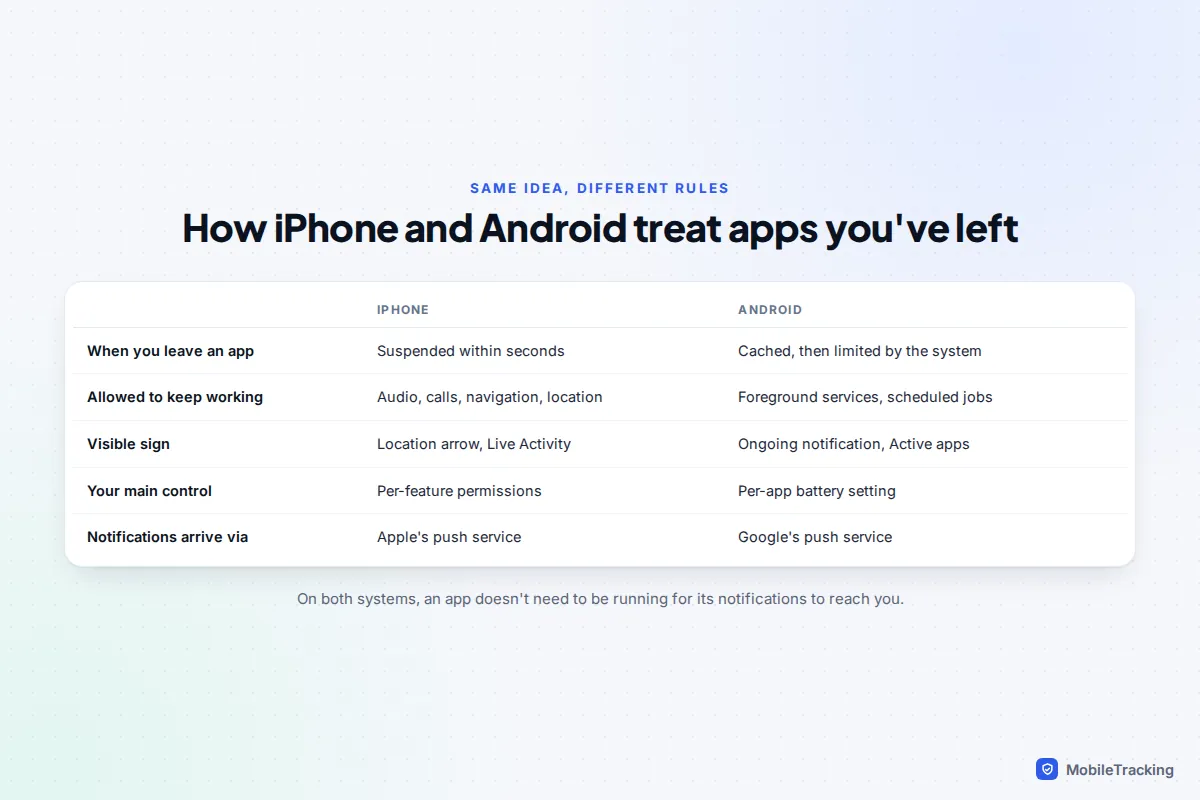
How iPhone and Android actually handle background apps
iPhone: suspended by default
When you leave an app on an iPhone, iOS suspends it within seconds. It stays in memory so it reopens instantly but does no work. Apple only lets apps keep working for specific jobs: playing audio, phone and video calls, navigation and location updates, talking to Bluetooth accessories such as a watch, finishing a download, and short refreshes that iOS schedules itself. iOS 26 added one more: an app can finish a long task you started, such as exporting a video, while showing a system progress indicator you can cancel.
Notifications don’t require the app to run at all. They come through Apple’s push service, which is why a messaging app you haven’t opened for days still alerts you instantly.
Android: more freedom, more limits
Android also caches recent apps but gives them more room, then reins them in: Doze defers work while the phone sits idle, and apps you rarely open are placed in lower-priority groups that are allowed to run less often. An app that needs to keep working, such as a music player or fitness tracker, must run a “foreground service”, and Android requires it to show an ongoing notification while it does.
Manufacturers then add their own rules, such as Samsung’s sleeping apps and Xiaomi’s auto-start switch, which is why the same app can behave perfectly on a Pixel and keep stopping on another brand.
Find out which apps really are active
Find the evidence before switching anything off. Chasing apps at random tends to break something useful while the real culprit carries on.
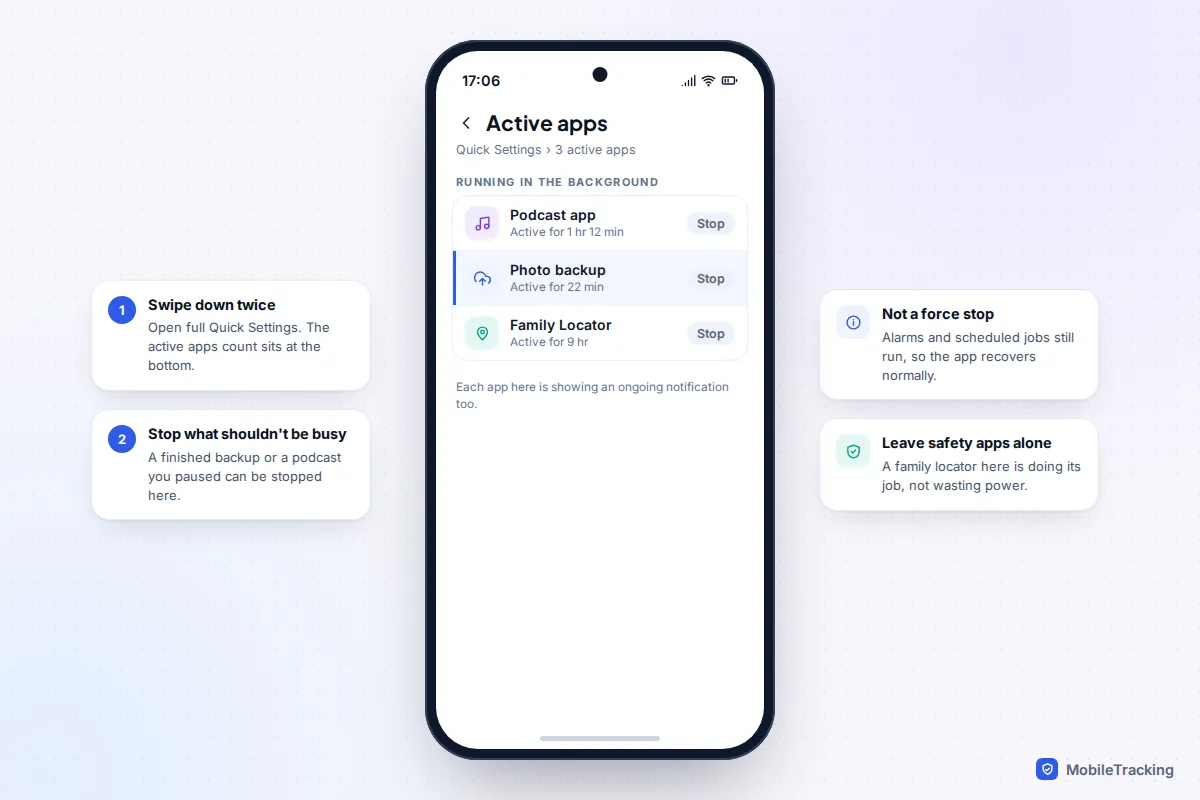
- Android, right now: swipe down twice to open full Quick Settings. On Android 13 and later, a button at the bottom shows how many apps are active, for example “3 active apps”. Tap it to see each app running a foreground service and how long it has been going.
- Android, over the day: Settings › Battery › Battery usage on a Pixel, or Settings › Battery on a Samsung. Tap an app to compare its background time with its screen time.
- iPhone: Settings › Battery explains why each app used power, including background activity. For location, open Settings › Privacy & Security › Location Services: a small arrow next to an app shows it used your location recently.
An app that’s busy for hours while barely appearing on screen is your target. For a wider picture of which apps take your time as well as your battery, see how to see your most-used apps.
Android: the controls that actually work
Restrict background battery use
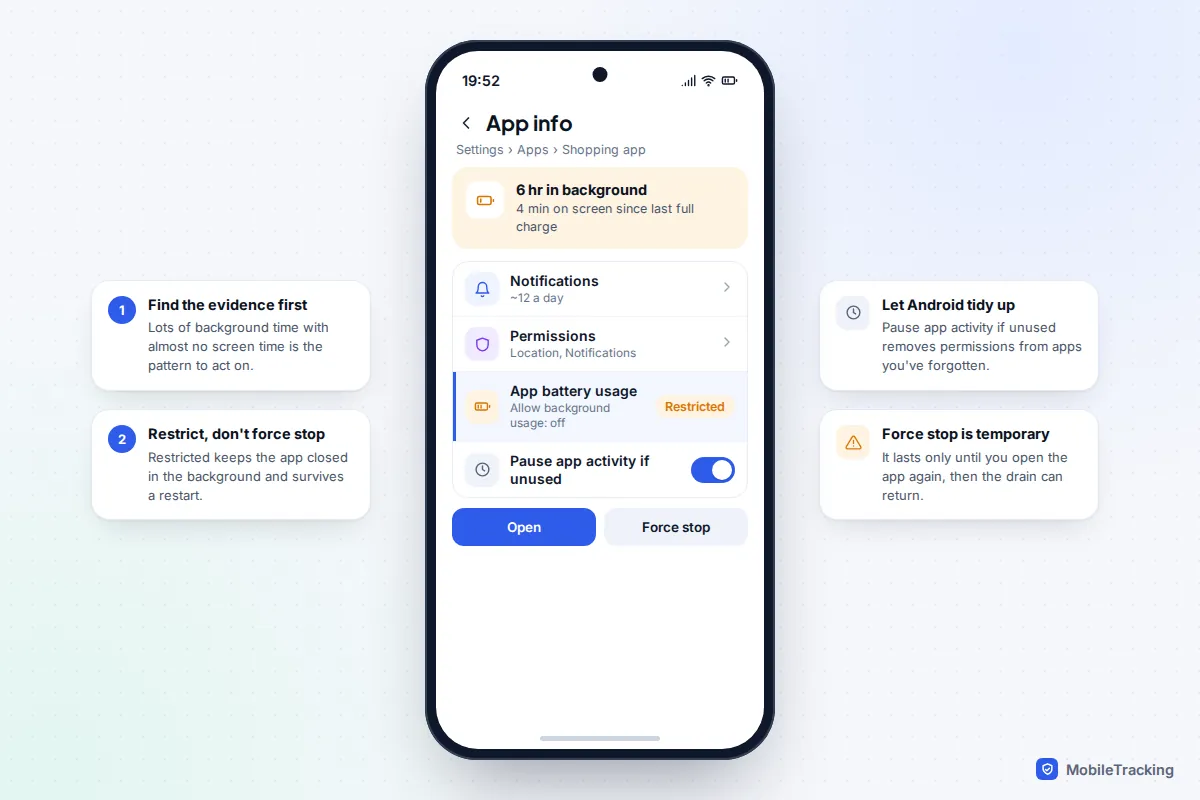
This is the setting to use for an app that keeps waking up for no good reason. On a Pixel, go to Settings › Apps › See all apps, pick the app, tap App battery usage and switch off Allow background usage. On a Samsung it’s Settings › Apps, the app, then Battery › Restricted. The choice sticks through restarts, and the app works normally whenever you open it. The trade-off is that its notifications may arrive late, so don’t use it on messaging or safety apps.
Samsung adds a second layer under Settings › Battery › Background usage limits, where you can put apps into Deep sleeping apps (never run in the background) or protect them in Never sleeping apps. The background refresh guide linked above walks through both lists.
Stop an app from Active apps
The Stop button in the Active apps panel ends that app’s current session: the app is closed, its ongoing notification disappears and any media stops. Google’s developer documentation is clear that this isn’t a force stop, so its alarms and scheduled jobs still run on time. Use it for a finished backup or a forgotten navigation session.
Force stop, and why it isn’t a habit
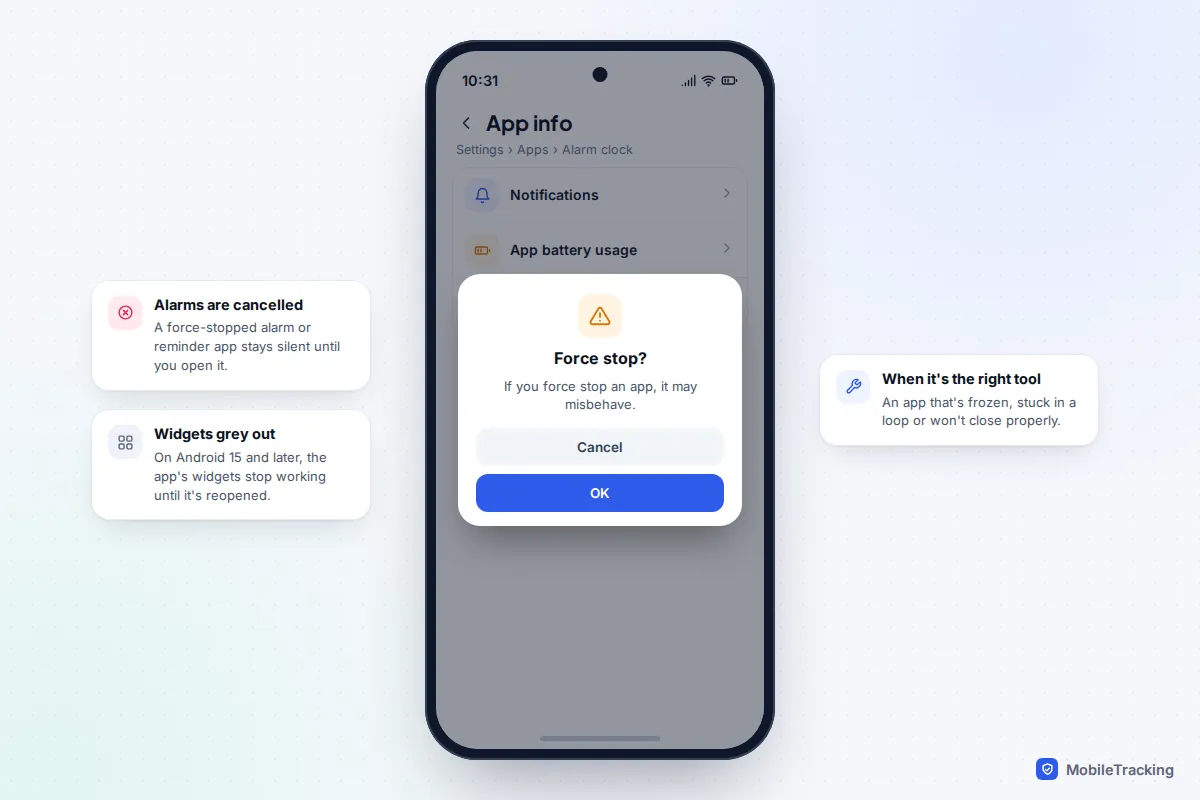
Force stop (Settings › Apps, the app, Force stop) is a troubleshooting tool for an app that’s frozen or misbehaving. It does much more than close the app. Until you open it again, a force-stopped app can’t fire alarms or reminders, respond to scheduled work or report location, and on Android 15 and later its home-screen widgets grey out. Android warns you with “If you force stop an app, it may misbehave” for good reason.
It also doesn’t last: the moment you open the app, it’s back to normal. Restricted does the same job permanently.
Auto-start settings on Xiaomi, OPPO and other brands
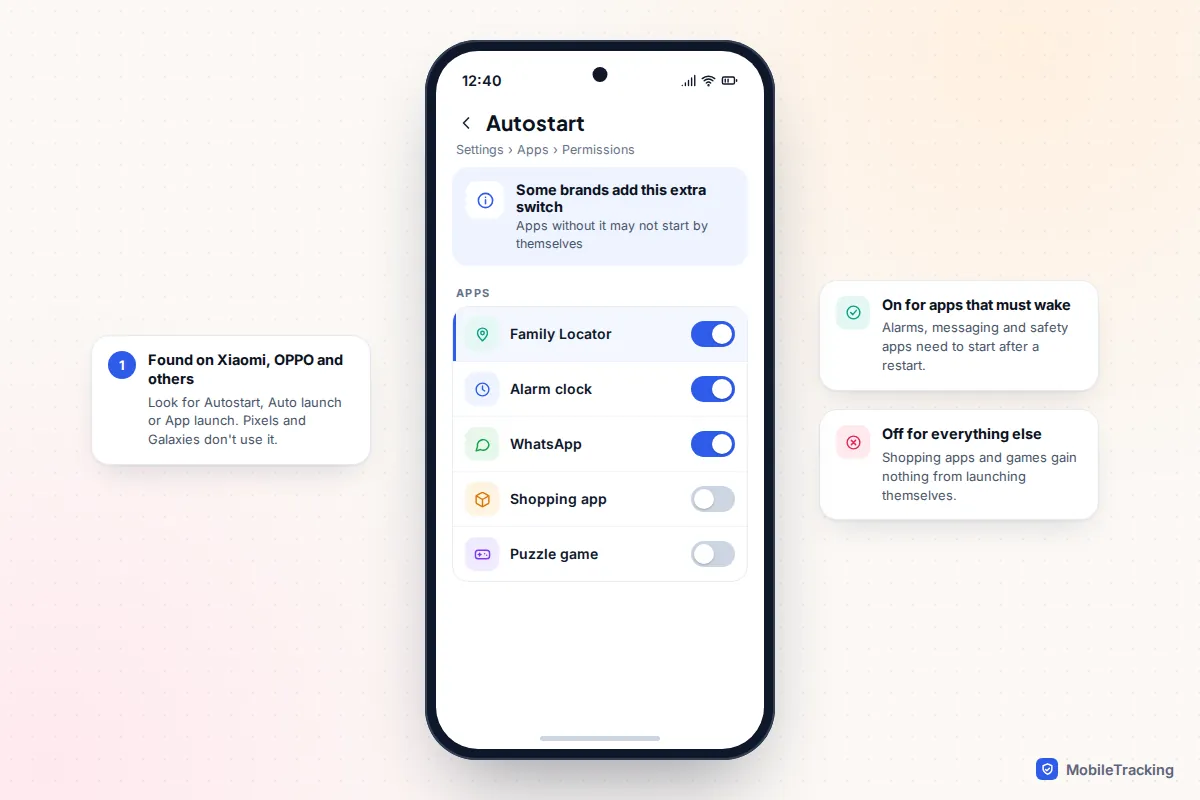
Some Android brands add a switch that decides whether an app may start by itself after a restart or in response to an event. On Xiaomi phones it’s called Autostart, found under Settings › Apps › Permissions or in the Security app. OPPO, realme and OnePlus phones running ColorOS use Auto launch or Allow auto launch in the app’s settings, and older Huawei phones use App launch. Labels move between versions, so search Settings for “auto”.
This switch works in both directions. Turning it off for shopping apps and games stops them starting themselves. Leaving it off for an alarm, messaging or family safety app is the most common reason those apps go quiet on these brands. Pixel and Samsung phones don’t have this extra switch.
Disable or uninstall preinstalled apps
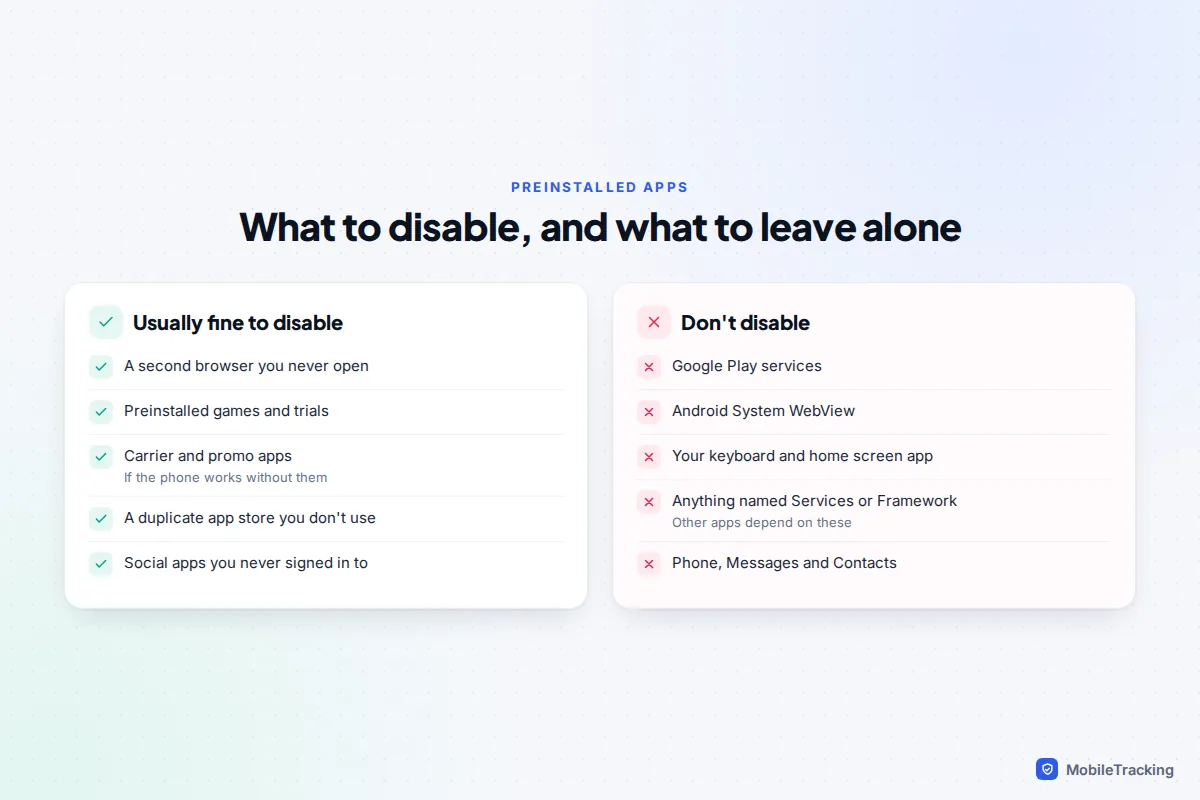
Phones often arrive with apps you never asked for, and some run services in the background even if you never open them. If you don’t use one, removing it is the cleanest fix of all.
- Go to Settings › Apps and pick the app.
- Tap Uninstall if you see it. If the app came built in, you may only see Disable (confirm with Disable app on Samsung).
- If a disabled app causes a problem, return to the same page and tap Enable.
Disabling removes the app from your screens and stops it running, without deleting it from the phone’s system storage. Stick to apps with an obvious purpose you don’t need. Leave anything with “Services”, “Framework” or “System” in its name alone, along with Google Play services, Android System WebView, your keyboard and your home screen app, because other apps depend on them.
For apps you keep but rarely open, Android can tidy them automatically. With Pause app activity if unused switched on in an app’s info page, Android removes its permissions, deletes temporary files and stops its background activity and notifications once you haven’t used it for a long time. Google explains how this works on its unused apps help page. Switch it off for apps you rarely open but still need, such as a hospital or school-alert app.
iPhone: limit what apps can do when closed
Because iOS already suspends apps, the useful iPhone controls are about permissions, not processes.
Location: Always or While Using
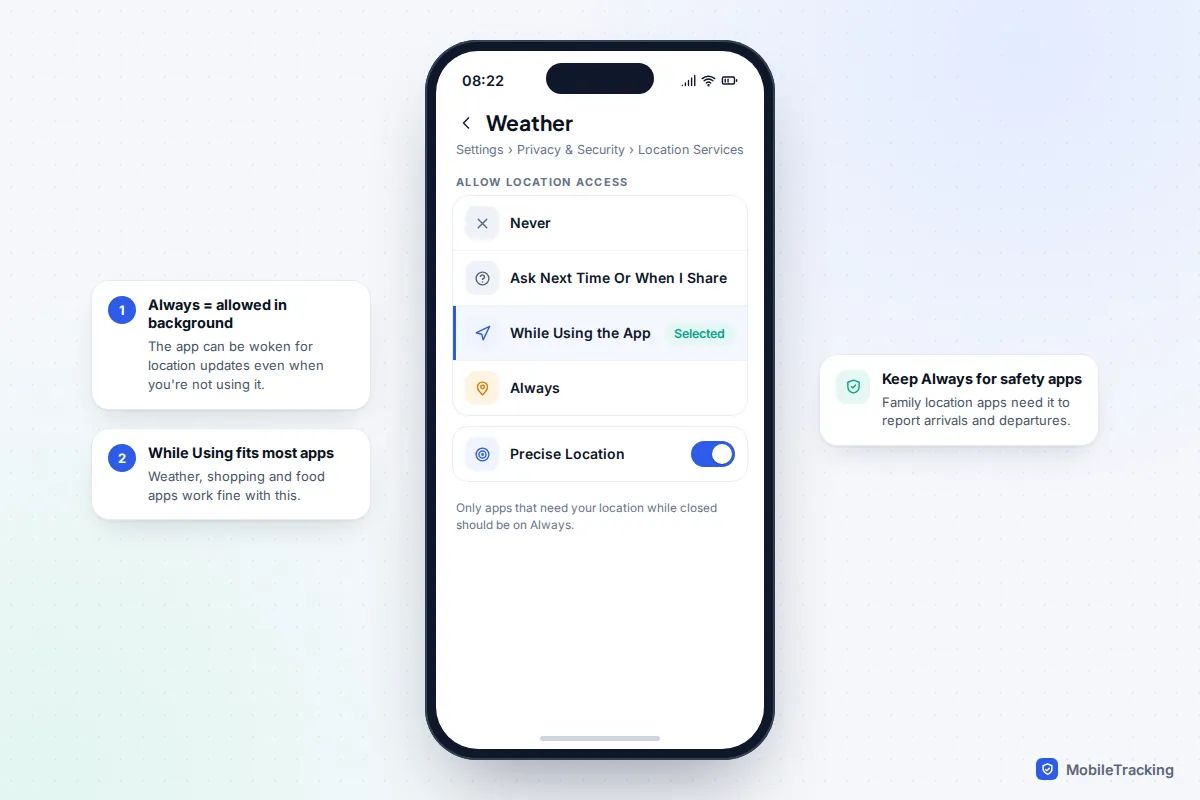
Location is the main reason an iPhone app keeps waking up. Go to Settings › Privacy & Security › Location Services and tap the app. Always lets it receive location updates while closed; While Using the App limits it to when it’s open on screen; Ask Next Time Or When I Share and Never are stricter still. Weather, shopping, food and social apps work fine on While Using. iOS also checks in periodically, showing a map of where an app used your location in the background and asking whether to keep allowing it. Treat that prompt as a useful audit, not a nuisance. There’s more detail in our guide to turning off location for a single app.
Background App Refresh
This lets suspended apps wake briefly to fetch new content. Switch it off per app in Settings › General › Background App Refresh. Keep it on for messaging and family location apps, and switch it off for anything that can simply load fresh content when you open it.
Notifications
Notifications don’t make an app run, but each one lights the screen and pulls you back in. In Settings › Notifications, turn off alerts from apps that only send promotions, or switch them to Scheduled Summary.
Live Activities
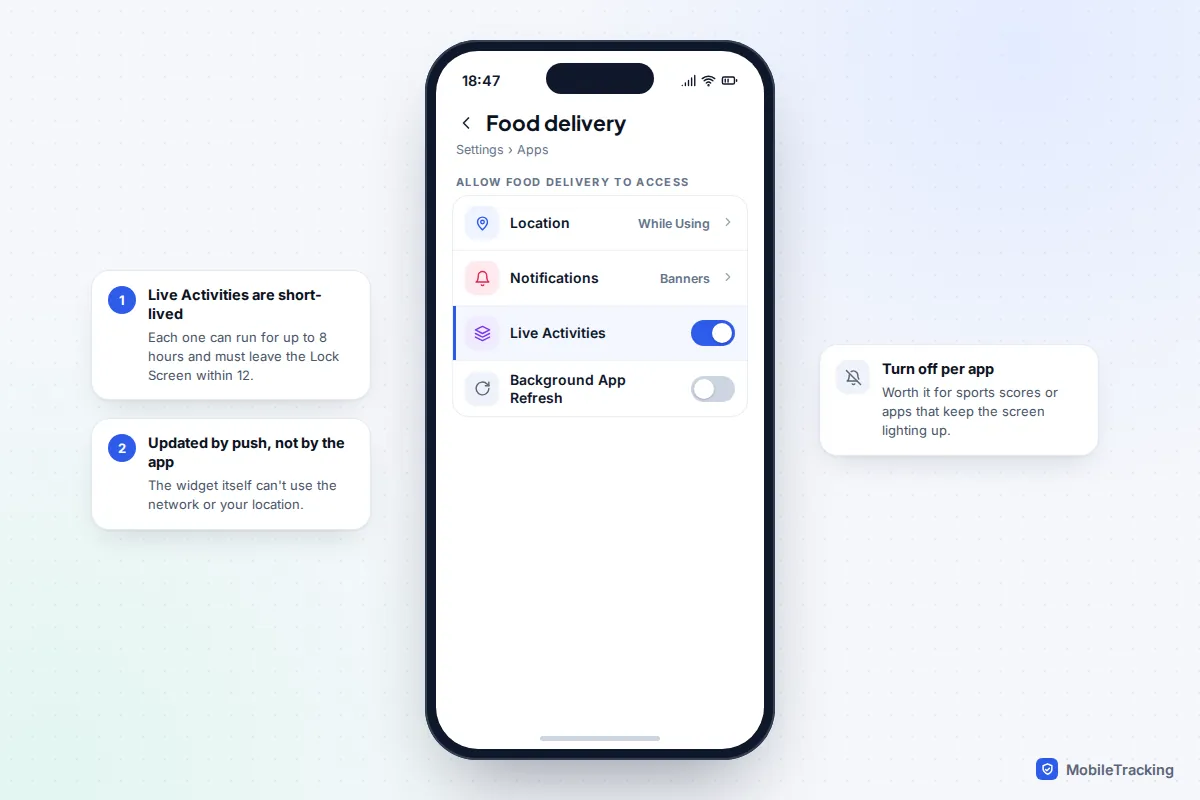
Live Activities are the live panels on your Lock Screen and in the Dynamic Island, such as a delivery tracker or a football score. They’re less of a drain than they look: Apple limits each one to eight hours of activity, removes it from the Lock Screen within twelve hours at most, and the panel itself can’t use the network or your location. Updates arrive by push. If one keeps lighting up your screen, turn it off in Settings › Apps, the app, Live Activities.
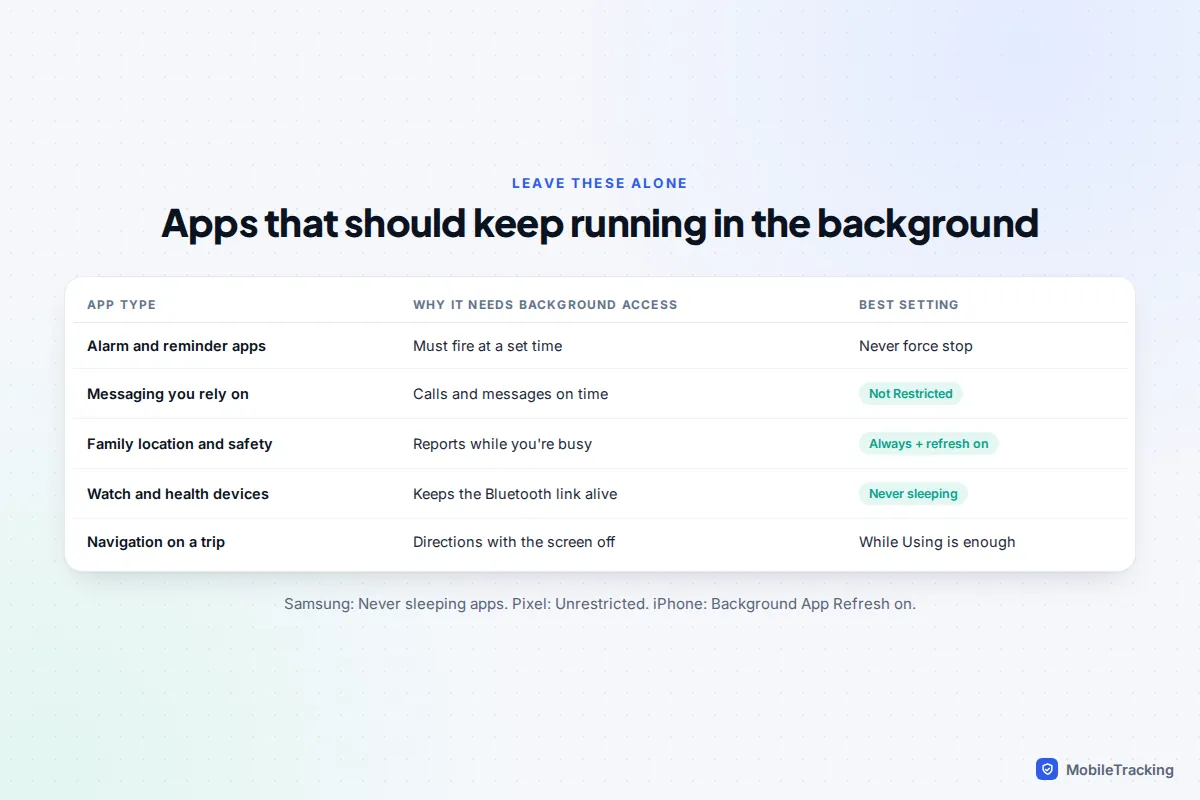
What should stay running
Some apps exist to work while you’re busy with something else. Restricting them saves a sliver of battery and costs you exactly what you installed them for.
| App | What breaks if you restrict it | What to do |
|---|---|---|
| Alarm clock and reminders | Alarms stay silent | Never force stop; allow auto-start on brands that have it |
| Messaging you rely on | Late messages and missed calls | Leave on Optimised or Unrestricted, never Restricted |
| Family location and safety apps | Stale map, no arrival or leaving alerts | Location Always, refresh on, Never sleeping on Samsung |
| Smartwatch, health and medical apps | Watch or sensor disconnects, readings stop | Unrestricted on Android, refresh on iPhone |
| Navigation during a journey | Directions stop when the screen locks | While Using is enough; the trip keeps it active |
If a relative’s location keeps going stale or a child’s phone stops checking in, one of these settings is usually the cause. Our guide to fixing location sharing that isn’t working goes through each phone step by step.
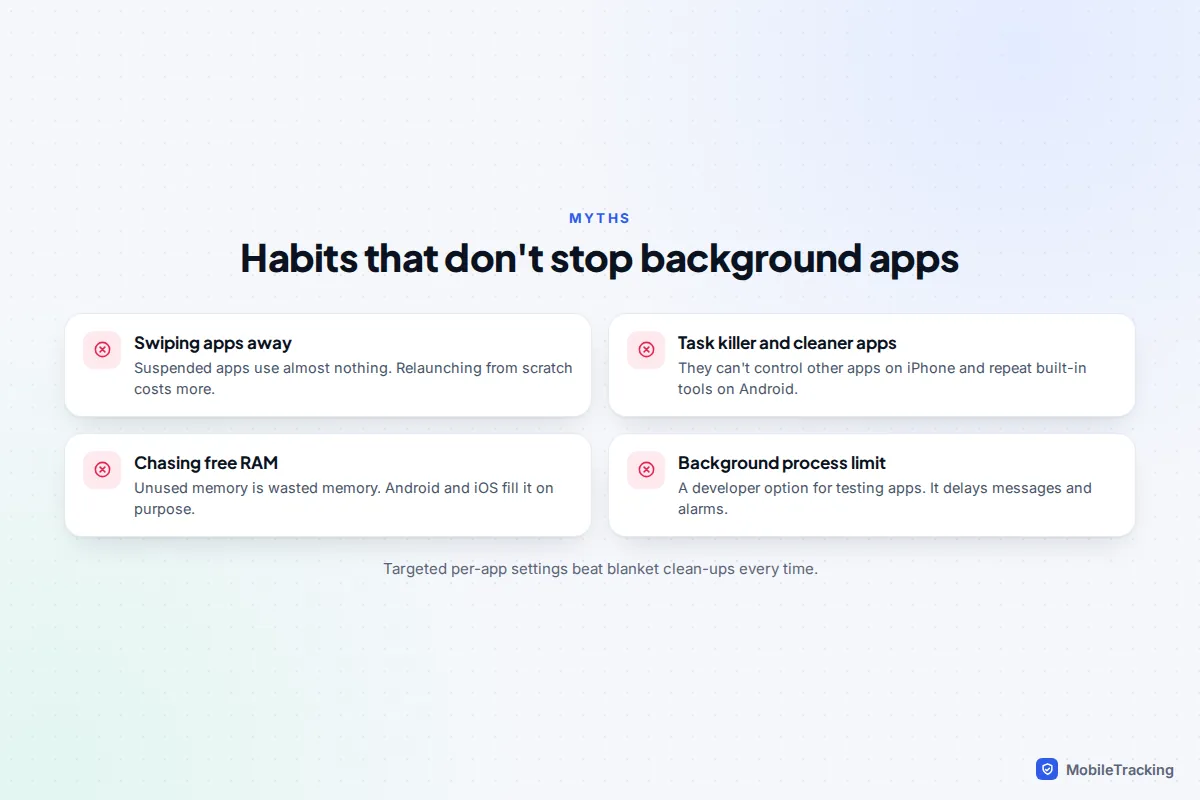
Myths that waste your time
Swiping apps away saves battery. On iPhone, a suspended app uses almost nothing, and Apple’s own advice is to close an app only if it’s unresponsive. Relaunching from scratch costs more than resuming. Worse, iOS generally won’t wake an app you’ve swiped away for background refreshes until you open it again, which is why a family locator can go quiet after a tidy-up. On Android, swiping removes the app from Recents but it can still restart for scheduled work, so you gain little.
Task killers and cleaner apps help. On iPhone, no app can close or control another app. On Android, these apps either repeat what Settings already does or repeatedly kill apps that then restart, using more battery than they save.
Free RAM means a faster phone. Both systems keep recent apps in memory on purpose and clear space automatically when they need it.
Developer options will fix it. The Background process limit setting in Android’s developer options is meant for testing apps. Setting it to “No background processes” delays messages and breaks alarms. Leave it on Standard limit.
Troubleshooting by symptom
- Notifications stopped or arrive late: the app is Restricted, in Deep sleeping apps, or its auto-start is off. Move it back to Optimised or Never sleeping. For deeper notification problems, see fixing notifications on iPhone and Android.
- An alarm didn’t go off: the app was probably force stopped or put to deep sleep. Open it once to reset it, and remove it from any sleeping list.
- A widget is greyed out: on Android 15 and later, that app was force stopped. Open the app and the widget comes back.
- The same app is busy again the next day: update it, restrict it, and if it persists, reinstall or remove it.
- A family member’s location is hours old: check Location is set to Always, Background App Refresh is on (iPhone), and the app isn’t Restricted or sleeping (Android).
A typical case: Aisha’s Galaxy lost a fifth of its battery overnight. Active apps showed nothing, but the battery screen listed a preinstalled game with hours of background time she’d never opened. She disabled it, left her alarm and her son’s family locator in Never sleeping apps, and the overnight drop fell to a few per cent without touching anything else.
Frequently asked questions
Is it bad to force stop apps on Android?
Occasionally, no: it’s the right fix for a frozen app. As a routine, yes. It cancels the app’s alarms and scheduled work until you open it again, and it only lasts until the next launch. Use Restricted for a lasting change.
Will restricting an app delete my data?
No. Restricted, deep sleep, Background App Refresh and location changes leave your data untouched. Disabling a preinstalled app keeps its data too. Only uninstalling or clearing storage removes data.
Do closed apps still get notifications?
Yes, on both systems, because notifications come through Apple’s or Google’s push service rather than the app itself. The exceptions are an Android app that’s force stopped, deep sleeping or Restricted, whose notifications can stop or be delayed.
Why does a family safety app need to run all the time?
Its whole job is to report location or send alerts while the phone is in a pocket. With background access removed, it shows the last position it managed to send, which can be hours old. Keep it allowed, agree openly as a family how it’s used, and check its own settings for a battery-saving mode instead.
This guide is general information, not legal or financial advice. Read our editorial policy.