
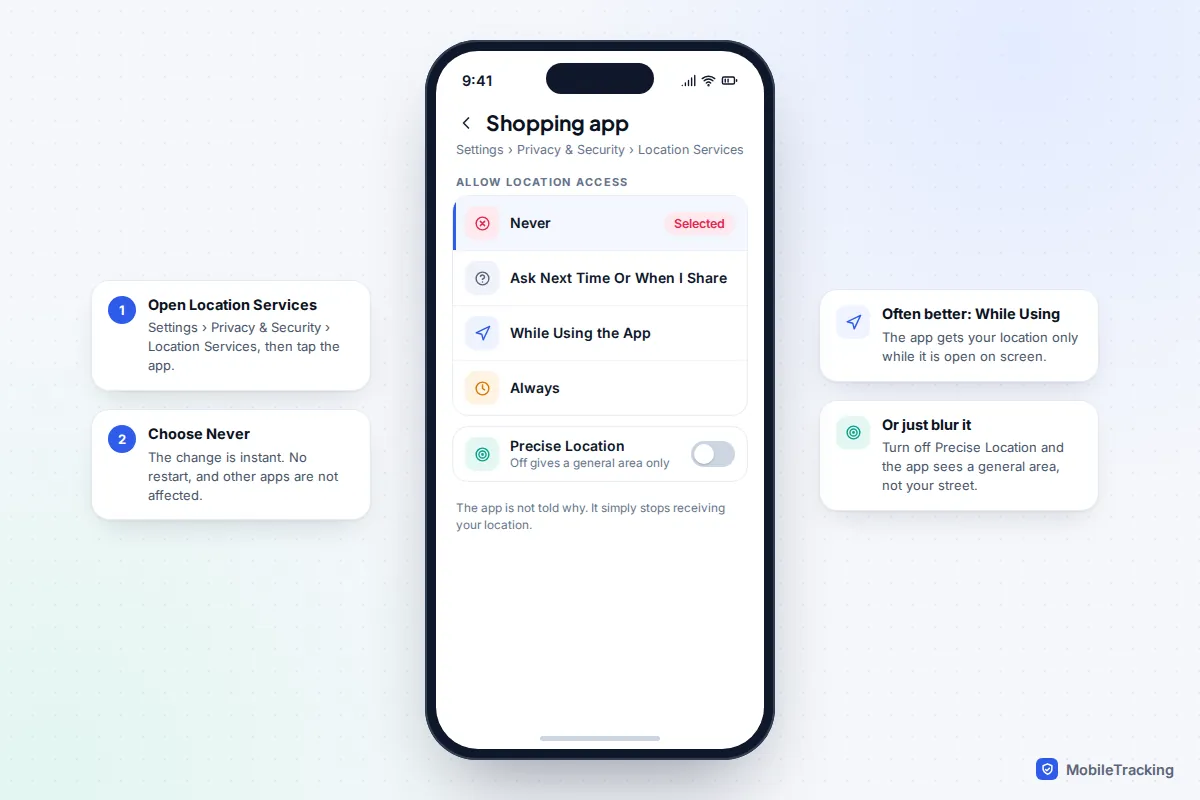
On an iPhone, go to Settings › Privacy & Security › Location Services, tap the app and choose Never. On Android, go to Settings › Location › App location permissions (on Samsung, App permissions), tap the app and choose Don’t allow. The change takes effect straight away, affects only that app, and the app is not told why; it simply stops receiving your location.
Before you block an app completely, though, it is worth knowing that there are gentler settings that keep useful features working while cutting off background tracking. This guide explains each level, how to blur your location instead of hiding it, how to stop your camera stamping locations into photos, and how to find the apps that can see you all the time.
The four levels, and which to pick
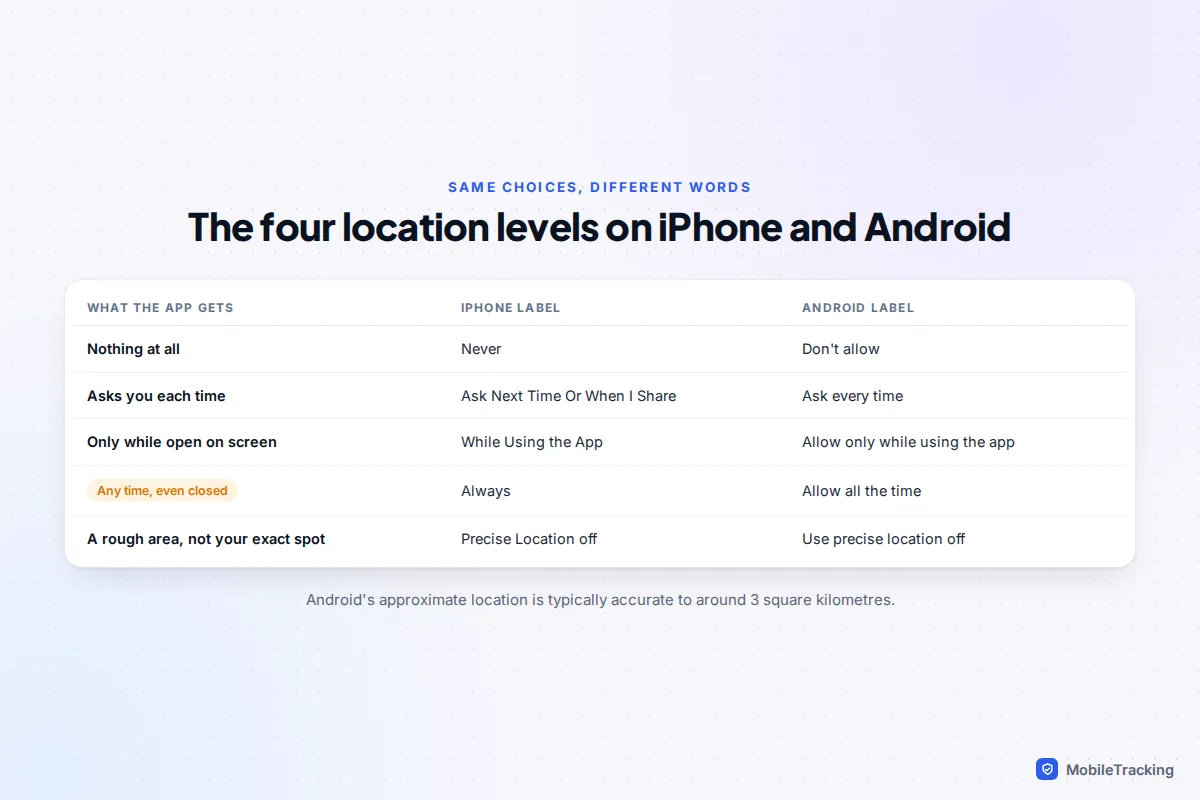
iPhone and Android offer the same four choices under different names, plus a separate switch for how precise the location is. Picking the right one matters more than simply switching things off.
| Setting | What the app can do | Best for |
|---|---|---|
| Never / Don’t allow | No location at all | Games, shopping, social apps that don’t need it |
| Ask Next Time Or When I Share / Ask every time | Asks you each time it wants location | Apps you use rarely, like a parking or cinema app |
| While Using the App / Allow only while using the app | Location only while the app is open on screen | Maps, taxis, food delivery, most apps |
| Always / Allow all the time | Location at any time, even when closed | Family safety apps, some fitness trackers, smart home routines |
The precision switch is separate and works with any of the middle two levels. With Precise Location (iPhone) or Use precise location (Android) turned off, the app gets only an approximate area. On Android that has typically meant accuracy to within about 3 square kilometres. That is plenty for a weather forecast or local news, and useless for anyone wanting to know which house you are in.
A good rule of thumb: While Using for anything that needs location to do its job, Never for anything that doesn’t, and Always only for the handful of apps that genuinely work in the background.
iPhone: turn off location for one app
These steps are the same on iOS 26 and iOS 27, and on earlier versions back to iOS 16.
- Open Settings and tap Privacy & Security.
- Tap Location Services. Leave the main switch at the top on; turning it off disables location for every app, including Find My.
- Scroll to the app and tap it. The list shows each app’s current setting on the right, which is handy for spotting anything set to Always.
- Choose Never to block it, or While Using the App or Ask Next Time Or When I Share to limit it.
- Optionally turn off Precise Location to give the app a general area only.
Apps can’t nag you back into giving permission from the settings screen. What some do is show their own in-app message asking you to turn location on, and if you pick Ask Next Time, iOS will show you the standard prompt with Allow Once, Allow While Using App and Don’t Allow. Allow Once is a useful middle ground: the app gets your location for that session only.
iOS also watches apps set to Always. From time to time it shows a prompt saying an app has been using your location in the background, with a map of where, and asks whether to keep allowing it. Treat that as a free audit: if the answer surprises you, change it to While Using. Apple’s page about privacy and Location Services explains the full list of options, including the System Services section at the bottom of Location Services, which covers Apple’s own features rather than apps.
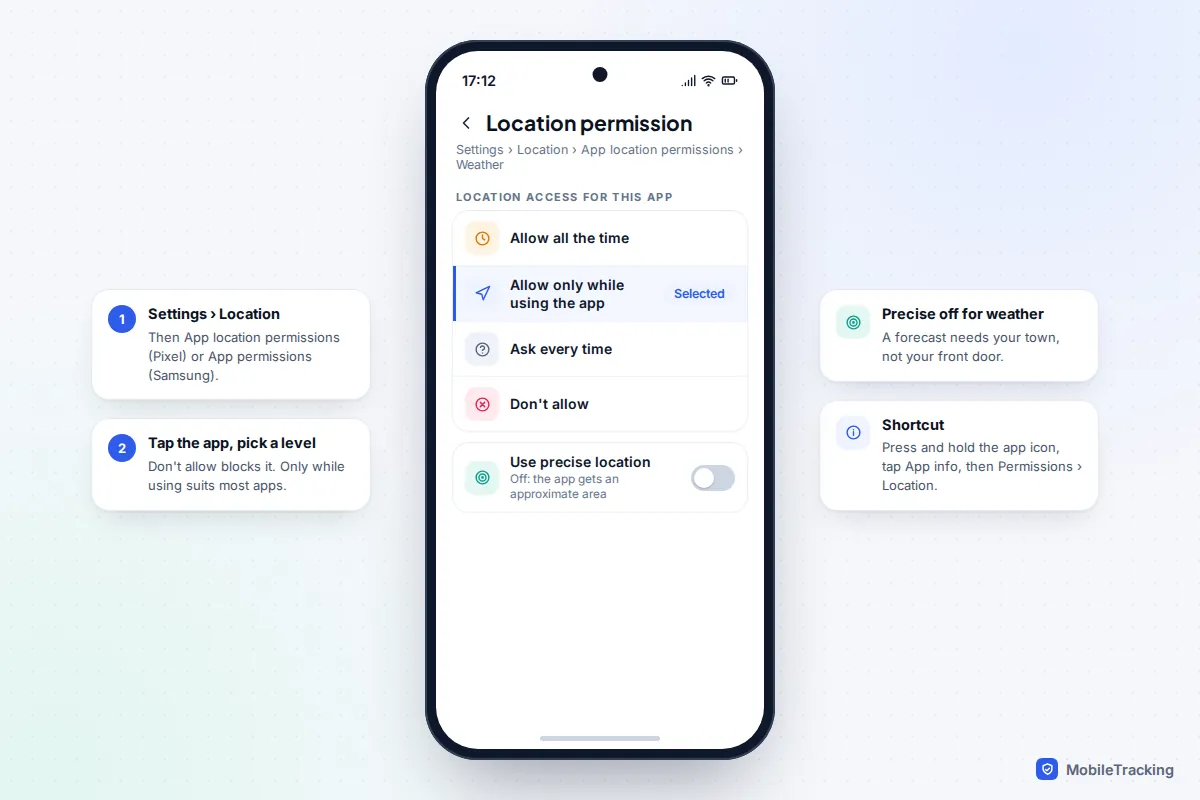
Android: turn off location for one app
Labels vary a little between Pixel, Samsung and other makers, but the permission screen itself comes from Android and is the same everywhere on Android 12 and later, including Android 16 and 17.
- Open Settings › Location.
- Tap App location permissions (Pixel and most phones) or App permissions (Samsung).
- Tap the app. Apps are grouped by what they are currently allowed, with Allowed all the time at the top.
- Choose Don’t allow to block it, or Allow only while using the app or Ask every time to limit it.
- Turn off Use precise location if an approximate area is enough.
There is a quicker route for one app: press and hold its icon, tap App info (the small i), then Permissions › Location. Google’s help page on changing app permissions covers the same steps if your menus look different.
One Android detail to know: since Android 11, apps can’t offer Allow all the time in their pop-up. They have to send you to this settings screen to pick it yourself. So if an app sends you here and asks for “all the time”, pause and ask whether it really needs to know where you are when you aren’t using it.
How to find every app that can track you in the background
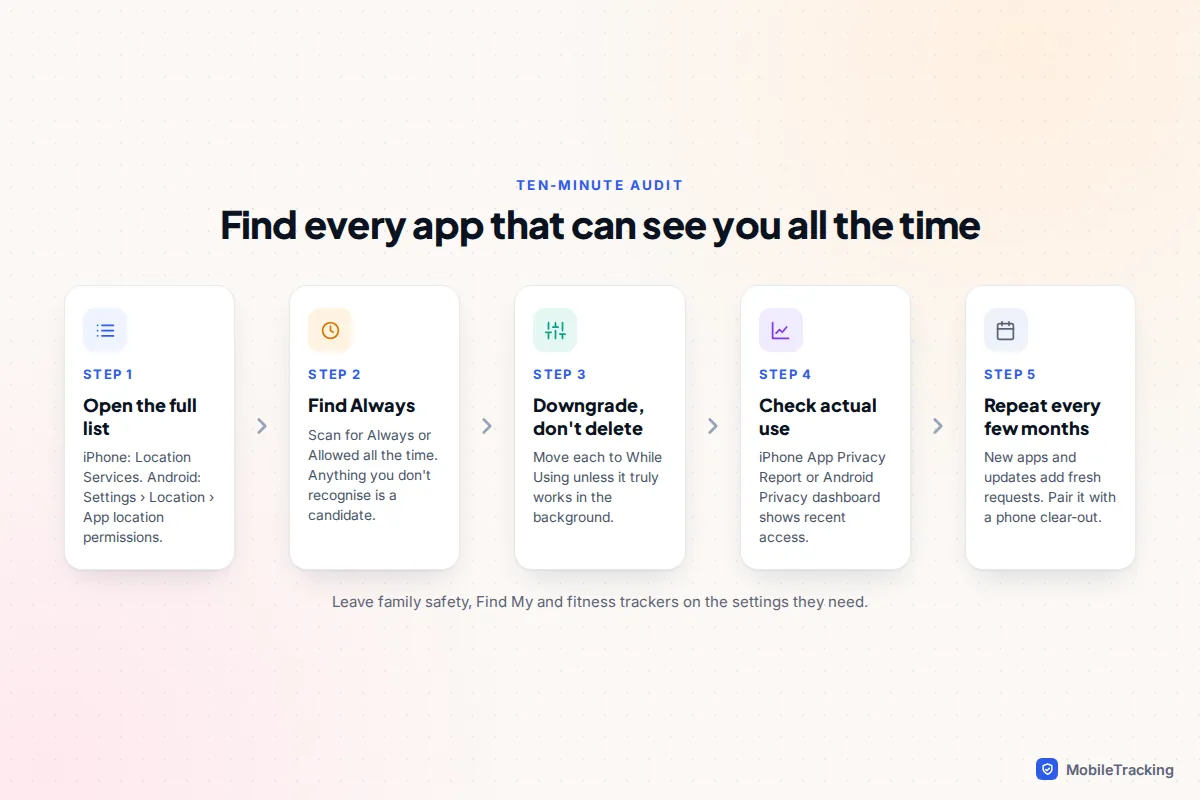
Turning off one app is easy. Finding out which apps have quietly collected Always permission over the years is the more useful job, and takes about ten minutes.
On iPhone
Scroll through Settings › Privacy & Security › Location Services; each app’s setting is listed next to its name. Anything reading Always deserves a second look. For a record of what apps actually did, turn on Settings › Privacy & Security › App Privacy Report. After it has been on for a while, it shows which apps accessed your location, and when, over the last seven days.
On Android
The App location permissions list is already grouped, so start with the Allowed all the time section. Then open the privacy dashboard (on a Pixel it is under Settings › Security & privacy; on other phones, search Settings for “privacy dashboard”) and tap Location to see which apps actually used it recently. It shows the last 24 hours by default, and recent versions add a seven-day view in the menu.
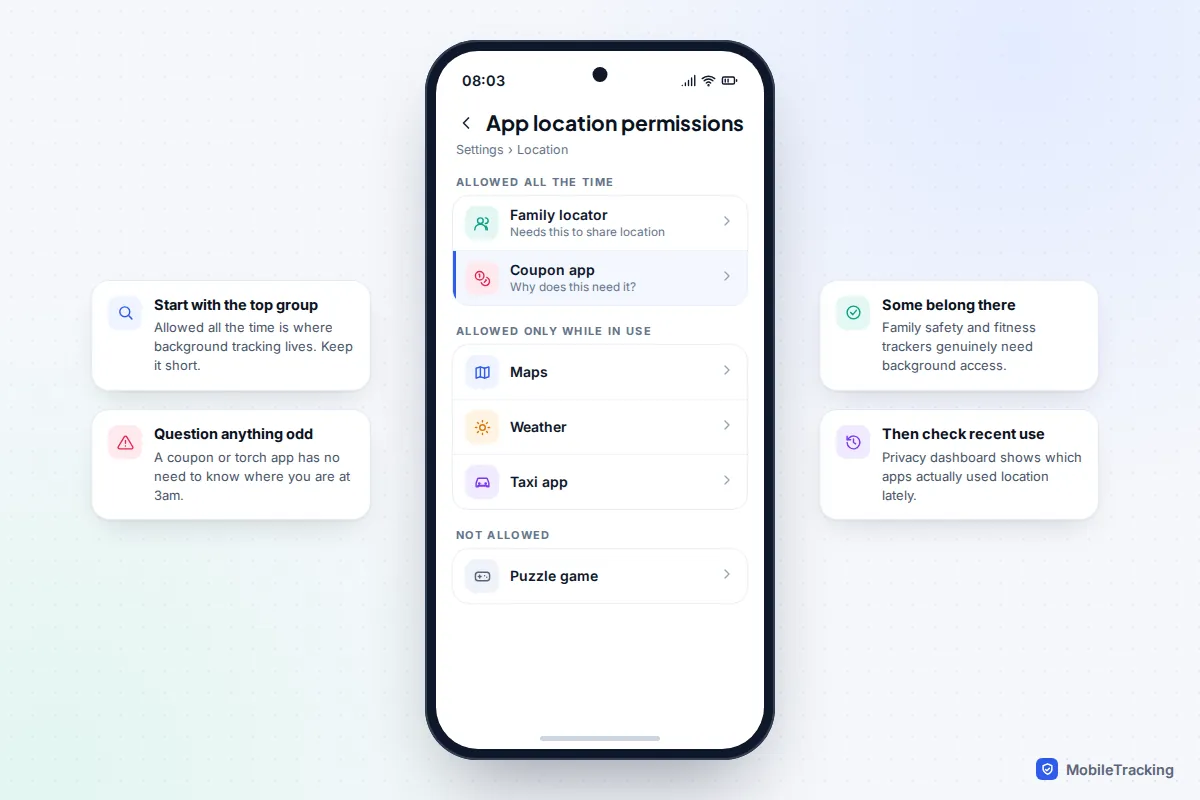
Here is a typical result. Sam checks her phone and finds a coupon app, a torch app and a supermarket app all set to Always, alongside the family locator she set up deliberately. She changes the supermarket app to While Using (it still finds the nearest store when she opens it), sets the coupon and torch apps to Never, and leaves the family locator alone. Nothing she uses stops working.
For a wider check that covers camera, microphone, contacts and more, see our guide to checking app permissions on your phone.
Unused apps lose their permissions automatically (on Android)
Android has a safety net that iPhone doesn’t. If you haven’t opened an app for a few months, Android automatically removes its permissions, including location, stops it running in the background and clears its temporary files. You can see which apps have been affected under Settings › Apps › Unused apps.
This occasionally catches out apps you rely on but rarely open, such as a family safety app on a child’s phone or a car park app you use once a season. To stop it for one app, open its App info page and turn off Pause app activity if unused (the label varies slightly by version). Google’s page on managing unused apps explains what the feature does.
iPhones don’t reset permissions for unused apps, which is another reason to run the audit above every few months.
The location hiding in your photos
Your camera is an app with location permission too, and it writes the location into every photo and video it saves. That is lovely for browsing holiday pictures on a map and less lovely when you sell a sofa online and the photo carries your home’s coordinates.
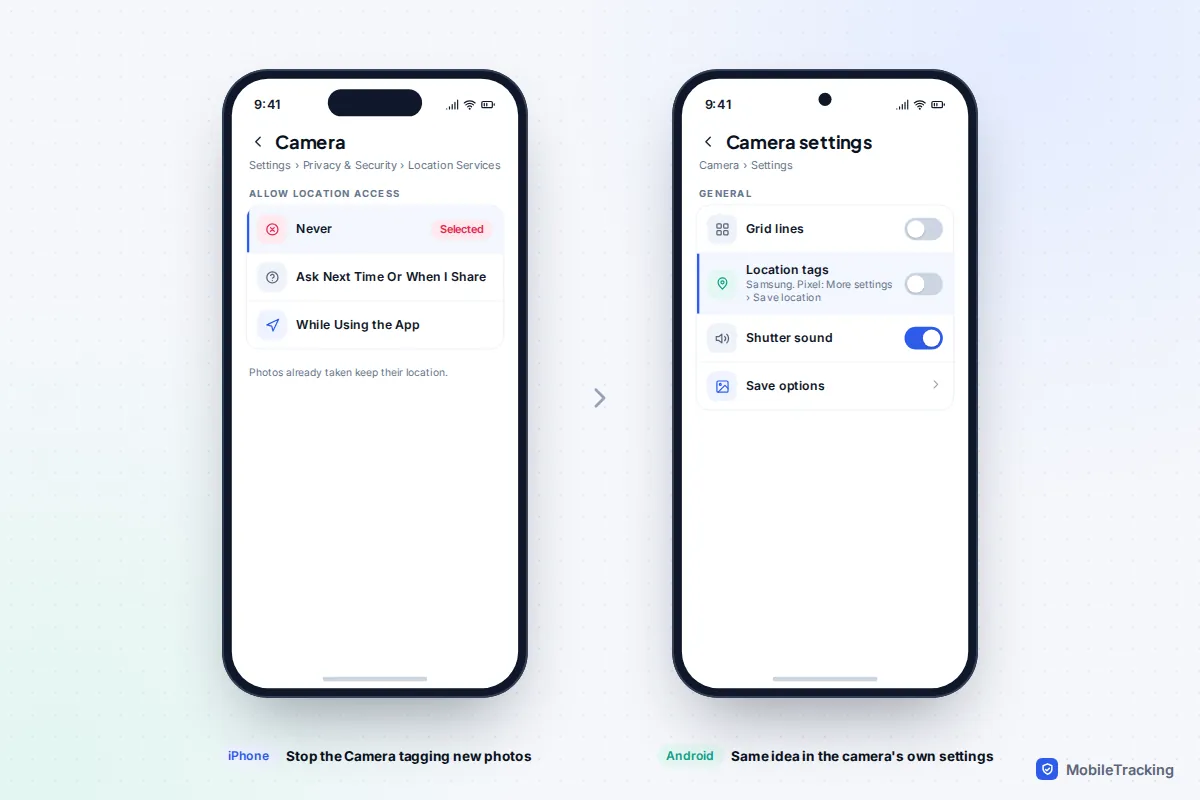
Stop new photos being tagged
- iPhone: Settings › Privacy & Security › Location Services › Camera, then choose Never.
- Pixel: open the Camera app, tap Settings › More settings and turn off Save location.
- Samsung: open the Camera app, tap the settings cog and turn off Location tags.
The trade-off is that photos without location won’t appear on the map in your photo library, in place-based searches or in trip memories. Photos you have already taken keep their location, whichever setting you change.
Share existing photos without their location
On iPhone, select the photos in Photos, tap Share, tap Options at the top of the share sheet and turn off Location. The switch resets each time, so check it whenever it matters. On a Samsung phone, select the photos in Gallery, tap Share and tick Remove location data before choosing where to send them.
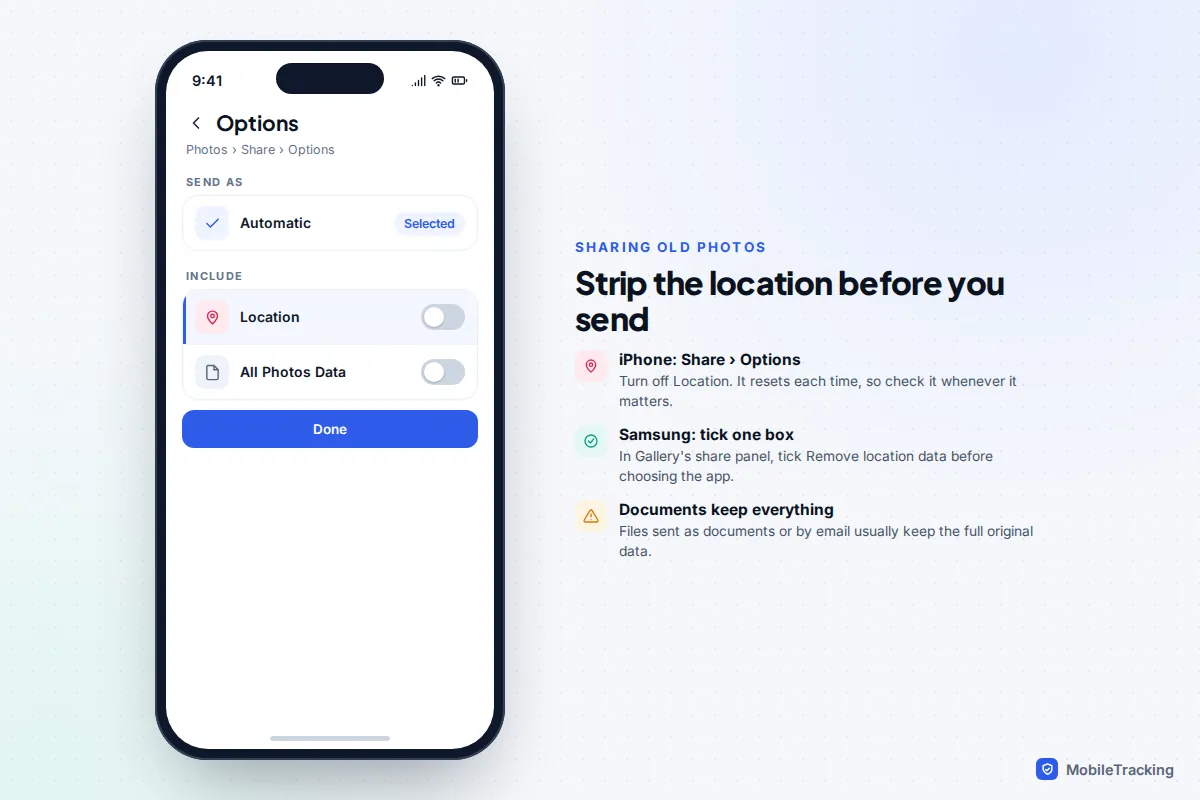
Many social and messaging apps strip location data from photos when you post them in the normal way, but you can’t see that happening, and files sent as documents or email attachments usually keep everything. If location matters, remove it yourself before sending.
Apps that stop working without location
Some apps genuinely can’t do their job without your location, and a few need it all the time. Turning those off won’t break your phone, but it will quietly break the feature you installed them for.
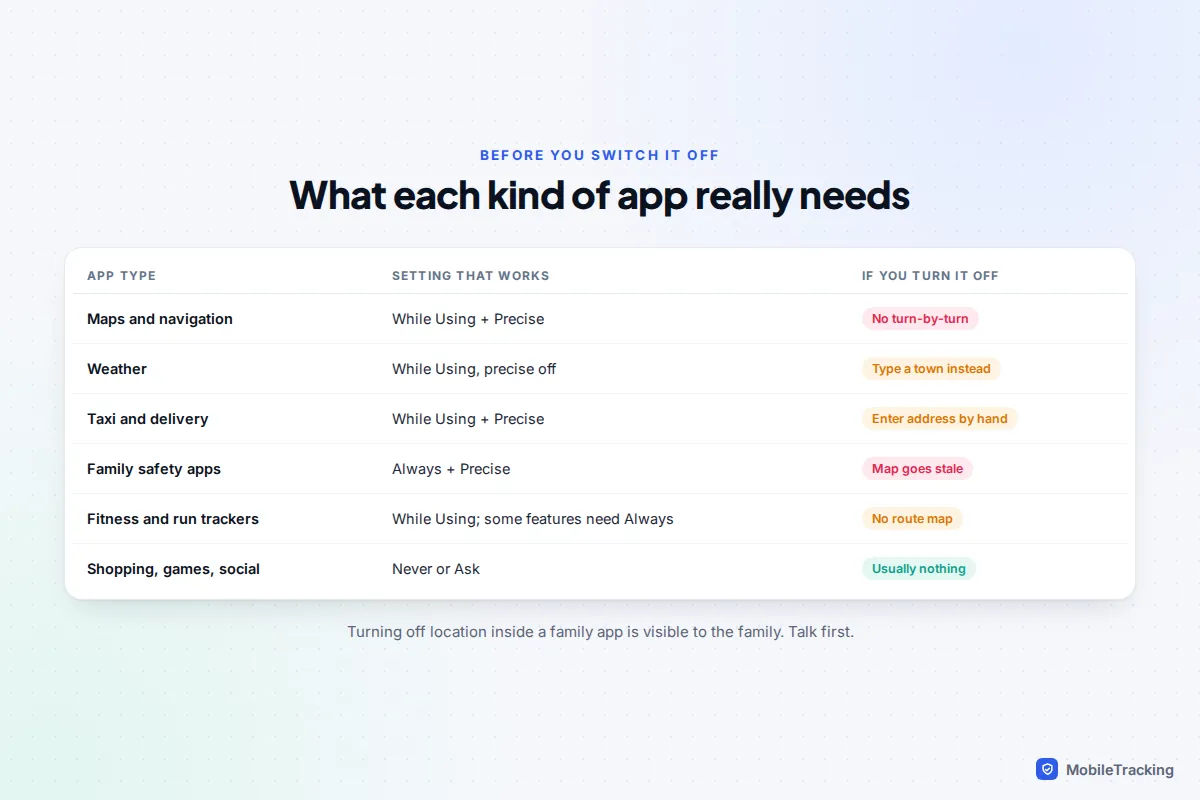
Family safety and location-sharing apps are the big one. They need Always (Allow all the time) and precise location, because their whole purpose is to update while the phone is in a pocket. Life360’s own setup instructions, for example, ask for Always plus Precise Location on iPhone and Allow all the time with precise location on Android. With anything less, the map shows an old position or a vague circle, and arrival alerts stop firing. If a family member’s location has stopped updating, a changed permission is the first thing to check; our guide to fixing location sharing that isn’t working goes through the rest.
If you want to stop sharing your location with family or a partner, do it openly rather than by quietly revoking an app’s permission, which usually shows up in the app as “location permissions off” or a stale location. Talk first, then use the app’s own pause or sharing controls, as covered in our guide to turning off location sharing temporarily. And if you’re worried that someone is tracking you without your agreement, see our guide on how to stop someone tracking your location.
Common mistakes and troubleshooting
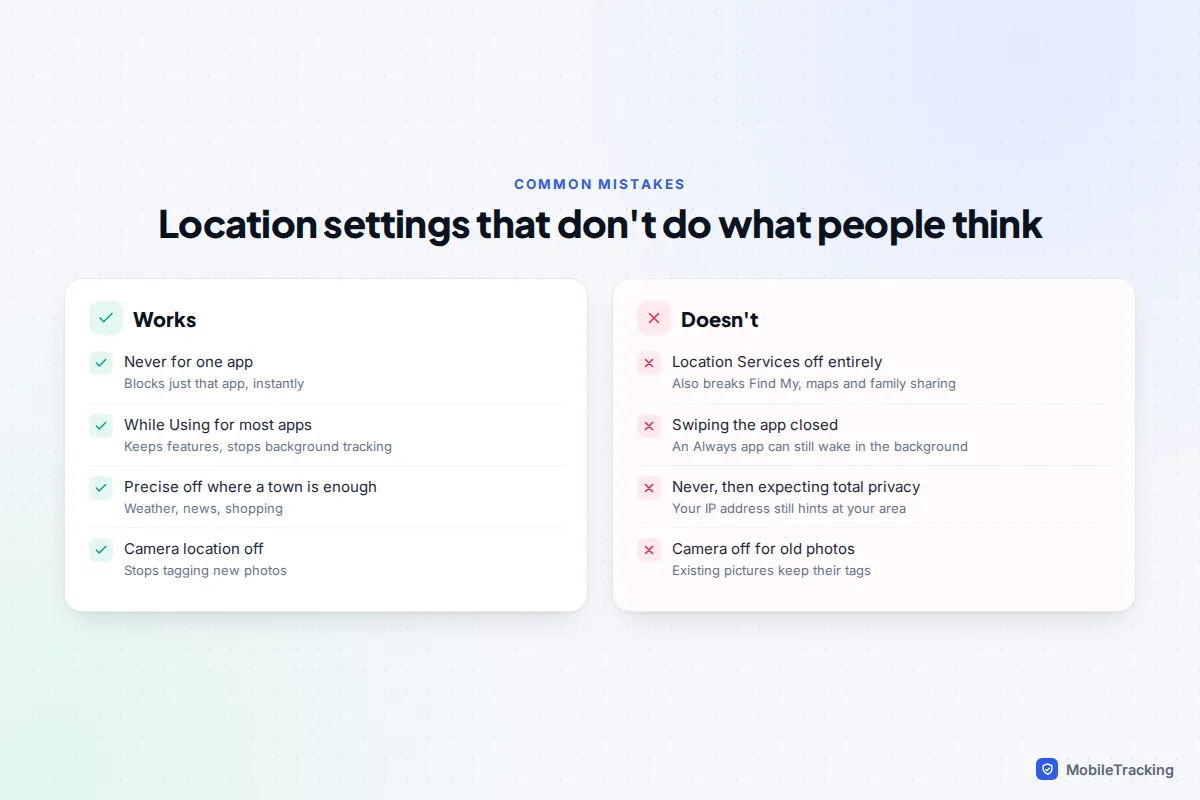
“I set it to Never but the app still knows my town”
Location permission controls GPS, Wi-Fi and Bluetooth-based positioning. Any app that connects to the internet can still make a rough guess from your IP address, and it can use any address you have typed in, like a delivery address. Blocking location stops precise tracking; it doesn’t make you invisible.
“The app keeps asking for location”
That is usually the app’s own reminder, not a system prompt. Ignore it, or choose Ask Next Time (iPhone) or Ask every time (Android) so you decide in the moment. If an app refuses to work at all without location it plainly doesn’t need, that is a reason to find an alternative.
“A feature stopped working after I changed a setting”
Work back through the table above. Car park, cinema and local deals apps often need location only at the moment you use them, so While Using or Ask every time fixes most complaints without handing over background access.
Frequently asked questions
Does the app know I’ve turned its location off?
It can tell that it no longer has permission, because the system reports that to the app, which is why some apps show a message asking you to turn it back on. It isn’t told anything else, and no one else is notified, unless the app is a location-sharing app, which may show your family that your location is off.
Will turning off location for an app save battery?
For apps that had Always, it can help, because they can no longer wake up to check where you are. For apps set to While Using, the saving is small. If battery is the real worry, our guide to saving battery while sharing location has more effective fixes.
Is turning off Precise Location enough for privacy?
For most apps, yes. An approximate location gives away your general area, not your street, which suits weather, news and shopping. For apps you don’t trust at all, choose Never.
Does this also stop Google or Apple knowing where I am?
No. These settings control third-party apps. Apple’s own features sit under System Services at the bottom of Location Services, and Google’s location history (now called Timeline and stored on your phone) has its own settings in your Google account and in Google Maps.
Should I turn off location on my child’s phone?
Go through the same audit with them: games and social apps usually need nothing, and it is a good lesson in why apps want data. Leave on whatever the family safety or location-sharing app needs, and explain openly why it is there.
This guide is general information, not legal or financial advice. Read our editorial policy.