To share locations as a family with Find My, put everyone in one Family Sharing group, then have each person go to Settings › Family › Location Sharing on their own iPhone and switch on the family members they want to share with. Everyone in the group then appears under People in the Find My app, and their iPhones, iPads and Macs appear under Devices. For a young child, you can lock the setting through Screen Time so it stays on.
This guide is about the family group: who controls what, how to add children, what a child can and cannot switch off, and how iOS 27’s new options behave inside a family. If you only want to share with one friend or partner, our guide to setting up location sharing on iPhone covers that, including sharing from Messages.
How location sharing works inside a family group
A Family Sharing group holds up to six people: one organiser plus five others. The organiser is the adult who created the group. They invite members, create accounts for children, and can give a second adult the Parent/Guardian role so both parents can manage a child’s Screen Time and approve requests.
Location is where people often get confused, because being in the group does not mean being on the map. Apple’s rule is simple: when the organiser sets up location sharing, the organiser’s own location is shared with everyone, including people added later. Every other member then decides for themselves. Family members appear in your People list straight away, but you only see a location once that person shares with you.
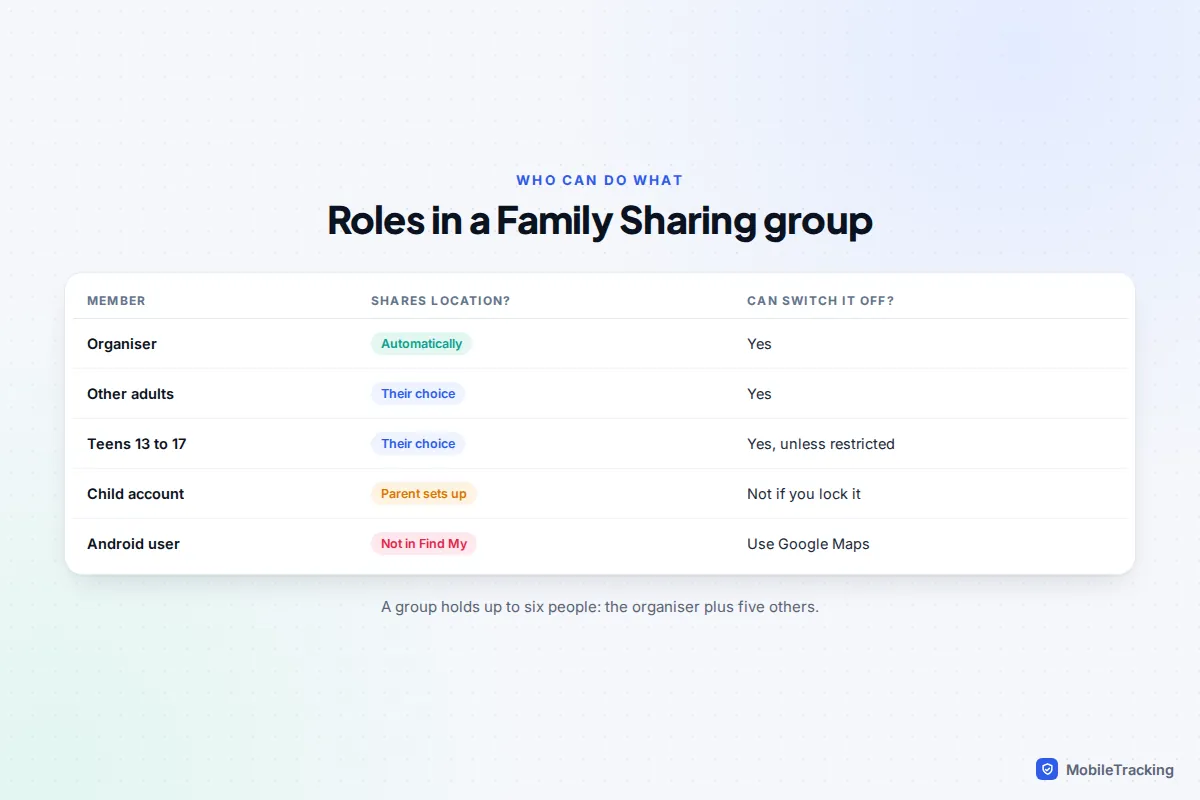
So an adult in your group, whether a partner, a grandparent or a grown-up son, is never visible unless they choose to be. For children, you have more say.
Set up the group and add everyone
If you already share iCloud storage or App Store purchases, your group exists and you can skip to the next section. Otherwise, the organiser sets it up on their own iPhone.
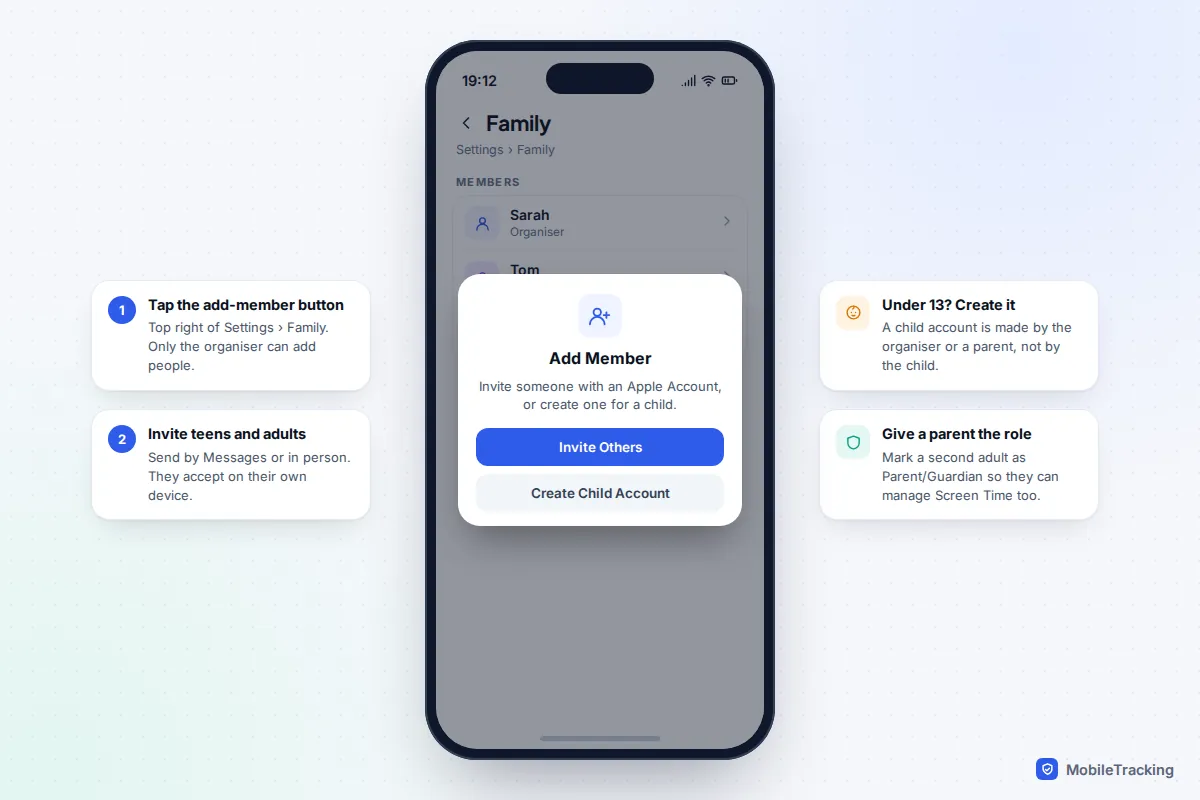
- Open Settings and tap Family, just below your name. If you have never used Family Sharing, tap your name, then Family Sharing, and follow the prompts to set up your family.
- Tap the add-member button in the top corner.
- For a teenager or adult who already has an Apple Account, choose Invite Others and send the invitation by Messages, or hand them your phone to accept in person.
- For a child without an account, choose Create Child Account and follow the prompts. You will enter the child’s name and date of birth and give parental consent.
- To give another adult parental powers, tap their name in Settings › Family and turn on Parent/Guardian.
Children’s Apple Accounts
A child under 13 cannot create their own Apple Account; a parent or the organiser does it for them as part of the group. In some countries the same applies to older teenagers too. Get the date of birth right, because age drives the defaults: Apple switches on web filtering and Communication Safety for everyone under 18, and turns on Ask to Buy for under-13s.
A child account is also harder to remove later. Apple says a child under 13 can only leave the group if the organiser deletes the account or moves it to another family group. For teenagers aged 13 to 17 with Screen Time, the organiser must turn Screen Time off before the teen can leave. That is worth knowing before you choose which parent becomes organiser, particularly in separated families.
Turn on location sharing for the family
Each person does this on their own iPhone. Doing it for a teenager, on their phone, while they watch, is fine; doing it on another adult’s phone is not.
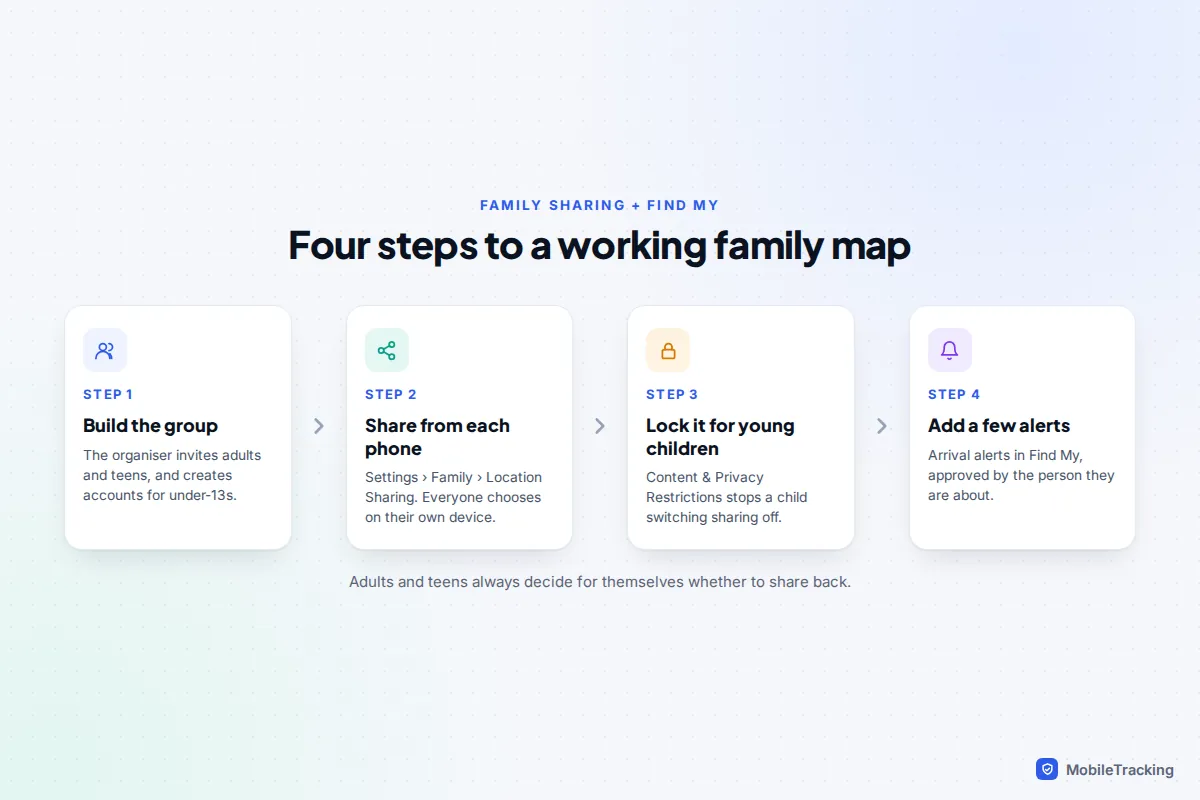
- Go to Settings › Family › Location Sharing.
- Switch on each family member you want to share with.
- Turn on Automatically Share Location if you want anyone added to the group later to see you too.
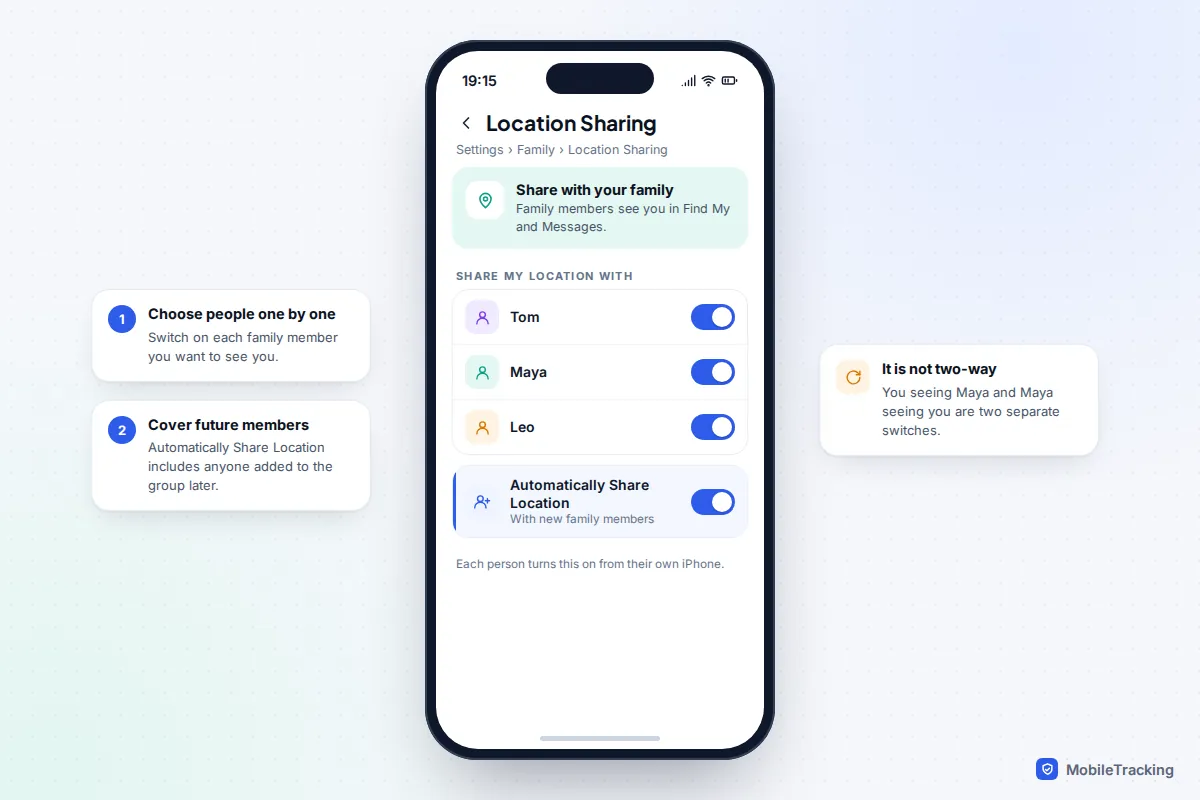
For a child with their own iPhone, do the same on their phone during setup, then check from yours that they appear in Find My › People with a location rather than a blank. While you are on the child’s phone, open Find My, tap Me, and make sure the iPhone they carry is being used as their location. If their old iPad is chosen instead, the map will show them at home all day.
People versus Devices
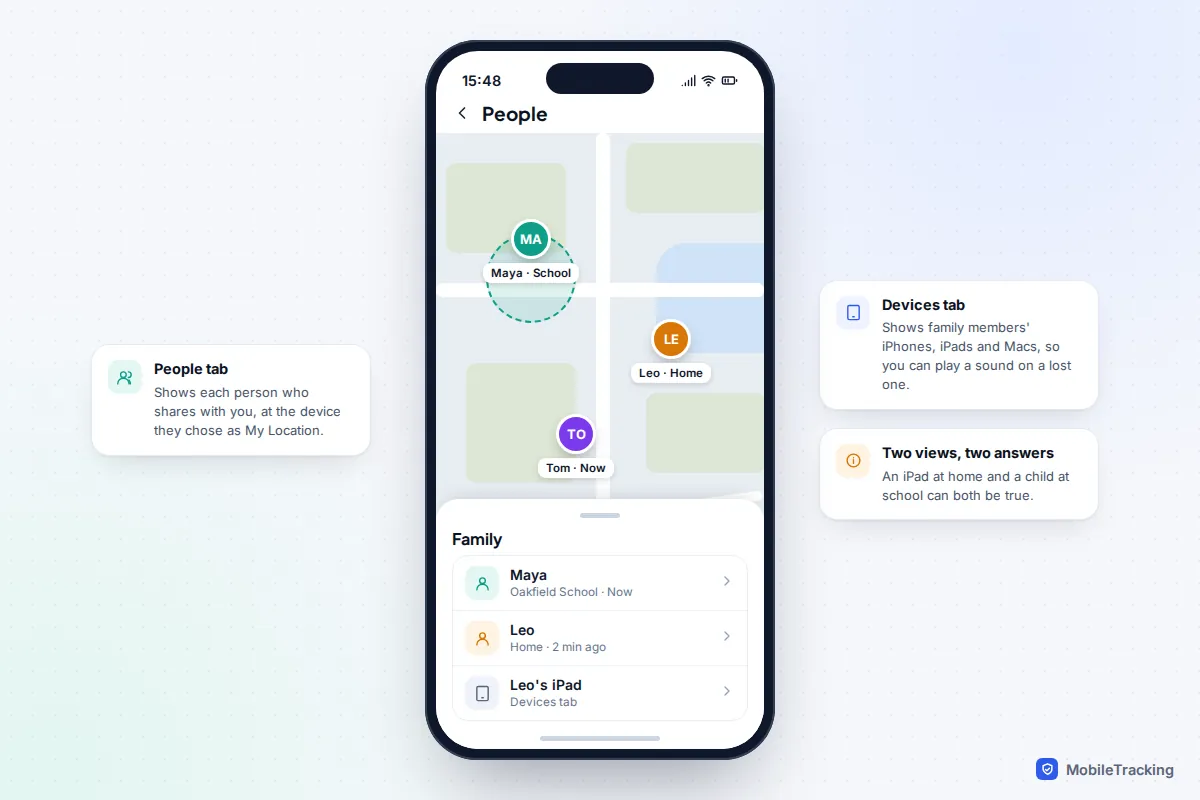
Find My shows a family in two places, and they answer different questions. The People tab shows where each person is, based on the one device they chose for their location. The Devices tab lists the iPhones, iPads, Macs and AirPods of family members who share their location with you, so you can see where a device is and play a sound on it. That is how a parent finds a child’s iPad under a sofa cushion.
Stop a young child switching sharing off
A younger child can turn off Share My Location just as an adult can, unless you lock it. Parents who manage a child’s Screen Time can stop the change. On iOS 27 with the whole family updated, the controls live in your own Settings app.
- Make sure the child is already sharing with you and appears in Find My.
- On your iPhone, go to Settings › Family › your child’s name › Content & Privacy Restrictions, and enter your Screen Time passcode if asked. On iOS 26 or earlier, the route is Settings › Screen Time › your child’s name › Content & Privacy Restrictions.
- Make sure Content & Privacy Restrictions is switched on.
- Set Share My Location to Don’t Allow Changes. Do the same for Location Services, so location cannot be switched off for Find My entirely. On some versions the option reads Don’t Allow.
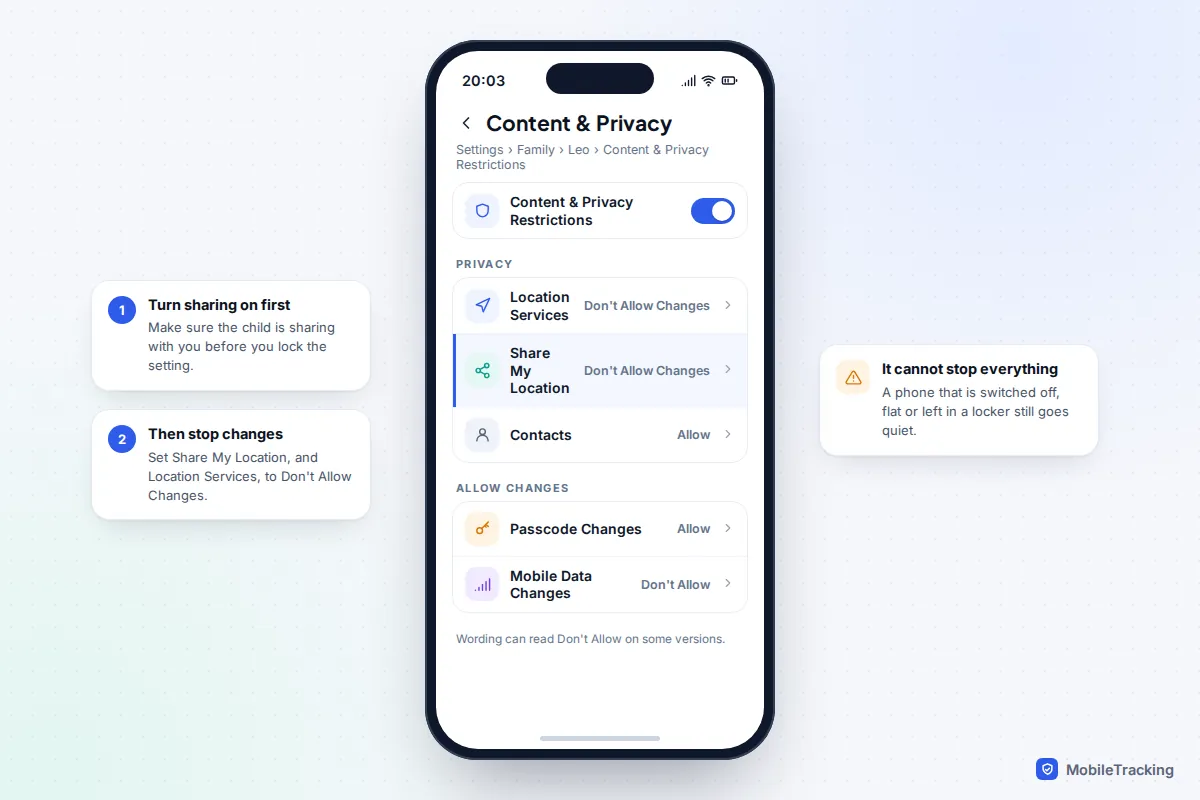
Be clear about what this does and does not do. It stops the setting being changed on the phone. It cannot stop a phone being switched off, running flat, going into a signal black spot or being left in a friend’s bag, and those are the usual reasons a child “disappears”. Your Screen Time passcode also needs to be one your child has never seen you type; a passcode shared with the child undoes every restriction.
Tell your child that you have locked it and why. A nine-year-old who knows “Find My stays on until you are older” is far less likely to look for a workaround than one who discovers it. Setting a date to revisit, such as their thirteenth birthday or starting secondary school, helps a lot.
What iOS 27 changes for families
iOS 27, released on 14 September 2026, added two location features that matter in a family: custom sharing lengths and Hide Location. Both need iOS 27 on the phone doing the sharing.
Custom durations for people outside the group
Sharing inside Family Sharing is normally ongoing. Custom durations earn their place with the people around your family who are not in the group: a grandparent looking after the children for a week, a friend’s parent collecting your child from a trip, or an older sibling at university who is not in your six. In Find My › People, add the person and choose Custom to set anything from 15 minutes to 30 days, or an exact end date and time. Sharing then stops by itself, so nobody forgets to turn it off.
Hide Location
Hide Location pauses your sharing with one person without stopping it. Open Find My › People, tap the person, and under My Location tap Hide Location. They see “No location found”, no notification is sent, and Apple says sharing resumes automatically the next day. Unhide Location ends it early.
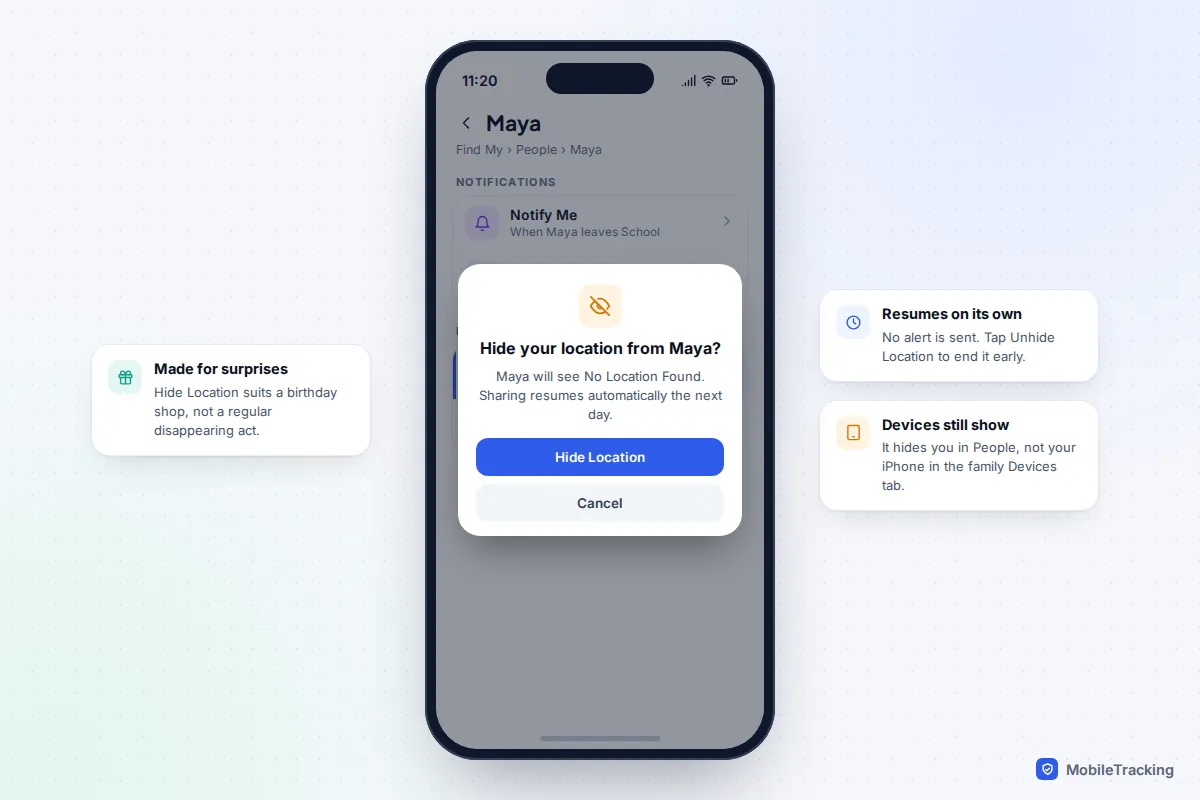
Two points are easy to miss. First, Hide Location only affects the People list. As AppleInsider points out, family members can still see your devices in the Devices tab, so it will not keep a surprise party secret from someone who knows which iPhone you carry. Second, if you have locked a child’s Share My Location through Screen Time, check on their phone whether Hide Location is available to them. Either way, their iPhone stays visible under Devices. Our guide to turning off location sharing temporarily compares every pause option.
Arrival and departure alerts, with your child’s approval
Alerts are what make family sharing useful day to day, because they replace opening the map. In Find My, tap People, choose the family member, and under Notifications tap Add, then Notify Me. Choose Arrives, Leaves or Is Not At, pick the place, and choose Only Once or Every Time.
These alerts are open by design, and that applies to children in your family group too. The person is told when you set a one-time alert about them, and a recurring alert does not start until they approve it on their phone. Until then, your screen shows it as pending. Everyone can see the alerts set about them under Me › Notifications About You and can remove them.
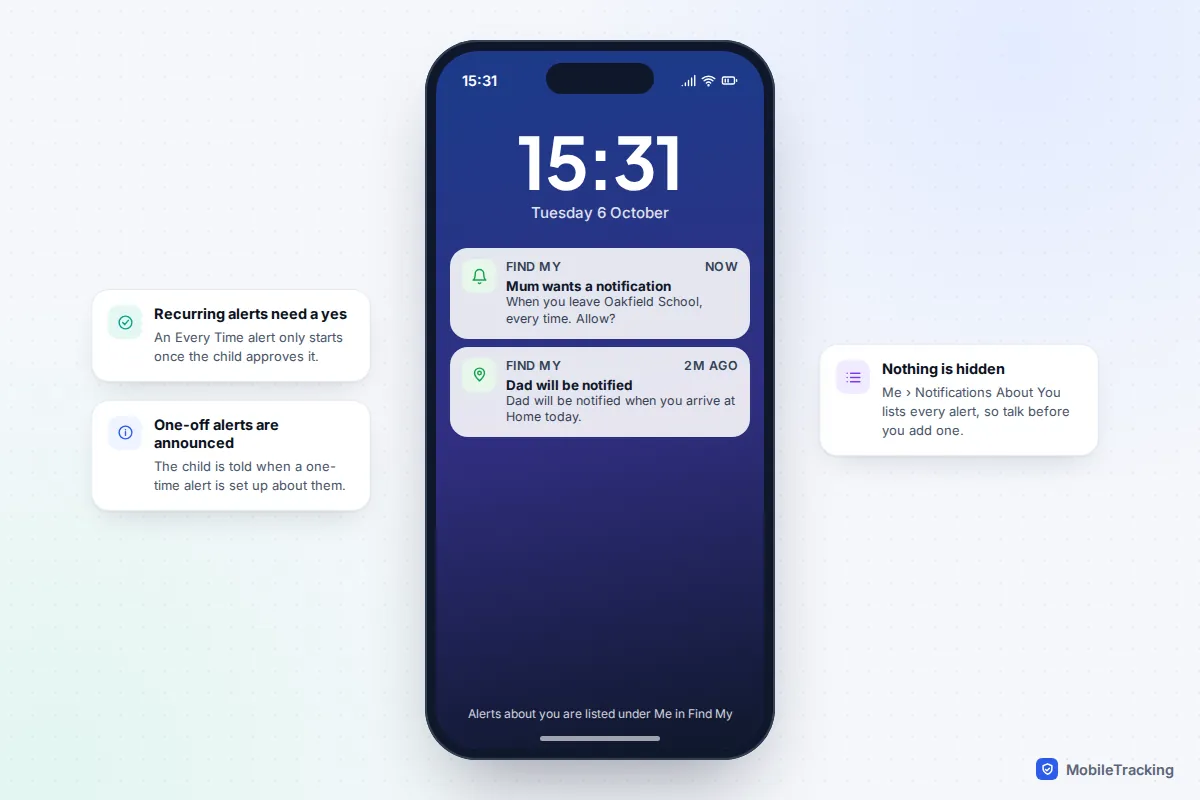
A good pattern is two or three recurring alerts that match real worries, such as “leaves school” on weekdays and “arrives home” after a late club, rather than an alert for every address in town. Explain each one to your child before you set it, so the approval request is expected rather than a surprise. For school runs specifically, see our guide to getting alerts when your child arrives at school.
Family members with Android phones
Find My has no Android app. An Android user can be invited into Family Sharing for some services, but they will never appear on the Find My map and cannot see anyone else there. No setting changes that.
In a mixed family, the practical choices are:
- Google Maps location sharing, which works in both directions between iPhone and Android. Everyone installs Google Maps and shares from their profile picture › Location sharing. Many mixed families simply move everyone to Google Maps.
- Google Family Link, if the Android user is a child. It shows a supervised child’s location and runs its own parental controls, and the parent app works on iPhone.
- A family app that runs on both, if you want one map, places and alerts for everyone. Check what it collects and that it is visible to the person being located.
Our guide to family location sharing between Android and iPhone compares these in detail.
Agree the rules, then fix the usual problems
Take a typical family: Sarah and Tom, Maya who is 15 and Leo who is 10. Leo’s sharing is locked and he knows it will be reviewed when he turns 12. Maya shares by choice, with one recurring alert for the late bus, and the family rule is that she can use Hide Location for a surprise or a private afternoon as long as she mentions it later. Sarah and Tom share with the children too, which matters more than parents expect: a rule that only runs one way feels like surveillance to a teenager.
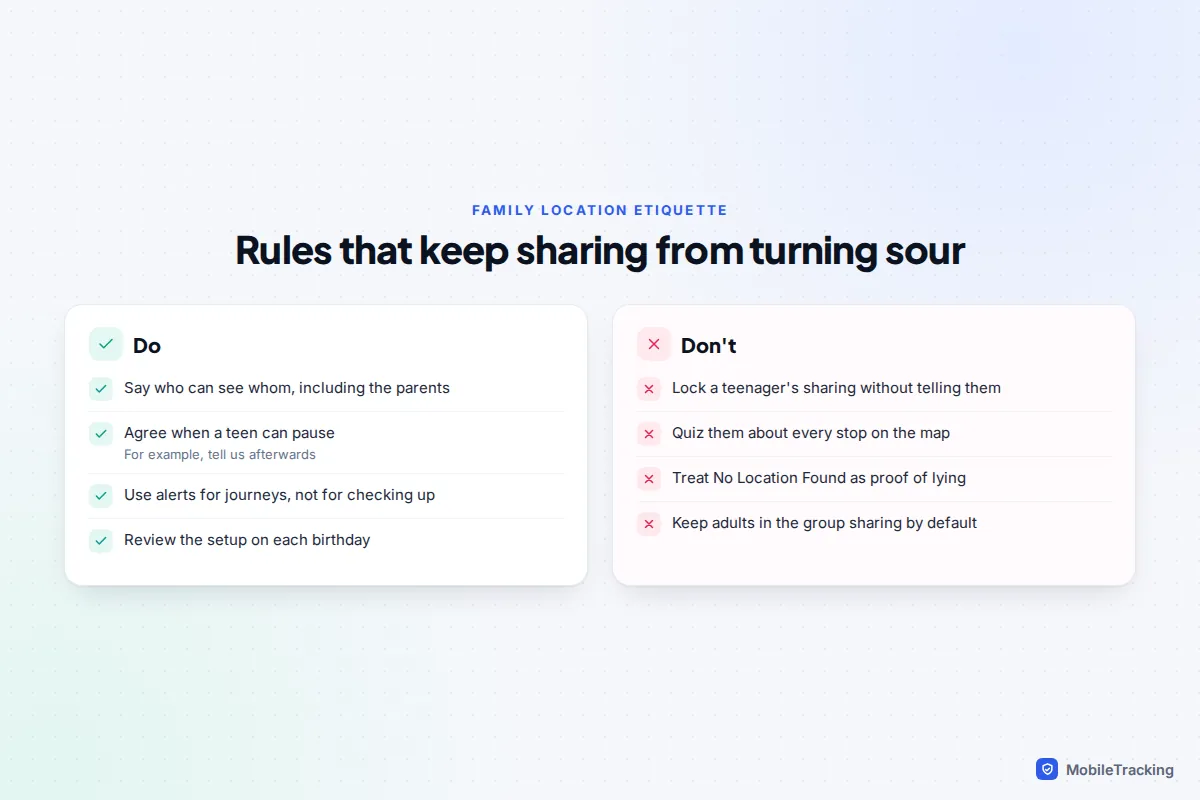
Two habits keep sharing healthy. Do not treat the map as a lie detector; “No location found” is far more often a flat battery than a secret. And loosen things as children grow: fewer alerts at 14, a choice about sharing at 16, and a genuine conversation at 18, when they can leave the group entirely. Our guide to location sharing etiquette for families and couples goes deeper on the conversation.
Troubleshooting by symptom
| What you see | Likely cause | Fix |
|---|---|---|
| Family member listed but no location | They have not shared back with you | They turn you on in Settings › Family › Location Sharing |
| Child always shown at home | My Location set to an iPad | On the child’s iPhone, Find My › Me › use this iPhone |
| “No location found” for a few hours | Phone off or flat, or Hide Location on iOS 27 | Check the Devices tab, then ask |
| Recurring alert never arrives | Child has not approved it | Ask them to accept the request |
| Share My Location greyed out | Screen Time restriction is working | Change it from the parent’s phone |
| Android relative missing from the map | Find My is Apple-only | Use Google Maps sharing |
Apple’s page on sharing your location with your Family Sharing group has the official wording if your screens differ slightly.
Frequently asked questions
Can the organiser see everyone’s location automatically?
No. The organiser’s own location is shared with the family automatically, but every other member chooses whether to share back. The one exception in practice is a child whose Screen Time you manage, where a parent can switch sharing on and lock it.
Can my teenager turn off location sharing?
Yes, unless you have set Share My Location to Don’t Allow Changes in their Content & Privacy Restrictions. If you do lock it for a teenager, tell them, and agree when you will review it.
Does my child get told when I check their location?
No. Looking at the map sends no notification. Setting an alert about them does: they are told about one-time alerts and must approve recurring ones.
Can I see family locations on an iPad or Mac?
Yes. Find My on an iPad or Mac signed in to your Apple Account shows the same People and Devices lists. On Apple Watch, use the Find People and Find Devices apps.
What happens to location sharing when my child turns 18?
They can leave the Family Sharing group and manage their own settings. Location sharing with the family then continues only if they choose to share with each of you individually in Find My.
This guide is general information, not legal or financial advice. Read our editorial policy.