
Your ordinary Telegram chats are already stored in Telegram’s cloud, so if you lose your phone you simply log in on a new one with the same number and they reappear. That is syncing, though, not a backup. To keep a copy that you control, install Telegram Desktop on a computer and go to Settings › Advanced › Export Telegram data, or open a single conversation, click the three-dot menu and choose Export chat history. The phone apps have no export tool, and Secret Chats can’t be backed up anywhere.
That gap matters more than most people expect. The person you are talking to can delete a private conversation for both of you, an auto-delete timer can clear old messages, and an account left unused for long enough deletes itself. This guide shows what Telegram keeps, how to export properly, and the two settings that stop the account itself from disappearing.
What Telegram already keeps for you
Telegram has two kinds of one-to-one chat, and they behave completely differently.
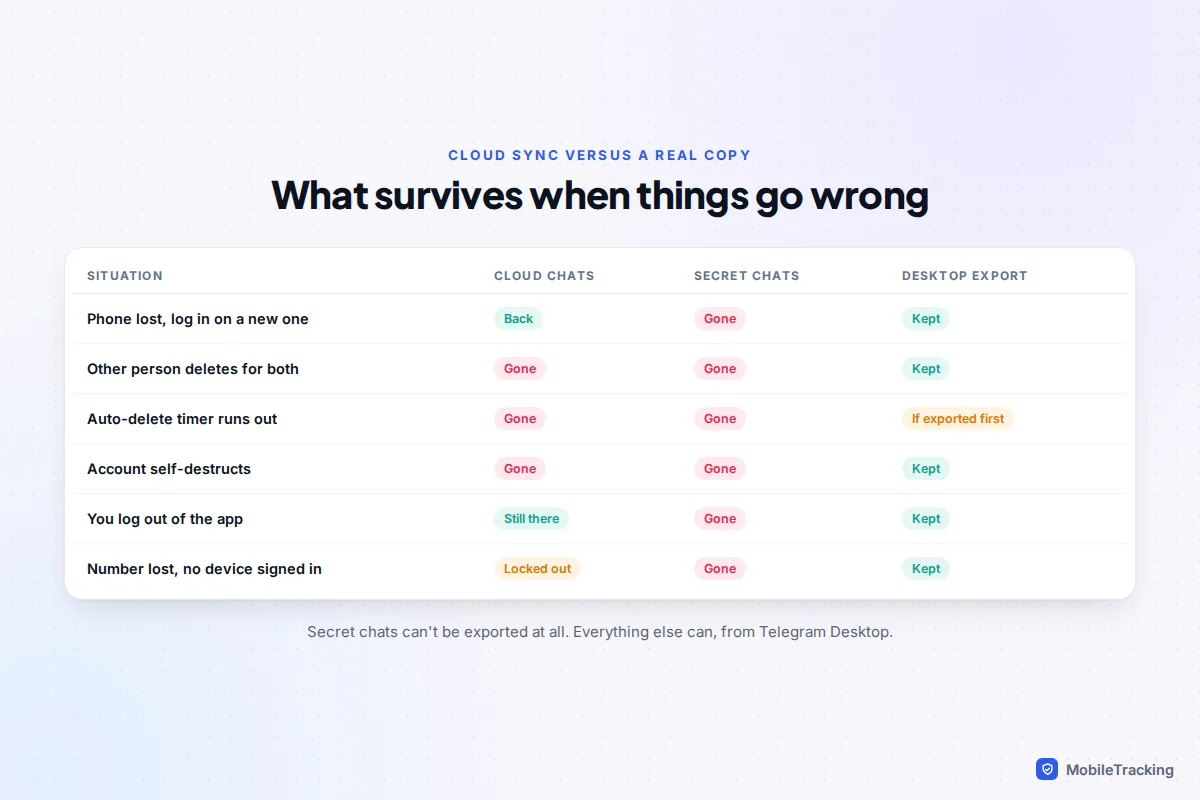
Cloud chats are the default: every private chat, group and channel you use normally. Telegram’s FAQ explains that this data is stored in its own data centres, which is why you can be signed in on a phone, a tablet and a computer at once and see the same history on all of them. Photos and videos live there too. If you use Clear Cache in the app to free up space, only the copies on your device are removed and the media downloads again when you open it.
Secret chats are different. They are end-to-end encrypted and, in Telegram’s words, device-specific and not part of the Telegram cloud. You can only read them on the phone where they were started or accepted. Log out, reset the phone or lose it, and those messages are gone. There is no export, backup or transfer for them, and you can’t forward messages out of a secret chat either.

If you are backing up a whole phone rather than just Telegram, our guide on making a backup you can actually restore covers the wider checks.
Why the cloud isn’t a backup
A backup is a separate copy that survives when the original is damaged. Telegram’s cloud is the original. Anything that removes a message from the cloud removes it from every device you own, all at once.
- Deletion for both sides. In a private chat, either person can delete any message, including ones they received, for both participants. They can also clear or delete the whole chat for both of you.
- Auto-delete timers. You, or the other person, can set messages to vanish after a day, a week or a month. Telegram also offers a global timer under Settings › Privacy and Security › Auto-Delete Messages that applies to new chats.
- Groups. If an admin removes you or the owner deletes the group, you lose access to its history.
- Account self-destruct. If you don’t come online for the period set in your privacy settings, the account and everything in it is deleted.
- Lost access. If you lose your phone number and have no other device still signed in, you may not be able to get back in at all.
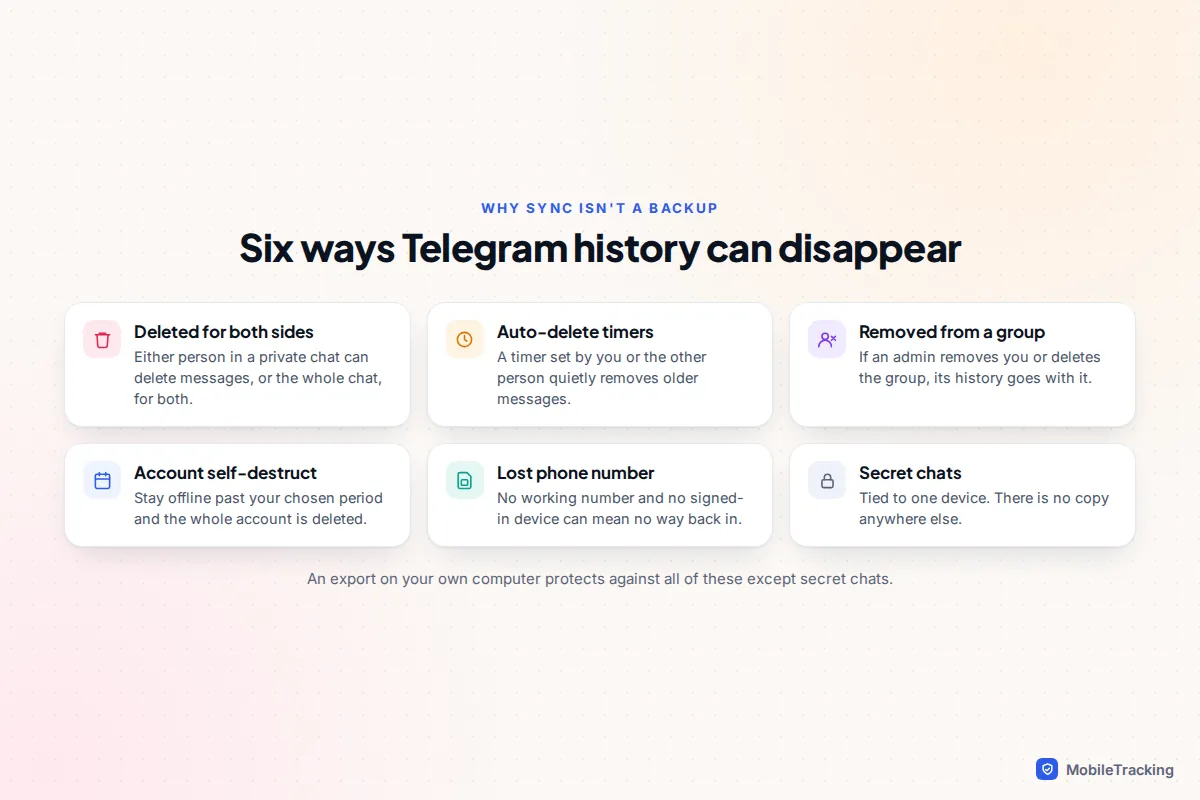
A short example: Jess has two years of messages with a landlord about repairs. The landlord leaves Telegram and deletes their chats for both sides. Jess’s phone, laptop and tablet all lose the conversation within seconds. Had she exported it to her computer, she would still have every message and photo with dates attached. If you are already in that position, our guide to recovering deleted Telegram messages explains what, if anything, can still be done.
How to export all your Telegram data
The full export tool is only in Telegram Desktop, the official app for Windows, macOS and Linux from desktop.telegram.org. On a Mac, the same app is sold on the App Store as Telegram Lite. The iPhone and Android apps and Telegram Web don’t offer it, and if you use the other Mac app, simply called Telegram, and can’t find the option, install Telegram Desktop instead.
- Install Telegram Desktop and sign in. The quickest way is to scan the QR code it shows: on your phone go to Settings › Devices › Link Desktop Device.
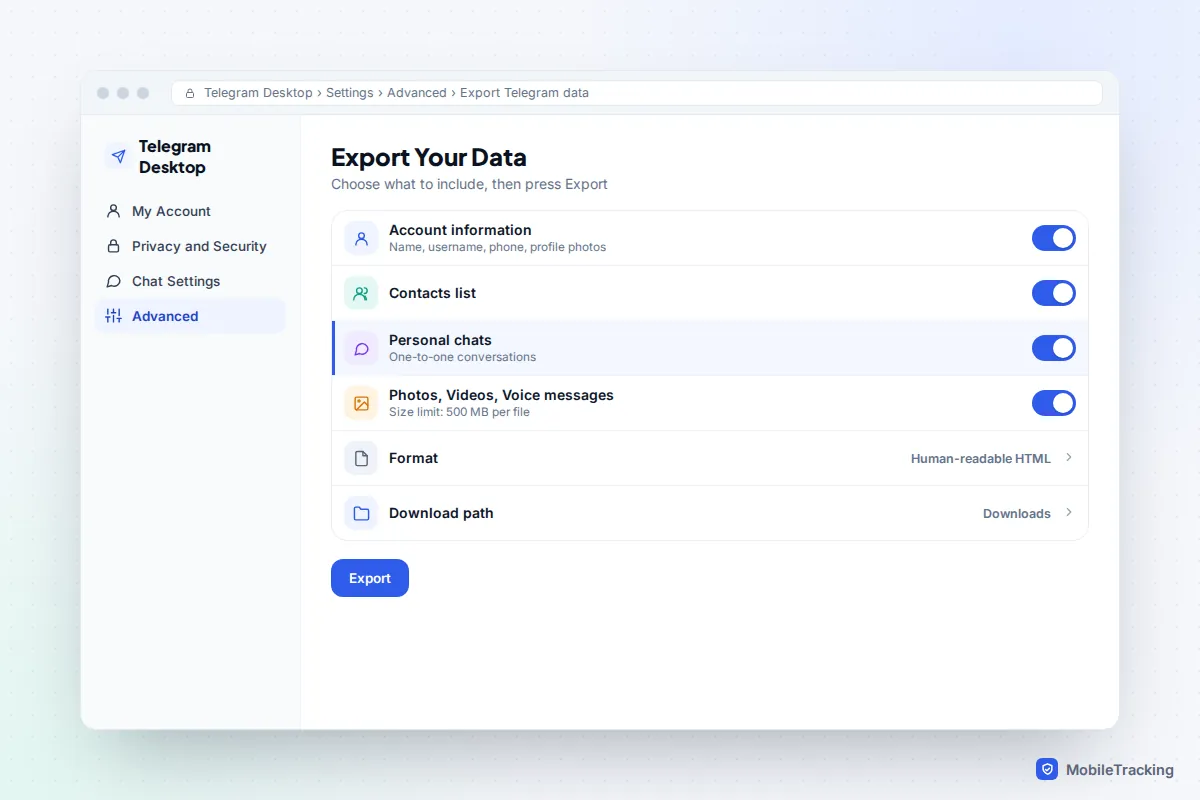
- In Telegram Desktop, open the menu (the three lines at the top left), choose Settings, then Advanced, and scroll to Export Telegram data.
- Tick what you want to keep: Account information, Contacts list, Story archive, and the chat types (Personal chats, Bot chats, Private groups, Private channels, Public groups, Public channels).
- Under media, tick Photos, Videos, Voice messages, Video messages, Stickers, GIFs or Files, and drag the Size limit slider.
- Under Location and format, choose a folder and a format, then click Export.
- Leave Telegram open until it says the export is complete, then click Show my data.
If you signed in to Telegram Desktop only recently, you may see a message that you can begin downloading your data in a number of hours. This is a deliberate security delay: Telegram notifies your other devices about the request so you can react if it wasn’t you. Come back after the stated time and repeat the request on the same computer. If you ever get that notification and didn’t ask for an export, go to Settings › Devices on your phone and end any session you don’t recognise.
Which options to choose
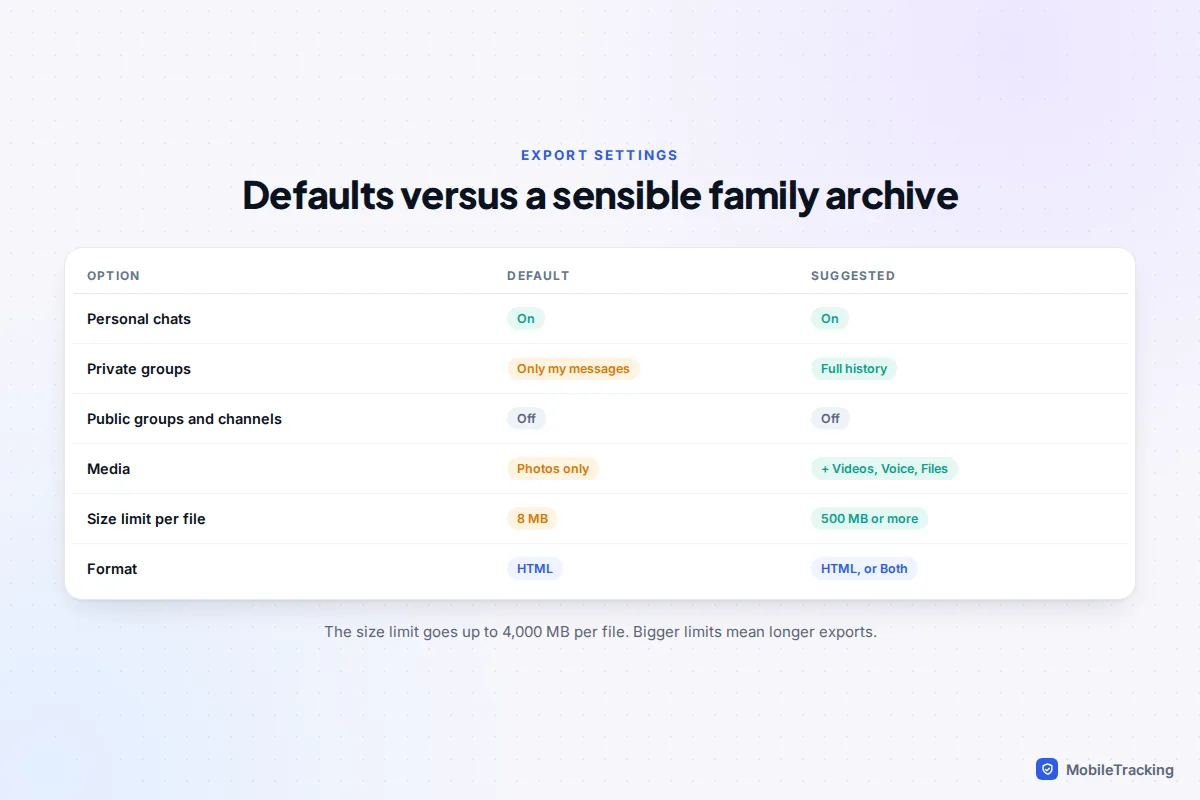
The defaults are cautious. Out of the box Telegram exports personal chats in full, but for private groups it ticks Only my messages, and for media it saves photos only, up to 8 MB each. For a family archive, untick Only my messages so you keep both sides of group conversations, add videos, voice messages and files, and raise the size limit. The slider goes up to 4,000 MB per file.
For format, Human-readable HTML produces pages you can open in any browser, with photos shown inline. Machine-readable JSON is a single data file suited to search tools and spreadsheets. Both costs little extra space and keeps your options open.
Save the export folder somewhere that is itself backed up, such as an external drive, not only on the laptop’s internal disk.
How to export a single conversation
When you only care about one chat, such as messages about a dispute, exporting just that chat is faster and easier to share.
- In Telegram Desktop, open the chat.
- Click the three-dot menu at the top right and choose Export chat history. In groups with topics, open the topic and choose Export topic history.
- Pick the media types and size limit, and use the From and To dates to limit the range if you want. The defaults run from the oldest message to the present.
- Click Export. When it finishes, open the messages.html file in your browser.

If Export chat history is missing, there are three usual reasons. The group or channel owner may have switched on Restrict saving content, which blocks copying, forwarding and exporting. The chat may contain only service messages such as “joined the group”. Or you are on a mobile app or the Mac app that lacks the tool.
Keeping copies on your phone
There’s no full backup on iPhone or Android, but a few habits protect what matters most.
- Save photos and videos automatically. On Android go to Settings › Data and Storage › Save to Gallery; on iPhone the equivalent is under Settings › Data and Storage in the Save to Camera Roll section. Choose private chats, groups or channels separately, so you don’t fill your camera roll with channel memes. Your phone’s own photo backup then covers them.
- Forward key messages to Saved Messages. A forwarded copy is a separate message in your own cloud space. It is still cloud, so it doesn’t protect you if your account is lost, but it does survive the other person deleting the original chat.
- Save important files. Long-press a document or photo and save it to Files or your gallery.
Stop your account from self-destructing
Telegram deletes accounts that stay offline for too long, taking all messages, media and contacts with them, and a deleted account can’t be restored. This catches out people who switch to another app for a while, or keep an old family account on a tablet in a drawer. Opening Telegram on any signed-in device counts as coming online.
- Open Telegram and go to Settings › Privacy and Security.
- Scroll to the section headed Delete my account and tap If away for.
- Choose from 1, 3, 6, 12, 18 or 24 months. For a family account you check only now and then, 24 months gives the most room.
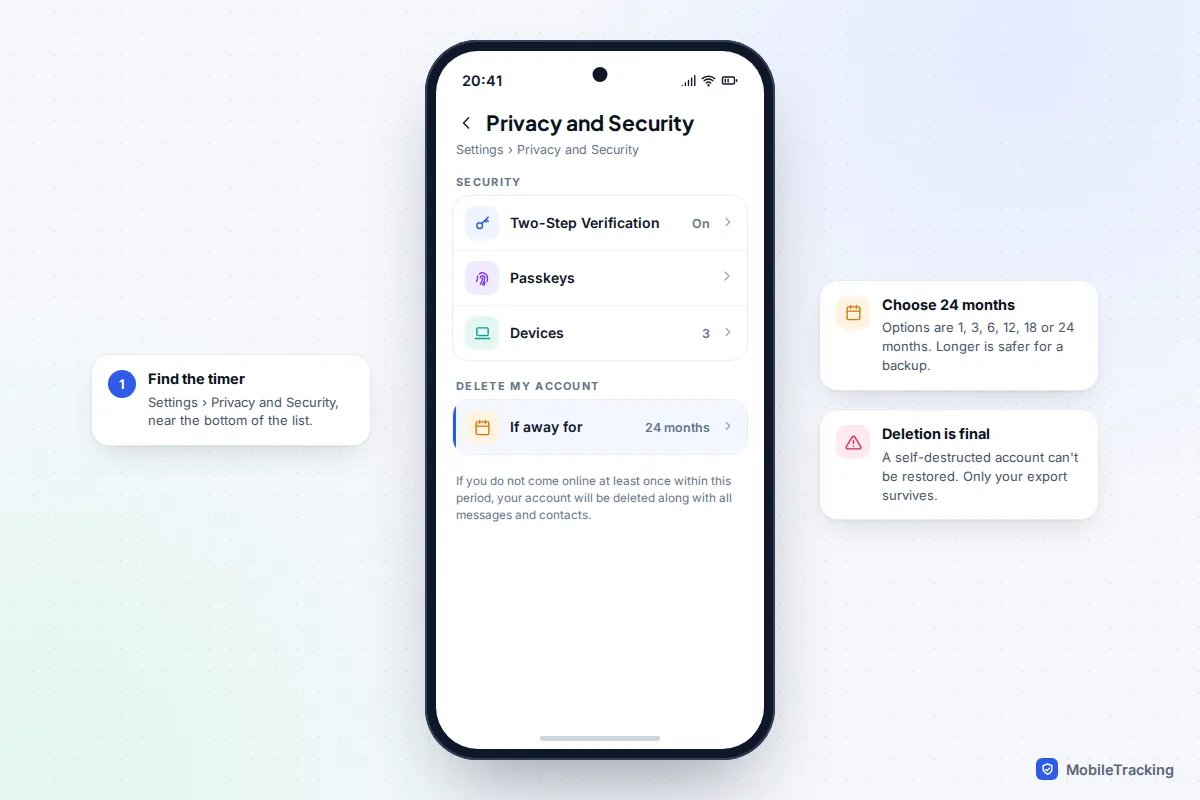
What your account is set to by default varies. Telegram’s FAQ currently describes deletion after 18 months offline, while many older accounts show 6 months, so check what yours says rather than assuming.
Protect the account that holds your chats
Because everything lives in your account, whoever gets into it gets your whole history. Three settings do most of the work.
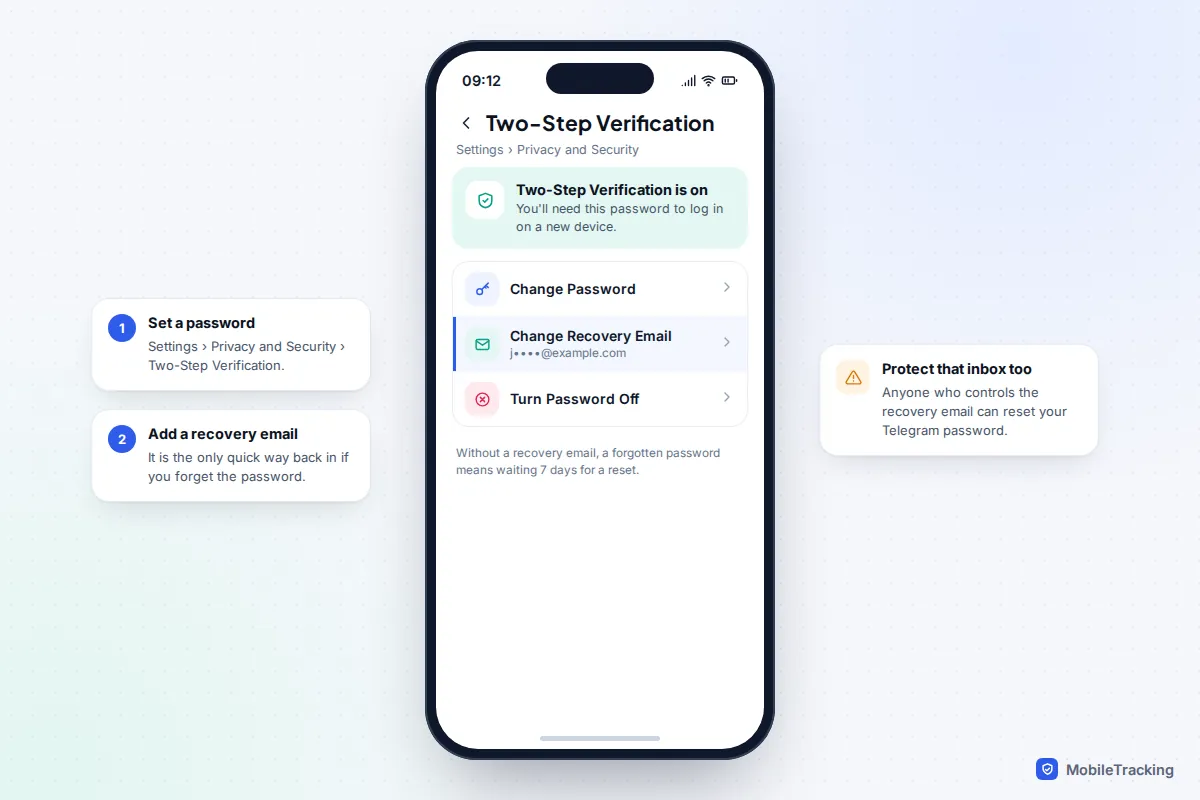
Two-Step Verification
Go to Settings › Privacy and Security › Two-Step Verification and set a password. From then on, logging in on a new device needs both the login code and this password, so a stolen SMS code isn’t enough. Add a hint that means something only to you, and add a recovery email. Without one, a forgotten password leaves you two choices: wait seven days for a reset, or reset the account and lose its contents. For ideas on a password you won’t forget, see our guide to creating strong passwords you’ll remember.
Passkeys and your phone number
Since December 2025 you can add a passkey under Settings › Privacy and Security › Passkeys, letting you log in with Face ID, a fingerprint or your screen lock instead of an SMS code. Telegram still asks you to keep a working phone number on the account. If you change number, update it under Settings by tapping your number and choosing Change Number while you still have the old one.
Devices
Check Settings › Devices now and then and end any session you don’t recognise. Keeping one extra trusted device signed in, such as your computer, is also your safety net: Telegram usually sends login codes to your other signed-in devices before falling back to SMS.
Moving to a new phone, and what “restoring” means
For cloud chats there’s nothing to restore. Install Telegram on the new phone, enter your number, type the code (it usually appears in Telegram on your old phone or computer) and then your two-step password. Chats, groups, channels and Saved Messages load within moments, with media downloading as you open it.
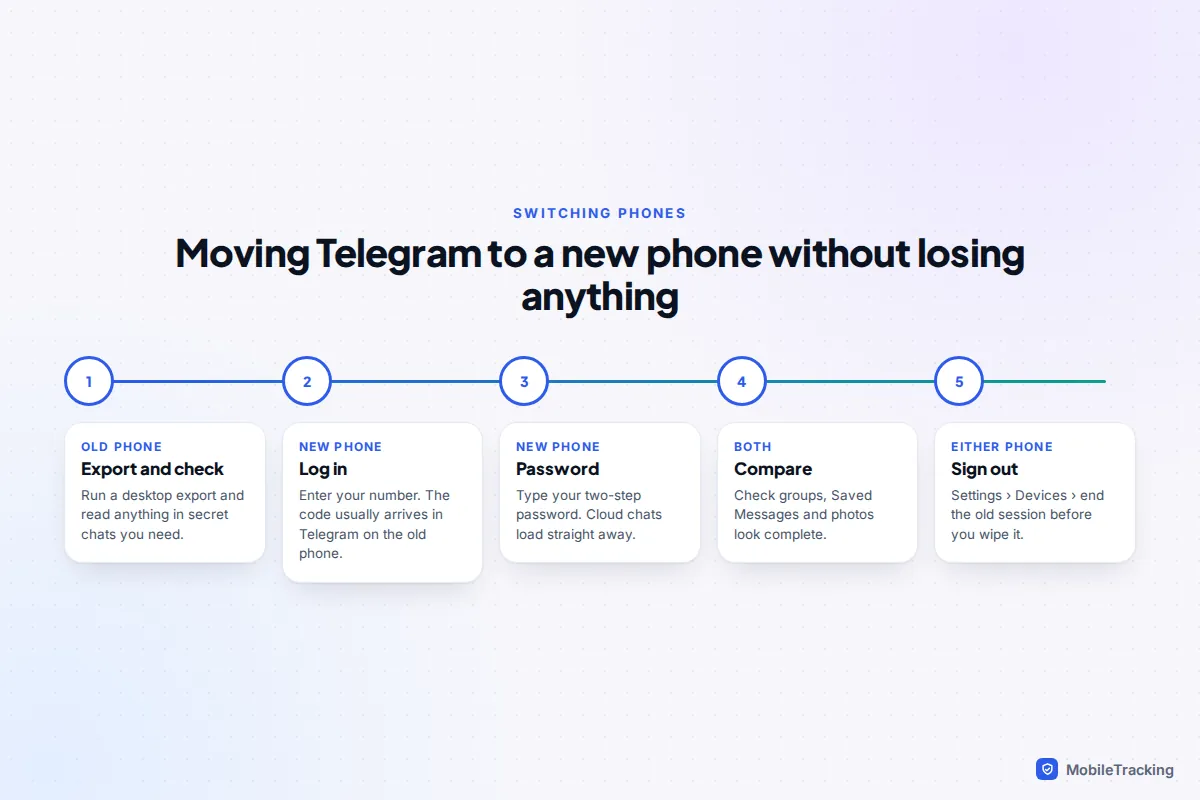
Secret chats won’t come across. Before you switch, read or note anything you need from them, then start fresh secret chats on the new phone. Once everything looks right, end the old phone’s session in Settings › Devices before you wipe or sell it.
An export is a different kind of restore. It is an archive you read in a browser, not a file you can load back into Telegram; Telegram’s import feature only brings in chats exported from other apps, such as WhatsApp. Treat your export like a printed record: keep it safe, open it now and then to check it works, and run a fresh one every few months. Our guide to backing up WhatsApp chats covers the other messaging app most families need to think about.
Frequently asked questions
Are Telegram chats backed up to iCloud or Google Drive?
Not in any way you can rely on. Cloud chats don’t need it because they are stored by Telegram and reload when you sign in. Secret chats are tied to the device, and a phone backup won’t bring them back on a new phone. For a copy you control, use Telegram Desktop’s export.
Can I export Telegram chats on my phone?
No. The iPhone and Android apps have no export tool. You can save media to your gallery, forward messages to Saved Messages or share individual files, but a proper chat export needs Telegram Desktop or Telegram Lite on a computer.
Does the export include deleted messages or secret chats?
No. The export copies what is in your account at that moment. Messages already deleted or auto-deleted aren’t included, and secret chats never are. That is why exporting regularly, before something goes missing, matters.
Can I import a Telegram export back into Telegram?
No. The HTML or JSON export is for reading, searching and keeping as a record. If your account is deleted, a new account starts empty even with the same number.
How long does an export take?
Text-only exports usually finish in minutes. With years of videos and a high size limit, it can take hours and many gigabytes. Keep the computer awake and plugged in, and don’t quit Telegram Desktop until it says the export is complete.
Will someone be told if I export our chat?
Nothing appears in the chat when you export it. Telegram does notify your own devices when a full data export is requested from a new session, as a security check against someone else taking your data.
This guide is general information, not legal or financial advice. Read our editorial policy.