How you sync messages depends on the app, not the phone. For iMessage, turn on Messages in iCloud on every Apple device signed in to the same Apple Account, then switch on Text Message Forwarding so ordinary texts reach your iPad and Mac too. For Google Messages, pair your tablet or computer from Device pairing in the app. WhatsApp, Telegram and Signal each have a Linked devices (or Devices) screen, and all three can now run on a second phone as well as a tablet or computer.
Every one of these features works the same way underneath: it gives another device a live copy of your conversations. That is exactly what you want on your own iPad. It is exactly what you don’t want on a laptop you sold, a family computer, or a device someone else set up. So this guide covers both halves: how to sync, and how to check that only your own devices are in the loop.
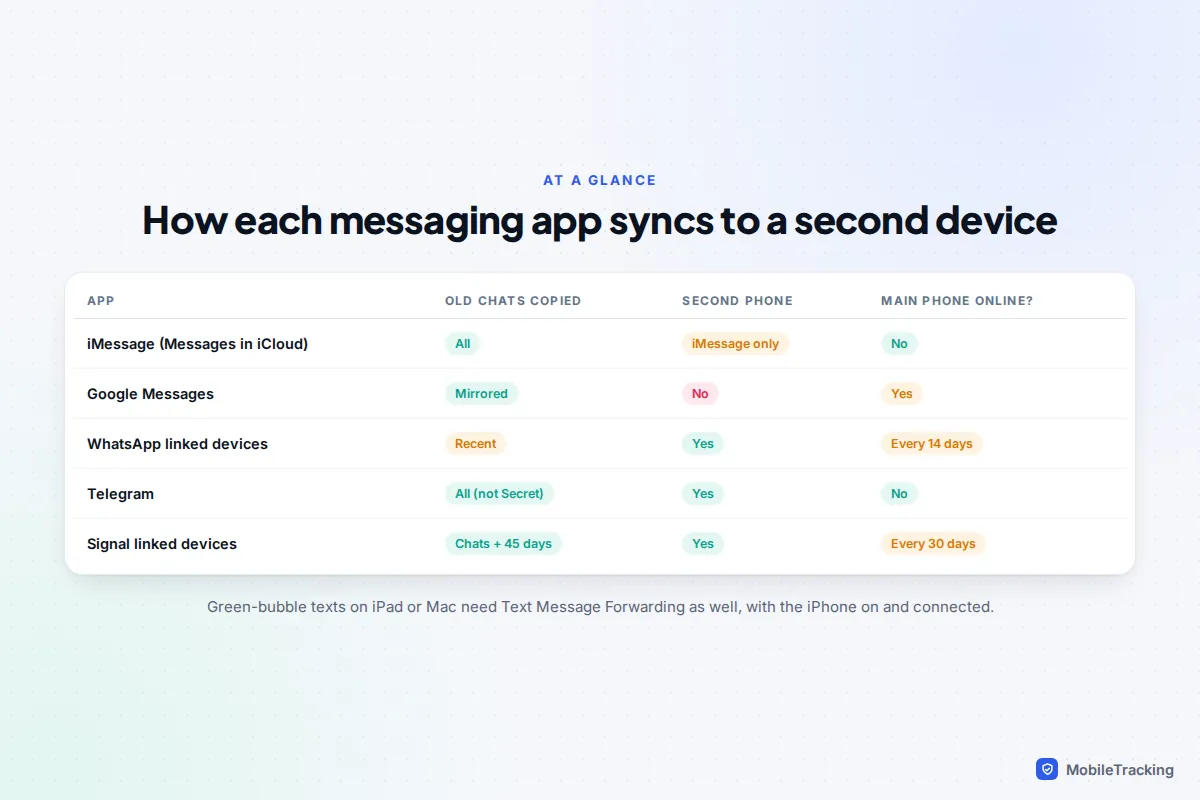
Which method fits your devices?
Syncing is set up per app, so if you use WhatsApp for family chats and iMessage for everything else, you’ll need to do both.
| You want | Use this | What to expect |
|---|---|---|
| iMessages on iPad and Mac | Messages in iCloud | Full history everywhere. Deleting a chat on one device deletes it on all. |
| Green-bubble texts on iPad or Mac | Text Message Forwarding | New SMS, MMS and RCS texts only. The iPhone must be on and connected. |
| Android texts on a tablet | Google Messages device pairing | Works while the phone is on. Unused pairings expire after a few weeks. |
| Galaxy phone to Galaxy tablet | Call & text on other devices | New messages only. Not available on Verizon or AT&T phones in the US. |
| WhatsApp on a second phone | Linked devices (companion mode) | Up to four linked devices, working even when the main phone is off. |
| Signal or Telegram anywhere | Linked devices / Devices | Signal copies your chats across when you link. Telegram syncs everything by default. |
If what you actually want is to type texts on a laptop keyboard, our guide to reading and sending texts from your laptop covers Messages for web, Phone Link and iPhone Mirroring in detail, so this guide focuses on tablets, second phones and keeping history consistent.
iPhone, iPad and Mac: Messages in iCloud and Text Message Forwarding
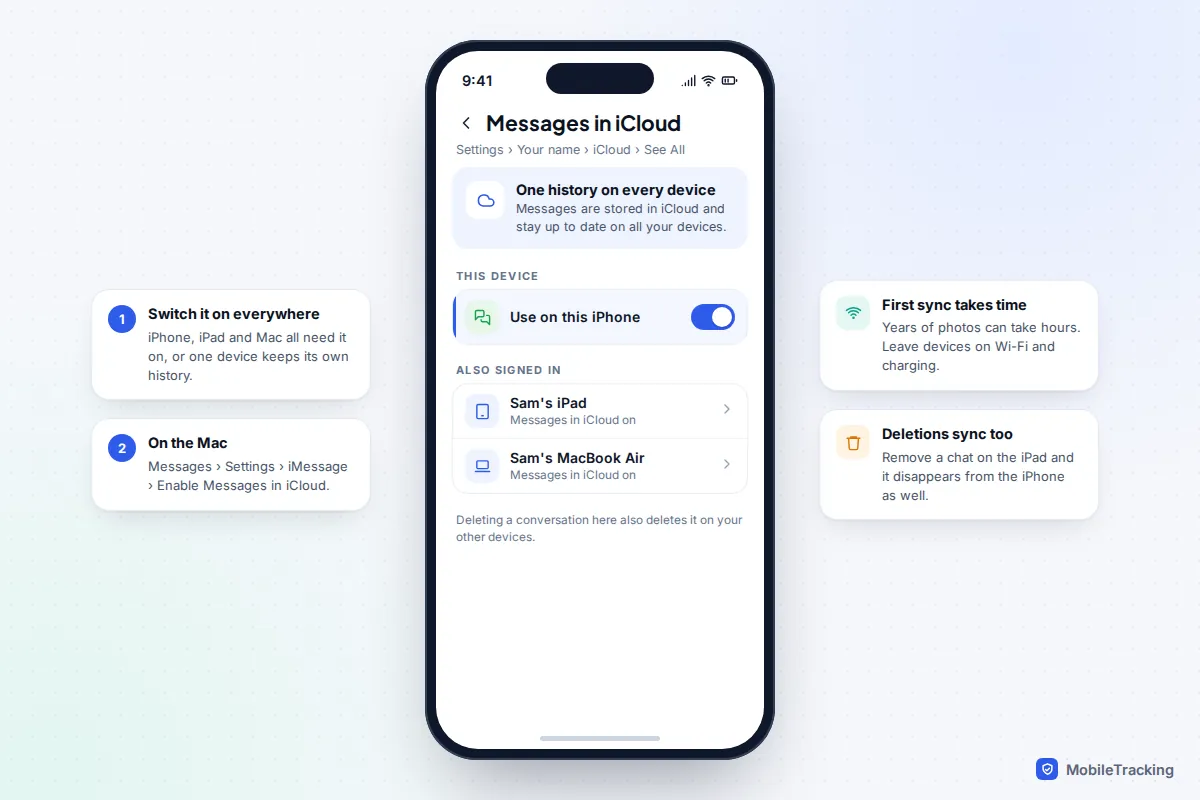
Apple splits syncing into two separate switches, and most “my iPad is missing messages” problems come from having only one of them on. Messages in iCloud keeps your history identical everywhere. Text Message Forwarding lets the iPhone relay texts that arrive through your mobile network.
Turn on Messages in iCloud
- On the iPhone, open Settings, tap your name, then iCloud.
- Under the apps using iCloud, tap See All, then Messages in iCloud, and turn on Use on this iPhone.
- Repeat on the iPad (the switch reads Use on this iPad).
- On the Mac, open Messages, choose Messages then Settings, click iMessage and tick Enable Messages in iCloud.
The first sync can take hours with years of photos, and runs fastest on Wi-Fi while charging. Two side effects to know: your messages now count towards your iCloud storage, and a conversation you delete on one device disappears from all of them.
Add Text Message Forwarding for green bubbles
iMessages travel through your Apple Account, but SMS, MMS and RCS texts come in through your SIM. To see those on an iPad or Mac, go to Settings, Apps, Messages, Text Message Forwarding on the iPhone (on iOS 17 and earlier, Settings, Messages) and switch on each device you own. RCS messages forward too on iOS 18 and later, provided your carrier supports RCS. Apple’s page on forwarding texts to other devices lists the requirements.
Forwarding reaches Macs and iPads, not a second iPhone. If you carry two iPhones on one Apple Account, the second gets iMessages but not ordinary texts; for that, see our guide to forwarding texts to another phone.
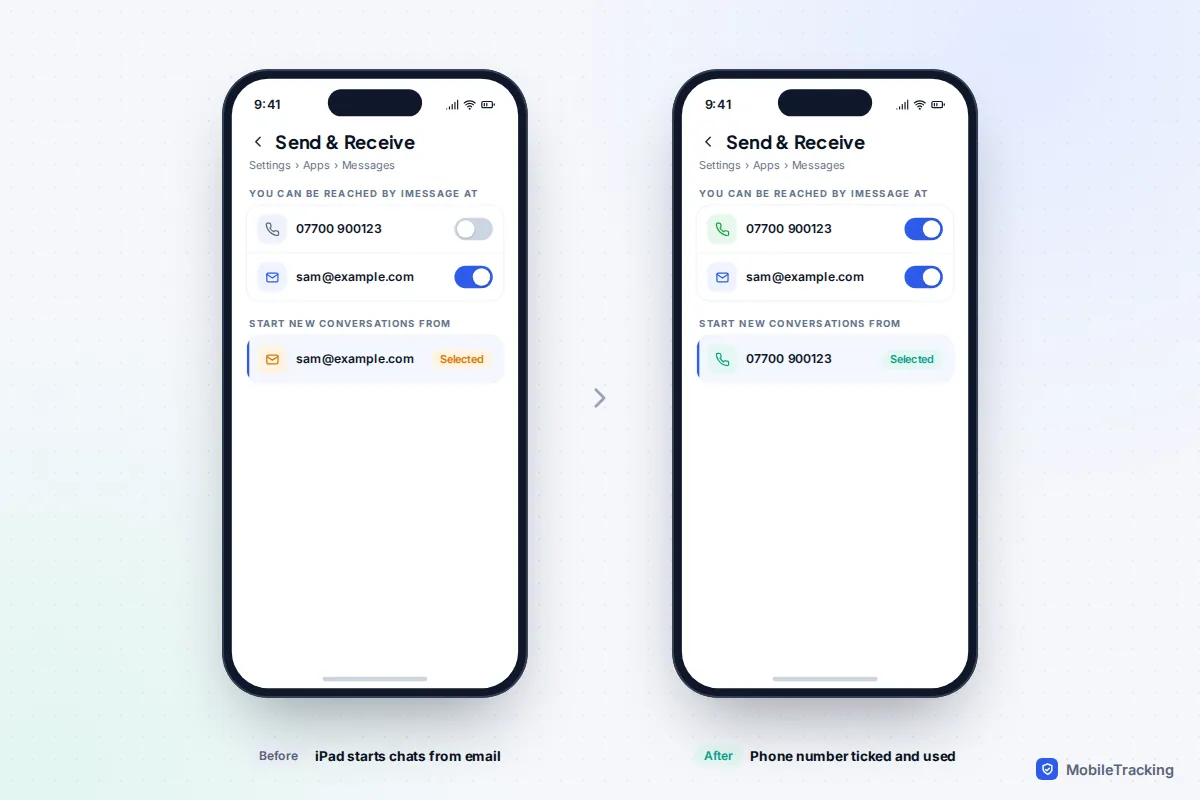
Fix “my iPad sends from my email address”
If friends see your iPad messages arriving from an email address, or new chats split into duplicates, check the addresses. On the iPad, go to Settings, Apps, Messages, Send & Receive and tick your phone number, then set Start New Conversations From to that number. Your number only appears there once the iPhone is signed in to iMessage with the same Apple Account.
Android: Google Messages on a tablet, and Samsung Galaxy
Google Messages doesn’t store your texts in the cloud the way iCloud does. Instead, the phone stays in charge and a paired tablet or computer mirrors it. On an Android tablet, install Google Messages from the Play Store, open it and follow the pairing prompt. On the phone, tap your profile picture in Google Messages, choose Device pairing, and match the emoji the phone shows with the one on the tablet.
Three limits are worth knowing. The phone must be switched on and online, because it does the actual sending. Google says only one computer can be active at a time, so you switch between paired screens rather than use two at once. And a pairing you don’t use for a few weeks is removed automatically. Google’s Messages on your computer or tablet page has the details.
Galaxy phone and Galaxy tablet
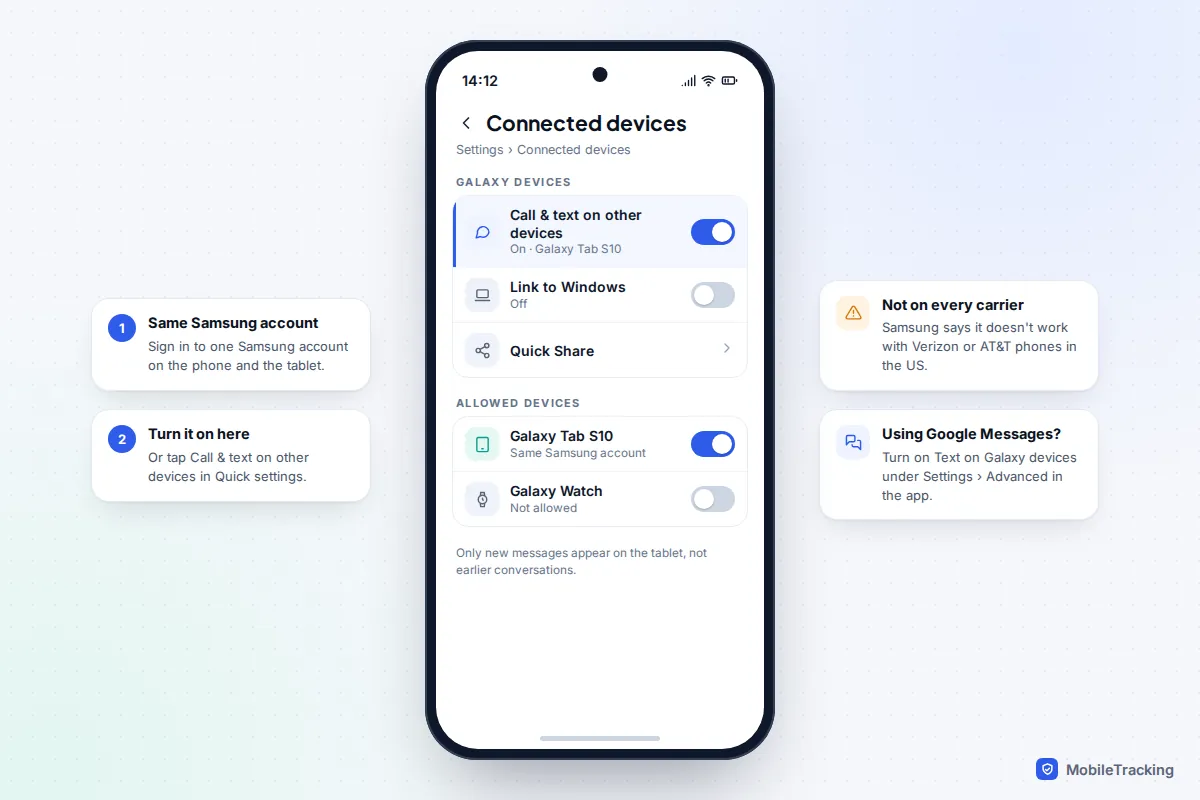
Samsung’s route is Call & text on other devices. Sign in to the same Samsung account on both, then turn it on from Quick settings or Settings, Connected devices, Call & text on other devices. Samsung notes it doesn’t currently work with Verizon and AT&T phones, and only new messages appear on the tablet.
In the US, Samsung Messages stopped being supported in July 2026 on Galaxy phones running Android 12 or later, which disrupted texting on tablets through the old Samsung app. If your phone now uses Google Messages, Samsung’s instructions are to turn on the tablet option inside Google Messages, under Settings, Advanced, Text on Galaxy devices, and sign in to the same Google Account on the tablet.
WhatsApp on a second phone, tablet or computer
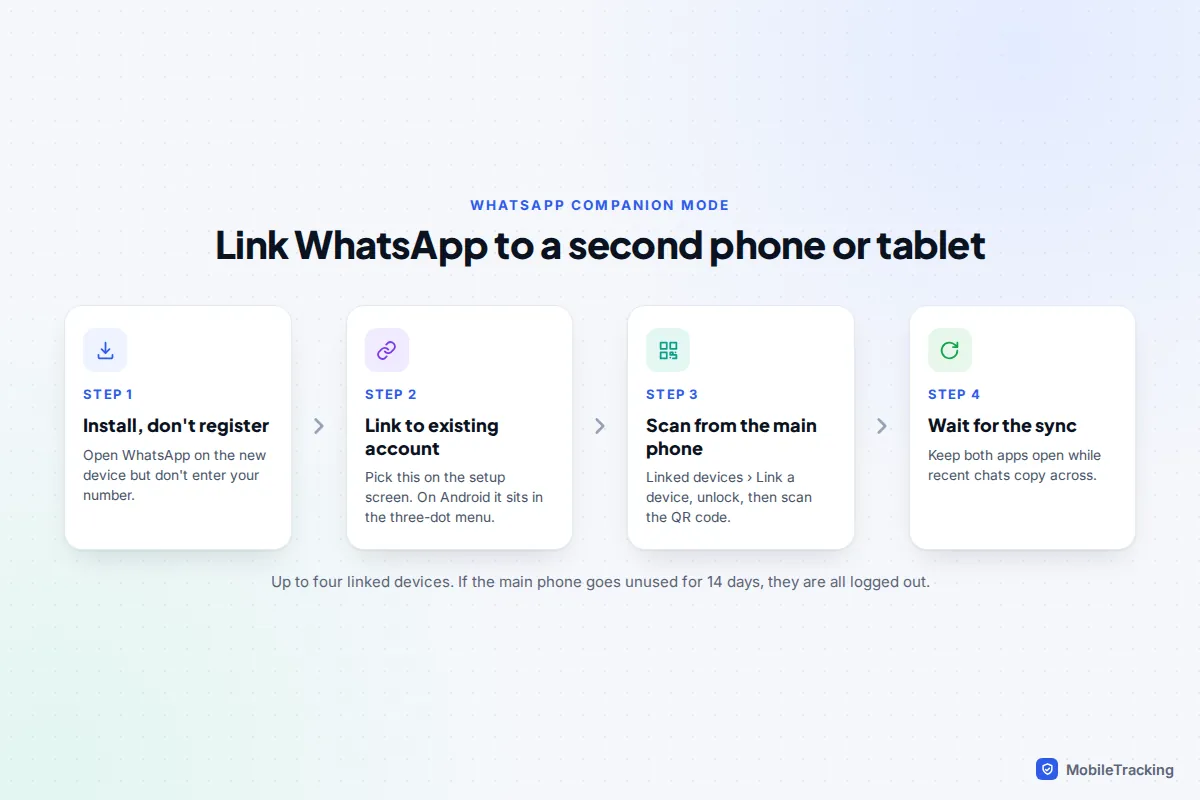
WhatsApp’s linked devices work independently: once linked, a device keeps sending and receiving even if your main phone is off or has no signal. You can link up to four devices, and since companion mode arrived that includes a second phone, so a work phone and a personal phone can share one account.
- Install WhatsApp on the second phone or tablet and open it. Don’t register it with your number.
- On the setup screen, choose the option to link to an existing account (on Android it sits behind the three-dot menu). A QR code appears.
- On your main phone, open Linked devices: on iPhone it is in Settings; on Android, tap the three-dot menu. Tap Link a device and confirm with your fingerprint, face or passcode.
- Scan the QR code and keep both apps open while recent chats copy across.
Recent history is copied, not your whole archive, so older chats may only exist on the main phone. A few things stay on the main phone too, including sharing live location, and account-level changes such as your phone number or two-step verification. If the main phone isn’t used for 14 days, every linked device is logged out.
Telegram and Signal
Telegram: synced by design
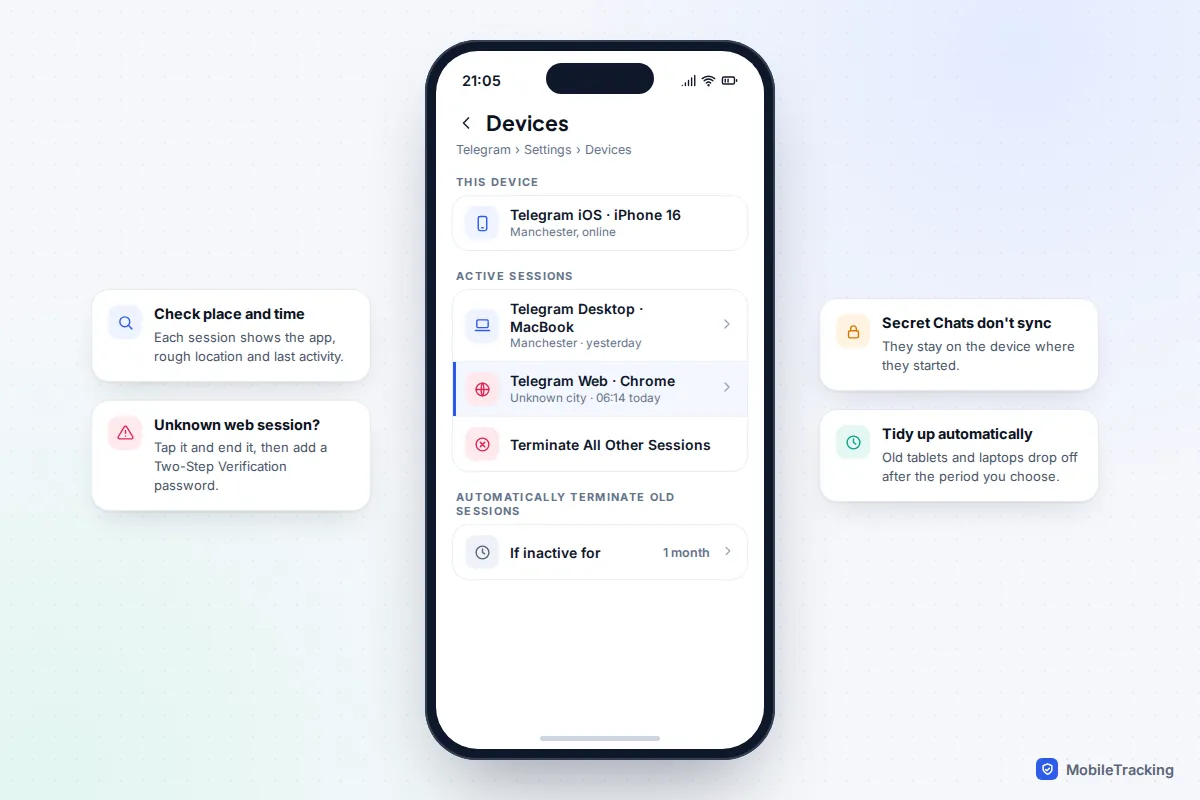
Telegram keeps ordinary chats in its cloud, so you simply sign in with your phone number on any phone, tablet or computer and everything appears. Once you already have a session open, Telegram sends the login code to that app rather than by SMS. The exception is Secret Chats: Telegram describes them as device-specific, so they exist only on the device where they were started and won’t sync.
Your list of sessions is under Settings, Devices. Terminate All Other Sessions signs out everything except the device in your hand. At the bottom you can set Automatically terminate old sessions after a period of inactivity, which tidies up tablets you have stopped using. Add a password under Settings, Privacy and Security, Two-Step Verification so a stolen login code isn’t enough to add a new device.
Signal: linked devices, now including phones
Signal has long linked to desktop computers and iPads. In August 2026 it added full support for linking another Android phone or Android tablet, and for linking an iPhone as well as an iPad. Signal’s support page says an account can have up to five linked devices.
To link one, install Signal on the new device and open it to show a QR code. On your main phone, go to Settings, Linked devices, Link a new device, unlock, and scan. You then choose whether to transfer history: all your chats and the last 45 days of media can come across, encrypted end to end. Your main phone must come online at least once every 30 days, and a linked device unused for 45 days is unlinked automatically. Signal’s linked devices guide covers each platform.
The privacy catch: a linked device you don’t control
Sync doesn’t care whose hands a device is in. Whoever holds a linked phone, tablet or computer can read new messages, often scroll back through history, and usually send messages as you.
A common family example: Dan sets up his daughter’s first iPad using his own Apple Account because it is quicker. A week later she mentions a message from his GP surgery. Messages in iCloud had faithfully copied his whole history to her iPad. The fix is to give children their own Apple Account through Family Sharing, not to share yours. The same happens with an old laptop passed down or a work computer you once linked to WhatsApp.
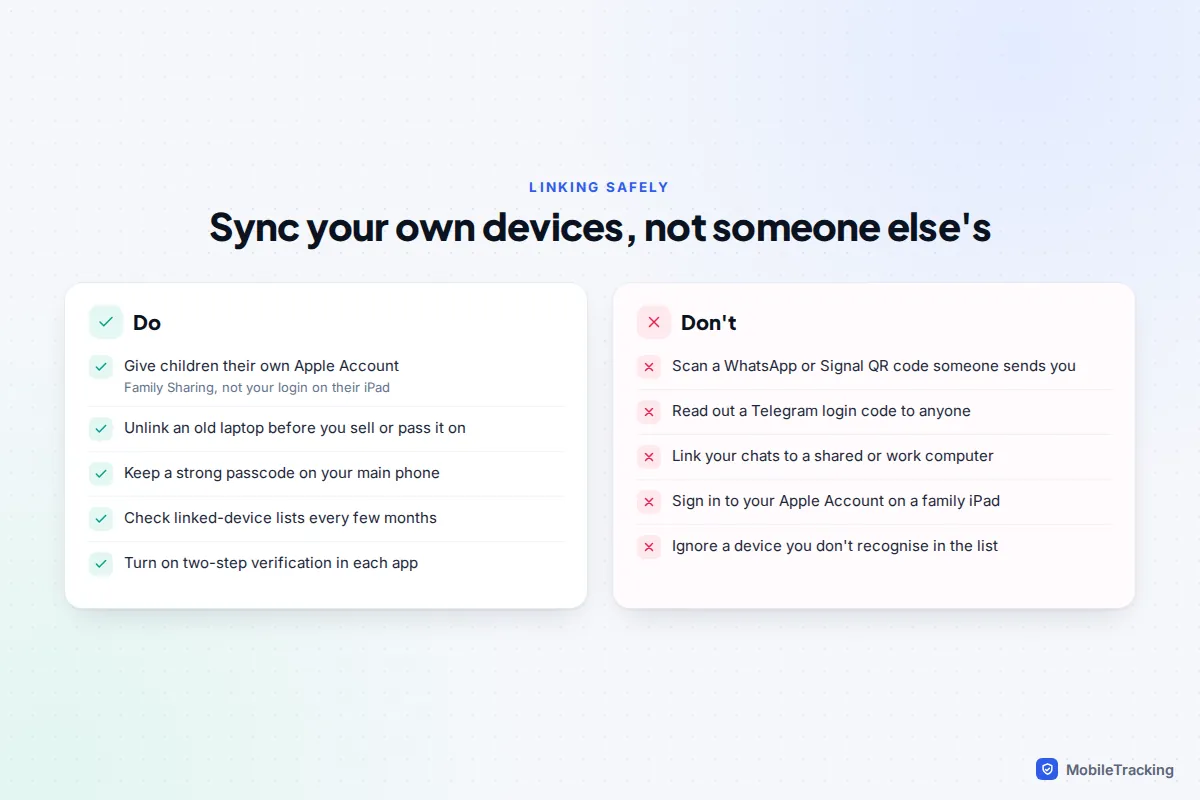
Never scan a WhatsApp or Signal QR code that someone sends you, and never read out a Telegram login code. Scammers use both tricks to add their own device to your account quietly.
How to check and remove linked devices
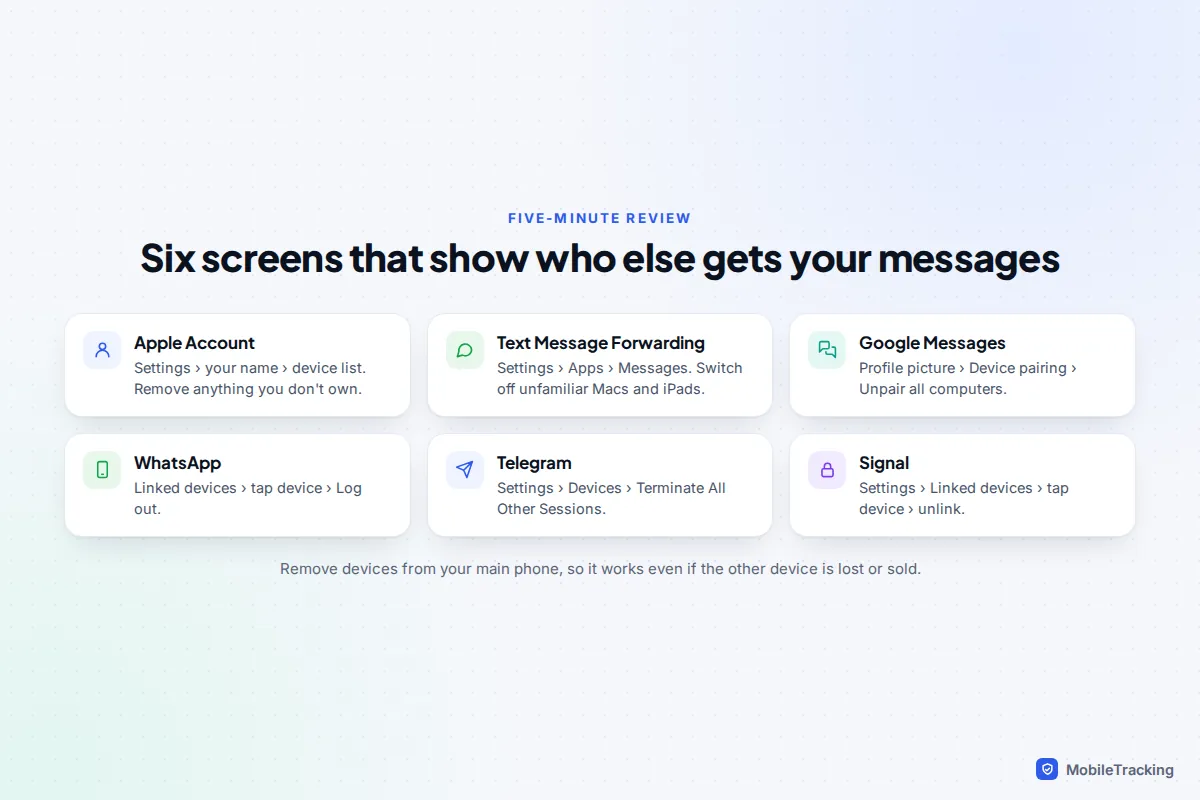
Do this from your main phone, so it works even if the other device is lost or sold.
- Apple Account: Settings, tap your name, scroll to the device list, tap any device you don’t own and choose Remove from Account. Our guide to removing a device from your iCloud account explains what happens next. Then change your Apple Account password.
- Text Message Forwarding: Settings, Apps, Messages, Text Message Forwarding, and turn off anything unfamiliar.
- Google Messages: profile picture, Device pairing, then remove one device or choose Unpair all computers.
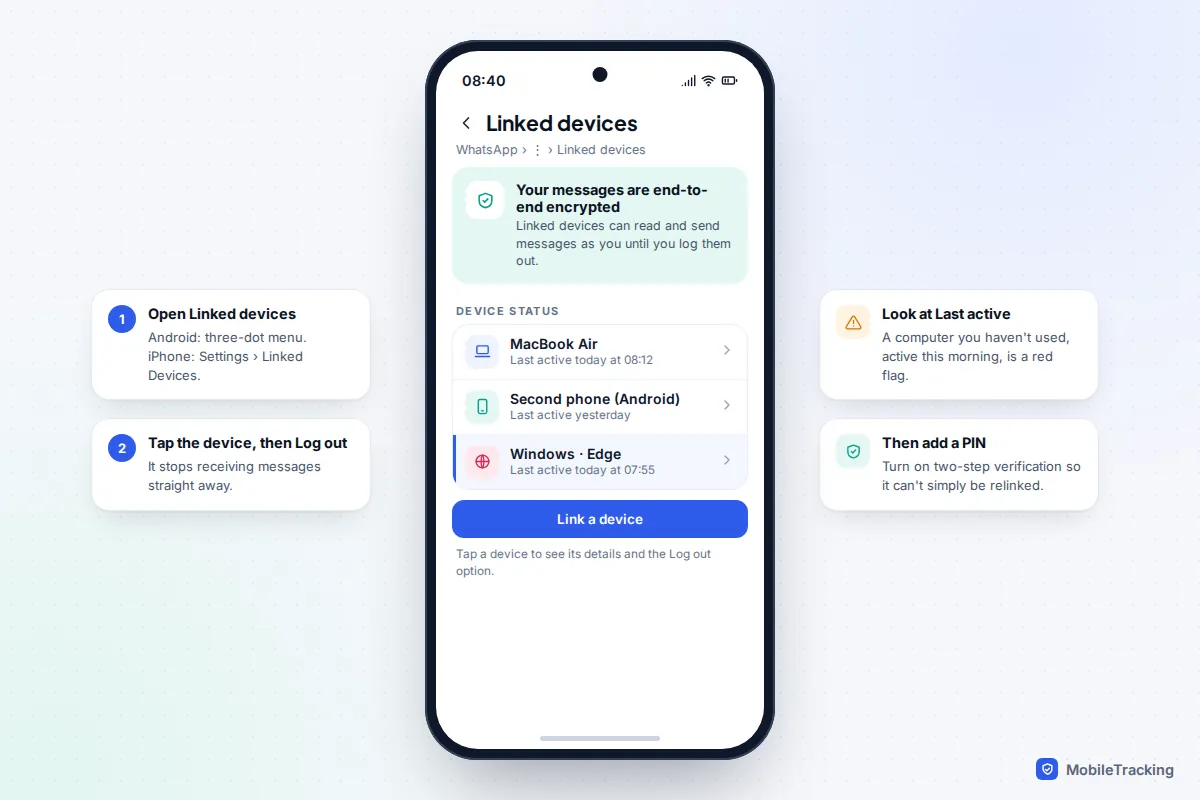
- WhatsApp: Linked devices, tap the device, then Log out. Each entry shows when it was last active.
- Telegram: Settings, Devices, tap a session to end it, or Terminate All Other Sessions.
- Signal: Settings, Linked devices, tap the device and unlink it.
Then turn on two-step verification in each app so the device can’t simply be re-added. For WhatsApp, our guide to securing WhatsApp from snooping goes further.
Troubleshooting sync by symptom
| Symptom | Likely cause | Fix |
|---|---|---|
| iPad has iMessages but not green-bubble texts | Text Message Forwarding is off, or the iPhone is off or offline | Switch the iPad on under Text Message Forwarding and check the iPhone has signal or Wi-Fi. |
| Old chats missing on the Mac | Messages in iCloud is off on one device, or still syncing | Turn it on everywhere, then click Sync Now in Messages, Settings, iMessage on the Mac. |
| Same person appears in two threads | Devices start chats from different addresses | Set Start New Conversations From to your phone number on every device. |
| WhatsApp second phone logged out | Main phone unused for 14 days | Open WhatsApp on the main phone, then relink the device. |
| Google Messages tablet says it can’t connect | Phone asleep, battery saving, or the pairing expired | Wake the phone, exempt Messages from battery optimisation, pair again. |
| Signal linked device vanished | Main phone offline for 30 days, or device unused for 45 | Bring the main phone online and relink from Linked devices. |
Frequently asked questions
Can I have the same phone number’s texts on two phones?
Not by syncing alone. Ordinary SMS goes to one SIM or eSIM. Apps like WhatsApp, Signal and Telegram can run on two phones, and iMessage works on two iPhones sharing an Apple Account, but plain texts need forwarding or a carrier multi-device service to reach a second phone.
If I delete a message on one device, does it disappear on the other?
With Messages in iCloud, yes: deletions sync everywhere. Google Messages mirrors the phone, so deleting on the phone removes it from the paired screen. WhatsApp, Signal and Telegram let you choose between deleting for yourself on one device and deleting for everyone.
Does syncing messages use a lot of data or storage?
The first sync can be large, especially with photos and videos, so do it on Wi-Fi. After that, only new messages move. Messages in iCloud counts towards your iCloud storage plan, while WhatsApp and Signal store copies on each device.
Will the other person know I read their message on my tablet?
Yes, if read receipts are on. A message opened on any linked device counts as read and the receipt goes back to the sender, just as it would from your phone.
This guide is general information, not legal or financial advice. Read our editorial policy.