
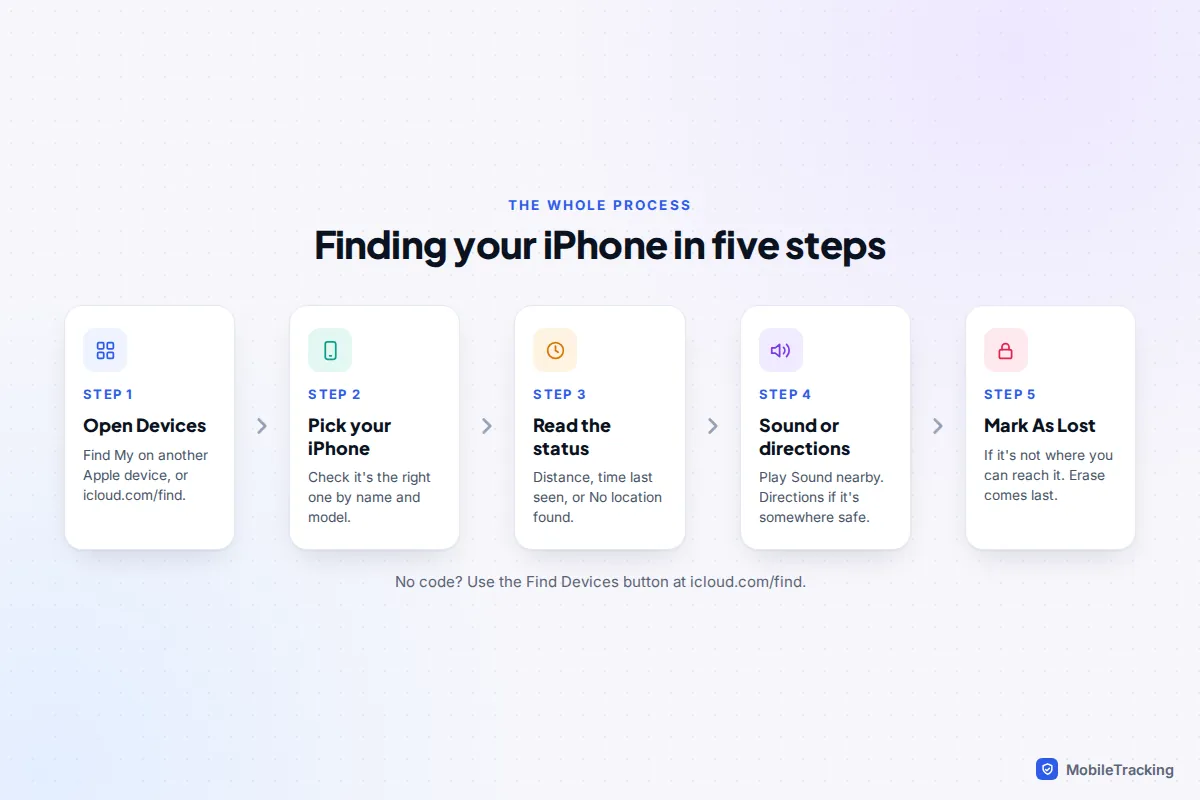
To find your iPhone, open the Find My app on another Apple device signed in with your Apple Account, tap Devices, then tap your iPhone. Its location appears on the map, and from there you can Play Sound, get Directions, Mark As Lost or Erase This Device. With no Apple device to hand, go to icloud.com/find in any browser and use the Find Devices button, which skips the verification code that would otherwise go to the phone you have lost.
That is the short version. The rest of this guide walks through every button in the order you’ll actually need them, explains what the map is really telling you, and covers the cases that catch people out: an iPhone that is switched off, a sign-in code you can’t receive, and a phone that turns out to be under the sofa all along.
Before you start: a one-minute setup check
Find My can only show a phone that was set up for it before it went missing. If you are reading this with your iPhone in your hand, check these now. If it is already lost, skip to the next section: there is nothing you can switch on remotely.
- Open Settings, tap your name, then Find My.
- Tap Find My iPhone and make sure Find My iPhone is on.
- Turn on Find My network. This lets the phone be found through other people’s Apple devices when it has no Wi-Fi or mobile data.
- Turn on Send Last Location, so the phone reports where it is when the battery is about to run out.
- Check that Settings › Privacy & Security › Location Services is on.
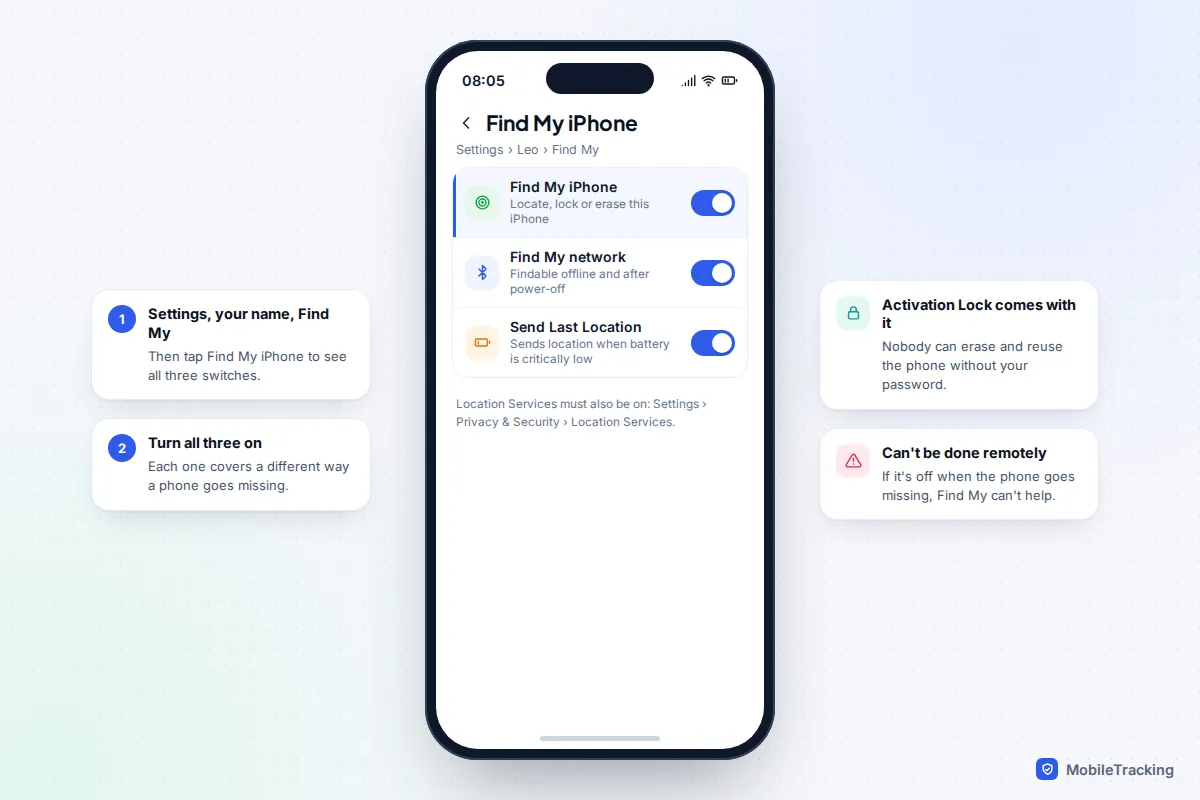
Turning on Find My also switches on Activation Lock, so nobody can erase and reuse the phone without your Apple Account password. For the full setup, including family phones and the settings people forget, see our guide to turning on Find My before you lose your phone.
A quick tour of the Find My app
The app is organised into tabs along the bottom of the screen. Knowing which one to open saves a surprising amount of fumbling when you are stressed.
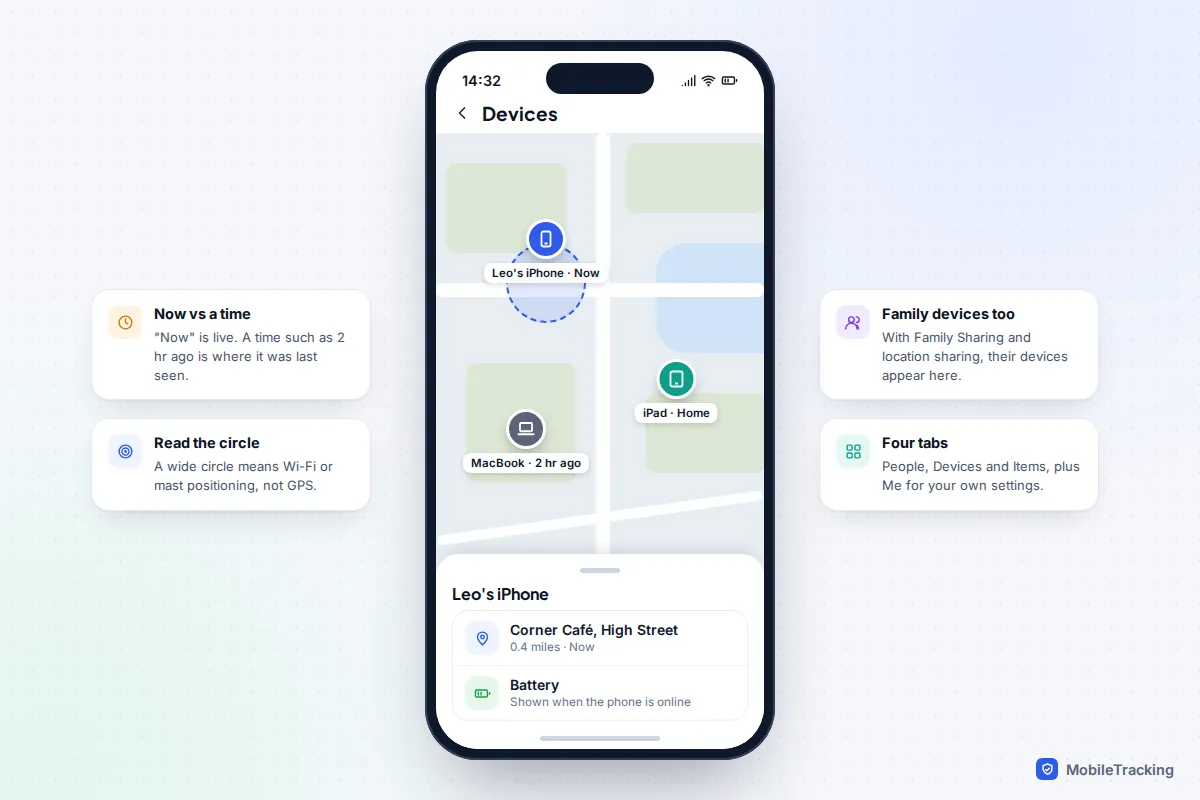
- People shows friends and family who share their location with you, and lets you share yours.
- Devices lists your iPhone, iPad, Mac, Apple Watch and AirPods. If you are in a Family Sharing group and family members share their location with you, their devices appear here too.
- Items holds AirTags and third-party accessories that work with the Find My network, such as some luggage tags and bike trackers.
- Me holds your own settings, including Help a Friend, which is covered below.
What iOS 27 changed
iOS 27, released on 14 September 2026, gave Find My a redesigned look with a new tab bar and support for landscape mode, and it shows more precise place names on the main screen without tapping into each person. The bigger changes are on the People side: you can share your location for a custom length of time, pause sharing with one person, and use Hide Location to hide it temporarily without the other person being told; they simply see “No Location Found”. Finding your own devices works the same way as on iOS 26, so every step below applies to both.
Find your iPhone step by step
- On another iPhone, iPad or Mac signed in with your Apple Account, open Find My. A family member’s device works too, if you share a Family Sharing group.
- Tap Devices and choose your missing iPhone.
- Read the line under its name. You will see how far away it is and when it was last located, or No location found if it hasn’t reported a position.
- Pinch to zoom in. A small blue circle around the pin shows the likely area; a large circle means the phone estimated its position from Wi-Fi or mobile masts rather than GPS.
Play Sound
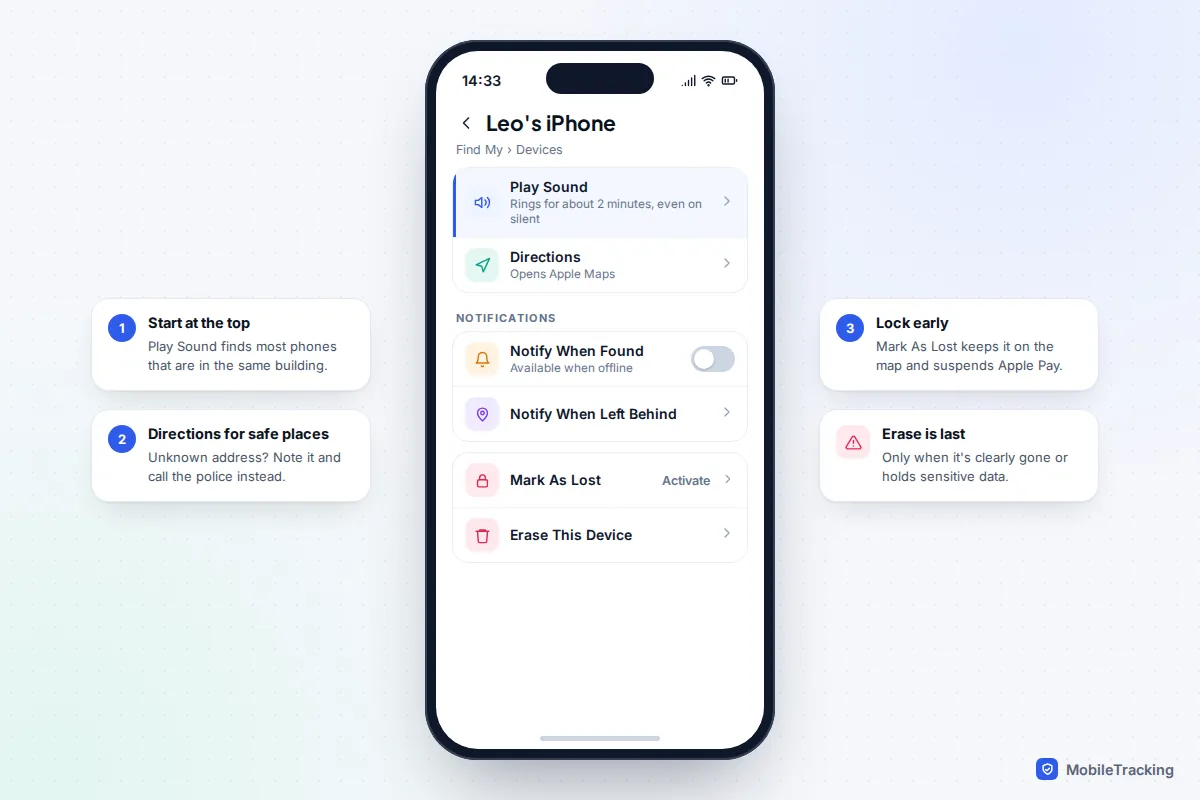
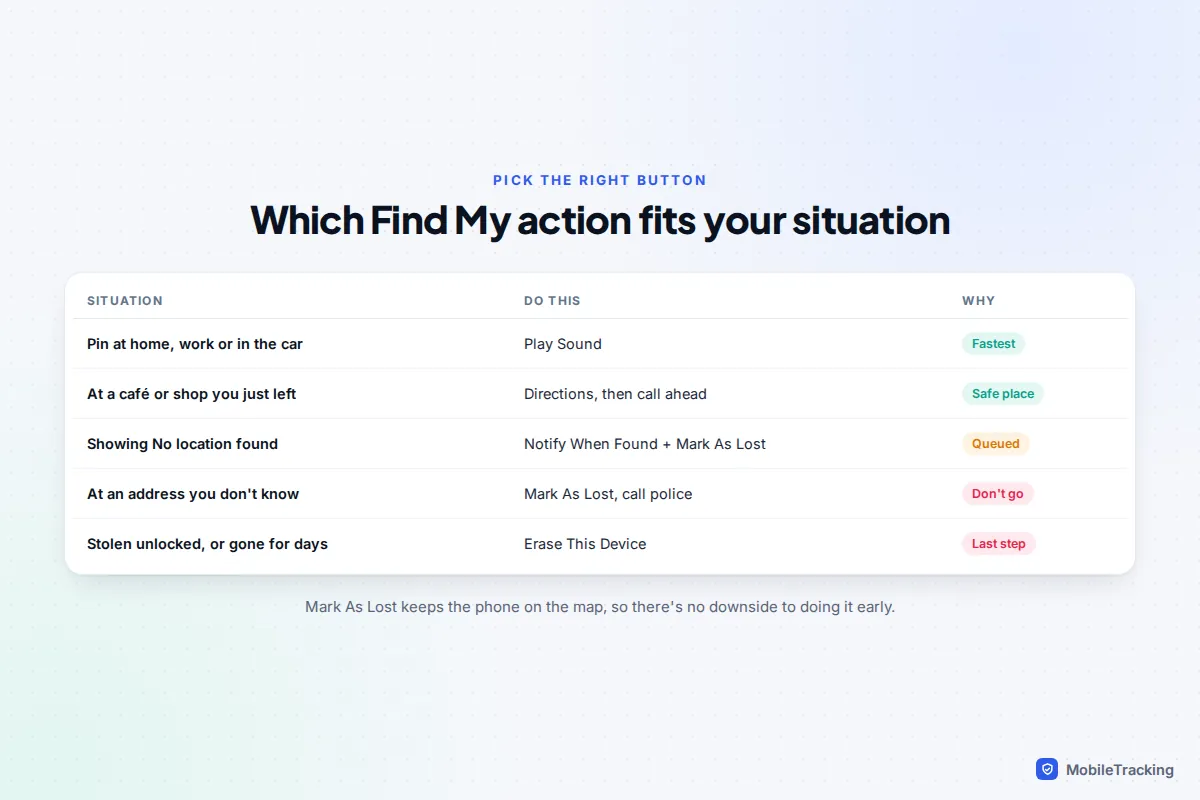
If the map puts the phone at home, in the car or at work, tap Play Sound first. Apple says the sound starts after a short delay, gradually gets louder and plays for about two minutes, even if the phone is on silent. Press a button or unlock the phone to stop it. If the phone is offline, the sound plays as soon as it reconnects, and Apple emails you to confirm.
Directions
Directions opens Apple Maps with a route to the phone’s location. Use it for somewhere you would happily go anyway, such as the office, a friend’s house or the café you have just left. If the pin is at an address you don’t know, don’t go there alone: note the location and time, mark the phone as lost and contact the police.
Precision Finding: what it can and can’t find
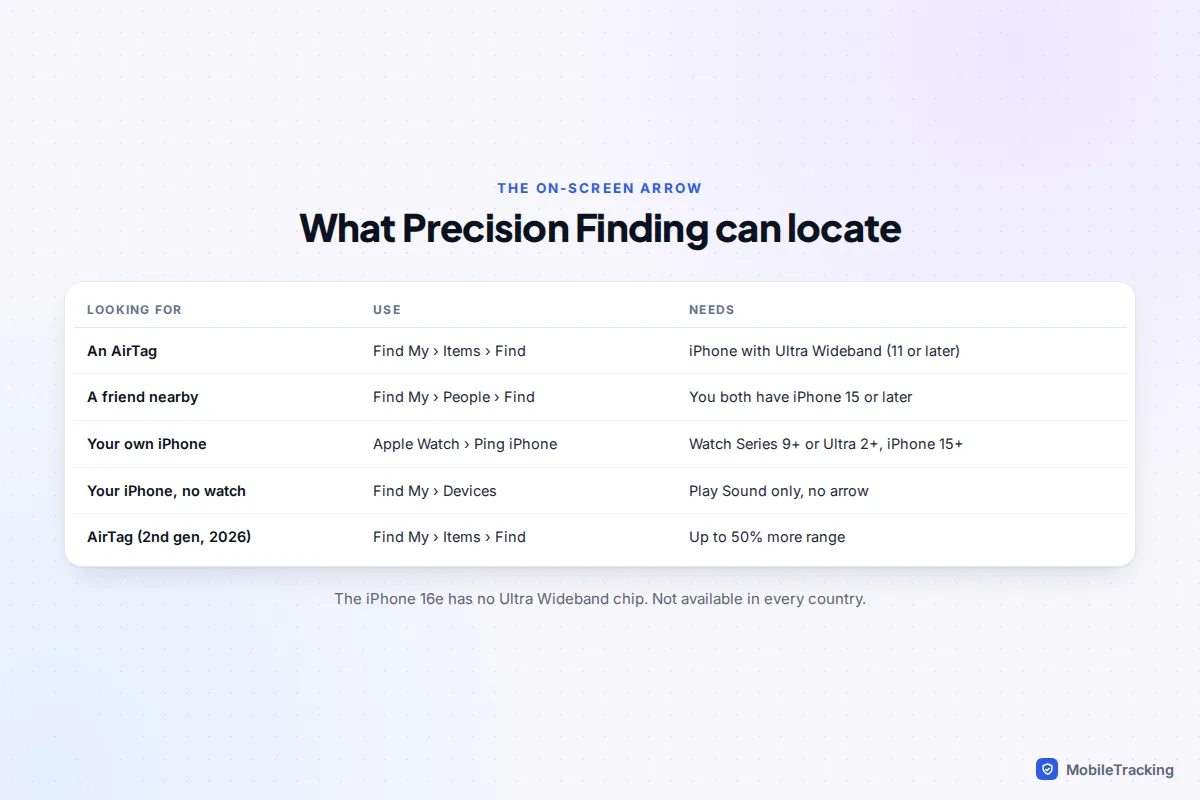
Precision Finding is the on-screen arrow that guides you to within a few feet using Ultra Wideband. It works for AirTags, for friends who share their location when both of you have an iPhone 15 or later (the budget iPhone 16e lacks the chip), and, from an Apple Watch Series 9 or later or Ultra 2 or later, for an iPhone 15 or later: open Control Center on the watch and tap the Ping iPhone button to get directional guidance. Apple’s second-generation AirTag, released in January 2026, can be found this way from up to 50 per cent farther away than the first.
When it isn’t nearby: Notify When Found, Mark As Lost and Erase
If the phone is somewhere you can’t get to, or it hasn’t reported in, three options on the same card take over. Use them in this order.
Notify When Found appears when the phone is offline. Turn it on and you’ll get a notification, and an email if you use icloud.com, as soon as it reports a location again. It costs nothing, so switch it on straight away.
Mark As Lost locks the phone with your passcode, shows a message and a contact number on the Lock Screen, and suspends Apple Pay. Tap Activate under Mark As Lost and follow the prompts. Do this early: the phone stays on the map and still rings, so you lose nothing by locking it. Our guide to locking a lost phone remotely covers the message, the number to use and how to turn it off again.
Erase This Device wipes everything, and it is the last step, not the first. Use it when the phone was stolen unlocked, holds sensitive data or has clearly gone for good. The decision and the knock-on effects are explained in our guide to erasing a lost phone remotely.
Offline finding and the Find My network
An iPhone doesn’t need its own internet connection to be found. With Find My network switched on, it sends out a secure Bluetooth signal that passing iPhones, iPads and Macs pick up and relay with their own location. The reports are end-to-end encrypted, so neither the people whose devices helped nor Apple can see where your phone is. This is why a phone in a taxi or a coat on a train can keep appearing on the map.
It even works for a while after the phone is switched off. On iPhone 11 and later, Apple says the phone can be located for up to 24 hours after being powered off, and for up to five hours in Power Reserve after the battery runs flat. When it is switched off you’ll see a note on the power-off screen saying the iPhone is findable. Before the battery dies, Send Last Location records one final position.
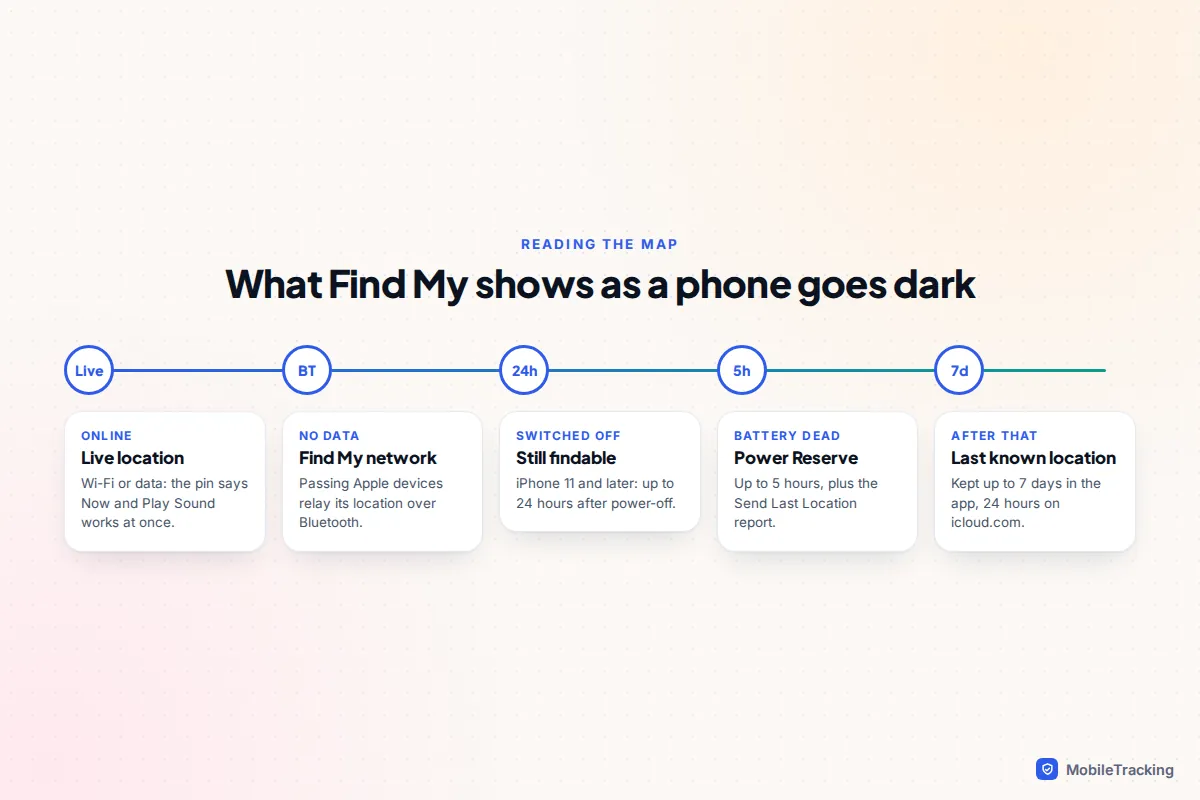
Here is what that looks like. Leo leaves his iPhone in a taxi at 11pm. By the time he checks from his partner’s iPad, the battery has died and the map shows the last location it sent, at a taxi rank. He turns on Notify When Found and marks it as lost with his partner’s number, 07700 900415. Within the hour, passing iPhones pick up its Power Reserve signal and the pin moves to the taxi firm’s depot. Leo rings the firm with the exact address. If a phone was switched off before any of this, our guide to finding a lost phone that is turned off goes into more detail.
No Apple device with you? Use icloud.com or a friend’s iPhone
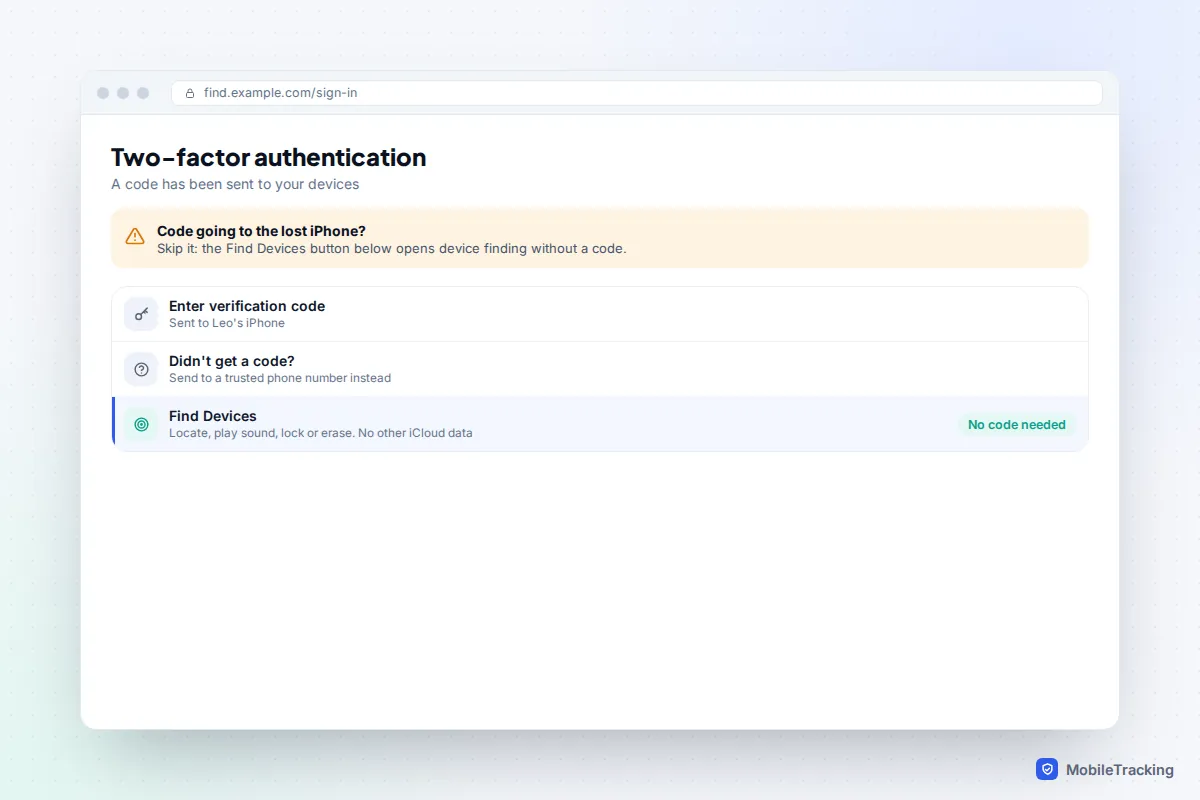
The classic trap is that your Apple Account verification code is sent to the very iPhone you have lost. Apple has a way round it for finding devices.
- On any computer, tablet or phone, go to icloud.com/find.
- Enter your Apple Account email or phone number and password.
- When asked for a verification code, choose the Find Devices button at the bottom of the window instead.
- Select your iPhone from All Devices, then choose Play Sound, Mark As Lost or Erase.
Apple’s Find Devices sign-in guide describes this route. It only opens Find Devices, not your mail, photos or other iCloud data. If you are in a Family Sharing group, family members’ devices appear below yours. What you won’t see on icloud.com are AirTags, other items or people: those need the Find My app.
From a friend’s iPhone with Help a Friend
If a friend has an iPhone, they can open Find My, go to Me and tap Help a Friend. Safari opens icloud.com, where you sign in with your own Apple Account. When you have finished, sign out, and make sure your password wasn’t saved on their phone. Your friend’s own account and location sharing aren’t affected.
Stop it happening again: Notify When Left Behind
Separation alerts warn you when you walk away from a device or item somewhere other than a place you have marked as safe. In Find My, tap Devices or Items, choose the device, tap Notify When Left Behind and turn it on. Under Notify Me, Except At, tap New Location to add places such as home or work where you don’t want alerts, and choose a small, medium or large area.
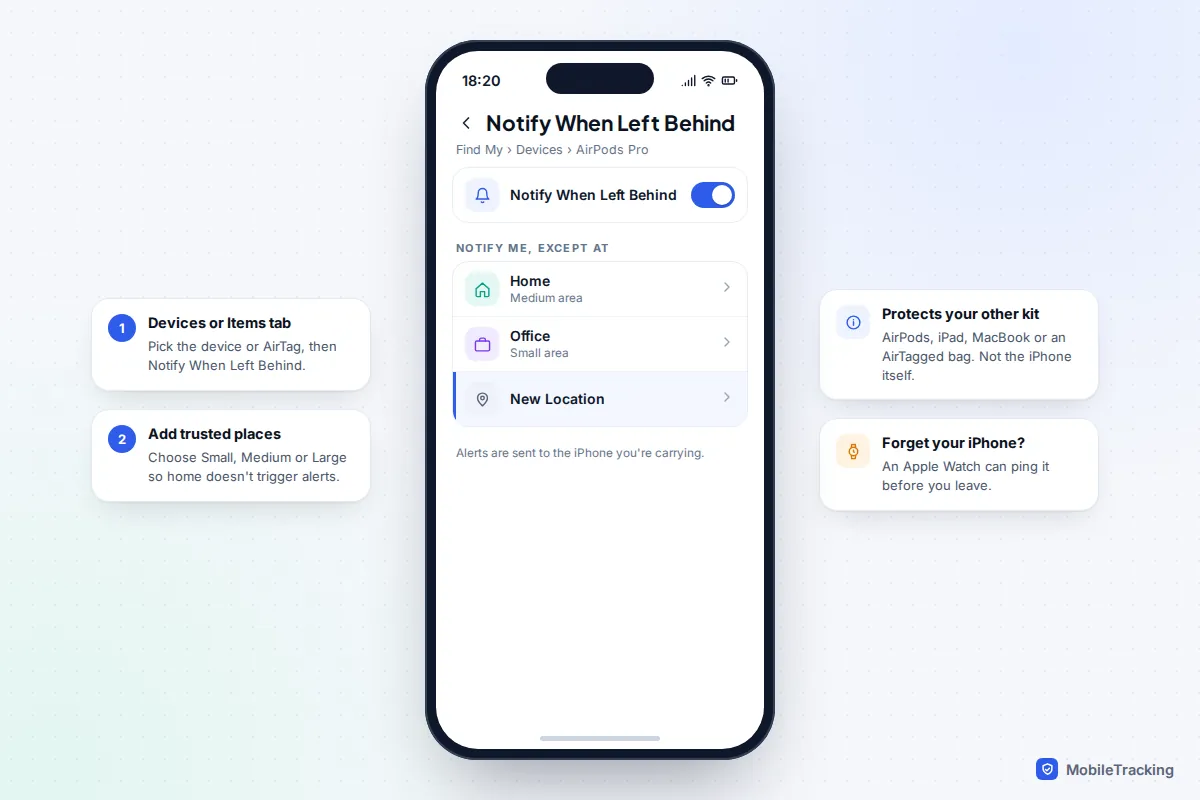
The alert arrives on the iPhone you are carrying, so this protects your AirPods, iPad, MacBook and AirTagged bag rather than the iPhone itself. Not every device shows the option. If your iPhone is the thing you tend to leave behind, the answer is an Apple Watch, which can ping the phone, and a habit of checking before you leave.
Troubleshooting by symptom
The iPhone isn’t in the Devices list. Either you are signed in to a different Apple Account, or Find My was never switched on for that phone. Check which Apple Account the device you’re searching from uses in Settings, under your name. If Find My was off, it can’t be located, so move on to protecting your accounts and calling your carrier.
“No location found”. The phone is off, flat or out of range of any Apple device, or Find My network was switched off. Turn on Notify When Found and mark it as lost, so both happen the moment it reappears.
Play Sound does nothing. The phone may be offline, in which case the sound is queued. If it was online, check the time on the pin: you may be in the wrong room or building.
The location jumps around. Indoors, a phone often falls back to Wi-Fi or mobile-mast positioning, which can be out by a street or more. Trust the circle, not the exact pin.
icloud.com keeps asking for a code. Look for the Find Devices button beneath the code boxes. If you can’t see it, make sure you started at icloud.com/find rather than the main iCloud page.
Frequently asked questions
Can I use Find My iPhone from an Android phone?
Yes. Open a browser on the Android phone, go to icloud.com/find and use the Find Devices button. You can locate the iPhone, play a sound, mark it as lost and erase it, but you can’t see AirTags or people.
Does Find My work if the iPhone has no SIM or data?
Yes, as long as Find My network is on. Nearby Apple devices relay its location over Bluetooth. Without that setting, it needs Wi-Fi or mobile data to report.
Will the person who has my phone know I’m tracking it?
Locating it shows nothing on the phone. Playing a sound, Mark As Lost and Erase are all visible on the screen. That is often useful, because an honest finder will then call the number you add.
Can I find my child’s iPhone with Find My?
Yes, if you are in the same Family Sharing group and your child shares their location with you. Their iPhone appears in your Devices tab. It is best to agree this openly, so your child knows the phone can be found if it’s lost.
Can Find My locate a phone after it’s been erased?
Activation Lock stays on after a remote erase, so a thief still can’t set the phone up without your password. Treat tracking after an erase as unreliable, though, which is why erasing should be the last step.
This guide is general information, not legal or financial advice. Read our editorial policy.