
The quickest way to back up an iPhone is iCloud Backup. Open Settings, tap your name, then iCloud › iCloud Backup, switch on Back Up This iPhone and tap Back Up Now while you’re on Wi-Fi. From then on the phone backs itself up whenever it is locked, charging and on Wi-Fi, which for most people means every night.
For a second copy, or if your iCloud storage is too small, back up to a computer: the Finder on a Mac, or the Apple Devices app on Windows. Tick Encrypt local backup when you do, because only encrypted computer backups keep your saved passwords, Health data and call history. Don’t rely on either for WhatsApp or Signal chats: WhatsApp restores from its own chat backup, and Signal leaves itself out of iPhone backups on purpose. The details, and how to check it all works, follow.
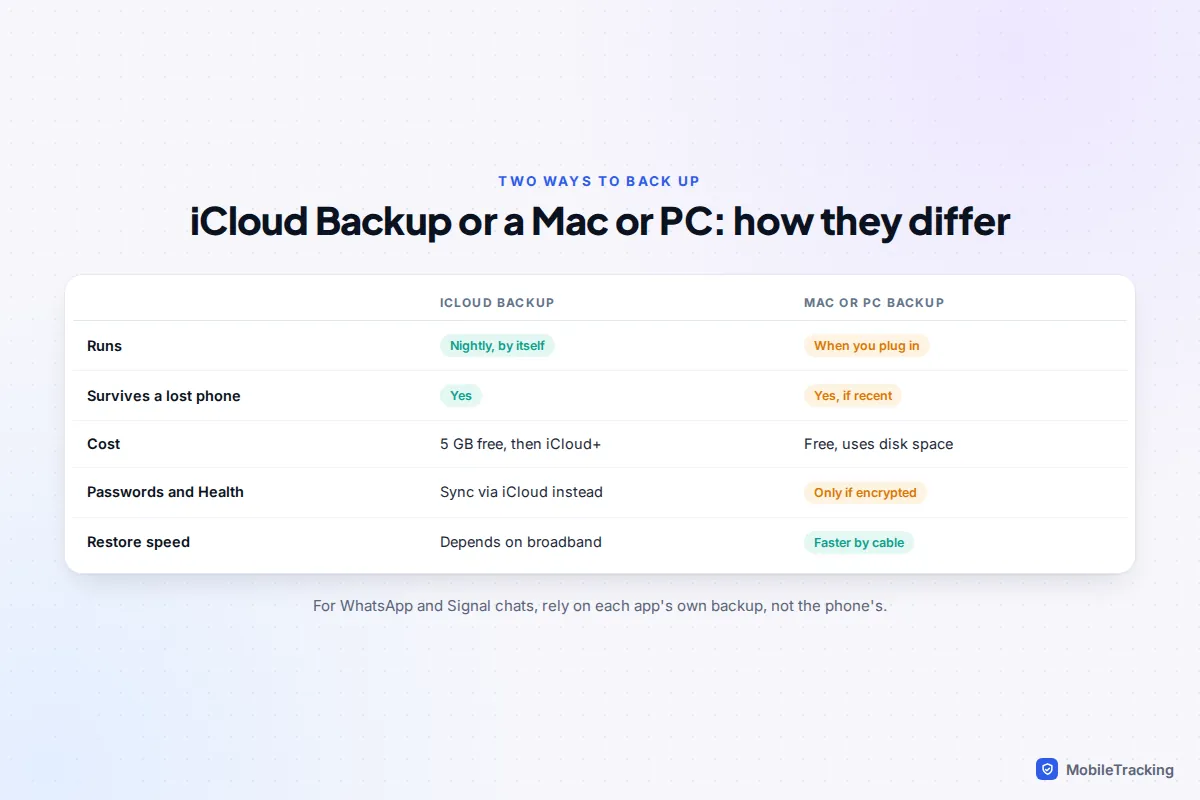
iCloud or computer: which should you use?
They do the same job in different places, and the best setup is usually both. iCloud Backup runs by itself and survives a lost or stolen phone. A computer backup costs nothing beyond disk space and is quicker to restore from, but it only happens when you plug the phone in and remember to click the button.
| Your situation | Best choice |
|---|---|
| You want it to happen without thinking | iCloud Backup |
| iCloud is full and you don’t want to pay for more | Encrypted Mac or PC backup, done monthly |
| Before an iOS update, repair or trade-in | Both: a fresh iCloud backup plus an archived computer copy |
| A child’s iPhone on Family Sharing | iCloud Backup, with the family’s shared iCloud+ plan |
| No computer at home | iCloud Backup only; check its date monthly |
If you’re thinking about backups because you’re worried about losing the phone, our guide on backing up so a lost phone isn’t a disaster also covers photos, authenticator codes and account recovery.
Turn on iCloud Backup
- Connect to Wi-Fi.
- Open Settings, tap your name at the top, then tap iCloud.
- Tap iCloud Backup and switch on Back Up This iPhone.
- Tap Back Up Now and stay on Wi-Fi until it finishes. The first run is the slowest; later backups only send what has changed.
- Check that the date and time of your last backup now appears under the button.
After that it’s automatic, but only when three things line up: the phone is on power, on Wi-Fi and locked. A phone charged in the car and never on Wi-Fi overnight may go weeks without a backup.
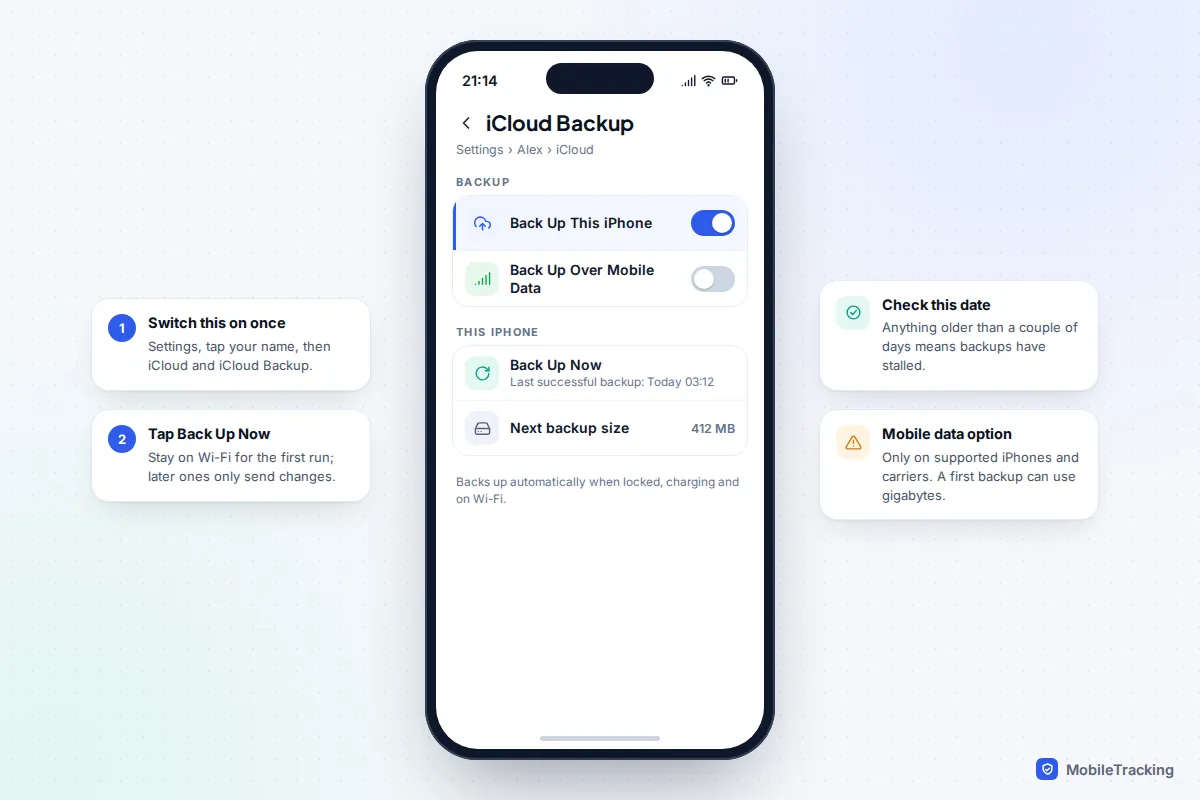
On the same screen you may see Back Up Over Cellular (called Back Up Over Mobile Data in the UK). Apple offers it where both the iPhone and your carrier support it, so the phone can back up without Wi-Fi. It’s handy if you rely on mobile broadband at home, but a first backup of several gigabytes can eat a monthly allowance, so leave it off on a small data plan.
What iCloud Backup includes, and what syncs separately
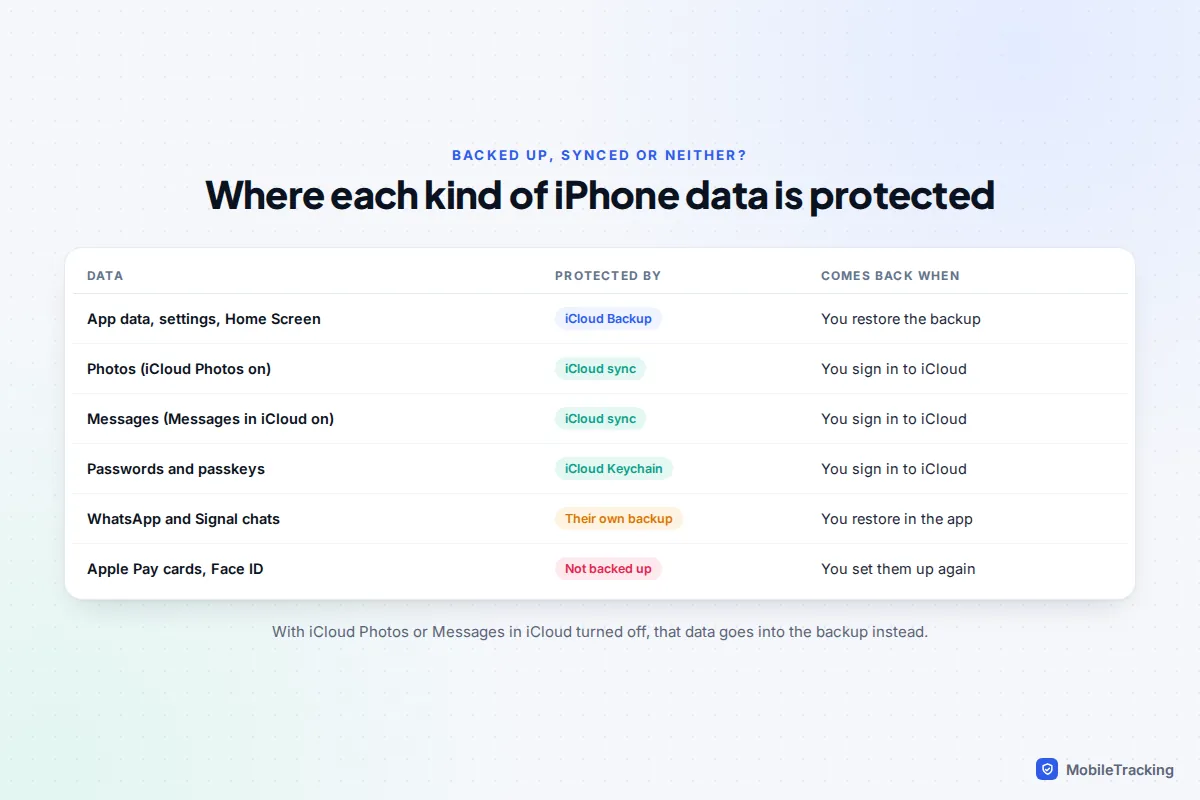
This is where most confusion comes from. iCloud Backup deliberately skips anything that already lives in iCloud, because keeping two copies would waste your storage. So your data is protected in two different ways at once.
According to Apple’s page on what iCloud backs up, the backup itself includes:
- App data for the apps you’ve downloaded (the apps themselves download again from the App Store)
- Device settings, your Home Screen layout and app organisation
- Your Apple Watch backup
- Messages, unless you use Messages in iCloud
- Photos and videos, unless you use iCloud Photos
- Purchased ringtones and your Visual Voicemail password
Things that sync instead of being backed up include iCloud Photos, iCloud Drive, Notes, Contacts, Calendars and Messages in iCloud. Passwords sync through iCloud Keychain, and Health data syncs if Health is switched on in your iCloud settings. These arrive back on a new phone when you sign in with the same Apple Account, not from the backup.
One setting worth knowing about: iCloud backups are encrypted, but Apple holds the keys unless you switch on Advanced Data Protection under Settings › [your name] › iCloud. Apple no longer offers that option to new users in the UK.
When iCloud runs out of space
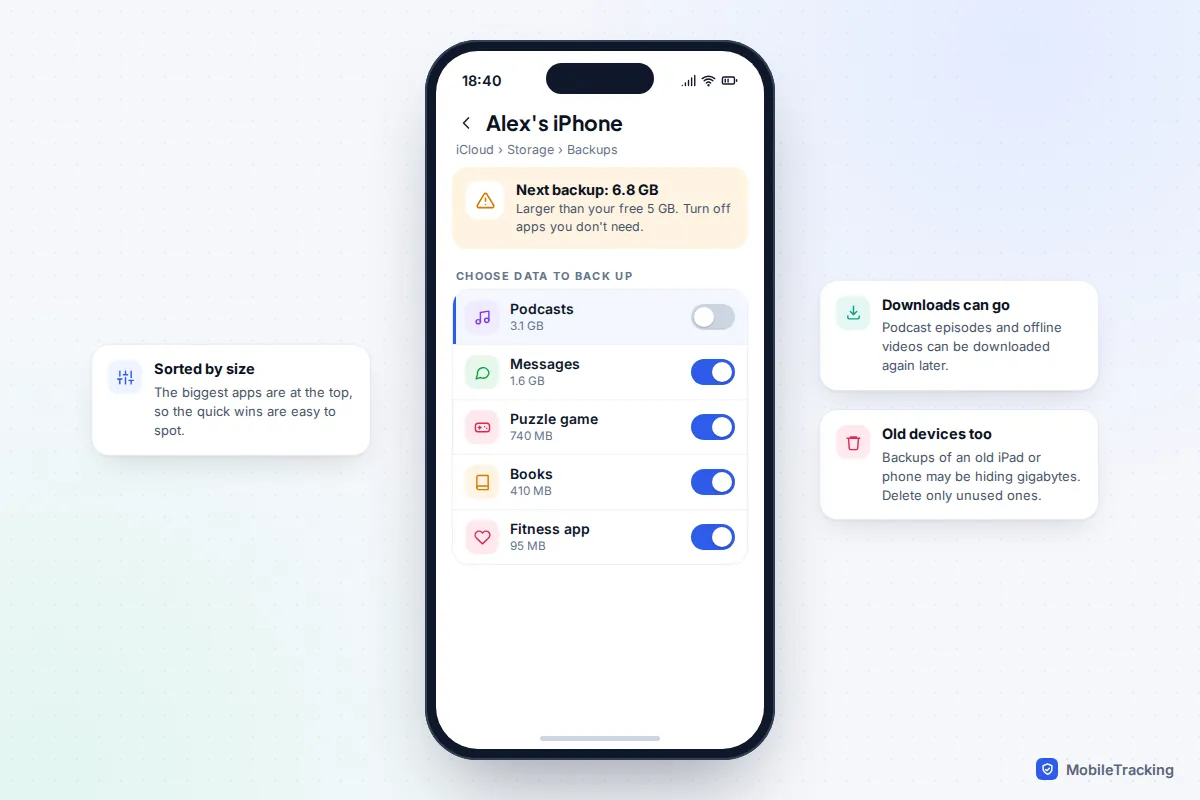
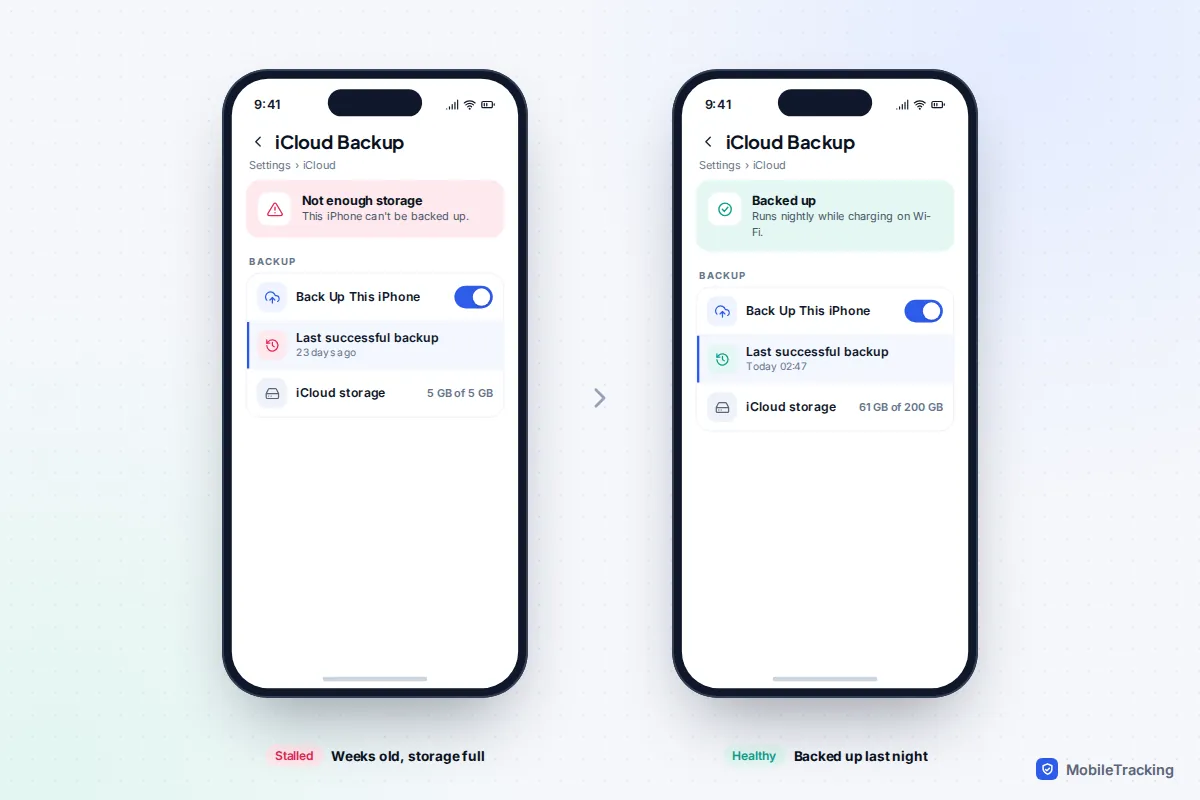
Every Apple Account gets 5 GB free, and that is shared by backups, photos, iCloud Drive and mail. A single iPhone backup can outgrow it on its own, and when it does, backups simply stop. You’ll see an alert, but it’s easy to dismiss.
You have three ways out:
- Trim what goes into the backup. Go to Settings › [your name] › iCloud › Storage (or Manage Account Storage, depending on your iOS version) › Backups and tap this iPhone. You’ll see the size of the next backup and a list of apps by size. Turn off any whose data you don’t need, such as a podcast app full of downloads.
- Delete old devices’ backups. In the same Backups list, an old iPad or previous iPhone may still hold gigabytes. Tap it, then Turn Off and Delete from iCloud. Only do this for devices you no longer use.
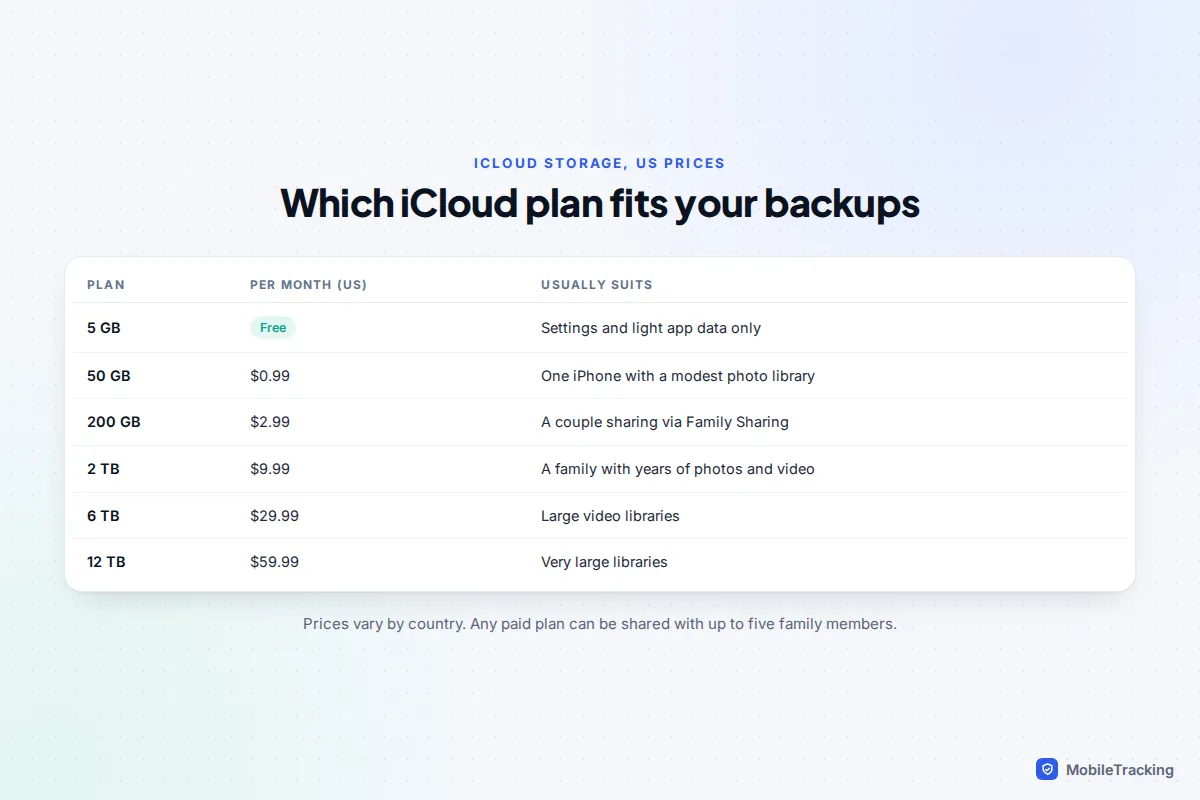
- Buy more storage. In the US, iCloud+ costs $0.99 a month for 50 GB, $2.99 for 200 GB and $9.99 for 2 TB, with 6 TB and 12 TB tiers above that. Prices vary by country, and any paid plan can be shared with up to five family members.
Buying a new iPhone but short of space? Apple lends you temporary storage. On the old phone, go to Settings › General › Transfer or Reset iPhone and tap Get Started under Prepare for New iPhone. Apple gives you 21 days to restore that backup to the new phone, and you can ask for another 21 days if the delivery is late.
Back up to a Mac or Windows PC
A computer backup is a full copy stored on your own disk. It’s the right choice when iCloud is full, and a sensible extra before an iOS update or repair.
On a Mac (Finder)
- Connect the iPhone with a cable and open a Finder window.
- Select the iPhone in the Finder sidebar. If asked, tap Trust on the phone and enter its passcode.
- On the General tab, choose Back up all of the data on your iPhone to this Mac.
- Tick Encrypt local backup and create a password.
- Click Back Up Now. When it finishes, the date of the latest backup appears in the same panel.
On Windows (Apple Devices app)
Install Apple Devices from the Microsoft Store (older PCs may still use iTunes). Connect the iPhone, trust the computer, select the phone in the app, open General, tick Encrypt local backup, set a password, then click Back Up Now. Apple’s guide to backing up with Windows has the iTunes version of the steps.
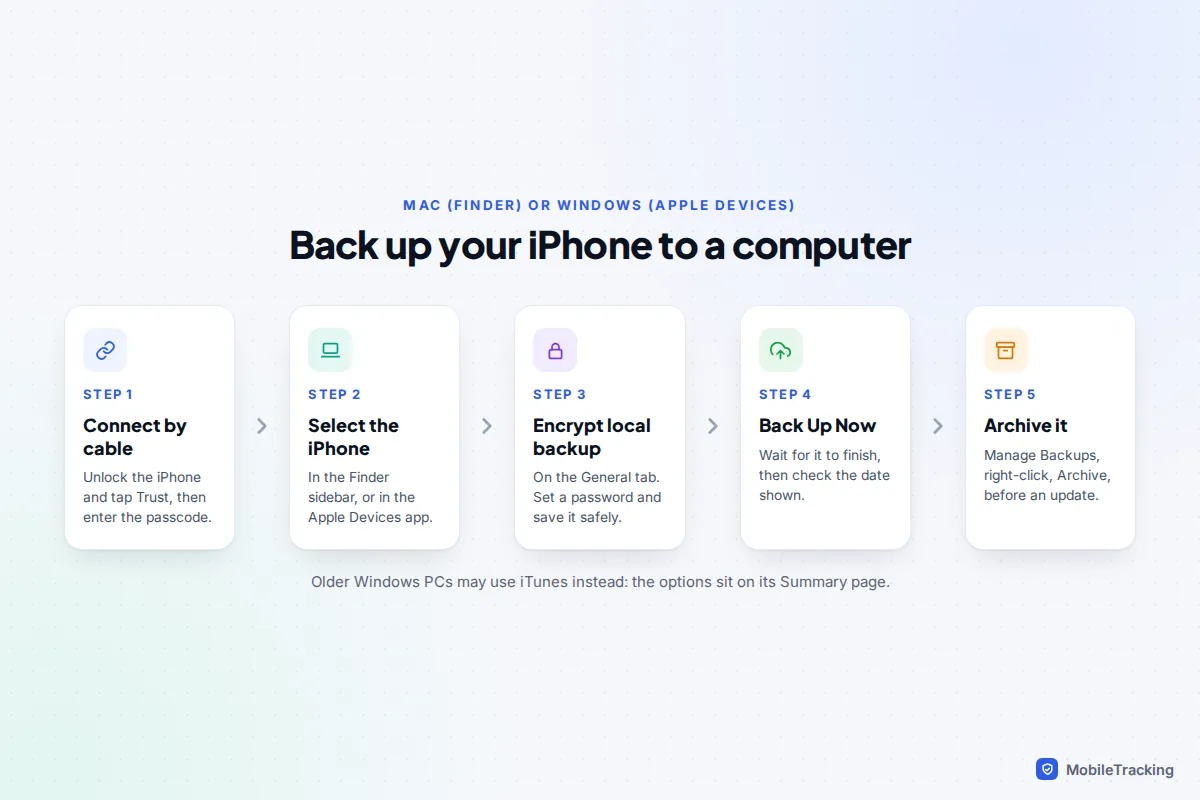
That last point matters before an iOS update. Click Manage Backups, right-click the backup you just made and choose Archive. It is kept separately and won’t be overwritten next time, so you have a known-good copy to return to.
Encryption, and the password you must not lose
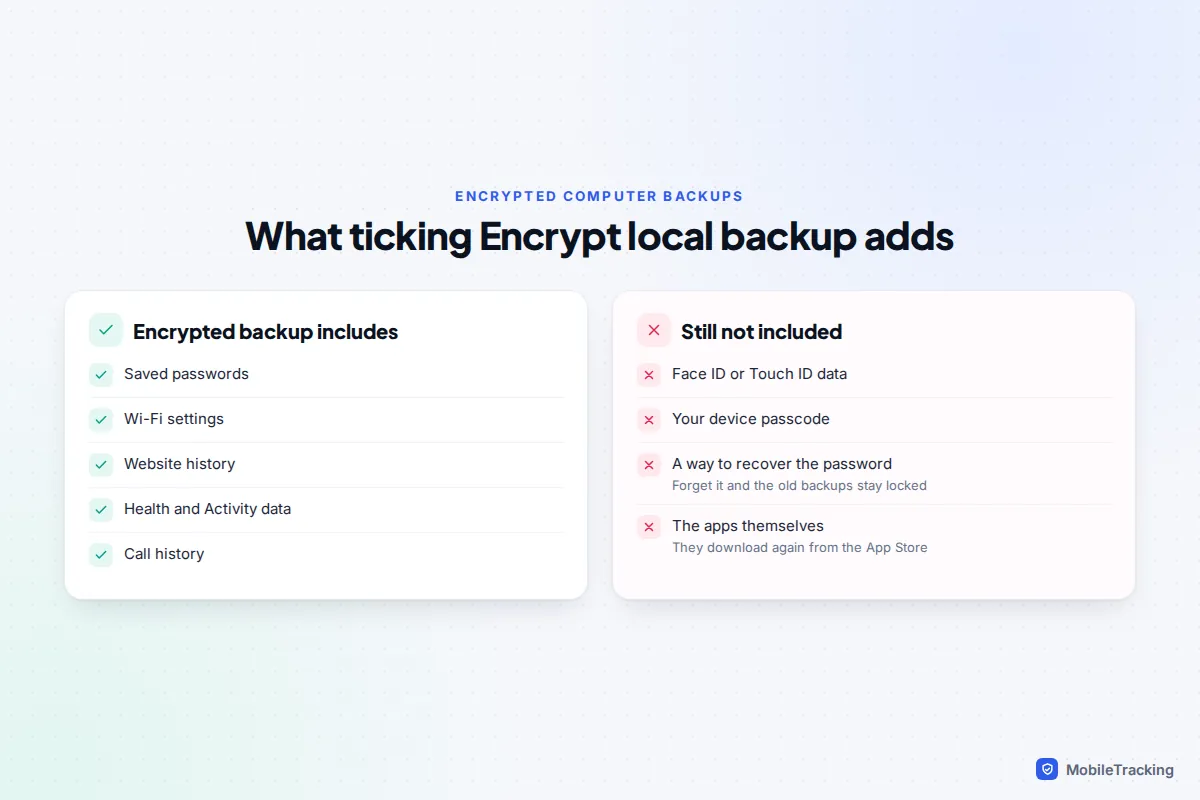
Apple says an encrypted computer backup can include your saved passwords, Wi-Fi settings, website history, Health data and call history, none of which go into an unencrypted one. Face ID, Touch ID and your device passcode are never included.
Check that your backup actually ran
A backup switched on isn’t the same as a backup that works. Full storage, a phone that never charges on Wi-Fi or an old app setting can stop it for weeks without much fuss. Checking takes seconds:
- iCloud: Settings › [your name] › iCloud › iCloud Backup. The date and time of the last successful backup sits under Back Up Now. Anything older than a couple of days needs a look.
- Computer: connect the phone and look at the latest backup date on the General tab, or open Manage Backups to see every copy with its date.
How often to back up
Let iCloud run nightly; there’s no benefit to doing it less often. Make a computer backup monthly if that’s your main copy, and always before an iOS update, a repair, a trade-in or a factory reset. iCloud backups don’t last for ever either: Apple can delete the backup of a device that hasn’t backed up for 180 days, which catches out old iPads left in drawers.
Common problems
- “Not enough storage”: trim apps or old device backups, or upgrade the plan.
- Backup never finishes: leave the phone on Wi-Fi and power overnight, and check your router isn’t dropping the connection.
- iPhone doesn’t appear in Finder or Apple Devices: unlock the phone, tap Trust, try another cable or port, and update the Mac or the app.
What your iPhone backup doesn’t cover
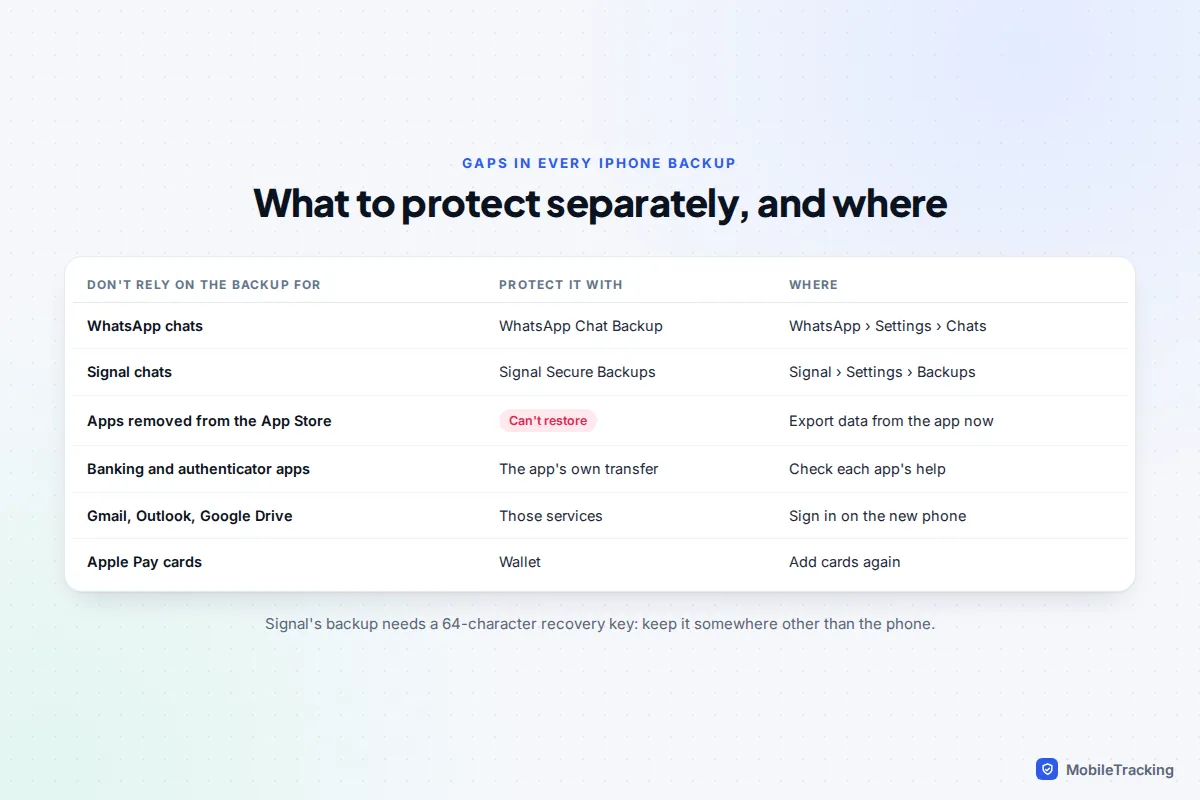
Some of the most valuable things on a phone sit outside both kinds of backup. Check each one that applies to you.
- WhatsApp: don’t count on the phone backup. WhatsApp restores from its own chat backup, saved to iCloud Drive. Turn it on in WhatsApp › Settings › Chats › Chat Backup and set Auto Backup to daily. Our guide to backing up WhatsApp chats covers the options.
- Signal: left out of iPhone backups by design. Turn on Signal’s own Secure Backups in Signal › Settings › Backups and store the 64-character recovery key away from the phone; see backing up Signal chats.
- Apps themselves: only their data is backed up. An app that has since been removed from the App Store can’t be downloaded again, even if its data is in the backup.
- Apple Pay cards, Face ID and Touch ID: you add these again on the new phone.
- Banking and authenticator apps: many require you to register again on a new device. Check each app’s own transfer or sync option before you need it.
- Mail and files in other services such as Gmail, Outlook or Google Drive, which live with those services.
Test that a restore would work
You don’t need to wipe your phone to gain confidence. Try this every few months:
- Confirm the last iCloud backup is from the last day or two, and note its size in the Backups list.
- Open WhatsApp and Signal backup settings and check their last backup dates.
- On a computer, sign in at icloud.com and open a photo from this week to confirm iCloud Photos is syncing.
- Find your encrypted backup password and Signal recovery key without using the phone.
- If you have a spare iPhone or iPad, restore your backup to it. That is a real test and shows exactly what comes back.
The next time you get a new iPhone, choose to restore from the iCloud backup rather than a direct phone-to-phone transfer, and note anything missing. Our guide to restoring a phone from a backup walks through that screen, including how to pick the right backup by date.
Here’s how it plays out. Ruth’s iPhone slipped into a lake on holiday. Her iCloud backup was from the night before, so her new phone came back with her apps, settings and messages within an evening. Her photos were already in iCloud Photos. The one loss was a month of Signal chats: she had never turned on Signal’s backup. Ten seconds of checking would have caught it.
Frequently asked questions
Does iCloud Backup include my photos?
Only if iCloud Photos is off. With iCloud Photos on, your library is stored in iCloud separately and the backup skips it. Either way your photos are protected, as long as your storage isn’t full.
Is an iCloud backup encrypted?
Yes, iCloud backups are always encrypted. With Advanced Data Protection switched on they are end-to-end encrypted, so only your devices hold the keys. A computer backup is only encrypted if you tick Encrypt local backup.
How long does an iPhone backup take?
The first iCloud backup can take hours, depending on how much data you have and your upload speed. Later backups only send changes and usually finish overnight without you noticing. A cable backup to a computer is generally faster.
Can I back up my iPhone without Wi-Fi?
Yes, in two ways. If your iPhone and carrier support it, turn on Back Up Over Cellular (Back Up Over Mobile Data in the UK) in the iCloud Backup settings, or connect the phone to a computer with a cable.
Will backing up to my computer use my iCloud storage?
No. A Finder or Apple Devices backup is stored on the computer’s own disk. It’s a good way to keep a full copy if you don’t want to pay for more iCloud storage.
What happens to my backup if I stop using an iPhone?
If you turn off iCloud Backup for a device, Apple keeps its backups for 180 days and then deletes them, and a device that hasn’t backed up for 180 days can lose its backup too. Computer backups stay until you delete them.
This guide is general information, not legal or financial advice. Read our editorial policy.