
The cleanest way to record a video call is the call app’s own record button. Zoom, Microsoft Teams and Google Meet all have one, it captures everyone’s voice properly, and it tells every participant the moment recording starts. For calls without a record button, such as FaceTime and WhatsApp, your phone or computer’s screen recorder will capture the picture, but it often misses the other person’s voice, so run a short test first.
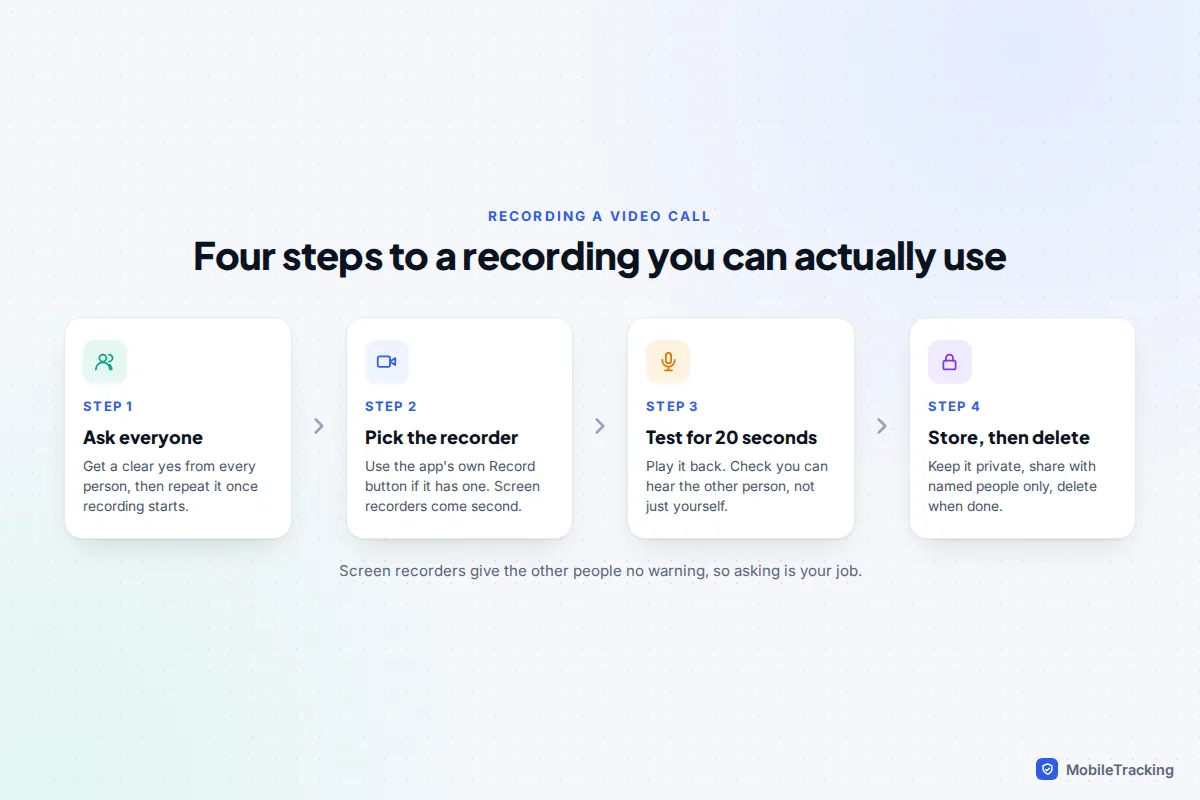
Whichever method you use, ask everyone and wait for a clear yes before you press anything. A screen recorder gives the people on the call no warning, so asking is your job. Below: each app’s built-in option, the screen recorders on phones and computers, what really gets captured, and how to fix silent or black recordings.
Before you record: tell everyone on the call
Recording laws differ by country and, in the US, by state. Some places allow recording if one person consents (which can be you); others require everyone to agree. Video calls often cross borders, so the strictest rule in play is the one that matters. Our guide on how to check the call-recording laws where you live explains the one-party and all-party rules in plain terms.
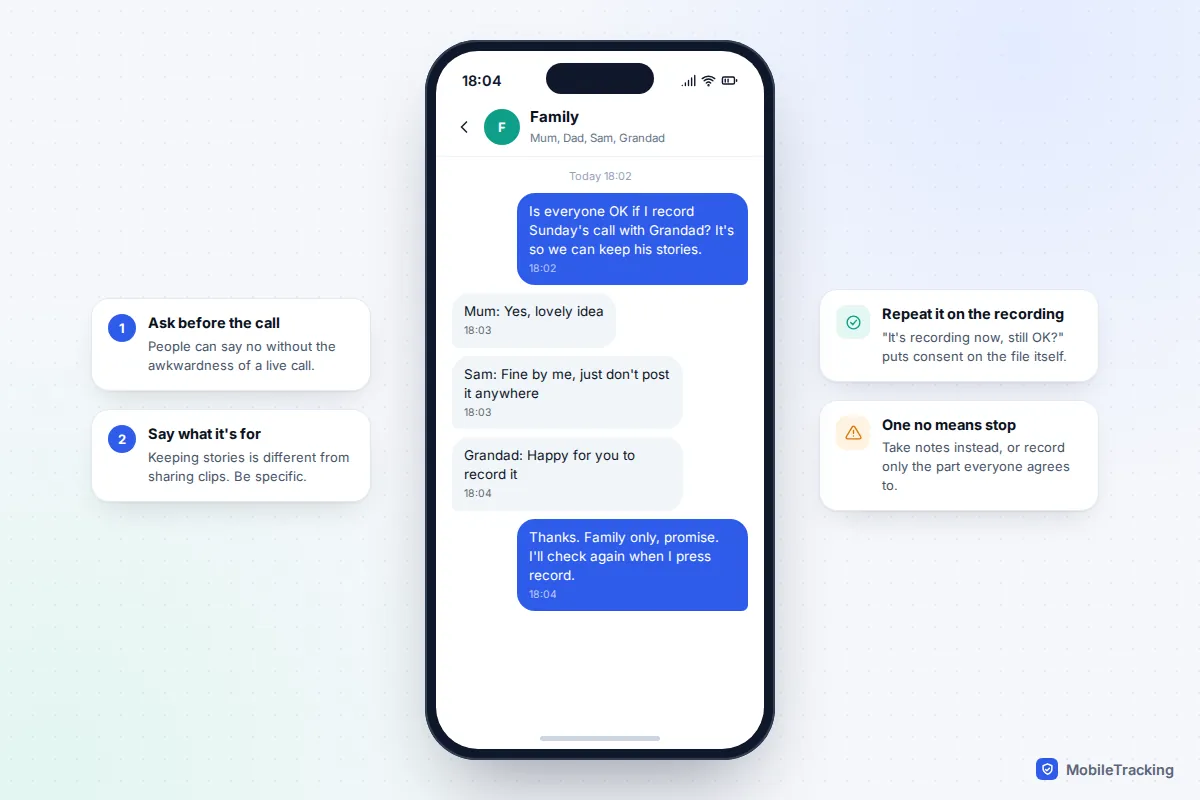
The simplest approach works everywhere: ask, get a clear yes, and repeat the question once recording is running so the answer is on the file. “It’s recording now, is everyone still happy?” takes five seconds. If one person says no, respect it and take notes instead.
Take extra care with calls involving children, work meetings and anything medical, legal or financial. Workplaces often have their own recording policies.
Use the app’s own record button: Zoom, Teams and Google Meet
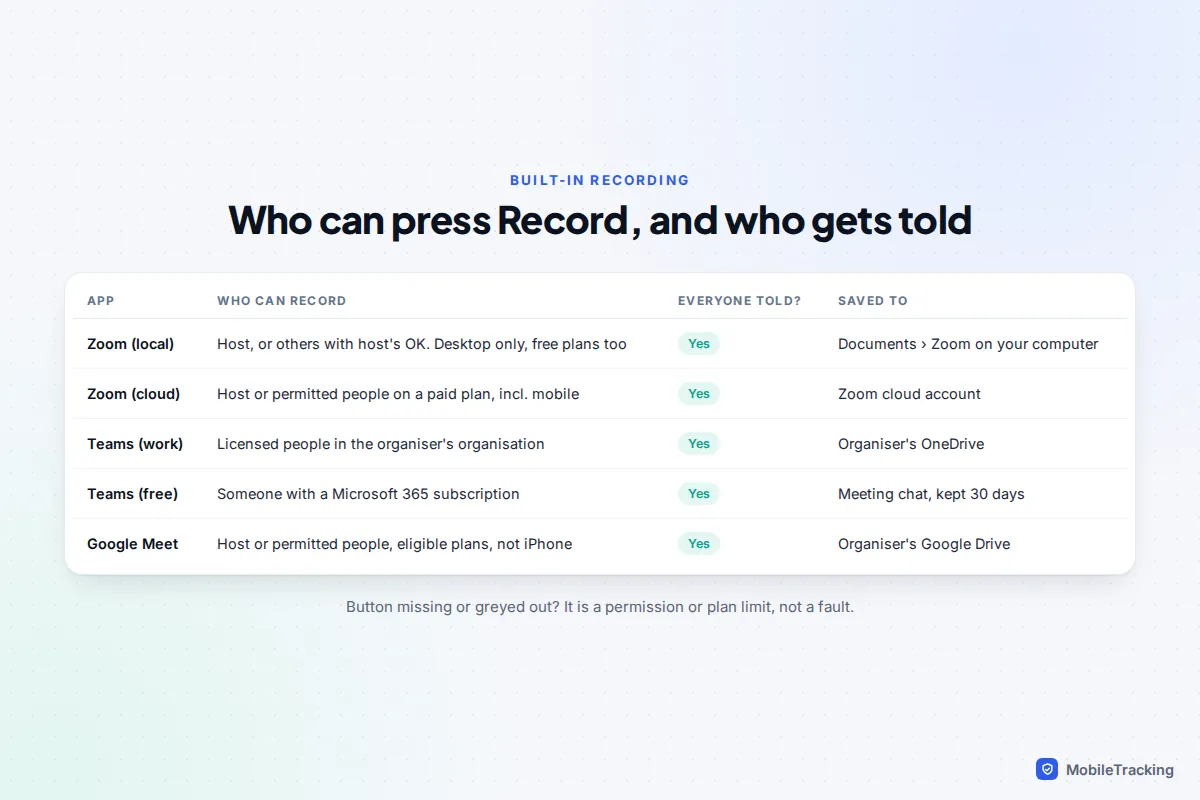
Built-in recording captures every participant’s audio directly, keeps working if you switch apps, and announces itself. The catch is that each app limits who can press the button.
Zoom
In a meeting on the Zoom desktop app, click Record in the toolbar, then choose Record on this computer (local recording) or Record to the cloud. Local recording works on free Basic accounts but only on Windows, Mac and Linux, not on phones or tablets. Cloud recording needs a paid plan and is the only way to record from the mobile app.
Only the host can record unless they give you permission. If you are a participant, click Record and Zoom will send the host a request. When recording starts, everyone sees a Recording indicator, and depending on account settings a pop-up asks them to stay or leave the meeting. Local recordings become an MP4 file when the meeting ends, saved by default in Documents › Zoom. Don’t close the laptop until the conversion finishes.
Microsoft Teams
With a work or school account, open More actions (the three dots) in the meeting controls and choose Record and transcribe › Start recording. You need a licence that includes recording, IT must have enabled it, and you must be in the same organisation as the organiser: guests and external attendees can’t start a recording. Everyone in the meeting gets a notification in the desktop, web or mobile app as soon as recording starts. The file is saved to the organiser’s OneDrive and linked in the meeting chat.
The free personal version of Teams is different. Only someone with a Microsoft 365 subscription can start a recording, the recording is kept in the cloud for 30 days, and if a participant is a minor, Microsoft disables their audio and video in the recording.
Google Meet
Recording is only included with certain plans: Google Workspace editions such as Business Standard, Business Plus and Enterprise, some Education editions, and Google One plans with 2 TB of storage or more. The host can record, and so can others if the host allows it. On a computer, open the activities or meeting tools panel and choose Recording. You can record from a computer or an Android device, but not from the iPhone app.
Participants are notified when recording starts and stops. The file goes to the organiser’s Google Drive, with an emailed link, and can run for up to 8 hours.
Recording on iPhone with Control Centre
Every iPhone has a screen recorder. On iOS 18 and later, including iOS 26, it lives in Control Centre:
- Swipe down from the top-right corner of the screen to open Control Centre.
- If you can’t see the Screen Recording button (a solid circle inside a ring), tap the + at the top left, choose Add a Control, and search for Screen Recording.
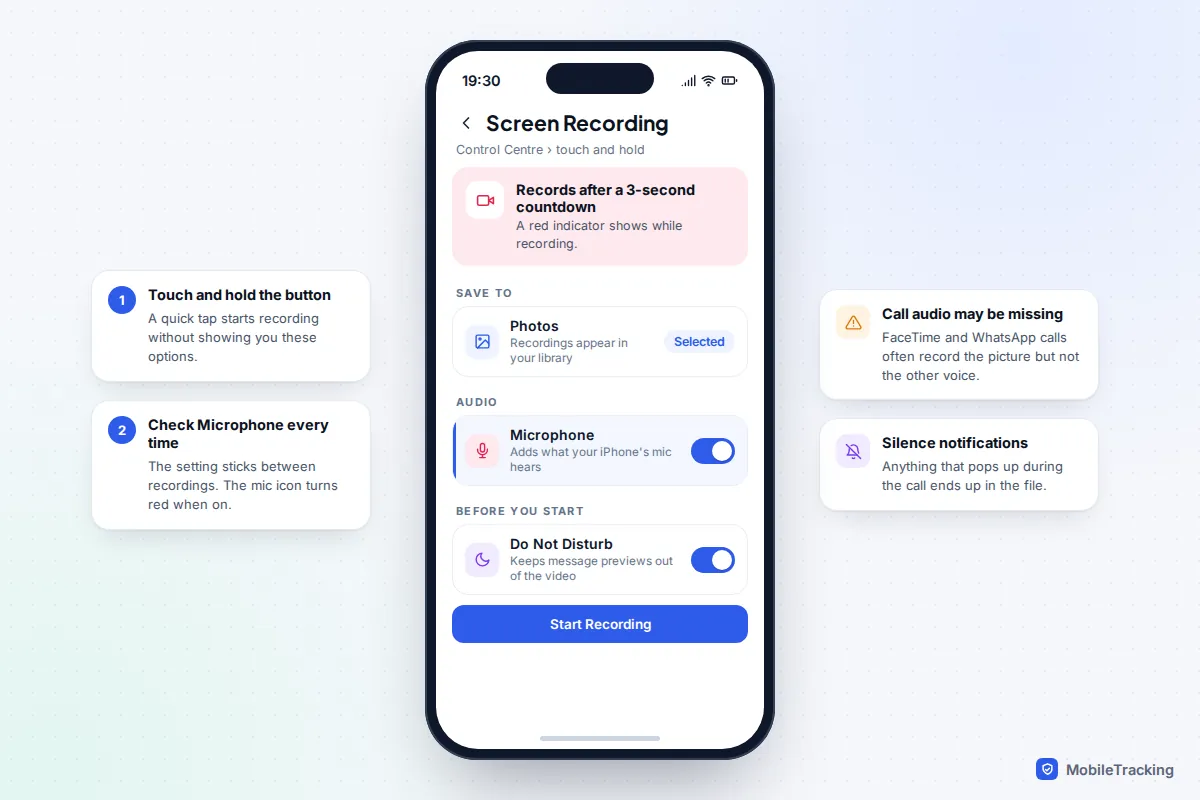
- Touch and hold the Screen Recording button. In the panel that opens, make sure Photos is selected as the destination and tap Microphone to turn it on (red) or off.
- Tap Start Recording. After a three-second countdown, a red indicator appears at the top of the screen.
- To stop, tap the red indicator and then Stop, or open Control Centre and tap the button again. The video appears in the Photos app.
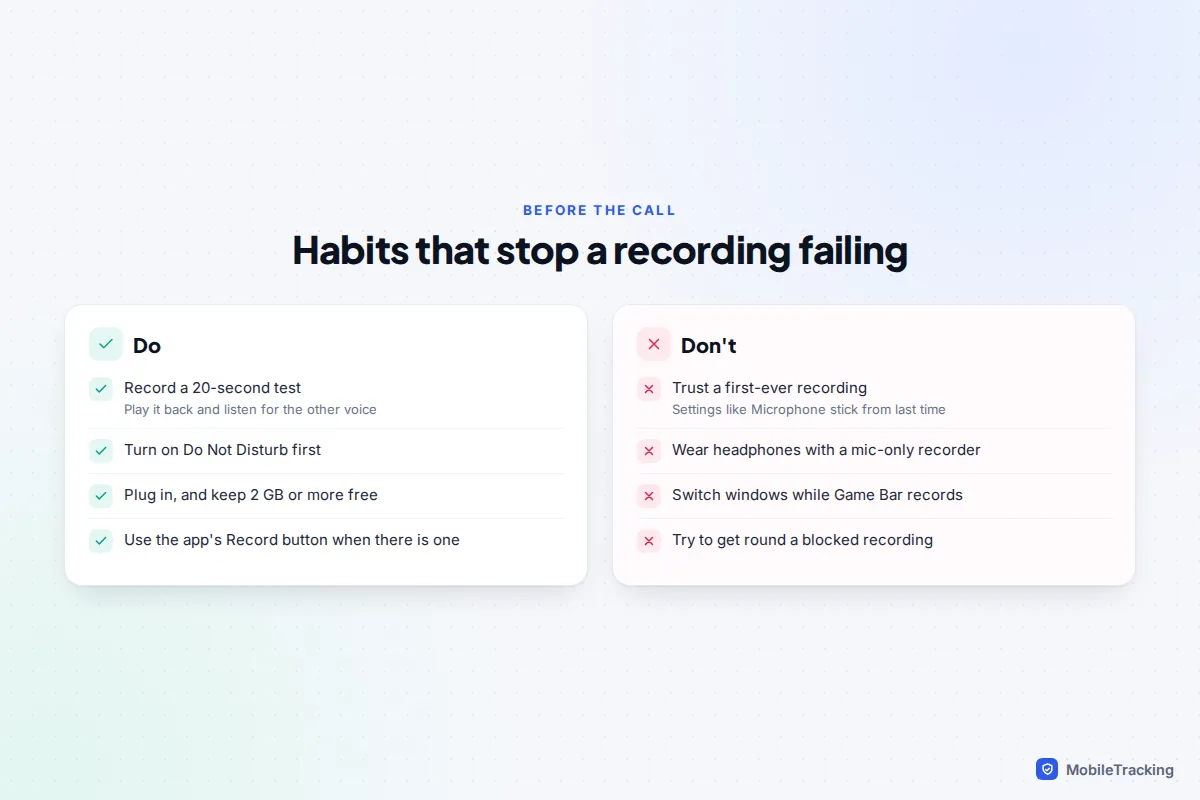
With Microphone off, the recording contains only the app’s own sound, if the app allows it to be captured. With it on, your iPhone also records what its microphone hears. It sticks until you change it, so check it every time.
Turn on a Focus such as Do Not Disturb before you start. Otherwise any notification that arrives, including message previews, ends up in the video. For a step-by-step look at the other options, see our guide to screen recording with sound.
Recording on Android with the built-in screen recorder
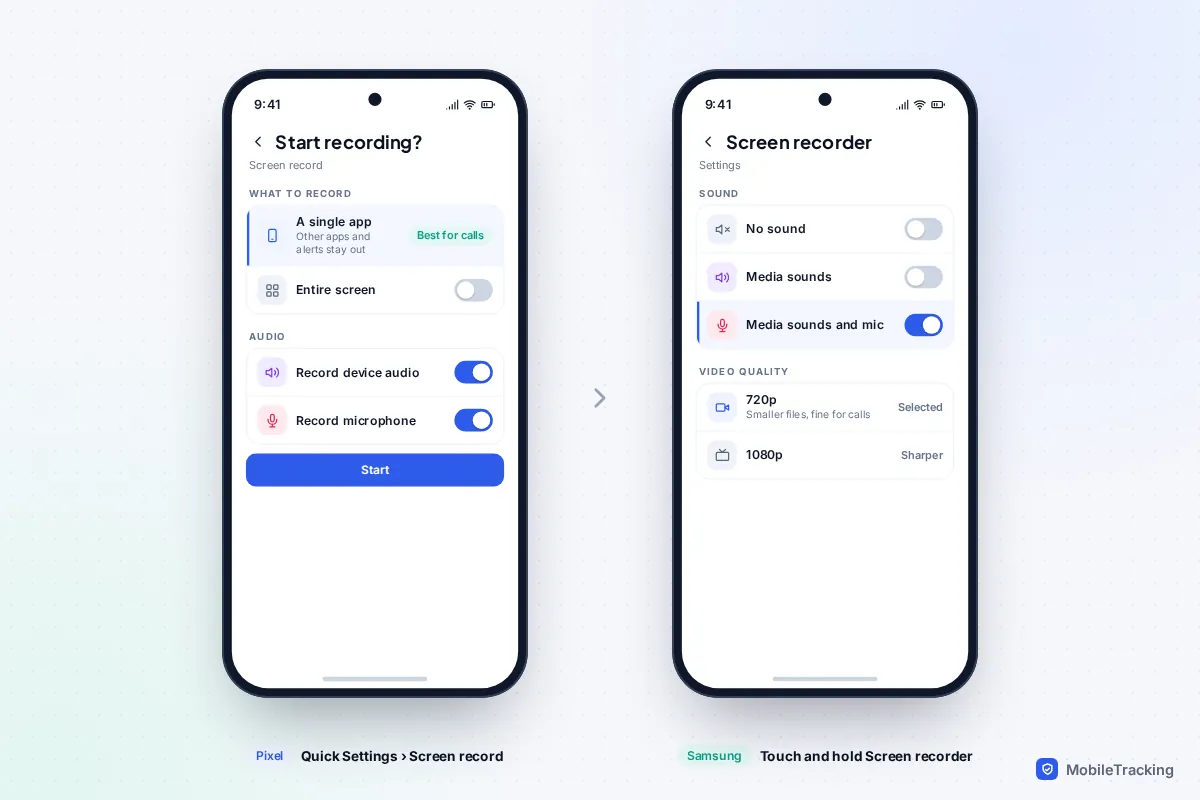
Android 11 and later includes a screen recorder in Quick Settings. Swipe down twice from the top of the screen and look for Screen record (Pixel) or Screen recorder (Samsung). If it isn’t there, tap the pencil icon to edit Quick Settings and drag the tile in.
Pixel
Tap Screen record and choose a single app or your entire screen. One app is better for a call, because notifications stay out of the video. Turn on Record device audio for the app’s sound and Record microphone for your own voice, then tap Start. Stop it from the notification. Recordings are saved in Google Photos under Collections › On this device › Movies.
Samsung Galaxy
Touch and hold the Screen recorder tile to open its settings. Under Sound, choose No sound, Media sounds or Media sounds and mic. Under Video quality, pick 1080p, 720p or 480p; 720p is plenty for a call and makes a much smaller file. Recordings are saved to the Gallery.
FaceTime and WhatsApp calls: what actually gets recorded
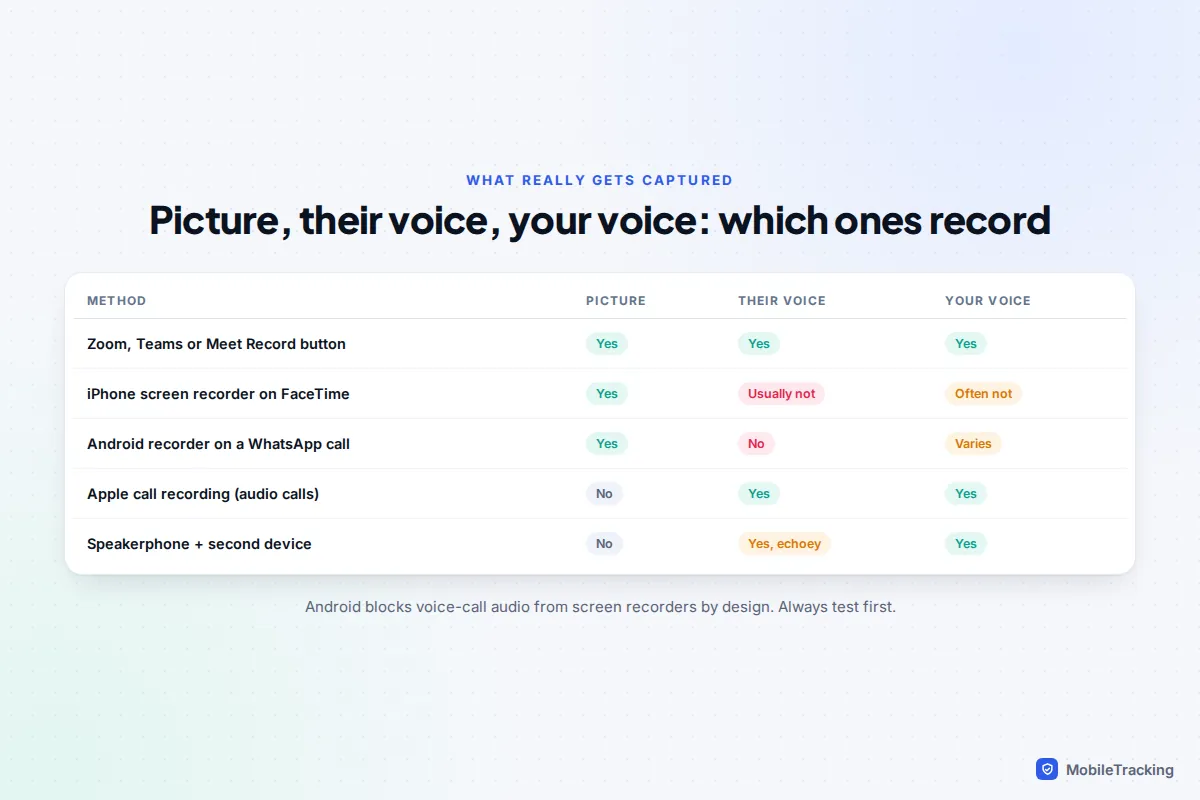
FaceTime and WhatsApp have no record button, and both phone systems protect live call audio from screen recorders.
On Android, this is written into the system itself. Other apps can capture only certain types of sound, such as media and game audio. Voice-call audio isn’t one of them, so choosing “device audio” does not pick up the other person on a WhatsApp, Messenger or similar call. Many phones also block the microphone for other apps while a call is using it. The result is usually a video with no sound, or with only your own voice.
On iPhone, screen recording a FaceTime or WhatsApp video call captures the picture, but user reports consistently show the other person’s voice is missing, and often yours too. Apple doesn’t document this, so treat any recording as untested until you’ve played it back.
Your realistic options:
- Move the call to Zoom, Teams or Meet if you need a proper recording. This is the only reliable way to capture everyone’s voice, and everyone is told automatically.
- Use Apple’s call recording for audio-only calls. On supported iPhones and regions, the Phone app and FaceTime audio calls have a record button that announces “this call will be recorded” to everyone and saves the audio and a transcript to Notes. It doesn’t work for FaceTime video. See how to record a phone call on iPhone legally.
- Use speakerphone and a second device. Put the call on speaker and record the room with another phone or a voice recorder. It’s echoey but captures both sides, and everyone must still agree.
Recording a call on a Mac or Windows PC
Mac: Screenshot toolbar and QuickTime Player
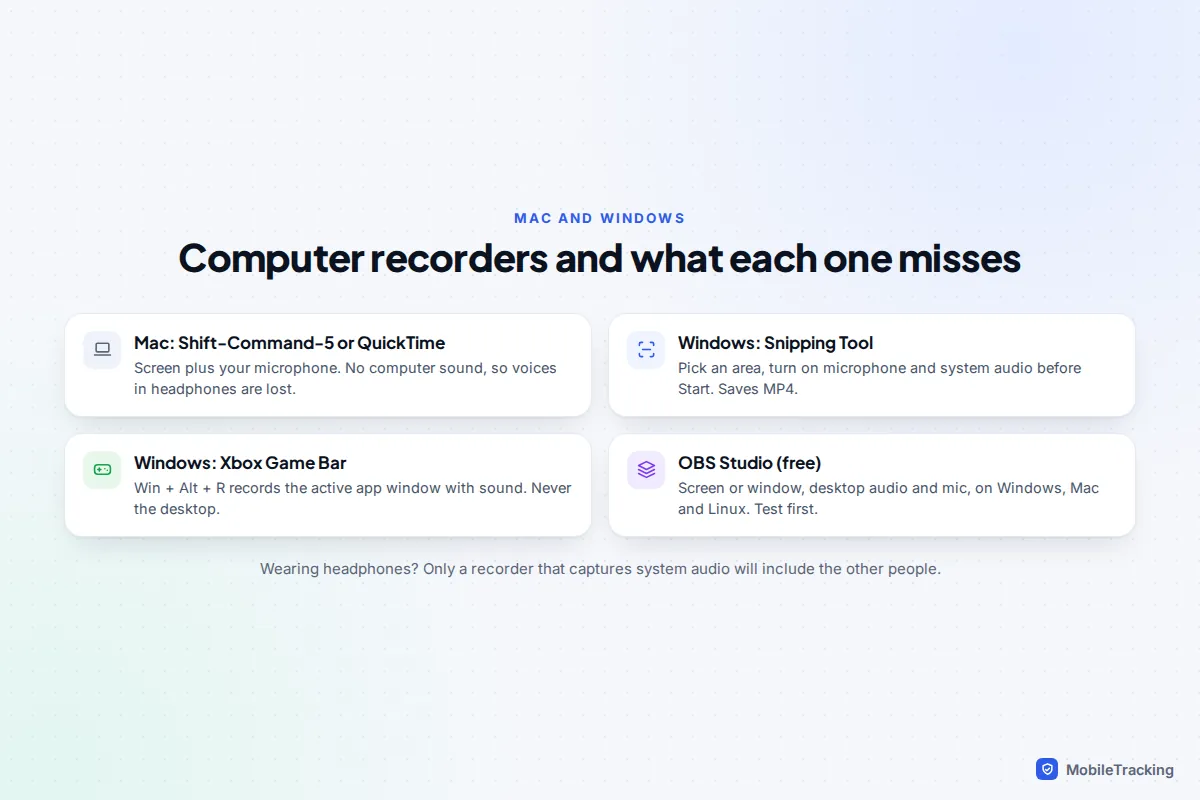
Press Shift-Command-5, or open QuickTime Player and choose File › New Screen Recording. Pick the whole screen or a selected area, then open Options and choose your microphone. The important limit: neither tool records the computer’s own sound, including on macOS Tahoe 26. If you wear headphones, the other people on the call won’t be in the recording at all. Use the app’s own record button, or OBS (below), instead.
Windows: Snipping Tool and Xbox Game Bar
On Windows 11, open Snipping Tool, switch to the video camera icon, and choose an area of the screen. Before you press Start, set the two audio toggles: microphone and system audio. Turn both on to capture everyone. Changing them mid-recording has no effect on the current take. Files are saved as MP4 in Videos › Screen Recordings.
Xbox Game Bar (press Windows key + G, or Windows key + Alt + R to start straight away) records the app window that is currently active, with its sound. It can’t record the desktop or File Explorer, and if you switch windows mid-call, that part isn’t captured. Clips land in Videos › Captures.
OBS Studio: free and flexible
OBS Studio is free, open-source software for Windows, Mac and Linux. It records a whole screen or one window along with both desktop audio and your microphone, and on macOS 13 and later it can capture an app’s sound directly. Allow ten minutes to set it up: add the screen or window as a source, check both audio meters move, and test.
Storage, quality and keeping recordings private
Video calls make big files. As a rough guide, University of Oregon IT estimates a Zoom video recording at about 200 MB per hour, and much less for screen-share-only recordings. Phone screen recordings capture at your screen’s full resolution and are usually larger, so record a one-minute test and check the file size in Photos or Gallery before a long call.
A call recording holds faces, voices and often homes and children in the background, so treat it like private photos.
- Know where it goes. With iCloud Photos or Google Photos backup on, a screen recording uploads automatically and appears on every device signed in to that account.
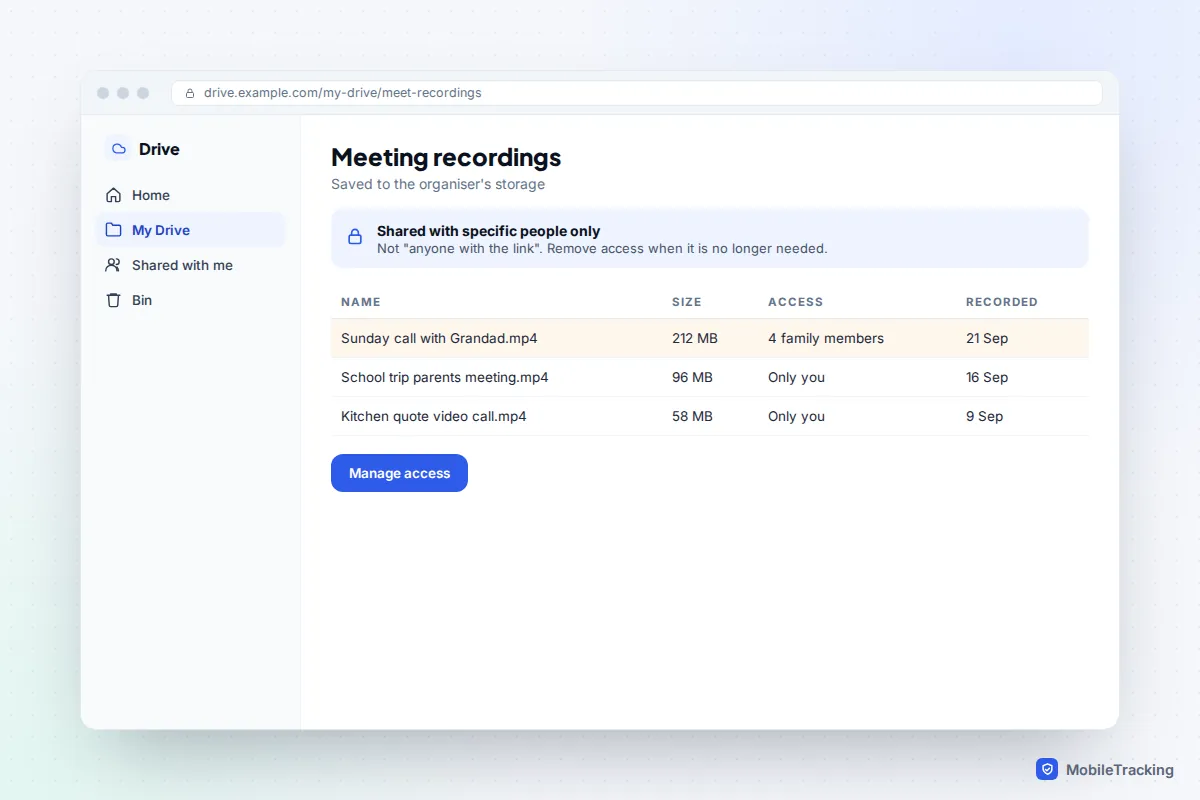
- Share links, not files. For cloud recordings in Zoom, Teams, Meet or Drive, share with named people only, not “anyone with the link”.
- Keep it out of shared albums and family devices unless everyone on the call is happy with that.
- Delete it when its job is done, then empty Recently Deleted or the bin too.
Troubleshooting: no sound, black screen or a failed recording
| What you see | Likely cause | What to do |
|---|---|---|
| Recording is completely silent | Microphone off, or call audio protected by the system | Check the microphone option before starting; for FaceTime or WhatsApp, use a built-in recorder or speakerphone method |
| Only your voice is recorded | The recorder captures the mic but not call audio, or you wore headphones | Use the app’s own record button, Snipping Tool with system audio, or OBS |
| Black screen or black window | Protected content, or a meeting with screen capture blocked | Use the app’s own recorder; some content can’t be recorded by design |
| Record button missing or greyed out | You’re not the host, your plan doesn’t include it, or IT has turned it off | Ask the host for permission or to record it for you |
| Recording stopped part-way | Storage full, low battery, or an incoming phone call | Free space, plug in, and turn on Do Not Disturb |
A black screen has two common causes. Streaming services protect films and TV with DRM, so a film clip shared during a call records as black. And Teams Premium has a Prevent screen capture meeting option: on Windows, recordings show a black rectangle over the meeting window, and on Android a message says screen capture is restricted. That is the organiser’s choice, so respect it.
On Windows laptops with two graphics chips, OBS can also record black. Switching its source from display capture to window capture usually fixes it.
Frequently asked questions
Does the other person know if I screen record a video call?
Not with a phone or computer screen recorder. FaceTime, WhatsApp and most other call apps give no warning when you use the system screen recorder. That is exactly why you need to ask first. Built-in recording in Zoom, Teams and Google Meet does notify everyone.
Is it legal to screen record a video call?
It depends on where each person on the call is. Some places need one person’s consent, others need everyone’s, and businesses often have extra rules. Getting everyone’s clear agreement, ideally on the recording itself, keeps you on the right side of the law almost everywhere.
Why does my WhatsApp call recording have no sound?
Both Android and iOS protect live call audio from screen recorders, and many phones block other apps from using the microphone during a call. The video records but the voices don’t. Use speakerphone with a second recording device, or move the call to an app with built-in recording.
Can I record a Zoom meeting if I’m not the host?
Yes, with the host’s permission. Click Record and Zoom sends a request to the host, who can approve it. Everyone still sees the recording indicator.
Can I record a Google Meet call on my iPhone?
Not with Meet’s own recording, which only works on a computer or Android device and requires an eligible plan. Join from a computer to record, or ask the organiser to record it and share the file.
This guide is general information, not legal or financial advice. Read our editorial policy.