
WhatsApp is the only big messaging app that reliably lets you lock one conversation on its own. Open the chat, tap the contact or group name, turn on Chat lock, and that chat moves into a Locked chats folder that opens only with your fingerprint, face or phone PIN. Add a secret code and you can hide the folder completely. Instagram has started adding a similar lock, but not every account has it yet.
Everywhere else, you lock the whole app rather than a single thread: Telegram has a passcode, Signal has screen lock, Messenger has App lock, and on iPhone (iOS 18 and later) you can make Messages require Face ID. On Android you can also wrap a chat app in Samsung’s Secure Folder or Pixel’s Private space. Below is each method, then the gaps none of them close.
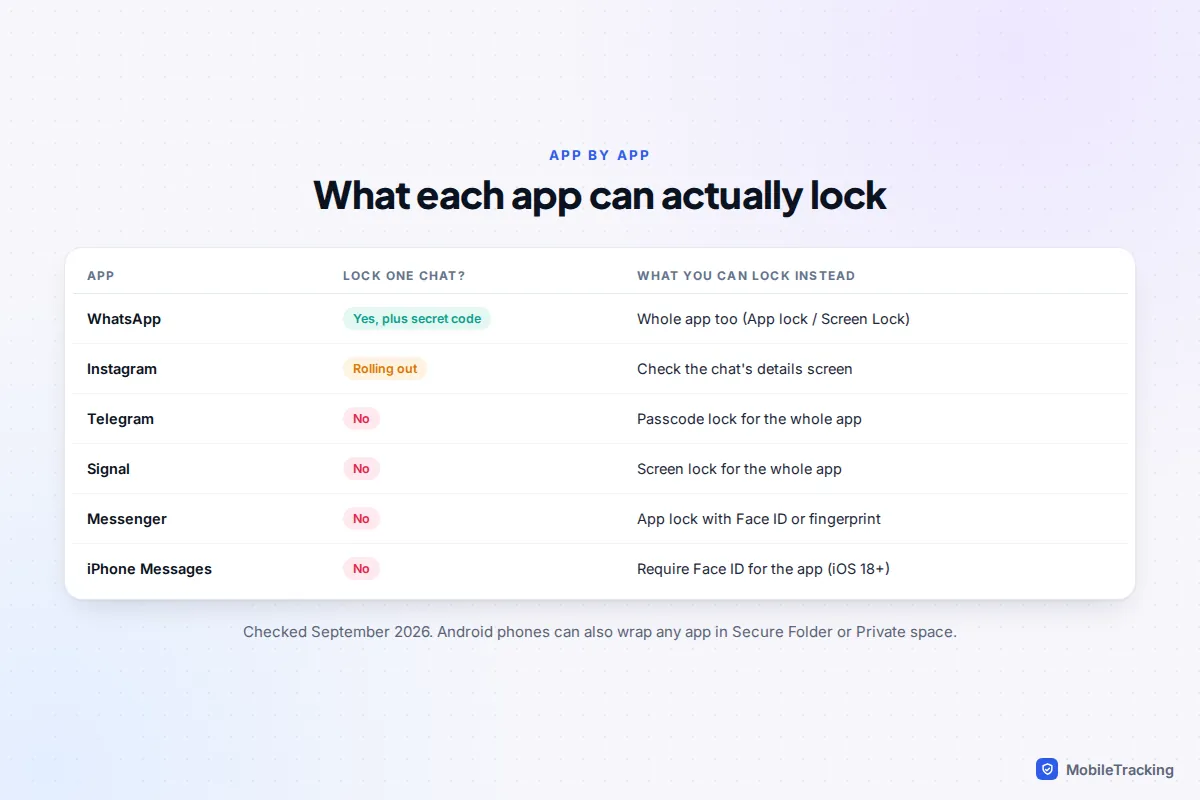
Which option should you use?
A chat lock is built for one situation: someone picks up your phone while it is unlocked, to play a game or look at photos, and scrolls into a conversation you would rather they didn’t see. It does little against someone who knows your passcode or can get into your account on another device.
| Your situation | Best tool | Why |
|---|---|---|
| One or two sensitive WhatsApp chats | WhatsApp Chat lock with a secret code | Locks just those chats and can hide them entirely |
| You use Telegram or Signal for private chats | Telegram passcode or Signal screen lock | No per-chat option exists, so lock the app |
| Private texts in iPhone Messages | Require Face ID on the Messages app | Also hides message text from previews and search |
| You want a whole separate, hidden space | Samsung Secure Folder or Pixel Private space | A second copy of the app behind its own lock |
| Someone knows your phone passcode | Change the passcode first | Most app locks fall back to that passcode |
If the last row describes you, fix that first: every lock here can be opened with your phone’s passcode or a fingerprint or face registered on it. Our guide to setting up a strong phone passcode is the real first step.
WhatsApp: lock one chat and hide it with a secret code
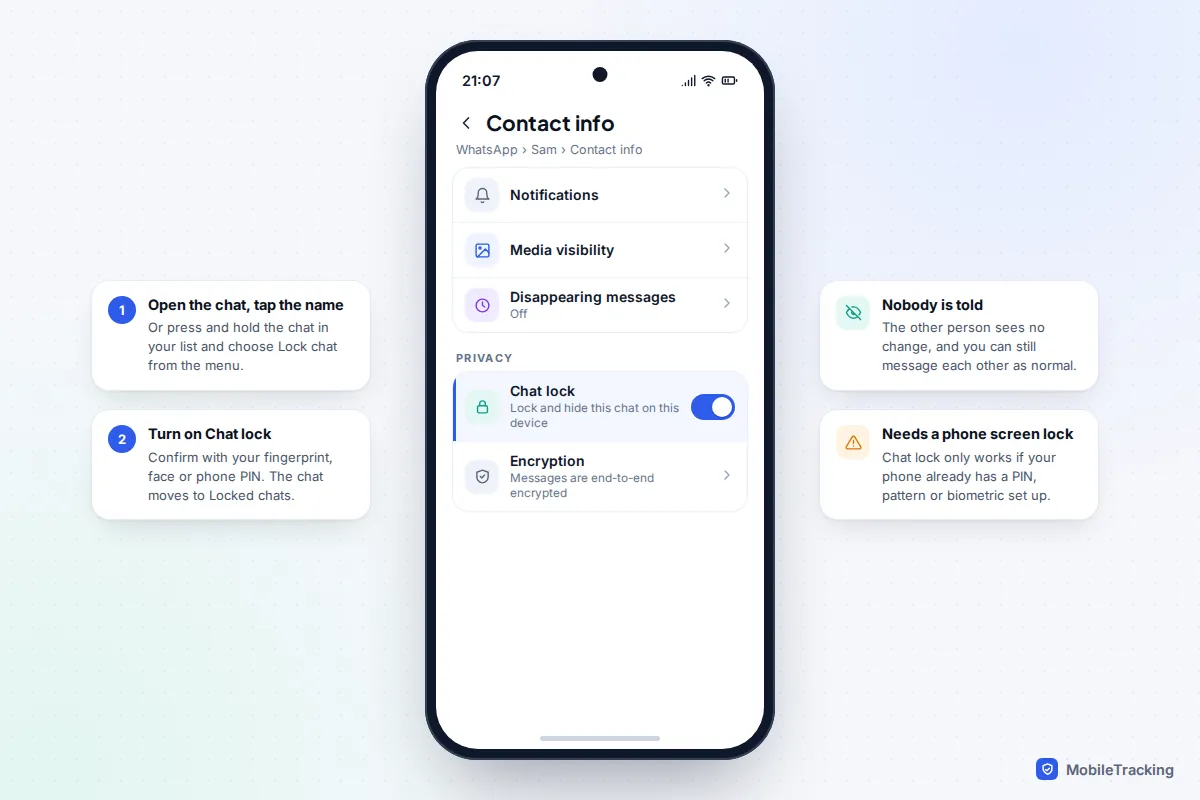
Chat lock works for one-to-one chats and groups on Android and iPhone. Your phone must already have a screen lock, because WhatsApp uses it to open the locked folder. The other person is not told.
- Open the chat you want to lock and tap the contact’s or group’s name at the top.
- Scroll down and turn on Chat lock. A quicker route on current versions: press and hold the chat in your list and choose Lock chat from the menu.
- Confirm with your fingerprint, face or phone PIN.
- The chat disappears from your main list and appears in Locked chats. To see that folder, pull down gently on your chat list; it sits above your other chats.
Add a secret code and hide the folder
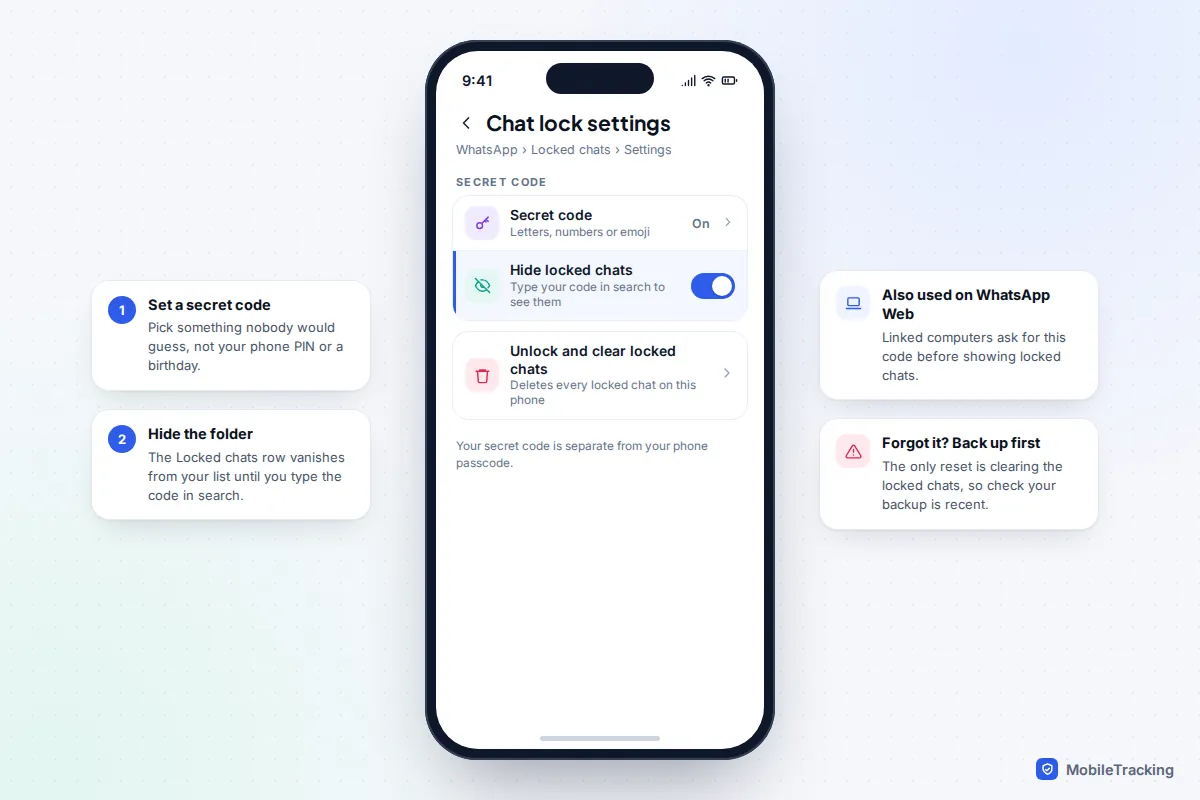
A plain chat lock still leaves a visible Locked chats row, which invites the question “what’s in there?”. A secret code, made of letters, numbers or even emoji and separate from your phone’s unlock method, lets you hide it.
- Open Locked chats, tap the three-dot menu (Android) or the settings option (iPhone), and choose Chat lock settings.
- Tap Secret code, type your code, tap Next, enter it again and tap Done.
- Back in Chat lock settings, turn on Hide locked chats.
The folder is now invisible. To open it, type your secret code into the search bar at the top of your chats. Pick a code nobody would guess; your phone PIN or a birthday defeats the point.
Linked devices, calls and forgotten codes
According to WhatsApp’s help page on chat lock, WhatsApp Web and the desktop apps ask for the secret code, which you have to create on your phone first, before they show locked chats.
Calls from a locked chat still ring normally, with the caller’s name showing. Photos and videos from a locked chat can’t be saved to your gallery without unlocking it first. And if you forget your secret code, there is no reset: the only way out is Settings › Privacy › Chat lock › Unlock and clear locked chats, which deletes every locked conversation, so keep your chat backup current.
If you would rather protect all of WhatsApp, use the app-wide lock instead or as well: Settings › Privacy › App lock on Android, or Settings › Privacy › Screen Lock on iPhone. Our guide to securing WhatsApp from snooping covers the other privacy settings.
Telegram and Signal: lock the whole app
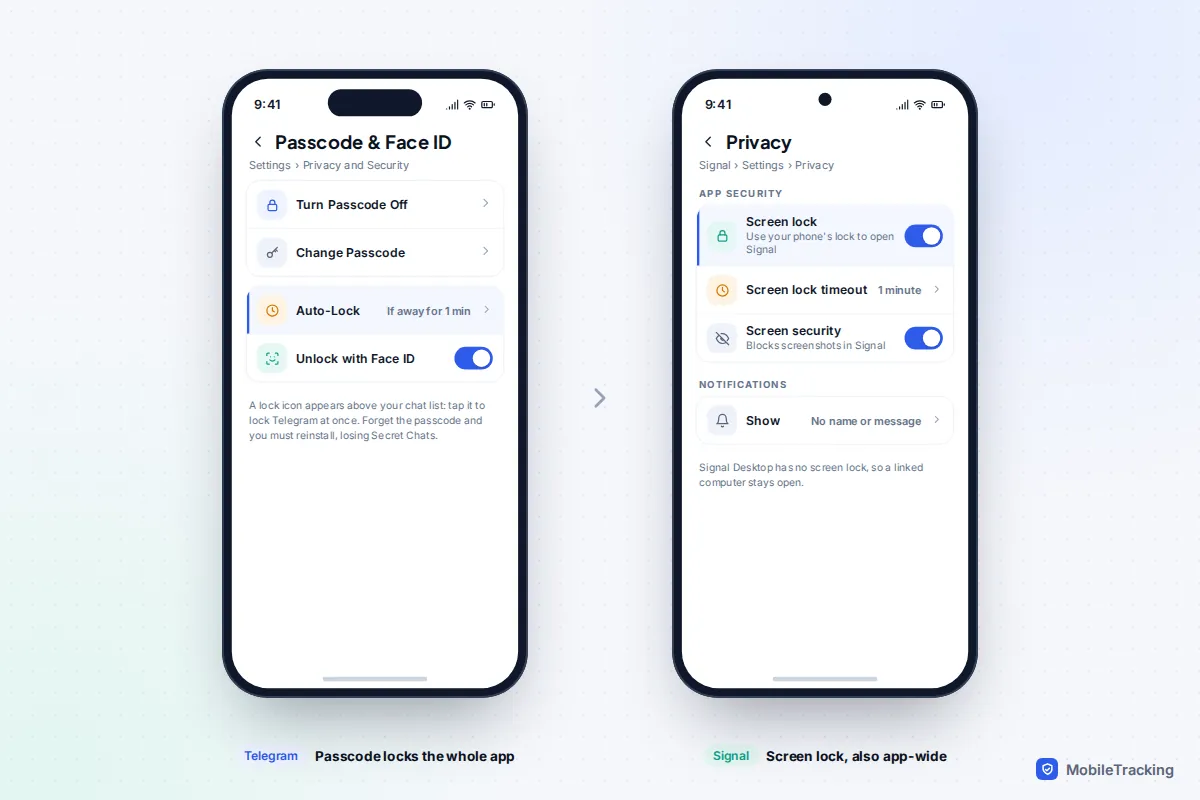
Neither Telegram nor Signal can lock a single chat, and their archives only move chats out of sight. Both can lock the entire app, which is in some ways stronger, because nothing inside is visible.
Telegram passcode
- Go to Settings › Privacy and Security › Passcode & Face ID (iPhone) or Settings › Privacy and Security › Passcode Lock (Android).
- Turn the passcode on and choose a code. iPhone defaults to six digits, with a Passcode Options link for four digits or letters.
- Set Auto-Lock. The default of one hour is far too long; one minute is better.
Once a passcode is set, a lock icon appears above your chat list; tap it to lock Telegram immediately. While it is locked, Telegram’s notifications no longer show who wrote or what they said. Two warnings. The passcode applies only to that one device, and Telegram’s normal cloud chats are also open on any computer or tablet where you are signed in, so check Settings › Devices. And if you forget the passcode, the only fix is reinstalling the app, which deletes your Secret Chats because they are stored only on that phone.
Signal screen lock
In Signal, go to Settings › Privacy and turn on Screen lock (Android lists it under an App security heading), then set the Screen lock timeout. Signal then opens only with your phone’s PIN, fingerprint or face. The same Privacy screen has Screen security, which blocks screenshots and hides Signal’s contents in the app switcher. Signal Desktop has no screen lock at all, as Signal’s own support page points out, so unlink computers you don’t control.
iPhone Messages: lock the app with Face ID
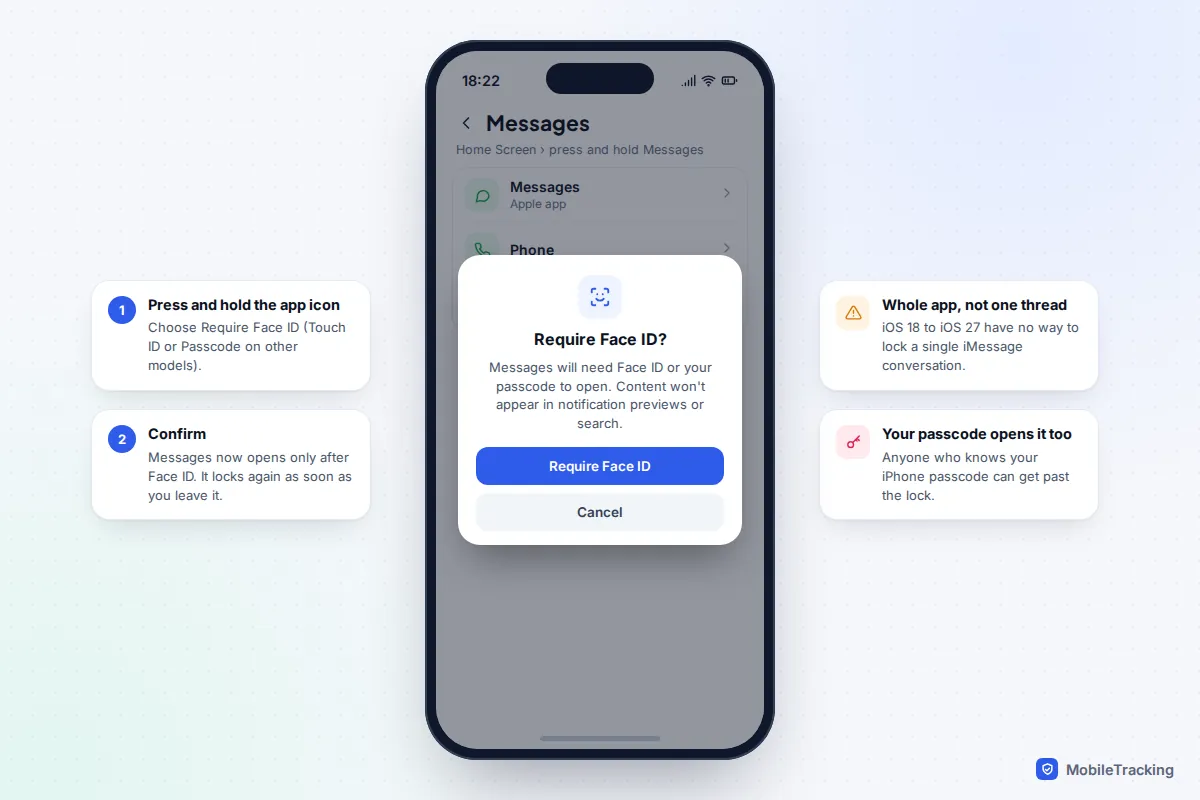
Apple’s Messages app has no way to lock one conversation, and neither iOS 26 nor iOS 27 added one. What you can do, on iOS 18 and later, is make the whole Messages app require Face ID, Touch ID or your passcode.
- On the Home Screen, press and hold the Messages icon.
- Tap Require Face ID (or Touch ID or Passcode, depending on your model).
- Tap Require Face ID again to confirm.
While Messages is locked, message content stays out of notification previews, Spotlight and Siri suggestions. Downloaded apps also offer Hide and Require Face ID, which moves them into a hidden App Library folder, but Messages and most built-in Apple apps can only be locked. Our guide to locking apps on iPhone covers hiding apps too.
Know the limits. If Face ID fails, your iPhone offers the passcode, so anyone who knows it gets in. The lock doesn’t follow you to a Mac or iPad that syncs Messages through iCloud. And some drivers report that a locked Messages app stays silent through CarPlay, so test it before a long journey.
Android: Secure Folder, Private space and app lock
Android has no per-chat lock, but it can put an entire chat app behind a second lock. What you get depends on who made your phone.
Samsung Secure Folder
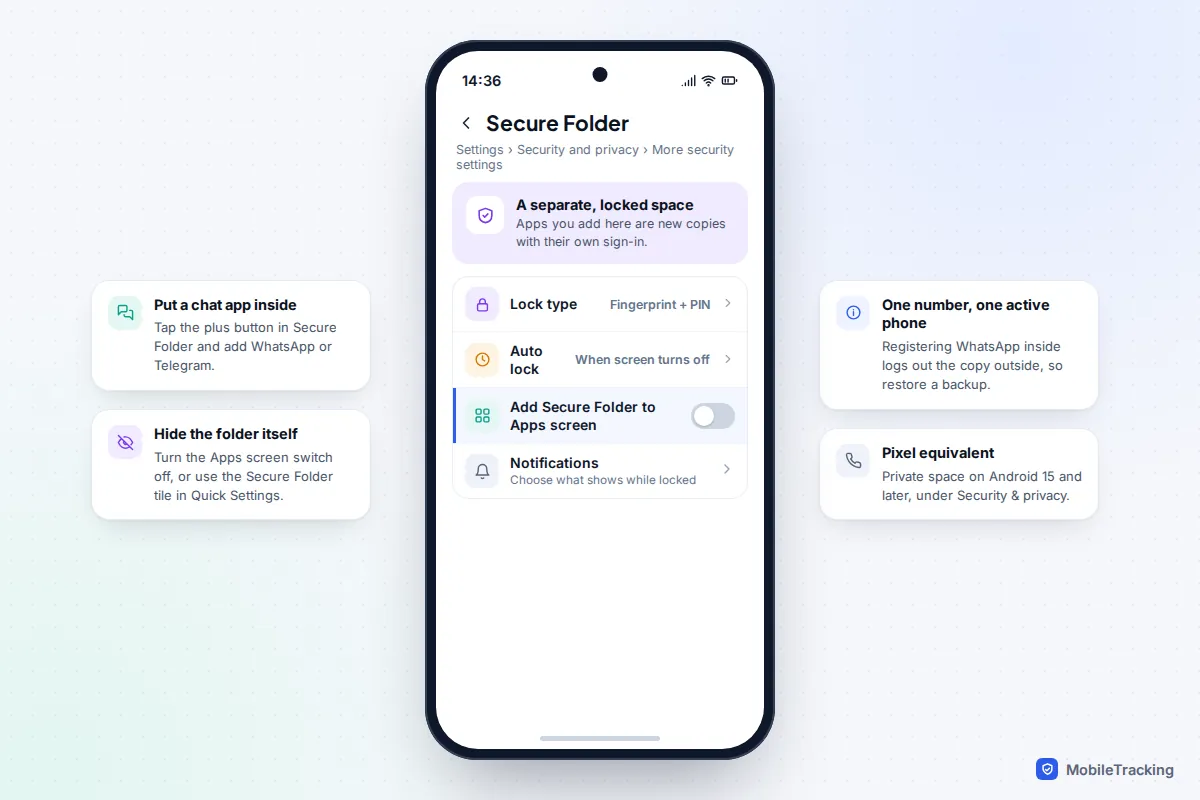
Go to Settings › Security and privacy › More security settings › Secure Folder and choose a lock type. Inside Secure Folder, tap the plus button to add an app. This installs a separate copy with its own sign-in, not a lock on the copy you already have.
One number can only be active in one WhatsApp app on a phone, so to move your existing chats inside, back up WhatsApp, register the number in the Secure Folder copy (which signs out the original), restore your backup there and then remove the outside copy. To hide the folder itself, turn off Add Secure Folder to Apps screen or use the Secure Folder tile in Quick Settings.
Pixel Private space and the new App lock
Pixels on Android 15 and later have Private space under Settings › Security & privacy, a hidden, locked area of the app drawer with its own copies of apps. Google is also adding a simpler App lock (Settings › Security & privacy › App lock) that hides notification content too; it is in the Android 17 QPR2 beta, with release expected in December 2026. Xiaomi, OnePlus and Oppo phones already have a built-in app lock, under varying names. Our guide to locking apps on Android goes brand by brand.
Instagram and Messenger
Instagram has begun rolling out a lock for individual chats on Android and iPhone. If you have it, the option appears when you open a chat and tap the person’s or group’s name. If not, it hasn’t reached your account yet, and there is no way to switch it on early. Be wary of “Instagram chat lock” apps in the app stores: they are not made by Instagram, and a lock that sits on top of another app needs broad access to your screen to work.
Messenger has no per-chat lock, but it does have App lock, which puts the whole app behind Face ID, Touch ID or your fingerprint. Find it in Messenger’s privacy settings (Privacy & safety › App lock on current versions). On iPhone, Require Face ID works for Instagram and Messenger too.
What a chat lock doesn’t protect
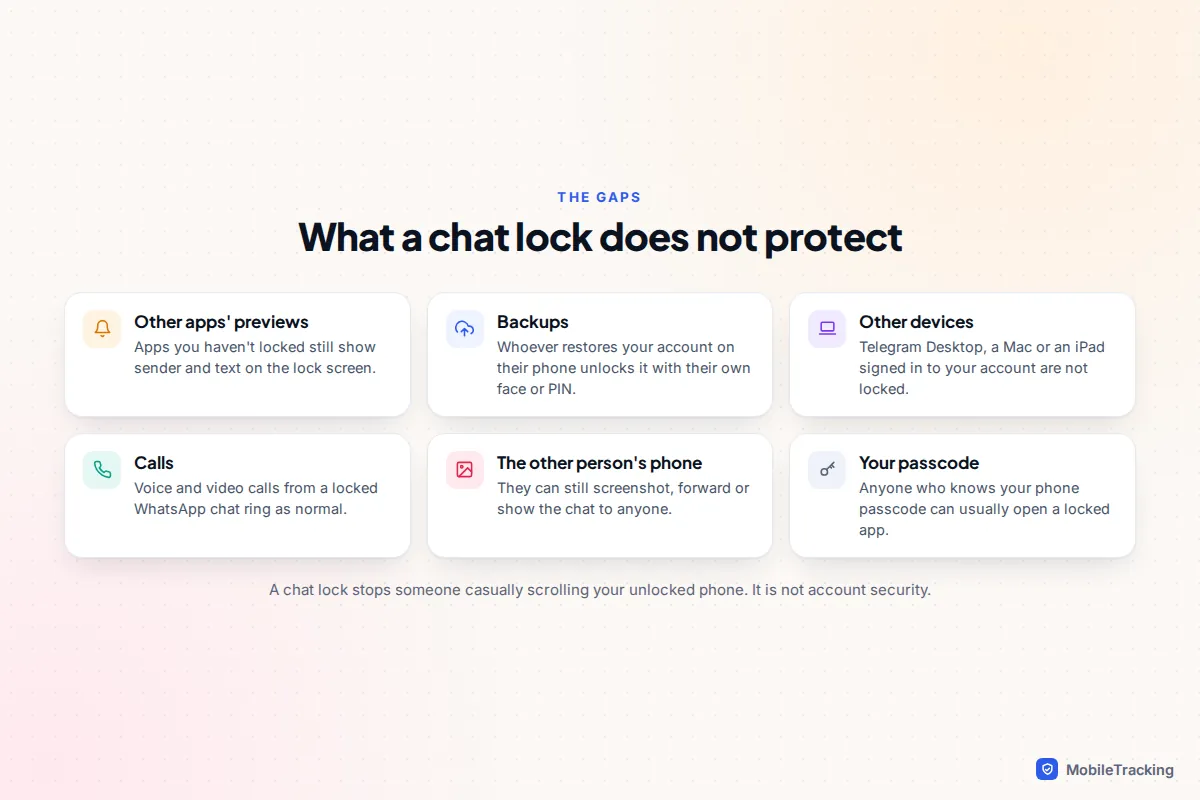
Most guides skip this part, and it is where locked chats leak.
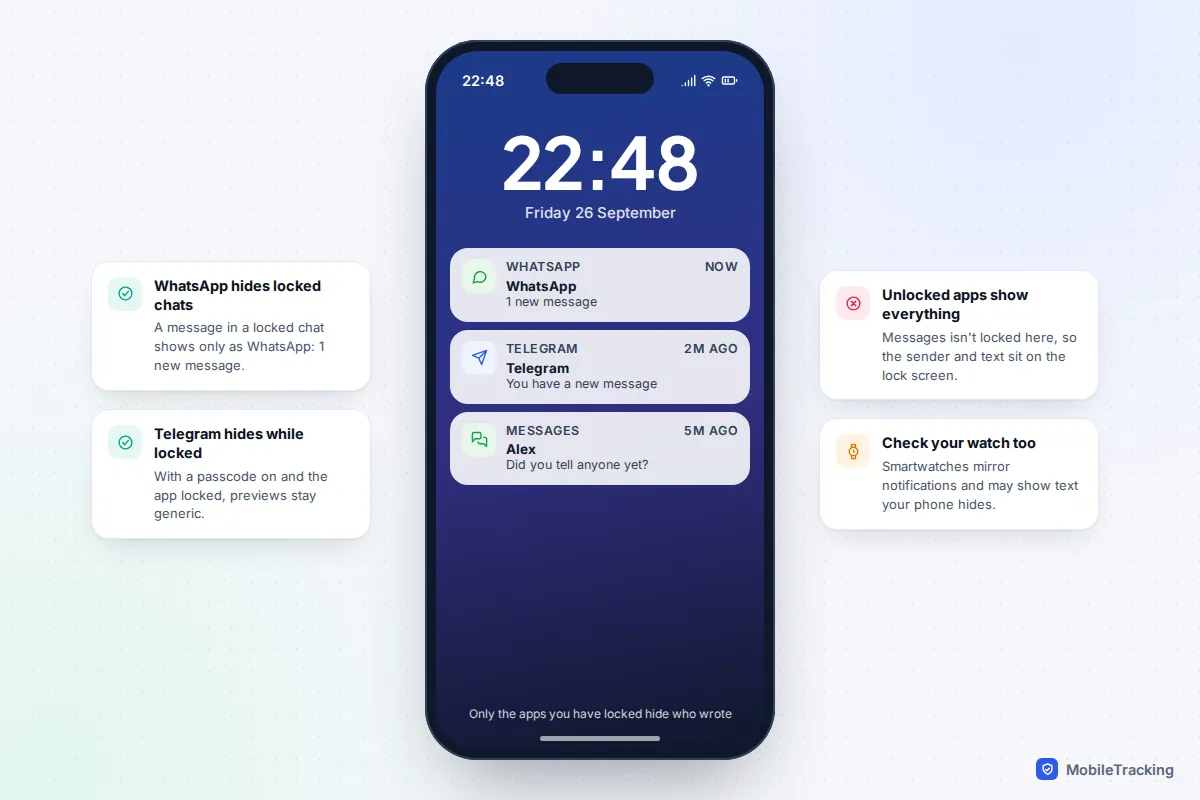
Notification previews. WhatsApp handles this well: a message in a locked chat appears only as “WhatsApp: 1 new message”. Telegram keeps previews generic while its passcode lock is active, and so does a locked Messages app on iPhone. Signal controls previews separately, under Settings › Notifications. The usual leak is an app you didn’t lock: a private conversation that carries on in Instagram or texts still shows its sender and first line on the lock screen. A paired smartwatch may show more than your phone does, too.
Backups. WhatsApp says locked chats stay locked after you restore a backup to a new phone, but that lock then opens with the new phone’s face, fingerprint or PIN. Anyone who can take over your number and restore your backup can read everything. Two-step verification (Settings › Account › Two-step verification) and an end-to-end encrypted backup are what stop that, not chat lock.
Linked and synced devices. WhatsApp Web asks for your secret code, but Telegram Desktop, Signal Desktop and Messages on a Mac or iPad have no idea you locked anything on your phone. Sign out of any you don’t recognise.
The other person’s phone. They can screenshot or forward the conversation. A lock protects your copy, nothing more.
If you’re a parent and your child locks their chats
Finding a Locked chats folder can feel alarming, but the explanation is usually ordinary: a nosy younger sibling, a friend’s secret, a crush. WhatsApp’s minimum age is 13, and for a teenager some private space is a normal part of growing up.
What deserves attention is a combination of signs rather than the lock itself: secrecy together with a new, older contact, gifts or money from someone online, sudden mood changes, or being asked to move to another app. Our list of red flags in your child’s chats sets these out. No parental control app can read inside end-to-end encrypted chats, locked or not, so talking does more than any tool.
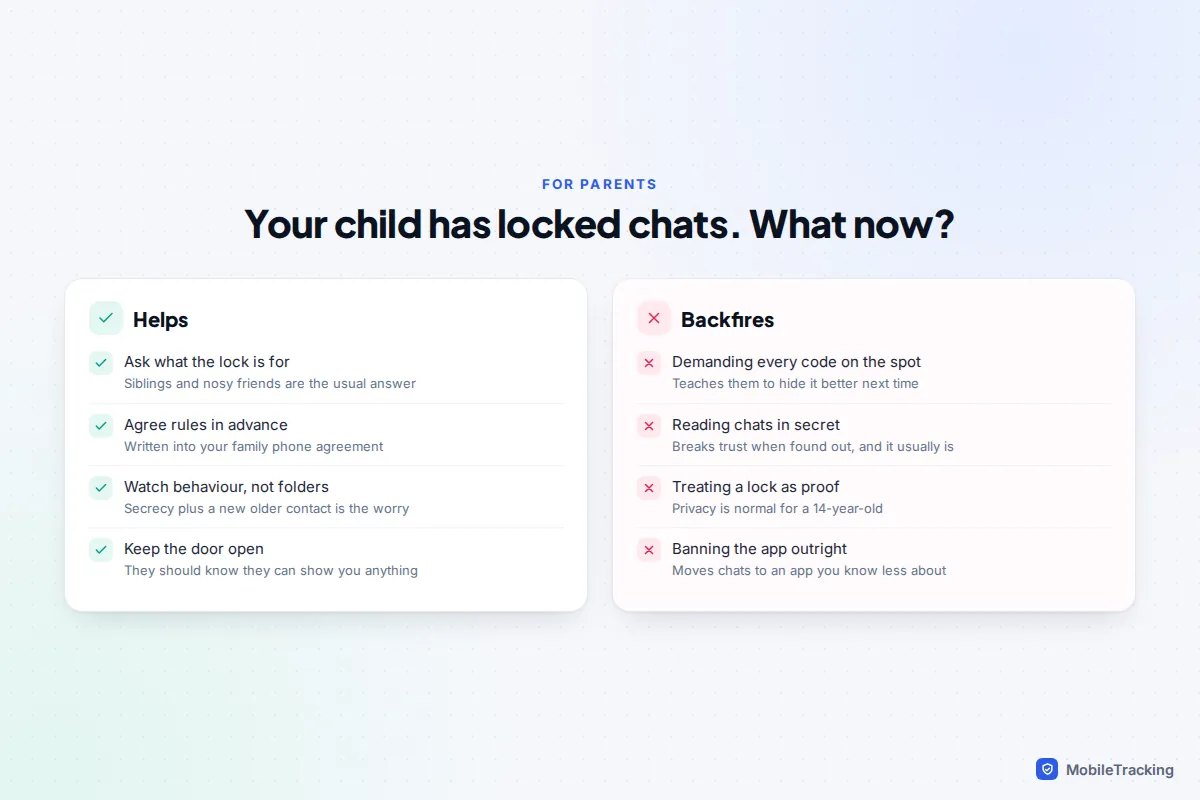
For younger children it is reasonable to agree that there are no locked chats on the phone you provide, and when that will change. For a teen, it can look like this: Maya, 14, locks a group chat. Her dad asks what it is, she says it’s planning a friend’s surprise party, and he leaves it there, because they agreed she would show him anything that made her uncomfortable. That agreement does the protective work, not the lock.
Frequently asked questions
Can the other person tell I’ve locked our chat?
No. In WhatsApp and Instagram, locking a chat changes only your copy. Messages, calls and read receipts work exactly as before.
Why don’t I see Chat lock in WhatsApp?
Update WhatsApp first, then make sure your phone has a screen lock set, because WhatsApp needs it. On WhatsApp Web and desktop you can right-click a chat to lock or unlock it, but the secret code those devices ask for has to be created on your phone.
Can I lock a single text conversation on iPhone or in Google Messages?
Not as of September 2026. Neither Apple Messages nor Google Messages can. Lock the whole app instead: Require Face ID on iPhone, or Secure Folder, Private space or your phone’s app lock on Android.
What happens to locked chats if I get a new phone?
WhatsApp locked chats come across in your normal chat backup and stay locked on the new phone, opening with that phone’s biometrics or PIN. Telegram’s passcode is tied to one device, so set it again on the new phone.
Is locking a chat the same as archiving it?
No. Archiving just moves a chat out of your main list and anyone can open the archive in two taps. Locking puts it behind your fingerprint, face or PIN.
This guide is general information, not legal or financial advice. Read our editorial policy.