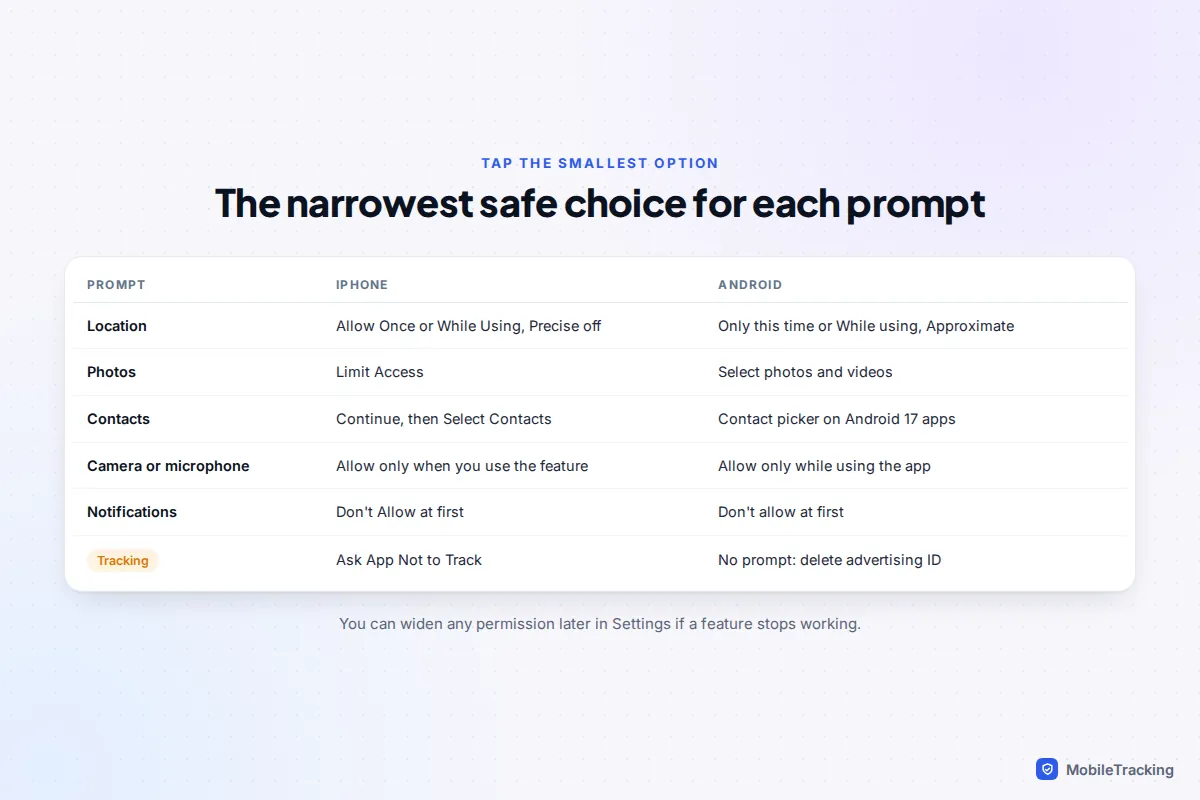
When an app asks for a permission, check three things before you tap: which feature needs it, whether the request arrived at the moment you used that feature, and whether there is a narrower option on the screen. Nearly every prompt on iPhone and Android now offers one: Allow Once or While Using instead of always, approximate instead of precise location, a few chosen photos instead of your whole library, and on iPhone Select Contacts instead of your whole address book. Pick the narrowest option that still makes the feature work. You can widen it later if something breaks.
Below: what each prompt means, Android’s “special access” settings that deserve the most suspicion, a red-flags table, and where to review what you have already allowed.
The three-question test before you tap Allow
Apps often show their own screen first to nudge you towards Allow. The system prompt that follows is the one that matters.
- What will this let the app do? Translate the permission into plain words: “see every photo I have ever taken”, “know where I am when the app is closed”.
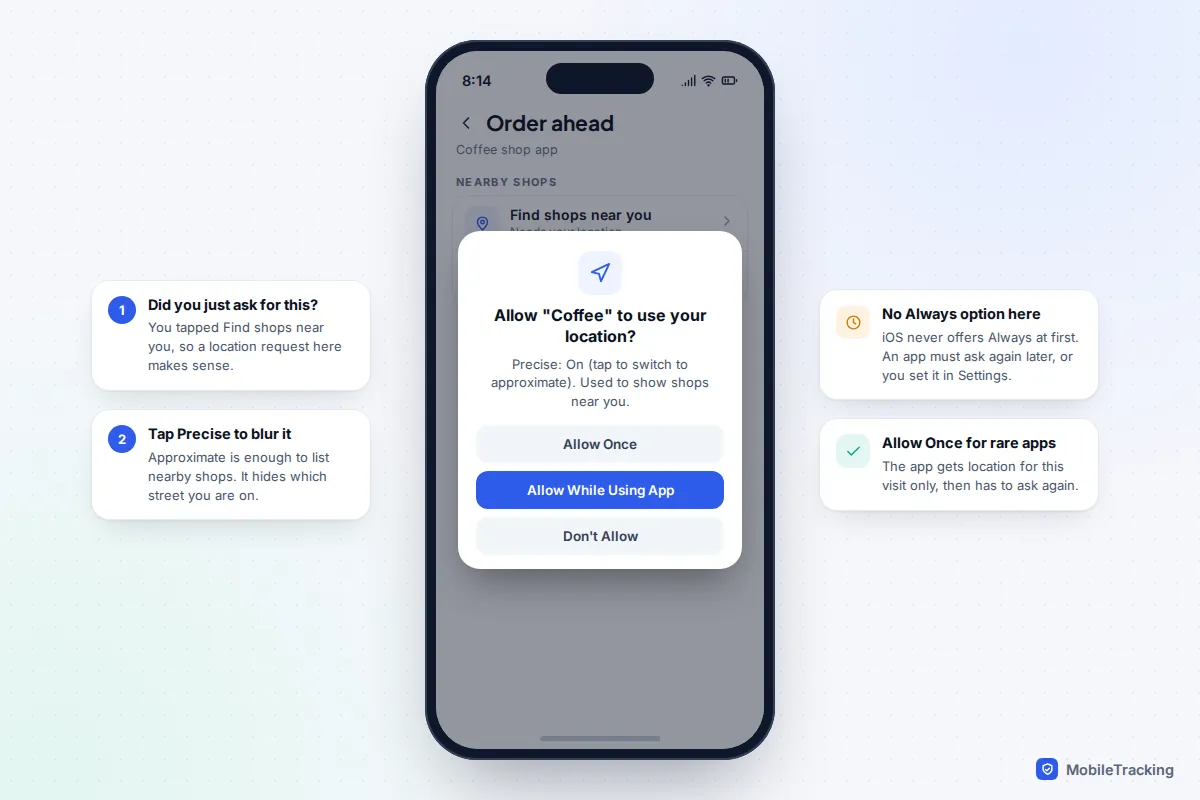
- Did I just ask for this? A camera request when you tap the scan button makes sense. A camera request on the welcome screen, before you have done anything, is a warning sign.
- What is the smallest option? Look for Once, While Using, Approximate, Select or Limit. If there is none, Don’t Allow is safe to try first: the app keeps working and can ask again when a feature needs it.
Location: precise, approximate and “always”
Location prompts combine two separate decisions: when the app can see where you are, and how precisely.
On iPhone the first prompt offers Allow Once, Allow While Using App and Don’t Allow. Always is never offered at first. An app has to ask again later, or you have to choose it in Settings › Privacy & Security › Location Services. The small Precise: On label on the map in the prompt can be tapped to switch to approximate. On Android the prompt offers While using the app, Only this time and Don’t allow, with two pictures above them for Precise and Approximate. Allow all the time only appears on the app’s permission page in Settings.
Approximate is enough for weather, local news and shop finders. Precise is needed for directions, taxis and deliveries. “Always” is needed only by apps that work while you are not looking at them, such as family location sharing or run tracking. A shopping or game app asking for it is overreaching.
iOS periodically shows a map of where an “always” app has used your location in the background and asks whether to keep allowing it. Treat that as a free audit. If you want to block one app without touching the rest, our guide to turning off location for a single app walks through every level.
Camera, microphone, photos and contacts
Camera and microphone
These are simple Allow or Don’t Allow choices, so context is everything: a video-calling app needs both, a photo editor usually neither. Both systems show a live indicator while either is in use: on iPhone a green dot for the camera and an orange dot for the microphone, and on Android a green icon in the status bar. Android also has Camera access and Microphone access tiles in Quick Settings that block every app at once. If you have wondered whether apps listen through the mic for ad targeting, we look at the evidence in what’s real about phones listening to you.
Photos: limited access is the default you want
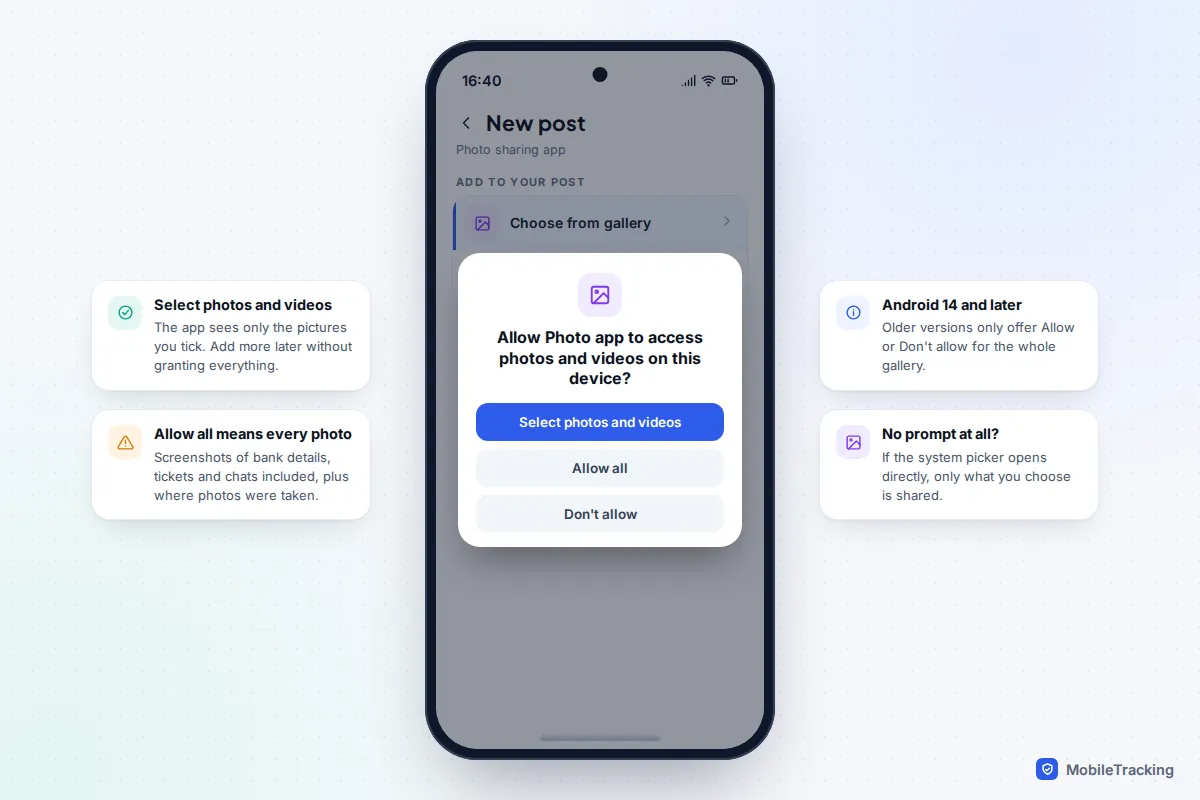
Many apps need no photo permission at all: when an app opens the system photo picker, only the pictures you choose are shared. A prompt appears only when the app wants ongoing access to your library.
On iPhone the prompt offers Limit Access (you pick which photos), Allow Full Access or Don’t Allow. In Settings › Privacy & Security › Photos, each app shows Limited Access, Full Access, None or, for some apps, Add Photos Only, which lets an app save pictures without seeing your library. On Android 14 and later the prompt offers Select photos and videos, Allow all and Don’t allow.
Full access matters more than people think: photos often carry the place they were taken, and screenshots can include bank details and private messages. Only a backup app or gallery replacement truly needs everything.
Contacts: now you can share just a few
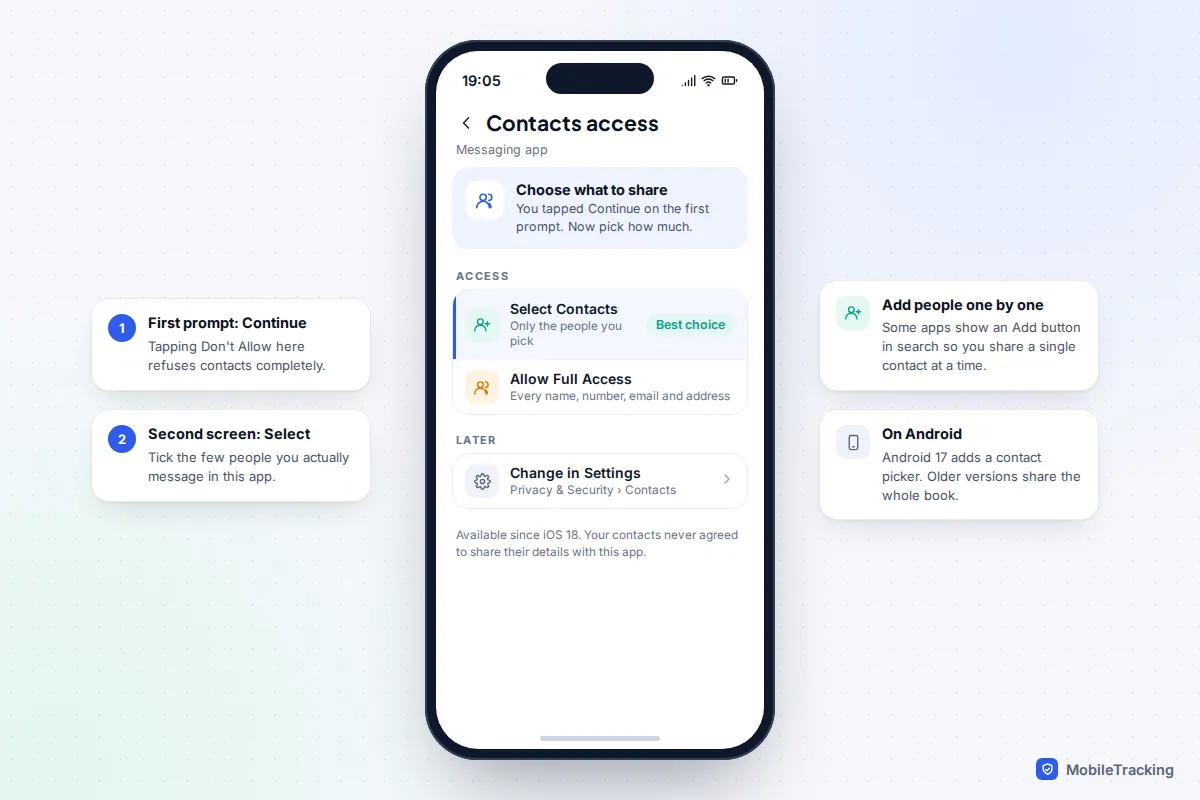
Your address book holds other people’s details, so a contacts request deserves extra thought. Since iOS 18, tapping Continue on a contacts prompt leads to a second choice: Select Contacts or Allow Full Access. Change it later in Settings › Privacy & Security › Contacts.
On Android, contacts were all-or-nothing until Android 17 added a system contact picker that hands an app only the people you choose. Apps must be updated to use it; Google Play will require that from January 2027 for apps targeting Android 17, unless they genuinely need everything. On older versions, a contacts prompt means the whole address book.
Bluetooth, local network, notifications and tracking
Bluetooth. On iPhone the prompt reads “would like to use Bluetooth”. It is expected from headphone, fitness band and car apps. On Android it appears as Nearby devices. Before Android 12, Bluetooth scanning required location permission, because nearby beacons can reveal where you are, which is why older headphone apps asked for location.
Local network. On iPhone the prompt says the app “would like to find and connect to devices on your local network”. That is normal for casting to a TV, a speaker or a printer. From other apps, refuse: a list of the devices in your home is a useful fingerprint for advertisers. Android 17 adds a comparable permission, grouped under Nearby devices.
Notifications. Low risk for privacy, high risk for your attention. It is fine to say no on day one and switch them on later for apps that earn it.
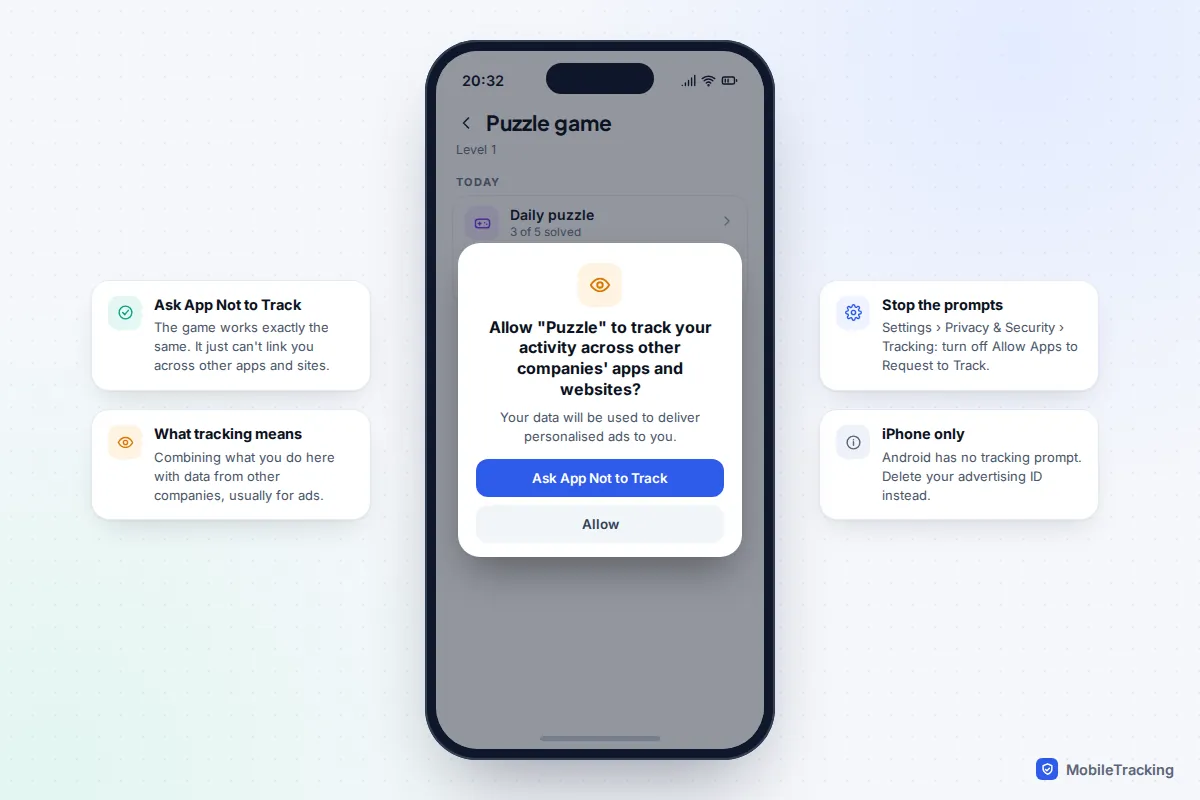
Tracking (iPhone only). The App Tracking Transparency prompt asks whether the app may “track your activity across other companies’ apps and websites”. Tap Ask App Not to Track. The app works the same; it just can’t link your activity in it with other companies’ data for advertising. To stop these prompts entirely, turn off Allow Apps to Request to Track in Settings › Privacy & Security › Tracking (Apple explains the details in what happens when an app asks to track you). Android has no equivalent prompt; the closest step is Delete advertising ID, found by searching Settings for “Ads”.
Android’s special access: the permissions to question hardest
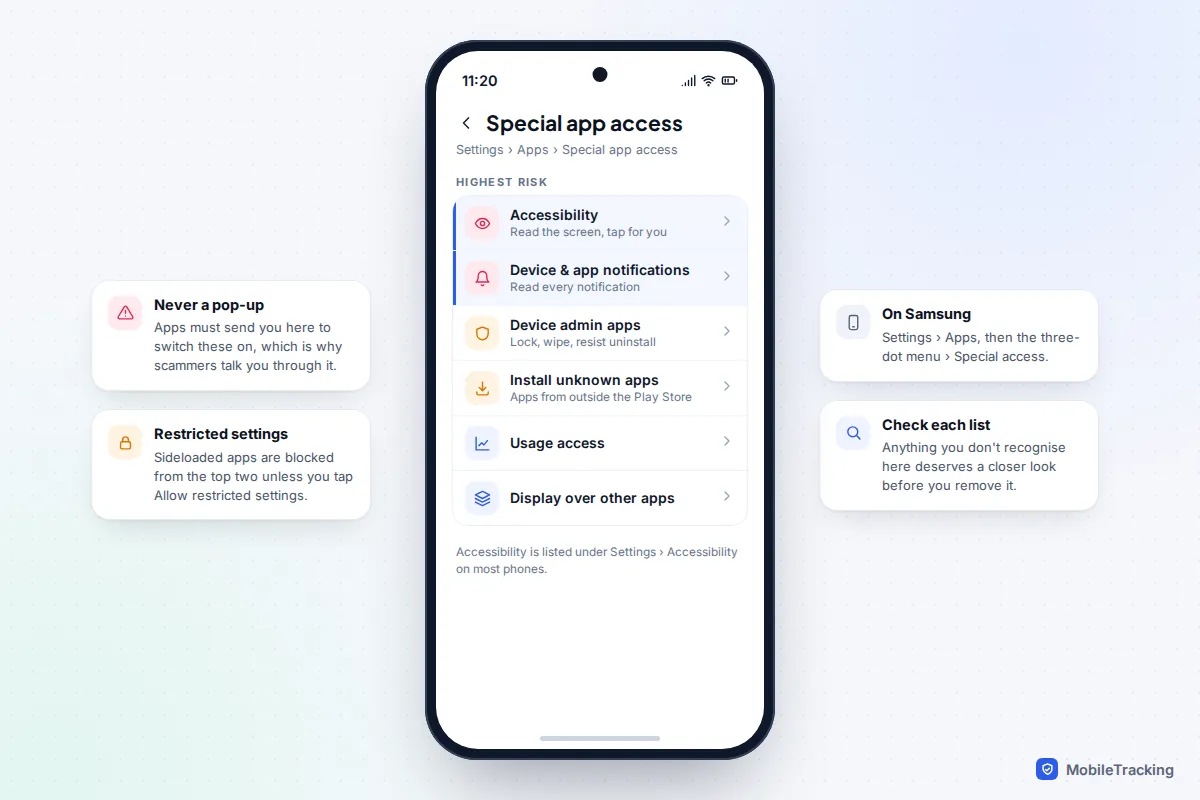
A second group of Android permissions, called special app access, never pops up. The app sends you into Settings to flip a switch yourself. These are the most powerful controls on the phone, and exactly what scam apps, stalkerware and banking malware try to talk people into granting.
Find them on a Pixel in Settings › Apps › Special app access, and on a Samsung in Settings › Apps, then the three-dot menu, then Special access. Accessibility lives separately in Settings › Accessibility, under installed or downloaded apps. Labels vary slightly between makers.
| Special access | What it really allows | Legitimate uses |
|---|---|---|
| Accessibility | Read everything on screen and tap or type for you | Screen readers, switch control, some parental-control and automation apps |
| Notification access (Device & app notifications on Pixel) | Read every notification, including message previews and sign-in codes | Smartwatches, car systems |
| Device admin apps | Lock or wipe the phone, resist being uninstalled | Work phones managed by an employer, some security apps |
| Install unknown apps | Install apps from outside the Play Store | Rarely needed; grant to one source briefly, then turn off |
| Usage access | See which apps you use and for how long | Screen-time and battery tools |
| Display over other apps | Draw on top of other apps, including fake login boxes | Chat bubbles, screen dimmers |
Android 13 and later add a safeguard called restricted settings: if an app was installed from a website or file rather than an app store, its switches for accessibility and notification access are greyed out. Unlocking them requires going to the app’s info page, tapping the three-dot menu and choosing Allow restricted settings. If anyone on the phone, in a message or on a website is walking you through that menu, stop. It is a common step in scams.
If you find an app you don’t recognise holding accessibility, notification access or device admin, read our guide on what to do if you think you have spyware before removing it. If someone else may have installed it, removing it can alert them, so make a safety plan first.
Red flags: when a request doesn’t fit the app
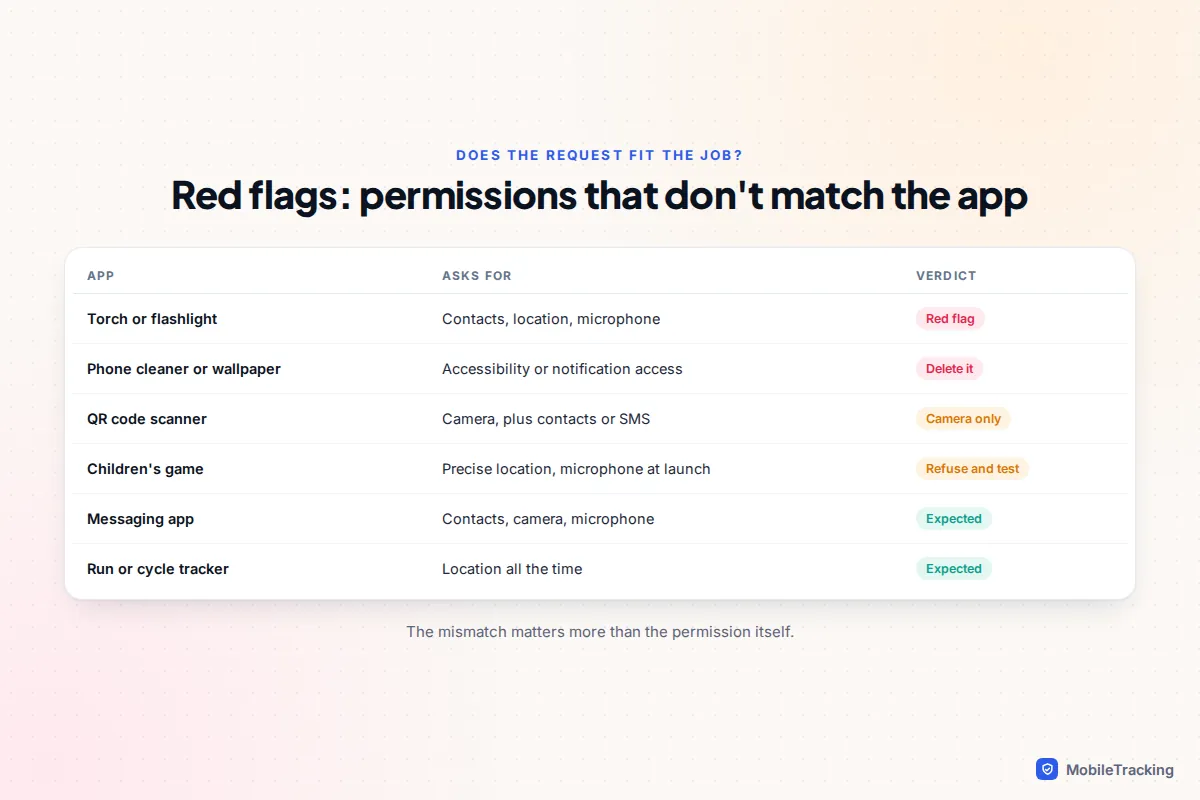
The same permission can be normal in one app and alarming in another. Judge the match between the app’s job and its request.
| App | Asks for | Verdict |
|---|---|---|
| Torch or flashlight | Contacts, location, microphone | Red flag: a torch needs nothing |
| Calculator, wallpaper or “phone cleaner” | Accessibility, notification access or device admin | Delete it |
| QR code scanner | Camera (fine), contacts or SMS (not fine) | Camera only, or use the built-in camera app |
| Children’s game | Precise location, microphone at launch | Refuse; it usually still works |
| Messaging app | Contacts, camera, microphone | Expected. On iPhone, use Select Contacts |
| Run or cycle tracker | Location all the time, physical activity | Expected, to record with the screen off |
Check the label before you install
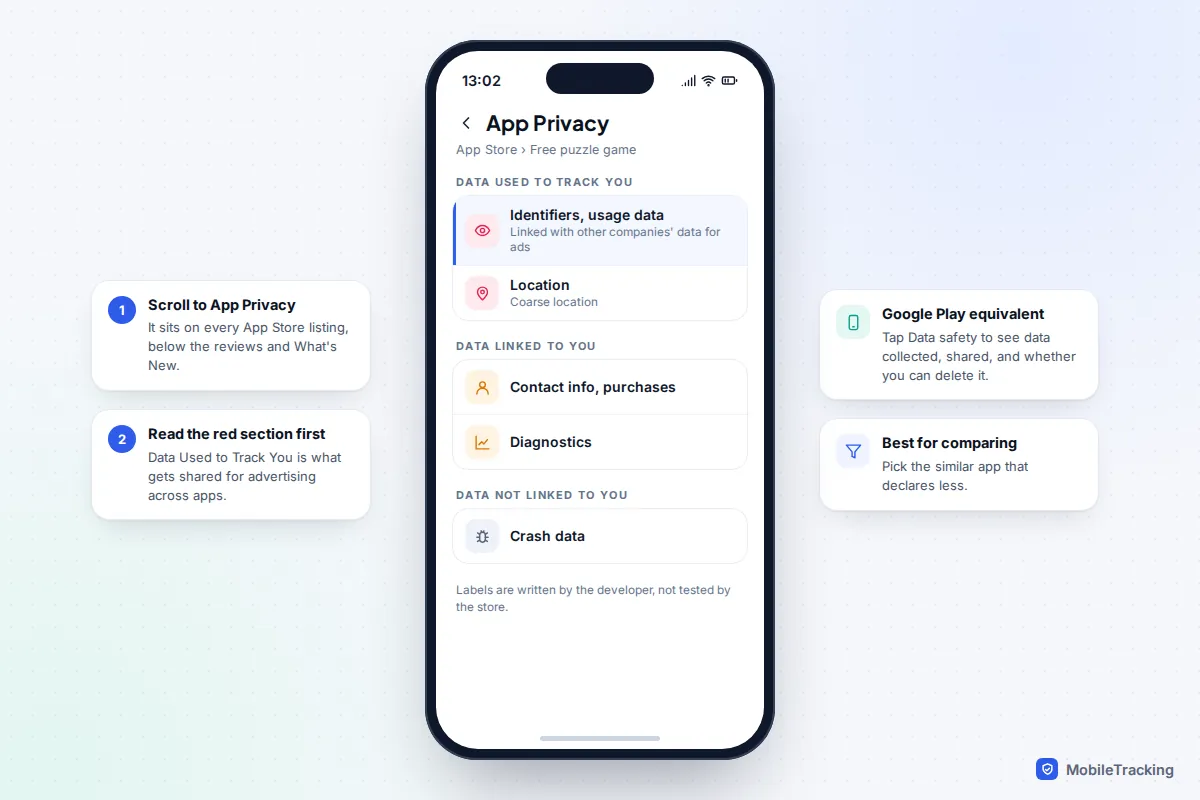
You can often spot a bad fit before installing. On the App Store, scroll an app’s page to App Privacy, which groups data into Data Used to Track You, Data Linked to You and Data Not Linked to You. On Google Play, tap Data safety to see what is collected, what is shared with other companies, whether data is encrypted in transit and whether you can ask for it to be deleted.
Both are written by the developer. Google says plainly that even its independent security review badge doesn’t verify the accuracy of the Data safety section, as its guide to understanding the Data safety section explains. Labels are most useful for comparing two similar apps: if one torch app declares location and contacts and another declares nothing, the choice is easy.
Review what you have already allowed
Permissions granted years ago stay active. A ten-minute review every few months catches most problems.
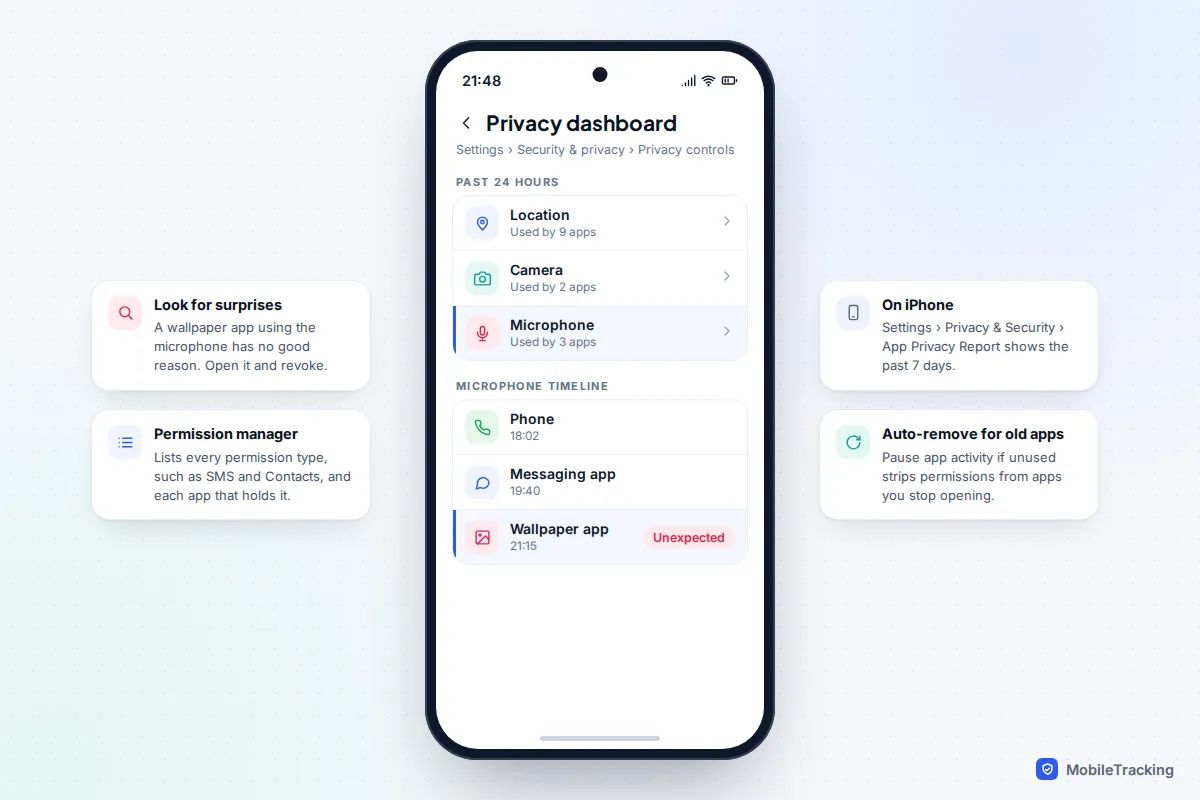
On iPhone, open Settings › Privacy & Security. Each category lists the apps that asked and what each can do. Scroll to the bottom and turn on App Privacy Report to see which apps used your location, camera, microphone, contacts or photos over the past seven days, and which web domains they contacted. Safety Check in the same menu has a Manage Sharing & Access option that walks through every app permission at once.
On Android, the Privacy dashboard shows which apps used location, camera and microphone in the past 24 hours, with a timeline for each. The Permission manager lists every permission type, such as Contacts, SMS and Nearby devices, and every app that holds it. On a Pixel these are under Settings › Security & privacy › Privacy controls; on a Samsung, Settings › Security and privacy › More privacy settings. Also check that Pause app activity if unused (the Pixel label, on each app’s info page) is on, so apps you stop opening lose their permissions.
Permissions on children’s phones
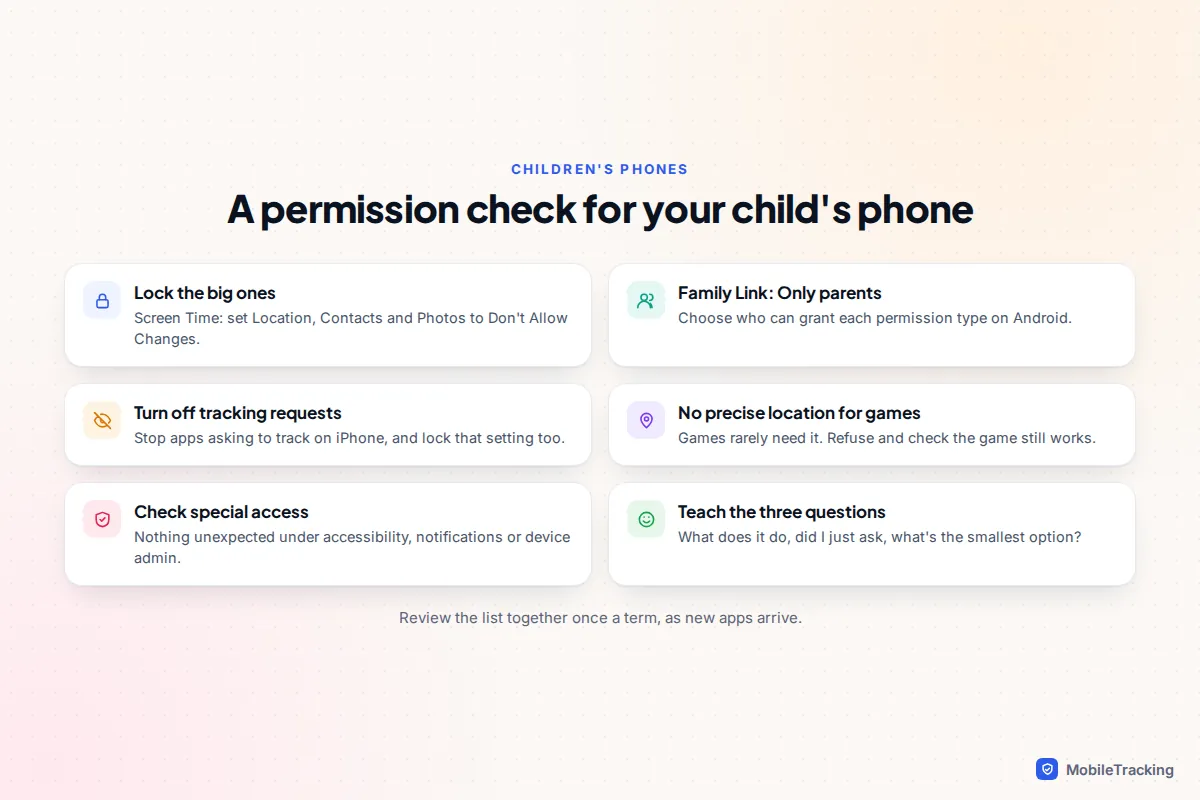
Children tap Allow to make prompts go away, which is how a game ends up with precise location and the microphone. Control the settings yourself, and teach the three-question test so the habit outlasts parental controls.
With Google Family Link on Android, you can review each app’s permissions and, for each permission type, choose Only parents so your child can’t grant it to any new or current app. Google’s help page on managing your child’s app permissions shows both routes. On iPhone, go to Screen Time › Content & Privacy Restrictions on your child’s device or through Family Sharing, and set items such as Location Services, Contacts, Photos and Allow Apps to Request to Track to Don’t Allow Changes once they are set the way you want.
Scenario: Maya, who is ten, installs a drawing app that asks for contacts, location and the microphone on its first screen. Run the three questions together: drawing needs none of those, so all three become Don’t Allow, and the app works perfectly. Our guides to what apps collect about children and setting up parental controls on Android take it further.
Frequently asked questions
Will an app stop working if I deny a permission?
Usually only the feature that needs it stops working, and well-made apps ask again when you tap that feature. If an app refuses to open at all without an unnecessary permission, that tells you something about its priorities.
Why does an app keep asking after I said no?
On iPhone, an app can show the system prompt only once; any repeat requests are the app’s own screens, which you can ignore. On Android, after you refuse the same permission twice, the system stops showing the prompt and the app must send you to Settings instead.
Should I just deny everything?
Deny by default, then allow when a feature you want needs it. That way each permission you grant has a reason you can remember when you review the list later.
Can a permission let an app read my messages?
On Android, yes: the SMS permission lets an app read texts, and notification access lets it read message previews from any app, including one-time sign-in codes. On iPhone, apps have no permission that reads your Messages or other apps’ notifications. That is why the Android special access list deserves the closest look.
This guide is general information, not legal or financial advice. Read our editorial policy.