
Every major browser has a delete button a few taps away. On an iPhone, go to Settings > Apps > Safari > Clear History and Website Data. In Chrome on any device, open the three-dot More menu and choose Delete browsing data. On a computer, Ctrl+Shift+Delete (Cmd+Shift+Delete on a Mac) opens the same screen in Chrome, Edge and Firefox. Choose a time range, tick what you want gone and confirm.
Before you tap, know that this clears the record kept by that browser, and usually by every device signed in to the same account. It does not clear your Google search activity saved to your account, what your broadband provider or a school network can see, or reports kept by Screen Time and parental-control tools. The sections below cover each browser, then each of those gaps.
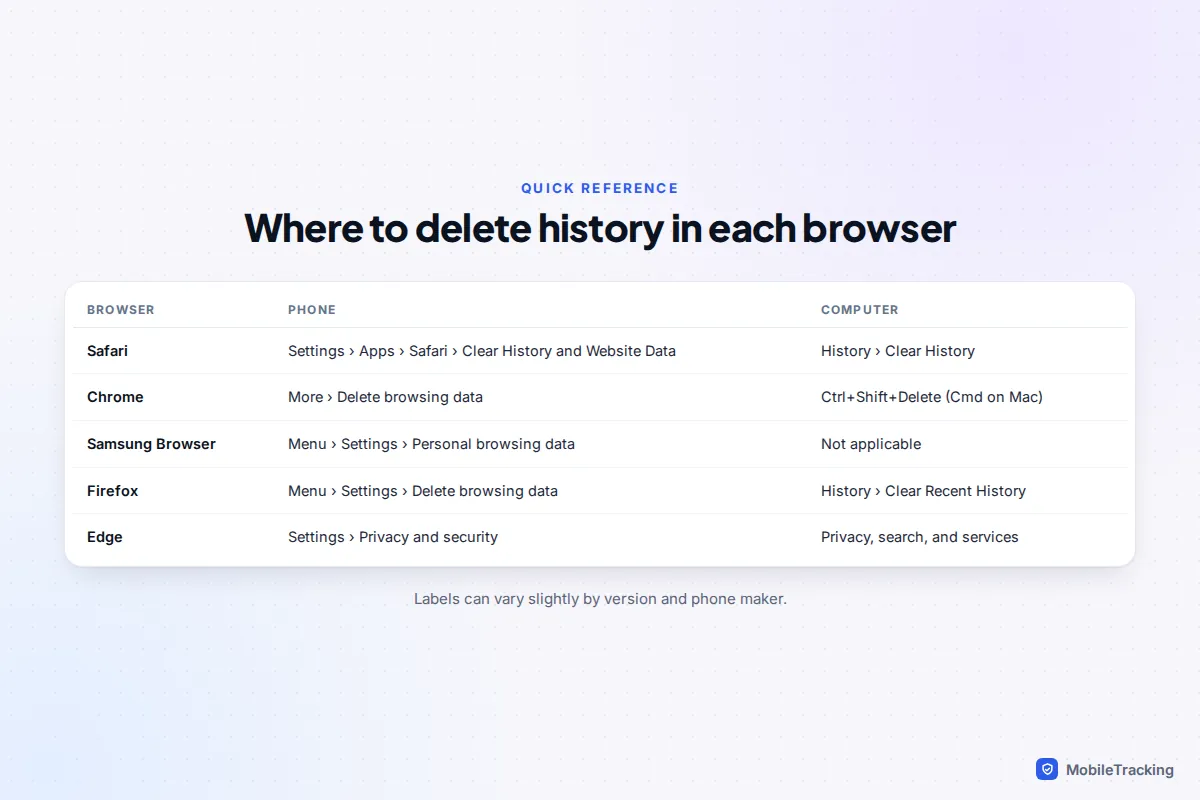
Pick the right time range first
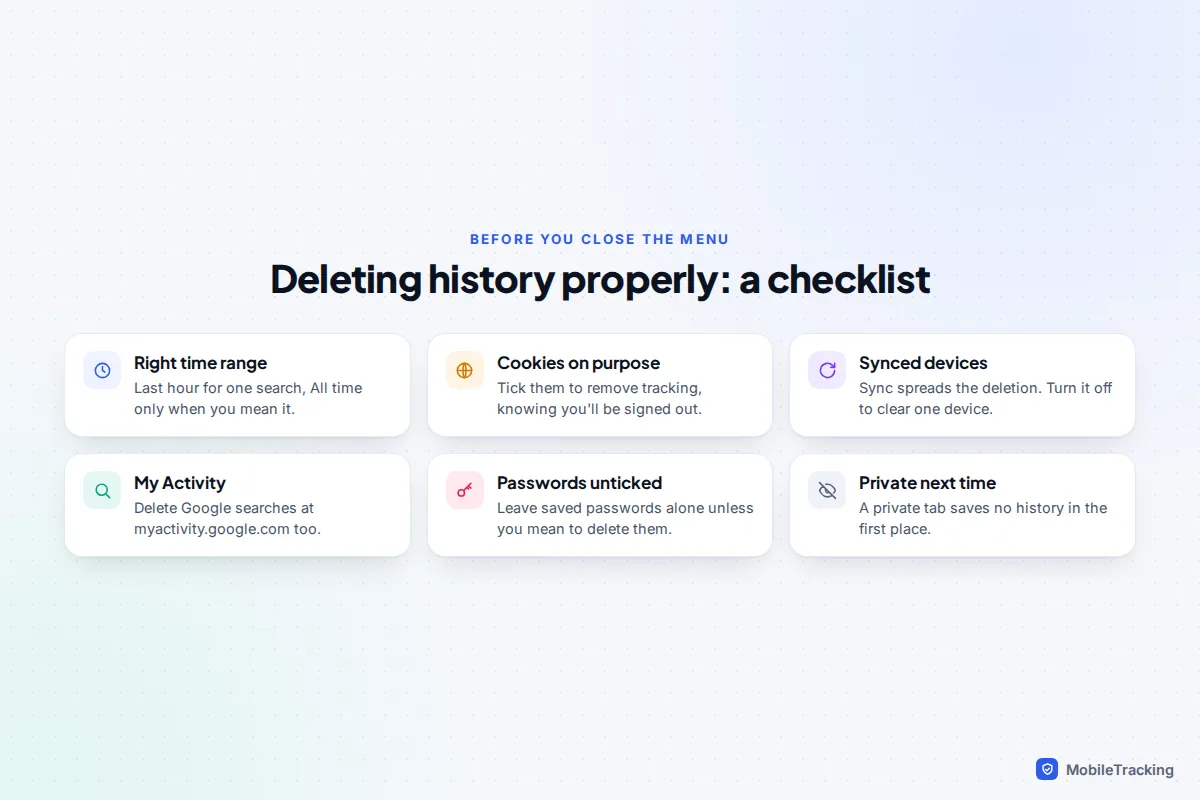
Most people only want to remove a recent search or a gift they have been browsing, not years of history. Every browser now lets you choose. Chrome on a phone defaults to the last 15 minutes and offers the last hour, 24 hours, 7 days, 4 weeks or all time. Safari offers the last hour, today, today and yesterday, or all history. Firefox on a computer offers the last hour, two hours, four hours, today or everything.
A smaller range also avoids side effects. Clearing all cookies signs you out of almost every website (our guide to clearing cookies on your phone browser explains when that is worth it), and in some browsers the same screen can delete saved passwords and autofill details if those boxes are ticked. If you only want to remove one or two websites, delete those entries from the History list instead, as described for each browser below.
Safari on iPhone, iPad and Mac
iPhone and iPad (iOS 18 and iOS 26)
- Open Settings, scroll down and tap Apps, then Safari.
- Tap Clear History and Website Data.
- Choose a time frame: Last hour, Today, Today and yesterday, or All history.
- If you use Safari profiles, pick one profile or All Profiles. You can also turn on Close All Tabs.
- Tap Clear History.
This removes history, cookies and cached files but keeps your AutoFill details. To delete single websites instead, open Safari, tap the three-dot More button (iOS 26) or the Bookmarks button (iOS 18), choose Bookmarks, then the clock tab for History. Swipe left on an entry to delete it, or tap Clear for the same time-range options.
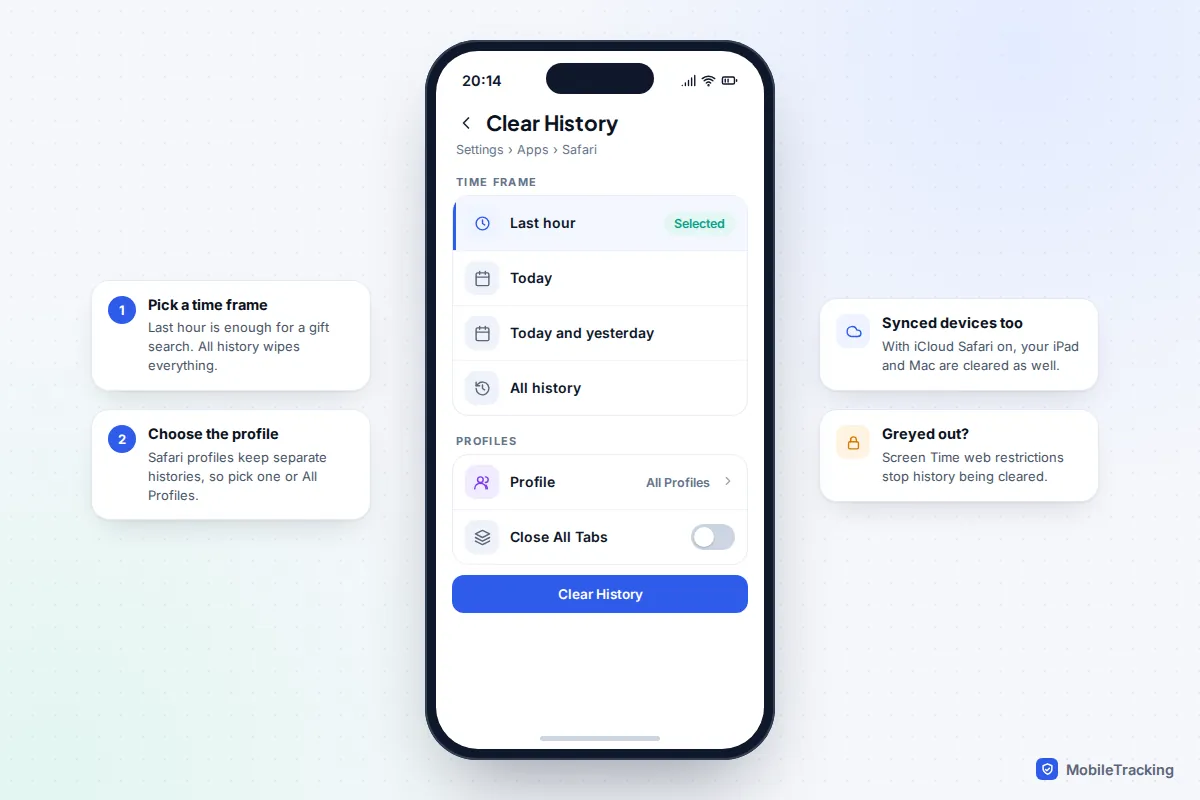
If the button is greyed out, there may be nothing to clear, or Screen Time has web content restrictions switched on. Apple blocks history clearing when adult websites are limited, so a parent can still see what was visited. That is by design, not a fault.
Mac
In Safari, choose History > Clear History, pick a range from the pop-up menu and click Clear History. Apple lists what goes: the pages you visited, recent searches, frequently visited sites, the list of downloads (not the files themselves) and websites that asked for your location or permission to send notifications. To remove cookies and website data as well, go to Safari > Settings > Privacy > Manage Website Data.
Chrome on Android, iPhone and computers
Chrome’s option was renamed from Clear browsing data to Delete browsing data, so older guides may use the old label.
Android and iPhone
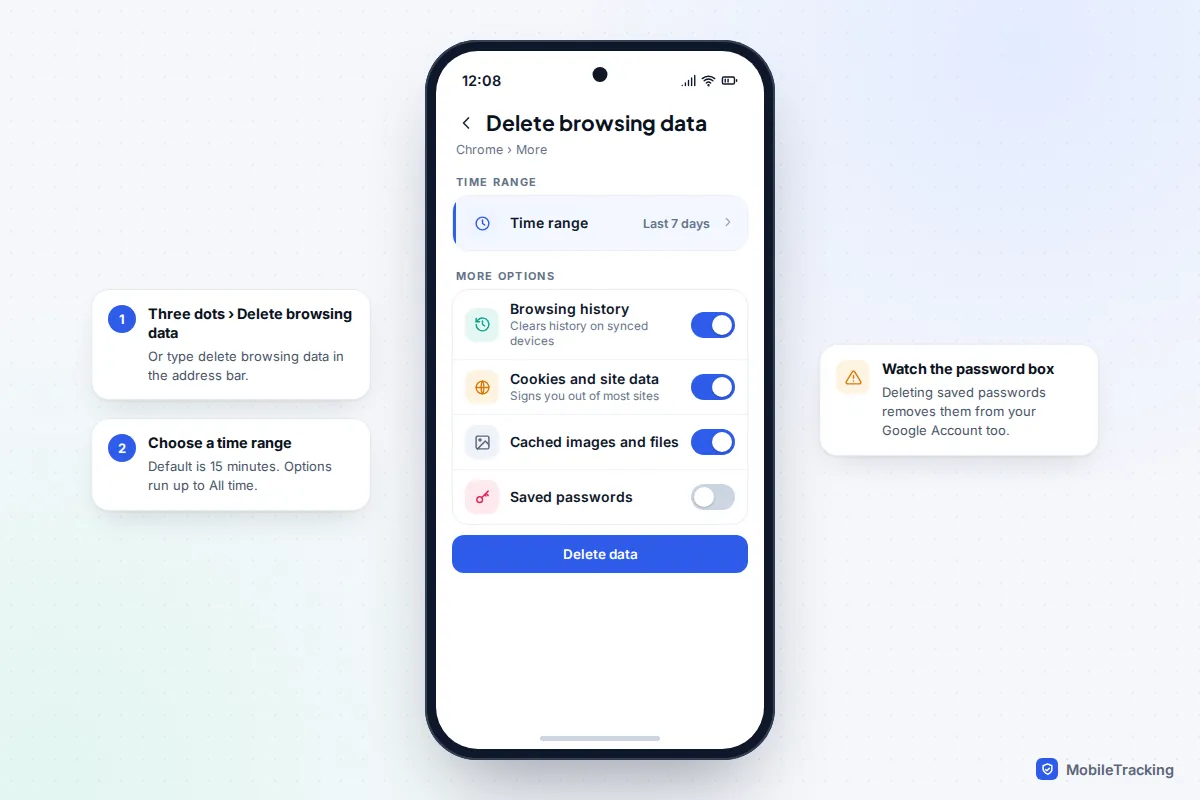
- Open Chrome and tap the three-dot More menu (top right on Android, bottom right on iPhone).
- Tap Delete browsing data. You can also type “delete browsing data” into the address bar and tap the button that appears.
- Choose a time range. The default is the last 15 minutes.
- Tap More options on Android, or Browsing Data on iPhone, to choose which types to remove.
- Tap Delete data (Android) or Delete Browsing Data (iPhone).
Windows, Mac and Chromebook
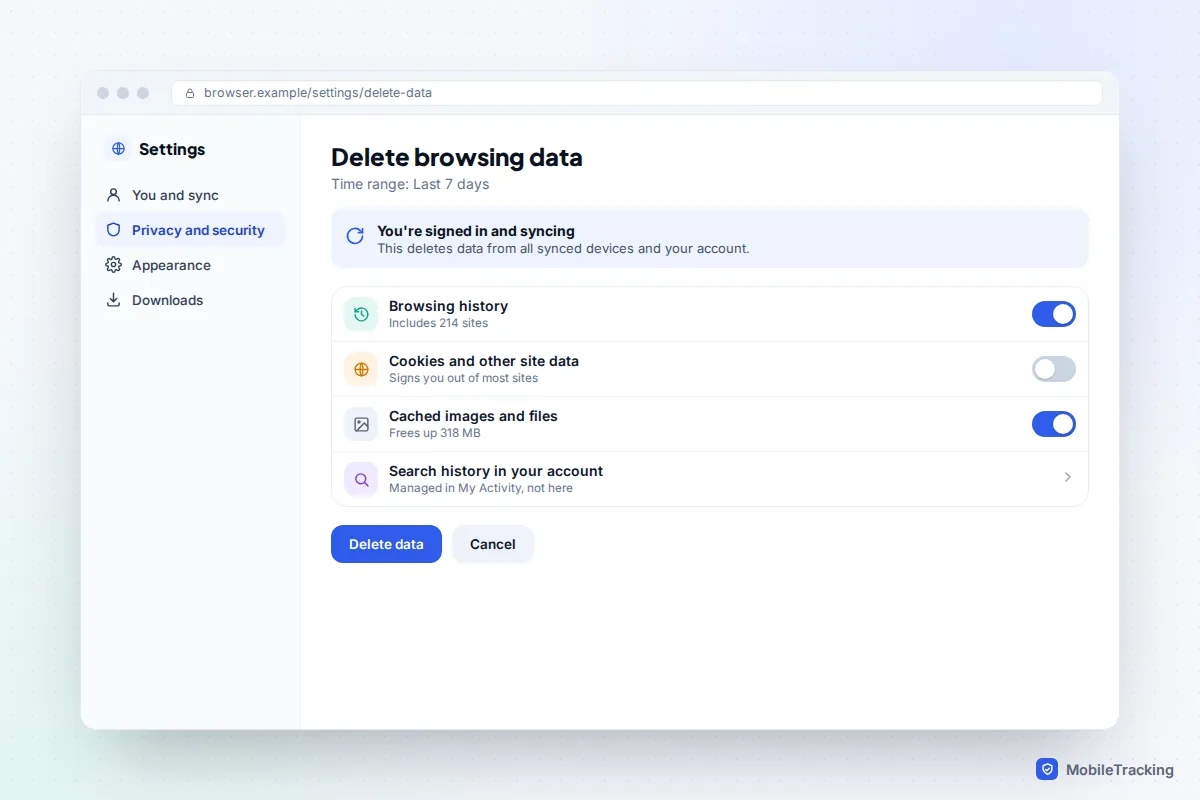
Press Ctrl+Shift+Delete (Cmd+Shift+Delete on a Mac), or open More > Delete browsing data. Pick a time range from Last hour to All time, tick Browsing history, and add Cookies and other site data or Cached images and files if you want those gone. Click Delete data. For single pages, press Ctrl+H to open History, tick the entries and click Delete.
Google is clear that if you are signed in and syncing, Chrome removes the data from your other devices and from your Google Account as well. The one thing this screen does not touch is activity saved to your Google Account by Search and other Google services, covered below.
Samsung Browser, Firefox and Edge
Samsung Browser (Samsung Internet)
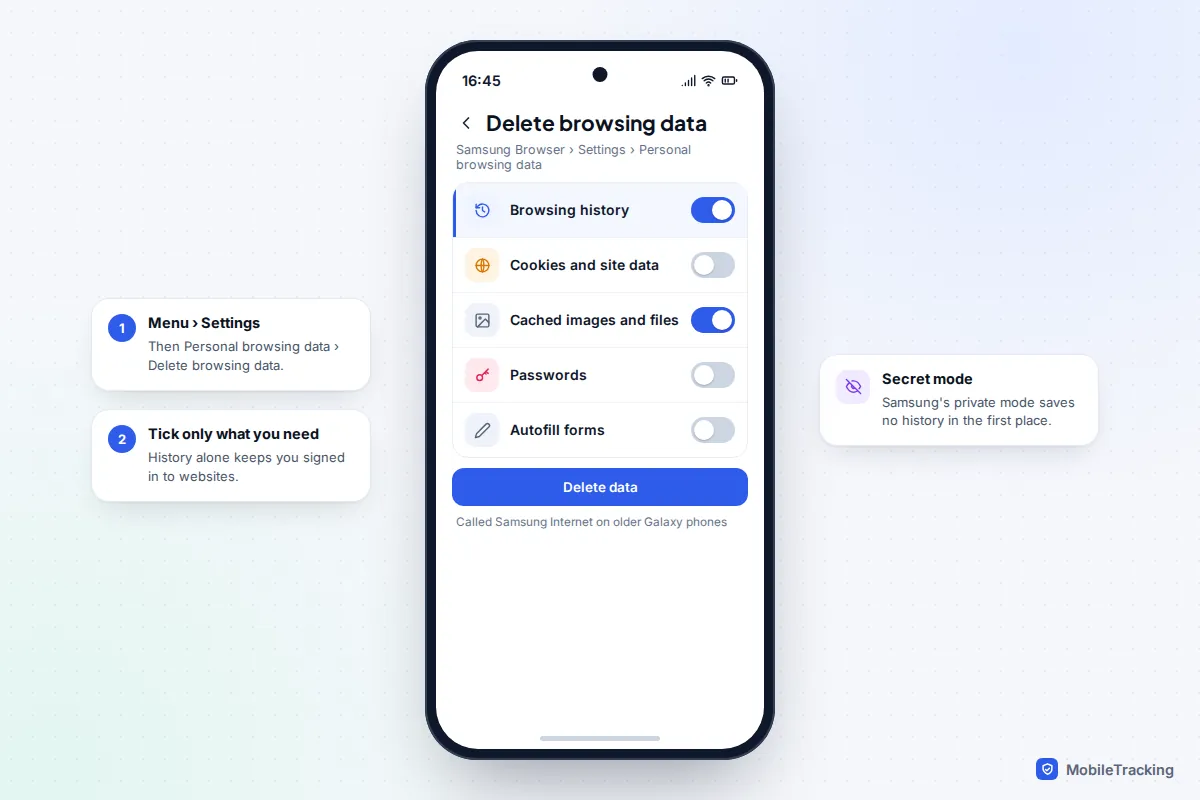
Samsung renamed Samsung Internet to Samsung Browser with One UI 8.5, starting on the Galaxy S26, so older Galaxy phones still show the old name. The steps are the same: open the menu, tap Settings > Personal browsing data > Delete browsing data, tick Browsing history (and Cookies and site data or Cached images and files if you want), then tap Delete data and confirm. Samsung warns you may need to sign back in to websites afterwards.
Firefox
On a computer, open the menu, choose History > Clear Recent History (or press Ctrl+Shift+Delete), pick a time range in the Clear browsing data and cookies window and click Clear. To wipe everything linked to one website, search for it in the History library, right-click it and choose Forget About This Site. On Android, open the three-dot menu, then Settings > Delete browsing data, choose the types and tap Delete browsing data.
Microsoft Edge
Open Settings and more (three dots) > Settings > Privacy, search, and services. Under Clear browsing data, select Choose what to clear, pick a time range, tick the data types and select Clear now. Microsoft notes that with sync on, this clears the data on every synced device. Browsing data saved to your Microsoft account in the cloud is managed separately on Microsoft’s privacy dashboard.
What deleting history doesn’t remove
This is where most people are caught out. The browser’s list is only one of several records of where you have been.
| Where a trace is kept | Cleared by deleting history? | What to do |
|---|---|---|
| Cookies and cached files | Only if you tick them | Tick Cookies and Cached files, or use the website data settings |
| Other devices on the same account | Yes, if sync is on | Turn sync off first if you want to clear one device only |
| Google searches and activity (My Activity) | No | Delete at myactivity.google.com and set auto-delete |
| Broadband provider, school or work network | No | Nothing on your phone can erase their logs |
| Screen Time and parental-control reports | No | These are kept separately so they can’t be wiped from the browser |
| Bookmarks and downloaded files | No | Delete them yourself if needed |
Google My Activity
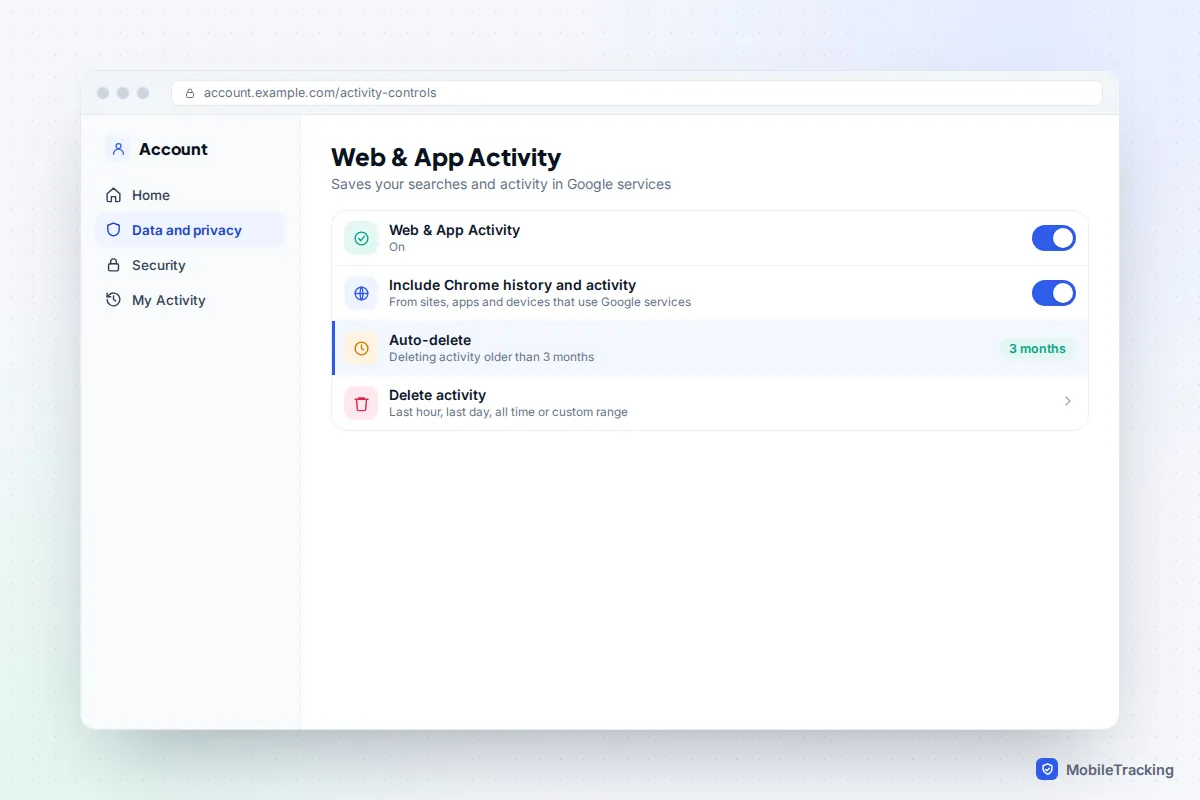
If Web & App Activity is on, Google saves your searches and activity in Google services to your account. If the box labelled Include Chrome history and activity from sites, apps, and devices that use Google services is ticked, synced Chrome history is saved there too. Go to myactivity.google.com, select Delete and choose Last hour, Last day, All time or a custom range. In the Google app on your phone, tap your profile picture and choose Delete last 15 mins for a quick fix. Under Auto-delete, you can have activity removed after 3, 18 or 36 months. Our guide to clearing your search history goes through this step by step.
Your network
Your broadband provider, and whoever runs a school or office Wi-Fi network, can usually see which websites you connect to, even though secure (HTTPS) sites hide the specific pages and what you type. Some home routers keep their own logs as well, which is how parental controls on home Wi-Fi can report on sites visited. Deleting browser history does not reach any of these.
Private browsing: stop history being saved at all
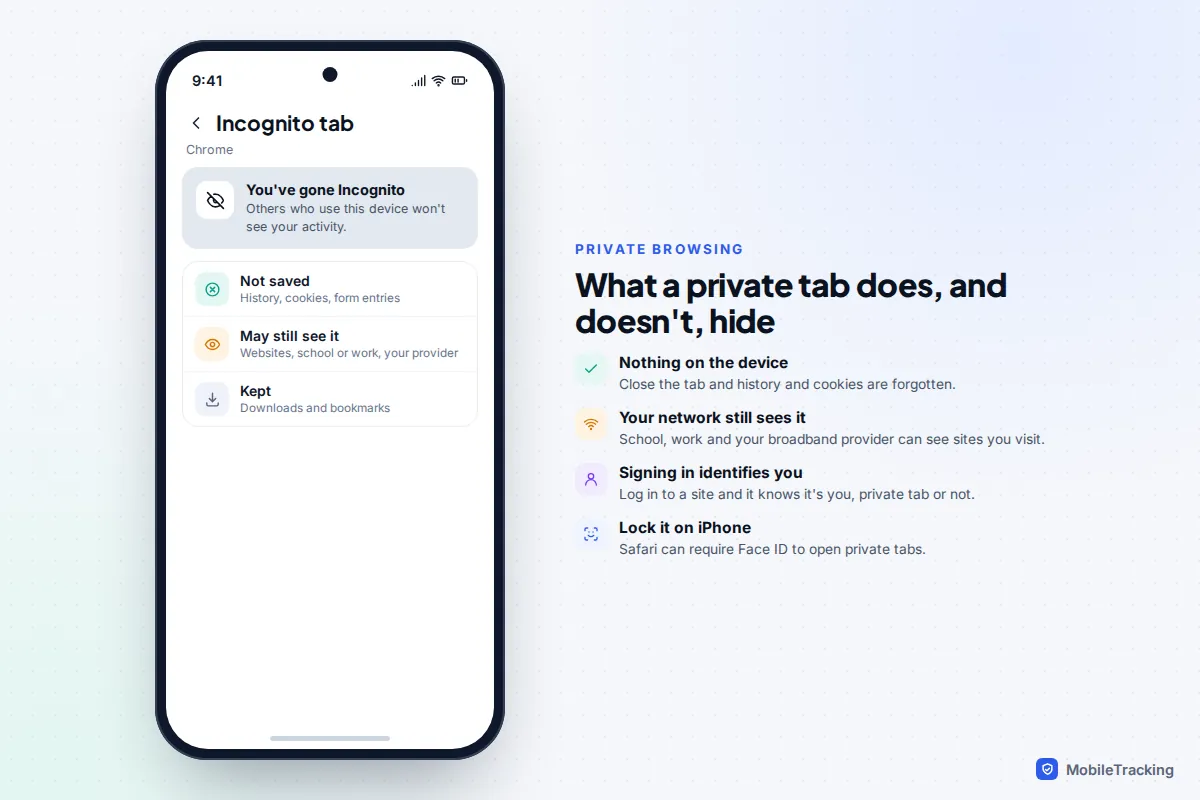
If you do not want a record in the first place, use a private window: Private in Safari, Incognito in Chrome, Secret mode in Samsung Browser, a Private Window in Firefox and InPrivate in Edge. When you close it, the browser forgets the pages you visited and the cookies it collected, but keeps bookmarks you saved and files you downloaded.
Google’s own wording is useful here: websites you visit, and organisations that manage your network such as your school, employer or internet provider, may still be able to see your activity in Incognito. Signing in to a site inside a private window also tells that site who you are. On iPhone, Safari can lock private tabs behind Face ID; turn on Require Face ID to Unlock Private Browsing in Safari’s settings.
For a wider look at the options, including private DNS and tracker blocking, see our guide to browsing privately on your phone.
Make history delete itself automatically
If you would rather not remember to do this, several browsers can clear up for you.
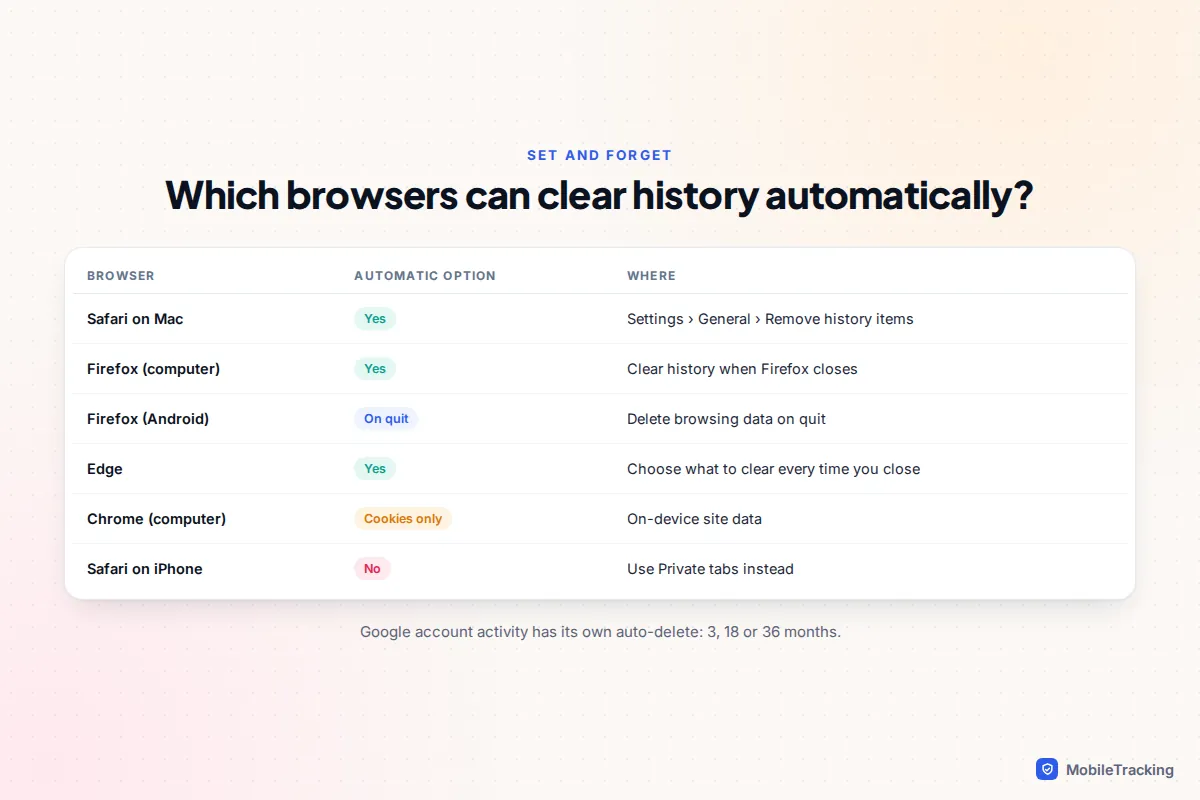
- Safari on Mac: in Safari > Settings > General, set Remove history items to after one day, one week, two weeks, one month or one year.
- Firefox on a computer: in Settings > Privacy & Security, set Firefox will to Use custom settings for history, tick Clear history when Firefox closes and choose what to clear.
- Firefox on Android: in Settings > Delete browsing data on quit, turn the switch on. It only runs when you leave using Quit in the menu, not when you swipe the app away.
- Edge: under Clear browsing data, open Choose what to clear every time you close the browser and turn on the types you want.
- Chrome on a computer: there is no automatic history timer, but Settings > Privacy and security > Site settings > Additional content settings > On-device site data can delete cookies and site data whenever you close all windows. Pair it with Google’s auto-delete for your account activity.
- iPhone Safari and Chrome on phones: no automatic timer. Use private tabs for anything you do not want kept.
Common problems and how to fix them
History comes back after you delete it. Another device signed in to the same account is syncing it back, or you cleared the wrong browser profile. Clear it on the device you use most with sync on, and check Safari profiles or Chrome profiles individually.
Old sites still appear as you type. Suggestions can come from bookmarks, open tabs on other devices or your Google search activity rather than browsing history. Delete the bookmark, close the tabs and clear My Activity.
You are signed out of everything. Cookies were included. Next time untick Cookies and site data and only remove history.
Saved passwords have gone. The Saved passwords box was ticked, which Chrome on phones and Edge both offer. If those passwords were synced to your account, they are removed from every device, so leave that box unticked unless you really mean it.
You need something back. Deleted history can sometimes be found in Google My Activity or on another synced device. Our guide to recovering deleted browser history explains where to look.
A typical case: Priya browsed for a birthday present on the family iPad, which shares an Apple Account with her Mac. She cleared the last hour in Safari settings, which also removed it from the Mac, and deleted two searches from My Activity. She did not tick All history, so nothing else was lost and she stayed signed in everywhere else.
Official instructions from Apple for Safari and Google for Chrome are worth checking if a menu on your device looks different.
Frequently asked questions
Does deleting browsing history delete it from my Google account?
Deleting Chrome history while signed in removes it from your synced Chrome data, but Google searches and other activity saved under Web & App Activity stay until you delete them at myactivity.google.com or auto-delete removes them.
Can my internet provider see my history after I delete it?
Deleting history on your device has no effect on your provider. They can generally see which websites you connected to, though not the pages or content on secure sites.
Why can’t I clear history on my child’s iPhone?
If Screen Time limits adult websites, the Clear History option is greyed out. Parents can change this in Screen Time under Content & Privacy Restrictions, though keeping it on is part of how the web filter works.
Is private browsing the same as deleting history?
The result on your device is similar, because nothing is saved to the history list. Private browsing does not hide you from websites you sign in to, your network or your internet provider.
Does deleting history delete my downloads or bookmarks?
No. Browsers remove the list of downloads but not the files themselves, and bookmarks stay unless you delete them separately.
This guide is general information, not legal or financial advice. Read our editorial policy.